
XCAM720HD - Camcorder Hamlet - Free user manual and instructions
Find the device manual for free XCAM720HD Hamlet in PDF.


| Product Type | Action Camcorder |
| Brand | Hamlet |
| Model | XCAM720HD |
| Display | 2-inch LCD |
| Lens | 110° Wide Angle, focus 20cm to infinity |
| Video Resolution | 1080P (1920x1080) at 20fps, 720P (1280x720) at 30fps, VGA (640x480) |
| Photo Resolution | 12M (4032x3024) to VGA (640x480) |
| File Format | Image: JPG, Video: AVI |
| Self-Timer | 2 seconds, 10 seconds |
| Exposure Compensation | -2.0 to +2.0 EV |
| Microphone / Speaker | Built-in |
| Interface | Micro USB 2.0 |
| Storage | Micro SD HC Class 10 up to 32GB (not included) |
| Battery | Removable Lithium 3.7V 750mAh, up to 90 minutes recording |
| Waterproof Case | Up to 30 meters underwater |
| Dimensions | 59 x 30 x 41 mm |
| Weight | 55 g (with battery) |
| Included Accessories | Waterproof case, USB cable, battery, mounting brackets, straps, etc. |
| Charging Time | Approximately 4 hours |
| Loop Recording | Off, 5 min, 10 min, 15 min |
| Date Stamp | On/Off (video and photo) |
| Burst Mode | 3 photos |
| Languages | English, Chinese, French, Dutch, Spanish, Italian, Portuguese, German, Polish, Turkish, Russian, Korean |
Frequently Asked Questions - XCAM720HD Hamlet
User questions about XCAM720HD Hamlet
0 question about this device. Answer the ones you know or ask your own.
Ask a new question about this device
Download the instructions for your Camcorder in PDF format for free! Find your manual XCAM720HD - Hamlet and take your electronic device back in hand. On this page are published all the documents necessary for the use of your device. XCAM720HD by Hamlet.
USER MANUAL XCAM720HD Hamlet
natural_image
Two Iceland exagerate camera modules shown from different angles (no text or symbols on the devices themselves)User Manual
XCAM720HDS
www.hamletcom.com
Dear Customer,
thanks for choosing a Hamlet product. Please carefully follow the instructions for its use and maintenance and, once this item has run its life span, we kindly ask You to dispose of it in an environmentally friendly way, by putting it in the separate bins for electrical/electronic waste, or to bring it back to your retailer who will collect it for free.
WEEE Information (For European Union member users)
According to the WEEE (Waste Electrical and Electronic Equipment) Directive, do not dispose of this product as household waste or commercial waste. Waste electrical and electronic equipment should be appropriately collected and recycled as required by practices established for your country. For information on recycling of this product, please contact your local authorities, your household waste disposal service or the shop where you purchased the product.
We inform You this product is manufactured with materials and components in compliance with RoHS Directive 2011/65/EU, with WEEE Directives 2002/96/CE, 2003/108/CE Italian Legislative Decree 2005/151 and EMC Directive 2014/30/EU for the following standards:
EN 55022: 2010 / AC: 2011
EN 61000-3-2: 2014
EN 61000-3-3: 2013
EN 55024: 2010
EN 60950-1: 2006 + A11: 2009 + A1: 2010 + A12: 2011 + A2: 2013

The complete CE declaration of conformity of the product can be obtained by contacting Hamlet at info@hamletcom.com specifying the product code and the documentation.
The information on the importer for your country are available in the “About Us” section of the Hamlet website at www.hamletcom.com.
About this manual
This manual is provided for information purpose only. Contents, specifications and appearance of the product are indicative and may change without notice.
Trademarks
All trademarks and company names mentioned in this manual are used for description purpose only and remain property of their respective owners.
Safety Instructions
- Keep the unit away from moisture and extreme heat sources.
- Do not use the unit if it has been dropped or damaged in any way.
- Repairs to electrical equipment should only be performed by a qualified electrician. Improper repairs may place the user at serious risk.
- Do not put objects into any of the openings.
- Keep the unit free from dust.
- Do not use this unit for anything other than its intended use.
- Keep the unit out of reach of children.
• This appliance is not a toy.
INTRODUCTION
Exagerate Sport Action Cam is a compact and lightweight action camera with a built-in 2-inch LCD display ideal for capturing your adventures. The HD video resolution and 110° wide angle lens allows impressive shooting. The supplied waterproof case allows underwater use up to 30 meters and provides protection against shock and dust in every other situation of use. The several accessories provided offer multiple mounting solutions during the practice of various sport activities. The rechargeable lithium battery provides up to 90 minutes of video recording.
Key Features
- LCD 2" Display
• Camera lens: 110° Wide Angle
• Focus: 20cm \~ Infinite
• Image Resolution: 12M/10M/8M/5M/3M/2M/1M/VGA
• Video Resolution: 1080P (1920x1080) 20fps, 720P (1280x720) 30fps; VGA (640x480)
• Image file format: JPG
• Video file format: AVI
• Electronic Shutter - Shooting Mode: Single Mode/Continuous Mode
• Self Timer: 2s, 10s
• Exposure Compensation: -2.0 to +2.0 EV
• Built-in Microphone & Speaker
• Interface: Micro USB 2.0
• Storage Memory: Micro SD HC Class 10 card up to 32GB - Removable Lithium Battery: 3.7V 750mAh
• Waterproof Case: up to 30 meters underwater
• Dimensions: 59 x 30 x 41 mm
• Weight: 55 g (with battery)
Package Contents
• Action HD Camera
• Waterproof Protective Case
- Micro USB Cable
• Removable Lithium Battery
• 18 Accessories Kit
- User's Manual
Included Accessories
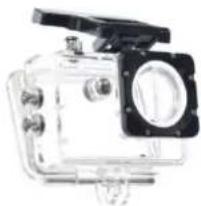
natural_image
Exterior view of a transparent underwater camera module with no visible text or symbolsWaterproof case
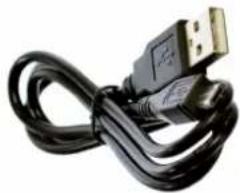
natural_image
Close-up of a USB cable with gold connector, no visible text or symbolsUSB cable
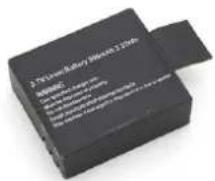
Lithium battery
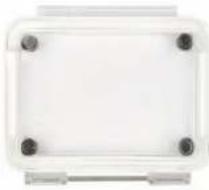
natural_image
Transparent rectangular electronic component with four mounting holes (no text or symbols visible)Replacement cover for waterproof case
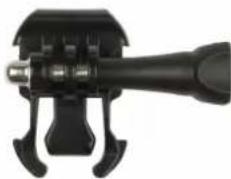
natural_image
Close-up of a black mechanical device with a lever handle and mounting bracket (no visible text or symbols)Quick release mounting buckle
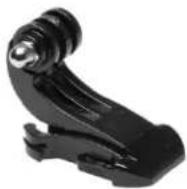
Quick release J-Hook mounting buckle
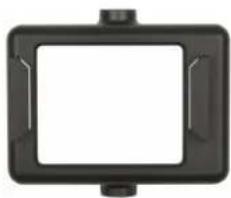
natural_image
Black rectangular frame with rounded corners and a white center, no text or symbols visible.Frame mount
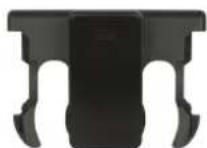
Frame mount back
clip
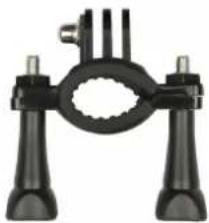
natural_image
Close-up of a black mechanical clamp or bracket with two metal fasteners and a central circular hole (no text or symbols visible)Handlebar mount
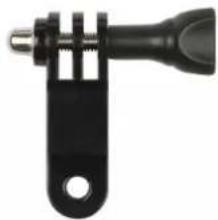
natural_image
Close-up of a black mechanical clamp or clip with a metallic handle and circular end (no text or symbols visible)Pivot arm mount
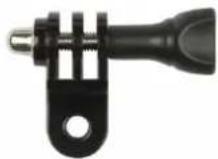
Pivot arm mount
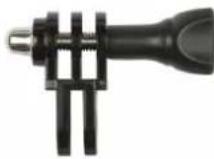
Pivot arm mount
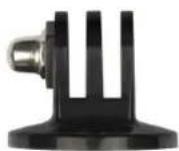
Tripod mount
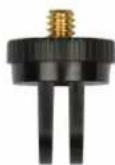
Tripod mount adapter
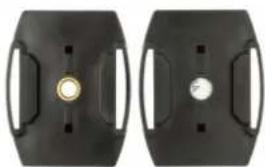
natural_image
Two black mechanical components with circular features and side brackets (no text or symbols visible)Flat adhesive mount (x2)
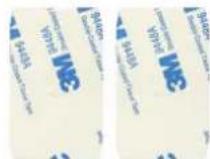
Adhesive tape (x2)

Strap set (x4)
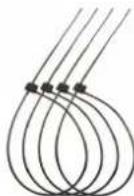
Cable ties (x4)
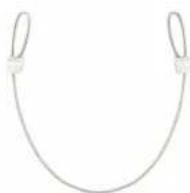
Safety wire

Cleaning cloth
Description of Parts
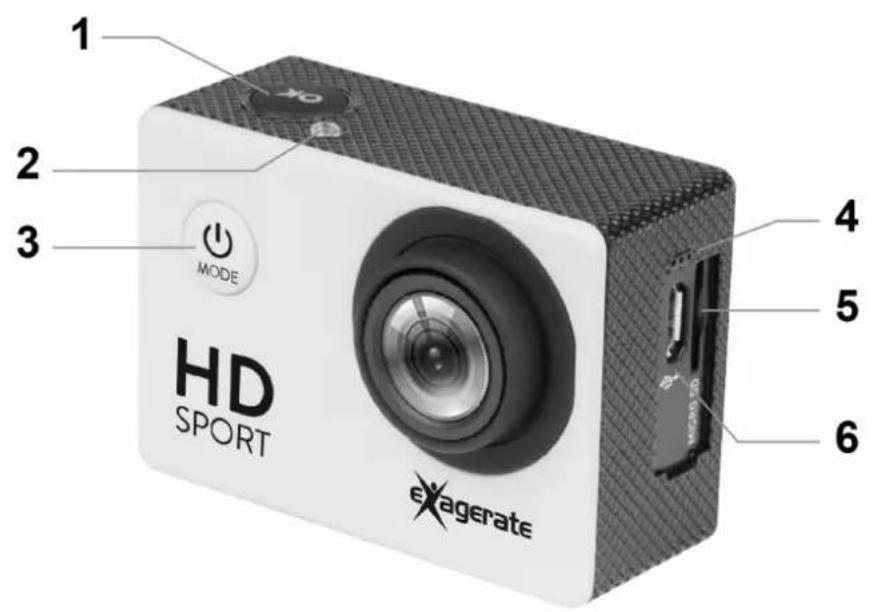
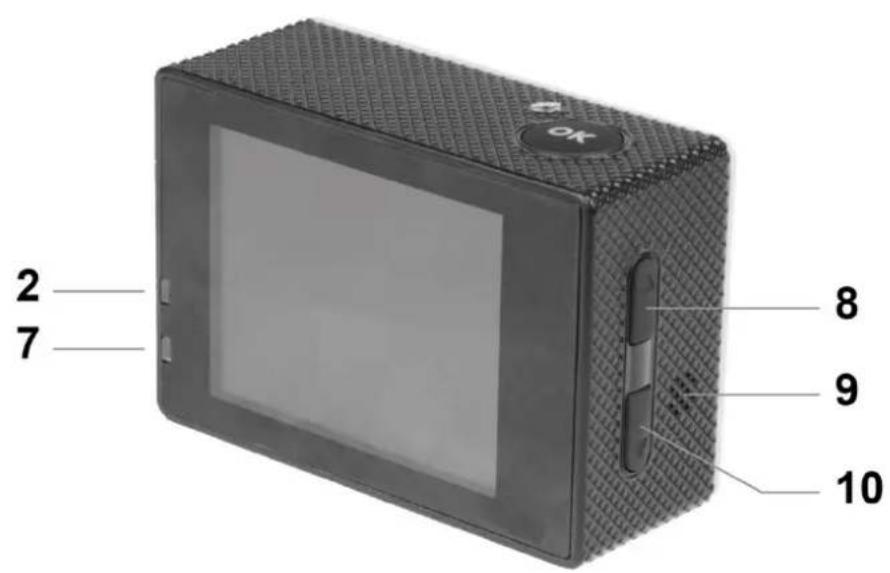
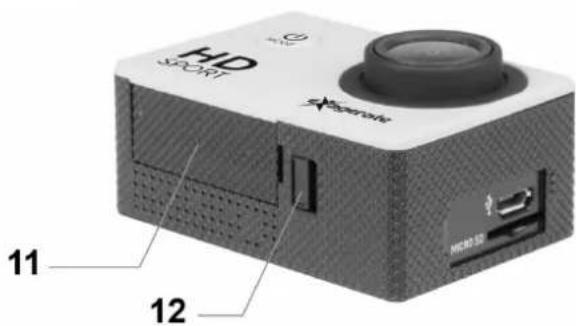
- OK/Shutter button
- Status LED indicators (Red)
- Power/Mode button
- Microphone
- Micro SD card slot
- Micro USB port
- Charging LED indicator (Blue)
- Up button
- Speaker
- Down button
- Battery cover
- Battery cover lock
INSTRUCTIONS FOR USE
Installing the Battery
- Slide the battery cover lock towards the arrow indicator next to it.
- Take off the battery cover and insert the lithium battery as per indicated polarity.
- Replace the battery cover, securely.
Charging the Battery
- Plug the Micro USB connector of the provided USB cable into the Micro USB port of the camera.
- Connect the other end of the cable either to a computer USB Port or a suitable USB wall charger.
- While charging is in process, the charging LED indicator turns Blue.
- When the battery is fully charged, the charging LED indicator turns off.
NOTE: Camera can be charged even when it is powered off. Usually, it takes about 4 hours to fully charge the battery.
Installing the Memory Card
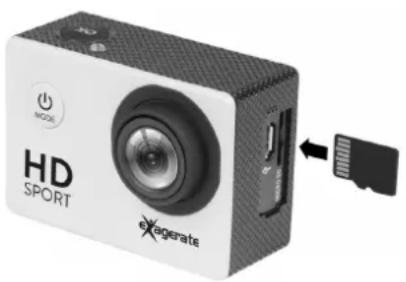
- Insert a Micro SD Card into the card slot with the golden contacts facing the camera lens until it clicks into place.
- To take the Micro SD card out, gently press the end of the memory card inwards and the card will be ejected from the card slot.
natural_image
Exterior view of a white HD SPORT device with an 'Exagerate' label and USB cable (no additional text or symbols)NOTE
The camera is not equipped with built-in memory, therefore a memory card is required all the time. We recommend a Micro SD card with a Class 10 speed rating for best performance. To avoid lose any data, only remove or insert your card while the camera is off.
Power ON/OFF
• Power On: Press the Power/Mode button to turn the camera on.
The red LED indicators will light up.
• Power Off: Press and hold the Power/Mode button for few seconds to turn the camera off.
- Automatic power off: Camera turns off automatically, when it reaches the idle time set up by the user in the Auto Power Off settings of the camera.
- Power off due to low battery: In case of extremely low battery, the low battery icon 📋 may appear on the LCD screen. The camera will then automatically power off. Please recharge the battery.
CAMERA OPERATION MODES
The camera features three operation modes: Video, Photo and Playback mode.
Once the camera is powered on, user can switch between modes by pressing the Power/Mode button in the front of the camera.
The operation modes appear in the following order:
Video: Record videos.
Photo: Capture still pictures.
Playback: Playback recorded Videos and Pictures.
VIDEO MODE
To record a video, press the Power/Mode button repeatedly until the Video mode icon is displayed on the top-left corner of the LCD screen.
Press the OK/Shutter button to start recording. The red LED indicators will flash while recording. Press the OK/Shutter button again to stop recording.
Camera will automatically stop recording when the memory card is full or the battery is too low.
The table below describes the icons displayed on the LCD screen.
 | Mode icon | Indicates current mode as Video mode. |
 | Exposure | Indicates the current exposure compensation setting. |
 | Loop Recording | Indicates the current loop recording setting. |
 | Resolution | Indicates the current recording resolution of the video. |
| 00:00:01 | Time indicator | Indicates the duration of current recording. |
 | Battery | Indicates the current battery level. |
 | Memory Card | Indicates memory card has been inserted. |
Video Setup Menu
To enter the Video setup menu do the following.
- While in Video mode, press and hold OK button for few seconds to open menu settings.
- Use the Up and Down buttons to navigate through the menu and highlight an item.
- Press OK/Shutter button to enter the menu options.
- Use the Up and Down buttons for selection, then press OK/Shutter button for confirmation.
To exit a menu item, press the Power/Mode button.
Video Menu Options
The following table describes the available settings of the Video menu.
| Menu Item | Option | Description |
| Resolution | 1080P | 1920X1080 resolution format |
| 720P | 1280x720 resolution format | |
| VGA | 640x480 resolution format | |
| Loop Recording | OFF | The camera will continue recording until the memory card is full. |
| 5 Minutes | The camera continuously records a video of 5 minutes in length.When the memory card is full, the camera will automatically record over the oldest video. | |
| 10 Minutes | The camera continuously records a video of 10 minutes in length.When the memory card is full, the camera will automatically record over the oldest video. | |
| 15 Minutes | The camera continuously records a video of 15 minutes in length.When the memory card is full, the camera will automatically record over the oldest video. | |
| Exposure | EV -2.0 | This option allows you to select the preferred Exposure setting, ranging from -2.0 to +2.0 EV.Default Exposure setting is 0.0. |
| EV -1.7 | ||
| EV -1.3 | ||
| EV -1.0 | ||
| EV -0.7 | ||
| EV -0.3 | ||
| EV +0.0 | ||
| EV +0.3 | ||
| EV +0.7 | ||
| EV +1.0 | ||
| EV +1.3 | ||
| EV +1.7 | ||
| EV +2.0 | ||
| Date Stamp | OFF | Turn off printing date/time on the video. |
| ON | During video recording, Date and Time are printed on the right bottom corner of the video. |
PHOTO MODE
To take still pictures, press the Power/Mode button repeatedly until the Photo mode icon is displayed on the top-left corner of the LCD screen.
Press and release the OK/Shutter button to take a photo.
The table below describes the icons displayed on the LCD screen.
 | Mode icon | Indicates current mode as Photo mode. |
 | Exposure | Indicates the current exposure compensation setting. |
 | Quality | Indicates the current picture quality setting. |
 | Resolution | Indicates the current picture resolution setting. |
| 9999 | Counter indicator | Indicates number of pictures available to be taken. |
 | Battery | Indicates the current battery level. |
 | Memory Card | Indicates memory card has been inserted. |
Photo Setup Menu
To enter the Photo setup menu do the following.
- While in Photo mode, press and hold OK button for few seconds to open menu settings.
- Use the Up and Down buttons to navigate through the menu and highlight an item.
- Press OK/Shutter button to enter the menu options.
- Use the Up and Down buttons for selection, then press OK/Shutter button for confirmation.
To exit a menu item, press the Power/Mode button.
Photo Menu Options
The following table describes the available settings of the Photo menu.
| Menu Item | Option | Description |
| Resolution | 12M | 4032x3024 pixel |
| 10M | 3648x2736 pixel | |
| 8M | 3264x2448 pixel | |
| 5M | 2592x1944 pixel | |
| 3M | 2048x1536 pixel | |
| 2M | 1600x1200 pixel | |
| 1M | 1280x960 pixel | |
| VGA | 640x480 pixel | |
| Capture Mode | Single | Take single photo without delay |
| Self 2S | Self-timer mode with 2 seconds delay | |
| Self 10S | Self-timer mode with 10 seconds delay | |
| Burst | Take a sequence of 3 photos | |
| Quality | Super Fine | Super Fine Quality |
| Fine | Fine Quality | |
| Normal | Normal Quality | |
| Exposure | EV -2.0 | This option allows you to select the preferred Exposure setting, ranging from -2.0 to 2.0 EV.Default Exposure setting is 0.0. |
| EV -1.7 | ||
| EV -1.3 | ||
| EV -1.0 | ||
| EV -0.7 | ||
| EV -0.3 | ||
| EV +0.0 | ||
| EV +0.3 | ||
| EV +0.7 | ||
| EV +1.0 | ||
| EV +1.3 | ||
| EV +1.7 | ||
| EV +2.0 | ||
| Date Stamp | OFF | Turn off printing date/time on the photo. |
| DATE | Print Date on right bottom corner of the photo. | |
| D&T | Print Date and Time on right bottom corner of the photo. |
PLAYBACK MODE
To select Playback mode, press the Power/Mode button repeatedly until the Playback mode icon is displayed on the top-left corner of the LCD screen.
In Playback mode, use Up and Down buttons to select the previous or next file.
For video file, press OK/Shutter button to play the video. Press OK button again for pause/resume. Press Down button for fast forward or Up button for fast backward.
The table below describes the icons displayed on the LCD screen in Playback mode.
 | Mode icon | Indicates current mode as Playback mode. |
 | Number of files | Indicates the current file selected and the total number of files recorded. |
 | Video file | Indicates the current file is an AVI video file. |
SYSTEM SETUP MENU
To enter the System setup menu do the following.
- While in Video or Photo mode, press and hold OK button for few seconds to open menu settings and then press OK button again to switch over to the System setup Menu.
- Use the Up and Down buttons to navigate through the menu and highlight an item.
- Press OK/Shutter button to enter the menu options.
- Use the Up and Down buttons for selection, then press OK/Shutter button for confirmation.
To exit a menu item without selecting anything, press the Power/Mode button.
NOTE: While inside the "Sounds" menu, press the OK button to select next item and use Up and Down buttons to change setting. Press Power/Mode button to go back to main menu. In the main menu, press Power/Mode button again to exit from the menu.
System Menu Options
| Main menu | Sub-menu | Description |
| Date/Time | 09 / 01 / 2016 00 : 01 MM/DD/YYYY | Setup date, time and date format. |
| Auto Power Off | 1 min | Automatic shutdown after 1 minute of idle time. |
| 3 min | Automatic shutdown after 3 minute of idle time. | |
| 5 min | Automatic shutdown after 5 minute of idle time. | |
| OFF | Automatic shutdown disabled. | |
| Screen Saver | 1 min | LCD screen turns off automatically after 1 minute of idle time. |
| 3 min | LCD screen turns off automatically after 3 minutes of idle time. | |
| 5 min | LCD screen turns off automatically after 5 minutes of idle time. | |
| OFF | Screen saver function disabled. LCD screen stays on. | |
| Sounds | Shutter | On/Off |
| Start-up | None/1/2/3 | |
| Beep | On/Off | |
| Volume | 0/1/2/3 | |
| Language | En | English |
| 簡 | 簡體中文 | |
| 繁 | 繁體中文 | |
| Fr | Français | |
| Ne | Nederlands | |
| Es | Español | |
| Ita | Italiano | |
| Po | Português | |
| De | Deutsch | |
| PL | Polski | |
| Tu | Türk | |
| Ru | Русский | |
| Ko | Korean | |
| Frequency | 50Hz | Set to 50Hz |
| 60Hz | Set to 60Hz | |
| Format | Yes/No | Select “Yes” to format the memory card and delete all the data. |
| Default Setting | No/Yes | Select “Yes” to reset the camera to default settings. |
| Version | XCAM720HD20170424 | Firmware version information |
Connecting with Computer
To transfer video and photo files to a computer proceed as follows.
- Connect the camera to the computer using the included USB cable.
- Plug the Micro USB connector of the cable into the Micro USB port of the camera.
-
Connect the other end of the cable to the USB port of your computer.
-
Once the camera is connected to the computer, press the Power/Mode button to turn on the camera.
-
Select the "Mass Storage" option that appears on the LCD screen and press the OK button.
-
The camera will be shown as a USB removable disk on your computer.
You can now view the images and videos shot with your camera on your computer. You can also move/copy the files to your computer to free up space on the memory card.
Care and maintenance
Read the following recommendations before using the device. Following these you will be able to enjoy the product for many years.
- The camera needs very little maintenance, however the casing may become slightly dirty. To clean, use a damp soft clean cloth and for stubborn stains, a small amount of detergent may be used on the case.
• It is recommended that a commercial lens cleaner is used to prevent damage to the lens surface.
• This unit is best stored in a cool dry environment away from bright light and dust. - Remove all storage media when storing the camera.
- Replace in packaging when dry and store in a cool dry place away from children.
- Uninstall battery and store it in a safe place, if camera is not intended to be used for an extended duration of time.
- Dear Customer,
- WEEE Information (For European Union member users)
- About this manual
- Trademarks
- Safety Instructions
- INTRODUCTION
- Key Features
- Package Contents
- Included Accessories
- Description of Parts
- INSTRUCTIONS FOR USE
- Installing the Battery
- Charging the Battery
- Installing the Memory Card
- NOTE
- Power ON/OFF
- CAMERA OPERATION MODES
- VIDEO MODE
- Video Setup Menu
- Video Menu Options
- PHOTO MODE
- Photo Setup Menu
- Photo Menu Options
- PLAYBACK MODE
- SYSTEM SETUP MENU
- Connecting with Computer
- Care and maintenance
Brand : Hamlet
Model : XCAM720HD
Category : Camcorder