
BTR100 - Bluetooth Receiver OPTOMA - Free user manual and instructions
Find the device manual for free BTR100 OPTOMA in PDF.


| Product Type | Bluetooth Audio Receiver |
| Brand | Optoma (NuForce) |
| Model | BTR100 |
| Supported Audio Codecs | aptX, AAC, SBC |
| Wireless Range | Up to 10 meters (33 feet) |
| Audio Outputs | TOSLINK Optical, 3.5mm Stereo Jack |
| Input Power | DC 5V via included AC/DC adapter |
| LED Indicator | Flashing (pairing mode), Solid (connected) |
| Pairing Memory | Up to 8 devices |
| Included Accessories | AC/DC adapter, 3.5mm male-to-male cable, 3.5mm female-to-RCA cable |
| Compatibility | Smartphones, tablets, computers with Bluetooth |
| Cleaning Instructions | Clean with dry cloth; unplug before cleaning |
| Safety Warnings | Keep away from water and heat sources |
| Bluetooth Frequency | 2.4 GHz |
| Certification | aptX (CSR plc) |
Frequently Asked Questions - BTR100 OPTOMA
User questions about BTR100 OPTOMA
0 question about this device. Answer the ones you know or ask your own.
Ask a new question about this device
Download the instructions for your Bluetooth Receiver in PDF format for free! Find your manual BTR100 - OPTOMA and take your electronic device back in hand. On this page are published all the documents necessary for the use of your device. BTR100 by OPTOMA.
USER MANUAL BTR100 OPTOMA
Bluetooth Hub receiver
natural_image
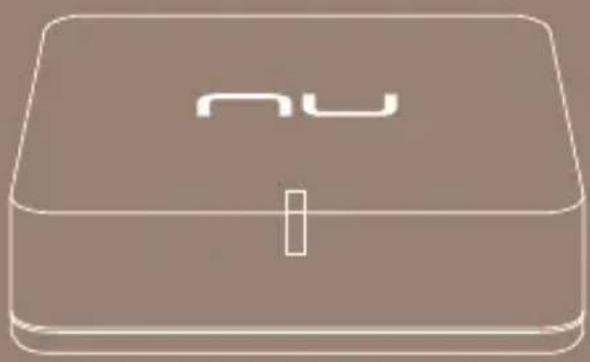
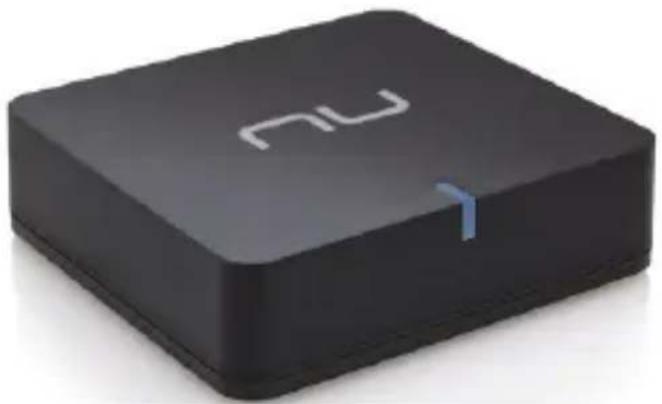
Line drawing of a rectangular electronic device with 'nu' branding on top (no additional text or symbols)NuForce BTR-100
Bluetooth Audio Receiver
Supports A2DP, AAC, and aptX®
natural_image
Black square electronic device with white 'nu' logo and blue connector (no text or symbols beyond branding)
Feature
aptX® codec support
☐ AAC support
☐ 10 meters effective range
☐ TOSLINK optical digital audio output
☐ Stereo audio output
☐ Can pair and store up to 8 device IDs
What's in the box
natural_image
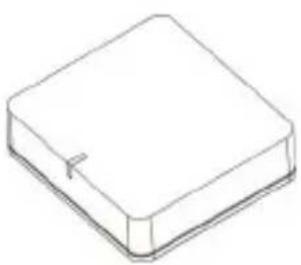
Simple line drawing of a rectangular electronic component or package (no text or symbols)Main unit
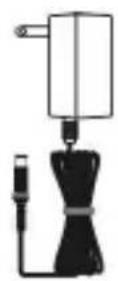
AC/DC adaptor
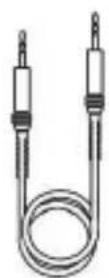
3.5mm male to
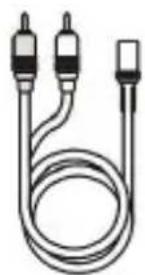
natural_image
Pure electrical circuit lines without any symbols3.5 male audio cable
3.5mm female to RCA audio cable
Anatomy of the BTR-100
| Front Top View | |
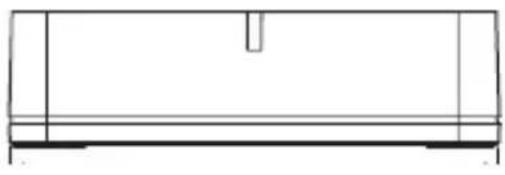 |  |
| Back Bottom | |
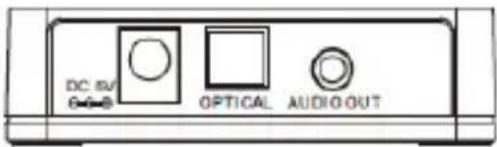 | 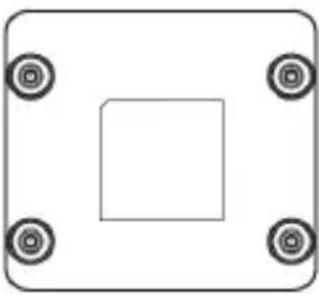 |
Setting up your BTR-100
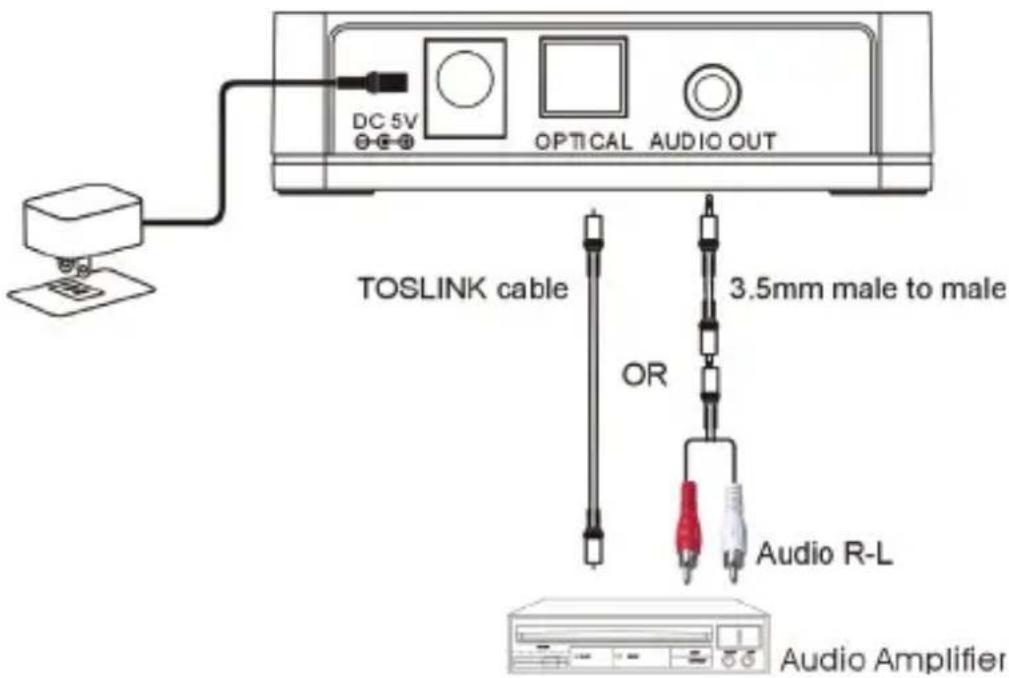
Analog audio output connection
- Connect the 3.5 mm audio input on your audio device to the BTR-100's 3.5 mm audio output using the included 3.5 mm to 3.5 mm cable.
- If your audio device or home stereo system only has RCA inputs—First connect the two supplied cables together (3.5 mm male into 3.5 mm female), then connect the RCA audio input on your audio device to the BTR-100's 3.5 mm audio output with the combined cable.
Digital/Optical output connection
- Connect the TOSLINK optical input of your audio device or home stereo system to the BTR-100's TOSLINK optical output using a TOSLINK optical cable (not supplied).
Turning on the BTR-100
-
Plug the AC power adaptor into your wall AC outlet, and connect the AC power adapter's cable to the BTR-100's DC input.
-
The LED light will flash once to show the unit is now turned on and ready for pairing
Pairing your BTR-100
iPad/iPhone/iPod touch
- Go through the following steps on your iPhone/iPad/iPod:
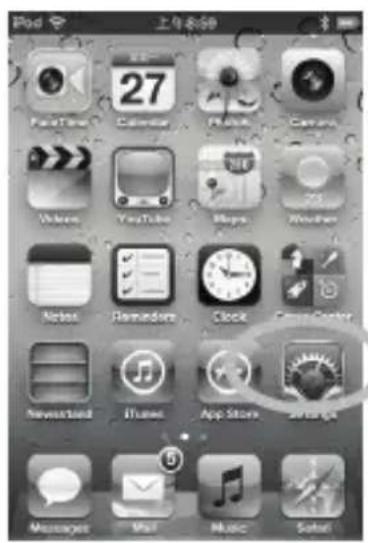
a .From your iPhone/iPad/iPod homepage, select "Setting"
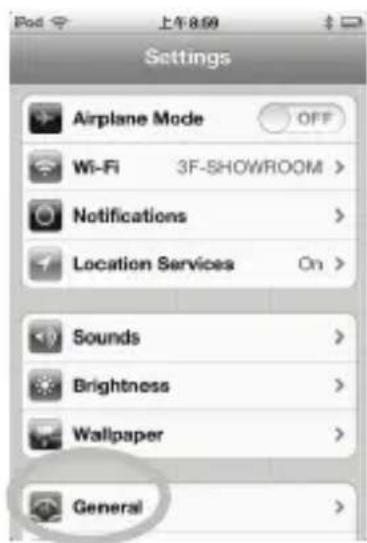
b. Select "General" c. Select "Bluetooth"
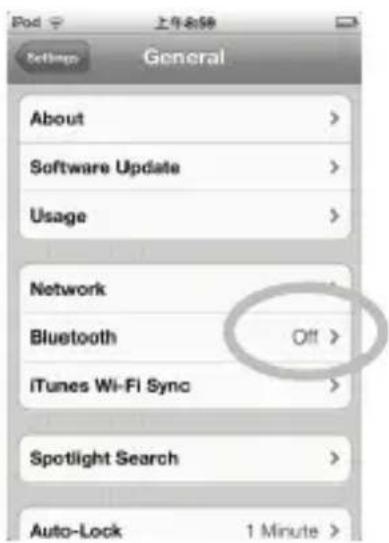
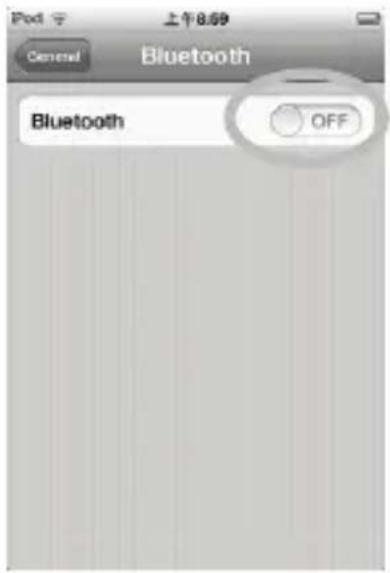
d..Turn Bluetooth on
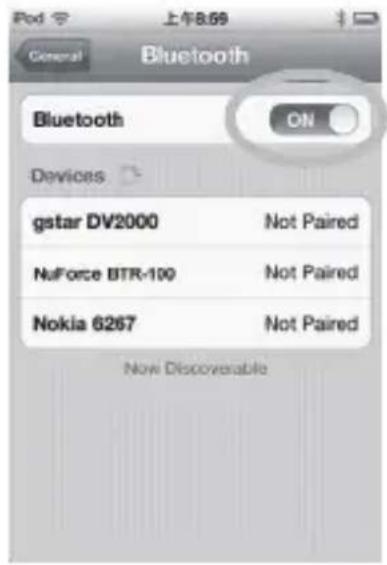
e. Your iPhone/iPad/iPod will automatically search for available devices. The BTR-100 will appear in the list as "NuForce BTR-100;" Select it to pair.
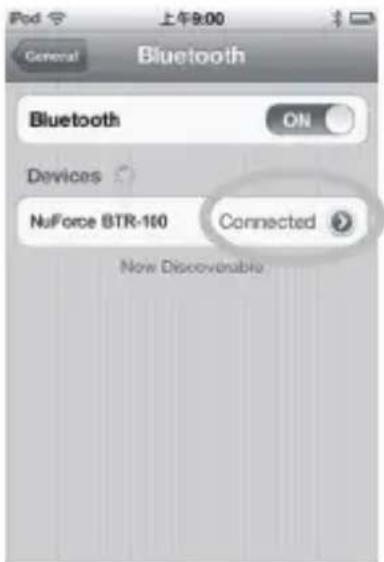
f. Your iPhone/iPad/iPod is now connected to the BTR-100
Android Phone/Tablet (using version 4.0 as example)
- Go through the following steps on your Android device:
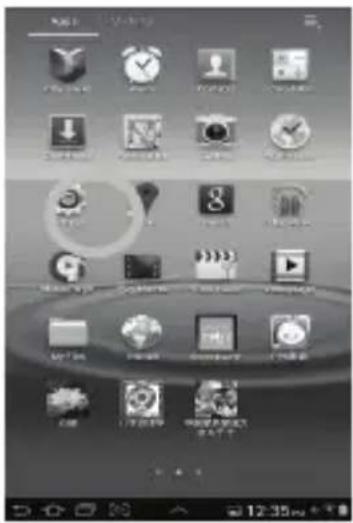
a. On the home page, select "Settings"
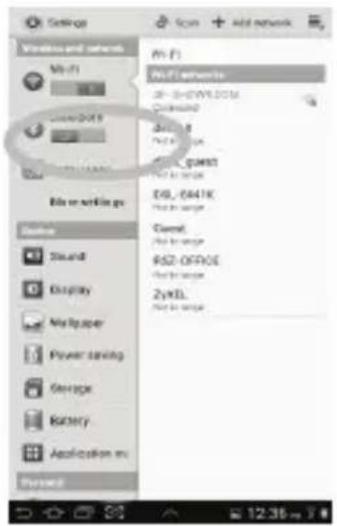
b. Turn Bluetooth on
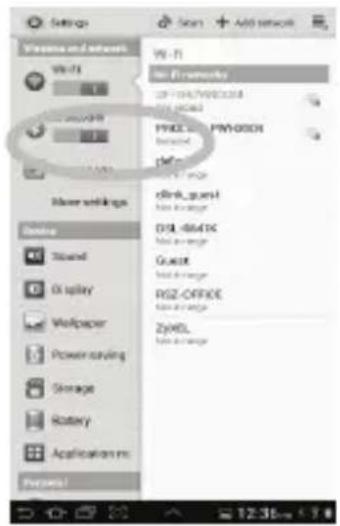
c. Bluetooth is turned on
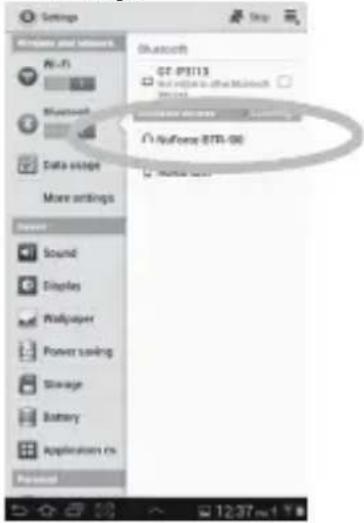
d. Your Android device will automatically search for available devices. The BTR-100 will appear in the list as "NuForce BTR-100;" Select it to pair.
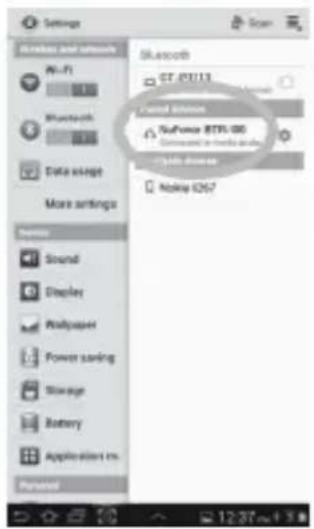
e. Your Android device is now connected to the BTR-100
Note:
The Blue LED on the BTR-100 will stay ON when the BTR-100 is connected to a device. Some devices, such as iPhone, will connect immediately after pairing so the Blue LED will be ON. Other devices, such as notebook, may ask you if you wish to connect and LED will go off after pairing until a connection is established.
Reconnecting your device
If you moved out of range or turn off the Bluetooth feature on you mobile devices, BTR-100 will automatically disconnect from your device. To reconnect, simply go through the pairing process on your mobile device, the connection will then be re-established.
Adding a new phone or tablet :
To establish a new connection with BTR-100 using another mobile device, please follow the steps below.
- Terminate the existing Bluetooth connection with connected device.
- Make sure the BLUE LED is flashing indicating that BTR-100 is ready for pairing
- Follow the instruction on "Pairing the BTR-100" to connect a new device.
Out of range or lost signal:
When the paired device is away from receiver (10 meters) or the Bluetooth signal is blocked. The LED light will turn off, meaning that the connection between the device and BTR-100 is lost. To avoid a lost of connection:
- Move the playback device back into range (within 10 meters), and make sure there's a clear line of sight with no obstruction between BTR-100 and device.
- Within 15 seconds, the connection will automatically be re-established and LED light will stop flashing.
- If the connection is lost for more than 15 seconds, you will need to reconnect the device with BTR-100 again. Please follow instructions on "Reconnecting Your Device".
Indication of LED
| LED Indication Status Description | |
| Flashing LED light Power on ready for pairing Waiting | for connection |
| Steadily Lighted Connected Connection established |
Troubleshooting
Please go through the troubleshooting steps below if there is no sound coming out of your speakers/devices.
◎ Make sure the BTR-100 is turned on.
Make sure an audio cable or an optical cable is correctly and firmly connected to your BTR-100 and your audio device/home stereo system.
Make sure that the audio source is correctly selected on your amplifier (analog audio or TOSLINK)
◎ Make sure the volume is set at a comfortable listening level
◎ Make sure you are within the effective range of reception.
◎ Make sure the Bluetooth is turned on your source device.
◎ Make sure the music is playing from the mobile device.
SAFETY WARNINGS
◎ Keep BTR-100 away from water.
◎ Clean with dry cloth.
© Unplug the BTR-100 before cleaning.
◎ Place BTR-100 away from heat sources.
◎ Use only the included accessories.
◎ Unplug the BTR-100 when it is not used..
***aptX® software is copyrighted by CSR plc or its group companies. All rights reserved. The aptX® mark and the aptX logo are trademarks of CSR plc or one of its group companies and may be registered in one or more jurisdictions.
Optoma
- NuForce BTR-100
- Bluetooth Audio Receiver
- Supports A2DP, AAC, and aptX®
- Feature
- What's in the box
- Anatomy of the BTR-100
- Setting up your BTR-100
- Analog audio output connection
- Digital/Optical output connection
- Turning on the BTR-100
- Pairing your BTR-100
- iPad/iPhone/iPod touch
- Android Phone/Tablet (using version 4.0 as example)
- Note:
- Reconnecting your device
- Adding a new phone or tablet :
- Out of range or lost signal:
- Indication of LED
- Troubleshooting
- SAFETY WARNINGS
- Optoma
Brand : OPTOMA
Model : BTR100
Category : Bluetooth Receiver