
Phonak - Uncategorized ICOM - Free user manual and instructions
Find the device manual for free Phonak ICOM in PDF.


| Product Type | Hearing Aid |
| Brand | Phonak by ICOM |
| Model | ICOM |
| Dimensions (Approx.) | 15 x 8 x 5 mm (per unit) |
| Weight (per unit) | 1.5 g |
| Color Options | Beige, Sand, Silver, Brown |
| Power Source | Battery (Size 312, Zinc-Air) |
| Battery Life | 5–7 days (typical use) |
| Core Functions | Amplification, Noise Reduction, Feedback Cancellation |
| Sound Processing | 20-channel digital signal processing |
| Adaptive Features | Automatic environment detection, Wind reduction |
| Connectivity | Bluetooth® 5.0 for streaming and remote control |
| Compatible Apps | Phonak RemoteControl, myPhonak app (iOS/Android) |
| Water Resistance | IP68 certified (dust tight, immersion up to 1m) |
| Maintenance | Daily cleaning with soft cloth; weekly use of drying capsule |
| Ear Tips | Included set of 4 sizes (S, M, L, XL) |
| Spare Parts Available | Ear tips, battery doors, wax guards, receiver tubes |
| Repairability | Service center repair; user replaceable battery and ear tips |
| Safety Certifications | CE, FCC, RoHS compliant |
| Warranty | 2 years limited warranty (may vary by region) |
| Included Accessories | Hearing aid, battery, ear tips, cleaning brush, user manual |
Frequently Asked Questions - Phonak ICOM
User questions about Phonak ICOM
0 question about this device. Answer the ones you know or ask your own.
Ask a new question about this device
Download the instructions for your Uncategorized in PDF format for free! Find your manual Phonak - ICOM and take your electronic device back in hand. On this page are published all the documents necessary for the use of your device. Phonak by ICOM.
USER MANUAL Phonak ICOM
Charging the battery 10
Operating time 12
Battery status 13
Turning your iCom ON or OFF 13
Wearing your iCom 14
Indicators cover 16
Introduction to Bluetooth 17
What is Bluetooth? 17
What Bluetooth devices
can I use with my iCom? 17
Bluetooth device compatibility 18
Bluetooth operating range 19
Using a Bluetooth device 20
Setting up Bluetooth devices 21
Pairing with your mobile phone 21
Connecting your mobile phone 23
Pairing and connecting iCom with a Bluetooth
transmitter 24
Pairing and connecting iCom with a Personal
Computer (PC) 26
Deleting Bluetooth pairings 28
Using your iCom with your mobile phone 29
How your iCom interacts with your
mobile phone 29
Speaking into your iCom 31
Moving out of Bluetooth range 32
Incoming calls 32
Accepting incoming calls 33
Rejecting incoming calls 34
Making a call 34
Last number redial, Voice dialing 36
Ending a call 37
Using cordless phones (DECT) or older phones
with "Headset" profile only 38
Using audio devices and FM 40
Streaming priorities 40
Connecting via audio cable (3.5 mm jack) 41
Connecting via Bluetooth 42
Connecting an FM system 43
Start streaming 45
Pause streaming 45
Stop streaming 46
Streaming interruptions 47
Reset button 48
Indicators 50
Important information 56
Maintenance and care 56
Safety notice 57
Important points 58
Troubleshooting 62
Service and warranty 68
Declaration of conformity 69
Welcome
Congratulations on choosing the iCom from Phonak. iCom expands the ways in which you hear your world by wirelessly connecting your hearing instruments to your TV, mobile phone, portable MP3 player, personal computer and many other devices.
Please read this manual carefully to benefit from all the features of your iCom. Ask your hearing care professional if you have any questions.
For further information, please visit the Phonak website www.phonak.com.
Phonak – life is on

For your safety, carefully read the chapter Important information, on pages 56 – 67.
What is the iCom?
iCom is the bridge between your hearing instruments and audio devices:
- It can wirelessly receive audio from Bluetooth-enabled devices such as mobile phones and personal computers.
- Using Bluetooth adapters, the iCom can wirelessly receive audio from devices such as your home stereo and telephone.
- It can also connect many devices – such as portable MP3 players and radios – via a standard audio jack.
- iCom is also compatible with Phonak's range of FM receivers via Europlug input.
iCom wirelessly streams the received audio signal to your hearing instruments so that you can use these devices easily and seamlessly.
You can concurrently connect multiple audio devices to your iCom. The audio sources are automatically prioritized. Refer to page 40 for more information.
Description
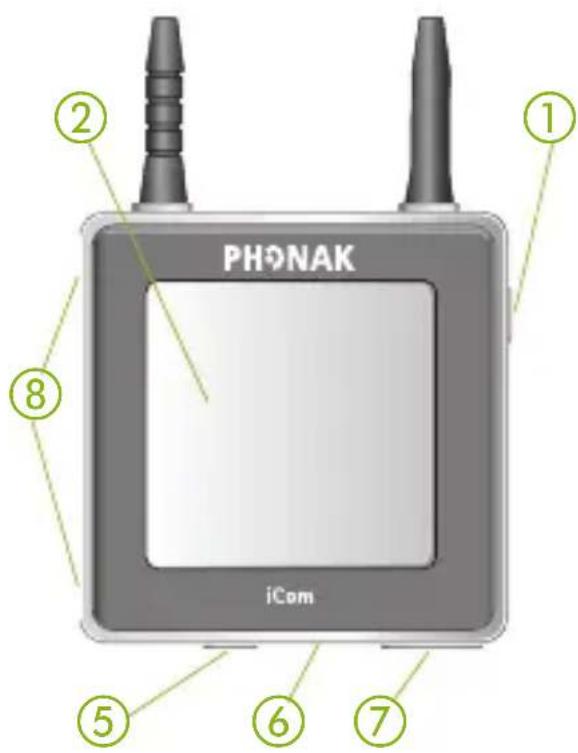
Buttons
①ON/OFF button
②Main button
③Bluetooth pairing button
④Reset button
Inputs
⑤Audio input (3.5 mm jack)
⑥FM input (Europlug)
⑦Charging input (mini-USB)
⑧Microphone openings
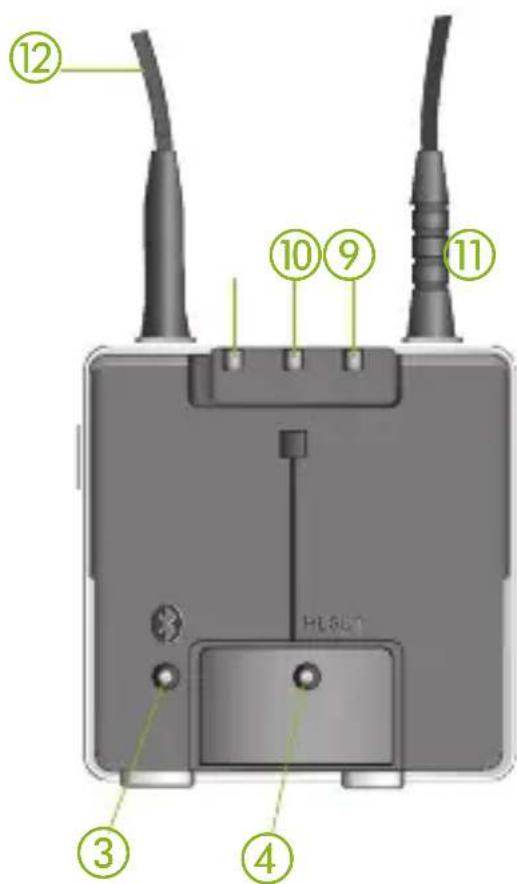
Indicators
⑨Battery indicator
⑩Audio streaming indicator
⑪Bluetooth indicator
Other
⑫Neckloop
iCom accessories
• Audio cable, 1 m (3 ft)
- USB cable, 3 m (10 ft)
- Power supply
- Phonak TVLink base station
Contents may vary depending on country.
Getting Started
Charging the battery
Your iCom has an internal, rechargeable battery. To charge it, plug in the charging cable as shown in the picture below. Then plug the other end of the charging cable into a power outlet.
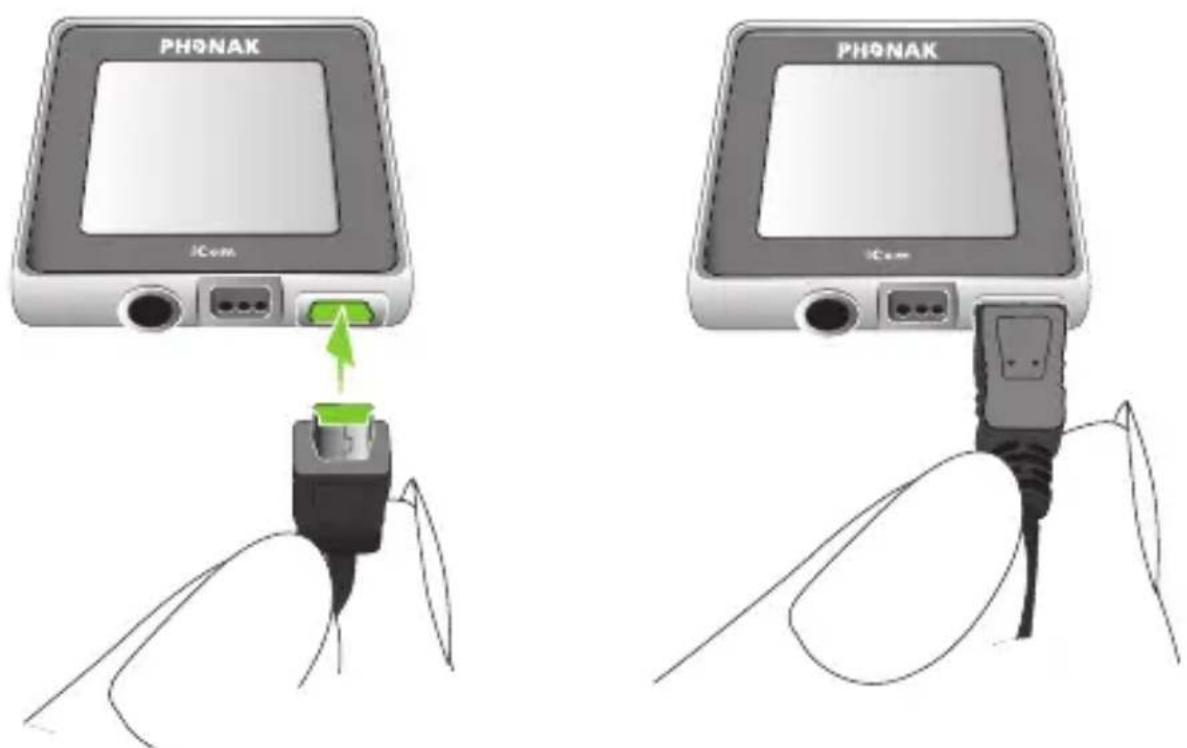

For safety reasons, recharge the battery only with chargers supplied by Phonak or by USB-Certified chargers > 500mA
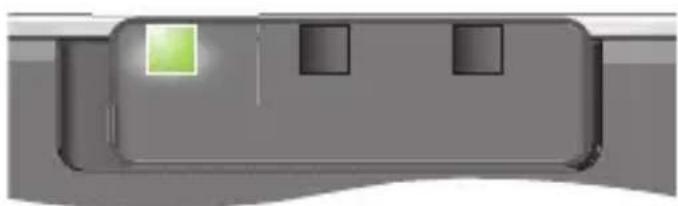
During the charging process, the battery indicator will light orange. Once the battery is fully charged, the indicator will turn green.
Charging an empty battery typically takes about 90 minutes. It is safe to leave the charger connected overnight—the battery cannot be overcharged.

When charging your iCom for the first time, leave it to charge for at least three hours, even if the battery indicator turns green earlier.

A new battery's full performance is achieved only after two or three complete charge and discharge cycles.
Operating time
Battery consumption and the operating time of the iCom depends greatly on the usage of the device.
| Use case | Non stop duration when battery fully charged |
| iCom switched on, Bluetooth on stand-by | 30 hours |
| Telephone usage or streaming via Bluetooth | 5 hours |
| Audio streaming via cable | 11 hours |
| Streaming via FM system | 10 hours |
Your iCom battery can be charged hundreds of times. If the operating time of your iCom reduces substantially, please contact your hearing care professional.
Battery status
While turned ON, your iCom indicates the battery status on the battery indicator as follows:
- Green, slow flash ▷Battery level is high
- Orange, medium flash ▷Battery level is moderate
- Red, fast flash ▷Battery level is low
Audible beeps in your hearing instruments will alert you when the iCom battery is getting low.
Once the fast, red flashing starts, you will be able to talk on your phone for half an hour, but you should recharge the battery as soon as possible.
Turning your iCom ON or OFF
To turn ON your iCom, press and hold the ON/OFF button as shown in figure ①for about a second until you see the battery indicator turn on as shown in figure ②. Release the ON/OFF button. Once your iCom is fully operational, the battery indicator will be colored and flash according to the current battery charge as described above.
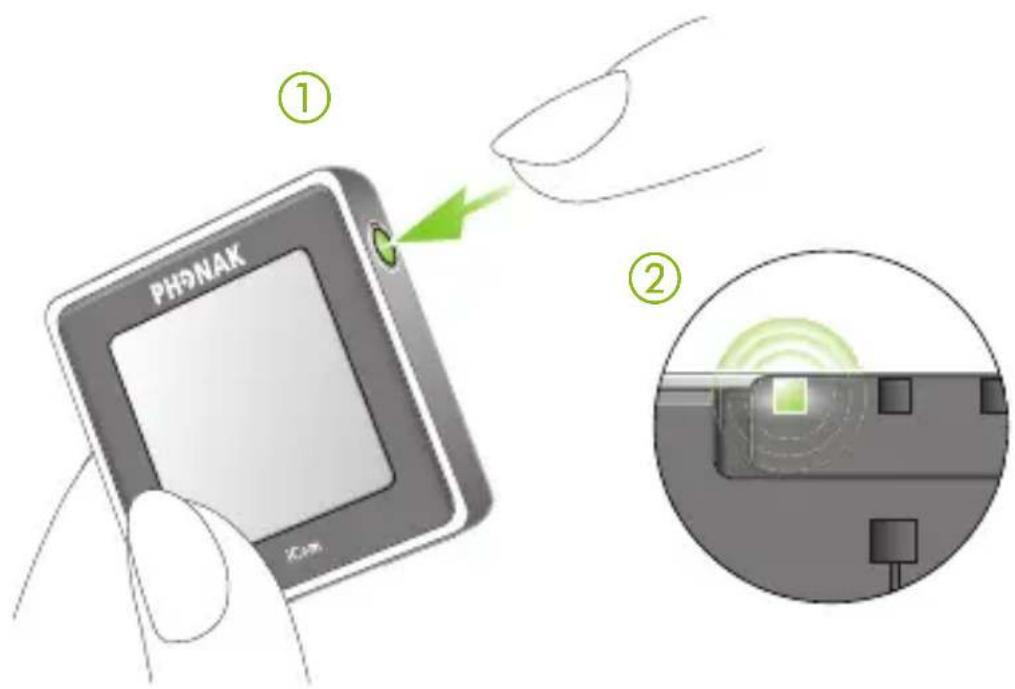
To turn OFF your iCom, press and hold the ON/OFF button for about two seconds until you see the battery indicator turn red.
Wearing your iCom
To put your iCom around your neck, open the neckloop by unplugging it as shown in the picture below.
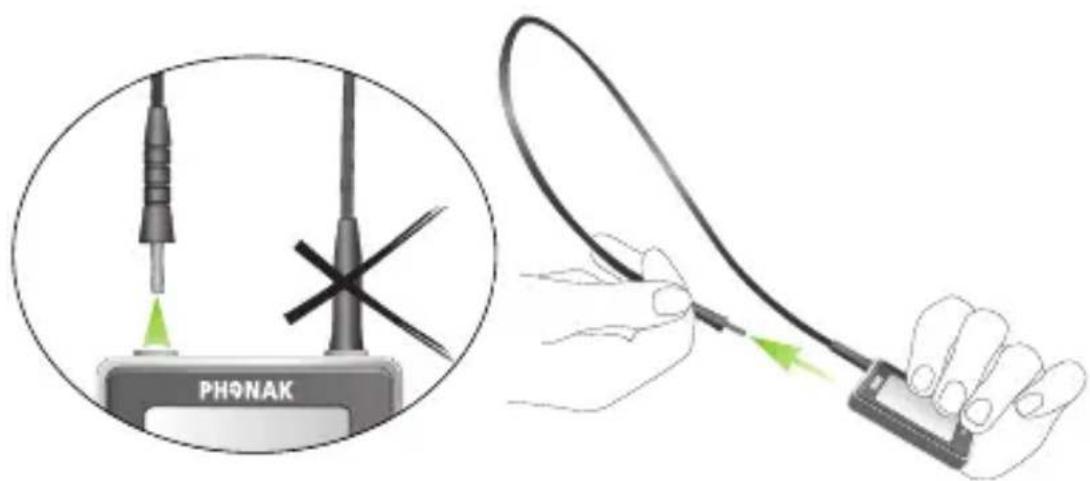
Plug in the neckloop as shown below. This will activate the built-in antenna and is necessary for the iCom to communicate with your hearing instruments.
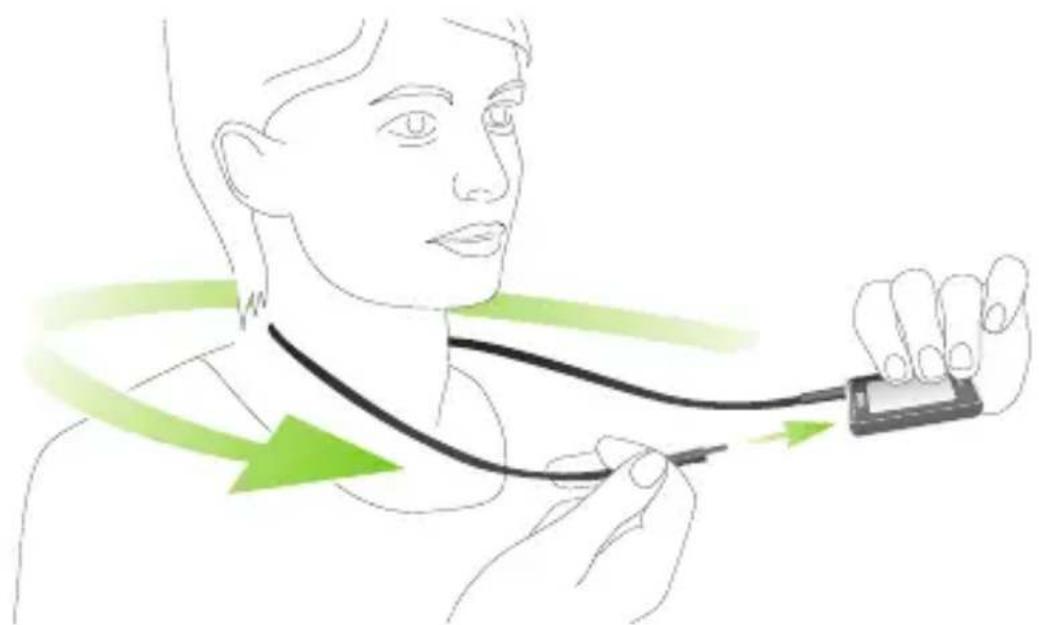
natural_image
Illustration of a person holding a medical device with green arrows indicating direction (no text or symbols)
After switching iCom ON, it automatically recognizes your Phonak wireless hearing instruments.

In cases of conflicts with other hearing instruments the hearing care professional may give iCom a fixed grouping to your hearing instruments. Ask your hearing care professional for more details.
Indicators cover
If you prefer to hide the indicators, engage the indicator cover as shown below.
Indicators visible
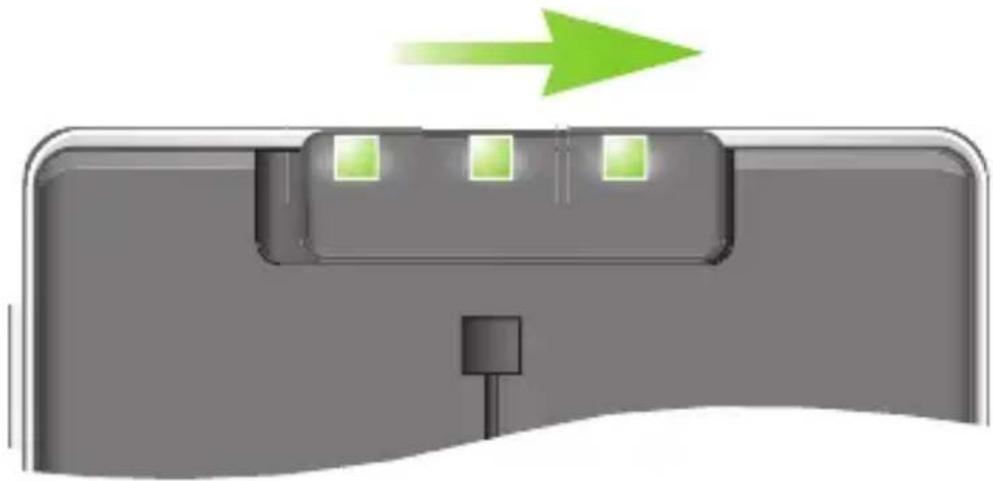
natural_image
Diagram of a device with a green arrow pointing to a component, no text or symbols presentIndicators covered
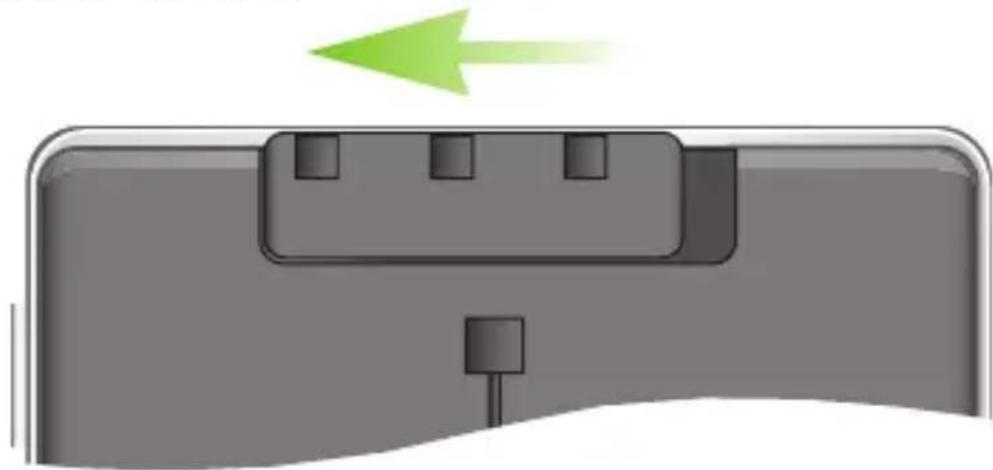
natural_image
Illustration of a device with a green arrow pointing to a component, no text or symbols presentIntroduction to Bluetooth
What is Bluetooth?
Bluetooth provides a way for devices like mobile telephones, laptops and personal computers to communicate wirelessly.
Your iCom supports Bluetooth to allow audio to be wirelessly received from many different audio devices and transmitted to your hearing instruments. For example, you can receive mobile phone calls directly to your hearing instruments or listen to music from your PC.
For further information about Bluetooth, visit www.bluetooth.org.
What Bluetooth devices can I use with my iCom?
First, check whether the device you wish to use is Bluetooth-enabled: Look for the following symbol on the device or in its user guide.

Bluetooth®
Second, the possible applications on a Bluetooth-enabled device is defined by "profiles". The device you
wish to use with your iCom must support the appropriate Bluetooth profiles. These differ depending on what you want to do with your iCom:
- To receive mobile phone calls your mobile phone must support either the "Handsfree" or "Headset" profile.
- To listen to stereo music from your mobile phone or PC, it must support the "A2DP" / "Stereo Headset" profile.
Look for these informations in your mobile phone's user guide or via the compatibility guide on icom.phonak.com
Bluetooth device compatibility
If a problem occurs in the connection between your device and your iCom, or if you are uncertain regarding your device's Bluetooth capabilities, please consult your device's user guide or ask the manufacturer.
Bluetooth operating range
Your iCom supports Bluetooth operation up to a range of 10 m (30 ft). Line-of-sight between your iCom and other device is not required. However, the following factors may affect the range achieved:
- Interference in the environment may reduce the operating range of Bluetooth.
- The Bluetooth device with which you are connecting may support a more limited range than the 10msupported by the iCom.
If your Bluetooth device moves out of range of your iCom and has an active audio connection, this connection will be terminated. If the device is then moved back into range of your iCom, it may or may not resume streaming to your hearing instruments. This depends on the device.
Using a Bluetooth device: pairing and connecting
If your device is Bluetooth-enabled and supports the appropriate profiles, it can communicate with the iCom only after completing two simple procedures: Pairing and connecting.
The pairing procedure allows you to control which Bluetooth devices are permitted to communicate with each other. It needs to be completed only once for each device you wish to use with your iCom. The pairing procedure is described in detail for each of the Bluetooth device types in the sections which follow.
Once a device is permitted to communicate with the iCom by the pairing procedure, the connection procedure configures the device to actually output its audio signal over the Bluetooth connection. This procedure is also described in the sections which follow. Some Bluetooth devices perform the connection procedure automatically after pairing.
Setting up Bluetooth devices
This section describes the pairing and connection procedure for Bluetooth devices.
Pairing with your mobile phone
As described above, it is only necessary to perform the pairing procedure once. The pairing procedure is controlled by your mobile phone. Different mobile phones have different menu structures. You should therefore refer to your mobile phone's user guide or dealer support if you cannot complete the pairing procedure with the generic steps described here. On the Internet, at icom.phonak.com, Phonak also provides Bluetooth pairing instructions specific to some of the most popular mobile phone manufacturers.
To pair your iCom and mobile phone:
- Charge and turn ON both your iCom and mobile phone. Place them next to each other.
- Find the connectivity settings of your phone. Look for the "Bluetooth" feature in the main menu or one of the submenus such as "Connectivity".
- On your mobile phone, ensure that the Bluetooth feature is turned ON.
- Initiate the pairing process on your iCom by pressing the Bluetooth pairing button for about
2 seconds until the Bluetooth indicator flashes blue. Your iCom will remain in the pairing mode for two minutes or until the pairing is completed.
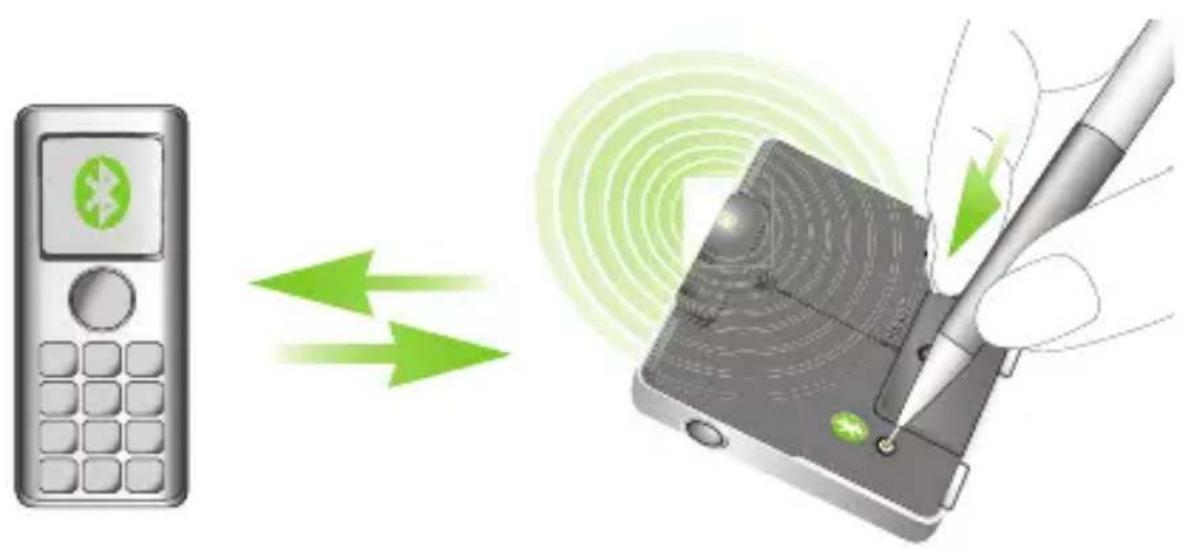
- On your mobile phone choose to search for Bluetooth devices.
- Your mobile phone should present a list of Bluetooth devices discovered. Select "iCom" from this list.
- Your mobile phone may then ask you to enter a passcode. If so, enter "0000" (four zeros).
Your iCom should now be paired to your mobile phone. Some mobile phones may ask which Bluetooth service you wish to enable. Select "Headset" and, if available, "Stereo Headset".
Connecting your mobile phone
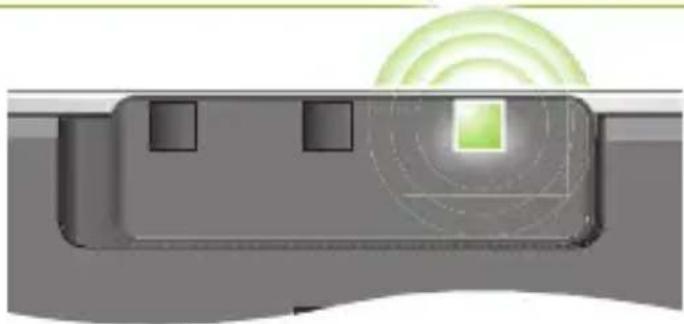
Once your mobile phone and iCom are paired, the mobile phone needs to be 'connected' to your iCom before it will actually send audio signals to it. This function should also appear in your mobile phone's "Bluetooth" menu, usually under a list of "Paired devices". In that list, highlight your iCom and select "Connect". Confirmation of successful connection is indicated on iCom by the Bluetooth indicator slowly flashing blue.
When your iCom and mobile phone are connected, you may see a headset symbol on the main screen of your mobile phone, similar to this:
The connection between your iCom and your mobile phone will be maintained as long as the two devices remain ON and within range of each other. If either device is switched off or moves out of range, you may need to perform the connection procedure again.
On some phones you can configure "Automatic reconnection". We recommend that you do so if this feature is available. Refer to the user guide of your mobile phone for instructions on how to do this if supported. 23
Pairing and connecting iCom with a Bluetooth transmitter
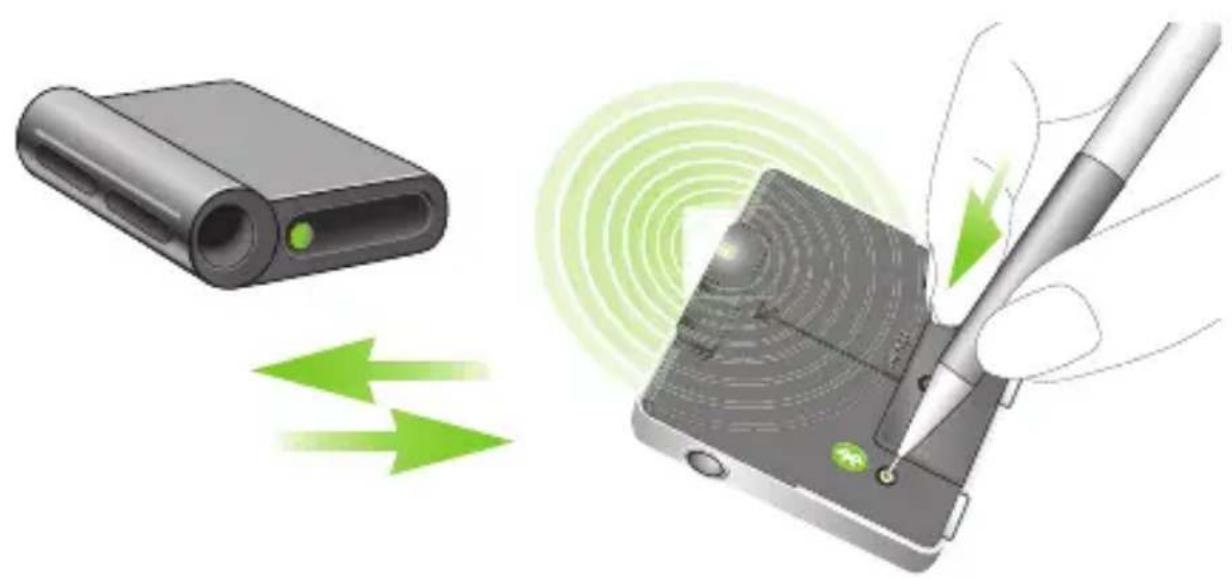
If you wish to use your iCom to listen to music from your stereo system or make phone calls with your landline telephone but these devices are not equipped with Bluetooth functionality, you may use an external Bluetooth transmitter.
As described above, it is necessary first to perform the Bluetooth pairing procedure between your iCom and Bluetooth transmitter. The pairing procedure is controlled by the device with which you are attempting to pair. Such devices vary in the procedure they require for pair. You should therefore refer to your device's user guide or dealer support if you cannot complete the pairing procedure with the generic steps described here.
- Charge and turn ON both your iCom and Bluetooth transmitter. Place them next to each other.
- Initiate the pairing process on your iCom by pressing the Bluetooth pairing button for about 2 seconds until the Bluetooth indicator flashes blue. Your iCom will remain in the pairing mode for two minutes or until the pairing is completed.
natural_image
Illustration of a device with a USB port and a stylus interacting with it, showing green signal patterns (no text or symbols)- Set your Bluetooth transmitter into pairing mode. With some devices, simply turning them ON initiates the pairing process.
- A Bluetooth transmitter typically doesn't require a passcode or passkey to establish a connection with iCom. After initiating pairing, simply wait until the devices have completed the pairing process. If a passcode is required, enter "0000" (four zeros). Typically, with Bluetooth transmitters the connecting process is automatically performed after pairing.
Confirmation of successful connection is indicated on iCom by the Bluetooth indicator slowly flashing blue. If this is not the case, refer to the user guide of your Bluetooth transmitter.
Pairing and connecting iCom with a Personal Computer (PC)
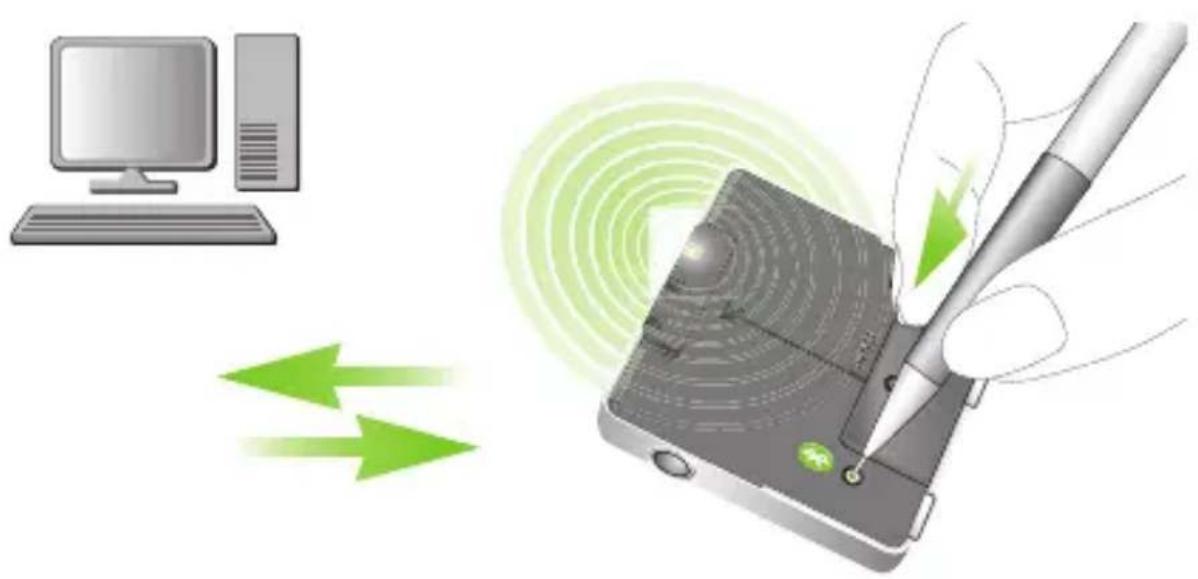
If you wish to use your iCom to listen to audio on PC, you can do so if your PC supports Bluetooth.
As described above, it is necessary first to perform the Bluetooth pairing procedure between your iCom and PC. You should therefore refer to your PC's user guide or dealer support if you cannot complete the pairing procedure with the generic steps described here.
- Charge and turn ON your iCom. Turn on your PC. Place your iCom near your PC.
- On the PC, open the "Control Panel" and select the Bluetooth device wizard. This will assist you in setting up a Bluetooth connection between your iCom and PC.
- Ensure the Bluetooth connectivity is turned ON: Either activate built-in Bluetooth functionality or connect the external Bluetooth adapter on your PC.
- Initiate the pairing process on your iCom by pressing the Bluetooth pairing button for about 2 seconds until the Bluetooth indicator flashes blue. Your iCom will remain in the pairing mode for two minutes or until the pairing is completed.
natural_image
Illustration of a computer connected to a device via a stylus, showing signal flow and green arrows (no text or symbols)- On the PC, choose to find and add a specific Bluetooth device.
- Of the devices found, choose iCom.
- When the PC prompts for a passcode or PIN, enter "0000" (four zeros).
- Allow devices to complete the establishment of a trusted link.
- If prompted on the PC to choose Bluetooth services, you may have several options available. Select the "Stereo Headset" functionality to stream audio in stereo. After choosing which services you wish to enable, you can finish the connection and exit the setup on the PC.
Confirmation of successful connection is indicated on iCom by the Bluetooth indicator slowly flashing blue.
For further information please refer to the user guide provided with the PC or external Bluetooth adapter.
Deleting Bluetooth pairings
If you wish to delete the pairing relationships between your iCom and all other devices, press and hold the Bluetooth pairing button for about 10 seconds until the Bluetooth indicator stops flashing quickly.

After deleting the Bluetooth pairings, none of your Bluetooth devices will work with your iCom until paired again.

A maximum of 8 devices can be paired to iCom. The 9th pairing will replace the first one.

iCom can support (connect) two phones at the same time but only one call at a time is possible.
Using your iCom with your mobile phone
Before you can use your iCom with your mobile phone, you must complete the pairing and connection procedures described in the "Setting up Bluetooth devices" section above.
How your iCom interacts with your mobile phone
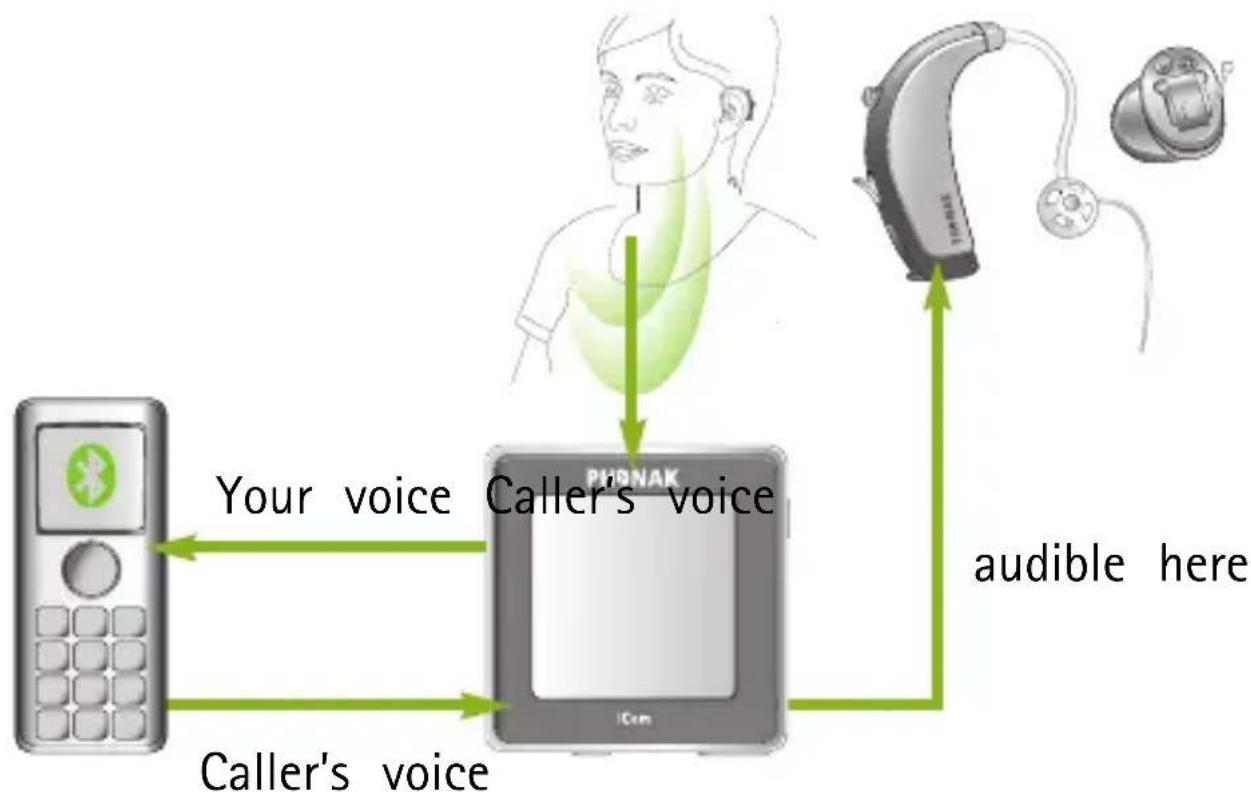
When making a mobile-phone call, the iCom's built-in microphone captures your voice and transmits it to the mobile phone. This frees you from holding the phone to your head to speak.
flowchart
graph TD
    A["Mobile Phone"] -->|Your voice| B["Caller's voice"]
    B -->|audible here| C["Device with earphones"]
    B -->|Caller's voice| A
Bluetooth Wireless signal
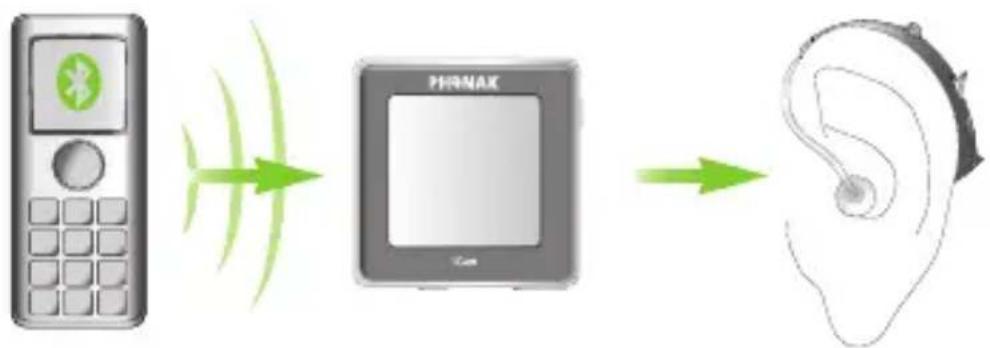
The other party's voice is received by your mobile phone, which transmits it to your iCom. Your iCom transmits it to your hearing instruments.
Your iCom's main button is used to accept, reject and end phone calls as described in the sections below.
i Some mobile phones are configured to play keypress tones and confirmation beeps via Bluetooth headsets. If this is set, you will hear these tones interrupting any active audio streaming in your hearing instruments. Please refer to your mobile phone user guide for information about disabling this feature.
i Mobile phone calls will always take priority over other audio sources on your iCom. For more information refer to the section "Streaming priorities" on page 40.
Speaking into your iCom
Your iCom includes a high-quality directional microphone. It is placed on the side to optimally pick up your voice without extraneous noise when you wear your iCom around your neck.
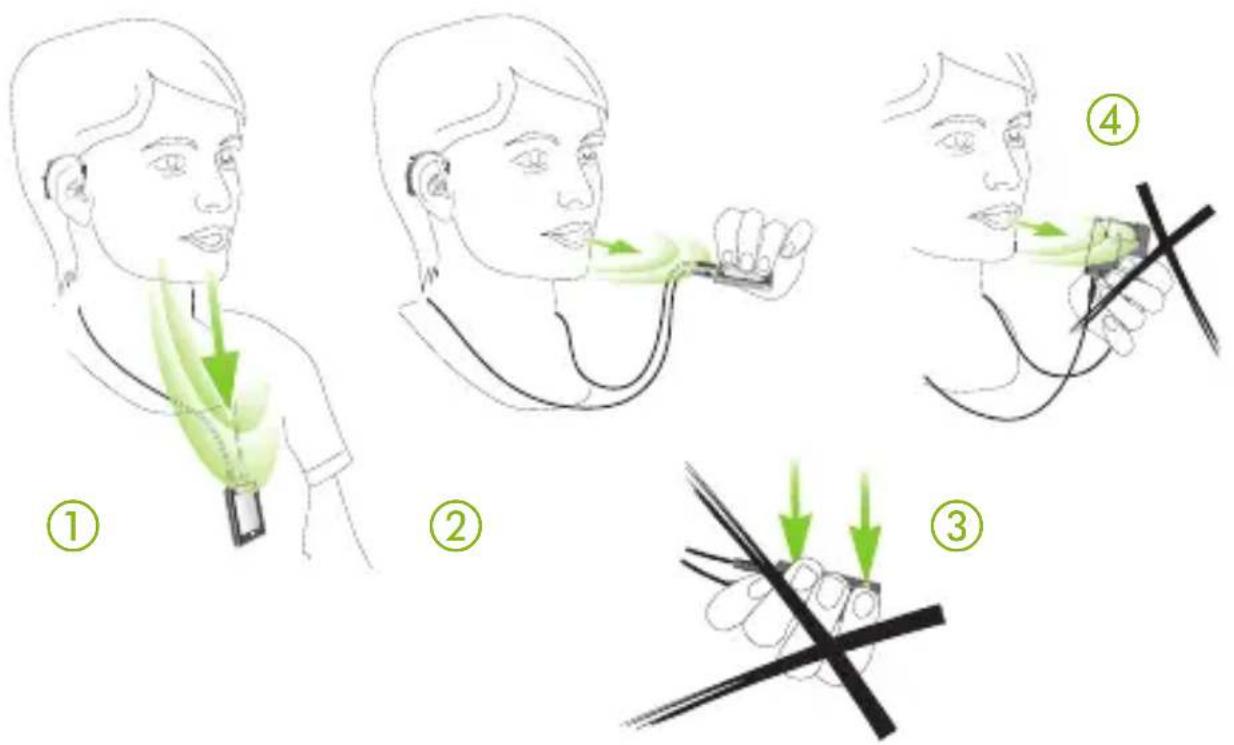
When engaged in a mobile phone call, speak normally as shown in figure ①below. In noisy environments, you can bring your iCom closer to your mouth as shown in figure ②. In this case, avoid covering the small microphone openings on the side of your iCom (figure ③). Turning your iCom sideways is unnecessary and will not increase the sound quality (figure ④).
Moving out of Bluetooth range
If your mobile phone leaves the Bluetooth range of your iCom, the connection will be lost. If this happens during a phone call, the mobile phone might terminate the call, even in cases where the "Automatic reconnectic feature has been enabled on the mobile phone.
Incoming calls
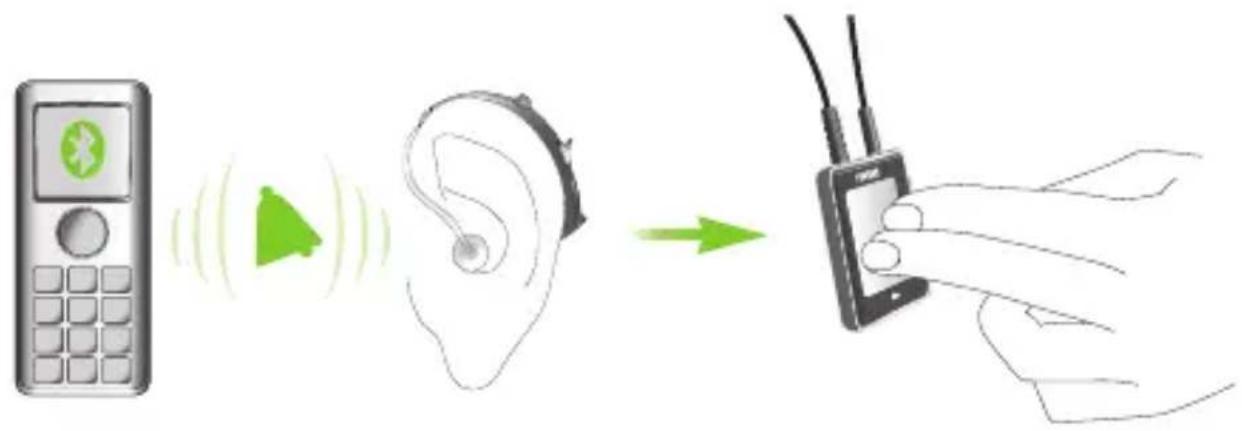
When a call is received on your mobile phone, the iCom Bluetooth indicator will flash and you will hear the ringing tone in your hearing instruments.
Your iCom can receive incoming calls while streaming audio from other sources, such as listening to music via audio jack. After rejecting or completing the call, your iCom will resume streaming the music from the audio jack.
Accepting incoming calls
To accept an incoming call, briefly press the main button on your iCom. You will hear the caller's voice in both hearing instruments.
It will take about 1 second before the link from the mobile phone to the hearing instruments is established.
For your safety, the hearing instruments' microphones will remain ON at reduced level during phone calls.
Rejecting incoming calls
If you prefer not to answer a call, press and hold the main button on your iCom for about two seconds until the iCom Bluetooth indicator turns OFF. Your iCom will command your mobile phone to reject the call.
Rejecting the call by operating your mobile phone directly will have the same effect.
Making a call
Initiating a phone call is not any different with or without iCom: Simply use the mobile phone keyboard to enter or select a number and dial.
If connected, you will hear the ringing indication in your hearing instruments and they will activate the dedicated Bluetooth phone program.

Some older and cordless DECT phones require a short press of the main button to accept or initiate the call. In this case select or type the phone number first, then short press the iCom button to initiate the call, then wait 5 seconds.
flowchart
graph LR
    A["Mobile Phone"] -->|Wireless Signal| B["Device"]
    B -->|Signal| C["Owl"]
Once the connection is established, no further manipulation of the phone is required.
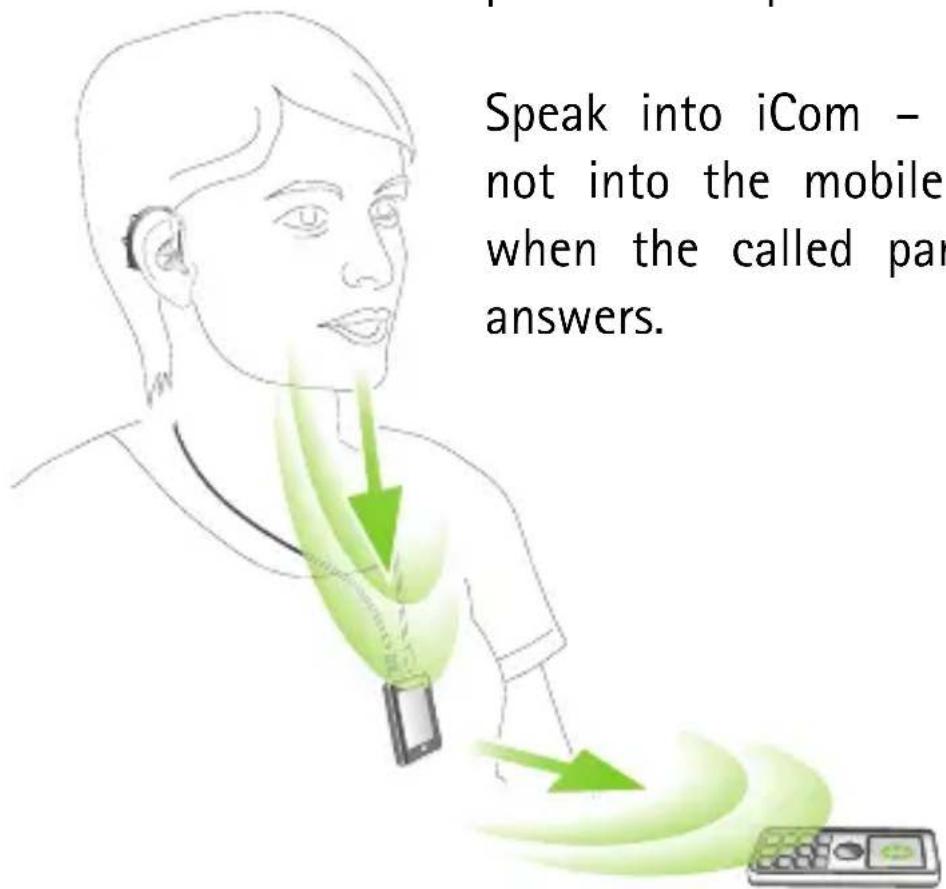
Speak into iCom – not into the mobile phone – when the called party answers.
Last number redial, Voice dialing
If the iCom-function "Call Repeat" is enabled by your hearing care professional a double-press of the main button will redial the last dialed number.
If the iCom-function "Voice dial" is enabled by your hearing care professional a long press (2 sec) of the main button will start the Voice Dial.
It allows you to speak the persons name instead of typing the number. This is especially helpful in car situations for example.
After pressing the main button for 2 seconds, wait for the confirmation beep and say the name of the person you want to call.

Your phone must support this feature. Please consult the phone user manual for details.

When using two phones at the same time ("Multi Point") always and only the last paired phone can be used for voice dial.
Ending a call
To end a phone call via your iCom, briefly press the main button. The call will terminate and your hearing instruments will return to the previously-active program or audio source (such as the jack input).
Ending a call by operating your mobile phone instead of your iCom will have the same effect.
Using cordless phones (DECT) or older phones with "Headset" profile only
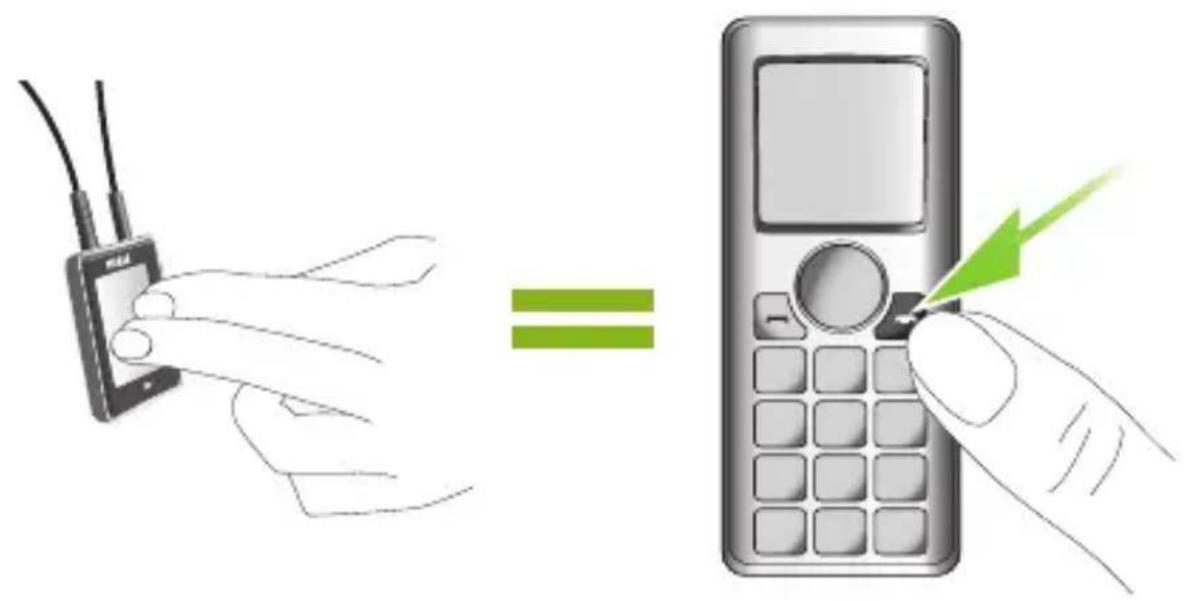
If your phone is only supporting the "Headset" profile (HSP), always use the main button to accept or initiate calls (Cordless Phones, DECT).

For these phones the Bluetooth indicator (blue light) might not blink even if the phone was paired before.
To do an outgoing call:
Step 1
On the phone, type the number you want to dial or select it from the phone book
Step 2
A: Briefly press the main button
B: If you are already in a streaming iCom program (Bluetooth music, Plug, FM via iCom) press the main button for 2 seconds
Step 3: Wait for 5 seconds
Step 4: The dialing process will automatically start, the iCom Bluetooth indication light becomes solid blue and you may hear a confirmation beep in your hearing instruments.
To terminate the call briefly press the main button again.

For "Multi-point" mode (support of two phones at the same time), at least one of the phones must support the Hands-Free Profile (HFP). Please check the phone user manuals for more details.
Using audio devices & FM
Audio streaming enables you to hear audio from an MP3 player or other audio source directly in your hearing instruments, which then function like a wireless, stereo headset.
natural_image
Illustration of a white electronic device with a screen and control buttons (no text or symbols)Streaming priorities
An audio source can be connected to your hearing instruments through the iCom in three ways: via audio cable, via a Bluetooth connection or via FM receiver.
The following summarizes the priority given to different audio sources:
1 Bluetooth phone call (phone 1, phone 2)
2 Audio jack
3 FM receiver
4 Bluetooth stereo headset music (streamer 1, streamer 2)
First priority is always given to mobile phone calls: You will hear the ringing indication even when listening to other audio sources via cable, Bluetooth or FM. If you push the main button to accept the call,
streaming is switched to the phone call. If you reject, or terminate the call, audio streaming will resume.
It is not possible to switch between two Bluetooth phone or streamer sources. Terminate the first call to pickup the other phone.
A second Bluetooth music streamer obtains priority over an existing one (to switch back to streamer 1, streamer 2 must be turned off).
Audio streaming is automatically activated independent of which hearing program you have selected on your hearing instruments.
Connecting via audio cable (3.5 mm jack)
Connect the audio player to iCom with an audio cable as shown in the following picture.
①Insert one end of the audio cable into the headphones socket on your audio player.
②Insert the other end of the audio cable into the audio input on your iCom.
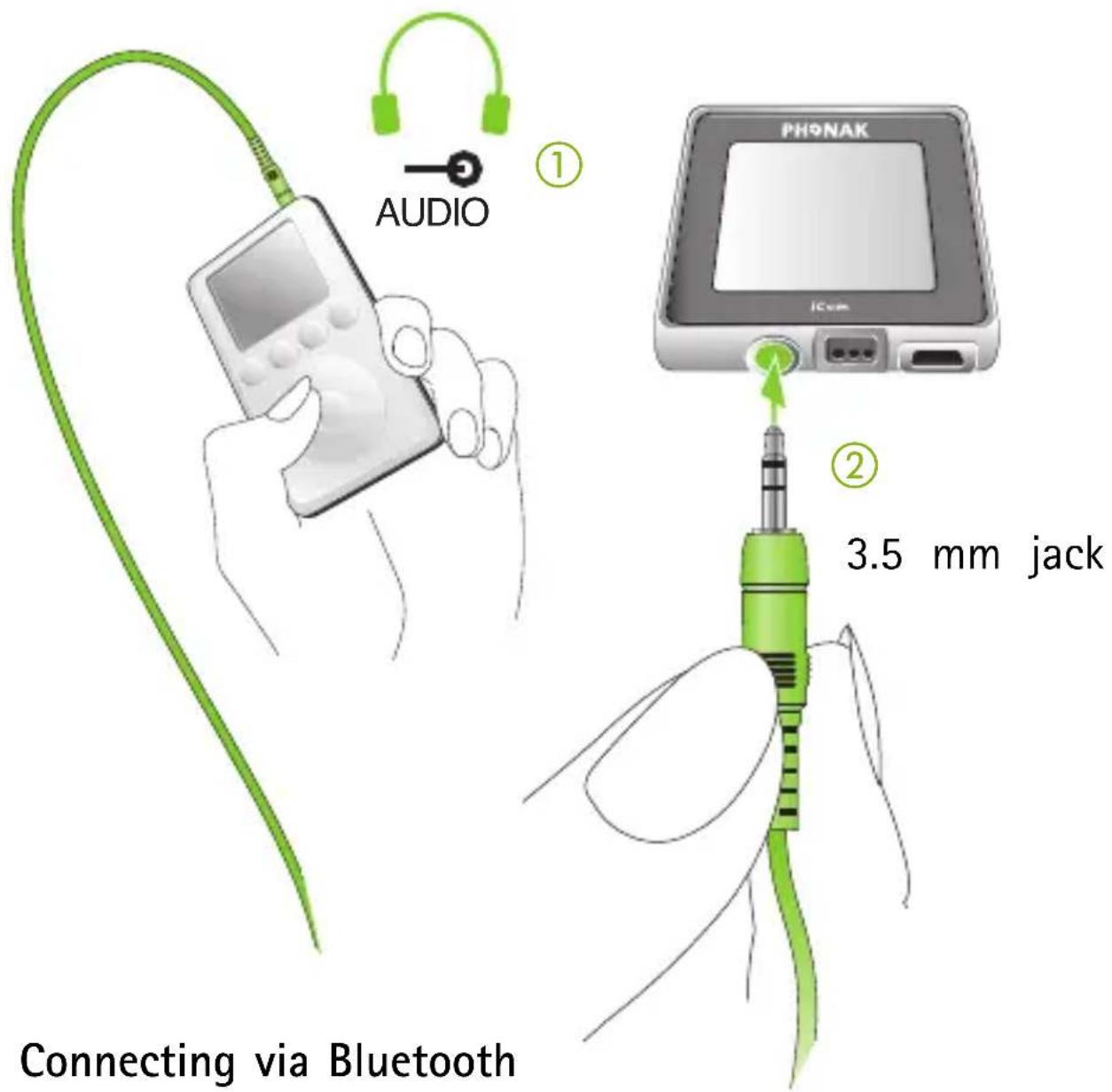
If your audio source is equipped with Bluetooth functionality or if you use an external Bluetooth adapter, you can stream audio wirelessly via Bluetooth. In order to use your iCom with a Bluetooth enabled audio device or transmitter, you must first pair the devices. Please refer to the section “Pairing iCom with a Bluetooth transmitter” for further details.
Connecting via FM system
When noise, distance or reverberation is a problem, FM systems greatly improve communication. A wireless FM communication system consists of a transmitter and a receiver. The transmitter is placed near, or directly connected to the sound source (e.g. TV or radio).
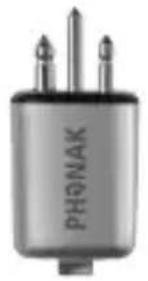
It transmits the signal via radio to your FM receiver (MLxi or MicroMLxS) attached to your iCom. The FM signal is then sent to your hearing instruments via the iCom.
- Attach your FM receiver to iCom via the FM input (Europlug) as shown in the picture below.
natural_image
Close-up of a metallic cylindrical electronic component with three pins and a label 'PHOAK' on its side (no other text or symbols visible)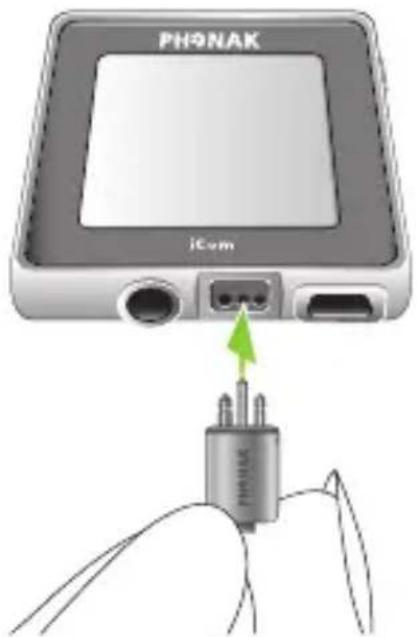
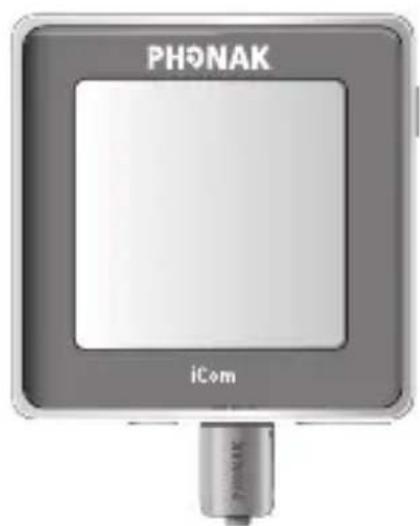
- Place the FM transmitter near the sound source or connect it to your TV, radio etc. and turn it ON.
- Turn the FM receiver ON. If you use a MicroMLxS, receiver, set the switch to the position "●".
You will hear an audible notification in your hearing instruments if the FM receiver receives an FM signal.
Briefly press the iCom main button to accept the FM signal. The streaming indicator will light solid yellow to indicate FM usage. Press the main button for 2 seconds to reject the incoming FM signal.
If the main button is not pressed within 20 second, iCom will automatically switch to pause mode and the streaming indicator will blink yellow.
The FM connection will remain ON for at least 60 seconds even with no signal transmitted to ensure uninterrupted transmission in situations such as lectures.
To deactivate FM, turn OFF the attached FM receiver or unplug it. iCom will automatically activate the default hearing program.
Start streaming
Set the volume of your audio source to a medium level and press play on your audio source to start. iCom will automatically detect the audio signal and you will hear the sound in your hearing instruments. Your hearing instruments will automatically switch to a special program which provides you with optimal sound quality.
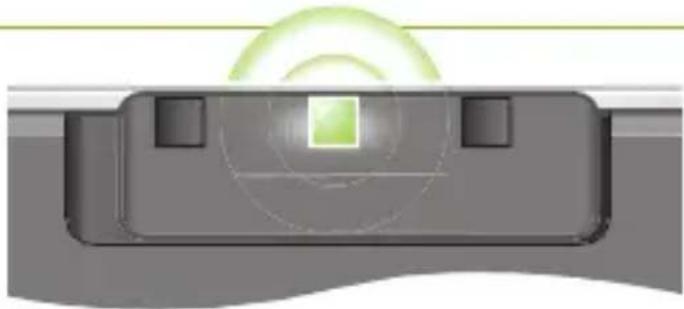
If connected via audio cable or FM receiver, the streaming indicator will light solid yellow. If connected via Bluetooth, the Bluetooth indicator will light solid blue.
Pause streaming
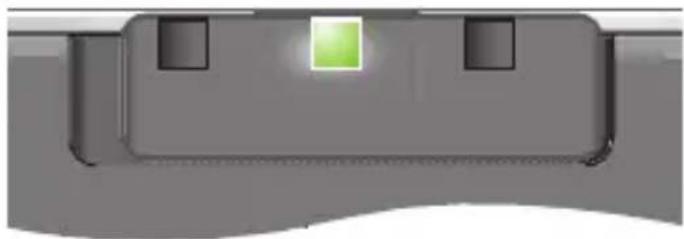
To temporarily interrupt the streaming, e.g. if someone wants to speak to you, press the main button on iCom. The hearing instruments will switch to normal operation. If connected via audio cable or FM receiver, the streaming indicator flashes yellow while in pause. If connected via Bluetooth, the Bluetooth indicator flashes blue when paused.
To resume streaming, press the main button on iCom again.
The streaming pause operation will usually not pause your audio device. An MP3 player, connected via audio jack, will continue playing music, although you will not hear it in your hearing instruments.
Stop streaming
To stop streaming audio, turn OFF the audio source, unplug the audio cable or disengage the audio devices' Bluetooth functionality.
When streaming stops, iCom will automatically activate the previously-active hearing program after a short period of time. This occurs whenever the streaming signal stops for more than 5 seconds. (Except in the case of FM, which will stop after 60 seconds to accommodate lectures).
Streaming interruptions
Situations where streaming may be interrupted:
- If iCom is too far away from the hearing instruments while streaming, e.g. if you are not wearing the neckloop or if you have unplugged the neckloop cable.
- If the Bluetooth signal is out of range.
In those cases, your hearing instruments will lose the audio signal. If this situation continues for more than about 5 seconds, they will automatically switch to the previously-active hearing program.
To avoid streaming interruptions, make sure you wear iCom correctly and keep the Bluetooth device within the operating range as described in the sections "Wearing iCom" and "Bluetooth link".
Reset button
If, for some reason, iCom becomes unresponsive, press the reset button on the back of the device as shown in the picture.
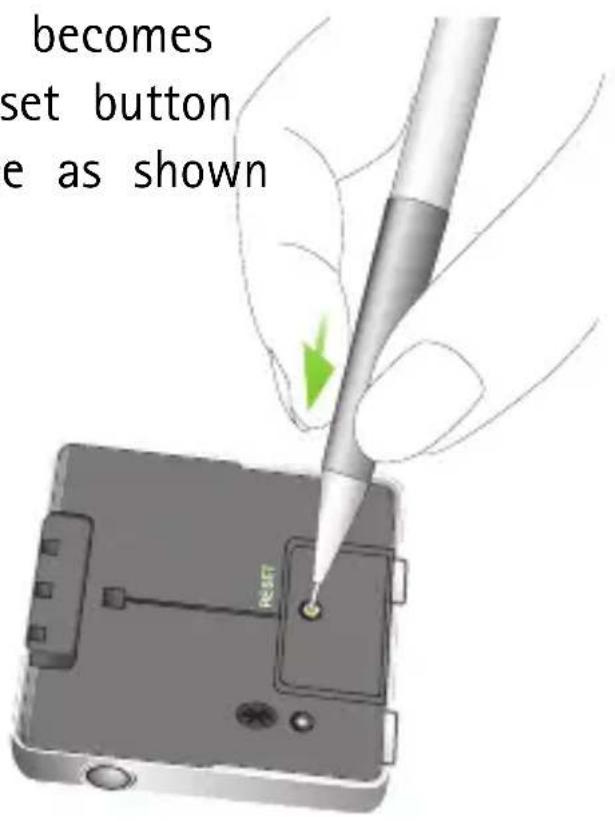
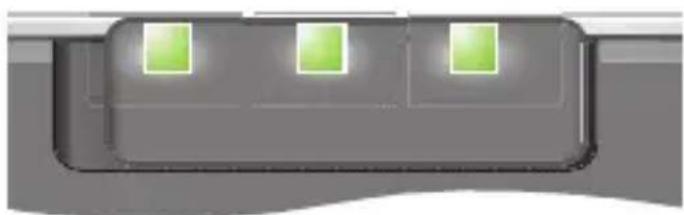
If all three indicators on your iCom are lit solid, this may indicate a software problem. Refer to Troubleshooting section.
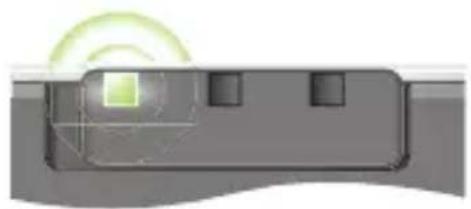
To check the version of your iCom press the ON/OFF Button once in standby mode.
Orange, 3 flashes = iCom Version 3,
offering 2-phone support, voice dialing, last number redial and audio lock.
natural_image
Diagram of a device with a green sensor and surrounding components (no text or symbols)Indicators
Battery indicator
Green
Slow flash
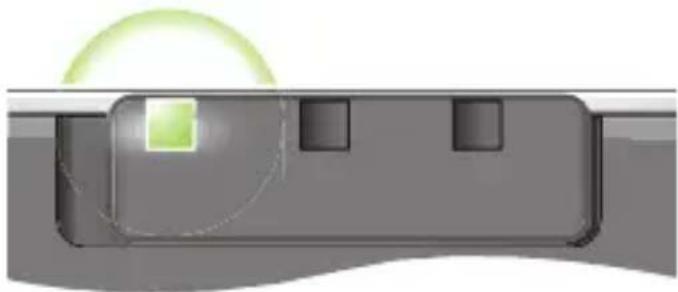
natural_image
Diagram of a mechanical or electronic component with a highlighted green circular area and square features (no text or symbols)Orange
Medium flash
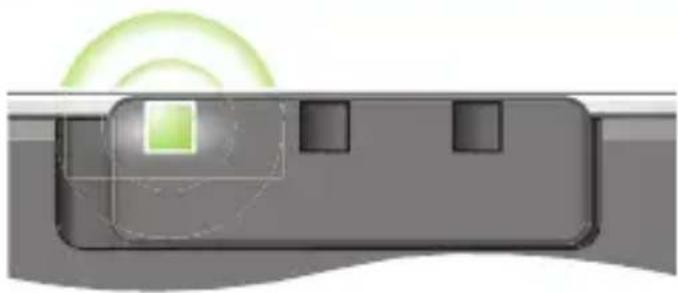
natural_image
Diagram of a device with a green sensor and control panel, no text or symbols presentRed
Fast flash
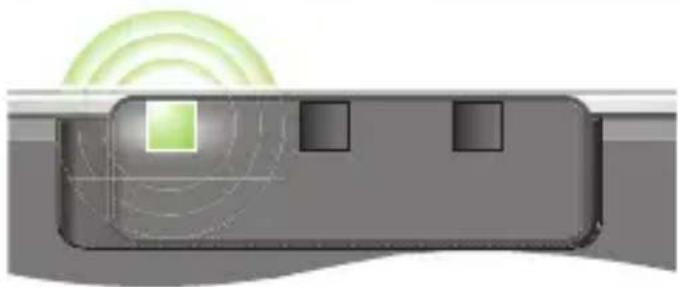
natural_image
Diagram of a device with green signal waves and square markers, no text or symbols presentOrange
Lit solid
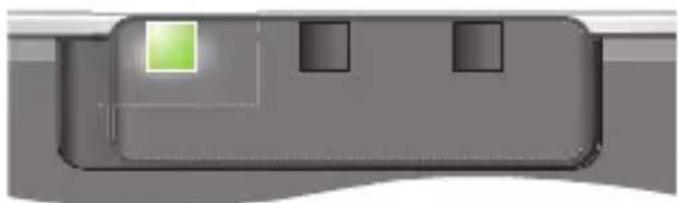
natural_image
Close-up of a mechanical component with a green square and three black square holes (no text or symbols visible)Green
Lit solid
natural_image
Pure electrical circuit lines without any symbolsBattery full
Battery medium
Battery empty
Battery charging
Battery fully charged
(charger attached)
Indicators
Streaming indicator
Yellow
Lit solid
natural_image
Close-up of a mechanical component with a green square highlight and two black square holes (no text or symbols visible)Yellow
Medium flash
natural_image
Diagram of a device with a green sensor or indicator light emitting signal waves, no text or symbols presentBluetooth indicator
Blue
Fast flash
natural_image
Diagram of a device with a green sensor or signal overlay, no text or symbols presentBlue
Slow flash
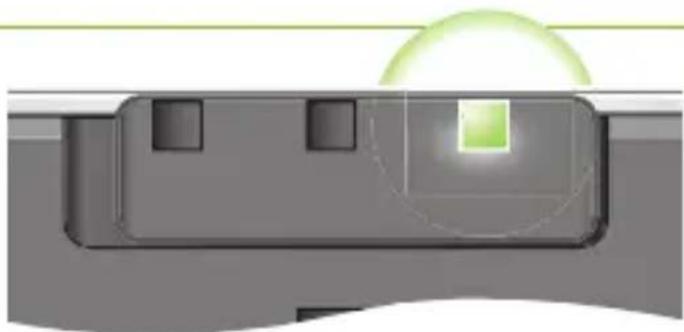
natural_image
Diagram of a mechanical component with a highlighted green square and light source, no text or symbols present| Audio streaming | iCom is streaming audio to the hearing instruments. |
| Audio streaming pause | Audio streaming to the hearing instruments is paused. Push the main button to resume. |
| Bluetooth Pairing mode or 2 phones connected "multi point mode" | iCom can be detected by other Bluetooth devices for 2 minutes. In normal mode it indicates that 2 phones are connected (Multi-Point). |
| Bluetooth successfully connected | At least one device has successfully connected with iCom. |
Indicators
Blue
Medium flash
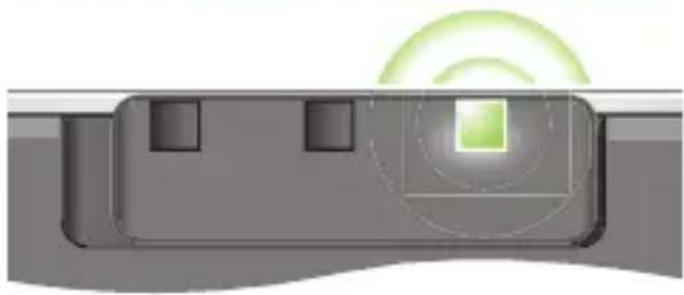
natural_image
Diagram of a device with a green sensor icon and circular light source, no text or symbols presentBlue
Intermittent flash
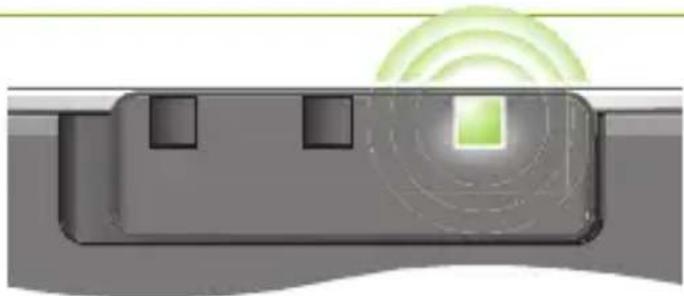
natural_image
Diagram of a device with a green sensor or signal overlay, no text or symbols presentBlue
Lit solid
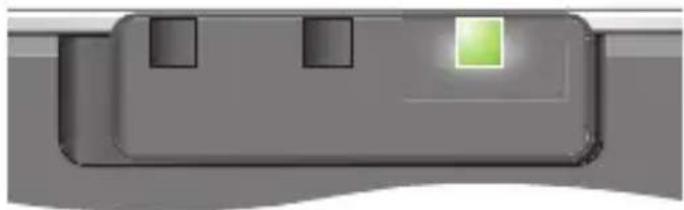
natural_image
Close-up of a mechanical component with a green square highlight and four square holes (no text or symbols visible)Error indication
All three indicators lit solid
natural_image
Pure electrical circuit lines without any symbols| Bluetooth Pause | Bluetooth transmission is paused. |
| Bluetooth Ring | A paired and connected mobile phone is ringing. |
| Bluetooth transmission | iCom is transmitting Bluetooth signals to the hearing instruments. |
| Error | There may be a software problem. Refer to Troubleshooting section. |
Important information
Maintenance and care

Clean iCom using a damp cloth. Never use household cleaning products (washing powder, soap, etc.) or alcohol to clean the device.

When iCom is not in use, turn it OFF and store it safely.

Protect iCom from excessive moisture (bathing, swimming) and heat (radiator, car dashboard). Protect it from excessive shock and vibration.

Protect the microphone openings, connectors for the audio cable, FM receiver and charger from dirt and debris. If necessary, use the cleaning brush provided with your hearing instruments to clean these areas.
Safety notice

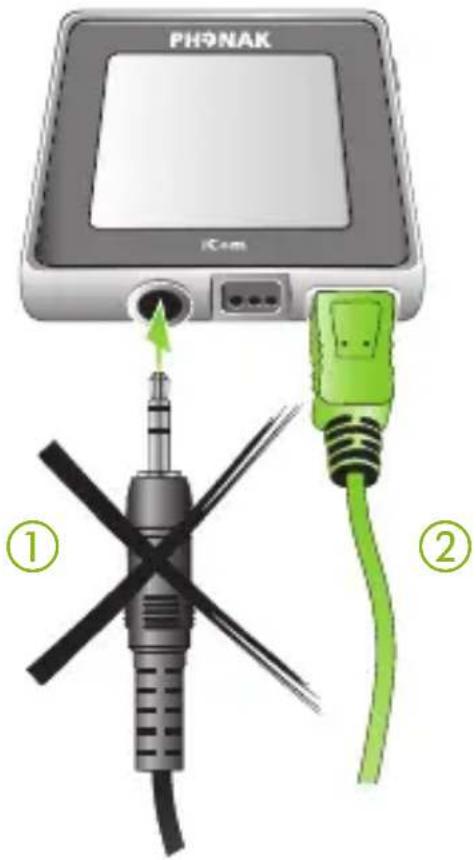
Do not connect audio cable ① while USB cable ② is connected.

Keep this device out of reach of children under 3 years.

Persons using medical devices such as pacemakers are not permitted to use this device.

External devices may only be connected if they have been tested in accordance with corresponding IECXXXX standards.
Important points

Do not open the neckloop while iCom is transmitting signals to your hearing instruments. Keep the neckloop closed when iCom is not in use.

The digitally-coded, inductive transmission technology used in this device is extremely reliable and experiences virtually no interference from other devices. It should be noted, however, that when operating the device near a computer terminal or other strong electromagnetic fields, it may be necessary to be at least 60 cm (24") away to ensure proper operation.

Do not use this device in locations where it is forbidden to use electronic devices.

X-ray radiation (e.g. CT scans, MRI scans) may adversely affect the correct functioning of this device. We recommend that you switch the device OFF before undergoing X-ray procedures and keep it outside the room.

High-powered electronic equipment, larger electronic installations and metallic structures may impair and significantly reduce the operating range.

If the hearing instruments do not respond to the device because of an unusual field disturbance, move away from the disturbing field.

Your hearing instrument(s) and this device were given a unique communication code during the fitting. This ensures that the device will not affect hearing instruments worn by others.

When using an FM transmitter, be aware that radio signals might also be picked up and overheard by other receivers.
Before using the system in another country, contact your hearing care professional to make sure your radio channels are permitted in that country.

Use only original Phonak accessories.

Do not make any changes or modifications to this device.

Opening iCom might damage it. If problems occur which cannot be resolved by following the remedy guidelines in the troubleshooting section of this user guide, consult your hearing care professional. iCom may only be repaired by an authorized service center.

The battery may only be replaced by an authorized service center.
Troubleshooting
| Situation | Most probable cause |
| iCom is no longer recognized by the mobile phone or other Bluetooth device to which it was previously paired. | iCom can be paired to a maximum of 8 different Bluetooth devices.If the internal memory is full, new pairings will overwrite previous pairings. |
| The mobile phone is ringing but the Bluetooth indicator is not flashing and there is no ringing indication in the hearing instruments. | Bluetooth is OFF in the mobile phone.iCom and your mobile phone are not connected to each other. |
| iCom is not paired to the mobile phone. |
Remedy
Repeat the pairing between iCom and the Bluetooth device which was overwritten.
Ensure Bluetooth is turned ON in the mobile phone. Please refer to your mobile phone's user guide.
- Disable the Bluetooth functionality in your mobile phone and turn it ON again.
- Restart iCom by turning it OFF and back ON. The iCom's Bluetooth functionality will be automatically re-activated.
- Activate iCom by selecting it in the mobile phone's "Active device" menu. Reduce the distance between iCom and the mobile phone.
Follow the pairing process as described on page 22.
Troubleshooting
| Situation | Most probable cause |
| The mobile phone is ringing, the Bluetooth indicator is flashing but there is no ringing indication in the hearing instruments. | iCom is out of range of the hearing instruments. |
| When making phone calls the other party reports difficulties hearing me. | The iCom's microphone openings may be covered or not able to pick up your voice correctly. |
| I hear my mobile phone's key-press tones in my hearing instruments. | The key-press tones may be ON in your mobile phone. |
| The volume of phone conversations, audio streaming and FM connections is not comfortable (too low or too high). | The different audio sources have different output volumes. |
Remedy
Make sure you wear iCom around your neck.
Make sure the microphone openings are not covered and that you speak into iCom as shown on page 31. Do not turn iCom sideways as you speak. Be careful not to let iCom rub against clothing.
Deactivate key-press and confirmation tones on your mobile phone. Please refer to the mobile phone user guide.
Volume cannot be changed via iCom. Adjust the volume on the connected audio source or mobile phone or change the volume on the hearing instruments.
Troubleshooting
| Situation | Most probable cause |
| iCom is unresponsive and all three indicators are lit solid. | This may indicate a software problem. |
Remedy
Unplug any connectors on the iCom, including the USB charging connector, and press the reset button.
If the problem persists, delete Bluetooth pairings and press the reset button again. If the problem still persists, please contact your hearing care professional.
Service and warranty
Phonak offers you a comprehensive global warranty which becomes effective on the date of purchase. Please ask your hearing care professional about the details and duration. This warranty covers any repairs due to defects in material and/or workmanship. The warranty does not cover damage from improper handling or care, exposure to chemicals, immersion in water or undue stress. Damage caused by third parties or non-authorized service centers renders the Phonak warranty null and void. This warranty does not include any services performed by a hearing care professional in their office. This warranty applies to the Phonak products listed below:
Serial number:
Date of purchase:
Declaration of conformity
Phonak AG, Laubisrütistrasse 28, CH-8712 Stäfa, Switzerland declares under its sole responsibility that iCom is in conformity with the following standards or other standardizing documents:
Radio: EN 300-330 EN 300 328
EMC: EN 60601-1-2 Safety: EN/IEC 60601-1
Implementing the provisions of the MDD 93/42/EEC (Medical Device Directive), R&TTE Directive 1999/5/EC (Radio and Telecommunications Terminal Equipment), EMC Directive 2004/108/EC (Electromagnetic Compatibility) and LVD 2006/95/EC (Low Voltage Directive).
Manufacturer: Phonak AG Laubisrütistrasse 28 CH-8712 Stäfa Switzerland
EU Representative: Phonak GmbH D-70736 Fellbach-Oeffingen Germany
Notices
Notice 1
This instrument is certified under:

FCC ID: KWC-ICOM1
IC: 2262A-ICOM1
This device complies with Part 15 of the FCC Rules and with RSS-210 of Industry Canada. Operation is subject to the following two conditions:
1) this device may not cause harmful interference, and
2) this device must accept any interference received, including interference that may cause undesired operation.
Changes or modifications made to this equipment not expressly approved by Phonak may void the FCC authorization to operate this equipment.
Notice 2
This Class B digital apparatus complies with Canadian ICES-003.
Notice 3
This equipment has been tested and found to comply with the limits for a Class B digital device, pursuant to Part 15 of the FCC Rules.
These limits are designed to provide reasonable protection against harmful interference in a residential installation. This equipment generates, uses, and can radiate radio frequency energy and, if not installed and used in accordance with the instructions, may cause harmful interference to radio communications. However, there is no guarantee that interference will not occur in a particular installation.
If this equipment does cause harmful interference to radio or television reception, which can be determined by turning the equipment off and on, the user is encouraged to try to correct the interference by one or more of the following measures:
- Reorient or relocate the receiving antenna
- Increase the separation between the equipment and receiver
- Connect the equipment into an outlet on a circuit different from that to which the receiver is connected
- Consult the dealer or an experienced radio/TV technician for help

XXXX

The CE symbol is confirmation by Phonak AG that this Phonak product meets the requirements of the R&TTE Directive 1999/5/EC on Radio and Telecommunication Terminal Equipment. The numbers after the CE symbol are the number of consulted certified bodies under the above mentioned directives. The alert sign means that potential restrictions on its use are applicable in one or more EU Member States.

This symbol indicates this product complies with requirements for a B type applied part according to EN 60601-1.

This symbol indicates that it is important that the u refers to associated warnings given in this user guide

The symbol with the crossed out disposal bin indicates that this product shall not be treated as household waste. Please hand over your old or unused product the applicable collection point for the recycling of electrical and electronic equipment or bring your old product to your hearing care professional for appropriate disposal. By ensuring this product is disposed of correctly, you will help prevent potential negative effects on the environment and human health.
Operating This product has been designed for trouble-free conditions operation without restrictions when used as intended, unless otherwise stated in this user guide.
Transportation Temperature should not exceed limits of -20^/60^ and storage Celsius at a relative air humidity of 65% for extended conditions periods during transportation and storage.
Air pressure between 500 and 1100 hPa is not detrimental to this device.

Z999
Australia & New Zealand

Brazil
CMII
ID:
China

Japan

South Korea
Notes
Your hearing care professional
Manufacturer:
Phonak AG
Laubisrütistrasse 28
CH-8712 Stäfa
Switzerland
EU Representative:
Phonak GmbH
D-70736 Fellbach-Oeffingen
Germany
- Introduction to Bluetooth 17
- Setting up Bluetooth devices 21
- Using your iCom with your mobile phone 29
- Using audio devices and FM 40
- Reset button 48
- Indicators 50
- Important information 56
- Service and warranty 68
- Declaration of conformity 69
- Welcome
- What is the iCom?
- Description
- Buttons
- Inputs
- Indicators
- Other
- iCom accessories
- Getting Started
- Charging the battery
- Operating time
- Battery status
- Turning your iCom ON or OFF
- Wearing your iCom
- Indicators cover
- Introduction to Bluetooth
- Bluetooth®
- Bluetooth device compatibility
- Bluetooth operating range
- Using a Bluetooth device: pairing and connecting
- Setting up Bluetooth devices
- Pairing with your mobile phone
- To pair your iCom and mobile phone:
- Connecting your mobile phone
- Pairing and connecting iCom with a Bluetooth transmitter
- Pairing and connecting iCom with a Personal Computer (PC)
- Deleting Bluetooth pairings
- Using your iCom with your mobile phone
- How your iCom interacts with your mobile phone
- Bluetooth Wireless signal
- Speaking into your iCom
- Moving out of Bluetooth range
- Incoming calls
- Accepting incoming calls
- Rejecting incoming calls
- Making a call
- Last number redial, Voice dialing
- Ending a call
- Step 1
- Step 2
- Using audio devices & FM
- Streaming priorities
- Connecting via audio cable (3.5 mm jack)
- Connecting via FM system
- Start streaming
- Pause streaming
- Stop streaming
- Streaming interruptions
- Reset button
- Battery indicator
- Green
- Orange
- Red
- Streaming indicator
- Yellow
- Bluetooth indicator
- Blue
- Error indication
- Important information
- Maintenance and care
- Safety notice
- Important points
- Remedy
- Service and warranty
- Declaration of conformity
- Notices
- Notice 1
- Notice 2
- Notice 3
- Notes
Brand : ICOM
Model : Phonak
Category : Uncategorized