
UB-T780BP - Whiteboard and accessories PANASONIC - Free user manual and instructions
Find the device manual for free UB-T780BP PANASONIC in PDF.


| Product Type | Interactive Electronic Board (Whiteboard) |
| Brand | Panasonic |
| Model | UB-T780BP |
| Dimensions (H x W x D) | 1,340 mm × 1,752 mm × 89 mm (4 ft. 4 3/4 in. × 5 ft. 9 in. × 3 1/2 in.) |
| Weight | 25 kg (55.11 lbs) |
| Power Supply | USB bus power (5 V / 500 mA); no AC adapter required |
| Interface | USB 2.0 |
| Screen Board Size (H x W) | 1,175 mm × 1,692 mm (3 ft. 10 1/4 in. × 5 ft. 6 5/8 in.) |
| Interactive Effective Area (H x W) | 1,165 mm × 1,502 mm (3 ft. 9 7/8 in. × 4 ft. 11 1/8 in.) |
| Detection Technology | Ultrasonic and infrared from electronic pen |
| Main Functions | Write, draw, erase, mouse control on projected computer screen; annotation and presentation tools |
| Included Software | elite Panaboard software, elite Panaboard book |
| Operating Temperature & Humidity | 15 °C to 35 °C (59 °F to 95 °F), 30% to 80% RH |
| Storage Temperature & Humidity | -20 °C to 40 °C (-4 °F to 104 °F), 15% to 80% RH |
| Accessories Included | USB cable (5 m), CD-ROM, electronic pen, AAA battery, 2 replacement penpoints, wall mounting plates (left & right), operating instructions, warranty card |
| Safety & Compliance | FCC Class A; designed for professional installation; do not alter or modify |
| Maintenance & Cleaning | Wipe gently with soft damp cloth; use whiteboard cleaner for stubborn marks; no thinners or abrasives |
| Spare Parts & Repairability | Electronic pen (UE-608025); stand (KX-B061) sold separately; battery and penpoint user-replaceable; installation by qualified personnel |
| General Information | USB bus-powered; requires projector for operation; calibration needed after setup; do not use whiteboard markers |
Frequently Asked Questions - UB-T780BP PANASONIC
User questions about UB-T780BP PANASONIC
0 question about this device. Answer the ones you know or ask your own.
Ask a new question about this device
Download the instructions for your Whiteboard and accessories in PDF format for free! Find your manual UB-T780BP - PANASONIC and take your electronic device back in hand. On this page are published all the documents necessary for the use of your device. UB-T780BP by PANASONIC.
USER MANUAL UB-T780BP PANASONIC
Operating Instructions
(For Basic Operations)
Electronic Board
(elite Panaboard)
Model No. UB-T780BP
Stand is sold separately.
Installation Manual Included (for qualified service personnel)
• To assemble this unit, please refer to the Installation Manual on pages 29 through 48. - Before operating this unit, please read these instructions completely and keep them carefully for future reference. - This unit is designed for installation by a qualified servicing dealer. Installation performed by non-authorized individuals could cause safety-related problems with the operation of this equipment.
For U.S.A. only:
• To locate the closest authorized dealer in your area, please call 1-800-449-8989.
Introduction
Thank you for purchasing the Panasonic Electronic Board.
For optimum performance and safety, please read these instructions carefully.
Feature Highlights
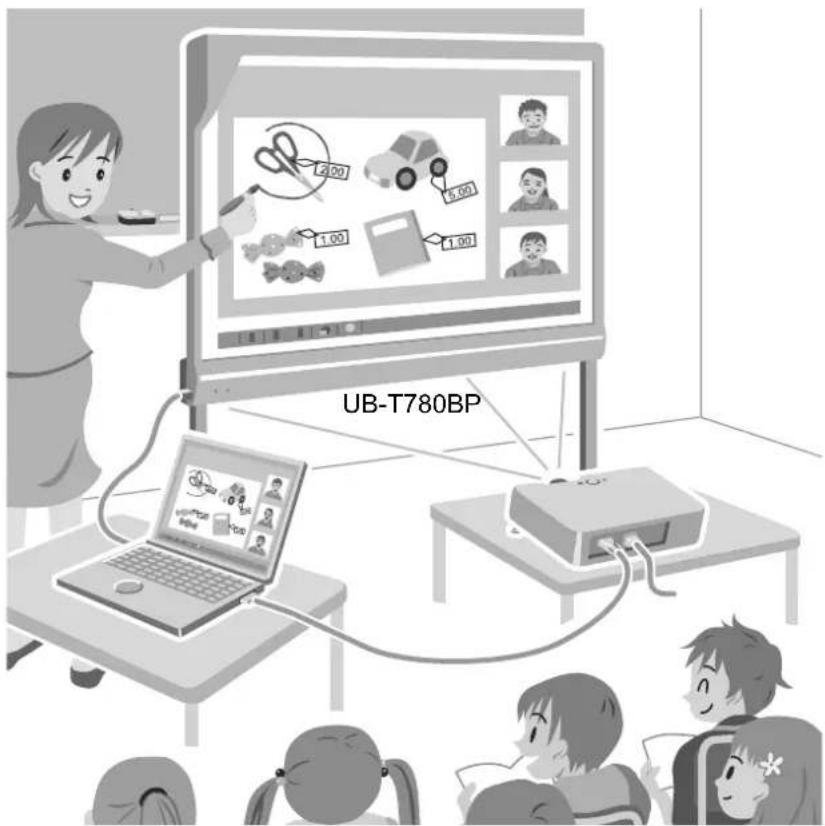
The elite Panaboard is supplied power through the USB cable connected to a computer. You do not need to plug in the elite Panaboard to an AC outlet. Using a projector to display the contents of the computer's screen on the elite Panaboard, you can do the following.
Electronic Pen Features
- Manipulate objects on the computer screen by using the electronic pen as a mouse.
- Draw and erase lines on the computer screen by using the electronic pen.
- Save images of the computer screen that were created by drawing with the electronic pen.
elite Panaboard book
Use the elite Panaboard book software that supports elite Panaboard operations, such as writing, drawing, attaching images and computer operations. This software lets you save the contents of the screen on your computer and retrieve it for later use.
USB Bus Power Operation
As the elite Panaboard receives power from a computer through the connected USB cable, there is no need to plug it into an AC outlet.
Usage Scenarios
For Education
- Create an effective learning environment by projecting a variety of educational software onto the elite Panaboard and, with the electronic pen, directly manipulate the software and write and draw on the screen.
- With several tools at your disposal for aiding in explanations, such as illustration and marker tools, you can keep students' attention through a dynamic screen display.
- Draw your students' interest by using the screen shade feature to show questions to students while hiding the answers, and incrementally showing the rest of the screen.
- The teacher can prepare materials before class to display on the elite Panaboard.
For Business
- Visually communicate your product's characteristics and create an appealing presentation of your product by displaying images and using the electronic pen to highlight key points.
- Display the contents, including what you have written using the electronic pen, of the elite Panaboard in your company in real time on a remote computer by using TV conferencing equipment.
Things you should keep a record of
Attach your sales receipt here
| For your future reference | |
| Date of purchase | |
| Serial number | |
| Dealer's name | |
| Dealer's address | |
| Dealer's tel no. | |
About the Operating Instructions
There are 2 separate operating manuals for the elite Panaboard.
| For Basic Operations(this document) | Instructions for connecting and operating the elite Panaboard, as well as instructions for installation construction. |
| For Software(electronic documentation) | Instructions for the included elite Panaboard software and elite Panaboard book. The manual "Operating Instructions (For Software)" is located on the included CD-ROM. You can view the "Operating Instructions (For Software)" after you install the elite Panaboard Software on your computer. For details on viewing the manual, see "Viewing the Electronic Documentation" (page 22). |
Abbreviations
Windows® refers to the Microsoft® Windows® operating system.
Windows® 2000 refers to the Microsoft® Windows® 2000 operating system.
Windows® XP refers to the Microsoft® Windows® XP operating system.
Windows Vista® refers to the Microsoft® Windows Vista® operating system.
Windows® 7 refers to the Microsoft® Windows® 7 operating system.
DirectX® refers to the Microsoft® DirectX® application programming interface.
Trademarks
• Microsoft, Windows, Windows Vista, and DirectX are either registered trademarks or trademarks of Microsoft Corporation in the United States and/or other countries. - IBM and AT are trademarks of International Business Machines Corporation in the United States, other countries, or both. - Intel and Pentium are trademarks or registered trademarks of Intel Corporation in the United States and other countries. - Adobe and Reader are either registered trademarks or trademarks of Adobe Systems Incorporated in the United States and/or other countries.
- All other trademarks identified herein are the property of their respective owners.
Federal Communications Commission Requirements
For United States Only
Note
This equipment has been tested and found to comply with the limits for a Class A digital device, pursuant to part 15 of the FCC Rules. These limits are designed to provide reasonable protection against harmful interference when the equipment is operated in a commercial environment. This equipment generates, uses, and can radiate radio frequency energy and, if not installed and used in accordance with the instruction manual, may cause harmful interference to radio communications. Operation of this equipment in a residential area is likely to cause harmful interference in which case the user will be required to correct the interference at his own expense.
FCC Warning
To assure continued FCC compliance, the user must use only the provided power supply cord. Also, any unauthorized changes or modifications to this equipment would void the user's authority to operate this device.
Warning about saving data
When the system storage device or any of its optional storage device is adversely effected by operational errors, static electricity, electrical noise, vibration, dust or when the power has been cut off due to malfunction, repair or inadvertently, the memory contents may be lost or changed. Before operating the system, make a point of reading the precautionary notes in the Operating Instructions and the help information, and observe them during operation.
Please observe carefully the following precaution:
- Make absolutely sure that all important data is saved by back-up or the original is saved.
The manufacturer hereby declares that it cannot be held accountable for any loss or change in any data stored on floppy disks, hard disks, optical disks, or other memory devices.
System Requirements
| Computer | IBM® PC/AT® or compatible with a CD-ROM drive |
| CPU | Intel® Pentium® 4 processor or later |
| Interface | USB 2.0 |
Note
- For details about the system requirements, refer to the Operating Instructions (For Software).
Exemption of Liability
Panasonic System Networks Co., Ltd. is not responsible for accidents or injuries caused by, but not limited to, the following:
- Altering the device or improper installation construction.
- Using the device for purposes beyond its intended use.
- Earthquake, fire, flood, tidal wave, hurricane, lightning or other natural phenomena.
- Natural aging of the building or similar phenomena.
For FRG Users (For Germany Only)
Note
Machine noise information regulation - 3.GPSGV, the maximum sound pressure level is 70 dB(A) or less, in conformity with EN ISO 7779.
This device is not intended for use in the direct field of view at visual display workplaces. To avoid accommodating reflexions at visual display workplaces this device must not be placed in the direct field of view.
Table of Contents
For Your Safety ....7
For Your Safety ....7
Precautions ....10
Usage ....11
Included Accessories ......11
Names and Uses of the Parts ....12
Connecting External Components ....15
Installing the elite Panaboard software ....17
Setting the Projector ....18
Setting Your System (Calibration) 19
Starting the elite Panaboard software and Performing Calibration ....20
Uninstalling the elite Panaboard software ....21
Viewing the Electronic Documentation 22
Download the Latest Software 22
Appendix 23
Daily Care 23
Cleaning the elite Panaboard 23
Replacing the Battery in the Electronic Pen 23
Replacing the Penpoint of the Electronic Pen 24
Troubleshooting 25
Specifications 27
Supplies & Accessories 28
Installation Manual 29
Installation Manual (for qualified service personnel) ......29
For Your Safety 29
Notice 29
Included Accessories 31
Wall Mounting Construction 32
Checking the Wall 32
Installing the Wall Mounting Plates ....33
Wall Types and Installation Procedures 34
Stand Assembly (Sold Separately) 36
Included Parts 36
Assembly Instructions ....37
Assembly Instructions ....40
Preparing for Removing the elite Panaboard from Its Packaging 40
Assembling the elite Panaboard 41
Confirming the elite Panaboard Operation ....47
Confirming the Interactive Features 47
Repackaging 48
For Your Safety
To prevent severe injury and loss of life, read this section carefully before using the unit to ensure proper and safe operation of your unit.
The following graphic symbols are used in this Operating Instructions manual.

WARNING
Denotes a potential hazard that could result in serious injury or death.

CAUTION
Denotes hazards that could result in minor injury or damage to the unit.


These symbols are used to alert operators to a specific operating procedure that must not be performed.


This symbol is used to alert operators to a specific operating procedure that must be emphasized in order to operate the unit safely.
For Users

WARNING
Power

Connect the USB cable firmly into a USB port. Otherwise, it can cause fire or electric shock.

Do not pull, bend, rest objects on, or chafe the USB cable. Damage to the USB cable can cause fire or electric shock.

Do not attempt to repair the USB cable. If the USB cable is damaged or frayed, contact an authorized service representative for a replacement.

Never touch the USB cable with wet hands. Danger of electric shock exists.

Stop operation immediately if your unit emits smoke, excessive heat, abnormal smell, or unusual noise. These conditions can cause fire or electric shock. Immediately disconnect the USB cable, and contact your dealer for service.

When disconnecting the unit, grasp the plug instead of the USB cable. Pulling on the USB cable forcibly can damage it and cause fire or electric shock.

During thunderstorms, do not touch the unit and USB cable. It may cause an electric shock.
Installation and Relocation

Have the unit installed, removed, and disposed of only by qualified service personnel.

When the unit will no longer be used, in order to prevent it from falling, do not leave the unit installed, but remove it. If the unit falls, it can cause injury.
Operating Safeguards

If metal fragments or water gets into the unit, disconnect the unit immediately. Contact your dealer for service.
Operating the contaminated unit can cause fire or electric shock.

Never open or remove unit covers that are screwed with screws unless specifically instructed in the "Operating Instructions".

Do not alter the unit or modify any parts. Alteration or modification can cause fire or electric shock.

CHOKING HAZARD
Keep the penpoint and battery out of reach of children to prevent swallowing.
Battery

Use only the specified type of battery. Using the incorrect type of battery can result in overheating/burning or leakage of battery acid.

Make sure that the battery is installed with the correct polarity as indicated on the battery holder. Incorrectly installed batteries may burst or leak, resulting in injuries.

Batteries that seem worn down or damaged should not be used. Using worn down or damaged batteries may result in leaking.

Do not charge, short, heat, break or throw in a fire, as it may result in the battery leaking, generating heat, or bursting.

When disposing of the battery, cover the battery contacts with insulation (ex. tape). Direct contact with other batteries may result in leaking, fire, or explosion.

Do not solder the battery, as it may result in the battery leaking, generating heat, or bursting.

CAUTION
Power

When the unit is not used over an extended period of time, disconnect the USB cable. If an unused unit is left connected to a power source for a long period, degraded insulation may cause electric shock, current leakage or fire.

The unit should be used only with the USB cable enclosed with the unit.
Installation and Relocation

Do not position the unit in a location where it is unstable.

Do not place the unit in a hot, humid, or dusty environment. Prolonged exposure to these adverse conditions may cause fire or electric shock.

To prevent fire or shock hazard, do not expose this unit to rain or any type of moisture.

When moving the unit, be sure to disconnect the USB cable from the computer. If the unit is moved with the USB cable attached, it can cause damage to the cable which could result in fire or electric shock.

Move this unit with two persons. Otherwise, this unit may fall down and cause injury.

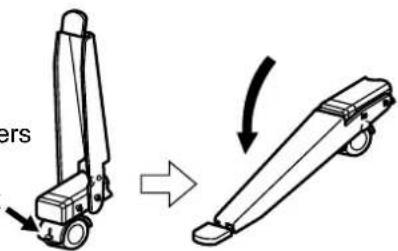
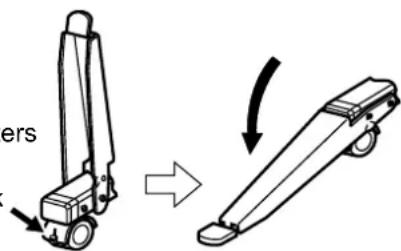
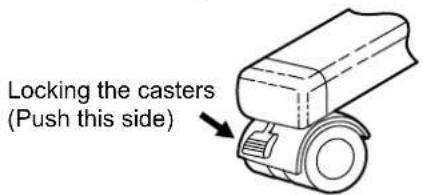
After installing or moving the unit, lock the casters and set the fall-prevention extension legs.
Locking the casters (Push this side) Push to lock
Operating Safeguards

If the unit is fallen down or damaged, disconnect the USB cable. Otherwise, it may cause fire or electric shock.

Do not lean against the screen or on the cover (lower), even if the unit is mounted on the wall.
Battery

When the unit is not used over an extended period of time, take the batteries out of the unit. Otherwise, the batteries may leak. Do not use the leaked batteries.
Precautions
About Using the Battery
If a battery is used improperly, the battery may leak, causing corrosion of the unit, or it may burst. To prevent this, always follow the precautions given below.
- If the electronic pen ceases to function because the battery has run out, remove it immediately and dispose of it according to local regulations. Leaving a drained battery in the electronic pen may result in leakage.
About Disposing of the Battery
For Brazil
Included Accessories
Check that all of the following items are included with your elite Panaboard. In the event that an item is missing, please contact your dealer.
List of Accessories
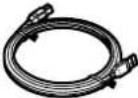
| USB Cable(5 m [16 ft. 4 7/8 in.]) | 1 | Software CD-ROM 1 | AAA Battery (LR03)(Disposable) | 1 | |
 |  | 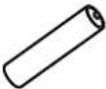 | |||
| Electronic Pen 1 | Penpoint(Replacement) | 2 | Operating Instructions(For Basic Operations)(this document) | 1 | |
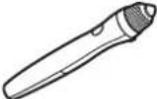 |  |  | |||
| Warranty 1 | |||||
 | |||||
Note
- Stand is sold separately.
- Store the extra penpoint along with this operating manual.
- The warranty may not be included depending on country/area.
About Using the CD-ROM
To prevent damage to the CD-ROM:
- Do not touch or write on the surface of the disc.
- Do not leave the disc out of the protective case.
- Do not leave the disc in direct sunlight or near heat sources.
- Do not place heavy objects on the disc case or drop the case.
- To clean the disc, hold it by the edges and wipe it from the center to the edges with a dry, soft cloth.
Names and Uses of the Parts
Screen
Front View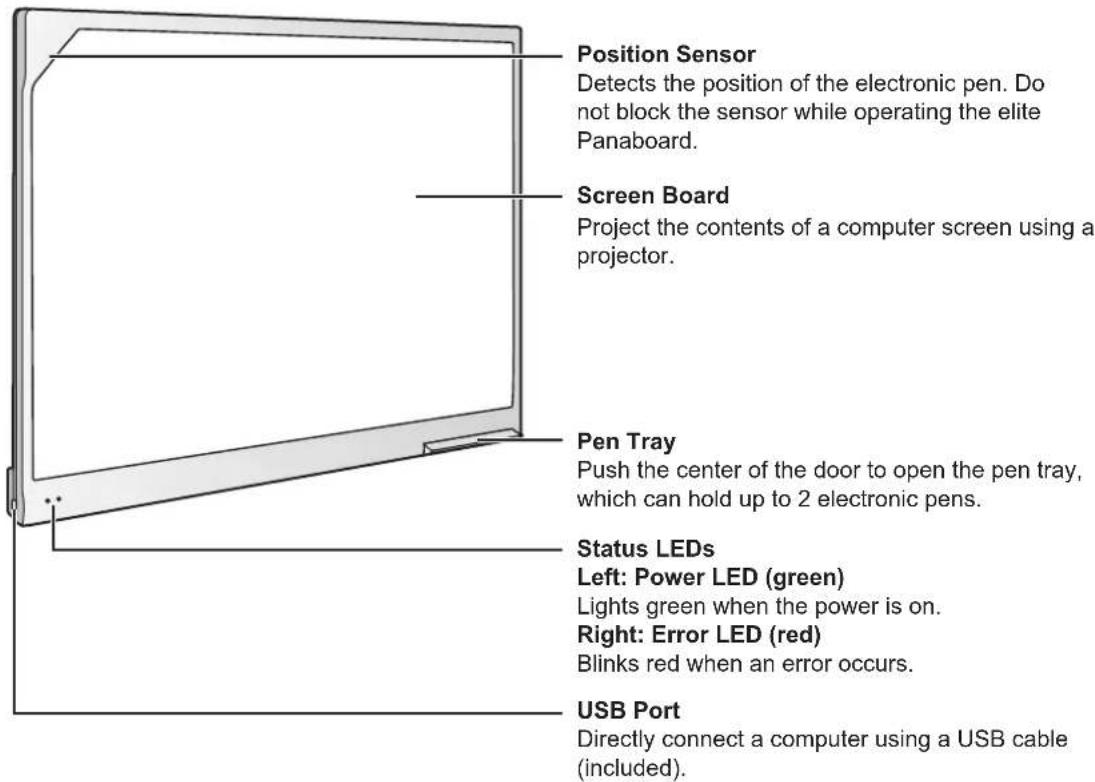
Notice
- The elite Panaboard is designed exclusively for projector images. Do not write on the screen board with a white-board marker.
Electronic Pen
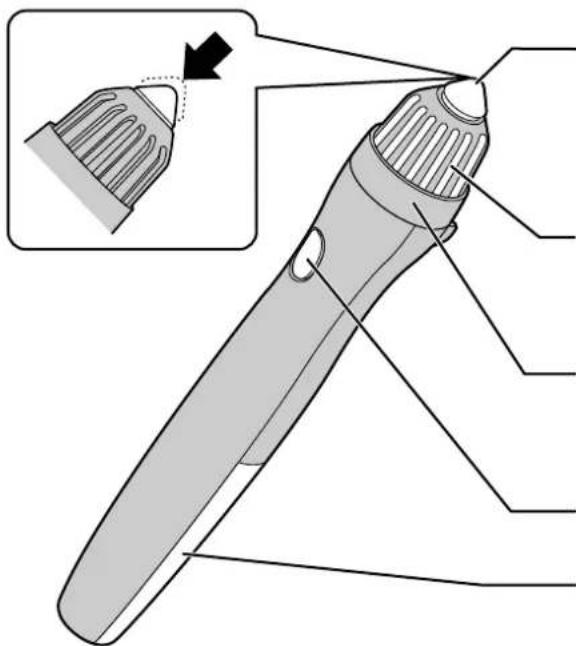
Penpoint
When you push down on the penpoint, ultrasonic waves and infrared signals are transmitted, and the equivalent of a left mouse click is performed.
Ultrasonic Emitter
Do not block this area with your fingers.
Doing so will prevent the elite Panaboard from correctly detecting the electronic pen's position.
Infrared Emitter
Do not block this area with your fingers.
Doing so will prevent the elite Panaboard from correctly detecting the electronic pen's position.
Pen Button
Performs the same function as a right-click with a mouse.
Battery Cover
Notice
- Use the electronic pen by holding it at a right angle to the screen board. Holding it at an angle can cause its position to be read incorrectly.
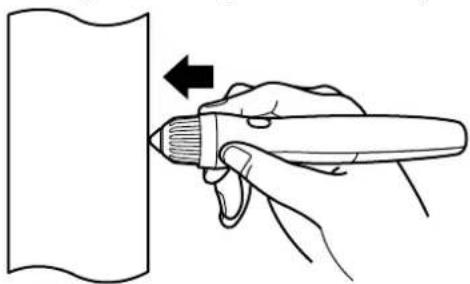
- Do not use multiple pens at the same time. This can result in erroneous operation.
- Do not push the penpoint while holding the pen close to the elite Panaboard. Doing so can cause erroneous behavior.
Note
- The electronic pen switches to power-save mode after about 30 minutes.
- When waking up the pen from power-save mode by pushing the penpoint, the pen's reaction may be slow.
- When operating the electronic pen, you will hear a buzzing sound due to the pen emitting ultrasonic waves for location detection. This sound does not have any negative effects for nearby people or devices. It will not cause electrical shocks.
Inserting (Replacing) Batteries
- Remove (replace) the battery cover.
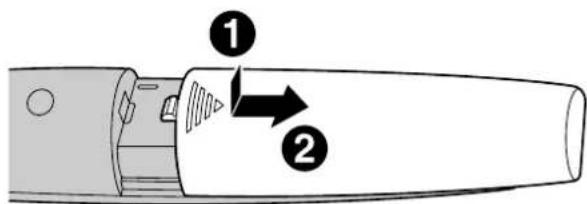
- When replacing the cover, follow the procedure in reverse.
- Insert (exchange) the battery and replace the cover.
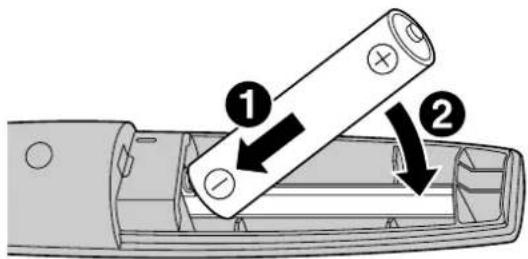
• Make sure to use a AAA alkaline battery, and ensure that ④ and face the correct directions.
Connecting External Components
1. Connect the elite Panaboard to a computer using the USB cable (included).
- Be sure the elite Panaboard software is installed on the computer before connecting it to the elite Panaboard.
- elite Panaboard: Plug the B connector (smaller connector) into the elite Panaboard's USB port. Computer: Plug the A connector (larger connector) into a USB port on the computer.
- Do not connect the elite Panaboard via a USB hub. This could result in erroneous operation.
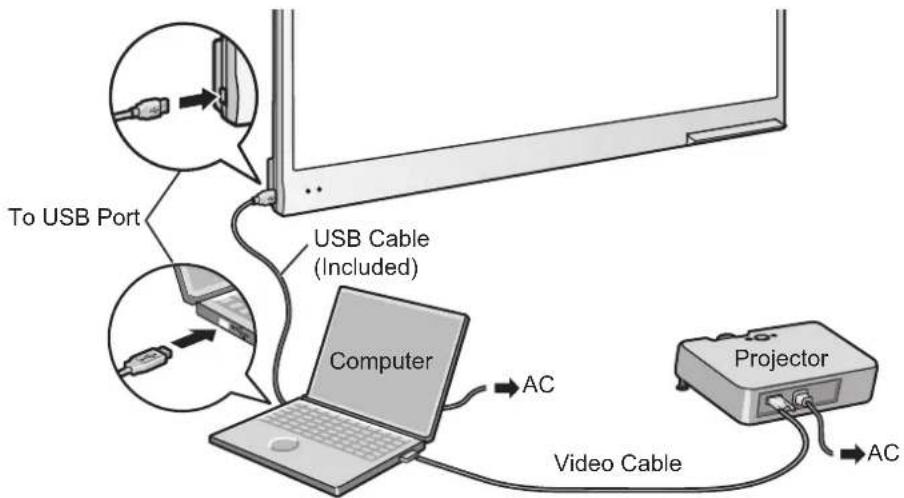
2. Connect the computer to a projector.
• For instructions on connecting your computer and projector, refer to the respective instruction manuals.
About the Usage Location
- Do not place the elite Panaboard where it is directly exposed to sunlight, near a stove, near a heating/cooling vent, or exposed to strong winds.
- Do not use the elite Panaboard in a location less than 10 °C (50 °F) or in a location subject to extreme changes in temperature.
Note
• The elite Panaboard may not work properly when used in one of the above locations.
Moving the elite Panaboard When Using the Stand (Sold Separately)
- Disconnect the USB cable from the elite Panaboard.
- Release the locks on the casters.
- Move the elite Panaboard, avoid banging or shaking the board.
Notice
• Always move the elite Panaboard with 2 people. - Do not drag or step on the cable.
- Lock the casters.
Installing the elite Panaboard software
You need to install the elite Panaboard software on the computer that will be used with the elite Panaboard. To install the elite Panaboard software, follow the procedure below.
Notice
- Do not connect the USB cable until the installation is completed.
- Do not connect more than 1 elite Panaboard to the same computer. (Doing so can cause erroneous behavior on the computer.)
- Turn on your computer and start the Windows operating system.
Log into an account with Administrator privileges.
- Insert the included CD-ROM into the CD-ROM drive.
- The setup screen will be displayed.
- If the setup screen does not appear, select your CD-ROM drive in Explorer and double-click [Menu.exe].
- In Windows Vista or Windows 7, if the Autoplay dialog box is displayed, click [Run Menu.exe].
- When the "Welcome" screen has been displayed, click [Next].
- When the "Model Selections" screen is displayed, click the type of device you are using.
- Click [Install elite Panaboard].
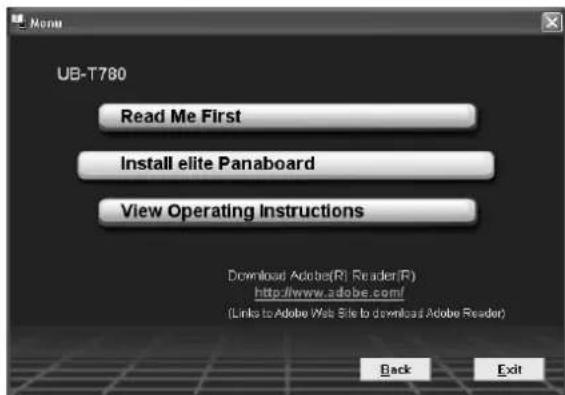
- If you agree to the terms in the "License Agreement", click [Yes].
- In Windows Vista, if the "User Account Control" window is displayed, click [Continue] to continue with the installation.
- In Windows 7, if the "User Account Control" window is displayed, click [Yes] to continue with the installation.
- When the following screen is displayed, confirm that the USB cable is not connected to your computer or the elite Panaboard, and click [OK].
- If the USB cable is connected to the elite Panaboard, disconnect the cable, and click [OK].
- If .NET Framework 2.0 or later is not installed, an installation screen will be displayed. Follow the on-screen directions to install these components.
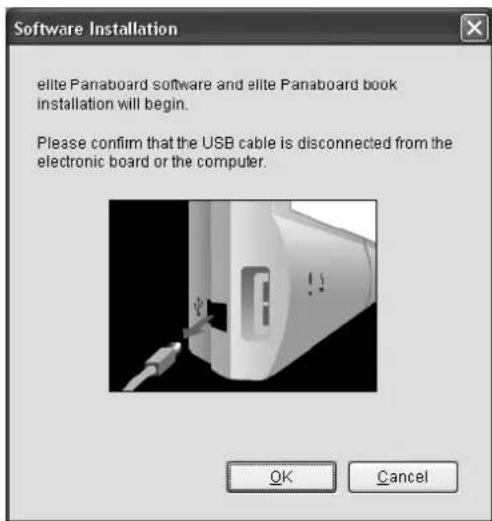
- When the installation wizard is displayed, follow the on-screen instructions and continue with the installation.
- When installation has finished, click [Finish].
- Restart your computer if you are prompted to do so.
- The group [elite Panaboard] will be created in the [Panasonic] group in the program menu.
- The following items will appear in the [elite Panaboard] group:
- elite Panaboard software
- elite Panaboard book
- Operating Instructions for Basic Operations
- Operating Instructions for Software – Download the latest version
Setting the Projector
Set up your projector as instructed below.
About Positioning the Image
- When you are projecting an image, make sure that the edge of the projected image is at least 5 mm (1/4 in.) from the screen frame. The electronic pen may not function correctly within 50 mm (2 in.) of the position sensor in the upper-left corner of the screen board.
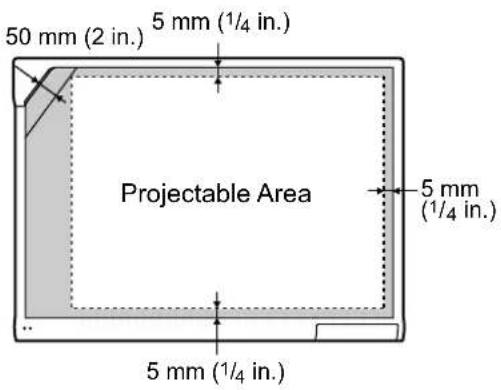
Project the Image as a Rectangle
- Adjust the location of the projector to project at a right angle with the elite Panaboard.
![graph TD A["Document with X-line"] --> B["Document with Y-line"] B --> C["Laptop Display"] C --> D["Display with circular icon"] D --> E["Document with Y-line"] style A fill:#f9f,stroke:#333 style B fill:#f9f,stroke:#333 style C fill:#ccf,stroke:#333 style D fill:#cfc,stroke:#333 style E fill:#fcc,s…](/content/2026/05/789174/images/a9b8cb4486b477bdd975c6e17b019070c89fb21eb1de987538df053f802affc7.jpg)
- If the image is projected trapezoidally, the position of the electronic pen may not be read correctly. Adjust the projector so that the projected image is a rectangle. Refer to your projector's documentation for information on adjusting the projected image.
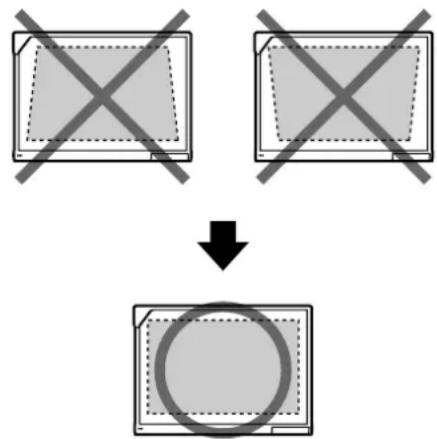
Set the Proper Resolution
- Set your computer's and projector's resolutions to the most appropriate setting. If the resolution is not set properly, the image will be difficult to see. Particularly, if the projector's resolution is lower than the computer's, thin lines can appear cut or broken. Refer to your projector's documentation for information on adjusting the resolution.
Do Not Look Directly into the Projector Lamp
- When using a projector, try to avoid looking directly into the projector lamp. Doing so can hurt your eyes.
Setting Your System (Calibration)
About Calibration
Calibration is setting up the elite Panaboard and projector so that lines and comments drawn on the screen board with the electronic pen will be correctly displayed on the image projected onto the screen board. Be sure to perform calibration before use. After you have set up the elite Panaboard, project an image onto the screen board and use the elite Panaboard software installed on your computer to perform calibration.
After Calibration
Do Not Move the elite Panaboard or the Projector
- The position of projected image and electronic pen will become misaligned in the following cases, requiring you to re-calibrate their positions. – The location of the projector changed.
- The location of the elite Panaboard changed.
- The image area or placement was changed due to changes in the zoom, focus, etc.
- The resolution of the projector or the computer changed.
- If you are using the elite Panaboard installed on a stand, be aware that accidentally hitting the elite Panaboard or pushing too strongly with the electronic pen while operating can move the stand's position, which will result in misalignment of the projected image and the electronic pen's position.
- Make sure to lock the stand's casters when using the elite Panaboard, as failing to do so can cause misalignment.
Starting the elite Panaboard software and Performing Calibration
1. Connect the elite Panaboard to your computer with the USB cable.
• The elite Panaboard software starts automatically. - When you start the elite Panaboard software for the first time, the calibration screen is displayed. - Restart your computer if you are prompted to do so. After the computer has restarted, connect the elite Panaboard to your computer with the USB cable.
2. Perform calibration.
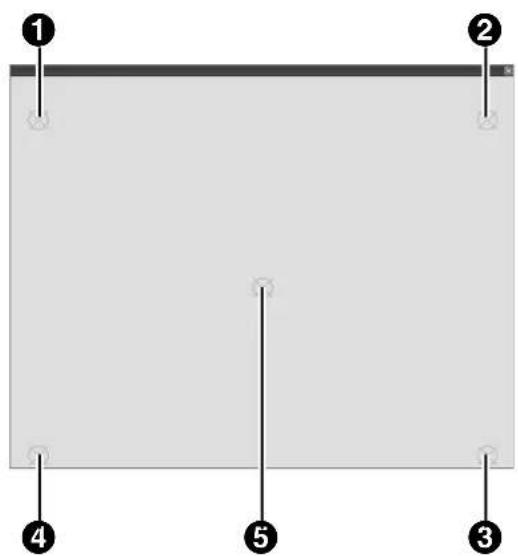
3. Press the electronic pen at a right angle against the board at the intersecting points of each circle until it disappears (about 2 seconds). Repeat in the order shown in the illustration below.
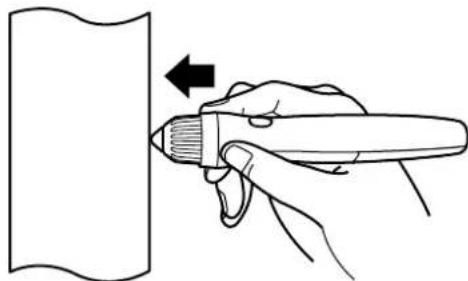
- Hold and press the electronic pen at a right angle to the screen board.
- When you push down on the penpoint, the electronic pen makes a buzzing sound.
- When the position of the indicated point has been determined correctly, calibration automatically moves to the next point.
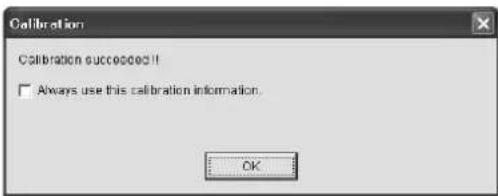
- When calibration has finished normally, a completion dialog box is displayed.
4. Click [OK].
- If the elite Panaboard and projector are fixed so that they will not move (Wall mounted case), select the [Always use this calibration information.] check box, and click [OK] to skip calibration from the next time you start the elite Panaboard software.
• After calibration has completed, the icon is displayed in the notification area, and the Desktop Drawing Tool is automatically displayed.

[Desktop Drawing Tool]
- You will be able to use elite Panaboard software.
Note
- The Desktop Drawing Tool shown above is an example from version 3.1 of the elite Panaboard software.
- For detailed information about using the elite Panaboard software, refer to the included electronic manual or the help menu. For instructions on viewing the electronic documentation "Operating Instructions (For Software)", see "Viewing the Electronic Documentation" (page 22).
Exiting the elite Panaboard software
Right-click the icon in the notification area, and select [Exit] from the menu.
Uninstalling the elite Panaboard software
If it is necessary to uninstall the elite Panaboard software, follow the procedure below.
- Turn on your computer and start Windows.
- Log into an account with Administrator privileges.
- Select [Add or Remove Programs] from the Control Panel.
- In Windows 2000, select [Add/Remove Programs], and in Windows Vista or Windows 7, select [Uninstall a program].
- Select Panasonic elite Panaboard, then remove it.
- Follow the on-screen instructions.
- When uninstallation is complete, restart your computer.
Viewing the Electronic Documentation
Follow the procedure below to view the electronic documentation "Operating Instructions (For Software)".
- Turn on your computer and start Windows.
- Open "Operating Instructions (For Software)" from the Start menu.
([Start] → [All Programs] → [Panasonic] → [elite Panaboard] → [Operating Instructions for Software])
- The electronic documentation will be displayed.
- For Windows 2000, [Programs] is displayed instead of [All Programs].
Note
- To view the electronic documentation, you must have Adobe® Reader® installed on your computer. If your computer is connected to the Internet, you can download Adobe Reader from Adobe's web site.
Download the Latest Software
Follow the procedure below to download the latest version of the software from the download web site.
- Turn on your computer and start Windows.
- On the Start menu, point to [All Programs] → [Panasonic] → [elite Panaboard], and click [Download the latest version].
Daily Care
When cleaning the elite Panaboard or inside the elite Panaboard, make sure to disconnect the USB cable.
Cleaning the elite Panaboard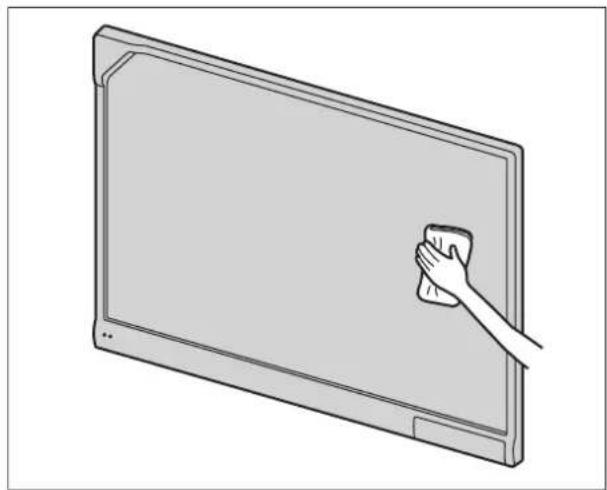
Gently wipe the elite Panaboard with a soft, moist cloth.
Notice
- The elite Panaboard is designed exclusively for projector images.
- For spots that are difficult to remove, use commercially available white-board cleaner or neutral household cleaner diluted with water.
- Do not use thinner, benzene, or abrasive chemicals to clean. (Doing so can result in discoloration.)
Replacing the Battery in the Electronic Pen
When the charge in the battery in the electronic pen is low, the message, "The pen battery is low. Replace the battery soon." will be displayed on the computer screen. Continued use of the electronic pen can lead to poor performance. Replace the battery as soon as possible. See "Inserting (Replacing) Batteries" (page 14) for details on replacing the battery.
- Dispose of expired batteries quickly, by covering the terminals in tape and following the disposal regulations in your country/area.
For Brazil
Replacing the Penpoint of the Electronic Pen
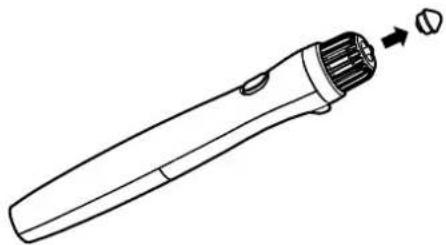
As the penpoint of the electronic pen becomes worn, a hole will appear in the penpoint. Continuing to use the electronic pen in this condition can cause damage to the screen or unsatisfactory operation, so replace the penpoint with a new one as soon as possible.
Troubleshooting
When experiencing problems, please refer to the table below for possible solutions. If the problem persists, contact your dealer.
| Symptom Possible cause and solution | See page | |
| The LEDs do not light when the USB cable is connected to a computer. | Check that the USB cable is properly connected.→ If the problem persists, disconnect the USB cable from the computer, and connect it again. | - |
| Red LED is blinking. | Disconnect the USB cable from the computer, and connect it again.→ If the problem persists, contact your dealer. | - |
| The computer does not recognize the elite Panaboard. | · The elite Panaboard is not connected to the computer.→ Ensure the elite Panaboard is properly connected to the computer with a USB cable.→ If the computer has two or more USB ports, use a different USB port.· The USB cable is connected to a USB hub.→ Do not connect the elite Panaboard through a USB hub. | - |
| The connection between the computer and the elite Panaboard is unexpectedly lost. | Check that the elite Panaboard is in an operable state, and that the USB cable is properly connected. | - |
| The electronic pen's position is not correct. | The projected image is misaligned.→ Perform the calibration again. | 20 |
| Drawn lines and comments are not completely displayed or are displayed in the wrong location.The electronic pen loses the functions. | · You are holding the electronic pen at an angle.· You are operating the elite Panaboard in direct sunlight or other strong lighting.· Infrared controllers (e.g., a television remote control) are being used and pointed towards the position sensor.· There is a wall or ceiling close to the sides of the elite Panaboard.· There is an air-conditioner vent close to the elite Panaboard.· A plasma or LCD television is being used near by the elite Panaboard.· Part of the position sensor is blocked.· You are covering part of the electronic pen's sensor with your hand.· Several electronic pens are being used at the same time.· The electronic pen is low on batteries.→ Check that none of the above is causing the problem. If misalignment is not caused by any of the above, perform the calibration again. | - |
| Extra lines are displayed on the computer screen. | Apart from writing directly on the elite Panaboard with the electronic pen, you pushed the penpoint with your finger while holding it close to the elite Panaboard.→ Avoid pushing the penpoint with your finger. | - |
| The message "The pen battery is low. Replace the battery soon." is displayed on the computer screen. | The electronic pen's battery is weak.→ Replace the electronic pen's battery. | 1423 |
| Marks written with a white-board marker cannot be erased. | Because the elite Panaboard is designed exclusively for projector images, you cannot erase the marks with a standard eraser.→ Use commercially available white-board cleaner or neutral household cleaner diluted with water. | 23 |
Specifications
| Model Number UB-T780BP | ||
| General Power | Supplied by the USB bus (AC power connection is not required). | |
| Power Consumption 5 V / 500 mA (USB BUS Power) | ||
| External Dimensions: Height × Width × Depth | 1,340 mm × 1,752 mm × 89 mm(4 ft. 4 3/4 in. × 5 ft. 9 in. × 3 1/2 in.) | |
| Weight 25 kg (55.11 lbs) | ||
| Operating Environment Temperature: 15 °C to 35 °C (59 °F to 95 °F)Humidity: 30 % to 80 % | ||
| Storage Environment Temperature: -20 °C to 40 °C (-4 °F to 104 °F)Humidity: 15 % to 80 % | ||
| Interface USB 2.0 | ||
| Input Unit | Screen Board Size: Height × Width | 1,175 mm × 1,692 mm(3 ft. 10 1/4 in. × 5 ft. 6 5/8 in.) |
| Interactive Features | Effective Area: Height × Width | 1,165 mm × 1,502 mm (3 ft. 9 7/8 in. × 4 ft. 11 1/8 in.)Project the image so that it is at least 5 mm ( 1/4 in.) from the screen frame. The electronic pen may not function correctly within 50 mm (2 in.) of the position sensor in the upper-left corner of the screen board.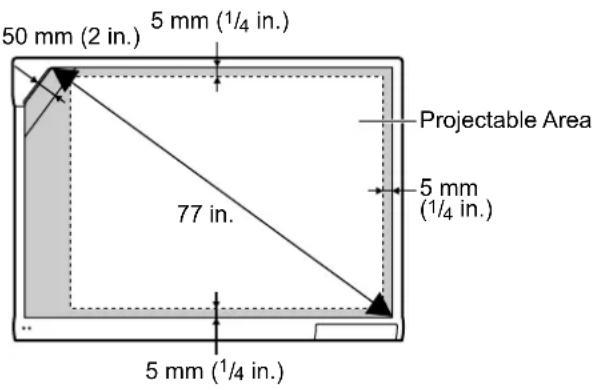 |
| Electronic Pen Power | LR03 (AAA alkaline dry cell battery) × 1 | |
| Electronic Pen Battery Life 30 hours (when used continuously at 25 °C [77 °F])* When using Panasonic LR03 alkaline dry-cell batteries. | ||
Supplies & Accessories
| Optional Device Electronic Pen UE | -608025 | |
| Stand KX-B061 |
- To purchase separately sold items, contact your dealer.
Installation Manual (for qualified service personnel)
- Request assembly of the Electronic Board, stand and wall mounting from your dealer.
- Before constructing or installing the elite Panaboard, please read "Installation Manual (for qualified service personnel)" carefully. Especially, please read "For Your Safety" carefully and install the elite Panaboard safely. Panasonic System Networks Co., Ltd. cannot be held responsible for accidents or damage to property resulting from incorrect installation.
- When installing the elite Panaboard on a wall or on the stand, perform installation with 2 people.
For Your Safety
To prevent severe injury and loss of life, read this section carefully before using the unit to ensure proper and safe operation of your unit.
The following graphic symbols are used in this Installation Manual.

WARNING
Denotes a potential hazard that could result in serious injury or death.

CAUTION
Denotes hazards that could result in minor injury or damage to the unit.


These symbols are used to alert operators to a specific operating procedure that must not be performed.

This symbol is used to alert operators to a specific operating procedure that must be emphasized in order to operate the unit safely.
Notice

WARNING

Safety check must be done by qualified service personnel after installing this option.

Be sure to disconnect the USB cable while installing the unit. Otherwise, it may cause electric shock or injury.

Be sure to use the specified parts for the installation. Otherwise, it may cause fire, electric shock or injury.

Notes in the operating instructions or notes on labels on the cabinet, chassis, or parts should be observed.

Do not alter the unit and install it. Installing an altered unit can cause fire, electric shock, or injury.

Have the unit installed, removed, and disposed of only by qualified service personnel.

CAUTION

After installing or moving the electronic board, lock the casters and set the fall-prevention extension legs.
Locking the casters (Push this side) Push to lock

If the unit is hung on a wall, confirm that the wall must be capable of supporting at least the following weight.
1,324 N (135 kgf)

Do not attach the electronic board to mortared walls. Accidental electric leakage from the wall mounting plate bolts to metal laths or wire laths can cause heat, smoke, or a fire.

Confirm that the bolts of the unit are certainly caught by the wall mounting plate by pulling the unit after hanging it on the wall mounting plate if the unit is mounted on a wall.

Be sure to put on a glove to avoid electric shock or injury.
Included Accessories
Confirm that the following items are included with the elite Panaboard.
| No. Part Name Illustration Q'ty Remarks | ||||
| 1 | USB Cable(5 m [16 ft. 4 7/8 in.]) | 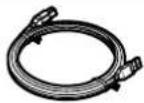 | 1 | For computer connection |
| 2 | CD-ROM 1 | 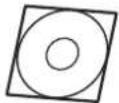 | Operating Instructions(For Software)DriversApplication software | |
| 3 | Wall Mounting Plate (Left) 1 — | 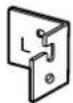 | ||
| 4 | Wall Mounting Plate (Right) 1 — | 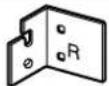 | ||
| 5 | Battery (LR03 AAA alkaline battery) | 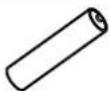 | 1 For electronic pen | |
| 6 | Electronic Pen 1 — | 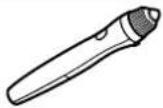 | ||
| 7 | Penpoint(Replacement) |  | 2 For electronic pen | |
| 8 | Operating Instructions 1 |  | Operating Instructions(For Basic Operations)(includes Installation Manual) | |
| 9 | Warranty 1 |  | May not be includeddepending on country/area. | |
Notice
- Screws (8 count) for wall mounting are not included. Please purchase screws with a size of M6, appropriate for your type of wall (page 34).
Wall Mounting Construction
Checking the Wall
When mounting on a wall, consult with your building's owner, caretaker, or construction manager to determine if the wall strength is sufficient to install the elite Panaboard. For safety, install the elite Panaboard only after thoroughly understanding the type of walls, the appropriate types of screws, and the construction method (Page 34).
CAUTION
Do not attach the electronic board to mortared walls. Accidental electric leakage from the wall mounting plate bolts to metal laths or wire laths can cause heat, smoke, or fire.
I. Necessary Tools and Parts (not included with the elite Panaboard)
Drill, Screwdriver, Measuring tape, Level
8 screws (M6 size)
II. Before Starting
- Make sure that the wall is strong enough to support the elite Panaboard.
Rated strength: greater than 1,324 N (135 kgf)
Notice
- If necessary, reinforce the wall so that it is strong enough to support the elite Panaboard.
- Make sure that the location is large enough to accommodate the elite Panaboard.
Height: greater than 2,100 mm (6 ft. 10 5/8 in.)
Width: greater than 2,000 mm (6 ft. 6 3/4 in.)
Installing the Wall Mounting Plates
- Ensure that the wall is strong enough to support the elite Panaboard. Rated strength: greater than 1,324 N (135 kgf)
- Using the measuring tape and level, mark the 8 locations to insert the screws.
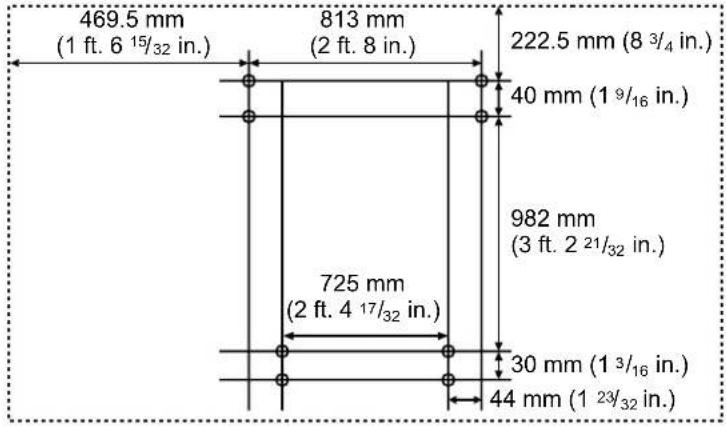
Note
- The dotted line in the illustration represents the outer edge of the elite Panaboard.
- Drill 8 holes for the wall mounting plates.
- Drill holes that are appropriate for the screws you are using.
- Install the wall mounting plates using the 4 screws.
- 2 screws are used for each wall mounting plate. The remaining 4 screws are used after installing the elite Panaboard on the wall.
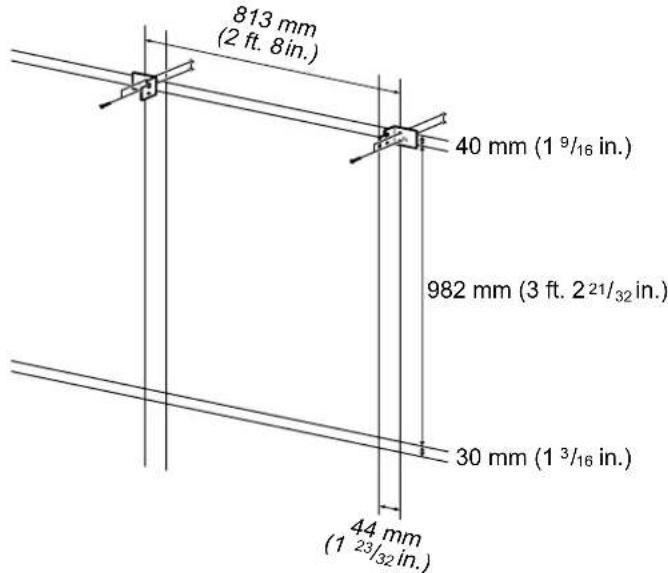
- Screws (8 count) are not included with the elite Panaboard. Please purchase screws with a size of M6, appropriate for your type of wall.
- Tighten the bolt so that it will not become loose.
- When drilling the holes and installing the wall mounting plates, follow the procedure in "Wall Types and Installation Procedures" (page 34).
5. Mount the elite Panaboard on the wall.
See "Assembling the elite Panaboard" (page 41).
Wall Types and Installation Procedures
The method for attaching the wall mounting plates to the wall will vary depending on the wall's structure.
Three available options are listed below.
Other methods may be necessary depending on the wall.
Metal or Concrete walls
Stud plugs (not included) are needed.
![graph TD A["Drill bit"] --> B["Metal or concrete wall"] B --> C["Stud plug"] C --> D["Insert a stud plug in the hole."] D --> E["Wall mounting plate"] E --> F["Bolt"]](/content/2026/05/789174/images/f788bf535b5cab3f35281195ad7bb4899e184ea782efde4572125a82c997f84e.jpg)
Drill eight holes in the wall.
For the correct hole size, refer to the instructions for the particular stud plugs used.
Insert the bolt through the hole in the wall mounting plate and tighten until the wall mounting plate is securely fixed to the wall.
Plasterboard walls
Split-wing toggles (not included) are needed.
![graph TD A["Plasterboard"] --> B["Split-wing toggle"] B --> C["Wall mounting plate"] C --> D["Bolt"] E["Arms"] --> F["Arms"] F --> G["Final assembled"]](/content/2026/05/789174/images/2ea456d59eff4ac25d4c7a72aaf1648aaa52dfd0452e653aac5577f804a5dd90.jpg)
Insert the bolt through the hole in the wall mounting plate and into the hole in the wall so that the arms of the split-wing toggle are horizontal.
For the correct hole size, refer to the instructions for the particular split-wing toggles used.
After the arms expand, pull the wall mounting plate out until the arms of the split-wing toggle grip firmly into the wall.
Tighten the bolt until the wall mounting plate is securely fixed into the wall.
Wooden walls
Wood screws (not included) are needed.
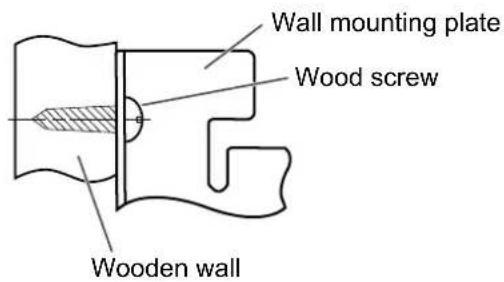
Insert the wood screw through the hole in the wall mounting plate and tighten until the wall mounting plate is securely fixed to the wall.
For the correct hole size, refer to the instructions for the particular wood screws used.
Stand Assembly (Sold Separately)
Included Parts
Check that the following parts are included with the stand (KX-B061).
| No. | Part Name Illustration Q'ty | ||
| 1 | Stand Base 2 | 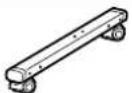 | |
| 2 | Support Beam 2 | 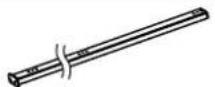 | |
| 3 | Cross Bar (A) 2 | 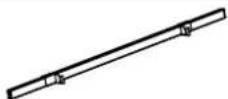 | |
| 4 | Cross Bar (B) 1 | 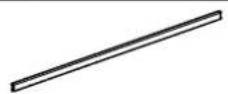 | |
| 5 | Screw (M6 × 45 mm [ 1 3/4 in.]) | 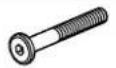 | 10 |
| 6 | Two-wing Bolt (M5 × 12 mm [ 1/2 in.])*1 |  | 2 |
| 7 | Support Bracket 2 |  | |
| 8 | Fall-prevention Extension Leg 4 | 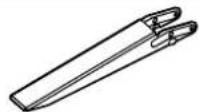 | |
| 9 | Screw (M6 × 60 mm [ 2 3/8 in.]) | 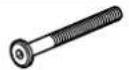 | 4 |
| 10 | Nut 4 |  | |
| 11 | Wrench 2 | 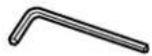 | 1 |
| 12 | Washer 10 |  |
CAUTION
Before assembly, be sure to lock the casters.
Assembly Instructions
- Assemble the fall-prevention extension legs.
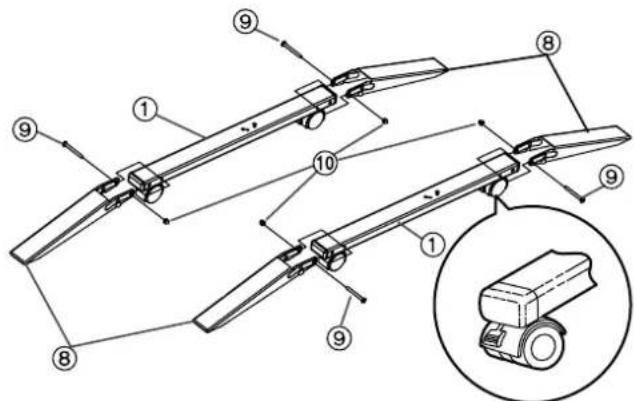
2. Assemble the stand.
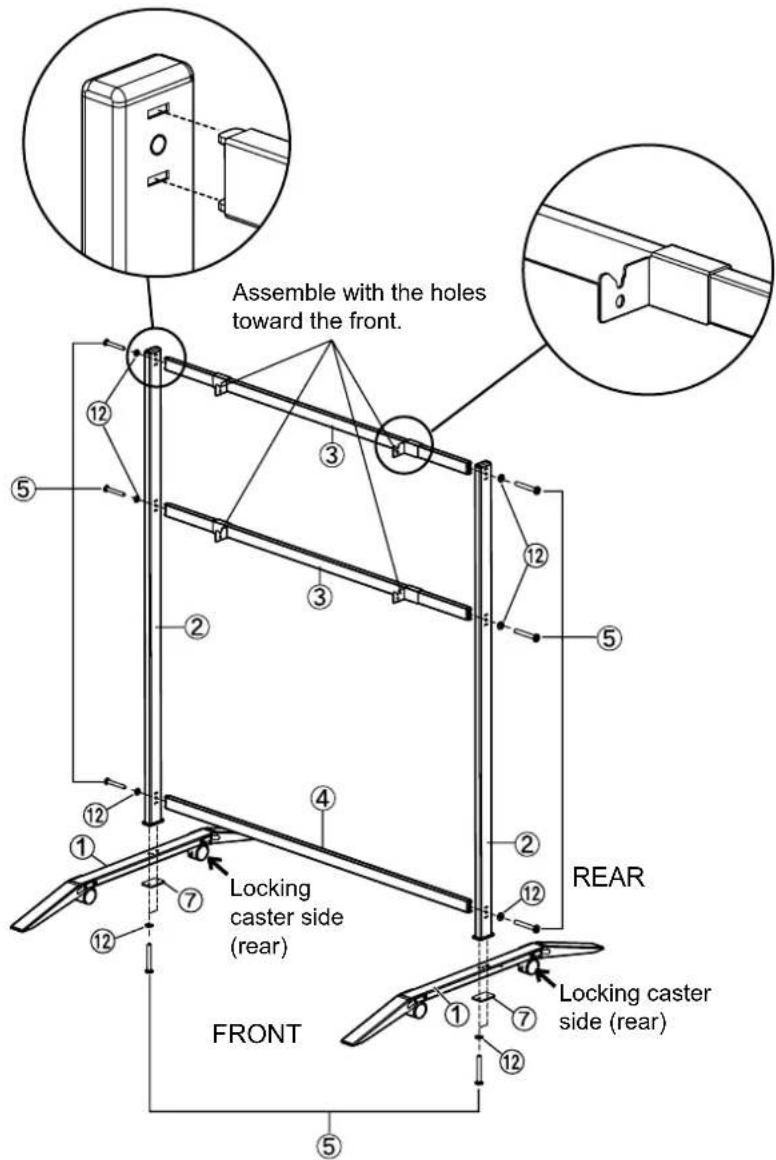
Notice
- Do not over-tighten the screw. (Doing so can warp the support beams.)
- Assemble the stand so that the locking casters are on the rear side.
- Pull the fall-prevention extension legs down.
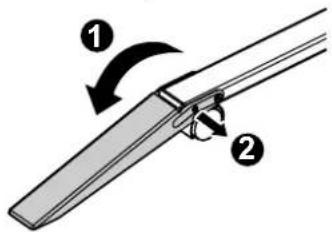
Note
- When folding back the fall-prevention extension legs, release the lock as follows (①, ②).
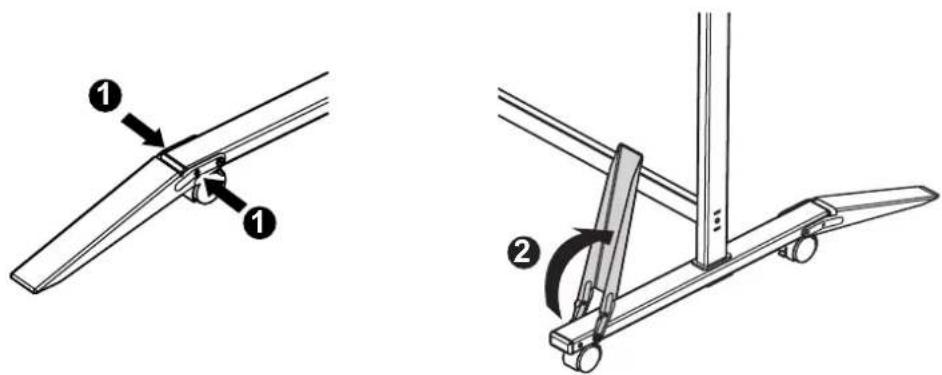
- Mount the elite Panaboard.
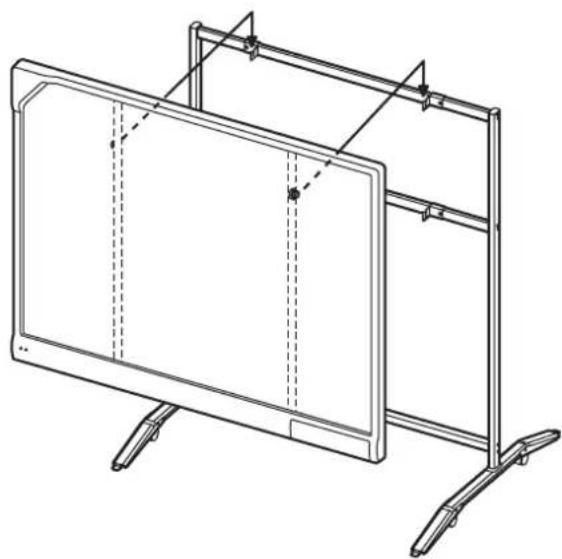
See "Assembling the elite Panaboard" (For Mounting on a Stand (Sold Separately) → page 46).
Assembly Instructions
Preparing for Removing the elite Panaboard from Its Packaging
Open the box, remove the accessory box & packing foam and open the plastic sheet of the elite Panaboard.
![Shipping Box [Accessory Box Contents] Electronic Board USB Cable ....1 CD-ROM ....1 Wall Mounting Plate (Right, Left) · 1 (Each) Battery ....1 Electronic Pen 1..... Penpoint ....2 Operating Instructions · 1... Warranty ....1](/content/2026/05/789174/images/51f990cc49422e0d5e7c9550de42af706d7814bad8b23eabcd9ea2eaa72f6aad.jpg)
Notice
- When handling the screen board, hold it by the edge frame and not the screen board itself. (Holding the screen board can result in damage.) • The packing materials in the shipping box are necessary for repackaging, so keep them in a safe place.
Note
- The warranty may not be included depending on country/area.
Assembling the elite Panaboard
Note
- There are 2 types of lower frame covers for the elite Panaboard: a lower frame cover made from 2 parts and a lower frame cover made from 1 part.
If you will be mounting elite Panaboard on a wall, the assembly procedure will differ depending on the type of lower frame cover. Follow the steps below:
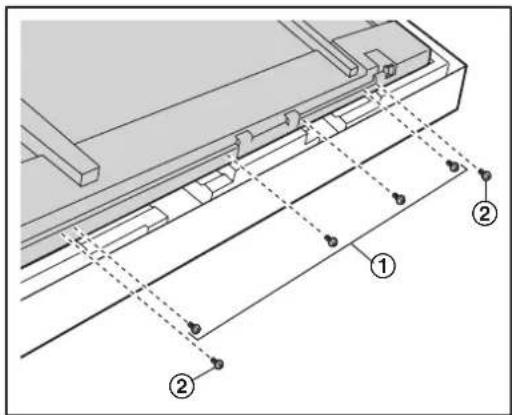
① When the lower frame cover is secured with 4 screws (2 parts) → Page 41
② When the lower frame cover is secured with 2 screws (1 part) → Page 43
For Wall Mounting (with 2-part lower frame cover)
- Remove the screw (①) of the attachment cover (②), which is fixed to the attachment board, and slide the attachment cover down.
Ensure that the attachment cover and the screw hole (③) of the board attachment are aligned.
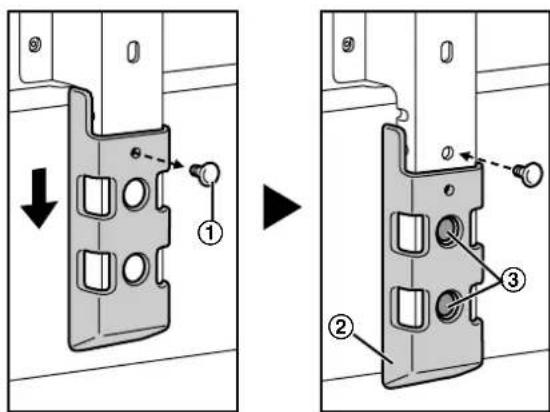
After unscrewing the attachment cover screws (①), fix them in the holes after sliding the attachment cover down, as shown in the right-sided illustration above.
- Hang the elite Panaboard on the wall mounting plates with the screw heads.
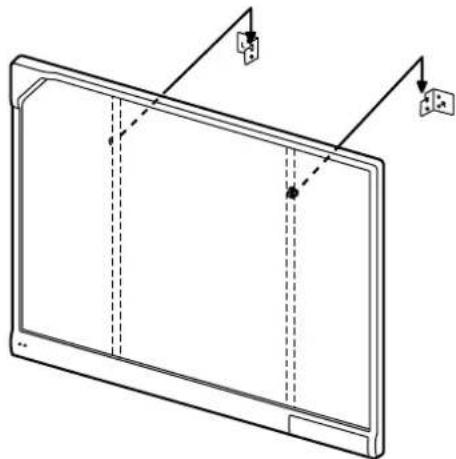
- Unscrew the 4 screws from the front lower frame cover.
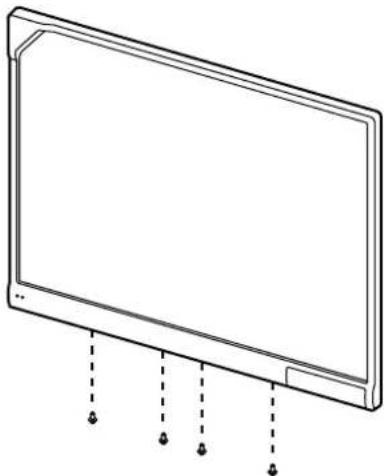
- Lift the bottom of the front lower frame cover to remove it.
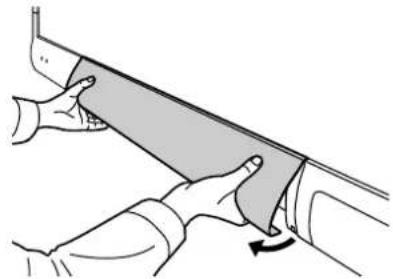
- Fasten to the wall.
Fasten the lower portion of the board attachment securely to the wall.
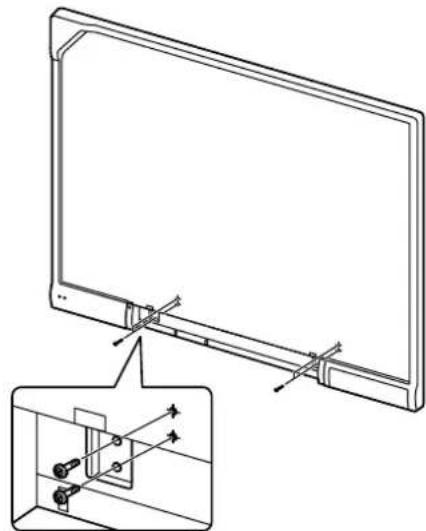
- Attach the front lower frame cover.
Attach the front lower frame cover to the elite Panaboard and fix it using 4 screws, ensuring that the cover is flush with the main unit.
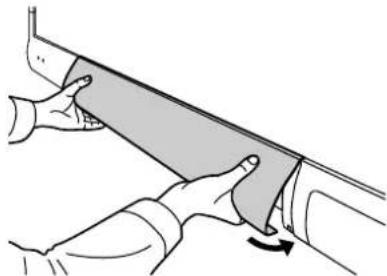
Notice
- When mounting on a wall, do not hit or jolt the elite Panaboard. After mounting, gently apply some weight on the elite Panaboard to make sure that it is securely fastened to the wall.
7. Wipe the screen board surface.
Gently wipe the screen board surface with a soft, moist cloth.
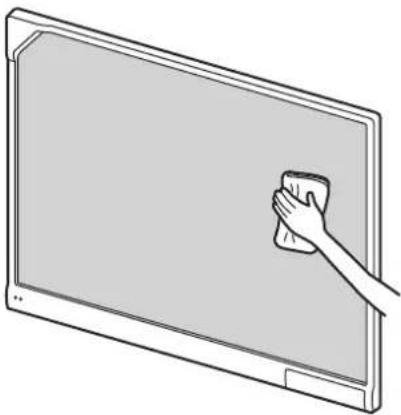
Notice
- Do not use thinner, benzene, or abrasive chemicals to clean. (Doing so can result in discoloration.)
8. Confirm that the elite Panaboard can operate.
See "Confirming the elite Panaboard Operation" (page 47).
For Wall Mounting (with 1-part lower frame cover)
1. Remove the screw (①) of the attachment cover (②), which is fixed to the attachment board, and slide the attachment cover down.
Ensure that the attachment cover and the screw hole (③) of the board attachment are aligned.
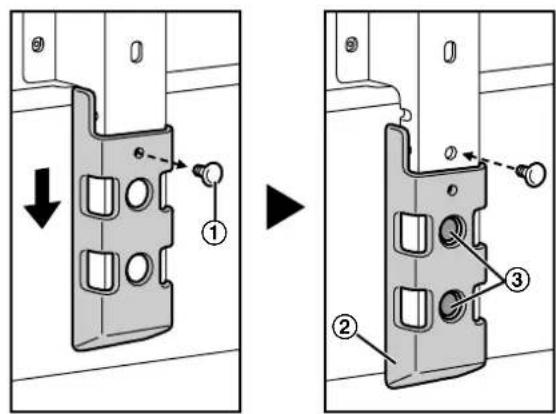
After unscrewing the attachment cover screws (①), fix them in the holes after sliding the attachment cover down, as shown in the right-sided illustration above.
2. Hang the elite Panaboard on the wall mounting plates with the screw heads.
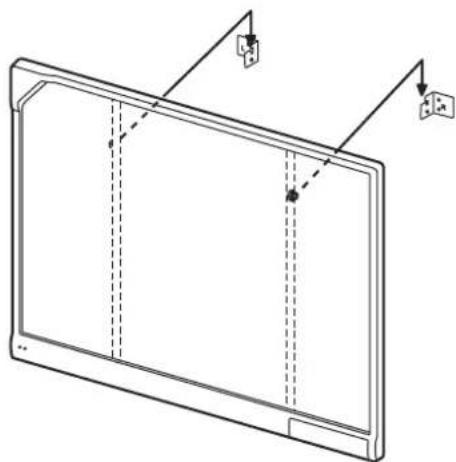
3. Remove the lower frame cover.
Remove the left and right screws, and then remove the lower frame cover from the main unit of the elite Panaboard.
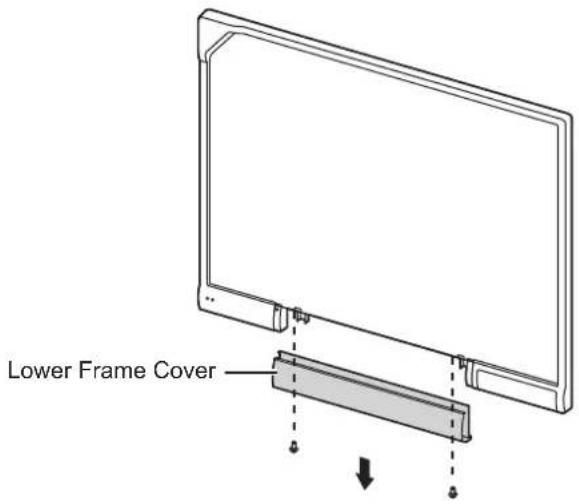
4. Fasten to the wall.
Using the remaining 4 screws, securely fasten the lower portion of the board attachment to the wall.
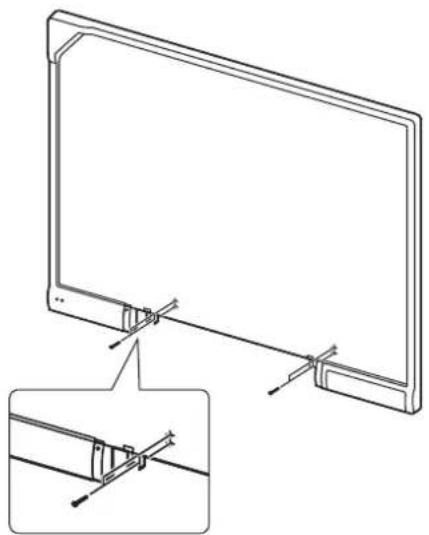
5. Reattach the lower frame cover.
Attach the lower frame cover to the lower side of the elite Panaboard, and tighten both left and right screws so that the cover does not protrude.
How to Attach the Lower Frame Cover
a. Holding the lower frame cover with both hands, slide it into the guides on both sides.
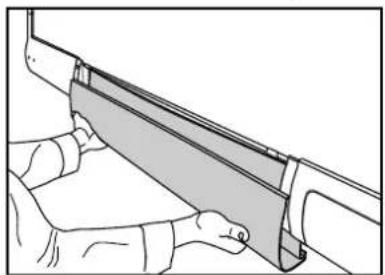
b. Push the lower frame cover backward ( ①).
While keeping the lower frame cover's rib against the rear side of the guides, push the lower frame cover upwards (2).
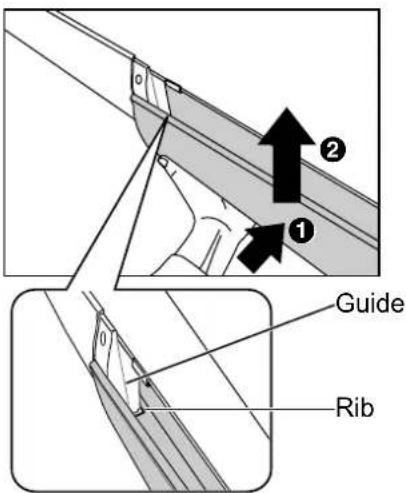
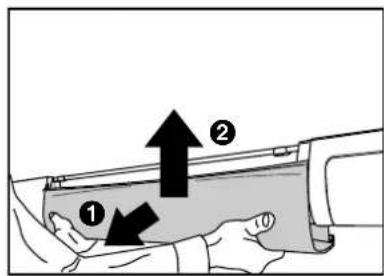
c. Pull the lower frame cover ( ①).
While keeping the rear section of the lower frame cover against the rear of the board, push the lower frame cover up into the rear of the board (2).
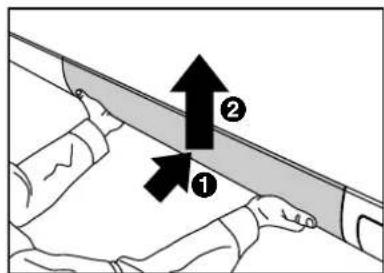
d. Push the lower frame cover backward (1).
Push the entire lower frame cover up until both ends lock into place (2). Fasten the 2 screws on the bottom side.
- Be careful not to cut yourself on the board attachments when attaching the lower frame cover.
- When mounting on a wall, do not hit or jolt the elite Panaboard.
• After mounting, gently apply some weight on the elite Panaboard to make sure that it is securely fastened to the wall.
6. Wipe the screen board surface.
Gently wipe the screen board surface with a soft, moist cloth.
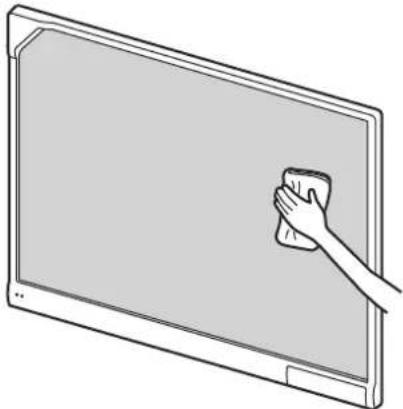
- Do not use thinner, benzene, or abrasive chemicals to clean. (Doing so can result in discoloration.)
7. Confirm that the elite Panaboard can operate.
See "Confirming the elite Panaboard Operation" (page 47).
For Mounting on a Stand (Sold Separately)
- Hang the elite Panaboard on the stand with the screw heads.
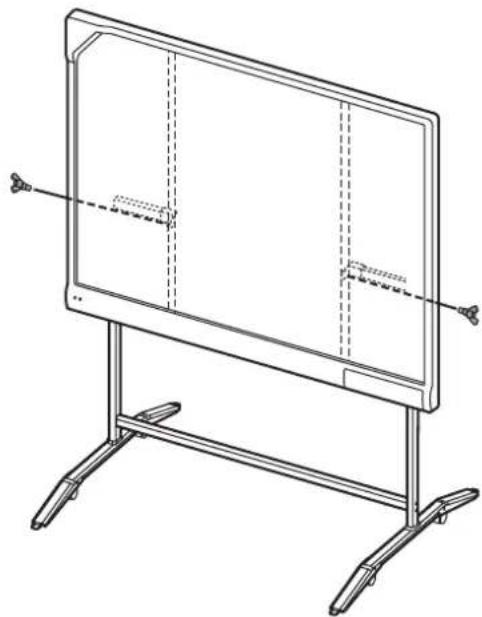
- Secure the elite Panaboard to the stand frame using the two-wing bolts (M5 × 12 mm [½ in.] [2 count]) included with the stand.
Note
- When installing the elite Panaboard on the stand, you can adjust its height to 4 different levels. When changing the height, remove the left and right screws from the back of the elite Panaboard, and securely insert them at the desired height. Torque (greater than 1 N·m [10 kgf·cm (9 lbf·in.)]).
| elite Panaboard Height | Screw Position |
| -100 mm (-3 7/8 in.) Highest | |
| Standard 2nd from top | |
| +100 mm (+3 7/8 in.) 2nd from bottom | |
| +200 mm (+7 7/8 in.) Lowest |
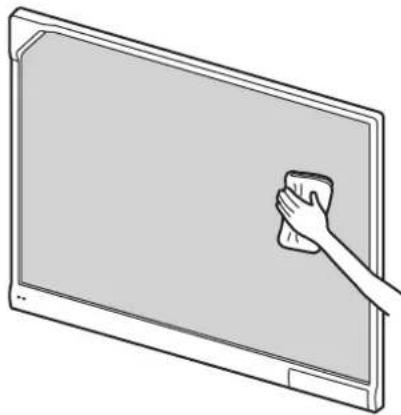
- Wipe the screen board surface.
Gently wipe the screen board surface with a soft, moist cloth.
Notice
- Do not use thinner, benzene, or abrasive chemicals to clean. (Doing so can result in discoloration.)
- Confirm that the elite Panaboard can operate.
See "Confirming the elite Panaboard Operation" (page 47).
Confirming the elite Panaboard Operation
After assembling the elite Panaboard, confirm that it operates properly by following the procedure below.
| Action | Checkpoints | ||
| Operation Measure | |||
| 1 | Connect to a computer using a USB cable. | Green LED lights. (Normal operation) | |
| Green LED does not light, or red LED is blinking. | Check the USB cable.• Check if the USB cable is connected properly.• Disconnect the USB cable from the computer, and then connect it again. | ||
Confirming the Interactive Features
- Following the procedure in "Installing the elite Panaboard software" (page 17), install the software and connect the included USB cable.
- Confirm that the interactive features are operating correctly.
• If a projector is not available, confirm operation using only the elite Panaboard and computer. - When the elite Panaboard software starts, the calibration screen is displayed on the computer screen. - Perform tentative calibration by pressing the 5 points on the elite Panaboard with the electronic pen, as shown in the illustration below.
For precise adjustment, it is necessary to use a projector.
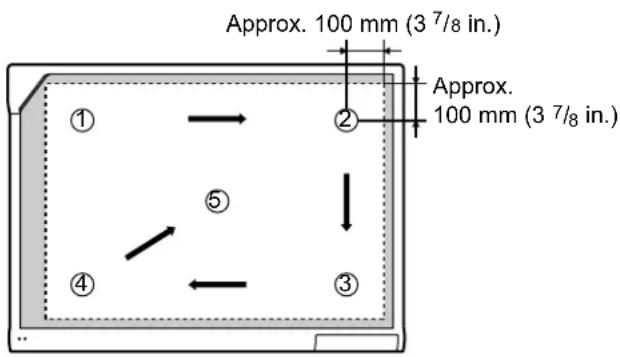
- With the elite Panaboard software running, enter White Background mode and select the marker tool. Confirm operation by writing on the screen board with the electronic pen and checking that the writing is displayed on the computer's screen. (Your writing with the electronic pen will not appear on the screen board itself.)
Repackaging
To repackage the elite Panaboard, perform the steps in "Assembling the elite Panaboard" in reverse order.
- For Wall Mounting (with 2-part lower frame cover) → page 41
- For Wall Mounting (with 1-part lower frame cover) → page 43
- For Mounting on a Stand (Sold Separately) → page 46
Package the unit as depicted in the diagram in "Preparing for Removing the elite Panaboard from Its Packaging" (page 40), and reinforce the packaging with tape or 2 bands.
Notice
- When handling the screen board, hold it by the frame and not the screen board itself. (Holding the screen board can result in damage.)
Information for Users on Collection and Disposal of Old Equipment and used Batteries
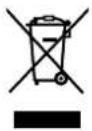
These symbols on the products, packaging, and/or accompanying documents mean that used electrical and electronic products and batteries should not be mixed with general household waste.
For proper treatment, recovery and recycling of old products and used batteries, please take them to applicable collection points, in accordance with your national legislation and the Directives 2002/96/EC and 2006/66/EC.
By disposing of these products and batteries correctly, you will help to save valuable resources and prevent any potential negative effects on human health and the environment which could otherwise arise from inappropriate waste handling.
For more information about collection and recycling of old products and batteries, please contact your local municipality, your waste disposal service or the point of sale where you purchased the items.
Penalties may be applicable for incorrect disposal of this waste, in accordance with national legislation.

For business users in the European Union
If you wish to discard electrical and electronic equipment, please contact your dealer or supplier for further information.
Information on Disposal in other Countries outside the European Union
These symbols are only valid in the European Union. If you wish to discard these items, please contact your local authorities or dealer and ask for the correct method of disposal.
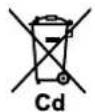
Note for the battery symbol (bottom two symbol examples):
This symbol might be used in combination with a chemical symbol. In this case it complies with the requirement set by the Directive for the chemical involved.
Panasonic System Networks Company of America Unit of Panasonic Corporation of North America
One Panasonic Way, Secaucus, New Jersey 07094
Panasonic Canada Inc.
5770 Ambler Drive, Mississauga, Ontario, L4W 2T3
Panasonic Business Systems U.K.
A Division of Panasonic U.K. Ltd.
Willoughby Road, Bracknell, Berkshire, RG12 8FP
Panasonic Marketing Europe GmbH
Hagenauer Strasse 43, 65203 Wiesbaden, Germany
For information of Compliance with EU relevant Regulatory
Directives, Contact to Authorised Representative:
Panasonic Testing Centre
Panasonic Marketing Europe GmbH
Winsbergring 15, 22525 Hamburg, Germany

(For EU only)
Panasonic Corporation
Web Site: http://www.panasonic.net/
- OPERATING INSTRUCTIONS
- (FOR BASIC OPERATIONS)
- ELECTRONIC BOARD
- (ELITE PANABOARD)
- INSTALLATION MANUAL INCLUDED (FOR QUALIFIED SERVICE PERSONNEL)
- FOR U.S.A. ONLY
- INTRODUCTION
- FEATURE HIGHLIGHTS
- ELECTRONIC PEN FEATURES
- ELITE PANABOARD BOOK
- USB BUS POWER OPERATION
- USAGE SCENARIOS
- FOR EDUCATION
- FOR BUSINESS
- THINGS YOU SHOULD KEEP A RECORD OF
- ATTACH YOUR SALES RECEIPT HERE
- ABOUT THE OPERATING INSTRUCTIONS
- ABBREVIATIONS
- TRADEMARKS
- FEDERAL COMMUNICATIONS COMMISSION REQUIREMENTS
- NOTE
- FCC WARNING
- WARNING ABOUT SAVING DATA
- EXEMPTION OF LIABILITY
- FOR FRG USERS (FOR GERMANY ONLY)
- TABLE OF CONTENTS
- FOR YOUR SAFETY
- USAGE
- APPENDIX
- INSTALLATION MANUAL
- WARNING
- CAUTION
- FOR USERS
- POWER
- INSTALLATION AND RELOCATION
- OPERATING SAFEGUARDS
- CHOKING HAZARD
- BATTERY
- PRECAUTIONS
- ABOUT USING THE BATTERY
- ABOUT DISPOSING OF THE BATTERY
- INCLUDED ACCESSORIES
- ABOUT USING THE CD-ROM
- NAMES AND USES OF THE PARTS
- SCREEN
- NOTICE
- ELECTRONIC PEN
- PENPOINT
- ULTRASONIC EMITTER
- INFRARED EMITTER
- PEN BUTTON
- BATTERY COVER
- INSERTING (REPLACING) BATTERIES
- CONNECTING EXTERNAL COMPONENTS
- CONNECT THE ELITE PANABOARD TO A COMPUTER USING THE USB CABLE (INCLUDED)
- CONNECT THE COMPUTER TO A PROJECTOR
- ABOUT THE USAGE LOCATION
- MOVING THE ELITE PANABOARD WHEN USING THE STAND (SOLD SEPARATELY)
- INSTALLING THE ELITE PANABOARD SOFTWARE
- SETTING THE PROJECTOR
- ABOUT POSITIONING THE IMAGE
- PROJECT THE IMAGE AS A RECTANGLE
- SET THE PROPER RESOLUTION
- DO NOT LOOK DIRECTLY INTO THE PROJECTOR LAMP
- SETTING YOUR SYSTEM (CALIBRATION)
- ABOUT CALIBRATION
- AFTER CALIBRATION
- DO NOT MOVE THE ELITE PANABOARD OR THE PROJECTOR
- STARTING THE ELITE PANABOARD SOFTWARE AND PERFORMING CALIBRATION
- CONNECT THE ELITE PANABOARD TO YOUR COMPUTER WITH THE USB CABLE
- PERFORM CALIBRATION
- PRESS THE ELECTRONIC PEN AT A RIGHT ANGLE AGAINST THE BOARD AT THE INTERSECTING POINTS OF EACH CIRCLE UNTIL IT DISAPPEARS (ABOUT 2 SECONDS). REPEAT IN THE ORDER SHOWN IN THE ILLUSTRATION BELOW
- CLICK [OK]
- EXITING THE ELITE PANABOARD SOFTWARE
- UNINSTALLING THE ELITE PANABOARD SOFTWARE
- VIEWING THE ELECTRONIC DOCUMENTATION
- DOWNLOAD THE LATEST SOFTWARE
- DAILY CARE
- REPLACING THE BATTERY IN THE ELECTRONIC PEN
- REPLACING THE PENPOINT OF THE ELECTRONIC PEN
- TROUBLESHOOTING
- INSTALLATION MANUAL (FOR QUALIFIED SERVICE PERSONNEL)
- WALL MOUNTING CONSTRUCTION
- CHECKING THE WALL
- INSTALLING THE WALL MOUNTING PLATES
- MOUNT THE ELITE PANABOARD ON THE WALL
- WALL TYPES AND INSTALLATION PROCEDURES
- METAL OR CONCRETE WALLS
- PLASTERBOARD WALLS
- WOODEN WALLS
- STAND ASSEMBLY (SOLD SEPARATELY)
- INCLUDED PARTS
- ASSEMBLY INSTRUCTIONS
- ASSEMBLE THE STAND
- PREPARING FOR REMOVING THE ELITE PANABOARD FROM ITS PACKAGING
- ASSEMBLING THE ELITE PANABOARD
- FOR WALL MOUNTING (WITH 2-PART LOWER FRAME COVER)
- WIPE THE SCREEN BOARD SURFACE
- CONFIRM THAT THE ELITE PANABOARD CAN OPERATE
- FOR WALL MOUNTING (WITH 1-PART LOWER FRAME COVER)
- REMOVE THE SCREW (①) OF THE ATTACHMENT COVER (②), WHICH IS FIXED TO THE ATTACHMENT BOARD, AND SLIDE THE ATTACHMENT COVER DOWN
- HANG THE ELITE PANABOARD ON THE WALL MOUNTING PLATES WITH THE SCREW HEADS
- REMOVE THE LOWER FRAME COVER
- FASTEN TO THE WALL
- REATTACH THE LOWER FRAME COVER
- HOW TO ATTACH THE LOWER FRAME COVER
- PULL THE LOWER FRAME COVER ( ①)
- PUSH THE LOWER FRAME COVER BACKWARD (1)
- FOR MOUNTING ON A STAND (SOLD SEPARATELY)
- CONFIRMING THE ELITE PANABOARD OPERATION
- CONFIRMING THE INTERACTIVE FEATURES
- REPACKAGING
- INFORMATION FOR USERS ON COLLECTION AND DISPOSAL OF OLD EQUIPMENT AND USED BATTERIES
- FOR BUSINESS USERS IN THE EUROPEAN UNION
- INFORMATION ON DISPOSAL IN OTHER COUNTRIES OUTSIDE THE EUROPEAN UNION
- NOTE FOR THE BATTERY SYMBOL (BOTTOM TWO SYMBOL EXAMPLES)
Brand : PANASONIC
Model : UB-T780BP
Category : Whiteboard and accessories