
K800 - Smartphone SONY ERICSSON - Free user manual and instructions
Find the device manual for free K800 SONY ERICSSON in PDF.


| Product Type | Smartphone |
| Brand | Sony Ericsson |
| Model | K800 |
| Dimensions | 106 x 47 x 20 mm |
| Weight | 115 g |
| Battery | Lithium-ion, 950 mAh |
| Talk Time | Up to 7 hours |
| Standby Time | Up to 350 hours |
| Display | 2.0" TFT, 262K colors, 240x320 pixels |
| Camera | 3.2 MP Cyber-shot with auto focus and xenon flash |
| Internal Memory | 64 MB |
| Memory Card | Memory Stick Micro (M2) slot |
| Connectivity | Bluetooth 2.0, Infrared, USB 2.0 |
| Network | UMTS 2100, GSM 900/1800/1900 |
| Video Call Support | Yes (front camera) |
| Music Player | MP3, AAC, AAC+, eAAC+ |
| Radio | FM Radio with RDS |
| Java | Java MIDP 2.0 |
| Messaging | SMS, MMS, Email (POP3/IMAP4), Instant Messaging |
| Special Features | BestPic, PhotoDJ, MusicDJ, PlayNow, RSS reader |
| Safety | Designed to comply with RF exposure guidelines; use only approved accessories |
| Repairability | User-replaceable battery and SIM; Memory Stick expansion |
Frequently Asked Questions - K800 SONY ERICSSON
User questions about K800 SONY ERICSSON
0 question about this device. Answer the ones you know or ask your own.
Ask a new question about this device
Download the instructions for your Smartphone in PDF format for free! Find your manual K800 - SONY ERICSSON and take your electronic device back in hand. On this page are published all the documents necessary for the use of your device. K800 by SONY ERICSSON.
USER MANUAL K800 SONY ERICSSON
Assembly, SIM card, battery, turning on, help, calls.
Getting to know the phone 8
Phone overview, icons, menus, entering letters, activity menu, file manager, Memory Stick Micro™ (M2™).
Calling 19
Calls, video calls, contacts, voice control, call options.
Messaging 33
Text messaging, picture messaging, voice messaging, email, My friends.
Imaging 45
Camera, video, blog, pictures.
Entertainment 52
Handsfree, Music and Video player, radio, PlayNow™, MusicDJ™, VideoDJ™, themes, games and more.
Sony Ericsson K800i
Connectivity 61
Settings, using Internet, RSS, synchronizing, Bluetooth, infrared, USB cable, update service.
More features 73
Alarm clock, calendar, tasks, profiles, time and date, SIM card lock, etc.
Troubleshooting 80
Why doesn't the phone work the way I want it to?
Important information ..... 85
Sony Ericsson Consumer Web site, service and support, safe and efficient use, end user license agreement, warranty, declaration of conformity.
Index 94
Sony Ericsson
UMTS 2100 GSM 900/1800/1900
This user guide is published by Sony Ericsson Mobile Communications AB, without any warranty. Improvements and changes to this user guide necessitated by typographical errors, inaccuracies of current information, or improvements to programs and/or equipment, may be made by Sony Ericsson Mobile Communications AB at any time and without notice. Such changes will, however, be incorporated into new editions of this user guide.
All rights reserved.
©Sony Ericsson Mobile Communications AB, 2006
Publication number: EN/LZT 108 8587 R1A
Please note:
Some of the services in this user guide are not supported by all networks. This also applies to the GSM International Emergency Number 112
Please contact your network operator or service provider if you are in doubt whe the r you can use a particular service or not.
Please read the Guidelines for safe and efficient use and the Limited warranty chapters before you use your mobile phone.
Your mobile phone has the capability to download, store and forward additional content, e.g. ringtones. The use of such content may be restricted or prohibited by rights of third parties, including but not limited to restriction under applicable copyright laws. You, and not Sony Ericsson, are entirely responsible for additional content that you download to or forward from your mobile phone. Prior to your use of any additional content, please verify that your intended use is properly licensed or is otherwise authorized. Sony Ericsson does not guarantee the a curacy, integrity or quality of any
additional content or any other third party content. Under no circumstances will Sony Ericsson be liable in any way for your improper use of additional content or other third party content.
Bluetooth ^™ is a trademark or registered trade mark of Bluetooth SIG Inc.
BestPic, PlayNow, Music DJ, PhotoDJ and Vide oDJ are trademarks or registered trademarks of Sony Ericsson Mobile Communications AB.
Cyber-shot™ is a trademark of Sony Corporation.
Memory Stick Micro™ and M2™ are registered trademarks of Sony Corporation.
Real is a trademark or a registered trademark of RealNetworks, Inc. RealPlayer® for Mobile is included under license from RealNetworks, Inc.
Copyright 1995-2004, RealNetworks, Inc. All rights reserved.
Adobe® Photoshop® Album Starter Edition is a registered trade mark of Adobe Systems Incorporated.
Microsoft, Windows and PowerPoint are either registered trademarks or trademarks of Microsoft Corporation in the U.S and other countries.
Mac OS is a trademark of App le Computer, Inc., registered in the U.S. and other countries.
T9 ^™ Text Input is a trademark or a registered trademark of Tegic Communications. T9 ^™ Text Input is licensed under one or more of the following:
U.S. Pat. Nos. 5,818,437, 5,953,541, 5,187,480, 5,945,928, and 6,011,554; Canadian Pat. No.
1,331,057, United Kingdom Pat. No. 2238414B; Hong Kong Standard Pat. No. HK0940329;
Republic of Singapore Pat. No. 51383;
Euro.Pat. No. 0 842 463(96927260.8) DE/DK, FI, FR, IT, NL, PT, ES, SE, GB; and additional patents are pending worldwide.
Java and all Java based trademarks and logos are trademarks or registered trademarks of Sun Microsystems, Inc. in the U.S. and other countries.
2 Contents
This is the Internet version of the user's guide. © Print only for private use.
End-user license agreement for Sun ^TM Java ^TM J2ME ^TM .
Smart-Fit R endering is a trademark or registered trademark of ACCESS CO., LTD. in Japan and other countries.
1 Restrictions: Software is confidential copyrighted information of Sun and title to all copies is retained by Sun and/or its licensors. Customer shall not modify, decompile, disassemble, decrypt, extract, or otherwise reverse engineer Software. Software may not be leased, assigned, or sublicensed, in whole or in part.
2 Export Regulations: Software, including technical data, is subject to U.S. export control laws, including the U.S. Export Administration Act and its associated regulations, and may be subject to export or import regulations in other countries. Customer agrees to comply strictly with all such regulations and acknowledges that it has the responsibility to obtain licenses to export, re-export, or import Software. Software may not be downloaded, or otherwise exported or re-exported (i) into, or to a national or resident of, Cuba, Iraq, Iran, North Korea, Libya, Sudan, Syria (as such listing may be revised from time to time) or any country to which the U.S. has embargoed goods; or (ii) to anyone on the U.S. Treasury Department's list of Specially Designated Nations or the U.S. Commerce Department's Table of Denial Orders.
3 Restricted Rights: Use, duplication or disclosure by the United States government is subject to the restrictions as set forth in the Rights in Technical Data and Computer Software Clauses in DFARS 252.227-7013(c) (1) (ii) and FAR 52.227-19(c) (2) as applicable.
Part of the software in this product is copyright © SyncML initiative Ltd. (1999-2002). All rights reserved.
Other product and company names mentioned herein may be the trademarks of their respective owners.
Any rights not expressly granted herein are reserved. All illustrations are for illustration only and may not accurately depict the actual phone.
Instruction symbols
The following appear in the user guide:

Note

A service or function is network-or subscription-dependent. Contact your network operator for details.
→See also page...
▶ Use a selection or navigation key to scroll and select
12 Navigation.
Press the navigation key centre.
Press the navigation key up.
Press the navigation key down.
Press the navigation key left.
Press the navigation key right.
Getting started
Assembly, SIM card, battery, turning on, help, calls.
More information and downloads are available at www.sonyericsson.com/support.
Assembly
To use your phone
1 Insert the SIM card and the battery.
2 Charge the battery.
3 Turn on your phone.
SIM card
When you register as a subscriber with a network operator, you get a SIM (Subscriber Identity Module) card. The SIM card contains a computer chip that keeps track of items such as your phone number, the services included in your subscription, and names and numbers in your contacts.

Save contact information on your SIM card before removing it from another phone; for example, contacts may be saved in the phone memory.
PIN
You may need a PIN (Personal Identity Number) for your SIM card to start your phone and activate services. When you enter your PIN, each digit appears as *, unless it starts with the same digits as an emergency number, for example 112. This allows for emergency calls without entering a PIN. Press to correct mistakes.

If you enter the wrong PIN three times in a row, PIN blocked appears. To unblock it, you need to enter your PUK (Personal Unblocking Key) 77 SIM card lock.
Battery
Some functions use more battery power than others and may cause a need for more frequent re-charging. If talk time or standby time becomes noticeably shorter, you may have to replace the battery. Only use approved batteries from Sony Ericsson 88 Battery.
SIM card and battery
To insert SIM card and battery

natural_image
Illustration of a hand holding a mobile phone with a black arrow pointing to the screen (no text or symbols)

natural_image
Illustration of a device with a plus button and arrow, no text or symbols present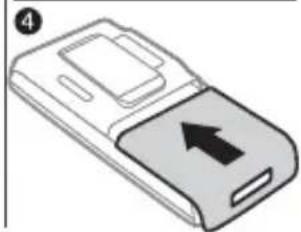
natural_image
Illustration of a mobile phone with an upward arrow on the screen (no text or symbols)To charge the battery
natural_image
Line drawing of a mobile phone with an attached cable (no text or symbols)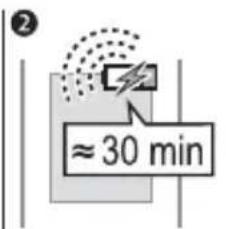
natural_image
Line drawing of a mobile phone with an attached plug (no text or symbols)1 Remove the battery cover.
2 Slide the SIM card into its holder with the contacts facing down.
3 Insert the battery with the label side up and the connectors facing each other.
4 Slide the battery cover into place.
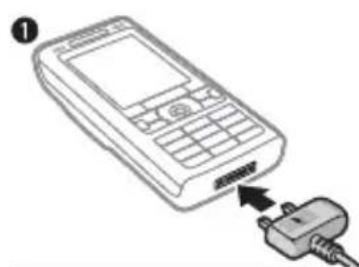
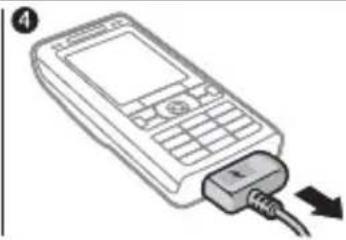
1 Connect the charger plug to the phone with the symbol facing upwards.
2 It may take up to 30 minutes before the battery icon appears.
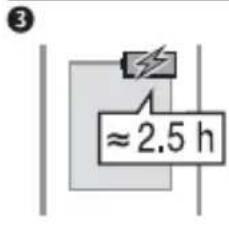
3 Wait approximately 2.5 hours or until the battery icon indicates a full charge. Press a key to activate the screen.
4 Pull out the charger plug.
Turning on your phone
Make sure the phone is charged and a SIM card inserted before turning it on. After turning on, use the setup wizard to quickly and easily prepare for use.
To turn on the phone

1 Press and hold ⓄThe first start-up may take a few minutes.
2 Select to use the phone in:
- Normal mode – full functionality or
- Flight mode – limited functionality with network, FM radio, Bluetooth™ transceivers off 7 Flight mode menu.
3 Enter your SIM card PIN, if requested.
4 At first start-up, select the language for your phone menus.
5 ▶ Yes for the setup wizard to help you.
6 Follow instructions to complete setup.
If predefined settings exist in your phone, you may not need more settings. If you use Settings download you must accept to register the phone at Sony Ericsson. A text message is sent. No personal data will be transferred to or processed by Sony Ericsson. Contact your network operator or service provider for more information.
Help in your phone
Help and information is available in your phone at any time.
To use the setup wizard
▶ Settings ▶ the General tab
▶ Setup wizard and select an option:
- Settings download
- Basic setup
- Tips and tricks.
To view information about functions
Scroll to a function ▶ More ▶ Info, if available.
To view the phone demonstration
▶ Entertainment ▶ Demo tour.
Settings download
Automatically set up functions in your phone that use the Internet; Internet, picture messaging, email, My friends, synchronization, update service, blog and streaming.
6 Getting started
This is the Internet version of the user's guide. © Print only for private use.
You can use Settings download if your SIM supports the service, your phone is connected to a network, it is started in normal mode and does not already have predefined settings.

Contact your network operator or service provider for more information.
Flight mode menu
If you turn on the phone and Flight mode menu is activated, select from Normal mode with full functionality or Flight mode with limited functionality. Network, radio and Bluetooth transceivers are turned off to prevent disturbance to sensitive equipment. You can, for example, play music or write a text message to send later but not make calls in an aeroplane.

Follow onboard regulations, flight crew instructions for use of electronic devices.
To view Flight mode menu options
▶ Settings and scroll to the General tab ▶ Flight mode and select an option.
Making and receiving calls
The phone must be in normal mode.
To make and receive calls
Enter a phone number (with international prefix and area code if applicable) ▶ Call to make the call or ▶ More ▶ Make video call ▶ 21 Video call. ▶ End call to end the call.
To receive a call
When the phone rings ▶ Answer or ▶ Busy to reject the call.
To end a call
▶End call.
Getting to know the phone
Phone overview, icons, menus, entering letters, activity menu, file manager, Memory Stick Micro ^TM (M2 ^TM ).
Phone overview


Some icons on keys may differ.
8 Getting to know the phone
This is the Internet version of the user's guide. © Print only for private use.
1 Video call camera, ear speaker
2 Photo key: (left) from standby, view camera album pictures in full view or (lower) with the camera for shoot modes.
3 Play/stop button
4 Memory Stick Micro ^TM (M2 ^TM ) slot
5 Screen
6 Selection key
7 Internet key
8 Back key
9 Navigation key/Music player control
10 Power on/off button
11 Photo key: (right) from standby, view camera album thumbnail pictures or (upper) with the camera for camera scenes/video night mode.
12 Volume, camera digital zoom buttons
13 Selection key
14 Activity menu key
15 Camera button
16 Clear key
17 Infrared port
18 Silent key
19 Connector for charger, handsfree and USB cable
20 Active camera lens cover
For more information→ 12 Navigation
Menu overview

PlayNow™* Internet* Entertainment


Cyber-shot™ Messaging Music player
Write new
Inbox
RSS reader
Drafts
Outbox
Sent messages
Saved messages
My friends*
Call voicemail
Templates
Settings

File manager** Contacts

New contact

Online services*
Radio
Games
Video player
VideoDJ™
PhotoDJ™
MusicDJ™
Remote control
Record sound
Demo tour

Now playing
Artists
Tracks
Playlists

Video call
Camera album
Music
Pictures
Videos
Themes
Web pages
Games
Applications
Other
10 Getting to know the phone
This is the Internet version of the user's guide. © Print only for private use.

Calls** Organizer

All Answered Dialled Missed




Alarms
Applications
Calendar
Tasks
Notes
Synchronization
Timer
Stopwatch
Calculator
Code memo

Settings**

General
Profiles
Time & date
Language
Update service
Voice control
New events
Shortcuts
Flight mode
Security
Setup wizard
Phone status
Master reset

Sounds & alerts
Ring volume
Ringtone
Silent mode
Increasing ring
Vibrating alert
Message alert
Key sound

Display
Wallpaper
Themes
Start-up screen
Screen saver
Clock size
Brightness
Sleep mode clock
Edit line names*

Calls
Divert calls
Manage calls
Time & cost*
Show/hide my no.
Handsfree
Switch h to line 2*

Connectivity*
Bluetooth
Infrared port
USB
Synchronization
Device management
Mobile networks
Data communication
Internet settings
Streaming settings
Accessories
* Some menus are operator-, network- and subscription-dependent.
** Use the navigation key to move across tabs in submenus. For more information ➞ 12 Navigation.
Navigation
The main menus are shown as icons. Some submenus include tabs. Scroll to a tab by pressing the navigation key left or right and selecting an option.
Navigation keys

Key
| ● | Go to the main menus or to select highlighted items. |
| →→→→Move through the menus and tabs. | |
| — | Select options shown immediately above these keys on the screen. |
| ←→ | Go back one level in the menus.Press and hold to return to standby or to end a function. |
| C | Delete items, such as pictures, sounds and contacts.During a call, press and hold to mute the microphone. |
| ◆ | Open the browser. |
| →→ | Open the activity menu ➡ 16 Activity menu. |
| ▶■ | Open or minimize the Music player. |
| →→ | Press and hold to take a picture or record a video clip. |
| 1 | Press and hold to call your voicemail service (if set). |
| 2 | - Press and hold any of these keys to reach a contact beginning with a specific letter. |
12 Getting to know the phone
This is the Internet version of the user's guide. © Print only for private use.
| 1 - 9 | Press a number key and ▶ Call to speed dial. |
| Turn off the ringtone when receiving a call.Press and hold to set the phone to silent. The alarm signals even if the phone is set to silent. | |
| View status information in standby.Increase the volume during a call, or when using the Music player.Zoom out when using the camera or viewing pictures.Press and hold to go back one track.Press twice to reject a call.Press and hold to voice dial, alternatively say your magic word (if set) ▶ 27 Voice dialling | |
| Decrease the volume during a call, or when using the Music player.Zoom in when using the camera or viewing pictures.Press and hold to go forward one track.Press and hold to voice dial, alternatively say your magic word (if set) ▶ 27 Voice dialling | |
| Use left or right photo keys to view camera album pictures from standby, for full or thumbnail views. | |
| ▶ Info | Find more information, explanations or tips about selected features, menus or functions available in your phone ▶ 6 Help in your phone. |
| ▶ More | Enter a list of options. There are different alternatives in the list of options depending on where you are in the menus. |
Status bar
Some of the icons that may appear:
Icon Description

3G (UMTS) network is available.

GSM network signal strength.

Battery status.

Battery charging, appears with battery status icon.

Missed incoming call.

Text message received.

Email message received.

Picture message received.

Voice message received.

Ongoing call.

Keylock is on.

Handsfree is connected.

Radio playing in the background.

Calendar reminder.

Task reminder.
Shortcuts
Use keypad shortcuts to quickly go to a menu, and you can use predefined navigation key shortcuts to quickly reach certain functions. Edit the navigation key shortcuts to suit your own needs.
Using keypad shortcuts
In standby, go to menus by pressing and then enter the number of the menu. Menu numbering starts from the top left icon and moves across and then down row by row, for example, press for the fifth menu item. For the tenth, eleventh and twelfth items, press*, and +
—# respectively. To go back to standby, press and hold
Using navigation key shortcuts In standby, go to a shortcuts menu or function by pressing 🔊, 🔒 or 🔔
To edit a navigation key shortcut
▶ Settings ▶ General tab ▶ Shortcuts and select a shortcut ▶ Edit.
Phone language
Select the language to use in the phone menus or when writing text.
To change the phone language
▶ Settings ▶ General tab ▶ Language
▶Phone language. Select a language.
In standby, you can also press
8888 for automatic language.
0000 for English.

Most SIM cards automatically set the menu language to the country where you bought your SIM card. If not, the predefined language is English.
To select writing language
1 ▶ Settings ▶ the General tab
▶ Language ▶ Writing language.
2 Scroll to the language to use and mark it. ▶Save to exit the menu.
Entering letters
Enter letters in one of the following ways (text input methods), for example, when writing messages:
- Multitap text input
•T9™ Text Input
To change the text input method Before, or when entering letters, press and hold *to change the method.
Options when entering letters
▶More for options when writing a message.
To enter letters using multitap input
- Press 2 9 repeatedly the desired character appears.
- Press to shift between capital and lower-case letters.
- Press and hold - to enter numbers.
- Press to delete letters or numbers.
- Press for the most common punctuation marks.
- Press to add a space.
T9™ Text Input
The T9 Text Input method uses a built-in dictionary to recognize the most commonly used word for each sequence of key presses. This way, you press each key only once, even if the letter you want is not the first letter on the key.
To enter letters using T9 Text Input
1 To enter text, you have to be in a function where text input is possible, for example, ▶ Messaging
▶ Write new ▶ Text message.
2 For example, to write the word "Jane", press 5, 2, 6, 3.
3 If the word shown is the one you want, press to accept and add a space. To accept a word without adding a space, press ☑ If the word shown is not the one you want, press 🔒 or repeatedly to view alternative words. Accept a word and add a space by pressing #一另
4 Continue writing the message. To enter a punctuation mark, press 1 and then or repeatedly, press to accept and add a space.
To add words to the T9 Text Input dictionary
1 When entering letters ▶ More ▶ Spell word.
2 Edit the word by using multitap input. Use and to move the cursor between the letters. To delete a character, press .cTo delete the entire word, press and hold . c When you have edited the word ▶Insert. The word is added to the T9 Text Input dictionary. Next time you enter this word using T9 Text Input, it appears in alternative words.
Next word prediction
When writing a message, you can use T9 Text Input to predict the next word, if previously used in a sentence.
To turn next word prediction on/off When entering letters ▶ More ▶ Writing options ▶ Next word pred.
To use next word prediction When entering letters, press #一分 to accept or continue.
Activity menu
You can open the activity menu almost anywhere in the phone to view and handle new events, and access bookmarks and shortcuts.
To open and close the activity menu Press 📋.
Activity menu tabs
- New events – such as missed calls and messages. When a new event occurs, the tab appears. Press c to dismiss an event from the event tab. New events can also be set to appear as pop-up text instead, ▶ Settings ▶ the General tab ▶ New events ▶ Pop-up.
-
Running apps – applications that are running in the background. Select an application to return to it or press to end it.
-
My shortcuts – add, delete and change the order of shortcuts. When you select a shortcut and the application opens, other programs are closed or minimized.
- Internet – your Internet bookmarks. When you select a bookmark and the browser opens, other programs are closed or minimized.
File manager
Use the file manager to handle items such as pictures, videos, music, themes, Web pages, games and applications saved in the phone memory or on a Memory Stick Micro™ (M2™) memory card.

You may have to purchase a memory card separately from your phone.
Memory Stick Micro™ (M2™)
Your phone supports Memory Stick Micro™ (M2™) memory card adding more storage space to your phone to save files containing pictures or music, for example. It can also be used as a portable memory card with other compatible devices.
To insert and remove a memory card
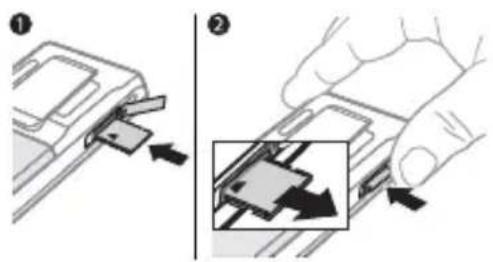
1 Open the cover and insert as shown (with the contacts facing down).
2 Press the edge to release and remove. You can also move and copy files between the phone, a computer and a memory card. If you have a memory card inserted, files are automatically saved to it first and then to phone memory.
Create subfolders to move or copy files to. Games and applications can be moved within the Games and Applications folders and from the phone memory to a memory card. Unrecognized files are saved in the Other folder. When handling files, you can select several or all files in a folder at the same time for all items except Games and Applications.
All files are automatically saved in the phone memory. If all available memory is full, you cannot save any files until content is removed.
File manager menu tabs
The file manager is divided into three tabs, and icons are included to indicate where the files are saved.
- All files - all content in the phone memory and on a Memory Stick Micro™ (M2™).
- On Memory Stick - all content on a Memory Stick Micro™ (M2™).
- In phone - all content in the phone memory.
File information
View file information by highlighting it ▶ More ▶ Information. Items that are downloaded, or received using one of the available transfer methods, may be copyright-protected. If a file is protected, you may not be able to copy or send that file. A DRM-protected file has a key symbol.
To use a file from the file manager
1 ▶ File manager and open a folder.
2 Scroll to a file ▶ More.
To move or copy a file to memory
1 ▶ File manager and select a folder.
2 Scroll to a file ▶ More ▶ Manage file
▶ Move to move the file or ▶ More
▶ Manage file ▶ Copy to copy the file.
3 Select to move or copy the file to Phone or Memory Stick ▶ Select.
18 Getting to know the phone
To move or copy files to a computer 70 Transferring files using the USB cable.
To create a subfolder
1 ▶ File manager and open a folder.
2 ▶ More ▶ New folder and enter a name for the folder.
3 ▶ OK to save the folder.
To select several files
1 ▶ File manager and open a folder.
2 ▶ More ▶ Mark ▶ Mark several.
3 Scroll to select files ▶ Mark or Unmark.
To select all files in a folder
▶File manager and open a folder ▶ More ▶ Mark ▶ Mark all.
To delete a file or a subfolder from the file manager
1 ▶ File manager and open a folder.
2 Scroll to a file ▶ More ▶ Delete.
Memory card options
Check memory status or format a memory card to delete all information.
To use memory card options
▶ File manager and select the On Memory Stick tab ▶ More for options.
18 Getting to know the phone
This is the Internet version of the user's guide. © Print only for private use.
Calling
Calls, video calls, contacts, voice control, call options.
Making and receiving calls
Before you can make or receive any calls, you must turn on your phone and be within range of a network.
6 Turning on your phone. To make a video call 21 Video call
Networks
When you turn on the phone, it automatically selects your home network if this is within range. If it is not within range, you may use another network, provided your network operator has an agreement that allows you to do so. This is called roaming.
Select the network to use, or you can add a network to your preferred networks. You can also change the order in which networks are selected during an automatic search.
To view available network options
▶Settings and use or to scroll to the Connectivity tab ▶Mobile networks.
Your phone also switches automatically between GSM and 3G (UMTS) networks depending on availability. Some network operators allow you to switch networks manually, as searching for unavailable networks consumes battery power.
To switch networks
1 ▶ Settings ▶ Connectivity
▶Mobile networks
▶GSM/3G networks.
2▶GSM and 3G (automatic) or ▶GSM only.
For more information, contact your network operator.
To make a call
1 Enter a phone number (with international country code and area code, if applicable).
2 ▶ Call to make a voice call or ▶ More to view options, such as Make video call ▶ 21 Video call
3 ▶End call to end the call.
You can call numbers from your contacts and call list ➤ 22 Contacts, and ➤ 25 Call list. You can also use your voice to make calls ➤ 26 Voice control.
To make international calls
1 Press until a + sign appears.
2 Enter the country code, area code (without the first zero) and phone number ▶ Call to make a voice call or ▶ More ▶ Make video call.
To re-dial a number
If a call connection fails and Retry? appears ▶Yes.

Do not hold the phone to your ear when waiting. When the call connects, the phone gives a loud signal, unless muted.
To answer or reject a call
▶ Answer or ▶ Busy.
To turn off the microphone
1 Press and hold .c
2 To resume the conversation press and hold again.
To turn the loudspeaker on or off during a voice call
▶ More ▶ Turn on speaker or Turn off speaker.

Do not hold the phone to your ear when using the loudspeaker. This could damage your hearing.
To change the ear speaker volume Press to increase or to decrease the ear speaker volume during a call.
Missed calls
When the activity menu is set to default missed calls appear in the New events tab in standby. If pop-up is set to default Missed calls: appears in standby ➤ 16 Activity menu.
To check missed calls from standby
- If pop-up is set to default:
- Calls and use ⚙ or ⚙ to scroll to the Missed tab. Scroll ⚙ or ⚙ to select a number - Call to call.
- If activity menu is set to default:
Press and use or to scroll to the New events tab and use or to select a number ▶ Call to call.
Emergency calls
Your phone supports international emergency numbers, for example, 112, 911. These numbers can normally be used to make emergency calls in any country, with or without a SIM card inserted, if a 3G (UMTS) or GSM network is within range.

In some countries, other emergency numbers may also be promoted. Your network operator may therefore have saved additional local emergency numbers on the SIM card.
To make an emergency call
Enter 112 (the international emergency number) ▶Call.
To view your local emergency numbers
▶ Contacts ▶ More ▶ Options
▶Special numbers
Emergency nos.
Video call
See a person on screen during calls.
Before you start
To make a video call, both you and the person you are calling need a subscription that supports the 3G (UMTS) service, and you need to be within range of a 3G (UMTS) network. 3G (UMTS) service is available when the 3G icon appears in the status bar.
Video call demo mode
You can use most video call functions without making a call, for example, to prepare a camera view before calling. ▶ Video call.
To make a video call
When 3G (UMTS) service is available, you can make a video call in one of the following ways:
- Enter a phone number (international prefix and area code if applicable)
▶ More▶ Make video call.
- Contacts and select the contact to call. Use or to select a number ▶ More ▶ Make video call.
- Video call ▶ Call... ▶ Contacts to retrieve a phone number ▶ Call or enter a phone number ▶ Call.
To zoom the outgoing video in or out Press ☉ to zoom in the outgoing video and press ☉ to zoom out.
To accept an incoming video call
▶Answer.
To end a video call
▶End call.
Video call options
▶More for the following options:
- Switch camera – to switch between the main and video call cameras. Use the main camera to show a full image of your surroundings to the recipient.
- Stop camera/Start camera – turn the video camera off or on. An alternative picture is shown when off.
- Save picture – save the image shown in the large view, for example, the incoming caller image.
- Camera – options
- Brightness – adjust the level for the outgoing picture.
- Turn on night m. – use when lighting conditions are poor. This setting affects the outgoing video.
- Sound – options during a video call
- Turn off speaker/Turn on speaker – incoming sound.
- Mute microphone/Unmute mic. – microphone off or on.
- Transfer sound – to and from Bluetooth handsfree equipment.
- Layout – options
- Switch pictures – show incoming or outgoing video in full size view.
- Hide small pic./Show small pic.
- Mirror image – show the outgoing camera picture.
- Settings – when answering
- Answer mode – set the video call camera to on or off.
- Alternative pic. – set a picture to show to the recipient when the camera is off.
•Audio options – select if microphone, speaker phone, or both should be on or off.
- Video quality – select picture quality for video calls. Changes do not take effect during an ongoing call.
Contacts
You can save your contact information in the phone memory or on a SIM card. The following is available:
You can choose which contact information – Phone contacts or SIM contacts – is shown as default.
For useful information and settings ▶ Contacts ▶ More ▶ Options.
Default contact
If Phone contacts is selected as default, your contacts show all the information saved in Contacts. If you select SIM contacts as default, your contacts show information depending on the SIM card.
To select default contacts
1 ▶ Contacts ▶ More ▶ Options
▶ Advanced ▶ Default contacts.
2 ▶ Phone contacts or SIM contacts.
22 Calling
This is the Internet version of the user's guide. © Print only for private use.
Phone contacts
Save contacts in the phone with names, phone numbers and personal information. You can also add pictures and ringtones to contacts. Use ⚙️, ⚙️ and ⓐ to scroll between tabs and their information fields.
To add a phone contact
1 If Phone contacts is selected as default, ▶ Contacts ▶ New contact ▶ Add.
2 Enter the name ▶OK.
3 Enter the number ▶OK.
4 Select a number option.
5 Scroll between tabs and select the fields to add information. To enter symbols such as @, ▶More
- Add symbol and select a symbol - Insert.
6 When all information is added ▶ Save.
To delete a contact
1 ▶ Contacts and scroll to a contact.
2 Press ⓒ and select Yes.
To delete all phone contacts
▶ Contacts ▶ More ▶ Options
▶ Advanced ▶ Delete all contacts
▶ Yes and ▶ Yes. Names and numbers on the SIM card are not deleted.
SIM contacts
Save contacts on your SIM card.
To add a SIM contact
1 If SIM contacts is selected as default, ▶ Contacts ▶ New contact ▶ Add.
2 Enter the name ▶OK.
3 Enter the number ▶ OK and select a number. Add more information, if available ▶ Save.
To automatically save names and phone numbers on the SIM card
- Contacts - More - Options
▶ Advanced ▶ Auto save on SIM and select On.
Memory status
The number of contacts you can save in the phone or on the SIM card depends on available memory.
To view memory status
- Contacts - More - Options
▶ Advanced ▶ Memory status.
Using contacts
Contacts can be used in many ways. Below you can see how to:
• call phone and SIM contacts.
- send phone contacts to another device.
- copy contacts to phone and SIM card.
- add a picture or a ringtone to a phone contact.
- edit contacts.
• synchronize your contacts.
To call a phone contact
1 ▶ Contacts. Scroll to, or enter the first letter or letters of the contact.
2 When the contact is highlighted press or to select a number ▶ Call or ▶ More ▶ Make video call.
To call a SIM contact
- If SIM contacts is default ▶ Contacts and when the contact is highlighted press 📄 or to select a number
▶ Call or ▶ More ▶ Make video call. - If Phone contacts is set as default
- Contacts ▶ More ▶ Options
- SIM contacts and select the contact
- Call or ▶ More ▶ Make video call.
To send a contact
▶Contacts and select a contact
▶ More ▶ Send contact and select a transfer method.
To send all contacts
- Contacts - More Options
▶ Advanced ▶ Send all contacts and select a transfer method.
To copy names and numbers to the SIM card
1 ▶ Contacts ▶ More ▶ Options
▶ Advanced ▶ Copy to SIM.
2 Select one of the alternatives.

When copying all contacts from the phone to the SIM card, all existing SIM card information is replaced.
To copy names and numbers to phone contacts
1 ▶ Contacts ▶ More ▶ Options
▶ Advanced ▶ Copy from SIM.
2 Select one of the alternatives.
To add a picture, ringtone sound or video to a phone contact
1 ▶ Contacts and select the contact
▶ More ▶ Edit contact.
2 Select the relevant tab and then select Picture or Ringtone ▶ Add.
3 Select an option and an item ▶ Save.

If your subscription supports Calling Line Identification (CLI) service, you can assign personal ringtones to contacts.
To edit a phone contact
1 ▶ Contacts and select a contact
▶ More ▶ Edit contact.
2 Scroll to the relevant tab and select the field to edit ▶ Edit.
3 Edit the information ▶ Save.
To edit a SIM contact
1 If SIM contacts is default ▶ Contacts and select the name and number to edit. If phone contacts is default
- Contacts ▶ More ▶ Options
- SIM contacts and select the name and number to edit.
2 ▶ More ▶ Edit contact and edit the name and number.
Synchronizing contacts
You can synchronize your contacts with a contacts application on the Web. For more information
65 Synchronizing
To save and restore contacts with a memory card
▶ Contacts ▶ More ▶ Options
▶ Advanced ▶ Back up to M.S. or Restore from M.S.
To select the sort order for contacts
- Contacts - More - Options
▶ Advanced ▶ Sort order.
Call list
Information about most recent calls.
To call a number from the call list
1 From standby ▶ Calls and select a tab.
2 Scroll to the name or number to call ▶ Call or ▶ More ▶ Make video call.
To add a call list number to contacts
1 From standby, ▶ Calls and select a tab.
2 Scroll to the number to add ▶ More ▶Save number.
3▶New contact to create a new contact, or select an existing contact to add the number to.
To clear the call list
▶ Calls and select the All tab ▶ More
▶ Delete all.
Speed dial with pictures
Save numbers in positions 1-9 in your phone to access them easily. Speed dial is dependent on your default contacts ➕ 22 Default contact, for example, you can speed dial numbers saved on the SIM card.
If you add contacts with pictures to speed dial positions, the contact pictures appear for easy reference 24 To add a picture, ringtone sound or video to a phone contact
To edit speed dial numbers
1 ▶ Contacts ▶ More ▶ Options ▶ Speed dial.
2 Scroll to the position ▶ Add or ▶ More ▶Replace.
To speed dial
From standby, enter the position number ▶Call.
Voicemail
If your subscription includes an answering service, callers can leave a voicemail message when you cannot answer a call.

Contact your network operator for your voicemail number or for more information.
To call your voicemail service
Press and hold. If you have not entered a voicemail number, ▶Yes and enter the number.
To edit your voicemail number
▶ Messaging ▶ Settings
▶Voicemail number.
Voice control
Manage calls with your voice by creating voice commands to:
- Voice dial – call someone by saying their name.
- Activate voice control by saying a “magic word”.
- Answer and reject calls when using a handsfree.
Before voice dialling
Activate the voice dialling function and record your voice commands. An icon appears next to a phone number that has a voice command.
To activate voice dialling and record names
1 ▶ Settings ▶ the General tab
▶ Voice control ▶ Voice dialling
▶ Activate ▶ Yes ▶ New voice and select a contact.
2 If the contact has more than one number, use and to view the numbers. Select the number to add the voice command to. Record a voice command such as "John mobile".
3 Instructions appear. Wait for the tone and say the command to record. The voice command is played back to you.
4 If the recording sounds OK ▶ Yes. If not ▶ No and repeat step 3.
To record another voice command for a contact ▶ New voice ▶ Add again and repeat steps 2-4 above.
Caller name
Hear your recorded contact name when you receive a call from that contact.
To turn the caller name on or off
▶ Settings ▶ the General tab
▶ Voice control ▶ Play caller name.
Voice dialling
Start voice dialling from standby using the phone, a portable handsfree, a Bluetooth headset or by saying your magic word.
To make a call
1 From standby, press and hold one of the volume keys.
2 Wait for the tone and say a recorded name, for example "John mobile". The name is played back to you and the call is connected.
To make a call with a handsfree
From standby, press and hold the handsfree button, or press the Bluetooth headset button.
The magic word
Record and use a voice command as a magic word to activate voice control without pressing any keys. The magic word can only be used with a handsfree or a Bluetooth headset.

Choose a long, unusual word or phrase that can easily be distinguished from ordinary background speech.
To activate and record the magic word
1 ▶ Settings▶ the General tab
▶ Voice control ▶ Magic word
▶Activate.
2 Instructions appear. ▶ Continue. Wait for the tone and say the magic word.
3 ▶ Yes to accept or ▶ No to record a new magic word.
4 Instructions appear. ▶ Continue and select the environments in which your magic word is to be activated.
Voice answering
Answer or reject incoming calls by using your voice, when using a handsfree.

You can use a MIDI, WAV (16 kHz), EMY or IMY file as a ringtone with voice answering.
To activate voice answering and record voice answer commands
1 ▶ Settings▶ the General tab
▶ Voice control ▶ Voice answer
▶Activate.
2 Instructions appear. ▶ Continue.
Wait for the tone and say “Answer”, or another word.
3 ▶ Yes to accept or ▶ No for a new recording.
4 Instructions appear ▶ Continue. Wait for the tone and say “Busy”, or another word.
5 ▶ Yes to accept or ▶ No for a new recording.
6 Instructions appear. ▶ Continue and select the environments in which voice answering is to be activated.
To answer or reject a call using voice commands
When the phone rings, say:
- “Answer” to connect the call.
- “Busy” to reject the call.
To edit your voice commands
1 ▶ Contacts and scroll to a contact.
2 ▶ More ▶ Edit contact and scroll to the relevant tab.
To re-record a voice command
1 ▶ Settings ▶ the General tab
▶ Voice control ▶ Voice dialling
▶ Edit names.
2 Select a command ▶ More ▶Replace voice.
3 Wait for the tone and say the command.

Diverting calls
Divert calls, for example, to an answering service.

When the restrict call function is activated, some divert call options are not available. ➡ 31 Restricted dialling.
Your phone has the following options:
- Divert always – all calls.
- When busy – if a call is ongoing.
- Not reachable – if turned off or unreachable.
- No reply – if not answered in a specified time.
To activate a call divert
1 ▶ Settings ▶ the Calls tab ▶ Divert calls.
2 Select a call type and divert option ▶Activate.
3 Enter the phone number to divert your calls to, or press Look up to find a contact ▶OK.
To deactivate a call divert
Scroll to the divert option ▶Deactivate.
More than one call
Handle more than one call simultaneously.

Call waiting service
When this is activated you hear a beep if you receive a second call.
To activate or deactivate the call waiting service
▶ Settings ▶ the Calls tab by using Ⓞ
or Ⓐ and ▶ Manage calls
▶Call waiting.
To make a second call
1 ▶ More ▶ Hold to hold the ongoing call.
2 Enter the number to call ▶ More ▶ Call.
Receiving a second voice call
When you receive a second call, you can:
▶Answer and put the ongoing call on hold.
▶Busy to reject and continue with the ongoing call.
▶Replace active call to answer and end the ongoing call.

Handling two voice calls
If you have calls ongoing and on hold, you can:
▶ More▶ Switch to switch between the two calls.
▶ More▶ Join calls to join the two calls.
▶ More▶ Transfer call to connect the two calls. You are disconnected from both calls, operator-dependent.
▶ End call and ▶ Yes to retrieve the call on hold.
▶ End call and ▶ No to end both calls.
You cannot answer a third call without ending one of the first two calls or joining them into a conference call.
Conference calls
Start a conference call by joining an ongoing call and a call on hold. You then put the conference on hold and add up to five participants, or can make another call.

There may be additional charges for calls involving multiple parties, contact your network operator for more information.
To join the two calls into a conference call
▶ More▶ Join calls.
To add a new participant
1 ▶ More ▶ Hold to put the joined calls on hold.
2 ▶ More ▶ Add call and call the next person to add to the conference call.
3 ▶ More ▶ Join calls.
4 Repeat steps 1-3 to add more participants.
To release a participant
▶ More ▶ Release part. and select the participant to release from the conference call.
To have a private conversation
1 ▶ More ▶ Talk to and select the participant to talk to.
2 ▶ More ▶ Join calls to resume the conference call.

Two voice lines
Make separate calls with different phone numbers if your subscription supports alternate line service.
To select a line for outgoing calls
▶Settings and use or to scroll to the Calls tab. Select line 1 or 2.
To change the name of a line
▶Settings and use or to scroll to the Display tab ▶ Edit line names. Select the line to edit.
My numbers
View, add and edit your own phone numbers.
To check your phone numbers
▶ Contacts ▶ More ▶ Options
▶ Special numbers ▶ My numbers and select one of the options.
Accept calls
Only receive calls from certain phone numbers. If the divert calls option When busy is activated, calls are diverted.
To add numbers to the accepted callers list
▶Settings and use 📄 or Ⓧ to scroll to the Calls tab ▶ Manage calls
▶ Accept calls ▶ Only from list ▶ Edit
▶ Add. Select a contact or ▶ Groups
32 Groups.
To accept all calls
▶ Settings▶ the Calls tab
▶ Manage calls ▶ Accept calls
▶All callers.

Restricted dialling
Restrict outgoing and incoming calls. A password from your service provider is required.

If you divert incoming calls, you cannot activate some restrict calls options.
The following calls can be restricted:
- All outgoing – all outgoing calls.
- Outgoing intl – all outgoing international calls.
- Outgoing intl roam. – all outgoing international calls except to your home country.
- All incoming – all incoming calls.
- Inc. when roaming – all incoming calls when you are abroad
19 Networks
To activate or deactivate a call restriction
1 ▶Settings and use or to scroll to the Calls tab ▶ Manage calls
▶ Restrict calls. Select an option.
2 Select Activate or Deactivate, enter your password ▶OK.

Fixed dialling
The fixed dialling function allows calls to be made to certain numbers saved on the SIM card. The fixed numbers are protected by your PIN2.

You can still call the international emergency number, 112, even when the fixed dialling function is activated.
Partial numbers can be saved. For example, saving 0123456 allows calls to be made to all numbers starting with 0123456.

When fixed dialling is activated, you may not be allowed to view or manage any phone numbers saved on the SIM card.
To activate or deactivate fixed dialling
1 ▶ Contacts ▶ More ▶ Options
▶ Special numbers ▶ Fixed dialling and select Activate or Deactivate.
2 Enter your PIN2 ▶ OK and then ▶ OK again to confirm.
To save a fixed number
- Contacts - More - Options
▶ Special numbers ▶ Fixed dialling
▶ Fixed numbers ▶ New number and enter the information.

Call time and cost
During a call, the duration of the call is shown. You can check the duration of your last call, outgoing calls and the total time of your calls.
To check the call time
▶Settings and use or to scroll to the Calls tab ▶ Time & cost
▶Call timers.
Additional calling functions
Tone signals
Use telephone banking services or control an answering machine with tone signals during a call.
To use tone signals
- Press 0+ 9 *-, or to send tones.
- More ▶ Disable tones or Enable tones to turn the tones on or off during a call.
- Press to clear the screen after a call.
Notepad
Use the screen as a notepad to enter a phone number during a call. When you end the call, the number remains on the screen for you to call or save in your contacts.
To call or save from the notepad
▶Call to call the number or
▶ More ▶ Save number and select a contact to save the number to or ▶ More ▶ New contact to create a new contact to save the number to.
Showing or hiding your number If your subscription supports the Calling Line Identification Restriction (CLIR) service, you can hide your phone number when making a call.
To always show or hide your phone number
1 ▶ Settings ▶ the Calls tab
▶Show/hide my no.
2 Select Show number, Hide number or Network default.
Groups
Create a group of numbers and email addresses to send messages to several recipients at the same time
33 Messaging. You can also use groups (with numbers) when you create accepted callers lists
30 Accept calls
To create a group of numbers and email addresses
2 Enter a name for the group
▶Continue.
3 ▶ New ▶ Add to find and select a contact number or email address.
4 Repeat step 3 to add more numbers or email addresses. ▶ Done.
Business cards
Add your own business card as a contact.
To add your own business card
▶My business card and add information for your business card
▶Save.
To send your business card
▶ My business card ▶ Send my card and select a transfer method.
Messaging
Text messaging, picture messaging, voice messaging, email, My friends.
Your phone supports various messaging services. Please contact your service provider about the services you can use, or for more information, visit www.sonyericsson.com/support.
Text messaging (SMS)
Text messages can contain simple pictures, sound effects, animations, and melodies. You can also create and use templates for your messages.

If you send a text message to a group, you will be charged for each member.
Before you start
The number to your service centre is supplied by your service provider and is usually set on the SIM card. If not, you can enter the number yourself.
To set a service centre number
1 ▶ Messaging ▶ Settings
▶ Text message ▶ Service centre. If the service centre number is saved on the SIM card it is shown.
2 If there is no number shown ▶ Edit ▶ New ServiceCentre and enter the number, including the international “+” prefix and country/region code ▶ Save.
Sending text messages
For information about entering letters 15 Entering letters.

Some language-specific characters use more space. For some languages you can deactivate National charsto save space.
To write and send a text message
1 ▶ Messaging ▶ Write new
▶Text message.
2 Write your message ▶ Continue. (You can save a message for later in Drafts by pressing ← ▶ Save message.)
3 ▶ Enter phone no. and enter a number, or ▶ Contacts look-up to retrieve a number or a group from Contacts, or ▶ Enter email addr. or select from last used recipients ▶ Send.

To send a message to an email address, you need to set an email gateway number, ▶ Messaging ▶ Settings ▶ Text message ▶ Email gateway. The number is supplied by your service provider.
To copy and paste text in a message
1 When writing your message ▶ More ▶ Copy & paste.
2 ▶ Copy all or ▶ Mark & copy and use the navigation key to scroll and mark text in your message.
3 ▶ More ▶ Copy & paste ▶ Paste.
To insert an item in a text message
1 When writing your message ▶ More ▶ Add item.
2 Select an option and then an item, for example, a picture.

You can convert your text message to a picture message. When writing your message▶More ▶To picture msg and continue creating a picture message, 36 Picture messaging (MMS).
Receiving text messages
When you receive a text message, it appears in the activity menu if New events is set to Activity menu. ▶View to read the message.
If New events is set to Pop-up, you are asked if you want to read the text message. ▶ Yes to read the message or ▶ No to read it later. When you have read the text message ▶ More for options or press to close the message.
34 Messaging
This is the Internet version of the user's guide. © Print only for private use.
To call a number in a text message
Select the phone number displayed in the message, ▶ Call.
Saving and deleting text messages
Received text messages are saved in the phone memory. When the phone memory is full, delete messages or move them to the SIM card to be able to receive new messages. Messages saved on the SIM card remain until they are deleted.
To save a message
1 ▶ Messaging ▶ Inbox and select the message to save.
2 ▶ More ▶ Save message.
3 ▶ Saved messages to save on the SIM card or ▶ Templates to save the message as a template in the phone.
To save an item in a text message
1 When reading a message, select the phone number, picture or Web address to save ▶More.
2 ▶ Use (the phone number you have selected appears) ▶ Save number to save the phone number or ▶ Save picture to save a picture or ▶ Use (the bookmark you have selected appears) ▶ Save bookmark to save a bookmark.
To delete a message
1 ▶ Messaging and select a folder.
2 Select the message to delete and press ⓒ.
To save or delete several messages
1 ▶ Messaging and select a folder.
2 Select a message ▶ More
▶ Delete all msgs to delete all messages in the folder or
▶ Mark several scroll and select messages by pressing Mark or Unmark.
3 ▶ More ▶ Save message to save messages or ▶ Delete messages to delete messages.
Long messages
The number of characters allowed in a text message depends on the language used for writing. You can send a long message by linking two or more messages. You are charged for each of the messages linked in a long message. The recipient may not receive all parts of a long message at the same time.

Check with your service provider for the maximum number of messages that can be linked.
To turn long messages on
▶ Messaging ▶ Settings
▶ Text message ▶ Max. msg length
▶Max. available.
Templates for text messages
Add a new template or save a message as a template in your phone
35 To save a message.
To add a template
1 ▶ Messaging ▶ Templates
▶ New template ▶ Text.
2 Insert text ▶ OK.
3 Enter a title ▶ OK.
To use a template
1 ▶ Messaging ▶ Templates select a template ▶ Use ▶ Text message.
2 Add text or ▶ Continue and select a recipient to send the message to.
Message options
Set a default value for several message options or choose the settings each time you send a message.
To set default text message options
▶ Messaging ▶ Settings
▶Text message and select the options to change.
To set message options for a specific message
1 When the message is written and a recipient is selected ▶ More ▶ Advanced.
2 Select an option to change ▶ Edit and select a new setting ▶ Done.
To check the delivery status of a sent message
▶ Messaging ▶ Sent messages and select a text message ▶ View ▶ More
▶View status.
Picture messaging (MMS)
Picture messages can contain text, pictures, camera pictures, slides, sound recordings, video clips, signatures and attachments. You can send picture messages to a mobile phone or an email address.
Before you start
Both you and the recipient must have subscriptions that support picture messaging.
If no Internet profile or message server exists, you can receive all the settings for MMS automatically from your network operator or from www.sonyericsson.com/support.
Before sending a picture message, you can check:
The address of your message server and an Internet profile are set
▶ Messaging ▶ Settings
▶ Picture message ▶ MMS profile and select a profile. ▶ More ▶ Edit
▶ Message server and ▶ More ▶ Edit
▶Internet profile.
To create and send a picture message
1 ▶ Messaging ▶ Write new
▶ Picture msg ▶ More to view a list of items to add to your message. Select an item.
2 ▶ More to add more items to the message. For specific item options, select the item ▶ More and select the option type to edit.
3 When ready to send ▶ Continue.
4 ▶ Enter email addr. or ▶ Enter phone no. or ▶ Contacts look-up to retrieve a number or group in Contacts or select from last used recipients ▶ Send.

When writing and editing picture messages you can use the copy and paste functionality ➕ 34 To copy and paste text in a message.
To set default picture message options
▶ Messaging ▶ Settings
▶Picture message and select options to change.
Additional send options
Request a read report, a delivery report, and set a priority for a specific message. You can also add more recipients to the message.
To select additional send options
1 When the message is created and a recipient is selected ▶ More.
2 ▶ Add recipient to add another recipient or ▶ Edit recipients to edit and add recipients. ▶ Edit subject to change the message subject or ▶ Advanced for more send options.
Receiving picture messages
Select how to download your picture messages and how to save items that you receive in picture messages.
To set automatic download
▶ Messaging ▶ Settings
▶ Picture message ▶ Auto download to view and select one of the following:
- Always – automatic download.
- Ask in roaming – ask to download when not in home network.
- Not in roaming – do not download when not in home network.
•Always ask – to download. - Off – new messages appear in the Inbox. Select the message and
- View to download.
To receive picture messages
When you receive an automatically downloaded picture message, it appears in the activity menu if New events is set to Activity menu.
▶View to read the message.
If New events is set to Pop-up, you are asked if you want to read the picture message, ▶ Yes to read or play.
▶Stop to stop playing or reading,
▶Reply or
▶More to view options.
Press to close the message.
To save an item in a picture message When viewing a picture message
▶ More ▶ Save items and select an item to save from the list that appears.
Delete picture messages
Picture messages are saved in the phone memory. When phone memory is full, you must delete messages to be able to receive new messages.
Select a message and press C to delete.
Templates for picture messages Add a new template or use a pre-defined template.
To add a template
1 ▶ Messaging ▶ Templates
▶ New template▶ Picture msg.
2▶More to add new items.
3 ▶ Save, enter a title ▶ OK to save the template.
To use a template
1 ▶ Messaging ▶ Templates and select a template from the list ▶ Use to use the template as it is or ▶ More
▶Edit template to edit the template,
▶ Save, enter a title ▶ OK to save the changes.
2 ▶ Continue and select a recipient to send the message to or select a template from the list ▶ Use
▶Continue if the template is edited.
Voice messages
Send and receive a sound recording as a voice message.

The sender and receiver must have a subscription supporting picture messaging.
To record and send a voice message
1 ▶ Messaging ▶ Write new
▶Voice message.
2 Record your message. ▶ Stop to end.
3 ▶Send to send the message.
4 ▶ Enter email addr. for an email recipient or ▶ Enter phone no. for a recipient phone number or ▶ Contacts look-up for a number or group in Contacts or select from last used recipients ▶ Send.
Receiving voice messages
When you receive an automatically downloaded voice message, the voice message appears in the activity menu if New events is set to Activity menu. ▶Play to listen to the message.
If New events is set to Pop-up, you are asked if you want to listen to the voice message. ▶ Yes to play the message or ▶ No if you want to play the message later. When you have listened to the voice message ▶ More to view a list of options. Press → to close the message.

Read your email messages in your phone at any time. Write a message, attach a high-resolution camera picture, sound recording or video clip, and send it to your friends or colleagues. You can also reply to and forward email in your phone, just as you can on your computer.
The email address that you use on your computer can also be used in your phone. To do this, your phone needs the same email settings as used by your computer for email address. To use your computer email address in your phone, do one of the following:
- Receive settings automatically
The easiest way is to have settings sent directly to your phone. Use Internet on your computer to go to www.sonyericsson.com/support.
- Enter settings manually
- Ask your email provider for settings information. An email provider is the person or company who provided your email address, for example, your IT administrator at work or an Internet provider, or
- you may have a document at home from your email provider with the settings information, or
- you may find the information in your computer email program settings.
What information do I need?
The minimum you need is the following:
Setting types Examples
| Connection type | POP3 or IMAP4 |
| Email address | joe.smith@example.com |
| Incoming server | mail.example.com |
| Username | jsmith |
| Password | zX123 |
| Outgoing server | mail.example.com |

There are many different email providers.
Their terminology and required information may differ. Not all service providers allow email access.
Help in your phone
There are also setup instructions and help information as you enter settings.
To enter email settings
1 ▶ Messaging ▶ Email ▶ Settings.
2 After settings are entered,
▶ Inbox ▶ More ▶ Send & receive to access your email.
When settings are entered, your phone can connect to an email server to send and receive email messages.
For more information, contact your email provider or see the User guidewith additional information at www.sonyericsson.com/support.
To create an email account
1 ▶ Messaging ▶ Email ▶ Settings
▶ New account ▶ Add.
2 Enter a name for the account ▶ OK. For help ▶ Setup instructions or press 🔒 to a setting ▶ Info.
3 Press to a setting and enter the following minimum required settings:
- Email alert and select the alert sound for new messages.
- Connect using and select a data account (provided by your network operator, ▶Info).
- Email address, enter your email address.
- Connection type (POP3 or IMAP4).
- Incoming server, enter the server name.
- Username, enter the username for the email account.
- Password, enter the password for the email account.
- Outgoing server, enter the server name.
To enter advanced email account settings (optional in most cases)
1 ▶ Messaging ▶ Email ▶ Settings.
2 Select an account to edit ▶ More ▶ Edit account ▶ Advanced settings.
3 Press to select and enter settings, if required by your email provider, for example, Check interval.
To receive and read email messages
1 ▶ Messaging ▶ Email ▶ Inbox
▶ Send&rec when the inbox is empty or ▶ Messaging ▶ Email ▶ Inbox
▶ More ▶ Send & receive to download new messages. This also sends any messages in the outbox.
2 Select a message in the inbox ▶ View to read it.
To write and send an email message
1 ▶ Messaging ▶ Email ▶ Write new.
2 ▶ Add to enter the recipient field
▶ Enter email addr. to type an email address ▶ OK or ▶ Contacts look-up to select a recipient from Contacts
▶ Select or select an email address from last used recipients ▶ Select.
3 ▶ Edit to enter the recipient field (after one is added) to add more recipients select To, Cc or Bcc and select recipients to add. When you have selected recipients ▶ Done.
4 Press ☐ to select the subject field, type an email subject ▶ OK. To edit the subject ▶ Edit.
5 Press to select the text field, write your message ▶ OK. To edit the message ▶ Edit.
6 Press to select the attachment field. ▶ Add and choose the attachment type to add ▶ Select to select the attachment to add ▶ Add to add more attachments.
7 ▶ Continue ▶ Send or More
▶ Save in Outbox to save and send later.
When writing and editing email messages you can use the copy and paste functionality 34 To copy and paste text in a message.
To save an email message
1 ▶ Messaging ▶ Email ▶ Inbox.
2 Select a message ▶ More
▶ Save message ▶ Saved email.
To reply to an email message
1 Select the message in the inbox to reply to ▶ More ▶ Reply or open the message ▶ Reply.
2 ▶ Yes to include the original message in your reply or ▶ No to exclude the original message from your reply.
3 Write your message in the text field ▶ OK. To edit the message ▶ Edit.
4 ▶ Continue ▶ Send.
To view or save an attachment in an email message
View a message ▶ More
▶ Attachments ▶ View to view the item or select an item to save.
Active email account
If you have several email accounts, you can change which one is active.
To change the active email account
▶ Messaging ▶ Email ▶ Settings and select an account.
Push email
Receive a notification in your phone from your email server that you have new email, if supported by your email provider.
To turn on push email notification
- When using send & receive, ▶ Yes to turn on, if required or
- Messaging ▶ Email ▶ Settings. Select an account to edit ▶ More ▶ Edit account ▶ Advanced settings ▶ Push email and select an option.
To delete an email message (POP3)
1 ▶ Messaging ▶ Email ▶ Inbox ▶ More.
2 ▶ Mark for deletion or ▶ Mark several
▶ Mark or Unmark.

Marked messages will be deleted when you next connect to your server.
To delete an email message (IMAP4)
1 ▶ Messaging ▶ Email ▶ Inbox ▶ More.
2 ▶ Mark for deletion or ▶ Mark several ▶ Mark or Unmark.
3 ▶ More ▶ Clear inbox to delete messages.

All messages marked for deletion in the phone and on the server will be deleted.
My friends
Connect and log in to the My friends server to communicate online with your favourite friends. If your subscription supports instant messaging and presence services, you can send and receive messages and see contact status if online. If no settings exist in your phone, you need to enter server settings.

Contact your service provider for more information.
42 Messaging
This is the Internet version of the user's guide. © Print only for private use.
To enter server settings
1 ▶ Messaging ▶ My friends ▶ Configure.
2 A d d username, password, server information and select an Internet profile to use. This information is supplied by your service provider.
To log in to your My friends server
▶ Messaging ▶ My friends ▶ Log in.
To log out
▶ More ▶ Log out.
To add a contact to the list
▶ Messaging ▶ My friends
▶ the Contacts tab ▶ More
▶Add contact.
To send a chat message from My friends
1 ▶ Messaging ▶ My friends ▶ the Contacts tab and select a contact from the list.
2 ▶Chat and type your message ▶Send.

You can also continue a chat conversation from the Conversations tab.
Status
Show your status to your contacts only or show it to all users on the My friends server.
To set status
1 ▶ Messaging ▶ My friends ▶ More
▶ Settings and select
Show my status.
2 ▶ To all or Only to contacts ▶ Select.
To change your own status
▶ Messaging ▶ My friends ▶ the My status tab and update your status information. Use 🔒 or 🔒 to scroll between status fields.
Chat group
A chat group can be started by your service provider, by an individual My friends user or by yourself. You can save chat groups by saving a chat invitation or by searching for a specific chat group.
To start a chat group
1 ▶ Messaging ▶ My friends
▶ the Chat groups tab ▶ More
▶ Add chat group ▶ New chat group.
2 Select who to invite to the chat group from your contacts list ▶ Continue.
3 Enter a short invitation text ▶ Continue ▶ Send.
To add a chat group
1 ▶ Messaging ▶ My friends
▶ the Chat groups tab ▶ More
▶Add chat group.
2 ▶ By group ID to enter chat group ID directly or ▶ Search to search for a chat group.

Conversation history is preserved between log in and log out to let you return to chat messages from previous conversations.
To save a conversation
▶ Messaging ▶ My friends
▶ the Conversations tab and open a conversation ▶More
▶Save conversation.
To view a saved conversation
▶ Messaging ▶ My friends
▶ the Conversations tab ▶ More
▶Saved conv.
To view watching users
▶ Messaging ▶ My friends
▶ the Contacts tab ▶ More
▶ Watching users. A list of users on the My friends server watching your status information appears.
To view or edit settings
▶ Messaging ▶ My friends ▶ More
▶Settings and select an option:
•Show my status:
- Sort contacts:
- Chat alert:
- Server settings:
•Auto-login:
- Allow connection:

Contact your service provider for more information.
Area and cell information

Information messages may be sent to network subscribers within a certain area or cell.
To turn information on or off
▶ Messaging ▶ Settings ▶ Area info
▶ Reception or Cell information.
Imaging
Camera, video, blog, pictures.
Camera and video recorder
Take pictures and record video clips to save, view and send in messages.
Camera buttons and keys
Zoom in or out
Take pictures Record video

natural_image
Line drawing of a computer monitor base with two labeled buttons (no text or symbols present)Photo key (upper) Camera: scenes Video: night
Screen options (top right)
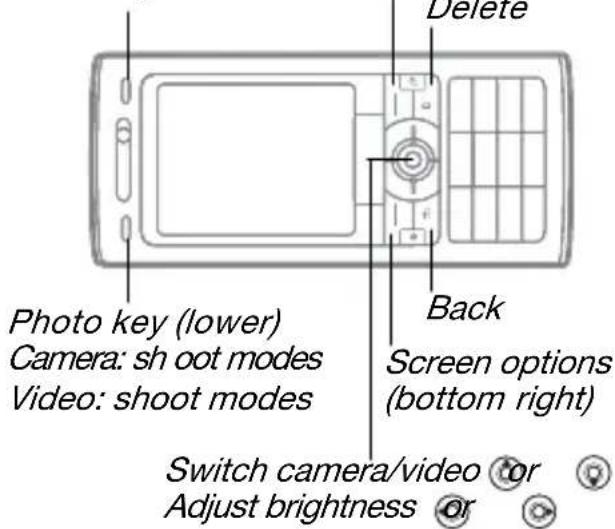
To take a picture or record video

1 Slide open the lens cover.
2 Use the navigation key to switch between camera and video recorder.
3 Camera: Press half way down to use auto focus and then fully down to take a picture.
Video: Press half way down to use auto focus and then fully down to start recording. To stop recording, press again.
• To take another picture or record another video clip, press to return to the viewfinder.
• To stop using the camera or video recorder and return to standby, press and hold or close the lens cover.
Pictures and video clips are saved in File manager ▶ Camera album.

Camera settings
When you are in the viewfinder
▶Settings for options to adjust and enhance your pictures and video clips before taking or recording them.

If you try to record with a strong light source such as direct sunlight or a lamp in the background, the screen may black out or the picture may be distorted.

Do not look directly at the camera Xe flash in the phone using a magnification device. Failure to comply with this warning may damage your eyes.
To use the zoom
Use volume buttons to zoom in and out.
To adjust brightness
Use the navigation key to increase or decrease brightness.
To use auto focus
Press half way down. You hear a beep when auto focus is set within the frame that appears.
BestPic™
Use BestPic ^TM to catch the moment when taking pictures. Capture a range of 9 pictures from just before you press the camera button down to just
after. You can save the best picture or more pictures. This is not available with certain options, such as flash.
To use BestPic™
1 When using the camera, press the lower photo key once or ▶ Settings ▶ Shoot mode ▶ BestPic™.
2 Press half way down to use Focus and then fully down to take a picture.
3 Press or to select the best picture ▶Save.
Camera and video options
When the camera or video is activated ▶Settings for the following options:
- Switch to video camera to record a video clip or Switch to still camera to take a picture.
- Shoot mode (camera) :
- Normal – no frame.
- BestPic™ – select from 9 pictures.
- Panorama – join several pictures into one.
- Frames – add a frame to your picture.
- Shoot mode (video): For picture message or High quality video.
- Scenes (camera) – select from:
- Auto – automatic settings.
- Twilight landscape – a scenic picture at night.
- Twilight portrait – for example, for a subject picture at night.
- Landscape – a scenic picture.
- Portrait – for example, a subject picture.
- Beach/Snow – use in bright environments, for example, at the beach or when skiing.
- Sports – use for fast-moving objects.
- Document – use for pictures of text or drawings.
•Picture size (camera) – select from:
•3 M P (2048x1536 pixels)
•2 M P (1632x1224)
•1 MP (1280x960)
•VGA (640x480)

The 3 MP picture size is 2000x1500 with image stabilizer on, if available.
- Focus – select from:
•Auto – auto focus for close-ups.
- Macro – use for detailed close-ups.
- Infinite – use to focus on all scenery.
- Flash (camera) – select from:
- Off, Auto or Red-eye reduction – to reduce the effect of red-eyes in pictures.
- Turn on image stabilizer – if available, use to keep the image steady. In poor lighting conditions it compensates for small hand movements.
- Turn on night mode (video) – adapt to poor lighting conditions.
- Turn on self-timer (camera) – take a picture a few seconds after pressing the camera button.
•Effects – select from:
- Off – no effect.
- Black & white – no colour.
- Negative – reversed colours.
- Sepia – brown tint.
- Solarize – overexposure.
- White balance – adjust colours to lighting conditions. Select from Auto, Daylight, Cloudy, Fluorescent or Incandescent.
- Metering mode – adjust exposure to the whole or the centre of the picture or video. Select from Normal or Spot.
•Picture quality (camera): Normal or Fine picture quality. - Turn off mic. (video) – set microphone.
- Shutter sound (camera) – select different shutter sounds.
- Turn on time and date (camera) – add time and date to a picture to appear as red text in the lower right corner. View in 1:1 size or use zoom when viewing a picture to see the text.
- Reset file no. – reset the file number counter.
- Save to – select to save to Memory Stick or Phone memory.
Camera shortcuts
When using the camera, you can also use keys as shortcuts to options:
Key shortcut
| ○ upper Scenes or Turn on night mode (video) | |
| ○ lower Shoot mode | |
| 1 | Picture size |
| 4 | Focus |
| 7 | Turn on image stabilizer, if available. |
| 0+ | Camera key guide |
| *all-∞ | Flash |
Transferring pictures
Transfer to your computer
Using the USB cable, you can drag and drop camera pictures to a computer ➤ 70 Transferring files using the USB cable.
To further enhance and organize camera pictures on a computer, Windows® users can install Adobe® Photoshop® Album Starter Edition, included on the CD with phone or visit www.sonyericsson.com/support.
Blog on the Internet
Send pictures to publish in a blog if your subscription supports it.

Web services may require a separate license agreement between you and the service provider. In some locations, additional regulations and/or charges may apply. For more information, contact your service provider.
To send camera pictures to a blog
1 When viewing a picture you have just taken ▶ More ▶ Blog this.
2 Follow the instructions that appear for first-time use, for example, approve terms and conditions.
3 Add title and text ▶ OK ▶ Publish to send a picture to your blog.
A text message is sent to your phone with your Web address and log-in information. You can forward the text message for others to access your Web page photos.
To send pictures to a blog
1 Press (right photo key) to go directly to Camera album or ▶ File manager to select a picture in a folder.
2 ▶ More ▶ Send ▶ To blog.
3 Add title and text ▶ OK ▶ Publish.
To visit a blog address in a contact
- Contacts and select a contact Web address - Go to.
Camera album printing
Camera pictures are saved in ▶ File manager ▶ Camera album. You can print camera album pictures in your phone via the USB cable connected to a PictBridge™ compatible printer. You can also save pictures to a Memory Stick Micro™ (M2™) and print them later, if your printer supports this.

You can also print via a Bluetooth compatible printer.
To view your camera pictures
1 Use photo keys or ▶ File manager ▶Camera album.
2 The pictures are shown in thumbnail view. For a full picture view ▶ View.
To print camera pictures via USB
1 ▶ File manager ▶ Camera album.
2 ▶ More ▶ Mark or Mark several or Mark all pictures for printing.
3 ▶ More ▶ Print and follow instructions.
4 Connect the USB cable to the phone.
5 Connect the USB cable to the printer.
6 Wait for feedback in the phone ▶ OK.
7 Set printer settings, if required ▶ Print.

Disconnect and re-connect the USB cable if there is a printer error.
To print camera pictures via memory card
1 Check printer documentation for information regarding settings, memory card and PictBridge support.
2 When viewing camera pictures saved on a memory card,
▶ More ▶ Mark or Mark several or Mark all pictures for printing.
3 ▶ More ▶ Print ▶ DPOF (M.S.) ▶ Save.
A printing instructions file (DPOF) is created and saved on the memory card.
4 Remove the memory card from your phone and insert it into the memory card slot in your printer.
5 Follow instructions that may appear on the printer and in printer documentation.
Pictures and video clips
View and use pictures and video clips.
Handling pictures
View, add, edit or delete pictures in the file manager. The number of pictures you can save depends on the size of the pictures. File types supported are, for example, GIF, JPEG, WBMP, BMP, PNG and SVG-Tiny.
To view and use pictures
1 ▶ File manager ▶ Pictures.
2 Select a picture ▶ View or ▶ More ▶ Use as and select an option.
To display pictures in a slide show
1 ▶ File manager ▶ Pictures and select a picture.
2 ▶ View ▶ More ▶ Slide show.
To view information about a file
1 ▶ File manager ▶ Pictures or Videos, select file.
2 ▶ More ▶ Information.
Using pictures
Add a picture to a contact, use it during phone start-up, as a wallpaper in standby or as a screen saver.

An animation of more than 1MB set as wallpaper may affect performance.
Screen saver
The screen saver is automatically activated when the phone is idle for a few seconds. After a few more seconds, the screen saver changes to sleep mode to save power.
Press any key or button to activate the screen again.
To edit pictures
51 PhotoDJ™.
Exchanging pictures
You can exchange pictures using one of the available transfer methods. Please note that you are not allowed to exchange some copyright-protected material. For more information on pictures in messages
33 Messaging.
To send a picture
▶ File manager▶ Pictures and scroll to a picture.▶ More ▶ Send and select a transfer method.
To receive a picture
▶ Settings ▶ Connectivity and select a transfer method.

Some phones do not support pictures sizes more than 160x120.
On a computer, view size 2048x1536.
To save a picture in a message
35 To save an item in a text message or 38 To save an item in a picture message or 42 To view or save an attachment in an email message.
Saving pictures and video clips
When you have taken a picture or recorded a video clip, the phone saves it in the phone memory or on a Memory Stick Micro ^TM (M2 ^TM ), if inserted.
If the phone memory or Memory Stick Micro™ (M2™) is full, you cannot save any more pictures or video clips unless you delete or move files
17 File manager.
Sending pictures and video clips
When you have taken a picture or recorded a video clip, you can send it as a picture message if the file size has not exceeded the limit.
To exchange pictures and video clips using other transfer methods
50 Exchanging pictures
To use more video clip or picture options
Record a video clip or take a picture
▶More and select an option, for example, to take a new picture.
Transferring pictures to your computer
Using the USB cable, you can drag and drop camera pictures to a computer ➤ 70 Transferring files using the USB cable.
Remote screen
Use a compatible Bluetooth accessory to view pictures on a remote screen such as a TV. The accessory is not included with your phone. For a complete list of compatible accessories, please visit www.sonyericsson.com/support.
To connect to a remote screen
▶ File manager▶ Pictures▶ View
▶ More▶ Remote screen.
67 To add a device to your phone.
PhotoDJ™
Edit pictures using PhotoDJ™.
To edit and save a file
1 ▶ Entertainment▶ PhotoDJ™ or
▶ File manager▶ Pictures and select a file▶ More▶ PhotoDJ™.
2 Select an option.
3 After you have edited the selected picture ▶ More ▶ Save picture.
Themes
Change the appearance of the screen, for example, through items such as colours and wallpaper, by using themes. Your phone has some predefined themes that cannot be deleted if they are protected. You can create new themes and download them to your phone. For more information, visit www.sonyericsson.com/support.
To select or change a theme
▶ File manager ▶ Themes and select a theme.
Exchanging themes
Exchange themes using a transfer method.
To send a theme
1 ▶ File manager ▶ Themes and select a theme.
2 ▶ More ▶ Send and select a transfer method.
To receive and save a theme
1 Use a transfer method and open the message you received the theme in.
2 Follow the instructions that appear.
Entertainment
Handsfree, Music and Video player, radio, PlayNow ^TM , MusicDJ ^TM , VideoDJ ^TM , themes, games and more.
Stereo portable handsfree

natural_image
Illustration of a mobile phone connected to a small electronic device via cables (no text or symbols visible)To use the handsfree
Connect the stereo portable handsfree to your phone to use it for calls, listening to music, videos or the radio. If you receive a call and are playing music, music stops for you to answer. Music resumes when the call is ended or rejected.
Music and video player
Your phone supports the following file types: MP3, MP4, M4A, 3GP, AAC, AAC+, Enhanced AAC, AMR, MIDI, IMY, EMY, WAV (16 kHz maximum
52 Entertainment
This is the Internet version of the user's guide. © Print only for private use.
sample rate) and Real®8. The phone also supports streamed files that are 3GPP compatible.
To play music and videos
1 ▶ Music player or ▶ Entertainment
▶ Video player. A player browser opens.
2 Browse for songs by artist or track, or in playlists. You can also browse for video clips. Select a list ▶ Open.
3 Highlight a title ▶ Play.
The following options are available:
- Press to play or stop during playback.
- Press to stop the playback. Press again to resume playing.
- Press to go to the next music file or video clip.
- Press to go to the previous music file or video clip.
- Press and hold or to fast forward or rewind when playing music files or video clips.
- Press Play to select a highlighted file.
- When in Now playing, press → to go to the music player browser.
- When playing music, ▶ More for options, for example, Minimize to use in the background.
- Press and hold to exit.
Transferring music
Disc2Phone computer software and USB drivers are included on the CD that comes with the phone. Use Disc2Phone to transfer music from CDs or your computer to the phone memory or a Memory Stick Micro™ (M2™) in your phone.
Before you start
The following are minimum operating system requirements for using Disc2Phone on your computer:
• Windows 2000 SP4 or
• XP Home, or XP Professional SP1.
To install Disc2Phone
1 Turn on your computer and insert the CD that came with your phone or visit www.sonyericsson.com/support. The CD starts automatically and the installation window opens.
2 Select a language and click OK.
3 Click Install Disc2Phone and follow the instructions.
To use Disc2Phone
1 Connect the phone to a computer with the USB cable that came with your phone and select File transfer. The phone turns off and prepares to transfer files.
For more information
70 Transferring files using the USB cable.
2 Computer: Start/Programs/Disc2Phone.
3 For details on transferring music, please refer to Disc2Phone Help. Click ☑ the top right corner of the Disc2Phone window.

Do not remove the USB cable from the phone or computer during transfer, as this may corrupt a Memory Stick Micro ^TM (M2 ^TM ) or the phone memory. You cannot view the transferred files in your phone until you have removed the USB cable from the phone.
4 You can obtain CD information (artist, track, etc.) via Disc2Phone if you are connected to the Internet and extracting music from a CD.

For safe disconnection of the USB cable in file transfer mode, right-click the removable disk icon in Windows Explorer and select Eject.
More information about moving files to your phone is available at www.sonyericsson.com/support.
To transfer files with the USB cable provided
70 Transferring files using the USB cable.
Browsing files
Browse music files and video clips:
• Artists – lists music files you have transferred using Disc2Phone.
- Tracks – lists all music files (not ringtones) in your phone and on a Memory Stick Micro™ (M2™).
- Playlists – create or play your own lists of music files.
- Videos – lists all video clips in your phone or on a Memory Stick Micro™ (M2™).
Playlists
To organize the media files saved in the file manager, you can create playlists. Files in a playlist can be sorted by artist or title. You can add a file to more than one playlist.
When you delete a playlist or a file from the playlist, the actual music or video file is not deleted from the memory, just the playlist reference to it. You can still add the file to another playlist.
54 Entertainment
This is the Internet version of the user's guide. © Print only for private use.
To create a playlist
1 ▶ Music player ▶ Playlists
▶ New playlist ▶ Add. Enter a name
▶ OK.
2 Select from the files that are available in the file manager. You can add several files at a time and you can also add folders. All files in the selected folders will be added to the playlist.
To add files to a playlist
1 ▶ Music player ▶ Playlists select a playlist ▶ Open ▶ More ▶ Add media.
2 Select from the files that are available in the file manager.
To remove files from a playlist
1 ▶ Music player ▶ Playlists select a playlist ▶ Open.
2 Select the file and press .c
To delete a playlist
▶ Music player ▶ Playlists select a playlist and press .c
Music player options
▶More for options:
- Now playing – go to the Now playing view.
- Add media – add files or folders to the playlist.
-
Sort by – sort by artist or title.
-
Delete – remove a file from the playlist. In user-created playlists only the reference to the file is removed. In the Tracks list, the file is permanently deleted from the memory.
- Minimize – minimize the music player and return to standby with the music still playing.
- Rename – rename user-created playlists.
- Delete playlist – delete user-created playlists. Files are not deleted from the file manager.
•Information – view information about the current file or video. - Play mode – change the playback order of songs and videos. Select Shuffle to play the playlist files in random order, or Loop to restart the playlist when the last file has been played.
- Equalizer – change treble and bass settings.
- Send – send a music file or video clip.
- Stereo widening – change the output sound.
Online music and videos
View videos and listen to music by streaming them to your phone from the Internet. If settings are not already in your phone ➕ 61 Settings. For more
information, contact your network operator or visit www.sonyericsson.com/support.
To select a data account for streaming
▶ Settings ▶ the Connectivity tab
▶Streaming settings and select the data account to use.
To stream video and audio
1 ▶ Internet ▶ More ▶ Go to ▶ Enter address.
2 Enter or choose the address of a Web page and select a link to stream from. A player opens automatically when a link is selected.
To stream saved music and videos
1 ▶ Internet ▶ More ▶ Go to ▶ Bookmarks.
2 Select a link to stream. A player opens and plays the music or video.
Radio
Listen to the FM radio. Connect the handsfree to the phone as it works as the antenna.

Do not use the phone as a radio in places where this is prohibited.
To listen to the radio
Connect the handsfree to your phone ▶ Entertainment ▶ Radio.
Radio controls
- Search for a broadcasting frequency.
- Press or to move 0.1 MHz.
- Press or for preset channels.
- More for options.
Saving radio channels
Save up to 20 preset channels.
To save radio channels
▶ Radio set frequency ▶ More ▶ Save or press and hold ☐ to save in positions 1 to 10.
To select radio channels
Use the navigation key or press 0 + - to select a saved channel in positions 1 to 10.
Radio options
▶More for the following options:
- Turn off – turn off the radio.
- Save – save the current frequency in a position.
- Channels – select, rename, replace or delete a preset channel.
- Auto save – save tuned channels in positions 1 to 20. Previously saved channels are replaced.
- Turn on speaker – use the speaker.
- Set frequency – enter a frequency manually. Press to go directly to Set frequency.
- RDS – set options for alternative frequency (AF) and station information.
- Turn on Mono – turn on mono sound.
- Minimize – return to standby to use other functions when using the radio.
To adjust the volume
Press the volume buttons to increase or decrease volume.
PlayNow™
Listen to music before you purchase and download it to your phone.

This function is network- or operator-dependent. Contact your network operator for information about your subscription and PlayNow™. In some countries you may be able to purchase music tones from some of the world's top musical artists.

This service is not available in all countries.
Before you start
If required settings are not in your phone ➡ 61 Settings.
To listen to PlayNow™ music
▶PlayNow™ and select music from alist.
Downloading from PlayNow™
The price appears when you select to download and save a music file. Your phone bill or prepay card is debited when a purchase is accepted. Terms and conditions are also provided in the phone kit.
To download a music file
1 When you have listened to a music file preview, you can agree to accept the conditions ▶ Yes to download or not.
2 A text message is sent to confirm payment and the file is made available to download. Music is saved in File manager ▶ Music.
Ringtones and melodies
You can exchange music, sounds and tracks, for example, using one of the available transfer methods.

You are not allowed to exchange some copyright-protected material. A protected file has a key symbol.
To select a ringtone
▶ Settings ▶ and scroll to the Sounds & alerts tab ▶ Ringtone.
To turn the ringtone on or off
Press and hold #from standby or
▶ Settings ▶ the Sounds & alerts tab for more options. All signals except the alarm signal are affected.
To set ringtone volume
1 ▶ Settings ▶ and scroll to the Sounds & alerts tab ▶ Ring volume and press or to decrease or increase the volume.
2 ▶ Save.
To set the vibrating alert
▶ Settings ▶ the Sounds & alerts tab ▶ Vibrating alert and select an option.
Sounds and alerts options
From Settings ▶ the Sounds & alerts tab, you can also set:
- Message alert – select how to be notified of an incoming message. - Key sound – select what sound to hear when you press the keys.
MusicDJ™
Compose and edit your own melodies to use as ringtones. A melody consists of four types of tracks – Drums, Basses, Chords, and Accents. A track contains a number of music blocks. The blocks consist of pre-arranged
sounds with different characteristics. The blocks are grouped into Intro, Verse, Chorus, and Break. You compose a melody by adding music blocks to the tracks.
To compose a melody
1 ▶ Entertainment ▶ MusicDJ™.
2 ▶ Insert, Copy or Paste blocks. Use Ⓞ, ⏻ or to move between the blocks. Press Ⓗ to delete a block. ▶More to view more options.
To edit a MusicDJ™ melody
▶ File manager▶ Music and select the melody▶ More ▶ Edit.
Exchanging MusicDJ™ melodies
Send and receive melodies using one of the available transfer methods. You are not allowed to exchange copyright-protected material.

You cannot send a polyphonic melody or an MP3 file in a text message.
To send a melody
1 ▶ File manager▶ Music and select a melody.
2 ▶ More ▶ Send and select a transfer method.
To receive a melody via a transfer method
Select a transfer method and follow the instructions that appear.
VideoDJ™
Compose and edit your own video clips by using video clips, pictures and text. You can also use trim away parts of a video clip to shorten it.
To create a video clip
1 ▶ Entertainment ▶ VideoDJ™.
2 ▶ Add ▶ Video clip, Picture, Text or Camera ▶ Select.
3 To add more items press Ⓞ▶ Add.
To edit a selected video clip
▶Edit for optio ns:
- Trim – to shorten the video clip.
- Add text – to add text to the video clip.
- Delete – to remove the video clip.
- Move – to move the video clip to another position.
To edit a selected picture
▶Edit for optio ns:
- Duration – to select the display time for the picture.
- Delete – to remove the picture.
- Move – to move the picture to another position.
To edit a selected text
▶Edit for options:
- Edit text – to change the text.
- Colours – and select. Background to set background or Text colour to set font colour.
- Duration – to select the display time for the text.
- Delete – to remove the text.
- Move – to move the text to another position.
VideoDJ™ options
▶More for options:
- Play – to view the video clip.
- Send – to send the video clip.
- Soundtrack – to add a soundtrack to the video clip.
•Transitions – to set transitions between video clips, pictures and text. - Save – to save the video clip.
- Insert – to insert a new video clip, picture or text.
- New video – to create a new video clip.
To edit video clips in the file manager
1 ▶ File manager ▶ Videos ▶ Open and select file.
2 ▶ More ▶ VideoDJ™ ▶ Edit.
Sending video clips
You can send a video clip using one of the available transfer methods. Short video clips can be sent using picture messaging. If a video clip is too long, you can use the trim function to make a video clip shorter.
To trim a video clip
1 Select a video clip from the storyboard ▶ Edit ▶ Trim.
2 ▶ Set to set the start point and ▶ Start.
3 ▶ Set to set the end point and ▶ End.
4 Repeat steps 2 and 3 or ▶ Done.
Sound recorder
With the sound recorder, you can record, for example, a voice memo or calls. Recorded sounds can also be set as ringtones. Recording of a conversation is stopped if a participant ends the call. Recording of all sounds stops automatically if you receive a call.

In some countries or states it is required by law that you inform the other person before recording the call.
To record a sound
1 ▶ Entertainment ▶ Record sound.
2 Wait until you hear a tone. When the recording starts, Recording and a timer appear.
3 ▶ Save to end, ▶ Play to listen or ▶ More for options: Record new, Send, Rename, Delete, Recorded sounds.
To listen to a recording
▶ File manager▶ Music and select a recording▶ Play or ▶ Stop.
Games
Your phone contains several games. You can also download games and applications directly to the folders in your phone. Help texts are available for most games.
To start and end a game
1 ▶ Entertainment ▶ Games, select game ▶ Select.
2 Press and hold to end the game.
Applications
Download and run Java ^TM applications, for example, to use a service. You can view information or set different permission levels.
To view info for Java applications
1 ▶ File manager ▶ Applications or ▶ Games.
2 Select an application or a game ▶ More ▶ Information.
To set permissions for Java applications
1 ▶ File manager ▶ Applications or ▶ Games.
2 Select an application or a game ▶ More ▶ Permissions and set options.
Java application screen size
Some Java applications are designed for a specific screen size. For more information, contact the application vendor.
To set the screen size for a Java application
1 ▶ File manager ▶ Applications or ▶ Games.
2 Select an application or a game ▶ More ▶ Screen size and select an option.
Connectivity
Settings, using Internet, RSS, synchronizing, Bluetooth, infrared, USB cable, update service.
Settings
Settings may already be entered when you buy your phone. If not, make sure you have a phone subscription that supports data transfer (GPRS).
You can download settings to your phone for Internet browsing, email and picture messaging. This can be done via the setup wizard in your phone or from a computer at www.sonyericsson.com/support.
To download settings via your phone
▶ Settings ▶ the General tab
▶ Setup wizard ▶ Settings download and follow the instructions that appear.
To download settings via a computer
1 Browse to www.sonyericsson.com/support
2 Select a region and a country.
3 Select the Phone setup tab, and select a phone model.
4 Select which setting to download to your phone.
Using Internet
Use Internet to access online services for example, news and banking, search and browse the Web.
To start browsing
▶Internet and select a service such as ▶More ▶Go to ▶Search Internet or Enter address to any Web page.
To view options
▶ Internet ▶ More.
To stop browsing
For more information contact your network operator or visit www.sonyericsson.com/support.
Options when browsing
▶More to view options. The menu contains the following but depends on the Web page you are visiting:
▶RSS feeds – select the available feeds for the Web page.
▶Go to for the following:
- Sony Ericsson – go to the pre-defined homepage set for the current profile. - Bookmarks – create, use or edit bookmarks to Web pages.
- Enter address – enter the address of a Web page.
- Search Internet – use Google to search.
- History – list of previously visited Web pages.
- Saved pages – list of your saved Web pages.
▶Tools for the following:
- Add bookmark – add a new bookmark.
- Save picture – save a picture.
- Save page – save the current Web page.
- Refresh page – refresh the current Web page.
- Send link – send a link to the current Web page.
- Make a call – make a call when browsing the Internet. ▶ More ▶ End call to end the call and continue browsing.
▶View for the following:
- Fullscreen – select normal or full screen. Note: Full/normal are only available with portrait.
- Landscape – select landscape or portrait screen.
- Text only – select full content or text only.
62 Connectivity
This is the Internet version of the user's guide. © Print only for private use.
- Zoom – zoom in or out on the Web page.
- Zoom to normal – set zoom to default.
▶ Options ▶ the Browsing tab for:
- Smart-Fit – adjust a Web site to the screen.
• Show pictures – set on or off. - Show animations – set on or off.
- Play sounds – set on or off.
- Allow cookies – set on or off.
- Keypad mode – select from: Shortcuts for browser keys or Access keys for faster Web site navigation, if available.
▶ Options ▶ the Other tab for:
- Clear cookies
- Clear cache
- Clear passwords
- Status – show connection info.
▶Exit browser to disconnect.
Using bookmarks
Use, create and edit bookmarks as quick links to your favourite Web pages for the browser.
To work with bookmarks
1 ▶ Internet ▶ More ▶ Go to
▶Bookmarks and select a bookmark
▶More.
2 Select an option, such as sending a bookmark as a text message.
Internet shortcuts
When using the Internet, you can use keypad shortcuts to menu options.
To use Internet keypad shortcuts or access keys
1 When browsing, press and hold
to select Shortcuts or Access keys.
2 If you select Shortcuts, you can press a key for a function as follows:

Key Shortcut
| 1 | Bookmarks |
| 2 | Enter address |
| 3 | Search Internet |
| 4 | History |
| 5 | Refresh page |
| 6 | Forward |
| 7 | Page up |
| 8 | Not used |
| 9 | Page down - one at the time |

Fullscreen or Landscape or Normal screen.

Zoom

Shortcuts
Downloading
Download files, for example, pictures, themes, games and ringtones from Web pages.
To download from a Web page
When browsing, select a file to download and follow the instructions that appear.
Internet profiles
You can select another Internet profile if you have more than one.
To select an Internet profile for the Internet browser
▶Settings and use on to scroll to the Connectivity tab
▶ Internet settings ▶ Internet profiles and select a profile.
Internet profile for Java applications
Some Java applications need to connect to the Internet to receive information, for example, games that downloads new levels from a game server.
Before you start
If settings are not in your phone
→ 61 Settings.
To select a profile for Java
▶ Settings ▶ the Connectivity
tab ▶ Internet settings
▶ Settings for Java and select an Internet profile.
Saved information
When browsing, you can save the following information:
- Cookies – improve Web page access efficiency.
- Passwords – improve server access efficiency.

It is advisable to clear all sensitive information from previously visited Internet services. This is to avoid misuse of personal information if your phone is misplaced, lost or stolen.
To allow cookies
▶ Internet ▶ More ▶ Options
▶ the Browsing tab ▶ Allow cookies
On.
To clear cookies, cache or passwords
▶ Internet ▶ More ▶ Options
▶ the Other tab and select an option
▶Yes.
Internet security and certificates
Your phone supports secure browsing. Certain Internet services, such as banking, require certificates in your phone. Your phone may already contain certificates when you buy it or you can download new certificates.
To check certificates in your phone
▶ Settings ▶ the General tab
▶ Security ▶ Certificates.
RSS reader
When browsing, you can receive frequently updated content, such as news headlines, as feeds via a Web site. You can browse to a Web page to add new feeds, if available. Really Simple Syndication (RSS) options are set via the RSS reader and shown in the Internet browser.
To add new feeds for a Web page When browsing ▶ More ▶ RSS feeds.
To create a new feed
1 ▶ Messaging ▶ RSS reader ▶ More ▶ New feed.
2 ▶ Select from list or Locate by address and enter the address.
To set and use RSS reader options
▶ Messaging ▶ RSS reader ▶ More and select an option.
Synchronizing
Synchronize phone contacts, appointments, tasks and notes via Bluetooth wireless technology, the infrared port, Internet services or the USB cable included with the phone.
Synchronization with a computer Install synchronization software for your computer found in the Sony Ericsson PC Suite on the CD, included with the phone. The software includes help information. You can also visit www.sonyericsson.com/support to download the software or the document, Getting Started Guide for synchronization.
Remote synchronization via Internet Synchronize online via an Internet service.
Before you start
- If settings are not in your phone 61 Settings.
- Register a synchronization account online.
- Enter remote synchronization settings.
To enter remote synchronization settings
1 ▶ Organizer ▶ Synchronization
▶ New account ▶ Yes to create a new account.
2 Enter a name for the new account
▶Continue.
3 Enter the following:
- Server address – server URL.
- Username – account username.
- Password – account password.
- Connection – select an Internet profile.
- Applications – mark applications to synchronize.
- App. settings – select an application and enter a database name, and if required, username and password.
- Sync. interval – set how often to synchronize.
- Remote initiation – select to always accept, never accept or always ask when starting synchronization from a service.
- Remote security – insert a server ID and a server password.
4 ▶ Save to save your new account.
To start remote synchronization
▶ Organizer ▶ Synchronization and select an account ▶ Start.
Bluetooth™ wireless technology
The Bluetooth function makes wireless connection to other Bluetooth devices possible. You can:
- connect to handsfree devices.
- connect to stereo headsets.
- connect to several devices at the same time.
- connect to computers and access the Internet.
- synchronize information with computers.
- use remote control computer applications.
- use media viewer accessories.
• exchange items and play multiplayer games.

We recommend a range within 10 metres, with no solid objects in between, for Bluetooth communication.
Before you start
- Turn on the Bluetooth function to communicate with other devices.
- Add Bluetooth devices to your phone to communicate with.

Please check if local laws or regulations restrict the use of Bluetooth wireless technology. If Bluetooth wireless technology is not allowed, you must ensure that the Bluetooth function is turned off. The maximum allowed Bluetooth radio output power in the phone is automatically adjusted according to possible local restrictions. This means range may vary.
To turn the Bluetooth function on
▶ Settings ▶ the Connectivity tab ▶ Bluetooth ▶ Turn on.
Adding devices to your phone
Enter a passcode to set up a secure link between your phone and the device. Enter the same passcode on the device when prompted. A device with no user interface, such as a handsfree, will have a predefined passcode. Consult the device User guide for more information.

Make sure that the device you want to add has the Bluetooth function activated and visible.
To add a device to your phone
1 ▶ Settings ▶ the Connectivity tab ▶ Bluetooth ▶ My devices ▶ New device to search for available devices. Make sure the other device is visible.
2 Select a device from the list.
3 Enter a passcode, if required.
To allow connection or edit your device list
1 ▶ Settings ▶ the Connectivity tab
▶ Bluetooth ▶ My devices and select a device from the list.
2 ▶ More to view a list of options.
To add a Bluetooth handsfree
1 ▶ Settings ▶ the Connectivity tab ▶ Bluetooth ▶ Handsfree.
2 ▶ Yes if you are adding a Bluetooth handsfree for the first time or
▶ My handsfree ▶ New handsfree
▶ Add if you are adding another Bluetooth handsfree. Ensure that your handsfree is in the correct mode.
Consult the device User guide for more information.
Power save
Turn on to reduce power consumption by optimizing your phone for use with a single Bluetooth device. Turn off to connect with several Bluetooth devices at the same time.
To save power
▶ Settings ▶ the Connectivity tab
▶ Bluetooth ▶ Powersave ▶ On.
Phone name
Enter a name for your phone to be shown as when other devices find it.
To enter a phone name
▶ Settings ▶ the Connectivity tab
▶ Bluetooth ▶ Phone name.
Visibility
Choose to make your phone visible to other Bluetooth devices or not. If your phone is set to hide, only devices in ▶ Settings ▶ the Connectivity tab ▶ Bluetooth ▶ My devices are able to find your phone via Bluetooth wireless technology.
To show or hide your phone
▶ Settings ▶ the Connectivity
tab ▶ Bluetooth ▶ Visibility
▶ Show phone or Hide phone.
Exchanging items
Send or receive items using Bluetooth wireless technology as the transfer method. Choose a device from the list of found devices.
To send an item
1 Select an item, for example
▶Contacts and select a contact.
2 ▶ More ▶ Send contact
▶Via Bluetooth.
3 Select the device to send the item to ▶Select.
To receive an item
1 ▶ Settings ▶ the Connectivity tab ▶ Bluetooth ▶ Turn on.
2 ▶ Visibility ▶ Show phone.
3 When you receive an item, follow the instructions that appear.
Transferring sound
Transfer the sound for calls when using a Bluetooth handsfree.
You can also transfer the sound for calls using the keypad or the handsfree button as follows:
- Press the handsfree button for sound in handsfree.
- Press a phone button or key (if set to In phone) for sound in phone.
- Press any button (if set In handsfree) for the sound in handsfree.
To transfer sound when using a Bluetooth handsfree
During a call, ▶ More
▶ Transfer sound and select a device.
To transfer sound when answering a call with a handsfree
1 ▶ Settings ▶ the Connectivity tab
▶ Bluetooth ▶ Handsfree
▶Incoming call.
2 ▶ In phone to direct to the phone or ▶ In handsfree to direct to the handsfree.
Remote control
Use your phone as a remote control device to control computer applications such as a media player or Microsoft® PowerPoint® presentations or devices that support Bluetooth HID Profile.
To select remote control
1 ➔ 67 To add a device to your phone, if required.
2 ▶ Entertainment ▶ Remote control.
3 Select an application to use and the computer or device to connect to.
File transfer
If your computer supports Bluetooth wireless technology, you can install the Sony Ericsson PC Suite to synchronize, transfer files, use the phone as modem and more via Bluetooth communication. Install the Sony Ericsson PC Suite from the CD that came with the phone or download it at www.sonyericsson.com/support. The PC Suite also includes help.
Infrared port
If your computer supports infrared, you can install the Sony Ericsson PC Suite on your computer to synchronize, transfer files, use the phone as modem and more via infrared. Install the Sony Ericsson PC Suite from the CD that came with the phone or download it at www.sonyericsson.com/support. The PC Suite also includes help.
You can also use the infrared port as a transfer method with compatible devices, for example, to synchronize calendar items ➞ 65 Synchronizing.

Your phone supports infrared speeds up to 1 Mbps. When connecting to a computer, refer to its user documentation.
To turn the infrared port on
▶ Settings ▶ the Connectivity tab
▶ Infrared port ▶ On or ▶ 10 minutes to turn on for 10 minutes.
To connect two devices
1 Turn on infrared in both devices.
2 Make sure the infrared port on your phone is facing the infrared port on the other device with a maximum distance of 20 cm.
To send an item using the infrared port (for example a contact)
1 Turn on infrared in both devices.
▶Contacts and select a contact.
2 ▶ More ▶ Send contact
▶Via infrared.
Transferring files using the USB cable
Connect your phone to a computer, via the USB cable, to use your phone in one of the following: File transfer or Phone mode.
File transfer
Drag and drop files between phone and computer in Microsoft Windows Explorer.
Use Sony Disc2Phone (music transfer) or Adobe Photoshop Album Starter Edition (picture transfer/storage). These applications are found on the CD that come with the phone or visit www.sonyericsson.com/support, and can only be used with file transfer mode.

Only use the USB cable that comes with the phone, and connect the USB cable directly to your computer. Do not remove the USB cable from the phone or computer during file transfer as this may corrupt the phone memory or a memory card.
To use file transfer mode
1 Connect the USB cable to the phone and the computer.

natural_image
Illustration of a mobile phone connected to a computer via cable, showing connections with arrows (no text or symbols)2 Phone: Select File transfer or
▶ Settings ▶ the Connectivity tab ▶ USB ▶ USB connection
▶ File transfer. The phone shuts down.
3 Wait until your phone memory and memory card, if inserted, appear as external disks in Windows Explorer. You can use:
- Windows Explorer to drag and drop files between phone and computer.
- Sony Disc2Phone to transfer music to your phone or memory card.
• Adobe Photoshop Album Starter Edition, to transfer and organize your pictures on your computer.
To disconnect the USB cable safely
1 When using file transfer mode, right-click the removable disk icon in Windows Explorer and select Eject.
2 Remove the USB cable from your phone.
Phone mode
Synchronize contacts and calendar, transfer files, use the phone as modem and more from your computer. Applications supported in phone mode include: Synchronization, File manager and Mobile Networking Wizard. For other applications, use the file transfer mode.
You need to install and use Sony Ericsson PC Suite, included on the CD that came with the phone or visit www.sonyericsson.com/support.

Your computer needs to have one of the following operating systems to be able to use this feature: Windows® 2000 with SP3/SP4, Windows XP (Pro and Home) with SP1/SP2. USB drivers are installed automatically with the PC Suite software.
To use phone mode
1 Computer: Install the Sony Ericsson PC Suite from the CD that came with your phone.
2 Computer: Start PC Suite from Start/Programs/Sony Ericsson/PC Suite.
3 Connect the USB cable to the phone and the computer.
4 Phone: Select Phone mode or ▶ Settings ▶ the Connectivity tab ▶ USB ▶ USB connection ▶ Phone mode.
5 Computer: Wait while Windows installs the required drivers.
6 Computer: When PC Suite has found your phone you are notified.
All applications that you can use with your connected phone are found in the Sony Ericsson PC Suite.
Update service
Always keep your phone updated with the latest software to improve performance. You do not lose personal or phone information, for example messages or settings during an update.
There are two ways to update your phone:
• over the air via your phone
• via the provided USB cable and an Internet-connected computer.

The update service requires data access (GPRS). Your operator will provide you with a subscription with data access and price information.
Before you start
If required settings are not in your phone ➞ 61 Settings.
To use Update service over the air
1 ▶ Settings ▶ the General tab ▶ Update service.
2 ▶ Search for update to search for the latest available software. Start the update process by following the installation instructions, or ▶ Software version to show the current software in your phone, or ▶ Reminder to set when to search for new software.
To use Update service via a computer
1 Visit www.sonyericsson.com/support.
2 Select a region and country.
3 Enter the product name.
4 Select Sony Ericsson Update Service and follow the instructions.
72 Connectivity
This is the Internet version of the user's guide. © Print only for private use.
More features
Alarm clock, calendar, tasks, profiles, time and date, SIM card lock, etc.
Alarms
Set an alarm for a specific time or specific days to recur on. You can set the alarm signal as a sound or radio.
To use alarms
1 ▶ Organizer ▶ Alarms and select an alarm to set ▶ Edit.
2 Time: ▶ Edit and set a time ▶ OK. Select more options, if required:
- Recurrent: ▶ Edit and set a day or days ▶ Mark ▶ Done.
- Alarm signal: ▶ Edit and select the radio or a sound.
- Press to edit text, pictures and the silent mode for alarms.
3 ▶Save.
To turn an alarm signal off when it sounds
Press any key, if radio is selected as alarm signal ▶ Snooze. If you do not want to repeat the alarm ▶ Turn off.
To cancel an alarm
▶ Organizer ▶ Alarms and select an alarm, ▶ Turn off.
Calendar
You can use the calendar to keep track of important meetings. The calendar can be synchronized with a computer calendar or with a calendar on the Web ▶65 Synchronizing.
Appointments
Add new appointments or use existing appointments as templates.
To add a new appointment
1 ▶ Organizer ▶ Calendar and select a date ▶ Select ▶ New appointment ▶ Add.
2 Select from the following options and confirm each entry, if required:
- General tab - subject, start time, duration, reminder, start date.
- Details tab - location, description, all day, recurrence.
3 ▶ Save.
To view an appointment
1 ▶ Organizer ▶ Calendar and select a day (appointment days marked with frames).
2 Select an appointment ▶ View.
To view a calendar week
▶ Organizer ▶ Calendar ▶ More ▶ View week.
To set when reminders should sound
1 ▶ Organizer ▶ Calendar ▶ More
▶ Advanced ▶ Reminders.
2 ▶ Always for a reminder to sound even when the phone is turned off or set to silent. When the reminder sounds
▶ Yes to read the appointment or ▶ No to turn off the reminder. A reminders option set in the calendar affects a reminders option set in tasks.
Navigating in your calendar
Use the navigation key to move between days or weeks. In the monthly and weekly views, you can also use the keypad as follows
C Today's date
① Back a week Next week
4 Back a month Next month
7 Back a year Next year
Calendar settings
▶ Organizer ▶ Calendar ▶ More to select an option:
- View week – view the week's appointments.
-
New appointment – add a new appointment.
-
Change date – go to another date in the calendar.
- Advanced – find an appointment, set reminders or select a start day for the week.
- Delete – delete old or all appointments.
- Help – for more information.
Exchanging appointments
Exchange appointments using a transfer method. You can also synchronize appointments with a compute 65 synchronizing.
To send an appointment
Select an appointment in the list for a certain day ▶ More ▶ Send and select a transfer method.
Tasks
Add new tasks or use existing tasks as templates. You can also set reminders for tasks.

The maximum depends on the memory available, as set in software.
To add a new task
1 ▶ Organizer ▶ Tasks ▶ New task ▶ Add.
2 ▶ Task or Phone call.
3 Enter details and confirm each entry.
74 More features
This is the Internet version of the user's guide. © Print only for private use.
To view a task
- Organizer - Tasks and select a task - View.
To set when reminders should sound
1 ▶ Organizer ▶ Tasks and select a task ▶ More ▶ Reminders.
2 ▶ Always for a reminder to sound even when the phone is turned off or set to silent. When the reminder sounds ▶ Yes to read the task, or to call the phone number in a phone task. ▶ No to turn off the reminder. A reminders option set in tasks affects a reminders option set in the calendar.
Exchanging tasks
Exchange tasks using a transfer method. You can also synchronize tasks with a computer
→ 65 Synchronizing
To send a task
Select a task in the list of tasks for a certain day ▶ More ▶ Send and select a transfer method.
Notes
Make notes and save them in a list. You can also show a note in standby.

The maximum depends on the memory available, as set in software.
To add a note
▶ Organizer ▶ Notes ▶ New note
▶ Add and enter the note ▶ Save.
To edit notes
1 ▶ Organizer ▶ Notes and a list appears.
2 Select a note ▶ More and select an option.
Exchanging notes
Exchange notes using one of the available transfer methods. You can also synchronize notes with a com p u 165 Synchronizing
To send a note
Select a note ▶ More ▶ Send and select a transfer method.
Timer
Your phone has a timer. When the signal rings, press any key to turn it off or select Restart.
To set the timer
▶ Organizer ▶ Timer and set the hours, minutes and seconds for countdown.
Stopwatch
Your phone has a stopwatch that can save several laps. The stopwatch continues to run when you answer an incoming call.
To use the stopwatch
1 ▶ Organizer ▶ Stopwatch ▶ Start.
2 ▶ Stop or ▶ New lap for a new lap time.
3 To reset the stopwatch ▶ Stop ▶ Reset.
Calculator
The calculator can add, subtract, divide and multiply.
To use the calculator
▶ Organizer ▶ Calculator.
- Press Ⓤ or Ⓤ to select ÷ x - + . % =.
- Press to delete the figure.
- Press to enter a decimal point.
Code memo
Save security codes, such as for credit cards, in the code memo. Set a passcode to open the code memo.
Checkword and security
To confirm that you have entered the correct passcode you must enter a checkword.
When you enter your passcode to open the code memo, the checkword is shown briefly. If the passcode is correct, the correct codes are shown. If you enter the incorrect passcode, the checkword and the codes that are shown are also incorrect.
To open code memo for the first time
1 ▶ Organizer ▶ Code memo.
A message with instructions appears ▶Continue.
2 Enter a four-digit passcode ▶ Continue.
3 Re-enter the new passcode to confirm.
4 Enter a checkword (maximum 15 characters) ▶Done.
The checkword can consist of both letters and numbers.
To add a new code
1 ▶ Organizer ▶ Code memo and enter your passcode ▶ New code ▶ Add.
2 Enter a name associated with the code ▶Continue.
3 Enter the code ▶ Done.
To change the passcode
1 ▶ Organizer ▶ Code memo and enter your passcode ▶ More ▶ Change passcode.
2 Enter your new passcode ▶ Continue.
3 Re-enter the new passcode ▶Continue.
4 Enter a checkword ▶ Done.
Forgot your passcode?
If you forget your passcode, you must reset the code memo.
To reset code memo
1 ▶ Organizer ▶ Code memo and enter any passcode to access the code memo. The checkword and codes that are then shown are incorrect.
2 ▶ More ▶ Reset.
3 Reset code memo? appears ▶ Yes. The code memo is reset and all entries are cleared. The next time you enter the code memo, you must start at 76 To open code memo for the first time.
Profiles
Your phone has predefined profiles that are set. Some, for example, ring volume and other options may be adjusted automatically to suit a certain environment or an accessory. You can reset all profile settings to how they were set when you bought your phone.
To select a profile
Press and select a profile
or ▶ Settings ▶ the General tab
▶Profiles and select a profile.
To view and edit a profile
▶ Settings ▶ the General tab
▶ Profiles ▶ More ▶ View and edit.

You cannot rename the Normal profile.
To reset profiles
▶ Settings ▶ the General tab
▶ Profiles ▶ More ▶ Reset profiles.
Time and date
The time is always displayed in standby.
- To set the time ▶ Settings ▶ the General tab ▶ Time & date ▶ Time. Enter the time ▶Save.
- To set the time format ▶ Format and select an option.
- To set the date and date format
- Settings ▶ the General tab
- Time & date ▶ Date.
SIM card lock
The SIM card lock protects your subscription, but not the phone itself, from unauthorized use. If you change SIM cards, your phone still works with the new SIM card.
Most SIM cards are locked at the time of purchase. If the SIM card lock is on, you have to enter a PIN (Personal Identity Number) every time you turn on your phone.
If you enter your PIN incorrectly three times in a row, the SIM card is blocked. This is indicated by the message PIN blocked. To unblock it,
you need to enter your PUK (Personal Unblocking Key). Your PIN and PUK are supplied by your network operator. You can edit your PIN and select a new four- to eight-digit PIN.

If the message Codes do not match appears when you edit your PIN, you entered the new PIN incorrectly. If the message Wrong PIN appears, followed by Old PIN; you entered your old PIN incorrectly.
To unblock your SIM card
1 When PIN blocked appears, enter your PUK ▶OK.
2 Enter a new four- to eight-digit PIN ▶OK.
3 Re-enter the new PIN to confirm ▶ OK.
To edit your PIN
1 ▶ Settings ▶ the General tab
▶ Security ▶ Locks ▶ SIM protection
▶ Change PIN.
2 Enter your PIN ▶ OK.
3 Enter a new four- to eight-digit PIN ▶OK.
4 Re-enter the new PIN to confirm ▶ OK.
To turn the SIM card lock on or off
1 ▶ Settings ▶ the General tab
▶ Security ▶ Locks ▶ SIM protection
▶ Protection and select On or Off.
2 Enter your PIN ▶ OK.
78 More features
This is the Internet version of the user's guide. © Print only for private use.
Phone lock
Protect your phone against unauthorized use if it is stolen and the SIM card is replaced. You can change the phone lock code (0000) to any four- to eight-digit personal code.
Automatic phone lock
If the phone lock is set to automatic, you do not need to enter your phone lock code until a different SIM card is inserted in the phone.

It is important that you remember your new code. If you forget it, you have to take your phone to your local Sony Ericsson retailer.
To set the phone lock
1 ▶ Settings ▶ the General tab ▶ Security ▶ Locks ▶ Phone protection ▶ Protection and select an alternative.
2 Enter the phone lock code ▶ OK.
To unlock the phone
If the phone lock is on, enter your code ▶OK.
To edit your phone lock code
▶ Settings▶ the General tab
▶ Security ▶ Locks
▶ Phone protection ▶ Change code.
Keypad lock
Lock the keypad to avoid dialling a number by accident.

Calls to the international emergency number 112 can still be made, even when the keypad is locked.
Automatic keylock
Use automatic keylock in standby to lock the keypad soon after the last key was pressed.
To set the automatic keylock
▶ Settings ▶ the General tab
▶ Security ▶ Automatic keylock.
To lock the keypad manually
From standby, press *48-2
▶Lock keys. You can still answer an incoming call and the keypad locks again after the call. The keypad remains locked until you unlock it manually.
To unlock the keypad manually
From standby, press ✦️ Unlock.
Start-up screen

Select a start-up screen to appear when you turn your phone on
→ 50 Using pictures.
To select a start-up screen
▶ Settings ▶ the Display tab
▶Start-up screen and select an option.
Brightness
Adjust the brightness of the screen.
To set the brightness
▶ Settings ▶ the Display
tab ▶ Brightness.
Troubleshooting
Why doesn't the phone work the way I want it to?
This chapter lists some problems that you might encounter when using your phone. Some problems require you to call your network operator, but you can easily correct most of the problems yourself.
However, if you need to take your phone in for repair, please note that you may lose information and content that you have saved in your phone. You are advised to make a copy of such information before taking your phone in for repair.
For more support go to www.sonyericsson.com/support.
I have problems with memory capacity or the phone is working slowly
Possible cause The phone memory is full or the memory contents are not properly organized.
Solution: Restart your phone every day to free memory and increase the capacity of your phone.
You also have the option to do a Master reset. Some of the personal data and settings you have made will be lost when you do this ➞ 83 Master reset.
No battery icon appears when I start charging the phone
Possible cause The battery is empty or has not been used for a long time.
Solution It may take up to 30 minutes before the battery icon appears on the screen.
Some menu options appear in grey Possible cause A service is not activated or your subscription does not support the function.
Solution Contact your network operator.
Possible cause Since you cannot send themes, pictures and sounds that are copyright-protected, the Send menu is sometimes unavailable.
I do not understand the language in menus
Possible cause The wrong language is set in the phone.
Solution Change the language
15 Phone language.
I cannot turn on the phone
Possible cause The battery is discharged.
Solution: Recharge the battery
5 To charge the battery.
Solution : Turn the phone on with the charger attached. If the phone starts, restart the phone with no charger attached.
I cannot charge the phone or battery capacity is low
Possible cause The charger is not properly connected to the phone.
Solution: Make sure that the charger connector clicks properly into place when connected ➞5 To charge the battery.
Possible cause The battery connection is poor.
Solution: Remove the battery and clean the connectors. You can use one of the following lightly soaked in alcohol; a soft brush, a cloth or a cotton bud. Make sure that the battery is completely dry before you put it back. Check that the battery connectors in the phone are not damaged.
Possible cause The battery is worn out and needs to be replaced.
Solution Try another battery and charger for the same phone model, or visit your retailer and ask them to verify if the battery and charger are working properly.
The phone turns itself off
Possible cause The ①button has been pushed unintentionally.
Solution Turn on the automatic key lock, or lock the keypad manually
79 Keypad lock
Possible cause The battery connection is poor.
Solution Make sure the battery is inserted correctly ➕5 To insert SIM card and battery
I cannot use SMS/text messages on my phone
Possible cause Settings are missing or incorrect.
Solution Contact your network operator to find out the correct SMS service centre setting ▶33 Text messaging (SMS).
I cannot use MMS/picture messages on my phone
Possible cause Your subscription does not include data capability.
Solution: Please contact your network operator.
Possible cause Settings are missing or incorrect.
Solution: ➞ 6 Help in your phone or go to www.sonyericsson.com/support, choose your phone model, then choose “Phone setup – MMS” and follow the instructions
→ 61 Settings.
I cannot use the Internet
Possible cause Your subscription does not include data capability.
Solution: Please contact your network operator.
Possible cause Internet settings are missing or incorrect.
Solution: ➔ 6 Help in your phone or go to www.sonyericsson.com/support; choose your phone model, then choose “Phone setup – WAP” and follow the instructions ➔ 61 Settings.
The phone cannot be detected by other users via Bluetooth wireless technology
Possible cause You have not turned the Bluetooth function on.
Solution Make sure that the Bluetooth function is on and visibility is set to show phone ➞ 68 To receive an item
I cannot synchronize or transfer data between my phone and my computer, when using the USB cable provided
Possible cause The cable has not been properly installed and detected on your computer.
The software that came with your phone has not been properly installed on the computer.
Solution Go to
www.sonyericsson.com/support, choose your phone model, then choose Product information Getting started. The guide Synchronizing the phone with a computer contains installation instructions and a troubleshooting guide, that may assist you in solving the problem.
Master reset
The changes that you have made to settings and the content that you have added or edited, will be deleted.
If you select Reset settings, the changes that you have made to settings will be deleted.
If you select Reset all, in addition to your changes to settings, all contacts, messages, personal data, and content that you have downloaded, received or edited will also be deleted.
To reset the phone
1 ▶ Settings ▶ the General tab
▶Master reset.
2 ▶ Reset settings or ▶ Reset all.
3 When instructions appear ▶ Continue.

If you selectReset all, content such as melodies and pictures that you have downloaded, received or edited is also deleted.
Error messages
Insert SIM
Possible cause There is no SIM card in the phone or you may have inserted it incorrectly.
Solution : Insert a SIM card
5 To insert SIM card and battery
Possible cause The SIM card connectors need cleaning.
Solution Remove the SIM card and clean it. Also check that the card is not damaged so that you cannot connect it to the phone connectors. In that case, contact your network operator to ask for a new SIM card.
Insert correct SIM card
Possible cause The phone is set to only work with certain SIM cards.
Solution Check if you are using the correct operator SIM card for your phone.
Wrong PIN/Wrong PIN2
Possible cause You have entered your PIN or PIN2 incorrectly.
Solution Enter the correct PIN or PIN2 ▶Yes ➞ 77 SIM card lock.
PIN blocked/PIN2 blocked
Possible cause You have entered your PIN or PIN2 code incorrectly three times in a row.
Solution To unblock ➞ 77 SIM card lock.
Codes do not match
Possible cause The two codes that you have entered do not match.
Solution: When you want to change a security code (for example your PIN) you have to confirm the new code by entering exactly the same code again.
77 SIM card lock.
No netw. coverage
Possible cause Your phone is in flight mode.
Solution: Restart the phone in normal mode ➞ 7 Flight mode menu.
Possible cause Your phone is not receiving any radio signal, or the received signal is too weak.
Solution: Contact your network operator and make sure that the network has coverage where you are. If so, search for a network.
Possible cause The SIM card is not working properly.
Solution: Insert your SIM card in another phone. If you still get the same or a similar message, please contact your network operator.
Possible cause The phone is not working properly.
Solution Insert your SIM card in another phone. If this works, it is probably the phone that is causing the problem. Please contact the nearest Sony Ericsson service location.
Emerg. calls only
Possible cause You are within range of a network, but you are not allowed to use it. However, in an emergency, some network operators allow you to call the international emergency number 112.
Solution You have to move to get a signal that is strong enough. Contact your network operator and make sure you have the right subscription
20 Emergency calls.
Phone lock
Possible cause The phone is locked.
Solution To unlock the phone
78 Phone lock.
Phone lock code:
Possible cause The phone lock code is required.
Solution Enter a phone lock code.
Your phone has a default phone lock code 0000 ➞ 78 Phone lock.
PUK blocked. Contact operator.
Possible cause You entered your personal unblocking key code (PUK) incorrectly 10 times in a row.
Solution: Contact your network operator.
Charging, alien battery
Possible cause The battery that you are using is not a Sony Ericsson-approved battery.
Solution: 88 Battery.
Important information
Sony Ericsson Consumer Web site, service and support, safe and efficient use, end user license agreement, warranty, declaration of conformity.
Sony Ericsson Consumer Web site On www.sonyericsson.com/support is a support section where help and tips are only a few clicks away. Here you will find the latest computer software updates and tips on how to use your product more efficiently.
Service and support
From now on you will have access to a portfolio of exclusive service advantages such as:
- Global and local websites providing support.
• A global network of Call Centers. - An extensive network of Sony Ericsson service partners.
- A warranty period. Learn more about the warranty conditions in this user guide.
On w ww.sonyericsson.com, under the support section in the language of your choice, you will find the latest support tools and information, such as software updates, Knowledge base, phone setup and additional help when you require it.
For operator-specific services and features, please contact your network operator for more information.
You can also contact our Call Centers. See the phone number for the nearest Call Center in the list below. If your country/region is not represented in the list, please contact your local dealer.
(The phone numbers below were correct at the
time of going to print. On www.sonyericsson.com you can always find the latest updates.
In the unlikely event that your product needs service please contact the dealer from whom it was purchased or one of our service partners. Save your original proof of purchase, you will need it if you need to claim warranty.
For a call to one of our Call Centers you will be charged according to national rates, including local taxes, unless the phone number is a toll-free number.
country phone number email address
Australia 1-300 650 050 questions.AU@support.sonyericsson.com
Argentina 800-333-7427 questions.AR@support.sonyericsson.com
Austria 0810 200245 questions.AT@support.sonyericsson.com
Belgium 02-7451611 questions.BE@support.sonyericsson.com
| Brazil | 4001-0444 | questions.BR@support.sonyericsson.com |
| Canada | 1-866-766-9374 | questions.CA@support.sonyericsson.com |
| Central Africa | +27 112589023 | questions.CF@support.sonyericsson.com |
Chile 123-0020-0656 questions.CL@support.sonyericsson.com
| China | 4008100000 questions.CN@support.sonyericsson.com |
| Colombia 18009122135 | questions.CO@support.sonyericsson.com |
Croatia 062 000 000 questions.HR@support.sonyericsson.com
Czech Republic 844 550 055 questions.CZ@support.sonyericsson.com
| De nm ark | 33 31 28 28 | questions. DK@ sup port.sonyeric sson.com |
| Finland | 09-299 2000 | questions.FI@support.sonyericsson.com |
| France | 0 825 383 383 | questions.FR@support.sonyericsson.com |
| Germany | 0180 534 2020 | questions.DE@support.sonyericsson.com |
Greece 801-11-810-810
| 210-89 91 919 (from mobile) questions.GR@support.sonyericsson.com | ||
| Hong Kong | 8203 8863 | questions.HK@support.sonyericsson.com |
Hungary +36 1 880 4747 questions.HU@support.sonyericsson.com
India 39011111 (Add STD code when
| Indonesia 021-2701388 | dialling from a GSM connection) questions.IN@support.sonyericsson.comquestions.ID@support.sonyericsson.com |
Ireland 1850 545 888 questions.IE@support.sonyericsson.com
Italy 06 48895206 questions.IT@support.sonyericsson.com
Malaysia 1-800-889900 questions.MY@support.sonyericsson.com
Mexico 01 800 000 4722
(national toll free number) questions.MX@support.sonyericsson.com
Netherlands 0900 899 8318 questions.NL@support.sonyericsson.com
New Zealand 0800-100150 questions.NZ@support.sonyericsson.com
Norway 815 00 840 questions.NO@support.sonyericsson.com
Philippines 02-6351860 questions.PH@support.sonyericsson.com
Poland 0 (prefix) 22 6916200 questions.PL@support.sonyericsson.com
Portugal 808 204 466 questions.PT@support.sonyericsson.com
Romania (+4021) 401 0401 questions.RO@support.sonyericsson.com
Russia 8(495) 787 0986 questions.RU@support.sonyericsson.com
| Singapore | 67440733 | questions.SG@support.sonyericsson.com |
| Slovakia | 02-5443 6443 | questions.SK@support.sonyericsson.com |
| South Africa | 0861 632222 | questions.ZA@support.sonyericsson.com |
| Spain | 902 180 576 questions.ES@support.sonyericsson.com | |
| Sweden | 013-24 45 00 | questions.SE@support.sonyericsson.com |
| Switzerland | 0848 824 040 | questions.CH@support.sonyericsson.com |
| Taiwan | 02-25625511 | questions.TW@support.sonyericsson.com |
| Thailand | 02-2483030 questions.TH@support.sonyericsson.com | |
| Turkey | 0212 47 37 777 | questions.TR@support.sonyericsson.com |
| Ukraine (+380) 44 590 1515 | questions.UA@support.sonyericsson.com | |
| United Arab Emirates | 43 919880 | questions.AE@support.sonyericsson.com |
| United Kingdom | 08705 23 7237 | questions.GB@support.sonyericsson.com |
| United States | 1-866-766-9374 | questions.US@support.sonyericsson.com |
| Venezuela | 0-800-100-2250 | questions.VE@support.sonyericsson.com |
Guidelines for Safe and Efficient Use
Please read this information before using your mobile phone.
These instructions are intended for your safety. Please follow these guidelines. If the product has been subject to any of the conditions listed bellow or you have any doubt of the proper function make sure to have the product checked by certified service partner before charging or using it. Failure to do so might lead to risk for product malfunction or even a potential hazard to your health.

Recommendations for safe use of product (mobile phone, battery, charger and other accessories)
- Always treat your product with care and keep it in a clean and dust-free place.
- Warning! May explode if disposed of in fire.
- Do not expose your product to liquid or moisture or humidity.
- Do not expose your product to extreme high or low temperatures. Do not expose the battery to temperatures above +60°C (+140°F).
- Do not expose your product to open flames or lit tobacco products.
- Do not drop, throw or try to bend your product.
• Do not pai nt your produc t.

- Do not attempt to disassemble or modify your product. On ly Sony Ericsson authorised personnel should perform service.
- Do not use your product near medical equipment without requesting permission.
- Do not use your product when in, or around aircraft, or areas posted "turn off two-way radio".
- Do not use your product in an area where a potentially explosive atmosphere exists.
- Do not place your product or install wireless e equipment in the area above your car's air bag.
CHILDREN
KEEP OUT OF CHILDRENS REACH. DO NOT ALLOW CHILDREN TO PLAY WITH YOUR MOBILE PHONE OR ITS ACCESSORIES. THEY COULD HURT THEMSELVES OR OTHERS, OR COULD ACCIDENTALLY DAMAGE THE MOBILE PHONE OR ACCESSORY. YOUR MOBILE PHONE OR ITS ACCESSORY MAY CONTAIN SMALL PARTS THAT COULD B E DETACHED AND CREATE A CHOKING HAZARD.


Power supply (Charger)
Connect the AC power adapter only to designated power sources as marked on the product. Make sure the cord is positioned so that it will not be subjected to damage or stress. To reduce risk of electric shock, unplug the unit from any power source before attempting to clean it. The AC power adapter must not be used outdoors or in damp are as. Never alter the cord or plug. If the plug will not fit into the outlet, have a proper outlet installed by a qualified electrician.
Use only Sony Ericsson branded original chargers intended for use with your mobile phone. Other chargers may not be designed to the same safety and perform ance standards.
Battery
We recommend that you fully charge the battery before you use your mobile phone for the first time. A new battery or one that has not been used for a long time could have reduced capacity the first few times it is used. The battery should only be charged in temperatures between +5°C (+41°F) and +45°C (+113°F).
Use only Sony Ericsson branded original batteries intended for use with your mobile phone. Using other batteries and chargers could be dangerous.
The talk and standby times depend on several different conditions such as signal strength, operating temperature, application usage patterns, features selected and voice or data transmissions when using the mobile phone.
Turn off your mobile phone before removing the battery. Do not allow the battery to be put into the mouth. Battery electrolytes may be toxic if swallowed. Do not let the metal contacts on the battery touch another metal object. This could short-circuit and damage the battery. Use the battery for the intended purpose only.
Personal medical devices
Mobile phones may affect the operation of cardiac pacemakers and other implanted equipment.
Please avoid placing the mobile phone over the pacemaker, e.g. in your breast pocket. When using the mobile phone, place it at the ear opposite the pacemaker. If a minimum distance of 15 cm (6 inches) is kept between the mobile phone and the pacemaker, the risk of interference is limited. If you have any reason to suspect that interference is taking place, immediately turn off your mobile phone. Contact your cardiologist for more information.
For other medical devices, please consult your physician and the ma nufacturer of the device.
Driving
Please check if local laws and regulations restrict the use of mobile phones while driving or require drivers to use handsfree solutions. We recommend that you use only Sony Ericsson handsfree solutions intended for use with your product.
Please note that because of possible interference to electronic equipment, some ve hicle manufacturers forbid the use of mobile phones in their vehicles unless a handsfree kit with an external antenna supports the installation.
Always give full attention to driving and pull off the road and park before making or answering a call if driving conditions so require.
Emergency calls
Mobile phones operate using radio signals, which cannot guarantee connection under all conditions.
Therefore you should never rely solely upon any mobile phone for essential communications (e.g. medical emergencies).
Emergency calls may not be possible in all areas, on all cellular networks, or when certain network services and/or mobile phone features are in use. Check with your local service provider.
Antenna
This phone contains a built in ante nna. Use of antenna devices not marketed by Sony Ericsson specifically for this model could damage your mobile phone, reduce performance, and produce SAR levels above the established limits (see below).
Efficient use
Hold your mobile phone as you would a ny other phone. Do not cover the top of the phone when in use, as this affects call quality and may cause the phone to operate at a higher power level than needed, thus shortening talk and standby times.
Radio frequency (RF) exposure and SAR
Your mobile phone is a low-power radio transmitter and receiver. When it is turned on, it emits low levels of radio frequency energy (also known as radio waves or radio frequency fields).
Governments around the world have adopted comprehensive international safety guid el ines, developed by scientific organizations, e.g. ICNIRP (International Commission on Non-Ionizing Radiation Protection) and IEEE (The Institute of Electrical and Electronics Engineers Inc.), through periodic and thorough evaluation of scientific studies. These guidelines e stablish perm itted level of radio wave exposure for the general population. The levels include a safety margin designed to assure the safety of all persons, regardless of age and health, and to account for any variations in measurements.
Specific Absorption Rate (SAR) is the unit of measure ment for the amount of radio frequency energy absorbed by the body when using a mobile phone. The SAR value is determined at the highest certified power level in laboratory conditions, but the actual SAR level of the mobile phone while operating can be well below this value. This is because the mobile phone is designed to use the minimum power required to reach the network.
Variations in SAR below the rad io f req ue nc y exposure guidelines do not mean that there are variations in safety. While there may be differences in SAR levels among mobile phones, all Sony Ericsson mobile phone models are designed to meet radio frequency exposure guidelines.
For phones sold in the U.S., before a phone model is available for sale to the public, it must be tested and certified to the FCC that it does not exceed the limit established by the government-adopted requirement for safe exposure. The tests are performed in positions and locations (that is, at the ear and worn on the body) as required by the FCC
for each model. For body worn operation, this phone has been tested and meets FCC RF exposure guidelines when the handset is positioned a minimum of 15 mm from the body with out an y me tal parts in the vic inity of the phone or when used with the original Sony Ericsson body worn accessory intended for this phone. Use of other accessories may not ensure compliance with FCC RF exposure guidelines.
A separate leaflet with SAR information for this mobile phone model is included with the material that comes with this mobile phone. This information can also be found, together with more information on radio frequency exposure and SAR, on: www.sonyericsson.com/health.
Accessible Solutions/Special Needs
For phones sold in the U.S., you can use your TTY terminal with your Sony Ericsson mobile phone (with the necessary accessory). For information on Accessible Solutions for individuals with special needs call the Sony Ericsson Special Needs Center at 877 878 1996 (TTY) or 877 207 2056 (voice), or visit the Sony Ericsson Special Needs Center at www.w.sonyericsson-snc.com.
Disposal of old electrical & electronic equipment
This symbol on the product or on its packaging indicates that this product shall not be treated as household waste. Instead it shall be handed over to the applicable collection point for the recycling of electrical and electronic equipment. By ensuring this product is disposed of correctly, you will help prevent potential negative consequences for the environment and human health, which could otherwise be used by inappropriate waste handling of this product. The recycling of materials will help to conserve natural resources. For more detailed information about recycling of this
product, please contact your local city office, your household waste disposal service or the shop where you purchased the product.
Disposing of the battery
Please check local regulations for disposal of batteries or call your local Sony Ericsson Call Center for information.

The battery should never be placed in municipal waste. Use a battery disposal facility if available.
End User Licence Agreement
This wireless device, including without limitation any media deliver e d with the device, ("De vice") contains software owned by Sony Ericsson Mobile Communications AB and its affiliated companies ("Sony Ericsson") and its third party suppliers and licensors ("Software").
As user of this Device, Sony Ericsson grants you a non-exclusive, non-transferable, non-assignable license to use the Software solely in conjunction with the Device on which it is installed and/or delivered with. Nothing herein shall be construed as a sale of the Software to a user of this Device.
You shall not reproduce, modify, distribute, reverse engineer, decompile, otherwise alter or use any other means to discover the source code of the Software or any component of the Software.
For avoidance of doubt, you are at all times entitled to transfer all rights and obligations to the Software to a third part y, solely together with the Devi c e with which you received the Software, provided always that such third party agrees in writing to be bound by these rules.
You are granted this license for a term of the useful life of this Device. You can terminate this license by transferring all your rights to the Device on which you have received the Software to a third party in writing. If you fail to comply with any of the terms and conditions set out in this license, it will terminate with im mediate effect.
Sony Ericsson and its third party suppliers and licensors are the sole and exclusive owner of and retain a ll righ ts, t itle an d in te rest in an d to the Software. Sony Ericsson, and, to the extent that the Software contains material or code of a third party, such third party, shall be entitled third party beneficiaries of these terms.
The validity, construction and performance of this license shall be governed by the laws of Sweden. The foregoing shall apply to the full extent permitted by, when applicable, statutory consumer rights.
Limited Warranty
Sony Ericsson Mobile Communications AB, S-221 88 Lund, Sweden, (Sony Ericsson), provides this Limited Warranty for your mobile phone and original accessory delivered with your mobile phone (hereinafter referred to as "Product").
Should your Product need warranty service, please return it to the dealer from whom it was purchased, or contact your local Sony Ericsson Call Center (national rates may apply) or visit www.sonyericsson.com to get further information.
OUR WARRANTY
Subject to the conditions of this Limited Warranty, Sony Ericsson warrants this Product to be free from defects in design, material and workmanship at the time of its original purchase by a consumer, and for a subsequent period of one (1) year.
WHAT WE WILL DO
If, during the warranty period, this Product fails to operate under normal use and service, due to defects in design, materials or workmanship, Sony Ericsson authorised distributors or service partners, in the country/region* where you purchased the Product, will, at their option, either repair or replace the Product in accordance with the terms and conditions stipulated herein. Sony Ericsson and its service partners reserve the right to charge a hand ling fee if a returned Product is found not to be under warranty according to the conditions below.
Please note that some of your personal settings, downloads or other information may be lost when your Sony Ericsson Product is repaired or replaced. At present Sony Ericsson may be prevented by applicable la w, other regulation or technical restrictions from making a backup copy of certain downloads. Sony Ericsson does not take any responsibility for any lost information of any kind and will not reimburse you for any such loss. You should always make backup copies of all the information stored on your Sony Ericsson Product such as downloads, calendar and contacts before handing in your Sony Ericsson Product for repair or replacement.
CONDITIONS
1 The warranty is valid only if the original proof of purchase issued to the original purchaser by a Sony Ericsson authorised dealer, specifying the date of purchase and serial number**, for this Product, is presented with the Product to be repaired or replaced. Sony Ericsson reserves the right to refuse warranty service if this information has been removed or changed after the original purchase of the Product from the dealer.
2 If Sony Ericsson re pairs or replaces the Product, the repaired or replaced Product shall be warranted for the remaining time of the original warranty period or for ninety (90) days from the date of repair, whichever is longer. Repair or replacement may involve the use of functionally equivalent re conditioned units. Replaced parts or components will become the property of Sony Ericsson.
3 This warranty does not cover any failure of the Product due to normal wear and tear, or due to misuse, including but not limited to use in other than the normal and customary manner, in accordance with the Sony Ericsson instructions for
use and maintenance of the Product. Nor does this warranty cover any failure of the Product due to accident, software or hardware modification or adjustment, acts of God or damage resulting from liquid.
A rechargeable battery can be charged and discharged hundreds of times. However, it will eventually wear out – this is not a defect. When the talk-time or standby time is noticeably shorter, it is time to replace your battery. Sony Ericsson recommends that you use only batteries and chargers ap proved by Sony Ericsson.
Minor variations in display brightness and color may occur between phones. There may be tiny bright or dark dots on the display. These are called defective pixels and occur when individual dots have malf unctioned and can not be adjusted. Two defective pixels are deemed acceptable. Minor variations in camera image appe arance may occur between phones. This is nothing uncommon and is not regarded as a defective camera module.
4 Since the cellular system on which the Product is to operate is provided by a carrier independent from Sony Ericsson, Sony Ericsson will not be responsible for the operation, availability, coverage, services or range of that system.
5 This warranty does not cover Product failures caused by installations, modifications, or repair or opening of the Product performed by a non-Sony Ericsson authorised person.
6 The warranty does not cover Product failures which have been caused by use of accessories or other peripheral devices which are not Sony Ericsson brande d original accessories intended for use with the Product.
7 Tampering with any of the seals on the Product will void the warranty.
8 THERE ARE NO EXPRESS WARR ANTIES,
WHETHER WRITTEN OR ORAL, OTHER THAN
THIS PRINTED LIMITED WARRANTY. ALL
IMPLIED WARRANTIES, INCLUDING WITHOUT
LIMITATION THE IMPLIED WARRANTIES
OF MERCHANTABILITY OR FITNESS FOR A PARTICULAR PURPOSE, ARE LIMITED TO THE DURATION OF THIS LIMITED WARRANTY. IN NO EVENT SHALL SONY ERICSSON OR ITS LICENSORS BE LIABLE FOR INCIDENTAL OR CONSEQUENTIAL DAMAGES OF ANY NATURE WHATSOEVER, INCLUDING BUT NOT LIMITED TO LOST PROFITS OR COMMERCIAL LOSS; TO THE FULL EXTENT THOSE DAMAGES CAN BE DISCLAIMED BY LAW.
Some countries/states do not allow the exclusion or limitation of incidental or consequential damages, or limitation of the duration of implied warranties, so the preceding limitations or exclusions may not apply to you.
The warranty provided does not a effect the consumer's statutory rights under applicable legislation in force, nor the consumer's rights against the dealer arising from their sales / purchase contract.
\*EUROPEAN UNION (EU)
If you have purchased your Product in an EU country you can have your Product serviced, under the conditions set out above, within the warranty period in any EU country where an identical Product is sold by an authorised Sony Ericsson distributor. To find out if your Product is sold in the EU country you are in, please call the local Sony Ericsson Call Center. Please observe that certain services may not be possible elsewhere than in the country of original purchase, for example due to the fact that your Product may have an interior or exterior which is different from equivalent models sold in other EU countries. It may not be possible to repair SIM-locked Products.
** In some countries/regions additional information is requested. If so, this is clearly shown on the valid proof of purchase.
92 Important information
This is the Internet version of the user's guide. © Print only for private use.
FCC Statement
This device complies with Part 15 of the FCC rules. Operation is subject to the following two conditions:
(1) This device may not cause harmful in terference, and
(2) This device must accept any interference received, including interference that may cause undesired operation.
Bluetooth wireless technology
Bluetooth™ Qualified Design ID is B011122.

Declaration of Conformity
We, Sony Ericsson Mobile Communications AB of Nya Vattentornet
S-221 88 Lund, Sweden
declare under our sole responsibility that our product
Sony Ericsson type AAD-3022031-BV
and in combination with our accessories, to which this declaration relates is in conformity with the appropriate standards 3GPP TS 51.010-1, EN 301908-1, EN 301489-7, EN 301489-24, EN 300328, EN 301489-17 and EN 60950, following the provisions of, Radio Equipment and Telecommunication Terminal Equipment directive 99/5/EC with requirements covering EMC directive 89/336/EEC, and Low Voltage directive 73/23/EEC.
Lund, March 2006
CE0682

Shoji Nemoto,
Head of Product Business Unit GSM/UMTS
We fulfil the requirements of the R&TTE Directive (99/5/EC).
Index
A
Activity menu 16
alarms 73
animation 50
answering service 26
applications 60
appointments 73
automatic redialling 20
B
battery
inserting and charging 5
use and care 88
blog 48
Bluetooth™ wireless technology ...... 66
business cards 33
buttons 8, 12
C
calculator 76
calendar 73–74
call divert 28
call list 25
call numbers in message 35
call time 32
call waiting 29
caller-specific ringtones 24
calls
accepting ....30
answering and rejecting .....20
emergency 20
handling two calls ......29
international 20
making and receiving .....7, 19
making notes during .....32
missed 20
putting on hold 29
recording 60
restricting ....31
video 21
camera
options 46
overview 45
settings 46
code memo 76
conference calls ......29
contacts
adding phone contacts .....23
default contacts ......22
groups of ....32
synchronizing 65
D
date 77
declaration of conformity 93
delivery status 36
Disc2Phone 53
display, brightness 79
downloading files 64
E
effects, camera 47
email 39
entering letters 15
F
file manager 17
fixed dialling 31
G
games 60
groups 32
H
handsfree 9,22,26,27,52
Bluetooth 67
help 6
hiding number 32
|
icons 14
infrared port 69
Internet
blog 48
bookmarks 63
cookies and passwords 64
profiles 64
security and certificates 65
settings 61
K
keypad lock 79
keys 8,12
L
language 80
lock
keypad 79
phone 78
SIM card 77
long messages 35
M
magic word 27
memory status 23
Memory Stick Micro ^TM (M2 ^TM ) ..... 17
menu overview 10
menus 12
messages
area and cell information 44
delivery status 36
email 39
picture 36
text 33
voice 39
microphone 20
MMS See picture messages 36
music
transferring 53
video files 52
Music player 56
MusicDJ™ 58
My friends 42
my numbers 30
N
navigating menus 12
networks 19
notepad 32
notes 75
P
phone
assembly 4
language 15
lock 78
phone overview 8
photo keys 9, 13
PhotoDJ™ 51
picture messages ....36
picture sizes ....46
pictures ....50
edit 51
screen saver 50
PIN code
changing 78
unblocking 4
playlists ....54–55
PlayNow™ 57
profiles 77
PUK 4,77,78
push email 42
R
remote control 69
ringtones 57-58
RSS reader 65
S
safety guidelines 87
screen saver 50
sending
appointments and tasks .....74
business cards ....33
melodies and ringtones .....58
notes 75
pictures 50
themes 52
settings
display brightness 79
Internet 61
Java™ 64
setup wizard 6
shortcuts 14
SIM card
contact numbers 23
copying to/from 24
lock and unblock 77
SMS See text messages 33
SOS See emergency numbers ...... 20
sound recorder 60
sound, transferring and directing ..... 68
speed dialling 25
start-up screen 50,79
stopwatch 75
streaming media 56
submenus 12
synchronizing 65–66
T
T9™ Text Input 15
tasks 74–75
templates 36, 38
text messages 33
themes 52
time 77
timer 75
transfer method
Bluetooth 66
infrared 69
USB 70
transferring
camera pictures 48
files 70
music 53
turning on/off
Bluetooth 67
infrared port 70
phone lock 78
SIM lock protection 78
U
unblock SIM card 78
Update service 72
V
Video player 56
video recorder 45
VideoDJ™ 59
voice answering 27
voice control 26–28
voice messages 39
voicemail 26
volume
ear speaker 20
ringtone 58
W
wallpaper 50
writing languages 15
Z
zoom 46
Web page 63

- Getting to know the phone 8
- Calling 19
- Messaging 33
- Imaging 45
- Entertainment 52
- Sony Ericsson K800i
- Connectivity 61
- More features 73
- Troubleshooting 80
- Important information ..... 85
- Index 94
- Sony Ericsson
- Contents
- Instruction symbols
- Getting started
- Assembly
- To use your phone
- SIM card
- PIN
- Battery
- SIM card and battery
- Turning on your phone
- Help in your phone
- To use the setup wizard
- To view information about functions
- To view the phone demonstration
- Settings download
- Getting started
- Flight mode menu
- To view Flight mode menu options
- Making and receiving calls
- To make and receive calls
- To receive a call
- To end a call
- Getting to know the phone
- Menu overview
- Navigation
- Getting to know the phone
- Status bar
- Icon Description
- Shortcuts
- Using keypad shortcuts
- —# respectively. To go back to standby, press and hold
- To edit a navigation key shortcut
- Phone language
- To change the phone language
- To select writing language
- Entering letters
- Options when entering letters
- To enter letters using multitap input
- T9™ Text Input
- To enter letters using T9 Text Input
- To add words to the T9 Text Input dictionary
- Next word prediction
- Activity menu
- To open and close the activity menu Press 📋.
- Activity menu tabs
- File manager
- Memory Stick Micro™ (M2™)
- File manager menu tabs
- File information
- To use a file from the file manager
- To move or copy a file to memory
- Getting to know the phone
- To create a subfolder
- To select several files
- To select all files in a folder
- To delete a file or a subfolder from the file manager
- Memory card options
- To use memory card options
- Calling
- Networks
- To view available network options
- To switch networks
- To make a call
- To make international calls
- To re-dial a number
- To answer or reject a call
- To turn off the microphone
- To turn the loudspeaker on or off during a voice call
- Missed calls
- To check missed calls from standby
- Emergency calls
- To make an emergency call
- To view your local emergency numbers
- Video call
- Before you start
- Video call demo mode
- To make a video call
- To accept an incoming video call
- To end a video call
- Video call options
- Contacts
- Default contact
- To select default contacts
- Calling
- Phone contacts
- To add a phone contact
- To delete a contact
- To delete all phone contacts
- SIM contacts
- To add a SIM contact
- To automatically save names and phone numbers on the SIM card
- Memory status
- To view memory status
- Using contacts
- To call a phone contact
- To call a SIM contact
- To send a contact
- To send all contacts
- To copy names and numbers to the SIM card
- To copy names and numbers to phone contacts
- To add a picture, ringtone sound or video to a phone contact
- To edit a phone contact
- To edit a SIM contact
- Synchronizing contacts
- To save and restore contacts with a memory card
- To select the sort order for contacts
- Call list
- To call a number from the call list
- To add a call list number to contacts
- To clear the call list
- Speed dial with pictures
- To edit speed dial numbers
- To speed dial
- Voicemail
- To call your voicemail service
- To edit your voicemail number
- Voice control
- Before voice dialling
- To activate voice dialling and record names
- Caller name
- To turn the caller name on or off
- Voice dialling
- To make a call with a handsfree
- The magic word
- To activate and record the magic word
- Voice answering
- To activate voice answering and record voice answer commands
- To answer or reject a call using voice commands
- To edit your voice commands
- To re-record a voice command
- Diverting calls
- To activate a call divert
- To deactivate a call divert
- More than one call
- Call waiting service
- To activate or deactivate the call waiting service
- To make a second call
- Receiving a second voice call
- Handling two voice calls
- Conference calls
- To join the two calls into a conference call
- To add a new participant
- To release a participant
- To have a private conversation
- Two voice lines
- To select a line for outgoing calls
- To change the name of a line
- My numbers
- To check your phone numbers
- Accept calls
- To add numbers to the accepted callers list
- To accept all calls
- Restricted dialling
- To activate or deactivate a call restriction
- Fixed dialling
- To activate or deactivate fixed dialling
- To save a fixed number
- Call time and cost
- To check the call time
- Additional calling functions
- Tone signals
- To use tone signals
- Notepad
- To call or save from the notepad
- To always show or hide your phone number
- Groups
- To create a group of numbers and email addresses
- Business cards
- To add your own business card
- To send your business card
- Messaging
- Text messaging (SMS)
- To set a service centre number
- Sending text messages
- To write and send a text message
- To copy and paste text in a message
- To insert an item in a text message
- Receiving text messages
- Messaging
- To call a number in a text message
- Saving and deleting text messages
- To save a message
- To save an item in a text message
- To delete a message
- To save or delete several messages
- Long messages
- To turn long messages on
- Templates for text messages
- To add a template
- To use a template
- Message options
- To set default text message options
- To set message options for a specific message
- To check the delivery status of a sent message
- Picture messaging (MMS)
- To create and send a picture message
- To set default picture message options
- Additional send options
- To select additional send options
- Receiving picture messages
- To set automatic download
- To receive picture messages
- Delete picture messages
- Voice messages
- To record and send a voice message
- Receiving voice messages
- What information do I need?
- To enter email settings
- To create an email account
- To enter advanced email account settings (optional in most cases)
- To receive and read email messages
- To write and send an email message
- To save an email message
- To reply to an email message
- To view or save an attachment in an email message
- Active email account
- To change the active email account
- Push email
- To turn on push email notification
- To delete an email message (POP3)
- To delete an email message (IMAP4)
- My friends
- Messaging
- To enter server settings
- To log out
- Status
- To set status
- To change your own status
- Chat group
- To start a chat group
- To add a chat group
- To save a conversation
- To view a saved conversation
- To view watching users
- To view or edit settings
- Area and cell information
- To turn information on or off
- Imaging
- Camera and video recorder
- Camera settings
- To use the zoom
- To adjust brightness
- To use auto focus
- BestPic™
- To use BestPic™
- Camera and video options
- Camera shortcuts
- Transferring pictures
- Transfer to your computer
- Blog on the Internet
- To send camera pictures to a blog
- To send pictures to a blog
- Camera album printing
- To view your camera pictures
- To print camera pictures via USB
- To print camera pictures via memory card
- Pictures and video clips
- Handling pictures
- To view and use pictures
- To display pictures in a slide show
- To view information about a file
- Using pictures
- Screen saver
- To edit pictures
- Exchanging pictures
- To send a picture
- To receive a picture
- To save a picture in a message
- Saving pictures and video clips
- Sending pictures and video clips
- To use more video clip or picture options
- Transferring pictures to your computer
- Remote screen
- To connect to a remote screen
- PhotoDJ™
- To edit and save a file
- Themes
- To select or change a theme
- Exchanging themes
- To send a theme
- To receive and save a theme
- Entertainment
- Stereo portable handsfree
- To use the handsfree
- Music and video player
- Entertainment
- To play music and videos
- Transferring music
- To install Disc2Phone
- To use Disc2Phone
- Browsing files
- Playlists
- Entertainment
- To create a playlist
- To add files to a playlist
- To remove files from a playlist
- To delete a playlist
- Online music and videos
- To select a data account for streaming
- To stream video and audio
- To stream saved music and videos
- Radio
- To listen to the radio
- Radio controls
- Saving radio channels
- To save radio channels
- To select radio channels
- Radio options
- To adjust the volume
- PlayNow™
- To listen to PlayNow™ music
- Downloading from PlayNow™
- To download a music file
- Ringtones and melodies
- To select a ringtone
- To turn the ringtone on or off
- To set ringtone volume
- To set the vibrating alert
- Sounds and alerts options
- MusicDJ™
- To compose a melody
- To edit a MusicDJ™ melody
- Exchanging MusicDJ™ melodies
- To send a melody
- To receive a melody via a transfer method
- VideoDJ™
- To create a video clip
- To edit a selected video clip
- To edit a selected picture
- To edit a selected text
- VideoDJ™ options
- To edit video clips in the file manager
- Sending video clips
- To trim a video clip
- Sound recorder
- To record a sound
- To listen to a recording
- Games
- To start and end a game
- Applications
- To view info for Java applications
- To set permissions for Java applications
- Java application screen size
- To set the screen size for a Java application
- Connectivity
- Settings
- To download settings via your phone
- To download settings via a computer
- Using Internet
- To start browsing
- To view options
- To stop browsing
- Options when browsing
- Connectivity
- Using bookmarks
- To work with bookmarks
- Internet shortcuts
- To use Internet keypad shortcuts or access keys
- Downloading
- To download from a Web page
- Internet profiles
- To select an Internet profile for the Internet browser
- Internet profile for Java applications
- To select a profile for Java
- Saved information
- To allow cookies
- To clear cookies, cache or passwords
- Internet security and certificates
- To check certificates in your phone
- RSS reader
- To create a new feed
- To set and use RSS reader options
- Synchronizing
- To enter remote synchronization settings
- To start remote synchronization
- Bluetooth™ wireless technology
- To turn the Bluetooth function on
- Adding devices to your phone
- To add a device to your phone
- To allow connection or edit your device list
- To add a Bluetooth handsfree
- Power save
- To save power
- Phone name
- To enter a phone name
- Visibility
- To show or hide your phone
- Exchanging items
- To send an item
- To receive an item
- Transferring sound
- To transfer sound when using a Bluetooth handsfree
- To transfer sound when answering a call with a handsfree
- Remote control
- To select remote control
- File transfer
- Infrared port
- To turn the infrared port on
- To connect two devices
- To send an item using the infrared port (for example a contact)
- Transferring files using the USB cable
- To use file transfer mode
- To disconnect the USB cable safely
- Phone mode
- To use phone mode
- Update service
- To use Update service over the air
- To use Update service via a computer
- Connectivity
- More features
- Alarms
- To use alarms
- To turn an alarm signal off when it sounds
- To cancel an alarm
- Calendar
- Appointments
- To add a new appointment
- To view an appointment
- To view a calendar week
- To set when reminders should sound
- Navigating in your calendar
- Calendar settings
- Exchanging appointments
- To send an appointment
- Tasks
- To add a new task
- More features
- To view a task
- Exchanging tasks
- To send a task
- Notes
- To add a note
- To edit notes
- Exchanging notes
- To send a note
- Timer
- To set the timer
- Stopwatch
- To use the stopwatch
- Calculator
- To use the calculator
- Code memo
- Checkword and security
- To open code memo for the first time
- To add a new code
- To change the passcode
- Forgot your passcode?
- To reset code memo
- Profiles
- To select a profile
- To view and edit a profile
- To reset profiles
- Time and date
- SIM card lock
- To unblock your SIM card
- To edit your PIN
- To turn the SIM card lock on or off
- More features
- Phone lock
- Automatic phone lock
- To set the phone lock
- To unlock the phone
- To edit your phone lock code
- Keypad lock
- Automatic keylock
- To set the automatic keylock
- To lock the keypad manually
- To unlock the keypad manually
- Start-up screen
- To select a start-up screen
- Brightness
- To set the brightness
- Troubleshooting
- I cannot turn on the phone
- I cannot charge the phone or battery capacity is low
- The phone turns itself off
- I cannot use SMS/text messages on my phone
- Master reset
- To reset the phone
- Error messages
- Insert SIM
- Insert correct SIM card
- Wrong PIN/Wrong PIN2
- PIN blocked/PIN2 blocked
- Codes do not match
- No netw. coverage
- Emerg. calls only
- Phone lock code:
- PUK blocked. Contact operator.
- Charging, alien battery
- Important information
- Service and support
- country phone number email address
- Guidelines for Safe and Efficient Use
- Recommendations for safe use of product (mobile phone, battery, charger and other accessories)
- CHILDREN
- Power supply (Charger)
- Personal medical devices
- Driving
- Antenna
- Efficient use
- Radio frequency (RF) exposure and SAR
- Accessible Solutions/Special Needs
- Disposal of old electrical & electronic equipment
- Disposing of the battery
- End User Licence Agreement
- Limited Warranty
- OUR WARRANTY
- WHAT WE WILL DO
- CONDITIONS
- \*EUROPEAN UNION (EU)
- Important information
- FCC Statement
- Bluetooth wireless technology
- Declaration of Conformity
- Index
- A
- B
- C
- calls
- camera
- D
- E
- F
- G
- H
- |
- K
- L
- M
- messages
- music
- N
- P
- phone
- PIN code
- R
- S
- sending
- T
- transfer method
- transferring
- turning on/off
- U
- V
- volume
- W
- Z
Brand : SONY ERICSSON
Model : K800
Category : Smartphone