
GoXtreme Barracuda 4K - Camcorder EASYPIX - Free user manual and instructions
Find the device manual for free GoXtreme Barracuda 4K EASYPIX in PDF.


| Product Type | Camcorder |
| Brand | Easypix |
| Model | GoXtreme Barracuda 4K |
| Dimensions | 65 x 46 x 28.5 mm (without lens) |
| Battery | Replaceable lithium-ion, 1050 mAh / 3.7 V |
| Battery Life | Up to 90 minutes (optimal conditions) |
| Waterproof Rating | 10 m (without waterproof case) |
| Sensor | 16 MP CMOS |
| Max Photo Resolution | 20 MP (interpolated) |
| Video Resolution | 4K 25fps, 2.7K 30fps, 1080p 60fps, 720p 120fps |
| Lens | 170° wide angle, F2.5, f=3.0mm |
| Display | 2-inch touch screen |
| Memory Card Support | Micro SD up to 64 GB (Class 10 or above) |
| WiFi | 2.4 GHz, range up to 15 m (open space) |
| Connectivity | USB 2.0, HDMI output |
| File Format | MOV (H.264) / JPG |
| Audio | Built-in microphone |
| Charging | Via USB port (laptop or computer) |
| Power Saving | Off / 1 min / 3 min / 5 min |
| Water Resistance After Use | Clean with fresh water, dry case open |
Frequently Asked Questions - GoXtreme Barracuda 4K EASYPIX
User questions about GoXtreme Barracuda 4K EASYPIX
0 question about this device. Answer the ones you know or ask your own.
Ask a new question about this device
Download the instructions for your Camcorder in PDF format for free! Find your manual GoXtreme Barracuda 4K - EASYPIX and take your electronic device back in hand. On this page are published all the documents necessary for the use of your device. GoXtreme Barracuda 4K by EASYPIX.
USER MANUAL GoXtreme Barracuda 4K EASYPIX
-
Always take the appropriate steps to protect your camera from falls, shock or impact.
-
Ensure a suitable distance is kept from any objects with strong magnetic interference such as electrical machinery in order to avoid strong radio waves that may be damaging to the product and affect the sound or image quality.
-
Never expose the product directly to high temperatures and prolonged strong sunlight.
-
We recommend using high quality, class 10 or above Micro SD Card for the best results.
-
To avoid potential data error, avoid placing your Micro SD card near strong magnetic objects.
EN
- In the unlikely event of overheating, unwanted smoke or unpleasant smell from the device, unplug it immediately from the power outlet to prevent hazardous fire.
- Keep the device out of reach of children while charging.
- The device should be stored in a dry and dust free location at normal room temperature and out of direct sunlight.
- The product should only be charged via laptop or computer USB port.
- Before using your camera in the water please verify that all lids and locks are tightly closed and sealed on the camera and the underwater case.
- After use, clean the housing of salt and chlorine water and then let it dry.
- The camera should not be exposed to large temperature and humidity differences to avoid condensation inside the housing or behind the lens.
- After underwater use, the case must be kept open to avoid condensation or rust.
- Recording times are depending on resolution.
- Battery life time - depending on settings and outdoor temperature - up to 90 min. under optimal conditions.
- After reaching a max. video recording time of max. 29 minutes the camera will automatically stop. It can only be restarted manually.
The camera
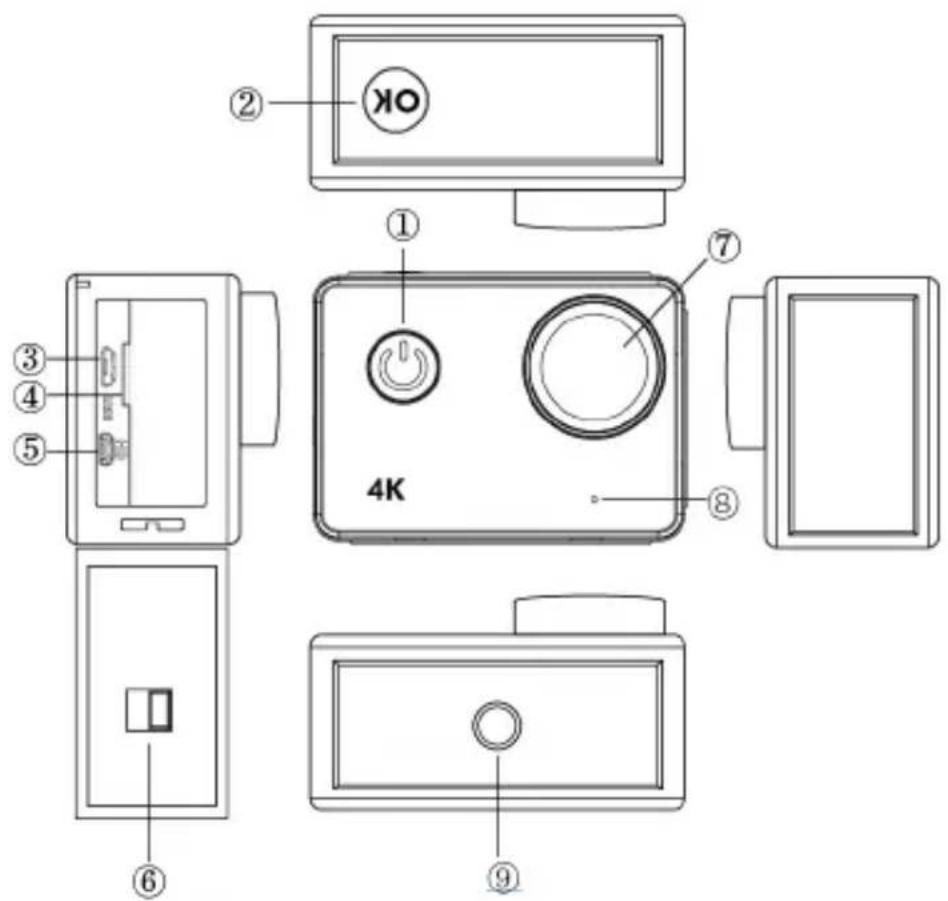
1. Power button:
Short press to turn on camera, long press to turn off camera;
Short press to capture a photo while recording video.
2.OK button:
In Standby mode - short press to start/stop the recording;
In Picture mode - short press to take a picture;
In Playback mode - short press to start/pause playback;
Confirm menu setting and time setting;
Long press to enter/exit WIFI setting.
3.USB port
- Micro SD card slot
5.HDMI port
- Lock of battery door
7.Lens
8.Microphone
9.1/4" screw hole
Camera operation
Power on/off
Power on: Short press the power button, screen shows start up picture, the blue working indicators will light up and the camera enters standby mode.
Power off: When camera is on, long press power button to switch the camera off.
Battery charging
Connect camera with power charger via USB cable, the red light will illuminate. Once the battery is full, the red light will automatically turn off.
Please note: Leaving the camera turned off while charging will allow for a shorter charging period.
Video mode
Main menu interface
- Video mode
2.Picture mode
3.Playback mode - Setting Menu
5.Exit

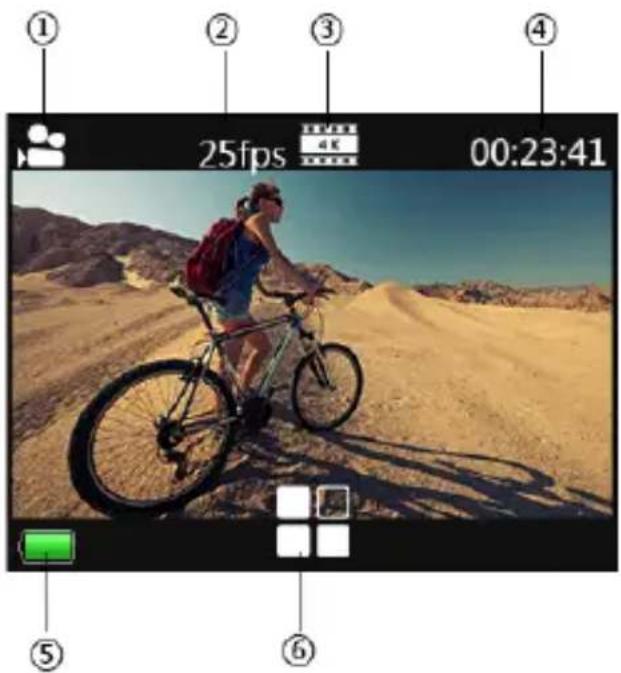
Video interface
- Recording mode icon
2.Frame rate - Video resolution
- Remaining memory card capacity (Hrs, Mins, Secs)
5.Battery icon - Menu (Menu options will appear or hide by tapping this icon)
Please note:
4K resolution doesn't support "WIFI, zoom function and time lapse". Please set "capture timing" to OFF when "Time lapse" in the menu is used.
Picture mode
Picture interface
- Photo mode icon
2.Picture size - Memory card capacity remaining
(No. of photos that can still be captured)
4.Battery icon - Menu (Menu options will appear or hide by tapping this icon)
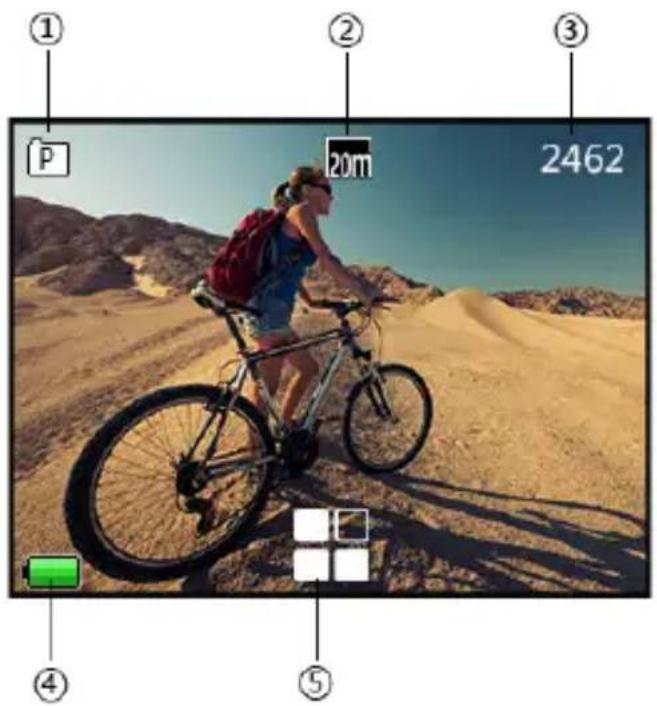
Camera default setting is Video mode, click on the screen to enter Main menu and choose Picture mode. Point at the object you want to capture and press the OK button. The camera will save pictures automatically.
Capture function
- Capture manually: Press power button to take a picture under recording when "Capture timing" in system menu is off.
- Capture timing: when “Capture timing” in system menu is set “5s/10s/15s/30s/60s”, the camera will capture and save automatically under normal recording.
Note:
4k resolution doesn't support the capture function.
Camera doesn't support capture function when "time lapse" and "slow motion" is on.
Please set "capture timing" off when "time lapse/slow motion" will be used.
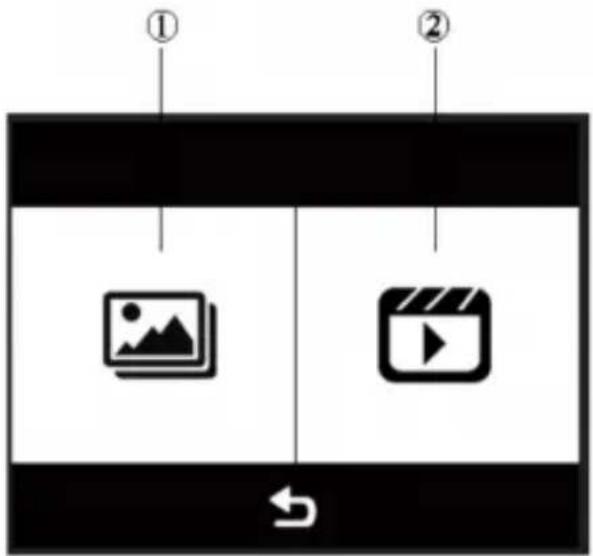
Playback mode
1.Picture files
2.Video files
Selects the picture or video you need to view.
Swipe across camera's screen in order to access the last or the next file.
Tap the menu icon to enter the corresponding file protect or delete.
Menu Setting
In standby mode, click

to enter the menu setting, click

to exit menu.
Video mode, Picture mode and Playback mode each have two menus: Mode menu and System menu.
All system menus are the same.
Install and use WIFI
- Search for the "iSmart DV" in Google Play or IOS APP store to download the correct WIFI APP.
● Install the APP in your smart phone. - Long press the camera's OK Button to activate the camera's WIFI, the camera screen will display "Barracuda".
- In your smartphone WiFi settings screen, find the WiFi network named "barracuda" and enter the default password "1234567890" to connect.
- Once connected, open the "iSmartDV" app will provide a live view and remote control of yo

on your smart phone, which
● Short press OK Button of camera to exit WIFI setting screen.
Note:
- Before you open WIFI function, please make sure micro SD card is inserted in the camera.
● The effective distance of the WiFi operation is influenced by environment. The decrease of the WIFI signal and operation delay are normal.
● The “Power Saving Mode” in mobile should be set to “Off”.
Connect HDMI
Connect your camera to a HDMI equipped TV using a HDMI cable.
All operations will be displayed on your TV screen.
Note: Viewing of 20MP pictures is not supported via the HDMI connection.
Playback on PC
Connect your camera to your PC and open the camera icon, the screen will display: "MSDC" / "PCCAM" / "Working".
Use the camera's Up button and Down buttons to choose the option required.
Press the Power button to confirm.
MSDC: Enter MSDC to check files. The camera will function as a removable disk.
PCCAM: The camera will function as a PCCAM.
Working: The camera can be used normally while being powered by your PC.
Technical specification
Waterproof 10m without waterproof case
Sensor 16MP CMOS Sensor
Image size 20M (interpolated) / 16M / 12M / 8M / 5M / 3M
Resolution 4k 25fps/2.7k 30fps/1080p 60fps/1080p 30fps
720p 120fps/720P 60fps/720p 30fps
Video quality Super fine / Fine / Normal
Slow Motion Off / Auto
Time Lapse Off / 0.5sec / 1sec / 3sec / 5sec / 10sec / 30sec / 1min
Capture timing Off / 5s / 10s / 15s / 30s / 60s
Motion detect Off / On
PC CAM Supported
Snapshot Supported
Timer Shot Off / 2s / 10s / 30s / 60s / Double
Photo Burst Off / 3 photos / 5 photos / 10 photos
Exposure -2.0 -1.0 +0.0 +1.0 +2.0
White Balance Auto / Daylight / Cloudy / Tungsten / Fluor
Lens 170° wide angle, F=2.5, f=3.0mm
Screen 2 inch touch screen*
Wifi frequency 2.4GHz-2.4835GHz
Wifi distance 15m in open space
Audio Built-in Microphone
Battery Replaceable lithium battery 1050mAh/3.7V 3.885Wh
File format MOV H.264 / JPG
Memory card 4GB to 64GB (micro SD Card Class10 minimum)
HDMI output Real time output
USB port USB 2.0 high-speed interface
Power frequency 50Hz / 60Hz / Auto
Power save Off / 1 min / 3 min / 5 min
Dimension 65x46x28.5mm (not including lens)
*Under water you need to use the buttons to operate the camera.
NOTE:
Easypix GmbH reserve the right to upgrade any aspect of this product without prior notification).
Please use Micro SD cards up to 64GB, minimum Class10 (not included).
Recording times are depending on resolution.
Battery life time - depending on settings and outdoor temperature - up to 90 min. under optimal conditions.
Before using your camera in the water please verify that all lids and locks are tightly closed and sealed on the camera and the underwater case.
After use, clean the housing of salt and chlorine water and then let it dry.
The camera should not be exposed to large temperature and humidity differences in order to avoid condensation inside the housing or behind the lens.
After underwater use, the case must be kept open to avoid condensation or rust.
DECLARATION OF CONFORMITY
Easypix hereby declares that the product GoXtreme Barracuda 4K is in conformity with all the essential requirements of Directive 1999/5/EC.
The declaration of conformity can be downloaded here:
http://www.easypix.info/download/pdf/doc_goxtreme_barracuda4k.pdf
For technical help please visit our support area on www.easypix.eu.

Only EU
easypix®
LIFESTYLE ELECTRONICS
- EN
- THE CAMERA
- POWER BUTTON
- 2.OK BUTTON
- CAMERA OPERATION
- POWER ON/OFF
- BATTERY CHARGING
- VIDEO MODE
- MAIN MENU INTERFACE
- VIDEO INTERFACE
- PLEASE NOTE
- PICTURE MODE
- PICTURE INTERFACE
- CAPTURE FUNCTION
- NOTE
- PLAYBACK MODE
- MENU SETTING
- INSTALL AND USE WIFI
- CONNECT HDMI
- PLAYBACK ON PC
- TECHNICAL SPECIFICATION
- DECLARATION OF CONFORMITY
Brand : EASYPIX
Model : GoXtreme Barracuda 4K
Category : Camcorder