WHB-15 - Headphones Wintech - Free user manual and instructions
Find the device manual for free WHB-15 Wintech in PDF.


| Product Type | Bluetooth Stereo Headset |
| Brand | Wintech |
| Model | WHB-15 |
| Bluetooth Version | Bluetooth V2.1+EDR |
| Supported Profiles | HSP, HFP, A2DP, AVRCP |
| Effective Range | 10 meters (33 ft) |
| Music Playback Time | Up to 10 hours |
| Talk Time | Up to 11 hours |
| Standby Time | Up to 250 hours |
| Charging Time | Approximately 3 hours |
| Input | DC 5V/130mA |
| Microphone | Built-in |
| Charging Port | USB mini 5 pin |
| Controls | MFB (power, pairing, call, play/pause), Volume +/-, Next/Previous track |
| Headband | Retractable for different sizes |
| LED Indicators | Red (charging/low battery), Blue (fully charged/connected) |
Frequently Asked Questions - WHB-15 Wintech
User questions about WHB-15 Wintech
0 question about this device. Answer the ones you know or ask your own.
Ask a new question about this device
Download the instructions for your Headphones in PDF format for free! Find your manual WHB-15 - Wintech and take your electronic device back in hand. On this page are published all the documents necessary for the use of your device. WHB-15 by Wintech.
USER MANUAL WHB-15 Wintech
natural_image
Black plastic headband with a small circular button and mounting bracket (no text or symbols visible)Specicaons
| Bluetooth version | Bluetooth V2.1+EDRSUPPORT: HSP, HFP, A2DP and AVRCP |
| Key | Volume up/downSong last/nextMFB pair/pick/hang/recall |
| Eecve range | 10 meters |
| Working me | Music: Up to 10 hoursTalk: Up to 11hours |
| Standby me | Up to 250 hours |
| Input | DC: 5V/130mA |
| Charging me | Approx 3 hours |
| Microphone | Bulid-in |
| Rechargeable | USB mini 5 pin cable |
Welcome use Bluetooth stereo headset, BH-02,
BH-02 is a stereo Bluetooth headset. It supports the following Bluetooth proles:
HSP —— Headset Prole
HFP — Hands-free Prole
A2DP— Advanced Audio Distribuon Prole
AVRCP—Audio/Video Remote Control Prole
You can enjoy music and hand free talk wirelessly by using BH-02.
funcon:
1) Pairing with the Bluetooth mobile phone and PDA (such iPhone) which support HFP.
- Answer, end and reject call from the headset
- Redial last number
- Voice dial
- Adjust the volume
2) Pairing with Bluetooth music devices and Bluetooth transmier which support A2DP
- Enjoy music wirelessly
- Adjust the volume
- buon control the funcon of pause/play
- buon control last/next song
3) Easy to switch between conversaon and music, you will not miss the incoming call during listening to music.
4) Automac connecng with the last paired device when turn on the headset
Note: Even though the paired device and headset support the same Bluetooth proles, the funcons may be dierent due to the specicaon dierence of the paired devices.
I - Before using
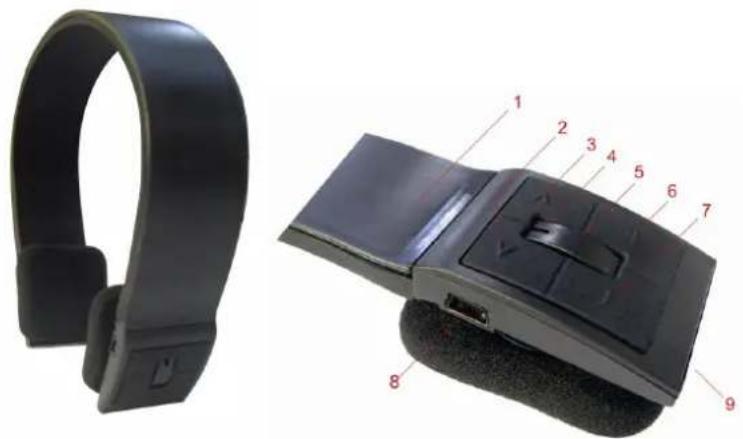
1) Overview
natural_image
Two black headband ear holders shown from front and side views, labeled with numbered parts (no text or symbols on the devices themselves)• 1. extension panel can t dierent size user.
• 2. < key : next song
• 3. > key : last song
• 4. LED Indicator for dierent states
- 5. Mulfuncon buon (MFB): Switch on/o the headset, answer, stop call, voice dial redial last number, pause and play
• 6/7. + key: volume up / - key: volume down
• 8. USB mini 5 pin baery recharger port
• 9. microphone
2) Charging the headset
- First me charging : rst me charger baery ,please be sure the baery is been charger full Before you use
- Next me: When you hear warning tones of "DU DU DU" out and at the same me the red light blinks two mes. It means baery is almost run out, you need to charger it.
A. Charging the baery with USB cable
- Step1: Insert USB charging cable into USB port which have support power (such as AC/DC USB adapter or PC USB port)
- Step2: Connect charging cable with the charging port of headset.
- When the red light is on, the headset is charging.
- When the blue light is on, the headset is charged fully.
- It takes about almost 3 hours to charge the headset fully.
Note: when you plug the charger cable please turn o the BH-02.
Warning:
- Do not dispose of the baery in re or direct sun shine too long, as it may cause explosion
II - How to use
1) Switching on / o headset
| Funcon | Operaon | LED indicator | Indicaon tone |
| Switch on | Press the MFB buon for 3 seconds, and release it ll the blue LED is on | Blue LED blink 3 mes. | A long “Do Do” tone |
| Switch o | Press the MFB buon for 5 seconds, and release it ll the red LED is on | Red LED blink 3 mes | A long “Do Do Do” tone |
2) Pairing the headset with Bluetooth devices
A. How to enter pairing mode
| Funcon | Operaon | LED indicator | Indicaon tone |
| Enter pairing mode | Make sure the headset is o. Press and hold MFB buon for 6 seconds, and release it ll the red and blue LEDs blink alternately | Red and blue LEDs blink alternately. | Two “Do Do” tones |
B. Pairing the headset with Bluetooth mobile phone
Please make sure your mobile phone has Bluetooth funcon that can be used.
Specific pairing procedures may vary with dierent mobile phone. Please refer to your mobile phone
manual for further informaon. Steps as follows:
- Please keep the headset and mobile phone in the range of 1 meter when pairing.
• Make the headset enter into pairing mode (LED is red and blue blink) - Start the Bluetooth funcon of mobile phone and search the Bluetooth devices.
Aer searched, select "BH-02" in the Bluetooth device list.
- According to indicaon, enter password or PIN No:"0000", and press the key of "Yes" or "conrmed". (it depends on the Bluetooth device seng)
- Aer successful pairing, select "BH-02" in the Bluetooth device list, and press "connect".
• Aer successful connecng, the blue LED of the headset will keep blink.
Notes:
- If the pairing is not successful, please switch o headset rstly, and then re-pair again.
- Aer pairing is successful, paired devices will remember each other. Unless pairing informaon is deleted because of new pairing, no need to pair when use next me. If you want to pair the headset with other devices, please pair it with the new device according to steps 1\~6 menoned above.
- Although WIN7 is a superior operang system with most drivers already built-in, in some cases this does not cover the various hardware conguraons built into the device (eg. PC,Notebook, Netbook etc) from the manufacturer. In this case, please visit the manufacturer's web site for the latest Bluetooth drivers for your onboard Bluetooth device.
3) Re-connecng to a Bluetooth device
- Automac connecng
Every me the headset is switched on, it will connect to last connected device automacally .of course the source device Bluetooth is on "on" states
• Manual connecng to last connected HFP device
When the headset is in standby mode and doesn't connect to any HFP devices, short press MFB buon twice, it will connect to last connected source device automacally.
Notes:
- Before connecng to a Bluetooth device, please turn on the Bluetooth device's Bluetooth funcon.
- On some Bluetooth devices, take some Nokia mobile phones for example, you have to allow automac connecng in the mobile phone's sengs. Please refer to your mobile phone's manual for further informaon.
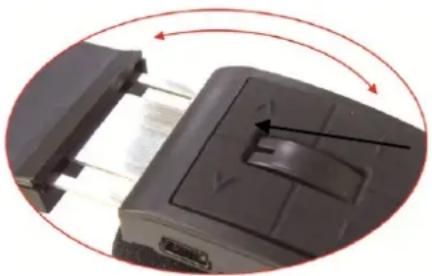
4) Wearing the headset
The headset is retractable, please adjust it as you like both of le and right side.
natural_image
Close-up of a black plastic device with a switch and USB port, showing internal components and red circular arrows indicating rotation (no text or symbols)5) Making calls with the headset
| Funcon | Status of headset | Operaon |
| Voice dial | Standby mode | Press and hold MFB buon for 1 second, release it ll hearing indicaon sound ,then speak the call you want to. |
| Redial last number | Standby mode | Short press MFB twice quickly |
| Volume up | Conversaon mode | Short press + key |
| Volume down | Conversaon mode | Short press - key |
| Answer calling | Ringing | Short press MFB |
| Reject calling | Ringing | Press and hold MFB for 1 second, and release it ll hearing indicaon sound |
- Not all the mobile phones support all the funcons listed above. Please refer to the instrucon of your mobile phone.
• Some funcons and indicaon tones may vary with dierent mobile phones.
- When the volume is adjusted to max or min, you will hear a indicaon tone.
- For some mobile phones, when you press the key of accepting on the phone, the conversaon will be sent to the mobile phone. At this me, you can switch the call to headset by using the conversaon switch buon or through operang on the mobile phone. Please refer to the instrucon of your mobile phone for further informaon.
6) Playing music
When the headset connects with the mobile phone or Bluetooth transmier, you can enjoy music through headset wirelessly.
| Funcon | Status of headset | Operaon |
| Pause | Playing music | Short press MFB |
| Play | Pausing | Short press MFB |
| Last song | Playing music | Short press > key |
| Next song | Playing music | Short press< key |
| Funcon | Status of the headset | Operaon |
| Volume up | Playing music | Short press + key |
| Volume down | Playing music | Short press - key |
Notes:
- For some of mobile phones, when they are playing music, the music will transmit to the speaker of mobile phone, you have to choose “transmit the sound through Bluetooth” in the “seng” of music play interface, and then choose “BH-02” in the device list, the music will be transmied to the headset. Please refer to the instrucon of your mobile phone for further informaon.
- When the volume of headset is adjusted to max. or min, you will hear a indicaon tone.
- Remote control the funcon of last song/next song/pause, it needs your mobile phone or Bluetooth transmier supports AVRCP. Please refer to the instrucon of your mobile phone or Bluetooth transmier for further informaon.
7) LED
1) baery Charging
| LED indicator | Status of the headset |
| Red LED is on | Charging |
| Blue LED is on | Finish charging |
| LED Indicator | Status of the headset |
| Red and blue LEDs blink alternately | Pairing mode |
| Blue LED quickly blinks twice every 1 seconds. | Not connected to a device |
| Blue and Red LED quickly blinks three mes every 2 seconds | Set up HFP and A2DP conncon |
| Red LED blinks twice every 20 seconds | Low power |
8) low power Indicaon tone
“DU” tones every 20 seconds
Care and maintenance
Please read the following suggestions carefully, that will help you to full any warranty obligaons and to enjoy this product for many years.
- Keep dry and don't put it in the dump place, in case of eecng the interior circuit of product.
- Don't put the product under the sunlight or place hot areas. High temperature will short the life of electronic device, destroy the baery, or distort certain plasc.
- Don't expose the product in the cold areas. It may damage the internal circuit board.
- Don't try to take apart the product. It may damage the product if you are not professional.
- Don't fall o on the oor or knock the hard substance. It may damage interior circuit.
- Don't use intensify chemical or detergent to clean the product.
- Don't scrap the surface with sharp things. In case the product doesn't funcon properly, send it to the store you bought it. The sta will help you to solve the problem.
WHB-15 FAQ
Whenever I move the mouse cursor, the audio cuts out
This cung out is a result of your headset and mouse compeng for Bluetooth bandwidth through the A2DP conncon on your computer. The best way to resolve the issue is to use the bluetooth dongle. It separates the headset from the internal bluetooth conncon and will resolve the cung out issue.
Poor Quality or "dirty" sound
You may occasionally get an obvious "dirty" signal of very poor quality. This seems to be something to do with the Mac's A2DP conncon and ability to prioritize the bandwidth intensive stereo bluetooth conncon above less demanding simpler bluetooth products like keyboards and mice.
Fix:
- Disconnect / turn o all bluetooth devices from the Mac
- Unpair the WHB-15 headset (remove/delete the WHB-15 headset from your bluetooth devices)
- Pair the WHB-15 headset before all other bluetooth devices are turned back on so it has rst priority
- Reconnect all other Bluetooth devices
This will prioritize the bandwidth to the WHB-15 headset before your other devices resulting a beer audio experience. If you experience the same problem again, just turn o your other bluetooth devices before turning on your WHB-15 headset. This will place the headset rst in line for bandwidth. If the above does not resolve the problem follow the same steps but also un-pair ALL devices in step 1.
Phone shows conncon to headset, but no longer plays music to headset
Close the streaming music program on your device and launch it again to reestablish the streaming music conneccon to the headset.
Can I use the WHB-15 bluetooth stereo headphones with more than one device at the same me?
No, you can only use the WHB-15 headset with 1 devices at a me. Once it is connected to one device, it won't connect to the others at the same me.
Will the WHB-15 headphones work with any brand of bluetooth adapter?
Perhaps, the WHB-15 headphone is congured like for using with updated A2DP enable adapters and bluetooth mobile phone. Not all brand of bluetooth adapter or product has been tested for using with the WHB-15 headset.
Will the AVRCP track controls work with the WHB-15 Bluetooth Stereo Headphone when using with the iPhone/iPod?
AVRCP (remote music track) controls are now available on iPhone and iPod Touch. Apple has socially released their iOS 4.1 soware update which contains a whole host of new features, which includes support for AVRCP-supported accessories such as next & previous track control. The iOS 4.1 update is compatible with the iPhone 4, iPhone 3GS, iPhone 3G and 2nd generaon (or later) iPod Touches.
Will it work with the FM radio on my phone?
Some phones use the wire from the a wired headphone for the antenna so that wouldn't work if that's the case but as long as the phone has an internal antenna you'll be able to listen the FM radio on the WHB-15.
Why won't WHB-15 Bluetooth headphone pair with my laptop or personal computer?
Most but not all laptops and personal computers need special drivers downloaded from their respective manufacturer support pages. If you see that your computer/laptop can detect your WHB-15 bluetooth stereo headphone but you get an error when trying to pair, you should download the latest Bluetooth drivers for your make/model of laptop or computer.
Below is a list with links to major laptop/computer manufacturers' support pages. Note: These drivers are not WHB-15 specic, rather, they apply to any and all A2DP Stereo Bluetooth headphones.
Toshiba: hp://www.csd.toshiba.com/cgi-bin/tais/support/jsp/home.jsp
Dell: hp://www.support.dell.com/
Sony:hp://esupport.sony.com/perl/select-system.pl?DIRECTOR=DOCS&PRODTYPE=1,24,26,66,9,70,5,72&template_id=1®ion_id=1
Hewle Packard: hp://www8.hp.com/us/en/support-drivers.html
Acer: hp://support.acer.com/us/en/product/default.aspx
Apple: hp://www.apple.com/support/
Gateway: hp://support.gateway.com/us/en/product/default.aspx?tab=1
Asus: hp://support.asus.com/servicehome.aspx?slanguage=en
Lenovo: hp://support.lenovo.com/en_US/
Samsung: hp://www.samsung.com/uk/support/main/supportMain.do
The sound quality is poor and sounds distorted
Adjust the volume control on your device to a lower seng. Find the right balance between both volume controls on the device and headset for opmal sound performance.
My iPhone's baery runs out quicker with the bluetooth on, how do I extend my iPhone's baery life?
Please visit the following arcle on how to extend your iPhone's baery life. The steps were proven to extend the baery life of the iPhone significantly.
hp://www.ismashphone.com/2009/07/how-to-extend-your-iphone-baery-life.html
Is my WHB-15 compatible with the new iPhone 4s with Bluetooth v.4.0?
Yes, the Bluetooth v4.0 in iPhone 4s, is backwards compatible with previous Bluetooth versions, such as v2.0, 2.1 which is what the BH02 now ulize or other Android Phones.
What is the pass code for pairing with my phone?
The pass code for the WHB-15 headset is "0000". Use this code when ever prompted during pairing with a mobile phone or other device requiring a pass code.

- Specicaons
- funcon:
- Charging the baery with USB cable
- Warning:
- II - How to use
- 1) Switching on / o headset
- 2) Pairing the headset with Bluetooth devices
- How to enter pairing mode
- Pairing the headset with Bluetooth mobile phone
- Notes:
- 3) Re-connecng to a Bluetooth device
- - Automac connecng
- • Manual connecng to last connected HFP device
- 4) Wearing the headset
- 5) Making calls with the headset
- 6) Playing music
- 7) LED
- 1) baery Charging
- 8) low power Indicaon tone
- Care and maintenance
- WHB-15 FAQ
- Whenever I move the mouse cursor, the audio cuts out
- Poor Quality or "dirty" sound
- Fix:
- Phone shows conncon to headset, but no longer plays music to headset
- Can I use the WHB-15 bluetooth stereo headphones with more than one device at the same me?
- Will the WHB-15 headphones work with any brand of bluetooth adapter?
- Will it work with the FM radio on my phone?
- Why won't WHB-15 Bluetooth headphone pair with my laptop or personal computer?
- The sound quality is poor and sounds distorted
- My iPhone's baery runs out quicker with the bluetooth on, how do I extend my iPhone's baery life?
- Is my WHB-15 compatible with the new iPhone 4s with Bluetooth v.4.0?
- What is the pass code for pairing with my phone?
Brand : Wintech
Model : WHB-15
Category : Headphones