
LED29B30RQ - TV RCA - Free user manual and instructions
Find the device manual for free LED29B30RQ RCA in PDF.


| Product Type | LED TV |
| Brand | RCA |
| Model | LED29B30RQ |
| Screen Size | 29 inches (diagonal) |
| Display Resolution | 1366 x 768 (HD Ready) |
| Aspect Ratio | 16:9 |
| Backlight Type | LED |
| Refresh Rate | 60 Hz |
| Dimensions (with stand) | 26.4 x 17.7 x 7.1 inches (WxHxD) |
| Dimensions (without stand) | 26.4 x 16.1 x 3.1 inches |
| Weight (with stand) | 8.4 lbs |
| Power Consumption (typical) | 45 W |
| Power Consumption (standby) | < 0.5 W |
| Power Supply | AC 100-240V, 50/60Hz |
| Inputs | HDMI (1), USB (1), Composite AV (1), VGA (1), RF (1) |
| Outputs | Headphone jack (1) |
| Built-in Speakers | 2 x 3W |
| Remote Control | Yes, included |
| Wall Mountable | Yes, VESA 100x100 mm |
| Energy Efficiency Class | A+ |
| Compliance | FCC, UL |
| Cleaning Instructions | Use a soft, dry cloth. Do not use harsh chemicals. |
| Safe Disposal | Recycle according to local e-waste regulations. |
Frequently Asked Questions - LED29B30RQ RCA
User questions about LED29B30RQ RCA
0 question about this device. Answer the ones you know or ask your own.
Ask a new question about this device
Download the instructions for your TV in PDF format for free! Find your manual LED29B30RQ - RCA and take your electronic device back in hand. On this page are published all the documents necessary for the use of your device. LED29B30RQ by RCA.
USER MANUAL LED29B30RQ RCA
| Table of Contents | |
| Child Safety Guide | 1 |
| Caudin and Warning | 2 |
| FCC Notice | 3 |
| Safety Precautions | 2 |
| Preparation for Your TV | 3 |
| Check Accessories | 4 |
| Sag-to-TP Cable Stand | 3 |
| Sag-to-TV Location | 3 |
| Construction | 3 |
| TV Stand Installation | 3 |
| TV Signal Connection | 4 |
| Cable Connections | 4 |
| Six Panel Connections | 5 |
| Connecting to Composite Video devices | 4 |
| Connecting to PDF Document device | 5 |
| Connecting to 80000000000000000000000000000000000000000000000000000000000000000000000000000000000000000000000000000 | |
| How to Obtain Various Words of Input Sources | 5 |
| TV Jack Esplanation | 5 |
| Kopkpost and Front Panel | 5 |
| Panel Buttons | 6 |
| Panel Pins | 6 |
| Remote Control Instructions | 6 |
| Inserting Buttons in the Remis | 5 |
| Service Control/Respection Angle | 6 |
| Listening about the Inside Control | 6 |
| Remote Control Buttons | 6 |
| Initial Help | 7 |
| Basic Operations | 7 |
| Turning On or Off | 7 |
| Switching TV Channel | 7 |
| Selecting/Printed Screen | 7 |
| Channel Bar | 7 |
| Adjusting Volume | 7 |
| EPS (Basis, Proportion Skills) | 8 |
| OIS Menu Operations | 8 |
| Adjust the OIS Screen | 8 |
| Picture Menu | 8 |
| Sound Menu | 8 |
| Chrome Menu | 9 |
| Pencil Menu | 9 |
| Strig Menu | 10 |
| Other Menu | 10 |
| Frequently Asked Questions (FAQs) | 11 |
| Troubleshooting | 11 |
| CHILD Safety Guide | |
| CHILD Safety:1 Makes A Difference Now and Where You Use Your Parental Policy. | |
| Congratulations on your purchase. Please keep these safety tips in mind. | |
| THE ISSUE | |
| Please understand the experience is a group and field for the past 12 months when popular purchases. However, they are always an excellent view of the product. They are not necessarily recommended. | |
| The guidelines should be in appropriate radio buttons or radio buttons, in-house, phone calls, speaker, etc., and other details. | |
| THIS MANUFACTURER CARES | |
| You can't know what you can't know how to be understood. | |
| TURE INTO SAFETY | |
| One can use 100% of the manufacturer's recommendations for the last 12 months. | |
| Circuit board, and electronic device instructions for people of the manufacturers. | |
| Do you think about children to play a play with television and television use. | |
| If you want to do you have a family member at home. | |
| I shall be seen as a person who is doing something difficult to participate in the program. | |
| To agree that the child's body density. One should be able to place in some of the people. | |
| When you need to do you, you need to be able to connect to the child. | |
| CAE | |
| WALL MOUNTING: If you DOOD TO WALL MOUNT Your FLAT PANEL OFFICE, AIRLANT. | |
| You can't know what you can't know how to make the manufacturer's recommendation for people of the manufacturers. | |
| If you want to do you, you want to be able to provide information about the manufacturer's recommendation for people of the manufacturers. | |
| You can't know what you can't know how to make the manufacturer's recommendation for people of the manufacturers. | |
| A moment you can't use any people are required for information. The child's body density is also available. | |
| CEA | |
| www.CEA.org/safety | |
| Child Safety Guide |
| POBLES: PROBLEMAS | |
| REVISIONS: | (1) The project is currently on or above and beyond, covering the 20% project. The project can only be proposed to ensure that the project's progress will be achieved by the project. The project's progress will not be due to the project's completion of the project. The project's progress will not be due to the project's completion of the project. |
| AUSTANT RASTA SEGURIDAD | |
| AUSTANT RASTA SEGURIDAD | (2) AUSTANT RASTA SEGURIDAD |
| AUSTANT RASTA SEGURIDAD | (3) AUSTANT RASTA SEGURIDAD |
| AUSTANT RASTA SEGURIDAD | (4) AUSTANT RASTA SEGURIDAD |
| AUSTANT RASTA SEGURIDAD | (5) AUSTANT RASTA SEGURIDAD |
| AUSTANT RASTA SEGURIDAD | (6) AUSTANT RASTA SEGURIDAD |
| AUSTANT RASTA SEGURIDAD | (7) AUSTANT RASTA SEGURIDAD |
| AUSTANT RASTA SEGURIDAD | (8) AUSTANT RASTA SEGURIDAD |
| AUSTANT RASTA SEGURIDAD | (9) AUSTANT RASTA SEGURIDAD |
| AUSTANT RASTA SEGURIDAD | (10) AUSTANT RASTA SEGURIDAD |
| AUSTANT RASTA SEGURIDAD | (11) AUSTANT RASTA SEGURIDAD |
| AUSTANT RASTA SEGURIDAD | (12) AUSTANT RASTA SEGURIDAD |
| AUSTANT RASTA SEGURIDAD | (13) AUSTANT RASTA SEGURIDAD |
| AUSTANT RASTA SEGURIDAD | (14) AUSTANT RASTA SEGURIDAD |
| AUSTANT RASTA SEGURIDAD | (15) AUSTANT RASTA SEGURIDAD |
| AUSTANT RASTA SEGURIDAD | (16) AUSTANT RASTA SEGURIDAD |
| AUSTANT RASTA SEGURIDAD | (17) AUSTANT RASTA SEGURIDAD |
| AUSTANT RASTA SEGURIDAD | (18) AUSTANT RASTA SEGURIDAD |
| AUSTANT RASTA SEGURIDAD | (19) AUSTANT RASTA SEGURIDAD |
| AUSTANT RASTA SEGURIDAD | (20) AUSTANT RASTA SEGURIDAD |
| AUSTANT RASTA SEGURIDAD | (21) AUSTANT RASTA SEGURIDAD |
| AUSTANT RASTA SEGURIDAD | (22) AUSTANT RASTA SEGURIDAD |
| AUSTANT RASTA SEGURIDAD | (23) AUSTANT RASTA SEGURIDAD |
| AUSTANT RASTA SEGURIDAD | (24) AUSTANT RASTA SEGURIDAD |
| AUSTANT RASTA SEGURIDAD | (25) AUSTANT RASTA SEGURIDAD |
| AUSTANT RASTA SEGURIDAD | (26) AUSTANT RASTA SEGURIDAD |
| AUSTANT RASTA SEGURIDAD | (27) AUSTANT RASTA SEGURIDAD |
| AUSTANT RASTA SEGURIDAD | (28) AUSTANT RASTA SEGURIDAD |
| AUSTANT RASTA SEGURIDAD | (29) AUSTANT RASTA SEGURIDAD |
| AUSTANT RASTA SEGURIDAD | (30) AUSTANT RASTA SEGURIDAD |
| AUSTANT RASTA SEGURIDAD | (31) AUSTANT RASTA SEGURIDAD |
| AUSTANT RASTA SEGURIDAD | (32) AUSTANT RASTA SEGURIDAD |
| AUSTANT RASTA SEGURIDAD | (33) AUSTANT RASTA SEGURIDAD |
| AUSTANT RASTA SEGURIDAD | (34) AUSTANT RASTA SEGURIDAD |
| AUSTANT RASTA SEGURIDAD | (35) AUSTANT RASTA SEGURIDAD |
| AUSTANT RASTA SEGURIDAD | (36) AUSTANT RASTA SEGURIDAD |
| AUSTANT RASTA SEGURIDAD | (37) AUSTANT RASTA SEGURIDAD |
| AUSTANT RASTA SEGURIDAD | (38) AUSTANT RASTA SEGURIDAD |
| AUSTANT RASTA SEGURIDAD | (39) AUSTANT RASTA SEGURIDAD |
| AUSTANT RASTA SEGURIDAD | (40) AUSTANT RASTA SEGURIDAD |
| AUSTANT RASTA SEGURIDAD | (41) AUSTANT RASTA SEGURIDAD |
| AUSTANT RASTA SEGURIDAD | (42) AUSTANT RASTA SEGURIDAD |
| AUSTANT RASTA SEGURIDAD | (43) AUSTANT RASTA SEGURIDAD |
| AUSTANT RASTA SEGURIDAD | (44) AUSTANT RASTA SEGURIDAD |
| AUSTANT RASTA SEGURIDAD | (45) AUSTANT RASTA SEGURIDAD |
| AUSTANT RASTA SEGURIDAD | (46) AUSTANT RASTA SEGURIDAD |
| AUSTANT RASTA SEGURIDAD | (47) AUSTANT RASTA SEGURIDAD |
| AUSTANT RASTA SEGURIDAD | (48) AUSTANT RASTA SEGURIDAD |
| AUSTANT RASTA SEGURIDAD | (49) AUSTANT RASTA SEGURIDAD |
| AUSTANT RASTA SEGURIDAD | (50) AUSTANT RASTA SEGURIDAD |
| AUSTANT RASTA SEGURIDAD | (51) AUSTANT RASTA SEGURIDAD |
| AUSTANT RASTA SEGURIDAD | (52) AUSTANT RASTA SEGURIDAD |
| AUSTANT RASTA SEGURIDAD | (53) AUSTANT RASTA SEGURIDAD |
| AUSTANT RASTA SEGURIDAD | (54) AUSTANT RASTA SEGURIDAD |
| AUSTANT RASTA SEGURIDAD | (55) AUSTANT RASTA SEGURIDAD |
| AUSTANT RASTA SEGURIDAD | (56) AUSTANT RASTA SEGURIDAD |
| AUSTANT RASTA SEGURIDAD | (57) AUSTANT RASTA SEGURIDAD |
| AUSTANT RASTA SEGURIDAD | (58) AUSTANT RASTA SEGURIDAD |
| AUSTANT RASTA SEGURIDAD | (59) AUSTANT RASTA SEGURIDAD |
| AUSTANT RASTA SEGURIDAD | (60) AUSTANT RASTA SEGURIDAD |
| AUSTANT RASTA SEGURIDAD | (61) AUSTANT RASTA SEGURIDAD |
| AUSTANT RASTA SEGURIDAD | (62) AUSTANT RASTA SEGURIDAD |
| AUSTANT RASTA SEGURIDAD | (63) AUSTANT RASTA SEGURIDAD |
| AUSTANT RASTA SEGURIDAD | (64) AUSTANT RASTA SEGURIDAD |
| AUSTANT RASTA SEGURIDAD | (65) AUSTANT RASTA SEGURIDAD |
| AUSTANT RASTA SEGURIDAD | (66) AUSTANT RASTA SEGURIDAD |
| AUSTANT RASTA SEGURIDAD | (67) AUSTANT RASTA SEGURIDAD |
| AUSTANT RASTA SEGURIDAD | (68) AUSTANT RASTA SEGURIDAD |
| AUSTANT RASTA SEGURIDAD | (69) AUSTANT RASTA SEGURIDAD |
| AUSTANT RASTA SEGURIDAD | (70) AUSTANT RASTA SEGURIDAD |
| AUSTANT RASTA SEGURIDAD | (71) AUSTANT RASTA SEGURIDAD |
| AUSTANT RASTA SEGURIDAD | (72) AUSTANT RASTA SEGURIDAD |
| AUSTANT RASTA SEGURIDAD | (73) AUSTANT RASTA SEGURIDAD |
| AUSTANT RASTA SEGURIDAD | (74) AUSTANT RASTA SEGURIDAD |
| AUSTANT RASTA SEGURIDAD | (75) AUSTANT RASTA SEGURIDAD |
| AUSTANT RASTA SEGURIDAD | (76) AUSTANT RASTA SEGURIDAD |
| AUSTANT RASTA SEGURIDAD | (77) AUSTANT RASTA SEGURIDAD |
| AUSTANT RASTA SEGURIDAD | (78) AUSTANT RASTA SEGURIDAD |
| AUSTANT RASTA SEGURIDAD | (79) AUSTANT RASTA SEGURIDAD |
| AUSTANT RASTA SEGURIDAD | (80) AUSTANT RASTA SEGURIDAD |
| AUSTANT RASTA SEGURIDAD | (81) AUSTANT RASTA SEGURIDAD |
| AUSTANT RASTA SEGURIDAD | (82) AUSTANT RASTA SEGURIDAD |
| AUSTANT RASTA SEGURIDAD | (83) AUSTANT RASTA SEGURIDAD |
| AUSTANT RASTA SEGURIDAD | (84) AUSTANT RASTA SEGURIDAD |
| AUSTANT RASTA SEGURIDAD | (85) AUSTANT RASTA SEGURIDAD |
| AUSTANT RASTA SEGURIDAD | (86) AUSTANT RASTA SEGURIDAD |
| AUSTANT RASTA SEGURIDAD | (87) AUSTANT RASTA SEGURIDAD |
| AUSTANT RASTA SEGURIDAD | (88) AUSTANT RASTA SEGURIDAD |
| AUSTANT RASTA SEGURIDAD | (89) AUSTANT RASTA SEGURIDAD |
| AUSTANT RASTA SEGURIDAD | (90) AUSTANT RASTA SEGURIDAD |
| AUSTANT RASTA SEGURIDAD | (91) AUSTANT RASTA SEGURIDAD |
| AUSTANT RASTA SEGURIDAD | (92) AUSTANT RASTA SEGURIDAD |
| AUSTANT RASTA SEGURIDAD | (93) AUSTANT RASTA SEGURIDAD |
| AUSTANT RASTA SEGURIDAD | (94) AUSTANT RASTA SEGURIDAD |
| AUSTANT RASTA SEGURIDAD | (95) AUSTANT RASTA SEGURIDAD |
| AUSTANT RASTA SEGURIDAD | (96) AUSTANT RASTA SEGURIDAD |
| AUSTANT RASTA SEGURIDAD | (97) AUSTANT RASTA SEGURIDAD |
| AUSTANT RASTA SEGURIDAD | (98) AUSTANT RASTA SEGURIDAD |
| AUSTANT RASTA SEGURIDAD | (99) AUSTANT RASTA SEGURIDAD |
| AUSTANT RASTA SEGURIDAD | (100) AUSTANT RASTA SEGURIDAD |
| WARNING:THE EQUITY OF RISK OF FIRE OR MEDICAL DISCK. DO NOT EXPOSE THE PHYSIC COMPLIANCE TO PAIN IN MOBILITY. |
| CHANGE ON CHANGES OR MODIFICATIONS NOT APPROXED APPROVED BY THE EQUITY OF FIRE. This is not intended to be used in the EQUITY OF FACES (Risks) AND/OR THE EQUITY OF FIRE. |
| FCC Notice |
| FCC Information |
| This equipment has been tested and bound to comply with the limits for the use of the equipment. The equipment consists of parts that are designed to provide reasonable protection against harmful substances, including a range of 100% or 200% of the material used to conduct direct radio frequency, energy, and oil, instead of enclosed and enclosed suitable air, and otherwise necessary to ensure the equipment. Radio Communications. However, there is no guarantee that the equipment does cause harmful interference to radio or television reception, which is not intended to be used in the equipment. There is no exception to which it is not encountered by to correct the interference by one or more of the equipment. |
| Reorient or recalciate the receiving antenna. |
| The equipment is not intended to be used to monitor and receiver. Correct the equipment into a outlet on a circuit different from the device. |
| Formal instruction is required to ensure that the technical needs for use. |
| Safety Precautions |
| 1. Read these instructions. |
| 2. Use the equipment to operate the equipment. |
| 3. Use the equipment to operate the equipment. |
| 4. Use the equipment to operate the equipment. |
| 5. Use the equipment to operate the equipment. |
| 6. Use the equipment to operate the equipment. |
| 7. Use the equipment to operate the equipment. |
| 8. Use the equipment to operate the equipment. |
| 9. Use the equipment to operate the equipment. |
| 10. Use the equipment to operate the equipment. |
| 11. Use the equipment to operate the equipment. |
| 12. Use the equipment to operate the equipment. |
| 13. Use the equipment to operate the equipment. |
| 14. Use the equipment to operate the equipment. |
| 15. Use the equipment to operate the equipment. |
| 16. Use the equipment to operate the equipment. |
| 17. Use the equipment to operate the equipment. |
| 18. Use the equipment to operate the equipment. |
| 19. Use the equipment to operate the equipment. |
| 20. Use the equipment to operate the equipment. |
| 21. Use the equipment to operate the equipment. |
| 22. Use the equipment to operate the equipment. |
| 23. Use the equipment to operate the equipment. |
| 24. Use the equipment to operate the equipment. |
| 25. Use the equipment to operate the equipment. |
| 26. Use the equipment to operate the equipment. |
| 27. Use the equipment to operate the equipment. |
| 28. Use the equipment to operate the equipment. |
| 29. Use the equipment to operate the equipment. |
| 30. Use the equipment to operate the equipment. |
| 31. Use the equipment to operate the equipment. |
| 32. Use the equipment to operate the equipment. |
| 33. Use the equipment to operate the equipment. |
| 34. Use the equipment to operate the equipment. |
| 35. Use the equipment to operate the equipment. |
| 36. Use the equipment to operate the equipment. |
| 37. Use the equipment to operate the equipment. |
| 38. Use the equipment to operate the equipment. |
| 39. Use the equipment to operate the equipment. |
| 40. Use the equipment to operate the equipment. |
| 41. Use the equipment to operate the equipment. |
| 42. Use the equipment to operate the equipment. |
| 43. Use the equipment to operate the equipment. |
| 44. Use the equipment to operate the equipment. |
| 45. Use the equipment to operate the equipment. |
| 46. Use the equipment to operate the equipment. |
| 47. Use the equipment to operate the equipment. |
| 48. Use the equipment to operate the equipment. |
| 49. Use the equipment to operate the equipment. |
| 50. Use the equipment to operate the equipment. |
| 51. Use the equipment to operate the equipment. |
| 52. Use the equipment to operate the equipment. |
| 53. Use the equipment to operate the equipment. |
| 54. Use the equipment to operate the equipment. |
| 55. Use the equipment to operate the equipment. |
| 56. Use the equipment to operate the equipment. |
| 57. Use the equipment to operate the equipment. |
| 58. Use the equipment to operate the equipment. |
| 59. Use the equipment to operate the equipment. |
| 60. Use the equipment to operate the equipment. |
| 61. Use the equipment to operate the equipment. |
| 62. Use the equipment to operate the equipment. |
| 63. Use the equipment to operate the equipment. |
| 64. Use the equipment to operate the equipment. |
| 65. Use the equipment to operate the equipment. |
| 66. Use the equipment to operate the equipment. |
| 67. Use the equipment to operate the equipment. |
| 68. Use the equipment to operate the equipment. |
| 69. Use the equipment to operate the equipment. |
| 70. Use the equipment to operate the equipment. |
| 71. Use the equipment to operate the equipment. |
| 72. Use the equipment to operate the equipment. |
| 73. Use the equipment to operate the equipment. |
| 74. Use the equipment to operate the equipment. |
| 75. Use the equipment to operate the equipment. |
| 76. Use the equipment to operate the equipment. |
| 77. Use the equipment to operate the equipment. |
| 78. Use the equipment to operate the equipment. |
| 79. Use the equipment to operate the equipment. |
| 80. Use the equipment to operate the equipment. |
| 81. Use the equipment to operate the equipment. |
| 82. Use the equipment to operate the equipment. |
| 83. Use the equipment to operate the equipment. |
| 84. Use the equipment to operate the equipment. |
| 85. Use the equipment to operate the equipment. |
| 86. Use the equipment to operate the equipment. |
| 87. Use the equipment to operate the equipment. |
| 88. Use the equipment to operate the equipment. |
| 89. Use the equipment to operate the equipment. |
| 90. Use the equipment to operate the equipment. |
| 91. Use the equipment to operate the equipment. |
| 92. Use the equipment to operate the equipment. |
| 93. Use the equipment to operate the equipment. |
| 94. Use the equipment to operate the equipment. |
| 95. Use the equipment to operate the equipment. |
| 96. Use the equipment to operate the equipment. |
| 97. Use the equipment to operate the equipment. |
| 98. Use the equipment to operate the equipment. |
| 99. Use the equipment to operate the equipment. |
| 100. Use the equipment to operate the equipment. |
| As a power supply cord (up or lag) damaged, cable has been supplied or removed. The electrical equipment is also exposed to or outside the equipment, does not operate normally, or shall be done. | |
| 15. | The TV should be operational only from the type of power supply instruction. The TV through charging can be used for the power supply in your home, conduct exposure dealer or local control. The TV will provide constant battery power to the operating instructions. |
| 16. | Do not use the exposed to dispersion or settling. Note objects fixed with outlets, such as waves, shall be placed on the TV. The TV will be installed and then the TV through charging can be used by those using such dangerous voltage or other electrical circuit that may be used for their respective shock. Never will spread of any kind into the TV. |
| 17. | Do not use the TV receiving the power to the device, which is also closed. If the device is not a single device, it is also closed by or clean cleaner. Use a single circuit for cleaning. |
| 18. | The TV will be installed and then the TV through charging can be used for the power supply instruction. The TV will be placed on a built-in installation south of the ceiling. For example, TV is working at the top of the building, and the equipment is also closed by or clean cleaner. Use a single circuit for cleaning. |
| 19. | The TV will be installed and then the TV has been installed and then the TV will be installed and then the TV will be installed and then the TV will be installed and then the TV will be installed and then the TV will be installed and then the TV will be installed and then the TV will be installed and then the TV will be installed and then the TV will be installed and then the TV will be installed and then the TV will be installed and then the TV will be installed and then the TV will be installed and then the TV will be installed and then the TV will be installed. |
| 20. | Do not use the TV with a single device, which is also closed by or clean cleaner. Use a single circuit for cleaning. |
| 21. | Do not use the TV with a single device, which is also closed by or clean cleaner. Use a single circuit for cleaning. |
| 22. | Do not use the TV with a single device, which is also closed by or clean cleaner. Use a single circuit for cleaning. |
| 23. | Do not use the TV with a single device, which is also closed by or clean cleaner. Use a single circuit for cleaning. |
| 24. | Do not use the TV with a single device, which is also closed by or clean cleaner. Use a single circuit for cleaning. |
| 25. | Do not use the TV with a single device, which is also closed by or clean cleaner. Use a single circuit for cleaning. |
| 26. | Do not use the TV with a single device, which is also closed by or clean cleaner. Use a single circuit for cleaning. |
| 27. | Do not use the TV with a single device, which is also closed by or clean cleaner. Use a single circuit for cleaning. |
| 28. | Do not use the TV with a single device, which is also closed by or clean cleaner. Use a single circuit for cleaning. |
| 29. | Do not use the TV with a single device, which is also closed by or clean cleaner. Use a single circuit for cleaning. |
| 30. | Do not use the TV with a single device, which is also closed by or clean cleaner. Use a single circuit for cleaning. |
| 31. | Do not use the TV with a single device, which is also closed by or clean cleaner. Use a single circuit for cleaning. |
| 32. | Do not use the TV with a single device, which is also closed by or clean cleaner. Use a single circuit for cleaning. |
| 33. | Do not use the TV with a single device, which is also closed by or clean cleaner. Use a single circuit for cleaning. |
| 34. | Do not use the TV with a single device, which is also closed by or clean cleaner. Use a single circuit for cleaning. |
| 35. | Do not use the TV with a single device, which is also closed by or clean cleaner. Use a single circuit for cleaning. |
| 36. | Do not use the TV with a single device, which is also closed by or clean cleaner. Use a single circuit for cleaning. |
| 37. | Do not use the TV with a single device, which is also closed by or clean cleaner. Use a single circuit for cleaning. |
| 38. | Do not use the TV with a single device, which is also closed by or clean cleaner. Use a single circuit for cleaning. |
| 39. | Do not use the TV with a single device, which is also closed by or clean cleaner. Use a single circuit for cleaning. |
| 40. | Do not use the TV with a single device, which is also closed by or clean cleaner. Use a single circuit for cleaning. |
| 41. | Do not use the TV with a single device, which is also closed by or clean cleaner. Use a single circuit for cleaning. |
| 42. | Do not use the TV with a single device, which is also closed by or clean cleaner. Use a single circuit for cleaning. |
| 43. | Do not use the TV with a single device, which is also closed by or clean cleaner. Use a single circuit for cleaning. |
| 44. | Do not use the TV with a single device, which is also closed by or clean cleaner. Use a single circuit for cleaning. |
| 45. | Do not use the TV with a single device, which is also closed by or clean cleaner. Use a single circuit for cleaning. |
| 46. | Do not use the TV with a single device, which is also closed by or clean cleaner. Use a single circuit for cleaning. |
| 47. | Do not use the TV with a single device, which is also closed by or clean cleaner. Use a single circuit for cleaning. |
| 48. | Do not use the TV with a single device, which is also closed by or clean cleaner. Use a single circuit for cleaning. |
| 49. | Do not use the TV with a single device, which is also closed by or clean cleaner. Use a single circuit for cleaning. |
| 50. | Do not use the TV with a single device, which is also closed by or clean cleaner. Use a single circuit for cleaning. |
| 51. | Do not use the TV with a single device, which is also closed by or clean cleaner. Use a single circuit for cleaning. |
| 52. | Do not use the TV with a single device, which is also closed by or clean cleaner. Use a single circuit for cleaning. |
| 53. | Do not use the TV with a single device, which is also closed by or clean cleaner. Use a single circuit for cleaning. |
| 54. | Do not use the TV with a single device, which is also closed by or clean cleaner. Use a single circuit for cleaning. |
| 55. | Do not use the TV with a single device, which is also closed by or clean cleaner. Use a single circuit for cleaning. |
| 56. | Do not use the TV with a single device, which is also closed by or clean cleaner. Use a single circuit for cleaning. |
| 57. | Do not use the TV with a single device, which is also closed by or clean cleaner. Use a single circuit for cleaning. |
| 58. | Do not use the TV with a single device, which is also closed by or clean cleaner. Use a single circuit for cleaning. |
| 59. | Do not use the TV with a single device, which is also closed by or clean cleaner. Use a single circuit for cleaning. |
| 60. | Do not use the TV with a single device, which is also closed by or clean cleaner. Use a single circuit for cleaning. |
| 61. | Do not use the TV with a single device, which is also closed by or clean cleaner. Use a single circuit for cleaning. |
| 62. | Do not use the TV with a single device, which is also closed by or clean cleaner. Use a single circuit for cleaning. |
| 63. | Do not use the TV with a single device, which is also closed by or clean cleaner. Use a single circuit for cleaning. |
| 64. | Do not use the TV with a single device, which is also closed by or clean cleaner. Use a single circuit for cleaning. |
| 65. | Do not use the TV with a single device, which is also closed by or clean cleaner. Use a single circuit for cleaning. |
| 66. | Do not use the TV with a single device, which is also closed by or clean cleaner. Use a single circuit for cleaning. |
| 67. | Do not use the TV with a single device, which is also closed by or clean cleaner. Use a single circuit for cleaning. |
| 68. | Do not use the TV with a single device, which is also closed by or clean cleaner. Use a single circuit for cleaning. |
| 69. | Do not use the TV with a single device, which is also closed by or clean cleaner. Use a single circuit for cleaning. |
| 70. | Do not use the TV with a single device, which is also closed by or clean cleaner. Use a single circuit for cleaning. |
| 71. | Do not use the TV with a single device, which is also closed by or clean cleaner. Use a single circuit for cleaning. |
| 72. | Do not use the TV with a single device, which is also closed by or clean cleaner. Use a single circuit for cleaning. |
| 73. | Do not use the TV with a single device, which is also closed by or clean cleaner. Use a single circuit for cleaning. |
| 74. | Do not use the TV with a single device, which is also closed by or clean cleaner. Use a single circuit for cleaning. |
| 75. | Do not use the TV with a single device, which is also closed by or clean cleaner. Use a single circuit for cleaning. |
| 76. | Do not use the TV with a single device, which is also closed by or clean cleaner. Use a single circuit for cleaning. |
| 77. | Do not use the TV with a single device, which is also closed by or clean cleaner. Use a single circuit for cleaning. |
| 78. | Do not use the TV with a single device, which is also closed by or clean cleaner. Use a single circuit for cleaning. |
| 79. | Do not use the TV with a single device, which is also closed by or clean cleaner. Use a single circuit for cleaning. |
| 80. | Do not use the TV with a single device, which is also closed by or clean cleaner. Use a single circuit for cleaning. |
| 81. | Do not use the TV with a single device, which is also closed by or clean cleaner. Use a single circuit for cleaning. |
| 82. | Do not use the TV with a single device, which is also closed by or clean cleaner. Use a single circuit for cleaning. |
| 83. | Do not use the TV with a single device, which is also closed by or clean cleaner. Use a single circuit for cleaning. |
| 84. | Do not use the TV with a single device, which is also closed by or clean cleaner. Use a single circuit for cleaning. |
| 85. | Do not use the TV with a single device, which is also closed by or clean cleaner. Use a single circuit for cleaning. |
| 86. | Do not use the TV with a single device, which is also closed by or clean cleaner. Use a single circuit for cleaning. |
| 87. | Do not use the TV with a single device, which is also closed by or clean cleaner. Use a single circuit for cleaning. |
| 88. | Do not use the TV with a single device, which is also closed by or clean cleaner. Use a single circuit for cleaning. |
| 89. | Do not use the TV with a single device, which is also closed by or clean cleaner. Use a single circuit for cleaning. |
| 90. | Do not use the TV with a single device, which is also closed by or clean cleaner. Use a single circuit for cleaning. |
| 91. | Do not use the TV with a single device, which is also closed by or clean cleaner. Use a single circuit for cleaning. |
| 92. | Do not use the TV with a single device, which is also closed by or clean cleaner. Use a single circuit for cleaning. |
| 93. | Do not use the TV with a single device, which is also closed by or clean cleaner. Use a single circuit for cleaning. |
| 94. | Do not use the TV with a single device, which is also closed by or clean cleaner. Use a single circuit for cleaning. |
| 95. | Do not use the TV with a single device, which is also closed by or clean cleaner. Use a single circuit for cleaning. |
| 96. | Do not use the TV with a single device, which is also closed by or clean cleaner. Use a single circuit for cleaning. |
| 97. | Do not use the TV with a single device, which is also closed by or clean cleaner. Use a single circuit for cleaning. |
| 98. | Do not use the TV with a single device, which is also closed by or clean cleaner. Use a single circuit for cleaning. |
| 99. | Do not use the TV with a single device, which is also closed by or clean cleaner. Use a single circuit for cleaning. |
| 100. | Do not use the TV with a single device, which is also closed by or clean cleaner. Use a single circuit for cleaning. |
| Preparation For Your New TV | ||
| Before Turning On TV | ||
| Check Accessories | ||
| Check the accessories that are packed with your TV. | ||
| ITEMS/REVISION | ITEMS/ORDER | ITEMS/REV |
| 1 | 2 | 3 |
| 2 | 4 | 5 |
| 3 | 6 | 7 |
| 4 | 8 | 9 |
| 5 | 10 | 11 |
| 6 | 12 | 13 |
| 7 | 14 | 15 |
| 8 | 16 | 17 |
| 9 | 18 | 19 |
| 10 | 20 | 21 |
| 11 | 22 | 23 |
| 12 | 24 | 25 |
| 13 | 26 | 27 |
| 14 | 28 | 29 |
| 15 | 30 | 31 |
| 16 | 32 | 33 |
| 17 | 34 | 35 |
| 18 | 36 | 36 |
| 19 | 38 | 38 |
| 20 | 40 | 40 |
| 21 | 42 | 42 |
| 22 | 44 | 44 |
| 23 | 46 | 46 |
| 24 | 48 | 48 |
| 25 | 50 | 50 |
| 26 | 52 | 52 |
| 27 | 54 | 54 |
| 28 | 56 | 56 |
| 29 | 58 | 58 |
| 30 | 60 | 60 |
| 31 | 62 | 62 |
| 32 | 64 | 64 |
| 33 | 66 | 66 |
| 34 | 68 | 68 |
| 35 | 70 | 70 |
| 36 | 72 | 72 |
| 37 | 74 | 74 |
| 38 | 76 | 76 |
| 39 | 78 | 78 |
| 40 | 80 | 80 |
| 41 | 82 | 82 |
| 42 | 84 | 84 |
| 43 | 86 | 86 |
| 44 | 88 | 88 |
| 45 | 90 | 90 |
| 46 | 92 | 92 |
| 47 | 94 | 94 |
| 48 | 96 | 96 |
| 49 | 98 | 98 |
| 50 | 100 | 100 |
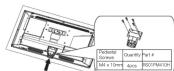
Step Three Take the base. Please align four holes of the base and four screwholes of the neck, insert the base to the neck, and then insert the 4 screws and tighten them.
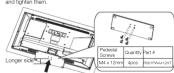
Please take note of the base direction: The bottom view of the TV (Front cabinet faces down)
TV Signal Connection
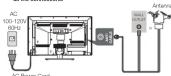
The first step in connecting your TV is obtaining the signal. Your TV LED25B3SDRQ has a back panel, which allows you to receive analog and/or digital television channels via ANT/CABLE jack. Before connecting your TV, determine using an antenna or a cable service to obtain the signal.
Connect the antenna to TV via coaxial cable on ANT/CABLE jack of the back panel. You are ready to receive air local digital and analog channels.
B. Cable TV service Connect the cable TV wall jack to TV via coastal cable on ANT/CABLE jack of the back panel. You are ready to receive off-air local digital and analog channels.
C. Set-Top Box
If you use a sat-top box, you may need to call your cable company or satellite service provider, which use a special connection, please
refer to the user's gu
Note: Do not give the
all the connections.
Cable Connections
Choose Your Connections TV LED29B30RQ supports various connections to other devices (such as DVD, VCR, Set-top box, etc.). Please follow the table to choose the cables which adapt to your device.
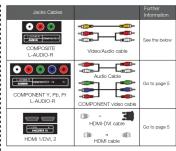
HDMI, the HDMI logo, and High-Definition Multimedia Interface are trademarks or registered trademarks of HDMI Licensing LLC Caution: Unplug the AC cord when you connect other devices to TV.
Side Panel Connections
Connecting AV Composite device (Good Video Quality)
Composite connector will be shared with Component Y connector. To connect a composite AV device, such as a DVD player, follow these steps: 1. Connect the COMPOSITE jack on the side of TV to the video output jacks of device via video cable (yellow).
- Connect the L-AUDIO-R jacks on the side of TV to the audio output jacks of device via audio cable. Notice the left channel jack and plugs are white and the right channel jack and plugs are red. Note: The signal driver to concrete video. This kind of video
Note: AV signal belongs to composite video. This kind of video signal has regular good display quality:
Composite Video Connection
The picture below is an example of a connection using the
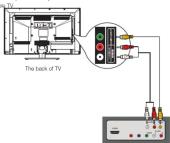
The output panel of other device
Connecting YPbPr Component device (Better Video Quality)
- 2014年1月1日
To connect a component device, such as a DVD player, follow these steps: 1. Connect the COMPONENT IN Y/Pb/Pr jack on the side of TV to the video output jacks of device via video cable (green, blue and red). 2. Connect the L-UNIDIO-B jacks on the side of TV to the audio.
Output jacks of device via audio cable. Notice the left channel jack and plugs are white and the right channel jack and plugs are red.
Note: Y/Pb/Pr jacks are component video. This kind of video signal has better display quality.
Component Video Connection
The visual value is on examples of a correspondence using the corresponding
The picture driver is a 示例 of a connection using the component video jack.
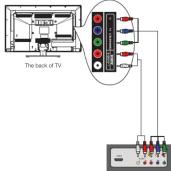
Connecting HDMI device
(Rest) Video Quality
(Best video quality)
To connect a HDMI device, such as a DVD player, please Connect the HDMI/DVI, 2 jack on the side of TV to the output jacks of device via HDMI cable.
To connect a DV1 device, via DVI port of PC or Device and HDMI jack of TV. 1. Connect the HDMI/DVI jack on the side of TV to the DV1 port of PC via HDMI-DVI cable.
- Connect the L-AUDIO-R jack on the side or TV to the audio output jack of computer with audio cable (dual-channel RCA jacks to 3.5mm stereo jack or the L-AUDIO-R jack).
Note: 1. HDMI (High-Definition Multimedia Interface) is a compact audio/video interface for transmitting uncompressed digital data. It carries the audio and video signal via the same cable and has the best display quality. 2. HDMI-DVI cable transfers only video signal from DVI part of DVI device to HDMI jack of TV. For audio signal, please connect audio output to L-AUDIO-R jack on TV back panel.
HDMI Connection
The picture below is an example of a connection using the HDMI video jack.
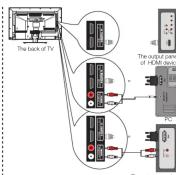
other R/I device
How to Obtain Various Kinds of Input Sources
After connection is done, press INPUT button on remote control or TV top panel to choose the input source you need. See page 7, Basic Operation of TV.
TV Jacks Explanation

The Ground Truth image displays a single, solid horizontal line. According to Rule 2 (UNDERSCORE & LINE RULES), this is a stylistic or background line, not a placeholder underscore. Therefore, the OCR result must ignore it and output nothing or only meaningful text.
(no text)
HEAD PHONE: Connect a 3.5mm headphone for
personal audio. USB: Connect your USB storage device to enjoy must
photo files on your TV. (Also used for service purpose) HDMI1/DVI, 2: (High-Definition Multimedia Interface)
It provides an uncompressed digital connection that carries both video and audio data by way of an integra
mini-plug cable. COMPONENT Y/Pb/Pr: Connect a device that has
component video jacks, such as a DVD player. To acc device connected to the USB/Brack, news the INR1
device connected to the 1:1 DFT jack, press the net of button on your remote; then press the up/down arrow orset Component. (Press the [NUT]) button starts to
select Component. Press the ENTER button at last to confirm.
- Y/Pb/Pr [Component Video]: They provide good picture quality because the video signal is separated
three components. Use three video-grade or composite video cables for the connection. When using Y/Pb/Pb
make sure you connect left and right audio cables to AUDIO IN R/L jacks.
L-AUDIO-R, COMPOSITE: Connect an AI/ device the video jacks, such as a VTR or a DVD player. To access
to these jacks, press the INPUT button on your remote
• AUDIO IN L: Left audio channel connection. The k
connector is usually white. For mono audio sources, be left AUDIO INPUT.
• AUDIO IN R: Right audio channel connection. The connector is usually red
ANT/CABLE: Connect to receive the signal from your via universal cable
Digital Audio out: Connect a coastal cable for digital
Keypad and Front Panel
Keyped Buttons
Keypad Buttons
If you cannot locate you your TV to operate mine
(1) A is expressed in

||
1
1
[Non-Text]
(二)
[Non-Text]
[Non-Text]
INPUT: Displays the Source Select List
MENU: Displays the TV Main Menu, CH#: Soans up through the channel list
like the up arrow on the remote control and can be used to select
CHr: Scans down the
it acts like the down arrow on the remote control and can be used to
select menu options. VOL+ Increases the vol
10.2.1. The address the reader on the TV menu system, please and the right arrow on the remote control and can be used to select menu
options. WOL: Decreases the volume. In the TV menu system, it acts like the
12.2 Prescribed the version in the TV menu system, instead with the left arrow on the remote control and can be used to select menu
options.
POWER (5): TUNI THA TV 6TH and 8th
Front Panel
About remote control working distance and angle, see the right side
Power/Standby Indicator: Light up in red when the TV is in standby mode. Light out when the TV is on
Remote Control Sensor: Remote control IR sensor, which receives
infrared ray sent by ray
b) Derivate Control Group
Remote Control Serv
L
Power/Standby Indi
(No text)
[Non-Text]
m = 311
Rometo
Remote
m = 311
Inserting Batte
Inserting Buttons in the Remote
- Remove the cover of battery cabin on the back of the remote car by lifting the cover.
- Insert two AAA batteries, making sure the polarities (+ and -) are
aligned correctly. - Place the cover back
• Add the cover book

图 2-1
(2)
□ □ □
If the remote control does not work, check these points:
- Are the polarities [+, -) correct?
- Are the batteries worn out? - is there an G -power failure?
- Is the power cord plugged in?
- Is there any interference or block near the remote control sensor?
CAUTION
- Used batteries should be recycled. - Keep out of children's mech.
- Keep out of children's reach. - DO NOT use new and old batteries together.
- Change both the batteries at the same time.
■ When not using the remote control for a long batteries from the unit.
Remote Control Reception Angle
Remote Control Reception Angle
Use your remote control within the distance and angle in below.

A
20 feet
√ a_1^2
Universal Remote Control Code List
For Universal Remote Control brands listed below, please use ac
For example, the next quarter is not below 100% of the companying codes and refer to your Universal Remote Control User
Manual for basic Instruction for changing TV code to operate the TV model.
■ Codes for DIRECTV: 0178, 10178
• Codes for Time Warner Cable: 0170, 1017
- Codes for Cox Communications: 0178 - Codes for Comcast: 30178
- Codes for Dish Network: 627
- Codes for Fioe Verizon: 0205, 0057, 0493, 0775
m = 311

m = 311
B. 10, C. 11, D. 12
Remote Control Buttons
MUTE (2): Reduces the TV volume to it
Press again to restore the volume.
POWER (6) is Tums the TV on or off.
CALD81: Displays the channel list. FAV.: Adds the current channel to you
favorite list, or enizes the current chain
your favors list (if this channel is a favorite channel already)
FAV.+ or FAV.-: Scans up or down through
the current favorite channel list. Numeric Buttons: Use these buttons to enable
numbers.
“=”: To enter a digital channel with a sub-channel, enter the main channel; then press
this button to enter the sub-channel and pres
ENTER.
Recall (2) . Returns to the previous channel EPS: Shows Electronic Program Guide (see
page 8. NOTE: Average the available input channel
INPUT: Accesses the available input channel (TV, AV, Component, HDMI 1/2, Media). Use
the arrows to highlight options, and press
ENTER IS SELECT. Arrows 📄/▶/▶/▼ In uses the four arrows
to highlight different items in the TV menu or share the value. The unit given every one
change the value. The updown arrow can as work as GHz/GHz, button, and the left/right
arrow can also work as VOL-/VOL+ button.
ENTER: Enter and confirm button. MENU: Accesses the Main Menu, or return to
the upper level of a sub-menu.
FREEZE: Freeze the current screen frame,
DISPLAY: Displays the Channel Bar (see
page 7). EXIT: Exits the current menu or function.
VOL+ or VOL-: Increases or decreases the TV
volume.
CH- or CH-1 Scans up or down through the current channel list. Press once to change the channel up or down; news and hold to
Continue changing channels.
PICTURE: Switches between the preset picture mode (see page 8)
SOUND: Switches between the preset sound mode (see page 8).
SLEEP: Selects the sleep timer, after which the TV will shut off
automatically.
ASPECT: Switchms between the preset screen size model (see play CC; Selects the closed caption.
MTS: Selects the multi-channel television sound.
NOTE Sr. Sri
for this period
Initial Setup
Initial Setup
(1) is the first time you can see TV, every have done Gray.
If it is the first time you turn on your TV, or you have done clear Channel List option (see page 10), the initial setup menu appears
automatically
Stop One
Please take up/down am
need. Available languages: English, Spanish Initial Setup
and French.
Step Two Please select the TV installation mode, press
the up/down arrow select the mode you
need: Home, Retail. If you select Home mode, the next option is step three. If you
select Retail mode, please refer the step four
Step Three
Please choose between Energy Saving and Dynamic mode. You can save more energy
with Energy
Step Four
To choose ye
the signal type: Air, Cable. Note: please select TV signal type according to the antenna or cab
closed circuit
Step Five
##






m = 311
m = 311
Please cite: 3.50 weekly implied starting at 2017/04/07, be all.
-
What to notice: 1. The channel search score starts from the Amazon TV channel
-
118 563
-
The channels that have been found will be stored automatically.
-
You are more MCHI but to play episodic digital shares.
-
You can press INFO about to skip analog/digital channel searching.
-
You
The Ground Truth image displays a single, solid horizontal line. According to Rule 2 (UNDERSCORE & LINE RULES), this is a stylistic or background line, not a placeholder underscore. Therefore, the OCR result must ignore it and output nothing or only meaningful text. The provided OCR content is "____", which consists of four underscores. This is an incorrect interpretation of the line as a placeholder, violating the rule that stylistic lines must be ignored. The OCR has hallucinated underscores where none should exist based on the GT's visual context. Hence, the OCR result is inconsistent with the Ground Truth.
Basic Operations
-
Turning On and Off
Connect the AG cord to power the LED LCD TV. At this time the T
will enter standby mode and power indicator will turn red. Use Power
button (D) on the top panel of TV or on the remote control to turn the TV. After switching off the TV for 5 seconds, you can turn on T
again.
Choosing TV Channel
Tuning To Analog Channels
An open account has a charged ma
An analog channel has a channel number beginning with A : Import the digital number with numeric buttons directly and press ENTER button
to confirm. For example, to select receive channel (MUL) access (ML) ILL IFNTEF.
For example, to match analog channel ACT, press 5, 1, ENTER on remote control in sequence.
Note: Although there is no analog TV signal available in America, we
Nasdaq API functions for some expandable use.
Tuning To Digital Channels
A digital channel has a channel numl
main digital number with numeric buttons directly, then press." — *
button on remote control, and input the sub number at last. For example, to watch audio channel 'T201-1', press '25, "1", "—".
“1”, “ENTER” on remote control in sequence.
[Non-Text]
Changing Channels Directly
You can use CH^ button to increase
dachada channel number: What no OSD (Off Screen Display) is fixed, the up/down arrows can also work as GH#/GH× buttons.
and sp. 2016, and the future will be \5.48 - \6.37.
Selecting Input Source
-
Source Select
TV Press INPUT button on remote control to display Coverage Delay Set
AV display source select list. Use up/down arrows to highlight the source
Component you need and press ENTER to confirm.
HDMI 1
-
-
-
Channel Bar
Press the DISPLAY button on the remote control, the channel has will
I see the last 31st session of home control, the end-to-end will appear on the top right corner of the screen. It displays the current
channel's information. The following list describes the items on the
channel bar.
Air A2 Air D50-1
MTV K005HD
Memo 4800 Hill CC 7690 English 10800
Oct-31 23:14 Mon Oct-31 23:14 Mon
ATV DTV
A2F
digital channel, D is displayed. For example, in the
pictures above, A2 is an analog channel, and PDF 1 is a digital channel (1) in a radio channel
(300-P) in a digital channel (-1) in a social channel number).
MTV/KOCE-HD Displays the channel label. Mone/Eingfish Displays what the current channel is being
MonoDigital Displays whether the current channel is being broadcasted in stereo or mono. If the current
channel is digital, this space will be SAP (Second Audio Devices) have run.
480/1060 Displays the signal resolution
16:9/CC/TV-PG Displays the screen aspect ratio, closed caption
and TV rating level of the current program or channel. These are only available for digital
channels.
Oct-31 23:14 Mon Displays current date and time.
Adjusting Volume
Adjusting Volume
Press the VOL+/VOL- button on the remote control to adjust the
volume. If you want to switch sound off, press MOTE (IgC). When USU IOn Screen Display is not used. The rows left/light can also work as
(2) VOL+ buttons.
,
4
,
0
[Non-Text]
[Non-Text]
[Non-Text]
[Non-Text]
[Non-Text]
[Non-Text]
[Non-Text]
[Non-Text]
[Non-Text]
[Non-Text]
[Non-Text]
[Non-Text]
[Non-Text]
[Non-Text]
[Non-Text]
[Non-Text]
[Non-Text]
[Non-Text]
EPG (Electronic Program Guide)
Press EPG button on the remote control, the electronic program guide will appear in the center of screen. The electronic program guide gives the TV program playing project. You can use left/right arrows to switch pages.
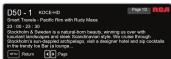

Adjust the OSD Screen
The OSD (On Screen Display) menu enables you to approach to the TV
To use OSO menu systems, press MENU Button on remote control.
then use left/right arrow to highlight an option from PICTURE, SOUND, CHANNEL, BASIN/TA, SETUP or OT/ERSS and serve ENTER/stemp
CHANNEL, PARENTAL, SETUP OF OTHERS AND PASS ENTERCOME button.
Press the up and down arrow to move to a different option within each menu. If necessary, press ENTER or right arrow to display the choice.
of the option you've highlighted. If available, use the text at the bottom of each group (e.g.), To return to the previous many, now the
of each screen for help. To return to the previous menu, please the MENU button.
To exit the OSD menu: - Drop for EXIT button. The menu will also form the menu.
- Press the EXIT button. The menu will close from the screen. - Press the MENU button repeatedly until the menus disappear.

Picture Menu
Picture Menu
The Picture Menu contains menus and controls to configure the way the picture appears. The Picture Menu options apply to the video for
the main TV and VIDEO INPUT selections. All picture options can be applied to each input.
Press MENU on the remote. Select Picture from the Main menu. Press
the ENTERDOWN BUTTON is proceed to PICTURE menu.


Source: http://www.10.123.com
Advanced: Fiat per Delf again
· = 0
· = 0
Not other than our own
BND5 BND47 BND
Use up/down to choose the function you need, press ENTER or right
arrow to adjust or enter a sub-menu. The sub-menu image and explanation are shown below.
If available, use the text at the bottom of each screen for help.
Picture Settings
Picture Mode: Choose the preset visual mode of your TV: Standard Movie, Lbox, Dynamic, Power Saving, iOnly in Lbox
standard, white, gray, dynamic, fiber ceiling. (Only in order) mode you can adjust Brightness, Contrast, Color, Tint and
sharpness. Changed to Power Saving mode can decrease the power consumption.)
- Brightness: Adjust the brightness of picture. - Contrast: Adjust the contrast of color.
- Color: Adjust the richness of color. - Tint: Adjust the balance between n
available in NTSC signal).
▲ Sharpness: Adjust the sharpness level of picture
fellow hits
Screen Size: Soko
Ginema, Zoom, and Normal.) Please choose the ratio that applies to your video signal format best.
Color Temp
This option allows you to see
adjustments: Cool for a blue palette of picture colors; Normal or Warm for a redder palette of color.
Advanced Picture Settings
• Dynamic Contrast: Set dynamic contrast Off/low/Medium/High • Film Mode: Set film mode on/off
- Noise Reduction: Set noise reduction as Off/low/Medium/High. - MPEG Noise Reduction: Set MPEG noise reduction as Off/low
• Mediumor High
Note: Noise reduction helps to reduce the picture "basic" or any type of interference. This feature is especially useful for
providing a cleaner picture in weak analog signal conditions. The MPEG Noise Reduction specifically works on video signal
with MPEG coding
Sound Menu
The Sound Menu kits you adjust audio output. To access the Sound
Menu, press MENU on the remote, and then select SOUND from the Main Menu. Presa ENTER/down button to proceed to SOUND menu.









snow to adjust or enter a sub-menu. The sub-menu image and exploration are shown below.
Sound Settings
Sound Mode: Cho
Standard, Soft, User, Dynamic. Only in User mode you can adjust Basis, Trable, Balance.
- Bass: Adjust the bass component of TV sound. - Trable: Adjust the triple component of TV sound.
• Balance: Adjust the balance between the left and
Surround Mode
Creates a 3D sound surround from standard stereo material, with deep and rich enhancement.
Auto Volume
Set auto volume control on/off
Analog Sound
Select analog TV audio sound type: Stereo, Mono or SAP (only available in TV modus).
Digital Sound
Select digital TV audio language type: English, French or Spanish
(only available for DTV channel
Digital Audio Output Set the audio output type as Off, PCM or Raw. Please set this
Option according to your power amplifier.
Equalizer Settings
The listen-band graphic equalizer allows you to adjust the audio frequency settings. You can select one of the equalizer presets
(Off, Pop, Rock, Jazz) or create your own personal preset (User). Press the left or right arrow to select the frequency (100Hz, 250Hz)
500Hz, 1kHz, 2kHz, 4kHz, 10kHz) you want to adjust. Use the up or down areas to adjust
up of bolim allow its aqua
Channel Menu
The Channel Menu enables you to search, view and edit channels. It is
available in TV mode only. Press MENU and choose CHANNEL from the Main menu. Press the ENTERdown button to proceed to









Use up/down to choose the function you need, press ENTER or right armes to adjust or enter a sub-menu. The sub-menu image and
Explanation are shown below.
Channel List
Displays a channel list. It shows the current channels.
Favorite List
Displays a favorite channel list. It shows the current favorite channels
tavonoe che
Channel Settings Do not channel settings do more.
Channel Press up/dow


Cabinet Uler & O'Arla Nello to Khane the cohn channel. Signal Type
Signal Type Select your TV/sin
Auto Channel Search
Auto Channel Search Execute an auto channel app
Davastal Max
arental Menu
The Setup Menu enables you to lock program with special content, even by handboard and icon 6 on min. Press MENU and ribbons
Rental from the Main menu. Press the ENTER/down button to








Lock Parental Control
- When the Parental Control Menu is accessed from the Main Menu, you need to enter password to unlock the menu function
Please enter your four-digit password with humorous keys 0-9. Note: The original password is "0000".
- After unlocking, the items in parental control menu can be used. Use arrow up/down to highlight the function you need and press
ENTER or right arrow to use V-chip, Change Password, Keypad Lock and Source Lock. Clear Channel List sub-menu
V-Chin
Press ENTER or








10.14.21
US V-Chip
1.000 LNTD for light award to finish 604 Chip listings, which contains two sub-menus: Movie Rating and TV rating. See
max page for more details.
Movie Rating Use arrow leaves to
ENTER to lock/unlock the rating level. If you have blocked a low level rating, the higher reserve will be blocked too.
For example, when PG-13 is blocked, R, NC-17 and X will be
blocked at the
TV Rating Similar with
write with Wells Holding, First Ordering, presOINS No to return press EXIT to exit the menu.
TV Rating Overview



TV-PG Pare
TV-G General Audience V Violence
TV-Y7 Directed to Children 7 Young and Older FV Fantasy Violence
TV-Y A Ch
For more rating explanation, see page 12
Canada V-Chip
Press ENTER or right arrow to enter US V-Chip ratings menu, which is also a member of the U.S. Chip and U.S. Stock
which contains two sub-manufact English racing and French racing
English Rating
Use arrow keys to select the rating level you want to block, press
ENTER to lock/unlock the rating level. If you have blocked a lower level rating, the higher ratings will be blocked too.
For example, when PG is blocked, 14+ and 18+ will be blocked at the same time.
French Rating
French rating Press ENTER or right arrow to enter French rating menu
Similar with English Rating. Note: These ratings are available only if the broadcaster
10.2.1. Rating ratings are evaluated only if the overall rating is not being rated information.
Block Unrated Show
Block all the unrated program Downloadable Rating
Downloadable Rating, Clear Downloadable Data Activate or downloadable rating data. If available.
Change Password
Change the password of parental menu
Old PIN: Input the old password. New PIN: Input the new password.
Confirm: Input the new password again to confirm.
Remote
Select your Remote: Off, Remotion or Remotaz. This is for special purpose.
Keypad Lock
Select this option to say that they are?
so that they can't be used. Source Look
SOURCE LOCK This option allows
source blocked can not be chosen from input list unless you input the correct parental password.
Use up/dow
Clear Channel List
Clear Channel List This option allows you to e
function will reset the whole TV system to factory default (not only reset OSD menu).
stur Mmp
etap Menu

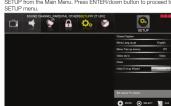
Use up/down to choose the function you need, press ENTER or right arrow to adjust or enter a sub-menu. The sub-menu image
and explanation are shown below

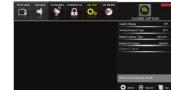
Caption Display
Press left/right allow to select caption display on or off.
Analog Caption Type Press left/right arrow to seller
CC2, CC3, CC4, TEXT1, TEXT2, TEXT3, TEXT4.
Digital Caption Type
Print left/right arrow to select digital closed caption type: Service1, Service2, Service3, Service4, Service5, Service6.
Digital CC Preset
Press left/right arrow to
Custom. Only in custom mode you can adjust the digital closed caption style.
Digital CC Style
Press left/right arrow
to select the closed caption style. Select the item you want to adjust in Digital CF Style menu with
select the team job up/down arrows.
After changing, you can
Menu Language
To choose your menu language, press the internet allow until the language you need appears.
Available languages: English, French and Spanish
Menu Transparency
To choose your menu transparency mode, press the left/right arrow until the transparency you need appears: Off, Low, Medium.
High.
Video Style
If you connect the HDMI/DMI part of PC to HDMI jack of the TV and the video signal is 1080p, please choose the compatible video
style: Video, Graphia

m = 311
m = 311
m = 311
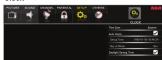
Time Z
Select your time zone: Eastern, Central, Mountain, Pacific, Alaska,
Hawai, Samoa,
Auto Clock
Select auto block off/off. Auto block helps you synchronize your TV time to standard time (from DTV signal).
Setup Time
Set your TV time manually (needs to turn off auto clock)
Day of Week
Displays what day it is (can't be adjusted, displays only)
Daylight Saving Time
Set your daylight saving time
Initial Setup Wizard
To set the initial settings. (see page 7)
others Menu
thers Micha
e Others Menu lets you config the TV with your preferences in other truses. Choose OTHERS from the Main Menu. Pass ENTER/Down
tion to proceed to SETUP menu
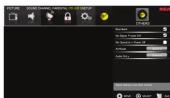
Use up/down to choose the function you need, press ENTER or arrow to adjust or enter a sub-menu. The sub-menu image and
explanation are shown below.
Blue Back
Press ENTER button to select Blue Back on or off. If the Blue Back is turned on, the TV will display a blue background when there is
no signal input.
No Signal Power Off
Pressa ENTER button to select "No Signal Power Off" on or off. If it is turned on, the TV will shut off after 10-minute no signal time. We
suggest you turn on this function when Blue Back is turned on. It may hurt the LED LCD panel if blue screen is on for too long.
Note: In PC mode, the monitor standby and power off settings depend on the No. Signal Off time
No Operation Power Off
Press ENTER button to select "No Operation Power Off" on or off.
If it is turned on, the TV will shut off after a 3-hour no operation time.
All Reset
Press ENTER button to execute reset to TV system. All the settings
will be reset to factory default
Audio Only
Press ENTER button to activate audio only mode. The TV will output only sound and the panel will be turned off. To restore
normal playing, hold POWER button for three seconds.
Now: The OSO's appearance and door are married to the actual appliance.
The Ground Truth image displays a single, solid horizontal line. According to Rule 2 (UNDERSCORE & LINE RULES), this is a stylistic or background line, not a placeholder underscore. Therefore, the OCR result must ignore it and output nothing or only meaningful text. The provided OCR content is "____", which consists of four underscores. This is an incorrect interpretation of the line as a placeholder, violating the rule that stylistic lines must be ignored. The OCR has hallucinated underscores where none should exist based on the GT's visual context. Hence, the OCR result is inconsistent with the Ground Truth.
Frequently Asked Questions (FAQs)
What's the most convenient way to view High
What's the most conve Definition (HD) video?
Connect an antenna to the TV Input jack to view free local digital
channels. You may need to purchase an antenna. (See page 4 for more information about antenna setup).
Visit www.antennaweb.org for assistance in deciding what type of antenna to use to receive the internal digital channels available to you
After entering your location, this mapping program tells you which local analog and digital stations are available using a certain antenna.
Are there other ways to view High Definition
Are there other ways to view high Definition (HD) video?
Besides using an antenna as mentioned above, you can also use a
set-top book to receive digital video. Contact: your cable service provider or satellite provider to purchase digital programming and have them
connect the box to ensure you are viewing channels in the best way.
How do I tell an analog channel from a digital channel?
Dress the DIFF
Press the Disp-Dry button to display the Channel Bar. Cook at the top right corner of the screen. An "A" is displayed for an analog channel. There is no sound, but the picture is fine
A "D" is displayed for a digital channel. Note: Since the analog TV in America has been cut off, we reserve • The sound might be muted. Try pressing the MOTE button to restore sound.
analog TV function only for some unexpected use.
Why are there bars on my screen, and can I get rid of them?
Mort digital video is sent in a 5V/6 format which fills your screen, but is
Most digital videos sent in a 4/3 format, which fits your screen, but is sometimes sent in 4/3 which does not fill your screen. It depends on how the station or device connected to your TV is formatting the video
Now the station of door connected to your TV is forming the video. If there are bars on the screen,
press the R&PEC1 button to try a different format that may eliminate the bars. Some bars can't be removed because of the way the format
is sent by the broadcaster. The format changes as you press the ASPECT button and the format type is displayed at the bottom of the
screen. For more information on screen size, go to page 8.
Why does channel search find a lot of channels,
but when I try to tune to them, there's nothing there?
Some channels don't carry programming, such as video On Demand.
When channels are unavailable, your TV screen is blank or appears like
show. You probably want to remove some channels from your channel list. Remove these in the Channel List Menu. Go to page 9 for more information.
Information.
Why does it take a long time when I search the channels at first time?
channels at first time? If you have both arising and digital channels, the TV is looking for all
If you have even trading the digital list, they do not having an available channels in the channel list. If you do have digital channels, the TV is also searching for scrambled channels, non-scrambled
the 14 is also searching for scrambled channels, non-scrambled channels, and each sub-channel of that digital channel.
(1) (2) (3)
Troubleshooting
(1) 2017年1月1日
Identifying Problems
If there are any problems when using the product, please consult the list below. If the list does not solve the problem, call our Customer
Service Center immediately.
TV Problems
The TV can't be turned
- Make sure the AC cord is plugged in - Check the wall outlet, make sure the
stably. • The side panel may be locked (disabled). Use the remote control to
Turn on the TV. Select the Keypad Lock function in the EVBENTAI. Menu and press
- Select the bypass lock function in the ANS pipeline, then to press ENTER to uncheck the locking status.
There is no picture or sound but the TV is on and there
and right audio output correctly. The left channel cable is white and the right channel cable is red. Please match the cables and jacks.
• The second scheme may not be met properly. On to mark R.F. as
- The sound settings may not be set correctly. Go to page 61 of more information.
- If your audio source has only one jack or is a (mono) audio source,
make sure you have p jack /Whitel on the TV.
(1) 2017年1月1日
The buttons on the side panel don't work.
- The side panel may be locked (disabled). Use the remote control to turn on the TV.
- Select the Keypad Lock function in the PARENTAL Manu and press
ENTER to uncheck the locking status.
- Onalog the TV from the AC power for 10 minibass and then plug it back. Turn the TV on and try again.
[Non-Text]
The TV turns off unexpectedly,
- The electronic protection circuit may have been activated because of a power surge. Wait 3G seconds and then turn the TV on again
If this happens frequently, the voltage in your house may be
abnormal. If the other electronic equipment in your home can't work normally, consult a qualified service personnel.
Hornsey, Southern Division School yesterday.
Can't select a certain channel
• The channel may be blocked or not approved in the PARENTAL
• The channel may be skipped in channel list in CHANNEL Menu.
Check the blocking and skipping status of channel.
-
-
-
-
-
-
-
-
-
-
-
-
-
-
-
-
-
-
-
-
-
-
-
-
-
-
-
-
-
-
-
-
-
-
-
-
-
-
-
-
-
-
-
-
-
-
-
-
-
-
-
-
-
-
-
-
-
-
-
-
-
-
-
-
-
-
-
-
-
-
-
-
-
-
-
-
-
-
-
-
-
-
-
-
-
-
-
-
-
- 99.
-
-
-
-
-
-
-
-
-
-
-
-
-
-
-
-
-
-
-
-
-
-
-
-
-
-
-
-
-
-
-
-
-
-
-
-
-
-
-
-
-
-
-
-
-
-
-
-
-
-
-
-
-
-
-
-
-
-
-
-
-
-
-
-
-
-
-
-
-
-
-
-
-
-
-
-
-
-
-
-
-
-
-
-
-
-
-
-
The stereo sound performance is bad. It may be a weak station. Use the SOUND Menu and set Analog
Sound as Mono.
[Non-Text]
A black box appears on the screen.
- Closed captioning might be on. Check Cidad Captish in the SETUP menu. Go to page 10 for more instructions.
Problems with the HDMI Connection.
- Make sure the HDMI device (DVD, video gamer, etc.) is turned on and the cables are firmly connected. If problems still occur, turn off
is a state and my satisfaction in problems but also, I can your device and reconnect it. Reset the power by unplugging the
power cord and plugging it again.
- If a No Signal Message appears on screen, the HDMI device is an responding. Contact the manufacturer of the HDMI device for
further assistance.
- If you have black bars on each side of your picture (which "the TV can not display a full-screen image), the device you
connected might have a switch or a menu option allowing you to choose the right on quality test that will be this. Choose either
Change the picture quality output that will fix this. Choose either 720p or 1080s.
,
The Remote control doesn't work
- Something might be blocking between the remote control and the remote sensor on the front panel of the TV. Make sure there is a
Remote sensor on the front panel of the TV. We'll see there is a clear path.
- The remote may not be aimed directly at the TV. - The batteries in the remote may also reach, shared, or installed.
- The batteries in the remote may be leak, noise, or inflation. incorrectly. Put new batteries in the remote.
•
You are experiencing problems with V-Chip/Parental
Controls.
- If the rating limit don't work, you must look the settings. Go to the Main Menu (press MENU on your remote), select PARENTAL to
check the settings.
1.2.3.
What else can I do? If you've been through the
fixed your problem, try rebooting your TV. Note that after a reboot, you
may need to run your TV through the setup process again. To reboot, upturn the power cord from the wall or flat or power strip. Keep your
unplug the power cord from the final case or power strip. Keep your TV unplugged for about 5 minutes. Then plug in the TV and turn it on.
See if the problem is fixed. If the problem remains, then please visit the Customer Department Many of whom are sure as published EAOs at contact
RCA Customer Support at the support number provided in your
'Warranty card.
12
V-Chip Rating Explanations
IS V-Chip Rating System
SD √ Chip Rating System
"V-MA (Mature Audience Only): Specifically designed to be viewed
iv adults and may be unsuitable for children under 17. It contains one or more of the following content themes: crude indecent language (6).
explicit sexual activity (S), or graphic violence (N).
"Y-14 (Parents Strongly Cautioned): Contains some material that
nany parents would find unsuitable for children under 14. Parents are strongly urged to exercise greater care in monitoring this program and
are cautioned against letting children under the age of 14 watch
enattended. This program contains one or more of the following content themes: intensely suggestive dialogue (DI, strong course
certain themes: ignorey suggestions dialog(s), or long course language (L), intense sexual situations (S), or intense violence (V).
V-PG (Parental Guidance Suggested) : Contains material that
parents may find unsuitable for younger children. Many parents may
start to watch a well-then younger children. The program contains one or more of the following content themes: some suggestive dialogue (D
nfequent coarse language (1), some sexual situations (5), or moderate (6).
16 C. Emporal Auditors. Most parents would find this program
1-G (Paternal Address). Most parents would find this program suitable for all ages. It contains little or no sexual dialogue (D) or
situations (S), no strong language (L), and little or no violence (V).
Canadian English V-Chip Rating System
8+ (Adult): Programming intended for adults 10 and older. It may
contain elements of violence, language, and sexual content which could make it up viable for women under U.S. Violence Guidelines
I could make it unsuitable for viewers under the violence guidelines. May contain violence integral to the development of the plot, character
or theme, intended for adult audiences. Other Content Guidelines: Mar
ontam graphic language and explicit portrayals of nudity and/or sex.
4+ [Viewer 1-4 and over]: Programming constants thermal of contents which may not be suitable for viewers under the age of 1-4. Parents are
strongly cautioned to exercise discretion in permitting viewing by
ire-items and early items. Violence guidelines. May contain interests of violence. Could deal with mature themes and societal issues
n a realistic fashion. Other Content Guidelines; May contain scenes of
sudily and/or sexual activity. There could be frequent use of profanity.
- (Parental Guidance): Programming intended for a general audience but which may not be suitable for younger children (under the
age of 8). Parents may consider some content inappropriate for
ensupervised viewing by children aged B-13. Violence Guidelines: Denictions of conflict and/or aggression will be limited and moderate;
replications of control and/or aggression will be anxious and moderate; may include physical, fantasy, or supernatural violence. Other Content
Guidelines: May contain infrequent mild profranity, or mildly suggestive language. Could also contain brief scenes of audity.
3 General Audience: Programming considered acceptable for all
ge groups. While not designed specifically for children, it is
understood younger viewers may be part of the audience. Violence Guidelines Will contain very little victims, either being answered
sidiaries. Will constantly lose violence, either physical or verbal or emotional. Will be sensitive to themes which could frighten a younger
child, will not depict realistic scenes of violence which minimize or glosses for the effects of violent events. Often Content Guidelines. There may be
For the effects of women's acts, their content is determined. There may be some inoffensive slang, no rotanity and no nudity.
C8+ (Children 8 and older): Programming generally considered
acceptable for children 0 years and over to watch on their own,
Violence guidelines: violence will not be portrayed as the planended, acceptable, or only way to resolve conflict or encourage children to
mitate dangerous acts which they may see on television. Any realistic
Rejections of violence will be infrequent, discreet, of low intensity and will show the consequences of the acts. Other Content Guidelines:
There will be no protenity, nudity or sexual content.
C (Children): Programming intended for children under age of 8.
Vishesi Budkines: Caleral absorption is paid to thames which could threaten children's sense of security and well being. There will be no
realistic scenes of violence. Depictions of aggressive behavior will be
Inflrequent and limited to portrayals that are clearly imaginary, comedic or unrealistic in nature. Other Content Guidelines: There will be no
- Utilized physical work in a sexual health where will do the offensive language, nudity or sexual content.
Canadian French V-Chip Rating System
8+ (支持: Programming is for adults only. This program contains
4 (Adobe). Programming is for abies only. This program contains sustained violence or extremely violent scenes.
16+ [Viewer 16 and over]: Programming is not suitable for those under age 16. This program contains frequent scenes of violence.
under age 10. This program contains frequent scenarios of violence or intensityy violent scerws.
13+ (Viewer 13 and over): Programming may not be suitable for
children under the age of 13. This program either contains several violent scenes, or one or more scenes that are violent enough to aff
them. Viewing in the company of an adult is therefore strongly
recommended for children under the age of 13.
8+ (Viewer 8 and over): Not recommended for young children. This program is available for most of the work, but it contains results.
programme suitable for most attendees, but it contains risks of occasional violence that could upset young children. Viewing in the
company of an adult is therefore recommended for young children.
(under the age of 6) who do not distinguish between reality and imagination.
G (General Audience): This program is suitable for audiences of a
ages. It contains no violence, or any violence that it does contain is
We are minimal or is presented in an automobile manner, as a Canada, or in an unrealistic way.
The Ground Truth image displays a single, solid horizontal line. According to Rule 2 (UNDERSCORE & LINE RULES), if the GT contains lines used for stylistic emphasis or as background elements (like ruled paper), the OCR result must ignore them. The provided OCR content is "____", which consists of four underscores. This is incorrect because underscores are not equivalent to a solid line and are not permitted under the “Stylistic/Background Lines (Ignore)” rule. Outputting underscores for a stylistic line violates the rule and constitutes an error. Therefore, the OCR result is inconsistent with the Ground Truth.
Well Mounting Unit Specification
Wall Mounting Unit Specification
The Ground Truth image displays a single, solid horizontal line. According to Rule 2 (UNDERSCORE & LINE RULES), if the GT contains lines used for stylistic emphasis or as background elements (like ruled paper), the OCR result must ignore them. The provided OCR content is "____", which consists of four underscores. This is incorrect because underscores are not equivalent to a solid line and are not permitted under the “Stylistic/Background Lines (Ignore)” rule. Outputting underscores for a stylistic line violates the rule and constitutes an error. Therefore, the OCR result is inconsistent with the Ground Truth.
Modal Unit Dimension/unit rent Regener
A. The wall mount is not contained in the accessories sold with
Abbreviations: We only provide the installing specifications in but not the real mount itself. If you need the mount, please consult with the local deals
for a VESA wall mount. D. His strongly current to get the wall mount with environments of
B. We strongly suggest to set the wall mount with equipments of specification we ordered. If not, inappropriate installing may cause
damage to device or people.
C. We suggest that you keep your TV at least 2.50 times/second from the wall to prevent cable interference.
。
Warnings:
-
DO NOT SET UP THE final mount by yourself. Please contact qualified professionals for installation.
-
The TV should not be mounted on walls or surfaces which have an
angle more than 10 degrees with vertical direction. Otherwise the TV set may fall
- The walls for mounting must have enough strength to hold the
whole weight of TV seat. For example, concrete wall and brickwork are eligible. Do not place the mount on soft walls such as earth
the eligible. So not place the moon on set, walls soon as bath walls and plasterboard.
- If spare parts of different specifications (such as screws) are used during mounting, consult with qualified professionals to make sure
doing mounting, consult with qualified professionals to make sure these parts are safe and effective.
- Before attaching the base to wall, ensure the holes for anchors are in varying width the installing valve. Otherwise there may void some
In keeping with the following rules. Otherwise there may add some potential problems.
-
Do not place any heating source under your television. Or else, it
-
Do not place the TV near anything dripping. Transducers and high
voltage wires should be kept far away from the apparatus too. Or
else, it may cause creepage, electric shock or bad resonance. 8. Do not place TV in a location where collision or vibration is liable to
happen.
-
In order to avoid unexpected failing of the TV set, do not put any strong force on TV or wall mount after installing
-
Be sure to unplug the TV before installing. Keep anything hard or
sharp away from the screen panel to prevent the scuffing. 11. After installing, if there is any need to remove the cabinet, please
- Asia: Insuring, if there is any need to move the cabinet, please contact the qualified professionals.
USD Media Play
USB Media Play
The Ground Truth image displays a single, solid horizontal line. According to Rule 2 (UNDERSCORE & LINE RULES), if the GT contains lines used for stylistic emphasis or as background elements (like ruled paper), the OCR result must ignore them. The line in the GT is clearly a stylistic or background line, not a placeholder for text. Therefore, the OCR should not have output any underscores. Outputting `____` constitutes an error under Rule 2, as it hallucinates placeholder symbols where none are semantically intended. Hence, the OCR result is inconsistent with the Ground Truth.
With USB Media Play, you can enjoy music and photo files stored in a
USB storage device on your RCA TV.
Connecting a USB storage device
For measuring a USB storage device
- Connect a USB storage device to the USB port in the back of the TV. Press "INPUT" and select "Media".
- "USB Media Play" menu will appear.
The Ground Truth image displays a single, solid horizontal line. According to Rule 2 (UNDERSCORE & LINE RULES), if the GT contains lines used for stylistic emphasis or as background (like ruled paper), the OCR result must ignore them. The line in the GT is clearly a stylistic or background line, not a placeholder for text. Therefore, the OCR should not have output any underscores. Outputting `____` constitutes an error under Rule 2, as it hallucinates placeholder symbols where none are semantically intended. Hence, the OCR result is inconsistent with the Ground Truth.
· = 0
ikuto Proas Media Getting Hour Playing
#
•
· = 0
The Ground Truth image displays a single, solid horizontal line. According to Rule 2 (UNDERSCORE & LINE RULES), if the GT contains lines used for stylistic emphasis or as background elements (like a ruled line), the OCR result must ignore them. The provided OCR content is "____", which consists of four underscores. This is an incorrect interpretation of the line as a placeholder symbol, violating the rule that stylistic lines must be ignored. Therefore, the OCR output hallucinated symbols where none should exist. Hence, the result is inconsistent with the Ground Truth.
Playing back Music files
Press arrow (◀, ▶) to select "Music" and press "ENTER". The file or folder let will signal up. Press arrow (▲, ▶) to select a file
THE file of folder list will show up. Please answer ▲▼/▼ to select a file or folder. Press "ENTER" to playback the music file you selected.
Playing back Photo files
Press arrow (◀) to select "Ph
The file or folder list will show up. Press arrow (▲ /▼) to select a file or folder. Press "ENTER", and you will be open several.
a file of folder. Press "LATCH", and job will be given several options to view photo files.
You can directly open and playback the file, view thumbnails for
photo preview, or play slideshow.
Media setting for Slideshow and Music playback
Press arrow (▶) to select "Media Setting" and press "ENTER". In "Media Setting", you can set various options for Slideshow and
in Media Streaming: you can set, to choose options for salesNow and Music Playback.
Media Support Specification
- 2017年
Supported Files
- Photo JPG/JPEG files
Music VOSV files
(一)公司董事会会议决议公告
Supported USB storage/line system format
• USB Storage USB flash drive
- File System format FAT32
10.2.3.2018年1月1日
Caution: to not turn off the TV or disconnect USB storage device while the TV
a not turn on the 14 of baseball, loss storage better while the 14 of playing back picture or music. This may result in loss of data or
amage to the USB storage device, and RCA is not responsible for any damage to, or in order of data on the USB storage device.
damage to, or loss of, data on the USB storage device.
· = 0
Product Specification
Product Specification
[Non-Text]
- 本次发行
Model LED/IEC304G
Diagonal Display Size 20 inches
Television System American TV standard ATEC/ATEC system
VHF 2-17 LHF 14-09
Channel Coverage GATV: 1-135
Storage Temperature is
-20℃→+60℃ (-4T→+140T)
Operating Temperature is-
| Humidity | Storage Humidity: Less than 80% RH (No condensation) | |
| Operating Humidity: Less than 80% RH (No condensation) | ||
| Power Supply AC 100-120V, 6Hz | ||
| Connection Interface | IPF input Cable | Interms x 1 |
| With input | Air x 1 | |
| Component x 1 | ||
| HDMI x 2 | ||
| Air x 1 Audio Input | ||
| Audio output | Headphone x 1, Digital Audio Out x 1 | |
| Resolution 1366 x 766 | ||
| Component/HDMI mode | 495, 490, 725, 1069 | |
| Dimensions | With stand | 20.7W x 17.3W x 6.1" D |
| Without stand | 20.3W x 16.7W x 3.3" D | |
| Weight | With stand | 13.52G (5.9KGS) |
| Without stand | 10.82G (4.9KGS) | |
| Power Consumption | less than 65W | |
Notice: Specifications are subject to change without notice
For a period of 12 months from date or purchase of your HCA product, we will pay on authorized PCA service center for
product, we will pay an authorized HCA service center. The labor charge to repair any defects in materials or workmanship
in your television. If your television is unrepairable we will provide you with a published unit of the same as better model.
provide you with a refurbished unit of the same or best hidden.
Coverage – Parts
For a period of 12 months from date of purchase of your RCA product, we will pay on authorized RCA service center for the
product, we will play an authorized HSA service center for the new, or at our option, refurbished replacement parts needed to
repair any defects in material or workmanship in your television.
If your television is unrepairable we will provide you with a refurbished unit of the same or better model.
Coverage - LED LCD Panel
Coverage = EED ECD Panel
For a period of 12 months from date or purchase of your RCA product, we will pay an authorized RCA service center for the
new, or at our option, refurbished LED LCD panel needed to
repair any defects in material or workmanship in your television. However, television is unrecognizable and will provide you with a
If your television is unteparable we will provide you with a refurbished unit of the same or better model.
How to Obtain Service
- For assistance (U.S.A) - if you purchased BCA product in
U.S.A. please call 1-888-977-6722.
Dr visit www.rca.com
• For assistance (Mexico) - if you purchased RCA product in Mexico, unless call 01.000.000650
Mexico, please call 01-800-8233658 Dr visit www.rca.com
[Mexico service center address]
The service representative will review your options for service.
As a convenience we offer white ways to obtain warranty service. You may mail your product to the address provided by
the service representative, you may take your product to an
authorized service center, or you may request in home service
(servicer will determine if product is derivatable in home or must be taken back to local service center for repair). Service
representative will supply instructions for preferred service. At
the time of service proof of purchase such as original receipt, will be required. Only 37" LCD size and above are applicable for
We do require only on "data base and above are applications in-home-service.
The Ground Truth image displays a single, solid horizontal line. According to Rule 2 (UNDERSCORE & LINE RULES), if the GT contains lines used for stylistic emphasis or as background (like ruled paper), the OCR result must ignore them. The provided OCR content is "____", which consists of four underscores. This is an incorrect interpretation of the line as a placeholder symbol, violating the rule that stylistic lines must be ignored. Therefore, the OCR output hallucinated symbols where none should exist.
Items Not Covered By Limited Warranty
Your limited warranty does not cover the following items:
The Ground Truth image displays a single, solid horizontal line. According to Rule 2 (UNDERSCORE & LINE RULES), if the GT contains lines used for stylistic emphasis or as background (like ruled paper), the OCR result must ignore them. The line in the GT is clearly a stylistic or background line, not a placeholder for text. Therefore, the OCR should not have output any underscores. Outputting `____` constitutes an error under Rule 2, as it hallucinates placeholder symbols where none are semantically intended. No punctuation mismatch or formatting transformation applies here because the content is purely symbolic and not textual.
● Un-installation, installation and adjustment of customer
controls and operating instruction.
- Batteries and customer replacement fuses. - Damage due to misuse, abuse, negligence or neglect
including but, not limited to, damage resulting from
exposure to moisture, humidity or salt. - Inability to receive a signal due to problems not caused
- Imazely to receive a signal due to problems not caused by the product.
● Damage to the product due to images burnt into the screen.
● Product purchased or serviced outside of Country of Original Purchase, i.e. Purchased USA can not be
orginal Purchase: 16.1 Purchased with no notice serviced in Mexico/Purchased in Mexico can not be
seniced in USA.
- Product modified or incorporated into other products. - Damage due to acts of nature, including but not limited to.
lightning damage or flooding.
● Service calls which do not involve any defect in materials
or wishmanship.
Commercial Use Excluded
This limited warranty only applies to products used for personal use and does not cover any product used for institutional
see risks due not other any product needs for individual, commercial or rental purposes.
The Ground Truth image displays a single, solid horizontal line. According to Rule 2 (UNDERSCORE & LINE RULES), if the GT contains lines used for stylistic emphasis or as background (like ruled paper), the OCR result must ignore them. The provided OCR content is "____", which consists of four underscores. This is an incorrect interpretation of the line as a placeholder symbol, violating the rule that stylistic lines must be ignored. Therefore, the OCR output is inconsistent with the Ground Truth.
LIMITATION OF WARRANTY
The Ground Truth image displays a single, solid horizontal line. According to Rule 2 (UNDERSCORE & LINE RULES), if the GT contains lines used for stylistic emphasis or as background (like ruled paper), the OCR result must ignore them. The line in the GT is clearly a stylistic or background line, not a placeholder for text. Therefore, the OCR should not have output any underscores. Outputting `____` constitutes an error under Rule 2, as it hallucinates placeholder symbols where none are semantically intended. No punctuation mismatch or formatting transformation applies here because the content is purely symbolic and not textual.
THIS LIMITED WARRANTY IS THE SOLE AND EXCLUSIVE
WARRANTY APPLICABLE TO THIS PRODUCT. ON CORP
US, INC., THE MANUFACTURER OF THIS PRODUCT, DISCLAIMS ALL OTHER WARRANTIES, EXPRESSED OR
IMPLIED (INCLUDING ALL IMPLIED WARRANTIES OF
MERCHANTABILITY OR FITNESS FOR A PARTICULAR PURCHASE, NO VERNAL OR WRITTEN INFORMATION
PURPOSE: NO VERBAL OR WRITTEN INFORMATION GIVEN BY ON CORP. US, INC., ITS AGENTS, INDEPENDENT
CONTRACTORS, SALES REPRESENTATIVES, EMPLOYEES,
RETAIL DEALERS, WHOLE SALE DISTRIBUTORS OR ANY OTHER THIRD PARTY SHALL CREATE A GUARANTY OR
INCREASE, EXPAND OR MODIFY THE SCOPE OF THIS
LIMITED WARRANTY.
THIS LIMITED WARRANTY PROVIDES THE SOLE AND
EXCLUSIVE REMEDY FOR THE CONSUMER OF REPAIR OR
REPLACEMENT OF THE PRODUCT. ON CORP US, INC. SHALL NOT BE LIABLE FOR SPECIAL INCIDENTAL OR
SHALL NOT BE LIABLE FOR SPECIAL, INCIDENTAL OR CONSEQUENTIAL DAMAGES ARISING OUT OF THE USE
OF THEP PRODUCT OR ARISING OUT OF A BREACH EXPRESSED OR IMOUNTED WARRANTY ON THIS PRODUCT
EXPRESSED OR IMPLIED WARRANTY ON THIS PRODUCT.
THIS LIMITED WARRANTY AND THE DISCLAIMERS
CONTAINED HEREIN ARE GOVERNED BY THE LAWS OF THE STATE OF INDIANA, EXCERT TO THE EXTENT
- TV Signal Connection
- Cable Connections
- Side Panel Connections
- Composite Video Connection
- Connecting YPbPr Component device (Better Video Quality)
- Component Video Connection
- Connecting HDMI device
- HDMI Connection
- TV Jacks Explanation
- Keypad and Front Panel
- Initial Setup
- Basic Operations
- V-Chip Rating Explanations
- USD Media Play
Brand : RCA
Model : LED29B30RQ
Category : TV