
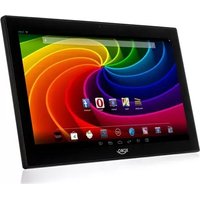
PAD 900 - Tablet XORO - Free user manual and instructions
Find the device manual for free PAD 900 XORO in PDF.


| Product Type | Tablet |
| Brand | Xoro |
| Model | PAD 900 |
| Operating System | Google Android 4.2 |
| Processor | Dual core Cortex A9, 1.2 GHz |
| RAM | 1 GB |
| Internal Storage | 8 GB flash (approx. 6 GB available) |
| Display | 9" TFT LCD, 1024 × 600 pixels |
| Touchscreen | Capacitive multi-touch |
| Cameras | Front 0.3 MP, Rear 2 MP |
| Wireless Connectivity | Wi-Fi 802.11 b/g/n, Bluetooth |
| Ports | Mini USB (OTG), 3.5 mm headphone jack, microSD slot, DC-in |
| Battery | Built-in polymer rechargeable battery; charge via included AC adapter |
| Supported Audio Formats | MP3, WMA, MP2, OGG, AAC, M4A, FLAC, APE, WAV |
| Supported Video Formats | AVI, 3GP, MP4, MPG, RM, RMVB, MOV, FLV, WMV, MKV (up to 1080p) |
| Weight | Approx. 500 g |
| Dimensions (approx.) | 240 × 160 × 12 mm |
| Safety Precautions | Avoid impact, heat, water, magnetic fields; use only included charger; do not disassemble |
| Maintenance | Clean with dry cloth; charge battery at least once per month if not used |
| Repairability | No user-serviceable parts; battery non-removable; warranty void if disassembled |
Frequently Asked Questions - PAD 900 XORO
User questions about PAD 900 XORO
0 question about this device. Answer the ones you know or ask your own.
Ask a new question about this device
Download the instructions for your Tablet in PDF format for free! Find your manual PAD 900 - XORO and take your electronic device back in hand. On this page are published all the documents necessary for the use of your device. PAD 900 by XORO.
USER MANUAL PAD 900 XORO
FREE TO CHOOSE INNOVATIONS
XORO®
PAD 900
Table of Contents
Important Safety Precautions 2
Basic Introduction 5
Quick Start 5
Battery management and charging 5
Buttons and Ports 6
Boot and Shutdown 7
Connect with PC....7
Interface Introduction 9
Bottom bar of the Interface 10
The HOME Screen menu.... 10
Desktop 11
Basic Operation 11
Date and time settings: 11
Display settings 12
Wireless Connection 13
Applications install and uninstall.... 14
Browser.... 15
Video player 15
Music player 16
Photo Browser 16
Camera 17
Sound Recorder 18
Market 18
Frequently Asked Questions 19
Limited Warranty....20
Licenses & Disclaimer 22
System: Android 4.2
Important Safety Precautions
- Do not subject the device to severe impact or drop it from heights.
- Do not use the device in extreme hot or cold, dusty or damp conditions. Do not expose it to direct sunlight.
- Avoid using the device near strong magnetic fields.
- Keep the device away from water and other liquids. In the event that water or other liquids enter the device, power off the product immediately and clean the device.
- Do not use chemicals to clean the device in order to avoid corrosion. Clean it with a dry cloth.
- We are not responsible for damaged or lost data caused by malfunction, misuse, and modification of the device or battery replacement.
- Do not attempt to disassemble, repair or modify the product. This will invalidate the warranty.
- If the device will not be used for an extended period of time, please charge the battery at least once per month to maintain battery life.
- Charge the battery if:
a) the battery level icon displays (battery empty);
b) the device powers off automatically when restarted;
c) there is no response when pressing/tapping on keys/buttons with keys/buttons unlocked and battery fully charged.
- Do not interrupt the connection when the device is being formatted or files are transferred. Otherwise, data may be corrupted or lost.
- If the device is used as a portable HD player, please use only per the instructions. Otherwise, permanent data loss could occur.
- Please use and install data using the attachments/accessories provided and only according to the manufacturer's instruction.
- Please refer to the information on the bottom of the device for electrical and safety information before installing data or operating the device.
- To reduce the risk of fire and electric shock, do not expose this device to rain or moisture. The device should not be exposed to dripping or splashing water. Never place objects filled with liquids, such as vases, on the device.
- There is danger of explosion if the battery is replaced incorrectly. Replace only with the same or equivalent type.
- The battery (or batteries or battery pack) should not be exposed to excessive heat such as sunlight, fire or the like.
- Please follow responsible procedures for battery disposal
- If the power adaptor is disconnected from the device, the device will remain operable as long as the battery has sufficient charge.
- Do not install this equipment in a confined space such as a bookcase or similar unit. The ventilation should not be impeded by covering the ventilation openings with items such as newspapers, tablecloths, curtains etc.
- No naked flame sources, such as lighted candles, should be placed on the apparatus.
- Use the apparatus in moderate climates.
- Do not disconnect the USB cable between device and PC during data transmission or formatting. Only remove it safely from the operating system. Otherwise, data may be corrupted or lost and malfunctions may occur.

Disposal
Do not dispose of a defective device (built-in rechargeable battery) with the household waste. To dispose of your used device, please use the return and collection systems available in your area or contact the retailer where the product was purchased. They can take this product for safe environmental recycling.
Do not replace the rechargeable battery yourself. Please contact our customer service.
Listening Cautions Hearing Safety
Listen at a moderate volume: Using headphones at a high volume can impair your hearing. This product can produce sounds in decibel ranges that may cause hearing loss for a normal person, even for exposure less than a minute. The higher decibel ranges are offered for those that may have already experienced some hearing loss. Sound can be deceiving. over time your hearing ‘comfort level’ adapts to higher volumes of sound. So after prolonged listening, what sounds ‘normal’ can actually be loud and harmful to your hearing. To guard against this, set your volume to a safe level before your hearing adapts and leave it there. To establish a safe volume level: Set your volume control at a low setting. Slowly increase the sound until you can hear it comfortably and clearly, without distortion. Listen for reasonable periods of time: prolonged exposure to sound, even at normally ‘safe’ levels, can also cause hearing loss. Be sure to use your equipment reasonably and take appropriate breaks. Be sure to observe the following guidelines when using your headphones. Listen at reasonable volumes for reasonable periods of time. Be careful not to adjust the volume as your hearing adapts. Do not turn up the
volume so high that you can't hear what's around you. You should use caution or temporarily discontinue use in potentially hazardous situations. Do not use headphones while operating a motorized vehicle, cycling, skateboarding, etc.; it may create a traffic hazard and is illegal in many areas.
Intended Use
This device is intended to playback music and videos in popular formats, display of photos and Internet access with the integrated Wi-Fi function. This is the only intended use of the device.
Please observe all information in this user manual, in particular the safety precautions. Any other use will be seen as unintended use and can cause damage and personal injury. Furthermore, your warranty will be void. The manufacturer accepts no responsibility for damages due to unintended use.
This manual may not reflect your actual device's operation. All information is subject to change without prior notice. Please follow your actual device's operational procedures.
Following accessories should be in the box:
· Xoro PAD 900
· Power Supply
- USB cable
- Manual
If any of the accessories are missing, then contact your dealer as soon as possible. Keep all the original packaging in case you need to return the set to the dealer.
Basic Introduction
• CPU: dual core Cortex A9, 1.2 Ghz
• LCD Screen:9 " 1024 * 600 TFT LCD
- Camera: Build-in 0 .3M (front) / 2M (rear)
- Operating System: Google Android 4.2
- RAM 1GB
- Flash 8GB
• Network Connection: Built-in 802.11b/g/n wireless
• Audio format: MP3, WMA, MP2, OGG, AAC, M4A, FLAC, APE, WAV
- Video format: max 1080p full HD video (AVI,3GP, MP4, MPG, RM, RMVB, MOV,FLV, WMV,MKV)
- Touch Panel: Capacitive Multi-touch
• Language: support multiple language - Ports: mini USB*1(OTG), Earphone * 1, TF card slot * 1,MIC*1, bluetooth
- Buttons: Power/Reset
Quick Start
Battery management and charging
Before using this device, please charge it fully. Put the charger adapter into the DC jack,
the device will start to charge.
【TIPS】:
- This device adopts built-in polymer battery. Only the specified charger should be used. when it is charging, the icon of battery will be rolling. when the charging finish, the battery icon will turn green and stop rolling.
- If you do not use this device for a long time, please charge/release it
once per month to avoid deep discharge.
- When it is power off because of low battery, connect to the charger, the device will indicate “low power” or “charging”, please wait for a second until the machine can turn to the main interface once the power is enough.
- The built-in polymer battery should be charged regularly. The damage caused by battery over-consuming is not included in the warranty.
Buttons and Ports

1. Power On/Off button
Press and hold to turn the unit on or off; briefly press to lock or unlock the screen.
- Earphones jack Connect stereo earphones here.
Note: The speakers are automatically muted
3. USB 2.0 high speed port /USB host
Connection for data transmission from/to PC (e.g. music, photos, videos) or connection of USB storage media and USB devices such as mouse or keyboard.
4. DC-IN port
Connect power adaptor for charging the built-in rechargeable battery here
Note: Use only the AC adapter Included
- microSD card Insert microSD and microSDHC/SDXC cards here (up to 32 GB)..
6. Reset pin hole
Reset the device in case of malfunction (use a paper clip or similar and carefully press the button in the pin hole.
7. Frontcamera
Boot and Shutdown
Boot: Press and hold the power button, the system will enter the boot process System has been started, entering the Android system:

The system enters the default home interface.
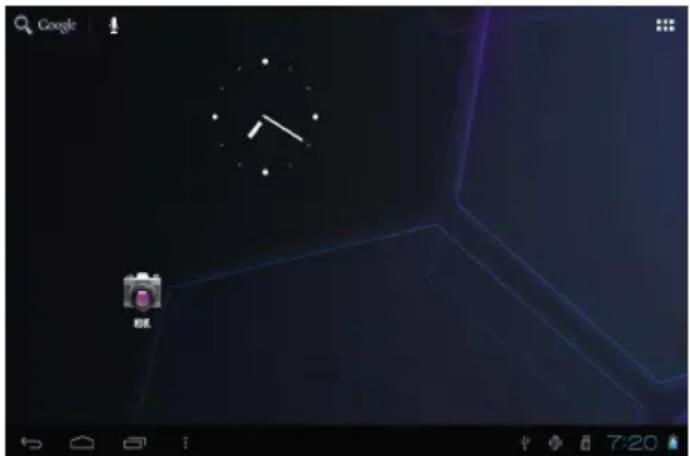
Shutdown: Press the power button, pop-up device options, select
Power off, Click OK, you can safely shut down.
Connect with PC
By mini USB (OTG) interface of the device, you can connect with PC by mini USB cable attached with the device. USB Data transferring is available. You can operate the files through the PC.
When your device is connected successfully, to pull up the notification area of the status bar, can see the following icon
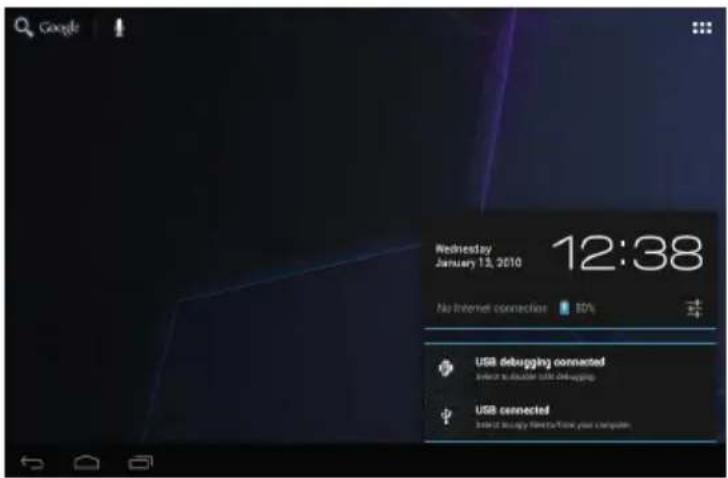
Then click to enter the next

Click , Then the device can transmission data with PC.
Note: The device also supports the FAT32 format for external devices, for example U disk, Micro SD card to Transfer data.
 | Mail notice |  | Mute |
 | Gmail notice |  | Without SD card |
 | Computer and MID are connected through USB line |  | Uploading/Downloading |
 | Events waiting to be done |  | Downloading finished |
 | Alarm clock opening |  | General notice (for example: synchronous error) |
 | Playing music |  | SIM card information, wandering, no signal |
 | In data synchronism |  | Connecting 3G service, data exchanging |
 | Insufficient space of SD card |  | More |
 | WIFI service is connected, network is available |  | Battery symbol |
 | Airplane mode |  | Charging |
Bottom bar of the Interface

A. WIFI signal status icon: If connected to the WIFI wireless network, the icon will be displayed
B. OTG connect icon: If the device connected to the PC, will show the OTG connected icon.
C. Time display: Display the time of the current system, which has been set.
D. Battery status icon: Displays the current battery level and the charging status.
E. Menu, Home, Back, virtual buttons
The HOME Screen menu
Press the menu icon on the device, it will display a home screen menu as following,
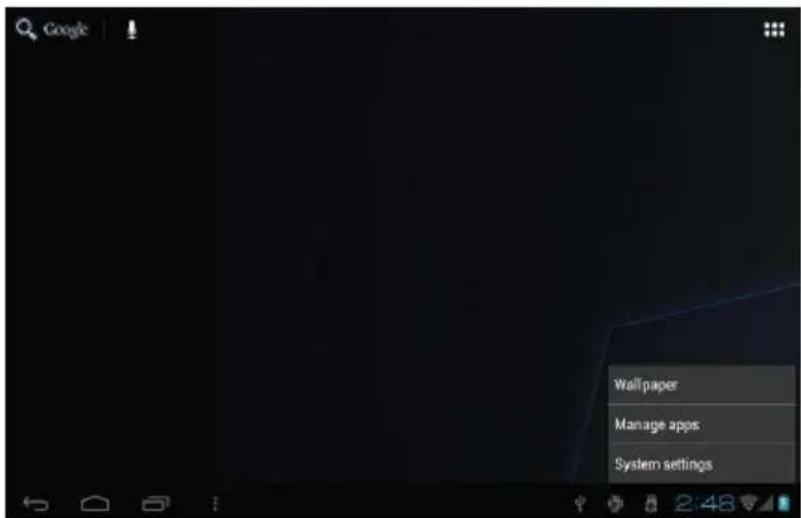
Wallpaper: Users can replace the wallpaper with yowishes. Manage apps: It can quickly open a list of all applications.
System Settings: Fast access to system settings, user can choose “Wireless & etworks”, “Display”, “Date & time” etc, for personalized settings.
Desktop
When sliding around with your finger to switch the main screen, the desktop fixed on the main screen, will not move. User could drag the application icon placed on the desktop area in the main screen.
Basic Operation
Click the "Settings" icon the system

in the main applications area, you can open
setting interface, as shown below,

Select the appropriate operation of the relevant items, such as: wireless and network, Display, date and time settings, about Device, etc.
Date and time settings:
Click "Date & time" to enter the Date and time settings interface:
Select to set the date, select the time zone, set the time, time format, date format and other information. For example, choose to set the date, as follows:

Select +: that the increase of 1 unit,
Select - : that the reduction of 1 unit.
Also you can choose the number, enter the input mode. Directly entering the desired number, then click "Done" to set the Date.
Display settings
In the settings interface choose "Display" to enter the display settings interface, select "Brightness", Pull the progress bar to adjust the brightness, as below interface,
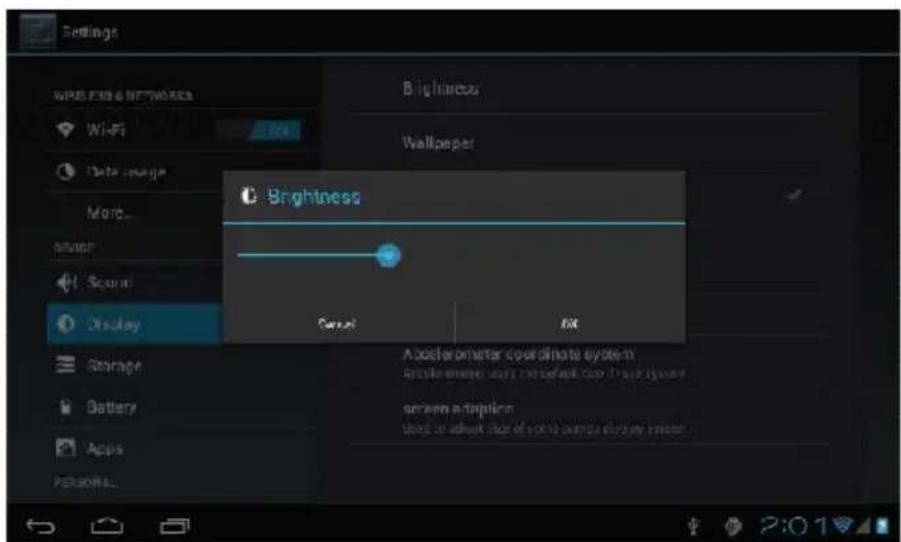
lick Sleep, adjust the inactivity time of the device. You can press power key to activate the device. When display "Screen locked" interface, follow the
prompts to unlock it

Wireless Connection
Click the main menu "Settings" icon, go to "Settings" screen, click on "Wireless and networks" into the "Wireless and networks settings" interface. Turn on Wi-Fi switch, the Wi-Fi module built-in the device will search AP lists automatic, click the searched AP can be used, will pop up settings dialog, please follow the prompts to complete the WIFI network links. Some encrypted network, need to enter a valid key. As shown below
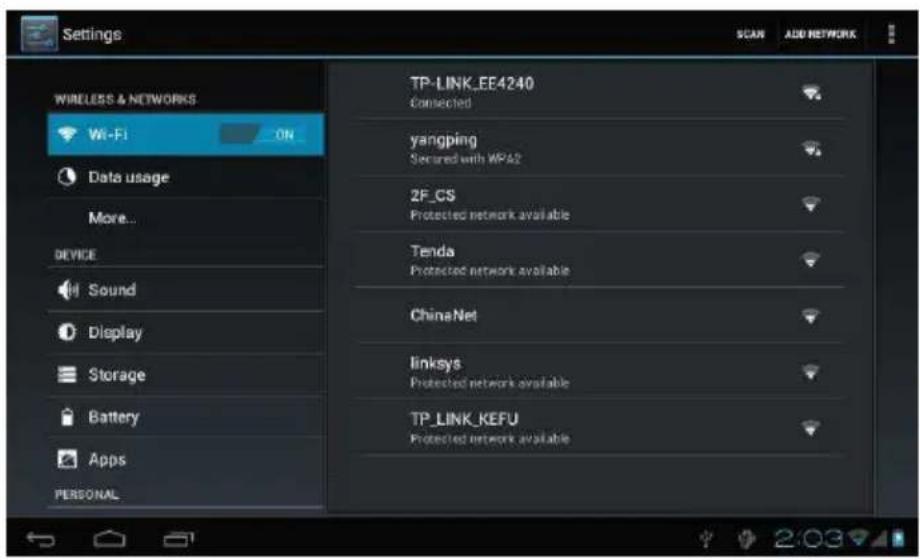
According to the above method to connected Wi-Fi, as shown below,

Applications install and uninstall
Install applications
- First you should select the Unknown sources which allow installation of non-Market apps.

-
Copy the APK installer software to Micro SD or NAND FLASH.
-
Click Apk Installer to find the app directory, then Select applications to install. Users can "Android market" online installation, or download via the computer, or online through the machine built-in browser to download and install.
Uninstall applications
Click on the item "Settings – Apps – Downloaded," select the appropriate application has been installed, click the applications which you need to uninstall
Browser
When the network connected, open the Web browser enter the URL, you can quickly Browse the Web or through the main desktop search bar enter the URL,.
open the web page

Video player
Online video: The product supports HTML5 online video playback.
Local video: Click the Video Icon. The Player can loading new albums and
photos automatically which stored in local disk or micro SD card, then select the videos to playback
Music player
Click the music icon

you can enter the music player interface.
Click the music files you will enter the player to play music
Click “”: Play the previous music, long press to fast reverse.
Click “ ” : Click it to suspend, the icon turn to “ ” click and return to the normal playing again.
Click “”: To play the next song, long press to do function.
Click “ ”: To display the present playing list.
Click “”: To select the random playing mode.
Click “-”: To select the repeat playing mode.
Photo Browser
Click "Gallery" to get into Photo Browser directly, there will list all the picture files and video files. As shown below,

Select a picture file and enter the picture playback interface, as shown below. Can select "Zoom", "narrow" "set" and "delete" etc operation.

Camera
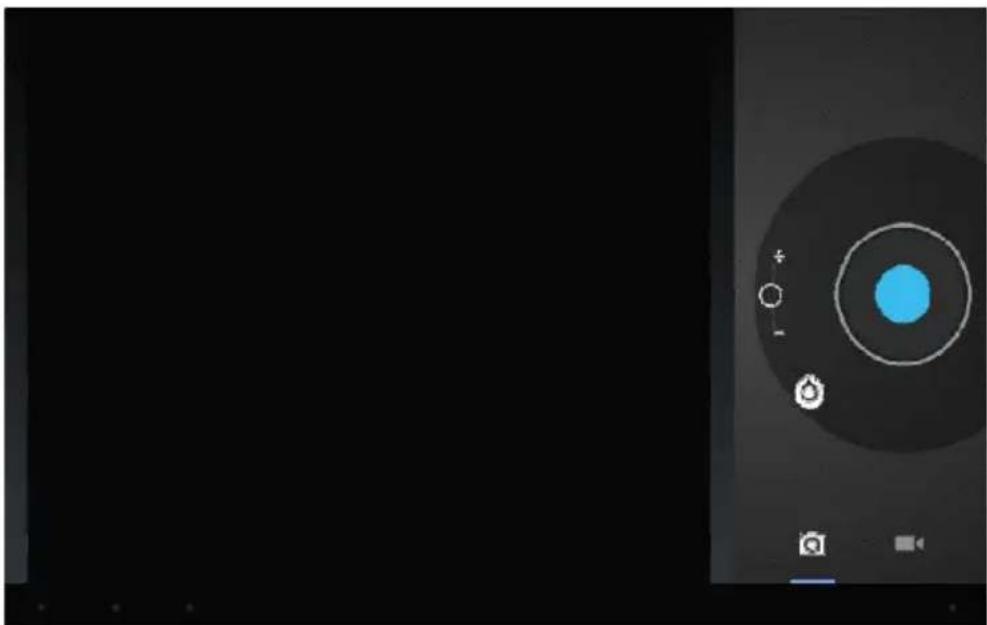
Click the Camera icon in the applications menu, as shown below
Click the camera shutter to take photos or videos
Sound Recorder
Click the recorder icon
the applications menu, as show below:

Note: Select "Record"

button to record when it is completed, select
"Stop" button. At this point you can find the recordings folder in the file browser, which saved the recordings.
Market
Click the icon into the "Market" interface. If have no Gmail account, should create a Gmail account Select "Accept" to enter market, as shown below

Q: What Android OS version is on my Device?
A: 4.2
APK
Q: What is APK?
A: APK is Android Package acronym that Android installation package.
Q: How to obtain the APK?
A: You can download via PC-side installation, you can also "Android market" online to download and install.
Q: Can I use any of my personal email addresses to send/receive email?
A: The device supports POP3 and SMTP accounts. Some free email accounts are not supported on mobile devices. Check with your email provider to see if you account is supported.
Q: Which media cards are compatible with my Device?
A: micro SD cards or TF cards.
Music
Q: What type of music files can I play on my device?
A: MP3, WMA, MP2, OGG, AAC, M4A, FLAC, APE, WA Photos
Q: What type of photo files can I view on my device?
A: JPG, JPEG, BMP, JPG and PNG. Video
Q: What type of video files can I play on my device?
A:AVI, 3GP, MP4, MPG, RM, RMVB, MOV, FLV, WMV,MKV(max 1080p full HD video)
Q: Can I play YouTube videos on my device?
A: Yes, you can. Tap the YouTube application icon to quick access videos.
Wi-Fi
Q: Do I need a Wi-Fi adapter to connect to the Internet?
A: No. The Wi-Fi adapter is built-in to the device.
Storage
Q: Why it shows only 6GB available after turning?
A: The Android system requires approximately 2 GB for itself.
Limited Warranty
In case the products delivered are not free from defects in material or workmanship, MAS Elektronik AG has the right to either repair or replace the defective product at its choice. MAS Elektronik AG manufactures and repairs goods using components which are new or equivalent to new in accordance with industry standards and practice. The warranty for wearing parts (e.g. rechargeable batteries) is limited to 6 months.
In case the device is equipped with internal data storage (e.g. hard disc drive, Flash drive), the customer is responsible to backup his data before sending the device. MAS Elektronik AG is not liable for any data loss on returned devices. MAS Elektronik AG reserves the right to reset returned devices to factory defaults. Please note your personal settings for this reason.
MAS Elektronik AG is not liable for any accessories not belonging to original package content such as DVDs, hard disc drives, Flash storage devices, batteries, etc.
This limited warranty covers the warranty requirements set by authorities in your country.
This limited warranty does not cover finishes, accessories or batteries, nor does it cover damage resulting from accident, misuse, abuse, dirt, water, battery leakage, tampering, servicing performed or attempted by unauthorized service agencies. This limited warranty does not cover finishes, accessories or batteries, nor does it cover damage resulting from accident, misuse, abuse, dirt, water, battery leakage, tampering, servicing performed or attempted by unauthorized service agencies. This limited warranty does not cover damages resulting from firmware upgrades. Only in case of firmware upgrades needed to add functions promised at time of purchase, such damages are covered by this limited warranty. For a correct and frictionless completion of warranty or repairs you need a RMA No. You may obtain a RMA on the internet at www.mas.de/FAQ or by telephone.
IN NO EVENT WILL MAS Elektronik AG BE LIABLE TO ANY PARTY FOR ANY DIRECT, INDIRECT, SPECIAL, PUNITIVE OR OTHER CONSEQUENTIAL DAMAGES FOR ANY USE OF THIS WEB SITE, OR ON ANY OTHER HYPERLINKED WEB SITE, INCLUDING, WITHOUT LIMITATION, ANY LOST PROFITS, BUSINESS INTERRUPTION, LOSS OF PROGRAMS, OTHER DATA OR OTHER ECONOMIC ADVANTAGE, EVEN IF WE ARE EXPRESSLY ADVISED OF THE POSSIBILITY OF SUCH DAMAGES.
MAS Elektronik AG does not provide any expressed or implied warranty for merchantability of the information or its fitness for a particular purpose. MAS
Elektronik AG does not guarantee that the information violates no property rights.
Please send the device in its original packing material, all standard accessories and a copy of the invoice, a description of defect and the RMA No. to following address.
Please note the RMA number clear and in large numbers on the outer package.
MAS Elektronik AG
Weidegrund 3
21614 Buxtehude
Germany
Support
e-mail: support@ersservice.de
Hotline: +49 (0) 4161 - 8002424
Licenses & Disclaimer
We would like to point out that the firmware of the Xoro PAD 900 contains open source software, which is licensed under the GNU General Public License (GPL) and Lesser General Public License (LGPL). To ensure a GPL / LGPL compliant use of the programs, please refer to the license terms of the GPL / LGPL.
Under the Agreement of the GPL and LGPL, we provide the source code of these programs are available. The corresponding code can be at the e-mail address: Apply for beta@ersservice.de. You get the source code then on CD by mail! You can modify and distribute the source code under the terms of the GPL / LGPL license. However, we assume no technical support for changes to the source code!
License text
The license text of the GNU General Public License is available in the download area of the product on our website, as well as on http://www.gnu.org!

Sourcecode
The source codes used are when they are not available in the download area of the product, starting from purchase to purchase up to 3 years on request by e-mail!

Trademarks
The Android logo, Google Search TM , Google Maps TM , Gmail TM , YouTube TM , Google PlayStore TM and Google Talk TM are trademarks of Google Inc.
All other trademarks and copyrights are the property of their respective owners!
Disclaimer
Some content and services accessible through this device belong to third parties and by copyright, patent, trademark and / or other laws are protected for the protection of intellectual property. Such content and services are provided solely for your personal, non-commercial use. Xoro is not liable for damage to software or hardware or damage to property arising from the use of the services and of the device, unless these are due to gross negligence or intent, his agents, or his legal representatives.
For direct or indirect damage - in particular damage to other software, damage to hardware, damage for loss of use and damage caused by functional failure of the device, the company can not be held liable. Only the User shall be liable for the consequences of use of the software used on the device and the hardware.
The device and the software used was developed with great care, however errors can never be ruled out. It can therefore not be held responsible for the security of your data!


- XORO®
- PAD 900
- TABLE OF CONTENTS
- IMPORTANT SAFETY PRECAUTIONS
- DISPOSAL
- LISTENING CAUTIONS HEARING SAFETY
- INTENDED USE
- FOLLOWING ACCESSORIES SHOULD BE IN THE BOX
- BASIC INTRODUCTION
- QUICK START
- BATTERY MANAGEMENT AND CHARGING
- 【TIPS】
- BUTTONS AND PORTS
- POWER ON/OFF BUTTON
- USB 2.0 HIGH SPEED PORT /USB HOST
- DC-IN PORT
- RESET PIN HOLE
- FRONTCAMERA
- BOOT AND SHUTDOWN
- CONNECT WITH PC
- BOTTOM BAR OF THE INTERFACE
- THE HOME SCREEN MENU
- DESKTOP
- BASIC OPERATION
- DATE AND TIME SETTINGS
- DISPLAY SETTINGS
- WIRELESS CONNECTION
- APPLICATIONS INSTALL AND UNINSTALL
- INSTALL APPLICATIONS
- UNINSTALL APPLICATIONS
- BROWSER
- VIDEO PLAYER
- MUSIC PLAYER
- PHOTO BROWSER
- CAMERA
- SOUND RECORDER
- MARKET
- LIMITED WARRANTY
- LICENSES & DISCLAIMER
- LICENSE TEXT
- SOURCECODE
- TRADEMARKS
- DISCLAIMER
Brand : XORO
Model : PAD 900
Category : Tablet