
GUS404 - Computer Accessories IOGEAR - Free user manual and instructions
Find the device manual for free GUS404 IOGEAR in PDF.


| Product Type | USB 2.0 4-Port Hub |
| Brand | IOGEAR |
| Model | GUS404 |
| Color | Black |
| Dimensions | 4.5 x 2.5 x 1.0 inches |
| Weight | 3.2 oz |
| Power Supply | USB bus-powered (5V, 500mA) or optional AC adapter (5V, 2A) |
| Number of Ports | 4 x USB 2.0 Type-A |
| LED Indicators | Power LED per port |
| Compatibility | Windows, Mac, Linux |
| Data Transfer Rate | Up to 480 Mbps |
| Plug and Play | Yes |
| Hot-swappable | Yes |
| Construction Material | Plastic |
| Overcurrent Protection | Yes |
| Package Contents | Hub, USB cable, user manual |
| Maintenance | Keep dry, clean with soft cloth |
| Safety Precautions | Do not expose to liquids, avoid overheating |
| Spare Parts Availability | Not available, repair by professional recommended |
| General Information | Compliant with USB 2.0 standards |
Frequently Asked Questions - GUS404 IOGEAR
User questions about GUS404 IOGEAR
0 question about this device. Answer the ones you know or ask your own.
Ask a new question about this device
Download the instructions for your Computer Accessories in PDF format for free! Find your manual GUS404 - IOGEAR and take your electronic device back in hand. On this page are published all the documents necessary for the use of your device. GUS404 by IOGEAR.
USER MANUAL GUS404 IOGEAR
4x2 / 4x4 USB 2.0 Peripheral Sharing Switch
GUS402 / GUS404
PART NO. Q1221
Package Contents
1
GUS402
1 4x2 USB 2.0 Peripheral Sharing Switch
1 Quick Start Guide
1 Warranty/Registration Card
GUS404
1 4x4 USB 2.0 Peripheral Sharing Switch
1 Quick Start Guide
1 Warranty/Registration Card
System Requirements
For PC Users
• Windows XP, Windows Vista, Windows 7, and Windows 8
• Available USB 2.0 port
For MAC Users
• Mac 8.6 or greater. Requires OS X for USB 2.0 support
• Available USB 2.0 port
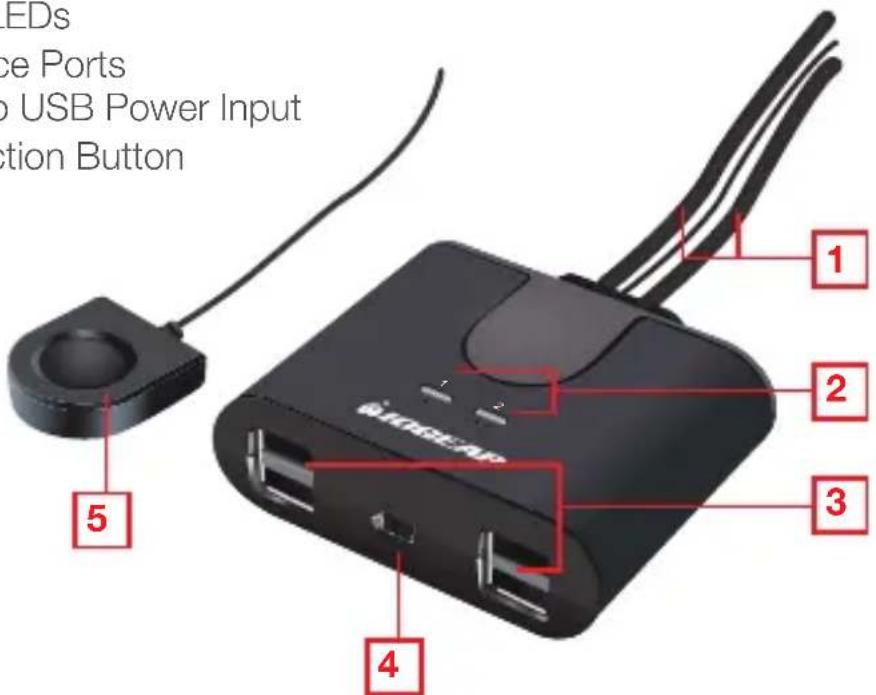
GUS402
- PC Port 1 / 2
- PC Indicator LEDs
- USB 2.0 Device Ports
- Optional Micro USB Power Input
- Console Selection Button
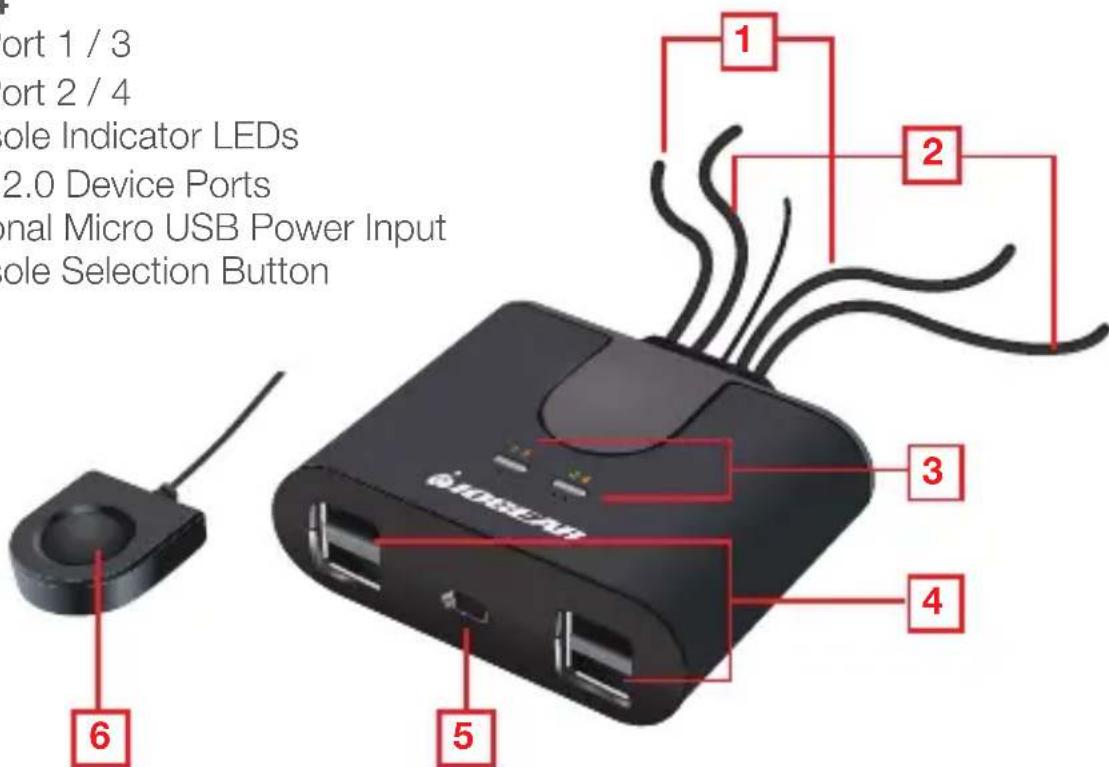
GUS404
- PC Port 1 / 3
- PC Port 2 / 4
- Console Indicator LEDs
- USB 2.0 Device Ports
- Optional Micro USB Power Input
- Console Selection Button
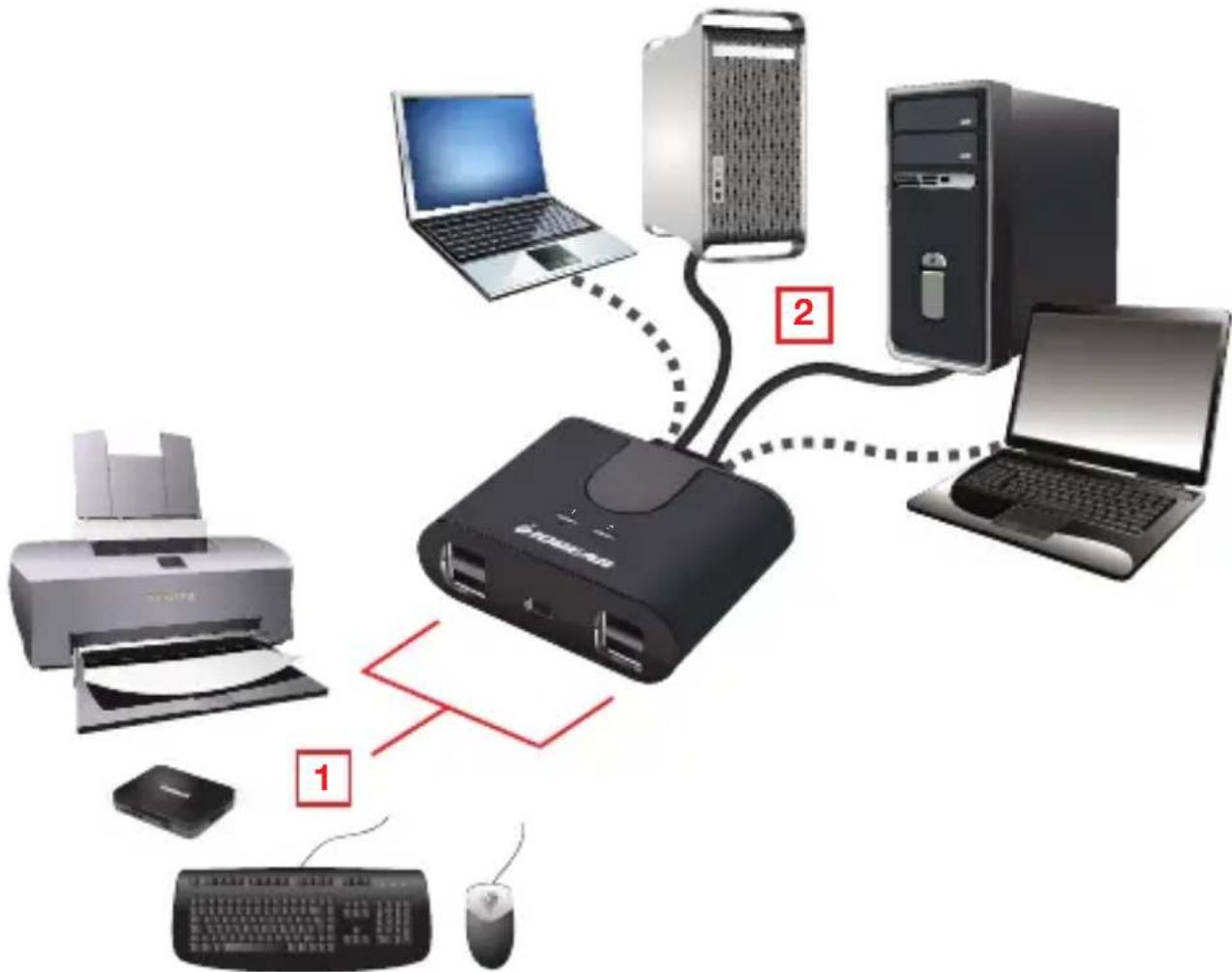
Hardware Installation
3
Step 1
Plug your USB 2.0 compatible devices into the ports on the front of the unit.
Step 2
Plug the console USB cables into at USB2.0 compatible port on each computer.
flowchart
graph TD
    A["打印机"] --> B["打印机"]
    B --> C["电脑"]
    C --> D["电脑"]
    D --> E["电脑"]
    E --> F["电脑"]
    F --> G["电脑"]
    G --> H["电脑"]
    H --> I["电脑"]
    I --> J["电脑"]
    J --> K["电脑"]
    K --> L["电脑"]
    L --> M["电脑"]
    M --> N["电脑"]
    N --> O["电脑"]
    O --> P["电脑"]
    P --> Q["电脑"]
    Q --> R["电脑"]
    R --> S["电脑"]
    S --> T["电脑"]
    T --> U["电脑"]
    U --> V["电脑"]
    V --> W["电脑"]
    W --> X["电脑"]
    X --> Y["电脑"]
    Y --> Z["电脑"]
Note: The GUS402/GUS404 are hot-swappable and do not require the computers to be turned off during connection, or when attaching devices to the USB ports.
Operation
Connected Devices:
The GUS402 and GUS404 allow a single keyboard, mouse, printer, USB compatible monitor, hard disk drive, or other USB 2.0 device to be shared by multiple computers. To share a non-USB monitor, IOGEAR offers adapters (sold separately) enabling VGA, DVI or HDMI monitors to be connected to a USB 2.0 port. The following part numbers are available at www.iogear.com and other retail locations:
| GUC2015V | for VGA monitors |
| GUC2020DW6 | for DVI monitors |
| GUC2025H | for HDMI monitors |
Switching between computers:
Press the Console Selection Button to switch the USB ports connection to the next computer in sequence. The Console Indicator LEDs will light to indicate which computer is connected.
FCC Statement
This equipment has been tested and found to comply with the limits for a Class B digital device, pursuant to Part 15 of the FCC Rules. These limits are designed to provide reasonable protection against harmful interference in a residential setting. This product generates, uses, and can radiate radio frequency energy and, if not installed and used as directed, it may cause harmful interference to radio communications. Although this product complies with the limits for a Class B digital device, there is no guarantee that interference will not occur in a particular installation.
CE Compliance
This device has been tested and found to comply with the following European Union directives: Electromagnetic Capability (2004/108/EC), Low Voltage (2006/95/EC) and R&TTED (1999/5/EC).
Limited Warranty
WE'RE HERE TO HELP YOU! NEED ASSISTANCE SETTING UP THIS PRODUCT?
Make sure you:
- Visit www.iogear.com for more product information
- Visit www.iogear.com/support for live help and product support
Warranty Information
This product carries a 3 Year Limited Warranty. For the terms and conditions of this warranty, please go to http://www.iogear.com/support/warranty Register online at http://www.iogear.com/register
Important Product Information
Product Model Serial Number
Contact
Toll Free: 866-946-4327 (USA) Phone: 949-453-8782 Address: 19641 Da Vinci, Foothill Ranch, CA 92610, USA Web Site: www.iogear.com E-mail: support@iogear.com
- Package Contents
- GUS402
- GUS404
- System Requirements
- For PC Users
- For MAC Users
- Hardware Installation
- 3
- Step 1
- Step 2
- Operation
- Connected Devices:
- Switching between computers:
- FCC Statement
- CE Compliance
- Limited Warranty
- WE'RE HERE TO HELP YOU! NEED ASSISTANCE SETTING UP THIS PRODUCT?
- Warranty Information
- Important Product Information
- Contact
Brand : IOGEAR
Model : GUS404
Category : Computer Accessories