
598 - Hi-Fi System MERIDIAN - Free user manual and instructions
Find the device manual for free 598 MERIDIAN in PDF.


| Product Type | DVD Audio Player (Hi-Fi System) |
| Model | Meridian 598 |
| Dimensions (W x H x D) | 321 mm x 88 mm x 332 mm (12.64" x 3.46" x 13.07") |
| Weight | 6.4 kg (14 lbs) |
| Power Supply | 100-240 V, 50-60 Hz, 25 W |
| Disc Formats Supported | DVD-Audio, DVD-Video, CD Audio (CD-DA), CD-R, Video CD (VCD), CVCD, MP3 CD-ROM |
| Audio Outputs (Digital Version) | 1 x digital coax (SPDIF/IEC1937/MHR) for 2-channel up to 96kHz/24-bit; 3 x digital coax for multi-channel; 1 x Meridian Smart Link (SVGA) for 6-channel PCM |
| Audio Outputs (Analogue Version) | 1 x digital coax (SPDIF/IEC1937/MHR); 6 x analogue RCA phono for multi-channel |
| Video Outputs (Component Version) | Composite, S-video, Component (progressive optional) |
| Video Outputs (SCART Version) | Composite, S-video, or RGB via SCART; Composite on separate output |
| Audio Decoding | Dolby Digital, DTS, MPEG Audio, MLP (Meridian Lossless Packing) |
| THD | Less than -93 dBFS |
| Noise | Less than -93 dBFS |
| Display | 12-character dot-matrix display; switchable on-screen display |
| Communications | 2 x 5-pin 240° DIN sockets for Meridian system link; RS232 control |
| Parental Lock | Yes, with password (default 7890) |
| Region Code | Set to local region; can be changed by dealer |
| Cleaning Instructions | Use a slightly damp cloth; no abrasive cleaners; disconnect power before cleaning |
| Safety Warnings | Do not expose to dripping or splashing; do not place liquid-filled objects or naked flames on unit; ensure adequate ventilation; avoid direct sunlight and heat sources |
| Spare Parts / Repairability | No user-serviceable parts inside; return to dealer for service; guarantee void if tampered |
| General Information | Part of Meridian 500 Series; designed and manufactured in UK by Meridian Audio Ltd |
Frequently Asked Questions - 598 MERIDIAN
User questions about 598 MERIDIAN
0 question about this device. Answer the ones you know or ask your own.
Ask a new question about this device
Download the instructions for your Hi-Fi System in PDF format for free! Find your manual 598 - MERIDIAN and take your electronic device back in hand. On this page are published all the documents necessary for the use of your device. 598 by MERIDIAN.
USER MANUAL 598 MERIDIAN
Meridian 598 DVD Audio Player
Meridian 598 DVD Audio Player User Guide
Sales and service in the UK
Meridian Audio Ltd
Stonehill
Stukeley Meadows
Cambs
PE29 6EX
England
Tel (01480) 445678
Fax (01480) 445686
World Wide Web
http://www.meridian-audio.com
Part no: 598
Copyright © 2002 Meridian Audio Ltd
Dolby, Pro Logic, AC-3, and the double-D symbol are trademarks of Dolby Laboratories Licensing Corporation. Lucasfilm, THX, and THX Cinema are registered trademarks of Lucasfilm Ltd. DTS is a registered trademark of Digital Theatre Systems. MP3 is a registered trademark of Thompson Multimedia. 2+2+2 is a registered trademark of MDG. BoothroydlStuart Meridian, Meridian, Meridian Digital Theatre, Meridian Lossless Packing, MHR, MHR Smart Link, the MHR logo, and MLP are
Sales and service in the USA
Meridian America Inc
3800 Camp Creek Parkway
Building 2400
Suite 122
Atlanta
GA 30331
Tel (404) 344 7111
Fax (404) 346 7111
registered trademarks of Meridian Audio Ltd.
MHR: This product incorporates copyright protection technology covered by certain patent applications and intellectual property of Meridian Audio Ltd. This technology is provided for the express purpose of securely containing copyright audio within the Meridian System only. Reverse engineering or circumvention of this protection is strictly prohibited.
This product incorporates copyright protection
Designed and manufactured in the UK by
Meridian Audio Ltd
Stonehill
Stukeley Meadows
Cambs
PE29 6EX
England
technology that is protected by method claims of certain U.S. patents and other intellectual property rights owned by Macrovision Corporation and other rights owners. Use of this copyright protection technology must be authorized by Macrovision Corporation, and is intended for home and other limited viewing uses only unless otherwise authorized by Macrovision Corporation. Reverse engineering or disassembly is prohibited.
This guide was produced by Human-Computer Interface Ltd, http://www.interface.co.uk
Contents
Introduction 1
Introduces the 598 DVD Audio Player, and gives examples of two suggested configurations using it in conjunction with other Meridian products.
The Meridian 598 DVD Audio Player .... 2 The Meridian 500 Series .... 4 Sample configurations .... 5 Specification and accessories .... 7
Using the DVD player 9
Provides step-by-step instructions on operating the DVD player, using either the front panel or the Meridian System Remote.
Front panel .... 10 Meridian System Remote .... 11 Switching on and off .... 12 Playing a disc .... 13 Playing DVD-Audio discs .... 15 Locating a specific title, chapter, or track .... 17 Stopping, pausing, and resuming play .. 19 Disc information .... 20
Advanced features 23
Describes the more advanced features of the DVD player.
Selecting options from a menu .... 24 Fast and slow-motion play .... 25 Playing repeatedly .... 26 Selecting an audio soundtrack .... 27 Displaying subtitles .... 28 Selecting the camera angle .... 29 Setting the parental lock .... 30
Configuring disc options 33
Explains how to set up the default options using the DVD player's Setup menu.
Setting default options 34
Selecting the default languages ..... 36
Selecting the display settings 38
Selecting the audio settings 46
Region codes 50
Setting up the DVD player 51
Describes how to unpack and install the DVD player.
Unpacking 52
Positioning the DVD player 53
Back panel 54
Connecting video 57
Connecting audio 58
Connecting to other Meridian equipment 60
Configuring the DVD player 61
Explains how to configure the DVD player to suit the other equipment in your system.
Choosing standard settings 62
Configuring the 598 DVD Audio Player .. 63
Troubleshooting 65
Provides suggested solutions to typical problems.
General operating problems 66
Audio problems 68
Video problems 69
Maintenance 70
Service and guarantee 71
Glossary 73
Index 77
| vi | Preface |
Introduction
The 598 DVD Audio Player combines Meridian's extensive experience of producing audiophile CD players with their close involvement in the development of DVD formats, resulting in an outstanding DVD player that takes full advantage of the capabilities of DVD-Video, DVD-Audio and CD.
This chapter gives an overview of the 598 DVD Audio Player, and explains its key features.
For instructions on setting up the unit turn to Setting up the DVD player, page 51. Once the DVD player has been set up refer to the next chapter, Using the DVD player, for information about playing discs.
The Meridian 598 DVD Audio Player
The design philosophy of the Meridian 598 DVD Audio Player is simply to deliver the highest possible quality audio and video signals from every format of DVD and CD. It combines Meridian's extensive experience in producing audiophile compact disc players with their experience in applying state-of-the-art digital processing techniques to audio and video equipment, resulting in a DVD/CD player that delivers reference quality signals whatever the media.
The 598 DVD Audio Player uses a precision DVD-ROM drive with the audio and video data read asynchronously and then triple buffered to isolate output timing from the mechanics of the drive. The audio data is also de-jittered using precise master oscillators to give a clear, open, authoritative sound.
Meridian Smart Link
The 598 DVD Audio Player (digital version) incorporates MHR Smart Link, a unique multi-channel link, which allows it to provide a six-channel PCM stream to a compatible digital surround controller, such as the Meridian 568 Digital Surround Processor, for the highest possible quality sound.
An additional feature of the Meridian multi-channel link is that it provides intelligent stream content information from the 598 DVD Audio Player, allowing the digital surround processor to select an appropriate preset depending on whether the source is music or a movie soundtrack, and whether it is two-channel or multi-channel.
DVD-Audio
DVD-Audio discs now make music recordings available with significantly higher quality than Audio CDs, with up to 24-bit resolution and up to 192kHz sampling rate. The 598 DVD Audio Player is capable of taking advantage of the highest-quality audio available on DVD-Audio discs, and by using the proprietary MHR (Meridian High Resolution) encoding scheme, in conjunction with Meridian DSP Loudspeakers, allows the signal to be preserved at full resolution throughout the reproduction chain.
The 598 DVD Audio Player also provides access to the range of additional features available on the DVD-Audio format, including still images and video sequences.
DVD-Video
The multi-channel soundtracks on DVD-Video discs are encoded and compressed, using the Dolby Digital, MPEG, or DTS encoding systems. The 598 DVD Audio Player uses mathematically precise digital signal processing (DSP) to decode the soundtrack into discrete channels. The video is processed using broadcast-quality video circuitry, with the ability to reproduce both PAL and NTSC video formats and to convert between them if the television or video display is not capable of displaying both formats.
Audio CDs
Because the CD catalogue is so comprehensive, CD will be the major source of music enjoyment for many years. In designing the 598 DVD Audio Player no compromises have been permitted in reproducing conventional audio CDs. The 598 uses triple buffering to remove the timing variations that typically occur with reading data from an audio CD, resulting in an extremely clear and authoritative sound.
The 598 can also play DTS CDS. The DTS bitstream is provided on the digital outputs for subsequent decoding.
MP3 audio CDs
The 598 DVD Audio Player can also play CD-ROMs containing directories of MP3 audio files. This provides a convenient way of archiving record collections to achieve up to 10 times the capacity of a conventional CD where sound quality is not of primary importance.
MP3 discs can be created from a computer using appropriate MP3 encoding software and a CD-ROM writer. Generate the MP3 files with a data rate of at least 128Kbits per second. Group the tracks into folders to create separate albums on the disc. Do not create folders within folders.
Tracks and albums are played in the order in which they are recorded onto the CD-ROM.
The Meridian 500 Series
The Meridian 500 Series is a unique system of digital, analogue, and video components designed to meet the demand for absolute quality, ease of use, and lasting value.
The flexibility of the Meridian 500 Series is such that you can assemble a system as simple or as advanced as you need, perfectly suited to your musical and environmental requirements, and which can be added to or changed at a later date should your requirements change.
Each Meridian 500 Series component is housed in a matching slim line case. Front panel controls provide access to the most important functions, and the full range of functions is available from the appropriate remote control using a simple and intuitive control interface.
500 Series communications
The Meridian 500 Series includes a sophisticated communications link, to ensure that any configuration of units will work together as a fully integrated system.
The 500 Series communications system allows you to control any combination of units using a single remote, and ensures that your commands from the remote are interpreted unambiguously. The communications system also allows you to extend your hi-fi system into two or three rooms, with the ability to control the sources in one room from the controller in another room.
Professional features
The 500 Series also includes features for professional users, including RS232 computer control.
The following pages give examples of two suggested configurations incorporating the 598 DVD Audio Player, to illustrate the flexibility of the Meridian 500 Series.
Sample configurations
Meridian Digital Theatre™
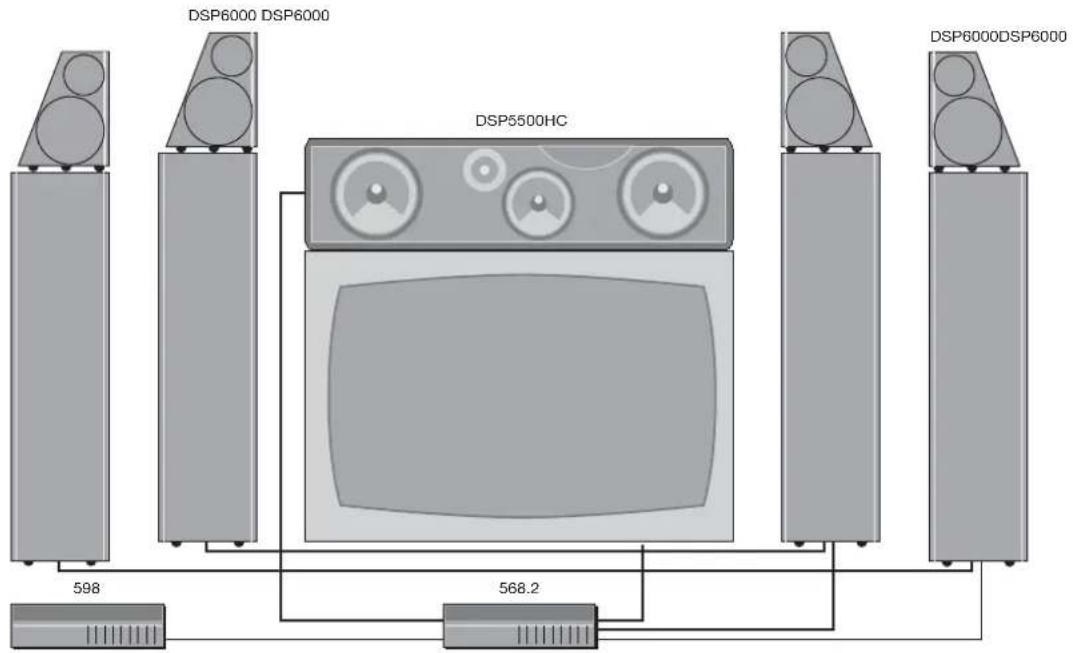
The Meridian 598 DVD Audio Player is ideal for use with a Meridian 568 Digital Surround Processor as the heart of a Meridian Digital Theatre system.
The Meridian 568 Digital Surround Processor can connect to the 598 using the Meridian Smart Link, giving full multi-channel reproduction from DVD-Audio discs.
Meridian Digital Music System
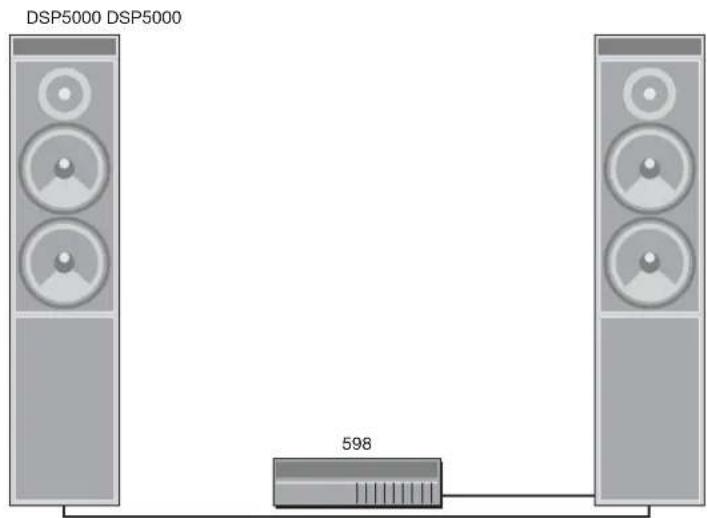
The 598 DVD Audio Player can be connected directly to Meridian DSP loudspeakers, as these include DSP volume and tone controls.
In addition to playing DVD-Audio and DVD-Video discs, the 598 can play audio CDs, VCD, CVCD, and MP3 files on CD-ROM.
By careful design Meridian have achieved a sound quality with audio CDs which approaches that of their dedicated CD players.
Specification and accessories
Specification
Audio outputs 1 x digital coax SPDIF/IEC1937/MHR
(digital version) for two-channel up to 96kHz, 24-bit
Dolby Digital (AC-3), or DTS bitstreams.
3 x digital coax for multi-channel.
1 x Meridian Smart Link SVGA
connector providing six-channel PCM.
Audio outputs 1 x digital coax SPDIF/IEC1937/MHR
(analogue version) for two-channel up to 96kHz, 24-bit
Dolby Digital (AC-3), or DTS bitstreams.
6 x analogue RCA phono for
multi-channel.
All audio outputs use reclocking to give extremely low jitter.
Video outputs PAL or NTSC encoded as Composite
(component version) S-video, or Component. Component
progressive available as an option.
Video outputs PAL or NTSC encoded as Composite
(SCART version) or S-video. SCART connector
selectable as Composite, S-video, or RGB.
Black-level setup adjustable as 0 or
7.5IRE (Extended Black function).
16:9 and 4:3 displays supported.
Screen saver programmable by user.
Communications
Two 5 pin 240° DIN sockets.
Full RS232 control and status for
custom integration or automation.
Processing DSP software provides error correction
and on-board decoding for Dolby
Digital, DTS, MPEG Audio, and MLP.
Conversion 24-bit Delta Sigma.
Formats DVD-Video, DVD-Audio, CD Audio
(CD-DA), CD-R, Video CD (VCD),
CVCD, and MP3.
THD Less than -93dBFS.
Noise Less than -93dBFS.
Display 12-character dot-matrix display.
Indicators for CD, DVD, MLP, and
Repeat. Switchable custom on-screen
display allows instant review of disc
status.
Mechanism Dual-lens pickup with red laser and 5-axis motor.
Power Universal supply 100-240V, 50-60Hz, 25W. Normally off automatic low-noise fan cooling.
Finish Black textured enamel and glass.
Dimensions 321mm x 88mm x 332mm (12.64" x 3.46" x 13.07") (W x H x D).
Weight 6.4kg (14lbs).
Available accessories
The following accessories are available from your dealer:
○ Power cord Europe.
○ Power cord Canada and USA.
If you have problems purchasing these items, you can order them direct from Meridian Audio Limited, who can also supply a range of cables suitable for connecting the 598 DVD Audio Player to other equipment.
Using the DVD player
This chapter provides a summary of the functions of the DVD player in order to identify the controls which you use to operate the unit.
It also describes the basic aspects of using the DVD player to play DVD-Video, DVD-Audio, and audio CDs.
Unless otherwise specified, each function is available from the front panel or the Meridian System Remote.
Front panel
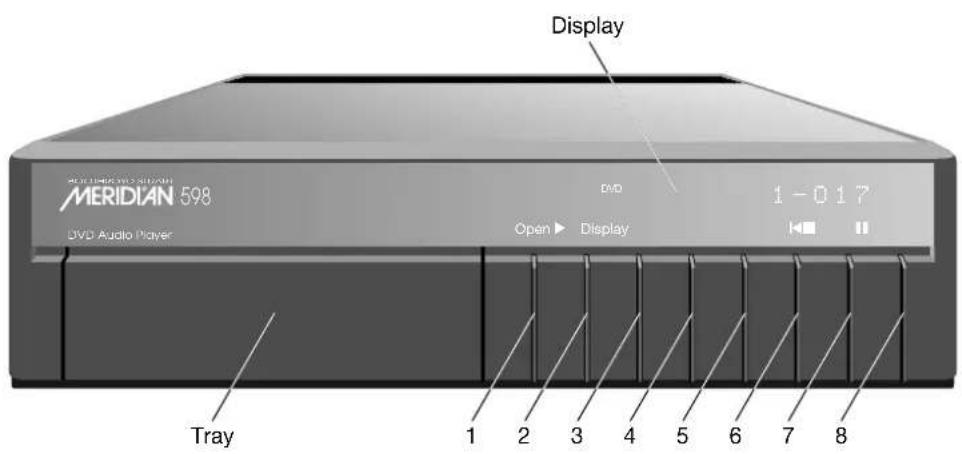
1 Open
Opens and closes the disc tray.
2 ▶ (Play)
Plays a selected chapter/track.
3 ■ (Stop)
Stops the disc.
4 II (Pause)
Pauses the disc.
5 Display
Selects the information displayed.
6 ◀ (Previous)
Selects the previous chapter/track.
7 ▶ (Next)
Selects the next chapter/track.
8 Off
Switches to standby.
Meridian System Remote
1 ◀◀ (Fast reverse)
Scans in reverse.
Page
Previous DVD-A page.
2 ◀ (Previous)
Selects the previous chapter/track.
Angle
Switches the camera angle.
3 ■ (Stop)
Stops the disc.
+Function
Opens/closes the disc tray.
4 ▶ (Play)
Plays the disc.
Audio
Changes the audio track.
5 ▶▶ (Fast forward)
Scans forward.
Slow/Page
Plays in slow motion, or next DVD-A page.
6 ▶ (Next)
Selects the next
chapter/track.
OSD
On-screen display.
7 II (Pause)
Pauses the disc.
8 Subtitle
Turns subtitles on/off.
+Function
Subtitle language.
9 Source keys
Select a source.
10 Number keys
Select a title, chapter, or track by number.
11 Repeat/A-B
Repeats a chapter/track or section.
12 Off
Switches to
standby.
13 Volume keys
Change the volume.
14 Mute
Mutes or restores the sound.
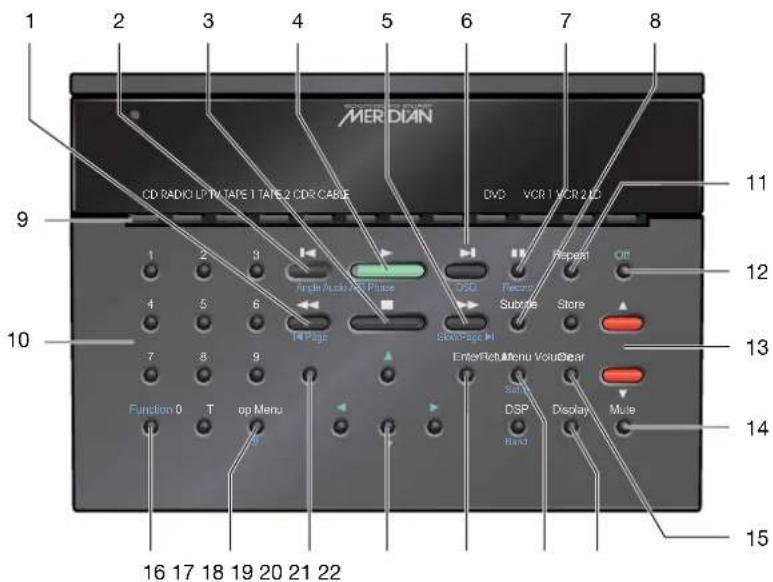
Hold down Function to access the functions shown in blue on the remote.
15 Clear
Clears an entry.
16 Function
Selects a special function.
17 Top Menu
Displays the top menu.
#
Title/timecode entry.
18 Return
Returns from a menu.
19 Menu keys
Select or change parameters.
20 Enter
Confirms a menu selection.
21 Menu
Displays the disc menu.
Setup
Displays the Setup menu.
22 Display
Changes the front panel display.
Switching on and off
When not playing, the DVD player should be left in the standby state. This uses a minimal amount of electricity, but ensures that the components of the DVD player operate at maximum efficiency from the moment you start.
After switching on the 598 runs an initialising cycle which takes a few seconds. Do not press any keys until the standby display appears.
If you are not going to use the DVD player for several days you should switch the unit off completely at the rear panel, and disconnect it from the AC power supply.
To switch on from standby
- Press Open, ■, or ▶ (front panel), or select a source on the remote.
If the DVD player is part of a Meridian system it will automatically switch on any other unit in the system, such as the 568 Digital Surround Processor and Meridian DSP Loudspeakers.
To switch to standby
- Press Off (front panel or remote).
The display will show:

If you have other Meridian 500 Series equipment connected to the DVD player, these units will also switch to standby.
If a disc is currently playing, switching to standby will stop the disc, and the disc can safely be left in the unit.
Always remove any discs before moving or shipping the 598.
Playing a disc
Most DVDs start playing automatically when you close the tray. Some DVDs are double-sided, and need to be turned over during play.
DVD-Audio discs usually behave differently depending on whether you start them by closing the tray, or pressing ▶. Depending on how the disc is authored the typical behaviour is:
- Inserting the disc and pressing ▶ will start playing immediately from group 1, track 1.
- Inserting the disc and closing the tray will display the Top Menu.
To insert a disc
- Press Open (front panel) or Function ■ (remote) to open the tray.
- Place the disc, label side up, in the tray as shown opposite.
Ensure that the disc is correctly seated in the tray before closing the tray.
- Press Open (front panel), Function ■ (remote) or ▶ to close the tray.
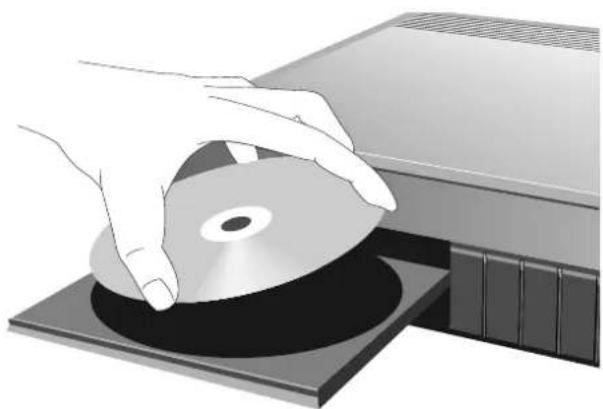
natural_image
Illustration of a hand holding a CD into a tray, next to an open CD or DVD (no text or symbols visible)To play the disc
- Press ▶ (front panel or remote).
The on-screen display shows ▶ and the front-panel display shows the title and chapter, or track number:
For example, on chapter 1 of title 2:
2-01
To move to the next or previous chapter or track
- Press ▶ or ◀ (front panel or remote).
The on-screen display shows ▶ or ◀
Note: These functions are normally disabled while the disc's copyright notice is being displayed.
To move to the next or previous album (MP3 discs only)
- Press ▼ or ▲ (remote).
The on-screen display shows √ or △
Playing DVD-Audio discs
The Meridian 598 DVD Audio Player allows you to take full advantage of all the benefits provided by DVD-Audio discs, including one or more of the following features:
○ Higher-quality audio up to 24 bit, 192kHz.
○ Longer playing times.
○ Multi-channel surround sound.
○ Additional materials, such as photographs, lyrics, and track listings.
○ Videos.
Each DVD-Audio disc may offer a different selection of these features, depending on the material on the disc.
A DVD-Audio disc is identified by the following icon on the on-screen display:

Groups
DVD-Audio content can be divided into up to nine groups, similar to titles on Video discs. Each group can contain up to 99 tracks. Groups can be used to separate content, like high-quality audio from movie sections. Alternatively groups might provide the same content in different forms, such as multi-channel and stereo.
Some DVD-Audio discs may contain hidden groups that require a password for access. Follow the instructions given on the disc.
Still images
DVD-Audio tracks often include still images, called pages, which are displayed while the disc is playing. These images may include text or menu buttons. According to the disc these images may be browsable, selected from menus, or change automatically.
DVD-Video compatibility
To allow them to be played on DVD-Video players with no DVD-Audio capability, some DVD-Audio discs provide one or more groups with the content recorded in DVD-Video format; typically AC-3 or DTS. Selecting one of these with the Meridian 598 DVD Audio Player will generally give poorer quality audio than selecting the DVD-Audio group.
In some cases a DVD-Video group will be used to provide a music video or video sequence. Some discs provide DVD-Audio on one side and DVD-Video on the other.
To locate a group by number
- Press # (Function Top Menu on the remote).
The on-screen display prompts you to enter the group number:

- Enter the group number using the number keys (remote).
- Press ▶ or Enter (remote) to play from the group number you have specified.
To display DVD-Audio images
- Press Page ▶l (Function ▶▶ on the remote) or l◀ Page (Function ◀◀ on the remote) to step between the browsable images.
Note: These functions will only work if the disc has been authored to allow browsing.
To display the Top Menu
- Press Top Menu (remote).
The player will go to the disc menu, if it exists.
To resume play:
- Press Top Menu again.
Locating a specific title, chapter, or track
Normally, DVD-Video discs are divided into one or more titles, and the titles are subdivided into chapters. Audio CDs are divided into tracks.
The DVD player allows you to play an entire disc, or start playing from any chapter or track number. While a disc is playing you can go back to the start of the chapter or track or skip to the start of the next chapter or track.
You can also enter a specific title, chapter, or track number to locate the appropriate title or chapter/track directly.
To play starting from a particular chapter or track
- Press ▶I or ◀ (front panel or remote) to step through the track numbers until the display shows the track you want to play:
For example, to play chapter 23:
The on-screen display shows or
After a short delay the chapter or track you have selected will start to play.
To locate a chapter or track by number
- Press # (Function Top Menu on the remote) twice.
The on-screen display prompts for you to enter the chapter or track number:

- Enter the number of the chapter (DVD) or track (audio CD) using the number keys (remote).
The number is displayed as you enter it:

- Press ▶ or Enter (remote).
The DVD player starts playing from the chapter or track number you specified.
To locate a title by number
- Press # (Function Top Menu on the remote).
The on-screen display prompts you to enter the title number:

- Enter the title number using the number keys (remote).
- Press ▶ or Enter (remote) to play from the title number you have specified.
To play from a specified timecode
- Press # (Function Top Menu on the remote) three times until the on-screen display prompts for a timecode:

- Enter the timecode using the number keys (remote).
- Press ▶ or Enter (remote) to play from the timecode you have specified.
Stopping, pausing, and resuming play
You can stop or pause a disc, and then resume play at the same position.
To stop playback
- Press ■ (front panel or remote).
The on-screen display shows ■.
To resume after stopping
- Press ▶(front panel or remote).
The disc will resume playing from the position where you stopped playback, and the on-screen display shows
To pause playback
- Press III (front panel or remote).
The on-screen display shows 11.
To step forward frame by frame
If you are playing a DVD-Video disc you can step forward, frame by frame, while it is paused:
- Press II (front panel or remote).
The on-screen display shows ▶!!
To continue after pausing
- Press ▶ (front panel or remote).
To return to the start of the disc
- Press ■ (front panel or remote) while the disc is stopped.
The on-screen display shows ▪ and the disc is reset to the start.
Disc information
You can display information about a disc on the front panel or on-screen display.
To change the front panel display
- Press Display (front panel, or remote if the 598 is controller).
The display will step between the following options:
Display Example
| Title and chapter numbers (DVD-Video disc) or track number (audio CD). | 1-37 |
| Chapter number and elapsed disc time. | 37 1:17:54 |
| Chapter number and elapsed track time. | 37 0:02:54 |
| Chapter number and remaining disc time. | 37 2:31:19 |
| Blank. Blanks all Meridian displays if the 598 is controller. |
To display disc information on screen
- Press OSD (Function ▶ on the remote).
• To display the second DVD on-screen display, press twice.
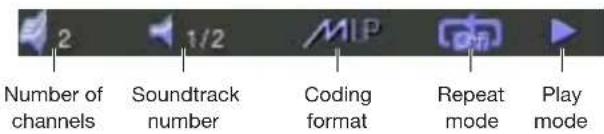
The following table shows the information displayed for each disc format:
DVD-Video 1
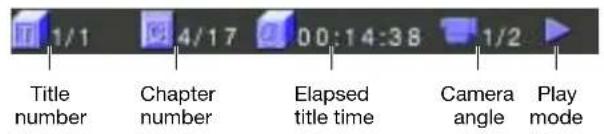
DVD-Video 2
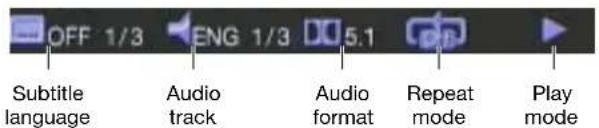
Audio CD
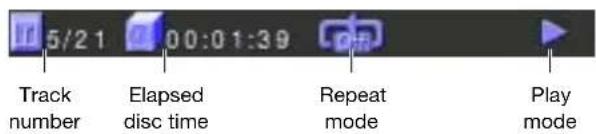
DVD-Audio 1
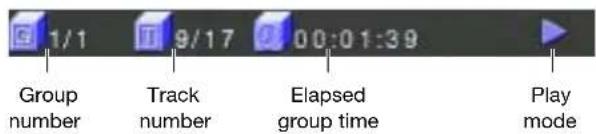
DVD-Audio 2
MP3 audio CD
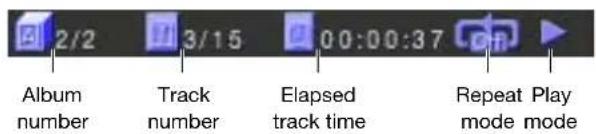
The album number is not displayed if there is only one album.
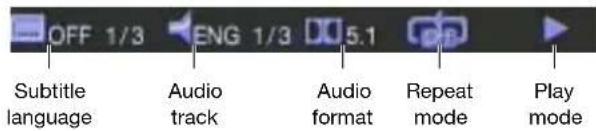
To display information about DVD-Video disc features
- Press OSD (remote) twice while a DVD disc is playing.
This shows the following information about DVD features:
To turn off the on-screen display
- Press OSD (remote) again.
| 22 Using the DVD player |
Advanced features
This chapter describes the more advanced features of the 598 DVD Audio Player. These features are not essential if you simply want to enjoy DVDs or audio CDs, but they allow you to take full advantage of the range of options available with the DVD format.
Note: Many of the advanced features depend on the content of the particular DVD disc you are playing.
The advanced features described in this chapter are only available using the Meridian System Remote.
Selecting options from a menu
DVDs generally provide a Top Menu, which provides access to the content on the disc.
Many DVD-Video discs also provide a disc menu, which allows you to select additional sections or special options.
To select a title or group using the Top Menu
- Press Top Menu to display the Top Menu on the screen.
- Press ▲, ▼, ◀, or ▶ to highlight a title or group, and press Enter to select it.
The DVD/CD player starts playback from chapter 1 of the title (DVD-Video disc) or track 1 of the group (DVD-Audio disc) you selected.
Alternatively, press Return or Top Menu again to return to the original position on the disc.
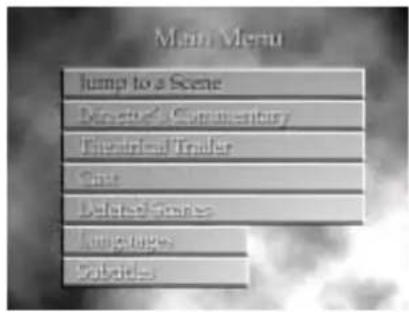
To select an option from the disc menu
- Press Menu to display the disc menu on the screen.
A typical disc menu looks like this:
- Press ▲, ▼, ◀, or ▶ to highlight an option, and press Enter to select it.
Alternatively, press Return to exit from the menu without selecting an option.
Fast and slow-motion play
You can play back DVD-Video discs faster than normal, at between twice and eight times normal speed, or in slow motion, at between one-half and one-sixteenth of normal speed.
You can also play back audio CDs faster than normal.
Note: The sound is muted when playing back DVD-Video discs faster or slower than normal.
To play DVD-Video discs or audio CDs faster than normal
- Press ▶▶ or ◀◀ during playback.
Each time you press the key the speed switches between twice and eight times normal speed, as shown by the on-screen display:

Note: Fast playback is not available for MP3 discs.
To play DVD-Video discs in slow motion
- Press Slow (Function ▶) during playback.
The speed switches between one-half, one-quarter, one-eighth, and one-sixteenth normal speed, as shown by the on-screen display:

To resume normal speed
- Press ▶.
Playing repeatedly
You can play back a specified title, chapter, track, or section of a disc repeatedly.
Repeat is not available for DVD-Audio discs.
To repeat a title, chapter, or track
- Select the title, chapter, or track you want to repeat.
- Press Repeat to switch between Ch. (chapter repeat), Title (title repeat), and Off (no repeat).
The current repeat mode is displayed on the on-screen display:

To repeat a specific section of a disc
- Press A-B (Function Repeat) at the beginning of the section you want to play back repeatedly.
The on-screen display shows A-:

- Press A-B again at the end of the section.
The on-screen display shows A-B:

The DVD player automatically returns to the start of the section and plays it back repeatedly.
To cancel the repeat press A-B a third time.
Selecting an audio soundtrack
You can select one of the audio soundtracks from those included on a DVD-Video disc during playback.
To display the current audio setting
- Press OSD (Function ▶I) twice to display the second on-screen display bar:

This gives the following information:
Information Examples
Soundtrack language ENG, FRE, GER, SPA. (when available)
Soundtrack number, and 2/3 total number of soundtracks
Recording system LPCM, MLP, DD, MPEG, DTS.
To select the audio setting
- Press Audio (Function ▶).
Each time you press Audio the next available soundtrack is selected.
To switch between stereo and multi-channel (DVD-Audio)
Some DVD-Audio discs allow you to switch between stereo and multi-channel. If this feature is available:
- Press Audio (Function ▶ on the remote).
The 598 will switch to the alternate format and restart the current track.
Displaying subtitles
Many DVD-Video discs include subtitles in up to 32 different languages. While you are playing a disc you can turn the subtitles on or off, and select the subtitle language from those provided on the DVD-Video disc.
To display the current subtitle setting
- Press OSD (Function ▶) twice to display the second on-screen display bar:

This gives the following information:
Information Examples
Subtitle language ENG, FRE, GER, SPA, OFF. when available
Subtitle number, and 2/3 total number of languages
To select the subtitle language
- Press Function Subtitle.
Each time you press Function Subtitle the next subtitle language is selected.
To turn subtitles on or off
- Press Subtitle.
The on-screen displays shows the current subtitle setting:

Selecting the camera angle
Some DVD-Video discs include scenes recorded from up to nine different camera angles, and you can select the camera angle while you are playing the disc.
To display the camera angle
- Press OSD (Function ▶l) to display the first on-screen display bar.
The camera angle icon shows the current camera angle and the total number of angles:

To select or change the camera angle
- Press Angle (Function I), while viewing a scene with multiple camera angles.
Each time you press Angle the next camera angle is selected after a short delay.
Setting the parental lock
Some DVD-Video discs are provided with a parental lock function to allow you to lock out playback of scenes whose content exceeds a specified rating until a password is entered.
To set the parental lock
- Press Setup (Function Menu) while the disc is stopped.
The Setup menu is displayed on the on-screen display:
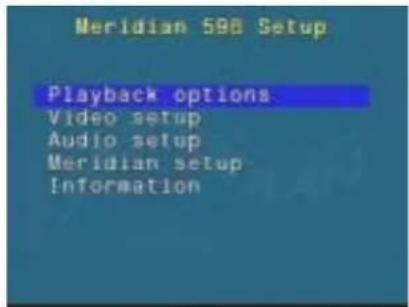
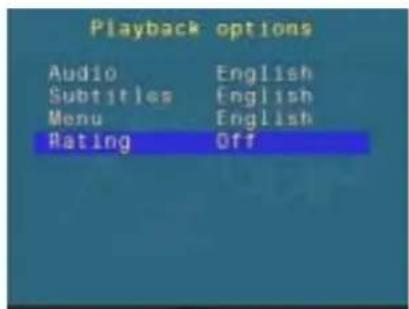
- Press Enter to select Playback options.
The Playback options menu appears.
- Press ▼ to highlight Rating and press Enter to select it:
The following screen prompts you to enter the password:
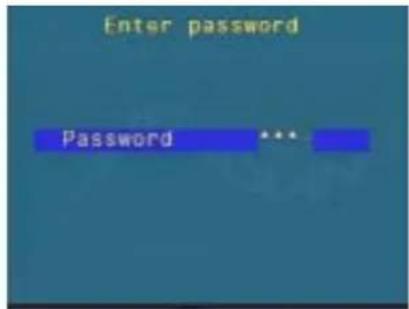
- Enter your four-digit password and press Enter.
Initially the password is set to 7890, but you can change it to any password you choose as described in To change the password, opposite.
The following screen then allows you to set the rating level:
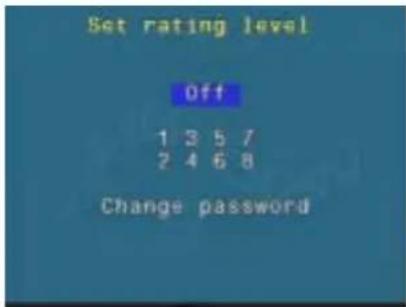
- Press ▲ or ▼ to highlight the rating level you want to set, or highlight Off to turn the parental lock off, and press Enter to select it.
Level 1 corresponds to general viewing, level 3 is equivalent to the USA movie rating PG, and level 8 corresponds to adult viewing.
The rating level you have set will be displayed in the Playback options menu.
To change the password
- Highlight Change password on the Set rating level screen and press Enter to select it.
The following screen allows you to specify the new password:
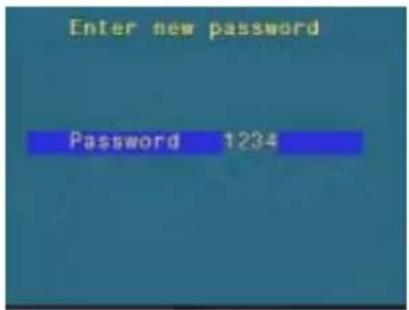
- Enter the four-digit password you want to use and press Enter to select it. The password cannot start with a zero.
Take care not to forget your password, or you will need to contact your Meridian dealer to reset it for you.
Configuring disc options
DVD-Video discs are capable of providing a wide range of options and special features.
This chapter explains how to use the options on the Setup menu to configure the operation of the 598 DVD Audio Player.
The options described in this chapter are only available using the Meridian System Remote.
Setting default options
The default options are divided into the following five menus of settings:
Menu Description
Playback options The audio, subtitle, and menu languages, and the parental rating.
Video setup The display settings.
Audio setup The audio settings.
Meridian setup Product configuration options.
Information The region code and engineering information.
You choose the menu of settings you want from the main Setup menu.
To display the Setup menu
- If necessary switch on the DVD player and press ■ if a disc is currently playing.
- Press Setup.
The main Setup menu will be displayed:
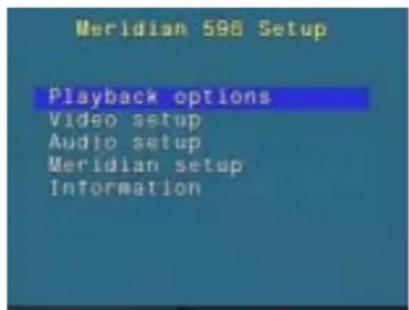
To select an option from a menu
- Press ▲ or ▼ to highlight the option you want:
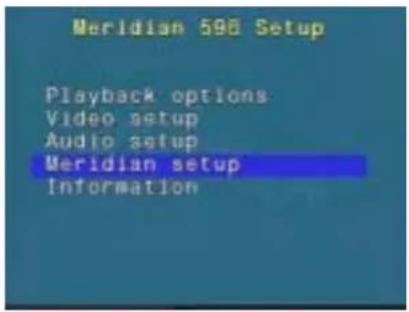
- Press Enter to select the option.
To return to the previous menu
- Press Return.
To exit from the setup menus
- Press Setup.
Selecting the default languages
The Playback options menu lets you change the default language for the audio soundtrack, subtitles, and on-screen menus, and the parental rating:
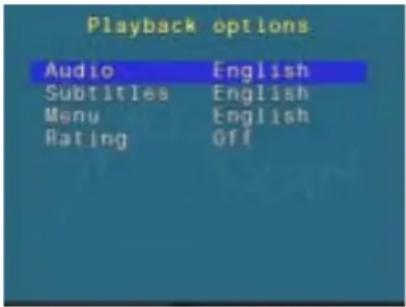
To select the default soundtrack language
Most DVD-Video discs include a selection of soundtrack languages. English is usually the default soundtrack language, but you can use the Audio language menu to set a different default language if you prefer.
- Highlight Audio in the Playback options menu, and press Enter.
The Audio language menu is displayed:
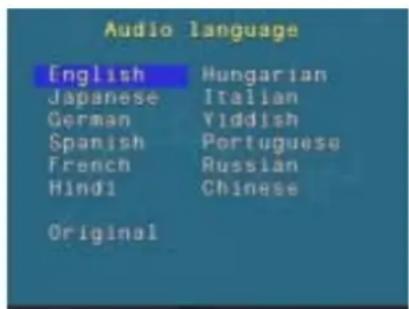
- Press ◀, ▶, ▲, or ▼ to highlight the default soundtrack language you want to use, or select Original to choose the original soundtrack language, and press Enter.
To set the default subtitle language
DVD-Video discs can include subtitles in up to 32 different languages.
The 598 DVD Audio Player allows you to select whether subtitles are displayed by default, and specify the preferred language if it is available on the disc.
- Highlight Subtitles in the Playback options menu, and press Enter.
The Subtitle language menu is displayed:
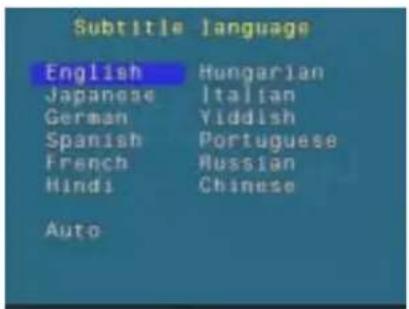
- Press ◀, ▶, ▲, or ▼ to highlight the language you want to use, and press Enter.
Alternatively, select Auto to automatically display subtitles in the specified audio language if no soundtrack is available for that language.
To select the disc menu language
The 598 DVD Audio Player allows you to choose the language for the disc menus.
- Highlight Menu in the Playback options menu and press Enter.
The Menu language menu is displayed:
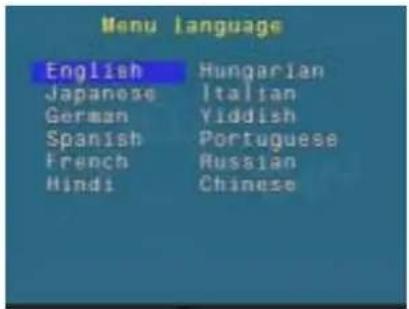
- Use ▲ or ▼ to highlight the language you want to use, and press Enter.
Selecting the display settings
The Video setup menu lets you change the video and operational settings of the 598 DVD Audio Player:
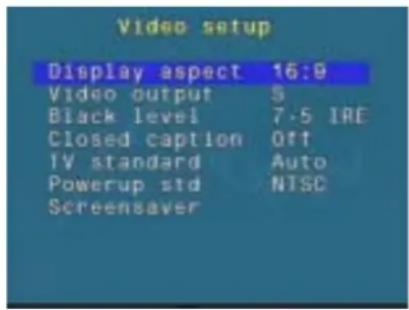
If your 598 has the progressive output or SCART options, additional menu options will be displayed to allow you to configure these outputs; see To set the progressive output options, page 43, or To set up SCART switching, page 44.
To specify your display format
You should set the Display aspect option to the format that your display can accommodate.
Select 16:9 if you have a widescreen display, or an external processor for picture formats.
If you have a standard 4:3 television you also have the choice of displaying widescreen pictures cropped to fill your television screen (pan-scan), or with black bars above and below the picture (letterbox).
- Highlight Display aspect in the Video setup menu, and press Enter.
The Display aspect ratio menu is displayed:
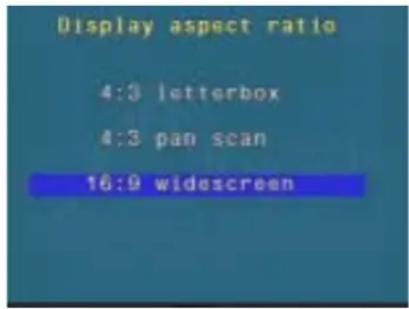
- Press ▼ or ▲ to specify the format of your TV, and press Enter.
Note: The pan-scan feature is not available on some discs, in which case letterbox format will be used.
To select the video output format
This option should be set according to which of the S-video or COMPONENT video outputs you are using.
- Highlight Video output in the Video setup menu, and press Enter.
The Video output menu is displayed. The options depend on which version of the 598 you have; see below.
- Press ▼ or ▲ to highlight the appropriate option, and press Enter.
Note: The option you select will not affect the composite output, which is always available.
Component version
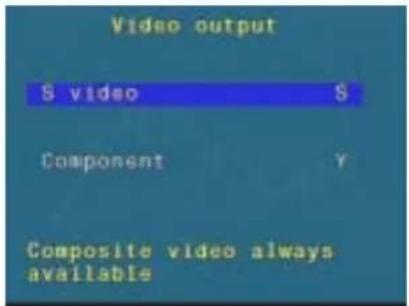
Choose S or Y to use the corresponding output.
SCART version
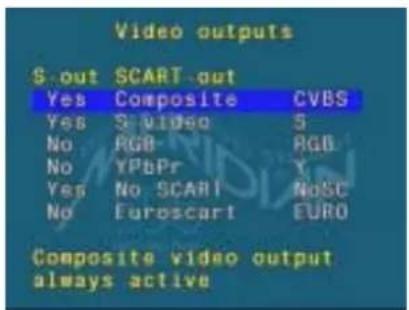
Choose CVBS or S to provide a composite video or S-video signal to the SCART socket. S-video is also available on the S-VIDEO OUT socket.
Choose RGB, Y, or EURO to provide the corresponding component video, and composite video on the SCART socket. S-video is not available with these options.
Note: The composite output is monochrome when EURO is selected.
NoSC is equivalent to S without the function select line, for two-room operation.
To select the black level for NTSC
- Highlight Black level in the Video output menu, and press Enter.
The Black level menu is displayed:
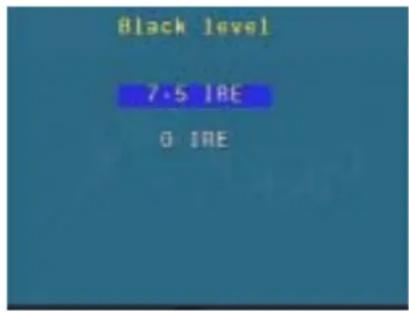
- Press ▼ or ▲ to highlight the appropriate option, and press Enter.
If you are using the Composite or S-video outputs of the DVD player select the 7.5 IRE option.
If you are using the component outputs select the option that matches your display.
If you are using the 598 DVD Audio Player to play both NTSC and PAL material the recommended setting is O IRE.
To select closed caption subtitles
Some DVD-Videos include closed caption subtitles, which provide a description of sound effects for the hard of hearing; for example “door creaks”.
- Highlight Closed caption in the Video setup menu, and press Enter.
The Closed captions menu is displayed:
- Press ▼ or ▲ to highlight On or Off, and press Enter.
To select the TV standard
DVD movies are produced in both PAL and NTSC television formats. The 598 DVD Audio Player is capable of converting between formats, to allow you to view DVD movies in either format even if your television is not capable of displaying that format. However the conversion process introduces some picture degradation, and may disable disc menu operation on some discs.
- Highlight TV standard in the Video setup menu, and press Enter.
The TV standard menu is displayed:
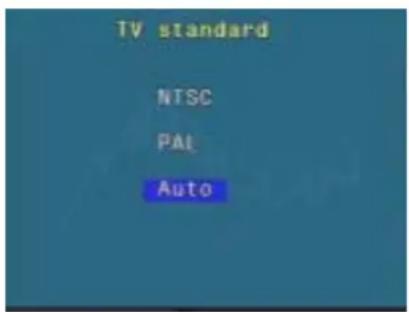
- Press ▼ or ▲ to highlight the option you want, and press Enter.
Choose Auto if your television can display both PAL and NTSC video, or choose NTSC or PAL to match the format supported by your television.
If your television is capable of displaying both formats the recommended setting is Auto, which supplies the unconverted video signal to the television.
A separate Powerup std option lets you specify the standard to be selected when you bring the 598 out of standby:
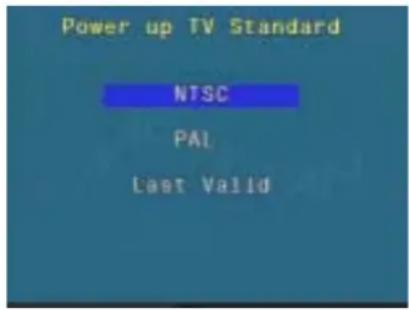
- Press ▼ or ▲ to highlight the option you want, and press Enter.
To select the screensaver options
- Highlight Screensaver in the Video Setup menu, and press Enter.
The Screensaver options menu is displayed:
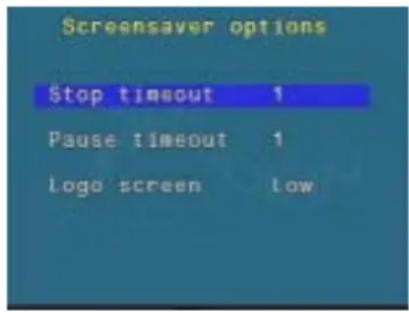
These options allow you to ensure that a static image does not remain on the display; this can damage certain types of display.
The Stop timeout automatically fades the screen to black if the 598 DVD Audio Player is left in stop mode and no key is pressed for the specified time.
The Pause timeout automatically switches the 598 from pause into stop mode if no key is pressed for the specified time.
- Highlight Stop timeout or Pause timeout in the Screensaver options menu, and press Enter.
The appropriate menu is displayed:
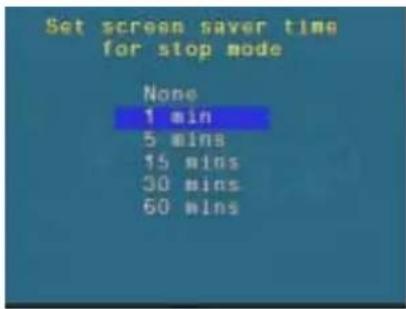
- Press ▼ or ▲ to select the timeout delay, and press Enter.
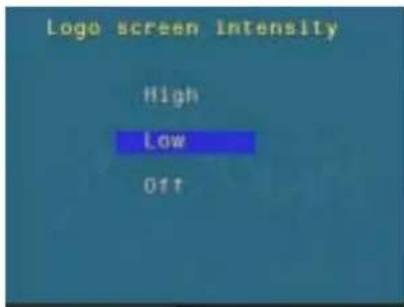
You can also adjust the intensity of the logo screen.
- Highlight Logo screen in the Screensaver options menu, and press Enter.
The Logo screen intensity menu allows you to select between High, Low or Off:
To set the progressive output options
If you have the component progressive version of the 598, the Video setup menu includes an additional Progressive out option to allow you to configure the Gamma correction, sharpness, and output mode to suit your display.
- Highlight Progressive out in the Video setup menu, and press Enter.
The Progressive output menu is displayed:
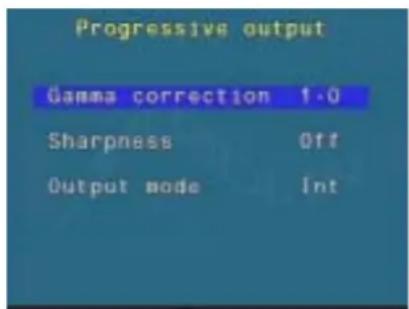
- Press ▲ or ▼ to highlight the option you want, and press Enter.
The Gamma correction affects the display brightness, and can be set to 1.0, 0.8, 0.9, or 1.1.
The Sharpness can be set to Off, Low, Medium, or High.
The Output mode can be set to Interlaced or Progressive.
Note: Due to restrictions imposed by the standard, copy-protected PAL discs will always be displayed with interlace on.
To set up SCART switching
If your 598 has a SCART connector, the Video setup menu includes an additional SCART setup menu to allow you to configure the SCART switching.
- Highlight SCART setup in the Video setup menu, and press Enter.
The SCART settings menu is displayed:
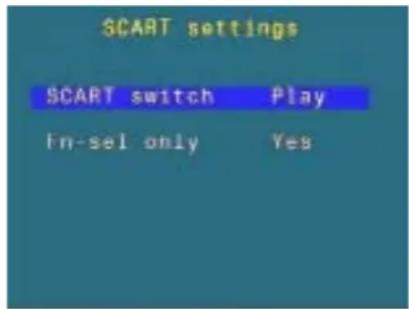
- Press ▼ or ▲ to highlight the appropriate option, and press Enter.
SCART switch
The SCART settings menu allows you to configure how the 598 controls the SCART switch output (pin 8), which usually switches a television or monitor to display the SCART output:
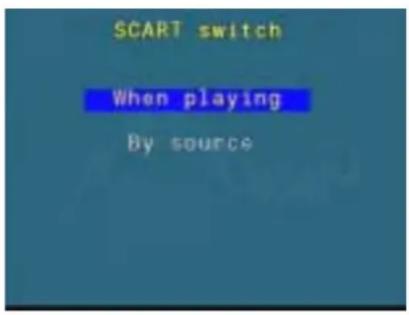
When playing activates the output when the 598 plays a video disc or is put into setup, and it remains active until the 598 is put into standby.
By source activates the output for sources which have the SCART setup menu set to On in the Source configuration menu. This allows you to set up a separate CD source which does not affect the television or monitor. For more information see To set configuration options, page 63.
Fn-sel only
This option is only required for certain televisions that do not correctly follow the SCART standard:
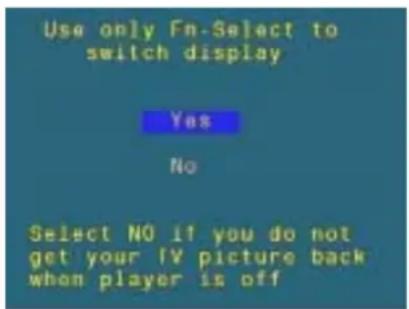
- Only select No if the television picture does not reappear when the 598 is put into standby.
Selecting the audio settings
The Audio setup menu lets you select the audio settings of the 598 DVD Audio Player:
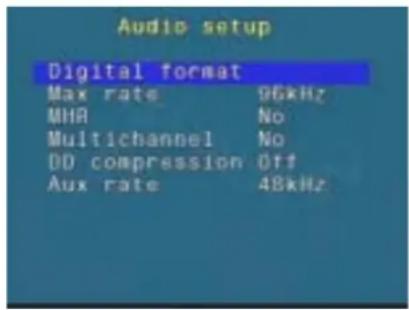
To select the digital audio format
This option allows you to specify whether you want the 598 DVD Audio Player to decode bitstreams, such as Dolby Digital or DTS, to PCM on specified outputs.
- Highlight Digital format in the Audio setup menu, and press Enter.
The following menu is displayed:
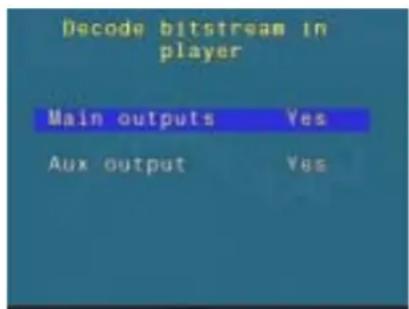
- Press ▼ or ▲ to highlight Main outputs or Aux output to select the output you want to configure, and press Enter.
Choose No if you are connecting the specified output to an external bitstream decoder.
Choose Yes if you are connecting the specified output to Meridian DSP loudspeakers or to a 568.2 or 861 via the MHR Smart Link, or to any equipment via an analogue link.
To specify the maximum sampling rate
This option allows you to specify the maximum decoding rate that the equipment connected to each set of outputs can accept,
- Highlight Max rate in the Audio setup menu, and press Enter.
The following menu is displayed:
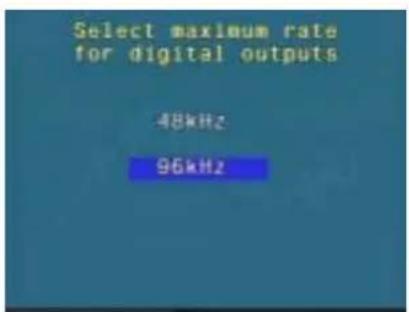
- Press ▼ or ▲ to choose between 48kHz and 96kHz, and press Enter.
Choose the appropriate rate for the decoder or preamplifier your 598 DVD Audio Player is connected to.
When playing audio at higher rates it will be downsampled to the rate you specified.
To select Meridian High Resolution
Meridian High Resolution is a proprietary format using encryption and anti-copy methods that allows secure transfer of audio streams between elements of a Meridian-only system for the purpose of playback only. It provides a secure copyright protection environment and has the very important benefit of lowering jitter and improving sound quality on all material.
This option allows you to specify whether MHR-encoding is used for either or both of the digital outputs.
- Highlight MHR in the Audio setup menu, and press Enter.
The following menu is displayed:
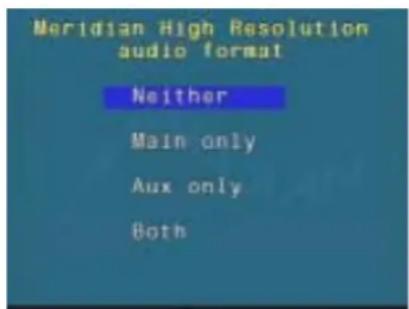
- Press ▼ or ▲ to highlight the option you want, and press Enter.
If you are connecting either of the outputs to a Meridian product that is MHR compliant, such as the 568, select the option for the corresponding output to take advantage of the MHR.
Select Neither if there are no MHR-compliant Meridian products in your system.
To enable the multi-channel outputs
- Highlight Multichannel in the Audio setup menu, and press Enter.
The following menu is displayed:
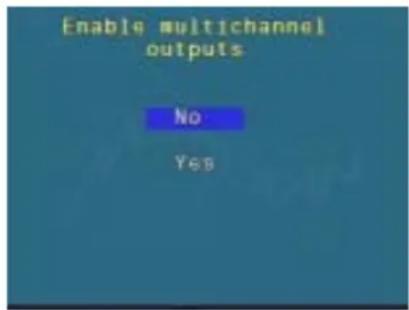
- Press ▼ or ▲ to select between No and Yes, and press Enter.
Select Yes if you want the 598 to provide multi-channel outputs, for connection to a decoder such as the Meridian 568 Digital Surround Processor via the MHR Smart Link, or to Meridian DSP Loudspeakers or a surround processor with multi-channel analogue or digital inputs via L/R, C/SUB, and SURROUND outputs.
To specify Dolby Digital compression
This option is useful for reducing the dynamic range of Dolby Digital soundtracks, such as when watching a film late at night.
- Highlight DD compression in the Audio setup menu, and press Enter.
The following menu is displayed:
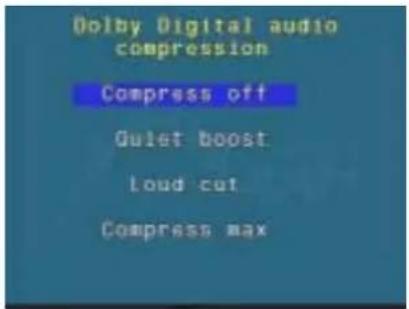
- Press ▼ or ▲ to select the option you want, and press Enter.
Choose Compress off for no Dolby Digital audio compression, Quiet boost to increase the level of quiet passages, Loud cut to reduce the level of loud passages, or Compress max for both low boost and high cut.
Region codes
For commercial reasons many DVDs are encoded with one or more region codes to identify the countries in which they can be used. Every DVD player is assigned a region code to determine which discs it can play.
The different parts of the world are divided into regions 1 to 6 as shown in the following diagram:
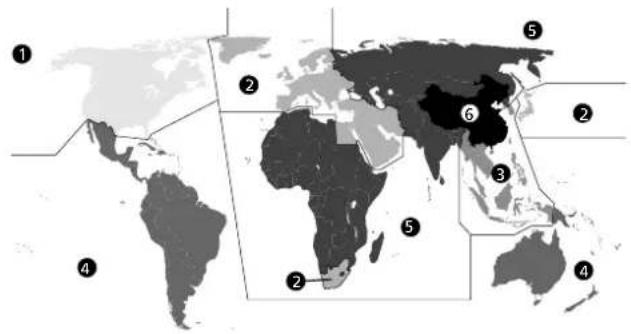
1 - USA, Canada
2 - Europe, Near East, South Africa, Japan
3 - South East Asia
4 – Australia, Central & South America
5 – Africa, Asia, Eastern Europe
6 – People's Republic of China
If you try to play a disc which is assigned to the incorrect region code then either a special screen or the following warning will be displayed:
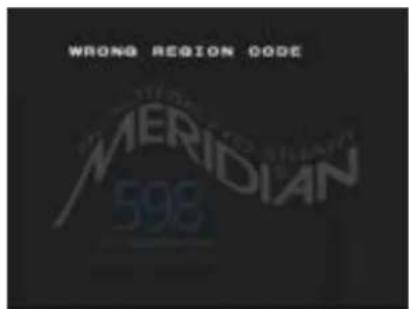
If your 598 DVD Audio Player is not set to your local region, please contact your dealer.
Setting up the DVD player
This chapter explains how to install the DVD player. It describes what you should find when you unpack the DVD player, how you should connect it to your other audio equipment, and the siting constraints.
You should not make any connections to the DVD player or to any other component in your system whilst the AC power supply is connected and switched on.
Unpacking
The 598 DVD Audio Player comes in a box containing the following components:
○ Meridian 598 DVD Audio Player.
○ Meridian System Remote.
○ Meridian comms lead.
○ Power cord.
○ This manual.
If any of these items are missing please contact your dealer. We suggest that you retain the packing in case you need to transport the unit.
Radio interference
FCC Warning: This equipment generates and can radiate radio frequency energy and if not installed and used correctly in accordance with our instructions may cause interference to radio communications or radio and television reception. It has been type-tested and complies with the limits set out in Subpart J, Part 15 of FCC rules for a Class B computing device. These limits are intended to provide reasonable protection against such interference in home installations.
EEC: This product has been designed to comply with the limits set out in EN55013 and EN55020C.

Positioning the DVD player
Safety warnings
○ Do not expose the unit to dripping or splashing.
○ Do not place any object filled with liquid, such as a vase, on the unit.
○ Do not place naked flame sources, such as lighted candles, on the unit.
To avoid overheating
Do not position the DVD player:
○ In direct sunlight.
○ Near heat sources, such as a radiator.
○ Directly on top of heat producing equipment, such as a power amplifier.
Ensure that air can flow through the cooling slots on the base and top cover.
To avoid interference
Do not position the DVD player:
○ Near strong magnetic radiation, such as near a power amplifier.
○ Near to a television, or where connecting cables may be subject to or cause interference.
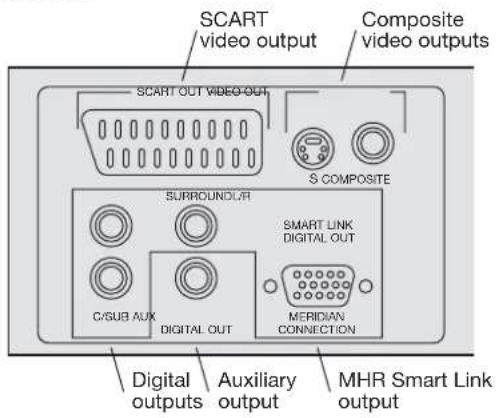
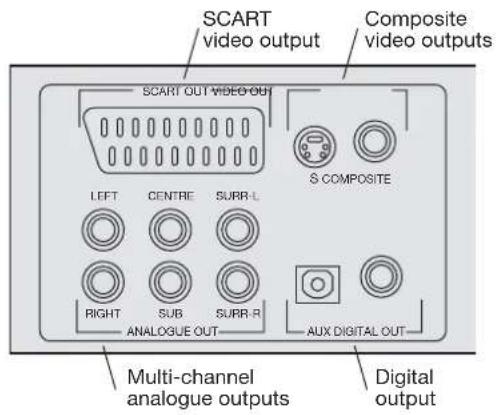
Back panel
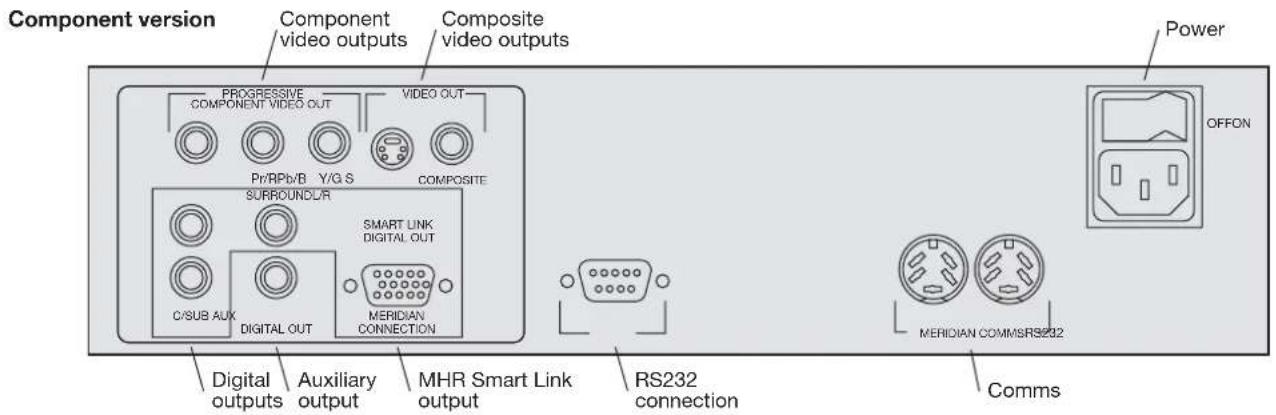
SCART version
Analogue version
Video connections
The DVD player provides three alternative video outputs to provide flexibility in connecting it to other equipment.
If your other equipment provides component video inputs, use these to produce the highest possible video quality.
The video connections should be made using suitable video cables, which are available from your dealer.
Component version
Use this output To connect to this
COMPONENT A monitor or projection television with VIDEO OUT component video inputs, progressive in the progressive version.
S
A
input, or a Meridian 562V.2 Multimedia Controller.
COMPOSITE A television or monitor with a
composite video input, or the composite video input on a Meridian 562V or 562V.2.
SCART version
Use this output To connect to this
SCART OUT RGB, S-video, or composite video inputs, depending on the option selected in the Video output menu.
S
A
monitor or television
input, or a Meridian 562V.2 Multimedia Controller.
COMPOSITE A television or monitor with a composite video input, or the composite video input on a Meridian 562V or 562V.2.
Audio connections
The following tables give details of the alternative audio outputs: on with an S-video
Digital version
Use this output To connect to this
L/R, C/SUB, A digital surround processor with multi-SURROUND channel digital inputs, or Meridian DSP loudspeakers.
Use this output To connect to this
AUX DIGITAL OUT A surround processor such as the Meridian 561 Digital Surround Processor, a digital preamplifier such as the Meridian 562V, or Meridian DSP loudspeakers.
SMART LINK A surround processor such as the 568.2 DIGITAL OUT Digital Surround Processor with a MHR Smart Link input.
Analogue version
Use this output To connect to this
ANALOGUE OUT A multi-channel analogue output from a DVD Audio player or projector.
AUX DIGITAL OUT A surround processor such as the Meridian 561 Digital Surround Processor, a digital preamplifier such as the Meridian 562V, or Meridian DSP loudspeakers.
The digital connections should be made with high quality 75Ω screened cable. Suitable cables are available from Meridian. We do not recommend using audio cables which do not have
adequate shielding or the correct impedance, or cables intended for UHF applications, as these do not provide adequate shielding in the 1–30MHz region.
The MHR Smart Link connection can be made with an SVGA computer monitor lead, available from PC dealers. A Smart Link cable is supplied with the 568.2. The analogue connections should be made with high-quality phono leads.
Communications connections
The following table gives details of the communications connections:
Use this connection To connect to this
COMMS Other Meridian 500 series equipment, or Meridian DSP loudspeakers.
RS232 connection For future expansion, to allow the 598 to be interfaced to a computer. Contact your dealer for more information.
Connecting video
Connecting using component video
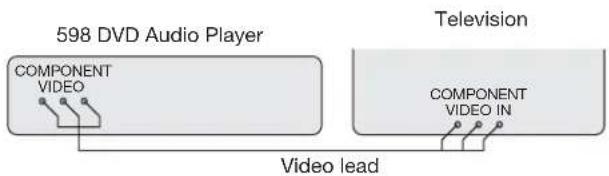
If your television, monitor, or projection system includes component video inputs, these will give the highest possible quality from DVD-Videos.
- Connect the appropriate component outputs from the 598 DVD Audio Player to the component video inputs, using suitable video cables.
- Set the Video output menu option to the appropriate option; see To select the video output format, page 39.
Connecting using S-video
- Connect the S-video output to a corresponding input on a television, monitor, or video control unit, using a suitable S-video cable.
The S-video output is recommended if your other equipment provides a choice of both S-video and composite inputs. - Leave the Video output menu option set to S; see To select the video output format, page 39.
Connecting using composite video
- Connect the composite video output to a corresponding input on a television, monitor, or video control unit using a suitable cable.
The composite video output is always active, irrespective of the Video output setting.
Connecting audio
To connect to a Meridian 568.2 or 861 Digital Surround Processor (digital version)

flowchart
graph LR
    A["568.2 Digital Surround Processor"] --> B["598 DVD Audio Player"]
    B --> C["Digital Surround Processor"]
    D["SMART LINK"] --> E["SVGA lead"]
    F["SMART LINK"] --> G["Digital lead"]
    H["598 DVD Audio Player"] --> I["L/R"]
    J["Digital Surround Processor"] --> K["DIGITAL IN"]
- Connect the SMART LINK output on the 598 to the SMART LINK input on the 568.2, using the Smart Link cable supplied with the 568.2
- In the Decode bitstream in player menu set the Main outputs option to Yes; see To select the digital audio format, page 46.
- Set the Multichannel menu option to Yes; see To enable the multi-channel outputs, page 48.
To connect to an 861 use three digital phono leads.
To connect to a digital surround processor (digital version)
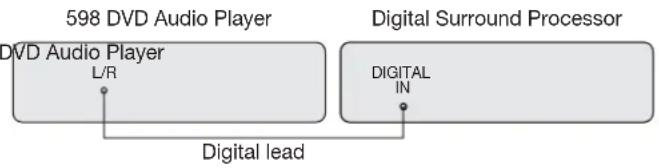
flowchart
graph LR
    A["598 DVD Audio Player"] -->|L/R| B["Digital Surround Processor"]
    B -->|IN| C["Digital lead"]
- Connect the L/R output on the 598 to the DIGITAL IN on the digital sound processor.
- In the Decode bitstream in player menu set the Main outputs option to No; see To select the digital audio format, page 46.
- Set the Multichannel menu option to No; see To enable the multi-channel outputs, page 48.
To connect to a processor with analogue multi-channel inputs (analogue version)
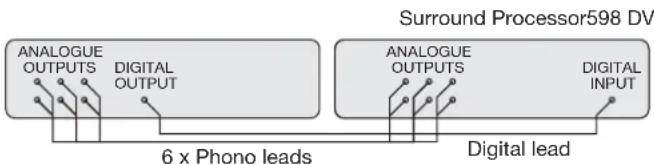
flowchart
graph LR
    A["ANALOGUE OUTPUTS"] --> B["6 x Phono leads"]
    C["DIGITAL OUTPUT"] --> B
    D["ANALOGUE OUTPUTS"] --> E["Digital lead"]
    F["DIGITAL INPUT"] --> E
    G["Surround Processor598 DV"]
- Connect the ANALOGUE OUT sockets from the 598 DVD Audio Player to the analogue multi-channel inputs on the surround processor.
- Optionally connect the AUX DIGITAL OUT socket to the surround processor's digital input, using a digital phono lead.
This gives you the option of decoding Dolby Digital and DTS bitstreams using the surround processor.
To connect to two Meridian DSP loudspeakers
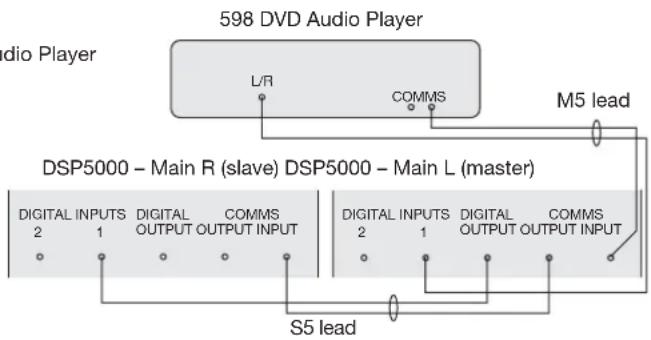
flowchart
graph TD
    A["598 DVD Audio Player"] -->|L/R| B["DSP5000 – Main R (slave) DSP5000 – Main L (master)"]
    A -->|COMMS| C["M5 lead"]
    A -->|S5 lead| D["S5 lead"]
    B --> E["Digital Inputs 2"]
    B --> F["Digital INPUT 1"]
    B --> G["Digital OUTPUT 1"]
    B --> H["Digital OUTPUT 2"]
    B --> I["Digital OUTPUT 1"]
    B --> J["Digital OUTPUT 2"]
    B --> K["Digital OUTPUT 1"]
    B --> L["Digital OUTPUT 2"]
    B --> M["Digital OUTPUT 1"]
- Connect the L/R output (digital version) or the AUX digital output (analogue version) from the 598 DVD Audio Player to DIGITAL INPUT 1 on the master DSP loudspeaker.
- Connect the DIGITAL and COMMS output from the master DSP loudspeaker to the DIGITAL and COMMS INPUTS on the slave DSP loudspeaker, using an S5 lead.
- In the Decode bitstream in player menu set the Main outputs option to Yes; see To select the digital audio format, page 46.
- Set the Multichannel menu options to No; see To enable the multi-channel outputs, page 48.
Connecting to other Meridian equipment
To connect to other Meridian 500 Series equipment
- Connect one of the COMMS sockets on the back panel of the DVD player to one of the COMMS sockets on another 500 Series unit, using the 500 comms lead provided with the 598 DVD Audio Player.
The sequence in which you connect the units is not important.
598 DVD Player 500 Series unit

flowchart
graph LR
    A["COMMS COMMS"] --> B["Node 1"]
    A --> C["Node 2"]
    D["COMMS COMMS"] --> E["Node 3"]
    D --> F["Node 4"]
Then configure the units with the following automatic setup procedure:
- Switch all the units to standby.
- Press Clear (remote).
Each unit will display:
Auto
One unit will then be designated as the controller, and display:
Controller
This is the unit that will respond to the remote.
All the other units will be configured as non-controllers, and display:
Not Con.
Your system is now set up and ready for use.
- If for any reason the automatic setup does not give the configuration you want, restore the default operation by selecting one of the standard types; see Choosing standard settings, page 62.
Note: Do not, under any circumstances, connect any equipment other than Meridian 500, 800, 600, or 200 Series to the socket marked COMMS on the back of the DVD player.
Configuring the DVD player
Many advanced aspects of the 598 DVD Audio Player can be configured to alter the way it operates with the other Meridian equipment in your system.
These settings are initially set to standard values, which are suitable for most situations, and this chapter describes how to restore the standard settings.
It then gives details of the more advanced settings and explains how to change them.
Choosing standard settings
The DVD player provides four standard settings, called Types, which configure the 598 into the most commonly needed configurations.
Choosing one of the four Types overrides any other configuration you may have performed, and so can be used to reset the configuration of the unit.
Types 1 and 2 are for use with multi-channel 96kHz surround processors; choose Type 1 if you have a Meridian 568.2 or 861, or Type 2 if you have a non-Meridian processor. Types 0 and 3 are for use with surround processors without a multi-channel input; choose Type 0 if you have a system that does not support 96kHz, or Type 3 if you have a Meridian 96kHz surround processor.
The following table gives full details of each Type:
Type Main output Aux output
0 PCM, 48kHz Bitstream
1 PCM, 96kHz, multi-channel, MHR Bitstream, MHR
2 PCM, 96kHz, multi-channel Bitstream
3 Bitstream, 96kHz, MHR
Bitstream
All Types set the video output to S-video.
To restore the standard settings
- Switch the 598 to standby.
- Hold down Off (front panel).
After a short delay the display will show:
Type, wait...
- Press ◀ or ▶ on the front panel to change the Type number.
For example, if you select Type 1 the display shows:
Type 1
- Wait until the display shows:
Typing, wait
The display then shows:
Type 1
- Press Off to switch back to standby.
- Switch on again to use the 598 with the standard setting you have selected.
Configuring the 598 DVD Audio Player
To configure specific options
- Highlight Meridian setup in the Setup menu, and press Enter.
The Meridian setup menu will be displayed:
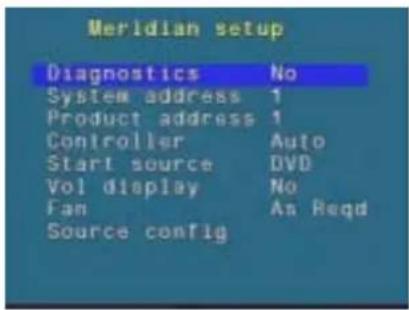
To set configuration options
The configuration options are generally set to an appropriate value when you reset the 598 to the standard settings, and you should not normally need to alter them; see Choosing standard settings, page 62.
The options are summarised in the following table for advanced use:
Option Default Description
Diagnostics No Set to Yes for a diagnostic display on the front panel display.
System address 1 Set to a value from 1 to 8.
Product address 1 Set to a value from 1 to 8.
Controller Auto Specifies whether the DVD player is controller, not controller, or set automatically.
Start source DVD Specifies which source is selected when switching on from standby.
Vol display No Specifies whether the DVD player displays the volume for the system.
Fan As Set to Always to keep the fan required permanently on, or As required to use it when necessary.
Source config Allows you to configure the sources; see below.
To configure the sources
If you are using the 598 DVD Audio Player as the controller in your Meridian system, you can use the Source config option on the Meridian Setup menu to configure each of the sources in your system.
- Highlight Source config in the Meridian Setup menu, and press Enter.
The Source configuration menu is displayed:
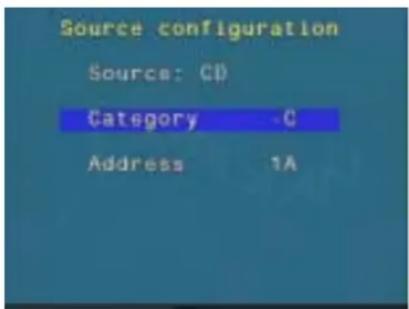
For each source you want to configure:
- Press the source key on the remote corresponding to the source you want to configure.
The Category, Address, and SCART switch options show the current values defined for that source. The SCART switch option only appears with the SCART version of the 598.
To change any option:
- Highlight the corresponding option in the Source configuration menu and press Enter, select the value you want to use, and press Enter to select it.
The Category identifies the type of Meridian product selected by the corresponding source. Specify -C for the current product, 1C for a Meridian CD player, 2C for a Meridian tuner, 3C for another Meridian DVD player, or NC for a non Meridian product such as a TV.
Normally the Address should be set to 1A. However if you have more than one Meridian product of the same type in your system you can use different source keys to select between them by assigning them different addresses. For example if you have two Meridian DVD players, assign one of them address 1A and the other address 2A.
For information about using the SCART switch option see To set up SCART switching, page 44.
Troubleshooting
This chapter provides suggested solutions to typical problems that may occur when setting up or using the DVD player.
If you are still not able to resolve a difficulty with the help of this guide and the suggestions in the following pages, please contact your Meridian dealer or Meridian Audio Ltd.
General operating problems
No lights are displayed when switching on
○ Check that your AC power supply is connected correctly.
○ Check that the ON/OFF switch on the back panel is in the ON position.
A question-mark symbol is displayed on the on-screen display
This indicates that the function you have selected is not currently available on the disc you are playing.
The on-screen display shows WRONG REGION CODE
This indicates that you are attempting to play a DVD-Video disc encoded for a region that is not supported by your DVD player.
The 598 unexpectedly switches from pause to stop, or fades the screen to black
This is caused by the pause or stop timeouts.
The pause timeout automatically switches the 598 from pause into stop mode if no key has been pressed for the specified time.
The stop timeout automatically fades the screen to black if the 598 is left in stop mode and no key has been pressed for the specified time.
The on-screen display shows PLEASE CHECK DISC when attempting to play a disc
○ Check that the disc is positioned correctly in the drawer; see To insert a disc, page 13.
○ If it is a single-sided disc check that the label is uppermost.
- Try playing another disc. If this disc works, check the problem disc for signs of dirt or damage.
There is interference on the radio and/or television when the DVD player is switched on
Before following the steps below, ensure all units are switched off.
If this equipment does cause or suffer from interference to/from radio or television reception then the following measures should be tried:
○ Reorient the receiving aerial (or antenna) or route the antenna cable of the receiver as far as possible from the 598 DVD Audio Player and its cabling.
○ Ensure that the receiver uses well-screened antenna cable.
○ Relocate the receiver with respect to the DVD player.
○ Connect the receiver and this product to different AC outlets.
Audio problems
There is no sound when playing a disc
○ Check that your preamplifier is switched on, and the volume is at an appropriate level.
☐ Check that the DVD player is connected correctly to the other components of your system; see Setting up the DVD player, page 51.
○ Check that the correct source has been selected on your preamplifier.
☐ Try playing another disc. If this disc works, check the problem disc for signs of dirt or damage.
☐ If you are using the DVD player with a preamplifier or active loudspeakers check that the Digital audio format menu option is set to PCM; see To select the digital audio output format, page 46.
Some of my speakers are quiet
Although the 598 is a multi-channel player, it is not a surround controller, so it does not have any surround sound processing modes, eg Trifield, built in. Playing a CD or a DVD with a two-channel soundtrack will result in sound coming from only the left and right outputs of the player. A multi-channel disc will be decoded to the appropriate number of channels.
Creating MP3 discs
MP3 discs can be created from a computer using appropriate MP3 encoding software and a CD-ROM writer.
Generate the MP3 files with a data rate of at least 128Kbits per second. Group the tracks into folders to create separate albums on the disc. Do not create folders within the folders.
Tracks and albums are played in the order in which they are recorded onto the CD-ROM. Usually this will be in alphabetical order of filename.
Video problems
The video picture is monochrome
If you are using the S-Video output, make sure that S is selected in the Video output menu
Otherwise, check your video cabling.
The video picture is bright blue or pink
If you are using the Component outputs, check that the Y option is selected in the Video output menu; see To select the video output format, page 39.
Otherwise, check your video cabling.
Picture whites appear green
○ Check that RGB is selected in the Video output menu; see To select the video output format, page 39.
Maintenance
Cleaning
When cleaning the DVD player bear in mind that the front of the DVD player is plastic, and the display panel and lid are glass.
Disconnect the power cord before cleaning the unit.
Note: Do not use abrasive cleaners on any part of the DVD player.
To clean the case, display panel, and keypad
- Use a slightly damp cloth.
Ensure that no water is allowed to get inside the case, and do not reconnect the power until you are certain that the DVD player is completely dry.
To clean the audio and video connections
The audio and video sockets on the back of the DVD player are gold-plated and need no cleaning if gold-plated phono plugs are used. Otherwise, it is recommended that you unplug and
reconnect the plugs at least once a year. A proprietary contact cleaner can be used to some advantage.
The electrical digital output should be treated in a similar way.
To change the mains fuse
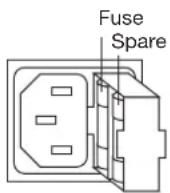
- Remove the mains connector, and pull out the drawer next to the power input to access the fuses.
Before replacing a blown fuse, it is best to ascertain the cause of the failure.
The fuse drawer includes a spare fuse. This should be replaced by a fuse of the same rating.
Service and guarantee
Service
The Meridian 500 Series of hi-fi components have been carefully designed to give years of untroubled service. There are no user-serviceable parts inside the case, nor do the units require any form of maintenance.
In the unlikely event that your DVD player fails to function correctly, it should be returned, in its original packaging, to your Meridian dealer.
In case of difficulty within the UK or USA please contact the appropriate sales and service address shown on page ii.
In case of difficulty outside the UK or USA, contact the importing agent for the territory. A list of Meridian agents outside the UK is available from Meridian Audio.
No responsibility can be accepted for the DVD player whilst in transit to the factory or an agent, and customers are therefore advised to insure the unit. When seeking service under guarantee, proof of the date of purchase will be required.
Guarantee
The 598 DVD Audio Player is guaranteed against defects in material and workmanship for two years from the date of purchase.
The guarantee is void if the 598 DVD Audio Player has been subject to misuse, accident, or negligence, or has been tampered with or modified in any way without the written authorisation of Meridian Audio Limited. Note: Connecting anything other than the correct network lead to the COMMS sockets may cause damage to the 598 DVD Audio Player which will not be covered by this guarantee. Attempted servicing by unauthorised people may also invalidate this guarantee. Labour and carriage charges are not covered unless by local agreement.
Outside the UK, local warranty liability is restricted to equipment purchased within the territory. Our agents outside the UK are only under contractual obligation to service under-guarantee equipment sold through them. They are entitled to make a non-refundable charge for any service carried out on other equipment.
This guarantee does not limit your statutory rights within the United Kingdom.
Glossary
AC-3
An alternative name for the Dolby Digital format.
Controller
The product in a Meridian system that uses the infra-red signals from the remote to control the system. The controller is normally chosen automatically, but the installer can override this.
CPPM
Content Protection for Prerecorded Media, a cryptographic method for protecting entertainment content when recorded on physical media.
CSS
Content Scrambling System, a method for protecting the copyright in recorded works.
Dolby Digital
A digital surround sound which provides five full-frequency range channels (left, centre, right, left surround, and right surround) and an additional Low Frequency Effects (LFE) channel which is band limited to 120Hz.
Dolby Surround
The encoding system used for the majority of movies on video and many TV broadcasts. Dolby Surround encoded material can be replayed with a surround decoder connected to an array of loudspeakers which normally include at least left, centre, right, and rear surround.
DTS
Digital Theatre Systems originally produced digital audio tracks for motion pictures. A version of this format adapted for consumer video and audio products is referred to as DTS Entertainment. Like Dolby Digital it provides five full-frequency range channels (left, centre, right, left surround, and right surround) and an additional Low Frequency Effects (LFE) channel.
DVD
Digital Video Disc or Digital Versatile Disc, a CD-sized disc with nearly 30 times the storage capacity of CD. It is capable of storing digital video, high-quality multi-channel audio, or computer data.
DVD-Audio
A DVD containing audio tracks in one or more of a number of alternative formats to provide higher quality or higher capacity than CD, multi-channel audio, together with the option of still images or video. A DVD-Audio disc may also include lower quality versions of the material in DVD-Video format for compatibility with players that do not support DVD-Audio.
DVD-Video
A DVD containing video tracks together with one or more soundtracks, menus, and other entertainment features.
Menus
The flexible system for choosing options and configuring settings in Meridian products. On the 598 the menus are controlled by the ◀, ▶, ▲, and ▼ keys on the front panel or the MSR.
MHR
Meridian High Resolution is a proprietary secure encoding format using encryption and anti-copy methods that allows secure transfer of audio streams between elements of a Meridian-only system for the purpose of playback only. It provides a secure copyright protection environment and has the very important benefit of lowering jitter and improving sound quality on all material.
MLP
MLP (Meridian Lossless Packing) is an audio format that increases the amount of information that can be recorded on a CD or DVD, without any loss of quality. MLP is a mandatory format for DVD-Audio.
MPEG Audio
MPEG Audio is a digital encoding system developed by the Motion Picture Expert Group. Like Dolby Digital it provides five full-frequency range channels and an additional Low Frequency Effects (LFE) channel.
MPEG Video
MPEG Video is a video compression technique used to encode video for DVD-Video discs.
MSF
Meridian Settings File, a file containing settings and User Types for one or more Meridian Products.
MSR
The Meridian System Remote, or handset.
OSD
On-screen display, which the 598 can superimpose on the video image to give information about the disc.
PCM
Pulse Code Modulation, the method used to encode music digitally, as used on audios CDs.
Source
An input to the system, such as CD or TV. The Meridian 500 and 800 Series provide 12 named sources, corresponding to the names of the 12 source keys on the MSR.
Type
A standard configuration of the DVD/CD player. Selecting a Type resets any configuration changes.
| Glossary |
| 76 |
Index
A A-B (remote) 26
accessories 8
advanced features 23
ANALOGUE OUT 56
audio CDs 17
on-screen display 21
audio connections 55, 58
Audio language menu 36
audio settings
selecting 27
Audio setup menu 34, 46
automatic setup 60
AUX DIGITAL OUT 56
B back panel 54
Black level menu 40
C camera angle, selecting 29
changing the display 20
chapters 17
cleaning 70
COMMS connection 56
communications connections 56
COMPONENT outputs 55
component video, connecting 57
components 52
COMPOSITE output 55
composite video, connecting 57
configuration options 63
connecting
audio 58
to Meridian 500 Series
equipment 60
video 57
connections
audio 55
communications 56
video 55
controller, setting 60
D default options 34
digital audio formats 46
DIGITAL OUT 56
disc information 20
disc menu 24
disc menu language, selecting 37
disc options, configuring 33
display
flashing 12
front panel 20
display (continued)
on-screen 21
selecting formats 38
Display aspect ratio menu 38
Dolby Digital compression, specifying 49
DVD information, displaying 21
DVD-Audio discs
groups 15
images 15, 16
DVD-Video discs 17
camera angle 29
locating groups by number 16
F fast play 25
flashing display 12
front panel controls 10
front panel display 20
fuse, replacing 70
G guarantee 71
Information menu 34
interference, avoiding 53
L language
screen displays 37
soundtracks 36
subtitles 36
letterbox format 38
M maintenance 70
maximum sampling rate, specifying 47
Menu key 24
Menu language menu 37
Meridian 500 Series 4
Meridian 500 Series operation, setting 60
Meridian 568.2 Digital Surround Processor, connecting 58
Meridian Digital Music System 6
Meridian Digital Theatre™ 5
Meridian DSP loudspeakers, connecting to 59
Meridian High Resolution, selecting 47
Meridian setup menu 34
Meridian System Remote 9, 11
MHR option 47
MP3 discs 14
creating 3, 68
moving between albums 14
multi-channel link 2
multi-channel outputs, enabling 48
multi-channel, switching from stereo 27
○ on-screen display 20, 21
disc information 20
DVD information 21
outputs
analogue 56
audio 55
composite 55
digital 55
S-video 55
SCART 54, 55
video 55
overheating 53
P pan-scan 38
parental lock, setting 30
password, changing 31
pausing playback 19
Playback options menu 34, 36
playing 13
a specific chapter or track 17
a specific title 18
faster than normal 25
from a specified timecode 18
in slow motion 25
Progressive output menu 44
progressive output options, setting 43
R radio interference 52
region codes 50
repeating 26
RS232 connection 56
S S-video
connecting 57
output 55
safety warnings 53
sample configurations
Meridian Digital Music System 6
Meridian Digital Theatre™ 5
SCART
output 55
switching 44, 64
screensaver timeouts 42
service 71
Setup menu 34
slow-motion play 25
SMART LINK DIGITAL OUT 56
soundtracks
default language 36
selecting 27
Source configuration menu 64
sources, configuring 64
specification 7
standard settings 62
standby 12
stepping forward frame by frame 19
stopping playback 19
Subtitle language menu 37
subtitles 28
closed caption 41
default language 36
language 28
settings 28
turning on or off 28
T timecode, playing from 18
titles 17
locating by number 18
selecting from the title menu 24
Top Menu 16, 24
tracks 17
tray, opening and closing 13
troubleshooting 65
TV standard, selecting 41
U unpacking 52
V ventilation 53
video connections 55, 57
video output format, selecting 39
Video output menu 39
Video setup menu 34, 38, 39
- Meridian 598 DVD Audio Player User Guide
- Sales and service in the UK
- Sales and service in the USA
- Designed and manufactured in the UK by
- Contents
- Introduction 1
- Using the DVD player 9
- Advanced features 23
- Configuring disc options 33
- Setting up the DVD player 51
- Configuring the DVD player 61
- Troubleshooting 65
- Introduction
- The Meridian 598 DVD Audio Player
- Meridian Smart Link
- DVD-Audio
- DVD-Video
- Audio CDs
- MP3 audio CDs
- The Meridian 500 Series
- Series communications
- Professional features
- Sample configurations
- Meridian Digital Music System
- Specification and accessories
- Specification
- Communications
- Available accessories
- Using the DVD player
- Front panel
- Open
- ▶ (Play)
- ■ (Stop)
- II (Pause)
- Display
- ◀ (Previous)
- ▶ (Next)
- Off
- Meridian System Remote
- ◀◀ (Fast reverse)
- ◀ (Previous)
- ▶ (Play)
- ▶▶ (Fast forward)
- ▶ (Next)
- II (Pause)
- Subtitle
- Source keys
- Number keys
- Repeat/A-B
- Off
- Volume keys
- Mute
- Clear
- Function
- Top Menu
- Return
- Menu keys
- Enter
- Menu
- Display
- Switching on and off
- To switch on from standby
- To switch to standby
- Playing a disc
- To insert a disc
- To play the disc
- To move to the next or previous chapter or track
- To move to the next or previous album (MP3 discs only)
- Playing DVD-Audio discs
- Groups
- Still images
- DVD-Video compatibility
- To locate a group by number
- To display DVD-Audio images
- To display the Top Menu
- Locating a specific title, chapter, or track
- To play starting from a particular chapter or track
- To locate a chapter or track by number
- To locate a title by number
- To play from a specified timecode
- Stopping, pausing, and resuming play
- To stop playback
- To resume after stopping
- To pause playback
- To step forward frame by frame
- To continue after pausing
- To return to the start of the disc
- Disc information
- To change the front panel display
- To display disc information on screen
- To display information about DVD-Video disc features
- To turn off the on-screen display
- Advanced features
- Selecting options from a menu
- To select a title or group using the Top Menu
- To select an option from the disc menu
- Fast and slow-motion play
- To play DVD-Video discs or audio CDs faster than normal
- To play DVD-Video discs in slow motion
- To resume normal speed
- Playing repeatedly
- To repeat a title, chapter, or track
- To repeat a specific section of a disc
- Selecting an audio soundtrack
- To display the current audio setting
- Information Examples
- To select the audio setting
- To switch between stereo and multi-channel (DVD-Audio)
- Displaying subtitles
- To display the current subtitle setting
- To select the subtitle language
- To turn subtitles on or off
- Selecting the camera angle
- To display the camera angle
- To select or change the camera angle
- Setting the parental lock
- To set the parental lock
- To change the password
- Configuring disc options
- Setting default options
- Menu Description
- To display the Setup menu
- To select an option from a menu
- To return to the previous menu
- To exit from the setup menus
- Selecting the default languages
- To select the default soundtrack language
- To set the default subtitle language
- To select the disc menu language
- Selecting the display settings
- To specify your display format
- To select the video output format
- Component version
- SCART version
- To select the black level for NTSC
- To select closed caption subtitles
- To select the TV standard
- To select the screensaver options
- To set the progressive output options
- To set up SCART switching
- SCART switch
- Fn-sel only
- Selecting the audio settings
- To select the digital audio format
- To specify the maximum sampling rate
- To select Meridian High Resolution
- To enable the multi-channel outputs
- To specify Dolby Digital compression
- Region codes
- Setting up the DVD player
- Unpacking
- Radio interference
- Positioning the DVD player
- Safety warnings
- To avoid overheating
- To avoid interference
- Back panel
- Video connections
- Audio connections
- Digital version
- Use this output To connect to this
- Analogue version
- Communications connections
- Use this connection To connect to this
- Connecting video
- Connecting using component video
- Connecting using S-video
- Connecting using composite video
- Connecting audio
- To connect to a Meridian 568.2 or 861 Digital Surround Processor (digital version)
- To connect to a digital surround processor (digital version)
- To connect to a processor with analogue multi-channel inputs (analogue version)
- To connect to two Meridian DSP loudspeakers
- Connecting to other Meridian equipment
- To connect to other Meridian 500 Series equipment
- Configuring the DVD player
- Choosing standard settings
- Type Main output Aux output
- To restore the standard settings
- Configuring the 598 DVD Audio Player
- To configure specific options
- To set configuration options
- Option Default Description
- To configure the sources
- Troubleshooting
- General operating problems
- No lights are displayed when switching on
- A question-mark symbol is displayed on the on-screen display
- The on-screen display shows WRONG REGION CODE
- The 598 unexpectedly switches from pause to stop, or fades the screen to black
- The on-screen display shows PLEASE CHECK DISC when attempting to play a disc
- There is interference on the radio and/or television when the DVD player is switched on
- Audio problems
- There is no sound when playing a disc
- Some of my speakers are quiet
- Creating MP3 discs
- Video problems
- The video picture is monochrome
- The video picture is bright blue or pink
- Picture whites appear green
- Maintenance
- Cleaning
- To clean the case, display panel, and keypad
- To clean the audio and video connections
- To change the mains fuse
- Service and guarantee
- Service
- Guarantee
- Glossary
- AC-3
- Controller
- CPPM
- CSS
- Dolby Digital
- Dolby Surround
- DTS
- DVD
- Menus
- MHR
- MLP
- MPEG Audio
- MPEG Video
- MSF
- MSR
- OSD
- PCM
- Source
- Type
- Index
- SCART
- T timecode, playing from 18
- U unpacking 52
- V ventilation 53
Brand : MERIDIAN
Model : 598
Category : Hi-Fi System