
CD-MPX500H - Hi-Fi SHARP - Free user manual and instructions
Find the device manual for free CD-MPX500H SHARP in PDF.


| Product Type | Mini Component System |
| Brand | Sharp |
| Model | CD-MPX500H |
| Dimensions (Main Unit) | 260 mm (W) x 330 mm (H) x 323 mm (D) |
| Weight (Main Unit) | 6.8 kg (15.0 lbs) |
| Power Supply | AC 230 V ~ 50 Hz |
| Power Consumption (On / Standby) | 118 W / 0.6 W (with demo mode off) |
| Disc Capacity | 5 discs (multi-play changer) |
| Media Supported | CD, CD-R/RW, MP3, WMA |
| Tuner | FM/AM with RDS (Radio Data System) |
| Cassette Deck | Dual cassette (Tape 1 playback, Tape 2 record/playback) |
| Audio Controls | Equalizer (Flat, Rock, Classic, Pops, Vocals, Jazz), X-BASS, Volume auto fade-in |
| Timer | Once and Daily timer for playback/recording; Sleep timer (up to 3 hours) |
| Remote Control | Included, with full function control |
| Speaker System | 3-way (Super tweeter, 5 cm tweeter, 13 cm woofer), impedance 6 ohms |
| Safety | Class 1 laser product; do not remove covers; unplug during cleaning |
| Maintenance | Clean with soft cloth; use diluted soap solution; avoid chemicals |
| Repairability / Spare Parts | Refer to Sharp authorized service center; no user-serviceable parts inside |
Frequently Asked Questions - CD-MPX500H SHARP
User questions about CD-MPX500H SHARP
0 question about this device. Answer the ones you know or ask your own.
Ask a new question about this device
Download the instructions for your Hi-Fi in PDF format for free! Find your manual CD-MPX500H - SHARP and take your electronic device back in hand. On this page are published all the documents necessary for the use of your device. CD-MPX500H by SHARP.
USER MANUAL CD-MPX500H SHARP
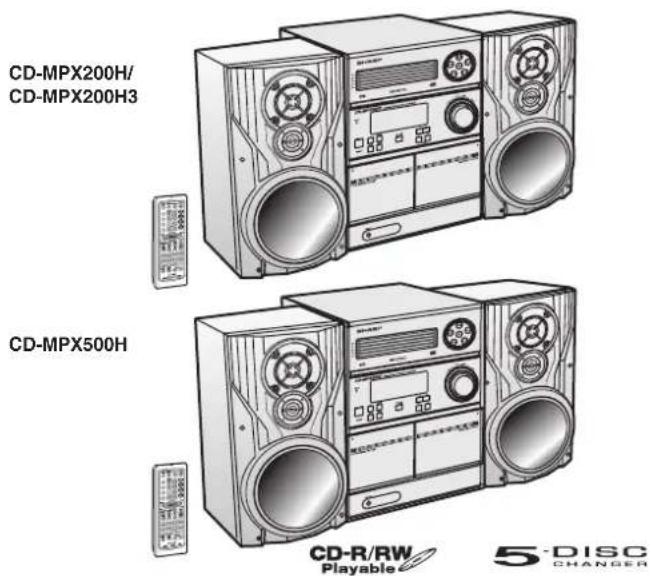
CD-MPX200H CD-MPX200H3 CD-MPX500H
The illustrations printed in this operation manual are for the model CD-MPX200H.
DEUTSCH
... Please refer to pages i to ii and E-1 to E-44.
BESONDERE ANMERKUNGEN SPECIAL NOTES
- When the ON/STAND-BY button is set at STAND-BY position, mains voltage is still present inside the unit. When the ON/STAND-BY button is set at STAND-BY position, the unit may be brought into operation by the timer mode or remote control.
Warning:
This unit contains no user serviceable parts. Never remove covers unless qualified to do so. This unit contains dangerous voltages, always remove mains plug from the socket before fore any service operation and when not in use for a long period.
To prevent fire or shock hazard, do not expose this appliance to dripping or splashing. No objects filled with liquids, such as vases, shall be placed on the apparatus.
● This product is classified as a CLASS 1 LASER PRODUCT.
● VORSICHT
Use of controls, adjustments or performance of procedures other than those specified herein may result in hazardous radiation exposure. As the laser beam used in this compact disc player is harmful to the eyes, do not attempt to disassemble the cabinet. Refer servicing to qualified personnel only.
Emission Duration: continuous
Laser Output: max. 0.4 mW
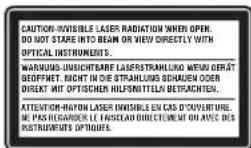
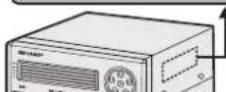
ADVERSEL-SYNLIG OG USYNLIG LASERSTRÅLING VED ÅBNING. SE IKKE IND I STRÅLEN-HELLER IKKE MED OPTISKE INSTRUMENTER. VARO! AVATTAESSA OLET ALTTIINA NÄKYVÄLLE JA NÄKYMÄTTÖMÄLLE LASERSÄTEILYLLE ÄLÄ TUIJOTA SÄTEESEEN ÄLÄKÄ KATSO SITÄ OPTISEN LAITTEEN LÄPI.
VARNING-SYNLIG OCH OSYNLIG LASERSTRÅLNING NÄR DENNA DEL ÄR ÖPPNAD. STIRRA EJ IN I STRÅLEN OCH BETRAKTA EJ STRÅLEN GENOM OPTISKT INSTRUMENT.
VAROITUS! LAITTEEN KÄYTTÄMINEN MUULLA KUIN TÄSSÄ KÄYTTÖOHJEESSA MAINITULLA TAVALLA SAATTAA ALTISTAA KÄYTTÄJÄN TURVALLISUUSLUOKAN 1 YLITTÄVALLE NÄKYMÄTTÖMÄLLE LASERSÄTEILYLLE. VARNING - OM APPARATEN ANVÄNDS PÅ ANNAT SÄTT ÄN I DENNA BRUKSANVISNING SPECIFICERAS. KAN ANVÄNDAREN UTSÄTTAS FÖR OSYNLIG LASERSTRÄLNING, SOM ÖVERSKRIDER GRANSEN FÖR LASERKLASS 1.
Information on Proper Disposal
Attention: Your product is marked with this symbol. It means that used electrical and electronic products should not be mixed with general household waste. There is a separate collection system for these products.
A. Information on Disposal for Users (private households)
1. In the European Union
Attention: If you want to dispose of this equipment, please do not use the ordinary dust bin!
Used electrical and electronic equipment must be treated separately and in accordance with legislation that requires proper treatment, recovery and recycling of used electrical and electronic equipment.
Following the implementation by member states, private households within the EU states may return their used electrical and electronic equipment to designated collection facilities free of charge*. In some countries* your local retailer may also take back your old product free of charge if you purchase a similar new one.
*) Please contact your local authority for further details. If your used electrical or electronic equipment has batteries or accumulators, please dispose of these separately beforehand according to local requirements.
By disposing of this product correctly you will help ensure that the waste undergoes the necessary treatment, recovery and recycling and thus prevent potential negative effects on the environment and human health which could otherwise arise due to inappropriate waste handling.
2. In other Countries outside the EU
If you wish to discard this product, please contact your local authorities and ask for the correct method of disposal.
For Switzerland: Used electrical or electronic equipment can be returned free of charge to the dealer, even if you don't purchase a new product. Further collection facilities are listed on the homepage of www.swico.ch or www.sens.ch.
B. Information on Disposal for Business Users
1. In the European Union
If the product is used for business purposes and you want to discard it:
Please contact your SHARP dealer who will inform you about the take-back of the product. You might be charged for the costs arising from take-back and recycling. Small products (and small amounts) might be taken back by your local collection facilities.
For Spain: Please contact the established collection system or your local authority for take-back of your used products.
2. In other Countries outside the EU
If you wish to discard of this product, please contact your local authorities and ask for the correct method of disposal.
ENGLISH
Introduction
Thank you for purchasing this SHARP product. To obtain the best performance from this product, please read this manual carefully. It will guide you in operating your SHARP product.
- CD-MPX200H Mini Component System consisting of CD-MPX200H (main unit), CP-MPX200H (speaker system).
- CD-MPX200H3 Mini Component System consisting of CD-MPX200H3 (main unit), CP-MPX200H3 (speaker system).
- CD-MPX500H Mini Component System consisting of CD-MPX500H (main unit), CP-MPX500H (speaker system).
Special Note
Supply of this product does not convey a license nor imply any right to distribute content created with this product in revenue-generating broadcast systems (terrestrial, satellite, cable and/or other distribution channels), revenue-generating streaming applications (via Internet, intranets and/or other networks), other revenue-generating content distribution systems (pay-audio or audio-on-demand applications and the like) or on revenue-generating physical media (compact discs, digital versatile discs, semiconductor chips, hard drives, memory cards and the like). An independent license for such use is required. For details, please visit http://mp3licensing.com MPEG Layer-3 audio coding technology licensed from Fraunhofer IIS and Thomson.
Accessories
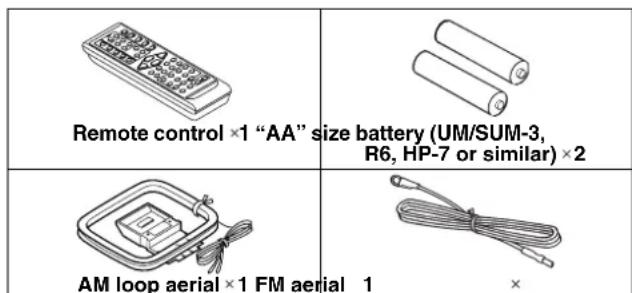
Please confirm that the following accessories are included.
Note:
Only the above accessories are included.
Contents
Page
■ General Information
Precautions.... 2
Controls and indicators 3 - 5
■ Preparation for Use
System connections 6 - 8
Remote control 9
■ Basic Operation
General control 10
Setting the clock (Remote control only) 11
■ CD or MP3/WMA disc Playback
Listening to a CD or MP3/WMA disc 12 - 15
Advanced CD or MP3/WMA disc playback ..... 16 - 18
MP3/WMA navigation (only for MP3/WMA files) ..... 19 - 22
Radio
Listening to the radio. 23 - 24
■ Tape Playback
Listening to a cassette tape (TAPE 1 or TAPE 2) ..... 25 - 26
■ Tape Recording
Recording on a cassette tape 26 - 28
■ Advanced Features
Using the Radio Data System (RDS) 29 - 34
Timer and sleep operation (Remote control only) ..... 35 - 38
Enhancing your system 39 - 40
■ References
Troubleshooting chart 40 - 42
Maintenance 43
Specifications.... 43 - 44
Precautions
■ General
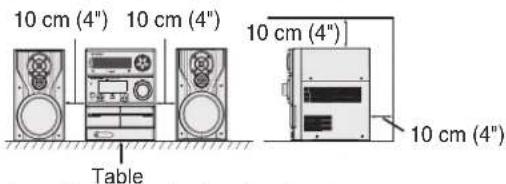
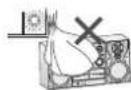
- Please ensure that the equipment is positioned in a well ventilated area and ensure that there is at least 10 cm (4") of free space along the sides, top and back of the equipment.
- Use the unit on a firm, level surface free from vibration.
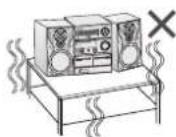
- Keep the unit away from direct sunlight, strong magnetic fields, excessive dust, humidity and electronic/electrical equipment (home computers, facsimiles, etc.) which generate electrical noise.
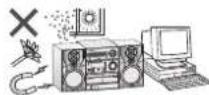
- Do not place anything on top of the unit.
- Do not expose the unit to moisture, to temperatures higher than 60°C (140°F) or to extremely low temperatures.
- If your system does not work properly, disconnect the AC power lead from the wall socket. Plug the AC power lead back in, and then turn on your system.
- In case of an electrical storm, unplug the unit for safety.
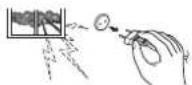
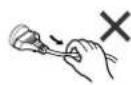
- Hold the AC power plug by the head when removing it from the wall socket, as pulling the lead can damage internal wires.
- The AC power plug is used as disconnect device and shall always remain readily operable.
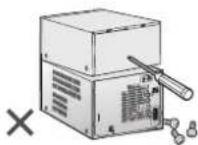
- Do not remove the outer cover, as this may result in electric shock. Refer internal service to your local SHARP service facility.
● The ventilation should not be impeded by covering the ventilation openings with items, such as newspapers, tablecloths, curtains, etc. - No naked flame sources, such as lighted candles, should be placed on the apparatus.
- Attention should be drawn to the environmental aspects of battery disposal.
● The apparatus is designed for use in moderate climate. - This unit should only be used within the range of 5°C - 35°C (41°F - 95°F).
Warning:
The voltage used must be the same as that specified on this unit. Using this product with a higher voltage other than that which is specified is dangerous and may result in a fire or other type of accident causing damage. SHARP will not be held responsible for any damage resulting from use of this unit with a voltage other than that which is specified.
Volume control
The sound level at a given volume setting depends on speaker efficiency, location, and various other factors. It is advisable to avoid exposure to high volume levels. Do not turn the volume on to full at switch on and listen to music at moderate levels. Excessive sound pressure from earphones and headphones can cause hearing loss.
Controls and indicators
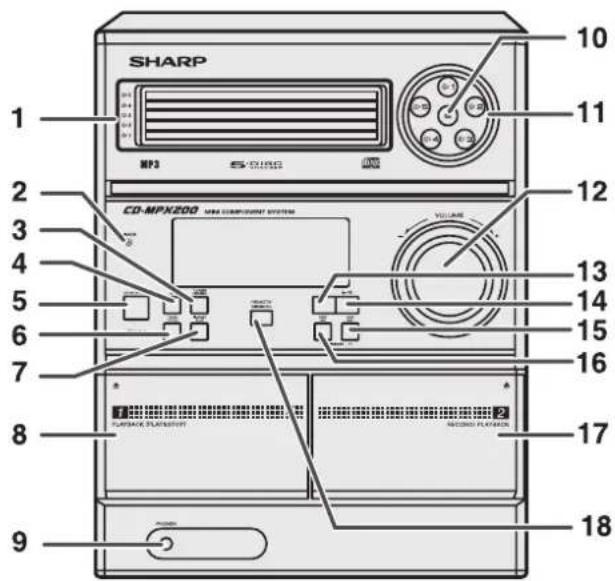
■ Front panel
Reference page
-
Disc Trays 13
-
Timer Indicator 36
-
Tuner (Band) Button 23
-
CD Button 13
-
ON/STAND-BY Button 10
-
Tape (1-2) Button 25
-
Game/Aux Button 39
-
Tape 1 Cassette Compartment ..... 25
-
Headphone Socket 40
-
Disc Tray Open/Close Button 13
-
Disc Number Select Buttons ..... 13
-
Volume Control....10
-
CD or Tape Stop Button 14, 26
-
CD Play or Repeat, Tape Play Button ..... 13, 17, 25
-
CD Track Up or Fast Forward, Tape 2 Fast Forward,
Tuner Preset Up, Time Up Button ..... 11, 14, 24, 26, 35
- CD Track Down or Fast Reverse, Tape 2 Rewind,
Tuner Preset Down, Time Down Button ... 11, 14, 24, 26, 35
-
Tape 2 Cassette Compartment ..... 25
-
Remote Sensor....9
CD-MPX200H CD-MPX200H3 CD-MPX500H
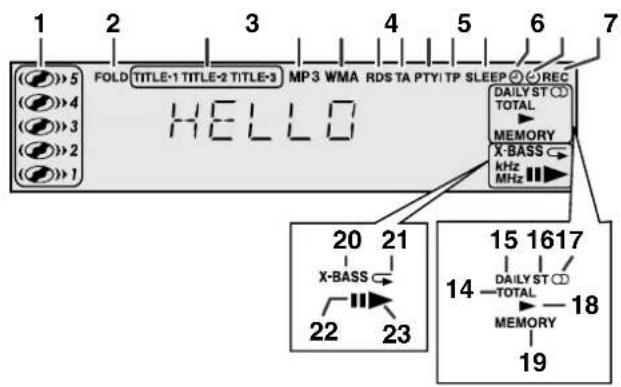
■ Display
Reference page
- Disc Number Indicators ..... 16
28MF3/0MAFolderIndicator 19 - MP3/WMA Title Indicators 19
- MP3 Indicator 13
- WMA Indicator 13
- RDS Indicator 29
- Traffic Announcement Indicator 29
- Dynamic PTY Indicator 29
- Traffic Programme Indicator 29
- Sleep Indicator 38
- Timer Play Indicator 36
- Timer Recording Indicator 36
- Tape 2 Record Indicator 27
- MP3/WMA Total Indicator 20
- Daily Timer Indicator 36
- FM Stereo Mode Indicator 23
- FM Stereo Receiving Indicator 23
- Tape Play Indicator 25
- Memory Indicator 18, 24
- Extra Bass Indicator 10
- Disc Repeat Play Indicator 17
- Disc Pause Indicator 14
- Disc Play Indicator....13
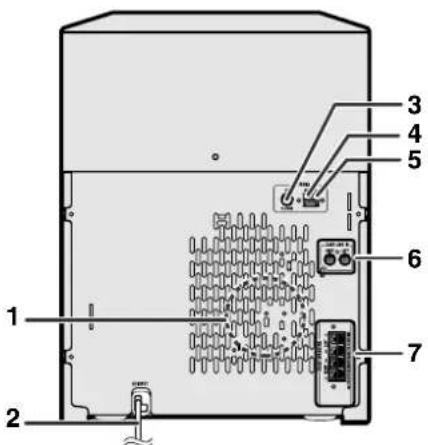
■ Rear panel
Reference page
- Cooling Fan (FOR CD-MPX500H ONLY) 8
- AC Power Lead 8
- FM 75 Ohms Aerial Socket ....7
- AM Aerial Earth Terminal 7
- AM Loop Aerial Terminal 7
- Game/Aux Input Sockets 39
- Front Speaker Terminals ..... 7
■ Speaker System
- Tweeter
- Super Tweeter
- Woofer
- Bass Reflex Duct
- Speaker Wire
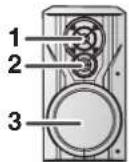
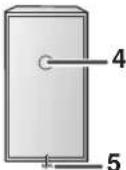
Controls and indicators (continued)
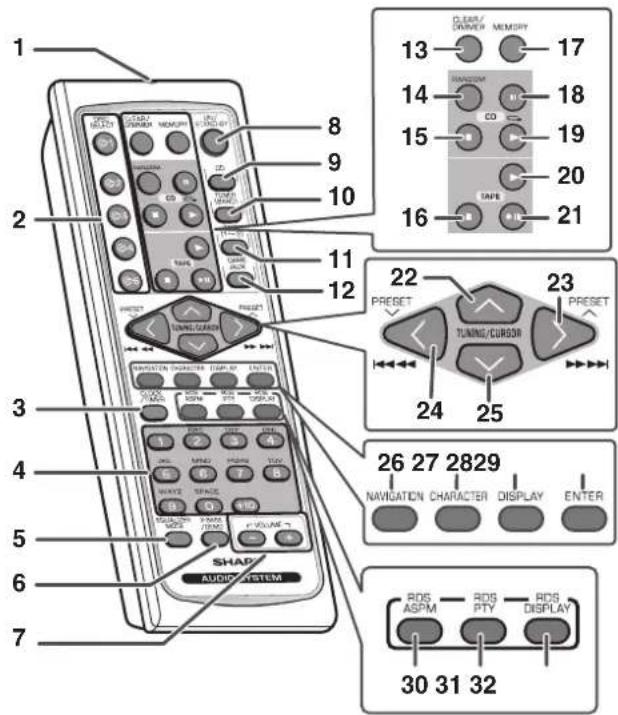
■ Remote control
Reference page
- Remote Control Transmitter 9
- Disc Number Select Buttons ..... 13
- Clock/Timer Button 11, 35
- Character Input/Disc Direct Search Buttons ..... 16, 21
- Equaliser Mode Select Button 10
- Extra Bass/Demo Button 10
- Volume Up and Down Buttons ..... 10
- ON/STAND-BY Button 10
- CD Button 13
- Tuner (Band) Button 23
- Tape (1-2) Button 25
- Game/Aux Button 39
- Disc Clear/Dimmer Button 10, 18
- Disc Random Button 17
- Disc Stop Button 14
- Tape Stop Button 25
- Memory Button....11, 18, 24, 35
- Disc Pause Button 14
- Disc Play or Repeat Button 13, 17
- Tape Play Button 25
- Tape 2 Record Pause Button 27
- Tuning Up, Cursor Up Button 19, 23
- Disc Track Up or Fast Forward, Tape 2 Fast Forward, Tuner Preset Up, Time Up, Cursor Right Button .... 11, 14, 24, 26, 35
- Disc Track Down or Fast Reverse, Tape 2 Rewind, Tuner Preset Down, Time Down, Cursor Left Button ..... ....11, 14, 24, 26, 35
- Tuning Down, Cursor Down Button 19, 23
- MP3/WMA Navigation Mode Select Button ..... 19
- Character Button 19
- MP3/WMA Display Button 15
- Enter Button 19
- RDS ASPM Button 29
- RDS PTY Button 29
- RDS Display Button 29
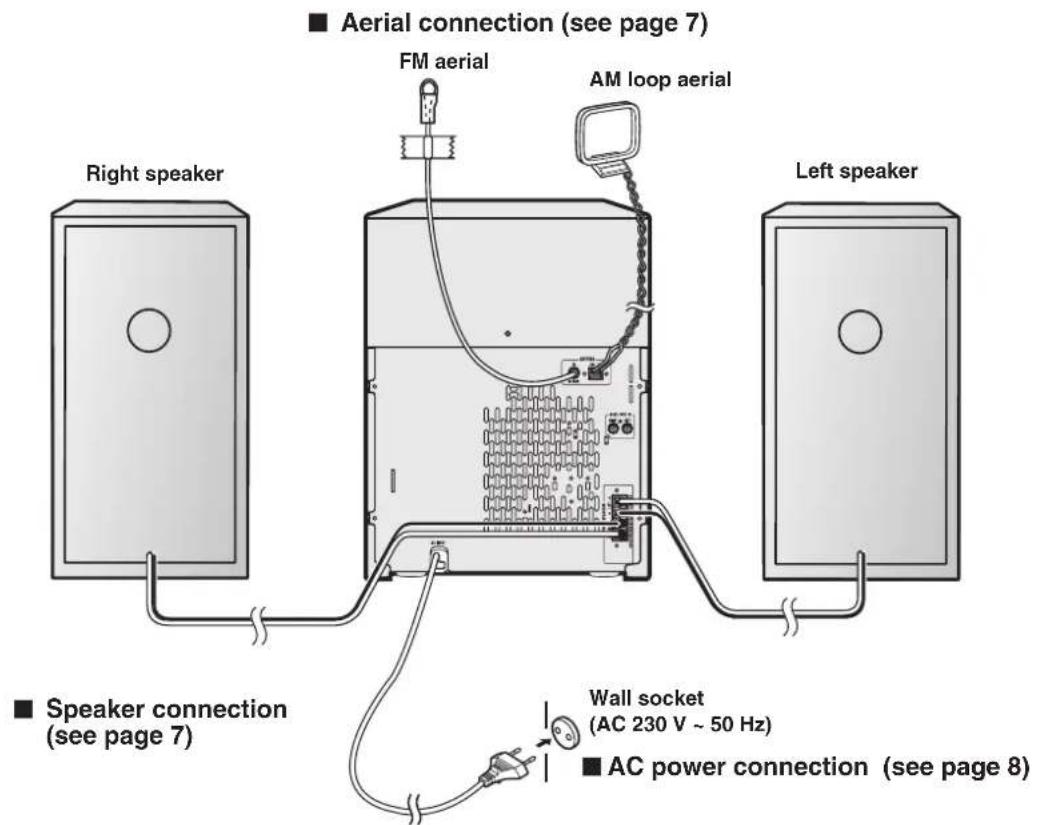
Make sure to unplug the AC power lead before any connections.
CD-MPX200H CD-MPX200H3 CD-MPX500H
System connections (continued)
■ Aerial connection
Supplied FM aerial:
Connect the FM aerial wire to the FM 75 OHMS socket and position the FM aerial wire in the direction where the strongest signal can be received.
Supplied AM loop aerial:
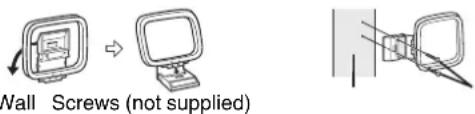
Connect the AM loop aerial to the AM and GND terminals. Position the AM loop aerial for optimum reception. Place the AM loop aerial on a shelf, etc., or attach it to a stand or a wall with screws (not supplied).
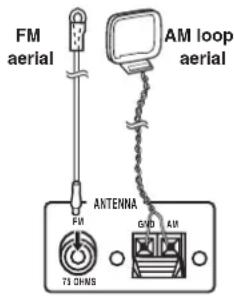
Note:
Placing the aerial on the unit or near the AC power lead may cause noise pickup. Place the aerial away from the unit for better reception.
Installing the AM loop aerial:
< Assembling > < Attaching to the wall >
■ Speaker connection
Connect the black wire to the FRONT SPEAKERS minus (-) terminal, and the red wire to the FRONT SPEAKERS plus (+) terminal.
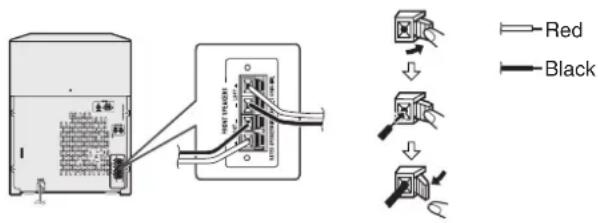
Caution:
- Use speakers with an impedance of 6 ohms or more, as lower impedance speakers can damage the unit.
- Do not mistake the right and the left channels. The right speaker is the one on the right side when you face the unit.
- Do not let the bare speaker wires touch each other.
- Do not stand or sit on the speakers. You may be injured.
- Do not allow any objects to fall into or to be placed in the bass reflex duct.
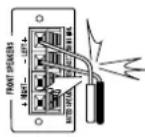
Incorrect
■ AC power connection
After checking all the connections have been made correctly, plug the AC power lead of this unit into the wall socket. If you plug in the unit first, the unit will enter the demonstration mode.
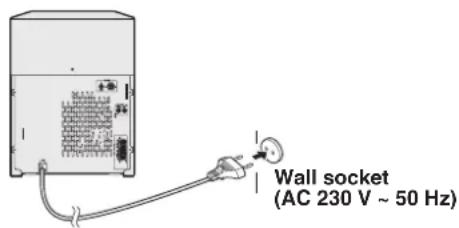
Notes:
- The unit will start the tape initialisation when plugged into the wall socket. During this process, initialising sound will be heard and the unit cannot be turned on. Wait until the process is finished.
- Unplug the AC power lead from the wall socket if the unit will not be in use for a prolonged period of time.
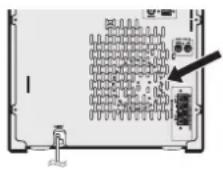
Cooling fan: (FOR CD-MPX500H ONLY)
The main unit is built with a cooling fan at the rear of the unit for improved cooling. Please do not cover the opening of the fan with any obstacles, as this will block proper ventilation.
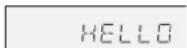
■ Demonstration mode
The first time the unit is plugged in, the unit will enter the demonstration mode. You will see words scroll.
To cancel the demonstration mode:
When the unit is in the power stand-by mode (demonstration mode), press the X-BASS/DEMO button. The unit will enter the low power consumption mode.
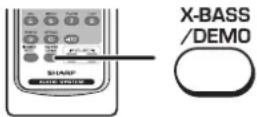
To return to the demonstration mode:
When the unit is in the power stand-by mode, press the X-BASS/DEMO button again.
Note:
When the power is on, the X-BASS/DEMO button can be used to select the extra bass mode.
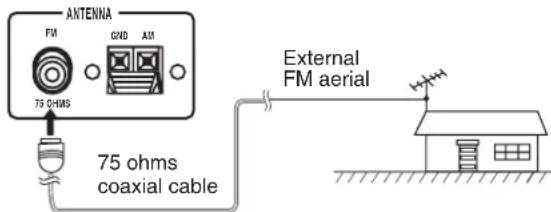
■ External FM aerial
Use an external FM aerial if you require better reception. Consult your dealer.
Note:
When an external FM aerial is used, disconnect the supplied FM aerial wire.
Remote control
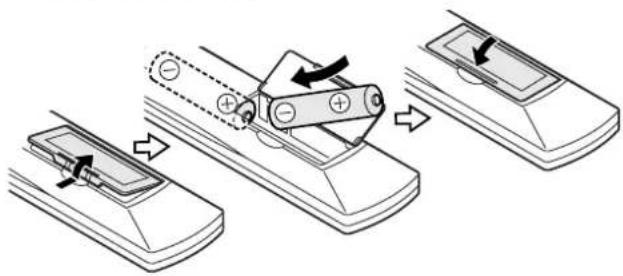
■ Battery installation
1 Open the battery cover.
2 Insert the supplied batteries according to the direction indicated in the battery compartment.
When inserting or removing the batteries, push them towards the battery terminals.
3 Close the battery cover.
Precautions for battery use:
- Replace all old batteries with new ones at the same time.
- Do not mix old and new batteries.
- Remove the batteries if the unit will not be used for long periods of time. This will prevent potential damage due to battery leakage.
Caution:
- Do not use rechargeable batteries (nickel-cadmium battery, etc.).
- Installing the batteries incorrectly may cause the unit to malfunction.
- Batteries (battery pack or batteries installed) shall not be exposed to excessive heat such as sunshine, fire or the like.
Battery removal:
Open the battery cover and pull up the battery to take out.
Notes concerning use:
- Replace the batteries if the operating distance is reduced or if the operation becomes erratic. Purchase 2 "AA" size batteries (UM/ SUM-3, R6, HP-7 or similar).
- Periodically clean the transmitter on the remote control and the sensor on the unit with a soft cloth.
- Exposing the sensor on the unit to strong light may interfere with operation. Change the lighting or the direction of the unit.
- Keep the remote control away from moisture, heat, shock, and vibrations.
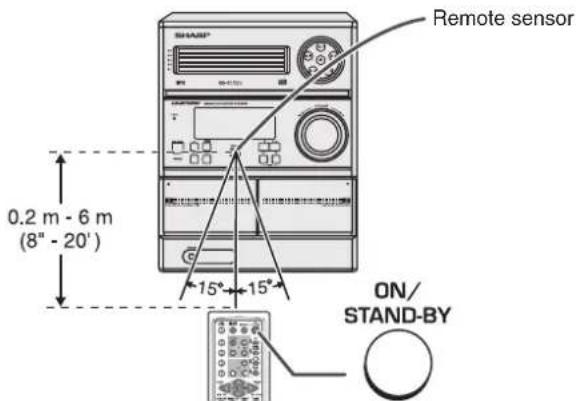
■ Test of the remote control
Check the remote control after checking all the connections (see pages 6 - 8).
Point the remote control directly at the remote sensor on the unit.
The remote control can be used within the range shown below:
Press the ON/STAND-BY button. Does the power turn on? Now, you can enjoy the music.
General control
CD-MPX200H CD-MPX200H3 CD-MPX500H
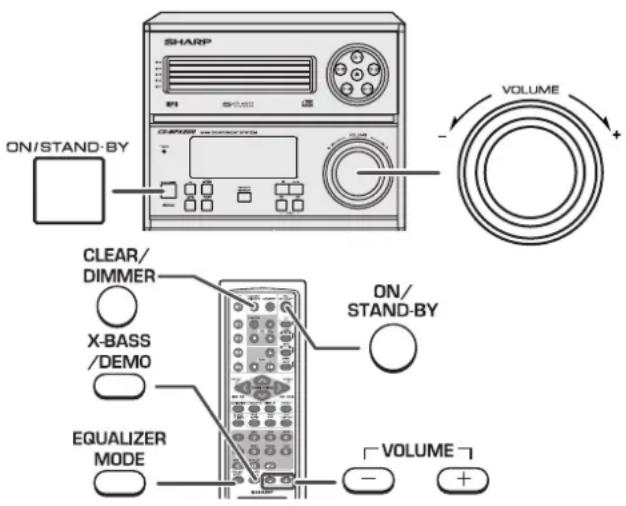
■ To turn the power on
Press the ON/STAND-BY button to turn the power on.
After use:
Press the ON/STAND-BY button to enter the power stand-by mode.
■ Display Brightness control
To dim the display brightness, hold down the CLEAR/DIMMER button on the remote control for 2 seconds or more.
Volume auto fade-in
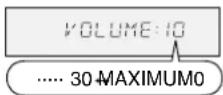
If you turn off and on the main unit with the volume set to 27 or higher, the volume starts at 16 and fades in to the last set level.
Volume control
Main unit operation:
When the VOLUME control is turned clockwise, the volume will increase. When it is turned anti-clockwise, the volume will decrease.
Remote control operation:
Press the VOLUME (+ or -) button to increase or decrease the volume.
■ Bass Control (X-BASS)
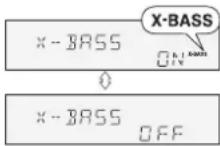
When the X-BASS/DEMO button is pressed, the unit will enter the extra bass mode. To cancel this mode, press the X-BASS/DEMO button again.
Equaliser
When the power is first turned on, the unit will enter FLAT mode. When the EQUALIZER MODE button is pressed, the current mode setting will be displayed. To change to a different mode, press the EQUALIZER MODE button repeatedly until the desired sound mode appears.
In CD/TUNER/TAPE mode In GAME/AUX mode
| FLAT No equalisation.ROCK For rock music.CLASSIC For classical music.POPS For pop music.VOCALS Vocals are enhanced.JAZZ For jazz. | FLAT No equalisation.ROCK For rock music.CLASSIC For classical music.ACTION For action games.SPORTS For sports games.RACING For car racing games. |
Setting the clock (Remote control only)
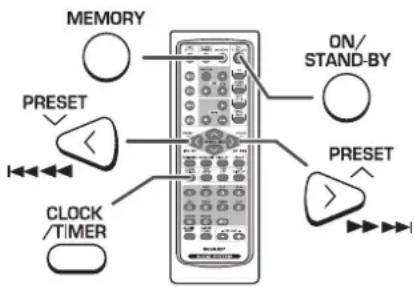
In this example, the clock is set for the 24-hour (0:00) display.
1 Press the ON/STAND-BY button to turn the power on.
2 Press the CLOCK/TIMER button.
3 Within 10 seconds, press the ◀◀◀◀ button to select "CLOCK", and press the MEMORY button.

4 Press the ←or◀ button to select 24-hour or 12-hour display and then press the MEMORY button.

![graph TD A["0:00"] --> B["AM 12:00"] B --> C["AM 0:00"] D["The 24-hour display will appear. (0:00 - 23:59)"] --> E["The 12-hour display will appear. (AM 12:00 - PM 11:59)"] E --> F["The 12-hour display will appear. (AM 0:00 - PM 11:59)"]](/content/2026/05/770603/images/56c28de70a411f89e7f504c1802b6986651a3b5c400b489f55c5f7793d75255e.jpg)
5 Press the ◀◀◀◀ button to adjust the hour and then press the MEMORY button.

Press the ◀or◀ button once to advance the time by 1 hour. Hold it down to advance continuously.
6 Press the ▶or◀button▶adjust the minutes and then press the MEMORY button.

Press the ◀◀or◀◀ button once to advance the time by 1 minute. Hold it down to change the time in 5-minute intervals.
To confirm the time display:
[When the unit is in the stand-by mode]
Press the CLOCK/TIMER button
The time display will appear for about 10 seconds.
[When the power is on]
Press the CLOCK/TIMER button.
Within 10 seconds, press the ◀ or ◀ button to display the time.
The time display will appear for about 10 seconds.
Note:
The "CLOCK" will appear or time will flash to confirm the time display when the AC power supply is restored after a power failure or unplugging the unit. If incorrect, readjust the clock as follows.
To readjust the clock:
Perform "Setting the clock" from step 1. If the "CLOCK" does not appear in step 3, step 4 (for selecting the 24-hour or 12-hour display) will be skipped.
To change the 24-hour or 12-hour display:
1 Clear all the programmed contents. [Refer to "Clearing all the memory (reset)" on page 42 for details.]
2 Perform "Setting the clock" from step 1.
Listening to a CD or MP3/WMA disc
This system can play back a standard CD, CD-R/RW in the CD format and CD-R/RW with MP3 or WMA files, but cannot record on them. Some audio CD-R and CD-RW discs may not be playable due to the state of the disc or the device that was used for recording.
MP3:
MP3 is a form of compression. It is an acronym which stands for MPEG Audio Layer 3.
MP3 is a type of audio code which is processed by significant compression from the original audio source with very little loss in sound quality.
- This system supports MPEG 1 Layer 3, MPEG 2 Layer 3, and VBR files.
- During VBR file playback, time counter in the display may differ from its actual playback time.
- Bitrate which is supported by MP3 is 32 \~ 320 kbps.
WMA:
WMA files are Advanced System Format files that include audio files which are compressed with Windows Media Audio codec. WMA is developed by Microsoft as an audio format file for Windows Media Player.
- "MP3" or "WMA" indicator will light up after the unit reads information on an MP3 or WMA disc.
- Bitrate which is supported by WMA is 64 \~ 160 kbps.
Auto power on function:
When you press any of the following buttons, the unit turns on.
- CD button (main unit and remote control): The unit turns on and the "CD" function is activated.
- CD / button on the remote control: The unit turns on and CD playback starts (regardless of the last function).
- ▶/ button on the main unit: The unit turns on and playback of the last function starts (CD, TAPE, TUNER, GAME/AUX).
Auto power off function:
In the stop mode of CD, MP3 or WMA operation, the main unit enters the stand-by mode after 15 minutes of inactivity.
Listening to a CD or MP3/WMA disc (continued)
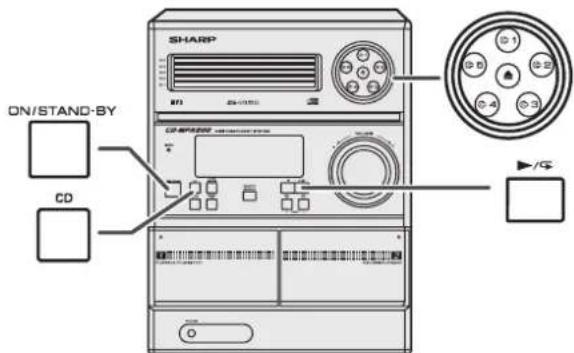
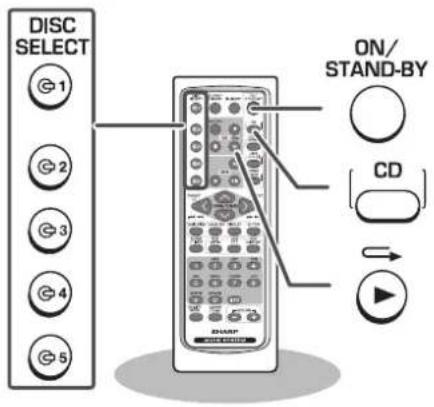
1 Press the ON/STAND-BY button to turn the power on.
2 Press the CD button.
3 Press the button and within 5 seconds, press the button to open the disc tray 1.
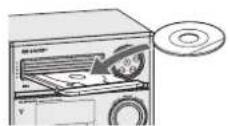
4 Place the disc on the disc tray 1, label side up.
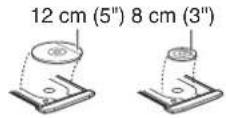
Be sure to place 8 cm (3") disc in the middle of the disc trays.
5 Press ▲▲button to close the disc tray 1.
6 You can place discs on the trays 2 - 5 by following steps 3 - 5.
7 Press the ▶ button to start playback.
[CD]
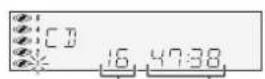
![[MP3/WMA] MP3 indicator WMA indicator FOLDER 04 FILE 10](/content/2026/05/770603/images/f0986ee34a79f416e2bdfe9e7897fbe28cbde8feff0a0c4adfc72f98d47ebee4.jpg)
Total number of tracks on the disc Total playing time of the disc
Total number of folders Total number of files
- Due to the structure of the disc information, it takes longer to read an MP3/WMA disc than a normal CD (approximately 20 to 90 seconds).

- Playback will begin from track 1 on disc 1. After that disc finishes playing, the next disc will automatically play.
- After the last track on the fifth disc is played, the unit will stop automatically.
- When there is no disc in one of the disc trays (1 - 5), the empty tray will be skipped to the next tray with a disc.
To exchange other discs whilst playing a disc:
Press one of the Ⓐ1 - 5 buttons for the stopped disc and within 5 seconds, press the ▲button and exchange discs.
To remove the discs:
In the stop mode, press the Ⓐ1 - 5 buttons and within 5 seconds, press the ▲button.
Caution:
- Do not place two discs in the same tray.
- Do not play discs of special shapes (heart, octagon, etc.) as it may cause malfunctions.
- Do not push the disc tray whilst it is moving.
- If the power fails whilst the tray is open, wait until the power is restored.
- If the disc tray is stopped with force, "ER-CD21" will appear on the display for 3 seconds and the unit will not function. If this occurs, press the ON/STAND-BY button to enter the power stand-by mode and then turn the power on again.
- If TV or radio interference occurs during CD operation, move the unit away from the TV or radio.
- If a disc is damaged, dirty, or loaded upside down, the disc will skip or not play.
■ Various disc functions
| Function Main unit Remote control | Operation | ||
| Play Press in | the stop | mode. | |
| Stop Press in | the playback | mode. | |
| Pause Press | in the playback | mode. Press the ▶ button to resume play-back from the paused point. | |
| Track up/ Track down | PRESETPRESET | Press in the playback or stop mode.If you press the button in the stop mode, press the ▶ button to start the desired track. | |
| Fast forward/ Fast reverse | PRESETPRESET | Press and hold down in the playback mode.Release the button to resume playback. | |
Listening to a CD or MP3/WMA disc (continued)
Notes for CD:
● Track up/track down is possible only within individual disc.
● Fast forward/fast reverse is possible only within individual disc.
- When the end of the last track is reached during fast forward "END" will appear on the display and CD operation will be paused. When the beginning of the first track is reached during fast reverse, the unit will enter the playback mode.
Notes for MP3/WMA discs:
● Track up/track down is possible only within individual discs.
- The sound is heard during fast forward/fast reverse with a CD, but not with an MP3/WMA disc. For fast forward or fast reverse of an MP3/WMA disc, refer to playback time on the display.
● Fast forward/fast reverse is possible only within individual tracks.
- When the end of the track is reached during fast forward, the next track will be played. Playback of the track will begin when its beginning is reached during fast reverse.
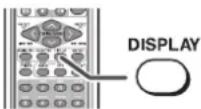
■ To change the display (MP3/WMA discs only)
Whilst a disc is playing, press the DISPLAY button. Each time the button is pressed, the display will change as follows.
![graph TD A["Track number"] --> B["Elapsed playback time"] B --> C["Folder name"] C --> D["MP3"] D --> A](/content/2026/05/770603/images/2a15078f1b58c16c9c81b5757a64ff1ea76383a4b7b5bf31fde1e7f4ee0bb85c.jpg)
File name
Advanced CD or MP3/WMA disc playback
CD-MPX200H CD-MPX200H3 CD-MPX500H
■ To specify a disc to play
You can play a disc by specifying the disc number.
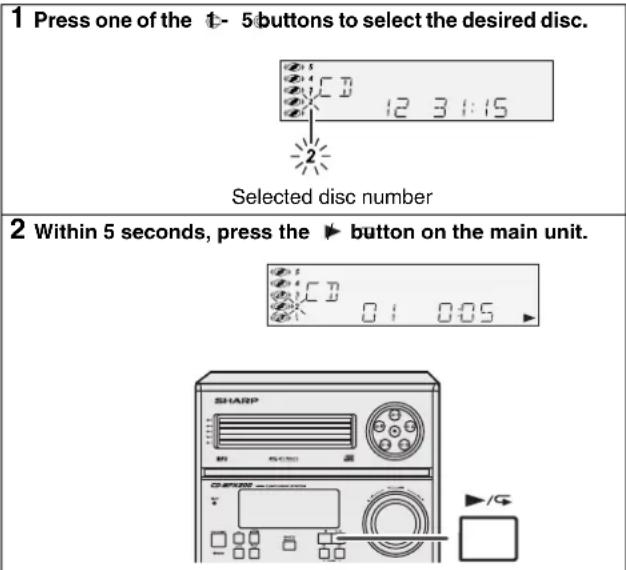
- Playback will begin from track 1 on the chosen disc.
- After the last track on the last disc is played, the unit stops automatically.
Note:
If a disc tray with no disc is selected, playback will not start and the disc indicator will disappear.
To stop playback:
Press the ■(CD) button.
■ Direct track search
By using the direct search buttons, the desired tracks on the current disc can be played.
Use the direct search buttons on the remote control to select the desired track whilst playing the selected disc.
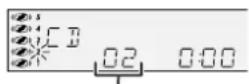
Selected track number
● The direct search buttons allow you to select up to number 9
- When selecting number 10 or higher, use the “+10” button.
A. For example, to choose 13
1 Press the "+10" button once.
2 Press the "3" button.
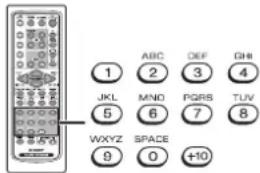
B. For example, to choose 30
1 Press the "+10" button three times.
2 Press the "0" button.
If the direct search buttons are pressed whilst the disc is stopped, press the ▶ button to start the desired track on the current disc.
Notes:
- A track number higher than the number of tracks on the disc cannot be selected.
● During random play, direct search is not possible.
Advanced CD or MP3/WMA disc playback (continued)
■ Repeat play
Repeat play can play all 5 discs, all tracks on a chosen disc, or a programmed sequence continuously.
To repeat disc:
Press the ▶ button twice.
To repeat all tracks on up to 5 discs:
Press the ▶ button three times.
To repeat desired tracks:
Perform steps 1 - 6 in "Programmed play" section on page 18 and then press the ▶ button twice.

To cancel repeat play:
Press the ▶ button again.
“” will disappear.
■ Random play
The tracks on the disc(s) can be played in random order automatically.
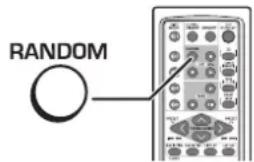
To random play all tracks on up to 5 discs:
Press the RANDOM button on the remote control.
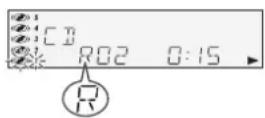
To cancel random play:
Press the ▶/ button.
“R” will disappear.
Notes:
- If you press the button during random play, you can move to the next track by the random operation. On the other hand, the button does not allow you to move to the previous track. The beginning of the track being played will be located.
- In random play, the unit will select and play tracks automatically. (You cannot select the order of the tracks.)
Caution:
After performing repeat or random play, be sure to press the
■ (CD) button. Otherwise, the disc(s) will play continuously.
■ Programmed play
You can choose up to 32 selections for playback in the order you like.
1 Whilst in the stop mode, press the MEMORY button to enter the programming save mode.
MEMORY


2 Press one of the 1-5 buttons to select the desired disc.
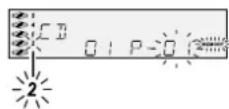
Selected disc number
3 Press the direct search buttons on the remote control to select the desired track.
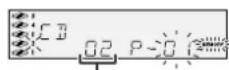
Selected track number
You can also select a track by pressing the left button.
4 Press the MEMORY button to save the track number.
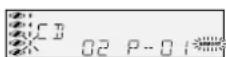
5 Repeat steps 2 - 4 for other tracks. Up to 32 tracks can be programmed.
If you make a mistake, the programmed tracks can be cleared by pressing the CLEAR/DIMMER button.
6 Press the (CD) button.
The total number in memory will appear.
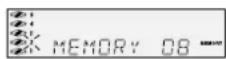
7 Press the ▶ button to start playback.
To clear the programmed selections:
Press the CLEAR/DIMMER button on the remote control whilst the "MEMORY" indicator is flashing.
Each time the button is pressed, one track will be cleared, beginning with the last track programmed.
CLEAR/ DIMMER

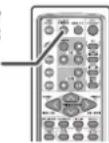
To cancel the programmed play mode:
Whilst in the stop mode and the "MEMORY" indicator is lit, press the CLEAR/DIMMER button on the remote control. The "MEMORY" indicator will disappear and all the programmed contents will be cleared.
Adding tracks to the programme:
If a programme has been previously stored, the "MEMORY" indicator will be displayed. Then follow steps 1 - 6 to add tracks. The new tracks will be stored after the last track of the original programme.
To check which tracks are programmed:
Whilst the unit is stopped in the programmed play mode, press the ◀◀ or ▶button.
Notes:
- When a disc with programmed tracks is ejected, the programme is automatically cancelled.
- Even if you press the ON/STAND-BY button to enter the stand-by mode or change the function from CD to another, the programmed selections will not be cleared.
● During the programme operation, random play is not possible.
CD-MPX200H CD-MPX200H3 CD-MPX500H
ENGLISH
MP3/WMA navigation (only for MP3/WMA files)
MP3/WMA navigation:
You can search and play files by folder or title. For example, when you assign three titles to a file, enter genre (such as jazz) as title 1, album name as title 2, and music title as title 3 to search the file by any title.
- You can search and play files by folder or title 1/2/3 within one MP3/WMA disc (see page 20).
- By entering a name, you can search files by folder or title 1/2/3 within one MP3/WMA disc (see page 21).
- Folders or titles can be programmed within one MP3/WMA disc (see page 22).
When you enter file names on your PC, connect words with hyphens. This product recognises the first word as title 1, second one as title 2, and third one as title 3. Up to three words can be recognised.
Example:
![graph TD A["Folder"] --> B["AAA"] B --> C["BBB"] C --> D["CCC"] D --> E["Rock-HITS 1-A MUSIC.mp3"] D --> F["Rock-HITS 2-B MUSIC.mp3"] D --> G["Rock-HITS 3-C MUSIC.mp3"] D --> H["Rock-HITS 4-D MUSIC.mp3"] I["Title 1"] --> J["(POPULAR-HITS 1-A MUSIC.mp3)"] K["Title 2"] --> L["(POPULAR-HITS 2-B MUSIC.m…](/content/2026/05/770603/images/b8c9aed260c130a674b75dd84c765a9b3db05686d3306e70a2c2ee7fae1940a7.jpg)
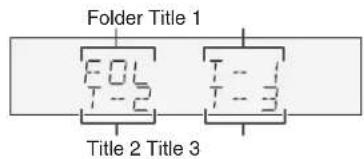
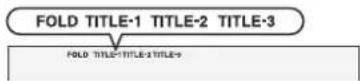
Notes:
- MP3 files must have the extension ".mp3".
● WMA files must have the extension ".wma". - Up to 100 folders or 300 files can be read on the unit. If either limit is exceeded, no more folders/files are displayed.
- This unit recognises and displays up to 48 characters for folder names, and up to 32 characters for title 1/2/3.
● All file/folder names appear in uppercase.
■ File search (by folder or title 1/2/3)
You can search and play files by folder or title 1/2/3 within one MP3/WMA disc.
| 1 Press one of the 1 - 5 buttons to select a disc tray containing an MP3/WMA disc. |
| 2 Press the ▶ button, and the unit starts to read the MP3 disc. |
| 3 Press the CD ▶ button to stop playback.“NAVI READ” appears and the display shows the total number of folders and files on the selected disc. |
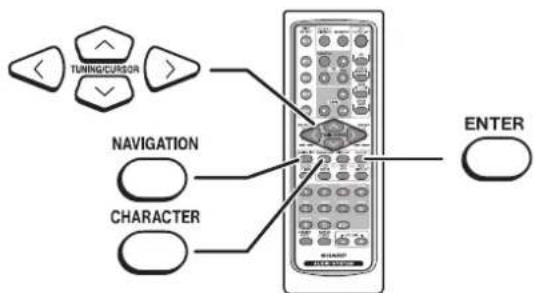
4 Press the NAVIGATION button.
5 Press the <,> or cursor button on the remote control to select "FOL", "T-1", "T-2" or "T-3". To search files by folder name, select "FOL" (will flash).
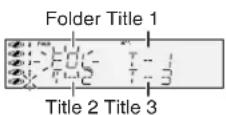
The following steps describe file search by folder:
6 Press the ENTER button.
The total number of folders (or titles) appears for 2 seconds, and names of the first 2 folders (or titles) are displayed.

● The NAVIGATION button allows you to go one step back.
- Press the DISPLAY button to check the number of files.
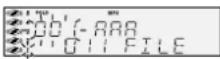
7 Use the or cursor button to scroll and select a folder (or title), and then press the ENTER button.

If you press the ▶ button instead of the ENTER button, all files in the selected folder (or title) are played.
8 Use the or cursor button to scroll and select a file.

9 Press the ▶ button to start playback.
The unit plays from the selected file to the last file in the selected folder (or title), and the previous display returns.
File search by title 1/2/3:
- In step 5, select "T-1", "T-2" or "T-3" and follow the same steps as file search by folder.
● The unit searches all files on the disc, regardless of the folder.
To stop playback:
Press the CD ■button.
To exit the MP3/WMA navigation mode:
In the stop mode, press the CD button.
Notes:
- In the MP3/WMA navigation mode, direct play and direct search functions are disabled.
- If a folder, title or file name does not appear, or appears incorrectly, remove and reinsert the disc and try again.
- If you press the RANDOM button in the stop mode, the MP3/WMA navigation mode will be cancelled.
MP3/WMA navigation (only for MP3/WMA files) (continued)
■ Character search (for folder or title 1/2/3)
By entering a name, you can search files by folder or title 1/2/3 within one MP3/WMA disc.
1 Perform steps 1 - 3 in "File search (by folder or title 1/2/3)" on page 20.
2 Press the NAVIGATION button.
3 Press the ↕ ↗ or ↘ cursor button on the remote control to select "FOL", "T-1", "T-2" or "T-3". To search files by folder name, select "FOL" (will flash).
4 Press the CHARACTER button for 2 seconds.
The display will be ready for editing characters.
1st row: String table
2nd row: Input editor (8 digits)
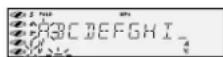
5 Press the < or > cursor button to select the desired alphabet.
Press the left button to go to the next page of character display.
6 Press the CHARACTER button and the active character will be entered in the 2nd row of the display.
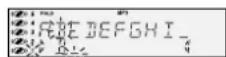
To delete an entered character, move the cursor to the character with the ^or button and press the CLEAR/ DIMMER button on the remote control.
7 Repeat steps 5 and 6 to enter characters.
In the folder (or title) name search, you do not have to enter the full name. The unit searches for names beginning with the entered characters.
8 When finished, press the ENTER button. The unit searches for the same name within folders (or titles).

If the search word is not in the folder (or title) name, "NOT FOUND" appears and the menu returns.
9 Use the or cursor button to scroll and select a folder (or title).
10 Press the ▶ button to start playback.
All files in the selected folder (or title) are played, and the previous display returns.
To exit the MP3/WMA navigation mode:
In the stop mode, press the CD ■button.
Notes:
- The unit searches regardless of the case, and names found will appear in uppercase.
- Some symbols do not appear properly.
Character entry with direct buttons:
The direct buttons on the remote control can also be used for character entry.
In step 5 on the left, use buttons 0 - 9 to enter alphabets.
Alphabet types change as you press a button.
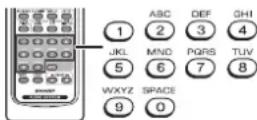
For example, press "2" four times to enter "C".
2 A B C → →
Characters:
| 1 | ABC 2 | DEF 3 | GHI 4 | JKL 5 | MNO 6 | PQRS 7 | TUV 8 | WXYZ 9 | SPACE 0 |
| 1 2 A | ABC 3 DE | F 4 GHI | 5 JKL 6 | MNO | 7 PQRS | 8 TUV | 9 WXYZ | 0 □ |
□: indicates a space.
■ Programmed play (for folder, title 1/2/3)
Folders or titles can be programmed within one MP3/WMA disc.
Folder, title 1, title 2 and title 3 cannot be programmed together simultaneously.
| 1 Perform steps 1 - 3 in “File search (by folder or title 1/2/3)”on page 20. |
| 2 Press the NAVIGATION button. |
| 3 Press the ,<,>or^ cursor button on the remote controlto select “FOL”, “T-1”, “T-2” or “T-3” and then press theENTER button.The total number of folders (or titles) appears for 2 seconds,and names of the first 2 folders (or titles) are displayed. |
| 4 Press the or cursor button to select the desired folder(or title) and then press the MEMORY button.The folder (or title) is memorised with all the files. |
| 5 Repeat step 4 for other folders (or titles).Up to 10 folders (or 10 titles) can be programmed. |
| 6 Press the ▶ button to start playback.Programmed play will always start from the smallest folder (ortitle) number. |
To stop playback:
Press the CD button.
● The programmed contents are not cleared.
To check, add or delete programmed contents:
In the stop mode, select a folder (or title) with the ^ or \cursor button. If the folder (or title) is programmed, "MEMORY" flashes.
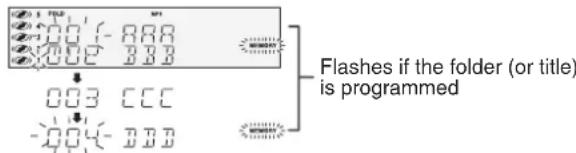
- When you press the MEMORY button with "MEMORY" flashing, the folder (or title) is removed from the programme.
- If you press the MEMORY button with "MEMORY" off, the folder (or title) is added to the programme.
- To clear all programmes, press the CLEAR/DIMMER button in the stop mode.
To exit the MP3/WMA navigation mode:
In the stop mode, press the CD button.
● The programmed contents are cleared.
Notes:
- The programmed contents are cleared when you eject a disc, play another disc, switch the function, or enter the stand-by mode with the ON/STAND-BY button.
- If you press the RANDOM button in the stop mode, the MP3/WMA navigation mode will be cancelled.
If tracks are programmed using track numbers (see
"Programmed play" on page 18):
In the MP3/WMA navigation mode, only programme by folder (or title) name are played. When you exit the mode, the programme by folder (or title) name are cleared.
When you exit the MP3/WMA navigation mode, programme by track number are cancelled.
(Programme by track number are cleared when you remove the disc.)
Listening to the radio
Auto power on function:
When you press any of the following buttons, the unit turns on.
- TUNER (BAND) button (main unit and remote control): The unit turns on and the "TUNER" function is activated.
- ▶/ button on the main unit: The unit turns on and playback of the last function starts (CD, TAPE, TUNER, GAME/AUX).
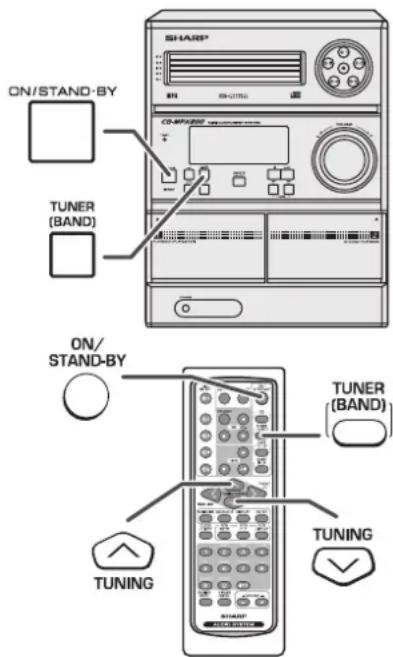
■ Tuning
1 Press the ON/STAND-BY button to turn the power on.
2 Press the TUNER (BAND) button repeatedly to select the desired frequency band (FM or AM).
3 Press the TUNING ( or ) button to tune in to the desired station.
Manual tuning:
Press the TUNING (or) button as many times as required to tune in to the desired station.
Auto tuning:
When the TUNING (or) button is pressed for more than 0.5 seconds, scanning will start automatically and the tuner will stop at the first receivable broadcast station.
Notes:
- When radio interference occurs, auto scan tuning may stop automatically at that point.
● Auto scan tuning will skip weak signal stations. - To stop the auto tuning, press the TUNING (or) button again.
- When an RDS (Radio Data System) station is tuned in, the frequency will be displayed first, and then the RDS indicator will light up. Finally, the station name will appear.
● Full auto tuning can be achieved for RDS stations "ASPM", see page 30.
To receive an FM stereo transmission:
Press the TUNER (BAND) button to select stereo mode and "ST" indicator will be displayed.
- “” will appear when an FM broadcast is in stereo.
- If the FM reception is weak, press the TUNER (BAND) button to extinguish the "ST" indicator. The reception changes to monaural, and the sound becomes clearer.
FM stereo mode indicator
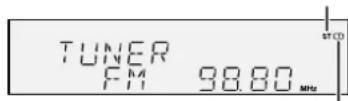
FM stereo receiving indicator
■ Memorising a station
You can store 40 AM and FM stations in memory and recall them at the push of a button. (Preset tuning)
1 Perform steps 1 - 3 in "Tuning" on page 23.
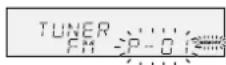
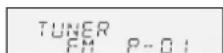
2 Press the MEMORY button to enter the preset tuning saving mode.
3 Within 30 seconds, press the PRESET (or) button to select the preset channel number.
Store the stations in memory, in order, starting with preset channel 1.
4 Within 30 seconds, press the MEMORY button to store that station in memory.
If the "MEMORY" and preset number indicators disappear before the station is memorised, repeat the operation from step 2.
5 Repeat steps 1 - 4 to set other stations, or to change a preset station.
When a new station is stored in memory, the station previously memorised for that preset channel number will be erased.
Note:
The backup function protects the memorised stations for a few hours should there be a power failure or the AC power lead become disconnected.
■ To recall a memorised station
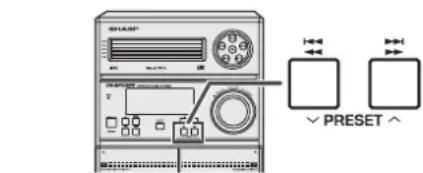
Press the PRESET (√or) button for less than 0.5 seconds to select the desired station.
■ To scan the preset stations
The stations saved in memory can be scanned automatically. (Preset memory scan)
1 Press the PRESET ( or ) button for more than 0.5 seconds. The preset number will flash and the programmed stations will be tuned in sequentially, for 5 seconds each.
2 Press the PRESET ( 'or ) button again when the desired station is located.
![graph TD A["PRESET"] --> B["Device Interface"] C["MEMORY"] --> B B --> D["PRESET"] style A fill:#f9f,stroke:#333 style C fill:#f9f,stroke:#333 style B fill:#ccf,stroke:#333 style D fill:#cff,stroke:#333](/content/2026/05/770603/images/3884025bc407a019dfcdbee4b4d18e312a13a298c1b0dea355e66cd59fe63a54.jpg)
■ To erase entire preset memory
1 Press the ON/STAND-BY button to enter the stand-by mode.
2 Whilst pressing down the button and the button press the TUNER (BAND) button until "TUNER CL" appears.

Listening to a cassette tape (TAPE 1 or TAPE 2)
Before playback:
- For playback, use normal or low-noise tapes for the best sound. (Metal or CrO₂ tapes are not recommended.)
- Do not use C-120 tapes or poor-quality tapes, as they may cause malfunctions.
● Before loading a tape into the cassette compartment, tighten the slack with a pen or a pencil.
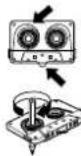
■ Tape playback
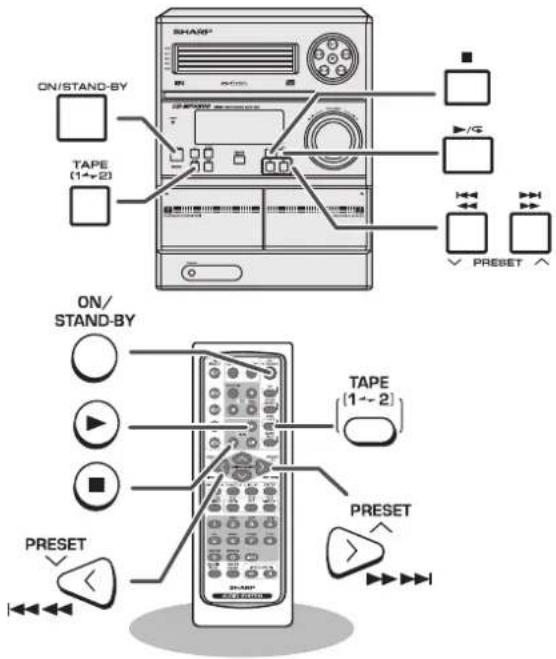
1 Press the ON/STAND-BY button to turn the power on.
2 Open the cassette compartment by pushing the area marked “▲”.
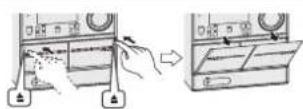
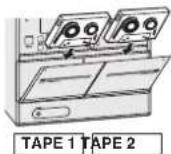
3 Load a cassette into the TAPE 1 compartment or TAPE 2 compartment with the side to be played facing towards you.
4 Press the TAPE (1-2) button to select the cassette you want to listen to.

5 Press the ▶(TAPE) to start playback.
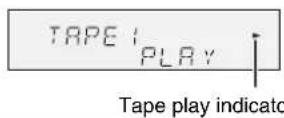
Auto power on function:
When you press any of the following buttons, the unit turns on.
- TAPE (1 - 2) button (main unit and remote control): The unit turns on and the "TAPE" function is activated.
- TAPE button (remote control): The unit turns on and the "TAPE" function is activated.
- ▶/ button (main unit): The unit turns on and playback of the last function starts (CD, TAPE, TUNER, GAME/AUX).
Auto power off function:
In the stop mode of tape operation, the main unit enters the stand-by mode after 15 minutes of inactivity.
Recording on a cassette tape
CD-MPX200H CD-MPX200H3 CD-MPX500H
■ Various tape functions
| Function Main unit Remote | Operation | ||
| control | |||
| PlaybackPress in the stop[30KW] |  |  | mode. |
StopPress in the playback, | [42S6] |  | fast forward or rewind mode. |
| Fast forward/Rewind(TAPE 2 only) |  |  PRESET[Y057] PRESET[Y057] | Press in the playback or stop mode. |
Caution:
- To remove the cassette, press the (TAPE) button, and then open the compartment.
- Before changing from one tape operation to another, press the (TAPE) button.
- If a power failure occurs during tape operation, the tape head will remain engaged with the tape and the cassette door will not open. In this case, wait until the power is restored.
Before recording:
- When recording important selections, make a preliminary test to ensure that the desired material is properly recorded.
- SHARP is not liable for damage or loss of your recording arising from malfunction of this unit.
- The volume and sound controls can be adjusted with no effect on the recorded signal (Variable Sound Monitor).
- For recording, use only normal tapes. Do not use metal or CrO2 tapes.
Erase-prevention tab of cassette tapes:
- When recording on a cassette tape, make sure that the erase-prevention tabs are not removed. Cassettes have removable tabs that prevent accidental recording or erasing.
- To protect the recorded sound, remove the tab after recording. Cover the tab hole with adhesive tape to record on the tape without the tab.
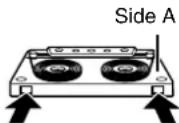
Tab for side B
Tab for side A


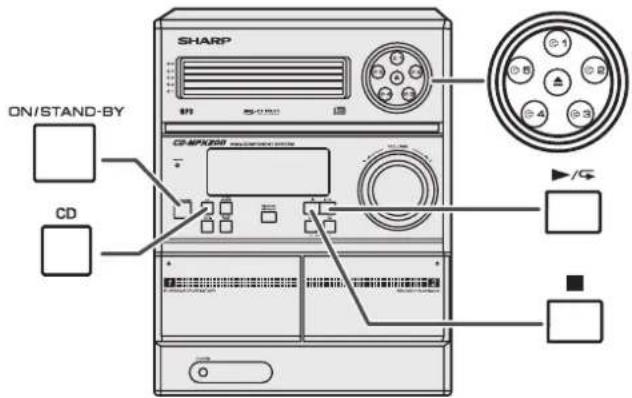
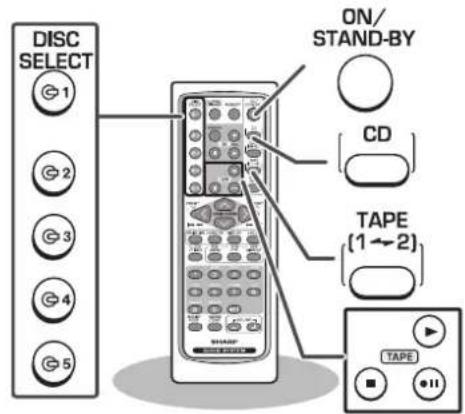
■ Recording from a CD or MP3/WMA disc
1 Press the ON/STAND-BY button to turn the power on.
2 Press the CD button.
3 Load a cassette into the TAPE 2 cassette compartment with the side to be recorded on facing you.
Wind past the leader of the tape, on which recording cannot be performed.
4 Press the button.
Recording will be paused.
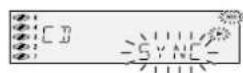
5 Press one of the 1-5 buttons to select the desired disc.
6 Within 5 seconds, press the ▶ button to start recording.
- Recording is started from the selected disc. When the play-back of the last track is finished or the end of the tape is reached, the disc and the cassette will stop automatically.
- Playback of the disc will start approximately 7 seconds after the tape starts.
To stop recording:
Press the ■(TAPE) button.
The disc and tape will stop.
To perform programmed recording:
1 Programme discs and tracks (see page 18).
2 Press the button.
3 Press the ▶ (TAPE) button to start recording.
To stop recording:
Press the ■(TAPE) button.
The disc and tape will stop.
■ Recording from the radio
1 Tune in to the desired station (see page 23).
2 Load a cassette into the TAPE 2 cassette compartment with the side to be recorded on facing you.
Wind past the leader of the tape, on which recording cannot be performed.
3 Press the button.
Recording will be paused.
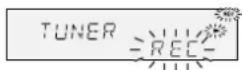
4 Press the ▶ (TAPE) button to start recording.
To interrupt recording:
Press the ● button.
To resume recording, press the ▶/ (TAPE) button.
To stop recording:
Press the ■(TAPE) button.
Note:
If you hear a whistling noise whilst recording an AM station, move the AM loop aerial.
■ Dubbing from tape to tape
You can record from TAPE 1 to TAPE 2.
1 Press the ON/STAND-BY button to turn the power on.
2 Load a prerecorded cassette into the TAPE 1 cassette compartment. Insert a blank tape into the TAPE 2 cassette compartment.
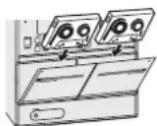
TAPE 1 TAPE 2
It is recommended that the recording tape is the same length as the master tape.
3 Press the TAPE (1 2) button until "TAPE 1" appears on the display.
4 Press the button.
Recording will be paused.
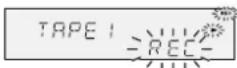
5 Press the ▶ (TAPE) button to start dubbing.
To stop dubbing:
Press the ■(TAPE) button.
TAPE 1 and TAPE 2 will stop simultaneously.
■ Erasing recorded tapes
1 Load the tape to be erased into the TAPE 2 cassette compartment with the side to be erased facing towards you.
2 Press the TAPE (1 2) button until "TAPE 2" appears on the display.
3 Press the button.
4 Press the ▶(TAPE) button to start erasing.
Note:
Make sure that the TAPE 1 is not in use.
Using the Radio Data System (RDS)
RDS is a broadcasting service which a growing number of FM stations provide. These FM stations send additional signals along with their regular programme signals. They send their station names, and information about the type of programme such as sport, music, etc.
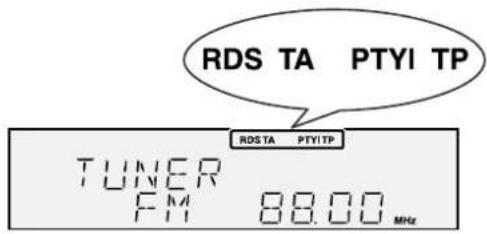
When tuned to an RDS station, "RDS" and the station name will be displayed.
"TP" (Traffic Programme) will appear on the display when the received broadcast carries traffic information, and "TA" (Traffic Announcement) will appear whilst a traffic information is on air.
"PTYI" (Dynamic PTY Indicator) will appear whilst the Dynamic PTY station is received.
You can control the RDS by using the buttons on the remote control only.
■ Information provided by RDS
Each time the RDS DISPLAY button is pressed, the display will switch as follows:
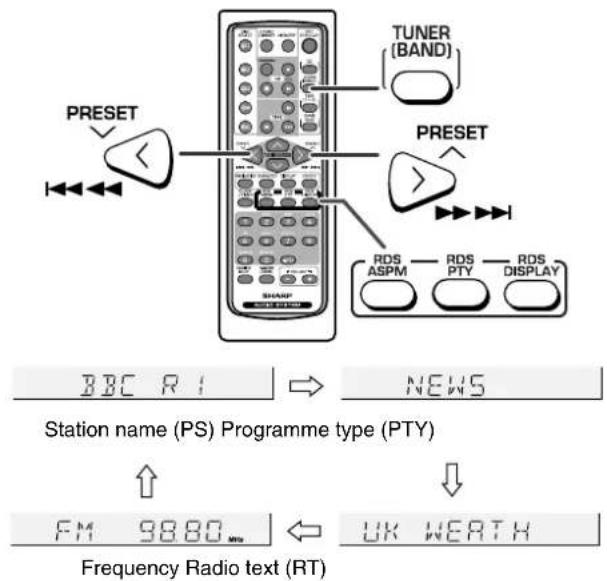
When tuning in to a station other than an RDS station or to an RDS station which sends weak signal, the display will change in the following order:
![graph LR A["NO PS NO PTY"] --> B["NO RT"] C["FM 98.80 MHz"] --> B](/content/2026/05/770603/images/51e6000f1cfbf9941b4b0f452fe8cd230ed628ece3b7999b34ea94e1b2901854.jpg)
■ Using the Auto Station Programme Memory (ASPM)
Whilst in the ASPM operation mode, the tuner will automatically search for new RDS stations. Up to 40 stations can be stored. If you have already stored some stations in memory, the number of new stations you can store will be less.
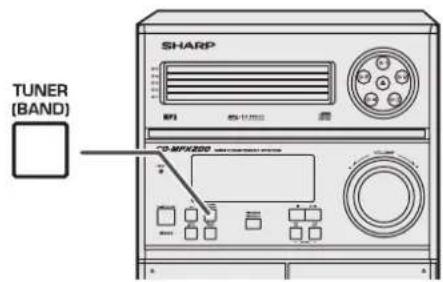
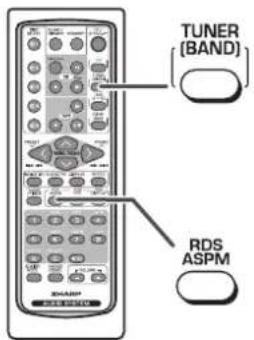
1 Press the TUNER (BAND) button to select the FM band.
2 Press and hold down the RDS ASPM button on the remote control for at least 3 seconds.
1 After "ASPM" has flashed for about 4 seconds, scanning will start (87.50 - 108.00 MHz).

2 When an RDS station is found, "RDS" will appear for a short time and the station will be stored in memory.
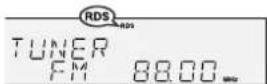
3 After scanning, the number of stations stored in memory will be displayed for 4 seconds, and then "END" will appear for 4 seconds.

Using the Radio Data System (RDS) (continued)
To stop the ASPM operation before it is complete:
Press the RDS ASPM button whilst it is scanning for stations.
The stations which are already stored in memory will be kept there.
Notes:
- If the same station is broadcasting on different frequencies, the strongest frequency will be stored in memory.
- Any station which has the same frequency as the one stored in memory will not be stored.
- If 40 stations have already been stored in memory, the scan will be aborted. If you want to redo the ASPM operation, erase the preset memory.
- If no stations have been stored in memory, "END" will appear for about 4 seconds.
- If the RDS signals are very weak, station names may not be stored in memory.
To erase all of the contents of preset memory:
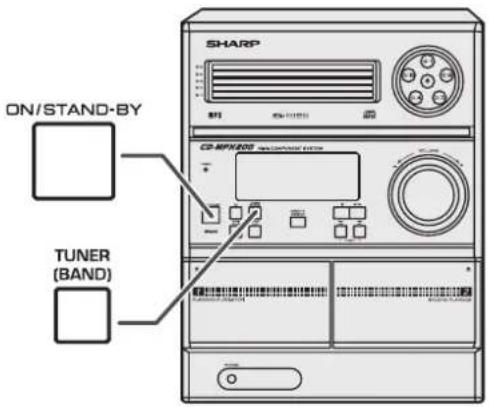
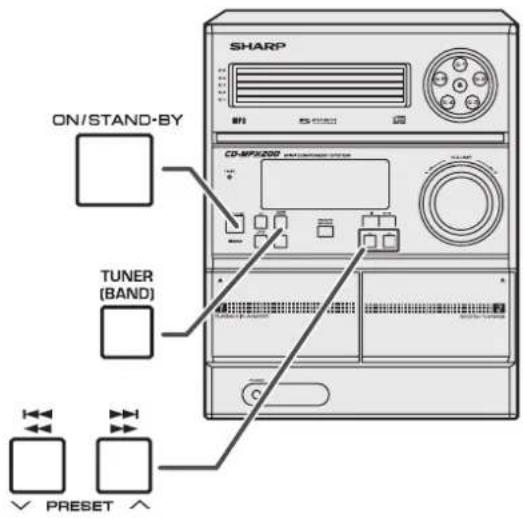
1 Press the ON/STAND-BY button to enter the power stand-by mode.
2 Whilst pressing down the button and the button, press the TUNER (BAND) button until "TUNER CL" appears.
- After performing this operation, all of the preset memory information will be erased.
To store a station name again if the wrong name was stored in memory:
It may be impossible to store station names in memory using the ASPM function if there is lots of noise or if the signal is too weak. In this case, perform as follows.
1 Press the PRESET (or) button to check whether the names are correct.
2 If you find a wrong name during receiving the station, wait until the correct name will be displayed. And then press the MEMORY button.
3 Within 30 seconds, press the MEMORY button whilst the preset channel number is flashing.
● The new station name has been stored in memory correctly.
Notes:
● The same station name can be stored in different channels.
- In a certain area or during certain time periods, the station names may temporarily be different.
■ Notes for RDS operation
If any of the following events occur, it does not mean that the unit is faulty:
- "PS", "NO PS" and a station name appear alternately, and the unit does not operate properly.
- If a particular station is not broadcasting properly or a station is conducting tests, the RDS reception function may not work properly.
- When you receive an RDS station whose signal is too weak, information like the station name may not be displayed.
- "NO PS", "NO PTY" or "NO RT" will flash for about 5 seconds, and then the frequency will be displayed.
Notes for radio text:
● The first 10 characters of the radio text will appear for 4 seconds and then they will scroll across the display.
- If you tune in to an RDS station which is not broadcasting any radio text, "NO RT" will be displayed when you switch to the radio text position.
- Whilst radio text data is received or when the text contents change, "RT" will be displayed.
![graph TD A["PRESET"] --> B["Central Display"] B --> C["TUNER (BAND)"] B --> D["RDS PTY"] style A fill:#f9f,stroke:#333 style B fill:#ccf,stroke:#333 style C fill:#cfc,stroke:#333 style D fill:#fcc,stroke:#333](/content/2026/05/770603/images/5d508c698a4828b5729e67ee7e41281df5c874201d551b5eebcc7f0102214e6c.jpg)
■ To recall stations in memory
To specify programmed types and select stations (PTY search): You can search a station by specifying the programme type (news, sports, traffic programme, etc. ... see pages 33 - 34) from the stations in memory.
1 Press the TUNER (BAND) button to select the FM.
2 Press the RDS PTY button on the remote control.
"SELECT" and "PTY TI" will appear alternately for about 6 seconds.
3 Within 6 seconds, press the PRESET (or) button to select the programme type.
Each time the button is pressed, the programme type will appear. If the button is held down for more than 0.5 seconds, the programme type will appear continuously.
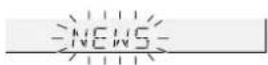
4 Whilst the selected programme type is flashing (within 6 seconds), press the RDS PTY button again.
After the selected programme type has been lit for 2 seconds, "SEARCH" will appear, and the search operation will start.


Using the Radio Data System (RDS) (continued)
Notes:
- If the display has stopped flashing, start again from step 2. If the unit finds a desired programme type, the corresponding channel number will flash for about 4 seconds, and then the station name will flash for 7 seconds, which will remain lit.
- If you want to listen to the same programme type of another station, press the RDS PTY button whilst the channel number or station name is flashing. The unit will look for the next station.
- If no station can be found, "NOT FOUND" will appear for 4 seconds.
If you select the traffic programme:
If you select the traffic programme (TP) in step 3, "TP" will appear. (This does not mean that you can listen to the traffic information at that time.)
When the traffic information is broadcast, "TA" will appear.
To specify station names and select stations manually:
You can select a station by specifying the name (BBC R1, BBC R2, etc.) from the stations stored in memory.
Before starting this operation, you must store one or more station names in memory.
1 Press the TUNER (BAND) button to select the FM band.
2 Press the PRESET (or) button on the remote control to select a desired station.
3 The station name will be displayed for 6 seconds. Then the display will change.
Descriptions of the PTY (Programme Type) codes, TP (Traffic Programme) and TA (Traffic Announcement).
You can search for and receive the following PTY, TP and TA signals.
| NEWS Short | accounts of facts, events and publicly expressed views, reportage and actuality. |
| AFFAIRS Top | cal programme expanding or enlarging upon the news, generally in different presentation style or concept, including debate, or analysis. |
| INFO Programmes whose purpose is to impart advice in the widest sense. | |
| SPORT Programme concerned with any aspect of sport. | |
| EDUCATE Programme intended primarily to educate, of which the formal element is fundamental. | |
| DRAMA All radio plays and serials. | |
| CULTURE Programmes concerned with any aspect of national or regional culture, including language, theatre, etc. | |
| SCIENCE Programmes about the natural sciences and technology. | |
| VARIED Used for mainly speech-based programmes usually of light-entertainment nature, not covered by other categories. Examples include: quizzes, panel games, personality interviews. | |
| POP M Commercial music, which would generally be considered to be of current popular appeal, often featuring in current or recent record sales charts. | |
| ROCK M Contemporary modern music, usually written and performed by young musicians. | |
| EASY M Current contemporary music considered to be “easy-listening”, as opposed to Pop, Rock or Classical, or one of the specialised music styles, Jazz, Folk or Country. Music in this category is often but not always, vocal, and usually of short duration. | |
| LIGHT M Classical music for general, rather than specialist appreciation. Examples of music in this category are instrumental music, and vocal or choral works. | |
| CLASSICS Performances of major orchestral works, symphonies, chamber music, etc., and including Grand Opera. | |
| OTHER M Musical styles not fitting into any of the other categories. Particularly used for specialist music of which Rhythm & Blues and Reggae are examples. | |
| WEATHER Weather reports and forecasts and meteorological information. | |
| FINANCE Stock Market reports, commerce, trading, etc. | |
| CHILDREN For programmes targeted at a young audience, primarily for entertainment and interest, rather than where the objective is to educate. | |
| SOCIAL Programmes about people and things that influence them individually or in groups. Includes: sociology, history, geography, psychology and society. | |
| RELIGION Any aspect of beliefs and faiths, involving a God or Gods, the nature of existence and ethics. | |
| PHONE IN Involving members of the public expressing their views either by phone or at a public forum. | |
| TRAVEL Features and programmes concerned with travel to near and far destinations, package tours and travel ideas and opportunities. Not for use for announcements about problems, delays, or roadworks affecting immediate travel where TP/TA should be used. | |
| LEISURE Programmes concerned with recreational activities in which the listener might participate. Examples include, Gardening, Fishing, Antique collecting, Cooking, Food & Wine, etc. | |
| JAZZ Polyphonic, syncopated music characterised by improvisation. | |
| COUNTRY Songs which originate from, or continue the musical tradition of the American Southern States. Characterised by a straightforward melody and narrative story line. | |
| NATION M Current Popular Music of the Nation or Region in that country's language, as opposed to International 'Pop' which is usually US or UK inspired and in English. | |
| OLDIES Music from the so-called "golden age" of popular music. | |
| FOLK M Music which has its roots in the musical culture of a particular nation, usually played on acoustic instruments. The narrative or story may be based on historical events or people. | |
| DOCUMENT Programme concerned with factual matters, presented in an investigative style. | |
| TEST Broadcast when testing emergency broadcast equipment or receivers. | |
| ALARM ! | Emergency announcement made under exceptional circumstances to give warning of events causing danger of a general nature. |
| NONE | No programme type (receive only). |
| TP | Broadcasts which carry traffic announcements. |
| TA | Traffic announcements are being broadcast. |
CD-MPX200H CD-MPX200H3 CD-MPX500H
ENGLISH
Timer and sleep operation (Remote control only)
Timer playback:
The unit turns on and plays the desired source (CD, tuner, tape) at a preset time.
Timer recording:
The unit turns on and starts recording from the tuner at the preset time.
This unit has 2 types of timer: ONCE TIMER and DAILY TIMER.
Once timer: Once timer play or once timer recording works for one time only at a preset time.
For example, if you are away but want to record a programme on a radio station.
Daily timer: Daily timer play or daily timer recording works at the same preset time every day.
For example, set the timer as a wake-up call every morning.
Using the once timer and daily timer in combination:
For example, use the once timer to record a radio programme, and use the daily timer to wake up.
1 Set the daily timer (pages 35 - 37).
2 Set the once timer (pages 35 - 37).
![graph TD A["Start"] --> B["Daily timer"] C["Stop Start Stop"] --> D["Once timer"] E[" "] --> F[" "] G[" "] --> H[" "] I[" "] --> J[" "] K[" "] --> L[" "] M[" "] --> N[" "] --> O[" "] P[" "] --> Q[" "] --> R[" "] S[" "] --> T[" "] --> U[" "] --> V[" "] --> W[" "] --> X[" "] --> Y[" "] --> Z[" "] -->…](/content/2026/05/770603/images/f95be46e70c79cfd96a967f28eda8daa09888c1b36267c9f4ec40b1d11415a37.jpg)
Note:
When set times for the daily timer and once timer overlap, the once timer takes priority. Allow an interval of at least 1 minute between operations.
![graph TD A["MEMORY"] --> B["ON/STAND-BY"] B --> C["PRESSET"] C --> D["CLOCK/TIMER"] D --> E["PRESSET"] E --> F[">"] F --> G["PRESSET"] G --> H[">"] H --> I["PRESSET"] I --> J[">"] J --> K["PRESSET"] K --> L[">"] L --> M["PRESSET"] M --> N["PRESSET"]](/content/2026/05/770603/images/93295b80b041cb95c8d7ee6de161182baaa0844dd85a26c6f8301090e6d1f598.jpg)
■ Timer playback or timer recording Before setting timer:
1 Check that the clock is set to the correct time (refer to page 11). If it is not set, you cannot use the timer function.
2 For timer playback: Load a cassette or discs to be played.
For timer recording: Load a cassette for recording in the cassette compartment.

1 Press the ON/STAND-BY button to turn the power on.
2 Press the CLOCK/TIMER button.
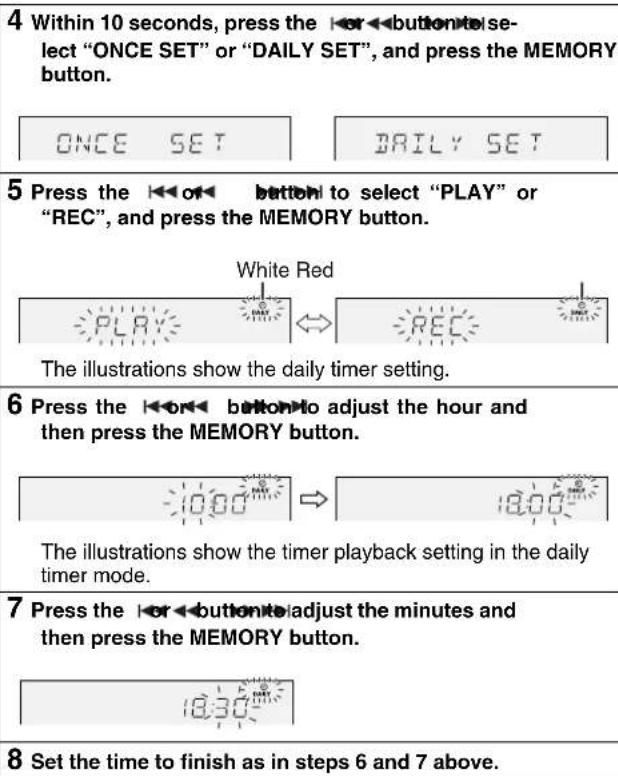
3 Within 10 seconds, press the ◀or◀ button to select "ONCE" or "DAILY", and press the MEMORY button.

Set the clock to the correct time if "ONCE" or "DAILY" does not appear.
Continued to the next page
CD-MPX200H CD-MPX200H3 CD-MPX500H
| 9 Switch input with the button and then press the MEMORY button. To select the timer playback source: CD, TUNER, TAPE 1 or TAPE 2. To select the timer recording source: TUNER. ● When you select the tuner, select a station by pressing the button, and then press the MEMORY button. ● If a station has not been programmed, "NO PRESET" will be displayed and timer setting will be cancelled. |
| 10 Adjust the volume using the VOLUME control, and then press the MEMORY button. Do not turn the volume up too high. |
| 11 Press the ON/STAND-BY button to enter the power stand-by mode. The "TIMER" indicator lights up and the unit is ready for timer playback or timer recording. |
Continued to the next page
Timer and sleep operation (Remote control only) (continued)
12 When the preset time is reached, playback or recording will start.
The volume will increase gradually until it reaches the preset volume.
13 When the timer end time is reached, the system will enter the power stand-by mode automatically.
Once timer:
The timer will be cancelled.
Daily timer:
The timer will operate at the same time every day. It will continue until the daily timer setting is cancelled. Cancel the daily timer when it is not in use.
Notes:
- When performing timer playback or recording using another unit connected to the GAME INPUT sockets, select "GAME" in step 9. This unit will turn on or enter the power stand-by mode automatically, however, the connected unit will not turn on or off.
- During timer playback or timer recording, TIMER indicator light and timer indicator on the display ⏻, will blink.
To stop the blinking, follow step "Cancelling the timer setting in the timer stand-by mode" on the right hand side of this page.
Checking the timer setting in the timer stand-by mode:
1 Press the CLOCK/TIMER button.
2 Within 10 seconds, press the I or button to select "ONCE" or "DAILY", and press the MEMORY button
3 Within 10 seconds, press the ◄or◀button to select "ONCE CALL" or "DAILY CALL", and press the MEMORY button. The unit returns to the timer stand-by mode after displaying the settings in order.
Cancelling the timer setting in the timer stand-by mode:
1 Press the CLOCK/TIMER button
2 Within 10 seconds, press the I or button to select "ONCE" or "DAILY", and press the MEMORY button
3 Within 10 seconds, press the ◄or◀button to select "ONCE OFF" or "DAILY OFF", and press the MEMORY button. Timer will be cancelled (the setting will not be cancelled).
Reusing the memorised timer setting:
The timer setting will be memorised once it is entered. To reuse the same setting, perform the following operations.
1 Turn the power on and press the CLOCK/TIMER button.
2 Within 10 seconds, press the I or ◀ button to select "ONCE" or "DAILY", and press the MEMORY button
3 Within 10 seconds, press the ◄or◀button to select "ONCE ON" or "DAILY ON", and press the MEMORY button.
4 Press the ON/STAND-BY button to enter the power stand-by mode.
■ Sleep operation
The radio, CD, MP3/WMA disc and cassette tape can all be turned off automatically.
| 1 Play back the desired sound source. |
| 2 Press the CLOCK/TIMER button. |
3 Within 10 seconds, press the[←←orbutton to select“SLEEP”, and press theMEMORY button.  |
| 4 Press the←←orbuttonto select the time.(Maximum: 3 hours - Minimum: 1 minute)3 hours - 5 minutes→ 5-minute intervals5 minutes - 1 minute→ 1-minute intervals |
| 5 Press the MEMORY button.“SLEEP” will appear. |
| 6 The unit will enter the power stand-by mode automaticallyafter the preset time has elapsed.The volume will be turned down 1 minute before the sleepoperation finishes. |
To confirm the remaining sleep time:
1 Whilst "SLEEP" is indicated, press the CLOCK/TIMER button.
2 Within 10 seconds, press the For button to select
"SLEEP X : XX".
“X : XX” is remaining sleep time.
● The remaining sleep time is displayed for about 10 seconds.
- You can change the remaining sleep time whilst it is displayed by pressing the MEMORY button (steps 4 - 5).
To cancel the sleep operation:
Press the ON/STAND-BY button whilst "SLEEP" is indicated.
To cancel the sleep operation without setting the unit to the stand-by mode, proceed as follows.
1 Whilst "SLEEP" is indicated, press the CLOCK/TIMER button.
2 Within 10 seconds, press the 🔊 or ◀ button to select
"SLEEP OFF", and press the MEMORY button.
■ To use timer and sleep operation together
Sleep and timer playback:
For example, you can fall asleep listening to the radio and wake up to CD in the next morning.
Sleep and timer recording:
For example, you can fall asleep listening to the CD and record radio programmes whilst sleeping.
1 Set the sleep time (see left, steps 1 - 5).
2 Whilst the sleep timer is set, set the timer playback or recording (steps 2 - 10, pages 35 - 36).
![graph LR A["Sleep timer setting"] --> B["1 minute - 3 hours Desired time"] B --> C["Timer playback or recording setting"] C --> D["End time"]](/content/2026/05/770603/images/0e942e1690be3af8d55f5cfe93117d2fd56beedf4ad7627420a2cca3af14bd34.jpg)
Caution:
When using the cassette deck, be sure the tape length is long enough to perform both functions. If you want to sleep and wake up listening to a tape, and the length of the tape is shorter than the sleep timer setting, timer playback or recording will not be possible.
Enhancing your system
The connection lead is not included. Purchase a commercially available lead as shown below.
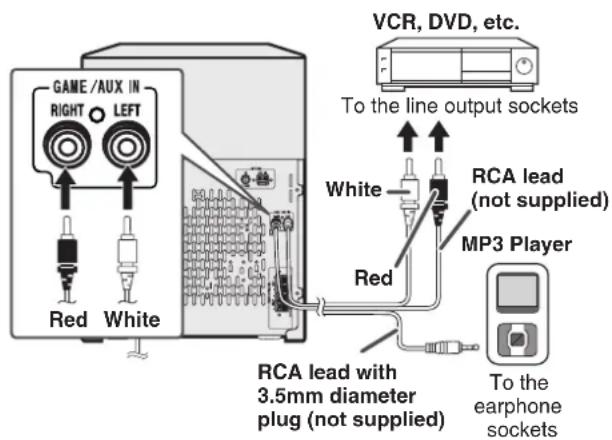
■ Listening to playback sounds of Game, VCR, DVD, MP3 Player etc.
1 Connect a video game system, VCR, DVD, MP3 Player etc. to the GAME/AUX IN Sockets.
2 Press the ON/STAND-BY button to turn the power on.
3 Press the GAME/AUX button.
4 Play the connected equipment.
Note:
To prevent noise interference, place the unit away from the television.
Auto power on function:
When you press any of the following buttons, the unit turns on.
- GAME/AUX button (main unit and remote control): The unit turns on and the "GAME" function is activated.
- ▶/ button on the main unit: The unit turns on and playback of the last function starts (CD, TAPE, TUNER, GAME/AUX).
■ To record on a tape from game, VCR, MP3 Player etc.
1 Insert a cassette in the TAPE 2 cassette compartment.
2 Press the GAME/AUX button.
3 Press the button.
4 Press the ▶ (TAPE) button.
5 Start the game system, VCR, etc.
Troubleshooting chart
CD-MPX200H CD-MPX200H3 CD-MPX500H
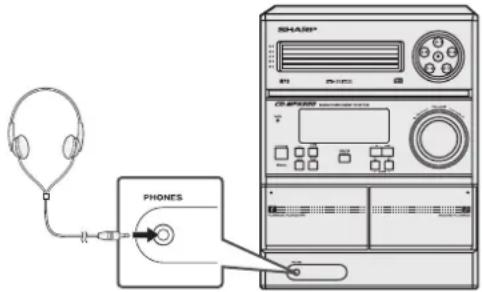
■ Headphones
- Do not turn the volume on to full at switch on and listen to music at moderate levels. Excessive sound pressure from earphones and headphones can cause hearing loss.
- Before plugging in or unplugging the headphones, reduce the volume.
- Be sure your headphones have a 3.5 mm (1/8") diameter plug and impedance between 16 and 50 ohms. The recommended impedance is 32 ohms.
- Plugging in the headphones disconnects the speakers automatically. Adjust the volume using the VOLUME control.
Many potential problems can be resolved by the owner without calling a service technician.
If something is wrong with this product, check the following before calling your authorised SHARP dealer or service centre.
General
| Symptom Possible | cause |
| ● The clock is not set to the correct time. | ● Did a power failure occur? Reset the clock. (Refer to page 11.) |
| ● When a button is pressed, the unit does not respond. | ● Set the unit to the power stand-by mode and then turn it back on. ● If the unit still malfunctions, reset it. (Refer to page 42.) |
| ● No sound is heard. ● Is | the volume level set to “0”? ● Are the headphones connected? ● Are the speaker wires disconnected? |
■ CD player
| Symptom Possible | cause |
| ● Playback does not start. ● Playback stops in the middle or is not performed properly. | ● Is the disc loaded upside down? ● Does the disc satisfy the standards? ● Is the disc distorted or scratched? |
| ● Playback sounds are skipped, or stopped in the middle of a track. | ● Is the unit located near excessive vibrations? ● Is the disc very dirty? ● Has condensation formed inside the unit? |
Troubleshooting chart (continued)
■ Cassette deck
| Symptom Possible | cause |
| Cannot record. Is the proper sound quality.Cannot erase completely. | erase-prevention tab removed?Is it a normal tape? (You cannot record on a metal or CrO2 tape.) |
| Sound skippingCannot hear treble.Sound fluctuation. | Is there any slack?Is the tape stretched?Are the capstans, pinch rollers, or heads dirty? |
| Cannot remove the tape. | If a power failure occurs during playback, the heads remain engaged with the tape. Do not open the compartment with great force. |
■ Remote control
| Symptom Possible cause | |
| ● The remote control does not operate. | ● Is the AC power lead of the unit plugged in?● Is the battery polarity correct?● Are the batteries dead?● Is the distance or angle incorrect?● Does the remote control sensor receive strong light? |
Tuner
| Symptom Possible | cause |
| ● The radio makes unusual noises continuously. | ● Is the unit placed near the TV or computer?● Is the FM aerial or AM loop aerial placed properly? Move the aerial away from the AC power lead if it's located nearby. |
■ Condensation
Sudden temperature changes, storage or operation in an extremely humid environment may cause condensation inside the cabinet (CD pickup, tape heads, etc.) or on the transmitter on the remote control. Condensation can cause the unit to malfunction. If this happens, leave the power on with no disc (or cassette) in the unit until normal playback is possible (about 1 hour). Wipe off any condensation on the transmitter with a soft cloth before operating the unit.
■ If trouble occurs
When this product is subjected to strong external interference (mechanical shock, excessive static electricity, abnormal supply voltage due to lightning, etc.) or if it is operated incorrectly, it may malfunction.
If such problem occurs, do the following:
1 Set the unit to the stand-by mode and turn the power on again.
2 If the unit is not restored in the previous operation, unplug and plug in the unit, and then turn the power on.
Note:
If neither operation above restores the unit, clear all the memory by resetting it.
■ Clearing all the memory (reset)
1 Press the ON/STAND-BY button to enter the power stand-by mode.
2 Whilst pressing down the button and the button, press the TUNER (BAND) button until "CLEAR ALL" appears.

Caution:
This operation will erase all data stored in memory including clock, timer settings, tuner preset, and CD programme.
■ Before transporting the unit
Remove all CDs from the unit. Make sure there is no CD in the disc tray. Then, set the unit to the power stand-by mode. Carrying the unit with discs left inside can damage the unit.
■ Care of compact discs
Compact discs are fairly resistant to damage, however mistracking can occur due to an accumulation of dirt on the disc surface. Follow the guidelines below for maximum enjoyment from your CD collection and player.
- Do not write on either side of the disc, particularly the non-label side from which signals are read. Do not mark this surface.
- Keep your discs away from direct sunlight, heat, and excessive moisture.
● Always hold the CDs by the edges. Fingerprints, dirt, or water on the CDs can cause noise or mistracking. If a CD is dirty or does not play properly, clean it with a soft, dry cloth, wiping straight out from the centre, along the radius.
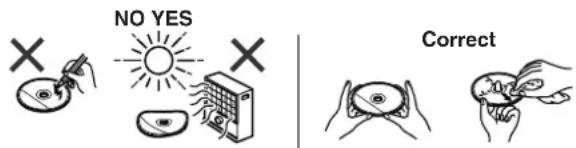
Maintenance
■ Cleaning the tape-handling parts
- Dirty heads, capstans or pinch rollers can cause poor sound and tape jams. Clean these parts with a cotton swab moistened with commercial head/pinch roller cleaner or isopropyl alcohol.
- When cleaning the heads, pinch rollers, etc., unplug the unit which contains high voltages.
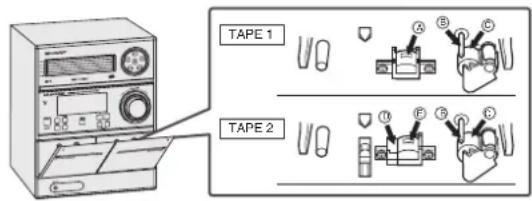
Playback head Erase head
⑧ Capstans Recording/Playback head
© Pinch rollers
- After long use, the deck's heads and capstans may become magnetised, causing poor sound. Demagnetise these parts once every 30 hours of playing/recording time by using a commercial tape head demagnetiser. Read the demagnetiser's instructions carefully before use.
■ Cleaning the cabinet
Periodically wipe the cabinet with a soft cloth and a diluted soap solution, then with a dry cloth.
Caution:
- Do not use chemicals for cleaning (petrol, paint thinner, etc.). It may damage the cabinet finish.
- Do not apply oil to the inside of the unit. It may cause malfunctions.
Specifications
As part of our policy of continuous improvement, SHARP reserves the right to make design and specification changes for product improvement without prior notice. The performance specification figures indicated are nominal values of production units. There may be some deviations from these values in individual units.
General
| Power source AC 230 V ~ 50 Hz | |
| Power consumptionCD-MPX200H/CD-MPX200H3 | Power on: 60 WPower stand-by: 0.6 W (*) |
| Power consumptionCD-MPX500H | Power on: 118 WPower stand-by: 0.6 W (*) |
| Dimensions Width: 260 | mm (10 - 1/4")Height: 330 mm (13")Depth: 323 mm (12 - 7/8") |
| Weight CD-MPX200H/CD-MPX200H3 | 6.4 kg (14.1 lbs.) |
| Weight CD-MPX500H 6 | 8 kg (15.0 lbs.) |
* This power consumption value is obtained when the demonstration mode is cancelled in the power stand-by mode. Refer to page 8 to cancel the demonstration mode.
■ CD player
| Type 5-disc multi-play compact disc player | |
| Signal readout Non-contact, 3-beam semiconductor laser pickup | |
| D/A converter Single bit | D/A converter |
| Frequency response 20 - 20,000 Hz | |
| Dynamic range 90 dB (1 kHz) | |
Tuner
| Frequency range | FM: 87.5 - 108.0 MHzAM: 522 - 1,620 kHz |
■ Amplifier
| Output powerCD MPXQH /CD MPXQH 3 | Front speakerPMPO: 156 WM PO: 78 W (39 W + 39 W DIN 45 324)RMS:40 W Q2W + 20 W) (DIN 45 324)RMS:34 W 71W + 17 W) (DIN 45 500) |
| Output powerCD MPXQH | Front speakerPMPO: 39 WM PO: 196 W (98 W + 98 W) (DIN 45 324)RMS:100 W (50 W + 50 W) (D IN 45 324)RMS:88 W 44W + 44 W) (DIN 45 500) |
| Output terminals | Spea els: 6 ohmsHeadphones: 16 -50 oh ms( oome nded: 32oh m)s |
| Input terminals | Game/Auxili audio signal):500 mV/47 k ohms |
■ Cassette deck
| Freq ycneure pense | 50 4:000 Hz (n ardape) |
| Signal/noise rati o | 55 dB (TAPE 1, playb ♦k50 dB (TAPE 2, recording playba ♦k |
| Wow nd flutter | 0.3 DN 45 511) |
CD-MPX200H CD-MPX200H3 CD-MPX500H
■ S kpe(CD-MP H02DMPX200H3)
| Type 3-way type speaker system | |
| Super tweeter5 cm (2") tweeter13 cm (5 - 1/8") woofer | |
| Maximum input power | 40 W |
| Rated input power | 20 W |
| Impedance 6 ohms | |
| Dimensions Width: 1 | 80 mm (7 - 1/16")Height: 330 mm (13")Depth: 194 mm (7 - 5/8") |
| Weight 2.2 kg (4.8 lbs.)/each | |
■ S kpe(CD-MP 0)
| Type 3-way type speaker system | |
| Super tweeter5 cm (2") tweeter13 cm (5 - 1/8") woofer | |
| Maximum input power | 100 W |
| Rated input power | $0 W |
| Impedance 6 ohms | |
| Dimensions Width: 1 | 80 mm (7 - 1/16")Height: 330 mm (13")Depth: 212 mm (8 - 6/16") |
| Weight 2.6 kg (5.7 lbs.)/each | |
SHARP
SHA LECFRONIC peruE( SHbmG ) risosße 3, D-20097 Hamburg
SHARP CORPORATION
TINSZA266AWZZ 07F R KI ①


- CD-MPX200H CD-MPX200H3 CD-MPX500H
- BESONDERE ANMERKUNGEN SPECIAL NOTES
- WARNING
- ● VORSICHT
- INFORMATION ON PROPER DISPOSAL
- INFORMATION ON DISPOSAL FOR USERS (PRIVATE HOUSEHOLDS)
- IN THE EUROPEAN UNION
- IN OTHER COUNTRIES OUTSIDE THE EU
- INFORMATION ON DISPOSAL FOR BUSINESS USERS
- ENGLISH
- INTRODUCTION
- SPECIAL NOTE
- ACCESSORIES
- CONTENTS
- PRECAUTIONS
- GENERAL
- VOLUME CONTROL
- CONTROLS AND INDICATORS
- FRONT PANEL
- DISPLAY
- REAR PANEL
- SPEAKER SYSTEM
- CONTROLS AND INDICATORS (CONTINUED)
- REMOTE CONTROL
- SYSTEM CONNECTIONS (CONTINUED)
- AERIAL CONNECTION
- SUPPLIED FM AERIAL
- SUPPLIED AM LOOP AERIAL
- NOTE
- INSTALLING THE AM LOOP AERIAL
- SPEAKER CONNECTION
- CAUTION
- AC POWER CONNECTION
- NOTES
- COOLING FAN: (FOR CD-MPX500H ONLY)
- DEMONSTRATION MODE
- TO CANCEL THE DEMONSTRATION MODE
- TO RETURN TO THE DEMONSTRATION MODE
- EXTERNAL FM AERIAL
- BATTERY INSTALLATION
- TEST OF THE REMOTE CONTROL
- GENERAL CONTROL
- TO TURN THE POWER ON
- DISPLAY BRIGHTNESS CONTROL
- VOLUME AUTO FADE-IN
- MAIN UNIT OPERATION
- REMOTE CONTROL OPERATION
- BASS CONTROL (X-BASS)
- EQUALISER
- SETTING THE CLOCK (REMOTE CONTROL ONLY)
- TO READJUST THE CLOCK
- TO CHANGE THE 24-HOUR OR 12-HOUR DISPLAY
- LISTENING TO A CD OR MP3/WMA DISC
- MP
- WMA
- AUTO POWER ON FUNCTION
- AUTO POWER OFF FUNCTION
- LISTENING TO A CD OR MP3/WMA DISC (CONTINUED)
- TO EXCHANGE OTHER DISCS WHILST PLAYING A DISC
- TO REMOVE THE DISCS
- NOTES FOR CD
- NOTES FOR MP3/WMA DISCS
- TO CHANGE THE DISPLAY (MP3/WMA DISCS ONLY)
- ADVANCED CD OR MP3/WMA DISC PLAYBACK
- TO SPECIFY A DISC TO PLAY
- TO STOP PLAYBACK
- DIRECT TRACK SEARCH
- FOR EXAMPLE, TO CHOOSE
- ADVANCED CD OR MP3/WMA DISC PLAYBACK (CONTINUED)
- REPEAT PLAY
- TO REPEAT DISC
- TO REPEAT ALL TRACKS ON UP TO 5 DISCS
- TO REPEAT DESIRED TRACKS
- TO CANCEL REPEAT PLAY
- RANDOM PLAY
- TO RANDOM PLAY ALL TRACKS ON UP TO 5 DISCS
- TO CANCEL RANDOM PLAY
- PROGRAMMED PLAY
- TO CLEAR THE PROGRAMMED SELECTIONS
- TO CANCEL THE PROGRAMMED PLAY MODE
- ADDING TRACKS TO THE PROGRAMME
- TO CHECK WHICH TRACKS ARE PROGRAMMED
- MP3/WMA NAVIGATION (ONLY FOR MP3/WMA FILES)
- MP3/WMA NAVIGATION
- FILE SEARCH (BY FOLDER OR TITLE 1/2/3)
- PRESS THE NAVIGATION BUTTON
- THE FOLLOWING STEPS DESCRIBE FILE SEARCH BY FOLDER
- PRESS THE ENTER BUTTON
- FILE SEARCH BY TITLE
- TO EXIT THE MP3/WMA NAVIGATION MODE
- MP3/WMA NAVIGATION (ONLY FOR MP3/WMA FILES) (CONTINUED)
- CHARACTER SEARCH (FOR FOLDER OR TITLE 1/2/3)
- CHARACTER ENTRY WITH DIRECT BUTTONS
- CHARACTERS
- PROGRAMMED PLAY (FOR FOLDER, TITLE 1/2/3)
- TO CHECK, ADD OR DELETE PROGRAMMED CONTENTS
- IF TRACKS ARE PROGRAMMED USING TRACK NUMBERS (SEE
- LISTENING TO THE RADIO
- TUNING
- TO RECEIVE AN FM STEREO TRANSMISSION
- MEMORISING A STATION
- TO RECALL A MEMORISED STATION
- TO SCAN THE PRESET STATIONS
- TO ERASE ENTIRE PRESET MEMORY
- LISTENING TO A CASSETTE TAPE (TAPE 1 OR TAPE 2)
- BEFORE PLAYBACK
- TAPE PLAYBACK
- PRESS THE ON/STAND-BY BUTTON TO TURN THE POWER ON
- RECORDING ON A CASSETTE TAPE
- BEFORE RECORDING
- ERASE-PREVENTION TAB OF CASSETTE TAPES
- RECORDING FROM A CD OR MP3/WMA DISC
- TO PERFORM PROGRAMMED RECORDING
- TO STOP RECORDING
- RECORDING FROM THE RADIO
- TO INTERRUPT RECORDING
- DUBBING FROM TAPE TO TAPE
- TO STOP DUBBING
- ERASING RECORDED TAPES
- USING THE RADIO DATA SYSTEM (RDS)
- INFORMATION PROVIDED BY RDS
- USING THE AUTO STATION PROGRAMME MEMORY (ASPM)
- PRESS THE TUNER (BAND) BUTTON TO SELECT THE FM BAND
- PRESS AND HOLD DOWN THE RDS ASPM BUTTON ON THE REMOTE CONTROL FOR AT LEAST 3 SECONDS
- USING THE RADIO DATA SYSTEM (RDS) (CONTINUED)
- TO STOP THE ASPM OPERATION BEFORE IT IS COMPLETE
- TO ERASE ALL OF THE CONTENTS OF PRESET MEMORY
- TO STORE A STATION NAME AGAIN IF THE WRONG NAME WAS STORED IN MEMORY
- NOTES FOR RDS OPERATION
- IF ANY OF THE FOLLOWING EVENTS OCCUR, IT DOES NOT MEAN THAT THE UNIT IS FAULTY
- NOTES FOR RADIO TEXT
- TO RECALL STATIONS IN MEMORY
- IF YOU SELECT THE TRAFFIC PROGRAMME
- TO SPECIFY STATION NAMES AND SELECT STATIONS MANUALLY
- DESCRIPTIONS OF THE PTY (PROGRAMME TYPE) CODES, TP (TRAFFIC PROGRAMME) AND TA (TRAFFIC ANNOUNCEMENT)
- TIMER AND SLEEP OPERATION (REMOTE CONTROL ONLY)
- TIMER PLAYBACK
- TIMER RECORDING
- USING THE ONCE TIMER AND DAILY TIMER IN COMBINATION
- TIMER PLAYBACK OR TIMER RECORDING BEFORE SETTING TIMER
- TIMER AND SLEEP OPERATION (REMOTE CONTROL ONLY) (CONTINUED)
- WHEN THE PRESET TIME IS REACHED, PLAYBACK OR RECORDING WILL START
- WHEN THE TIMER END TIME IS REACHED, THE SYSTEM WILL ENTER THE POWER STAND-BY MODE AUTOMATICALLY
- ONCE TIMER
- DAILY TIMER
- CHECKING THE TIMER SETTING IN THE TIMER STAND-BY MODE
- CANCELLING THE TIMER SETTING IN THE TIMER STAND-BY MODE
- REUSING THE MEMORISED TIMER SETTING
- SLEEP OPERATION
- TO CONFIRM THE REMAINING SLEEP TIME
- TO CANCEL THE SLEEP OPERATION
- TO USE TIMER AND SLEEP OPERATION TOGETHER
- SLEEP AND TIMER PLAYBACK
- SLEEP AND TIMER RECORDING
- ENHANCING YOUR SYSTEM
- TROUBLESHOOTING CHART
- HEADPHONES
- TROUBLESHOOTING CHART (CONTINUED)
- CONDENSATION
- IF TROUBLE OCCURS
- IF SUCH PROBLEM OCCURS, DO THE FOLLOWING
- CLEARING ALL THE MEMORY (RESET)
- BEFORE TRANSPORTING THE UNIT
- CARE OF COMPACT DISCS
- MAINTENANCE
- CLEANING THE TAPE-HANDLING PARTS
- CLEANING THE CABINET
- SPECIFICATIONS
- SHARP
Brand : SHARP
Model : CD-MPX500H
Category : Hi-Fi