
EVA9100 - Media player NETGEAR - Free user manual and instructions
Find the device manual for free EVA9100 NETGEAR in PDF.


| Product Type | Network Media Player (Digital Entertainer Express) |
| Brand | NETGEAR |
| Model | EVA9100 |
| Dimensions (approx.) | 200 mm x 200 mm x 50 mm (7.9 in x 7.9 in x 2.0 in) |
| Weight (approx.) | 0.5 kg (1.1 lbs) |
| Power Supply | 12V DC, 2.5A adapter (included) |
| Main Functions | Stream video, music, and photos from network sources; supports PlayOn software for online content; UPnP AV server access; HDMI output |
| Network Connectivity | Ethernet 10/100 Mbps |
| Video Output | HDMI, composite video |
| Audio Output | Stereo analog, optical digital |
| PlayOn Integration | Pre-configured to work with PlayOn software; supports plugins |
| Maintenance | Clean with a soft, dry cloth. Do not use liquids. |
| Safety Warnings | Keep away from water and moisture. Use only the supplied power adapter. |
| Spare Parts and Repairability | No user-serviceable parts inside. Contact NETGEAR support for repairs. |
| General Information | Media player designed to stream digital content from home networks and internet services. |
Frequently Asked Questions - EVA9100 NETGEAR
User questions about EVA9100 NETGEAR
0 question about this device. Answer the ones you know or ask your own.
Ask a new question about this device
Download the instructions for your Media player in PDF format for free! Find your manual EVA9100 - NETGEAR and take your electronic device back in hand. On this page are published all the documents necessary for the use of your device. EVA9100 by NETGEAR.
USER MANUAL EVA9100 NETGEAR
Installing and Setting Up PlayOn
Installing PlayOn Plugins
Accessing Your PlayOn Content
Related URLs
NETGEAR®
NETGEAR, Inc.
350 E. Plumeria Drive
San Jose, CA 95134 USA
August 2009
208-10533-01
v1.0
Installing and Setting Up PlayOn
To download the PlayOn software, click on the following link. It is free to use for a trial period.
Free Trial Software
If you would like to purchase the PlayOn software, for a limited time NETGEAR Digital Entertainer Express customers will receive a 25% discount off of the suggested PlayOn retail price. Just enter the coupon code "NETGEAR" in the coupon code section on the PlayOn purchase price web page at the following link (you may also need your MAC address or the serial number of the Digital Entertainer Express found on the back of your unit):
Purchase PlayOn at 25% discount
To install and set up PlayOn:
After downloading the PlayOn executable file, you need to install the program and set it up for use with the Digital Entertainer Express.
You have the option of saving the download to a temporary folder or running it directly from the download site. (NETGEAR recommends that you download the program first.)
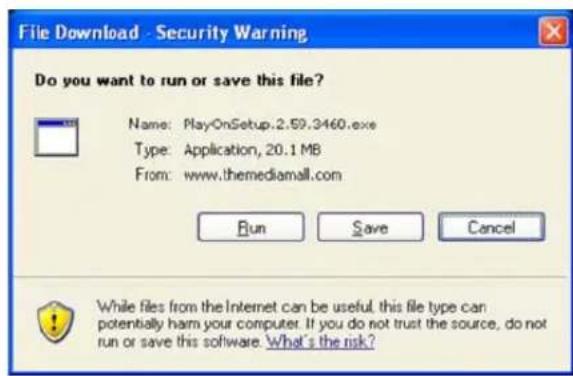
Click Save. The program will begin to download.
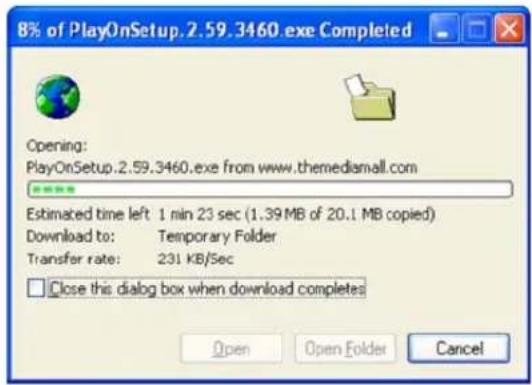
Wait until the program has completed downloading as indicated by the progress bars.
When the download is complete, go to the folder where you downloaded the program, and run PlayOn from there.
The following screen displays.
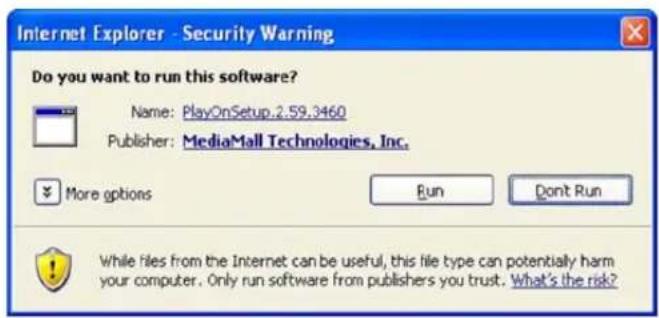
Click Run. The InstallShield Wizard displays and the installation will begin.
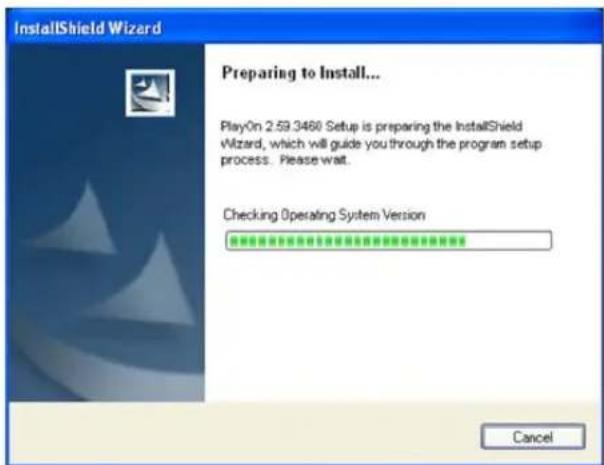
Wait until the installation is complete and the setup initializes, as indicated by the progress bars. When complete, the following PlayOn Installation Wizard displays.
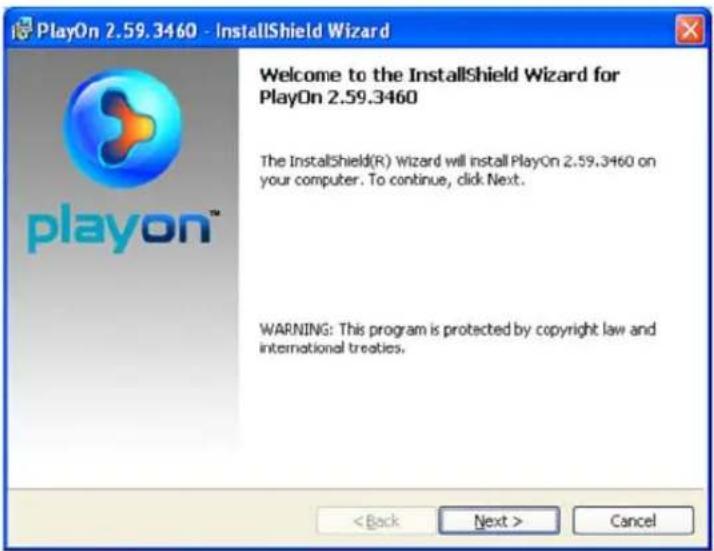
Click Next. The License Agreement screen displays.
![PlayOn 2.59.3460 - InstallShield Wizard License Agreement Please read the following license agreement carefully. END USER LICENSE AGREEMENT THIS END USER LICENSE AGREEMENT (THE "AGREEMENT") IS A LEGAL AGREEMENT BETWEEN YOU AND MEDIAMALL TECHNOLOGIES, INC. ("MEDIAMALL") AND GOVERNS YOUR USE OF MEDIAMALL'S SOFTWARE PRODUCT ENTITLED PLAYON (THE "SOFTWARE"). CAREFULLY READ THE TERMS AND CONDITIONS OF THIS DOCUMENT. THE SOFTWARE CANNOT BE INSTALLED AND ENABLED FOR USE WITHOUT YOUR ASSENT TO THE TERMS OF THIS AGREEMENT. BY CLICKING THE ["I AGREE"/"ACCEPT"] BUTTON DISPLAYED ○ I accept the terms in the license agreement ○ I do not accept the terms in the license agreement InstallShield < Back Next > Cancel](/content/2026/05/770315/images/1d82a4b1ca009f09d7078b1466f04528213db354efef414b6401974e06e4c479.jpg)
Select the I accept the terms.... radio box, and click Next. PlayOn will begin to install. This may take several minutes.
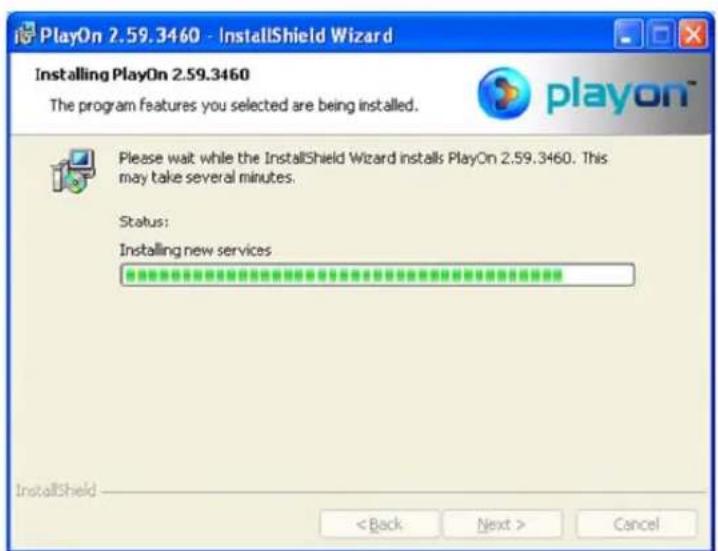
When the PlayOn installation is complete, the following screen displays:
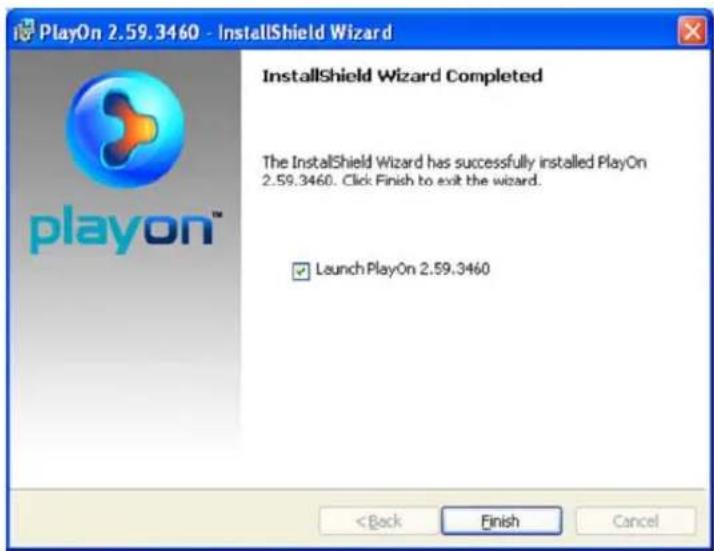
Make sure the Launch PlayOn radio box is checked and click Finish. The PlayOn Settings screen displays.
The PlayOn UPnP AV server is now available on your network. It will be displayed as PlayOn(
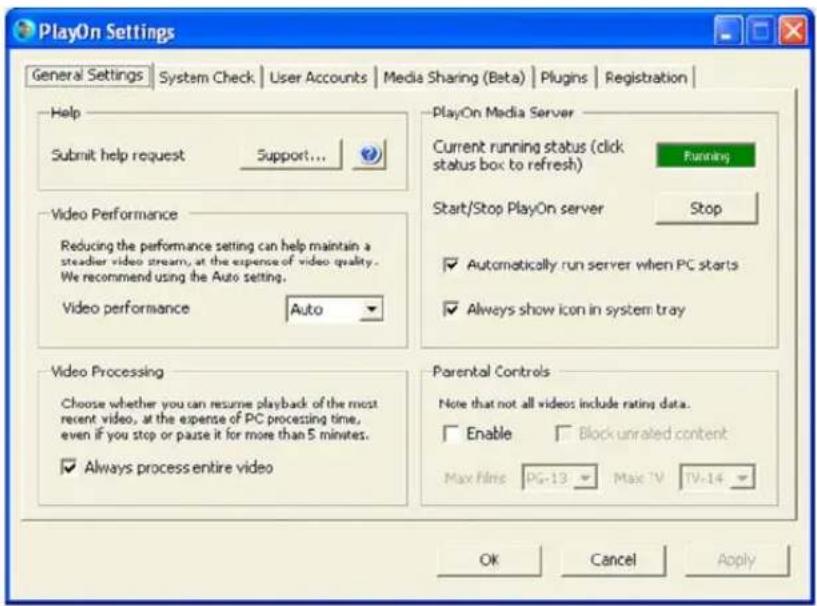
Accept the Default settings and click Apply to accept these settings or OK to close this window. Before closing the window, you may want to select the System Check tab to check on your Network and PC Processor performance.
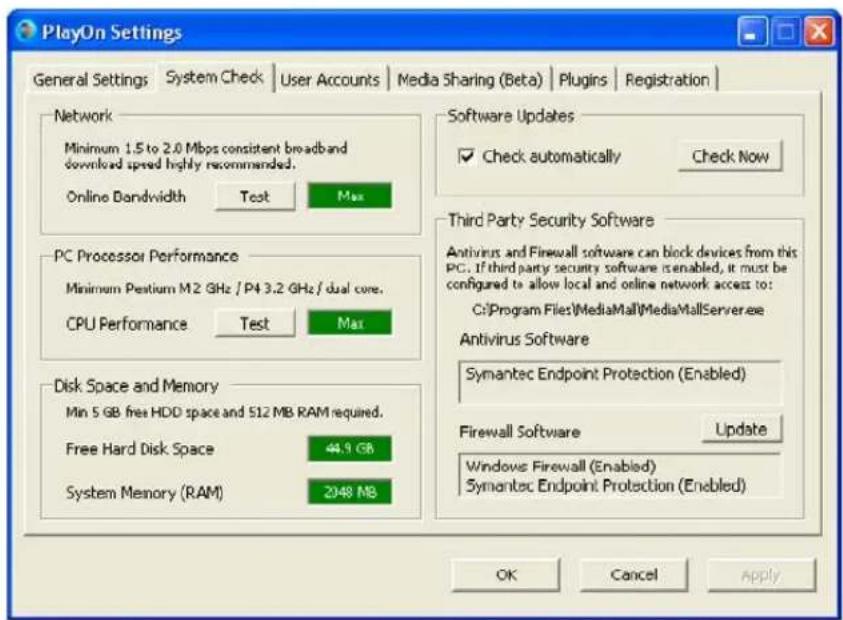
Note: For best performance, Online Bandwidth, CPU Performance, Free Hard Disk space and System Memory (RAM) should all be green. If any area is highlighted red, that part of your computer or network may not be able to fully support PlayOn.
Installing PlayOn Plugins
A plugin can be installed into your installed PlayOn software that can give you access to additional content—either for a specific region (for example, UK) or on a specific topic. Following are links to some plugins available on the Internet:
- http://kb.netgear.com/app/answers/detail/a_id/10875
- For a wider selection of Internet plugin sites, see:
http://www.themediamall.com/playon/plugins
http://www.playonplugins.com
To install the plugin:
- Download the PlayOn Plugin.
Some plugins are self-installing and others require that you manually place a .plugin file into your C:\Program Files\MediaMall\plugins folder. In both cases, after you install the plugin, you must restart the PlayOn software.
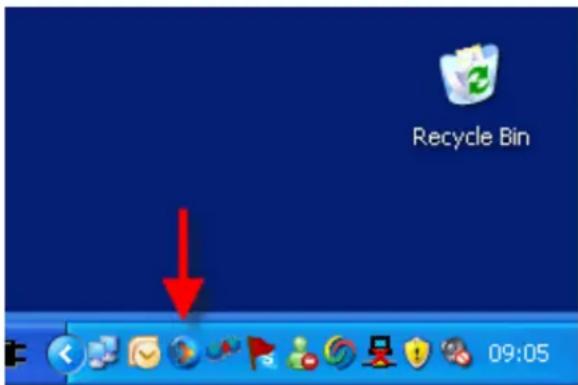
- Double-click the PlayOn icon in your system tray as shown below.
- In the PlayOn settings screen shown below, click Stop. Wait for the status to change and the click Start.
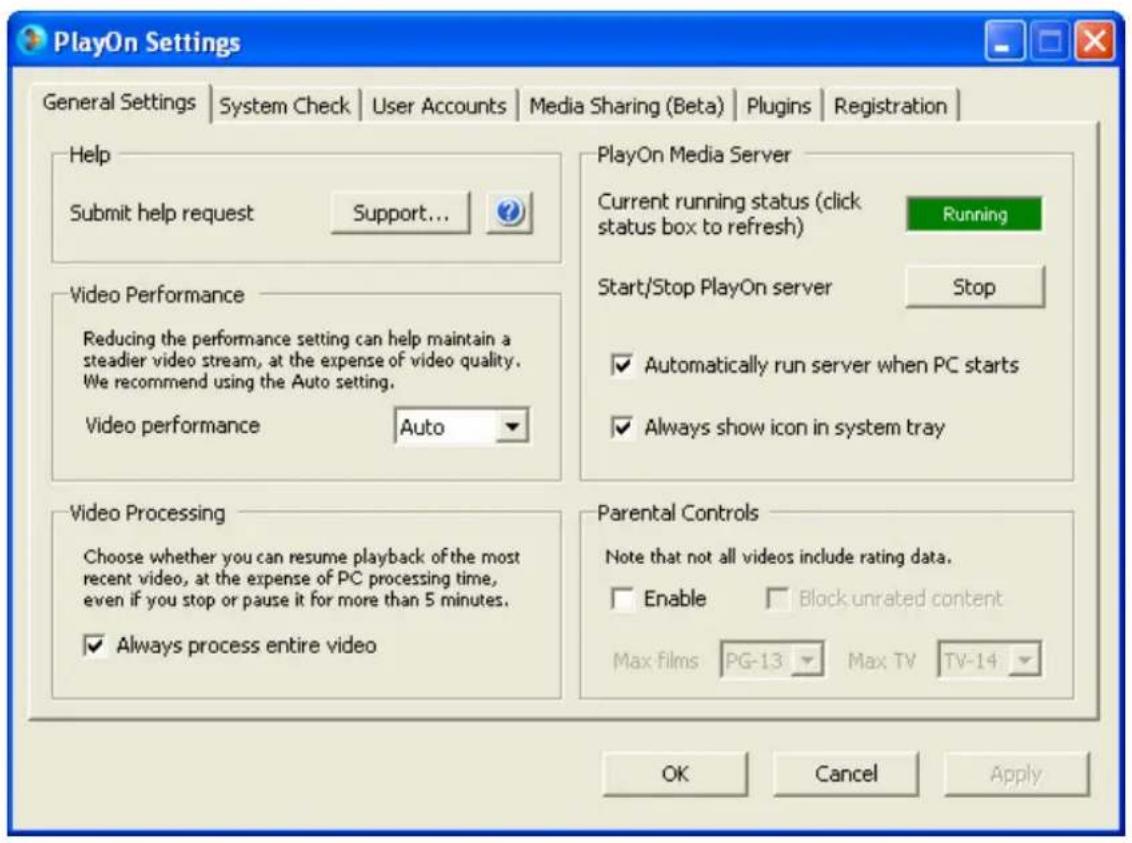
- Click OK to close this screen.
If you have any problems installing or using the PlayOn software, please click the following link to access PlayOn support:
http://www.themediamall.com/support
Accessing Your PlayOn Content
To access your PlayOn Content:
-
From your TV, switch to the Digital Entertainer Express (EVA9100) input. Then, navigate to the Internet media folder.
-
Select PlayOn (BETA) to browse the PlayOn contents.
- If you have multiple PlayOn UPnP AV servers on your network, the first UPnP AV server on your network will be pre-selected. If this is your PlayOn server (for example, PlayOn:Media), click OK to browse the PlayOn contents.
- A list will be displayed for each plugin installed. Select a plugin to navigate through the plugin contents.
Related URLs
Following are important links about PlayOn and PlayOn plugins that can be used with your NETGEAR Digital Entertainer Express (EVA9100).
URL Content Link
PlayOn Home Page
PlayOn free trial download
PlayOn purchase
NETGEAR Digital Entertainer Express (EVA9100) PlayOn plugins
PlayOn plugins development
PlayOn software support
http://www.themediamall.com/playon
http://www.themediamall.com/playon/download
http://www.themediamall.com/purchase
http://kb.netgear.com/app/answers/detail/a_id/10875
http://www.playonplugins.com
http://www.themediamall.com/support

Brand : NETGEAR
Model : EVA9100
Category : Media player