
Elements camera - Home Automation GIGASET - Free user manual and instructions
Find the device manual for free Elements camera GIGASET in PDF.


| Product Type | Smart Home Camera |
| Brand | Gigaset |
| Model | Elements Camera |
| Category | Home Automation |
| Dimensions (W x H x D) | 5.0 x 5.0 x 3.5 cm |
| Weight | Approx. 120 g |
| Power Supply | USB-C (5V/1A) or 4 x AA batteries |
| Battery Life | Up to 6 months (with alkaline batteries) |
| Video Resolution | 1080p Full HD |
| Field of View | 120° diagonal |
| Night Vision | Infrared LEDs (up to 5m) |
| Motion Detection | PIR sensor, adjustable sensitivity |
| Audio | Two-way audio with microphone and speaker |
| Connectivity | Wi-Fi 802.11 b/g/n @ 2.4 GHz |
| Supported Protocols | Zigbee 3.0 (for hub integration) |
| Storage | Cloud (free 24h loop) or optional microSD (up to 128GB) |
| Environmental Protection | IP42 (indoor use only) |
| Operating Temperature | 0°C to 40°C |
| Maintenance | Clean lens with dry soft cloth; avoid liquids |
| Safety | Encrypted video transmission (TLS) |
| Spare Parts | Replacement battery cover, mount, screws |
| Repairability | User-replaceable batteries; professional repair for electronics |
| General Information | Compatible with Gigaset Smart Home Hub; app control via iOS/Android |
Frequently Asked Questions - Elements camera GIGASET
User questions about Elements camera GIGASET
0 question about this device. Answer the ones you know or ask your own.
Ask a new question about this device
Download the instructions for your Home Automation in PDF format for free! Find your manual Elements camera - GIGASET and take your electronic device back in hand. On this page are published all the documents necessary for the use of your device. Elements camera by GIGASET.
USER MANUAL Elements camera GIGASET
All rights reserved. Subject to availability.
Rights of modifications reserved.
www.gigaset-elements.com
Hallo!
Γειά σας!
Hello!
Bevor you can start, please follow our set-up instructions.
Your content of delivery:
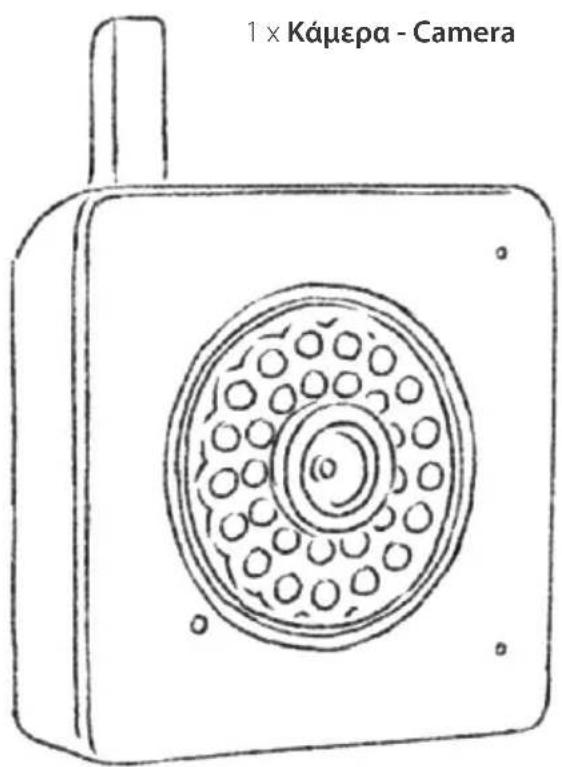
natural_image
Simple line drawing of a mechanical lever or bracket (no text or symbols)1 x Voeding
Τροφοδοτικό
Power supply
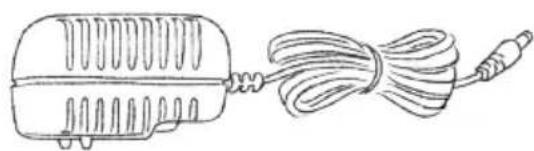
natural_image
Line drawing of a portable electric motor with a coiled cable (no text or symbols)1 x Ethernet-kabel
natural_image
Line drawing of a coiled electrical plug with wires (no text or symbols)Connect the power cable with Camera and a power outlet. The LED lights up red.
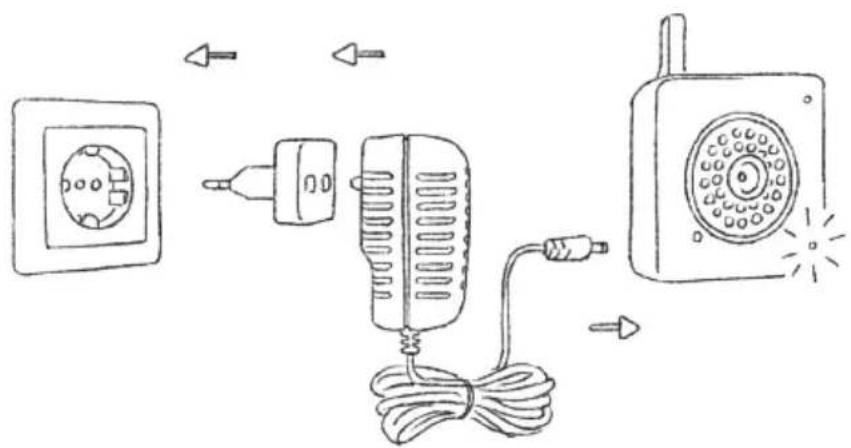
Now connect the ethernet cable with Camera and an internet router.
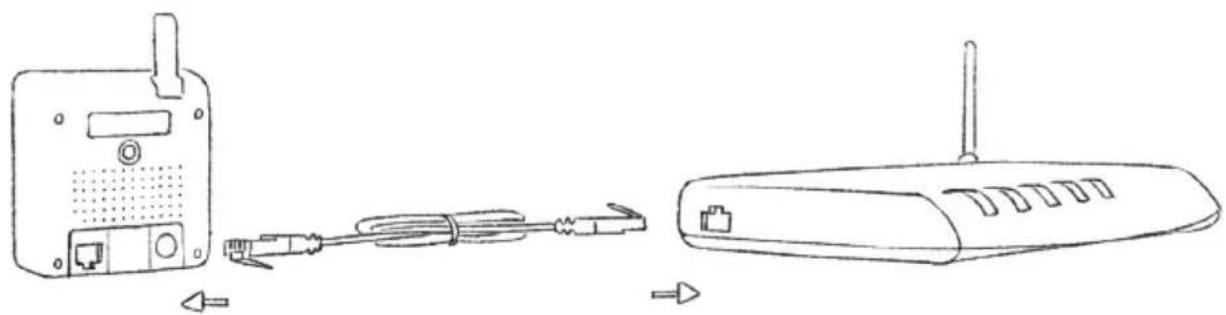
natural_image
Line drawing of a wireless router with attached cable and ports, showing connection to a device (no text or symbols present)As soon as the LED on Camera lights up green, you can use Camera.
If you are a Gigaset Cloud user, please log in. Otherwise, please register.
2.
After installing the ethernetcable and power supply, please follow the wizard.
3.
Follow the Wizzard through all settings. Some settings are optional and can be skipped (i.e. WiFi).
4.
To make any changes in the setup, go to the configuration page.
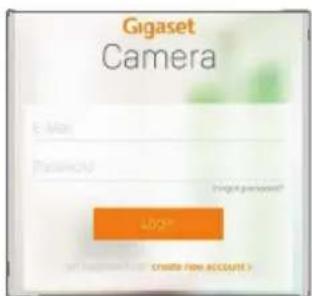
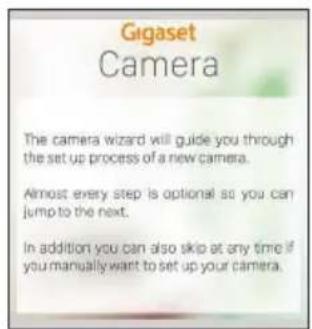
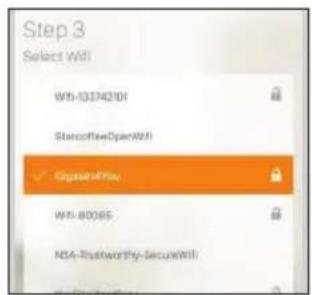
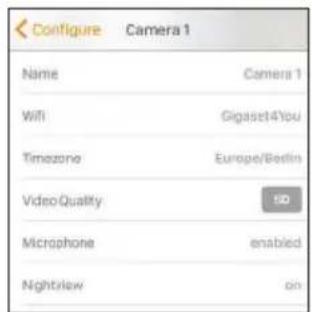
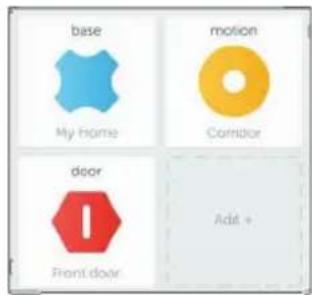
Open the Gigaset elements app or log into your Gigaset elements account on the Web application.
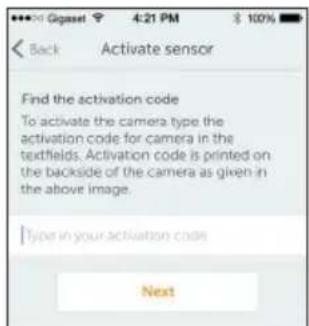
Now enter the activation code. You will find the code on the back of camera. camera is now added to your system.
Now enter the activation code. You will find the code on the back of camera. camera is now added to your system.
Now enter the activation code. You will find the code on the back of camera. camera is now added to your system.
Now enter the activation code. You will find the code on the back of camera. camera is now added to your system.
Now enter the activation code. You will find the code on the back of camera. camera is now added to your system.
Now enter the activation code. You will find the code on the back of camera. camera is now added to your system.
natural_image
Technical line drawing of a mechanical assembly with a base and component, no text or symbols presentYou can now set up Camera on the stand or mount it to a wall or ceiling.
Screw Camera into the mount of the provided stand.
Select your installation site or look for a place to mount it.
Due to the numerous different types of walls and ceilings, we do not provide screws and anchors. Please consult your dealer if required.
Do you need any help for Gigaset Camera?
www.gigaset.com/service
Do you need any help to integrate camera into the elements system?
www.gigaset-elements.com/en/faq
Gigaset
Camera
elements camera
Erste Schritte
Premiers pas
Primi passi

