Sinus 45 P ISDN - Telephone T-Mobile - Free user manual and instructions
Find the device manual for free Sinus 45 P ISDN T-Mobile in PDF.


| Product Type | ISDN Telephone |
| Brand | T-Mobile |
| Model | Sinus 45 P ISDN |
| Dimensions (Approx.) | 220 x 200 x 90 mm |
| Weight (Approx.) | 800 g |
| Power Supply | Powered via ISDN line (no external power adapter required) |
| Display | Alphanumeric LCD screen |
| Keypad | Numeric keypad with function keys |
| Connectivity | ISDN (S0 bus) |
| Key Features | Call forwarding, 3-party conference, call waiting, toggle, anonymous call, phone directory, function key programming |
| Ringer Type | Adjustable ring tones |
| Handset | Wired handset with cord |
| Mounting | Desktop use |
| Color | Black (typical) |
| Operating Temperature | +5°C to +40°C |
| Care and Cleaning | Wipe with a dry soft cloth; do not use liquid cleaners |
| Safety | Keep away from water and moisture; unplug during thunderstorms |
| Spare Parts / Repairability | Spare handset and cables available; consult manual for repair instructions |
| General Information | Manual available in PDF (164 pages); EC Declaration of Conformity compliant with R&TTE Directive 1999/5/EC |
Frequently Asked Questions - Sinus 45 P ISDN T-Mobile
User questions about Sinus 45 P ISDN T-Mobile
0 question about this device. Answer the ones you know or ask your own.
Ask a new question about this device
Download the instructions for your Telephone in PDF format for free! Find your manual Sinus 45 P ISDN - T-Mobile and take your electronic device back in hand. On this page are published all the documents necessary for the use of your device. Sinus 45 P ISDN by T-Mobile.
USER MANUAL Sinus 45 P ISDN T-Mobile
natural_image
Black office telephone with keypad and a small screen displaying text (no visible signage or symbols on device body)Deutsche
Telekom
T
Sicherheitshinweise
!!!
Installation beendet
infobox
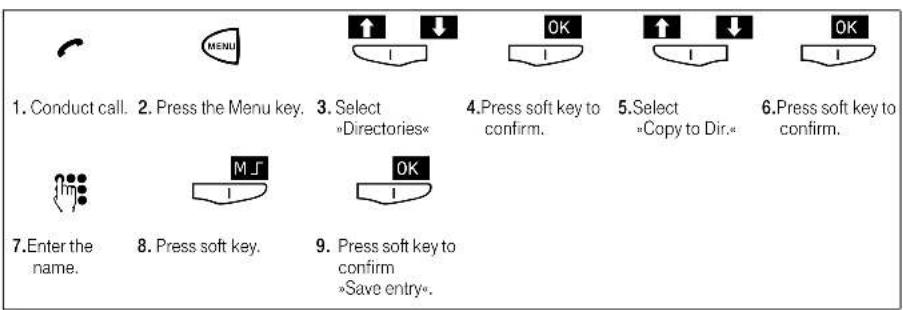
Saving the phone number of the current call in the telephone directory (Page 31)
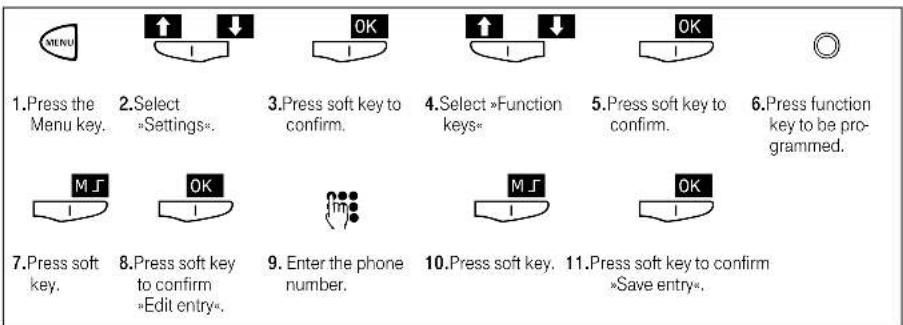
Assigning a phone number to a function key (Seite 116)
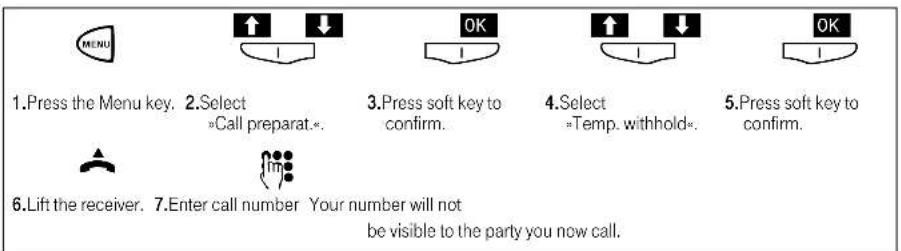
Next call anonymous (Page 40)
Calling another external party while an external call is in progress (Page 56)

■ Answering a external call while a call is in progress (Page 58)

■ Switching between two calling parties (toggle) (Page 59)

Speaking to two calling parties simultaneously (3 party conference) (Page 59)

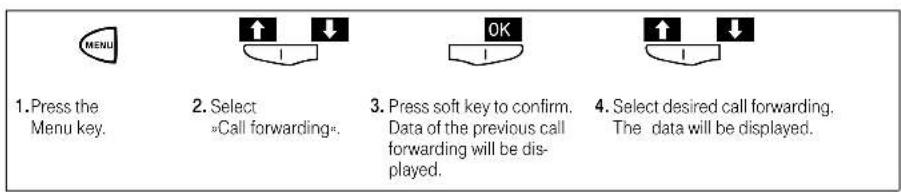
Call forwarding : Enter destination number and activate (Page 65)
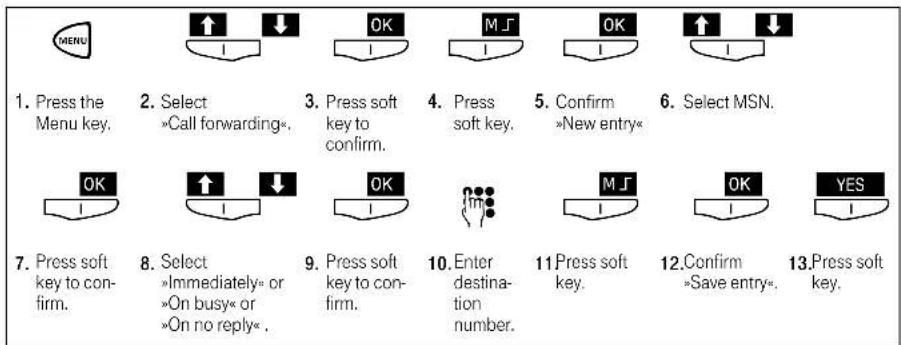
Call forwarding, check status and numbers (Page 67)
Kullanma Kılavuzu
EC-Declaration of Conformity
Declares that the Product:
meets the essential requirements according to article 3 of the following EC-Directive
Directive 1999/5/EC of the European Parliament and of the Council of 09 March 1999 relating to
radio and telecommunications terminal equipment, including the mutual recognition of their conformity
and that the following harmonized standards has been applied:

- Sicherheitshinweise
- !!!
- Installation beendet
- infobox
- Saving the phone number of the current call in the telephone directory (Page 31)
- Assigning a phone number to a function key (Seite 116)
- Next call anonymous (Page 40)
- Calling another external party while an external call is in progress (Page 56)
- ■ Answering a external call while a call is in progress (Page 58)
- ■ Switching between two calling parties (toggle) (Page 59)
- Speaking to two calling parties simultaneously (3 party conference) (Page 59)
- Call forwarding : Enter destination number and activate (Page 65)
- Call forwarding, check status and numbers (Page 67)
- Kullanma Kılavuzu
- EC-Declaration of Conformity
Brand : T-Mobile
Model : Sinus 45 P ISDN
Category : Telephone