
BM1 - Baby monitor FOSCAM - Free user manual and instructions
Find the device manual for free BM1 FOSCAM in PDF.


| Product Type | Baby Monitor |
| Brand | Foscam |
| Model | BM1 |
| Screen Size | 5 inches |
| Resolution | 1080p Full HD |
| Camera Features | Pan, tilt, zoom; night vision |
| Communication | 2.4 GHz wireless, 2410.0–2469.5 MHz |
| Transmit Power (EIRP) | Monitor: < 16 dBm; Camera: < 17 dBm |
| Power Supply | 5V DC power adapters (2 included) |
| Battery Life (Monitor) | Approximately 8 hours |
| Charge Time (Monitor) | About 4 hours |
| Maximum Cameras | Up to 4 cameras per monitor |
| Memory Card Slot | Yes, on monitor and camera |
| Sound Detection (VOX) | Yes, adjustable sensitivity (Low/Medium/High) |
| Temperature Alarm | Yes, alerts below 18°C/64°F or above 30°C/86°F |
| Feeding Reminder | Yes, configurable intervals |
| Music/Soothing Sounds | Yes, selectable songs and loop mode |
| Talk Function (Two-way audio) | Yes, press and hold to talk |
| Recording | Yes, to monitor or camera memory card; max 1 hour per clip |
| Playback | Yes, on monitor; search by date/time/channel |
| Display Sleep Timer | Yes: 1 min, 10 min, 30 min |
| Languages | Multiple, selectable on monitor |
| Safety Certifications | CE certified |
| Manufacturer | Shenzhen Foscam Intelligent Technology Co., Ltd |
| Support | support@foscam.com |
Frequently Asked Questions - BM1 FOSCAM
User questions about BM1 FOSCAM
0 question about this device. Answer the ones you know or ask your own.
Ask a new question about this device
Download the instructions for your Baby monitor in PDF format for free! Find your manual BM1 - FOSCAM and take your electronic device back in hand. On this page are published all the documents necessary for the use of your device. BM1 by FOSCAM.
USER MANUAL BM1 FOSCAM
5 INCH 1080P FULL HD Baby Monitor

User Manual
Please read this manual thoroughly before use and keep it well for future reference.
SAFETY CAUTIONS
Incorrect operation of the product may lead to safety risks. Therefore, we STRONGLY recommend you read the instructions carefully before the first use.
- Please ensure that the proper power supply is used before using the camera.
- Please install the camera and bracket securely using the screws provided.
- Please use this product within the temperature range. When the ambient temperature is too high or too low, it may cause product failure.
● To avoid the risk of fire or electric shock, please keep your camera in a cool, dry place. - Please keep the camera out of reach of small children.
● This product is not a toy; children should use the product under adult supervision.
PACKING LIST
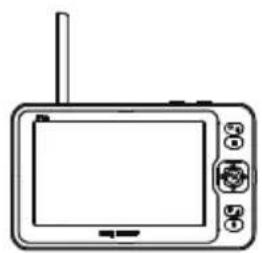
Monitor x1
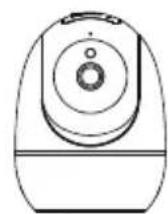
Camera x1

Mounting Bracket x1

Power Adapter x2

Type-C Cable x1 (For monitor)
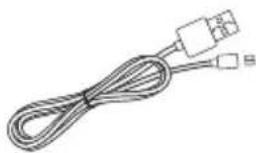
Micro USB Cable x1 (For camera)

Screws x1

User Manual x1
PRODUCT OVERVIEW
Camera

Monitor
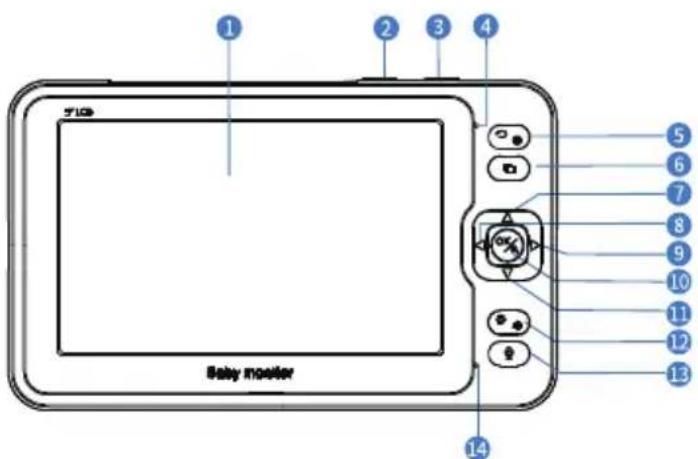
1 Screen: Before the first use, please remove the protective film on the screen.
2 Power/Sleep Button: Long press to power on/off the monitor; short press to turn on/off the screen.
3 VOX: When you watch the live video, press it to turn on/off the sound detection.
4 Power Indicator: It is green when the battery is fully charged, and will turn red when the battery is low.
5 Back/Menu: Press it to enter menu page or as a back button.
6 Camera Switch: To switch among cameras or loop the live video if 2 or more cameras are connected with the monitor.
7 Up: Press it to tilt the camera upward or to change your selection upward.
8 Left: Press it to pan the camera leftward or to change your selection leftward.
9 Right: Press it to pan the camera rightward or to change your selection rightward.
10 OK: Press it to zoom in/out or to confirm your selection.
11 Down: Press it to tilt the camera downward or to change your selection downward.
12 Volume/Brightness: Press it to bring up the Volume/Brightness menu, then press Left/Right/Up/Down to adjust the monitor's volume or brightness.
13 Talk: Press and hold it to talk with your baby near the camera.
14 Microphone

15 Memory Card Slot
16 Antenna
17 Speaker
18 Stand
19 Type-C Port
GETTING STARTED
Step 1:
Charge the monitor by connecting the Power Adapter to the monitor and a socket. It takes about 4 hours for the monitor to be fully charged, and the battery lasts about 8 hours.

Step 2:
Connect the Power Adapter to the camera and a socket to power on the camera. There will be a beep from the camera after it is powered on.

Step 3:
Place the camera at least 3ft/1m away from your baby.
Step 4:
Gently press and hold the Power Button for 3s to turn on the monitor, then you can see the live view.
Notes:
Generally, the camera has been paired with the monitor already. If it is not paired, please refer to the next section to pair it manually.
2 Install a memory card to the monitor or camera before you power on it if you would like to record videos.
3 After powering on your monitor, please set time & date firstly.
4 The monitor will not power on or will display abnormalities if its power is too low. Please try again after 10 minutes of charging.
FUNCTION OVERVIEW
Monitoring Interface
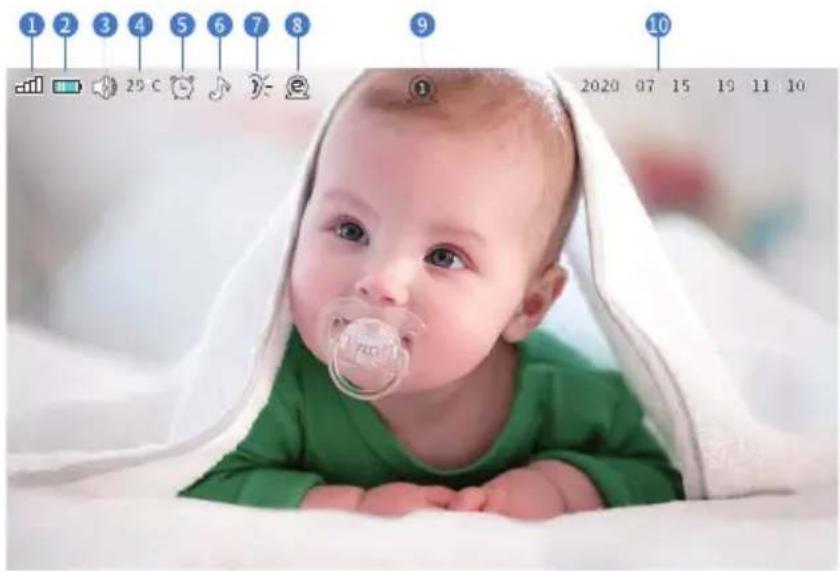
1 Signal
2 Battery Power Status
3 Sound
4 Temperature
5 Feeding Reminder Enabled
6 Music Enabled
7 Sound Detection: it will turn up if you enable VOX function.
8 Live Video Loop Enabled
9 Camera Channel
10 Date and Time
Other icons will be displayed on the monitoring interface when an alarm or notification for abnormality is issued.

: No signal

: Temperature alarm

:Feeding reminder

- Pair a New Camera with the Monitor
Step 1:
Press 📞 to enter the menu page and select Cameras.

Step 2:
Select an unpaired channel (e.g. Channel 2) and press OK, the monitor will start searching for a camera.

Tip:
A grey icon Ⓧ indicates that no camera is paired with this channel, while a green icon Ⓧ indicates that a camera has been paired with this channel.
Step 3:
Keep the camera powered on and it will automatically pair with the monitor. You will see a prompt Paired after a success.

Pairing, please wait...
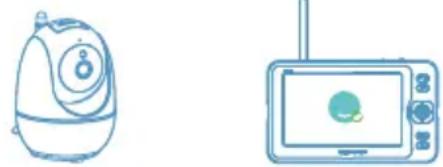
Paired!
Notes:
If the pairing fails, you will see the prompt Pairing failed on the screen. Please repeat the steps above and try to pair again.
2 Four cameras at most can be paired with one monitor.
3 If you reset your camera, please don't pair it with a new channel but pair it with the original channel; otherwise, the pairing will fail.
2. Replace the Old Camera
If you would like to replace the old camera, just pair a new camera with the same channel which the old camera is previously paired with. The old camera will be deleted once the pairing is successful.
Feeding
This function aims to remind you of feeding your baby.
Step 1:
Select Feeding on the menu page.

Step 2:
Set the Time Interval and Repeat Mode; press OK to confirm.

When you set the time interval as 2.5H, if you select 📞, the alarm will be triggered only once in 2.5 hours; if select 📞, the alarm will be triggered every 2.5 hours.
Tip :
The monitor will beep and display an icon ☎ when it is the feeding time. Press any button to stop the alarm.
Sound Alarm
This monitor has a voice operated switch, also known as VOX. It will send alarms when the sound over a certain threshold is detected.
Step 1:
Select Sound Alarm on the menu page.

Cameras

Feeding

Sound Alarm

Temp.Alarm

Music

Display

Recording

Playback

System

Language
Step 2:
Select the sensitivity level and press OK to confirm.




Tips: 1. Set sensitivity for sound detection.
2. LOW: the alarm threshold is a shouting cry.
3. MEDIUM: the alarm threshold is a loud Voice.
4. HIGH: the alarm threshold is normal speech.
There are four options to adjust the sensitivity of sound detection: OFF, LOW, MEDIUM and HIGH. OFF means to disable sound detection. If you set the sensitivity to LOW, you will receive alarms only when your baby is crying loudly; if MEDIUM, you will receive alarms when your baby's voice is loud; if High, you will receive alarms just when your baby speaks normally.
Tip:
When the alarm is triggered, the monitor will screen on with an icon ✗ and make a sound alarm. Press any button to stop the sound alarm. Or you can press VOX button to turn off th is function.
Temp. Alarm
The monitor will send alarms when the ambient temperature is too low (< 18°C/64°F) or too high (> 30°C/86°F).
Step 1:
Select Temp. Alarm on the menu page.

Step 2:
Enable the Temp. Alarm and select the Temp. Unit; press OK to confirm.

Tip:
When the alarm is triggered, the monitor will screen on with an icon 📋 and make a sound alarm. Press any button to stop the sound alarm.
Music
This function is to comfort your baby when needed. The volume and type of each song are distinctive, please select the best one for your baby.
Step 1:
Select Music on the menu page.

Step 2:
Select a song and set the playing mode; press OK to confirm.
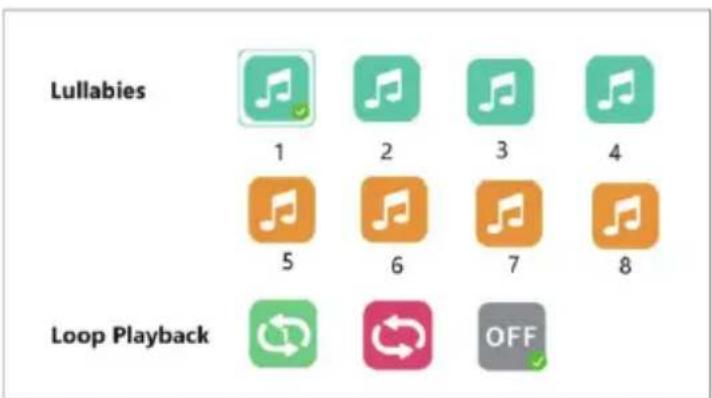
If you select one song, the song will be played repeatedly; if select Loop Play, four songs in the same category will be played in a loop.
Display
This function is to prolong your monitor's runtime by shutting down the screen.
Step 1:
Select Display on the menu page.
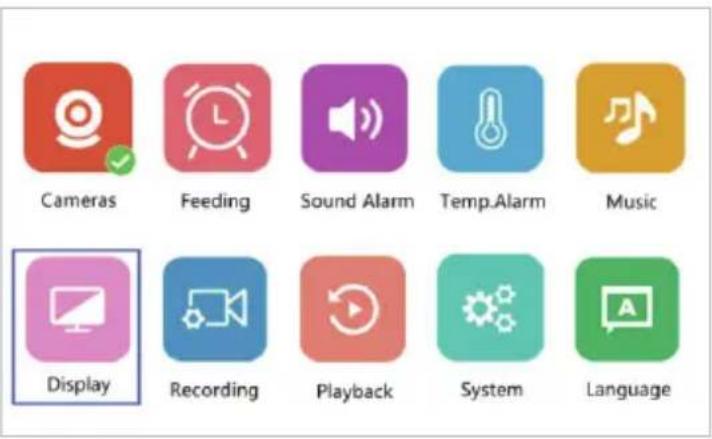
Step 2:
Set the time duration to enter sleep mode and press OK to confirm.

If you select 1 Min, your monitor will enter sleep mode in 1 minute if there is no any operation; the same for 10 Min and 30 Min.
Recording
This function is to record videos for your baby. The maximum video length is 1 hour by default.
Step 1:
Select Recording on the menu page.

Step 2:
Enable it to record videos to the monitor or camera according to the memory card installation; press OK to confirm.
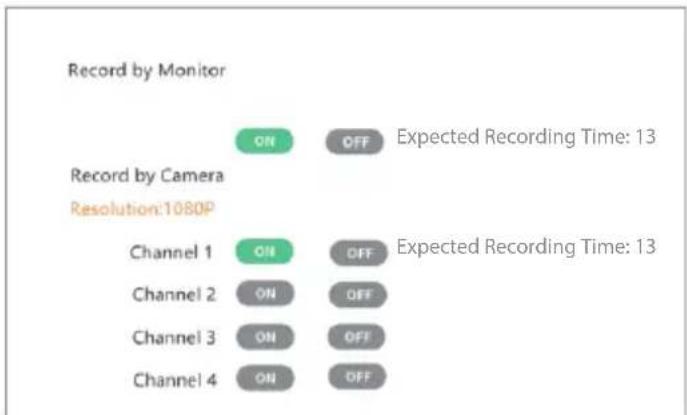
Tips:
1 After installed, your memory card will be formatted once you power on the monitor or camera.
2 Please set the date and time before you enable the function of recording videos so that you can search precisely for video playback.
Playback
Step 1:
Select Playback on the menu page, it will play the latest recorded videos on channel 1 by default. If there are no videos on channel 1, please select ☐ to check more.

Step 2:
After you select ⋯ and press OK, it will pop up a search page. Set date, time and channel, then select Search and press OK to filter out your desired videos.


Tip:
Videos recorded in the monitor can only be watched through your monitor, and cannot be read via a computer. If you would like to watch videos recorded in the camera, please remove the card and watch videos on your computer via a card reader.
System
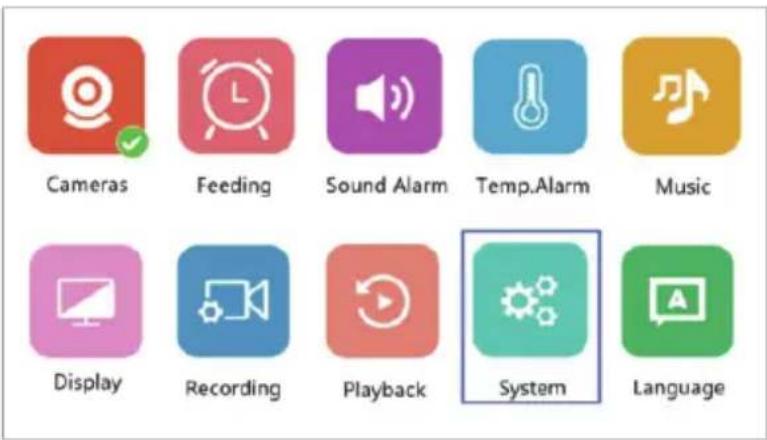
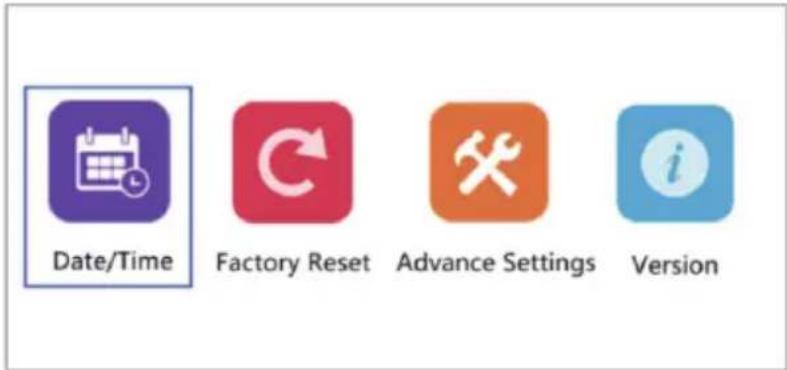
This function is to set Date&Time, change language, restore factory settings and check the software version.
Step 1:
Select System on the menu page.
Step 2:
Set the date/time according to your local region, select your language, and check the remaining storage of the memory card. You can restore the monitor to factory settings as needed.
Language
Step 1:
Select Language on the menu page.

Step 2:
Select the language you need. After confirm the monitor will restart automatically.

Tip:
When change the language please make sure the monitor is with enough battery (The camera broadcast will sync to monitor language)
Installation Steps


FAQ
Q: Why did I fail to connect the camera to the monitor?
A: Make sure to plug the power adapter into the camera and socket firmly. Make sure the camera and the monitor are within the effective distance.
Q: Why is the live video so blurry?
A: Make sure there is no obstacle on the lens of the camera.
Q: Why did the monitor make noise?
A: The camera and monitor may be too close. Put them further apart. Please adjust the angle of the antenna to minimize wireless interference.
Q: Can I hear my baby when I turn off the screen?
A: Yes. You should turn on Sound Detection, and it will wake up the screen and make a sound alarm if a loud sound is detected.
Q: Why is the picture black and white?
A: The Night Vision Mode will be activated if the camera worked in a dark environment (Brightness≤5 Lux).
Q: How long will the monitor stand by with screen on?
A: The monitor can last about 8 hours, and the time of endurance varies depending on the brightness.
SPECIFICATIONS
| Monitor | Camera | |
| Frequency Range | 2410.0~2469.5MHz | 2410.0~2469.5MHz |
| Transmit Power(EIRP) | < 16dBm | < 17dBm |
IMPORTANT
- Power supply of 5V is recommended.
- Do not over charge the battery.
- Please use and store the product in dry place. Do not submerge it in water.
- Do not put the battery into a fire, or heat the battery. Keep the battery away from fire. Do not store the battery in high temperature environment.
- Keep the battery away from any sharp objects that could puncture into the battery to avoid risks of explosion and fire.
- Don't use the battery if it emits an odor, deformation, leakage or any other abnormality.
- If the battery leakage accidentally gets in your eyes, do not rub your eyes but immediately wash them with clean running water, and then seek medical assistance.
- We recommend that the battery be charged and discharged once per 3 months at least if the battery is stored for long term.
- Do not dispose of the battery as ordinary municipal waste. Please refer to local regulations on waste disposal of electronic products.
FOSCAM®
home security

CE Certificate statement Website:
https://www.foscam.com/company/ce-certificate.html
Exporter and Importer Information Opened to Public:
https://www.foscam.com/company/open-information.html
Manufacturer: Shenzhen Foscam Intelligent Technology Co., Ltd
Addr: Room 901-902, Building 1B, Xingke 1st Street, Shenzhen International
Innovation Valley, Nanshan Dist., Shenzhen, 518055, China
www.foscam.com
Support email: support@foscam.com
Due to product upgrades and other reasons, this guide may be slow to update, resulting in slight inconsistencies with the official website information. Please take the official website (www.foscam.com) information as the current standard.
- 5 INCH 1080P FULL HD BABY MONITOR
- USER MANUAL
- SAFETY CAUTIONS
- PACKING LIST
- PRODUCT OVERVIEW
- MONITOR
- GETTING STARTED
- STEP 1
- STEP 2
- STEP 3
- STEP 4
- NOTES
- FUNCTION OVERVIEW
- MONITORING INTERFACE
- TIP
- REPLACE THE OLD CAMERA
- FEEDING
- SOUND ALARM
- TEMP. ALARM
- MUSIC
- DISPLAY
- RECORDING
- TIPS
- PLAYBACK
- SYSTEM
- LANGUAGE
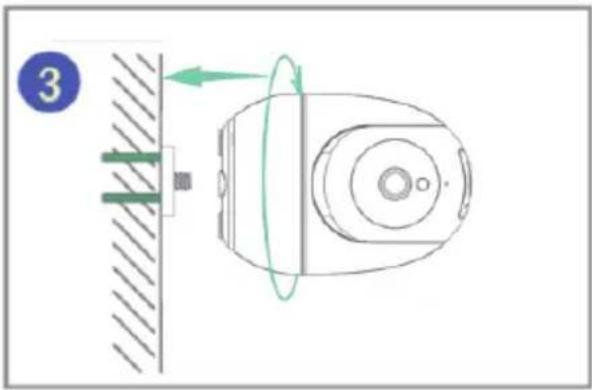
- INSTALLATION STEPS
- FAQ
- IMPORTANT
- FOSCAM®
Brand : FOSCAM
Model : BM1
Category : Baby monitor