
Office 365 (2019) - Desktop software MICROSOFT - Free user manual and instructions
Find the device manual for free Office 365 (2019) MICROSOFT in PDF.


| Product Type | Office Suite Software |
| Version | Office 365 (2019) |
| Main Functions | Word processing (Word), Spreadsheets (Excel), Presentations (PowerPoint), Email & Calendar (Outlook), Database (Access), Publisher, OneNote |
| Compatibility | Windows 10 or later, macOS, Chromebook (limited) |
| Subscription | Annual subscription with recurring billing option |
| Cloud Storage | 1 TB OneDrive storage included |
| Number of Devices | Up to 5 simultaneous installations |
| Languages Supported | Multiple languages (selectable during installation) |
| Installation Method | Download from office.com/setup after product key entry |
| System Requirements | Internet connection, Microsoft account |
| Maintenance & Updates | Automatic updates via Office Automatic Updates |
| Security Features | Built-in security, privacy controls, data encryption |
| Parts & Repairability | Digital product; no physical parts; reinstallation possible with same account |
| Dimensions & Weight | Not applicable (software) |
| Power Consumption | Not applicable (software) |
| Country of Origin | United States |
| Warranty | Covered under Microsoft warranty; details at support.microsoft.com |
Frequently Asked Questions - Office 365 (2019) MICROSOFT
User questions about Office 365 (2019) MICROSOFT
0 question about this device. Answer the ones you know or ask your own.
Ask a new question about this device
Download the instructions for your Desktop software in PDF format for free! Find your manual Office 365 (2019) - MICROSOFT and take your electronic device back in hand. On this page are published all the documents necessary for the use of your device. Office 365 (2019) by MICROSOFT.
USER MANUAL Office 365 (2019) MICROSOFT
How do I install Microsoft 365 and Office 2019?
You just purchased Microsoft 365 or Office 2019 and you want to be productive right away. On this page, I'll help you along and explain how to perform the installation in just 7 steps.
- What do you need?
- Do you have an account already?
- Don't have an account yet?
- Link your product key
- Download
- Install
- Activate
What do you need?
- Microsoft 365 or Office 2019 product key.
- A PC, Mac or Chromebook with internet connection.
• A Microsoft account.
Step 1 starts on the next page
Step 1.1 - Do you have a Microsoft account already?
- Go to www.office.com/setup and select 'Sign in' in the middle of the page.
Microsoft | Microsoft 365 Contact support Read the FAQ Provide feedback
All Microsoft √ Search 🔒 Sign In
Hi. Let's get started.
① Sign in with your Microsoft account

You'll use your Microsoft account for everything you do with Microsoft 365 or Office. If you use a Microsoft service like Outlook.com, OneDrive, Xbox Live, or Skype, you already have an account.
Sign in
Create a new account
② Enter your product key
③ Get your apps
In (United States) (Items) Contact Microsoft Privacy Manage cookies Terms of use Trademarks Safety & sec About our ads © Microsoft
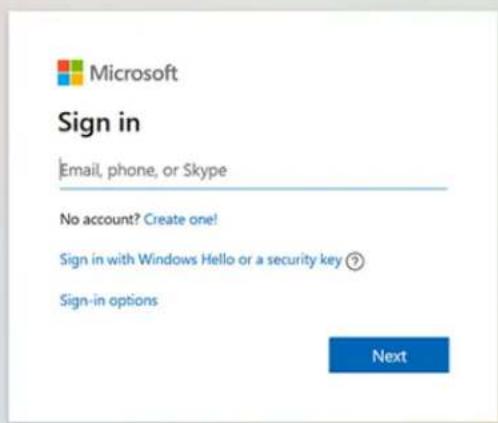
- Enter your email address and click on 'Next'.
Terms of use Privacy
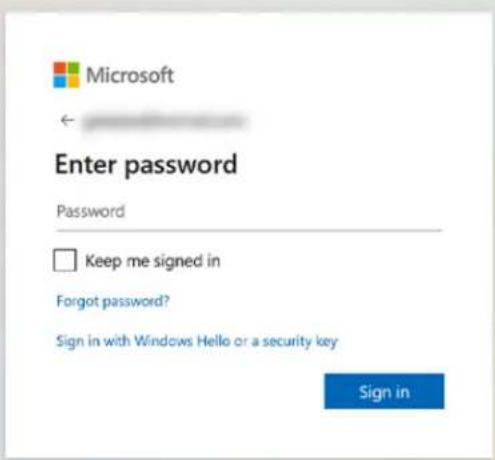
- Enter the password that belongs to your email address and click on 'Sign in'.
Terms of use Privacy
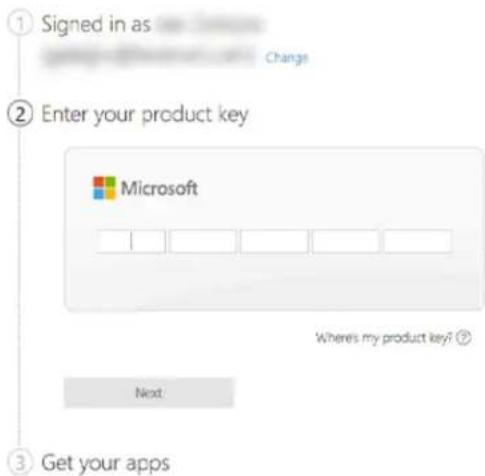
- Your account name and email address will now appear and a box to fill in your product key.
xsoft
Microsoft 365
Contact support
Read the FAQ
Provide feedback
All Microsoft ∼ Search
Hi. Let's get started.
Step 1.2 - Don't have a Microsoft account yet?
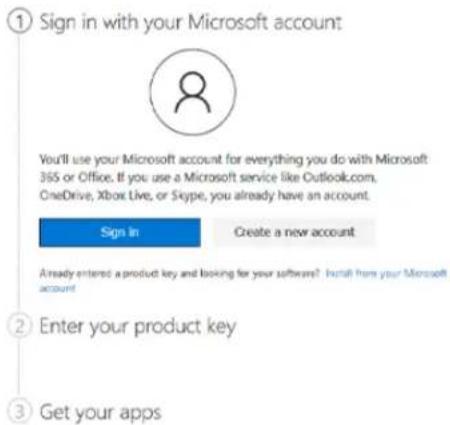
- Go to www.office.com/setup and select 'Create a new account'.
Microsoft | Microsoft 365 Contact support Read the FAQ Provide feedback
All Microsoft √ Search 🔒 Sign In
Hi. Let's get started.
| In (United States) | (Semiag) | Contact Microsoft | Privacy | Manage cookies | Terms of use | Trademarks | Safety & sec | About cur ads | C Microcat |
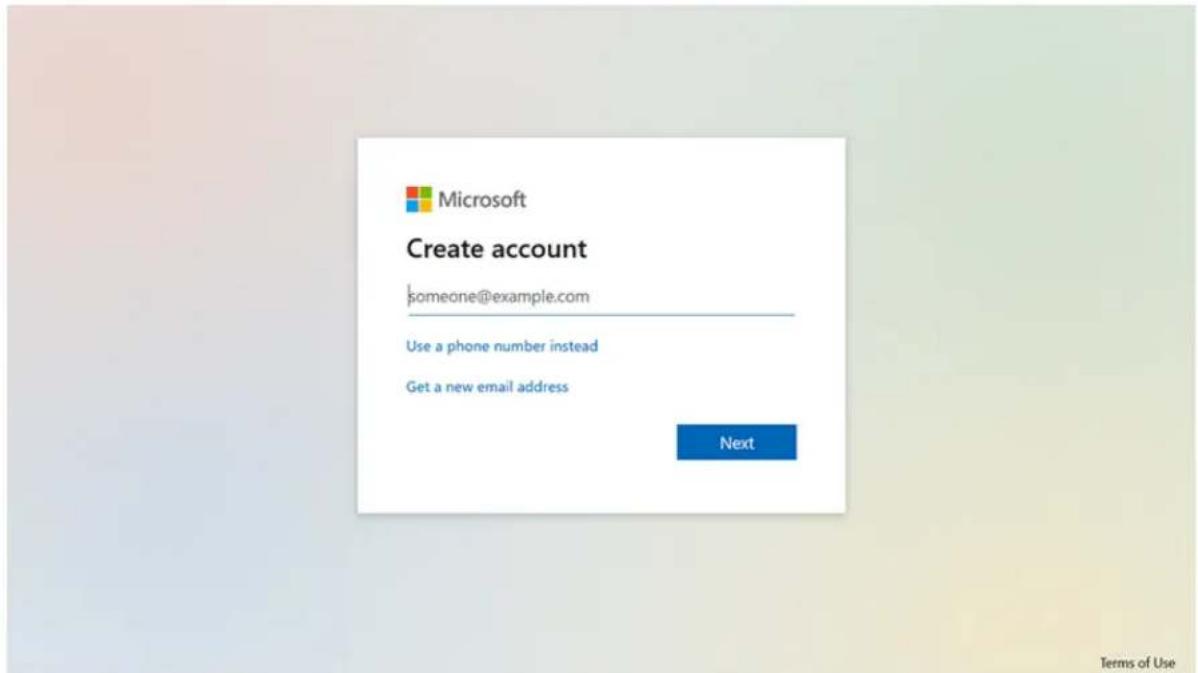
- Follow the steps to create a Microsoft account. You can use an existing email address for this or create a new one.
Step 2 - Link the product key to your account
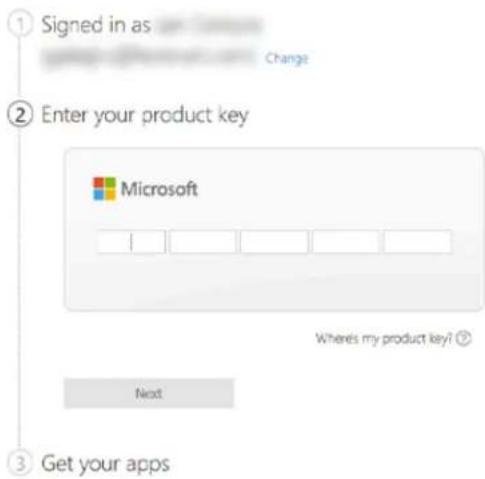
- Boxes will appear where you can enter your product key. Enter the product key of the Office suite in the empty boxes. You can find this key on the inside of the packaging of your Office suite or in your e-mail if you bought a digital product.
xsoft | Microsoft 365 Contact support Read the FAQ Provide feedback
All Microsoft √ Search
Hi. Let's get started.
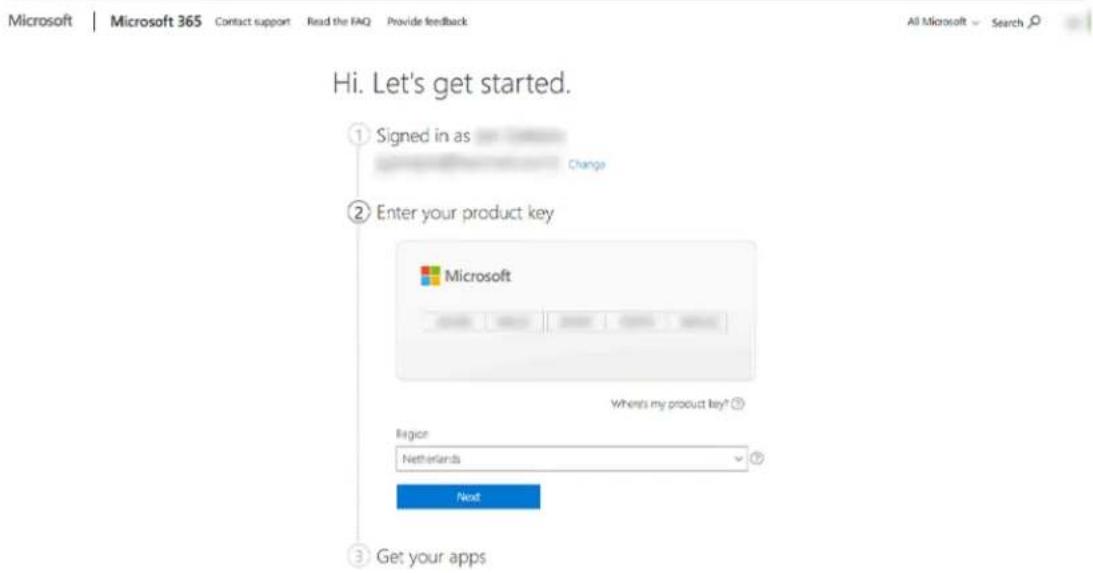
- In the box below, you select the country where you live, choose the language that you can read best, and click on 'Next'.
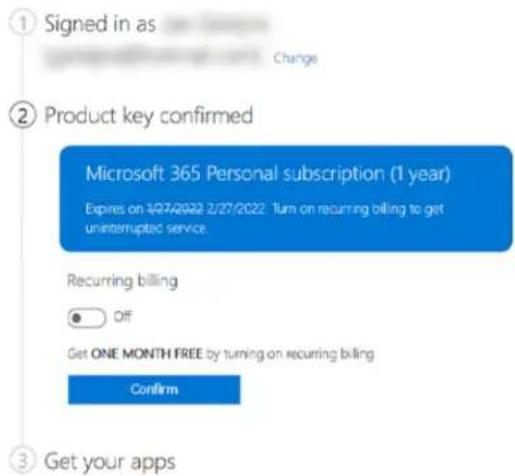
- A square will appear that displays the license you've chosen. Did you choose an annual subscription? Then you can choose 'recurring billing'. Switch the slider to 'on' or 'off' based on your choice and click on 'Next'.
oft
Microsoft 365
Contact support
Read the FAQ
Provide feedback
All Microsoft ∨ Search
Hi. Let's get started.
Step 3 - Download Microsoft Office
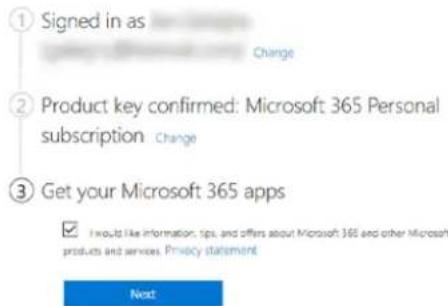
- The system asks if you want to receive tips and advice on how to use Microsoft Office. Check or uncheck the checkbox and click on 'Next'.
oft
Microsoft 365
Contact support
Read the FAQ
Provide feedback
All Microsoft √ Search J
Hi. Let's get started.
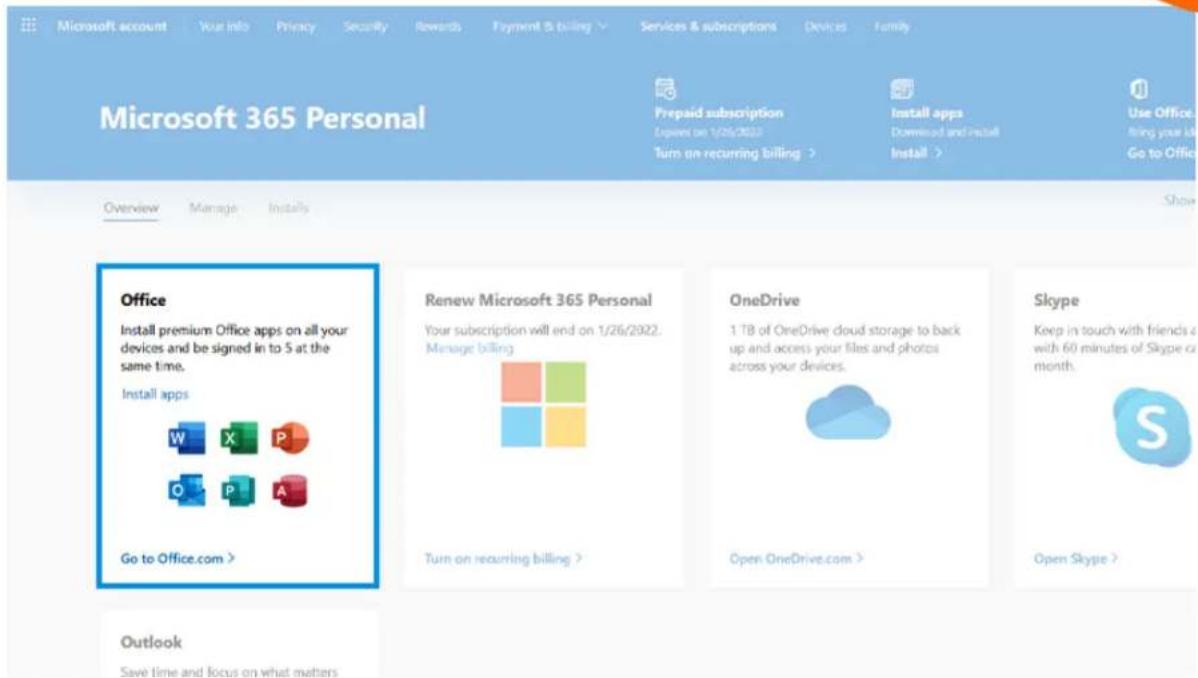
- You are now on a new web page. Click on 'Install apps' on the left side of the screen.
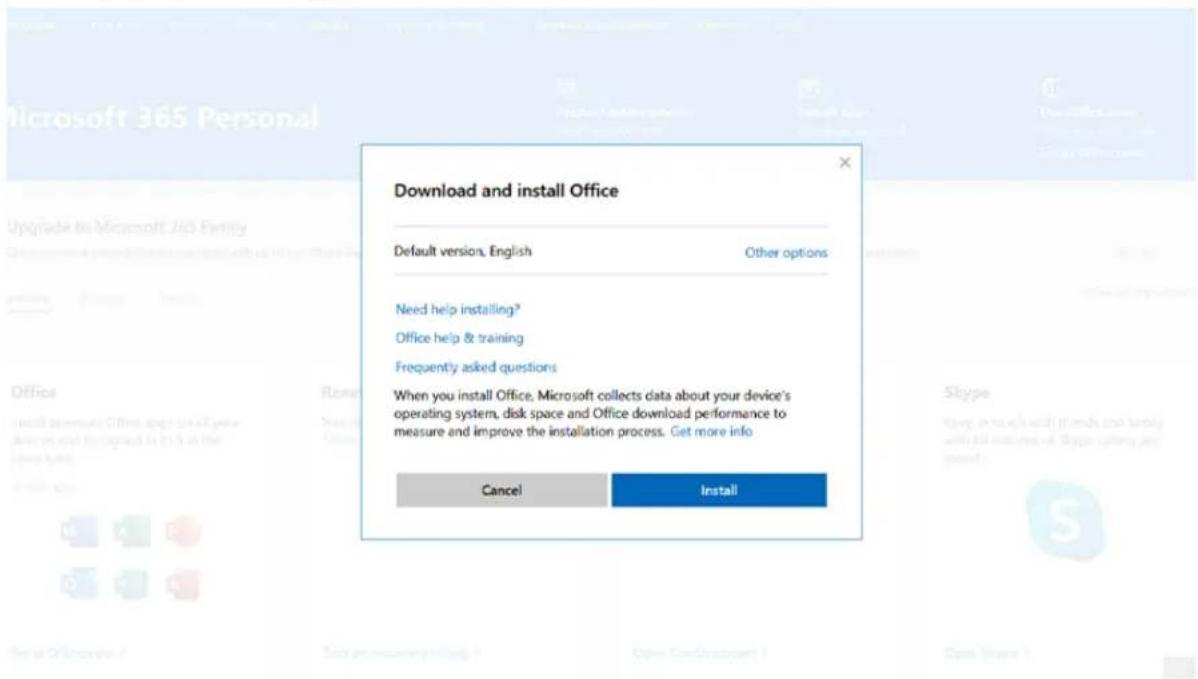
- A pop-up screen appears. Click on 'Install'.
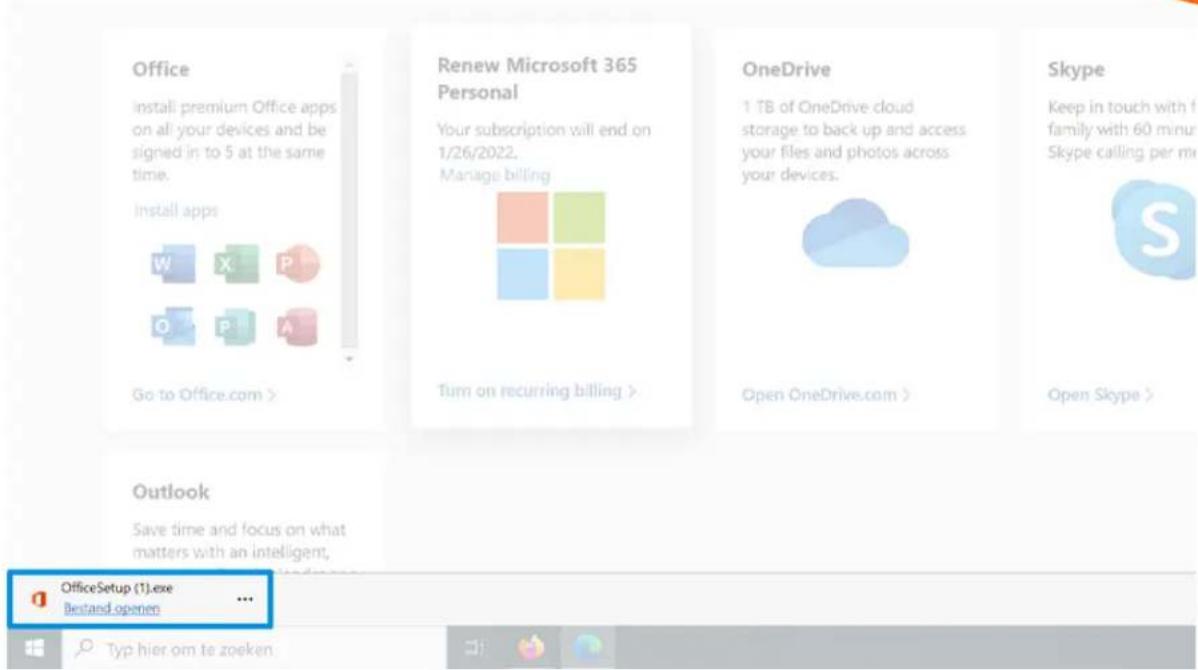
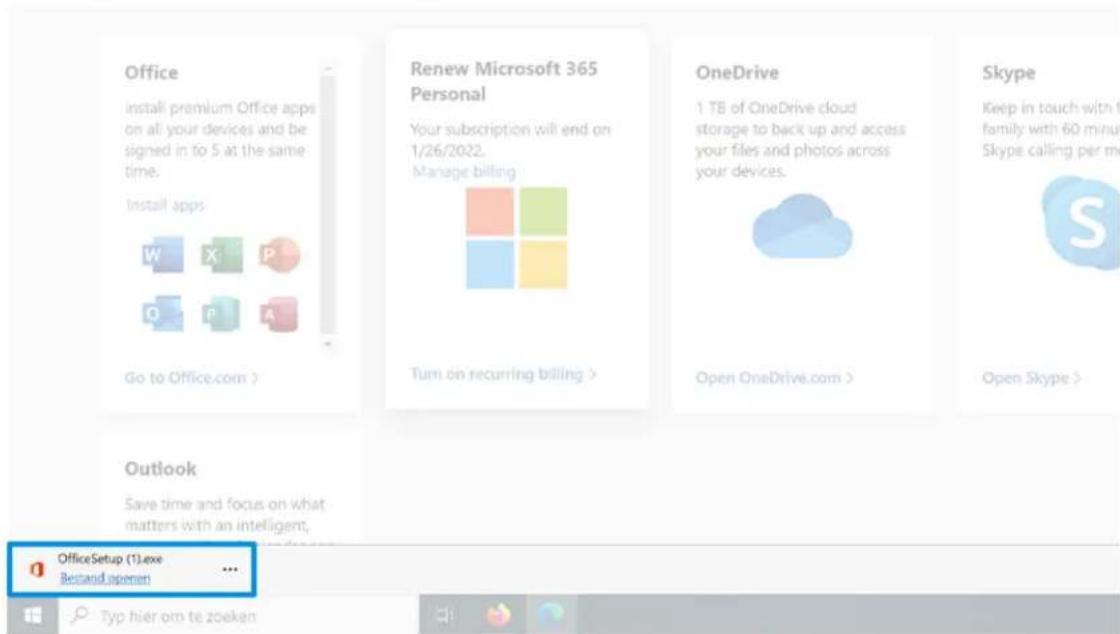
- The program starts downloading and appears at the bottom left of your web browser with the name 'OfficeSetup.exe' when it's finished.
Step 4 - Install Microsoft Office
- Click on the downloaded file in your web browser. A screen will pop up asking permission to make changes. Click on 'Yes'.
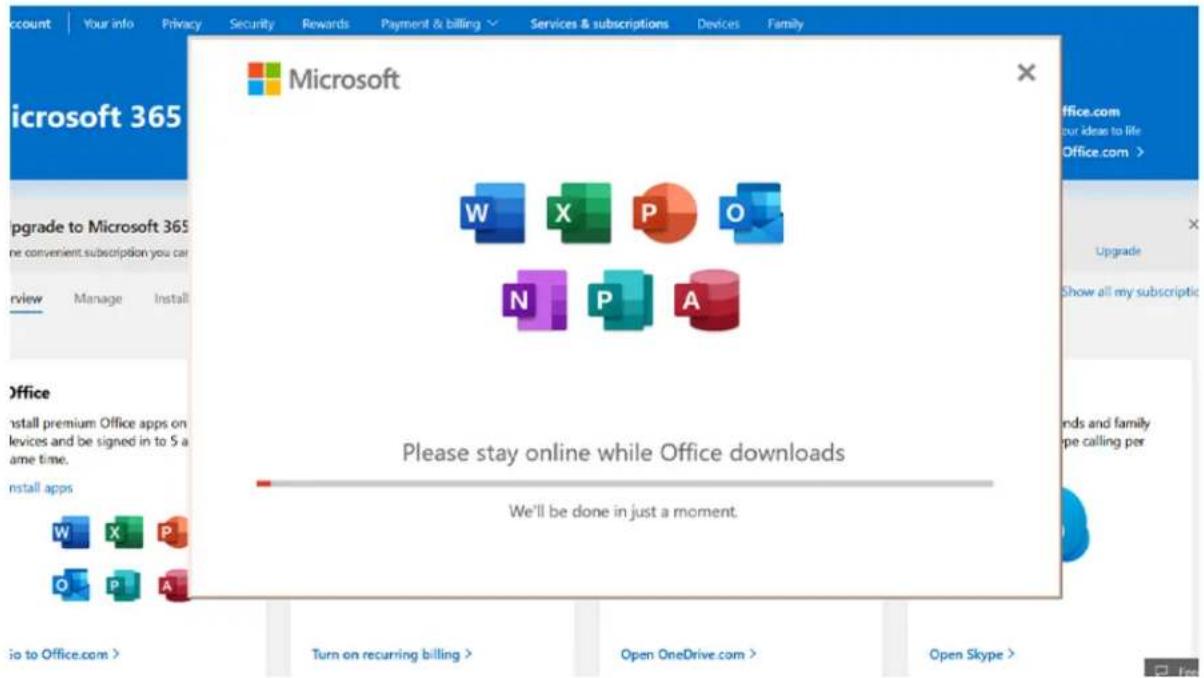
- A new screen opens and Office starts downloading. This can take a few minutes. You can see the progress in the bar that is filling up on the pop-up screen.
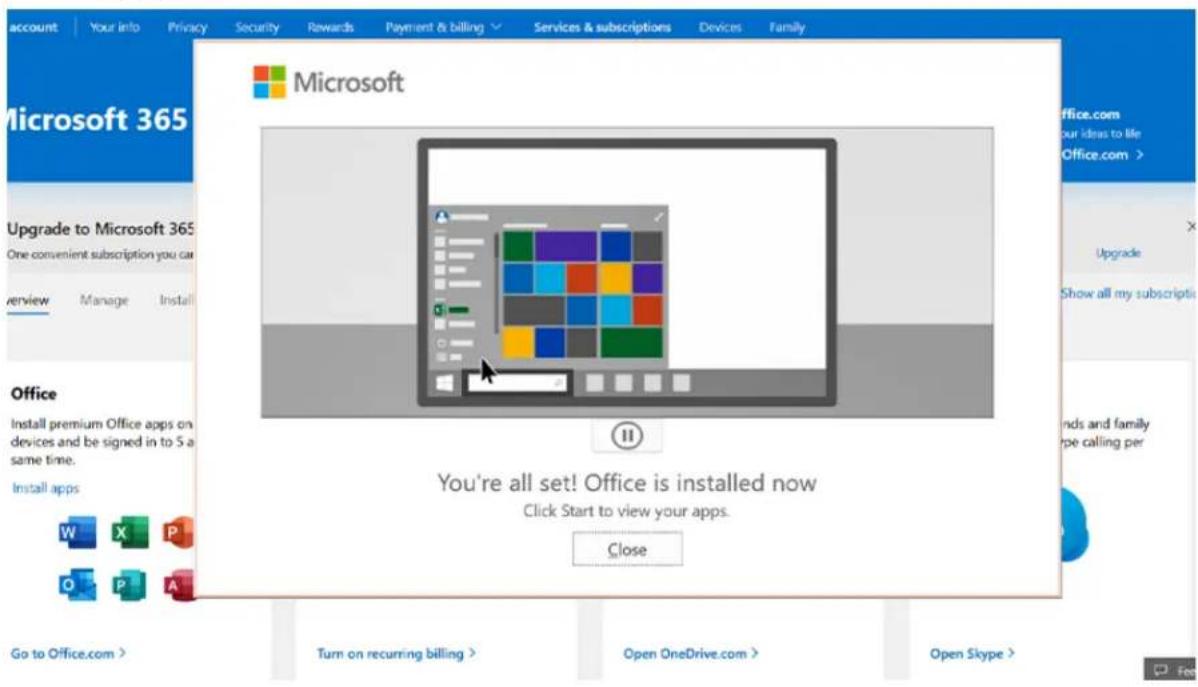
- The installation is completed when you see 'You're all set! Office is installed now'. An animation shows you where you can find your new Office applications. Click on 'Close'.
Step 5 - Activate Microsoft Office
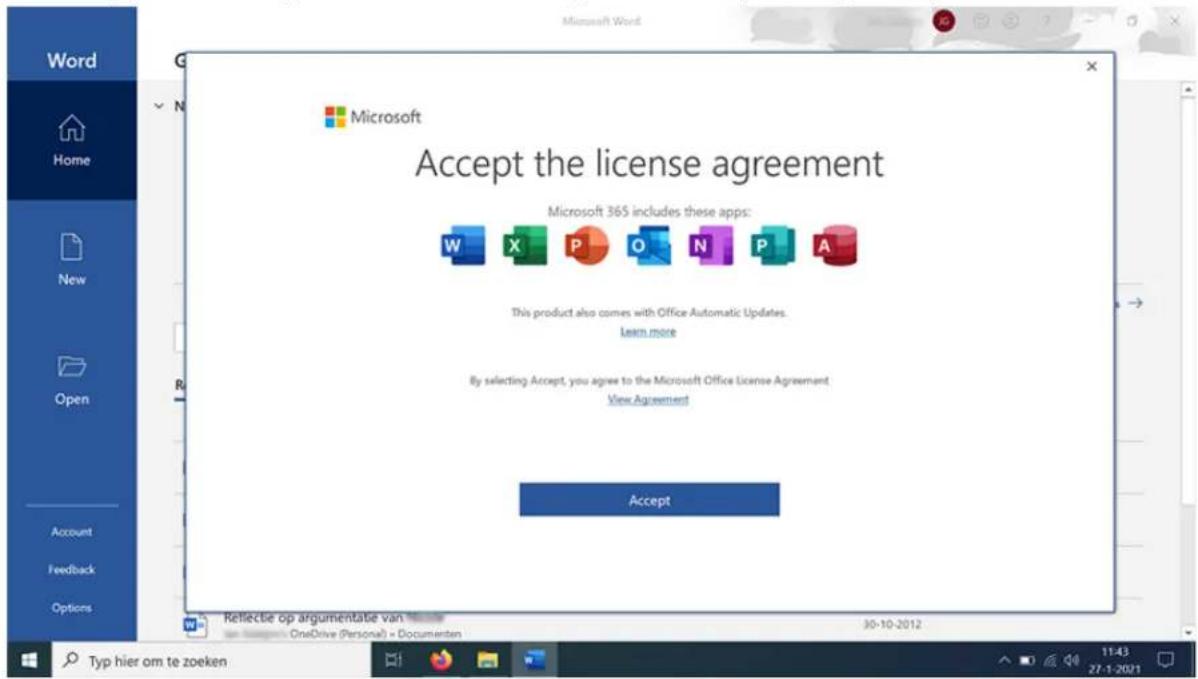
- You activate Microsoft Office when you open one of the installed applications. Agree with the license agreements by clicking 'Accept'.
- You can now get started with all of the programs included in your suite.

- How do I install Microsoft 365 and Office 2019?
- What do you need?
- Step 1 starts on the next page
- Step 1.1 - Do you have a Microsoft account already?
- Hi. Let's get started.
- Step 1.2 - Don't have a Microsoft account yet?
- Step 2 - Link the product key to your account
- Step 3 - Download Microsoft Office
- Step 4 - Install Microsoft Office
- Step 5 - Activate Microsoft Office
Brand : MICROSOFT
Model : Office 365 (2019)
Category : Desktop software