
Star Wars: Jedi Challenges - Headphones LENOVO - Free user manual and instructions
Find the device manual for free Star Wars: Jedi Challenges LENOVO in PDF.


| Product Type | Star Wars-themed over-ear headphones |
| Brand | Lenovo |
| Model | Star Wars: Jedi Challenges |
| Connectivity | 3.5 mm wired; also includes Bluetooth 5.0 wireless |
| Driver Size | 40 mm |
| Impedance | 32 Ω |
| Frequency Response | 20 Hz – 20 kHz |
| Weight | 210 g (7.4 oz) |
| Cable Length | 1.2 m (3.9 ft), detachable |
| Controls | In-line remote with microphone, volume and playback controls |
| Compatibility | Smartphones, tablets, and Star Wars: Jedi Challenges app |
| Battery Life (Bluetooth) | 15 hours |
| Charging | Micro USB, 2 hours for full charge |
| Microphone | Built-in omnidirectional microphone |
| Color Options | Black with Star Wars design elements |
| Ear Cushion Material | Artificial leather with memory foam |
| Headband Material | Plastic with stainless steel reinforcement |
| Foldable Design | Yes, for easy storage |
| Cleaning Instructions | Wipe with soft, dry cloth; avoid liquids |
| Storage Conditions | Keep in a cool, dry place; avoid direct sunlight |
| Safety Warnings | Do not expose to high volume for long periods; use at moderate levels to prevent hearing damage |
| Spare Parts Availability | Replacement ear cushions and cables available from Lenovo support |
Frequently Asked Questions - Star Wars: Jedi Challenges LENOVO
User questions about Star Wars: Jedi Challenges LENOVO
0 question about this device. Answer the ones you know or ask your own.
Ask a new question about this device
Download the instructions for your Headphones in PDF format for free! Find your manual Star Wars: Jedi Challenges - LENOVO and take your electronic device back in hand. On this page are published all the documents necessary for the use of your device. Star Wars: Jedi Challenges by LENOVO.
USER MANUAL Star Wars: Jedi Challenges LENOVO
STAR WARS™ JEDI CHALLENGES
User Guide
Basics
- All pictures and illustrations in this document are for reference only and may differ from the actual product.
- This user guide applies to Lenovo Mirage AR headset, tracking beacon, lightsaber controller and other compatible AR accessories.
- Since the Star Wars™: Jedi Challenges will regularly be updated, refer to the latest version for the actual procedure and screenshots.
Before using this information and the product it supports, be sure to read the following:
• Safety, Warranty & Product Guide
• Regulatory Notice
- Important safety and handling information in Appendix
This device contains labels to indicate physical tampering or liquid damage. If evidence of tampering or liquid damage is found during service, this will void the terms of the product warranty.
The Safety, Warranty & Product Guide and the Regulatory Notice are available at http://support.lenovo.com/jedichallenges
Product overview
You can use the following items with compatible phones to experience immersive augmented reality (AR).
| Item Model name Function | ||
| Lenovo Mirage AR headset | Lenovo AR-7561N | “See-through” head-mounted display with precision motion-tracking |
| Lightsaber controller AAC-101B | Bluetooth and IMU enabled lightsaber controller | |
| Kylo ren lightsaber controller | AAC-151B | |
| Tracking beacon AAC-231N | LED marker | |
NOTE: Star Wars™ characters and objects only appear within the headset. Some content and experiences may require a future download. All descriptions refer to augmented reality experiences, only visible inside the Lenovo Mirage AR headset when in proper use. A compatible phone and the Star Wars™: Jedi Challenges companion app are required. App and content are subject to availability. Additional data rates may apply when downloading the app.
Compatible phones
To check if your phone is compatible with the device, please go to Jedichallenges.com/compatibility.
Buttons & Functions
Mirage AR headset

Lightsaber controller

Kylo Ren Lightsaber controller


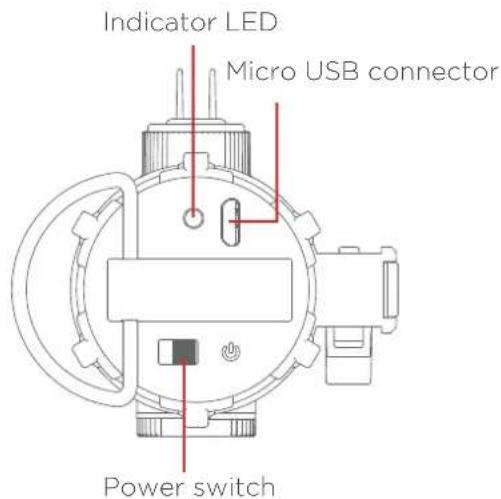
Tracking beacon

| Item Button Function | ||
| Lenovo Mirage AR headset | Select button Select and confirm | |
| Menu button Open and close menu | ||
| Back/Cancel button Navigate back one level; cancel | ||
| Lightsaber controller/Kylo Ren lightsaber controller | Activation Matrix Select and confirm; activate lightsaber blade | |
| Control button Select and confirm; center lightsaber blade |
Play area
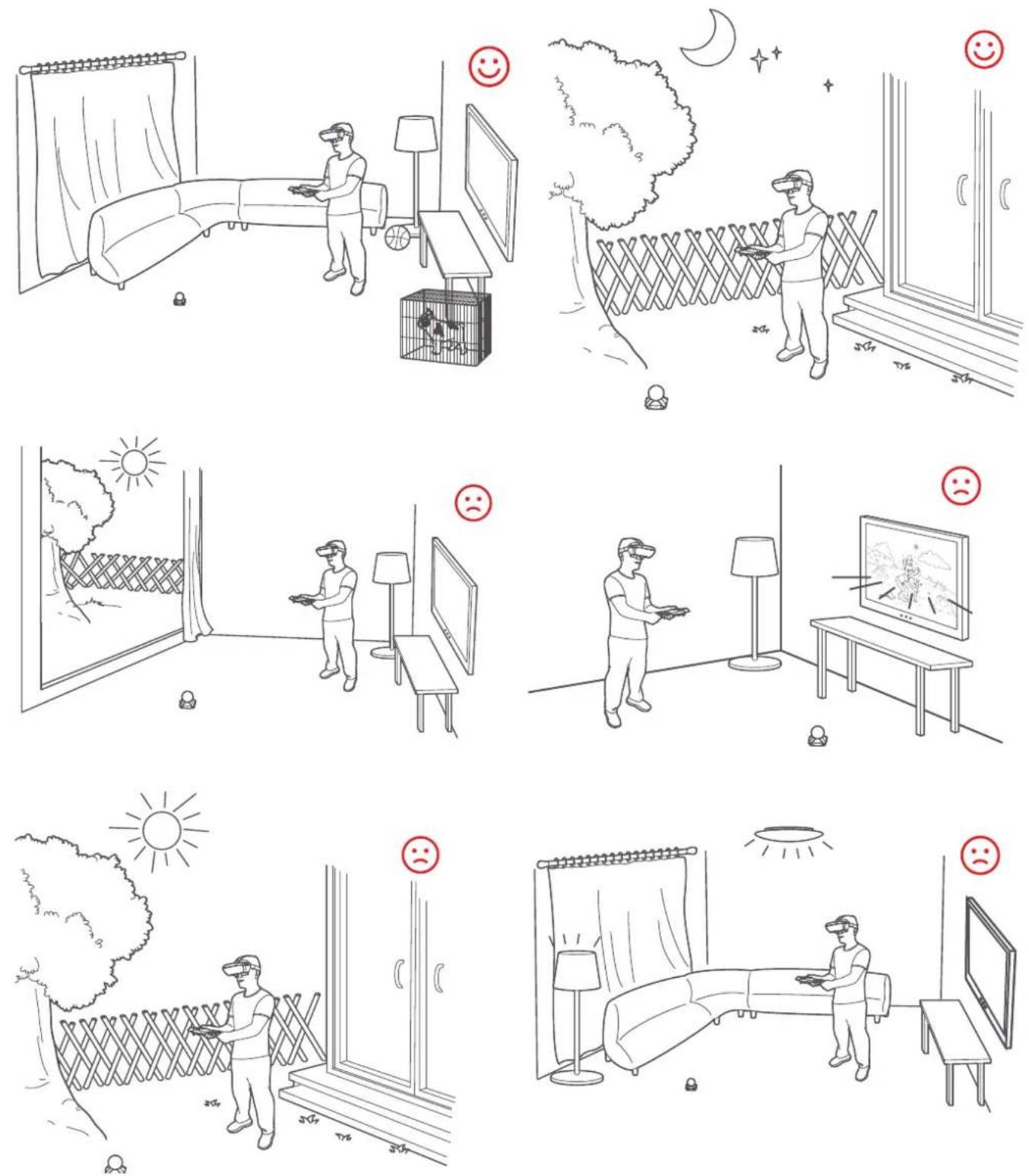
For a better experience, please use the device in an open and safe area without bright lights. Clear this area of all furniture, appliances, toys, pets or any other physical objects that may cause injury to users or obstruct their movements.
NOTE: Below are examples of recommended and not recommended play areas for using the device.
Star Wars™: Jedi Challenges experience
With a compatible phone, you can enjoy a lifelike Jedi experience.
Downloading the Star Wars™: Jedi Challenges app
To experience the game, download the Star Wars™: Jedi Challenges app first.
- Go to jedichallenges.com/app in your phone's browser.
- Install the app and then follow the onscreen setup instructions.

jedichallenges.com/app
Setting up the device
After the installation, please open the app on your phone and follow the onscreen instructions to set up your headset, lightsaber controller, beacon and phone.
Note:
• For a better game experience, turn up the volume on your phone first.
- If any steps are missed during the setup, the game may not function properly. Make sure you complete all steps in the setup menu.
- If you encounter any difficulties in the setup menu, please go to support.lenovo.com/jedichallenges, find troubleshooting guide or FAQs for help.
Experiencing the game
Put the headset on to enter the Star Wars™ world.

Light side
Trained as a Force-sensitive apprentice, you will gradually unlock the knowledge of the Jedi by experiencing Lightsaber battle, Holochess and Strategic combat games. Overcome the challenges in each level and you will live out the ultimate Star Wars™ fantasy and awaken your inner Jedi.
Dark side
Unleash the power of the dark side by facing off against three famed Jedi duelists.
Two players
You can also fight with your friend. Note that you and your friend will both need your own set of hardware and set your device individually.

Make sure that you have an appropriate amount of space for safe use of the lightsaber controller.
You should be able to fully extend your arms outwards and over your head without the lightsaber controller colliding with physical objects.
In two players mode, both players should be able to do this simultaneously without colliding with each other.
Join the Star Wars™: Jedi Challenges Community
You can also join our forum with the link below: http://forums.lenovo.com/jedichallenges.
Additional notice
- Some mobile devices, including smart phones, may become warmer when running graphics found in apps such as Jedi Challenges, especially if you use the devices to play games for an extended period of time. Our application is designed to manage game performance within the established parameters of your supported phone to deliver a safe high quality gameplay experience with no harm to your phone.
The path to becoming a Jedi can be challenging, we suggest you take a break during longer play sessions to ensure the best game play experience. However, each person and device is different, so take more frequent and longer breaks if you feel you need to.
The Star Wars™: Jedi Challenges App has three graphics quality settings. If you would like to conserve device battery please choose a lower graphics setting.
- For a better game experience, it is recommended that you disable the notifications and screen auto-brightness settings before inserting the phone into the phone tray.
- Using a screen protector on your phone may affect the brightness when playing.
- Only use non-abrasive anti-bacterial wipes and wipe gently for the headset.
Troubleshooting
1. The lightsaber tip light doesn't change from white to blue.
Make sure your phone's bluetooth is switched on.
Disable then re-enable the bluetooth connection on your phone, then restart the app and follow the set up procedure to retry.
2. After putting the headset on, the game interface cannot be seen.
Possible cause 1. The headset battery may be too low. Check the indicator LED status.
- If it is blinking, please charge the headset.
- If it is off and you didn't charge it before, please charge the headset.
Possible cause 2. The cable between the headset and the phone is loose. Check that the cable is connected properly.
Possible cause 3. The headset is too far from or too close to the beacon. Make sure that the headset stays in front of the tracking beacon. An optimal distance is 1.5-2.5 meters.
Possible cause 4. There is a known issue in iOS 11.0.X that users needs to wait 30-40s before the game can be activated. Please wait patiently. Upgrade to iOS 11.1 to solve this problem.
3. The lightsaber image is not aligned with the lightsaber controller.
Please make sure that the headset, lightsaber and beacon are aligned when you activate the lightsaber. Use the Control button to centre the lightsaber. Align the lightsaber with your line of sight and press the Control button.
For more information, please visit support.lenovo.com/jedichallenges, check troubleshooting guide or FAQs.
Appendix
Important safety and handling information
To avoid personal injury, property damage, or accidental damage to the product, read all of the information in this section before using the product. For additional tips to help you operate your device safely, go to http://www.lenovo.com/safety.
Handle your device with care
Do not drop, bend, or puncture your device; do not insert foreign objects into or place heavy objects on your device. Sensitive components inside might become damaged.
When using your device, keep it away from hot or high-voltage environments, such as electrical appliances, electrical heating equipment, or electrical cooking equipment. Use your device only in the temperature range of 0irc C ( 32irc F) to 35irc C ( 95irc F) (storage -20irc C ( -4irc F) to 60irc C ( 140irc F)) to avoid damage.
Don't expose your device to water, rain, extreme humidity, sweat or other liquids.
Do not disassemble or modify your device
Your device is a sealed unit. There are no end-user serviceable parts inside. All internal repairs must be done by a Lenovo-authorized repair facility or a Lenovo-authorized technician.
Attempting to open or modify your device will void the warranty.
Built-in rechargeable battery warnings
Danger: Do not attempt to replace the internal rechargeable lithium ion battery. Replacing the original battery with an incompatible type may result in an increased risk of personal injury or property damage due to explosion, excessive heat, or other risks.
Do not attempt to disassemble or modify the battery pack. Attempting to do so can cause a harmful explosion or battery fluid leakage.
When disposing of the battery, comply with all relevant local ordinances or regulations. Do not dispose the battery pack in municipal waste. Dispose used batteries according to the instructions.
The battery pack contains a small amount of harmful substances. To avoid injury:
- Keep the battery pack away from open flames or other heat sources.
- Do not leave the battery in an environment with extremely high temperature.
- Do not expose the battery pack to water, rain, or other corrosive liquids.
- Avoid short-circuiting the battery pack.
- Keep the battery pack out of reach of small children and pets.
- Do not leave the battery in an environment with extremely low air pressure. It may result in an explosion or the leakage of flammable liquid or gas from the battery.
To extend battery life, we recommend charging the battery to at least 30% to 50% capacity each time, and recharging it every three months to prevent over discharge.
Alkaline battery warnings
These warnings only apply to products containing alkaline batteries.
When replacing the alkaline batteries, only use a compatible type or an equivalent to the one recommended by the manufacturer. Alkaline batteries can explode when they are used, handled, or disposed of improperly. When disposing of alkaline batteries, comply with all relevant local battery disposal ordinances and regulations. In addition:
- Do not disassemble or short-circuit batteries.
- Insert the batteries correctly according to the +/- symbols for their polarity.
- Remove batteries from the product when not in use.
- Do not recharge alkaline batteries.
- Do not dispose of batteries in fires.
- Do not allow metal objects to come in contact with the battery terminals.
- Do not mix new batteries with used batteries, or mix batteries of different types (such as alkaline with carbon zinc).
For proper battery installation and removal, follow the manufacturer's instructions for this product. Keep batteries away from small children. If swallowed, consult a physician immediately. If the batteries are leaking, avoid letting the battery fluid come into contact with your skin and eyes. If battery fluid has already come in contact with your skin, wash your skin with clean water. If battery fluid has already come in contact with your eyes, avoid rubbing your eyes. Consult your physician immediately.
Adapter information
- Prevent your device and AC adapter from getting wet.
Do not immerse your device in water or leave your device in a location where it can come into contact with water or other liquids.
- Use approved charging methods only.
Note: Please only use standard Lenovo power adapters. The use of third-party power adapters will affect the charging speed, resulting in abnormal charging and potential damage to the equipment.
- Connect a standard power adapter to a suitable power outlet.
- Use a standard data cable to connect the device to a PC or a device that complies with USB 2.0 or higher.
Charging devices might become warm during normal use. Ensure that you have adequate ventilation around the charging device. Unplug the charging device if any of the following occurs:
- The charging device has been exposed to rain, liquid, or excessive moisture.
• The charging device shows signs of physical damage.
• You want to clean the charging device.
Warning:
Lenovo is not responsible for the performance or safety of products not manufactured or approved by Lenovo. Use only approved Lenovo ac adapters and batteries.
High volume warnings
Warning: Exposure to loud noise from any source for extended periods of time may affect your hearing. The louder the sound, the less time is required before your hearing could be affected. To protect your hearing:
- Avoid turning up the volume to block out noisy surroundings.
• Turn the volume down if you cannot hear people speaking near you.
If you experience hearing discomfort, including the sensation of pressure or fullness in your ears, ringing in your ears or muffled speech, you should stop listening to the product through your headset or headphones and have your hearing checked.
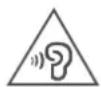
To prevent possible hearing damage, do not listen at high volume levels for long periods.
Safety instructions for parents and adult supervisors
This product is an AR headset that uses complex technology that is not recommended for use by children under 13 years of age. Children aged 13 or older using the product should be supervised and guided by adults to avoid potential hazards. In addition, this product contains electrical components, and precautions should be taken by all users during its use and handling to reduce the risk of electric shock.
Parents or adult supervisors should also periodically inspect the phone being used with the product for damage (including its charging equipment and other small parts and accessories) to ensure that it is safe and working properly.
Dispose according to local laws and regulations
When your device reaches the end of its useful life, do not crush, incinerate, immerse in water, or dispose of your device in any manner contrary to local laws and regulations. Some internal parts contain substances that can explode, leak, or have an adverse environmental effects if disposed of incorrectly.
See www.lenovo.com/lenovo/environment for recycling and environmental information.
About lightsaber regulatory agency identifications
For regulatory identification purposes, your product is assigned model numbers of AAC-101B, AAC-151B.
Your product's FCC ID are O57AR7561N and O57AAC151B. The FCC ID can also be found printed on the lightsaber.
To ensure continued reliable and safe operation of your device, use only the accessories listed below with your AAC-101B and AAC-151B:
The Battery Pack has been assigned a model number of L17D1P36.
THE BATTERY IS NOT FULLY CHARGED WHEN YOU TAKE THE DEVICE OUT OF THE BOX.
NOTE: This product is intended for use with a certified Class 2 Limited Power Source, rated 5 Volts DC, maximum 1 Amp power supply unit.
Electronic emission notices FCC Compliance Statement
This equipment has been tested and found to comply with the limits for a Class B digital device, pursuant to Part 15 of the FCC Rules. These limits are designed to provide reasonable protection against harmful interference in a residential installation. This equipment generates, uses, and can radiate radio frequency energy and, if not installed and used in accordance with the instructions, may cause harmful interference to radio communications. However, there is no guarantee that interference will not occur in a particular installation. If this equipment does cause harmful interference to radio or television reception, which can be determined by turning the equipment off and on, the user is encouraged to try to correct the interference by one or more of the following measures:
• Reorient or relocate the receiving antenna.
- Increase the separation between the equipment and receiver.
- Connect the equipment into an outlet on a circuit different from that to which the receiver is connected.
- Consult an authorized dealer or service representative for help.
Lenovo is not responsible for any radio or television interference caused by unauthorized changes or modifications to this equipment. Unauthorized changes or modifications could void the user's authority to operate the equipment.
This device complies with Part 15 of the FCC Rules. Operation is subject to the following two conditions: (1) this device may not cause harmful interference, and (2) this device must accept any interference received, including interference that may cause undesired operation. Responsible Party:
Lenovo (United States) Incorporated 1009 Think Place - Building One Morrisville, NC 27560
Telephone: 1-919-294-5900

IC Caution
This device complies with Industry Canada license-exempt RSS standard(s). Operation is subject to the following two conditions:
(1) This device may not cause interference, and
(2) this device must accept any interference, including interference that may cause undesired operation of the device.
This Class B digital apparatus complies with Canadian ICES-003.
Japanese VCCI Class B statement
Japan compliance statement for products that connect to power mains rated at less than or equal to 20A per phase
FCC RF Radiation Exposure Statement
- This Transmitter must not be co-located or operating in conjunction with any other antenna or transmitter.
- This equipment complies with FCC RF radiation exposure limits set forth for an uncontrolled environment.
IC RF Radiation Exposure Statement
This equipment complies with IC radiation exposure limits set forth for an uncontrolled environment. This transmitter must not be co-located or operating in conjunction with any other antenna or transmitter.
European Union compliance statement
European Union conformity
EU contact: Lenovo, Einsteinova 21, 851 01 Bratislava, Slovakia

Compliance with the RE Directive
Lenovo PC HK Limited declares that the radio equipment type AAC-101B, AAC-151B is in compliance with Directive 2014/53/EU.
The full text of the EU declaration of conformity is available at the following internet address: http://www3.lenovo.com/us/en/social_responsibility/EU_DoC_wireless_options
This radio equipment operates with the following frequency bands and maximum radio-frequency power:
| Model Name Frequency | Bands | Maximum Conducted Power (dBm) |
| AAC-101B Bluetooth 2.4GHz <4dBm | ||
| AAC-151B Bluetooth 2.4GHz <2dBm |
NOTE: The above information is for EU countries only. Please refer to the actual product for supported frequency bands in other countries.
- STAR WARS™ JEDI CHALLENGES
- Basics
- Product overview
- Compatible phones
- Buttons & Functions
- Tracking beacon
- Play area
- Star Wars™: Jedi Challenges experience
- Downloading the Star Wars™: Jedi Challenges app
- jedichallenges.com/app
- Setting up the device
- Note:
- Experiencing the game
- Light side
- Dark side
- Two players
- Join the Star Wars™: Jedi Challenges Community
- Additional notice
- Troubleshooting
- The lightsaber tip light doesn't change from white to blue.
- After putting the headset on, the game interface cannot be seen.
- The lightsaber image is not aligned with the lightsaber controller.
- Appendix
- Important safety and handling information
- Handle your device with care
- Do not disassemble or modify your device
- Built-in rechargeable battery warnings
- Alkaline battery warnings
- Adapter information
- Warning:
- High volume warnings
- Safety instructions for parents and adult supervisors
- Dispose according to local laws and regulations
- About lightsaber regulatory agency identifications
- Electronic emission notices FCC Compliance Statement
- IC Caution
- Japanese VCCI Class B statement
- Japan compliance statement for products that connect to power mains rated at less than or equal to 20A per phase
- FCC RF Radiation Exposure Statement
- IC RF Radiation Exposure Statement
- European Union compliance statement
- European Union conformity
- Compliance with the RE Directive
Brand : LENOVO
Model : Star Wars: Jedi Challenges
Category : Headphones