
USB Type-C Dock G5 - Docking Station / Charger HP - Free user manual and instructions
Find the device manual for free USB Type-C Dock G5 HP in PDF.


| Product Type | Docking Station |
| Brand | HP |
| Model | USB Type-C Dock G5 |
| Dimensions | 12.0 x 12.0 x 3.0 cm (4.7 x 4.7 x 1.2 in) |
| Weight | 200 g (7.0 oz) |
| Power Input | USB-C Power Delivery, 65W adapter included |
| Max Charging Output | 65W to host laptop, 15W to peripherals |
| Video Output | 1x HDMI 2.0, 1x DisplayPort 1.4, supports dual 4K @ 60Hz |
| USB Ports | 2x USB-A 3.2 Gen 1, 1x USB-C 3.2 Gen 2 (data only) |
| Ethernet | RJ45 Gigabit Ethernet |
| Audio | 3.5 mm combo audio jack |
| Connectivity | USB-C host cable (detachable), 0.8 m length |
| Compatible Operating Systems | Windows 10/11, macOS 10.15+, Chrome OS |
| Maintenance | Wipe with a soft dry cloth; do not use liquids or abrasive cleaners |
| Safety | Use only with compatible USB-C devices; avoid moisture and extreme temperatures |
| Spare Parts | AC power adapter (HP part #xxxx), USB-C cable (HP part #xxxx) |
| Repairability | No user-serviceable parts inside; contact HP support |
| Warranty | 1 year limited warranty (varies by region) |
Frequently Asked Questions - USB Type-C Dock G5 HP
User questions about USB Type-C Dock G5 HP
0 question about this device. Answer the ones you know or ask your own.
Ask a new question about this device
Download the instructions for your Docking Station / Charger in PDF format for free! Find your manual USB Type-C Dock G5 - HP and take your electronic device back in hand. On this page are published all the documents necessary for the use of your device. USB Type-C Dock G5 by HP.
USER MANUAL USB Type-C Dock G5 HP
© Copyright 2019 HP Development Company, L.P.
DisplayPort™ and the DisplayPort™ logo are trademarks owned by the Video Electronics Standards Association (VESA®) in the United States and other countries. Windows is either a registered trademark or trademark of Microsoft Corporation in the United States and/or other countries.
The information contained herein is subject to change without notice. The only warranties for HP products and services are set forth in the express warranty statements accompanying such products and services. Nothing herein should be construed as constituting an additional warranty. HP shall not be liable for technical or editorial errors or omissions contained herein.
First Edition: May 2019
Document Part Number: L63477-001
Table of contents
1 Getting started 1
Components 1
Top 1
Front 2
Left 3
Rear 4
Bottom 5
Setting up the docking station 6
Step 1: Connecting to AC power 6
Step 2: Connecting to a computer .... 7
Step 3: Turning on the docking station 8
Step 4: Preventing Sleep or Hibernation .... 8
Setting up the software 8
Updating the docking station 9
Downloading HP Firmware Installer 9
Installing updates 9
Configuring an external monitor 10
Using Windows 10
Sleep, Hibernation, shutdown, and restart 11
2 Using the docking station 12
Docking station guidelines 12
Connecting to a network 13
Connecting USB devices 14
Connecting to a DisplayPort device 15
Connecting to an HDMI device 16
Connecting audio 17
Connecting analog audio devices 17
Connecting an optional security cable 17
3 Disconnecting the docking station 18
4 Troubleshooting 19
Solving common problems 19
General use and connection problems 19
Audio problems 19
Video problems 20
Getting more information 20
5 Specifications 21
Input power 21
Operating environment 21
6 Electrostatic discharge 22
7 Accessibility 23
Accessibility 23
Finding the technology tools you need 23
Our commitment 23
International Association of Accessibility Professionals (IAAP) 23
Finding the best assistive technology 24
Assessing your needs 24
Accessibility for HP products 24
Standards and legislation 25
Standards 25
Mandate 376 – EN 301 549 ...... 25
Web Content Accessibility Guidelines (WCAG) 25
Legislation and regulations 25
United States 26
21st Century Communications and Video Accessibility Act (CVAA) 26
Canada 26
Europe 27
United Kingdom 27
Australia 27
Worldwide 27
Useful accessibility resources and links 28
Organizations 28
Educational institutions 28
Other disability resources 28
HP links 28
Contacting support 29
Index 30
1 Getting started
Components
This chapter identifies the visible hardware features of the docking station and provides setup instructions.

NOTE: Some features of the docking station may not be supported by your computer.
Top
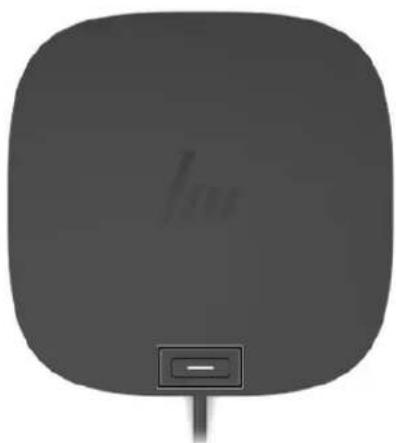
Table 1-1 Top component and its description
| Component Description | |
| Power button and light Button: | |
| When the computer is off, press the button to turn on the computer.When the computer is on, press the button briefly to initiate Sleep.When the computer is in the Sleep state, press the button briefly to exit Sleep (select products only).When the computer is in Hibernation, press the button briefly to exit Hibernation.CAUTION:Pressing and holding down the power button results in the loss of unsaved information.If the computer has stopped responding and shutdown procedures are ineffective, press and hold the power button for at least 5 seconds to turn off the computer.Light:On: The docking station is on. | |
Front
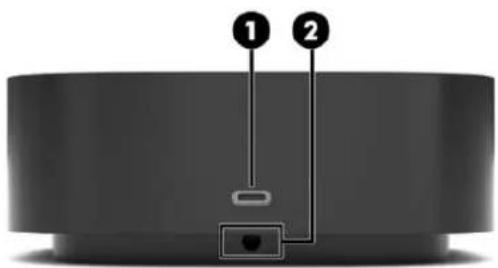
Table 1-2 Front components and their descriptions
| Component Description | ||
| (1) | USB Type-C SuperSpeed port with HP Sleep and Charge | Connects a USB device that has a Type-C connector, provides data transfer, and even when the computer is off, charges most products such as a cell phone, camera, activity tracker, or smartwatch. |
| NOTE: Cables and/or adapters (purchased separately) may be required. | ||
| (2) | USB Type-C cable Connects the docking station to a notebook or tablet computer. | |
| NOTE: If a computer does not support power over USB Type-C connections or requires more than 100 W of power, you must use the AC adapter included with the computer to power or charge the computer. | ||
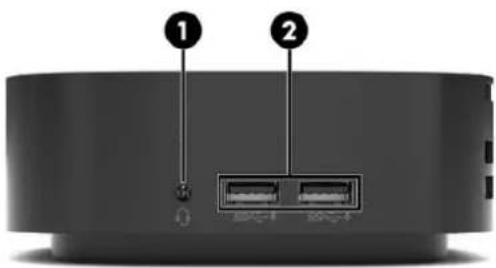
Table 1-3 Left components and their descriptions
| Component Description | |
| (1) Audio-out (headphone)/Audio-in (microphone) combo jack | Connects optional powered stereo speakers, headphones, earbuds, a headset, or a television audio cable. Also connects an optional headset microphone. This jack does not support optional standalone microphones.WARNING! To reduce the risk of personal injury, adjust the volume before putting on headphones, earbuds, or a headset. For additional safety information, see the Regulatory, Safety, and Environmental Notices.To access this guide:▲ On your computer, select the Start button, select HP Help and Support, and then select HP Documentation.NOTE: When a device is connected to the jack, the computer speakers are disabled. |
| (2) USB SuperSpeed ports with HP Sleep and Charge (2) | Connect a USB device, provides data transfer, and even when the computer is off, charges most products such as a cell phone, camera, activity tracker, or smartwatch. |
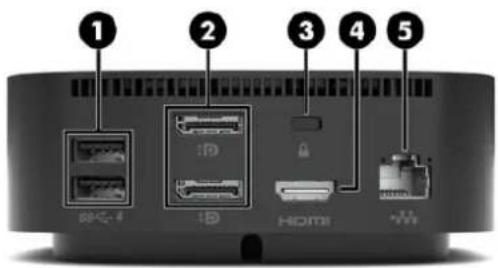
Table 1-4 Rear components and their descriptions
| Component Description | ||
| (1) USB SuperSpeed ports with HP Sleep and SS←→ Charge (2) | Connect a USB device, provides data transfer, and even when the computer is off, charges most products such as a cell phone, camera, activity tracker, or smartwatch. | |
| (2) [C230] | Dual-Mode DisplayPortTM connectors (2) | Connect an optional digital display device, such as a high-performance monitor or projector. |
(3) Secureable slot Attaches an optional security cable to the docking station.  | NOTE: The security cable is designed to act as a deterrent, but it may not prevent the docking station from being mishandled or stolen. | |
| (4) [Z×87] | HDMI port | Connects an optional video or audio device, such as a high-definition television, any compatible digital or audio component, or a high-speed High Definition Multimedia Interface (HDMI) device. |
(5) RJ-45 (network) jack/status lights Connects a network cable.  | Green (right): The network is connected.Amber (left): Activity is occurring on the network. | |
Bottom
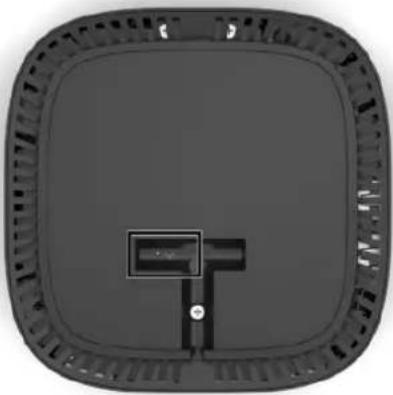
Table 1-5 Bottom components and their descriptions
Components Description
AC adapter light • On: AC power is connected to the docking station.
Setting up the docking station
Step 1: Connecting to AC power

WARNING! To reduce the risk of electric shock or damage to your equipment:
Plug the power cord into a grounded (earthed) outlet that is easily accessible at all times.
Disconnect power from the equipment by unplugging the power cord from the electrical outlet.
Do not disable the power cord grounding plug. The grounding plug is an important safety feature.
To ensure the correct performance of all docking station features, connect the docking station to an AC power source using the docking station power cord.
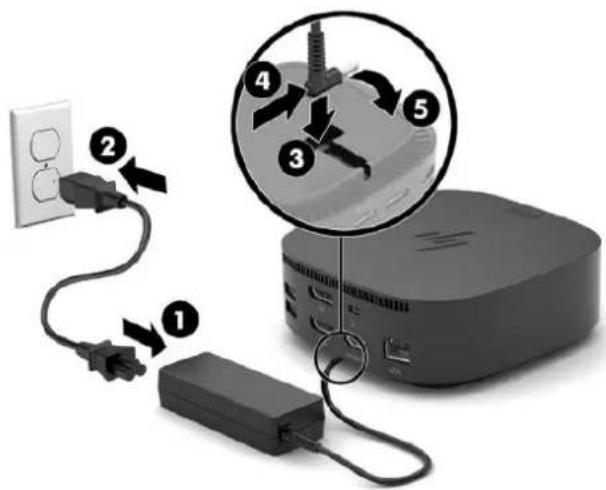
- Connect one end of the power cord to the AC adapter (1), and connect the other end of the power cord to an AC outlet (2).
- Lower the AC adapter connector into the power-in connector slot on the docking station (3), press the connector to the side until it is firmly seated (4), and then rotate the connector so that the cable is routed through the channel on the side of the docking station chassis (5).
Step 2: Connecting to a computer
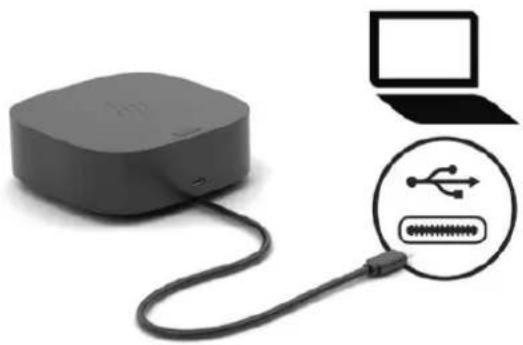
Connect the USB Type-C cable to a USB Type-C port on your computer.

NOTE: If the computer does not support power over USB Type-C connections or requires more than 100 W of power, you must use the AC adapter included with the computer to power or charge the computer.
Step 3: Turning on the docking station
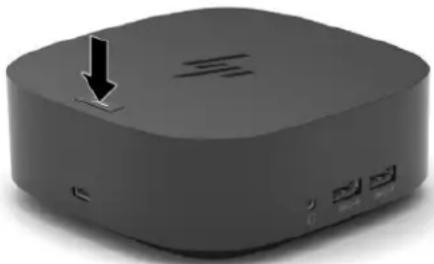
Press the power button.
Step 4: Preventing Sleep or Hibernation
When using an external monitor, you might want to close the computer. For more information about configuring an external monitor, see Configuring an external monitor on page 10.
To ensure that the computer does not initiate Sleep or Hibernation when it is closed:
- Type control panel in the taskbar search box, and then select Control Panel.
- Select Power Options.
- Select Choose what closing the lid does.
- Next to When I close the lid, under On battery, select Do nothing.
- Next to When I close the lid, under Plugged in, select Do nothing.
- Select Save changes.
Setting up the software
This section describes how to install the docking station software on a computer running the Windows® 10 operating system.
- With the computer on, Windows running, and the Internet connected, connect the docking station to the computer.
- Go to http://www.hp.com/support.
- Select Get software and drivers, and follow the on-screen instructions to find your docking station.
- Follow the on-screen instructions to select and download the latest firmware update and each driver.
- Complete the installation wizard.
- Choose to restart now or later. The docking station might not work until the next restart. If you choose to restart the computer, first remove any discs from the computer drives. Click Finish.
Updating the docking station
Downloading HP Firmware Installer
- Go to http://www.hp.com/support.
- Select Get software and drivers, and follow the on-screen instructions to find your docking station.
- Follow the on-screen instructions to select and download HP Firmware Installer.
- Complete the installation wizard.
- Choose to restart now or later. The docking station might not work until the next restart. If you choose to restart the computer, first remove any discs from the computer drives. Click Finish.
Installing updates
You can update the docking station while connected to your computer or, for better performance, schedule the docking station to update when you disconnect your computer from the docking station.
- Open Windows Explorer and navigate to where you saved HP Firmware Installer.
- Double-click HPFirmwareInstaller.exe.
- Verify that updates are available, and then select which updates to install.
TIP: You must be connected to the Internet for new updates to download to HP Firmware Installer.
- Select one of the following:
- Update now: Installs the update immediately.
NOTE: You cannot disconnect your computer from the docking station during an update. You might see your monitor flicker and hear some audio clicks, your Internet connection might be intermittent, and your mouse and keyboard could become unresponsive until installation is complete.
- Update on dock disconnect: Installs the update after you disconnect your computer from the docking station.
NOTE: You cannot connect your computer to the docking station during an update. The dock power light might blink while the update is being installed.
- Select Install.
Configuring an external monitor
Using Windows
Use Windows to configure the display of a monitor attached to the docking station.
- Type control panel in the taskbar search box, and then select Control Panel. Select Appearance and Personalization.
- To set the external monitor as the primary monitor, select Second screen only.
-or-
To set the external monitor as an extension of the primary monitor on computers, select Extend.
-or-
To set the external monitor as a copy of the primary monitor, select Duplicate.
You can also access the display settings by pressing the Windows key +p.
Sleep, Hibernation, shutdown, and restart
If the computer initiates Sleep or Hibernation, the monitor turns off. When the computer exits Sleep or Hibernation, the connected monitor returns to the previous monitor settings.
If you restart or shut down the computer and then turn it back on, the connected monitor returns to the previous monitor settings.
2 Using the docking station
Docking station guidelines
- Operating systems: For optimal performance, use the docking station with a computer running a Windows 10, version 1809 or higher operating system. • Power: To use docking station features, AC power must be connected to the docking station.
- Connecting and disconnecting: The docking station can be connected to or disconnected from the computer whether the computer is on or off. (See Step 2: Connecting to a computer on page 7 and Disconnecting the docking station on page 18.)
- External devices: When the docking station is connected to the computer, external devices can be connected to the ports on the docking station or to the ports on the computer.
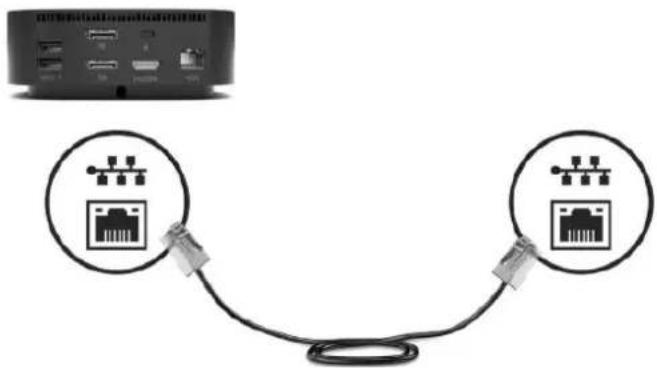
Connecting to a network
You can connect the computer to a network through the docking station. This requires a network cable (purchased separately).
The docking station supports the following computer functions over the network connection:

NOTE: Before using these functions, verify that your computer has the latest BIOS, network controller driver, and USB LAN driver installed. For instructions on updating these drivers, see your computer documentation.
- PXE boot
• MAC Address Pass Through

TIP: Your computer might support MAC Address Pass Through from the On, Off, Sleep, or Hibernation states, or only when the computer is on or in Sleep.
MAC Address Pass Through is supported for UEFI PXE boot.
- Wake on LAN (WOL)

TIP: Your computer might support WOL from the Off, Sleep, or Hibernation states, or only when the computer is on or in Sleep.
WLAN-LAN switching is supported only on select computers running the Windows 10 operating system.
- Connect the docking station to the computer.
- Connect one end of the network cable to the RJ-45 (network) jack on the docking station and connect the other end to an RJ-45 wall jack or router.
Connecting USB devices
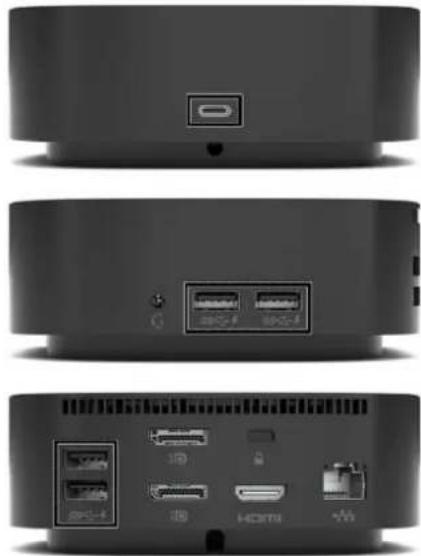
The docking station has five USB ports: one USB Type-C port with HP Sleep and Charge on the front panel, two USB SuperSpeed ports with HP Sleep and Charge on the middle panel, and two USB SuperSpeed ports with HP Sleep and Charge on the rear panel. Use the USB ports to connect optional external USB devices, such as a keyboard or mouse.

NOTE: Be sure that the external device is compliant with the docking station power specifications. Using a noncompliant device might disable the port to which the device is attached. To reset the port, see Troubleshooting on page 19.
Connecting to a DisplayPort device
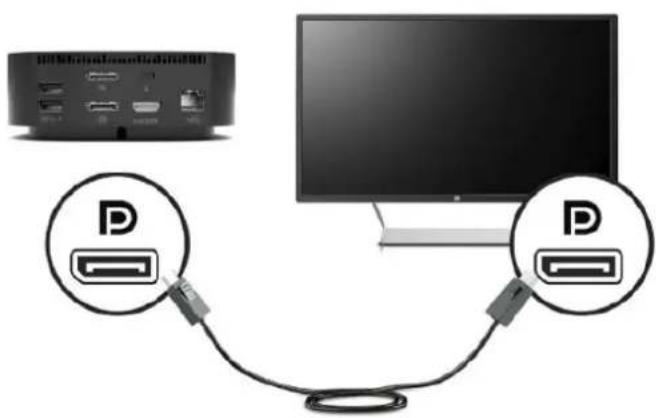
The docking station can also be connected to an external video device, such as a monitor or a projector, through the DisplayPort connectors. The docking station supports video connections to both DisplayPort connectors at the same time. A single DisplayPort can support a screen resolution up to 5120 × 2880 @ 60 Hz, depending on your computer, cable, and monitor capabilities.

NOTE: To transmit video signals through the DisplayPort connection, you need a DisplayPort cable (purchased separately).
Connecting to an HDMI device
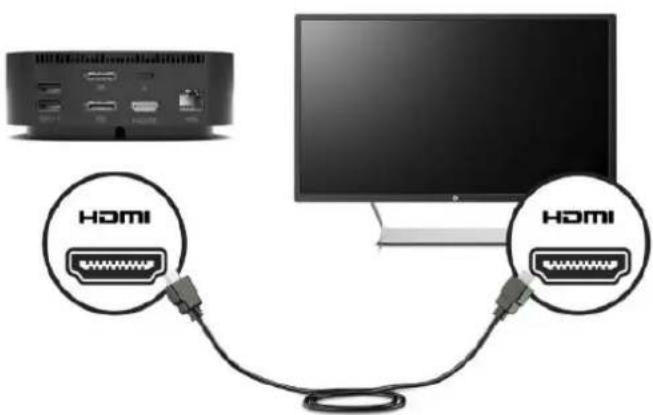
You can connect the docking station to an external video or audio device, such as a high-definition television, or to any digital audio components, through the HDMI port.
The docking station supports simultaneous video connections to the HDMI port and a DisplayPort connector.

NOTE: To transmit video signals through the HDMI port, you need an HDMI cable (purchased separately).
Connecting audio
You can connect headphones or speakers directly into the audio-out (headphone)/audio-in (microphone) combo jack on the docking station. You can also connect analog audio devices.

NOTE: If the audio does not automatically switch to the docking station, set the docking station as the default audio device in your computer settings.
Connecting analog audio devices
To connect analog audio:
- Connect one end of an audio Y-cable (purchased separately) to the audio-out (headphone)/audio-in (microphone) combo jack on the docking station.
- Connect the other end to the red and white audio-in jacks on your television or stereo equipment. See your television or stereo equipment user guide for the jack names and locations.
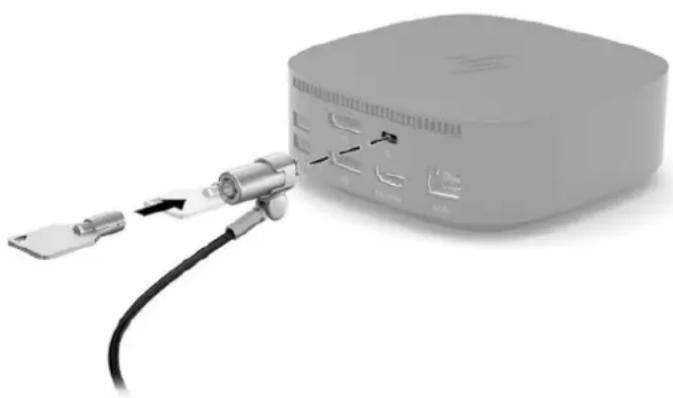
Connecting an optional security cable
A security cable (purchased separately) is designed to act as a deterrent, but it may not prevent the docking station from being mishandled or stolen. To connect a security cable to your docking station, follow the device manufacturer's instructions.
3 Disconnecting the docking station
To disconnect the docking station from the computer, follow these steps:
- Click the Safely Remove Hardware icon in the notification area, at the far right of the taskbar.
- Click Safely Remove USB Docking Station. The Safe to Remove Hardware message is displayed.
- Disconnect the attached USB Type-C cable from the computer.
4 Troubleshooting
Solving common problems
The following tables list possible problems and the recommended solutions.
General use and connection problems
Table 4-1 General use and connection problems, causes, and solutions
| Problem Possible cause Solution | ||
| The power light is off. The docking station is not connected to AC power. | Connect the power cord to the docking station and to an electrical outlet. | |
| The ports or jacks on the docking station are not working. | The docking station is not connected to AC power. | Connect the power cord to the docking station and to an electrical outlet. |
| The docking station is not connected to the computer correctly. | Disconnect the USB cable from the computer, and then reconnect it. | |
| A USB port on the docking station is disabled. | The USB device attached to the port may not be compliant with the docking station power specifications and is using too much power. | Reset the port:1. Disconnect the device that disabled the port.2. Disconnect the power cord from the docking station, and then reconnect it.- or -Disconnect the docking station from the computer, and then reconnect it. |
| When the docking station is connected to the computer, both the WLAN and the LAN are connected. | Switching from the WLAN connection to the LAN connection may not be supported on your computer.NOTE:WLAN-LAN switching is supported only on select computers running the Windows 10 operating system. | Disable the WLAN connection:1. Right-click Start, and then select Network Connections.2. Right-click Wi-Fi, and then click Disable. |
| Data transfer speeds through USB or Ethernet are slow. | Multiple high-resolution monitors are connected to the docking station. | Either disable high-resolution mode or disconnect a monitor. |
Audio problems
Table 4-2 Audio problems, causes, and solutions
| Problem Possible cause Solution | ||
| Audio does not play. The drivers are not installed. Install the drivers. See Setting up the software on page 8. | ||
| Headphones or other audio device connected to the docking station do not produce sound. | An audio device is connected to the headphone jack on the docking station, butthe docking station is not the default audio device. | Set the docking station as the default audio device in the computer settings, or connect the audio device to the computer. |
| A microphone connected to the docking station does not work. | A microphone is connected to the docking station, but the docking station is not the default audio device. | Set the docking station as the default audio device in the computer settings, or connect the microphone to the computer. |
| A connected home entertainment system does not have audio. | Audio is not connected properly. Be sure that the docking station is properly connected to the home entertainment system. | |
Video problems
Table 4-3 Video problems, causes, and solutions
| Problem Possible cause Solution | ||
| A video does not display. | The drivers are not installed. | Install the drivers. See Setting up the software on page 8. |
| Fonts and other characters on the external monitor appear large. | The external monitor screen resolution is higher than the maximum limit of 5120 × 2880. | Set the screen resolution equal to or lower than the maximum limit. |
| The graphics application does not detect the external monitor. | Some graphics applications do not detect external monitors connected to the docking station. | Configure the external monitor. See Configuring an external monitor on page 10. |
| The external monitor cannot be set as the primary monitor when using some Intel graphics applications. | Older Intel graphics applications do not support setting the external monitor as the primary monitor. | Download the latest Intel drivers from http://www.hp.com/support. |
| The computer monitor does not work. The external monitor has been disconnected from the docking station before the docking station was disconnected from the computer. | Disconnect the docking station from the computer, and then disconnect the external monitor from the docking station. | |
Getting more information
- For comprehensive information about the docking station, as well as governmental agency and safety information about the use of the docking station, access HP Help and Support. The HP website (http://www.hp.com) provides product news and software updates.
5 Specifications
Input power
The power information in this section may be helpful if you plan to travel internationally with the docking station.
The docking station operates on DC power, which can be supplied by an AC or a DC power source. The AC power source must be rated at 100–240 V, 50–60 Hz. Although the docking station can be powered from a standalone DC power source, it should be powered only with an AC adapter or a DC power source supplied and approved by HP for use with this docking station.
The docking station can operate on DC power within the following specifications.
Table 5-1 DC power specifications
Input Power Rating
Operating voltage and current: 19.5 V dc @ 6.15 A - 120 W
NOTE: This product is designed for IT power systems in Norway with phase-to-phase voltage not exceeding 240 V rms.
NOTE: The docking station operating voltage and current can be found on the docking station's regulatory label.
Operating environment
Table 5-2 Operating environment specifications
| Factor Metric U.S. |
| Temperature |
| Operating 0°C to 35°C 32°F to 95°F |
| Nonoperating -40°C to 70°C -40°F to 158°F |
| Relative humidity (noncondensing) |
| Operating 5% to 95% 5% to 95% |
| Nonoperating 5% to 90% 5% to 90% |
| Maximum altitude (unpressurized) |
| Operating -15 m to 3,048 m -50 ft to 10,000 ft |
| Nonoperating -15 m to 9,144 m -50 ft to 30,000 ft |
6 Electrostatic discharge
Electrostatic discharge is the release of static electricity when two objects come into contact—for example, the shock you receive when you walk across the carpet and touch a metal door knob.
A discharge of static electricity from fingers or other electrostatic conductors may damage electronic components.

IMPORTANT: To prevent damage to the computer, damage to a drive, or loss of information, observe these precautions:
- If removal or installation instructions direct you to unplug the computer, first be sure that it is properly grounded.
- Keep components in their electrostatic-safe containers until you are ready to install them.
- Avoid touching pins, leads, and circuitry. Handle electronic components as little as possible. Use nonmagnetic tools. Before handling components, discharge static electricity by touching an unpainted metal surface.
- If you remove a component, place it in an electrostatic-safe container.
7 Accessibility
Accessibility
HP is working to weave diversity, inclusion and work/life into the fabric of our company, so it is reflected in everything we do. Here are some examples of how we are putting differences to work to create an inclusive environment focused on connecting people to the power of technology throughout the world.
Finding the technology tools you need
Technology can unleash your human potential. Assistive technology removes barriers and helps you create independence at home, at work, and in the community. Assistive technology helps increase, maintain, and improve the functional capabilities of electronic and information technology. For more information, see Finding the best assistive technology on page 24.
Our commitment
HP is committed to providing products and services that are accessible for people with disabilities. This commitment supports our company's diversity objectives and helps us ensure that the benefits of technology are available to all.
Our accessibility goal is to design, produce, and market products and services that can be effectively used by everyone, including people with disabilities, either on a stand-alone basis or with appropriate assistive devices.
To achieve our goal, this Accessibility Policy establishes seven key objectives to guide our actions as a company. All HP managers and employees are expected to support these objectives and their implementation in accordance with their roles and responsibilities:
- Raise the level of awareness of accessibility issues within our company, and provide our employees with the training they need to design, produce, market, and deliver accessible products and services.
- Develop accessibility guidelines for products and services, and hold product development groups accountable for implementing these guidelines where competitively, technically, and economically feasible.
- Involve people with disabilities in the development of accessibility guidelines, and in the design and testing of products and services.
- Document accessibility features and make information about our products and services publicly available in an accessible form.
- Establish relationships with leading assistive technology and solution providers.
- Support internal and external research and development that will improve assistive technology relevant to our products and services.
- Support and contribute to industry standards and guidelines for accessibility.
International Association of Accessibility Professionals (IAAP)
IAAP is a not-for-profit association focused on advancing the accessibility profession through networking, education, and certification. The objective is to help accessibility professionals develop and advance their careers and to better enable organizations to integrate accessibility into their products and infrastructure.
HP is a founding member, and we joined to participate with other organizations to advance the field of accessibility. This commitment supports our company's accessibility goal of designing, producing, and marketing products and services that can be effectively used by people with disabilities.
IAAP will make our profession strong by globally connecting individuals, students, and organizations to learn from one another. If you are interested in learning more, go to http://www.accessibilityassociation.org to join the online community, sign up for newsletters, and learn about membership options.
Finding the best assistive technology
Everyone, including people with disabilities or age-related limitations, should be able to communicate, express themselves, and connect with the world using technology. HP is committed to increasing accessibility awareness within HP and with our customers and partners. Whether it's large fonts that are easy on the eyes, voice recognition that lets you give your hands a rest, or any other assistive technology to help with your specific situation—a variety of assistive technologies make HP products easier to use. How do you choose?
Assessing your needs
Technology can unleash your potential. Assistive technology removes barriers and helps you create independence at home, at work, and in the community. Assistive technology (AT) helps increase, maintain, and improve the functional capabilities of electronic and information technology.
You may choose from many AT products. Your AT assessment should allow you to evaluate several products, answer your questions, and facilitate your selection of the best solution for your situation. You will find that professionals qualified to do AT assessments come from many fields, including those licensed or certified in physical therapy, occupational therapy, speech/language pathology, and other areas of expertise. Others, while not certified or licensed, may also provide evaluation information. You will want to ask about the individual's experience, expertise, and fees to determine if they are appropriate for your needs.
Accessibility for HP products
The following links provide information about accessibility features and assistive technology, if applicable, included in various HP products. These resources will help you select the specific assistive technology features and product(s) most appropriate for your situation.
- HP Elite x3–Accessibility Options (Windows 10 Mobile)
- HP PCs-Windows 7 Accessibility Options
- HP PCs-Windows 8 Accessibility Options
- HP PC's–Windows 10 Accessibility Options
- HP Slate 7 Tablets—Enabling Accessibility Features on Your HP Tablet (Android 4.1/Jelly Bean)
- HP SlateBook PCs—Enabling Accessibility Features (Android 4.3, 4.2/Jelly Bean)
- HP Chromebook PCs—Enabling Accessibility Features on Your HP Chromebook or Chromebox (Chrome OS)
- HP Shopping—peripherals for HP products
If you need additional support with the accessibility features on your HP product, see Contacting support on page 29.
Additional links to external partners and suppliers that may provide additional assistance:
• Microsoft Accessibility information (Windows 7, Windows 8, Windows 10, Microsoft Office) - Google Products accessibility information (Android, Chrome, Google Apps)
- Assistive Technologies sorted by impairment type
- Assistive Technologies sorted by product type
- Assistive Technology vendors with product descriptions ● Assistive Technology Industry Association (ATIA)
Standards and legislation
Standards
Section 508 of the Federal Acquisition Regulation (FAR) standards was created by the US Access Board to address access to information and communication technology (ICT) for people with physical, sensory, or cognitive disabilities. The standards contain technical criteria specific to various types of technologies, as well as performance-based requirements which focus on functional capabilities of covered products. Specific criteria cover software applications and operating systems, web-based information and applications, computers, telecommunications products, video and multi-media, and self-contained closed products.
Mandate 376 – EN 301 549
The EN 301 549 standard was created by the European Union within Mandate 376 as the basis for an online toolkit for public procurement of ICT products. The standards specifies the functional accessibility requirements applicable to ICT products and services, together with a description of the test procedures and evaluation methodology for each accessibility requirement.
Web Content Accessibility Guidelines (WCAG)
Web Content Accessibility Guidelines (WCAG) from the W3C's Web Accessibility Initiative (WAI) helps web designers and developers create sites that better meet the needs of people with disabilities or age-related limitations. WCAG advances accessibility across the full range of web content (text, images, audio, and video) and web applications. WCAG can be precisely tested, is easy to understand and use, and allows web developers flexibility for innovation. WCAG 2.0 has also been approved as ISO/IEC 40500:2012.
WCAG specifically addresses barriers to accessing the web experienced by people with visual, auditory, physical, cognitive, and neurological disabilities, and by older web users with accessibility needs. WCAG 2.0 provides characteristics of accessible content:
- Perceivable (for instance, by addressing text alternatives for images, captions for audio, adaptability of presentation, and color contrast)
- Operable (by addressing keyboard access, color contrast, timing of input, seizure avoidance, and navigability) • Understandable (by addressing readability, predictability, and input assistance)
- Robust (for instance, by addressing compatibility with assistive technologies)
Legislation and regulations
Accessibility of IT and information has become an area of increasing legislative importance. This section provides links to information about key legislation, regulations, and standards.
United States • Canada • Europe
• United Kingdom • Australia • Worldwide
United States
Section 508 of the Rehabilitation Act specifies that agencies must identify which standards apply to the procurement of ICT, perform market research to determine the availability of accessible products and services, and document the results of their market research. The following resources provide assistance in meeting Section 508 requirements:
• www.section508.gov - Buy Accessible
The U.S. Access Board is currently updating the Section 508 standards. This effort will address new technologies and other areas where the standards need to be modified. For more information, go to Section 508 Refresh.
Section 255 of the Telecommunications Act requires telecommunications products and services to be accessible to people with disabilities. FCC rules cover all hardware and software telephone network equipment and telecommunications equipment used in the home or office. Such equipment includes telephones, wireless handsets, fax machines, answering machines, and pagers. FCC rules also cover basic and special telecommunications services, including regular telephone calls, call waiting, speed dialing, call forwarding, computer-provided directory assistance, call monitoring, caller identification, call tracing, and repeat dialing, as well as voice mail and interactive voice response systems that provide callers with menus of choices. For more information, go to Federal Communication Commission Section 255 information.
21st Century Communications and Video Accessibility Act (CVAA)
The CVAA updates federal communications law to increase the access of persons with disabilities to modern communications, updating accessibility laws enacted in the 1980s and 1990s to include new digital, broadband, and mobile innovations. Regulations are enforced by the FCC and documented as 47 CFR Part 14 and Part 79.
• FCC Guide on the CVAA Other U.S. legislation and initiatives • Americans with Disabilities Act (ADA), Telecommunications Act, the Rehabilitation Act and others
Canada
The Accessibility for Ontarians with Disabilities Act was established to develop and implement accessibility standards to make goods, services, and facilities accessible to Ontarians with disabilities and to provide for the involvement of persons with disabilities in the development of the accessibility standards. The first standard of the AODA is the customer service standard; however, standards for transportation, employment, and information and communication are also being developed. The AODA applies to the Government of Ontario, the Legislative Assembly, every designated public sector organization, and to every other person or organization that provides goods, services, or facilities to the public or other third parties and that has at least one employee in Ontario; and accessibility measures must be implemented on or before January 1, 2025. For more information, go to Accessibility for Ontarians with Disability Act (AODA).
Europe
EU Mandate 376 ETSI Technical Report ETSI DTR 102 612: "Human Factors (HF); European accessibility requirements for public procurement of products and services in the ICT domain (European Commission Mandate M 376, Phase 1)" has been released.
Background: The three European Standardization Organizations have set up two parallel project teams to carry out the work specified in the European Commission "Mandate 376 to CEN, CENELEC and ETSI, in Support of Accessibility Requirements for Public Procurement of Products and Services in the ICT Domain."
ETSI TC Human Factors Specialist Task Force 333 has developed ETSI DTR 102 612. Further details about the work performed by STF333 (e.g., Terms of Reference, specification of the detailed work tasks, time plan for the work, previous drafts, listing of comments received and means to contact the task force) can be found at the Special Task Force 333.
The parts relating to the assessment of suitable testing and conformity schemes were carried out by a parallel project, detailed in CEN BT/WG185/PT. For further information, go to the CEN project team website. The two projects are closely coordinated.
• CEN project team • European Commission mandate for e-accessibility (PDF 46KB)
United Kingdom
The Disability Discrimination Act of 1995 (DDA) was enacted to ensure that websites are accessible to blind and disabled users in the United Kingdom.
• W3C UK Policies
Australia
The Australian government has announced its plan to implement Web Content Accessibility Guidelines 2.0.
All Australian government websites will require Level A compliance by 2012, and Double A by 2015. The new standard replaces WCAG 1.0, which was introduced as a mandated requirement for agencies in 2000.
Worldwide
• JTC1 Special Working Group on Accessibility (SWG-A) • G3ict: The Global Initiative for Inclusive ICT • Italian accessibility legislation • W3C Web Accessibility Initiative (WAI)
Useful accessibility resources and links
The following organizations may be good resources for information about disabilities and age-related limitations.

NOTE: This is not an exhaustive list. These organizations are provided for informational purposes only. HP assumes no responsibility for information or contacts you may encounter on the Internet. Listing on this page does not imply endorsement by HP.
Organizations
• American Association of People with Disabilities (AAPD) • The Association of Assistive Technology Act Programs (ATAP) • Hearing Loss Association of America (HLAA) • Information Technology Technical Assistance and Training Center (ITTATC) • Lighthouse International • National Association of the Deaf • National Federation of the Blind • Rehabilitation Engineering & Assistive Technology Society of North America (RESNA) • Telecommunications for the Deaf and Hard of Hearing, Inc. (TDI) • W3C Web Accessibility Initiative (WAI)
Educational institutions
• California State University, Northridge, Center on Disabilities (CSUN) • University of Wisconsin - Madison, Trace Center • University of Minnesota computer accommodations program
Other disability resources
- ADA (Americans with Disabilities Act) Technical Assistance Program • Business & Disability network
- EnableMart • European Disability Forum • Job Accommodation Network
- Microsoft Enable • U.S. Department of Justice - A Guide to Disability Rights Laws
HP links
Our contact webform
HP comfort and safety guide
HP public sector sales
Contacting support

NOTE: Support is in English only.
- Customers who are deaf or hard of hearing that have questions about technical support or accessibility of HP products:
– Use TRS/VRS/WebCapTel to call (877) 656-7058 Monday through Friday, 6 a.m. to 9 p.m. Mountain Time.
- Customers with other disabilities or age-related limitations who have questions about technical support or accessibility of HP products, choose one of the following options:
—Call (888) 259-5707 Monday through Friday, 6 a.m. to 9 p.m. Mountain Time.
— Complete the Contact form for people with disabilities or age-related limitations.
Index
A
AC adapter light 5
accessibility 23
accessibility needs assessment 24
analog audio 17
assistive technology (AT)
finding 24
purpose 23
AT (assistive technology)
finding 24
purpose 23
audio connection, analog 17
audio, connecting 17
audio-out (headphone)/audio-in
(microphone) combo jack 17
audio-out (headphone)/audio-in
(microphone) combo jack,
identifying 3
C
cable, identifying 2
components
bottom 5
front 2
left 3
rear 4
top 1
computer
connecting 7
sleeping 8
connectors
Dual-Mode DisplayPort 4
power 6
customer support, accessibility 29
D
DisplayPort device, connecting 15
Dual-Mode DisplayPort connector
identifying 4
E
electrostatic discharge 22
external devices 12
H
HDMI device, connecting 16
HDMI port, identifying 4
Help and Support 20
HP Assistive Policy 23
|
input power 21
International Association of
Accessibility Professionals 23
J
jacks
audio-out (headphone)/audio-in (microphone) combo 3
audio-out (headphone)/audio-in
(microphone) combo jack 17
network 4
RJ-45 (network) 4, 13
L
lights
AC adapter 5
RJ-45 (network) 4
lights, power 1
N
network (RJ-45) jack
using 13
network jack, identifying 4
0
operating environment 21
operating systems supported 12
P
ports
HDMI 4
USB 14
USB SuperSpeed port with HP
Sleep and Charge 3, 4
USB Type-C SuperSpeed with HP
Sleep and Charge 2
power
docking station, connecting 6
guidelines 12
power connector 6
power light, identifying 1
R
resources, accessibility 28
RJ-45 (network) jack
using 13
RJ-45 (network) jack, identifying 4
RJ-45 (network) lights, identifying
4
S
Section 508 accessibility standards 25, 26
security cable slot, identifying 4
slots
security cable 4
standards and legislation,
accessibility 25
T
Troubleshooting 19
U
USB devices, connecting 14
USB SuperSpeed port with HP Sleep and Charge, identifying 3, 4
USB Type-C SuperSpeed port with HP
Sleep and Charge, identifying 2
- TABLE OF CONTENTS
- GETTING STARTED
- USING THE DOCKING STATION
- DISCONNECTING THE DOCKING STATION
- TROUBLESHOOTING
- SPECIFICATIONS
- ELECTROSTATIC DISCHARGE
- ACCESSIBILITY
- INDEX
- COMPONENTS
- TOP
- FRONT
- BOTTOM
- SETTING UP THE DOCKING STATION
- STEP 1: CONNECTING TO AC POWER
- STEP 2: CONNECTING TO A COMPUTER
- STEP 3: TURNING ON THE DOCKING STATION
- STEP 4: PREVENTING SLEEP OR HIBERNATION
- SETTING UP THE SOFTWARE
- UPDATING THE DOCKING STATION
- DOWNLOADING HP FIRMWARE INSTALLER
- INSTALLING UPDATES
- CONFIGURING AN EXTERNAL MONITOR
- USING WINDOWS
- SLEEP, HIBERNATION, SHUTDOWN, AND RESTART
- DOCKING STATION GUIDELINES
- CONNECTING TO A NETWORK
- CONNECTING USB DEVICES
- CONNECTING TO A DISPLAYPORT DEVICE
- CONNECTING TO AN HDMI DEVICE
- CONNECTING AUDIO
- CONNECTING ANALOG AUDIO DEVICES
- CONNECTING AN OPTIONAL SECURITY CABLE
- SOLVING COMMON PROBLEMS
- GENERAL USE AND CONNECTION PROBLEMS
- AUDIO PROBLEMS
- VIDEO PROBLEMS
- GETTING MORE INFORMATION
- INPUT POWER
- OPERATING ENVIRONMENT
- FINDING THE TECHNOLOGY TOOLS YOU NEED
- OUR COMMITMENT
- INTERNATIONAL ASSOCIATION OF ACCESSIBILITY PROFESSIONALS (IAAP)
- FINDING THE BEST ASSISTIVE TECHNOLOGY
- ASSESSING YOUR NEEDS
- ACCESSIBILITY FOR HP PRODUCTS
- STANDARDS AND LEGISLATION
- STANDARDS
- MANDATE 376 – EN
- WEB CONTENT ACCESSIBILITY GUIDELINES (WCAG)
- LEGISLATION AND REGULATIONS
- UNITED STATES
- ST CENTURY COMMUNICATIONS AND VIDEO ACCESSIBILITY ACT (CVAA)
- CANADA
- EUROPE
- UNITED KINGDOM
- AUSTRALIA
- WORLDWIDE
- USEFUL ACCESSIBILITY RESOURCES AND LINKS
- ORGANIZATIONS
- EDUCATIONAL INSTITUTIONS
- OTHER DISABILITY RESOURCES
- HP LINKS
- CONTACTING SUPPORT
- NOTE: SUPPORT IS IN ENGLISH ONLY
- A
- C
- D
- E
- H
- J
- L
- N
- P
- R
- S
- T
- U
Brand : HP
Model : USB Type-C Dock G5
Category : Docking Station / Charger