
TB03 - Tablet ACME - Free user manual and instructions
Find the device manual for free TB03 ACME in PDF.


| Product Type | Internet Tablet |
| Brand | ACME |
| Model | TB03 |
| Operating System | Android (implied) |
| Display | Touchscreen with automatic orientation detection |
| Camera | Front-facing |
| Connectivity | Wi-Fi 802.11 b/g/n, USB 2.0, HDMI mini Type C, microSD card slot (up to 32 GB) |
| Audio | Built-in speaker, 3.5 mm headphone jack |
| Power | DC input via power adapter (100-240V AC) |
| Battery | Rechargeable |
| Package Contents | Tablet, USB cable, USB host/keyboard adapter, stereo earphones, power adapter |
| Main Functions | Web browsing, email, YouTube, e-book reader, app downloads, media playback, HDMI output |
| Storage Expansion | microSD card slot (up to 32 GB) |
| Touchscreen Actions | Touch, touch and hold, drag, swipe, double-tap |
| Ports | USB 2.0, HDMI mini Type C, headphone jack, microSD slot, power jack |
| Buttons | Volume +/- keys, Power key, Reset key |
| Safety Features | Protective film on screen, safety instructions for electrical devices, hearing protection warning |
| Maintenance | Clean with damp cloth; do not use liquid cleaners; unplug before cleaning |
| Spare Parts / Repairability | Refer to qualified service personnel; use only manufacturer-recommended parts |
| Warranty | Warranty card provided; conditions apply |
Frequently Asked Questions - TB03 ACME
User questions about TB03 ACME
0 question about this device. Answer the ones you know or ask your own.
Ask a new question about this device
Download the instructions for your Tablet in PDF format for free! Find your manual TB03 - ACME and take your electronic device back in hand. On this page are published all the documents necessary for the use of your device. TB03 by ACME.
USER MANUAL TB03 ACME
natural_image
Line drawing of a tablet device with visible ports and connectors (no text or symbols)internet tablet
www.acme.eu
acme®
Thank You
Congratulations on your purchase of an ACME Internet Tablet. This guide is provided to help you quickly become familiar with your tablet; please read it carefully and save it for future reference.
For detailed instructions, up-to-date information, and helpful tips, please visit the ACME website at www.acme.eu.
The manual is available for download from the ACME website as a PDF file.
To view PDF documents, download and install the free Adobe Acrobat reader from the Adobe website at www.adobe.com.
Package contents
Please make sure that the items shown below are included in the package. Should an item be missing, please contact the local retailer from which you purchased this product.
• ACME Internet Tablet
- USB cable
• USB host/keyboard adapter
• Professional stereo earphones
- Power adapter
Getting to know ACME TB03

natural_image
Front view of a rectangular electronic device with rounded corners and a small indicator button at the bottom (no text or symbols on the device itself)
GB
GB
| No.NameDescription | ||
| 1 Volume + key Press to increase the volume level | ||
| 2 Volume - key Press to decrease the volume level | ||
| 3 Power key Press and hold the Power key until the LCD screen turns on. | ||
| 4 Speaker Plays sound. | ||
| 5 Camera Front-facing camera | ||
| 6 Back soft key | Tap to return to the previous screen. If the keyboard is on the screen, tap to close the keyboard. | |
| 7 | microSD card slot | Load external microSD memory cards here.(If tablet did not recognize microSD card go to “Settings->SD card and Device storage->Format external SD card” (all data in microSD card will be lost) and select Mount external SD card.) |
| 8 Reset key | Press to reset the tablet if it freezes or otherwise behaves abnormally (Use a paperclip or other small object to gently press this key.) | |
| 9 | Power jack (DC input) | To charge the battery:Plug one end of the included power adapter into an AC 100-240V outlet.Plug the other end of the included power adapter into the Power jack on the tablet.Disconnect the power adapter when the tablet is fully charged. |
| 10 USB 2.0 port | Connect to a computer to transfer data (e.g., music, videos, photos, files). | |
| 11 | Headphone jack | Audio output connection for headphones. The headphones must have a 3.5 mm (1/8 in) plugNote: Speaker output is automatically disabled when headphones are connected to the player. |
| 12 | HDMI jack (mini Type C) | Connect to a TV or other displayAn HDMI cable (Type A-to-Type C) is required to connect the tablet to a TV. |
Features
- Browse the Web.
Visit your favorite websites
- Check your e-mail
Keep in touch with friends and family
• Watch YouTube™ videos
Browse the world's most popular videosharing community
- Read your favorite books
Download thousands of books with the included Aldiko E-book reader
- Discover thousands of apps for Android ^TM
Download apps from 1Mobile Market – the marketplace designed for tablets
- Connect to the Internet wirelessly
High-speed Wi-Fi 802.11 b/g/n networking
• HDMI™ output to your TV
Enjoy videos, photos and more in the comfort of your living room
GB
- Enjoy your media library anywhere
Portable powerhouse plays popular music, video, and photo formats
- microSD memory card reader
Increase your storage capacity (up to 32 GB supported)
• Built-in camera
Convenient front-facing camera
• Automatic orientation detection
Read any way you want; the display adjusts automatically!

This package may contain plastic bags or other materials that pose a hazard to children. Be sure to safely dispose of all packing materials after opening.
about the touchscreen
Your tablet comes equipped with an easy-to-use touchscreen which allows access to the tablet's functions.
Use your finger tip to touch the area of the screen where a control icon is displayed. If you touch and hold the screen, it will register as a continuous button press.
To avoid damaging the screen, do not touch it with excessive force or with any object other than your finger (or a stylus). For best response, make sure your hands are clean before using the touchscreen controls.
Protective Film
A thin film has been applied to the touchscreen to protect it during shipping. The protective film should be removed before use. To remove it, simply take a corner of the film and peel it away from the screen.
Touchscreen Actions
To control the tablet with the touchscreen, use your fingertip to
manipulate icons, buttons, menu items, the on-screen keyboard, and other items displayed on the screen.
You can perform the following actions on the touchscreen using your fingertip.
| Touch: | To activate an on-screen item (e.g., application icons, buttons, menu items, and the letter/symbols of the on-screen keyboard), simply touch them with your fingertip. |
| Touch and Hold: | Some on-screen items have an alternate action if you touch and hold it (e.g., opening an alternate menu, or to activate the drag function). To touch and hold an item, touch the item and do not lift your fingertip until the action occurs. |
| Drag: | Drag an on-screen item to change its position (e.g., an application icon on the home screen). To drag an item, touch and hold it for a moment, then without lifting your fingertip, move your fingertip on the screen until the item reaches its target destination. |
| Swipe: | Swipe up/down on the screen to scroll through a list. On some screens, you may be able to swipe left/right to change the view.To swipe, touch the screen and then quickly move your fingertip across the screen without lifting your fingertip.Do not pause on the screen with your fingertip at the initial point of contact or you may accidentally drag an item instead. |
| Doubletap: | Quickly tap the screen twice on a webpage or other application screen to zoom (the application must support the double-tap/zoom function). Within the browser, double-tapping a webpage section will cause the browser to zoom and fit that section to the width of the screen. |
About the orientation sensor
The tablet contains a sensor that will automatically change the orientation of most screens as you rotate the tablet. The sensor works best when the tablet is rotated perpendicular to the ground (i.e., when the tablet is held upright and not flat on its back).
The orientation sensor can be turned on and off in the Display settings menu.
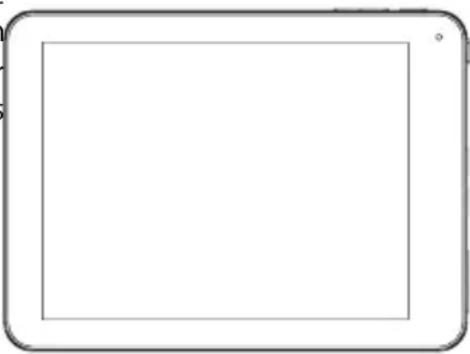
natural_image
Blank rectangular tablet device with rounded corners and a small circular icon at top right (no text or symbols)
natural_image
Blank rectangular tablet device with rounded corners and a small circular button at the bottom right (no text or symbols)basic Operation
GB
To turn ON/OFF the device
Long press (1.2s) POWER button to turn on the device.
Long press POWER button and choose "Power off" to turn off the device
Device Standby and Wakeup
Short press (0.3s) POWER button, then the device turns to Standby mode and screen will be off. Short press POWER button again to awake the device, press lock icon and move it out of the circle, the screen will unlock.

Reset the device
When the device is halted and cannot be turned off by POWER button, users can launch the RESET function.
Charging
When the device cannot be turned on normally or shut down automatically, it may need charging. Please use the correct charger as recommended by the manufacturer.
GB
Homepage

Homepage functions
• Change wallpaper. Long press blank space of home page to choose various wallpapers.
- Add / Delete application icons. Long press application icons to move into / out of homepage.
• Preview multiple tasks.
• View time / network / battery information.
• Check USB connection and copy / delete files.
Icons descriptions
GB
 |  | Application icons |
 | Back key | |
 | Homepage key | |
 | Multiple tasks viewer | |
 | USB connection information | |
 | Time & Date information | |
 | Battery & Network information |
GB
USB Connection
Device connected to PC
The device can be connected to PC to make data exchange via USB cable. Please note not to disconnect the device from the PC when data exchanging.
Data exchanging (Files copy & delete)
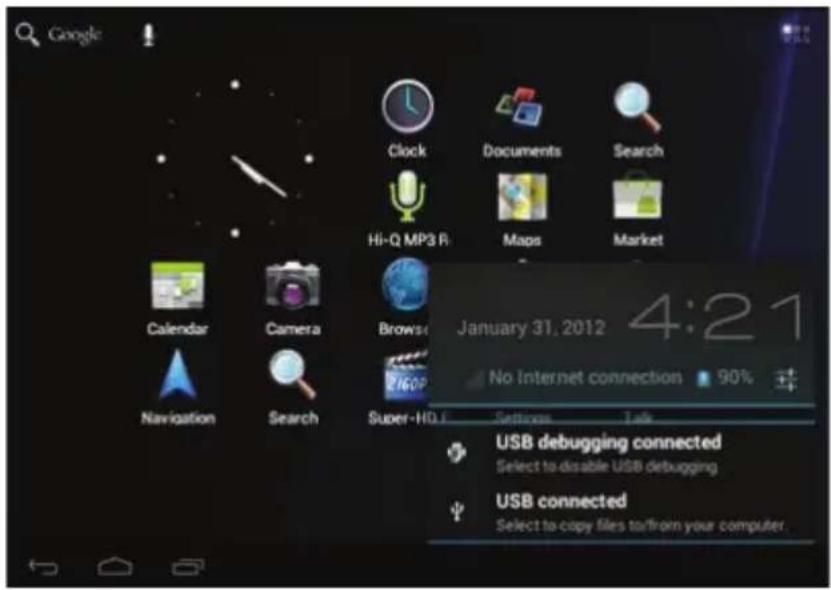
Click to choose USB connection.
Choose "USB connected", then "Turn on USB storage" to copy files to/from your computer.
Applications Management
Applications installation
Copy APK installation package into the device. Run File Manager, find the package and click it.
Choose install to continue. If the application already exists in the device, choose OK to replace it with the latest versions of package.
Applications uninstall
Go to Setting – Apps – All. Choose the application and click it. Choose Uninstall.
Applications management.
Go to Setting – Apps – All. Choose the application and run Force stop, Uninstall, Clear data or Move to SD card.
Network
Network access via Wi-Fi
Access Settings – Wireless & Networks – Wi-Fi. Click Data usage to view Mobile data.
Click More... to switch to Airplane mode, Ethernet, VPN, Mobile networks and 3G Support Information.
GB
System Settings
Click Settings icon to enter system settings, then you can access Wireless&networks, Sound, Display, Storage, Battery, Apps, Accounts&sync, Location services, Security, Language&input, Backup&reset, Date&time, Accessibility, Developer options and About tablet.

How can I change languages if I mistakenly choose an unknown language?
Find setting icon and access Settings. Choose icon to enter language&input setting, the first option is language setting.
How can I change input?
Access Setting – Language&input --, and set default input.
I already installed some applications, but I cannot find them now, why?
Some applications are installed in external TF card, so if you have ejected the TF card from the device, you will not see these applications.
There are system problems, many popup errors.
Restart the device with the POWER button, or RESET. Use a thin stick to press the RESET for 5 seconds, and restart the device.
If you have restarted the device and an error popup still exists, you can check active applications to see if there is any unknown application, uninstall it if any. There may be virus in the device, please install security applications and protect your device.
Safety notices
The lightning flash with arrowhead symbol within an equilateral triangle is intended to alert the user to the presence of uninsulated “dangerous voltage” within the product’s enclosure that may be of sufficient magnitude to constitute a risk of electric shock.
The exclamation point within an equilateral triangle is intended to alert the user to the presence of important operation and servicing instructions in the literature accompanying the appliance.
For recycling or disposal information about this product, please contact your local authorities or the Electronics Industries Alliance: www.eiae.org.
WARNING: To prevent fire or shock hazard, do not expose this device to rain or moisture.
Dangerous high voltage is present inside the enclosure. Do not open the cabinet.
Protect your hearing: Hearing experts advice against the constant use of personal stereos played at high volume. Constant exposure to high volumes can lead to hearing loss. If you should experience ringing in the ears or hearing loss, discontinue use and seek medical advice.
GB
Note: If the product suddenly has no response or powers off, an electrostatic discharge may be the cause. In this circumstance, please follow the procedures below for recovery:
- Turn off the unit by pushing and holding the slide button on the right (Power off position) for 15 seconds.
- Turn on the unit again
Important Safety Instructions
- Read Instructions: All the safety and operating instructions should be read before the product is operated.
- Retain Instructions: The safety and operating instructions should be retained for future reference.
- Heed Warnings: All warnings on the product and in the operating instructions should be adhered to.
- Follow Instructions: All operating and usage instructions should be followed.
- Cleaning: Unplug this product from the wall outlet before cleaning. Do not use liquid cleaners or aerosol cleaners. Use a damp cloth for cleaning.
- Attachments: Use only attachments recommended by the manufacturer. Use of other attachments may be hazardous.
- Water and Moisture: Do not use this product near water (e.g., near a bath tub, washbowl, kitchen sink, laundry tub, in wet basements, or near a swimming pool and the like).
-
Ventilation: Slots and openings in the cabinet are provided for ventilation to ensure reliable operation of the product and to protect it from overheating. These openings should never be blocked by placing the product on a bed, sofa, rug, or other similar surface. This product should not be placed in a built-in installation such as a bookcase or rack unless proper ventilation is provided or the manufacturer instructions have been adhered to.
-
Power Sources: This product should be operated only from the type of power source indicated on the rating label. If you are not sure of the type of power supply to your home, consult your product dealer or local power company. For products intended to operate from battery power or other sources, refer to the operating instructions.
- Overloading: Do not overload wall outlets, extension cords, or integral convenience receptacles as this can result in a risk of fire or electric shock.
- Object and Liquid Entry: Never push objects of any kind into this product through openings electric shock. Never spill liquid of any kind on the product.
- Servicing: Do not attempt to service this product yourself as opening or removing covers may expose you to dangerous voltage or other hazards. Refer all servicing to qualified service personnel.
- Damage Requiring Service: Unplug this product from the wall outlet and refer servicing to qualified service personnel under the following conditions: a) when the power-supply or plug is damaged; b) if liquid has been spilled or if objects have fallen into the product; c) if the product has been exposed to rain or water; d) if the product does not operate normally by following the operating instructions. Adjust only those controls that are covered by the operating instructions as improper adjustment of other controls may result in damage and will often require extensive work by a qualified technician to restore the product to its normal operation; e) if the product has been dropped or damaged in any way; f) when the product exhibits a distinct change in performance—this indicates a need for service.
- Replacement Parts: When replacement parts are required, be sure that your service technician has used replacement parts specified by the manufacturer or have the same characteristics as the original part. Unauthorized substitutions may result in fire, electric shock, or other hazards.
- Safety Check: Upon completion of any service or repairs to this product, ask the service technician to perform safety checks to ensure that the product is in proper operating condition.
- Heat: The product should be situated away from heat sources such as radiators, heat registers, stoves, or other products (including amplifiers) that produce heat.
Warranty card www.acme.eu/warranty
| Product Product model | |
| Product purchase date Seller name, address | |
| Failures (date, description, position of the person who accepts the product, first name, last name and signature) | |
1. Warranty period
Warranty enters into force starting with the day when the buyer acquires the product from the seller. Warranty period is indicated on the package of the product.
2. Warranty conditions
The warranty is valid only by providing an original document of the product acquisition and this warranty sheet, which includes name of the product model, product purchase date, name and address of the seller.
If it is noticed during the warranty period that the product has faults and these faults where not caused by any of the reasons when the warranty is not applied as indicated in the paragraphs below, manufacturer undertakes to replace the product.
The warranty is not applied to regular testing, maintenance and repair or replacement of the parts which are worn out naturally.
The warranty is not applied if damage or failures occurred due to the following reasons:
usage and/or operating the product without following the manual, technical requirements and safety standards as provided by the manufacturer, and additionally, inappropriate warehousing, falling from heights as well as hard strikes.
• Corrosion, mud, water and sand.
- Repair works, modifications or cleaning, which were performed by a service not authorised by the manufacturer.
- Usage of the spare parts, software or consump materials which do not apply to the product.
- Accidents or events or any other reasons which depend on the manufacturer, which includes lightning, water, fire, magnetic field and inappropriate ventilation.
- If the product does not meet standards and specifications of a particular country, in which it was not bought. Any attempt to adjust the product in order to meet technical and safety requirements such as those in the other countries withdraws all the rights to the warranty service.
- Inappropriate installation of the product, inappropriate. If no failures are detected in the product, all the expenses in relation to the service are covered by the buyer.

natural_image
A plain gray rectangular shape with no text, symbols, or discernible features.Model: TB03
internet tablet
acme®
www.acme.eu
- internet tablet
- Thank You
- Package contents
- Features
- GB
- about the touchscreen
- Protective Film
- Touchscreen Actions
- About the orientation sensor
- basic Operation
- To turn ON/OFF the device
- Device Standby and Wakeup
- Reset the device
- Charging
- Homepage
- Homepage functions
- Icons descriptions
- USB Connection
- Device connected to PC
- Data exchanging (Files copy & delete)
- Applications Management
- Applications installation
- Applications uninstall
- Applications management.
- Network
- Network access via Wi-Fi
- System Settings
- I already installed some applications, but I cannot find them now, why?
- There are system problems, many popup errors.
- Safety notices
- Important Safety Instructions
- Warranty card www.acme.eu/warranty
- Warranty period
- Warranty conditions
Brand : ACME
Model : TB03
Category : Tablet