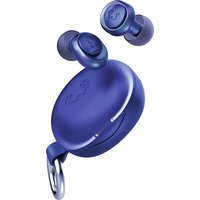
Pearls Radiant - Earplug Fresh 'n Rebel - Free user manual and instructions
Find the device manual for free Pearls Radiant Fresh 'n Rebel in PDF.


| Product type | Bluetooth Tracker |
| Brand | Fresh 'n Rebel |
| Model | Pearls Radiant (3FP2000 / 3FP3000) |
| Power supply | Rechargeable lithium battery 3.7 V / 200 mAh |
| Connectivity | Bluetooth 5.4 |
| Main functions | Location via Apple Find My and Android Find Hub, sound emission, forget notification, lost mode, nearby search |
| Apple compatibility | iPhone with Find My app (iOS) |
| Android compatibility | Android 9+ with Google Play Services and Find Hub app |
| Battery life | Rechargeable (duration not specified) |
| Maintenance and cleaning | Clean with a damp cloth; dry completely. Replace foam tips when they lose their shape. |
| Safety | Do not expose to liquids, heat, or flames. Do not disassemble. Stop use if pain occurs. Do not use while driving. |
| Spare parts | Foam tips (replaceable) |
| Repairability | No user-serviceable parts. Do not attempt to repair. |
| Frequency band | 2402-2480 MHz |
| Maximum radiated power | 4 dBm / 2.5 mW |
| Compliance | EU 2016/425, 2014/53, 2011/65; CE |
| Disposal | Do not discard with household waste. Dispose at a collection center for electrical or electronic equipment. |
| Manufacturer | Fresh 'n Rebel B.V., Linatebaan 101, 3045 AL Rotterdam, Netherlands |
Frequently Asked Questions - Pearls Radiant Fresh 'n Rebel
User questions about Pearls Radiant Fresh 'n Rebel
0 question about this device. Answer the ones you know or ask your own.
Ask a new question about this device
Download the instructions for your Earplug in PDF format for free! Find your manual Pearls Radiant - Fresh 'n Rebel and take your electronic device back in hand. On this page are published all the documents necessary for the use of your device. Pearls Radiant by Fresh 'n Rebel.
USER MANUAL Pearls Radiant Fresh 'n Rebel
EN First time set up
- Turn on the device by pressing the button for 5 seconds.
- Open the Find My App on your phone
- Click on Items and choose Add Item.
- Click on Other Supported Item
- Choose FnR Pearls and click Connect
- Give the product a name and add an Emoji.
natural_image
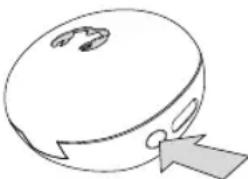
Simple line drawing of a round object with a handle and arrow, no text or symbols presentButton operation
Device status confirmation: Double click the device button, the device will beep. When there is no beep, the device has been turned off. In this case, press the button for 5 seconds to turn it on.
The device enters the pairing state again: After removing the device in the App, it will beep and will go into pairing mode again during 10
minutes. If you want to pair after this period, long press the device button for 5 seconds. After you hear a beep, you can pair again. Power off: Click the button 5 times within 2 seconds. The device will beep and will turn off.
Settings and Device Operation
Locate your FnR Pearls when nearby
- Open the Apple Find My app and select the Items tab.
- Tap on your FnR Pearls from the list.
- Tap Play Sound to make your FnR Pearls beep.
- Tap Stop Sound to stop the beeps.
Locate your FnR Pearls on a map
- Open the Apple Find My app and select the Items tab.
- Tap on your FnR Pearls from the list.
- Your FnR Pearls location will appear on the map with a time stamp.
• To navigate to the location, lap Directions to open Apple Maps.
Notify When Left Behind
- Open the Apple Find My app and select the Items tab.
• Tap on your FnR Pearls from the list. - Under Notifications enable the Notify When Left Behind toggle.
- You will receive a notification when you leave your FnR Pearls behind and they are no longer in range of your device.
Notify When Found
- Under Notifications, enable the Notify When Found toggle.
- When your FnR Peals are seen by another Find My network device, you will receive a notification of its location.
Note: Notify When Found can only be activated when your FnR Pearls are out of range.
Lost Mode
- Open the Apple Find My app and select the Items tab.
• Tap on your FnR Pearls from the list.
• Under Lost Mode tap Enable.
• A screen detailing Lost Mode will pop up, tap Continue - Enter your phone number or email address and tap Next.
- You may enter a message that will be shared with the person that finds your item.
• Tap Activate to enable Lost Mode
Note: When Lost Mode is enabled, Notify When Found is automatically enabled. WhenLost Mode is enabled, your FnR Pearls are locked and cannot be paired to a new device.
Privacy and Security
The Apple Find My network uses advanced encryption to ensure that no one else, not even Apple or Fresh 'n Rebel B.V., can view the location of your FnR Pearls. If any Apple Find My network accessory separated from its owner is seen moving with you over time, you will be notified.
Reset
Remove the FnR Pearls from the Apple Find My app:
- Open the Apple Find My app and select the Items tab.
• Tap on your FnR Pearls from the list.
- Ensure Lost Mode is disabled.
- Scroll to the bottom of the screen and tap Remove Item.
- A summary will open, tap Remove to confirm.
Reset your FoR Pears:
First, remove the item from the Find My app. After the device is powered on, double-dick the button. The device will beep. After removing the Pearls from Apple Find My app, press the Pearls function button four times rapidly and then hold it a fifth time until you hear a beep. Release the button to complete the factory reset. The device can now be paired.

Eerste Installatie
natural_image
Simple line drawing of a computer mouse with a handle (no text or symbols)Knopbediening
natural_image
Simple line drawing of a circular object with a handle and arrow, no text or symbols presentTastenbedienung
natural_image
Simple line drawing of a computer mouse with a handle (no text or symbols)natural_image
Simple line drawing of a round object with a handle and arrow pointing to its side (no text or symbols)natural_image
Simple line drawing of a computer mouse with a handle (no text or symbols)Funções do botão
Encontrar as tuas FnR Pearls no mapa
Remover as FnR Pearis da app Encontrar:
Repor as tuas FnB Pearls:
natural_image
Simple line drawing of a circular object with a handle and arrow, no text or symbols present.Fonctions du bouton
Android Find Hub enabled (built into Pearls), Bluetooth 5.4, built-in speaker for beeping sounds, rechargeable battery, working voltage 3.1V \~ 4.2V.
System requirements and compatibility: Android phone or tablet with OS 9 or above and Google Play Services installed, Google account, Android Find Hub app, Bluetooth, Internet connection. To use the Find Hub app to locate this item, the latest version of Android OS is recommended. Android Find Hub network requires location services and Bluetooth to be turned on. Requires cell service or internet connection. Works on Android 9+ on select devices and in certain countries for age-eligible users.
Getting Started
IMPORTANT: Make sure your device's Bluetooth is turned on and you are connected to internet!
-
Go to Google Play Store and search for "Android Find Hub". Custom language versions are available for many different countries.
-
Install the app or tap to "Update"
-
Tap "Open" or tap on the Hind Hub app icon on your device.
-
Log in to the Find Hub page with your Google account.
-
Review and accept the terms and lap "Continue".
-
Long press the device button for 5 seconds to power on your Pearls. You will hear a chime.
-
Place the Pearls next to your device.
-
Wait for the FnR Pearls pop-up to appear on your device and follow the instructions on the screen to complete the setup.
-
After the setup, you can locate your Pearls in the Find Hub app.
If the pop-up in step 8 does not appear, please try the following:
Make sure you are connected to the internet
Tum Bluetooth ON: Settings > Connections > Bluetooth ON.
Tum Location ON: Settings > Location > Location ON.
Turn Scan for nearby devices ON: Settings > Google > Devices > Scan for nearby devices ON.
If the Pearls are not added to the Android Find Hub app within 10 minutes after powering it on, it will automatically power off again. Repeat step 6 to 8 if that happens.
Change name and pictogram
- Open the Android Find Hub app and tap on your Pearls.
- Tap on the gear icon to access the settings.
- Tap on the pencil icon to change the name of the Pearls.
- Tap on the triangle to change the category pictogram. The selected pictogram will be the one displayed on the map.
Locate your Pearls when nearby
- Open the Android Find Hub app and tap on your Pearls.
• Tap Play Sound to make your Pearls bee
• Tap Stop Sound to stop the beeps. - If the Pearls are within 10 meters near you, you can get a shape that fills in as you get closer to your Pearls: Tap Find nearby. This may take a few seconds to update.
Locate your Pearls on a map
- Open the Android Find Hub app and tap on your Pearls.
- You can see your Pearls location on a map. Zoom in or out to get more details.
- If your Pearls are not near you, tap Get directions to find your way to it.
- The radius displayed around the location pin is an indication of the location accuracy.
- If your Pearls current location can not be found, you may still find its last known location, if available.
Mark your Pearls as lost
- Open the Android Find Hub app and tap on your Pearls.
• If your Pearls are not near you, tap Mark as lost. - Fill in your contact details. You may enter a message that will be shared with the person that finds your item.
- Tap Mark as lost.
Privacy and Security
Your location data is end-to-end encrypted, meaning that Google can never view or access it. Only you can see where your items have been and currently are. With the Find Hub app, Google does not use nor share your data. The information you share about yourself and your devices remains confidential. Find Hub is built to deter unwanted tracking. If your Android phone notices an unfamiliar device moving with you, you will receive a notification. View the unknown device on a map, ring it to find it by sound, or get further help.
Reset your Pearls
Remove the Pearls from the Find Hub app:
- Open the Find Hub app and tap on your Pearls.
- Tap on the gear icon to access the settings.
- Tap on Remove device and follow the instructions on the screen.
Reset your Pearls: After removing the Pearls from the Find Hub app, press the Pearls function button four times rapidly and then hold if a fifth time until you hear a ringing chime. The Pearls are now reset and ready to be paired to a new Google account. To turn your Pearls off, last click the case button 5 times within 2 seconds. The device will beep and will turn off.
NL Specifications
Localizar as tuas Pearls
Repor as tuas Pearls
Legal & Compliance Information
EN - General information
Product: Fresh 'n Rebel Pearls Model Number: 3FP2000/3000 v1 001
Manufacturer: Fresh 'n Rebel B.V., Linatebaan 101, 3045 AH Rotterdam, The Netherlands

Conformity information
Hereby, Fresh 'n Rebel B.V. declares that this radio equipment product is in compliance with Directive 2016/425/EU (PPE), 2014/53/EU (RED), 2011/65/EU (RoHS) and all other applicable EU Regulations. The full text of the EU declaration of conformity is available at the following Internet address: https://www.freshirebel.com/cedor/3FP2000 https://www.freshirebel.com/cedor/3FP3000 Operating frequency band: 2402 to 2480 MHz, Maximum radio-frequency power transmitted: 4 dBm / 2.5 mW

Disposal of the device
The adjacent symbol means that the product is classed as Electrical or Electronic equipment and should not be disposed of with other household or commercial waste at the end of its useful life. The Waste of Electrical and Electronic Equipment (WEEF) Directive 2012/19/EU has been put in place to recycle products using best available recovery and recycling techniques to minimise the impact on the environment, treat any hazardous substances and avoid the increasing landfill. Contact local authorities for information on the correct disposal of Electrical or Electronic equipment.
WARNING
Always follow all instructions and warnings closely. Do not expose to liquids. Do not use or store in damp, humid or wet environments. Do not expose to excessive heat or open fire. Avoid abrupt changes in temperature. Do not burn or incinerate.
CAUTION: This product contains a rechargeable 3.7 V 200mAh Lithium battery. Do not open the device and do not try to retrieve or replace the battery. There is a danger of explosion when the battery is not handled properly. Do not dispose of the device together with other waste. To avoid possible environmental pollution, the device must be disposed
of at a recycling centre. Ensure the earplugs are fitted, adjusted, and maintained as directed.
Improper use may reduce their effectiveness. Fresh 'n Rebel is not responsible for any damage resulting from incorrect use. Discontinue use if you experience pain or discomfort. If an earplug becomes lodged in the ear and cannot be removed easily, seek medical assistance immediately. Do not attempt to remove it yourself. These earplugs help reduce noise levels but do not block all sound. Sudden loud noises may still pose a risk to your hearing. Be mindful of volume exposure and limit time spent in extremely loud environments.
Do not use earplugs while driving. This product is not intended for professional or industrial noise protection.
MAINTENANCE
The device does not contain any user-serviceable parts. Do not disassemble or modify. Do not open or repair the device yourself as this will void the warranty.
CLEANING
Clean earplugs with a damp cloth, avoid soaking foam tips. let everything dry completely, and replace foam tips when they lose their shape.
https://www.fresharebel.com/cedoc/3FP2000
Please note: The Fresh 'n Rebel Pearls can be used with Apple® Find My™ network OR Google's Find Hub network. Using the Apple Find My network disables the use of Find Hub functionality (vice versa) as those features cannot operate simultaneously.
Use of the Works with Apple badge means that a product has been designed to work specifically with the technology identified in the badge and has been certified by the product manufacturer to meet Apple Find My network product specifications and requirements. Apple is not responsible for the operation of this device or use of this product or its compliance with safety and regulatory standards.
Apple, Apple Find My, Apple Watch. Find My, iPhone, iPad, iPadOS, Mac, macOS and watchOS are trademarks of Apple Inc. iOS is a trademark or registered trademark of Cisco in the U.S. and other countries and is used under license.
Find Hub helps you find and connect to what matters in a single, secure place. Google, Android, and Google Play are trademarks of Google LLC.
This product has been certified by Google to meet Find Hub network accessory specifications. Google is not responsible for the operation of this product. Google is also not responsible for the ensuring that the product complies with any applicable safety standards or other requirements.
natural_image
Completely black image with no visible content, text, or symbols.
natural_image
Abstract black-and-white symmetrical shape resembling a stylized letter or symbol (no text or symbols present)FRESH 'N REBEL
www.freshnrebel.com
freshnrebel
helpme@freshnrebel.com
- EN First time set up
- Button operation
- Settings and Device Operation
- Locate your FnR Pearls on a map
- Notify When Left Behind
- Notify When Found
- Lost Mode
- Privacy and Security
- Reset
- Eerste Installatie
- Knopbediening
- Tastenbedienung
- Funções do botão
- Fonctions du bouton
- Getting Started
- Change name and pictogram
- Locate your Pearls on a map
- Mark your Pearls as lost
- Reset your Pearls
- NL Specifications
- Localizar as tuas Pearls
- Repor as tuas Pearls
- Legal & Compliance Information
- EN - General information
- Conformity information
- Disposal of the device
- WARNING
- MAINTENANCE
- CLEANING
- freshnrebel
Brand : Fresh 'n Rebel
Model : Pearls Radiant
Category : Earplug