ManualGo.com
5250 - TV LG - Free user manual and instructions
Find the device manual for free 5250 LG in PDF.


Download the instructions for your TV in PDF format for free! Find your manual 5250 - LG and take your electronic device back in hand. On this page are published all the documents necessary for the use of your device. 5250 by LG.
USER MANUAL 5250 LG
LCD TV MODELS PLASMA TV MODELS
5879: 191G3060-ZB 5880: 221G3060-78 5878: 321G5600-ZB rial number of the TV. e back cover and quote this aler when requiring service. This product qualifies for ENERGY STAR in the “factory default (Home mode)" setting and this is the setting in which power savings will be achieved. (Plasma TV only)
ACCESSORIES Ensure that the following accessories are included with your TV. If an accessory is missing, please contact the dealer where you purchased the TV. Image shown may differ from your TV. Owner's Manual s : Owner's Manual Batteries Remote Control This feature is not available for all models. € me Polishing Cloth Polishing cloth for use on the screen. Power Cord Protection Cover Lightly wipe any stains or fingerprints on the surface {Except for 19/22LS4D+) ofthe TV with the polishing cloth. Do not use excessive force. This may cause scratching or discolouration. PLASMA TV models (Only (Only 42/50PG20++, 42/50PG10+) 42/50/60PG30.) | x4 = a = Ÿ Bolts for stand assembly Cable Holder ._ Ferrite Core (Refer to p.11) (42PGI0++, 42PG20%+, Cable management dip (This feature is not available (Only 42PG10++, 42PG20++, 42PG30++ 1EA, SOPG10+*, for all models.) 42PG30++) SOPG20++, 50/60PG30++: 2EA) T: LE CD TD Bolts for stand assembly 1-screw for stand fixing Cable management dip Cable management clip (Refer to p.10) (Refer to p.5) (Only 19/22LS4D+) (Only 19/221G30++) (Only 32/37/421G5++, (Only 32/37/42LG20+, 32/37/421G20%, 26/32/37/421G30+, 26/32/37/421G30+) 32/37/421G5++) Use of ferrite core (This feature is not available for all models.) Ferrite core can be used to reduce the electromagnetic wave when connecting the power cord. The closer the location of the ferrite core to the power plug, the better it is. Install the power plug closely. SINOSS322v ||
- SINILNOD | CONTENTS ACCESSORIES 1 PREPARATION Front Panel Controls
- Back Panel Information Stand Installation Detaching Stand p. 13
- Please set it up carefully so the product does not fall over p. 14
- Back Cover for Wire Arrangement p. 15
- Positioning Your Display Location . 18 Kensington Security System Desktop Pedestal Installation Wall Mount: Horizontal Installation . Antenna Connection p. 18
EXTERNAL EQUIPMENT SETUP
HD Receiver Setup ........................ 21 Digital Audio out Setup .. DVD Setup VCR Setup ................................ Other A/V Source Setup ... Insertion of CI Module PC Setup ................................. - Screen Setup for PC Mode ............... 32
WATCHING TV / PROGRAMME CONTROL
- Remote Control Key Functions p. 36
- Turning on the TV . 42 Programme Selection p. 42
- Volume Adjustment . 42 On-Screen Menus Selection and Adjustment .43 Auto Programme Tuning p. 44
- Manual Programme Tuning (In Digital Mode) p. 45
- Manual Programme Tuning (In Analogue Mode) p. 46
# Image shown may differ from your TV. #1f your TV has a protection film attached, remove the film and then wipe the TV with a polishing cloth. PLASMA TV Models : 42/50PG20x**, 42/50/60PG30*+ NOI1VUVdAHd | Sue | Remote Control Sensor | D— | POWER Power/Standby Indicator | æÆ *illuminates red in standby mode. *illuminates green when the TVis switched on. INPUT MENU (0) - A + Y P A —— > LS né
P @— PROGRAMME POWER Remote Control Sensor Power/Standby Indicator | | Intelligent Sensor « iluminates red in standby mode. || Adjusts picture according to the surrounding + iluminates blue when the TV is switched on. || Sonditions. (52/37/42/47/52LG5 +++ only) Note: You can adjust Power Indicator in the OPTION menu. Attaching the TV to a desk (Only 32/37/421G20++, 26/32/37/421G30++, 32/37/421G5+++) The TV must be attached to desk so it cannot be pulled in a forward/backward direction, potentially causing injury or damaging the product. Use only an attached screw. En !
1-Screw (provided as parts of the product) @ WARNING > To prevent TV from falling over, the TV should be securely attached to the floor/wall per installation instructions. Tipping, shaking, or rocking the machine may cause injury. NOILVYVd3Ud ||
- illuminates red in standby mode. + illuminates blue when the TV is switched on. Note: You can adjust Power Indicator in the OPTION menu. [row [ur [“eu [* [YOLUME PROGRAMME
- illuminates green when the TV is switched on.
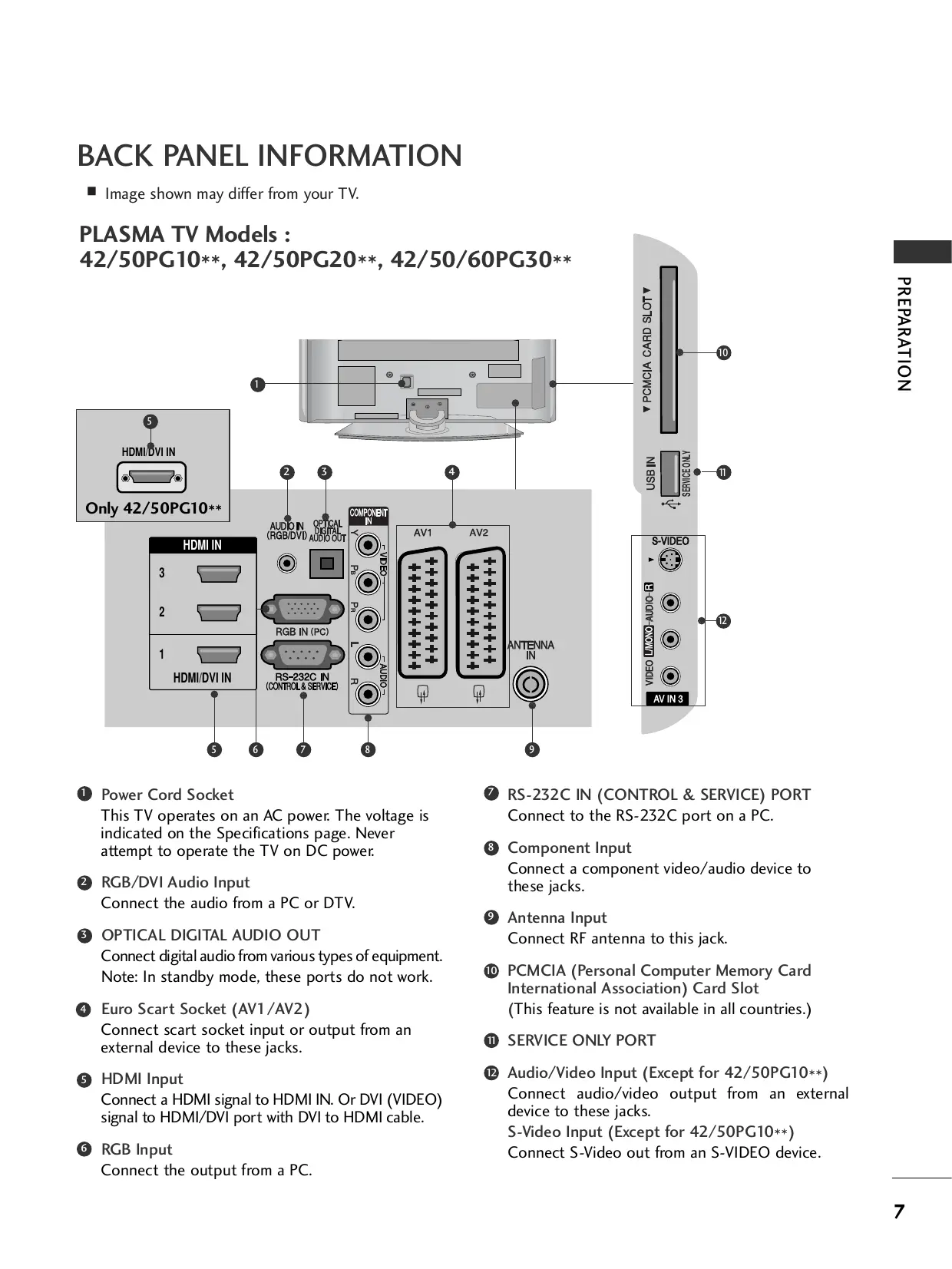
M Image shown may differ from your TV. PLASMA TV Models : 42/50PG10++, 42/50PG20x+*, 42/50/60PG30++ NOILVYVd3Ud ||
Y PCMCIA CARD SLOT Y
n IN Only 42/50PG10++ ® Power Cord Socket This TV operates on an AC power The voltage is indicated on the Specifications page. Never attempt to operate the TV on DC power RGB/DVI Audio Input Connect the audio from a PC or DTV.
OPTICAL DIGITAL AUDIO OUT
Connect digital audio from various types of equipment. Note: In standby mode, these ports do not work. Euro Scart Socket (AV1/AV2) Connect scart socket input or output from an external device to these jacks. HDMI Input Connect a HDMI signal to HDMI IN. Or DVI (VIDEO) signal to HDMI/DVI port with DVI to HDMI cable.
Connect to the RS-232C port on a PC. @ Component Input Connect a component video/audio device to these jacks. © Antenna Input Connect RF antenna to this jack. © PCMCIA (Personal Computer Memory Card International Association) Card Slot (This feature is not available in all countries.)
@ Audio/Video Input (Except for 42/50PG10x+) Connect audio/video output from an external device to these jacks. S-Video Input (Except for 42/50PG10+*) Connect S-Video out from an S-VIDEO device.
F Except for 32/37/421G20++
© Power Cord Socket This TV operates on an AC power. The voltage is indicated on the Specifications page. Never attempt to operate the TV on DC power. @ RGB/DVI Audio Input Connect the audio from a PC or DTV.
@ DIGITAL AUDIO OUT OPTICAL
Connect digital audio from various types of equipment. Note: In standby mode, these ports do not work. © Euro Scart Socket (AV1/AV2) Connect scart socket input or output from an external device to these jacks. @ HDMI Input Connect a HDMI signal to HDMI IN. Or DVI (VIDEO) signal to HDMI/DVI port with DVI to HDMI cable. @ RGB Input Connect the output from a PC.
@ RS-232C IN (CONTROL & SERVICE) PORT
Connect to the RS-232C port on a PC. . IN @ Component Input Connect a component video/audio device to these jacks. @ Antenna Input Connect RF antenna to this jack. © PCMCIA (Personal Computer Memory Card International Association) Card Slot (This feature is not available in all countries.) © Audio/Video Input Connect audio/video output from an external device to these jacks. S-Video Input (Except for 32/37/42LG20++) Connect S-Video out from an S-VIDEO device. ® Headphone Socket (Except for 32/37/421G20++) Connect the headphone plug to this socket.
o 0 © Power Cord Socket This TV operates on an AC power. The voltage is indicated on the Specifications page. Never attempt to operate the TV on DC power @ HDMI Input Connect a HDMI signal to HDMI IN. Or DVI(VIDEO) signal to HDMI/DVI port with DVI to HDMI cable. @ RGB/DVI Audio Input Connect the audio from a PC or DTV. © Antenna Input Connect RF antenna to this jack. @ PCMCIA (Personal Computer Memory Card International Association) Card Slot (This feature is not available in all countries.) 9 © © Euro Scart Socket (AV1/AV2) Connect scart socket input or output from an external device to these jacks.
@ RS-232C IN (CONTROL & SERVICE) PORT
Connect to the RS-232C port on a PC. @ Component Input Connect a component video/audio device to these jacks. 9 RGB Input Connect the output from a PC.
PREPARATION STAND INSTALLATION (LCD TV Models: 32/37/42LG20*+, 26/32/37/42LG30+*, 32/37/421G5 +++) # When assembling the desk type stand, check whether the bolt is fully tightened. (If not tightened fully, the product can tilt forward after the product installation.) If you tighten the bolt with excessive force, the bolt can deviate from abrasion of the tightening part of the bolt. O Carefully place the TV screen side down on a (3) Assemble the TV as shown. cushioned surface to protect the screen from damage. NOI1VYVdAHd | Fix the 4 bolts securely using the holes in the Assemble the parts of the Stand Body with back of the TV. the Cover Base of the TV. Stand Body Cover Base (Only 19/22LG30*+) « LE Body N : Sme—— Cover Base Y CT M] Assemble the parts of the STAND BODY with COVER BASE of the TV. Insert the STAND BODY into a COVER BASE until clicking sound. (3) Assemble the TV as shown.
(Only 42PG10x*, 42PG20++, 42PG30*+) [3] Fix the 4 bolts securely using the holes in the back of the TV. NOILVYVdIUd ||
PREPARATION STAND INSTALLATION (Only 19/22LS4D+) # Image shown may differ from your TV. Carefully place the TV screen side down on a (3) Insert the Stand Body into the TV until clicking cushioned surface to protect the screen from sound. damage. 12] Hold the Hinge Body and bend it upward. [4] Assemble the parts of the Stand Body with the Cover Base of the TV. Hinge Body Swivel Stand (Except for 19/22LS4D+, SOPG10++) After installing the TV, you can adjust the TV manually to the left or right direction by 20 degrees to suit your viewing position.
DETACHING STAND (only 19/22LS4D+) # Image shown may differ from your TV. Place the tv with its front facing downward on a [4] Hold the Stand Body and bend it upward. cushion or soft cloth. Pull the Cover Base backward during pressing 5] Pull stand body to separate from the TV during a button on the Stand Body. pressing 2 latches. Hold the Cover Base and pull with shake it backward to separate from the Stand Body. NOILVYVdIUd ||
PREPARATION PLEASE SET IT UP CAREFULIY SO THE PRODUCT DOES NOT FALL OVER. = You should purchase necessary components to fix the TV to the wall on the market. = Position the TV close to the wall to avoid the possibility of it falling when pushed. = The instructions shown below are a safer way to set up the TV, which is to fix it to the wall, avoiding the possibility of it falling forwards if pulled. This will prevent the TV from falling forward and causing injury. This will also prevent the TV from damage. Ensure that children do not climb or hang from the TV. © Use the eye-bolts or TV brackets/bolts to fix the TV to the wall as shown in the picture. (If your TV has bolts in the eyebolts, loosen these bolts.) + Insert the eye-bolts or TV brackets/bolts and tighten them securely in the upper holes. Secure the wall brackets with the bolts on the wall. Match the height of the bracket that is mounted on the wall. [3] Use a sturdy rope to tie the TV. It is safer to tie the rope so it becomes horizontal between the wall and the TV. ® NOTE > When moving the TV undo the cords first. »> Use a platform or cabinet strong and large enough to support the size and weight of the TV. »> To use the TV safely make sure that the height of the bracket on the wall and on the TV is the same.
PLASMA TV Models O Connect the cables as necessary. To connect additional equipment, see the External Equipment Setup section. NOILVYVdIUd || Install the CABLE MANAGEMENT CLIP as shown. If your TV has the CABLE HOLDER, install it as shown and bundle the cables. (Only 42/50PG10*+) (Only 42/50PG20*+, 42/50/60PG30*+) CABLE HOLDER
CABLE MANAGEMENT CLIP CABLE HOLDER
How to remove the cable management dip Hold the CABLE MANAGEMENT CLIP with both hands and pull it upward.
- For the 42PG10+* model, press the center of the CABLE MANAGEMENT CLIP and then lift up it. (Only 42/50PG10++) (Only 42/50PG20++, 42/50/60PG30++)
PREPARATION LCD TV Models: 32/37/421G20**, 26/32/37/ 42LG30*+, 32/37/42/47/521G5+**+ O Connect the cables as neces- sary. To connect additional equip- ment, see the External Equipment Setup section of the manual. Open the CABLE MANAGEMENT CLIP as shown and manage the cables.
CABLE MANAGEMENT CLIP
[3] Fit the CABLE MANAGEMENT CLIP as shown. LCD TV Models : 19/22LS4D* O Connect the cables as necessary. To connect additional equipment, see the External Equipment Setup section. How to remove the cable management clip (LCD TV Models : 19/22LS4D+) First, press the cable management. Hold the CABLE MANAGEMENT CLIP with both hands and pull it upward. @ NOTE > Do not use the CABLE MANAGEMENT CLIP to lift the TV. - Ifthe TV is dropped, you may be injured or the TV may be damaged.
LCD TV Models : 19/22LG30** O Connect the cables as necessary. To connect additional equipment, see the External Equipment Setup section of the manual.
How to remove the cable management clip » Hold the CABLE MANAGEMENT CLIP with both hands and pull it backward.
© NOTE > Do not use the CABLE MANAGEMENT CLIP to lift the TV. - Ifthe TV is dropped, you may be injured or the TV may be damaged. NOILVYVdIUd ||
PREPARATION POSITIONING YOUR DISPLAY (oniy 19/221G30++, 19/22154D-) Tilt range # Image shown may differ from your TV. # Adjust the position of the panel in various ways for maximum comfort. LOCATION (only 19/221G30+*, 19/22L54D+) Position your TV so that no bright light or sunlight falls directly onto the screen. Care should be taken not to expose the tv to any unnecessary vibration, moisture, dust or heat. Also ensure that the TV is placed in a position to allow a free flow of air. Do not cover the ventilation openings on the back cover. If you intend to mount the TV to a wall, attach VESA standard mounting interface (optional parts) to the back of the TV. When you install the TV to use the wall mounting bracket (optional parts), fix it carefully so as not to drop. KENSINGTON SECURITY SYSTEM (onty 19/221G30++, 19/22L54D-) The TV is equipped with a Kensington Security System connector on the back panel. Connect the Kensington Security System cable as shown below. For the detailed installation and use of the Kensington Security System, refer to the user's guide provided with the Kensington Security System. For further information, contact http://www.kensington.com, the internet homepage of the Kensington company. Kensington sells security systems for expensive electronic equipment such as notebook PCs and LCD projectors. NOTE - The Kensington Security System is an optional accessory. FRE NOTES a. Ifthe TV feels cold to the touch, there may be a small “flicker” when when it is turned on. This is normal, there is nothing wrong with TV. b. Some minute dot defects may be visible on the screen, appear- ing as tiny red, green, or blue spots. However, they have no adverse effect on the monitor's performance. c. Avoid touching the LCD screen or holding your finger(s) against it for long periods of time. Doing so may produce some temporary distortion effects on the screen.
= The TV can be installed in various ways such as on a wall, or on a desktop etc. = The TVis designed to be mounted horizontally. EARTHING Ensure that you connect the earth wire to prevent possible electric shock. If grounding methods are not possible, have a qualified electrician install a separate circuit breaker. Do not try to earth the TV by connecting it to telephone Circuit wires, lightening rods or gas pipes. D Dreaker Power Supply
DESKTOP PEDESTAL INSTALLATION
For adequate ventilation allow a clearance of 4” (10cm) all around the TV. | nom 4 inches 4 inches 4 idches
For adequate ventilation allow a clearance of 4” (10cm) all around the TV. We recommend that you use a wall mounting bracket of LG brand when mounting the TV to a wall. Tics T4 nces
Not using the desk-type stand (Except for 19/22LS4D*+) # Image shown may differ from your TV. When installing the wall-mounted unit, use the protection cover for desk-type stand installation. Insert the PROTECTION COVER into the TV until clicking sound. < PLASMA TV > <LCD TV> NOILVYVd3Ud ||
PREPARATION = To prevent damage do not connect to the mains outlet until all connections are made between the devices. ANTENNA CONNECTION = For optimum picture quality, adjust antenna direction. = An antenna cable and converter are not supplied. Multi-family Dwellings/Apartments (Connect to wall antenna socket) Wall Antenna Socket RF Coaxial Wire (75 ohm) Outdoor Antenna (VHE UHF) Single-family Dwellings /Houses (Connect to wall jack for outdoor antenna) ANTENNA IN
= In poor signal areas, to achieve better picture quality it may be necessary to install a signal amplifier to the antenna as shown above. VHF = lf signal needs to be split for two TVs, use an antenna signal splitter for connection.
EXTERNAL EQUIPMENT SETUP
= To avoid damaging any equipment, never plug in any power cords until you have finished connecting all equipment. = This section on EXTERNAL EQUIPMENT SETUP mainly uses diagrams for the 22LS4D+ models.
= This TV can receive Digital RF/Cable signals without an external digital set-top box. However, if you do receive Digital signals from a digital set-top box or other digital external device, refer to the diagram as shown below. Connecting with a component cable © Connect the video outputs (Y, P8, Pr) of the digital set top box to the COMPONENT IN VIDEO jacks on the TV. Connect the audio output of the digital set-top box to the COMPONENT IN AUDIO jacks on the TV.
[3] Turn on the digital set-top box.
dn13S LNIWdID3 1YNY3ILX3 || (Refer to the owner's manual for the digital set-top box.) À A LJ CL] T OU OU U Ù Select Component input source using the INPUT button | | | | | on the remote control. Î Î Î Î Î 9 2 © © © Signal Component HDMI © © © © © 480i/576i Yes No 480p/576p Yes Yes 720p/1080i Yes Yes 1080p Yes Yes (50/60Hz) Connecting a set-top box with an HDMI cable Hour HDMI/DVI IN, HDMI/DVI IN 1, HDMI IN 2 or HDMI IN 3 jack on the TV.
Connect the HDMI output of the digital set-top box to the Turn on the digital set-top box. (Refer to the owner's manual for the digital set-top box.) Select HDMI/DVI, HDMI, HDMI2 or HDMI3 input source using the INPUT button on the remote control.
EXTERNAL EQUIPMENT SETUP
Connecting with a HDMI to DVI cable Connect the digital set-top box to HDMI/DVI IN, HDMI/DVI IN 1 (DVI) or HDMI/DVI IN 1 jack on the TV. Connect the audio output of the digital set-top box to the AUDIO IN (RGB/DVI) jack on the TV. Turn on the digital set-top box. (Refer to the owner's manual for the digital set-top box.) Select HDMI/DVI or HDMI 1 input source using the INPUT button on the remote control. dn13S LNIWdID3 1YNY3ILX3 |
DIGITAL AUDIO OUT SETUP
(Except for 19/22LS4D*) - Sending the TV's audio signal to external audio equipment via the Digital Audio Output (Optical) port. O Connect one end of an optical cable to the TV Digital Audio (Optical) Output port. Ô Connect the other end of the optical cable to the digital audio (optical) input on the audio equipment. @ s:tte * TV Speaker option - Off” in the AUDIO menu. (p p.80) Refer to the external audio equipment instruction manual for operation. À CAUTION > Do not look into the optical output port. Looking at the laser beam may damage your vision.
DVD SETUP When connecting with a component cable Connect the video outputs (Y, PB, Pr) of the DVD to the COMPONENT IN VIDEO jacks on the TV. (2) Connect the audio outputs of the DVD to the COMPONENT IN AUDIO jacks on the TV. [3] Turn on the DVD player, insert a DVD. (4) Select Component input source using the INPUT button on the remote control. 5] Refer to the DVD player's manual for operating instructions. Component Input ports To achieve better picture quality, connect a DVD player to the component input ports as shown below. Component ports on the TV Y Ps PR Y Ps Pr Video output ports Y BY RY on DVD player Y €b Cr Y Pb Pr Connecting with a Euro Scart cable O Connect the Euro scart socket of the DVD to the AV1 Euro scart socket on the TV. [2] Turn on the DVD player, insert a DVD. (3) Select AVT input source using the INPUT button on the remote control. If connected to AV2 Euro scart socket, select AV2 input source. C4] Refer to the DVD player's manual for operating instructions. @ NOTE > Any Euro scart cable used must be signal shielded. Es) © © AUDIO! VIDEO {R) AUDIO (L) dn13S LNIWdID3 1YNY3ILX3 ||
EXTERNAL EQUIPMENT SETUP
Connecting with a S-Video cable (Except for 19/22LS4D+, 32/37/42LG20++, 42/50PG10++) © Connect the S-VIDEO output of the DVD to the S-VIDEQ input on the TV. Connect the audio outputs of the DVD to the AUDIO input jacks on the TV. Turn on the DVD player, insert a DVD. Select AV3 input source using the INPUT button on the remote control. dn13S LNIWdID3 1YNY3ILX3 | © 60 © Refer to the DVD players manual for operating instructions. Connecting the HDMI cable © Connect the HDMI output of the DVD to the HDMI/DVI IN, HDMI/DVI IN 1, HDMI IN 2 or HDMI IN 3 jack on the TV. @ sciect HDM/DVI, HDMI 1, HDMI2 or HDMI3 input source using the INPUT button on the remote control. [3] Refer to the DVD player's manual for operating instructions. © NOTE » The TV can receive video and audio signals simultaneously when using a HDMI cable. » If the DVD does not support Auto HDMI, you must set the output resolution appropriately.
jess = Y HDHIDVD OUTPUT
VCR SETUP = To avoid picture noise (interference), allow adequate distance between the VCR and TV. = If 4:3 picture format is used for an extended period the fixed images on the sides of the screen may remain visible. When connecting with a RF Cable
ANTENNA IN ANTOUT SMDEO VIDEO © ©
©-m— © © © ANTIN QUTPUT Wall Jack Antenna © correct the ANT OUT socket of the VCR to the ANTENNA IN socket on the TV. 12] Connect the antenna cable to the ANT IN socket of the VCR. (3) Press the PLAY button on the VCR and match the appropriate channel between the TV and VCR for viewing. dn13S LNIWdID3 1YNY3ILX3 ||
dn13S LNIWdID3 1YNY3ILX3 |
EXTERNAL EQUIPMENT SETUP
Connecting with a Euro Scart cable O Connect the Euro scart socket of the VCR to the AV1 Euro scart socket on the TV. Insert a video tape into the VCR and press PLAY on the VCR. (Refer to the VCR owner's manual.) the remote control. (3) Select AVT input source using the INPUT button on If connected to AV2 Euro scart socket, select AV2 input source.
{R) AUDIO (L) AUDIO! VIDEO O NOTE > Any Euro scart cable used must be signal shielded. Connecting with a RCA cable (Except for 19/22LS4D-, 42/50PG10*+) © Connect the AUDIO/VIDEO jacks between TV and VCR. Match the jack colours (Video = yellow, Audio Left = white, and Audio Right = red)
12] Insert a video tape into the VCR and press PLAY on Ü 4 © : anTour
the VCR. (Refer to the VCR owner's manual.) © sciect AV3 input source using the INPUT button on € the remote control. CO @ NOTE ë b If you have a mono VCR, connect the audio cable from the VCR to the AUDIO L/MONO jack of the TV.
Connecting with a S-Video cable (Except for 19/22LS4D+, 32/37/42LG20++, 42/50PG10++)
Connect the S-VIDEO output of the VCR to the S - VIDEO input on the TV. The picture quality is improved; compared to normal composite (RCA cable) input. Connect the audio outputs of the VCR to the AUDIO input jacks on the TV. Insert a video tape into the VCR and press PLAY on the VCR. (Refer to the VCR owners manual.) Select AV3 input source using the INPUT button on the remote control. O NOTE » If both S-VIDEO and VIDEO sockets have been connected to the S-VHS VCR simultaneously, only the S-VIDEO can be received.
OTHER A/V SOURCE SETUP
(Except for 19/22LS4D+, 42/50PG10++)
Connect the AUDIO/VIDEO jacks between TV and external equipment. Match the jack colours. (Video = yellow, Audio Left = white, and Audio Right = red) Select AV3 input source using the INPUT button on the remote control. Operate the corresponding external equipment. Refer to external equipment operating guide. Camcorder Video Game Set dn13S LNIWdID3 1YNY3ILX3 ||
EXTERNAL EQUIPMENT SETUP
INSERTION OF CI MODULE
- To view the encrypted (pay) services in digital TV mode. - This feature is not available in all countries. Insert the CI Module to PCMCIA (Personal Computer Memory Card International Association) CARD SLOT of TV as shown. For further information, see p.54. PC SETUP This TV provides Plug and Play capability, meaning that the PC adjusts automatically to the TV's settings. Connecting with a D-sub 15 pin cable Connect the RGB output of the PC to the RGB IN (PC) jack on the TV. Connect the PC audio output to the AUDIO IN (RGB/DVI) jack on the TV. Turn on the PC and the TV Select RGB input source using the INPUT button on the remote control.
Connecting with a HDMI to DVI cable
the TV. (RGB/DVI) jack on the TV. Turn on the PC and the TV. 6 © INPUT button on the remote control. Connect the DVI output ofthe PC to the HDMI/DVI IN, HDMI/DVI IN 1 (DVI) or HDMI/DVI IN 1 jack on Connect the PC audio output to the AUDIO IN Select HDMI/DVI or HDMI 1 input source using the (RGBDVI)
® NOTE » To enjoy vivid picture and sound, connect a PC to the TV. » Avoid keeping a fixed image on the TV's screen for prolonged periods of time. The fixed image may become permanently imprinted on the screen: use a screen saver when possible. » Connect the PC to the RGB (PC) or HDMI IN (or HDMI/DVI IN) port of the TV: change the resolution. » There may be interference relating to resolution, vertical pattern, contrast or brightness in PC mode. Change the PC mode to another resolution or change the refresh rate to another rate or adjust the brightness and contrast on the menu until the picture is clear. If the refresh rate of the PC graphic card can not be changed, change the PC graphic card or consult the manufacturer of the PC graphic card. >The synchronization input waveform for Horizontal and Vertical frequencies are separate. > Connect the signal cable from the monitor output port of the PC to the RGB (PC) port of the TV or the signal cable from the HDMI output port of the PC to the HDMI IN (or HDMI/DVI IN) port on the TV. DVLPC OUTPUT > Connect the audio cable from the PC to the Audio input on the TV. (Audio cables are not included with the TV). » fusing a sound card, adjust PC sound as required. » This TV uses a VESA Plug and Play Solution. The TV provides EDID data to the PC system with a DDC protocol. The PC adjusts automatically when using this TV. > DDC protocol is preset for RGB (Analog RGB), HDMI (Digital RGB) mode. » If required, adjust the settings for Plug and Play functionality. > IFthe graphic card on the PC does not output analogue and digital RGB simultaneously, connect only one of either RGB or HDMI IN (or HDMI/DVI IN) to display the PC output on the TV. » Ifthe graphic card on the PC does output analogue and digital RGB simultaneously, switch the TV to either RGB or HDMI: (the other mode is set to Plug and Play automatically by the TV.) > DOS mode may not work depending on the video card if you use a HDMI to DVI cable. » If you use too long an RGB-PC cable, there may be interference on the screen. We recommend using under 5m of cable. This provides the best picture quality. dn13S LNIWNdID3 1YNY3LX3 ||
EXTERNAL EQUIPMENT SETUP
37.684 75.00 720x576
46.875 75.00 1280x720
EXTERNAL EQUIPMENT SETUP
Screen Setup for PC mode Screen Reset Returns to the default settings Position, Size and Phase at the factory. This function works in the following mode : RGB[PC]. EI picrure STD oc SCREEN Be Er °Contrst :70 D LE Reolition eBrghiness :50 mn eSharpress :50 SE LEE ©) + Colour :50 NN > [2] Position To Set é Tint 0 um Be = + Advanced Control = + Picture Reset [1 Phase ë (ol Select PICTURE. Select SCREEN. Select Reset. Select Yes. Run Reset. + Press the MENU button to return to normal TV viewing. + Press the RETURN button to move to the previous menu screen.
Adjustment for screen Position, Size, Phase If the picture is not clear after auto adjustment and especially if characters are still trembling, adjust the picture phase manually. This function works in the following mode : RGB[PC]. EI ricrure &r> 0œ
EXTERNAL EQUIPMENT SETUP
Selecting Resolution To view a normal picture, match the resolution of RGB mode and selection of PC mode. This function works in the following mode: RGB[PC] mode. Cell) à lei PICTURE éme 8 Ok
Auto Configure (RGB [PC] mode only) Automatically adjusts picture position and minimizes image instability. After adjustment, if the image is still not correct, your TV is functioning properly but needs further adjustment. Auto configure This function is for automatic adjustment of the screen position, clock, and phase The displayed image will be unstable for a few seconds while the auto configuration is in progress. EI picrurE gr 0e SCREEN we men L7) Const :70 mn [2] Resolution eBrghtness :50 DS +Sharpress :50 el + Colour :50 = ET Position To Set °Tint 0 CI Se + Advanced Control
- Picture Reset LT Phase Screen Q CC] Reset Select PICTURE. + f the position of the image is still not correct, try Auto adjustment again. + picture needs to be adjusted again after Auto Select SCREEN. adjustment in RGB (PC), you can adjust the Position, Size or Phase. Select Auto Config. Select Yes. Run Auto Config. + Press the MENU button to return to normal TV viewing. + Press the RETURN button to move to the previous menu screen. dn13S LNIWdID3 1YNY3ILX3 ||
WATCHING TV / PROGRAMME CONTROL
REMOTE CONTROL KEY FUNCTIONS (on1y 19/22154D:) When using the remote control, aim it at the remote control sensor on the TV. POWER TVRADO TEXTE] _W/Il MUTEX Le
HOLD REVEAL INDEX TIME
INPUT Switches the TV on from standby or off to standby. Selects digital or analogue mode. Switches the TV on from standby. External input mode rotate in regular sequence. Switches the TV on from standby. TV/RADIO VAI MUTE Selects Radio or TV channel in digital mode. Selects the sound output. Switches the sound on or off. 0-9 number button LIST Q.VIEW Selects a programme. Selects numbered items in a menu. Displays the programme table. Returns to the previously viewed programme. MENU AV MODE Selects a menu. It helps you select and set images and sounds when con- necting AV devices. INFO O Shows the present screen information. GUIDE THUMBSTICK (Up/Down/Left Right)
Shows programme schedule. Allows you to navigate the on-screen menus and adjust the system settings to your preference. Accepts your selection or displays the current mode. VOLUME UP /DOWN RETURN(EXIT)
TELETEXT These buttons are used for teletext. BUTTONS For further details, see the ‘Teletext’ section. Coloured These buttons are used for teletext (on TELETEXT buttons models only) or Programme edit. RATIO Selects your desired picture format. SLEEP Sets the sleep timer. SUBTITLE Recalls your preferred subtitle in digital mode. Installing Batteries
- Open the battery compartment cover on the back and install the batteries matching correct polarity (+with +,-with -). # Install to 1.5V AAA batteries. Do not mix old or used batteries with new ones. # Close cover. T1OHLNOD ANWVHDOUd / AL ONIHDIVM ||
WATCHING TV / PROGRAMME CONTROL
POWER INPUT TV/RAD Switches the TV on from standby or off to standby. External input mode rotate in regular sequence. Switches the TV on from standby. Selects Radio or TV channel in digital mode. GUIDE Shows programme schedule. INFO O Shows the present screen information. EX TELETEXT BUTTONS AV MODE These buttons are used for teletext. For further details, see the ‘Teletext’ section. It helps you select and set images and sounds when connecting AV devices. 0-9 number button LIST Q.VIEW Selects a programme. Selects numbered items in a menu. Displays the programme table. Returns to the previously viewed programme. MENU Q.MENU THUMBSTICK (Up/Down/Left Right)
RETURN(EXIT) RATIO Selects a menu. Clears all on-screen displays and returns to TV viewing from any menu. Select the desired quick menu source. Allows you to navigate the on-screen menus and adjust the system settings to your preference. Accepts your selection or displays the current mode. Allows the user to move back one step in an interactive application, EPG or other user interaction function. Selects your desired picture format.
# Open the battery compartment cover on the back and install the batteries matching correct polarity (+with +,-with -). # Install two 1.5V AAA batteries. Do not mix old or used batteries with new ones. # Close cover. T1OHLNOD ANWVHDOUd / AL ONIHDIVM ||
WATCHING TV / PROGRAMME
(Except for 19/22LS4D+, 42/50PG10++) CONTROL E MODE POWER INPUT TV/RAD RATIO Selects the remote operating modes. Switches the TV on from standby or off to standby. External input mode rotate in regular sequence. Switches the TV on from standby. Selects Radio, TV, DTV channel. Selects your desired picture format. Q. MENU MENU GUIDE Select the desired quick menu source. Selects a menu. Clears all on-screen displays and returns to TV viewing from any menu. Shows programme schedule. THUMBSTICK (Up/Down/Left Right)
Allows you to navigate the on-screen menus and adjust the system settings to your preference. Accepts your selection or displays the current mode. RETURN(EXIT) AV MODE Allows the user to move back one step in an interactive application, EPG or other user interaction function. INFO © Shows the present screen information. It helps you select and set images and sounds when connecting AV devices. Coloured buttons These buttons are used for teletext (on TELETEXT models only) , Programme edit. A TELETEXT BUTTONS SUBTITLE
(SIMPLINK These buttons are used for teletext. For further details, see the ‘Teletext’ section. Recalls your preferred subtitle in digital mode. EI See a list of AV devices connected to TV. When you toggle this button, the Simplink menu appears at the screen.
VOLUME UP Adjusts the volume /DOWN FAV Displays the selected favourite programme. MUTE Switches the sound on or off. Programme Selects à programme. UP/DOWN ur/0OE Move from one full set of screen information to the next 0-9 number Selects a programme. MELON Selects numbered items in a menu. LIST Displays the programme table. QVIEW_ Returns to the previously viewed programme. SIMPLINK Controls simplink. control buttons Installing Batteries # Open the battery compartment cover on the back and install the batteries matching correct polarity (+with +,-with -). # Install two 1.5V AAA batteries. Do not mix old or used batteries with new ones. # Close cover. TOYLNOD IWWNVADOUd / AL INIHIIVM ||
WATCHING TV / PROGRAMME CONTROL
- When your TV is turned on, you will be able to use its features. Firstly, connect the power cord correctly. At this stage, the TV switches to standby mode. In standby mode to turn TV on, press the ® / 1, INPUT orP À Ÿ (or PR A Y) button on the TV or press the POWER, INPUT, D/A, P À Ÿ (or (PR+ - or P + -)) or NUMBER button on the remote control and the TV will switch on. Ifthe OSD (On Screen Display) is displayed on the screen after turning on the TV, you can adjust the Language, Select Mode, Country, Time Zone, Auto programme tuning. Note: a. It will automatically disappear after approx. 40 seconds unless a button is pressed. b. Press the RETURN button to change the current OSD to the previous OSD. c. For those countries without confirmed DTV broadcasting standards, some DTV features might not work, depending on the DTV broadcasting environment. d. “Home” mode is the optimal setting for home environments, and is the TV's default mode. e. "In Store” mode is the optimal setting for store environments.“ If a user modifies image quality data, “In Store” mode initializes the product to the image quality set by us after a certain period of time. The mode (Home, In Store) can be changed by executing Factory Reset in the OPTION menu.
PROGRAMME SELECTION O Press the P À Y (or (PR + - or P + -)) or NUMBER buttons to select a programme number VOLUME ADJUSTMENT [1] Press the VOL + - (or 2 + -) button to adjust the volume. If you wish to switch the sound off, press the MUTE button. You can cancel this function by pressing the MUTE, VOL + - (or 24 +-), or 1/Il button.
Your TV's OSD (On Screen Display) may differ slightly from what is shown in this manual. CE ser: ES picrURE ge 0œ
WATCHING TV / PROGRAMME CONTROL
AUTO PROGRAMME TUNING
Use this to automatically find and store all available programmes. When you start auto programming in digital mode, all previously stored service information will be deleted. SETUP Auto tuning Manual tuning éme 8 Ok Programme Edit Booster :On > Software Update : Off Diagnostics. € Information Manual tuning Programme Edit Booster :On Software Update : Off Diagnostics Cl Information D SECAM L Search Select SETUP. Select Auto Tuning. Select Yes. Run Auto tuning. + Use NUMBER buttons to input a 4-digit password in Lock System ‘On’. + If you wish to keep on auto tuning select YES using the < > button. Then, press the OK button. Otherwise select NO. + Press the MENU button to return to normal TV viewing. + Press the RETURN button to move to the previous menu screen.
MANUAL PROGRAMME TUNING (IN DIGITAL MODE) Manual Tuning lets you manually add a programme to your programme list.
SETUP «Mae 8 Ok Manual tuning Programme Edit Booster :On Software Update : Off Diagnostics Cl Information Auto tuning Manual tuning Programme Edit Booster :On Software Update : Off Diagnostics Cl Information DTV Your receiver will add this channel to your channel list. Select SETUP. Select Manual Tuning. Select DTV. Select the desired channel number. + Use NUMBER buttons to input a 4-digit password in Lock System ‘On’. + Press the MENU button to return to normal TV viewing. + Press the RETURN button to move to the previous menu screen. T1OHLNOD ANWVHDOUd / AL ONIHDIVM ||
WATCHING TV / PROGRAMME CONTROL
Select a TV system. gramme number on. Select the desired pro- Select V/UHF or Cable. (D) Commence searching. Select Store. Select the desired channel number. + Press the MENU button to return to normal TV viewing. + Press the RETURN button to move to the previous menu screen. L: SECAM L/L (France) + Use NUMBER buttons to input a 4-digit password in Lock System ‘On’ BG : PAL B/G, SECAM B/G (Europe / East Europe / Asia / New Zealand / M.East / Africa / Australia) 1: PAL I/II (UK. / Ireland / Hong Kong / South Africa) DK : PAL D/K, SECAM D/K (East Europe / China / Africa / CIS) + _To store another channel, repeat steps 4 to 9.
m Assigning a station name You can assign a station name with five characters to each programme number. Select SETUP. Select the position and make your choice of the second char- acter, and so on. You can use an the alphabet A to Z, the number O to 9,+/-, Select Manual Tuning. and blank. Select Close. Select TV. Select Store.
Select Name. # Fine Tuning Normally fine tuning is only necessary if reception is poor.
Select SETUP. > Select Fine. Fine tune for the best picture and sound. Select Manual Tuning. Select TV. Select Store. + Press the MENU button to return to normal TV viewing. + Press the RETURN button to move to the previous menu screen. TOYLNOD IWWNVADOUd / AL INIHIIVM ||
WATCHING TV / PROGRAMME CONTROL
PROGRAMME EDIT When a programme number is skipped, it means that you will be unable to select it using P À Ÿ (or PR+/-) but- ton during TV viewing. If you wish to select the skipped programme, directly enter the programme number with the NUMBER buttons or select it in the Programme edit menu This function enables you to skip the stored programmes. In some countries it is possible to move a programme number by using the YELLOW button only. Auto tuning Manual tuning Programme Edit © Booster :On Softare Update : Of Diagnostics CI Information Select SETUP. + Use NUMBER buttons to input a 4-digit password in Lock System ‘On’. Select Programme Edit. Enter the Programme Edit.
(l ÿ Select a programme to be stored or skipped.
+ Press the MENU button to return to normal TV viewing. + Press the RETURN button to move to the previous menu screen.
(IN DTV/RADIO MODE) = Skipping a programme number © Select a programme number to be skipped. eue) Turn the skipped programme number to blue. ue) Release the skipped programme. + When a programme number is skipped it means that you will be unable to select it using the P AY (or PR+/-) button during normal TV viewing. + If you wish to select a skipped programme, directly enter the programme number with the NUMBER buttons or select it in the programme edit or EPG. # Selecting favourite programme Select your favourite pro- gramme number. + It will automatically include the selected programme into your favourite programme list. TOYLNOD IWWNVADOUd / AL INIHIIVM ||
WATCHING TV / PROGRAMME CONTROL
This function enables you to delete or skip the stored programmes. You can also move some channels to other programme numbers. m Auto Sort + After activating Auto Sort once, you can no longer Start Auto Sort. L edit programmes.
# Deleting a programme + The selected programme is deleted, all the fol- Select a programme number to be deleted. . : lowing programmes are shifted up one Turn the deleted programme number to red. Release the deleted programme.
Moving a programme Select a programme number to be moved. Turn the moved programme number to YELLOW. Release the moved programme. DOG
Skipping a programme number + When a programme number is skipped it means that you will be unable to select it using the P A Y_ (or PR + / -) button during normal TV viewing. 2 If you wish to select a skipped programme, directly enter the programme number with the NUMBER but- tons or select it in the programme edit or EPG. Select a programme number to be skipped. Turn the skipped programme number to blue. Release the skipped programme. GIELe Selecting a Favourite Programme + The selected programme will be added to the Select your favourite programme number. favourite programme list.
BOOSTER (IN DIGITAL MODE ONLY) If reception is poor, selectBooster to On. When the signal is strong, select “Off”. - SETUP «Mae 8 Ok Auto tuning, Manual tuning Programme Edit Booster : On © Software Update : Of Diagnostics Cl Information SETUP <Mae © ok Auto tuning, Manual tuning Programme Edit Booster Software Update Diagnostics Cl Information Select SETUP. Select Booster. Select On or Off. Save. + Press the MENU button to return to normal TV viewing. + Press the RETURN button to move to the previous menu screen. T1OHLNOD ANWVHDOUd / AL ONIHDIVM ||
WATCHING TV / PROGRAMME CONTROL
SOFTWARE UPDATE Software Update means software can be downloaded through the digital terrestrial broadcasting system. SETUP Mae @ OK SETUP Auto tuning Auto tuning Manual tunin, =] Manual turin æ B æ B Programme Edit Programme Edit OM] Booster : On _ Booster On DE pdate : Of © n 0 = Diagnostics nn Diagnostics On LB Gi information CI Information TIOYLNOD AWNVYDOUd / AL ONIHDIVM | Select On or Off. e If you select On, a user confirm message box will be displayed to notify that new software is found. Select Software Update. Save.
- When setting “Software Update” Select the YES using the < > button and you will see the fol- lowing picture. Occasionally, a transmission of updated digital software informa- tion will result in the following menu on the TV screen. After the Software Update is complete, the System restarts. When the Software Update menu is "Off", the message to change it to "On” appears. When the power is turned off, downloading starts. When the power is turned on while updat- ing, the progress status is displayed. - During Progress of a Software Update, please note the following: + Power to the TV must not be interrupted. + The TV must not be switched off. + The antenna must not be disconnected. < After Software Update, you can confirm the updated software version in Diagnostics menu.
Poe ©Pomp Bi Select SETUP. Select Diagnostics. Display Manufacture, Model/Type, Serial Number and Software Version. Display the information of Channel. + Press the MENU button to return to normal TV viewing. + Press the RETURN button to move to the previous menu screen. T1OHLNOD ANWVHDOUd / AL ONIHDIVM ||
WATCHING TV / PROGRAMME CONTROL
CI [COMMON INTERFACE] INFORMATION
This function enables you to watch some encrypted services (pay services). If you remove the CI Module, you cannot watch pay services. When the module is inserted into the Cl slot, you can access the module menu. To purchase a module and smart card, contact your dealer. Do not repeatedly insert or remove a CAM module from the TV. This may cause a malfunction. When the TV is turned on after inserting a CI Module, you may not have any sound output. This may be incompatible with the CI module and smart card. CI (Common Interface) functions may not be possible depending upon the country broadcasting circumstances. Auto tuning Manual tuning Programme Edit Booster :On Softare Update : Of Diagnostics Cl Information Viaccess Module Consultations Authorizations Module information Select the item
e This OSD is only for illustration and the menu options and screen format will vary according to the Digital pay services provider. It is possible for you to change CI (Common Interface) menu screen and service by consulting your dealer. Save. Select CI Information. Select the desired item: Module information, smart card information, language, or software download etc. + Press the MENU button to return to normal TV viewing. + Press the RETURN button to move to the previous menu screen.
You can check which programmes are stored in the memory by displaying the programme table. & Displayed when the Locked Programme. = Displaying programme LIST display the PROGRAMME LIST. + You may find some blue programmes. These have been set up to be skipped by auto programming or in the programme edit mode. + Some programmes with the channel number shown in the programme LIST indicate there is no station name assigned. # Selecting a programme in the programme list Select a programme. Switch to the chosen programme number From the programme you are currently watching, the mode will change from TV to DTV to Radio.
m Paging through a programme list or Turns the pages. (©) Return to normal TV viewing. # Displaying the favourite programme table (@) Display the Favourite Programme table. TOYLNOD IWWNVADOUd / AL INIHIIVM ||
WATCHING TV / PROGRAMME CONTROL
Ce) (SI MPUINK (Except for 19/22LS4D*, 42/50PG10x+) This function operates only with devices with the SIMPLINK logo. Please check the SIMPLINK logo. This TV might not function properly when using it with other products with HDMI-CEC function. This allows you to control and play other AV devices connected to the display through HDMI cable without additional cables and settings. If you do not want SIMPLINK menu, select “Off”. SIMPLINK function is not supported by HDMI IN 3 input. 22 OPTION ue 0 où 2< OPTION ue 9 0 Menu Language _ : English Ê Menu Language _ : English Audio Language _: English Audio Language: English Subtitle Language : English > Subtitle Language : English Hard of Hearing(ED Off Hard of Hearing(ED Off Country Uk Country :UK Input Label Input Label SIMPLINK Key Lock Select OPTION. Select SIMPLINK. Select On or Off. Save. + Press the MENU button to return to normal TV viewing. + Press the RETURN button to move to the previous menu screen. O NOTE > Connect the HDMI/DVI IN or HDMI IN terminal of the TV to the rear terminal (HDMI terminal) of the SIMPLINK device with the HDMI cable. » After connecting the HDMI terminal for the home theatre with the SIMPLINK function using the above method, connect the DIGITAL AUDIO OUT terminal on the back of the TV to the DIGITAL AUDIO IN ter- minal on the back of the SIMPLINK device with the OPTICAL cable. > When operating an external device with SIMPLINK, press the TV button from the MODE buttons on the remote control. > When you switch the Input source using the INPUT button on the remote control, you can stop the opera- tion of a device controlled by SIMPLINR > When you select or operate a media device with home theater function, the speaker automatically switches to home theater speaker (HT speaker).
SIMPLINK Functions Disc playback Control connected AV devices by pressingthe À Ÿ < >, OK, », I, IL << and >> buttons.(The @ button does not provide such functions.) Direct Play After connecting AV devices to the TV, you can directly control the devices and play media without additional settings. Select AV device Enables you to select one of the AV devices connected to the TV and operate it. Power off all devices When you switch off the TV, all connected devices are turned off. Switch audio-out Offers an easy way to switch audio-out. Sync Power on The TV will change automatically to turn on mode, after the Player with Simplink function start to reproduce through connection HDMI.
- A device, which is connected to the TV through a HDMI cable but does not support SIMPLINK, does not provide this function. SIMPLINK Menu Press the À Ÿ < > button and then OK button to select the desired SIMPLINK source. © TV viewing : Switch to the previous TV programme regardless of the current mode. {SimPunk
@ DISC playback : Select and play connected discs. oF LM When multiple discs are available, the titles of discs are @-fSsca DISCI — Selected Device conveniently displayed at the bottom of the screen. > ‘
—— When no device is connect- @ VCR playback : Play and control the connected ed (displayed in gray) VCR. ©-e 11 HOD Recorder © HDD Recordings playback : Play and control @\ Speaker 1 When a device is connected recordings red “DD” Ca [Oo] TV Speaker » (displayed in bright colour) @ Audio Out to Home theater/Audio Out to TV: Select Home theater or TV speaker for Audio Out. + Home theater: Only one supported at once + DVD, Recorder: Up to three supported at once + VCR: Only one supported at once TOYLNOD IWWNVADOUd / AL INIHIIVM ||
WATCHING TV / PROGRAMME CONTROL
OPTION Mae 8 Ok Hard of Hearing(ED Off Country. :UKk ETS | SIMPLINK O0 | tous Don Key Lock : Of T Close Select OPTION. Select Input Label. Select the source.
Select the label. + For 19/22LS4Dx, 42/50PG10** only + Press the MENU button to return to normal TV viewing. + Press the RETURN button to move to the previous menu screen.
AV MODE You can select the optimal images and sounds when connecting AV devices to external input. off [ D Cinema Game — Sport AIMODE \ Select the desired source. + If you select Cinema Mode in AV mode, Cinema © mode will be selected both for Picture Mode and Sound Mode in PICTURE menu and AUDIO menu respectively. + If you select “Off” in AV mode, the picture and image which you initially set will be selected. TOYLNOD IWWNVADOUd / AL INIHIIVM ||
EPG (ELECTRONIC PROGRAMME GUIDE) (IN DIGITAL MODE) This system has an Electronic Programme Guide (EPG) to help your navigation through all the possible viewing options. The EPG supplies information such as programme listings, start and end times for all available services. In addition, detailed information about the programme is often available in the EPG (the availability and amount of these programme details will vary, depending on the particular broadcaster). This function can be used only when the EPG information is broadcasted by broadcasting companies. The EPG displays the programme description for next 8 days. Switch on/off EPG Programme Guide Switch on or off EPG. AAMETV 2 METV2 4 No Information S VEFST No Information 6 CNN No Information ENTEZ | Noinomation [.[.[[ Tinään otsikoissa Cor pou If Mod © Mani T Select a programme or (@) or (@) Select desired programme. Display the selected programme.
EPG (ELECTRONIC PROGRAMME GUIDE) (IN DIGITAL MODE) Button Function in Extended Description Box Text Up/Down. Enter Timer Record/Remind setting or Switch off EPG. mode. The detail information on or off. Button Function in Record/Remind Setting Mode -_ This function is available only when recording equipment that use pin8 recording signalling has been connect- ed to the DTV-OUT terminal, using a SCART cable. - Two hours after the TV is switched on by the Remind function it will automatically switch back to standby mode unless a button has been pressed. Change to Guide or Timer list mode. Select Type, Service, Date or Start/End Save Timer Record/Remind. Function setting. Button Function in Schedule List Mode Add new Manual Timer setting mode. Change to Guide mode. énee Enter Schedule list editing mode. Delete the selected item. Select Schedule list.
You can watch the screen in various picture formats; 16:9, Just Scan, Original, 4:3, 14:9 and Zoom1/2. If a fixed image is screen and remain visible. You can adjust the enlarge proportion using À Y button. This function works in the following signal. or Select the desired picture format. splayed on the screen for a long time, that fixed image may become imprinted on the + You can also adjust Aspect Ratio in the PICTURE or Q.MENU menu. + For Zoom Setting, select 14:9, Zoom and Zoom2 in Ratio Menu. After completing Zoom Setting, the display goes back to Q.MENU. +16:9 The following selection will allow you to adjust the picture horizontally, in linear proportion, to fill the entire screen(useful for viewing 4:3 formatted DVDs). °4:3 The following selection will allow you to view a picture with an original 4:3 aspect ration, grey bars will appear on both the left and right of the screen. TIOULNOD IYNLDId ||
PICTURE CONTROL + Original When your TV receives a wide screen signal it will automatically change to the picture format broadcast. 14:9 You can view a picture format of 14:9 or a general TV programme in the 14:9 mode. The 14:9 screen is viewed in the same way as in 4:3, but is magnified to the left and right. + Zooml The following selection will allow you to view the picture without any alteration, while filling the entire screen. However, the top and bottom of the picture will be cropped. ©@ NOTE + Zoom2 Choose Zoom 2 when you wish the picture to be altered, both horizontally extended and vertically cropped. The picture adopting a compromise between alteration and screen coverage. eJust Scan Following Selection will lead to you view the picture of best quality without loss of original picture in high resolution image. Note: |f there are interference in original pic- ture, you can view interference at the edge. > You can only select 16:9 (Wide), 4:3, 14:9, Zoom 1/2 in Component (under 720p) mode. > You can only select 4:3, 16:9 (Wide) in RGB/HDMI[PC] mode only. > In HDMI/Component (over 720p) mode, Just Scan is available. > You can only select Original in UK digital teletext (MHEG-5).
- Sharpness 70] Sport + Colour 70| Game °Tint 0 | Expert Expert2 Select PICTURE. Select Picture Mode. Select desired picture value. + Picture Mode adjusts the TV for the best pic- ture appearance. Select the preset value in the Picture Mode menu based on the programme category. + When the Intelligent sensor function is on, the most suitable picture is automatically adjusted according to the surrounding conditions. (32/37/42/47/521G5*+* only) + You can also adjust Picture Mode in the Q. Menu. + Intelligent Sensor : Adjusts picture accord- ing to the surrounding conditions. (32/37/42/47/521G5%x+* only) + Press the MENU button to return to normal TV viewing. + Press the RETURN button to move to the previous menu screen. TOULNOD IYNLDId ||
PICTURE CONTROL Auto Colour Tone Control (Warm/Medium/Cool) Choose one of three automatic colour adjustments. Set to warm to enhance hotter colours such as red, or set to cool to see less intense colours with more blue. EI picrure Er 0 Picture Mode : Vivid a + Backlight 100 RS + Contrast 100 RS eBrghtess SO mm > eSharpness 70 ES
Select either Cool, Medium or Warm. + Press the MENU button to return to normal TV viewing. + Press the RETURN button to move to the previous menu screen.
MANUAL PICTURE ADJUSTMENT
- Colour 50 eTint 0 Select PICTURE. Select Picture Mode. Select desired picture value. Select Backlight (LCD TV Only), Contrast, Brightness, Sharpness, Clolour or Tint. Make appropriate adjustments. + Press the MENU button to return to normal TV viewing. + Press the RETURN button to move to the previous menu screen. @ NOTE > You can not adjust colour, sharpness and tint in the RGB-PC mode. TOULNOD IYNLDId ||
PICTURE CONTROL Picture Mode-Expert Control By segmenting categories, Expert1 and Expert2 provide more categories which users can set as they see fit, offering the optimal picture quality for users. Mo Ok E3 picrurE :16:9 Picture Mode : + Backight + Contrast + Brightness + Sharpness + Colour «Tin Intelligent Sensor 104 Standard Sport
Expert? “Mae 8 Ok E3 picrurE e Backighe
- Contrast + Brighiness Sharpness
- Colour + Picture Reset pres Noise Reduction of Gamma Medium Black Level High Fim Mode On Colour Standard so White Balance Warm + Red Contrast 0
Select PICTURE. Select Picture Mode. Select Expert1 or Expert2. Select Expert Control. Select your desired Source. Make appropriate adjustments. + Press the MENU button to return to normal TV viewing. + Press the RETURN button to move to the previous menu screen.
PICTURE IMPROVEMENT TECHNOLOGY
Fresh Contrast Optimizes the contrast automatically according to the brightness of the reflection. Fresh Colour Adjusts the colour of the reflection automatically to reproduce as close as possible natural colours. Noise Reduction Removes interference up to the point where it does not damage the original picture. Gamma High gamma values display whitish images and low gamma values display high contrast images. EI ricrure Sr 0 - | picture Mode : Vivid = eBackight 100 + Contrast 100 RS + Brightness S0 eSharpness 70 ES + Colour 70 SN “Te 0 ENTET
Select your desired Source. + Press the MENU button to return to normal TV viewing. + Press the RETURN button to move to the previous menu screen. TOULNOD IYNLDId ||
Select On or Off. Select PICTURE. Select Advanced Control. Select Film Mode. + Press the MENU button to return to normal TV viewing. + Press the RETURN button to move to the previous menu screen.
Select Low or High. brighter + Low : The reflection of the screen gets darker. «High : The reflection of the screen gets + Auto : Realizing the black level of the screen and set it to High or Low automatically. + Press the MENU button to return to normal TV viewing. + Press the RETURN button to move to the previous menu screen. TOULNOD IYNLDId ||
PICTURE CONTROL EYE CARE («cp tv on) It helps you adjust brightness when the screen is too bright to prevent dazzling. PICTURE PICTURE Film Mode
- Advanced Control © Select PICTURE. © © Select Advanced Control. © © Select Eye Care. (A) Select On or Off. + Press the MENU button to return to normal TV viewing. + Press the RETURN button to move to the previous menu screen.
PICTURE RESET Settings of the selected picture modes return to the default factory settings. PICTURE PICTURE > : Resetting video configurati
- Picture Reset * Picture Reset (a) Select PICTURE. ©) © Select Picture Reset. © Initialize the adjusted value. + Press the MENU button to return to normal TV viewing. + Press the RETURN button to move to the previous menu screen. TOHLNOD 1HYN191d ||
(PLASMA TV ONLY) A frozen or still picture from a PC/Video game displayed on the screen for prolonged periods will result in a ghost image remaining even when you change the image. Avoid allowing a fixed image to remain on the screen for prolonged periods. White wash White wash removes permanent images from the screen. Note: An excessive permanent image may be impossible to clear entirely with White Wash. Orbiter Orbiter may help prevent ghost images. However, it is best not to allow any fixed image to remain on the screen. To avoid a permanent image on the screen, the screen will move every 2 minutes. Inversion This function inverts the panel colour of the screen. The panel colour is automatically inverted every 30 minutes. >< OPTION we 0 + OPTION cu » où Input Label SIMPLINK :On Key Lock :0f Set ID > 1SM Method ü Power Saving :Level 0 Factory Reset Input Label SIMPLINK : On Key Lock Set ID 1SM Method Power Saving Factory Reset Normal Orbiter Inversion White wash Select OPTION. Select ISM Method. Select Normal, Orbiter, e If you do not need this function, set Normal. Inversion or White wash. Y Save. + Press the MENU button to return to normal TV viewing. + Press the RETURN button to move to the previous menu screen.
POWER SAVING PICTURE MODE (p1AsMA Tv on) This function allows you to reduce the power consumption of the TV.
- + OPTION Mo © OK # + OPTION “Mae 8 0k Input Label Input Label SIMPLINK :On SIMPLINK : On Key Lock :0f Key Lock : Of Set ID > Set ID 1SM Method 1SM Method Power Saving Factory Reset Factory Reset Select OPTION. Select Power Saving. Select Level O, Level 1, Level 2, Level 3 or Level 4. + Level O is the brightest. ® NOTE > The default factory setting complies with the Energy star requirements and is adjusted to the com- fortable level to be viewed at home. You can increase the brightness of your screen by adjusting the Power Saving Level or by setting the Picture Mode. + Press the MENU button to return to normal TV viewing. + Press the RETURN button to move to the previous menu screen. TOULNOD IYNLDId ||
> In 19/22LS4D+ Models, TV Speaker will not be displayed.
You can select your preferred sound setting; SRS TruSurround XT or (SRS TruSurround HD (32/37/42/47/521G5010 Only)), Clear Voice, Standard, Music, Cinema, Sport or Game and you can also adjust the frequency of the equalizer. Sound Mode lets you enjoy the best sound without any Special adjustment as the TV sets the appropriate sound options based on the programme content. SRS TruSurround XT or (SRS TruSurround HD (32/37/42/47/521G5010 Only)), Clear Voice, Standard, Music, Cinema, Sport and Game are preset for optimum sound quality at the factory. _ A © auvio &T 0& © auoio ED 0€ = Auto Volume: Of LE Br 0 CT Auto Volume :Off Balance SRS TruSurround XT Sound Mode _: Standard © Æ Sound Mode: Standard Clear Voice ° 120Hz OC pm) > Standard © + 200Hz 0 Cru) Music + 500Hz 0 Cru) Cinema + 1.2KHz O CNE | Sport + 3KHz 0 CE Game
Select AUDIO. + If you select Clear Voice, SRS TruSurround XT feature will not work. Select Sound Mode. Select SRS TruSurround XT or (SRS TruSurround HD (52/37/42/47/52165010 Only)), Clear Voice, Standard, Music, inema, Sport or Game. + Press the MENU button to return to normal TV viewing. + Press the RETURN button to move to the previous menu screen. SRSC@) > Ee and D are a trademark of SRS Labs, Inc. > TruSurround XT and TruSurround HD technology is incorporated under license from SRS Labs, Inc.
SOUND SETTING ADJUSTMENT -USER MODE
Adjusting the audio equalizer.
Select SRS TruSurround XT or (SRS TruSurround HD (32/37/42/47/52LG5010 Only)), Clear Voice, Standard, Music, Cinema, Sport or Game. + Press the MENU button to return to normal TV viewing. + Press the RETURN button to move to the previous menu screen.
BALANCE You can adjust the sound balance of the speakers to preferred levels. Balance 0 Balance (a) Select AUDIO. ©) © Select Balance. ©) (4) Make desired adjustment.
T1OHLNOD 19VNINVI 8 ANNOS ||
+ Press the MENU button to return to normal TV viewing. + Press the RETURN button to move to the previous menu screen.
(Except for 19/22LS4D*) You can adjust the internal speaker status. In AV, COMPONENT, RGB and HDMIT with HDMI to DVI cable, the TV speaker can be operational even when there is no video signal. If you wish to use an external Hi-Fi system, turn off the TV internal speakers.
© aunio &ne oc AUDIO Br oc 0 Cr +500 O0 CE
Select On or Off. + Press the MENU button to return to normal TV viewing. + Press the RETURN button to move to the previous menu screen.
(Except for 19/22LS4D*) This function allows you to select your preferred Digital Audio Output. The TV can only output DOLBY Digital if a channel is broadcast with Dolby Digital audio. When Dolby digital is available, selecting Dolby Digital in the Digital Audio Out menu will set SPDIF output to Dolby Digital If Dolby Digital is selected in the digital audio out menu when dolby digital is not available, SPDIF output will be PCM. Even if both Dolby Digital and Audio language have been set in a channel which broadcast Dolby Digital Audio, only Dolby Digital will be played. © aunio éoe +
c0ccce Select AUDIO. Select Digital Audio Out. Select Dolby Digital or PCM. Manufactured under license from ŒIDOLBY. pclby Laboratories. “Dolby ‘and DIGITAL] the double-D symbol are trade- marks of Dolby Laboratories. + There is a possibility that when HDMI mode, some DVD players do not make SPDIF sound. At that time, set the output of the digital audio of the DVD player to PCM. + Press the MENU button to return to normal TV viewing. + Press the RETURN button to move to the previous menu screen.
AUDIO RESET Settings of the selected Sound Mode return to the default factory settings. I Reseting sound mode configuration. © Select AUDIO. © © Select Reset. © Initialize the adjusted value. + Press the MENU button to return to normal TV viewing. + Press the RETURN button to move to the previous menu screen.
[AI Stereo/Dual Reception (In Analogue Mode Only) When a programme is selected, the sound information for the station appears after the programme number and station name disappear. + For 19/22LS4D*+ only Select AUDIO. Select the sound output. Select the sound output. Broadcast On Screen Display U Mono | 1 MONO Stereo STEREO Dual DUAL I, DUAL II, DUAL 1+#I H Mono sound selection If the stereo signal is weak in stereo reception, you can switch to mono. In mono reception, the clarity of sound is improved. H Language selection for dual language broadcast If a programme can be received in two languages (dual language), you can switch to DUAL 1, DUAL II or DUAL IHIL. DUAL Sends the primary broadcast language to the loudspeakers. DUAL II Sends the secondary broadcast language to the loudspeakers. DUAL IH Sends a separate language to each loudspeaker.
NICAM Reception (In Analogue Mode Only) Ifthe TV is equipped with a receiver for NICAM reception, high quality NICAM (Near Instantaneous Companding Audio Multiplex) digital sound can be received. Sound output can be selected according to the type of broadcast received. O When NICAM mono is received, you can select NICAM MONO or FM MONO. 12] When NICAM stereo is received, you can select NICAM STEREO or FM MONO. If the stereo signal is weak, switch to FM mono. [3] When NICAM dual is received, you can select NICAM DUAL 1, NICAM DUAL Il or NICAM DUAL I+II or FM MONO. Speaker Sound Output Selection In AV, Component, RGB and HDMI mode, you can select output sound for the left and right loudspeakers. Select the sound output. L+R: Audio signal from audio L input is sent to the left loudspeaker and audio signal from audio R input is sent to the right loudspeaker. L+L: Audio signal from audio L input is sent to left and right loudspeakers. R+R: Audio signal from audio R input is sent to left and right loudspeakers.
COUNTRY SELECTION The installation guide menu appears on the TV screen when it is switched on for the first time. Select your desired language. Select your country.
- If you want to change Language/ Country selection Select OPTION. Select Menu Language or Country. Select your desired language or country. + Press the MENU button to return to normal TV viewing. + Press the RETURN button to move to the previous menu screen. O NOTE » If you do not finish the set-up Installation Guide by pressing RETURN or if you time out on the OSD (On Screen Display) the installation menu will continuously appear until the set up is completed whenever the TV is switched on » If you select the wrong local country, teletext may not appear correctly on the screen and some problems may occur during teletext operation. > The CI (Common Interface) function may not be applied based on country broadcasting circumstances. > DTV mode control buttons may not function based on country broadcasting circumstances. > In country that Digital broadcasting regulation isn't fixed, some DTV function may not work depending on digital broadcasting circumstances. > The Country Setting “UK” should only be activated UK.
LANGUAGE SELECTION (IN DIGITAL MODE ONLY) The Audio function allows selection of a preferred language. If audio data in a selected language is not broadcast, the default language audio will be played. Use the Subtitle function when two or more subtitle languages are broadcast. If subtitle data in a selected language is not broadcast, the default language subtitle will be displayed. When the languages you selected as the primary for Audio Language and Subtitle Language are not support- ed, you can select language in secondary category. Select OPTION. (&) Select OPTION. Select Hard of Hearing([_]). Select Audio Language, Subtitle Language. Select your desired language. Select On or Off. + Press the RETURN button to move to the previous menu screen. < Audio Language Selection > Audio Language OSD Information > When two or more audio languages are broadcast, you can Display Status select the audio language. NA Not Available MPEG Audio Dolby Digital Audio B:] Audio for “Visual Impaired” Bel | Audio for “Hearing Impaired” < Subtitle Language Selection > Subtitle Language OSD Information »> When two or more subtitle languages are broadcast, you È € Display Status can select the subtitle language with the SUBTITLE button NA Not Available on the remote control. E Teletext Subtitle » Press the À V button to select a subtitle language. F1] Subtitle for “Hard of Hearing” - The audio/subtitles can be displayed in a simpler form with 1 to 3 characters broadcast by the service provider. - When you select supplementary Audio (Audio for “Visual/Hearing Impaired”) the TV may output a part of the Main audio.
TIME SETTING CLOCK SETUP The clock is set automatically when receiving a digital signal. (You can set the dock manually only if the TV has no DTV signal.) You must set the time correctly before using on/off timer function. © re Ep 0& &r> oc OffTime _: Of Offime ;Of | Month On Time: Of OnTime :Of |“ Sleep Timer : Off œ (©! sicep Timer :Of | Hour Auto Sleep: Of Auto Sleep :Off | Minute #5 Time Zone _: Canary GMT Time Zone: Canary ONILLIS 3NIL || Select TIME. Select Clock. Select either the year, date, or time option.
Set the year, date, and time options. + Press the MENU button to return to normal TV viewing. + Press the RETURN button to move to the previous menu screen.
The Off time function automatically switches the TV to standby at a preset time. Two hours after the TV is switched on by the on time function it will automatically switch back to standby mode unless a button has been pressed. The Off time function overrides the On timer function if both are set to the same time. The TV must be in standby mode for the On timer to work. Of Time On Time Sleep Timer : Off _ Auto Sleep: Of Time Zone : Canary GMT TIME Mae 8 Ok Clock Off Time : Of © 1/Mar 2007 16:09 OnTime Of Foi RERO lu | Auto Sleep : Of rte Time Zone: Canary (| Mode DIV Panne Volume 30 Select TIME. Select Off time or On time. Select Repeat. Select Off, Once, Daily, Mon - Fri, Mon = Sat, Sat - Sun or Sun. Set the hour. Set the minutes. + To cancel On/Off Time function, select Off. + For On Time function only Select Mode. Select TV, DTV or Radio. Set the programme. Adjust volume level at switch-on. + Press the MENU button to return to normal TV viewing. + Press the RETURN button to move to the previous menu screen.
Ifthe TV is switched on and there is no input signal, it will switch off automatically after 10 minutes. Auto Sleep : Off © Select TIME. © © Select Auto Sleep. ©) © Select Off or On. + Press the MENU button to return to normal TV viewing. + Press the RETURN button to move to the previous menu screen. ONILLIS 3NIL ||
When you select a Time Zone city, the TV time is set by the time offset information based on Time Zone and GMT (Greenwich Mean Time) which is received with the broadcast signal and the time is set automatically by a digital signal. Select TIME. Select Time Zone. Select your viewing area time zone. Confirm it.
You do not have to remember to switch the TV off before you go to sleep. The sleep timer automatically switches the TV to standby after the preset time has elapsed. Select Sleep Timer. Select Off, 1 0,20, 30,60, 90,120, 180 or 240 Min. + For 19/22LS4D*+ only Select the number of minutes. + You can also adjust Sleep Timer in the TIME menu. + When you switch the TV off, the preset sleep time is cancelled.
Enter the password, press ‘0, ‘0, ‘0’ ‘0’ on the remote control handset. © 10& gr 0 © 10& Lock System _: Off Set Password Set Password Block Programme . Block Programme Parental Guidance : Off a Parental Guidance _: Of + If you forget your password, press ‘7; ‘7° ‘7; ‘7" Select LOCK. on the remote control handset. Select Lock System. Select On. Set the password. VE) Input a 4-digit password. Be sure to remember this number! Re-enter new password for confirm. + Press the MENU button to return to normal TV viewing. + Press the RETURN button to move to the previous menu screen. SONILVY / TOYLNOD 1VLNIHVd ||
BLOCK PROGRAMME Blocks any programmes that you do not want to watch or that you do not want your children to watch. It is available to use this function in Lock System “On”. © 10& gro 0 ne mv Lock System :Of FSS & SYLEFST Set Password \ BYE Block Programme ü à 9YLETcema |141V4Fim Parental Guidance : Off > 84 Kanal Lokal 86 Info/sat Select LOCK. Select Block Programme. Enter the Block Programme. TES Q ) Select a programme to be locked.
+ Press the MENU button to return to normal TV viewing. + Press the RETURN button to move to the previous menu screen.
PARENTAL CONTROL (IN DIGITAL MODE ONLY) This function operates according to information from the broadcasting station. Therefore if the signal has incorrect information, this function does not operate. A password is required to gain access to this menu. This TV is programmed to remember which option it was last set to even if you switch the TV off. Prevents children from watching certain adults TV programmes, according to the ratings limit set.
© 10« ge 06 € Lock sum oo "M Lock System :Of LM Lock System : Of Set Password Set Password Block Programme Block Programme Parental Guidance : Of D + or >]
Parental Guidance : Off © 7 Select LOCK. Select Parental Guidance. Make appropriate adjustments. SONIIVH / IOHLNOD 1VLNIHVd || Save. + Press the MENU button to return to normal TV viewing. + Press the RETURN button to move to the previous menu screen.
KEY LOCK The TV can be set so that the remote control is required to control it. This feature can be used to prevent unauthorized viewing. OPTION me » ok Menu Language: English Audio Language: English Subtitle Language : English Hard of Hearing(ED Off Country Uk Input Label SIMPLINK : On Key Lock : Off OPTION «mme s ok Menu Language: English Audio Language _: English Subtitle Language : English Hard of Hearing(ED Off Country :Uk Input Label SIMPLINK : 0) Key Lock Select OPTION. Select Key Lock. Select On or Off. Save. + In Key Lock ‘On if the TV is turned off, press the © /1, INPUT, P À Y (or PR A Y) button on the TV or POWER, INPUT, D/A TV, P x v (or (PR + - or P +-)) or NUMBER buttons on the remote control. + With the Key Lock On, the display ‘ Key Lock On ’ appears on the screen if any button on the front panel is pressed while viewing the TV. + Press the MENU button to return to normal TV viewing. + Press the RETURN button to move to the previous menu screen.
TELETEXT This feature is not available in all countries. Teletext is a free service broadcast by most TV stations which gives up-to-the-minute information on news, weather, television programmes, share prices and many other topics. The teletext decoder of this TV can support the SIMPLE, TOP and FASTEXT systems. SIMPLE (standard teletext) consists of a number of pages which are selected by directly entering the corresponding page number. TOP and FASTEXT are more modern methods allowing quick and easy selection of teletext information.
Press the TEXT button to switch to teletext. The initial page or last page viewed appears on the screen. Two page numbers, TV station name, date and time are displayed on the screen headline. The first page number indicates your selection, while the second shows the current page displayed. Press the TEXT button to switch off teletext. The previous mode reappears. SIMPLE TEXT M Page selection © Enter the desired page number as a three digit number with the NUMBER buttons. If during selection you press a wrong number, you must complete the three digit number and then re-enter the correct page number. @ TheP À V (or (PR+- or P +-)) button can be used to select the preceding or following page. TOP TEXT The user guide displays four fields-red, green, yellow and blue at the bottom of the screen. The yellow field denotes the next group and the blue field indicates the next block. M Block / group / page selection ©® With the blue button you can progress from block to block. @ Use the yellow button to proceed to the next group with automatic overflow to the next block. @ With the green button you can proceed to the next existing page with automatic overflow to the next group. Alternatively the P À (or PR +) button can be used. © The red button returns to the previous selection. Alternatively the P Ÿ (or PR -) button can be used. M Direct page selection As with SIMPLE teletext mode, you can select a page by entering it as a three digit number using the NUMBER buttons in TOP mode. 1X313731 ||
1X313731 | TELETEXT FASTEXT The teletext pages are colour coded along the bottom of the screen and are selected by pressing the corresponding coloured button. M Page selection @ Press the T.OPT button and then use À Y button to select Eï] menu. Display the index page. (In 19/22LS4D*, press the ET] button to select the index menu.) @ You can select the pages which are colour coded along the bottom line with corresponding coloured buttons. @ AS with SIMPLE teletext mode, you can select a page by entering its three digit page number with the NUMBER buttons in FASTEXT mode. @TheP À Y (or (PR+- or P+-)) button can be used to select the preceding or following page.
M REVEAL Select this menu to display concealed information, such as solutions to riddles or puzzles. M UPDATE Displays the TV picture on the screen while waiting for a new teletext page. The display will appear at the top left hand corner of the screen. When the updated page is available then display will change to the page number Select this menu again to view the updated teletext page.
M TIME When viewing a TV programme, Select this menu to display the time at the top right hand corner of the screen. In the teletext mode, press this button to select a sub page number. The sub page number is displayed at the bot- tom of the screen. To hold or change the sub page, press the RED/GREEN, < > or NUMBER buttons.
HOLD Stops the automatic page change which will occur if a teletext page consists of 2 or more sub pages. The num- ber of sub pages and the sub page displayed is, usually, shown on the screen below the time. When this menu is selected the stop symbol is displayed at the top left-hand corner of the screen and the automatic page change is inactive.
DIGITAL TELETEXT *This function works in UK only. The TV gives you access to digital teletext which is greatly improved in various aspects such as text, graphics etc. This digital teletext can access special digital teletext services and specific services which broadcast digital teletext. You should select off in the subtitle language menu to display teletext by pressing the SUBTITLE button.
TELETEXT WITHIN DIGITAL SERVICE
© Press the numeric or P A Y (or (PR + - or P +-)) button to select a digital service which broadcasts digital teletext. To know which are digital teletext services, refer to the EPG service list. 12] Follow the indications on digital teletext and move onto the next step by pressing TEXT, OK, x Y < >, RED, JOGGER see GREEN, YELLOW, BLUE or NUMBER buttons and etc. EE oosn (3) To change digital teletext service, select a different service by the numeric or P À Ÿ (or (PR+-or P+-)) button.
TELETEXT IN DIGITAL SERVICE
O Press the numeric or P À Y (or (PR +- or P+-)) but- ton to select a certain service which broadcasts digital News teletext. + Main Hestines Press the TEXT or coloured button to switch on teletext. Follow the indications on digital teletext and move onto the next step by pressing OK, À Y < >, RED, GREEN, YELLOW, BLUE or NUMBER buttons and so on.
Press the TEXT or colour button to switch off digital teletext and return to TV viewing. Some services may allow you to access text services by pressing the RED button.
APPENDIX Initializing (Reset to original factory settings) This function operates in current mode. To initialize the adjusted value. When the Lock System menu is “On’, the message to enter the password appears.
+ OPTION Mae © OK Country :Uk Input Label SIMPLINK :On Key Lock :0f Set ID ISM Method: Normal Power Saving :Le] Enter Password CRE] Select OPTION. + In Lock System “On, if you forget your password, press ‘7, ‘7; ‘7° ‘7’ on the remote control handset. Select Factory Reset. + Press the MENU button to return to normal TV viewing. + Press the RETURN button to move to the previous menu screen.
TROUBLESHOOTING The TV does not operate properly. The remote control does not work Power is suddenly turned off No picture &No sound Picture appears slowly after switching on No or poor colour or poor picture Horizontal/vertical bars or picture shaking Poor reception on some channels Lines or streaks in pictures No picture when connecting HDMI The video function does not work. M Check to see if there is any object between the TV and the remote control causing an obstruction. Ensure you are pointing the remote control directly at the TV. M Ensure that the batteries are installed with correct polarity (+ to +, - to -). M Ensure that the correct remote operating mode is set: TV, VCR etc. M Install new batteries. mis the sleep timer set? # Check the power control settings. Has the Power supply been interrupted. ms Auto sleep activated on this station? M Check whether the TV is switched on. m Try another channel. The problem may be with the broadcast. ms the power cord inserted correctly into the mains? M Check your antenna direction and/or location. m Test the mains outlet by plugging another TV into the same outlet. m This is normal, the image is muted during the TV startup process. Please contact your service centre, if the picture has not appeared after five minutes. m Adjust Colour in menu option. #Allow a sufficient distance between the TV and the VCR. m Try another channel. The problem may be with the broadcast. M Are the video cables installed properly? m Activate any function to restore the brightness of the picture. M Check for local interference such as an electrical appliance or power tool. # Station or cable channel experiencing problems, tune to another station. # Station signal is weak, reposition the antenna to receive weaker stations. M Check for sources of possible interference. M Check antenna (Change the position of the antenna). M Check HDMI cable over version 1.3. If the HDMI cables don't support HDMI version 1.3, it can cause flickers or no screen display. In this case use the latest cables that support HDMI version 1.3. XIGNIddV ||
APPENDIX The audio function does not work. Press the VOLUME button. M Sound muted? Press MUTE button. ® Try another channel. The problem may be with the broadcast. # Are the audio cables installed properly? Picture OK & No sound No output from one of the speakers # Adjust Balance in menu option. Unusual sound from # À change in ambient humidity or temperature may result in an unusual noise inside the TV when the TV is switched on or off and does not indicate a fault with the TV. No sound when : M Check HDMI cable over version 1.3. connecting HDMI or . M Check USB cable over version 2.0. USB “This feature is not available for all models. There is a problem in PC mode. (Only PC mode applied) . . # Adjust resolution, horizontal frequency or vertical frequency. The signal is out of range (relient) # Check the input source. Vertical bar or stripe on background & Horizontal Noise & Incorrect position # Use Auto configure or adjust clock, phase or H/V position. (Option) Screen colour is unstable m Check the signal cable. or single colour M Reinstall the PC video card. There is a problem with PICTURE settings. When the user changes M It means that the TV is currently set to In Store mode. the picture) settings, the To switch to Home mode you should do the followings: IV euienmetteliy RENE From the TV Menu, choose OPTION -> Factory Reset -> Yes (wait for a back to the initial settings fey seconds for the TV to download again) -> OSD "WELCOME appears -> aftera EE perñodiof Press OK button -> Choose Language -> Choose Home -> Select your tre Country and Time Zone -> Press OK button. Program search will begin automatically (You can stop the search by pressing the OK button). Now, you have completed switching to the Home mode.
MAINTENANCE Early malfunctions can be prevented. Careful and regular cleaning can prolong the life of your new TV. Caution: Be sure to switch the power off and unplug the power cord before you begin any cleaning. Cleaning the Screen © A good way to keep the dust off your screen for a while is to wet a soft cloth in a mixture of lukewarm water and a little fabric softener or dish washing detergent. Wring the cloth until it is almost dry, and then use it to wipe the screen. 12] Ensure there is no excess water on the screen. Allow any water or dampness to evaporate before switching on. Cleaning the Cabinet mTo remove dirt or dust, wipe the cabinet with a soft, dry, lint-free cloth. mDo not to use a wet cloth. Extended Absence À CAUTION > If you expect to leave your TV dormant for prolonged periods (such as a holiday), unplug the power cord to protect against possible damage from lightning or power surges. XIAN3ddv ||
5.1kg/1131bs 46kg/1021bs AC100-240V- 50/60Hz O.BA 50w 75 Q O0-40C/32-104F Less than 80% -20 - 60°C /-4 - 140'F Less than 85% = The specifications shown above may be changed without prior notice for quality improvement. 1039.5 x 726.0 x 3076 mm
188 kg/41.5lbs 162kg/357 lbs AC100-240V- 50/60Hz 1.8A 180W 75 Q 0-40°C/32-104F Less than 80% -20 - 60°C / -4 - 140'F Less than 85% The specifications shown above may be changed without prior notice for quality improvement. 26LG30++ 26 -ZA 26LG3050-ZA
40.7 x 26.1 x 3.5 inches
(Only 19/22/26/32/37/421G30+**, 32/37/42LG20**, 32/37/42/47/521G5***) The remote control is a multi brand or universal remote. It can be programmed. to operate most remote controlled devices from other manufacturers. Note that the remote control may not control all models from other brands. Programming a code into a remote mode Testing your remote control. To find out whether your remote control can operate other components without programming, turn on a component such as a STB and press the corresponding mode button (such as a STB) on the remote con- trol, while pointing at the component. Test the POWER and P x Ÿ buttons to see if the component responds correctly. If the component does not operate correctly, the remote control requires programming to operate the device. Switch on the component to be programmed, then press the corresponding mode button (such as STB) on the remote control. The remote control button of the desired device is illumintated. Press the MENU and MUTE buttons simultaneously, the remote control is ready to be programmed with the code. Enter a code number using the number buttons on the remote control. Programming code numbers for the corresponding component can be found on the following pages. If the code is correct, the device will turn off. Press the MENU button to store the code. Test the remote control functions to see if the component responds correctly. If not, repeat from step 2. XIGNIddV ||
m Connect your wired remote control to the Remote Control port on the TV.
2. Remote Control IR Codes
= Output waveform Single pulse, modulated with 37917KHz signal at 455KHz Te Carrier frequency FCAR = 1/TC = fOSC/12 T4 Duty ratio = T1/TC = 1/3 # Configuration of frame 1st frame Lead code | Loweustom code High austom code Data code Duc goferfezfesfesfesfcefe?] pop:fo2bsb4fbs[ef7] Repeat frame TT 17] ES Repeat code 5 | # Lead code 9 ms # Repeat code XIGNIddV || 9 ms 2.25 ms # Bit description Bit "0" [| Bit”1” 1.12ms 2.24ms # Frame interval: Tf The waveform is transmitted as long as a key is depressed. Tf TÉ
(a) Select OPTION. © © Select Set ID. ©) adjust Set ID to choose the desired TV ID number. The adjustment range of SET ID is 1-99. + Press the RETURN button to move to the previous menu screen.
07 Brightness k h 00 - 64
08. Colour k i 00 - 64
09. Tint k j 00 - 64
10. Sharpness k k 00 - 64
#Stop bit : 1 bit Communication code : ASCII code + When setting the 15 - 24, a menu does not appear on screen. mUse a crossed (reverse) cable. Transmission / Receiving Protocol Transmission [Command1][Command2][ ][Set ID][ ][Data] [Cr] + [Command 1] : First command to control the TV. 6, k, m or x) + [Command 2] : Second command to control the TV. + [Set ID] : You can adjust the set ID to choose desired monitor ID number in option menu. Adjustment range is 1 - 99. When selecting Set ID ‘0! every connected set is controlled. Set ID is indicated as decimal (1-99) on menu and as Hexa decimal (0x0-0x63) on transmission/ receiving protocol. : To transmit command data. Transmit ‘FF’ data to read status of command. - [cn : Carriage Retum ASCII code ‘OxOD' “[] : ASCII code ‘space (0x20)' + [DATA] OK Acknowledgement [Command2][ ] [Set ID][ ][OK]{Data] 1x]
- The TV transmits ACK (acknowledgement) based on this format when receiving normal data. At this time, if the data is data read mode, it indicates present status data. If the data is data write mode, it returns the data of the PC computer. Error Acknowledgement [Command2][ ][Set ID][ ][NG] [Data] x]
- The TV transmits ACK (acknowledgement) based on this format when receiving abnormal data from nonviable functions or communication errors. XIGNIddV ||
- Similarly, if other functions transmit ‘OxFF' data based on this format, Acknowledgement data feed back pre- sents status about each function.
- OK Ack. Error Ack. and other message maybe display on the screen when TV is power On.
> To control volume mute on/off. You can also adjust mute using the MUTE button on remote control. Transmissi IKILeIT 1{Set ID]T J{Data] [Cr] Data 00 : Volume mute on (Volume off) O1 : Volume mute off (Volume on)
D To adjust volume. You can also adjust volume with the VOLUME buttons on remote control. Transmissi [KIT 11Set ID]T J{Data] [Cr] Data Min : 00 - Max : 64 + Refer to ‘Real data mapping 1! See page 114.
D To adjust screen brightness. You can also adjust brightness in the PICTURE menu. Transmission IKIh]E 1 [Set ID]T ]IData][Cr] Data Min : 00 - Max : 64 + Refer to ‘Real data mapping 1! See page 114.
D To adjust the screen sharpness. You can also adjust sharpness in the PICTURE menu. Transmissi IKIKIT 1ISet1D]T J{Data] [Cr] Data Min : 00 - Max : 64 + Refer to ‘Real data mapping 1! See page 114. Ack IK][ 1 [Set IDJ[ J[OK/NG] [Data] [x]
11. OSD Select (Command: k l)
D To select OSD (On Screen Display) on/off when controlling remotely. Transmissi [IE {Set DIE J[Data] [Cr] Data 00 : OSD off 01 : OSD on
D To lock the front panel controls on the monitor and remote control. Transmis (K]Im][ 11Set ID][ ][Data] [Cr] Data 00 : Lock off O1 : Lock on Ack [m][ J[Set ID][ ][OK/NG] [Data] [x]
- If you are not using the remote control, use this mode. When main power is on/off, external control lock is released.
D To adjust colour temperature. You can also adjust Colour Temperature in the PICTURE menu. Transmissk [k][u]E 11SetID]T JIData] [Cr] Data 00: Medium O1: Cool 02: Warm
D To recognize an abnormal state. Transmissk IK]EIT JISet IDJE JIFFIL J1Cr] Data FF: Read Ack EL J[SetiD][ J[OK/NG] [Data] [x] Data 00: Normal (Power on and signal exist) 01: No signal (Power on) 02: Tum the monitor off by remote control 03: Tum the monitor off by sleep time function 04: Turn the monitor off by RS-232C function 05: 5V down 06: AC doun 07: Turn the monitor off by Fan Alarm function 08: Turn the monitor off by Off time function 09: Turn the monitor off by Auto sleep function a: Tum the monitor off by AV Board detect
- This function is “read only”. XIGNIddV ||
17. Power Saving (Plasma TV only)
(Command: j q) D To reduce the power consumption of the TV. You can also adjust Low Power in OPTION menu. Transmissi DIIaIT 11Set ID][ J{Data] [Cr] Data Min :00 - Max :04 (*transmit by hexadecimal code) Ack [all 11Set IDJ[ JIOK/NG] [Data] [x]
18. Auto Configure (Command: j u)
D To adjust picture position and minimize image shaking automatically. lt works only in RGB (PC) mode. Transmission DIU] ][SetIDJ[ JIData][Cr] Data O1: To set Ack [uIL JSetID][ J[OK/NG] [Data] p]
Ex) If you wish to set frequency 500Hz and -20 value on menu OSD, refer to ‘Real data mapping 3 and then find Step value for -20. 010 (500Hz) OOO11 (Step 3) => 0100001 => 43 (Hexadecimal) : (j][v][ ][Set ID]L 1143] [Cr]
- 3 bits of Frequency and 5 bits of Step makes 8 bits (1 byte). Change 8 bits to Hexadecimal code.