ManualGo.com
223010 - Television LG - Free user manual and instructions
Find the device manual for free 223010 LG in PDF.


Download the instructions for your Television in PDF format for free! Find your manual 223010 - LG and take your electronic device back in hand. On this page are published all the documents necessary for the use of your device. 223010 by LG.
USER MANUAL 223010 LG
Digital Video Broadcasting
Please read this manual carefully before operating your TV.
Retain it for future reference.
Record model number and serial number of the TV.
Refer to the label on the back cover and quote this information to your dealer when requiring service.
Trade Mark of the DVB Digital Video
Broadcasting Project (1991 to 1996)
ID Number(s): 5661:19LG3000-ZA
5662:22LG3000-ZA
5663:26LG3000-ZA
5724:10LC3010ZR
3724:19EC0610-ZB 3724:0010-00
5745:22LG3010-ZB
ACCESSORIES
Ensure that the following accessories are included with your TV. If an accessory is missing, please contact the dealer where you purchased the TV.
Images shown may differ from your TV

Owner's Manual
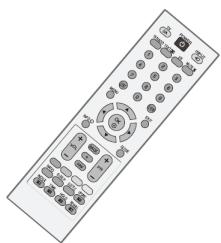
Remote Control

Batteries
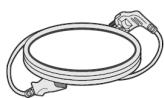
Power Cord

Protection Cover (19/22LG30**)
or
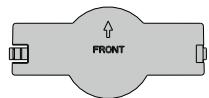
Protection Cover (26LG30**)
This feature is not available for all models

Polishing Cloth
Polishing cloth for use on the screen.
Lightly wipe any stains or fingerprints on the surface of the TV with the polishing cloth.
Do not use excessive force. This may cause scratching or discolouration.
Only 19/22LG30**
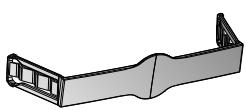
Cable management clip
Only 26LG30**

X3

X4
Bolts for stand assembly (Refer to p.9)

1-screw for stand fixing (Refer to p.6)
Contents
ACCESSIONS 2
SAFETYINSTRUCTIONS/WARNING 5
PREPARATION
Front Panel Controls. 6
Back Panel Information 8
Setting Up Your TV 10
Positioning Your Display 12
Kensington Security System 12
Antenna Connection 15
EXTERNAL EQUIPMENT SETUP
HD Receiver Setup. 16
Digital Audio Out Setup 17
DVD Setup. 18
VCR Setup. 20
Insertion Of CI Module 23
PC Setup 23
Connecting with a HDMI to DVI cable 24
Auto Configure (RGB [PC] mode only)............26
Adjustment for screen Position, Size, Phase .27
Selecting Resolution 28
WATCHING TV / PROGRAMME CONTROL
Remote Control Key Functions 29
Turning On The TV 31
Programme Selection 31
Volume Adjustment 31
32
AutoProgrammeTuning. 33
Language Selection (In Digital Mode Only) 34
Manual Programme Tuning (In Digital Mode).....36
Manual Programme Tuning (In Analog Mode)....37
Programme Skip 38
Programme Swap 39
Assigning Programme Fine Tune (In Analog Mode) 40
Input List. 42
EPG (Electronic Programme Guide) (In Digital Mode) 43
Switch on/off EPG 43
Select a programme 43
Button Function in Guide Mode 44
PICTURE CONTROL
Picture Size (Aspect Ratio) Control 45
Preset Picture Settings 47
Picture Mode-Preset 47
Colour Temperature (Medium/Warm/Cool)....48
Manual Picture Adjustment 49
Picture Mode-User option. 49
Picture Improvement Technology 50
AV Mode 51
SOUND CONTROL
Sound Setting Adjustment -User Mode 52
Preset Sound Settings-Audio Mode 53
Balance. 54
Virtual Surround. 55
Auto Volume Leveler 56
Selecting Digital Audio Out 57
TV Speakers On/ Off Setup 58
Type 59
OPTION CONTROL
Menu Language Selection 60
Time Zone Setup 61
Clock Setup 62
Auto On/Off Timer Setting 63
Sleep Timer Setting 64
Subtitle. 65
Teletext Language 66
Diagnostics 67
CI (Common Interface) Information 68
PARENTAL CONTROL / RATINGS
Set Password & Lock System 69
BlockProgramme 70
Parental Guidance. 71
Key Lock. 72
TELETEXT
Switch On/Off 73
Simple Text 73
Top Text 73
Special Teletext Functions. 74
DIGITAL TELETEXT
Teletext Within Digital Service 75
Teletext In Digital Service 75
APPENDIX
Initializing (Reset to original factory settings) ....76
Troubleshooting 77
Maintenance. 79
Product Specifications. 80
SAFETY INSTRUCTIONS/WARNING
- Apparatus shall not be exposed to dripping or splashing and no objects filled with liquids, such as vases, shall be placed on the apparatus.
- The Class I apparatus shall be connected to a mains socket outlet with a protective earthing connection.
- The mains plug or appliance coupler is used as the disconnect device, the disconnect device shall remain readily operable.
- Excessive sound pressure from earphones and headphones can cause hearing loss. Adjustment of the equalizer to maximum increases the earphones and headphones output voltage and therefore the sound pressure level.
- A certified power supply cord has to be used with this equipment. The relevant national installation and/or equipment regulations shall be considered. A certified power supply cord not lighter than ordinary polyvinyl chloride flexible cord according to IEC 60227 (designation H05VV-F 3G 0.75mm2 or H05VVH2-F2 3G 0.75mm2) shall be used. Alternative a flexible cord be of synthetic rubber according to IEC 60245 (designation H05RR-F 3G 0.75mm2) shall be used.
- The LCD TV Monitor is for entertainment use only and visual display tasks are excluded
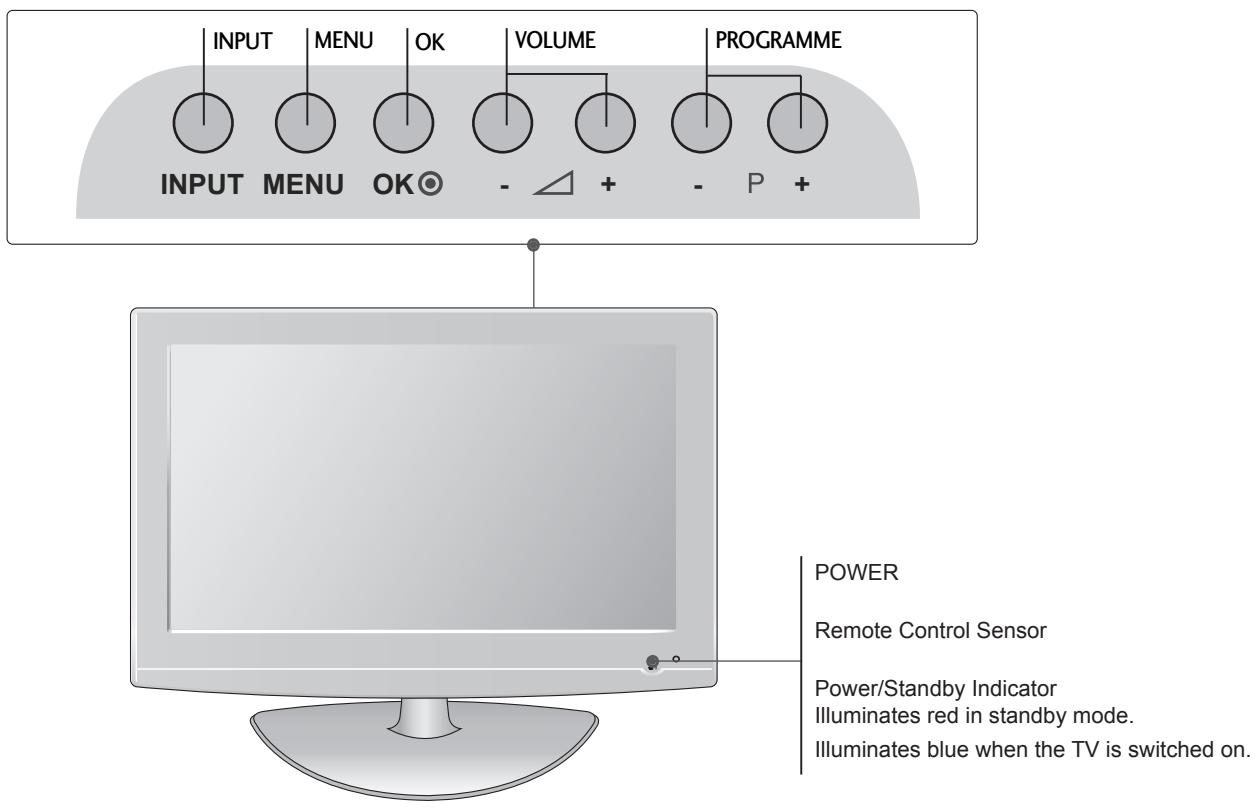
Front Panel Controls
■ Image shown may differ from your TV.
If your TV has a protection film attached, remove the film and then wipe the TV with a polishing cloth.
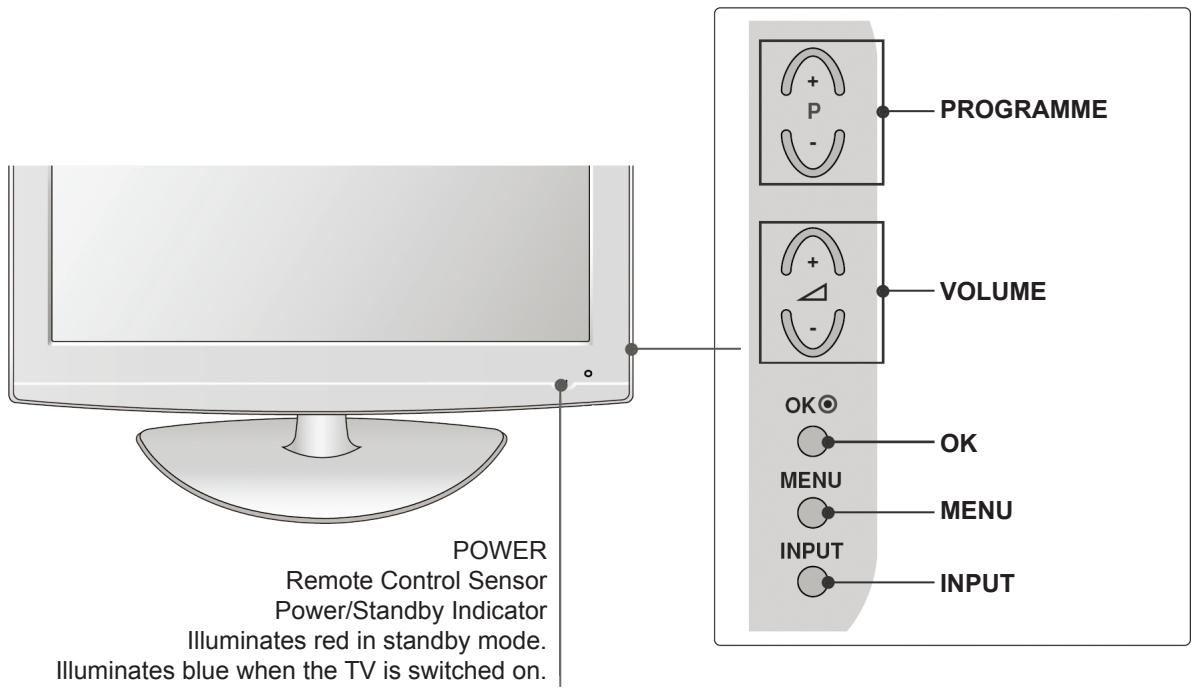
LCD TV Models : (Only 26LG30**)
Attaching the TV to a desk (Only 26LG30**)
The TV must be attached to desk so it cannot be pulled in a forward/backward direction, potentially causing injury or damaging the product. Use only an attached screw.
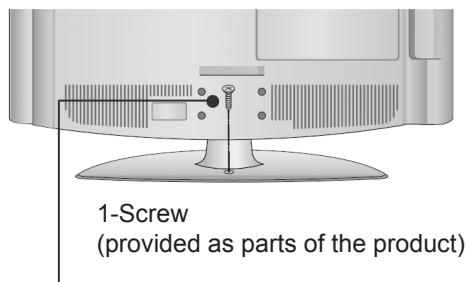
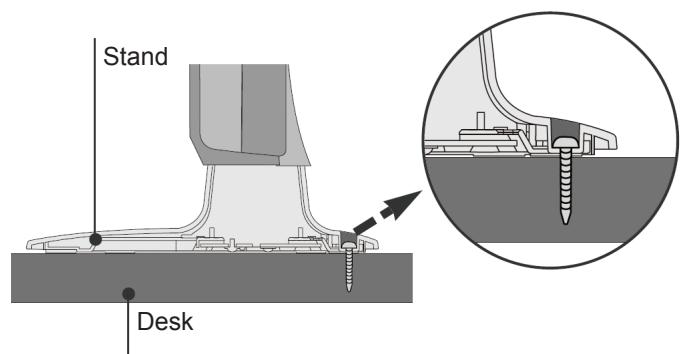

WARNING
To prevent TV from falling over, the TV should be securely attached to the floor/wall per installation instructions. Tipping, shaking, or rocking the machine may cause injury.
LCD TV Models : (Only 19/22LG30**)
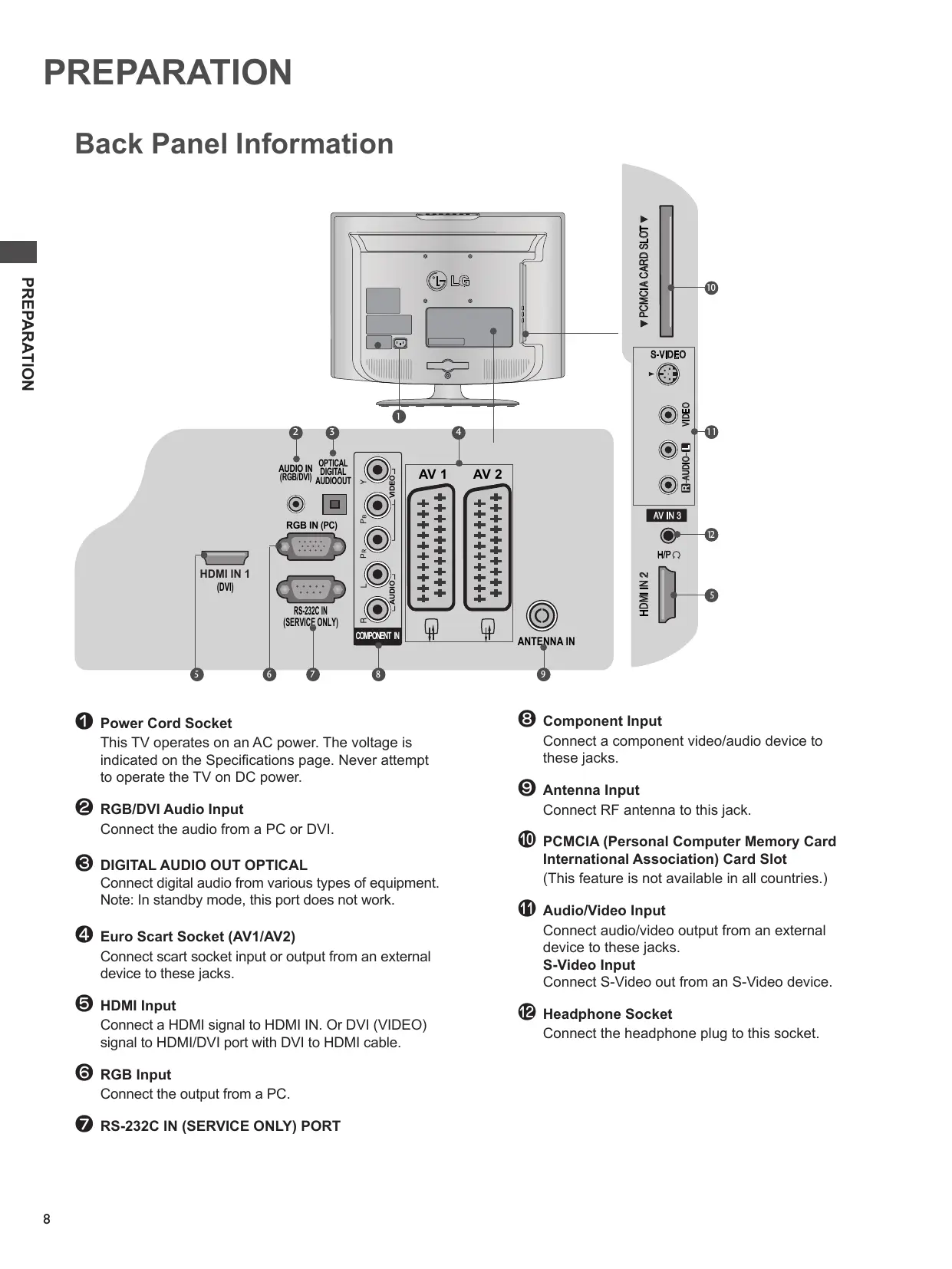
Back Panel Information
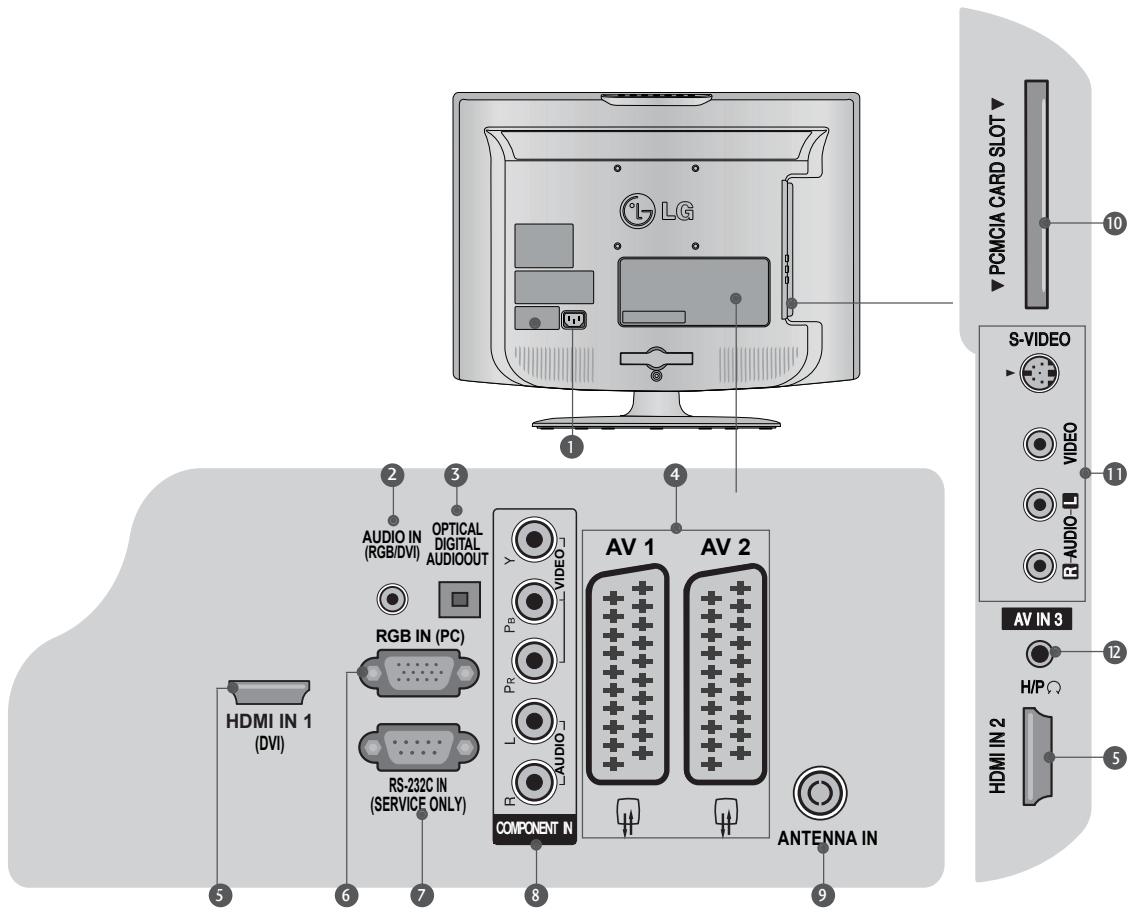
Power Cord Socket
This TV operates on an AC power. The voltage is indicated on the Specifications page. Never attempt to operate the TV on DC power.
RGB/DVI Audio Input
Connect the audio from a PC or DVI.
DIGITAL AUDIO OUT OPTICAL
Connect digital audio from various types of equipment. Note: In standby mode, this port does not work.
Euro Scart Socket (AV1/AV2)
Connect scart socket input or output from an external device to these jackets.
6 HDMI Input
Connect a HDMI signal to HDMI IN. Or DVI (VIDEO) signal to HDMI/DVI port with DVI to HDMI cable.
RGB Input
Connect the output from a PC.
RS-232C IN (SERVICE ONLY) PORT
Component Input
Connect a component video/audio device to these jacks.
Antenna Input
Connect RF antenna to this jack.
10 PCMCIA (Personal Computer Memory Card International Association) Card Slot
(This feature is not available in all countries.)
Audio/Video Input
Connect audio/video output from an external device to these jacks.
S-Video Input
Connect S-Video out from an S-Video device.
12 Headphone Socket
Connect the headphone plug to this socket.
Stand Installation
When assembling the desk type stand, check whether the bolt is fully tightened. (If not tightened fully, the product can tilt forward after the product installation.) If you tighten the bolt with excessive force, the bolt can deviate from abrasion of the tightening part of the bolt.
(Only 26LG30**)
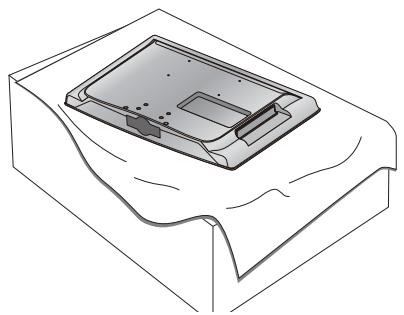
Carefully place the TV screen side down on a cushioned surface to protect the screen from damage.
Assemble the TV as shown.
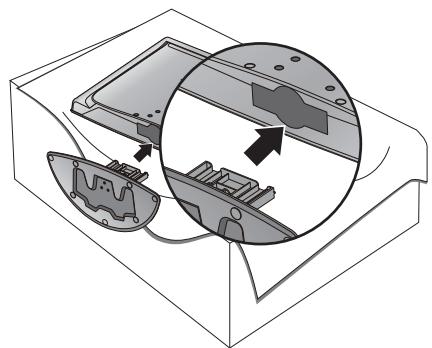
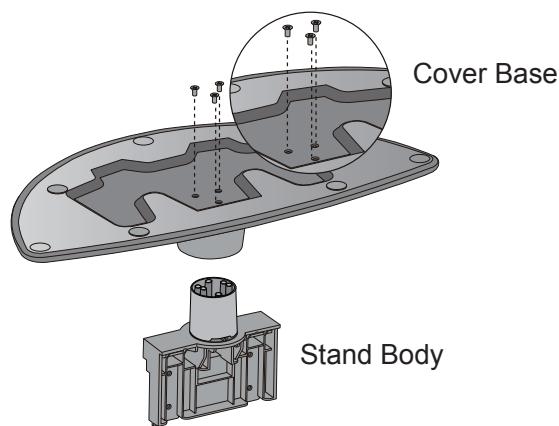
2 Assemble the parts of the Stand Body with the Cover Base of the TV.
Fix the 4 bolts securely using the holes in the back of the TV.
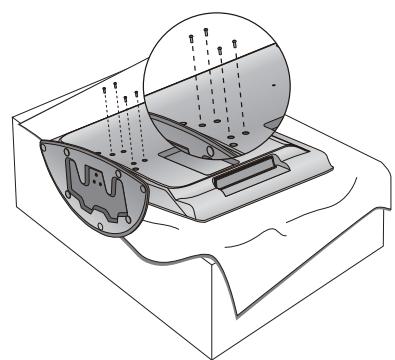
(Only 19/22LG30**)
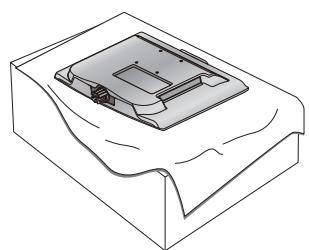
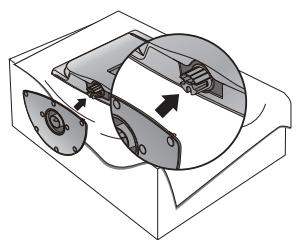

1 Carefully place the TV screen side down on a cushioned surface to protect the screen from damage.
2 Assemble the TV as shown.
Setting Up Your TV
Please set it up carefully so the product does not fall over.
You should purchase necessary components to fix the TV to the wall.
Position the TV close to the wall to avoid the possibility of falling.
The instructions shown below are a safer way to set up the TV, which is to fix it to the wall, avoiding the possibility of it falling forwards if pulled. This will prevent the TV from falling forward and causing injury. This will also prevent the TV from damage. Ensure that children do not climb or hang from the TV.
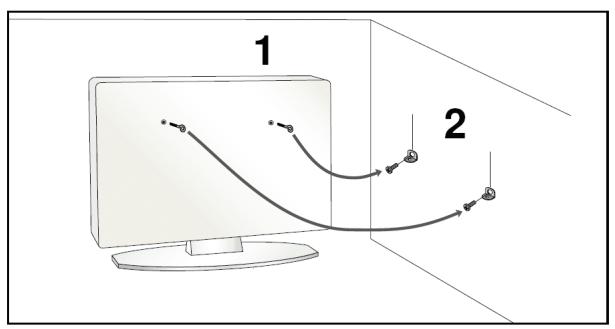
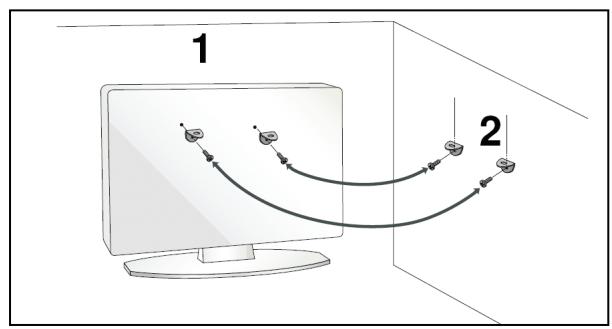

Use the eye-bolts or TV brackets/bolts to fix the TV to the wall as shown in the picture. (If your TV has bolts in the holes, loosen these bolts.)
- Fix the eye-bolts or TV brackets/bolts and tighten them securely in the upper holes.

Secure the wall brackets with the bolts on the wall. Match the height of the bracket that is mounted on the wall.
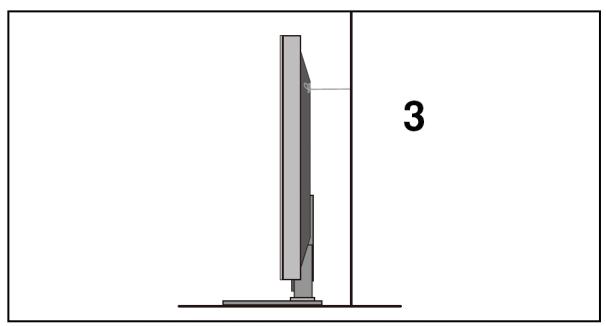

Use a sturdy rope to tie the TV. It is safer to tie the rope horizontally between the wall and the TV.
! NOTE
When moving the TV, untied the rope first.
▶ Use a platform or cabinet strong and large enough to support the size and weight of the TV.
To set up TV safely, make sure that the height of the bracket on the wall and on the TV are the same.
Back Cover for Wire Arrangement
26LG30**
19/22LG30**
1 Connect the cables as necessary.
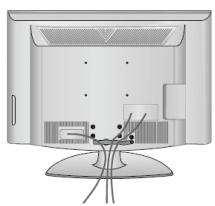
1 Connect the cables as necessary. To connect additional equipment, see the External Equipment Setup section.
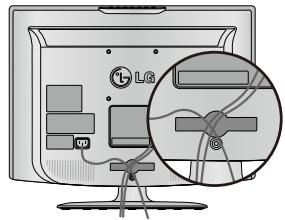
Open the CABLE MANAGEMENT CLIP as shown and manage the cables.
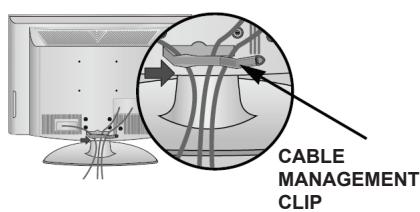
Install the CABLE MANAGEMENT CLIP as shown.
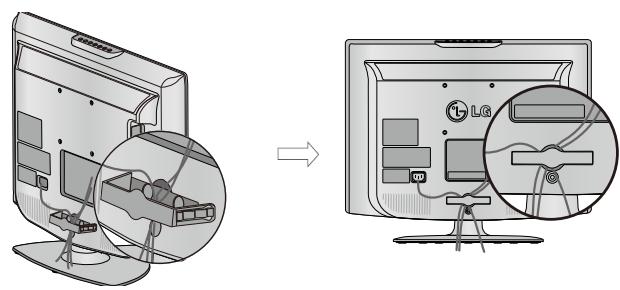
Fit the CABLE MANAGEMENT CLIP as shown.
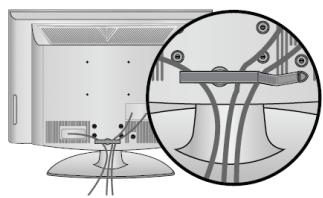
How to remove the cable management clip (for 19/22LG30**)
First, press the cable management. Hold the CABLE MANAGEMENT CLIP with both hands and pull it backward.
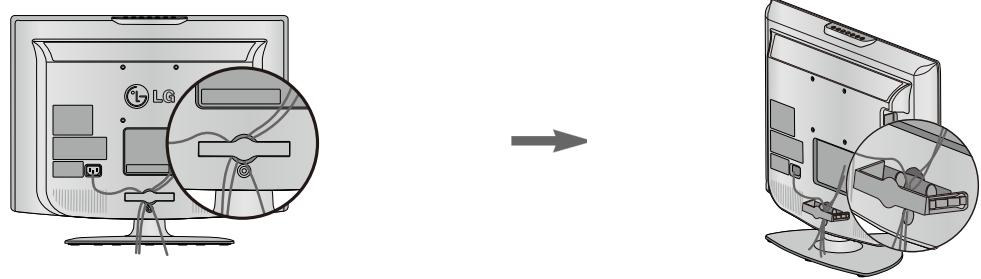
NOTE
- Do not use the CABLE MANAGEMENT CLIP to lift the TV.
- If the TV is dropped, you may be injured or the TV may be damaged.
Positioning Your Display
(Only 19/22LG30**)
Image shown may differ from your TV.
- Adjust the position of the panel in various ways for maximum comfort.
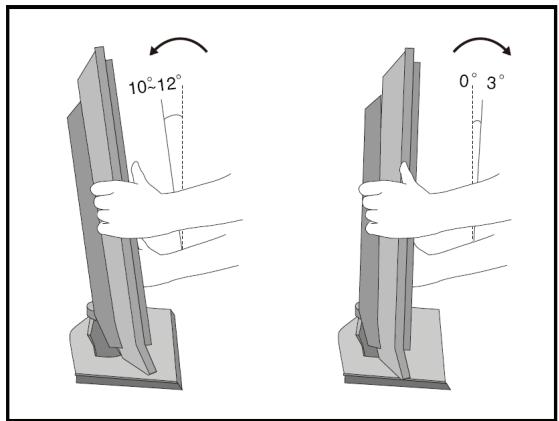
Tilt range
Location (Only 19/22LG30**)
Position your TV so that no bright light or sunlight falls directly onto the screen. Care should be taken not to expose the TV to any unnecessary vibration, moisture, dust or heat. Also ensure that the TV is placed in a position to allow a free flow of air. Do not cover the ventilation openings on the back cover.
If you intend to mount the TV to a wall, attach VESA standard mounting interface (optional parts) to the back of the TV.
When you install the TV to use the wall mounting bracket (optional parts), fix it carefully so as not to drop.
Kensington Security System
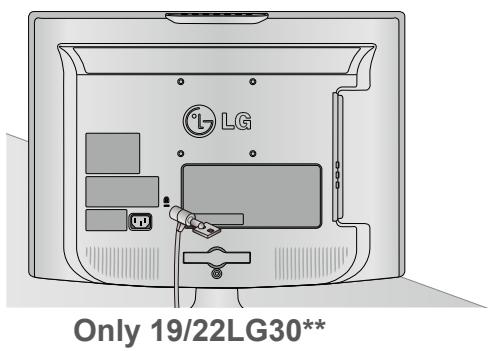
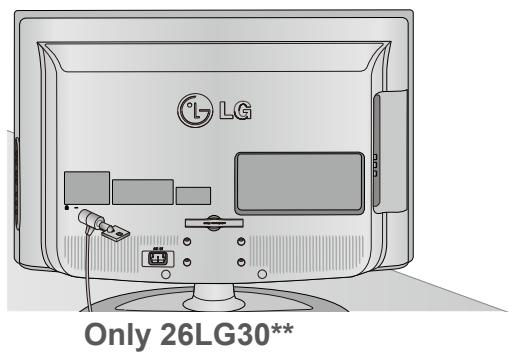
The TV is equipped with a Kensington Security System connector on the back panel. Connect the Kensington Security System cable as shown below.
For the detailed installation and use of the Kensington Security System, refer to the user's guide provided with the Kensington Security System.
For further information, contact http://www.kensington.com, the internet homepage of the Kensington company. Kensington sells security systems for expensive electronic equipment such as notebook, PCs and LCD projectors.
NOTE
- The Kensington Security System is an optional accessory.
NOTES
a. It is normal if you turned on the TV with small "flicker" on the screen under the low temperature.
b. Some small dots may be visible on the screen, appearing as tiny red, green, or blue spots. However, they have no adverse effect on the monitor's performance.
c. Avoid touching the LCD screen or holding your finger(s) against it for long periods of time.
Doing so may cause some temporary distortion effects on the screen.
EARTHING
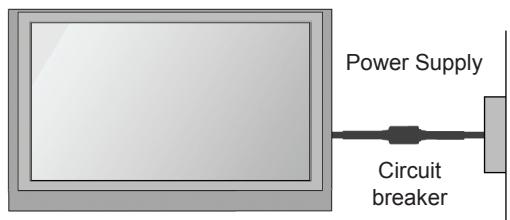
Ensure that you connect the earth wire to prevent possible electric shock. If grounding methods are not possible, have a qualified electrician install a separate circuit breaker.
Do not try to earth the TV by connecting it to telephone wires, lightening rods or gas pipes.
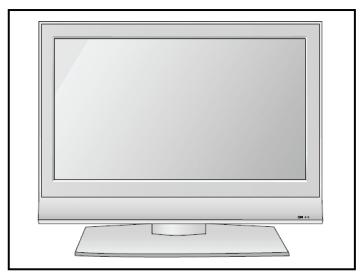
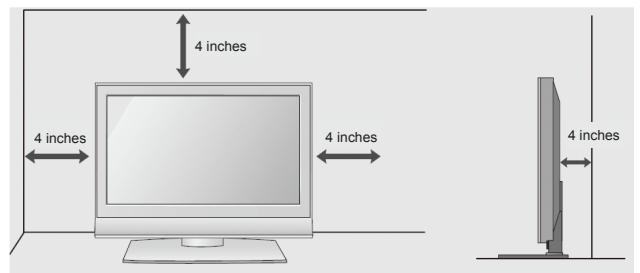
Desktop Pedestal Installation
For adequate ventilation, allow a clearance of 4" (10cm) all around the TV.
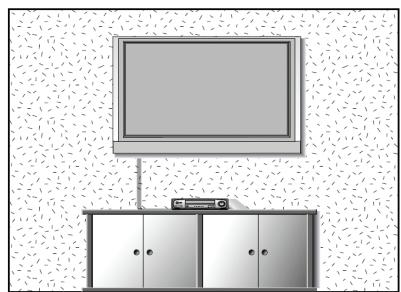
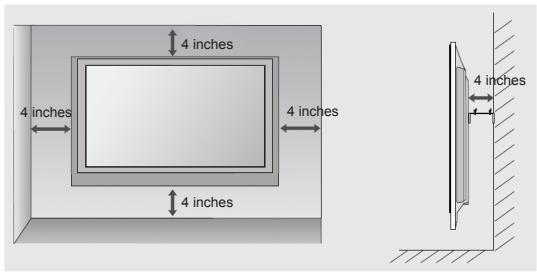
Wall Mount: Horizontal Installation
For adequate ventilation, allow a clearance of 4" (10cm) all around the TV. Detailed installation instructions are available from your dealer, see the optional Tilt Wall Mounting Bracket Installation and Setup Guide.

WARNING
-
Wall mounting of the TV should only be performed by qualified installers. Only use the supplied components to secure the VESA-compatible wall bracket to your TV. The supplied components are designed to match the weight of your TV.
Information for wall mount (especially screw size)
To attach a wall mount bracket to your TV: -
Remove the four M4 screws holding your TV to the stand.
- Secure the wall mount bracket to the back of your TV using four M4 screws.
When not using the desk-type stand.
(26LG30**)
When installing the wall-mounted unit, use the protection cover for desk-type stand installation.
Insert the PROTECTION COVER into the TV until clicking sound is produced.
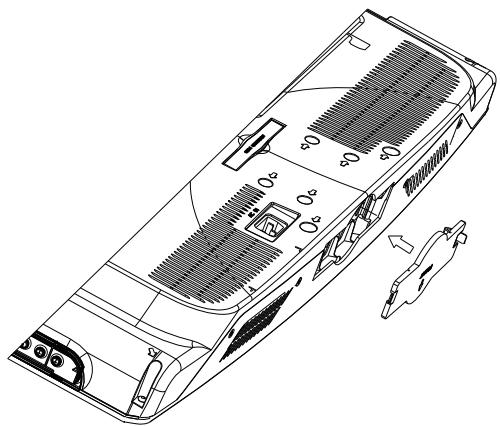
(Only 19/22LG30**)
When installing the wall-mounted unit, please follow the installation steps as in the pictures below.

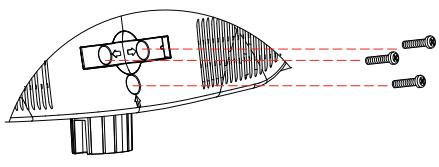
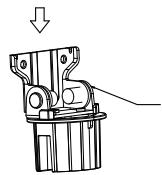
HINGE ASSEMBLY
Step 2: Unscrew these 3 screws.
Step 3: Take out the HINGE ASSEMBLY.
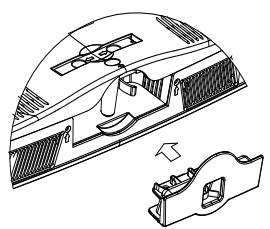
Step 4: Insert the PROTECTION COVER into the TV.
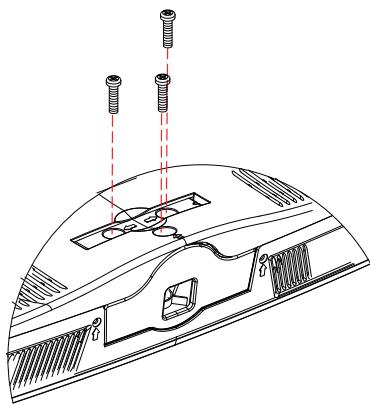
Step 5: Attach the 3 screws that were removed in step 2.
- To prevent damages, do not connect to the mains outlet until all connections are made between the devices.
Antenna Connection
For optimum picture quality, adjust antenna direction.
An antenna cable and converter are not supplied.
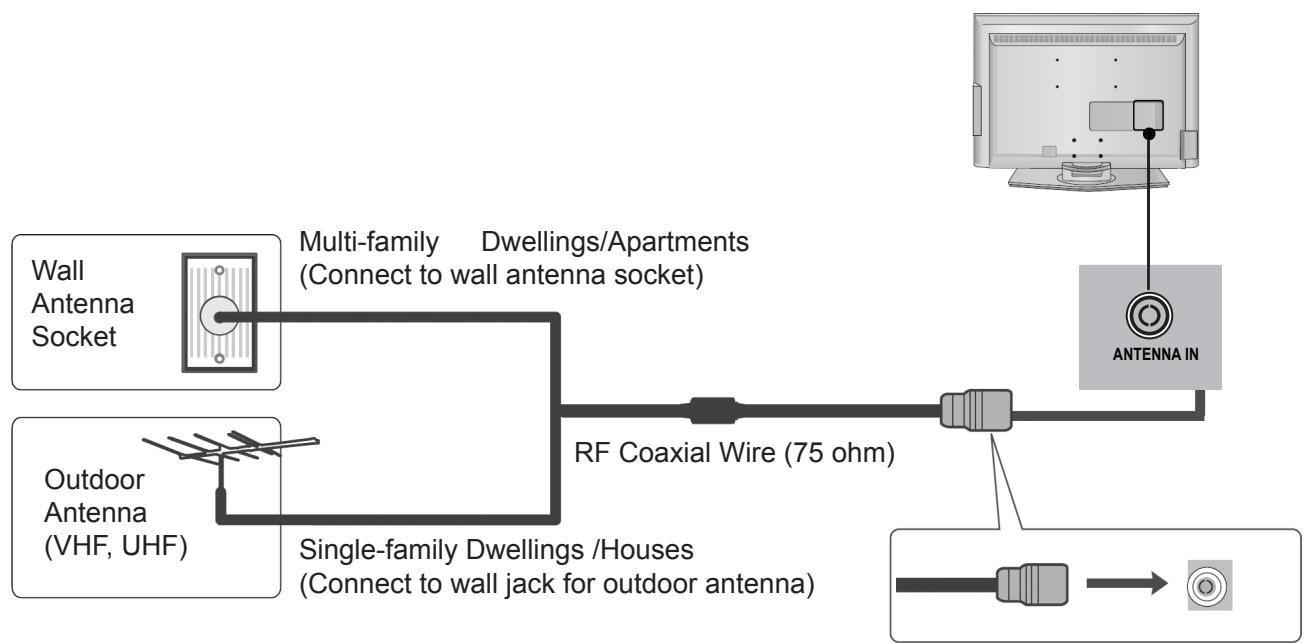

In poor signal areas, to achieve better picture quality, it may be necessary to install a signal amplifier to the antenna as shown above.
If signal needs to be split for two TVs, use an antenna signal splitter for connection.
EXTERNAL EQUIPMENT SETUP
- To avoid damaging any equipment, never plug in any power cords until you have finished connecting all equipment.
HD Receiver Setup
This TV can receive Digital RF/Cable signals without an external digital set-top box. However, if you do receive digital signals from a digital set-top box or other digital external device, refer to the diagram as shown below.
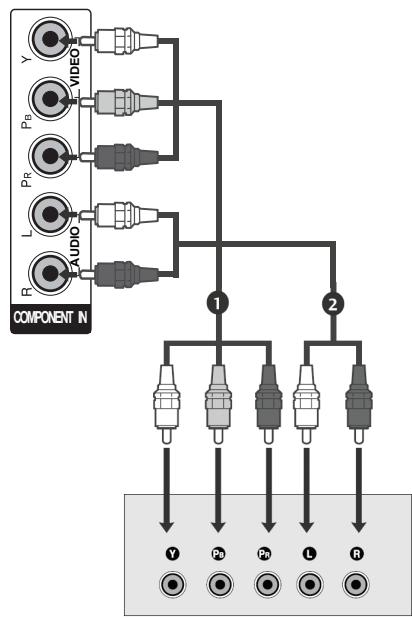
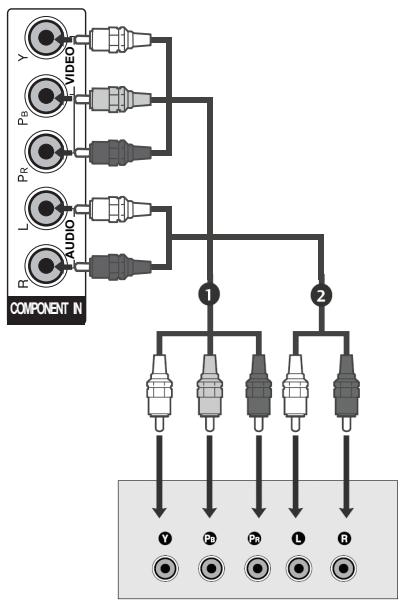
Connecting with a component cable
1 Connect the video outputs (Y, P_B, P_R) of the digital set-top box to the COMPONENT IN VIDEO jacks on the TV.
Connect the audio output of the digital set-top box to the COMPONENT IN AUDIO jacks on the TV.
3 Turn on the digital set-top box. (Refer to the owner's manual for the digital set-top box.)
4 Select Component input source using the INPUT button on the remote control.
| Signal | Component | HDMI |
| 480i | Yes | No |
| 576i | Yes | Yes |
| 480p/576p | Yes | Yes |
| 720p/1080i | Yes | Yes |
| 1080p | Yes | Yes |
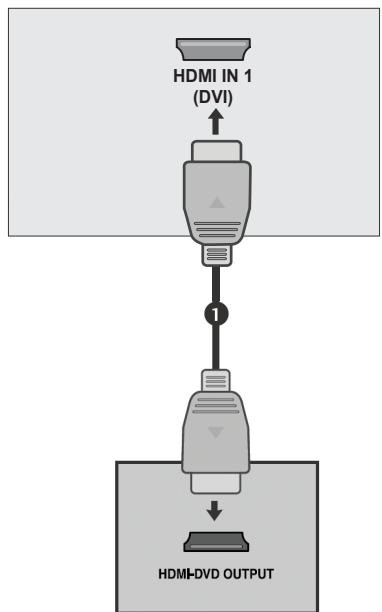
Connecting a set-top box with an HDMI
1 Connect the HDMI output of the digital set-top box to the HDMI IN1(DVI) or HDMI IN 2 jack on the TV.
Turn on the digital set-top box. (Refer to the owner's manual for the digital set-top box.)
3 Select HDMI1 or HDMI2 input source using the INPUT button on the remote control.
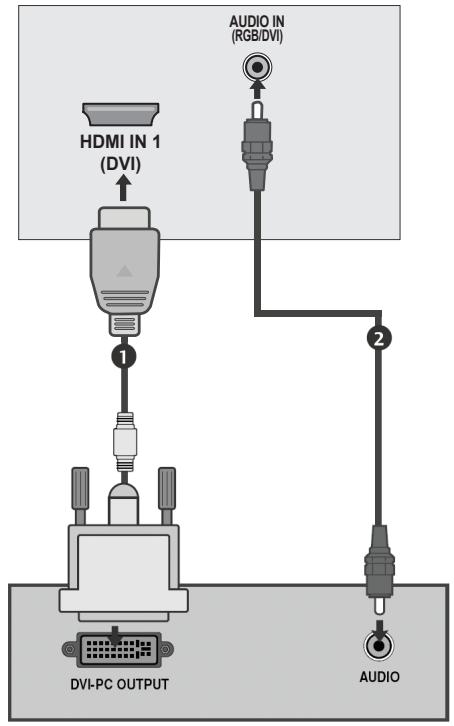
Connecting with a HDMI to DVI cable
Connect the digital set-top box to HDMI IN 1(DVI) jack on the TV.
Connect the audio output of the digital set-top box to the AUDIO IN (RGB/DVI) jack on the TV.
Turn on the digital set-top box. (Refer to the owner's manual for the digital set-top box.)
4 Select HDMI1 input source using the INPUT button on the remote control.
Digital Audio Out Setup
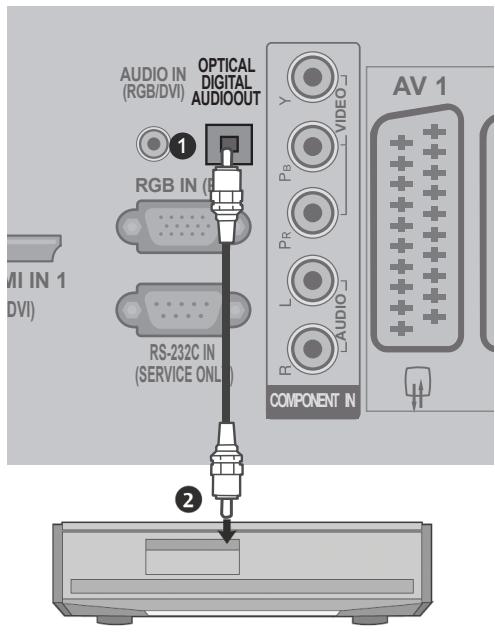
- Sending the TV's audio signal to external audio equipment via the Digital Audio Output (Optical) port.
1 Connect one end of an optical cable to the TV Digital Audio (Optical) Output port.
Connect the other end of the optical cable to the digital audio (optical) input on the audio equipment.
3 Set the " TV Speaker option - Off " in the AUDIO menu. (▶ p.58) Refer to the external audio equipment instruction manual for operation.
CAUTION
Do not look into the optical output port. Looking at the laser beam may damage your vision.
DVD Setup
When connecting with a component cable
1 Connect the video outputs (Y, Pb, Pr) of the DVD to the COMPONENT IN VIDEO jacks on the TV.
Connect the audio outputs of the DVD to the COMPONENT IN AUDIO jacks on the TV.
3 Turn on the DVD player, insert a DVD.
4 Select Component input source using the INPUT button on the remote control.
Refer to the DVD player's manual for operating instructions.
Component Input ports
To achieve better picture quality, connect a DVD player to the component input ports as shown below.
| Component ports on the TV | Y | Pb | Pr |
| Video output ports on DVD player | Y | Pb | Pr |
| Y | B-Y | R-Y | |
| Y | Cb | Cr | |
| Y | Pb | Pr |
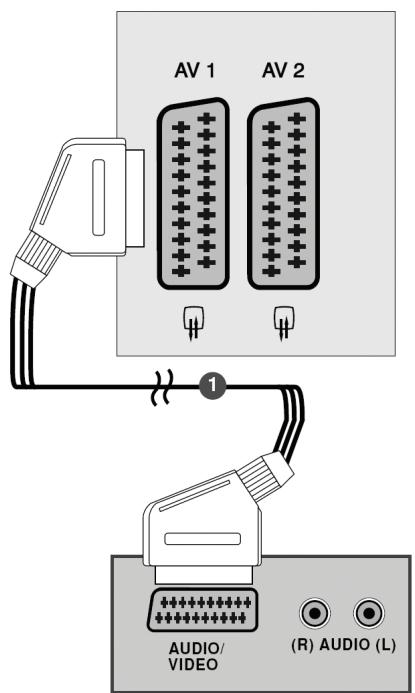
Connecting with a Euro Scart cable
1 Connect the Euro scart socket of the DVD to the AV1 Euro scart socket on the TV.
Turn on the DVD player, insert a DVD.
3 Select AV1 input source using the INPUT button on the remote control. If connected to AV2 Euro scart socket, select AV2 input source.
Refer to the DVD player's manual for operating instructions.

NOTE
Any Euro scart cable used must be signal shielded.
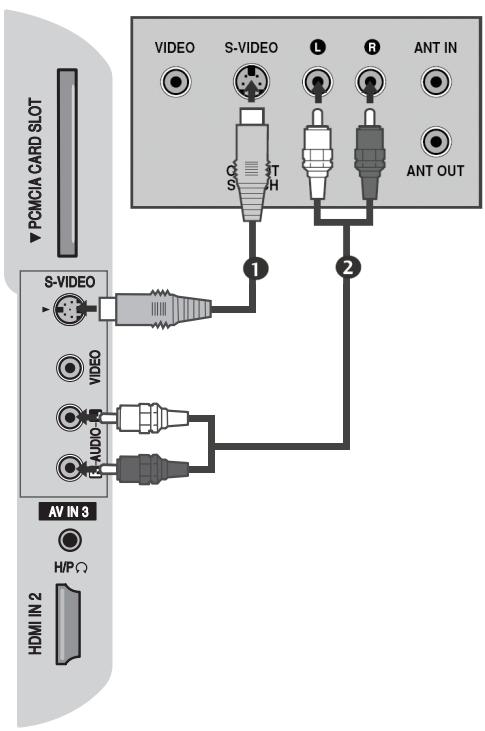
Connecting with a S-Video cable
Connect the S-VIDEO output of the DVD to the S-VIDEO input on the TV.
Connect the audio outputs of the DVD to the AUDIO input jacks on the TV.
3 Turn on the DVD player, insert a DVD.
4 Select AV3 (S-Video) input source using the INPUT button on the remote control.
Refer to the DVD player's manual for operating Instructions.
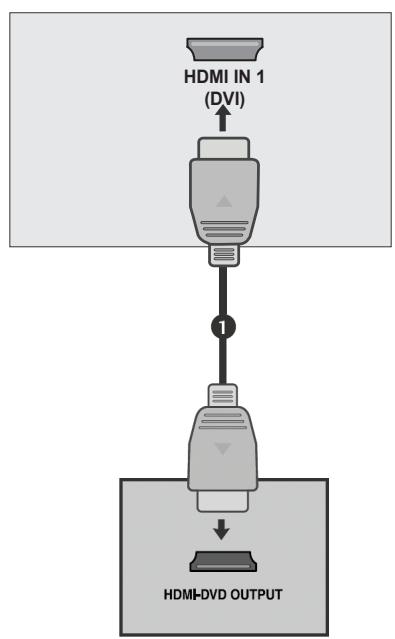
Connecting the HDMI cable
1 Connect the HDMI output of the DVD to the HDMI IN 1(DVI) or HDMI IN 2 jack on the TV.
2 Select HDMI1 or HDMI2 input source using the INPUT button on the remote control.
Refer to the DVD player's manual for operating instructions.
VCR Setup
- To avoid picture noise (interference), allow adequate distance between the VCR and TV.
If 4:3 picture format is used for an extended period, the fixed images on the sides of the screen may remain visible.
Connecting with a RF cable
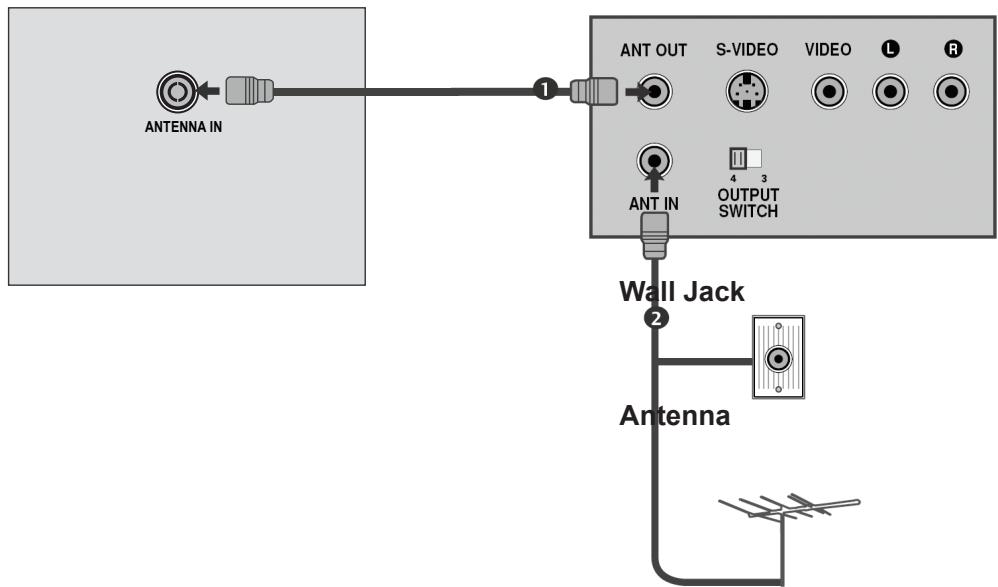
1 Connect the ANT OUT socket of the VCR to the ANTENNA IN socket on the TV.
Connect the antenna cable to the ANT IN socket of the VCR.
Press the PLAY button on the VCR and match the appropriate channel between the TV and VCR for viewing.
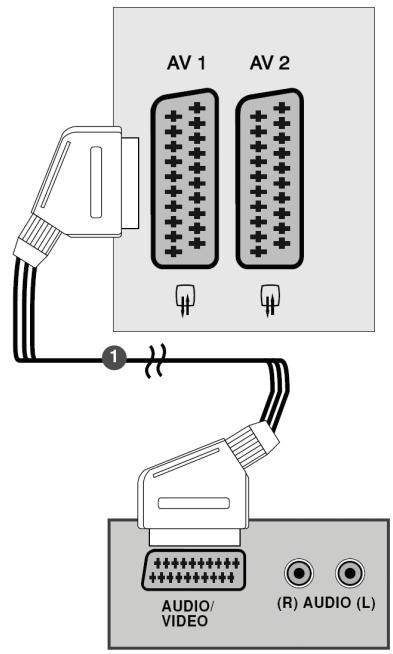
Connecting with a Euro Scart cable
1 Connect the Euro scart socket of the VCR to the AV1 Euro scart socket on the TV.
Insert a video tape into the VCR and press PLAY on the VCR. (Refer to the VCR owner's manual.)
3 Select AV1 input source using the INPUT button on the remote control.
4 If connected to AV2 Euro scart socket, select AV2 input source.

NOTE
Any Euro scart cable used must be signal shielded.
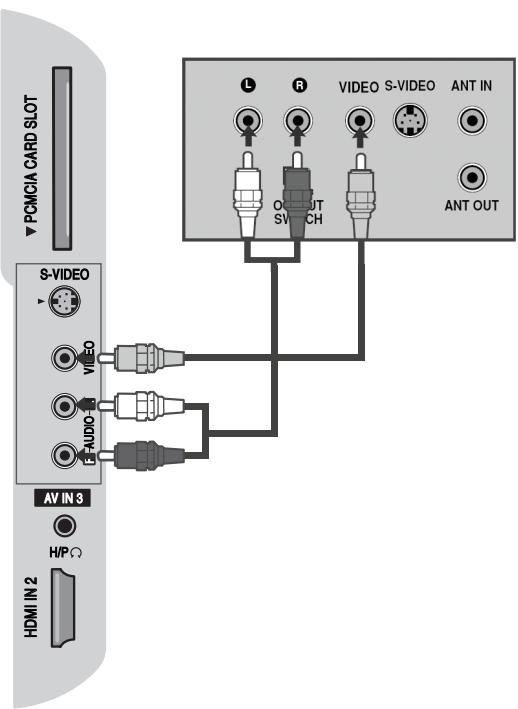
Connecting with a RCA cable
Connect the AUDIO/VIDEO jacks between TV and VCR. Match the jack colours (Video = yellow, Audio Left = white, and Audio Right = red)
2 Insert a video tape into the VCR and press PLAY on the VCR. (Refer to the VCR owner's manual.)
3 Select AV3 (CVBS) input source using the INPUT button on the remote control.
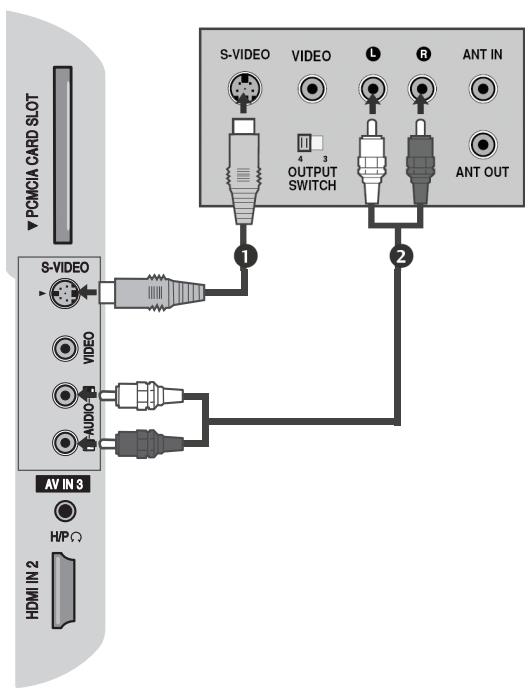
Connecting with a S-Video cable
Connect the S-VIDEO output of the VCR to the S -VIDEO input on the TV. The picture quality is improved; compared to normal composite (RCA cable) input.
Connect the audio outputs of the VCR to the AUDIO input jacks on the TV.
3 Insert a video tape into the VCR and press PLAY on the VCR. (Refer to the VCR owner's manual.)
4 Select AV3 (S-Video) input source using the INPUT button on the remote control.
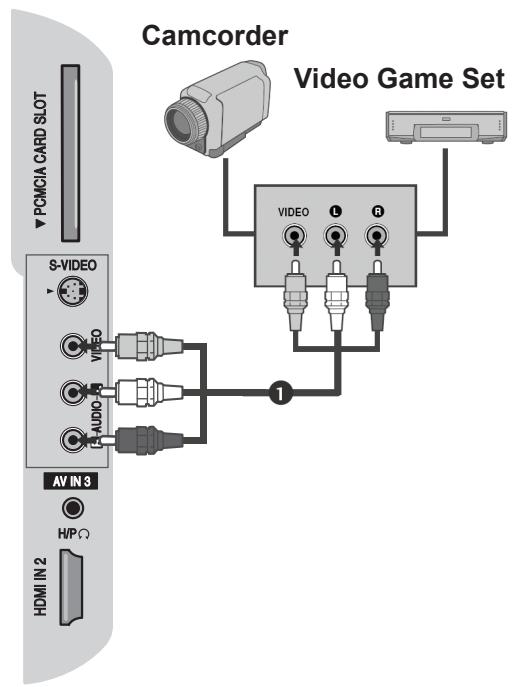
Other A/V Source Setup
1 Connect the AUDIOVIDEO jacks between TV and external equipment. Match the jack colours. (Video = yellow, Audio Left = white, and Audio Right = red)
2 Select AV3 (CVBS) input source using the INPUT button on the remote control.
3 Operate the corresponding external equipment. Refer to external equipment operating guide.
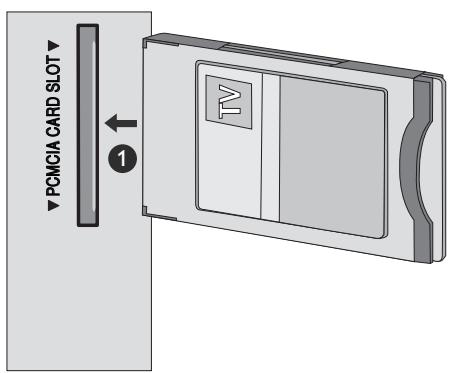
Insertion Of CI Module
- To view the encrypted (pay) services in digital TV mode.
- This feature is not available in all countries.
Insert the CI Module to PCMCIA (Personal Computer Memory Card International Association) CARD SLOT of TV as shown.
For further information, see p.67.
PC Setup
This TV provides Plug and Play capability, meaning that the PC adjusts automatically to the TV's settings.
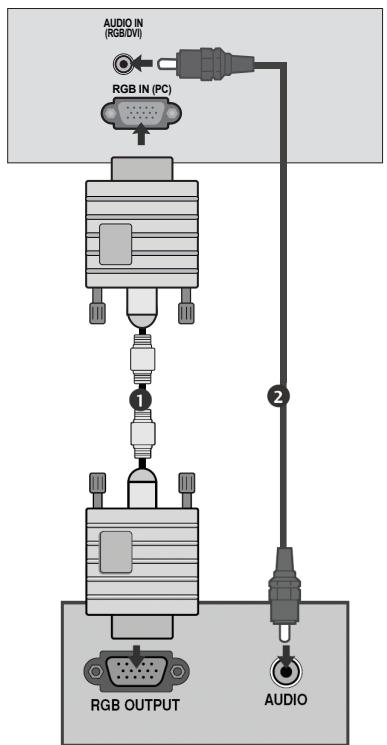
Connecting with a D-sub 15 pin cable

Connect the RGB output of the PC to the RGB IN (PC) jack on the TV.

Connect the PC audio output to the AUDIO IN (RGB/DVI) jack on the TV.

Turn on the PC and the TV

Select RGB input source using the INPUT button on the remote control.
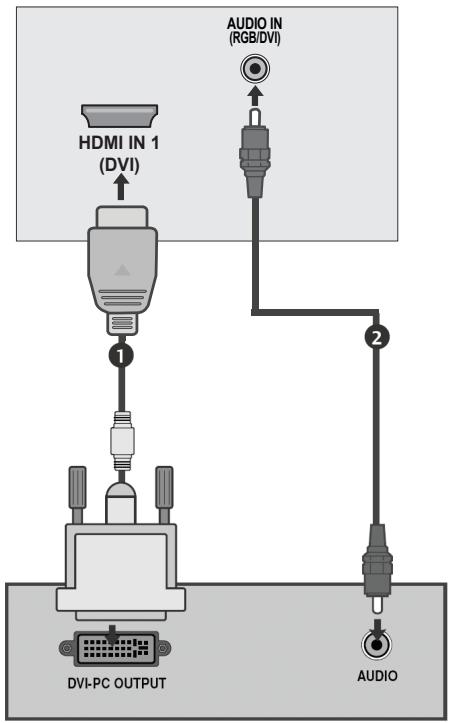
Connecting with a HDMI to DVI cable
1 Connect the DVI output of the PC to the HDMI IN 1(DVI) jack on the TV.
Connect the PC audio output to the AUDIO IN (RGB/DVI) jack on the TV.
3 Turn on the PC and the TV.
4 Select HDMI1 input source using the INPUT button on the remote control.
! NOTE
To enjoy vivid picture and sound, connect a PC to the TV.
- Avoid keeping a fixed image on the TV's screen for prolonged periods of time. The fixed image may become permanently imprinted on the screen; use a screen saver when possible.
Connect the PC to the RGB (PC) or HDMI IN (or HDMI/DVI IN) port of the TV; change the resolution.
There may be interference relating to resolution, vertical pattern, contrast or brightness in PC mode. Change the PC mode to another resolution or change the refresh rate to another rate or until the picture is clear. If the refresh rate of the PC graphic card can not be changed, change the PC graphic card or consult the manufacturer of the PC graphic card.
The synchronization input waveform for Horizontal and Vertical frequencies are separate.
- Connect the signal cable from the monitor output port of the PC to the RGB (PC) port of the TV or the signal cable from the HDMI output port of the PC to the HDMI IN (or HDMI/DVI IN) port on the TV.
- Connect the audio cable from the PC to the Audio input on the TV. (Audio cables are not included with the TV).
If using a sound card, adjust PC sound as required.
This TV uses a VESA Plug and Play Solution. The TV provides EDID data to the PC system with a DDC protocol. The PC adjusts automatically when using this TV.
- DDC protocol is preset for RGB (Analog RGB), HDMI (Digital RGB) mode.
If required, adjust the settings for Plug and Play functionality.
If the graphic card on the PC does not output analogue and digital RGB simultaneously, connect only one of either RGB or HDMI IN (or HDMI/DVI IN) to display the PC output on the TV.
If the graphic card on the PC does output analogue and digital RGB simultaneously, switch the TV to either RGB or HDMI; (the other mode is set to Plug and Play automatically by the TV.)
- DOS mode may not work depending on the video card if you use a HDMI to DVI cable.
For best picture quality, using an RGB-PC cable under 5m is recommended.
Supported Display Resolution
RGB[PC], HDMI[PC] mode
| Resolution | Horizontal Frequency(kHz) | Vertical Frequency(Hz) |
| 720x400 | 31.468 | 70.08 |
| 640x480 | 31.469 | 59.94 |
| 37.684 | 75.00 | |
| 800x600 | 37.879 | 60.31 |
| 46.875 | 75.00 | |
| 832x624 | 49.725 | 74.55 |
| 1024x768 | 48.363 | 60.00 |
| 56.470 | 70.00 | |
| 60.123 | 75.029 | |
| 1280x720 | 45.00 | 60.00 |
| 1280x800 | 62.795 | 75.00 |
| 1152x864 | 67.50 | 75.00 |
| 1366x768 | 47.56 | 59.60 |
| 1440x900 | 55.50 | 59.90 |
| 1680x1050 | 65.16 | 59.94 |
| 1280x1024 | 63.595 | 60.00 |
HDMI[DTV] mode
| Resolution | Horizontal Frequency(kHz) | Vertical Frequency(Hz) |
| 720x480 | 31.469 / 31.5 | 59.94 / 60 |
| 720x576 | 31.25 | 50 |
| 1280x720 | 37.500 | 50 |
| 44.96 / 45 | 59.94 / 60 | |
| 1920x1080 | 33.72 / 33.75 | 59.94 / 60 |
| 28.125 | 50.00 | |
| 26.97 / 27 | 23.97 / 24 | |
| 33.716 / 33.75 | 26.976 / 30.00 | |
| 56.250 | 50 | |
| 67.43 / 67.5 | 59.94 / 60 |

NOTE
19LG30 is supported to 1440x900 in RGB/HDMI[PC] mode.
22LG30 is supported to 1400x1050 and 1680x1050 in RGB/HDMI[PC] mode.
26LG30** is supported to 1366x768 in RGB/HDMI[PC] mode.
Auto Configure (RGB [PC] mode only)
Automatically adjusts picture position and minimizes image instability. After adjustment, if the image is still not correct, your TV is functioning properly but needs further adjustment.
Auto configure
This function is for automatic adjustment of the screen position, size, and phase. The displayed image will be unstable for a few seconds while the auto configuration is in progress.
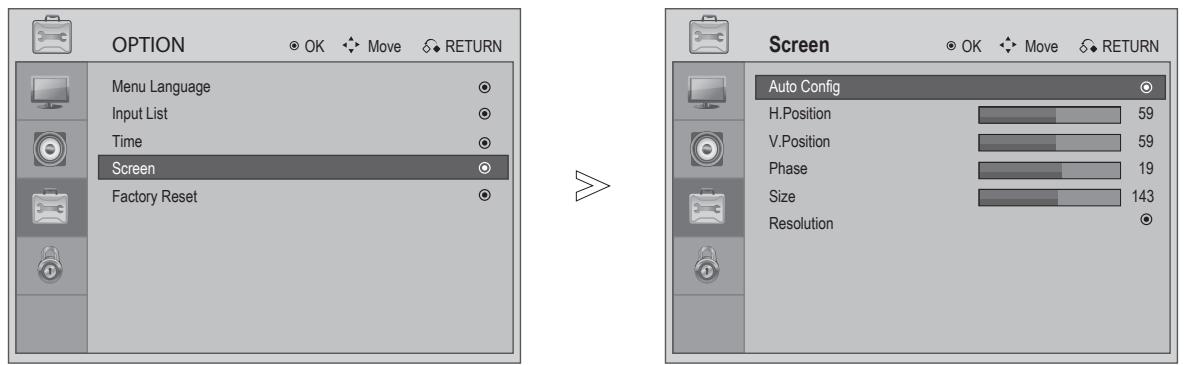
Select OPTION.
- If the position of the image is still not correct, try Auto config again.
Select Screen.
- If picture needs to be adjusted again after Auto configure in RGB (PC), you can adjust the Position, Size or Phase.
Select Auto Config.

Make Appropriate Adjustments.
- Press the MENU or EXIT button to return to normal TV viewing.
- Press the RETURN button to move to the previous menu screen.
EXTERNAL EQUIPMENT SETUP
Adjustment for screen Position, Size, Phase
If the picture is not clear after auto configure and especially if characters are still trembling, adjust the picture phase manually.
This function works in the following mode: RGB [PC].
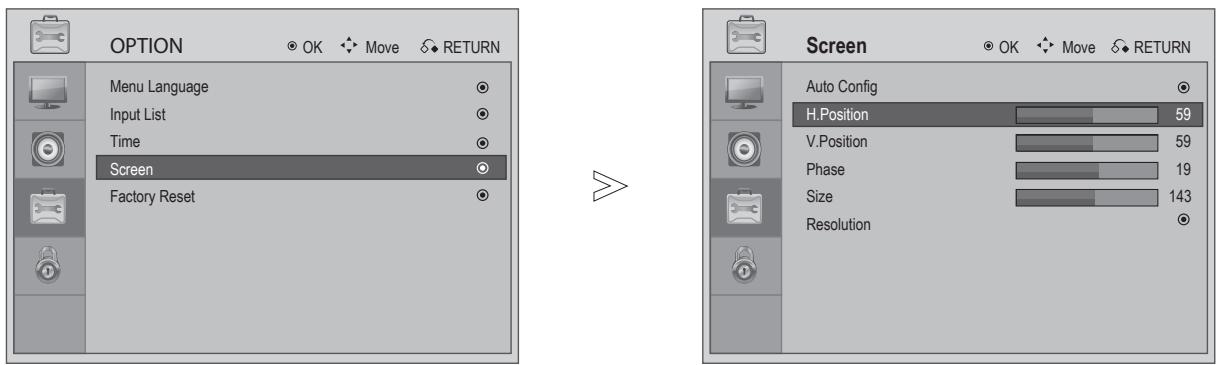

Select OPTION.
Select Screen.

Select H. Position, V. Position, Phase, Size or Resolution.

Make appropriate Adjustments.
- Press the MENU or EXIT button to return to normal TV viewing.
- Press the RETURN button to move to the previous menu screen.
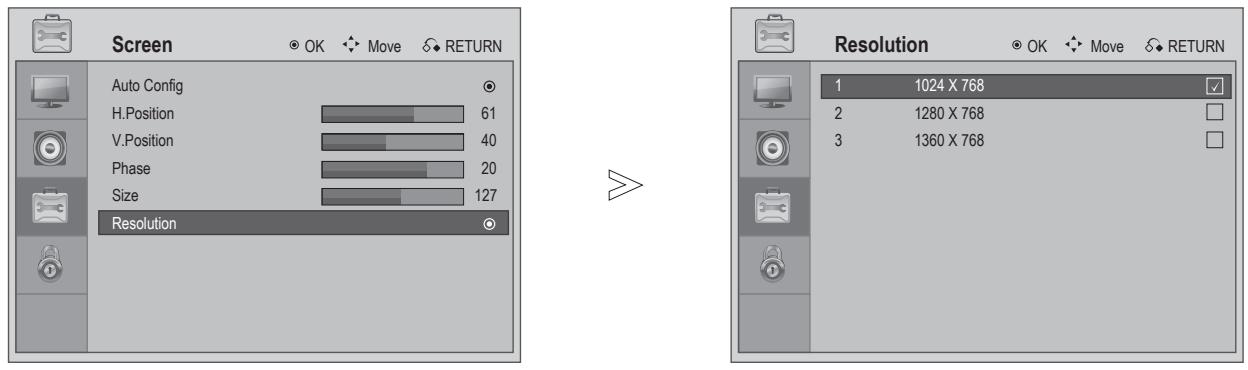
Selecting Resolution
To view a normal picture match the resolution of RGB mode and selection of pc mode.
This function words in the following mode: RGB「PC」mode.
Select OPTION.
Select Screen.
Select Resolution.
Select desired resolution.
- Press the MENU or EXIT button to return to normal TV viewing.
- Press the RETURN button to move to the previous menu screen.
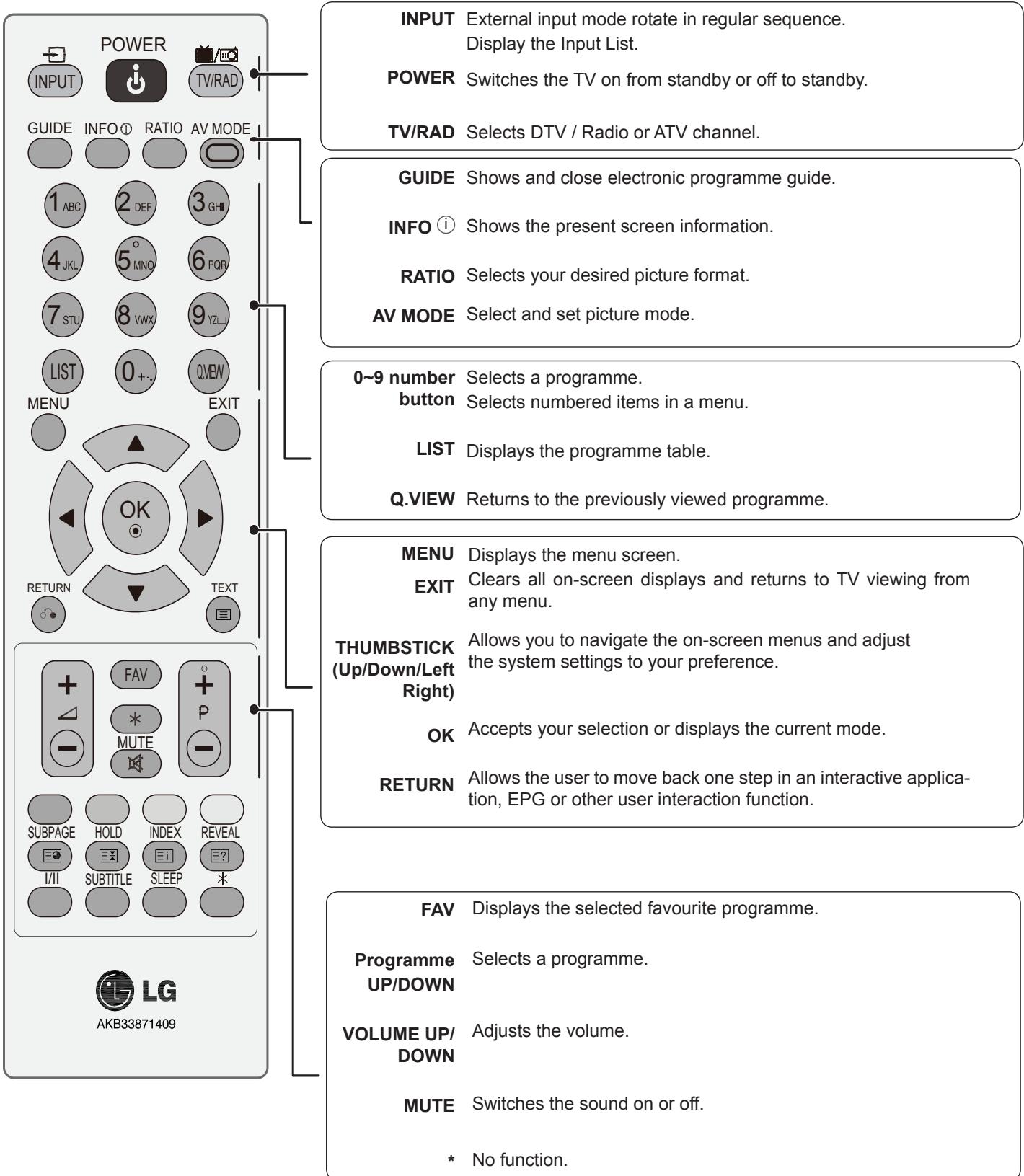
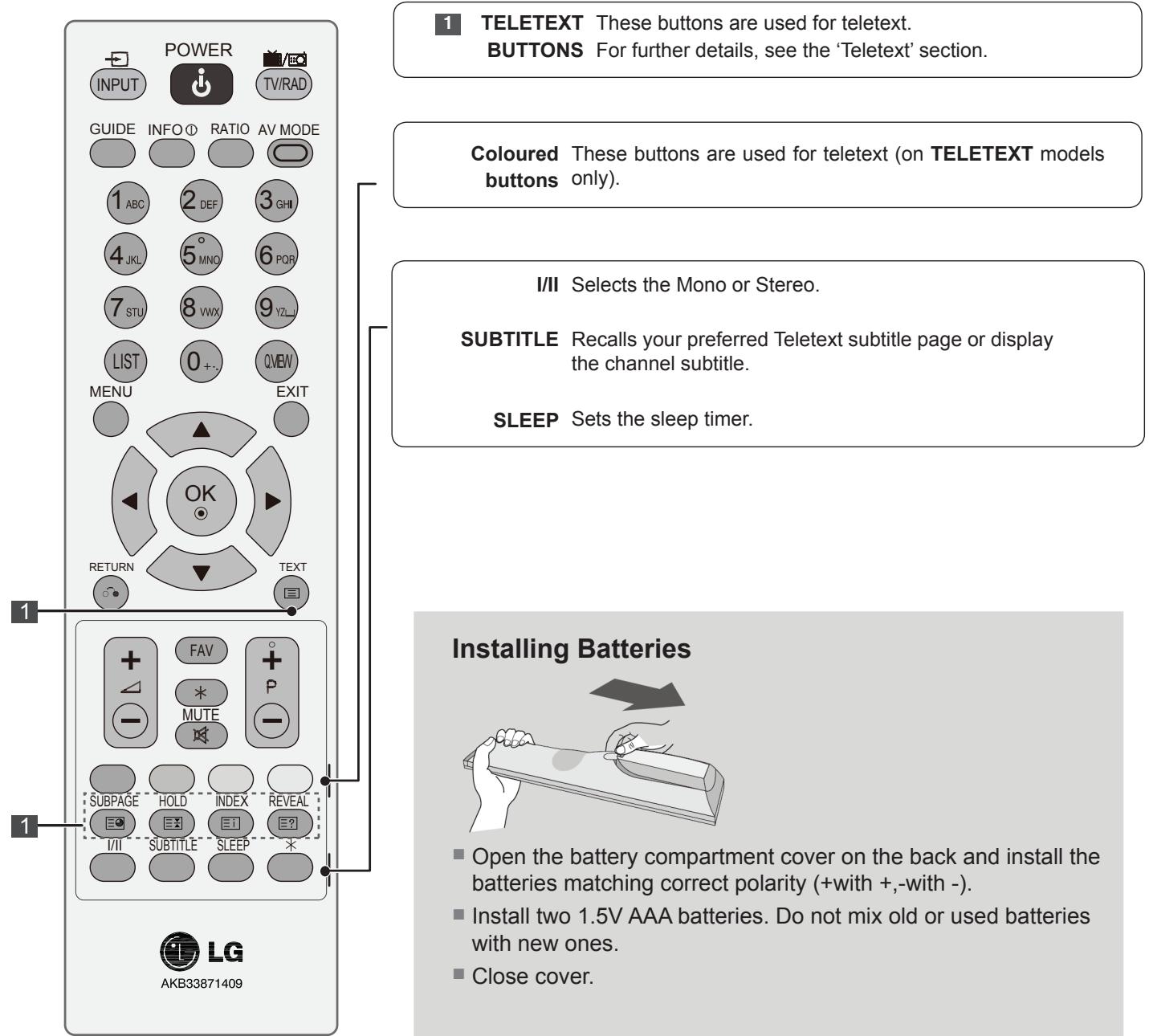
Remote Control Key Functions
When using the remote control, aim it at the remote control sensor on the TV
Turning On The TV
- When your TV is turned on, you will be able to use its features.
1
Firstly, connect the power cord correctly.
At this stage, the TV switches to standby mode.
2
In standby mode to turn TV on, press the / I , INPUT, P + - or + - buttons on the TV or press the POWER, INPUT, P + - or + - buttons on the remote control and the TV will switch on.
Initializing setup
If the OSD (On Screen Display) is displayed on the screen after turning on the TV, you can select the Language, Mode, Country, Time Zone, Auto tuning.
Note:
a. Press the RETURN button to change the current OSD to the previous OSD.
b. For those countries without confirmed DTV broadcasting standards, some DTV features might not work, depending on the DTV broadcasting environment.
Programme Selection
1
Press the P + - or NUMBER buttons to select a programme number.
Volume Adjustment
1
Press the + - button to adjust the volume.
If you wish to switch the sound off, press the MUTE button.
You can cancel this function by pressing the MUTE, +· , or I/II button.
Menu Selection And Adjustment
Your TV's OSD (On Screen Display) may differ slightly from what is shown in this manual.
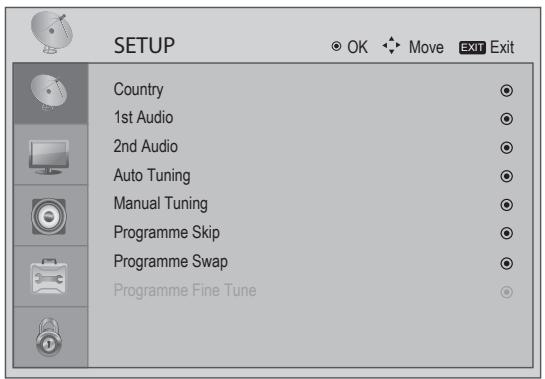
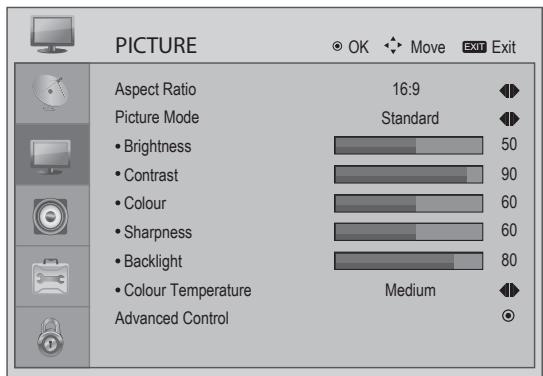
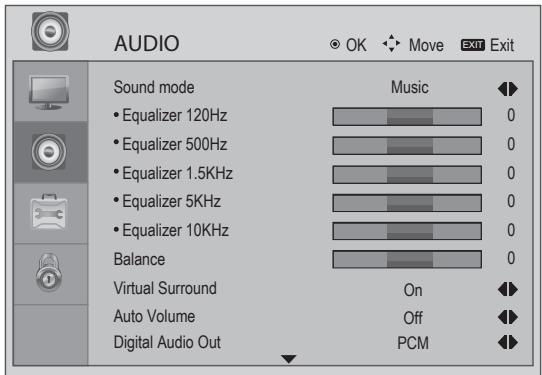
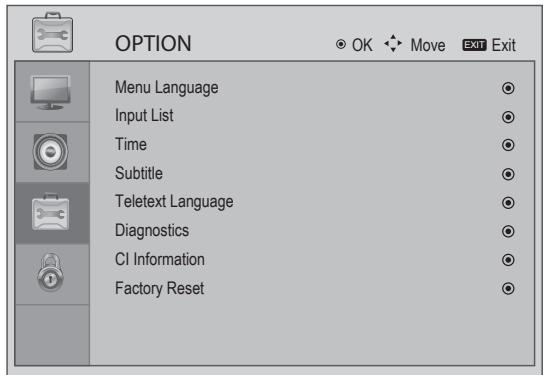
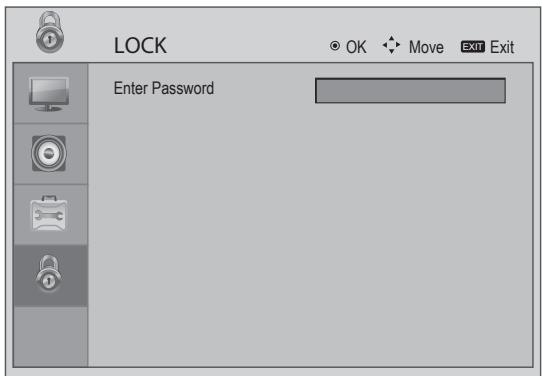
Select a Menu item.
- Press the MENU or EXIT button to return to normal TV viewing.
- Press the RETURN button to move to the previous menu screen.
Auto Programme Tuning
Use this function to find and store all available programmes automatically in both analog and digital mode.
When you start channel scan in digital mode, all previously stored service information will be deleted
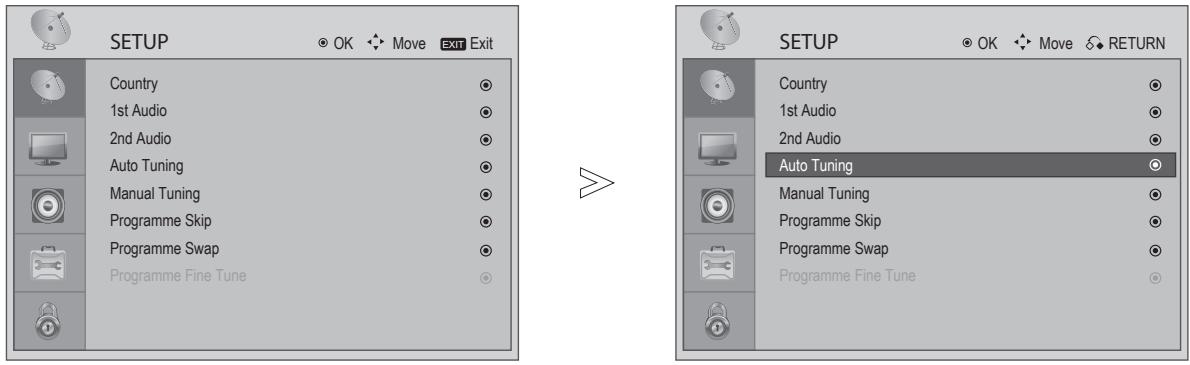
Select SETUP.
Select Auto Tuning.
Start Tuning.
- Press the MENU or EXIT button to return to normal TV viewing.
- Press the RETURN button to move to the previous menu screen.
Language Selection (In Digital Mode Only)
The Audio function allows selection of a preferred language.
If audio data in a selected language is not broadcast, the default language audio will be played.
When the languages you selected as the primary for Audio Language are not supported, you can select language in secondary category.
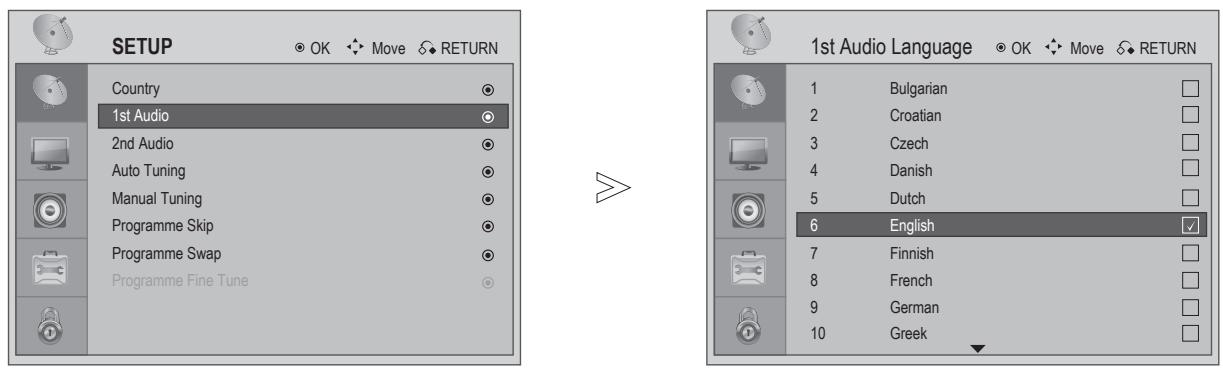
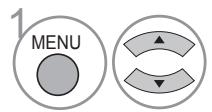
Select SETUP.
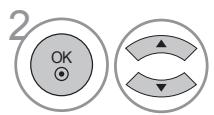
Select 1st Audio or 2nd Audio .
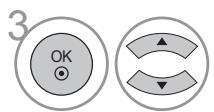
Select your Desired Language.
Save.
- Press the MENU or EXIT button to return to normal TV viewing.
- Press the RETURN button to move to the previous menu screen.
WATCHING TV / PROGRAMME CONTROL
< First Audio Language Selection >
and
< Second Audio Language Selection >
-
When two or more audio languages are broadcast, you can select the audio language.
-
The audio/subtitles can be displayed in a simpler form with 1 to 3 characters broadcast by the service provider.
- When you select supplementary Audio (Audio for "Visual/Hearing Impaired") the TV may output a part of the Main audio.
Manual Programme Tuning (In Digital Mode)
Manual Tuning lets you manually add a programme to your programme list.
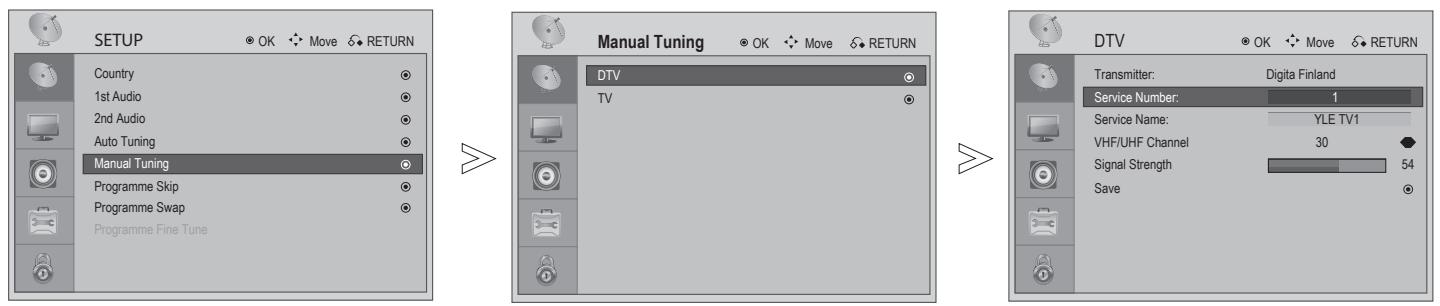
Select SETUP.
Select Manual Tuning.
Select DTV.

Select OK.
- Press the MENU or EXIT button to return to normal TV viewing.
- Press the RETURN button to move to the previous menu screen.
Manual Programme Tuning (In Analog Mode)
Manual Tuning lets you manually tune and arrange the stations in whatever order you desire
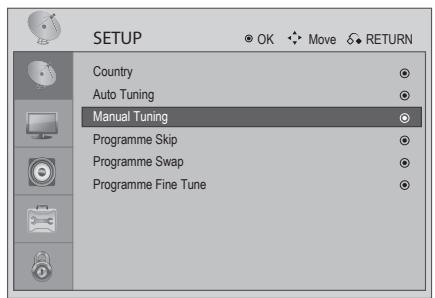

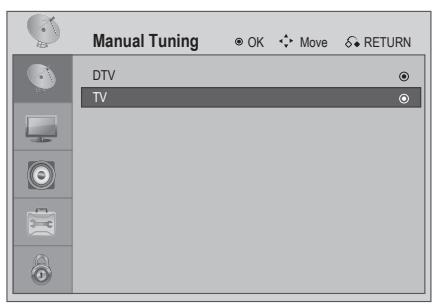

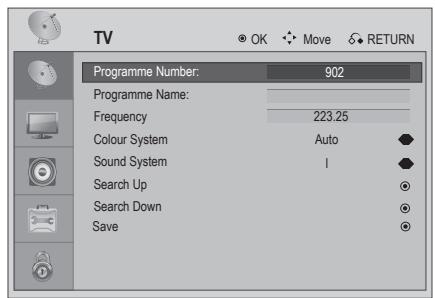
Select SETUP.
Select Manual Tuning.
Select TV.
Select OK.
- Press the MENU or EXIT button to return to normal TV viewing.
- Press the RETURN button to move to the previous menu screen.
L: SECAM L/L' (France)
BG: PAL B/G, SECAM B/G (Europe / East Europe)
I: PAL I/II (U.K. / Ireland)
DK: PAL D/K, SECAM D/K (East Europe)
Programme Skip
When a programme number is skipped, it means that you will be unable to select it using (P + / - ) button during TV viewing.
This function enables you to skip the stored programmes.
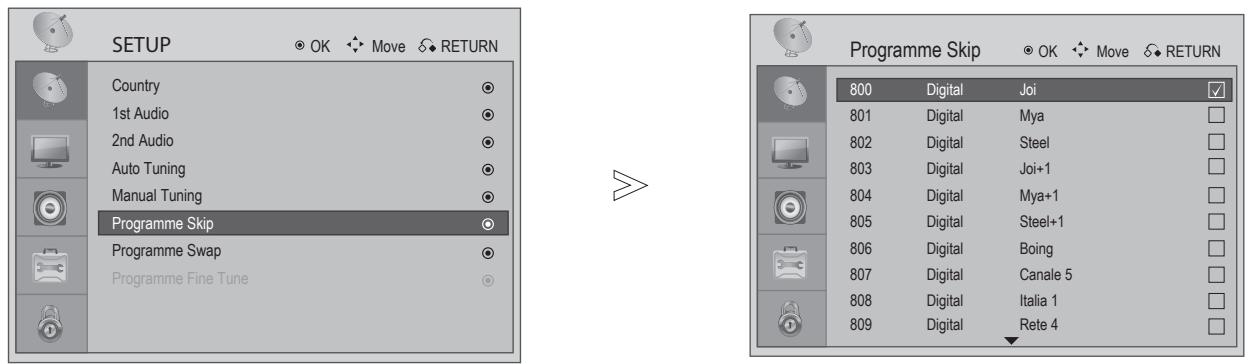
Select SETUP.
Select Programme Skip.
SelectProgramme.
Select OK.
- Press the MENU or EXIT button to return to normal TV viewing.
- Press the RETURN button to move to the previous menu screen.
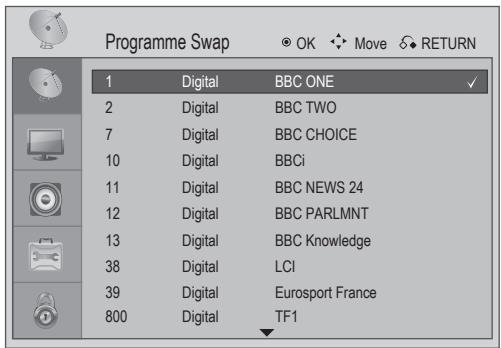
Programme Swap
This function can swap two programme to change the sequence of your programme list.
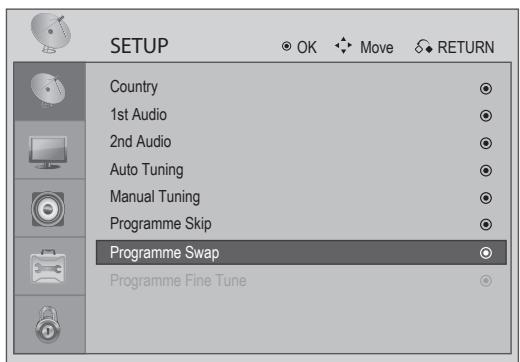

Select SETUP.
SelectProgrammeSwap.
Select first Programme.
Select second Programme.
Swap two Programme.
- Press the MENU or EXIT button to return to normal TV viewing.
- Press the RETURN button to move to the previous menu screen.
Assigning Programme Fine Tune (In Analog Mode)
Normally fine tuning is only necessary if reception is poor.
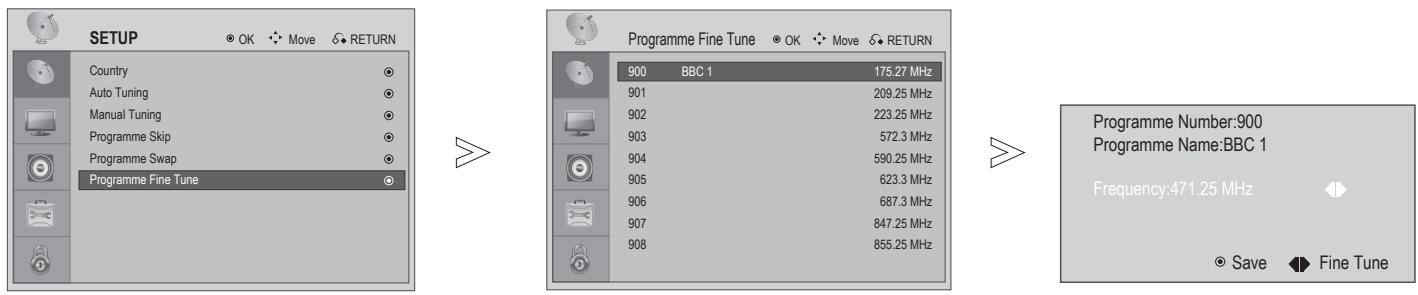
Select SETUP.
Select Programme Fine Tune.
SelectProgramme.

Select OK to Fine Tune.

Fine tune for the best picture and sound.
Save.
- Press the MENU or EXIT button to return to normal TV viewing.
- Press the RETURN button to move to the previous menu screen.
WATCHING TV / PROGRAMME CONTROL
Selecting The Programme Table
You can check which programmes are stored in the memory by displaying the programme table.
Displaying Programme List

Display the Programme List.
- Some programmes with the channel number shown in the Programme List indicate there is no station name assigned.
Selecting a Programme in the Programme List
Select a programme.
Switch to the chosen programme.
For the programme you are currently watching, the mode will change from TV to DTV to Radio
Displaying the Favourite List

Display the Favourite List.
Add a Programme in the Favourite List
Select a blank line in the Favourite List.
Press OK to add currently displayed programme to the Favourite List.
Erase a Programme from the Favourite List
Select a programme number in the Favourite List.

If the chosen programme is the currently displayed programme, it will erase from the Favourite List.
Selecting a Programme in the Favourite List
Select a Programme in the Favourite List.
If the chosen programme is not the currently displayed programme, it will switch to the chosen favourite programme.
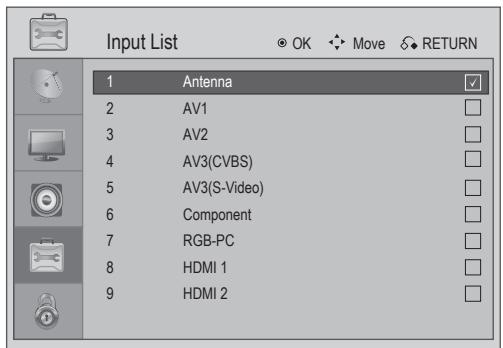
Input List
Selects input source.
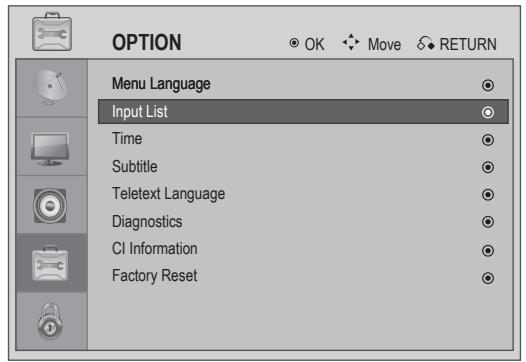

Select OPTION.
Select Input List.
Select the Input.
Change to the Select Input.
For the quick Input List.
- Press the MENU or EXIT button to return to normal TV viewing.
- Press the RETURN button to move to the previous menu screen.
WATCHING TV / PROGRAMME CONTROL
EPG (Electronic Programme Guide) (In Digital Mode)
This system has an Electronic Programme Guide (EPG) to help your navigation through all the possible viewing options.
The EPG supplies information such as programme listings, start and end times for all available services. In addition, detailed information about the programme is often available in the EPG (the availability and amount of these programme details will vary, depending on the particular broadcaster).
This function can be used only when the EPG information is broadcasted by broadcasting companies.
The EPG displays the programme description for next 8 days.
Switch on/off EPG

Switch on or off EPG.
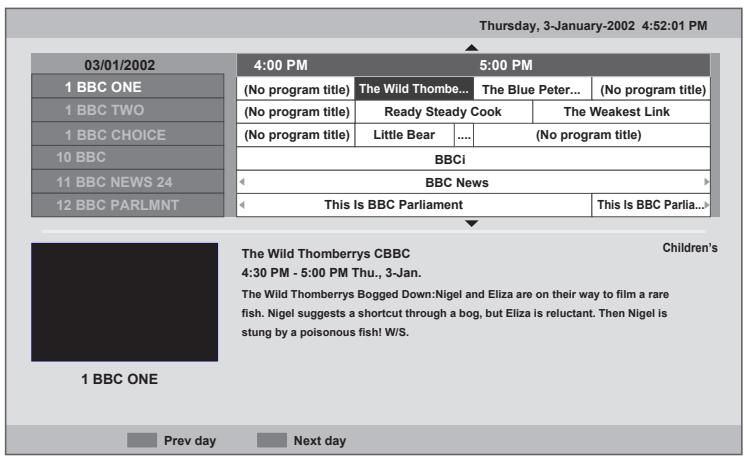
Select a programme

or
or
Select desired programme.
Display the information of the selected programme.
- Press the MENU or EXIT button to return to normal TV viewing.
- Press the RETURN button to move to the previous menu screen.
Button Function in Guide Mode
Select NOW or NEXT Programme..
Select the Broadcast Station.

or
Switch off EPG.
Select TV or RADIO Programme.
Select Previous day.

Select Next day.

View detail.
Color icon and wording hint appears only when the function is available in the stream.
- Press the MENU or EXIT button to return to normal TV viewing.
- Press the RETURN button to move to the previous menu screen.
Picture Size (Aspect Ratio) Control
You can watch the screen in various picture formats; 16:9, Original, 4:3, 14:9, ZOOM 1, ZOOM 2 and Just Scan (only 720p, 1080i, 1080p).
If a fixed image is displayed on the screen for a long time, that fixed image may become imprinted on the screen and remain visible.
This function works in the following signal.
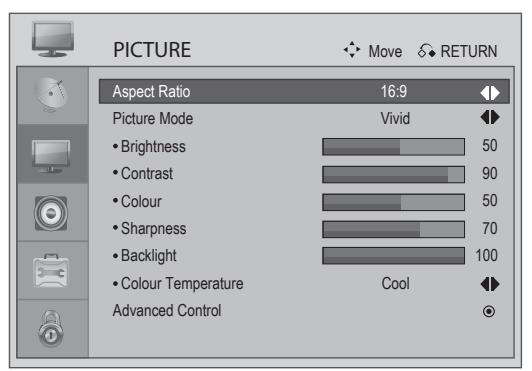
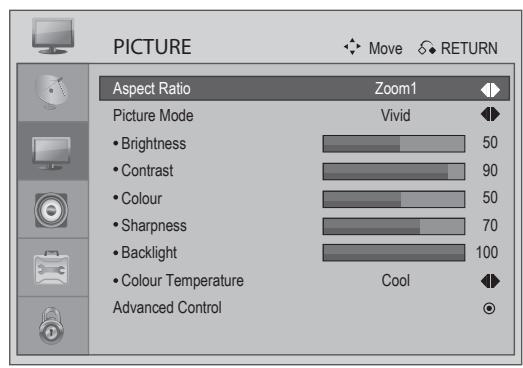
Select the desired picture format.
16:9, Original, 4:3, 14:9, Zoomom1 or Zoom2,
16:9
The following selection will allow you to adjust the picture horizontally, in linear proportion, to fill the entire screen (useful for viewing 4:3 formatted DVDs).
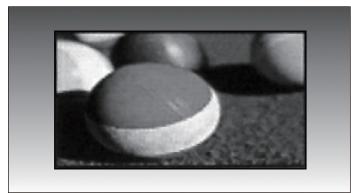
4:3
The following selection will allow you to view a picture with an original 4:3 aspect ration, grey bars will appear on both the left and right of the screen.
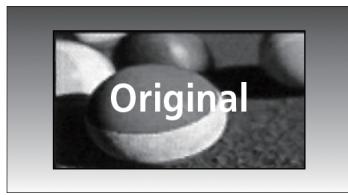
Original
When your TV receives a wide screen signal it will automatically change to the picture format broadcast.
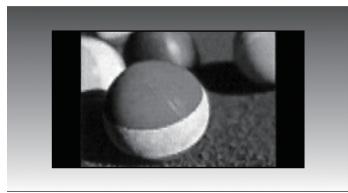
14:9
You can view a picture format of 14:9 or a general TV programme in the 14:9 mode. The 14:9 screen is viewed in the same way as in 4:3, but is magnified to the left and right.
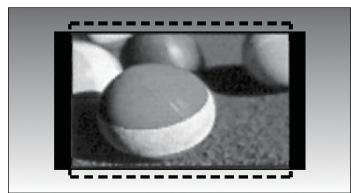
- Zoom1
The following selection will allow you to view the picture without any alteration, while filling the entire screen. However, the top and bottom of the picture will be cropped.
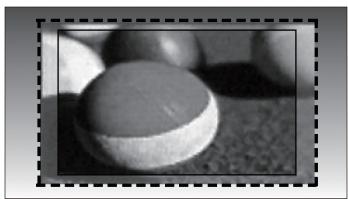
- Zoom2
Choose Zoom 2 when you wish the picture to be altered, both horizontally extended and vertically cropped. The picture adopting a compromise between alteration and screen coverage.
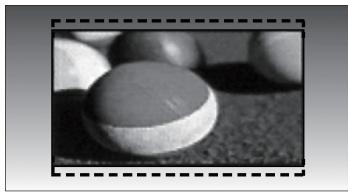
- Just Scan
Following Selection will lead to you view the picture of best quality without loss of original picture in high resolution image.
Note: If there are interference in original picture, you can view interference at the edge.
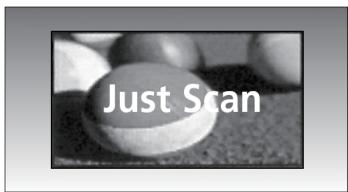

NOTE
You can only select 16:9 (Wide), 4:3, 14:9 in Component (under 720p) mode.
You can only select 16:9 (Wide), Original, 4:3, 14:9 in HDMI (under 720p) mode.
In HDMI/Component (over 720p) mode, Just Scan is available.
▶ You can only select 16:9 (Wide), 4:3 in RGB/HDMI[PC] mode.
▶ You can only select Original in UK digital teletext (MHEG-5).
Picture Mode-Preset
You can adjust the best picture appearance from preset value in picture mode.
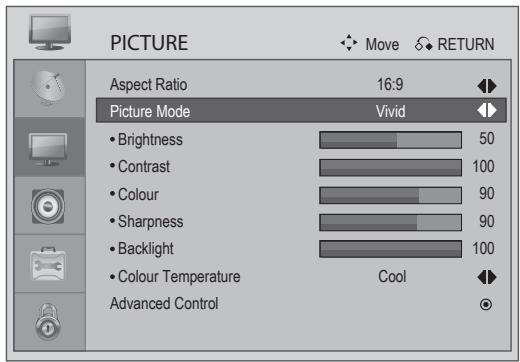
Select PICTURE.

Select Picture Mode.
Select Desired Picture Mode.
- Press the MENU or EXIT button to return to normal TV viewing.
- Press the RETURN button to move to the previous menu screen.
Colour Temperature (Medium/Warm/Cool)
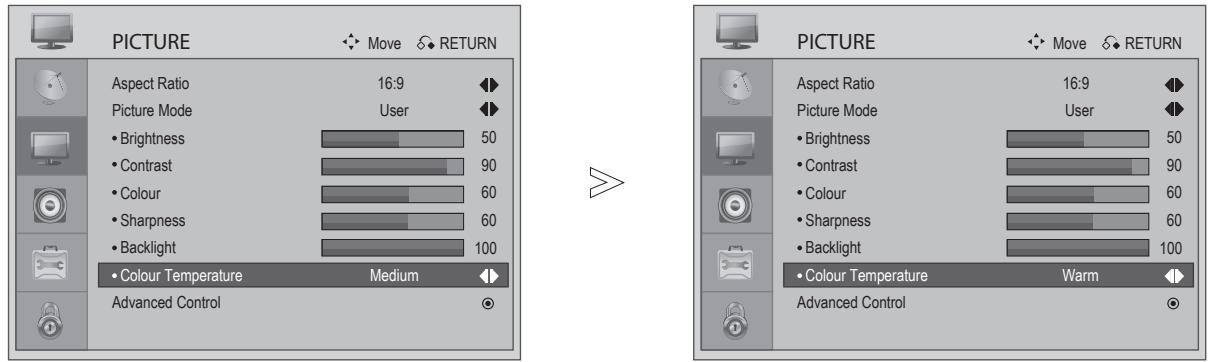
Choose one of three automatic colour adjustments.
Select PICTURE.
Select Colour Temperature.
Select either Medium, Warm or Cool.
- Press the MENU or EXIT button to return to normal TV viewing.
- Press the RETURN button to move to the previous menu screen.
Picture Mode-User option
You can adjust the best picture appearance from preset value in picture mode or adjust by yourself.
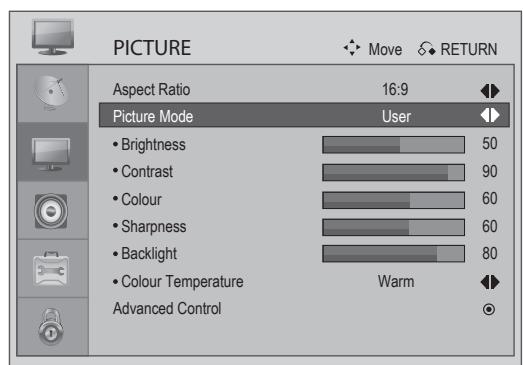

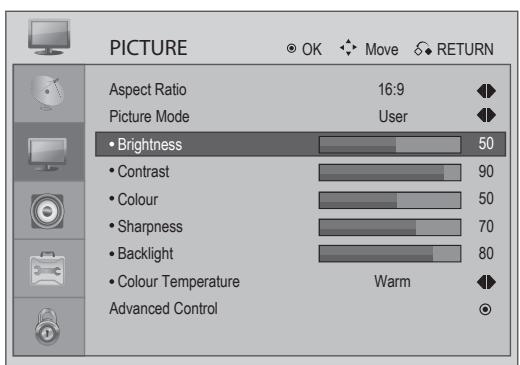

Select PICTURE.
Select Picture Mode on User.
Select Brightness, Contrast, Colour, Sharpness, Colour Temperature and Backlight.
Make Appropriate Adjustments.
- Press the MENU or EXIT button to return to normal TV viewing.
- Press the RETURN button to move to the previous menu screen.

NOTE
You can not adjust colour and sharpness in the RGB-PC mode.
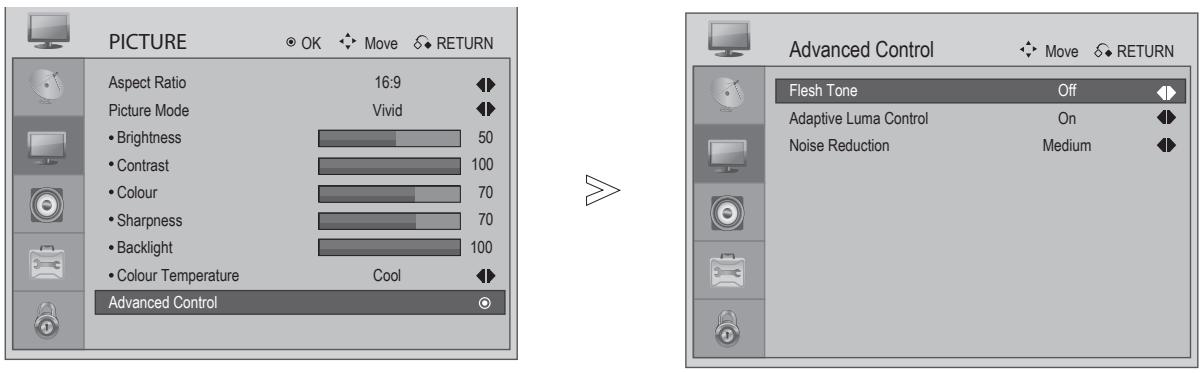
Picture Improvement Technology
Flesh Tone
Flesh tone will be more natural.
Adaptive Luma Control
Automatically adjust the brightness and contrast after analyzing the input signal.
Noise Reduction
Removes interference up to the point where it does not damage the original picture.
Select PICTURE.
Select Advanced Control.

Select Flesh Tone, Adaptive Luma Control or Noise Reduction.
Select your desired source.

NOTE
▶ You can only select Flesh Tone : To adjust the flesh colours: On and Off.
▶ You can only select Adaptive Luma Control : To adjust the luminance of the picture: On and Off.
You can only select Noise Reduction : To reduce the appearance of digitizing error caused by the compression: Medium, Strong, Off and Low.
- Press the MENU or EXIT button to return to normal TV viewing.
- Press the RETURN button to move to the previous menu screen.
PICTURE CONTROL
AV Mode
You can select the optimal images and sounds when connecting AV devices to external input.
Off

Game


Cinema

Sport
Select and set the sound mode.
- If you select Cinema Mode in AV mode, Cinema mode will be selected both for Picture Mode and Sound Mode in PICTURE menu and AUDIO menu respectively.
- If you select "Off" in AV mode, the picture and image which you initially set will be selected.
Sound Setting Adjustment -User Mode
Adjusting the audio equalizer.
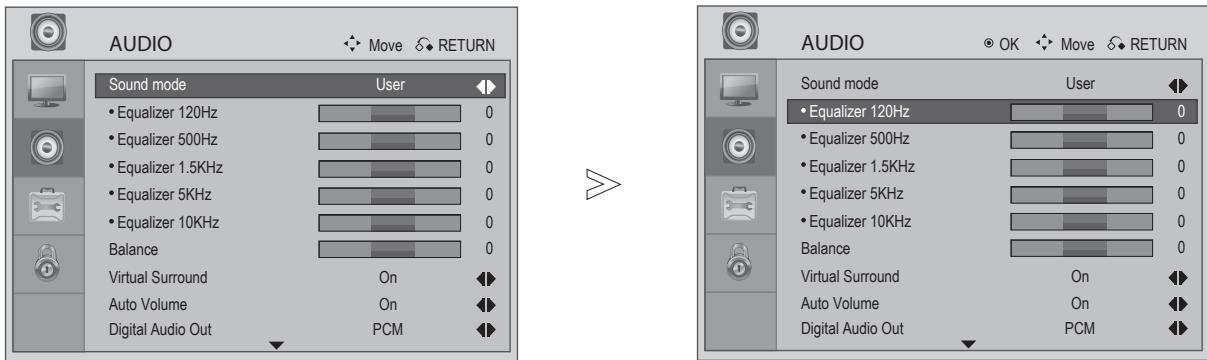

Select AUDIO.
Select Sound Mode on User.

Select a Frequency band.

Set the Desired Sound Level.
- Press the MENU or EXIT button to return to normal TV viewing.
- Press the RETURN button to move to the previous menu screen.
SOUND CONTROL
Preset Sound Settings-Audio Mode
You can select your preferred sound setting: Clear Voice, Standard, Music, Cinema, Sport, Game or User. You can also adjust the frequency of the equalizer.
Sound Mode lets you enjoy the best sound without any special adjustment as the TV sets the appropriate sound options based on the programme content.
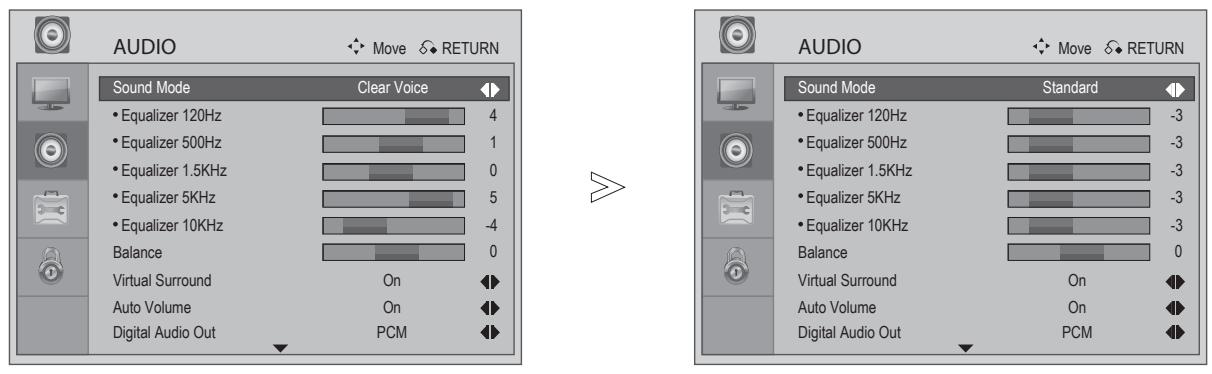
Select AUDIO.
Select Sound Mode.
Select Clear Voice, Standard, Music, Cinema, Sport, Game or User.
- Press the MENU or EXIT button to return to normal TV viewing.
- Press the RETURN button to move to the previous menu screen.
Balance
You can adjust the sound balance of the speakers to preferred levels.
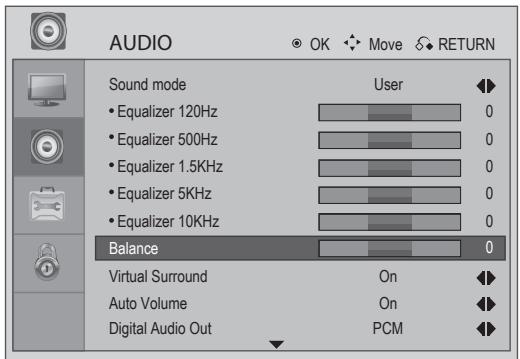
Select AUDIO.
Select Balance.

Make Desired Adjustment.
- Press the MENU or EXIT button to return to normal TV viewing.
- Press the RETURN button to move to the previous menu screen.
Virtual Surround
Virtual surround is an audio system which attempts to create the perception that there are many more sources of sound than are actually present.
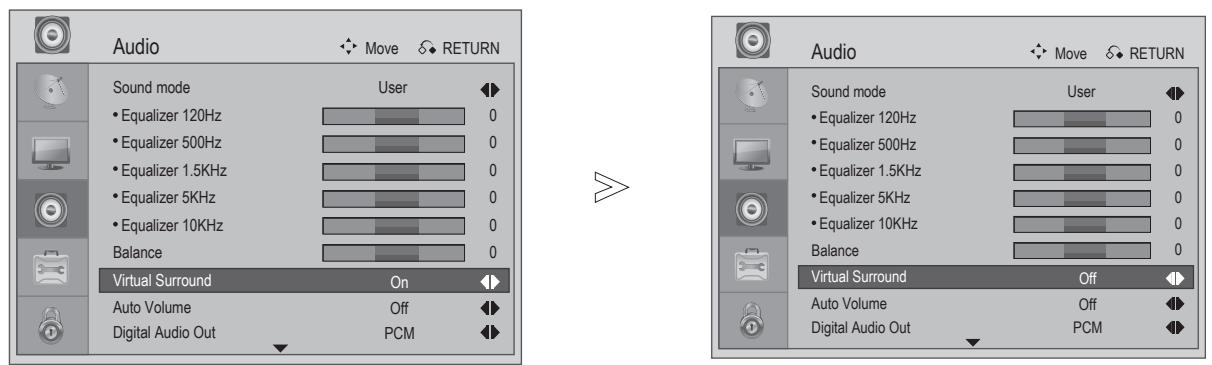
Select AUDIO.

Select Virtual Surround.
Select Virtual Surround On or Off.
- Press the MENU or EXIT button to return to normal TV viewing.
- Press the RETURN button to move to the previous menu screen.
Auto Volume Leveler
AVL automatically remains on the same level of volume if you change programmes.
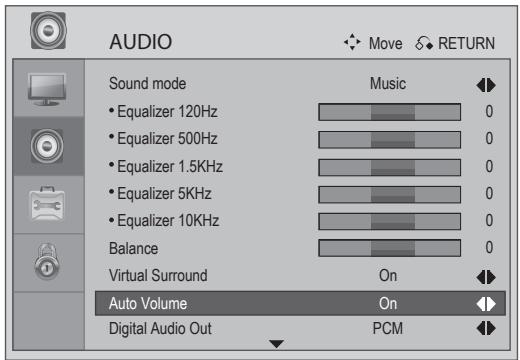
Select AUDIO.
Select Auto Volume.
Select On or Off.
- Press the MENU or EXIT button to return to normal TV viewing.
- Press the RETURN button to move to the previous menu screen.
Selecting Digital Audio Out
This function allows you to select your preferred Digital Audio Output.
The TV can only output DOLBY Digital if a channel is broadcast with Dolby Digital audio.
When Dolby digital is available, selecting Dolby Digital in the Digital Audio Out menu will set SPDIF output to Dolby Digital. If Dolby Digital is selected in the digital audio out menu when dolby digital is not available, SPDIF output will be PCM.
Even if both Dolby Digital and Audio language have been set in a channel which broadcast Dolby Digital Audio, only Dolby Digital will be played.
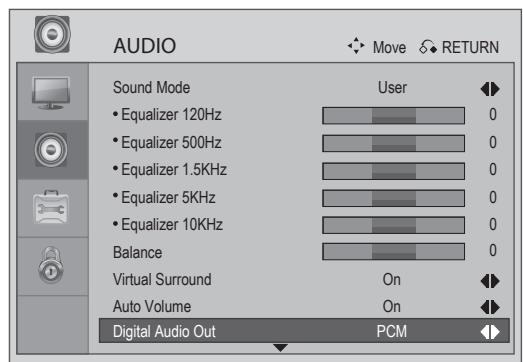

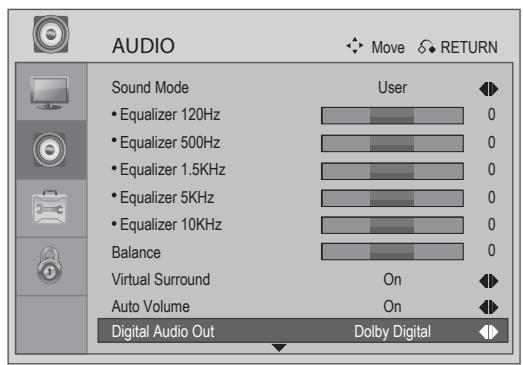
Select AUDIO.
Select Digital Audio Out.
Select Dolby Digital or PCM.
DOLBY.
DIGITAL
Manufactured under license from Dolby Laboratories. "Dolby" and the double-D symbol are trademarks of Dolby Laboratories.
-
There is a possibility that when HDMI mode, some DVD players do not make SPDIF sound. At that time, set the output of the digital audio of the DVD player to PCM.
-
Press the MENU or EXIT button to return to normal TV viewing.
- Press the RETURN button to move to the previous menu screen
TV Speakers On/ Off Setup
You can adjust the internal speaker status.
If you wish to use an external Hi-Fi system, turn off the TV internal speakers.
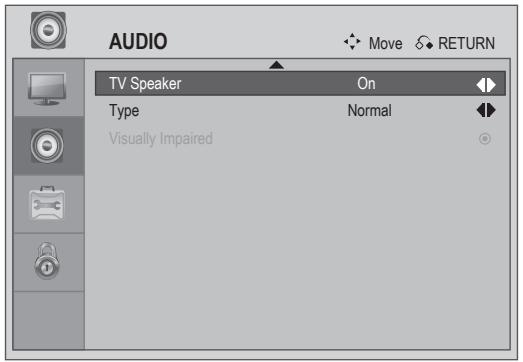
Select AUDIO.
Select TV Speaker.
Select On or Off.
- Press the MENU or EXIT button to return to normal TV viewing.
- Press the RETURN button to move to the previous menu screen.
Type
Visually Impaired: This function provides descriptive narration of key visual elements - making television programs. feature films, home video and other visual media accessible to people who are visually blind or visually impaired.
Hard of Hearing: This function provides digital closed captioning services to deaf and hard of hearing viewers. Unlike analog closed captions, digital caption capability provides tremendous flexibility and a new level of user control over closed caption display - including font style, text size, color and background.
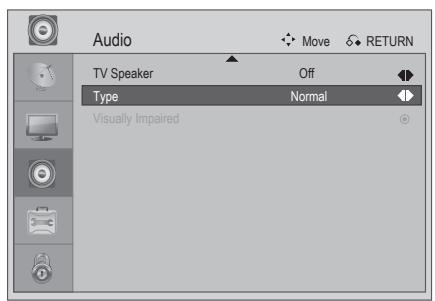
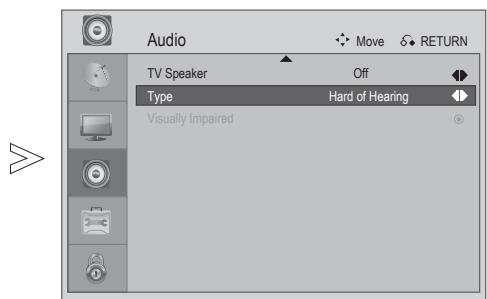
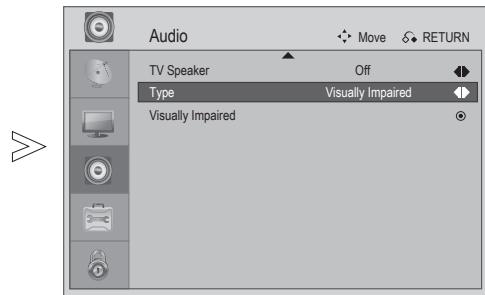
Select AUDIO.
Select Type.
Select Normal, Hard of Hearing or Visually Impaired.
- Press the MENU or EXIT button to return to normal TV viewing.
- Press the RETURN button to move to the previous menu screen
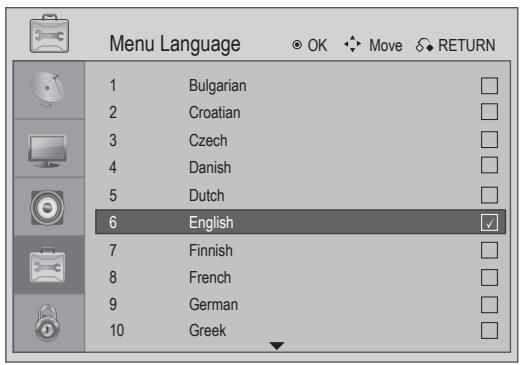
Menu Language Selection
If you want to change Language selection.
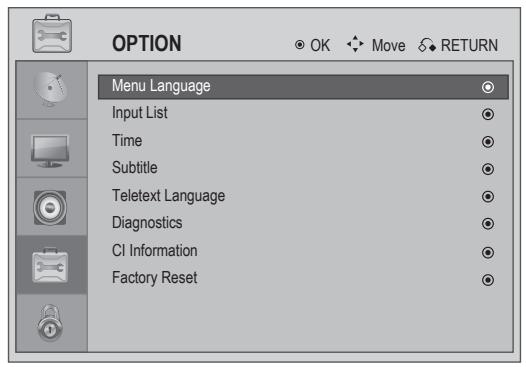


Select OPTION.
Select Menu Language.
Select your Desired Language.
Save.

NOTE
If you select the wrong local country, teletext may not appear correctly on the screen and some problems may occur during teletext operation.
The CI (Common Interface) function may not be applied based on country broadcasting circumstances.
DTV mode control buttons may not function based on country broadcasting circumstances.
In country that Digital broadcasting regulation isn't fixed, some DTV function may not work depending on digital broadcasting circumstances.
- Press the MENU or EXIT button to return to normal TV viewing.
- Press the RETURN button to move to the previous menu screen.
Time Zone Setup
When you select a Time Zone city, the TV time is set by the time offset information based on Time Zone and GMT (Greenwich Mean Time) which is received with the broadcast signal and the time is set automatically by a digital signal.
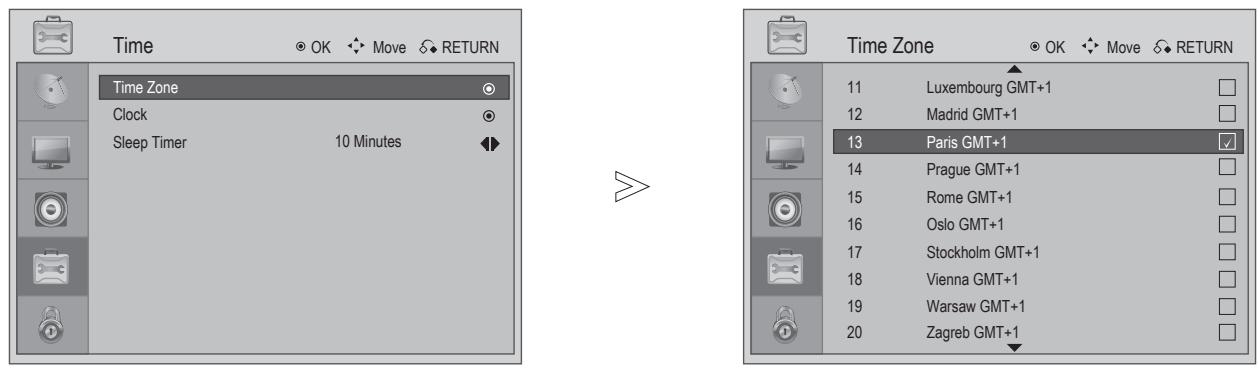
Select OPTION.
Select Time, Time Zone.
Select your viewing area Time Zone.

Confirm it.
- Press the MENU or EXIT button to return to normal TV viewing.
- Press the RETURN button to move to the previous menu screen.
Clock Setup
The clock is set automatically when receiving a digital signal. (You can set the clock manually only if the TV has no DTV signal.)
You must set the time correctly before using on/off timer function.
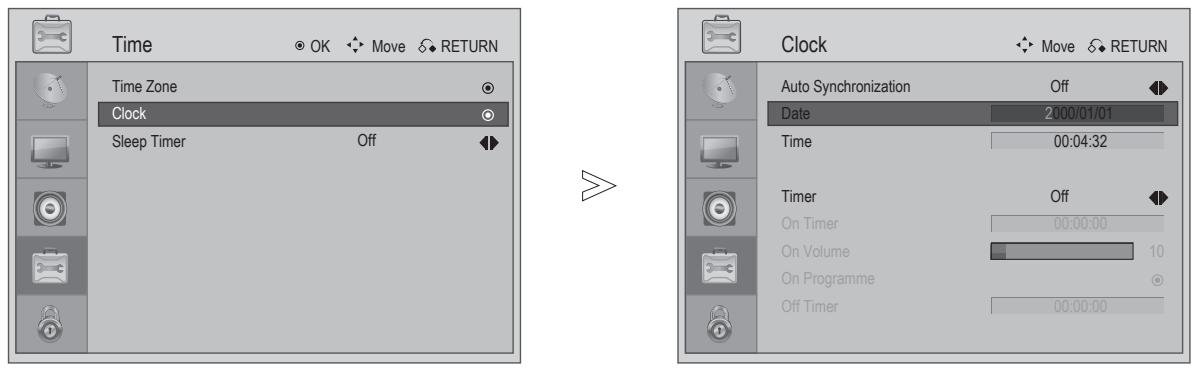
Select OPTION.

Select Time, Clock.
Set the Year, Date, and Time Options.
- Press the MENU or EXIT button to return to normal TV viewing.
- Press the RETURN button to move to the previous menu screen.
Auto On/Off Timer Setting
The Off timer function automatically switches the TV to standby at a preset time.
Two hours after the TV is switched on by the on time function it will automatically switch back to standby mode unless a button has been pressed.
The Off timer function overrides the On timer function if both are set to the same time.
The TV must be in standby mode for the On timer to work.
Select OPTION.
- To cancel On/Off Timer function, select Off.
Select Time.
SelectClock.
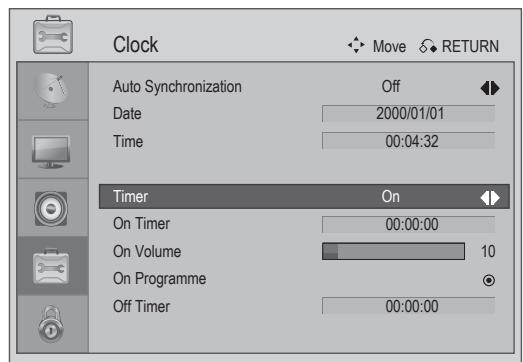
Select Timer.
Select Both On, Power On only or Power Off only.
Select On Time, On Volume, On Programme or Off Time
Set the hour, minutes, etc.
- Press the MENU or EXIT button to return to normal TV viewing.
- Press the RETURN button to move to the previous menu screen.
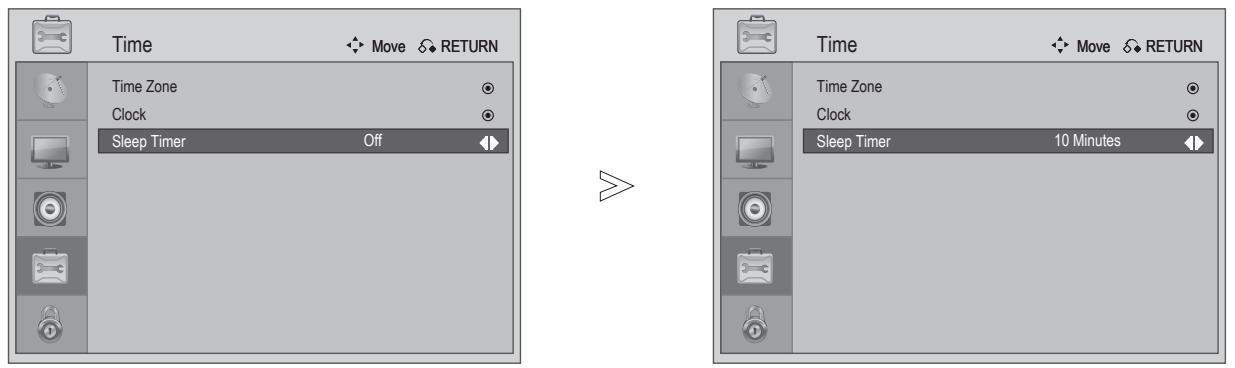
Sleep Timer Setting
You do not have to remember to switch the TV off before you go to sleep.
The sleep timer automatically switches the TV to standby after the preset time has elapsed.
Select OPTION.
Set the Sleep Timer.
Select Time.
Select Sleep Timer.
Select Off, 10, 20, 30, 40, 50, 60, 90 or 120 Min.
- When you switch the TV off, the preset sleep time is cancelled.
-
You can also adjust Sleep Timer by pressing the Sleep button on the remote control.
-
Press the MENU or EXIT button to return to normal TV viewing.
- Press the RETURN button to move to the previous menu screen.
Subtitle
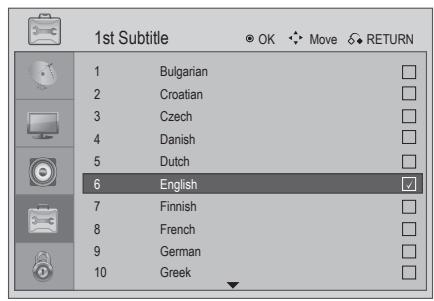
Use the Subtitle function when two or more subtitle languages are broadcasted. If subtitle data in a selected language is not broadcasted, the default language subtitle will be displayed.
If the language in the 1st Subtitle is not available, the 2nd Subtitle will be displayed.
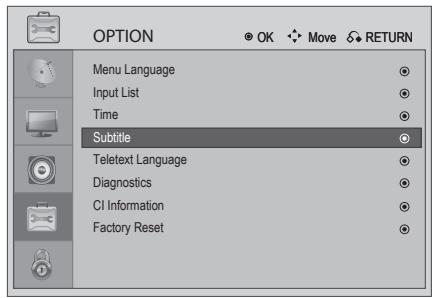
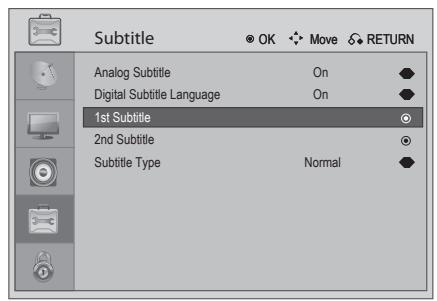
Select OPTION.

Select Subtitle.

Set the 1st Subtitle or 2nd Subtitle.
Select Subtitle language.
Save.
- Press the MENU or EXIT button to return to normal TV viewing.
- Press the RETURN button to move to the previous menu screen
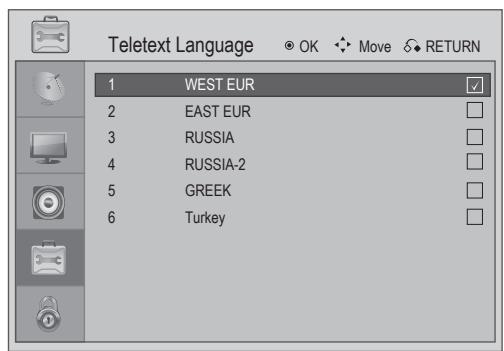
Teletext Language
You may change the Teletext language by following the steps below.
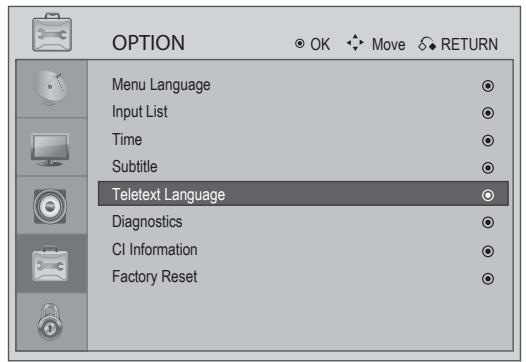

Select OPTION.

Select Teletext Language.

Select the desired Teletext Language.
Save.
| WEST EUR | English, German, Swedish/Finnish/Hungarian, Italian, French, Portuguese/Spanish, Czech/Slovak |
| EAST EUR | Polish, German, Estonian, Lettish/Lithuanian, French, Serbian/Croatian/Slovenian, Czech/Slovak, Rumanian |
| Russia | English, German, Estonian, Lettish/Lithuanian, Cyrillic-2: Russian/Bulgarian, Cyrillic-3: Ukrainian, Czech/Slovak, Cyrillic-2: Russian/Bulgarian |
| Russia-2 | Cyrillic-1: Serbian/Croatian, German, Estonian, Lettish/Lithuanian, Cyrillic-2: Russian/Bulgarian, Cyrillic-3: Ukrainian, Czech/Slovak, Cyrillic-2: Russian/Bulgarian |
| Greek | English, German, Swedish/Finnish/Hungarian, Italian, French, Portuguese/Spanish, Turkish, Greek |
| Turkey | English, German, Estonian, Italian, French, Portuguese/Spanish, Turkish, Greek |
- Press the MENU or EXIT button to return to normal TV viewing.
- Press the RETURN button to move to the previous menu screen.
Diagnostics
This function enables you to view information about Manufacturer, Model/Type, Serial Number and Software Version.
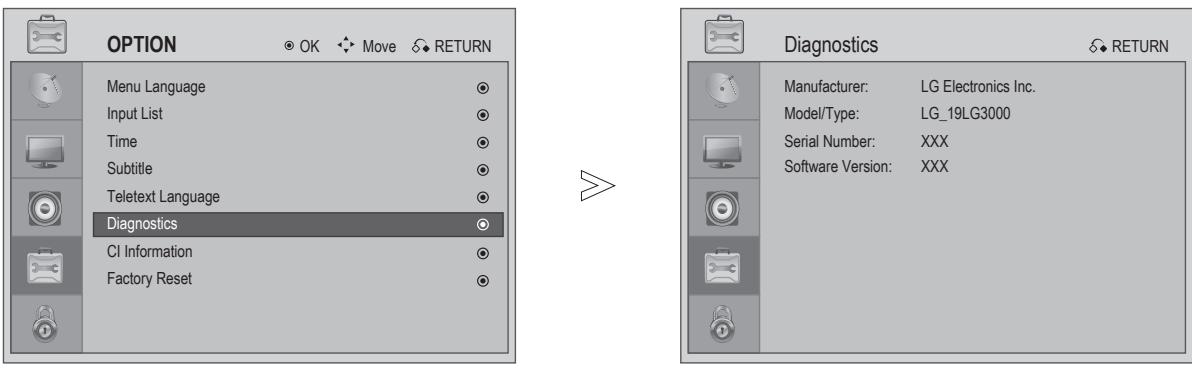
Select OPTION.
Select Diagnostics.
Display Manufacturer, Model/Type, Serial Number and Software Version.
- Press the MENU or EXIT button to return to normal TV viewing.
- Press the RETURN button to move to the previous menu screen.
CI (Common Interface) Information
This function enables you to watch some encrypted services (pay services). If you remove the CI Module, you cannot watch pay services.
When the module is inserted into the CI slot, you can access the module menu.
To purchase a module and smart card, contact your dealer. Do not repeatedly insert or remove a CAM module from the TV. This may cause a malfunction. When the TV is turned on after inserting a CI Module, you may not have any sound output.
This may be incompatible with the CI module and smart card.
CI (Common Interface) functions may not be possible depending upon the country broadcasting circumstances.
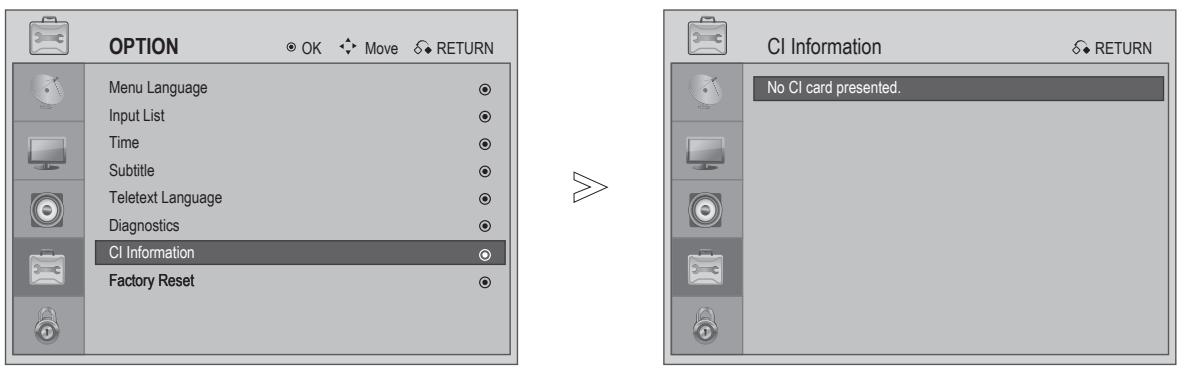
Select OPTION.
Select CI Information.
Disply CI card Information.
- Press the MENU or EXIT button to return to normal TV viewing.
- Press the RETURN button to move to the previous menu screen.
Set Password & Lock System
Enter the password, press '0', '0', '0', '0' on the remote control handset.
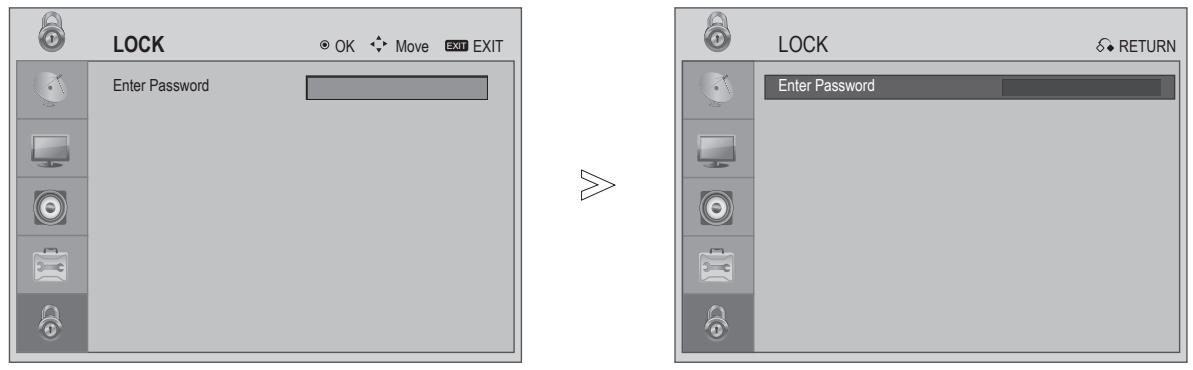

Select LOCK.
Input a 4-digit password.
Select Set Password.
If you forget your password, press "7", "7", "7", "7", on the remote control handset.
Input a 4-digit password.
Be sure to remember this number!
Re-enter new password for confirm.
- Press the MENU or EXIT button to return to normal TV viewing.
- Press the RETURN button to move to the previous menu screen.
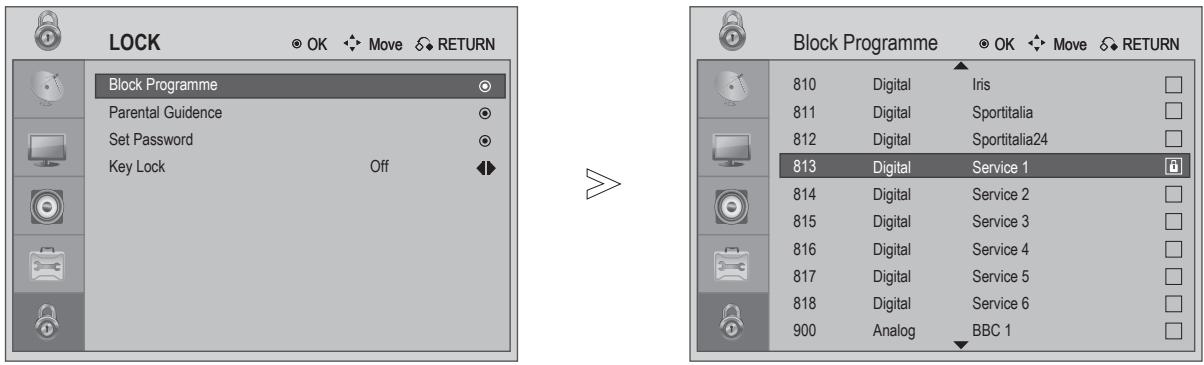
Block Programme
Blocks any programmes that you do not want to watch or that you do not want your children to watch.
It is available to use this function in Lock System "On".
Select LOCK.

Input a 4-digit password.
Select Block Programme.

Select a Channel to be Locked.
Save.
- Press the MENU or EXIT button to return to normal TV viewing.
- Press the RETURN button to move to the previous menu screen.
PARENTAL CONTROL / RATINGS
Parental Guidance
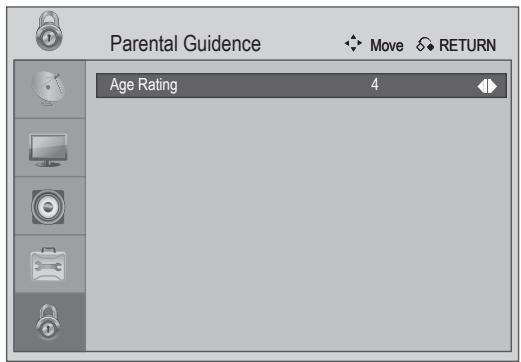
This function operates according to information from the broadcasting station. Therefore if the signal has no this information, this function does not operate.
A password is required to gain access to this menu.
This TV is programmed to remember which option it was last set to even if you switch the TV off.
Prevent children from watching adult's TV programmes by the rating limit set.
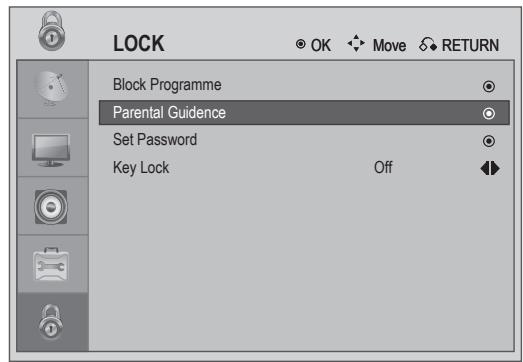

Select LOCK.
Input a 4-digit password.
Select Parental Guidance.
Please Input Age rating 4 18 or Off.
- Press the MENU or EXIT button to return to normal TV viewing.
- Press the RETURN button to move to the previous menu screen.
Key Lock
The key on the front panel can be locked by this function.
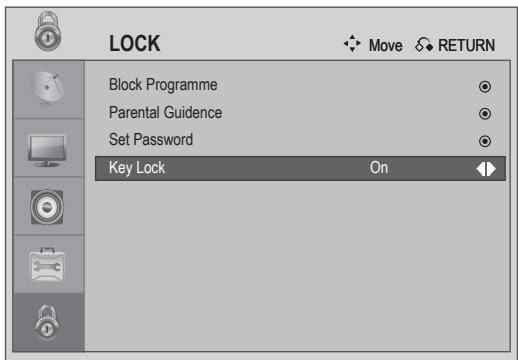
Select LOCK.
Input a 4-digit password.
Select Key Lock.
Select Yes or No.
- When TV is turned off and the key lock is "ON", press the ( 1 & 1 ) INPUT, P + -, + buttons on the TV or POWER, INPUT, P + -, + - buttons on the remote control to turn on the TV.
-
With the Key Lock On, the display 'Key Lock On' appears on the screen if any button on the front panel is pressed while viewing the TV.
-
Press the MENU or EXIT button to return to normal TV viewing.
- Press the RETURN button to move to the previous menu screen.
This feature is not available in all countries.
Teletext is a free service broadcast by most TV stations which gives up-to-the-minute information on news, weather, television programmes, share prices and many other topics.
The teletext decoder of this TV can support the SIMPLE, TOP system. SIMPLE (standard teletext) consists of a number of pages which are selected by directly entering the corresponding page number. TOP is more modern method allowing quick and easy selection of teletext information.
Switch On/Off
Press the TEXT button to switch to teletext. The initial page or last page viewed appears on the screen. Two page numbers, TV station name, date and time are displayed on the screen headline. The first page number indicates your selection, while the second shows the current page displayed. Press the TEXT or EXIT button to switch off teletext. The previous mode reappears.
Simple Text
Page selection
Enter the desired page number as a three digit number with the NUMBER buttons. If during selection you press a wrong number, you must complete the three digit number and then re-enter the correct page number.
The P + - button can be used to select the preceding or following page.
Top Text
The user guide displays four fields-red, green, yellow and blue at the bottom of the screen. The yellow field denotes the next group and the blue field indicates the next block.
■ Block / group / page selection
1 With the blue button you can progress from block to block.
Use the yellow button to proceed to the next group with automatic overflow to the next block.
With the green button you can proceed to the next existing page with automatic overflow to the next group. Alternatively the P + button can be used.
The red button returns to the previous selection. Alternatively the P - button can be used.
Direct page selection
As with SIMPLE teletext mode, you can select a page by entering it as a three digit number using the NUMBER buttons in TOP mode.
Special Teletext Functions

SUBPAGE
If there is several subpage in one teletext page, you can press this button to input the subpage number.
HOLD
Stops the automatic page change which will occur if a teletext page consists of 2 or more sub pages. The number of sub pages and the sub page displayed is, usually, shown on the screen below the time. When this menu is selected the stop symbol is displayed at the top left-hand corner of the screen and the automatic page change is inactive.
INDEX
Press this button will return to the Teletext index page.

REVEAL
Select this menu to display concealed information, such as solutions to riddles or puzzles.
*This function works in UK only.
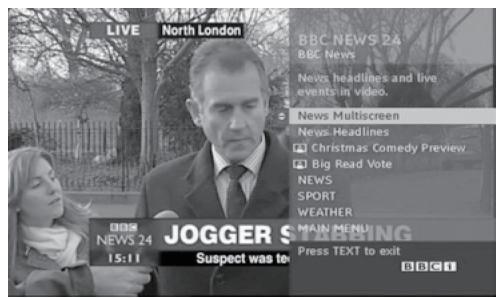
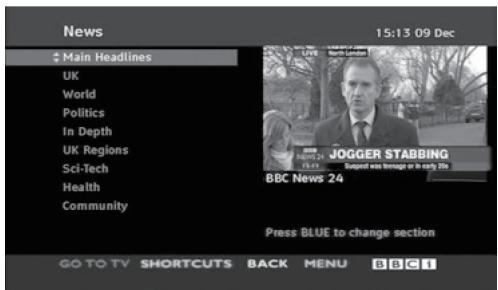
This function gives you access to digital teletext which is greatly improved in various aspects, such as text, graphics, and etc.
This digital teletext can access special digital teletext services and specific services which broadcast digital teletext.
- Subtitle must be closed before you enabling digital teletext. You can switch the subtitle off by pressing the SUBTITLE button.
Teletext Within Digital Service
This service may allow you to access text service by pressing the RED button
Press the numeric or P + - ( / ) button to select a digital service which broadcasts digital teletext. To know which are digital teletext services, refer to the EPG service list.
2 Follow the indications on digital teletext and move onto the next step by pressing TEXT, OK, / , / , RED, GREEN, YELLOW, BLUE or NUMBER buttons and etc..
3 To change digital teletext service, select a different service by the numeric or P + - ( /) button.
Teletext In Digital Service
1 Press the numeric or P + - button to select a certain service which broadcasts digital teletext.
Press the TEXT or coloured button to switch on teletext.
3 Follow the indications on digital teletext and move onto the next step by pressing OK, RED, GREEN, YELLOW, BLUE or NUMBER buttons and so on.
Press the TEXT to switch off digital teletext and return to TV viewing.
Some services may allow you to access text services by pressing the RED button.
Initializing (Reset to original factory settings)
Reset all the system settings to factory default values
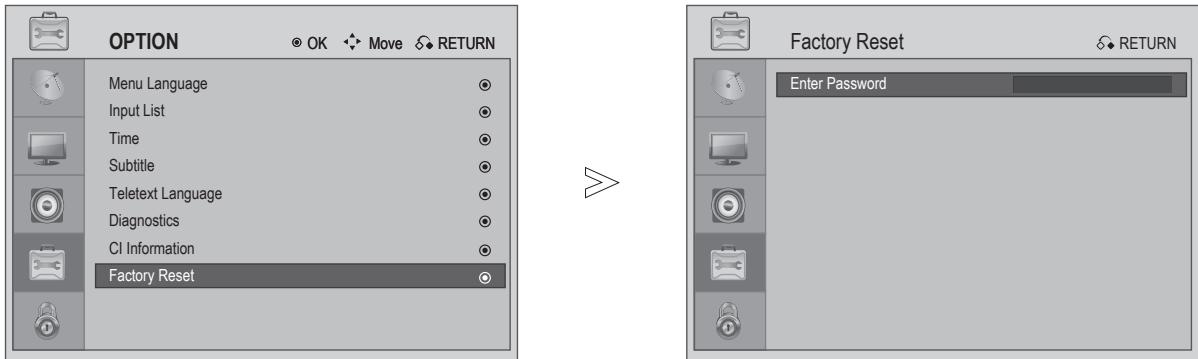
Select OPTION.
Select Factory Reset.
Input Password.
Reset
If you forget your password, press "7", "7", "7", "7", on the remote control handset.
- Press the MENU or EXIT button to return to normal TV viewing.
- Press the RETURN button to move to the previous menu screen.
Troubleshooting
| The TV does not operate properly. | |
| The remote control does not work | ■ Check to see if there is any object between the TV and the remote control causing an obstruction. Ensure you are pointing the remote control directly at the TV. ■ Ensure that the batteries are installed with correct polarity (+ to +, - to -). ■ Ensure that the correct remote operating mode is set: TV, STB etc. ■ Install new batteries. |
| Power is suddenly turned off | ■ Is the sleep timer set? ■ Check the power control settings. Has the Power supply been interrupted? ■ Is Auto sleep activated on this station? |
| The video function does not work. | |
| No picture & No sound | ■ Check whether the TV is switched on. ■ Try another channel. The problem may be with the broadcast. ■ Is the power cord inserted correctly into the mains? ■ Check your antenna direction and/or location. ■ Test the mains outlet by plugging another TV into the same outlet. |
| Picture appears slowly after switching on | ■ This is normal, the image is muted during the TV startup process. Please contact your service centre, if the picture has not appeared after five minutes. |
| No or poor colour or poor picture | ■ Adjust Colour in menu option. ■ Allow a sufficient distance between the TV and the VCR. ■ Try another channel. The problem may be with the broadcast. ■ Are the video cables installed properly? ■ Activate any function to restore the brightness of the picture. |
| Horizontal/vertical bars or picture shaking | ■ Check for local interference such as an electrical appliance or power tool. |
| Poor reception on some channels | ■ Station or cable channel experiencing problems, tune to another station. ■ Station signal is weak, reposition the antenna to receive weaker stations. ■ Check for sources of possible interference. |
| Lines or streaks in pictures | ■ Check antenna (Change the position of the antenna). |
The audio function does not work.
| Picture OK & No sound | Press the button. Sound muted? Press MUTE button. Try another channel. The problem may be with the broadcast. Are the audio cables installed properly? |
| No output from one of the speakers | Adjust Balance in menu option. |
| Unusual sound from inside the TV | A change in ambient humidity or temperature may result in an unusual noise when the TV is switched on or off and does not indicate a fault with the TV. |
There is a problem in PC mode. (Only PC mode applied)
| The signal is out of range (Invalid format) | Adjust resolution, horizontal frequency, or vertical frequency. Check the input source. |
| Vertical bar or stripe on background & Horizontal Noise & Incorrect position | Use Auto configure or adjust size, phase, or H/V position. (Option) |
| Screen colour is unstable or single colour | Check the signal cable. Reinstall the PC video card. |
Maintenance
Early malfunctions can be prevented. Careful and regular cleaning can prolong the life of your new TV.
Caution: Be sure to switch the power off and unplug the power cord before you begin any cleaning.
Cleaning the Screen
A good way to keep the dust off your screen for a while is to wet a soft cloth in a mixture of lukewarm water and a little fabric softener or dish washing detergent. Wring the cloth until it is almost dry, and then use it to wipe the screen.
Ensure there is no excess water on the screen. Allow any water or dampness to evaporate before switching on.
Cleaning the Cabinet
To remove dirt or dust, wipe the cabinet with a soft, dry, lint-free cloth.
Do not use a wet cloth.
Extended Absence

CAUTION
If you expect to leave your TV dormant for prolonged periods (such as a holiday), unplug the power cord to protect against possible damage from lightning or power surges.
Product Specifications
| MODELS | 19LG30 ** | 22LG30 ** | 26LG30 ** | |
| 19LG3000-ZA 19LG3010-ZB | 22LG3000-ZA 22LG3010-ZB | 26LG3000-ZA | ||
| Dimensions (Width x Height x Depth) | with stand | 458.8 x 391.0 x 189.2 mm 18.1 x 15.4 x 7.5 inches | 522.2 x 431.5 x 189.0 mm 20.6 x 17.0 x 7.5 inches | 663.3 x 508.2 x 227.3 mm 26.1 x 20.1 x 9.0 inches |
| without stand | 458.8 x 343.6 x 84.2 mm 18.1 x 13.5 x 3.3 inches | 522.2 x 384.2 x 84.2 mm 20.6 x 15.2 x 3.3 inches | 663.3 x 449.8 x 80.0 mm 26.1 x 17.8 x 3.2 inches | |
| Weight | with stand | 4.3 kg / 9.5 lbs | 5.4 kg / 11.94 lbs | 8.6 kg / 19.0 lbs |
| without stand | 4.05 kg / 8.96 lbs | 5.15 kg / 11.39 lbs | 7.5 kg / 16.6 lbs | |
| Power requirement | AC100-240V~ 50/60Hz 0.8A | AC100-240V~ 50/60Hz 1.0A | AC100-240V~ 50/60Hz 1.5A | |
| Power Consumption | 55W | 60W | 120W | |
| Television System | PAL/SECAM B/G/D/K, PAL I/II, SECAM L/L' | |||
| Programme Coverage | VHF: E2 ~ E12, UHF: E21 ~ E69, CATV: S1 ~ S20, HYPER: S21 ~ S47 | |||
| External Antenna Impedance | 75 Ω | |||
| Environment condition | Operating Temperature | 0 ~ 40°C / 32 ~ 104°F | ||
| Operating Humidity | Less than 80% | |||
| Storage Temperature | -20 ~ 60°C / -4 ~ 140°F | |||
| Storage Humidity | Less than 85% | |||
The specifications shown above may be changed without prior notice for quality improvement.