ManualGo.com
PS63B680T5R - TV SAMSUNG - Free user manual and instructions
Find the device manual for free PS63B680T5R SAMSUNG in PDF.


| Technical specifications | 63-inch Plasma TV, Full HD resolution (1920 x 1080) |
|---|---|
| Display technology | Plasma |
| Connectivity | 3x HDMI, 2x USB, 1x component, 1x composite, 1x digital audio output |
| Additional features | Smart TV, Internet access, built-in apps |
| Energy consumption | Energy class C, annual consumption about 200 kWh |
| Dimensions (W x H x D) | 1450 x 860 x 100 mm (without stand) |
| Weight | 40 kg |
| Usage | Ideal for movies, video games, and sports viewing |
| Maintenance | Clean the screen with a soft cloth, avoid harsh chemicals |
| Safety | Do not expose to moisture, use on a stable surface |
| General information | Check compatibility with wall mounts before purchase |
Frequently Asked Questions - PS63B680T5R SAMSUNG
Download the instructions for your TV in PDF format for free! Find your manual PS63B680T5R - SAMSUNG and take your electronic device back in hand. On this page are published all the documents necessary for the use of your device. PS63B680T5R by SAMSUNG.
USER MANUAL PS63B680T5R SAMSUNG
- Plasma TV user manual BN68-01917B-00 Contact SAMSUNG WORLD-WIDEIf you have any questions or comments relating to Samsung products, please contact the SAMSUNG customer care center. Comment contacter Samsung dans le mondeSi vous avez des suggestions ou des questions concernant les produits Samsung, veuillez contacter le Service Consommateurs Samsung.CountryCustomer Care Center Web Site AddressU.S.A 1-800-SAMSUNG(726-7864) www.samsung.com/usSamsung Electronics America, Inc. 105 Challenger Road Ridgefield Park, NJ 07660-0511CANADA 1-800-SAMSUNG(726-7864) www.samsung.com/caSamsung Electronics Canada Inc., Customer Service 55 Standish Court Mississauga, Ontario L5R 4B2 CanadaSamsung Electronique Canada Inc., Service à la Clientèle55 Standish Court Mississauga, Ontario L5R 4B2Canada BN68-01917B Thank you for purchasing this Samsung product. To receive more complete service, please register your product at www.samsung.com/register Model Serial No. imagine the possibilities BN68-01917B_cover.indd 1 2009-02-14 오전 12:10:24Important Warranty Information Regarding Television Format Viewing Wide screen format PDP Displays (16:9, the aspect ratio of the screen width to height) are primarily designed to view wide screen format full-motion video. The images displayed on them should primarily be in the wide screen 16:9 ratio format, or expanded to fill the screen if your model offers this feature and the images are constantly moving. Displaying stationary graphics and images on screen, such as the dark side-bars on nonexpanded standard format television video and programming, should be limited to no more than 5% of the total television viewing per week. Additionally, viewing other stationary images and text such as stock market reports, video game displays, station logos, web sites or computer graphics and patterns, should be limited as described above for all televisions. Displaying stationary images that exceed the above guidelines can cause uneven aging of PDP Displays that leave subtle, but permanent burned-in ghost images in the PDP picture. To avoid this, vary the programming and images, and primarily display full screen moving images, not stationary patterns or dark bars. On PDP models that offer picture sizing features, use these controls to view different formats as a full screen picture. Be careful in the selection and duration of television formats used for viewing. Uneven PDP aging as a result of format selection and use, as well as burned-in images, are not covered by your Samsung limited warranty. © 2009 Samsung Electronics Co., Ltd. All rights reserved. U.S.A Only The product unit accompanying this user manual is licensed under certain intellectual property rights of certain third parties. In particular, this product is licensed under the following US patents: 5,991,715, 5,740,317, 4,972,484, 5,214,678, 5,323,396, 5,539,829, 5,606,618, 5,530,655, 5,777,992, 6,289,308, 5,610,985, 5,481,643, 5,544,247, 5,960,037, 6,023,490, 5,878,080, and under US Published Patent Application No. 2001-44713-A1. This license is limited to private non-commercial use by end-user consumers for licensed contents. No rights are granted for commercial use. The license does not cover any product unit other than this product unit and the license does not extend to any unlicensed product unit or process conforming to ISO/IEC 11172-3 or ISO/IEC 13818-3 used or sold in combination with this product unit. The license only covers the use of this product unit to encode and/or decode audio files conforming to the ISO/IEC 11172-3 or ISO/IEC 13818-3. No rights are granted under this license for product features or functions that do not conform to the ISO/IEC 11172-3 or ISO/IEC 13818-3. Other countries The product unit accompanying this user manual is licensed under certain intellectual property rights of certain third parties. This license is limited to private non-commercial use by end-user consumers for licensed contents. No rights are granted for commercial use. The license does not cover any product unit other than this product unit and the license does not extend to any unlicensed product unit or process conforming to ISO/IEC 11172-3 or ISO/IEC 13818-3 used or sold in combination with this product unit. The license only covers the use of this product unit to encode and/or decode audio files conforming to the ISO/IEC 11172-3 or ISO/IEC 13818-3. No rights are granted under this license for product features or functions that do not conform to the ISO/IEC 11172-3 or ISO/IEC 13818-3. English - 2 BN68-01917A.indb 2 2009-02-13 오후 11:07:40User Instructions Screen Image retention Do not display a still image (such as on a video game) on the plasma display panel for more than several minutes as it can cause screen image retention. This image retention is also known as “screen burn”. To avoid such image retention, refer to page 25 of this manual to reduce the degree of brightness and contrast of the screen when displaying a still image. Altitude The PDP can only operate normally at heights under 6500ft. Heat on the top of the Plasma TV The top side of the product may be hot after long periods of use as heat dissipates from the panel through the vent hole in the upper part of the product. This is normal and does not indicate any defect or operation failure of the product. However, children should be prevented from touching the upper part of the product. The product is making a ‘cracking’ noise. A ‘cracking’ noise may occur when the product contracts or expands due to a change in the surrounding environment such as temperature or humidity. This is normal and not a defect of the unit. Cell Defects The PDP uses a panel consisting of 2,360,000(HD-level) to 6,221,000(FHD-level) pixels which require sophisticated technology to produce. However, there may be a few bright or dark pixels on the screen. These pixels will have no impact on the performance of the product. Avoid operating the TV at temperatures below 41°F (5°C) A still image displayed too long may cause permanent damage to the PDP Panel. Watching the Plasma TV in 4:3 format for a long period of time may leave traces of borders displayed on the left, right and center of the screen caused by the difference of light emission on the screen. Playing a DVD or a game console may cause similar effects to the screen. Damages caused by the above effect are not covered by the Warranty. After-images on the Screen. Displaying still images from Video games and PC for longer than a certain period of time may produce partial after-images. To prevent this effect, reduce the ‘brightness’ and ‘contrast’ when displaying still images for a long time. Warranty Warranty does not cover any damage caused by image retention. Burn-in is not covered by the warranty. English - 3 BN68-01917A.indb 3 2009-02-13 오후 11:07:41Contents Symbol N O T Press Note One-Touch Button TOOLS English Connecting and Preparing Your TV List of Features p. 5
- Checking Parts p. 5
- Assembling the Cables p. 5
- Viewing the Control Panel p. 6
- Viewing the Connection Panel p. 8
- Remote Control p. 9
- Connections Connecting VHF and UHF Antennas p. 10
- Connecting Cable TV p. 10
- Connecting a DVD / Blu-Ray Player or Cable Box / Satellite receiver (Set-Top Box) via HDMI p. 12
- Connecting a DVD /Blu-Ray Player or Cable Box / Satellite receiver (Set-Top Box) via DVI p. 12
- Connecting a DVD / Blu-Ray Player or Cable Box / Satellite receiver (Set-Top Box) via Component cables p. 13
- Connecting a Camcorder p. 13
- Connecting a VCR p. 14
- Connecting a Digital Audio System p. 15
- Connecting an Amplier / DVD Home Theater p. 15
- Connecting a PC p. 16
- Operation Turning the TV On and Off p. 17
- Changing Channels p. 17
- Adjusting the Volume p. 17
- Using the TOOLS Button p. 18
- Using the Remote Control Backlight Buttons p. 18
- Viewing the Display p. 18
- Viewing the Menus p. 19
- Plug & Play Feature p. 20
- Channel Control Storing Channels p. 21
- Managing Channels p. 21
- Picture Control Changing the Picture Settings p. 23
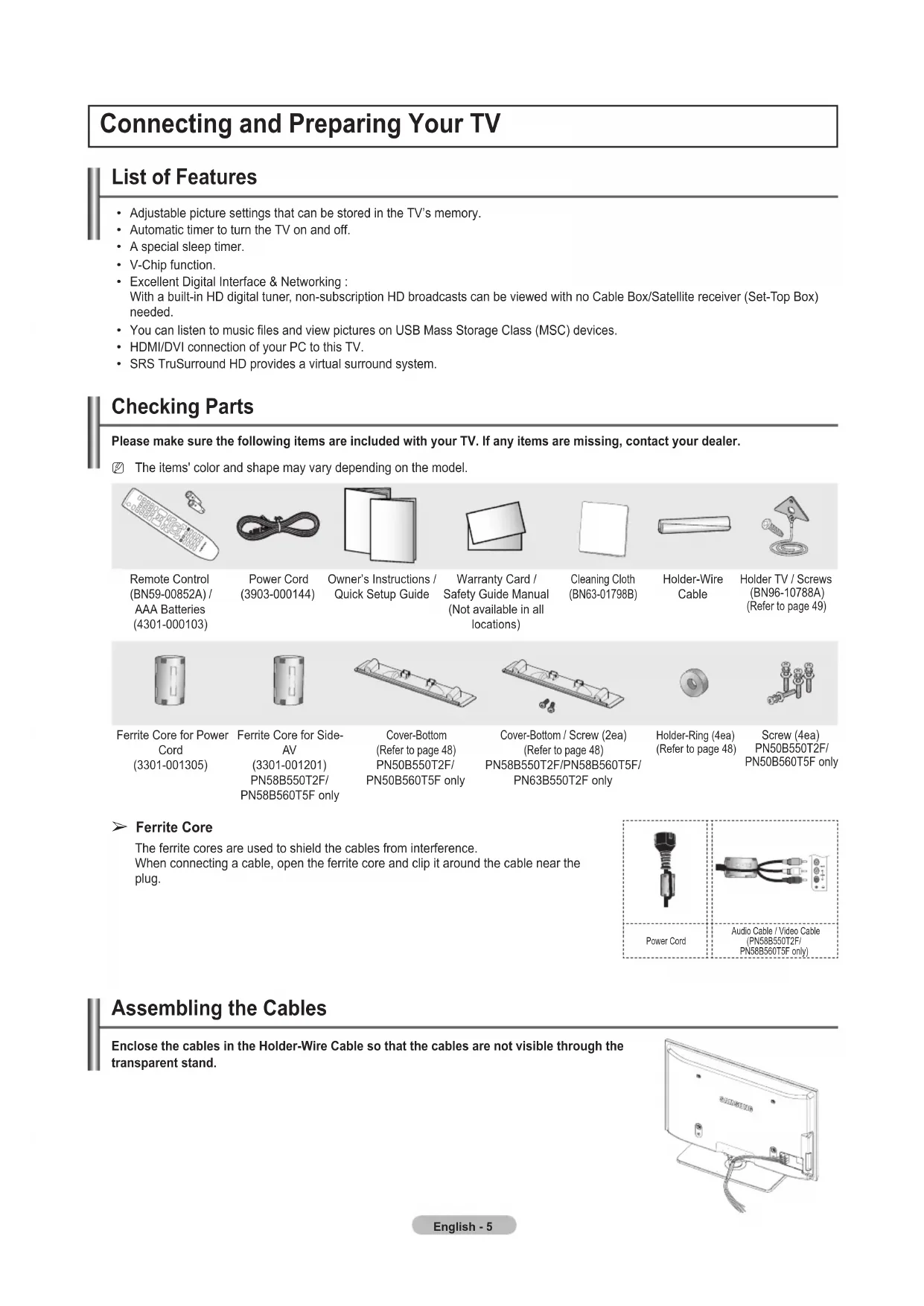
English - 4 BN68-01917A.indb 4 2009-02-13 오후 11:07:41List of Features Adjustable picture settings that can be stored in the TV’s memory. Automatic timer to turn the TV on and off. A special sleep timer. V-Chip function. Excellent Digital Interface & Networking : With a built-in HD digital tuner, non-subscription HD broadcasts can be viewed with no Cable Box/Satellite receiver (Set-Top Box) needed. You can listen to music les and view pictures on USB Mass Storage Class (MSC) devices. HDMI/DVI connection of your PC to this TV. SRS TruSurround HD provides a virtual surround system.
Connecting and Preparing Your TV Checking Parts Please make sure the following items are included with your TV. If any items are missing, contact your dealer. The items' color and shape may vary depending on the model. Remote Control (BN59-00852A) /AAA Batteries (4301-000103)Power Cord (3903-000144)Owner’s Instructions /Quick Setup GuideWarranty Card /Safety Guide Manual(Not available in all locations)Cleaning Cloth(BN63-01798B)Holder-Wire CableHolder TV / Screws (BN96-10788A)(Refer to page 49)Ferrite Core for Power Cord (3301-001305)Ferrite Core for Side- (3301-001201)PN58B550T2F/PN58B560T5F onlyCover-Bottom(Refer to page 48)PN50B550T2F/PN50B560T5F onlyCover-Bottom / Screw (2ea)(Refer to page 48)PN58B550T2F/PN58B560T5F/PN63B550T2F onlyHolder-Ring (4ea)(Refer to page 48)Screw (4ea) PN50B550T2F/PN50B560T5F only
Ferrite Core The ferrite cores are used to shield the cables from interference. When connecting a cable, open the ferrite core and clip it around the cable near the plug.
Power CordAudio Cable / Video Cable (PN58B550T2F/PN58B560T5F only) Assembling the Cables Enclose the cables in the Holder-Wire Cable so that the cables are not visible through the transparent stand. English - 5 BN68-01917A.indb 5 2009-02-13 오후 11:07:43Viewing the Control Panel The buttons on the lower-right panel control your TV’s basic features, including the on-screen menu. To use the more advanced features, you must use the remote control. The product color and shape may vary depending on the model. If you touch the front panel button, the each button will be operated.
button on the remote control.
MENU Press to see an on-screen menu of your TV’s features.
+ VOL – Press to increase or decrease the volume. In the on-screen menu, use the + VOL – buttons as you would use the ◄ and ► buttons on the remote control.
Press to change channels. In the on-screen menu, use the
buttons as you would use the ▲ and ▼ buttons on the remote control.
POWER INDICATOR Blinks and turns off when the power is on and lights up in stand-by mode.
(POWER) Press to turn the TV on and off.
Aim the remote control towards this spot on the TV.
English - 6 PN50B550T2F/PN58B550T2F/PN63B550T2F BN68-01917A.indb 6 2009-02-13 오후 11:07:441 SOURCE
button on the remote control.
MENU Press to see an on-screen menu of your TV’s features.
+ VOL – Press to increase or decrease the volume. In the on-screen menu, use the + VOL – buttons as you would use the ◄ and ► buttons on the remote control.
Press to change channels. In the on-screen menu, use the
buttons as you would use the ▲ and ▼ buttons on the remote control.
POWER INDICATOR Blinks and turns off when the power is on and lights up in stand-by mode.
Aim the remote control towards this spot on the TV.
P POWER Touch the silver sensor below the (P) mark to turn the TV on and off. English - 7 PN50B560T5F/PN58B560T5F BN68-01917A.indb 7 2009-02-13 오후 11:07:44Viewing the Connection Panel Use the connection panel jacks to connect A/V components that will be connected continuously, such as Blu-Ray/DVD players or a VCR. The product color and shape may vary depending on the model.
POWER IN Connects the supplied power cord.
AUDIO OUT Connect to a Digital Audio component.
Connects to the video and audio output jacks on your PC.
DVI AUDIO IN (AUDIO-R/L) Connect to the DVI audio output jack of an external device.
Connect to the HDMI jack of a device with an HDMI output. (HDMI 2 supports HDMI-DVI IN and connection from a PC.) HDMI 2 can also be used as a DVI connection with separate analog audio inputs. An optional HDMI/DVI cable will be necessary to make this connection. When using an optional HDMI/DVI adapter, the DVI analog audio inputs on your TV allow you to receive left and right audio from your DVI device.
ANT IN Uses a 75Ω Coaxial connector for an Air/Cable Network.
DIGITAL AUDIO OUT (OPTICAL) Connects to a Digital Audio component.
Connects Component video / audio. The COMPONENT IN 1 jack is also used as the AV IN 1 jack. Connect the video cable to the COMPONENT IN 1 [Y/VIDEO] jack and the audio cable to the COMPONENT IN 1 [R-AUDIO-L] jacks.
EX-LINK Used for service only.
USB Connect a USB mass storage device to view photo les and play audio les.
English - 8 TV Rear Panel TV Side Panel BN68-01917A.indb 8 2009-02-13 오후 11:07:45Remote Control You can use the remote control up to a distance of about 23 feet from the TV. The product color and shape may vary depending on the model. The performance of the remote control may be affected by bright light.
POWER Turns the TV on and off. TV Selects the TV mode directly. NUMERIC BUTTONS Press to change the channel. Press to select additional channels (digital and analog) being broadcast by the same station. For example, to select channel “54-3”, press “54”, then press “ ” and “3”.
MUTE Press to temporarily cut off the sound. VOL Press to increase or decrease the volume. SOURCE Press to display and select the available video sources. CH LIST Used to display Channel Lists on the screen. TOOLS Use to quickly select frequently used functions. UP▲/DOWN▼/LEFT◄/ RIGHT►/ENTER Use to select on-screen menu items and change menu values. INFO Press to display information on the TV screen. COLOR BUTTONS Use these buttons in the Channel list and Media Play function. MEDIA.P (Media play) This function enables you to view and play photo and music les from an external device. (Refer to pages 38 (Photo) and 41 (Music)) P.MODE Press to select the picture mode. Use these buttons in the DMA, Media Play and Anynet+ modes. ( : This remote can be used to control recording on Samsung recorders with the Anynet+ feature) ON/OFF Press to backlight the buttons on the remote. This function is convenient for using at night or when the room is dark. (Using the remote control with the light button set to On will reduce the battery usage time.)& PRE-CH Tunes to the previous channel. CH Press to change channels. MENU Displays the on-screen menu. FAV.CH Press to switch to your favorite channels. RETURN Returns to the previous menu. EXIT Press to exit the menu. P.SIZE Picture size selection.
SRS Selects SRS TruSurround HD mode. CC Controls the caption decoder. MTS Press to choose stereo, mono or Separate Audio Program (SAP broadcast). Installing Batteries in the Remote Control
1. Lift the cover at the back of the remote control upward as shown in the gure.
2. Install two AAA size batteries.
Make sure to match the “+” and “–” ends of the batteries with the diagram inside the compartment.
3. Close the cover as shown in the gure.
Remove the batteries and store them in a cool, dry place if you won’t be using the remote control for a long time. (Assuming typical TV usage, the batteries should last for about one year.) Using the remote control with the ON/OFF( ) light button set to On will reduce the battery usage time. If the remote control doesn’t work, check the following
1. Is the TV power on?
2. Are the plus and minus ends of the batteries reversed?
3. Are the batteries drained?
4. Is there a power outage or is the power cord unplugged?
5. Is there a special uorescent light or neon sign nearby?
English - 9 BN68-01917A.indb 9 2009-02-13 오후 11:07:46Connecting VHF and UHF Antennas If your antenna has a set of leads that look like this, see “Antennaswith300ΩFlatTwinLeads” below.
If your antenna has one lead that looks like this, see “Antennaswith75ΩRoundLeads”. If you have two antennas, see “Separate VHF and UHF Antennas”. Antennaswith300ΩFlatTwinLeads Ifyouareusinganoff-airantenna(suchasaroofantennaorrabbitears)thathas300Ωtwin flat leads, follow the directions below.
1. Place the wires from the twin leads under the screws on a 300-75 Ω adapter (not supplied).
Use a screwdriver to tighten the screws.2. Plug the adaptor into the ANT IN terminal on the back of the TV. Antennaswith75ΩRoundLeads Plug the antenna lead into the ANT IN terminal on the back of the TV. Separate VHF and UHF Antennas If you have two separate antennas for your TV (one VHF and one UHF), you must combine the two antenna signals before connecting the antennas to the TV. This procedure requires an optional combiner-adaptor (available at most electronics shops).1. Connect both antenna leads to the combiner.2. Plug the combiner into the ANT IN terminal on the bottom of the back panel. Connecting Cable TV To connect to a cable TV system, follow the instructions below. Cable without a Cable Box Plug the incoming cable into the ANT IN terminal on the back of the TV.Because this TV is cable-ready, you do not need a cable box to view unscrambled cable channels. Connecting to a Cable Box that Descrambles All Channels 1. Find the cable that is connected to the ANT OUT terminal on your cable box.This terminal might be labeled “ANT OUT”, “VHF OUT” or simply, “OUT”.2. Connect the other end of this cable to the ANT IN terminal on the back of the TV.
BN68-01917A.indb 10 2009-02-13 오후 11:07:47Connecting to a Cable Box that Descrambles Some Channels If your cable box descrambles only some channels (such as premium channels), follow the instructions below. You will need a two-way splitter, an RF (A/B) switch, and four lengths of Antenna cable. (These items are available at most electronics stores.)
1. Find and disconnect the cable that is
connected to the ANT IN terminal on your cable box. This terminal might be labeled “ANT IN”, “VHF IN” or simply, “IN”.
2. Connect this cable to a two-way splitter.
3. Connect an Antenna cable between the
OUTPUT terminal on the splitter and the IN terminal on the cable box.
4. Connect an Antenna cable between the ANT
OUT terminal on the cable box and the B–IN terminal on the RF(A/B) switch.
5. Connect another cable between the other
OUT terminal on the splitter and the A–IN terminal on the RF (A/B) switch.
6. Connect the last Antenna cable between the
OUT terminal on the RF (A/B) switch and the ANT IN terminal on the rear of the TV. After you have made this connection, set the A/B switch to the “A” position for normal viewing. Set the A/B switch to the “B” position to view scrambled channels. (When you set the A/B switch to “B”, you will need to tune your TV to the cable box’s output channel, which is usually channel 3 or 4.)
BN68-01917A.indb 11 2009-02-13 오후 11:07:48Connecting a DVD / Blu-Ray Player or Cable Box / Satellite receiver (Set-Top Box) via HDMI This connection can only be made if there is an HDMI Output jack on the external device. This connection will provide the highest quality picture. 1. Connect an HDMI Cable between the HDMI IN (1, 2(DVI), 3, or 4) jack on the TV and the HDMI jack on the DVD / Blu-Ray Player or Cable Box / Satellite receiver (Set-Top Box). What is HDMI? HDMI, or high-denition multimedia interface, is an interface that enables the transmission of digital audio and video signals using a single cable. The difference between HDMI and DVI is that the HDMI device is smaller in size and has the HDCP (High Bandwidth Digital Copy Protection) coding feature installed. Each DVD Player or Cable Box / Satellite receiver (Set-Top Box) has a different back panel conguration. The TV may not output sound and pictures may be displayed with abnormal color when DVD / Blu-Ray Player or Cable Box / Satellite receiver supporting HDMI versions older than 1.3 are connected. When connecting an older HDMI cable and there is no sound, connect the HDMI cable to the HDMI IN 2(DVI) jack and the audio cables to the DVI AUDIO IN [R-AUDIO-L] jacks on the back of the TV. If this happens, contact the company that provided the DVD / Blu-Ray Player or Cable Box / Satellite receiver to Player or Cable Box / Satellite receiver to receiver to conrm the HDMI version, then request an upgrade. HDMI cables that are not 1.3 may cause annoying icker or no screen display. Connecting a DVD /Blu-Ray Player or Cable Box / Satellite receiver (Set-Top Box) via DVI This connection can only be made if there is a DVI Output jack on the external device. 1. Connect a HDMI/DVI Cable or DVI-HDMI Adapter between the HDMI IN 2(DVI) jack on the TV and the DVI jack on the DVD / Blu- Ray Player or Cable Box/Satellite receiver (Set-Top Box). 2. Connect Audio Cables between the DVI AUDIO IN [R-AUDIO-L] jack on the TV and the DVD/Blu-Ray Player or Cable Box / Satellite receiver. Each DVD / Blu-Ray Player or Cable Box / Satellite receiver (Set-Top Box) has a different back panel conguration. When connecting a DVD Player or Cable Box / Satellite receiver (Set-Top Box), match the color of the connection terminal to the cable. When using an HDMI / DVI cable connection, you must use the HDMI IN 2(DVI) jack.
English - 12 DVD/Blu-Ray Player or Cable Box / Satellite receiver TV Rear Panel TV Side Panel
HDMI Cable (Not supplied)1 DVD/Blu-Ray Player or Cable Box / Satellite receiver TV Rear Panel Audio Cable (Not supplied) HDMI/DVI Cable (Not supplied)1
BN68-01917A.indb 12 2009-02-13 오후 11:07:50Connecting a DVD / Blu-Ray Player or Cable Box / Satellite receiver (Set-Top Box) via Component cables The rear panel jacks on your TV make it easy to connect a DVD/Blu-Ray Player or Cable Box / Satellite receiver (Set-Top Box) to your TV.
1. Connect Component Cable between theConnect Component Cable between the COMPONENT IN (1 or 2) [Y, P
] jacks on the TV and the COMPONENT [Y, P
jacks on the DVD / Blu-Ray Player or Cable Box / Satellite receiver(Set-Top Box). 2. Connect Audio Cables between the COMPONENT IN (1 or 2) [R-AUDIO-L] jacks on the TV and the AUDIO OUT jacks on the DVD / Blu-Ray Player or Cable Box / Satellite receiver (Set-Top Box). Component video separates the video into Y (Luminance (brightness)), PB (Blue) and PR (Red) for enhanced video quality. Be sure to match the component video and audio connections. For example, if connecting the video cable to COMPONENT IN 1, connectent video and audio connections. For example, if connecting the video cable to COMPONENT IN 1, connect the audio cable to COMPONENT IN 1 also. Each DVD / Blu-Ray Player or Cable Box / Satellite receiver (Set-Top Box) has a different back panel conguration. When connecting a DVD / Blu-Ray Player or Cable Box / Satellite receiver (Set-Top Box), match the color of the connection terminal (Set-Top Box), match the color of the connection terminal to the cable.
Connecting a Camcorder The side and rear panel jacks on your TV make it easy to connect a camcorder to your TV. Using an Video / Audio Cable
1. Connect a Video Cable between the AV IN 2 [VIDEO] jack on the TV and the VIDEO OUT jack on the camcorder.
2. Connect Audio Cables between the AV IN 2 [L-AUDIO-R] jacks on the TV and the AUDIO OUT jacks on the Camcorder.
Each Camcorder has a different back panel conguration. When connecting a Camcorder, match the color of the connection terminal to the cable.
English - 13 DVD / Blu-Ray Player or Cable Box / Satellite receiverTV Rear PanelAudio Cable (Not supplied)Component Cable (Not supplied)1 CamcorderTV Side PanelVideo Cable (Not supplied)Audio Cable (Not supplied)2
BN68-01917A.indb 13 2009-02-13 오후 11:07:51Connecting a VCR Video Connection These instructions assume that you have already connected your TV to an antenna or a cable TV system (according to the instructions on pages 10~11). Skip step 1 if you have not yet connected to an antenna or a cable system.
1. Unplug the cable or antenna from the back of the TV.
2. Connect the cable or antenna to the ANT IN terminal on the back of the VCR.
3. Connect an Antenna Cable between the ANT OUT terminal on the VCR and the ANT IN terminal on the TV.
4. Connect a Video Cable between the AV IN 1 [Y/VIDEO] or AV IN 2 [VIDEO] jack on the TV and the VIDEO OUT jack on the
5. Connect Audio Cables between the AV IN 1 (or AV IN 2) [R-AUDIO-L] jacks on the TV and the AUDIO OUT jacks on the VCR
If you have a “mono” (non-stereo) VCR, use a Y-connector (not supplied) to connect to the right and left audio input jacks of the TV. Alternatively, connect the cable to the “R” jack. If your VCR is stereo, you must connect two cables. Each VCR has a different back panel conguration. When connecting a VCR, match the color of the connection terminal to the cable. When connecting to AV IN 1, the color of the AV IN 1 [Y/VIDEO] jack (Green) does not match the color of the video cable (Yellow).
1. Connect an HDMI Cable between the HDMI IN (1, 2(DVI), 3, or 4) jack on the TV and the HDMI jack on the camcorder.
Each Camcorder has a different back panel conguration.
English - 14 TV Side PanelTV Rear PanelCamcorderHDMI Cable (Not supplied)1 VCR Rear PanelTV Rear Panel Audio Cable(Not supplied)Video Cable(Not supplied)Antenna cable(Not supplied)3
TV Side Panel BN68-01917A.indb 14 2009-02-13 오후 11:07:52Connecting a Digital Audio System The rear panel jacks on your TV make it easy to connect a Digital Audio System(Home theater/Receiver) to your TV. 1. Connect an Optical Cable between the DIGITAL AUDIO OUT (OPTICAL) jacks on the TV and the Digital Audio Input (OPTICAL) jacks on the Digital Audio System. When a Digital Audio System is connected to the DIGITAL AUDIO OUT (OPTICAL) jack : Decrease the volume of the TV, and adjust the volume level with the system’s volume control. 5.1CH audio is possible when the TV is connected to an external device supporting 5.1CH. Each Digital Audio System has a different back panel conguration. When the receiver (home theater) is set to On, you can hear sound output from the TV’s Optical jack. When the TV is displaying a DTV(air) signal, the TV will send out 5.1 channel sound to the Home theater receiver. When the source is a digital component such as a DVD and is connected to the TV via HDMI, only 2 channel sound will be heard from the Home Theater receiver. If you want to hear 5.1 channel audio, connect the DIGITAL AUDIO OUT (OPTICAL) jack on the DVD / Blu-Ray player or Cable/ Satellite Box directly to an Amplier or Home Theater, not the TV. Connecting an Amplifier / DVD Home Theater
1. Connect Audio Cables between the AUDIO OUT [R-AUDIO-L] jacks on the TV and AUDIO IN [L-AUDIO-R] jacks on the Amplier/
DVD Home Theater. When an audio amplier is connected to the AUDIO OUT [R-AUDIO-L] jacks terminals : Decrease the volume of the TV, and adjust the volume level with the Amplier’s volume control. Each Amplier / DVD Home Theater has a different back panel conguration. When connecting an Amplier / DVD Home Theater, match the color of the connection terminal to the cable.
English - 15 Digital Audio System TV Rear Panel Optical Cable (Not supplied) Amplifier / DVD Home Theater TV Rear Panel Audio Cable (Not supplied) BN68-01917A.indb 15 2009-02-13 오후 11:07:55Connecting a PC Using a D-Sub Cable
1. Connect a D-Sub Cable between PC IN [PC] jack on the TV and the PC output jack on your computer.
2. Connect a PC Audio Cable between the PC IN [AUDIO] jack on the TV and the Audio Out jack of the sound card on your
computer. Using an HDMI/DVI Cable
1. Connect an HDMI/DVI cable between the HDMI IN 2(DVI) jack on the TV and the PC output jack on your computer.
2. Connect a 3.5 mm Stereo plug to 2RC
A cable between the DVI AUDIO IN [R-AUDIO-L] jack on the TV and the Audio Out jack of the sound card on your computer. Each PC has a different back panel conguration. When connecting a PC, match the color of the connection terminal to the cable. When using an HDMI/DVI cable connection, you must use the HDMI IN 2(DVI) terminal.
English - 16 TV Rear Panel
3.5 mm Stereo plug to 2 RCA Cable (Not supplied)HDMI/DVI Cable (Not supplied)1
TV Rear PanelPC Audio Cable (Not supplied)D-Sub Cable (Not supplied)1
BN68-01917A.indb 16 2009-02-13 오후 11:07:57Turning the TV On and Off Press the POWER button on the remote control. You can also use the POWER button on the TV. It may take a while for your TV to power on. Changing Channels Using the Channel Buttons Press the CH or CH button to change channels. When you press the CH or CH button, the TV changes channels in sequence. You will see all the channels that the TV has memorized. (The TV must have memorized at least three channels). You will not see channels that were either erased or not memorized. See page 21 to memorize channels. Using the Number Buttons Press the number buttons to go directly to a channel. For example, to select channel “27”, press “2”, then “7”. For quick channel change, press the number buttons, then press the ENTER
button. Using the “ ” Button The “ ” button is used to select stations that broadcast a digital signal.
1. For example, for Channel "7-1", press "7", then " ”, then ", then "1".
HD indicates the TV is receiving a Digital High Denition signal. SD indicates the TV is receiving a Standard Denition signal. For quick channel change, press the number buttons, then press the ENTER
button. Using the PRE-CH Button to select the Previous Channel
1. Press the PRE-CH button. The TV will switch to the last channel viewed.
To quickly switch between two channels that are far apart, tune to one channel, then use the number button to select the second channel. Then use the PRE-CH button to quickly alternate between them.
Adjusting the Volume Using the Volume Buttons
MUTE Button At any time, you can cut off the sound using the MMUTE button.
1. Press MMUTE button and the sound cuts off.
The M will displayed on the screen.
Operation English - 17 BN68-01917A.indb 17 2009-02-13 오후 11:07:58Using the TOOLS Button You can use the TOOLS button to select your frequently used functions quickly and easily. The Tools menu changes depending on which external input mode you are viewing.
1. Press the TOOLS button. The Tools menu will appear.
buttons to display, change, or use the selected items. For a more detailed description of each function, refer to the corresponding page. Anynet+ (HDMI-CEC), see page 44 Sound Mode, see page 29 Sleep Timer, see page 34 Add to Favorite (or Delete from Favorite), see page 20 Switch to Cable (or Air), see page 21 Auto Adjustment, see page 28
Viewing the Display The display identifies the current channel and the status of certain audio-video settings.
1. Press the INFO button on the remote control. The TV will display the channel, the type of
sound, and the status of certain picture and sound settings.
Press the INFO button once more or wait approximately 10 seconds and it disappears automatically.
Using the Remote Control Backlight Buttons Use this feature in dark surroundings and when you are unable to see the remote control buttons clearly.
1. Press the ON/OFF( ) light button
When ON, the button backlight is turned on for a moment. Pressing a remote control button when the remote control is on turns the button backlight on for a moment. If you touch or move the remote control and the motion is detected by the sensor of the remote control, the button backlight will be turned on for a moment. The button backlight will not be turned on when the remote control is turned off.
The main menu is displayed on the screen. Its left side has the following icons: Picture, Sound, Channel , Setup, Input, Application, Support.
2. Press the ▲ or ▼ button to select one of the icons.
4. Press the ▲/▼/◄/► button to change the selected items.
Press the RETURN button to return to the previous menu.
5. Press the EXIT button to exit from the menu.
ENTERE Move the cursor and select an item. Select the currently selected item. Confirm the setting. RETURN Return to the previous menu. EXIT Exit the on-screen menu. Example: Setting the TV’s Brightness in the Picture Menu Adjusting the Brightness to 80
1. Press the MENU button to display the menu.
2. Press the ENTERE button to select Picture.
3. Press the ▲ or ▼ button to select Brightness.
4. Press the ENTERE button.
5. Press the ◄ or ► button until the Brightness changes to 80.
6. Press the ENTERE button.
Press the EXIT button to exit from the menu.
English - 19 Mode : StandardCell Light : 4Contrast : 95Brightness : 45Sharpness : 50Color : 50Tint (G/R) : G50/R50PictureBrightness EnterReturnAdjust Move Mode : Standard Cell Light : 4Contrast : 95Brightness : 45Sharpness : 50Color : 50Tint (G/R) : G50/R50PictureCell Light : 4Contrast : 95Brightness : 45 Sharpness : 50Color : 50Tint (G/R) : G50/R50Advanced SettingsPicture OptionsPicture ResetPictureBrightness EnterReturnAdjust Move BN68-01917A.indb 19 2009-02-13 오후 11:07:59Plug & Play Feature When the TV is initially powered on, basic settings proceed automatically and subsequently. The Screen Saver is activated if there is no remote control key input for longer than 1 minute while Plug & Play is running. The Screen Saver is activated if there is no operating signal for longer than 15 minutes.
1. Press the POWER button on the remote control.
The message Menu Language, Store Demo, Channels, and Time will be set. is displayed.
button, then Sets the menu language. menu is automatically displayed. Press the ENTER
button. The message Select ‘Home Use’ when installing this TV in your home. is displayed.
button. We recommend setting the TV to Home Use mode for the best picture in your home environment. Store Demo mode is only intended for use in retail environments. If the unit is accidentally set to Store Demo mode and you want to return toreturn to Home Use (Standard): Press the Volume button on the TV. When the volume OSD is displayed, press and hold the MENU button on the TV for 5 seconds.
4. The message Select the Antenna source to memorize. is displayed.
Press the ▲ or ▼ button to memorize the channels of the selected connection. Press the ENTER
button to select Start. Air: Air antenna signal. Cable: Cable antenna signal. Auto: Air and Cable antenna signals. In Cable mode, you can select the correct signal source among STD, HRC, and IRC by pressing the ▲, ▼, ◄ or ► button, then press the ENTERE button. If you have Digital cable, select the cable system signal source for both Analog and Digital. Contact your local cable company to identify the type of cable system that exists in your particular area.
5. The TV will begin memorizing all of the available channels.
To stop the search before it has nished, press the ENTERE button with Stop selected. After all the available channels are stored, it starts to remove scrambled channels. The Auto program menu then reappears. Press the ENTERE button when channel memorization is complete.
button. The message Set to daylight saving time. is displayed. If you select Manual, Set current date and time is displayed. For detailed descriptions about the Manual, refer to page 34.
button. The image to select time zone in which you live is automatically displayed.
button. If you have received a digital signal, the time will be set automatically. If not, see page 34 to set the clock.
9. The brief instruction on How to get the best performance from your new HDTV is displayed.
button. The message Enjoy your TV. is displayed. When you have nished, press the ENTER
button. If you want to reset this feature...
button again to select Plug & Play. For further details on setting up options, press the ENTER
button again. The Plug & Play feature is only available in the TV mode.
Language : English Time Game Mode : OffV-ChipCaptionMelody : MediumSetup SkipU Move Enter BN68-01917A.indb 20 2009-02-13 오후 11:07:59Continued... Storing Channels Antenna→Air/Cable Before your television can begin memorizing the available channels, you must specify the type of signal source that is connected to the TV (i.e. an Air or a Cable system). Press the TOOLS button to display Tools menu. You can also switch the antenna by selecting Tools → Switch to Cable (or Air)
Auto Program Air: Air antenna signal.Cable: Cable antenna signal.Auto: Air and Cable antenna signals STD, HRC and IRC identify various types of cable TV systems. Contact your local cable company to identify the type of cable system that exists in your particular area. At this point the signal source has been selected.After all the available channels are stored, it starts to remove scrambled channels. The Auto program menu then reappears.If you want to stop Auto Programming, press the ENTERE button. The Stop Auto Program? message will be displayed. Select Yes by pressing the ◄ or ► button, then press the ENTERE button. Clearing Scrambled Channel (Digital) The Clear Scrambled Channel function is used to lter out scrambled channels after Auto Program is completed. This process may take up to 20~30 minutes. To stop searching scrambled channels: Press the ENTERE button to select Stop. Press the ◄ button to select Yes, then press the ENTERE button. This function is only available in Cable mode. Fine Tune (Analog) Use ne tuning to manually adjust a particular channel for optimal reception.If you do not store the ne-tuned channel in memory, adjustments are not saved.“*” will appear next to the name of ne-tuned channels. To reset the ne tuning setting, press the ▼ button to select Reset, then press the ENTERE button.
Channel Control Managing Channels Channel List Using this menu, you can Add / Delete or set Favorite channels and use the program guide for digital broadcasts.Press the CH LIST button on the remote control to bring up the channel lists.All Channels: Shows all currently available channels.Added Channels: Shows all added channels.Favorite: Shows all favorite channels.Programmed: Shows all current reserved programs.Using the Color buttons with the Channel ListGreen (Zoom): Enlarges or shrinks a channel number.Yellow (Select): Selects multiple channel lists. TTOOLS (Tools): Displays the Add (or Delete), Add to Favorite (or Delete from Favorite), Timer Viewing, Channel Name Edit, Select All, Deselect All, and Auto Program menus (The Options menus may differ depending on the situation.) Channel Status Display Icons A channel set as a Favorite. A channel selected by pressing the yellow button. A reserved program A program currently being broadcast.
English - 21 Fine TuneAir 8* Reset Save ReturnL AdjustUMoveFine TunedClear Scrambled ChannelRemoving scrambled channel. Stop Return EnterDTV Cable 122 3%Antenna : Air Auto ProgramClear Scrambled ChannelChannel ListFine TuneChannel BN68-01917A.indb 21 2009-02-13 오후 11:08:00Channel List Option Menu (in All Channels / Added Channels / Favorite) Press the TOOLS button to use the option menu. Option menu items may differ depending on the channel status. Add / Delete You can delete or add a channel to display the channels you want. All deleted channels will be shown on All Channels menu. A gray-colored channel indicates the channel has been deleted. The Add menu only appears for deleted channels. You can also delete a channel to the Added Channels or Favorite menu in the same manner. Add to Favorite / Delete from Favorite You can set channels you watch frequently as favorites. Press the TOOLS button to display Tools menu. You can also set the favorite channel by selecting Tools
- Add to Favorite (or Delete from Favorite)
The “♥” symbol will be displayed and the channel will be set as a favorite. All favorite channels will be shown on Favorite menu. To select the favorite channels you have set up, press the FAV.CH button on the remote control. Timer Viewing If you reserve a program you want to watch, the channel is automatically switched to the reserved channel in the Channel List; even when you are watching another channel. To reserve a program , set the current time rst. Only memorized channels can be reserved. You can set the channel, day, month, year, hour and minute directly by pressing the number buttons on the remote control. Reserving a program will be shown on Programmed menu. Digital Program Guide and Viewing Reservation: When a digital channel is selected, and you press the ► button, the Program Guide for the channel appears. You can reserve a program according to the procedures described above. Select All / Deselect All Select All: You can select all the channels in the channel list. Deselect All: You can deselect all the selected channels in the channel list. You can perform the add / delete, add to Favorite / delete from Favorite function for multiple channels at the same time. Select the required channels and press the yellow button to set all the selected channels at the same time. The
mark appears to the left of the selected channels. You can only select Deselect All when there is a selected channel. Channel Name Edit (Analog) Channels can labeled so that their call letters appear whenever the channel is selected. The names of digital broadcasting channels are automatically assigned and cannot be labeled. Channel List Option Menu (in Programmed) You can view, modify or delete a reservation. Press the TOOLS button to use the option menu. Change Info Select to change a viewing reservation. Cancel Schedules Select to cancel a viewing reservation. Information Select to view a viewing reservation. (You can also change the reservation information.) Select All / Deselect All You can select (or deselect) all channels in the channel list.
Select T Tools E Information BN68-01917A.indb 22 2009-02-13 오후 11:08:00Changing the Picture Settings Mode You can select the type of picture which best corresponds to your viewing requirements.Dynamic: Select a high-definition picture for bright environments.Standard: Selects the optimal picture display for normal environments. This setting is convenient for most situations.Movie: Selects a comfortable picture display for dark environments. Cell Light / Contrast / Brightness / Sharpness / Color / Tint (G/R) Your television has several setting options that allow you to control the picture quality.Cell Light: Adjusts the pixel brightness. 10 is the brightest setting.Contrast: Adjusts the contrast level.Brightness: Adjusts the brightness level.Sharpness: Adjusts the sharpness.Color: Adjusts the color saturation of the picture using the bar on the screen.Tint (G/R): The closer to Red 100, the more saturated the red color becomes. When you make changes to Cell Light, Contrast, Brightness, Sharpness, Color, or Tint (G/R), the OSD will be adjusted accordingly. When in PC mode, Tint (G/R), Sharpness and Color are not available. Settings can be adjusted and stored for each external device you have connected to an input of the TV. The energy consumed during use can be signicantly reduced if the brightness level is lowered, which will reduce the overall running cost. Advanced Settings You can adjust the detailed settings for your screen including the color and contrast. Advanced Settings is available in Standard or Movie mode. In PC mode, you can only make changes to Gamma and White Balance from among the Advanced Settings items.Black ToneYou can select the black level on the screen to adjust the screen depth.Off: Turns the Black Adjust function off.Dark: Sets the black color depth to dark.Darker: Sets the black color depth to darker.Darkest : Sets the black color depth to darkest.Dynamic ContrastYou can adjust the screen contrast so that the optimal contrast is provided.Off: Turns the Dynamic Contrast function off.Low: Sets Dynamic Contrast to low.Medium: Sets Dynamic Contrast to medium.High: Sets Dynamic Contrast to high.GammaYou can adjust the Primary Color (Red, Green, Blue) Intensity. Color Space Color Space is a color matrix composed of red, green and blue colors. Select your favorite color space to experience the most natural color.Native: Sets the color range wider than that of the input video source. Auto: Automatically sets the color range depending on the input video source.
Standard Cell Light : 4Contrast : 95Brightness : 45Sharpness : 50Color : 50Tint (G/R) : G50/R50PictureAdvanced SettingsBlack Tone : Off ►Dynamic Contrast : Medium Gamma : 0Color Space : NativeWhite BalanceFlesh Tone : 0Edge Enhancement : On ReturnEnter Move Mode : StandardCell Light : 4 Contrast : 95Brightness : 45Sharpness : 50Color : 50Tint (G/R) : G50/R50Advanced SettingsPicture BN68-01917A.indb 23 2009-02-13 오후 11:08:01White Balance You can adjust the color temperature for more natural picture colors. R-Offset: Adjust the low level red intensity. G-Offset: Adjust the low level green intensity. B-Offset: Adjust the low level blue intensity. R-Gain: Adjusts the high level red intensity. G-Gain: Adjusts the high level green intensity. B-Gain: Adjusts the high level blue intensity. Reset: Resets the default white balance. Changing the adjustment value will refresh the adjusted screen. Flesh Tone You can emphasize the pink esh tone in the picture. Changing the adjustment value will refresh the adjusted screen. EdgeEnhancement→Off/On You can emphasize object boundaries in the picture. Picture Options In PC mode, you can only make changes to the Color Tone, Size and Screen Burn Protection from among the items in Picture Options. ColorTone→Cool/Normal/Warm1/Warm2 You can select the most comfortable color tone for viewing. Warm1 or Warm2 is only activated when the picture mode is Movie. Settings can be adjusted and stored for each external device you have connected to an input of the TV. Size Occasionally, you may want to change the size of the image on your screen. Your TV comes with six screen size options, each designed to work best with specic types of video input. Your satellite receiver may have its own set of screen sizes as well. In general, though, you should view the TV in 16:9 mode as much as possible. 16:9 : Sets the picture to the 16:9 aspect ratio. Zoom1: Stretches the 16:9 aspect ratio picture vertically. Zoom2: Stretches the Zoom 1 picture vertically. Wide Fit: Stretches the picture both horizontally and vertically to display the optimal picture. 4:3: Sets the picture to the 4:3 aspect ratio. Screen Fit: Displays the full native HD signal that cannot be viewed using a normal TV. Alternately, you can press the P.SIZE button on the remote control repeatedly to change the picture size. Temporary image retention may occur when viewing a static image on the set for more than two hours. After selecting Zoom1, Zoom2 or Wide Fit: Press the ◄ or ► button to select Position, then press the ENTER
button. Press the ▲ or ▼ button to move the picture up and down. After selecting Screen Fit in HDMI (1080i/1080p) or Component (1080i/1080p) mode, you may made need to center the picture: Press the ◄ or ► button to select Position, then press the ENTER
button. The TV will be reset to 16:9. HD (High Denition): 16:9 - 1080i/1080p (1920x1080), 720p (1280x720)
Continued... English - 24 Tint (G/R) : G50/R50Advanced SettingsPicture Options Picture ResetPictureAdvanced SettingsBlack Tone : Off Dynamic Contrast : Medium Gamma : 0Color Space : NativeWhite Balance ►Flesh Tone : 0Edge Enhancement : OnReturnEnter Move Picture OptionsColor Tone : Normal ►Size : 16:9Digital NR : AutoHDMI Black Level : NormalFilm Mode : OffScreen Burn ProtectionReturnEnter Move 16:9 Zoom1 Zoom2 Wide Fit 4:3 Screen Fit BN68-01917A.indb 24 2009-02-13 오후 11:08:04Settings can be adjusted and stored for each external device you have connected to an input of the TV. In PC Mode, only 16:9 and 4:3 mode can be adjusted. Settings can be adjusted and stored for each external device you have connected to an input of the TV. Input Source Picture Size ATV, Video, Component (480i, 480p) 16:9, Zoom1, Zoom2, 4:3 Component (720p) 16:9, Wide Fit, 4:3 DTV(1080i), Component (1080i, 1080p), HDMI (720p, 1080i, 1080p) 16:9, 4:3, Wide Fit, Screen Fit PC 16:9, 4:3 Digital NR If the broadcast signal received by your TV is weak, you can activate the Digital Noise Reduction feature to help reduce any static and ghosting that may appear on the screen. Off: Turns the Digital NR function off. Low: Sets Digital NR to low. Medium: Sets Digital NR to medium. High: Sets Digital NR to high. Auto: Sets Digital NR to Auto. HDMI Black Level You can directly select the black level on the screen to adjust the screen depth. Normal: The screen gets brighter. Low: The screen gets darker. This function is active only when an external device is connected to the TV via HDMI. HDMI Black Level function may not be compatible with all external devices. Film Mode The TV can be set to automatically sense and process lm signals from all sources and adjust the picture for optimum quality. Off: Basic video image processing applied and No auto-detection for lm-based programs. Auto: Automatically adjusts for the best image quality between lm and video programs. Cinema Smooth: Offers the ultimate cinema experience. (PN50B560T5F/PN58B560T5F only) Film mode is supported in TV, Video, Component (480i / 1080i) and HDMI (1080i). Screen Burn Protection Congures the Screen Burn Protection options to prevent and reduce pixel burn. When an image remains in one position too long, it may cause a permanent burn on the screen. Preventing Screen Burn-in To reduce the possibility of screen burn, this unit is equipped with screen burn prevention technology. This technology enables you to set picture movement up/down (Vertical Line) and side to side (Horizontal Dot). The Time setting allows you to program the time between movement of the picture in minutes. Pixel Shift : Using this function, you can minutely move pixels on the PDP in horizontal or vertical direction to prevent after- images on the screen. Optimum condition for pixel shift; Item TV/AV/Component/HDMI/PC Horizontal 0~4 4 Vertical 0~4 4 Time(min) 1~4min. 2 min Side Gray : When you watch TV with the screen ratio of 4:3, the screen is prevented from any damage by adjusting the white balance on both extreme left and right sides. To prevent the screen burn from happening, select Dark or Light.
Picture Reset Picture Picture Options Color Tone : Normal Size : 16:9 Digital NR : Auto ► HDMI Black Level : Normal Film Mode : Off Screen Burn Protection ReturnEnter Move Screen Burn Protection Pixel Shift ► Scrolling Side Gray : Dark ReturnEnter Move BN68-01917A.indb 25 2009-02-13 오후 11:08:05Dark: When you set the screen ratio to 4:3, it darkens the left and right sides. Light: When you set the screen ratio to 4:3, it brightens the left and right sides. Reducing the Effects of Screen Burn If screen burn has occurred, you can select Scrolling to help remove screen burn artifacts. Scrolling : This function removes after-images on the screen by moving all the pixels on the PDP according to a pattern. Use this function when there are remaining after-images or symbols on the screen, especially when you displayed a still image on the screen for a long time. The after-image removal function has to be executed for a long time (approximately 1 hour) to effectively remove afterimages on the screen. If the after-image is not removed after performing the function, repeat the function again. Press any key on the remote control to cancel this feature. PictureReset→ResetPictureMode/Cancel Resets all picture settings to the default values. Select a picture mode to be reset. The reset is performed for each picture mode.
BN68-01917A.indb 26 2009-02-13 오후 11:08:05Using Your TV as a Computer (PC) Display Setting Up Your PC Software (Based on Windows XP) The Windows display-settings for a typical computer are shown below. The actual screens on your PC will probably be different, depending upon your particular version of Windows and your particular video card. However, even if your actual screens look different, the same basic set-up information will apply in almost all cases. (If not, contact your computer manufacturer or Samsung Dealer.)
1. First, click on Control Panel on the Windows start menu.the Windows start menu.
2. When the control panel window appears, click on Appearance and Themes and a display
dialog-box will appear.
3. When the control panel window appears, click on Display and a display dialog-box will
4. Navigate to the Settings tab on the display dialog-box. The correct size setting (resolution)
PC Display Display Modes If the signal from the system equals the standard signal mode, the screen is adjusted automatically. If the signal from the system doesn’t equal the standard signal mode, adjust the mode by referring to your videocard user guide; otherwise there may be no video. For the display modes listed below, the screen image has been optimized during manufacturing. D-Sub and HDMI/DVI Input Mode Resolution Horizontal Frequency (kHz) Vertical Frequency (Hz) Pixel Clock Frequency (MHz) Sync Polarity (H/V) IBM 640 x 350 720 x 400
English - 27 BN68-01917A.indb 27 2009-02-13 오후 11:08:06Setting up the TV with your PC Auto Adjustment Use the Auto Adjust function to have the TV set automatically adjust the video signals it receives. The function also automatically ne-tunes the settings and adjusts the frequency values and positions. Press the TOOLS button to display Tools menu. You can also set the Auto Adjustment by selecting Tools → Auto Adjustment.
Preset: Press the SOURCE button to select PC mode. This function does not work in DVI-Digital mode. Screen The purpose of the picture quality adjustment is to remove or reduce picture noise. If the noise is not removed by ne tuning alone, then make the vertical frequency adjustments on your PC and ne tune again. After the noise has been reduced, re-adjust the picture so that it is aligned on the center of the screen. Preset: Press the SOURCE button to select PC mode. Coarse Adjusts the frequency when vertical noise appears on the screen. Fine Adjusts the screen to be clearer. PC Position Adjust the PC’s screen positioning if it does not t the TV screen. Press the ▲ or ▼ button to adjusting the Vertical-Position. Press the ◄ or ►button to adjust the Horizontal-Position. Image Reset You can replace all image settings with the factory default values.
English - 28 Brightness : 45Sharpness : 50Auto Adjustment
Screen Advanced SettingsPicture OptionsPicture ResetPictureScreen50 ► Coarse Fine PC PositionImage ResetPC PositionReturnEnter Move ReturnEnter Move BN68-01917A.indb 28 2009-02-13 오후 11:08:06Changing the Sound Settings Mode You can select the sound mode to best suit the programming you’re watching.Standard: This sound mode is for general purposes.Music: Music mode enables you to listen to music as if you are sitting in a concert hall.Movie: Movie mode enables you to experience live and full movie sound as if you are sitting in a movie theater.Clear Voice: Emphasizes voice over other sounds. Select this sound mode when watching news, soap operas, or documentaries.Custom: You can customize the sound settings to suit your personal preferences. Press the TOOLS button to display Tools menu. You can also set the sound mods by selecting Tools → Sound Mode
Equalizer The sound settings can be adjusted to suit your personal preferences.Mode: Selects the sound mode among the predened settings.Balance L/R: Adjusts the balance between the right and left speaker.100Hz, 300Hz, 1kHz, 3kHz, 10kHz (Bandwidth Adjustment): Adjusts the level of different bandwidth frequencies.Reset: Resets the equalizer settings to the default values. SRSTruSurroundHD→Off/On SRS TruSurround HD enables you to enjoy a virtual 5.1 Surround Sound effectover the TV's two speakers.This function provides not only rich deep bass also improves high frequency resolution.You can select these options simply by pressing the SRS button on the remote control.TruSurround HD, SRS and the symbol are trademarks of SRS Labs, Inc. TruSurround HD technology is incorporated under license from SRS Labs, Inc. Preferred Language (Digital) Digital-TV broadcasts are capable of simultaneous transmission of many audio tracks (for example, simultaneous translations of the program into foreign languages).You can only select the language from among the actual languages being broadcast. You can listen in a language other than the Preferred Language by pressing the MTS button on the remote control. Multi-Track Sound (MTS) (Analog) Mono: Choose for channels that are broadcasting in mono or if you are having difculty receiving a stereo signal. Stereo: Choose for channels that are broadcasting in stereo.SAP: Choose to listen to the Separate Audio Program, which is usually a foreign-language translation.Depending on the particular program being broadcast, you can listen to Mono, Stereo, or SAP. Press the MTS button on the remote control repeatedly to select Mono, Stereo, or SAP. AutoVolume→Off/On Each broadcasting station has its own signal conditions, and so it is not easy to adjust the volume every time the channel is changed. This feature lets you automatically adjust the volume of the desired channel by lowering the sound output when the modulation signal is high or by raising the sound output when the modulation signal is low.
ReturnEnter AdjustMove BN68-01917A.indb 29 2009-02-13 오후 11:08:07Speaker Select When you watch TV with it connecting to a Home theater, turn the TV speakers off so you can listen to sound from the Home theater’s (external) speakers.External Speaker: Uses the external speakers(Home Theater) to output sound.TV Speaker: Uses the TV speakers to output sound. If you select External Speaker in the Speaker Select menu, the sound settings will be limited. The volume buttons and MMUTE buttons do not operate when the Speaker Select is set to External Speaker. Please set the volume on your Home theater.TV's Internal Speakers Audio Out (Optical, L / R Out) to Sound System TV / AV / Component / PC / HDMI TV / AV / Component / PC / HDMI TV Speaker Speaker Output Sound OutputExternal Speaker Mute Sound OutputVideo No Signal Mute MuteManufactured under license from Dolby Laboratories. Dolby and the double-D symbol are trademarks of Dolby Laboratories. Sound Reset You can restore the Sound settings to the factory defaults.Reset All: All the sound values return to default settings.Reset Sound Mode: Current sound values return to default settings.Cancel: Select the sound reset options.
Configuring the Setup Menu Language You can set the menu language. GameMode→Off/On When connecting to a game console such as PlayStationTM or XboxTM, you can enjoy a more realistic gaming experience by selecting the game menu.When the Game Mode is OnPicture mode is automatically changed to Standard and cannot be changed.Sound mode is automatically changed to Custom and cannot be changed. Adjust the sound using the equalizer. The Reset in the Sound menu is activated. Reset function initializes the Equalizer settings to the factory default setting. Game Mode is not available in regular TV mode or Game Mode set to Off. If the picture is poor when an external device is connected to the TV, check if Game Mode is On. If you display the TV menu in Game mode, the screen shakes slightly.The mark ( ) appears on the screen which means that Game Mode is on with the selected source.This function supports only game function.Game mode is not available in PC mode.
Time Game Mode : OffV-ChipCaptionMelody : MediumEnergy Saving : OffSetupSoundMulti-Track Sound : StereoAuto Volume : OffSpeaker Select : TV Speaker Sound Reset BN68-01917A.indb 30 2009-02-13 오후 11:08:07V-Chip The V-Chip feature automatically locks out programs that are deemed inappropriate for children. The user must enter a PIN (personal ID number) before any of the V-Chip restrictions are set up or changed. V-Chip function is not available in HDMI, Component or PC mode. The default PIN number of a new TV set is ‘0-0-0-0’. If you forget the PIN, press the remote-control buttons in the following sequence, which resets the pin to ‘0-0-0-0’ : Power Off. →
MUTE → 8 → 2 → 4 → Power On. Allow all: Press to unlock all TV ratings. / Block all: Press to lock all TV ratings. V-ChipLock→Off/On Turns the V-Chip function on/off. TV Parental Guidelines First, set up a personal identication number (PIN) and enable the V-Chip. Parental restrictions can be set up using either of two methods: The TV guidelines or the MPAA rating. Base Categories TV-Y: Young children / TV-Y7: Children 7 and over / TV-G: General audience / TV-PG: Parental guidance / TV-14: Viewers 14 and over / TV-MA: Mature audience Sub-ratings All: Lock all TV ratings. / FV: Fantasy violence / V: Violence / S: Sexual situation / L: Adult Language / D: Sexually Suggestive Dialog The V-Chip will automatically block certain categories that are more restrictive. For example, if you block TV-Y category, then TV-Y7 will automatically be blocked. Similarly, if you block the TV-G category, then all the categories in the young adult group will be blocked (TV-G, TV-PG, TV-14 and TVMA). The sub-ratings (D, L, S, V) work together similarly. MPAA Rating The MPAA rating system uses the Motion Picture Association of America (MPAA) system and its main application is for movies. When the V-Chip lock is on, the TV will automatically block any programs that are coded with objectionable ratings (either MPAA or TV-Ratings). G: General audience (no restrictions). PG: Parental guidance suggested. PG-13: Parents strongly cautioned. R: Restricted. Children under 17 should be accompanied by an adult. NC-17: No children under age 17. X: Adults only. NR: Not rated. While a particular category is selected, press the ENTER
button to activate it. The “
button to block or unblock the category. The V-Chip will automatically block any category that is More restrictive. For example, if you block the PG-13 category, then R, NC-17 and X will automatically be blocked also. Canadian English You can block TV programs depending on their Canadian English rating. C: Programming intended for children under age 8. C8+: Programming generally considered acceptable for children 8 years and over to watch on their own. G: General programming, suitable for all audiences. PG: Parental Guidance. 14+: Programming contains themes or content which may not be suitable for viewers under the age of 14. 18+: Adult programming. The V-Chip will automatically block any category that is More restrictive. For example, if you block G category, then PG, 14+ and 18+ will automatically be blocked also. Canadian French You can block TV programs depending on their French Canadian rating. G: General 8 ans+: Programming generally considered acceptable for children 8 years and over to watch on their own. 13 ans+: Programming may not be suitable for children under the age of 13. 16 ans+: Programming is not suitable for children under the age of 16. 18 ans+: Programming restricted to adults. The V-Chip will automatically block any category that is More restrictive. For example, if you block 8 ans+ category, then 13 ans+, 16 ans+ and 18 ans+ will automatically be blocked also.
Continued... English - 31 TV Parental GuidelinesAllow AllBlock AllReturnEnter Move Canadian FrenchAllow AllBlock AllReturnEnter Move MPAA RatingAllow AllBlock AllReturnEnter Move BN68-01917A.indb 31 2009-02-13 오후 11:08:08Downloadable U.S. Rating Parental restriction information can be used while watching DTV channels If information is not downloaded from the broadcasting station, the Downloadable U.S. Rating menu is deactivated. Parental restriction information is automatically downloaded while watching DTV channels. It may take several seconds. The Downloadable U.S. Rating menu is available for use after information is downloaded from the broadcasting station. However, depending on the information from the broadcasting station, it may not be available for use. Parental restriction levels differ depending on the broadcasting station. The default menu name and Downloadable U.S. Rating changes depending on the downloaded information. Even if you set the On-screen display to your desired language, the Downloadable U.S. Rating menu will appear in English only. The rating will automatically block certain categories that are more restrictive. The rating titles (For example: Humor Level..etc) and TV ratings (For example: DH, MH, H..etc) may differ depending on the broadcasting station. Change PIN You can change four-digit code to use the V-Chip function. The default PIN code for a new TV set is '0-0-0-0'. If you change the PIN code completely, the message PIN is changed successfully. is displayed. How to Reset the TV after the V-Chip Blocks a Channel (Emergency Escape) If the TV is tuned to a restricted channel, the V-Chip will block it. The screen will go blank and the following message will appear.
To resume normal viewing, tune to a different channel using CH
button. Under certain conditions (depending on the rating of the local TV programs) the V-Chip might lock out all the channels. In this case, use the V-Chip function for an “emergency escape”: If you forget the PIN, press the remote-control buttons in the following sequence, which resets the pin to '0-0-0-0' : Power Off. →
MUTE → 8 → 2 → 4 → Power On. Caption (On-Screen Text Messages) The Caption feature doesn’t work in Component, HDMI or PC modes. The availability of captions depends on the program being broadcast. Press the CC button on the remote control to turn the Caption On or Off. Analog The Analog Caption function operates in either analog TV channel mode or when a signal is supplied from an external device to TV. (Depending on the broadcasting signal, the Analog Caption function may operate on digital channels.) Caption Mode : Default, CC1~CC4, Text1~Text4 Digital The Digital Captions function operates on digital channels. Caption Mode : Default, Service1~Service6, CC1~CC4, Text1~Text4 Digital Caption Options Size : You can select the caption font size. Font Style : You can select the caption font. Foreground Color : You can select the color of the captions. Background Color : You can select the background color for the captions. Foreground Opacity : You can select the opacity of the caption foreground. Background Opacity : You can select the opacity of the background for the captions. Return to Default : Returns to the default settings of the broadcasting station for the captions. Digital Caption Options are available only when Default and Service1~Service6 can be selected in Caption Mode. Service1~6 in digital caption mode may not be available depending on the broadcast. Default means to follow the standard set by the broadcaster. Foreground and Background cannot be set to have the same color. Foreground Opacity and Background Opacity cannot be both set to Transparent.
Melody : MediumEnergy Saving : OffSetupReceived Rating : TV-14/NLChange This channel is blocked by a Parental Lock. Please enter the PIN to unblock.Enter PIN 0~9 Downloadable U.S. Rating Allow All
Block All 1/2 Move ReturnEnter Rating title The number of current rating information The number of all rating information BN68-01917A.indb 32 2009-02-13 오후 11:08:08Melody A melody sound can be set to come on when the TV is powered On or Off. Off: Turns off the melody function. Low: Sets the melody volume to low. Medium: Sets the melody volume to medium. High: Sets the melody volume to high. The Melody does not play. When no sound is output from the TV because the
MUTE button has been pressed. When no sound is output from the TV because the volume has been reduced to minimum with the VOL button. When the TV is turned off with the Sleep Timer function. Energy Saving This feature adjusts the brightness of the TV in order to reduce power consumption. When watching TV at night, set the Energy Saving mode option to High to reduce eye fatigue as well as power consumption. Off: Turns the Energy Saving function off. Low: Sets the Energy Saving function to low. Medium: Sets the Energy Saving function to medium. High: Sets the Energy Saving function to maximum.
English - 33 V-ChipCaption Melody : Medium Energy Saving : OffSetup BN68-01917A.indb 33 2009-02-13 오후 11:08:09Setting the Time Setting the clock is necessary in order to use the various timer features of the TV. Also, you can check the time while watching the TV. (Just press the INFO button.) Time
Clock Clock Mode → Auto / Manual You can set up the current time manually or automatically. Clock Set You can set the current time manually. This function is only available when Clock Mode is set to Manual. You can set the Month, Day, Year, Hour, or Minute directly by pressing the number buttons on the remote control. Time Zone Select your time zone. This function is only available when Clock Mode is set to Auto. Depending on the broadcast station and signal, the auto time may not be set correctly. If this occurs, set the time manually. The Antenna or cable must be connected in order to set the time automatically. DST (Daylight Saving Time) → Off / On / Auto Switches the Daylight Saving Time function on or off. This function is only available when Clock Mode is set to Auto. Sleep Timer The sleep timer automatically shuts off the TV after a preset time (30, 60, 90, 120, 150 and 180 minutes). Press the TOOLS button to display Tools menu. You can also set the sleep timer by selecting Tools→SleepTimer.
Timer 1 / Timer 2 / Timer 3 Use this feature to set the TV to turn on or off at a desired time. 3 different On/Off times can be set. You must set the clock rst. On Time: Set the Hour, Minute, am/pm, and Activate/Inactivate. (To activate timer with the setting you’ve chosen, set to Activate.) Off Time: Set the Hour, Minute, am/pm, and Activate/Inactivate. (To activate timer with the setting you’ve chosen, set to Activate.) Volume: Set the desired volume level. Contents: When the On Time is activate, you can turn on a specic channel or play back contents such as photo or audio les. TV/USB: Select TV or USB. (Make sure that an USB device is connected to your TV.) Antenna: Select Air or Cable. Channel: Select the desired channel. Music: Select the folder containing MP3 les on the USB device. Photo: Select the folder containing JPEG les on the USB device. Repeat: Select Once, Everyday, Mon~Fri, Mon~Sat, Sat~Sun or Manual. When Manual is selected, press the ►button to select the desired day of the week. Press the ENTER
button over the desired day and the
mark will appear. You can set the hour, minute and channel by pressing the number buttons on the remote control. Auto Power Off When you set the timer On, the television will eventually turn off, if no controls are operated for 3 hours after the TV was turned on by the timer. This function is only available in timer On mode and prevents overheating, which may occur if a TV is on for too long time.
Volume ContentsAir 3 Once Repeat Sun Mon Tue Wed The Fri Sat Plug & PlayLanguage : EnglishTime Game Mode : OffV-ChipCaption Melody : MediumEnergy Saving : OffSetup BN68-01917A.indb 34 2009-02-13 오후 11:08:09Source List / Edit Name Source List Use to select TV or other external input sources such as DVD / Blu-Ray players / Cable boxes / Satellite receivers (Set-Top Box) connected to the TV. Use to select the input source of your choice. TV, AV1, AV2, Component1, Component2, PC, HDMI1, HDMI2/DVI, HDMI3, HDMI4. You can choose only those external devices that are connected to the TV. In the Source List, connected inputs will be highlighted and sorted to the top. Inputs that are not connected will be sorted to the bottom. Using the Color buttons on the remote with the Source list Red (Refresh): Refreshes the connected external devices. Press this if your Source is on and connected, but does not appear in the list.
TOOLS (Tools): Displays the Edit Name and Information menus. Press the SOURCE button on the remote control to view an external signal source. Edit Name You can name the device connected to the input jacks to make your input source selection easier. VCR / DVD / Cable STB / Satellite STB / PVR STB / AV Receiver / Game / Camcorder / PC / DVI PC / DVI / TV / IPTV / Blu-Ray / HD DVD / DMA When a PC with a resolution of 1920 x 1080@60Hz is connected to the HDMI IN 2(DVI) port, you should set the HDMI2/DVI mode to PC in the Edit Name menu. Support Self Diagnosis Picture Test If you think you have a picture problem, perform the picture test. Check the color pattern on the screen to see if the problem still exists. Does the problem still exist with this test photo? appears on the screen. If the test pattern does not appear or there is noise in the test pattern, select Yes. If the test pattern is properly displayed, select No. Yes: There may be a problem with the TV. Contact the Samsung Call center. No: There may be a problem with your external equipment. Please check your connections. If the problem still persists, refer to the external device’s user manual. Sound Test If you think you have a sound problem, please perform the sound test. You can check the sound by playing a built-in melody sound through the TV. Does the problem still exist with this sound test? appears on the screen. If during the sound test you can hear sound only from one speaker or not at all, select Yes. If you can hear sound from the speakers, select No. Yes: There may be a problem with the TV. Contact the Samsung Call center. No: There may be a problem with your external equipment. Please check your connections. If the problem still persists, refer to the external device’s user manual. If you hear no sound from the TV’s speakers, before performing the sound test, make sure Speaker Select is set to TV speaker in the Sound menu. The melody will be heard during the test even if Speaker Select is set to External Speaker or the sound is muted by pressing the MMUTE button.
VCR DVD Cable STBSatellite STBPVR STBSource List Edit NameInputSelf DiagnosisPicture Test ►Sound TestSignal StrengthReturnEnter Move Self Diagnosis Software UpgradeHD Connection GuideContact SamsungSupport BN68-01917A.indb 35 2009-02-13 오후 11:08:10Signal Strength (Digital) Unlike analog channels, which can vary in reception quality from snowy to clear, digital (HDTV) channels have either perfect reception quality or you will not receive them at all. So, unlike analog channels, you cannot ne tune a digital channel. You can, however, adjust your antenna to improve the reception of available digital channels. If the signal strength meter indicates that the signal is weak, physically adjust your antenna to increase the signal strength. Continue to adjust the antenna until you nd the best position with the strongest signal. Software Upgrade Samsung may offer upgrades for your TV’s rmware in the future. Please visit Samsung. com or contact the Samsung call center at 1-800-SAMSUNG (726-7864) to receive information about downloading upgrades and using a USB drive. Upgrades will be possible by connecting a USB drive to the USB port. Please be careful not to disconnect the power or remove the USB drive while upgrades are being applied. The TV will shut off and turn on automatically after completing the rmware upgrade. When software is upgraded, video and audio settings you have made will return to their default (factory) settings. We recommend you write down your settings so that you can easily reset them after the upgrade. HD Connection Guide A brief instruction on How to get the best performance from your new HDTV is displayed. Follow the guide for the best connection method for your HD devices. Contact Samsung You can know the Samsung Call center, website and information for product. You can move the previous or next page by pressing the ▲ or ▼ button.
English - 36 Software Upgrade Scanning for USB It may take up to 30 seconds. Contact Samsung Please contact Samsung if you are having problems operating this TV. Contact Samsung : - Call Center : 1-800-SAMSUNG (7267864) - Web Site : www.samsung.comTo obtain latest rmware of your TV, please visit the Samsung website.www.samsung.com >“Support”> “Download Center”
1/2 ReturnEnterPage Up/Down HD Connection Guide How to get the best performance from your new HDTV.Step 1. Connect the HD box to the TV using the Component video (Red, Green, Blue) and audio (Red, White) cables. ▼ HD box
TV Rear Panel ReturnStep 2. Press the Source button on the Remote to select HDMI or Component Input. Depending on your location, HD programming may also be viewed using as off-air antenna. For more details, please refer to HD Connections in the Menu or the Owner Manual.Self Diagnosis Software Upgrade
HD Connection GuideContact SamsungSupport Signal Strength
Enter ReturnHDMI CableComponent Cable TV side Panel USB Drive BN68-01917A.indb 36 2009-02-13 오후 11:08:10Continued... Media Play Using the Media Play Function This function enables you to view and listen to photo (JPEG) and audio files (MP3) saved on a USB Mass Storage Class (MSC) device.
1. Press the POWER button on the remote control or front panel.
The TV is powered on.
2. Connect a USB device containing JPEG and/or MP3 les to the
USB jack on the side of the TV.If you enter the Media Play mode with no USB device connected the message There is no device connected. will appear. In this case, insert the USB device, exit the screen by pressing the MEDIA.P button on the remote control and enter the Media Play screen again.PTP(Picture Transfer Protocol) is supported, but MTP(Media Transfer Protocol) is not supported.The le system only supports FAT16/32 (The NTFS le system is not supported).Certain types of USB Digital camera and audio devices may not be compatible with this TV.Media Play only supports USB Mass Storage Class devices (MSC). MSC is a Mass Storage Class Bulk-Only Transport device. Examples of MSC are Thumb drives and Flash Card Readers (Both USB HDD and HUB are not supported.) Please connect directly to the USB port of your TV. If you are using a separate cable connection, there may be a USB Compatibility problem. Before connecting your device to the TV, please back up your les to prevent them from damage or loss of data. SAMSUNG is not responsible for any data le damage or data loss. Recommended image resolution for Media Play is 6 mega pixels.Do not disconnect the USB device while it is loading.MSC supports MP3 and JPEG les, and the PTP device supports JPEG les only. We recommend the sequential jpeg, and progressive jpeg format. Progressive jpeg uses a lot of memory and decoding may fail. The Media Play mp3 format only supports music les with a high sampling frequency (32 kHz, 44.1 kHz, or 48 kHz). The playing duration of an mp3 le may be displayed as ‘00:00:00’ if its playing time information is not found at the start of the le. If the horizontal resolution of an image is higher than 5000, it cannot be decoded.If the vertical resolution of an image is higher than 4000, it cannot be decoded.The higher the resolution of the image, the longer it takes to display on the screen.The maximum supported JPEG resolution is 15360x8640 pixelsFor unsupported or corrupted les, the Not Supported File Format message is displayedThe Photo or Music List displays up to 300 folders or les.MP3 les with DRM downloaded from pay sites are not played.DRM(Digital Rights Management) prevents illegal uses of digital media for copyright protection. Using the Remote Control Button in the Media Play Menu Button OperationsMove the cursor and select an item.Select the currently selected item. During a Slide Show or Music Play: - Pressing the ENTER button during play pauses the play. - Pressing the ENTER button during pause resumes the play. Play or pause the Slide Show or Music file.Return to the previous menu.Run various functions from the Photo and Music menus.Stop the current Slide Show or Music file. Page Up or Down (file list item)Stop the current function and return to the Media Play main menu.
English - 37 USB DriveTV Side Panel BN68-01917A.indb 37 2009-02-13 오후 11:08:11Using the PHOTO (JPEG) List This menu shows JPEG files and folders saved on an USB memory device.
1. Complete Steps 1 to 2 of Using the Media Play Menu. (Refer to page 38)
2. Press the ◄ or ► button to move to Photo, then press the ENTER
button. The saved le information is displayed as a folder or le.3. Press the ▲, ▼, ◄ and ► buttons to select a le. Pressing the ENTERE button over a photo icon shows the currently selected photo in full screen. Pressing the ENTERE button over a folder icon shows the JPEG les included in the folder. To exit Media Play mode, press the MEDIA.P button on the remote control. Moving to a photo may take a few seconds to load the le. At this point, the icon will appear at the top left of the screen.It takes time to show JPEG les as Thumbnail images.This menu only shows les whose le extension is jpg. Files of other formats such as bmp or tiff will not be displayed.The les are displayed on a page. 15 thumbnail photos are displayed per page.The thumbnails are numbered from left to right and from top to bottom, from 1 to 15.Certain types of USB Digital camera and audio devices may not be compatible with this TV.Folders are displayed rst and they are followed by all JPEG les in the current folder.The folders and MP3 les appear in the order of the time they were saved to the USB memory device.The folders and JPEG les appear in the order of the time they were saved to the USB memory device.If the photo is displayed in full screen, you can zoom in and out or rotate the photo on the screen.While a full screen is displayed, ◄ or ► button will let you see another photo image in the same folder.Press the button when a Photo icon is selected to start a Slide Show.Photos without EXIT information may not be displayed as thumbnail images in the PHOTO LIST depending on the picture quality and resolution. Continued...
button.The Media Play menu is displayed. Press the MEDIA.P button on the remote control to display the Media Play menu.3. Press the ▲ or ▼ button to select the corresponding USB Memory Device, then press the ENTERE button.The Media Play menu differs depending on the USB Memory Device connected to TV.Some devices may not be supported due to compatibility problems.
(View, Start Slideshow, Delete, Delete All, Deselect All).
5. Press the ▲ or ▼ button to select Start Slideshow then press the ENTERE
button. During the slide show, les are displayed in order from the currently shown le. MP3 les can be automatically played during the Slide Show if the Default Background Music is set to On. To enable this function, MP3 les and other photo les must be located in the same folder on the USB Memory Device.
6. Press the INFO button during the slide show to set the following options
(Slide Show Speed, Background Music, Background Music Setting, List). Press the ▲ or ▼ button to select the option, then press the ENTERE button. After setting the option, press the ENTERE button to make a change. Using the Menu during a Slide Show Slide Show Speed Select to control the slide show speed. Press the ▲ or ▼ button to select the required option(Fast, Normal, Slow), then press the ENTER
button. Background Music Select to choose whether you want to play an MP3 le during a slide show. Press the ▲ or ▼ button to select the required option(On, Off), then press the ENTER
button. Background Music Setting While the slide show is in progress, MP3 les and folders under the same directory are displayed. Select a folder using the ▲ or ▼ button and press the ENTER
button again to return to the slide show screen. The selected background music is played. If you turn Off the Background Music, even if the Background Music Setting have been set up, the background music will not be played. List The le information is displayed as a folder or JPEG le. To exit Media Play mode, press the MEDIA.P button on the remote control. Continued...
Off Pause BN68-01917A.indb 39 2009-02-13 오후 11:08:29When selecting a photo le, the photo le information is displayed on the left side of the TV screen, such as the resolution, the date modied and the order of the le in the current directory (e.g. 10th out of 15). Using the Option Menu
button. The saved le information is displayed as a folder or le.
button. Pressing the button over a photo thumbnail displays the photo in full screen.
button. Each time the ▲ or ▼ button is pressed, the photo size increases. (x1 → x2 → x4 ) x1 : Restore a photo to its original size. x2 : Zoom-in to a photo x2. x4 : Zoom-in to a photo x4. To pan up/down/left/right in the zoomed-in photo, press the INFO button to remove option menu, then press the ▲, ▼, ◄, and ► buttons. The Start Slideshow, Rotate option is disabled when the Zoom option is selected. Rotate Press the ▲ or ▼ button to select Rotate, then press the ENTER
button. Each time the ▲ or ▼ button is pressed, the photo rotates repeatedly. 0º : This rotates a photo to its original position 90º : This rotates a photo by 90 degrees 180º : This rotates a photo by 180 degrees 270º : This rotates a photo by 270 degrees The rotated le is not saved. The Start Slideshow, Zoom option is disabled when the Rotate option is selected. List Press the ▲ or ▼ button to select List, then press the ENTER
button. Move to the photo list.
IMG_0344.JPG IMG_0576.JPG Order of the file in the current directory Such as the resolution Date modified File size : Folder icon : Photo icon : Move to the previous folder stage icon BN68-01917A.indb 40 2009-02-13 오후 11:08:38Using the MP3 List This menu shows MP3 files from among the files saved on a USB memory device.
button. The saved le information is displayed as a folder or le.
button. Pressing the ENTERE button over a musical note icon immediately plays the music le. Pressing the ENTERE button over a folder icon shows the music les included in the folder. To select a le on the next page, press the or button to move to the next or previous page.
button to select Play, Repeat Music, Delete, Delete All or Deselect All. To exit Media Play mode, press the MEDIA.P button on the remote control. Using the Option Menu Play Select to play MP3 les. Press the button while playing an MP3 le to pause the le. Press the button to exit Play mode. This menu only shows les with the MP3 le extension. Files with other le extensions are not displayed, even if they are saved on the same USB device. The selected le is displayed on the top with its playing time. To adjust the music volume, press the VOL or VOL button on the remote control. To mute the sound, press the MMUTE button on the remote control. Press or buttons to change pages. Repeat Music Select to repeatedly play MP3 les in the current folder. You can select On or Off Music function information icon Icon Function When all music files in the folder (or the selected file) are repeated. Repeat Music is On. When all music files in the folder (or the selected file) are played once. Repeat Music is Off. When pressing the PLAY/PAUSE button on the remote control while music is playing. When pressing the STOP button on the remote control, the music stops.
button. To exit Media Play mode, press the MEDIA.P button on the remote control. Slide Show Speed Select to control the slide show speed. You can select Fast, Normal, or Slow. Background Music Select to determine whether to play an MP3 le during a slide show. You can select Music On or Music Off. Background Music Setting While a slide show is in progress, use the Background Music Setting to select a music le to listen to. Select a MP3 le as the background music. Repeat Music Select to determine whether to repeat playing the music when all MP3 les in the current folder have been played. You can select On or Off Screen Saver Select to set the waiting time before the screen saver appears. The screensaver will appear when no button is pressed for 10min., 20min., or 1hour. Safe Remove The message USB device can now be safely removed from TV. is displayed. You can remove the device safely from the TV.
is a function that enables you to control all connected Samsung devices that support Anynet+ with your Samsung TV’s remote. The Anynet+ system can be used only with Samsung devices that have the Anynet+ feature. To be sure your Samsung device has this feature, check if there is an Anynet+ logo on it. To connect to a TV 1. Connect the HDMI IN (1, 2(DVI), 3 or 4) jack on the TV and the HDMI OUT jack of the corresponding Anynet+ device using an HDMI cable. To connect to a Home Theater 1. Connect the HDMI IN (1, 2(DVI), 3 or 4) jack on the TV and the HDMI OUT jack of the corresponding Anynet+ device using an HDMI cable.
2. Connect the HDMI IN jack of the home theater and the HDMI OUT jack of the corresponding Anynet+ device using an HDMI
cable. Connect an Optical cable between the DIGITAL AUDIO OUT (OPTICAL) jack on your TV and the Digital Audio Input on the Home Theater. When following the connection above, the Optical jack only outputs 2 channel audio. You will only hear sound from the Home Theater’s Front Left and Right speakers and the subwoofer. If you want to hear 5.1 channel audio, connect the DIGITAL AUDIO OUT (OPTICAL) jack on the DVD / Satellite Box (ie Anynet Device 1 or 2) directly to the Amplier or Home Theater, not the TV. Connect only one Home Theater. You can connect an Anynet+ device using the HDMI 1.3 cable. Some HDMI cables may not support Anynet+ functions. Anynet+ works when the AV device supporting Anynet+ is in the Standby or On status. Anynet+ supports up to 12 AV devices in total. Note that you can connect up to 3 devices of the same type.
To use the Anynet+ Function, Anynet+ (HDMI-CEC) must be set to On
The Anynet+ (HDMI-CEC) function is enabled. If you select Off, Anynet+ (HDMI-CEC) is disabled. When the Anynet+ (HDMI-CEC) function is disabled, all the Anynet+ related operations are deactivated. Setting an Anynet+ Device to turn Off Automatically when the TV is Turned Off
The Auto Turn Off function is enabled. If you select No, the Auto Turn Off function is canceled.
3. Press the EXIT button to exit.
The active source on the TV remote must be set to TV to use the Anynet+ function. If you set Auto Turn Off to Yes, connected external devices are also turned off when the TV is turned off. If an external device is still recording, it may or may not turn off. Scanning and Switching between Anynet+ Devices
1. Press the TOOLS button.
Press the ▲ or ▼ button to select Device List, then press the ENTERE button. Anynet+ devices connected to the TV are listed. If you cannot nd a device you want, press the red button to scan for devices. 2. Press the ▲ or ▼ button to select to a particular device and press the ENTERE button. It is switched to the selected device.to the selected device. Only when you set Anynet+ (HDMI-CEC) to On in the Application menu, the Device List menu appears. Switching to the selected devices may take up to 2 minutes. You cannot cancel the operation during the switching operation. The time required to scan for devices is determined by the number of connected devices. When the device scan is complete, the number of devices found are not displayed. Although the TV automatically scans devices when it is turned on using the POWER button, devices connected when the TV is already on are not displayed in the device list. In this case, select the Searching Connections menu to search devices. If you have selected external input mode by pressing the SOURCE button, you cannot use the Anynet+ function. Make sure to switch to an Anynet+ device by using the TOOLS button. TV Remote Control Buttons Available in Anynet+ Mode Device Type Operating Status Available Buttons Anynet+ Device After switching to the device, when the menu of the corresponding device is displayed on the screen. Numeric buttons ▲/▼/◄/► ENTERE buttons Color buttons / EXIT button After switching to the device, while playing a file (Backward search) / (Forward search) (Stop) / (Play) / (Pause) Device with built-in Tuner After switching to the device, when you are watching a TV program CH / CH button Audio Device When Receiver is activated VOL / VOL / MMUTE button
Continued... English - 44SetupAnynet+ (HDMI - CEC) : On Auto Turn Off : Yes Return Enter MoveTools View TV Device List Recording : DVD DVD Operation Receiver : OffSound Mode : CustomSleep Timer : OffAdd to Favorite Move Enter Exit Device ListSetup Return Enter MoveAnynet+ (HDMI-CEC) Media Play (USB) Application BN68-01917A.indb 44 2009-02-13 오후 11:08:53The Anynet+ function only works when the active source on the TV remote control is set to TV. The button works only while in the recordable state. You cannot control Anynet+ devices using the buttons on the TV. You can control Anynet+ devices only using the TV remote control. The TV remote control may not work under certain conditions. In this case, reselect the Anynet+ device. The Anynet+ functions do not operate with other manufacturers’ products. The , operations may differ depending on the device. Anynet+ Menu The Anynet+ menu changes depending on the type and status of the Anynet+ devices connected to the TV. Anynet+ Menu Description View TV Switches from Anynet+ to TV broadcast mode. Device List Displays the Anynet+ device list. Recording Starts a recording. (This menu works only for a device supporting recording.) Menu Shows the menu of the connected device. Example: When a DVD Recorder is connected, the DVD Recorder’s title menu appears. Operation Shows the play control menu of the connected device. Example: When a DVD Recorder is connected, the play control menu of the DVD Recorder appears. Timer Recording Allows reserving a recording. (This menu works only for a device supporting recording reservations.) Stop Recording Stops recording. Receiver Sound is output through the receiver (home theater). Setup You can set the Anynet+ (HDMI-CEC), auto turn off, and searching connections for using Anynet+. Recording You can make a recording of a TV program using a Samsung recorder.
1. Press the TOOLS button.
2. Press the ▲ or ▼ button to select Recording Immediately and press the ENTERE
button. Recording begins. When there is more than one recording device When multiple recording devices are connected, the recording devices are listed. Press the ▲ or ▼ button to select a recording device and press the ENTER
button. Recording begins. When the recording device is not displayed Select Device List and press the red button to search devices
3. Press the EXIT button to exit.
Pressing the button will record whatever you are currently watching. If you are watching video from another device, the video from the device is recorded. Before recording, check whether the antenna jack is properly connected to the recording device. To properly connect an antenna to a recording device, refer to the recording device’s users manual. Listening through a Receiver (Home theater) You can listen to sound through a receiver instead of the TV speaker.
1. Press the TOOLS button. Press the ▲ or ▼ button to select Receiver.
2. Press the ◄ or ► button to select to On.
Now you can listen to sound through the receiver.
3. Press the EXIT button to exit.
If your receiver supports audio only, it may not appear in the device list. The receiver will work when you have properly connected the Optical IN jack of the receiver to the Optical Out jack of the TV. When the receiver (home theater) is set to On, you can hear sound output from the TV’s Optical jack. When the TV is displaying a DTV(air) signal, the TV will send out 5.1 channel sound to the Home theater receiver. When the source is a digital component such as a DVD and is connected to the TV via HDMI, only 2 channel sound will be heard from the Home Theater receiver. When using the Media Play feature, sound may not output properly through the receiver. When listening through the receiver, there are restrictions for using the audio-related (MTS, Preferred language) menus. If there is a power interruption to the TV when the Receiver is set to On (by disconnecting the power cord or a power failure), the Speaker Select may be set to External Speaker when you turn the TV on again.
Symptom Solution Anynet+ does not work. Check if the device is an Anynet+ device. The Anynet+ system supports Anynet+ devices only. Connect only one receiver (home theater). Check if the Anynet+ device power cord is properly connected. Check the Anynet+ device’s Video/Audio/HDMI 1.3 cable connections. Check whether Anynet+ (HDMI-CEC) is set to On in the Anynet+ setup menu. Check whether the TV remote control is in TV mode. Check whether it is Anynet+ exclusive remote control. Anynet+ doesn’t work in certain situations. (Searching channels, Operating Media play, Plug & Play, etc.) When connecting or removing the HDMI 1.3 cable, please make sure to search devices again or turn your TV off and on again. Check if the Anynet+ Function of Anynet+ device is set on.
I want to start Anynet+. Check if the Anynet+ device is properly connected to the TV and check if the Anynet+ (HDMI-CEC) is set to On in the Anynet+ Setup menu. Press the TV button on the TV remote control to switch to TV. Then press the TOOLS button to show the Anynet+ menu and select a menu you want.
I want to exit Anynet+. Select View TV in the Anynet+ menu. Press the SOURCE button on the TV remote control and select a device other than Anynet+ devices. Press CH, CH LIST, PRE-CH, and FAV.CH to change the TV mode. (Note that the channel button operates only when a tuner-embedded Anynet+ device is not connected.)
The message Connecting to Anynet+ device... appears on the screen. You cannot use the remote control when you are conguring Anynet+ or switching to a view mode. Use the remote control when the Anynet+ setting or switching to view mode is complete.
The Anynet+ device does not play. You cannot use the play function when Plug & Play is in progress. The connected device is not displayed. Check whether or not the device supports Anynet+ functions. Check whether or not the HDMI 1.3 cable is properly connected. Check whether Anynet+ (HDMI-CEC) is set to On in the Anynet+ setup menu. Search Anynet+ devices again. You can connect an Anynet+ device using the HDMI 1.3 cable only. Some HDMI cables may not support Anynet+ functions. If it is terminated by an abnormal situation such as disconnecting the HDMI cable or power cord or a power failure, please repeat the device scan.
The TV program cannot be recorded. Check whether the antenna jack on the recording device is properly connected. The TV sound is not output through the receiver. Connect the optical cable between TV and the receiver. English - 46 BN68-01917A.indb 46 2009-02-13 오후 11:08:54Appendix Problem Possible Solution Poor picture quality. Try another channel. Adjust the antenna. Check all wire connections. Poor sound quality. Try another channel. Adjust the antenna. No picture or sound. Try another channel. Press the SOURCE button. Make sure the TV is plugged in. Check the antenna connections. Make sure the MMUTE button is off. No sound or sound is too low at maximum volume. First, check the volume of units connected to your TV (digital broadcasting receiver, DVD, cable broadcasting receiver, VCR, etc.). Then, adjust the TV volume accordingly. Picture rolls vertically. Check all connections. The TV operates erratically. Unplug the TV for 30 seconds, then try operating it again. The TV won’t turn on. Make sure the wall outlet is working. Remote control malfunctions Replace the remote control batteries. Clean the upper edge of the remote control (transmission window). Check the battery terminals. Press the TV button to put your remote control in the TV mode. Make sure the remote has batteries. Check that the “+” and “-” ends of the batteries are inserted correctly. Digital broadcasting screen problem. Please check the digital signal strength and antenna input. The image is too light or too dark. Adjust the Brightness and Contrast. Adjust the Fine tuning. The image is too large or too small. Adjust the Size settings. The visual qualities of digital channels vary. The visual qualities of digital channels may vary depending on the original production method (analog or digital). - If the original production method is digital: High visual quality. - If the original production method is analog: The digital program displayed on the screen is originally an analog program which has been converted to digital. The visual quality is of an SD(Standard Definition) grade. Screen is black and power indicator light blinks steadily. On your computer; check the Power and Signal Cable. The TV is using its power management system. Move the computer’s mouse or press any key on the keyboard. On your equipment check (STB, DVD, etc) ; Power and Signal Cable. The TV is using its power management system. Press the SOURCE button on the panel or remote control. Turn the TV off and on. Although the TV caption shows HD, the visual quality is not satisfactory. The HD(High Definition) caption that appears when switching channels or when pressing the Information button on the remote control means the selected channel is a digital channel. If the broadcasting station converts an analog signal into digital and transmits the signal, the visual quality may not be perfect. A distorted picture appears in the corner of the screen. If Screen Fit is selected in some external devices, a distorted picture may appear in the corner of the screen. This symptom is caused by external devices, not the TV. A strange sound is heard. This is caused by minor systems operation and is not a defect. Pixels are visible on the screen. There may be few bright or dark pixels on the screen. These pixels will have no impact on the performance of the product. The "Resets all settings to the default values" message appears. This appears when you press and hold the EXIT button for a while. The product settings are reset to the factory defaults. Troubleshooting If the TV seems to have a problem, first try this list of possible problems and solutions. If none of these troubleshooting tips apply, call Samsung customer service at 1-800-SAMSUNG. English - 47 BN68-01917A.indb 47 2009-02-13 오후 11:08:54Preparation before installing the Wall-Mount 1. Install the Wall Mount with a torque range of 15kgf·cm or less. Use care as the parts can be damaged if the torque is out of the specied range.
2. Accessory Kit contains Holder–Ring [②] for installing another company’s Wall-Mount. (Case B)
] when installing wall-mount on the wall. when installing wall-mount on the wall.
How to attach the Stand-Base Warning Firmly secure the stand to the TV before moving it, as the stand may fall and could cause serious injury. Two or more people should carry the TV. Never lay the TV on the oor because of possible damage to the screen. Always store the TV upright.
Using the screws for securing the stand base and the TV, firmly attach the TV to the stand base. (The exterior of the set may be different from the picture.) When mounting your TV on a wall, install the cover (➊) on the stand-base using two screws. Case A. Installing the SAMSUNG Wall-Mount Case B. Installing another company’s Wall-Mount English - 48 (PN50B550T2F/PN50B560T5F) (PN58B550T2F/PN58B560T5F/PN63B550T2F) BN68-01917A.indb 48 2009-02-13 오후 11:08:57Pulling, pushing, or climbing on the TV may cause the TV to fall. In particular, ensure your children do not hang over or destabilize the TV; doing so may cause the TV to tip over, causing serious injuries or death. Follow all safety precautions provided on the included Safety Flyer. For added stability, install the anti-fall device for safety purposes, as follows. Accessaries Holder-TV / Screw
To prevent the TV from falling
1. Attach the TV-Holder to the TV by fastening the screws 1 (M4*16) into the holes in the center of the TV.
42˝, 50˝ : Unscrew a screw attached 0n the back of your TV before attaching the TV-Holder. Make sure to only use the supplied screw. 2. Firmly fasten the screws to the wall or cabinet where the TV is to be installed. Tie the TV-Holder attached to the TV and the screws fastened on the wall or cabinet so that the TV is xed. Purchase the screws to be used on the wall or cabinet separately. Install the TV close to the wall so that it does not fall. When attaching the TV to the wall, tie the cord level with the ground or slanted downwards for safety purposes. Con rm that the cord or link does not come loose frequently. Before moving the TV, separate the connected cord rst. 3. Verify all connections are properly secured. Periodically check connections for any sign of fatigue or failure. If you have any doubt about the security of your connections, contact a professional installer.
Caution Securing the TV to the Wall 42", 50" 58", 63" Wall Wall 42", 50" 58", 63" English - 49 BN68-01917A.indb 49 2009-02-13 오후 11:09:00Wall Mount Kit Specifications (VESA) Install your wall mount on a solid wall perpendicular to the floor. When attaching to other building materials, please contact your nearest dealer. If installed on a ceiling or slanted wall, it may fall and result in severe personal injury. Product Family inch VESA Spec. (A * B) Standard Screw Quantity LCD-TV 19" ~22" 100 * 100
23"~29" 200 * 100 30"~40" 200 * 200 M6 46"~55" 400 * 400 M857"~70" 800 * 400 80" ~ 1400 * 800 PDP-TV 42"~ 50" 400 * 400 M8 4 58"~ 63" 600 * 400 70" ~ 800 * 400 80" ~ 1400 * 800 The standard dimensions for wall mount kits are shown in the table above. When purchasing our wall mount kit, a detailed installation manual and all parts necessary for assembly are provided. Do not use screws longer than the standard dimension, as they may cause damage to the inside of the TV set. For wall mounts that do not comply with the VESA standard screw specications, the length of the screws may differ depending on their specications. Do not use screws that do not comply with the VESA standard screw specications. Do not use fasten the screws too strongly, this may damage the product or cause the product to fall, leading to personal injury. Samsung is not liable for these kinds of accidents. Samsung is not liable for product damage or personal injury when a non-VESA or non-specied wall mount is used or the consumer fails to follow the product installation instructions. Our 57” and 63” models do not comply with VESA Specications. Therefore, you should use our dedicated wall mount kit for this model. Do not exceed 15 degrees tilt when mounting this TV. Do not install your Wall Mount Kit while your TV is turned on. It may result in personal injury due to electric shock.
English - 50 BN68-01917A.indb 50 2009-02-13 오후 11:09:01Model Name PN50B550T2F/ PN50B560T5F PN58B550T2F/ PN58B560T5F PN63B550T2F Screen Size (Diagonal) 50 inch (49.9 inches measured diagonally) 58 inch (58.0 inches measured diagonally) 63 inch (62.9 inches measured diagonally) PC Resolution 1920 x 1080 @ 60 Hz 1920 x 1080 @ 60 Hz 1920 x 1080 @ 60 Hz Sound (Output) 10W x 2 15W x 2 15W x 2 Dimension (W x H x D) Body With stand
Environmental Considerations Operating Temperature Operating Humidity Storage Temperature Storage Humidity 50 °F to 104 °F (10 °C to 40 °C) 10% to 80%, non-condensing -4 °F to 113 °F (-20 °C to 45 °C) 5% to 95%, non-condensing 50 °F to 104 °F (10 °C to 40 °C) 10% to 80%, non-condensing -4 °F to 113 °F (-20 °C to 45 °C) 5% to 95%, non-condensing 50 °F to 104 °F (10 °C to 40 °C) 10% to 80%, non-condensing -4 °F to 113 °F (-20 °C to 45 °C) 5% to 95%, non-condensing This device is a Class B digital apparatus. Design and specications are subject to change without prior notice. For the power supply and Power Consumption, refer to the label attached to the product.
Specifications English - 51 BN68-01917A.indb 51 2009-02-13 오후 11:09:01Dimensions (PN50B550T2F/PN50B560T5F) NOTE: All drawings not necessarily to scale. Some dimensions are subject to change without prior notice. Refer to dimensions on each unit prior to performing any carpentry. Not responsible for typographical or printed errors. © 2009 Samsung Electronics America, Inc.
English - 52 BN68-01917A.indb 52 2009-02-13 오후 11:09:02Dimensions (PN58B550T2F/PN58B560T5F) NOTE: All drawings not necessarily to scale. Some dimensions are subject to change without prior notice. Refer to dimensions on each unit prior to performing any carpentry. Not responsible for typographical or printed errors. © 2009 Samsung Electronics America, Inc.
English - 53 BN68-01917A.indb 53 2009-02-13 오후 11:09:03Dimensions (PN63B550T2F) NOTE: All drawings not necessarily to scale. Some dimensions are subject to change without prior notice. Refer to dimensions on each unit prior to performing any carpentry. Not responsible for typographical or printed errors. © 2009 Samsung Electronics America, Inc.