 ManualGo.com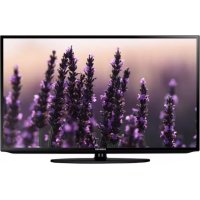
UE32H5303AW - TV SAMSUNG - Free user manual and instructions
Find the device manual for free UE32H5303AW SAMSUNG in PDF.



Download the instructions for your TV in PDF format for free! Find your manual UE32H5303AW - SAMSUNG and take your electronic device back in hand. On this page are published all the documents necessary for the use of your device. UE32H5303AW by SAMSUNG.
USER MANUAL UE32H5303AW SAMSUNG
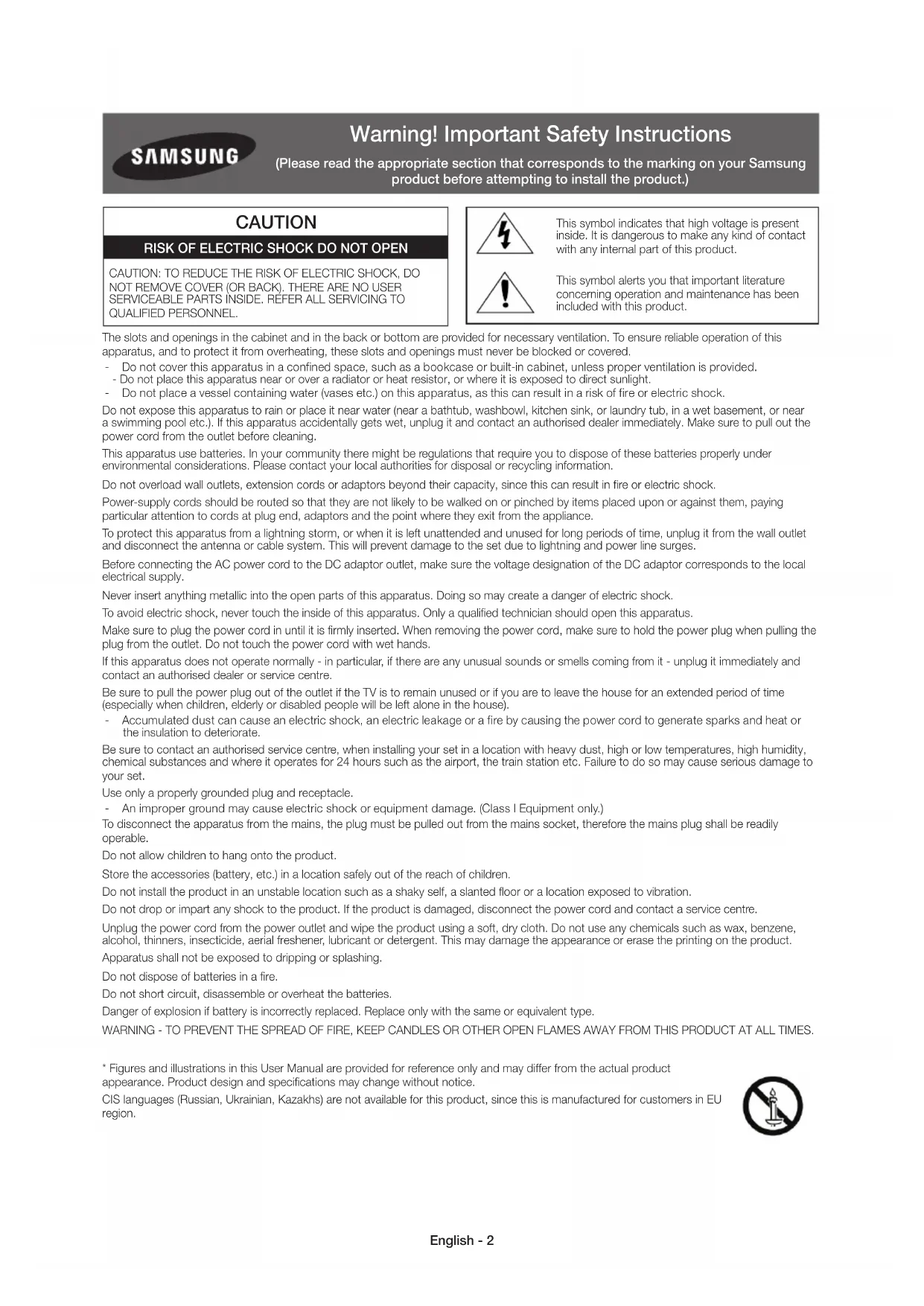
- (koszt połączenia według taryfy operatora) www.samsung.com/pl/support PORTUGAL 808 20 7267 www.samsung.com/pt/support ROMANIA 08008 726 78 64 (08008 SAMSUNG) Apel GRATUIT www.samsung.com/ro/support SERBIA 011 321 6899 www.samsung.com/rs/support SLOVAKIA 0800 - SAMSUNG (0800-726 786) www.samsung.com/sk/support SPAIN 0034902172678 www.samsung.com/es/support SWEDEN 0771 726 7864 (SAMSUNG) www.samsung.com/se/support SWITZERLAND 0800 726 78 64 (0800-SAMSUNG) www.samsung.com/ch/support (German) www.samsung.com/ch_fr/support (French) UK 0330 SAMSUNG (7267864) www.samsung.com/uk/support EIRE 0818 717100 www.samsung.com/ie/support LITHUANIA 8-800-77777 www.samsung.com/lt/support LATVIA 8000-7267 www.samsung.com/lv/support ESTONIA 800-7267 www.samsung.com/ee/support TURKEY 444 77 11 www.samsung.com/tr/support LED TV user manual Thank you for purchasing this Samsung product. To receive more complete service, please register your product at www.samsung.com/register Model _____________Serial No. _____________ [UH6203-XN-ZF]BN68-06334C-01L04.indb 1 2014-08-01 5:31:53English - 2 Warning! Important Safety Instructions (Please read the appropriate section that corresponds to the marking on your Samsung product before attempting to install the product.) CAUTION RISK OF ELECTRIC SHOCK DO NOT OPEN CAUTION: TO REDUCE THE RISK OF ELECTRIC SHOCK, DO NOT REMOVE COVER (OR BACK). THERE ARE NO USER SERVICEABLE PARTS INSIDE. REFER ALL SERVICING TO QUALIFIED PERSONNEL. This symbol indicates that high voltage is present inside. It is dangerous to make any kind of contact with any internal part of this product. This symbol alerts you that important literature concerning operation and maintenance has been included with this product. The slots and openings in the cabinet and in the back or bottom are provided for necessary ventilation. To ensure reliable operation of this apparatus, and to protect it from overheating, these slots and openings must never be blocked or covered. - Do not cover this apparatus in a confined space, such as a bookcase or built-in cabinet, unless proper ventilation is provided. - Do not place this apparatus near or over a radiator or heat resistor, or where it is exposed to direct sunlight. - Do not place a vessel containing water (vases etc.) on this apparatus, as this can result in a risk of fire or electric shock. Do not expose this apparatus to rain or place it near water (near a bathtub, washbowl, kitchen sink, or laundry tub, in a wet basement, or near a swimming pool etc.). If this apparatus accidentally gets wet, unplug it and contact an authorised dealer immediately. Make sure to pull out the power cord from the outlet before cleaning. This apparatus use batteries. In your community there might be regulations that require you to dispose of these batteries properly under environmental considerations. Please contact your local authorities for disposal or recycling information. Do not overload wall outlets, extension cords or adaptors beyond their capacity, since this can result in fire or electric shock. Power-supply cords should be routed so that they are not likely to be walked on or pinched by items placed upon or against them, paying particular attention to cords at plug end, adaptors and the point where they exit from the appliance. To protect this apparatus from a lightning storm, or when it is left unattended and unused for long periods of time, unplug it from the wall outlet and disconnect the antenna or cable system. This will prevent damage to the set due to lightning and power line surges. Before connecting the AC power cord to the DC adaptor outlet, make sure the voltage designation of the DC adaptor corresponds to the local electrical supply. Never insert anything metallic into the open parts of this apparatus. Doing so may create a danger of electric shock. To avoid electric shock, never touch the inside of this apparatus. Only a qualified technician should open this apparatus. Make sure to plug the power cord in until it is firmly inserted. When removing the power cord, make sure to hold the power plug when pulling the plug from the outlet. Do not touch the power cord with wet hands. If this apparatus does not operate normally - in particular, if there are any unusual sounds or smells coming from it - unplug it immediately and contact an authorised dealer or service centre. Be sure to pull the power plug out of the outlet if the TV is to remain unused or if you are to leave the house for an extended period of time (especially when children, elderly or disabled people will be left alone in the house). - Accumulated dust can cause an electric shock, an electric leakage or a fire by causing the power cord to generate sparks and heat or the insulation to deteriorate. Be sure to contact an authorised service centre, when installing your set in a location with heavy dust, high or low temperatures, high humidity, chemical substances and where it operates for 24 hours such as the airport, the train station etc. Failure to do so may cause serious damage to your set. Use only a properly grounded plug and receptacle. - An improper ground may cause electric shock or equipment damage. (Class l Equipment only.) To disconnect the apparatus from the mains, the plug must be pulled out from the mains socket, therefore the mains plug shall be readily operable. Do not allow children to hang onto the product. Store the accessories (battery, etc.) in a location safely out of the reach of children. Do not install the product in an unstable location such as a shaky self, a slanted floor or a location exposed to vibration. Do not drop or impart any shock to the product. If the product is damaged, disconnect the power cord and contact a service centre. Unplug the power cord from the power outlet and wipe the product using a soft, dry cloth. Do not use any chemicals such as wax, benzene, alcohol, thinners, insecticide, aerial freshener, lubricant or detergent. This may damage the appearance or erase the printing on the product. Apparatus shall not be exposed to dripping or splashing. Do not dispose of batteries in a fire. Do not short circuit, disassemble or overheat the batteries. Danger of explosion if battery is incorrectly replaced. Replace only with the same or equivalent type. WARNING - TO PREVENT THE SPREAD OF FIRE, KEEP CANDLES OR OTHER OPEN FLAMES AWAY FROM THIS PRODUCT AT ALL TIMES.
- Figures and illustrations in this User Manual are provided for reference only and may differ from the actual product appearance. Product design and specifications may change without notice. CIS languages (Russian, Ukrainian, Kazakhs) are not available for this product, since this is manufactured for customers in EU region. [UH6203-XN-ZF]BN68-06334C-01L04.indb 2 2014-08-01 5:31:53English - 3 English What's in the Box? Remote Control & Batteries (AAA x 2) Regulatory Guide User Manual Power Cord Warranty Card (Not available in some locations) IR Extender Cable Cable Holder - Please make sure the following items are included with your TV. If any items are missing, contact your dealer. - The items’ colours and shapes may vary depending on the models. - Cables not included can be purchased separately. - Check for any accessories hidden behind or in the packing materials when opening the box. An administration fee may be charged if either (a) an engineer is called out at your request and there is no defect with the product (i.e. where the user manual has not been read). (b) you bring the unit to a repair centre and there is no defect with the product (i.e. where the user manual has not been read). You will be informed of the administration fee amount before a technician visits.
Warning: Screens can be damaged from direct pressure when
handled incorrectly. We recommend lifting the TV at the edges, as shown. Don't Touch This Screen! [UH6203-XN-ZF]BN68-06334C-01L04.indb 3 2014-08-01 5:31:54English - 4 Attaching the TV to the Stand Make sure you have all the accessories shown, and that you assemble the stand following the provided assembly instructions. Mounting the TV on the Wall Using the Wall Mount Kit (Optional) If you mount this product on a wall, it should be mounted only as recommended by the manufacturer. Unless it is correctly mounted, the product may slide or fall, causing serious injury to a child or adult, and serious damage to the product. Installing the Wall Mount Kit The wall mount kit (sold separately) lets you mount the TV on the wall. For detailed information about installing the wall mount, refer to the instructions provided with the wall mount. We recommend that you contact a technician for assistance when installing the wall mount bracket. We do not advise you to do it yourself. Samsung Electronics is not responsible for any damage to the product or injury to yourself or others if you select to install the wall mount on your own.
Wall Mount Kit Specifications (VESA) The wall mount kit is not supplied, but is sold separately. Install your wall mount on a solid wall perpendicular to the floor. When attaching the wall mount to other building materials, please contact your nearest dealer. If the product is installed on a ceiling or slanted wall, it may fall and result in severe personal injury. - Standard dimensions for wall mount kits are shown in the table below. - When purchasing our wall mount kit, a detailed installation manual and all parts necessary for assembly are provided. - Do not use screws that do not comply with the VESA standard screw specifications. - Do not use screws that are longer than the standard dimension or do not comply with the VESA standard screw specifications. Screws that are too long may cause damage to the inside of the TV set. - For wall mounts that do not comply with the VESA standard screw specifications, the length of the screws may differ depending on the wall mount specifications. - Do not fasten the screws that are too strongly; this may damage the product or cause the product to fall, leading to personal injury. Samsung is not liable for these kinds of accidents. [UH6203-XN-ZF]BN68-06334C-01L04.indb 4 2014-08-01 5:31:54English - 5 English - Samsung is not liable for product damage or personal injury when a non-VESA or non-specified wall mount is used or the consumer fails to follow the product installation instructions. - Do not mount the TV at more than a 15 degree tilt. When using a third-party wall mount, note that the assembling screw length(C) is shown below. LED 5 Series Product Family Inches VESA Spec.(A * B) C (mm) Standard Screw Quantity LED-TV
Do not install your Wall Mount Kit while your TV is turned on. It may result in personal injury due to electric shock. Providing Proper Ventilation for Your TV When you install your TV, maintain a distance of at least 10 cm between the TV and other objects (walls, cabinet sides, etc.) to ensure proper ventilation. Failing to maintain proper ventilation may result in a fire or a problem with the product caused by an increase in its internal temperature. If you use parts provided by another manufacturer, it may cause difficulties with the product or result in injury caused by the product falling. - Whether you install your TV using a stand or a wall-mount, we strongly recommend you use parts provided by Samsung Electronics only. Installation with a stand. Installation with a wall-mount. 10 cm 10 cm 10 cm 10 cm 10 cm 10 cm 10 cm Other Cautions - The actual appearance of the TV may differ from the images in this manual, depending on the model. - Be careful when you touch the TV. Some parts can be somewhat hot. [UH6203-XN-ZF]BN68-06334C-01L04.indb 5 2014-08-01 5:31:55English - 6 Securing the TV to the Wall Caution: Pulling, pushing, or climbing on the TV may cause the TV to fall. In particular, ensure that your children do not hang on to or destabilize the TV. Doing so may cause the TV to tip over, resulting in serious injuries or death. Follow all safety precautions provided in the Safety Flyer included with your TV. For added stability and safety, you can purchase and install the anti-fall device as described below. To Avoid the TV from Falling
1. Put the screws into the clamps and firmly fasten them into the wall. Confirm
that the screws have been firmly installed into the wall. - You may need additional material such as anchors depending on the type of wall. - Since the necessary clamps, screws, and string are not supplied, please purchase these additionally.
2. Remove the screws from the centre back of the TV, put the screws into the
clamps, and then fasten the screws into the TV again. - Screws may not be supplied with the product. In this case, please purchase screws of the following specifications. - Screw Specifications: LED 5 Series: For a 32 ~ 40 inches: M6 / 46 ~ 50 inches: M8 LED 6 Series: For a 40 inches: M6 / 46 ~ 60 inches: M8
3. Connect the clamps fixed into the TV and the clamps fixed onto the wall with a
strong cable and then tie the string tightly. - Install the TV close to the wall so that it does not fall backwards. - It is safe connecting the string so that the clamps fixed onto the wall are equal to or lower than the clamps fixed on the TV. - Untie the string before moving the TV. 4. Verify that all connections are properly secured. Periodically check connections for any sign of damage. If you have any doubt about the security of your connections, contact a professional installer. Arrange the cables using the Cable Holder wall - The product colour and shape may vary depending on the model. [UH6203-XN-ZF]BN68-06334C-01L04.indb 6 2014-08-01 5:31:55English - 7 English Connecting devices to your TV You can connect various external devices using the connectors located at the back of the product. Check the connectors and then refer to the assembly instructions provided for more information on supported external devices. Connecting to a COMMON INTERFACE slot (Your TV viewing Card Slot) - Turn the TV off to connect or disconnect a CI card or CI card adapter. Using the “CI or CI+ CARD” To watch paid channels, the “CI or CI+ CARD” must be inserted. - If you don’t insert the “CI or CI+ CARD”, some channels will display the “Scrambled Signal” message. - The pairing information containing a telephone number, the “CI or CI+ CARD” ID, the Host ID, and other information will be displayed in about 2~3 minutes. If an error message is displayed, please contact your service provider. - When the configuration of channel information has finished, the message “Updating Completed” is displayed, indicating the channel list is updated. NOTE - You must obtain a “CI or CI+ CARD” from a local cable service provider. - When removing the “CI or CI+ CARD”, carefully pull it out as dropping the “CI or CI+ CARD” may damage it. - Insert the “CI or CI+ CARD” in the direction marked on the card. - The location of the COMMON INTERFACE slot may differ depending on the model. - A “CI or CI+ CARD” is not supported in some countries and regions, therefore, check with your authorised dealer. - If you have any problems, please contact a service provider. - Insert the “CI or CI+ CARD” that supports the current aerial settings. The screen will be distorted or will not be visible. [UH6203-XN-ZF]BN68-06334C-01L04.indb 7 2014-08-01 5:31:56English - 8 Connecting to a Network Connecting the TV to a network gives you access to online services such as the Smart Hub, as well as software updates. Network Connection - Wireless LED 6 Series Connect the TV to the Internet using a standard router or modem. Wireless IP Router or Modem with a DHCP Server LAN Cable (Not Supplied) The LAN Port on the Wall LED 5 Series Connect the TV to the Internet using a standard router or modem. To connect wirelessly, you must first attach a “Samsung Wireless LAN Adapter” (WIS12ABGNX - sold separately) to the USB port on your TV. See the illustration below. Samsung Wireless LAN Adapter (Not Supplied) Wireless IP Router or Modem that has a DHCP Server LAN Cable (Not Supplied) The LAN Port on the Wall Wireless Network Precautions - Samsung’s Wireless LAN adapter supports the IEEE 802.11a/b/g and n communication protocols. Samsung recommends using IEEE 802.11n. When you play the video over a IEEE 802.11b/g connection, the video may not play smoothly. - To use a wireless network, the TV must be connected to a wireless router or modem. If the wireless router supports DHCP, the TV can use a DHCP or static IP address to connect to the wireless network. - Select a channel that is not currently in use for the wireless router. If the channel set for the wireless router is currently being used by another device, the result is usually interference and/or a communications failure. [UH6203-XN-ZF]BN68-06334C-01L04.indb 8 2014-08-01 5:31:56English - 9 English - Most wireless networks have an optional security system. To enable a wireless network's security system, you need to create a security key using characters and numbers. This security key is then needed to connect to the wireless network. Network Connection - Wired There are three main ways to connect your TV to your network using cable, depending on your network setup. They are illustrated starting below: Modem Cable (Not Supplied) LAN Cable (Not Supplied) TV Rear Panel External Modem (ADSL / VDSL / Cable TV) The Modem Port on the Wall Modem Cable (Not Supplied) LAN Cable (Not Supplied) LAN Cable (Not Supplied) TV Rear Panel External Modem (ADSL / VDSL / Cable TV) IP Router with a DHCP Server The Modem Port on the Wall The LAN Port on the Wall LAN Cable (Not Supplied) TV Rear Panel - The TV does not support network speeds less than or equal to 10Mbps. - Use Cat 7 cable for the connection. [UH6203-XN-ZF]BN68-06334C-01L04.indb 9 2014-08-01 5:31:57English - 10 Remote Control Learn where the function buttons are on your remote, such as: SOURCE
- This remote control has Braille points on the Power
Channel , and Volume buttons and can be used by visually impaired persons. Turns the Set-top box on and off. Displays and selects available video sources. Cuts off the sound temporarily. Brings up Smart Hub applications. Refer to the e-Manual chapter, Smart Features
Changes channels. Exits the menu. Displays the EPG (Electronic Programme Guide). Displays information on the TV screen. Turns the TV on and off. Gives direct access to channels. Adjusts the volume. Displays channel lists. Alternately selects Teletext ON Double, Mix or OFF. : Enable Football Mode for an optimal sports viewing experience. SEARCH : Press this button to use the search window. KEYPAD : With the virtual remote control on the screen, you can easily enter digits, control content, and use functions. E-MANUAL : Displays the e-Manual
Returns to the previous channel. Opens the OSD (Menu). Quickly selects frequently used functions. Returns to the previous menu. Use these buttons according to the directions on the TV screen. Use these buttons with specific features. Use these buttons according to the directions on the TV screen. Moves the cursor, selects the on-screen menu items, and changes the values seen on the TV's menu. [UH6203-XN-ZF]BN68-06334C-01L04.indb 10 2014-08-01 5:31:58English - 11 English Installing the batteries (Battery size: AAA) Match the polarities of the batteries to the symbols in the battery compartment.
- Use the remote control within 7m of the TV. - Bright lights may affect the performance of the remote control. Avoid using the remote control near special fluorescent lights or neon signs. - The colour and shape may vary depending on the model. Turning on the TV Turn on the TV using the
button on the remote control or TV panel. - The product colour and shape may vary depending on the model. - The TV’s Controller, a small joystick-like button at the right back of the TV, lets you control the TV without the remote control.
Remote control sensor Function menu TV Controller [UH6203-XN-ZF]BN68-06334C-01L04.indb 11 2014-08-01 5:31:58English - 12 Initial setup The initial setup dialogue box appears when the TV is first activated. Follow the on-screen instructions to finish the initial setup process, including the selecting the menu language, scanning channels, connecting to the network, and more. During each step, either make a choice or skip the step. You can manually perform this process at a later time in the System > Setup menu. - If you connect any device to HDMI1 before starting the installation, the Channel Source will be changed to Set- top box automatically. - If you do not want to select Set-top box, please select Aerial
Password Change System > Change PIN Changing the TV’s password. 1. Run Change PIN and then enter the current password in the password field. The default password is “0-0-0-0”. (France : “1-1-1-1”):2. Enter a new password and then enter it again to confirm it. The password change is complete. - If you forgot your PIN code, press the buttons in the following sequence to reset the PIN to “0-0-0-0”: (France: “1-1-1-1”):In Standby mode: MUTE
- 8 → 2 → 4 → POWER (On) Selecting the video source You can select a connected external device using the SOURCE button.For example, to switch to a gaming console connected to the second HDMI connector, press SOURCE. From the Source list, select HDMI2 to change the input signal to HDMI mode. Connector names may vary depending on the model.The following options are available in the Source screen: TOOLS Button Select a port connected to an external device, and press and hold the Enter button. The following functions are available: - Available options for each connector may vary. Edit Name Rename devices connected to the TV for easier identification of external sources.For example, you can designate a computer connected to the TV via an HDMI-DVI cable as DVI PC Alternatively, simply designate a computer connected to the TV via an HDMI cable as
You can also designate an AV device connected to the TV via an HDMI-DVI cable as DVI Devices
Information View detailed information about the connected devices. Disconnect USB Device Used to safely remove a USB device connected to the TV. This option is only available when a USB device has been selected. [UH6203-XN-ZF]BN68-06334C-01L04.indb 12 2014-08-01 5:31:58English - 13 English Controlling External Devices with the TV Remote
Universal Remote Setup - Availability depends on the specific model and area. The universal remote control feature lets you control cable boxes, Blu-ray players, home theatres, and other external devices connected to the TV using the TV's remote control. In order to use the TV's remote control as a universal remote, you must first connect the IR extender cable (included). - You can also use the Anynet+ (HDMI-CEC) function to operate some external Samsung devices with your TV's remote control without any additional setup. For more information, refer to the e-Manual. - Certain external devices connected to the TV may not support the universal remote feature. Setting Up the Universal Remote Control Connect the IR extender cable to the TV's IR output connector as shown in the diagram and place the transmitter end within 10 cm of the external device's receiver pointing in the direction of the remote receiver. However, there must be no obstacles between the IR extender cable and the external device. The presence of obstacles interferes with the transmission of the remote control signal. 10 cm Controlling External Devices with the TV Remote
1. Turn on the external device to set up the universal remote function for, and bring up the
Universal remote setup from the top of the screen. This initiates the universal remote setup process.
3. Follow the on-screen instructions and register the external device.
Launching the e-Manual The embedded e-Manual contains information. - You can also download a copy of the e-Manual from Samsung's website, and read it on your computer or print it out. - Yellow words indicate a menu item; white bold words indicate remote control buttons. Arrows are used to indicate the menu path. (Example: Picture
2. Select a category from the side of the screen. Once a selection has been made, the contents of the selected category
3. Select an item from the list. This opens the e-Manual on the corresponding page.
If a description doesn't fit on a single screen... You can scroll pages in one of the following ways. Position the focus on the page to display / on the screen. Press
button. Additional e-Manual Features Loading Pages using Keywords Select Search from the side of the screen to bring up the search screen. Enter a search term and then select Done . Select an item from the search results to load the corresponding page. [UH6203-XN-ZF]BN68-06334C-01L04.indb 14 2014-08-01 5:31:59English - 15 English Loading Pages from the Index Page Select Index from the side of the screen to bring up the index screen. Select a keyword from the list to navigate to the relevant page. Using the History to Load Previously Read Pages Select Recent pages from the side of the screen. A list of previously read pages is shown. Select a page. The e-Manual jumps to the selected page. Accessing the Menu from the e-Manual (Try Now) Select ( Try Now ) on a feature-description to directly move to the corresponding menu and try out the feature. If you want to read an e-Manual entry on a specific screen menu feature, Press the E-MANUAL button. - Certain menu options cannot be used. Loading Reference Pages Select
Link ) from the side of a feature-description page to access the corresponding reference page. Updating the e-Manual to the Latest Version You can update the e-Manual in the same way as updating apps.
2. Press and hold the Enter button. The Options menu appears.
3. From the Options menu on the screen, select
Update apps . A popup window appears.
Update apps is shown on the screen only when an update is required.
e-Manual in the popup window and then select Update . You can update the e-Manual to the latest version. [UH6203-XN-ZF]BN68-06334C-01L04.indb 15 2014-08-01 5:31:59English - 16 Troubleshooting If you have any questions about the TV, first refer to the Troubleshooting list below. If none of these troubleshooting tips apply, please visit “www.samsung.com” and click on Support, or contact the call centre listed on the back cover of this manual. Issues Solutions and Explanations The TV won’t turn on. Make sure the AC power cord is securely plugged into the wall outlet and the TV. Make sure the wall outlet is working. Try pressing the P button on the TV to make sure the problem is not the remote. If the TV turns on, refer to the “Remote control does not work” item below
There is no picture/video. Check the cable connections. Remove and reconnect all cables connected to the TV and external devices. Set the video outputs of your external devices (Cable/Sat Box, DVD, Blu-ray etc) to match the TV's input connections. For example, if the output of an external device is HDMI, it should be connected to an HDMI input on the TV. Make sure your connected devices are powered on. Be sure to select the correct input source. Reboot the connected device by unplugging it, and then reconnecting the device’s power cable. The remote control does not work. Replace the remote control batteries. Make sure the batteries are installed with their polarities (+/–) in the correct direction. Clean the sensor’s transmission window on the remote. Try pointing the remote directly at the TV from 1.5 ~ 1.8 m away. The remote control of the cable/ set top box doesn’t turn the TV on or off or adjust the volume. Programme the Cable/Set remote control to operate the TV. Refer to the Cable/Set- Top-Box user manual for the SAMSUNG TV code. - This TFT LED panel uses a panel consisting of sub pixels which require sophisticated technology to produce. There may, however be a few bright or dark pixels. These pixels will have no impact on the performance of the product. - To keep your TV running optimally upgrade to the latest firmware on the Samsung website via the USB device USB (Samsung.com > Support > Downloads). - Some of the pictures and functions above are available for specific models only. [UH6203-XN-ZF]BN68-06334C-01L04.indb 16 2014-08-01 5:31:59English - 17 English Cautions about the Eco Sensor and Screen Brightness The Eco Sensor measures the light in the room and optimises the brightness of the TV automatically to reduce power consumption. This causes the TV to brighten and dim automatically. To turn this function off, go to System
Do not block the sensor with any material. This may decrease the picture brightness.
Eco Sensor : This power-saving feature automatically adjusts the screen brightness of the TV according to the ambient light detected by the Light Sensor.
Eco Sensor and select
3. Please note: If the screen is too dark while watching TV in a dark environment, this may be due to the
[UH6203-XN-ZF]BN68-06334C-01L04.indb 17 2014-08-01 5:32:00English - 18 What is Remote Support? Samsung's Remote Support service offers you one-on-one support with a Samsung Technician who can remotely:
Adjust your TV settings
Perform a factory reset for your TV
Install recommended firmware updates How Does it Work? Having a Samsung Tech remotely service your TV is really pretty simple
Contact Centre and ask for remote support.
your TV and go to the Support section.
Management and Provide the Pin# to the agent.
4. The agent will then
access your TV. That's it! Storage and Maintenance - If a sticker was attached to the TV screen, some debris may remain after you remove the sticker. Please clean the debris off before watching TV. - The exterior and screen of the product can get scratched while cleaning it. Be sure to wipe the exterior and screen carefully using a soft cloth to prevent scratches. Do not spray water directly onto the product. Any liquid that enters the product may result in product failure, fire, or electric shock. Clean the product with a soft damp cloth using a small amount of water. Do not use a flammable liquid (e.g. benzene, thinners) or a cleaning agent. [UH6203-XN-ZF]BN68-06334C-01L04.indb 18 2014-08-01 5:32:00English - 19 English TV Specifications Display Resolution 1920 x 1080 Environmental Considerations Operating Temperature Operating Humidity Storage Temperature Storage Humidity 10°C to 40°C (50°F to 104°F) 10% to 80%, non-condensing -20°C to 45°C (-4°F to 113°F) 5% to 95%, non-condensing Stand Swivel (Left / Right) 0˚ Sound (Output) 10W X 2 Model Name UE32H5303 UE40H5303 Screen Size (Diagonal) 32 inches (80 cm) 40 inches (101 cm) Dimensions (W x H x D) Body With stand
Weight Without Stand With Stand
- The design and specifications are subject to change without prior notice. - For information about the power supply, and about power consumption, refer to the label attached to the product. - Typical power consumption is measured according to IEC 62087 Ed.2 Standby mode To decrease power consumption, unplug the power cord when the TV will not be used for a long time. [UH6203-XN-ZF]BN68-06334C-01L04.indb 19 2014-08-01 5:32:00English - 20 Licences The terms HDMI and HDMI High-Definition Multimedia Interface, and the HDMI Logo are trademarks or registered trademarks of HDMI Licensing LLC in the United States and other countries. Still image warning Avoid displaying still images (such as jpeg picture files), still image elements (such as TV channel logos, stock or news bars at the bottom of the screen etc.), or programmes in panorama or 4:3 image format. Constantly displaying still pictures can cause image burn-in on the LED screen, which will affect the image quality. To reduce risk of this occurring please follow the recommendations below:
Avoid displaying the same TV channel for long periods.
Always try to display any image in full screen. Use the TV set’s picture format menu for the best possible match.
Reduce brightness and contrast to avoid the appearance of after-images.
Use all TV features designed to reduce image retention and screen burn. Refer to the e-Manual for more details. LED 5 Series Recommendation - EU Only Hereby, Samsung Electronics, declares that this TV is in compliance with the essential requirements and other relevant provisions of Directive 1999/5/EC. The official Declaration of Conformity may be found at http://www.samsung.com, go to Support > Search Product Support and enter the model name. This equipment may be operated in all EU countries. [UH6203-XN-ZF]BN68-06334C-01L04.indb 20 2014-08-01 5:32:01English - 21 English LED 6 Series Recommendation - EU Only Hereby, Samsung Electronics, declares that this TV is in compliance with the essential requirements and other relevant provisions of Directive 1999/5/EC. The official Declaration of Conformity may be found at http://www.samsung.com, go to Support > Search Product Support and enter the model name. This equipment may only be used indoors. This equipment may be operated in all EU countries. Correct Disposal of This Product (Waste Electrical & Electronic Equipment) (Applicable in countries with separate collection systems) This marking on the product, accessories or literature indicates that the product and its electronic accessories (e.g. charger, headset, USB cable) should not be disposed of with other household waste at the end of their working life. To prevent possible harm to the environment or human health from uncontrolled waste disposal, please separate these items from other types of waste and recycle them responsibly to promote the sustainable reuse of material resources. Household users should contact either the retailer where they purchased this product, or their local government office, for details of where and how they can take these items for environmentally safe recycling. Business users should contact their supplier and check the terms and conditions of the purchase contract. This product and its electronic accessories should not be mixed with other commercial wastes for disposal. Correct disposal of the batteries in this product (Applicable in countries with separate collection systems) This marking on battery, manual or packaging indicates that the batteries in this product should not be disposed of with other household waste at the end of their working life. Where marked, the chemical symbols Hg, Cd or Pb indicate that the battery contains mercury, cadmium or lead above the reference levels in EC Directive 2006/66. If batteries are not properly disposed of, these substances can cause harm to human health or the environment. To protect natural resources and to promote material reuse, please separate batteries from other types of waste and recycle them through your local, free battery return system. [UH6203-XN-ZF]BN68-06334C-01L04.indb 21 2014-08-01 5:32:01Français - 2 Avertissement! Consignes de sécurité importantes (Avant toute installation de votre produit Samsung, veuillez lire les sections correspondant aux inscriptions qui figurent sur ce dernier.) ATTENTION
200 X 200 10,0 ~ 28,0
200 X 200 10,0 ~ 28,0
200 X 200 10,0 ~ 28,0