ManualGo.com
Pavilion h91160ef - Desktop computer HP - Free user manual and instructions
Find the device manual for free Pavilion h91160ef HP in PDF.


Download the instructions for your Desktop computer in PDF format for free! Find your manual Pavilion h91160ef - HP and take your electronic device back in hand. On this page are published all the documents necessary for the use of your device. Pavilion h91160ef by HP.
USER MANUAL Pavilion h91160ef HP
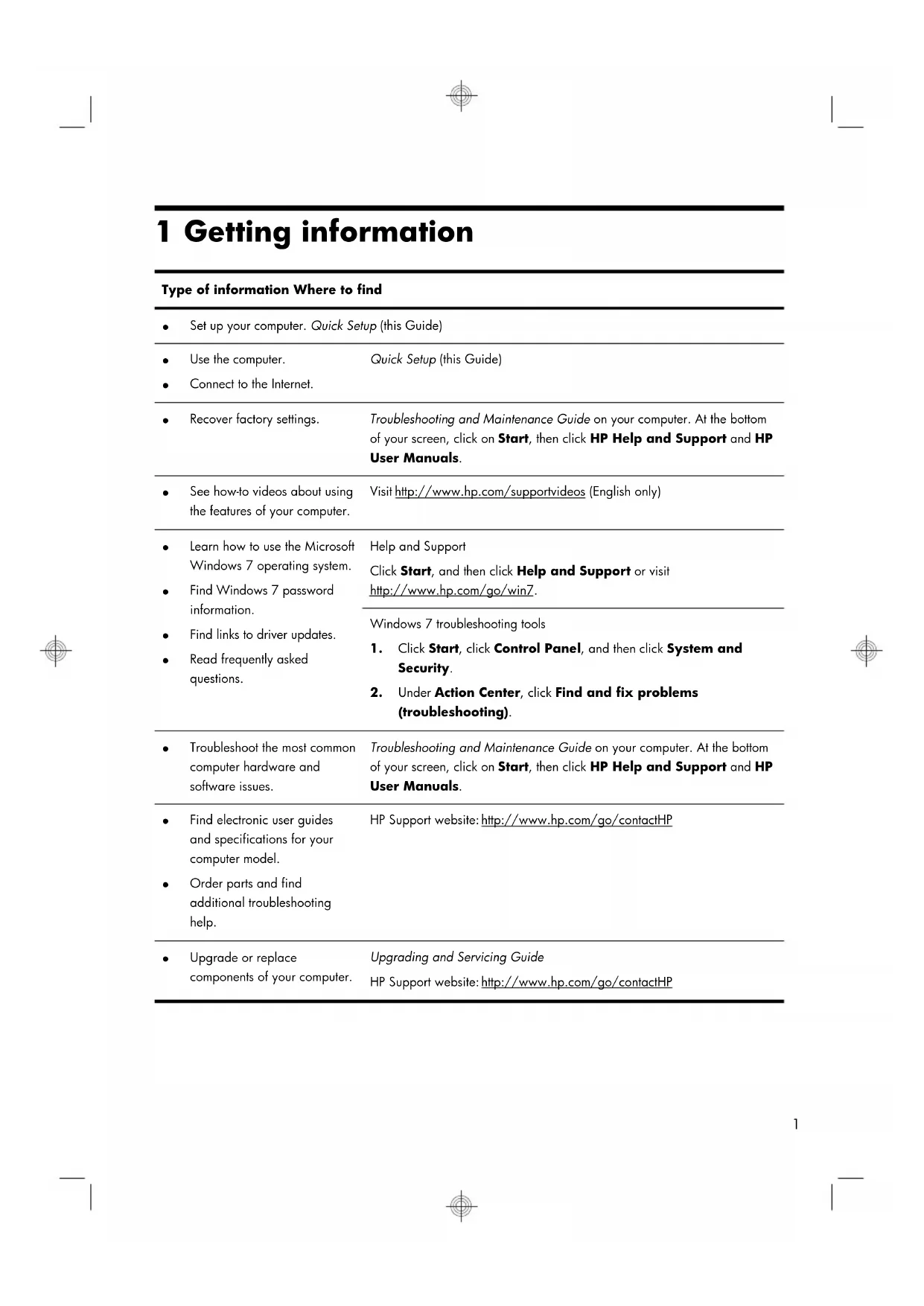
12” (30cm)http://www.hp.com/go/contactHP http://welcome.hp.com/country/us/en/wwcontact_us.htmlCopyright and License © Copyright 2012 Hewlett-Packard Development Company, L.P. The information contained herein is subject to change without notice. The only warranties for Hewlett-Packard products and services are set forth in the express statements accompanying such products and services. Nothing herein should be construed as constituting an additional warranty. HP shall not be liable for technical or editorial errors or omissions contained herein. HP assumes no responsibility for the use or reliability of its software on equipment that is not furnished by HP. This document contains proprietary information that is protected by copyright. No part of this document may be photocopied, reproduced, or translated to another language without the prior written consent of HP. Hewlett-Packard Company P.O. Box 4010 Cupertino, CA 95015-4010 USA This product incorporates copyright protection technology that is protected by U.S. patents and other intellectual property rights. Use of this copyright protection technology must be authorized by Macrovision, and is intended for home and other limited viewing uses only unless otherwise authorized by Macrovision. Reverse engineering or disassembly is prohibited. Microsoft and Windows are trademarks of Microsoft Corporation in the U.S. and other countries. HP supports lawful use of technology and does not endorse or encourage the use of our products for purposes other than those permitted by copyright law. The information in this document is subject to change without notice. Warranty Print on Demand Statement You can find the expressly provided HP Limited Warranty applicable to your product in the start menu on your PC and/or in the CD/DVD provided in the box. For some countries/regions, a printed HP Limited Warranty is provided in the box. In countries/regions where the warranty is not provided in printed format, you may request a printed copy from hp.com/go/orderdocuments or write to HP at: Hewlett-Packard, MS POD, 11311 Chinden Blvd., Boise, ID 83714, U.S.A.; Hewlett Packard, POD, P.O. Box 200, Alexandra Post Office, Singapore 911507. Please include your product name, warranty period, name, and postal address.1 Getting information Type of information Where to find
Set up your computer. Quick Setup (this Guide)
Connect to the Internet. Quick Setup (this Guide)
Recover factory settings. Troubleshooting and Maintenance Guide on your computer. At the bottom of your screen, click on Start, then click HP Help and Support and HP User Manuals.
See how-to videos about using the features of your computer. Visit http://www.hp.com/supportvideos (English only)
Learn how to use the Microsoft Windows 7 operating system.
Find links to driver updates.
Read frequently asked questions. Help and Support Click Start, and then click Help and Support or visit http://www.hp.com/go/win7. Windows 7 troubleshooting tools
1. Click Start, click Control Panel, and then click System and
2. Under Action Center, click Find and fix problems
Troubleshoot the most common computer hardware and software issues. Troubleshooting and Maintenance Guide on your computer. At the bottom of your screen, click on Start, then click HP Help and Support and HP User Manuals.
Find electronic user guides and specifications for your computer model.
Order parts and find additional troubleshooting help. HP Support website: http://www.hp.com/go/contactHP
Upgrade or replace components of your computer. Upgrading and Servicing Guide HP Support website: http://www.hp.com/go/contactHP 1Type of information Where to find
Find computer warranty information.
Get technical support. Limited Warranty and Support Guide or the Warranty and Support Information included with your computer.
Click Start, click All Programs, and then click HP User Manuals.
Get up-to-date information and help from the Windows community. http://www.hp.com/support/consumer-forum
Connect to a TV. Watching and Recording TV Click Start, click All Programs, and then click HP User Manuals. If the guide is not available there, visit http://www.hp.com/go/contactHP
Get special utilities for computer owners. PC Help & Tools folder Click Start, click All Programs, and then click PC Help & Tools.
Maintain your computer. HP Support Assistant — Maintains your computer performance and resolve problems faster by using automated updates, on-board diagnostics, and guided assistance. Click Start, click All Programs, click HP, and then click HP Support Assistant. Troubleshooting and Maintenance Guide Click Start, click HP Help and Support, and then click HP User Manuals. Maintaining Your Computer (this Guide)
Find safety and regulatory notices. Safety & Regulatory Information Click Start, click HP Help and Support, and then click HP User Manuals or visit http://www.hp.com/go/contactHP.
Find ergonomic information. Safety & Comfort Guide Click Start, click HP Help and Support, and then click HP User Manuals or visit http://www.hp.com/ergo. 2 Chapter 1 Getting information2 Setting up your computer WARNING! To reduce the risk of electrical shock or damage to your equipment:
- Place the computer in a location away from water, dust, moisture, and soot. These can increase the inside temperature, or can cause fire or electrocution.
- Do not disable the power cord grounding plug. The grounding plug is an important safety feature.
- Plug the power cord in a grounded (earthed) outlet that is easily accessible at all times.
- Disconnect power from the equipment by unplugging the power cord from the electrical outlet. To prevent direct exposure to laser beam, do not try to open the enclosure of the CD or DVD drives.
- The power supply is preset for the country/region in which you purchased your computer. If you move, check the voltage requirements for your new location before plugging the computer into an AC power outlet. The computer may be heavy; be sure to use ergonomically correct lifting procedures when moving the computer. To reduce the risk of serious injury read the Safety & Comfort Guide. The guide is located on the web at http://www.hp.com/ergo.
1. Place the computer so that all ventilation openings are unobstructed and
cabling is not in a walkway or where it can be stepped on or damaged by placing furniture on it.
2. Connect all power cords from the monitor, computer, and accessories to a
power surge protection device that is specifically labeled as having surge protection, an uninterruptible power supply (UPS), or a similar device. If the computer has a television tuner, or a modem or telephone connection, protect the computer by using surge protection with these signal inputs as well. Connect the television cable or the telephone line cord to the surge protection device, and then connect the device to the computer.
3. Download and install operating system updates.
a. Find out what operating system and version your computer is currently running. (Click Start > Control Panel and double-click System. The operating system and version are shown under Windows edition.) b. Open your internet browser and go to http://www.hp.com/go/ contactHP. c. Select your country and language, if necessary, and click Support & Drivers. 3d. Select Download drivers and software (and firmware), type your computer model name and number in the product field, and press Enter. e. If necessary, select your computer model from Product search results. f. Select your computer operating system. g. Click Download next to each update you wish to download. h. Follow the on-screen instructions to install each downloaded update.
4. Look in the computer box for additional printed details or updates.
5. Read the Safety and Regulatory Information document in the HP User Manuals
6. Read the Safety & Comfort Guide for proper workstation setup, posture,
health and work habits, and electrical and mechanical safety information. Click Start, click All Programs, and then click HP User Manuals or visit http://www.hp.com/ergo. After you complete the initial computer setup, you might want to install additional software programs or hardware devices. Check the operating system, memory, and other requirements listed before purchasing new software or hardware for your computer. Follow the software manufacturer's directions to install the new software. NOTE: Use only licensed original software. Installing copied software could result in an unstable installation, infect the computer with a virus, or be illegal. Security solutions can deter theft, mishandling, and software attacks, but cannot prevent them. Connecting to the Internet Steps to connect to the Internet:
1. Connect the hardware as shown on the setup view.
2. Get Internet service.
Sign up with an Internet Service Provider (ISP). If you already have an account with an ISP, skip this step and follow the instructions provided by the ISP.
If you did not set up the computer for Internet service during the initial setup, do so now by using Online Services: a. Click Start, click All Programs, click Online Services, and then click Get Online. b. Follow the on-screen instructions to select an ISP and set up Internet service. 4 Chapter 2 Setting up your computerNOTE: Online Services provides a list of ISPs; however, you might choose another ISP or transfer an existing account to this computer. To transfer existing accounts, follow the instructions provided by the ISP.
3. Using your Internet connection through your ISP, open a web browser and
browse the Internet. NOTE: If you have issues connecting to the Internet, see Internet access on page 16. Connecting to the Internet 53 Setting up additional features Using Beats Audio™ (select models only) Your HP TouchSmart PC features audio connectors (headphone and Audio Out ) that are optimized for Beats Audio™ headphones and external audio systems (purchased separately). Select HP TouchSmart PC models also include four Beats- optimized internal speakers and a Beats toggle button on the keyboard. Your computer comes ready for you to experience music with Beats enabled. To disable Beats, press the Beats toggle button; the Beats-off icon appears on the screen. To turn Beats on, press the Beats toggle button again. If your keyboard does not contain the Beats toggle button, press Fn+B to enable and disable Beats. Tap the Beats icon on the system tray to view the Beats user interface. All you need to do is plug the Beats Audio headphones into the side headphone connector to experience crisp and clear sound separation. To experience the full capability of BEATS audio using the internal speakers, HP recommends connecting a matching HP subwoofer to the Sub connector on the back panel. If you are using an external audio system, plug it into the Audio Out connector on the back panel. Using an HDMI monitor If your computer has a graphics card with an HDMI (High Definition Multimedia Interface) connector, Hewlett-Packard recommends using a DVI or VGA connector for a monitor, and using HDMI to connect a TV. If you use HDMI to connect your monitor, you may need to adjust some settings to hear sound (see the following steps). Because of this, HP recommends that you connect analog speakers to the computer if you want to hear sound during the initial setup of the computer. For optimum viewing, you may need to adjust the resolution setting for the monitor (see “Adjusting resolution”). Save this document for future use. NOTE: If you ever need to recover the computer operating system by using the Recovery Manager, you must repeat these procedures to activate sound and adjust resolution for the HDMI connector. IMPORTANT: Your HDMI monitor must be connected to the graphics card before you activate sound and adjust resolution. Activating sound
1. Right-click the Volume icon (white speaker) on the system tray.
2. Click Playback Devices. The Sound window opens.
6 Chapter 3 Setting up additional features3. On the Playback tab, look for the Default Device. It may display a green circle with a checkmark in it. If the Default Device is one of the following, then your HDMI monitor is already activated:
NVIDIA High Definition Audio (select models only)
ATI High Definition Audio (select models only)
Realtek HDMI Output Click the Cancel button to close the window, and then continue with the next procedure, “Adjusting resolution,” if necessary. If the Default Device is not one of these devices, continue with step 4.
4. If one of the following HDMI options is available on the Playback tab, click
NVIDIA High Definition Audio (select models only)
ATI High Definition Audio (select models only) If neither of these is present, click Realtek HDMI Output.
5. Click Set Default.
6. Click OK to close the window. This completes the steps to activate HDMI
sound. Adjusting resolution To adjust resolution, follow the instructions for your type of graphics card. Right click an empty area of the desktop, and then:
If NVIDIA Control Panel is present, follow the steps under “NVIDIA graphics cards.”
If Catalyst Control Center is present, follow the steps under “ATI graphics cards.”
If only Screen resolution is present, follow the steps under “Other graphic cards.” Using an HDMI monitor 7NVIDIA graphics cards
1. Right-click an empty area of the desktop, and then click NVIDIA Control
Panel. The View Selection window opens.
2. In the Selecting a Task area on the left, under Display, click Change
resolution. The Change resolution window opens.
3. If your HP computer is connected to an HP monitor, make sure that the
Show only TV resolutions check box does not contain a check mark. If your HP computer is connected to a non-HP monitor, make sure that the Show only TV resolutions check box contains a check mark. If necessary, click the box to remove a check mark or add a check mark.
4. Close the NVIDIA Control Panel. This completes the steps to adjust
resolution for NVIDIA graphics cards. ATI graphics cards 1. Right-click an empty area of the desktop, and then click Catalyst™ Control Center. The Catalyst Control Center window opens.
2. Select Graphics and then Desktops & Displays on the top left corner
3. Under the Desktops & Displays window, right click the monitor icon at the
bottom left corner of the window and select Configure. The DTV (HDMITM) 2 window opens.
4. If your HP computer is connected to an HP monitor, make sure that the
Show only TV resolutions check box does not contain a check mark. If your HP computer is connected to a non-HP monitor, make sure that the Show only TV resolutions check box contains a check mark. If necessary, click the box to remove a check mark or add a check mark.
5. Click OK. This completes the steps to adjust resolution for this option.
Other graphics cards 1. Right-click an empty area of the desktop, and then click Screen resolution.
2. Select the resolution from the drop-down menu.
3. Click Apply, and then click Keep changes. This completes the steps to
adjust resolution for this option. Setting up multiple displays Use the following steps to connect and set up additional monitors: These instructions are for standard two-monitor setup. If you have purchased a dual-monitor system with ATI™ Eyefinity software, follow these instructions for dual- 8 Chapter 3 Setting up additional featuresmonitor setup (or for three monitors), and proceed to the instructions for ATI Eyefinity Catalyst™ setup.
1. Verify that the PC is set up according to the instructions in the setup view. Do
not power on the PC or monitor.
2. Connect the monitors to an available display connector on the back of the
PC. The monitor’s connection type must match the connector on the PC. NOTE: The three-monitor setup requires that you separately purchase an additional monitor and cable. The monitor should have a DVI, HDMI, or VGA connector. A DVI-to-VGA adapter is required for monitors with a VGA connector. DVI HDMI DisplayPort
Connect the DVI cable to the bottom DVI connector.
3. Connect power to each additional monitor.
4. Press the power button on each display and then press the power button on
the computer. The power indicator light on each of the displays will be amber; the lights will turn blue when the PC starts. NOTE: During the initial setup, only one display is active; you may see various display states (such as blank screens, blue screens, etc.) on the other displays until the setup is completed.
5. When the setup is complete, you will see the extended desktop on all
Panel, select Display, and then select the option you want to change and follow the onscreen instructions. ATI Eyefinity Catalyst™ setup
1. Right-click on the Eyefinity Catalyst™ icon on the desktop to bring up ATI
Catalyst Control Center™, or select Start, select All Programs, and select Catalyst Control Center™.
2. Select CCC-Advanced, select Graphics, and select Desktop &
Displays, then follow the onscreen instructions to set up the layout for the two- or three-monitor display. Setting up multiple displays 94 Maintaining your computer Cleaning procedures Keeping your computer system free of dust, dirt, and heat will prolong its life.
Dust, pet hair, and other particles can build up, creating a blanket effect; as a result, components can overheat or, in the case of the keyboard and mouse, not work smoothly and effectively.
Check your system once a month for visible signs of dust and debris, and clean it about once every three months.
Visit http://www.hp.com/go/contactHP for additional cleaning instructions. Cleaning the computer vents Air vents keep the computer cool. Keep these vents clean by using a small, battery- powered vacuum cleaner. (A battery-powered vacuum cleaner eliminates the risk of electric shock.)
1. Vacuum the vents on the computer case.
2. Remove any debris that has accumulated in and around the computer
connectors (for example, the Ethernet and USB connectors). Cleaning the keyboard and mouse When cleaning the keyboard keys, use a low setting on a battery-powered vacuum cleaner, to avoid removing key caps and springs.
1. Vacuum between the keys of the keyboard and along the grooves.
2. Use a clean, dry cloth and isopropyl (rubbing) alcohol to clean buildup on the
keyboard keys and along its edges.
3. Wipe the body of the mouse and the mouse cord by using cleaning wipes.
If you have a roller-ball mouse, clean the ball and rollers inside:
1. Turn the mouse upside down, and rotate the ball-cover ring counterclockwise
to remove the ring and release the roller ball.
2. Rinse the roller ball with soap and warm water.
3. Clean the rollers inside the mouse with a cotton swab dampened with
isopropyl (rubbing) alcohol.
4. After the roller ball and rollers are completely dry, replace the ball and ball-
cover ring. 10 Chapter 4 Maintaining your computer5 Troubleshooting Refer to the documentation provided by the product manufacturer for information about peripheral-specific problems, such as issues with a monitor or a printer. The following tables present some issues you might encounter while installing, starting up, or using your computer and possible solutions. For more information or for additional troubleshooting options, see Getting information on page 1. Computer does not start Symptom Possible solution Error message: Hard disk drive error. Restart the computer.
1. Press the Ctrl+Alt+Delete keys on the keyboard simultaneously.
2. Click the Arrow button next to the red Shut Down button, and then click Restart.
Or, press and hold the Power button on the computer for 5 or more seconds to turn off the computer, and then press the Power button to restart the computer.
3. If Windows opens, immediately back up all important data to a backup hard disk drive.
4. Contact Support, whether it was possible or not to start up Windows.
Either the hard disk drive or the system board may need to be replaced. Computer will not turn on or start. Ensure that the cables connecting the computer to the external power source are plugged in properly. When the cables connecting the computer to the external power source are plugged in properly, and the wall outlet is functioning, the green power supply light on the back of the computer should be on; if it is not, contact Support. If the display (monitor) is blank, the monitor might not be properly connected. Connect the monitor to the computer, plug it in, and turn it on. See Display (monitor) on page 13. Test the wall outlet by connecting a different electrical device to it. Computer does not start 11Symptom Possible solution Computer seems to be locked up and is not responding. Use the Windows Task Manager to close any programs not responding, or restart the computer:
1. Press the Ctrl+Alt+Delete keys on the keyboard simultaneously.
2. Click Start Task Manager.
3. Select the program that is not responding, and then click End Task.
If closing programs does not work, restart the computer:
1. Press the Ctrl+Alt+Delete keys on the keyboard simultaneously.
2. Click the Arrow button next to the red Shut Down button, and then click Restart.
Or, press and hold the Power button on the computer for 5 or more seconds to turn off the computer, and then press the Power button to restart the computer. Error message: Invalid system disk or Non- System disk or Disk error. When drive activity stops, remove the disc and press the spacebar on the keyboard. The computer should start up. 12 Chapter 5 TroubleshootingPower Symptom Possible solution Computer does not turn off when the Power button is pressed. Press and hold the Power button until the computer turns off. Check Power Settings. Computer shuts down automatically.
The computer might be in an exceedingly hot environment. Let it cool down.
Ensure that computer air vents are not blocked and that the internal fan is running — see : Cleaning procedures on page 10. (Your computer might not have an internal fan.) Display (monitor) Symptom Possible solution Screen is blank, and monitor power light is not lit. Reconnect the power plug to the back of the monitor and to the wall outlet. Press the Power button on the monitor. Screen is blank. Press the space bar on the keyboard or move the mouse to make the screen display visible again. Press the Sleep button (select models only), or Esc on the keyboard, to resume from Sleep mode. Press the Power button to turn on the computer. Inspect the monitor video connector for bent pins:
If any of the pins are bent, replace the monitor connector cable.
If no pins are bent, reconnect the monitor connector cable to the computer. If you have a multi-monitor setup, refer to Setting up multiple displays on page 8, under Setting up advanced features. Power 13Keyboard and mouse (general) Symptom Possible solution Keyboard commands and typing are not recognized by the computer. Use the mouse to turn off the computer, unplug and reconnect the keyboard to the back of your computer, and then restart your computer. Mouse (with cable) does not work or is not detected. Unplug and reconnect the mouse cable to your computer. If the mouse is still not detected, turn off the computer, unplug and reconnect the mouse cable, and then restart the computer. Cursor does not move using the arrow keys on the number keypad. Press Num Lock on the keyboard to turn off Num Lock, so that the arrow keys on the number keypad can be used. Cursor does not respond to mouse movement. Use the keyboard to save changes in all open programs, and then restart your computer:
1. Press the Alt+Tab keys simultaneously to navigate to an open program.
2. Press Ctrl+S simultaneously to save your changes in the selected program (Ctrl+S is
the keyboard shortcut for Save on most—not all—programs).
3. Repeat step 1 and step 2 to save changes in all open programs.
4. After saving changes in all open programs, press the Ctrl+Esc keys on the keyboard
simultaneously to display the Windows Start menu.
5. Use the arrow keys to select the Arrow button that is next to Shut Down. Select Shut
Down, and then press Enter.
6. After the shutdown is complete, unplug and reconnect the mouse connector to the
back of your computer, and then restart your computer. 14 Chapter 5 TroubleshootingKeyboard and mouse (wireless) Symptom Possible solution Wireless keyboard or mouse does not work or is not detected.
Ensure that you are using the wireless keyboard or wireless mouse within range of the receiver, approximately 3 met ers (10 feet) for normal use, and within 30 cm (12 inche s) during initial setup or for re-synchronization.
Ensure that the mouse is not in Suspend mode, which occurs after 20 minutes of inactivity. Click the left mouse button to reactivate it.
Replace the batteries in the keyboard and mouse.
Re-synchronize the keyboard and mouse to the receiver using the following steps. The receiver, wireless keyboard, and wireless mouse shown in the following illustrations are examples; your models might vary. IMPORTANT: During these steps, place the wireless keyboard and wireless mouse on the same level as the receiver, within 30 cm (12 inches) of the receiver, and away from interference from other devices.
1. Unplug the receiver from a USB connector on the computer, and then reconnect it.
Your computer model might have a connector dedicated to the receiver. If you have a choice, use a USB connector on the front of the computer.
2. Check that the mouse is on (A), and push and hold the Connect button (B) on the
underside of the mouse for 5 to 10 seconds until the LED on the receiver lights or stops flashing. The receiver connection session times out after 60 seconds. To ensure that the connection was established, and that the receiver did not time out instead, move the mouse and check for response on the screen. Off
3. After the mouse connection is established, continue by using the steps that follow to
repeat the procedure for the keyboard.
4. Push and hold the Connect button (C) on the underside of the keyboard for 5 to 10
seconds until the LED on the receiver lights or stops flashing.
Keyboard and mouse (wireless) 15Speakers and sound Symptom Possible solution No sound is produced. For Windows 7:
1. Click Start, click Control Panel, click Action Center, and then click
2. Under Hardware and Sound, click Troubleshoot and audio playback.
If you use an High-Definition Multimedia Interface (HDMI) connector on the graphics card (select models only) to connect your monitor to the computer, you should also connect analog speakers to the computer Audio Line Out connector if you want to hear sound during the initial setup of the computer. Refer to the Setup Poster to connect analog speakers. If you are using built-in monitor speakers, use the monitor front-panel Volume button to adjust volume. Use the front-panel buttons to enter the on-screen display (OSD) and ensure that audio is enabled and that the volume is set appropriately. Ensure that you connected powered (active) speakers and that they are turned on. Turn off your computer, and then unplug and reconnect the speakers. Ensure that the speakers are connected to an audio connector, not a Line In or headphone connector. To resume from Sleep mode, press the Sleep button (select models only), or press Esc. Unplug headphones if they are connected to your computer (or speaker system). Volume is very low or unsatisfactory. Ensure that you connected the speakers to the Audio Out (lime green) connector on the back of the computer. (Additional audio connectors are used for multiple-channel speakers.) Detached non-powered speakers (speakers without a separate power source, such as batteries or a power cord) do not produce satisfactory sound. Replace the non- powered speakers with powered speakers. Internet access Symptom Possible solution Internet programs do not start automatically. Log in to your ISP, and start the desired program. 16 Chapter 5 TroubleshootingSymptom Possible solution I cannot connect to the Internet. For Windows 7:
1. Click Start, click Control Panel, click Action Center, and then click
2. Under Network and Internet, click Connect to the Internet.
Verify that you are using the proper cables for your Internet connection type. Your computer might have a dial-up modem and an Ethernet network adapter (also called a network interface card, or NIC). A modem uses a standard telephone cable, whereas the network adapter uses a network cable, to connect to a local area network (LAN). Do not connect a telephone cable to the network adapter, and do not plug a network cable into a telephone service line; doing so might damage the network adapter. Run the wireless setup wizard:
1. Click Start, click Control Panel, click Network and Internet, and then click
Network and Sharing Center.
2. In the Network and Sharing Center window, click Set up a connection or
network to open the wizard, and then follow the on-screen instructions. If your system has an external antenna, try to move the antenna to a better position. If the antenna is internal, try to move the computer. Try to connect again later, or contact your Internet service provider (ISP) for assistance. Software troubleshooting To repair software problems, try these methods:
Turn the computer off completely and then turn it on again. This is the easiest (and sometimes the best) way.
Update the drivers (see Updating device drivers, following).
Use Microsoft System Restore Software program and hardware driver reinstallation (see Microsoft System Restore, later in this table). — Restores your computer to a configuration that was in use before the software was installed.
Reinstall the software program or hardware driver (see Software program and hardware driver reinstallation, later in this table). — Restores the software (if it came with the product) or hardware driver to factory defaults.
System Recovery (see Troubleshooting and Maintenance Guide on your computer. At the bottom of your screen, click on Start, then click HP Help and Support and HP User Manuals. ) — Erase and reformat the hard disk drive, and then reinstall the operating system, programs, and drivers. This erases all data files you have created. Software troubleshooting 17Updating device drivers Complete the following procedure to update a driver, or to revert to an earlier version of the driver if the new one does not solve your problem:
2. Type Device Manager into the Start Search box, and then click Device Manager
to open the Device Manager window.
3. Click the plus sign (+) to expand the type of device you want to update or rollback. (For
example, DVD/CD-ROM drives).
4. Double-click the specific item (for example, HP DVD Writer 640b).
5. Click the Driver tab.
6. To update a driver, click Update Driver, and then follow the on-screen instructions.
Or, to revert to an earlier version of a driver, click Rollback Driver, and then follow the on-screen instructions. Microsoft System Restore If you have a problem that might be due to software that was installed on your computer, use System Restore to return the computer to a previous restore point. You can also set restore points manually. NOTE: Always use this System Restore procedure before you use the System Recovery program. To start a System Restore:
1. Close all open programs.
2. Click Start, right-click Computer, and then click Properties.
3. Click System protection, System Restore, click Next, and then follow the on-
screen instructions. To add restore points manually:
1. Close all open programs.
2. Click Start, right-click Computer, click Properties, and then click System
3. Under Protection Settings, select the disk for which you want to create a restore point.
4. Click Create, and then follow the on-screen instructions.
18 Chapter 5 TroubleshootingSoftware program and hardware driver reinstallation If any of your factory-installed software programs or hardware drivers are damaged, you can reinstall it by using the Recovery Manager program (select models only). NOTE: Do not use the Recovery Manager program to reinstall software programs that came on CDs or DVDs included in the computer box. Reinstall these programs directly from the CDs or DVDs. Before you uninstall a program, be sure you have a way to reinstall it. Check to be sure that it is still available from where you initially installed it (for example, discs or the Internet). Or check to be sure that the program is in the list of programs you can reinstall from the Recovery Manager. To check the list of installable programs in the Recovery Manager:
1. Click Start, All Programs, Recovery Manager, and then click Recovery
Manager. If prompted, click Yes to allow the program to continue.
2. Under I need help immediately, click Software Program Reinstallation.
3. Click Next at the Welcome screen. A list of programs opens. Check whether your
program is there. To reinstall a program using the Recovery Manager:
2. Click Software Program Reinstallation, and then click Next at the Welcome
3. Choose the program you want to install, click Next, and follow the on-screen
4. When you have finished reinstalling, restart the computer. Do not skip this last step.
You must restart the computer after recovering software programs or hardware drivers. To uninstall a program:
1. Close all software programs and folders.
2. Click Start, and then click Control Panel.
3. Under Programs, click Uninstall a program.
4. Select the program you want to remove, and then click Uninstall.
Software troubleshooting 196 Support information Ways to get help Easy to reach. Easy to use. Award-winning HP Customer Support is our promise to help you get the most from your computer. Whether with tools located on your computer, from information on the web, by phone, or through your local retailer, you’ll find what you need. Before contacting the HP Customer Care Center, it’s important to have the following information handy.
Purchase date Please take a moment to write down your product information for future reference. The first four items on the list (model number, product number, serial number, and software build number) can be viewed by pressing the Ctrl+Alt+S keys on the keyboard at the same time. Don’t forget to register! Go to: http://www.hp.com/apac/register. Where to get help
1. Use the Help and Support Center for help with hardware and software
questions. Click Start, and then click Help and Support. The Help and Support Center provides useful troubleshooting information and includes the following:
HP Real Time Chat with qualified support specialists
Support phone numbers
2. If you think you have a hardware issue, before calling the Customer Care
Center, run the hardware diagnostic tools that are preinstalled on your computer. Click Start, All Programs, PC Help & Tools, and then click Hardware Diagnostic Tools.
3. For help online, go to the HP Customer Care Center website at
http://www.hp.com/go/contactHP. 20 Chapter 6 Support informationPhone assistance to get you up and running is covered for thirty (30) days from the time you purchased your computer. After thirty (30) days, there may be a charge, but the helpful support is still available. Customer support for repairs If your computer needs to be repaired or to have parts replaced, you have two choices:
You can easily replace many of your computer parts that are considered consumer replaceable. This is the fastest method of repair, as many times we can send the part directly to your home or business in a few days.