 ManualGo.com
6455 - Printer HEWLETT-PACKARD - Free user manual and instructions
Find the device manual for free 6455 HEWLETT-PACKARD in PDF.



Download the instructions for your Printer in PDF format for free! Find your manual 6455 - HEWLETT-PACKARD and take your electronic device back in hand. On this page are published all the documents necessary for the use of your device. 6455 by HEWLETT-PACKARD.
USER MANUAL 6455 HEWLETT-PACKARD
Windows Macintosh quick reference guide hp deskjet 990c/980c/960c series english Edition 1 October 2000 Copyright 2000 Hewlett-Packard Company acknowledgements Microsoft, MS-DOS, and Windows are registered trademarks of Microsoft Corporation. Adobe and Acrobat are registered trademarks of Adobe Systems Incorporated. Mac, Macintosh, and Mac OS are trademarks of Apple Computer, Inc., registered in the U.S. and other countries. notice The information contained in this document is subject to change without notice. Hewlett-Packard makes no warranty of any kind with regard to this material, including, but not limited to, the implied warranties of merchantability and fitness for a particular purpose. Hewlett-Packard will not be liable for errors contained herein or for incidental or consequential damages in connection with the furnishing, performance, or use of this material. No part of this document may be photocopied, reproduced, or translated to another language without the prior written consent of Hewlett-Packard Company. terms and conventions The following terms and conventions are used in the quick reference guide: terms The HP Deskjet 990c, 980c, and 960c series printers may be referred to as HP Deskjet 9xx or HP Deskjet. symbols The > symbol guides you through a series of software steps. For example: Click Start > Programs > hp deskjet 9xx series > Release Notes to view the Release Notes. cautions A Caution indicates possible damage to the HP Deskjet printer or to other equipment. For example: Caution! Do not touch the print cartridge ink nozzles or copper contacts. Touching these parts will result in clogs, ink failure, and bad electrical connections.
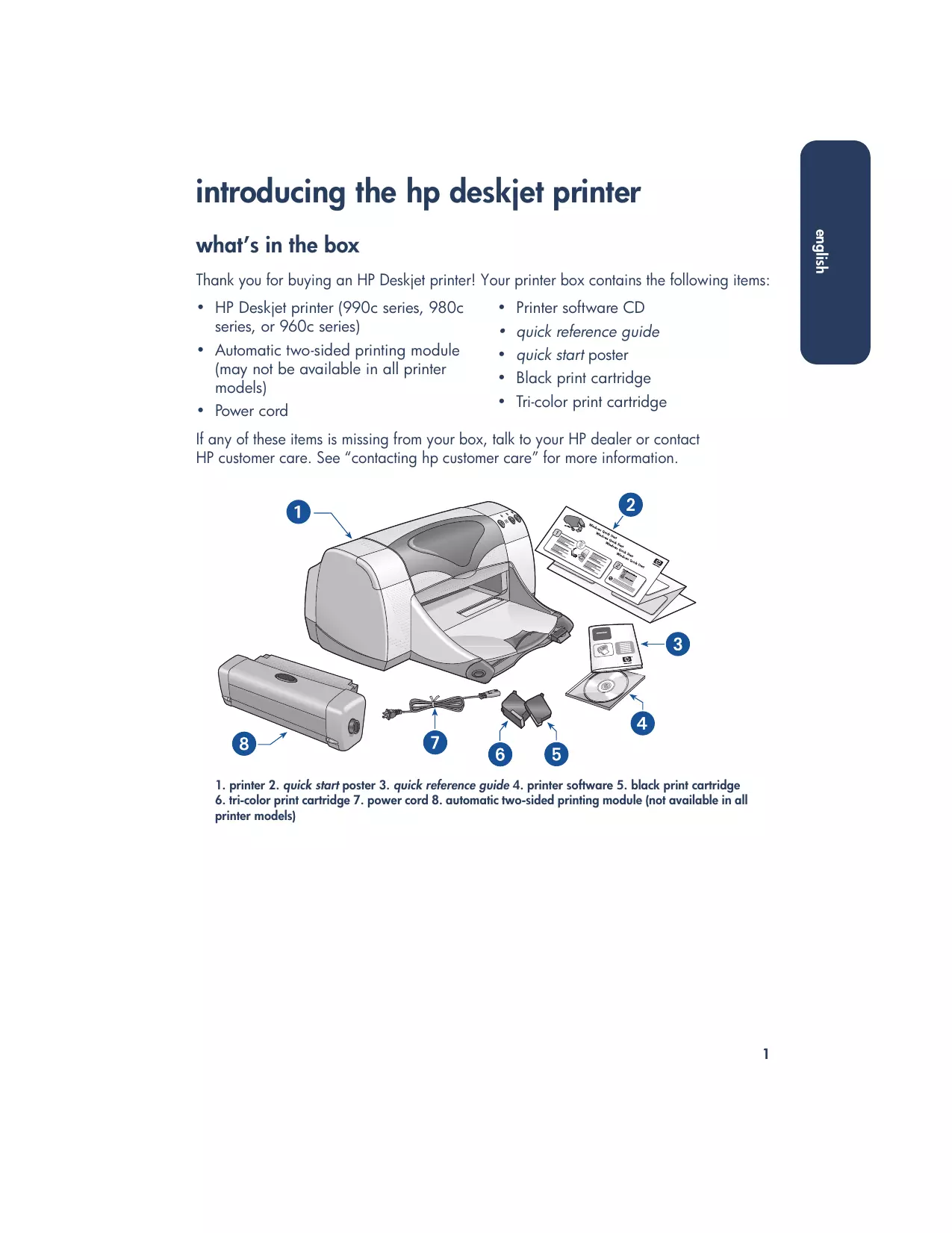
english introducing the hp deskjet printer Thank you for buying an HP Deskjet printer! Your printer box contains the following items:
- HP Deskjet printer (990c series, 980c series, or 960c series)
- Automatic two-sided printing module (may not be available in all printer models)
- Tri-color print cartridge If any of these items is missing from your box, talk to your HP dealer or contact HP customer care. See “contacting hp customer care” for more information.
1. printer 2. quick start poster 3. quick reference guide 4. printer software 5. black print cartridge
6. tri-color print cartridge 7. power cord 8. automatic two-sided printing module (not available in all
english what’s in the box english print cartridges printer cables The HP Deskjet printer box includes both a black and a color print cartridge. Each print cartridge box, and the electronic quick help manual, contain installation instructions. A printer cable is not included in the box. Purchase one of the following cables to connect the printer to your computer: When you replace a print cartridge, verify that you have the correct part number:
- An IEEE 1284-compliant parallel interface cable which is used with all Windows systems
- A USB-compliant interface cable which is used with both Macintosh systems and Windows 98, Me, and 2000 systems software updates Printer software, also called the printer driver, communicates your print requests to the printer. Use either of the following methods to obtain copies and updates of the printer software:
- Download the printer software from HP’s Website.
1. black print cartridge 2. tri-color print
cartridge 3. ink nozzles 4. copper contacts
5. protective vinyl tape
Caution! When you replace a print cartridge, do not touch the print cartridge ink nozzles or copper contacts. Touching these parts will result in clogs, ink failure, and bad electrical connections. In addition, do not remove the copper strips. They are required electrical contacts.
- Phone HP customer care to request a CD containing the software update files. See “contacting hp customer care” for customer care telephone numbers and Website addresses. finding information for information about... see... platform Setting up the printer and installing the printer software quick start poster Windows (all versions) and Macintosh Printer features, specifications, maintenance, printer cartridges, how to print, and printer problem solving quick help (See “viewing quick help” for information) Windows (all versions) and Macintosh Printer box contents, HP customer care, warranty information, and installation problem solving quick reference guide Windows (all versions) and Macintosh Connecting the printer to a network HP’s Windows network guide Windows (all versions except 3.1) Hardware and software compatibility with the printer hp deskjet release notes Click Start > Programs > hp deskjet 9xx series > release Windows (all versions except 3.1) User’s Guide (See “viewing printer information in Windows 3.1x and DOS” for information) notes Onscreen options in the printer software What’s This help (Windows) Click the right mouse button in the relevant screen. Windows (all versions except 3.1) and Macintosh Bubble help (Macintosh) Click the mouse button in the relevant screen.
english Several documents are included with the HP Deskjet printer. They provide instructions on how to install the printer software, operate the printer, and find help when you need it. The following chart indicates where to find specific types of information. english viewing quick help The electronic manual, quick help, offers instructions for using the HP Deskjet printer. Information is also provided to help you solve printer problems that may occur. Windows 95, 98, Me, 2000, and NT 4.0 users Adobe Acrobat versions of quick help Open quick help through the hp printer assistant, a tool that also provides:
- Support through HP’s customer care
- Shopping links to other HP products
- Links to printer software updates
- Greek A printer assistant icon is displayed on the Windows desktop after you install the printer software.
- Hebrew accessing quick help To view quick help:
1. Double-click the hp printer assistant icon
on your computer desktop. 990c printer assistant The hp printer assistant appears.
2. Click the quick help button to display
the manual’s topics. You can also open quick help from the Start menu by clicking Start > Programs > hp deskjet 9xx series > 9xx printer assistant > quick help.
The quick help manual is also available in the following languages:
- Turkish If you want to view the manual in one of these languages: on your computer desktop.
2. Click the quick help button in the hp
printer assistant screen.
3. Select quick help is available in other
languages at the bottom of the quick help screen.
4. Insert the printer software CD into the
computer’s CD-ROM drive.
5. Select your language from the list that
appears. – If Acrobat Reader is installed on your computer, quick help is displayed. – If Acrobat Reader is not installed on On Macintosh computers, Adobe Acrobat Reader is required to view the quick help manual. If you do not have Acrobat Reader, install it from the printer software CD. To open quick help:
1. Insert the printer software CD into the
computer’s CD-ROM drive. The hp deskjet screen is displayed.
2. Select the User Manual folder for your
3. Do one of the following:
– Double-click the Electronic User Manual icon if Acrobat Reader is installed on your computer. your computer, it installs automatically. quick help is then displayed. – Double-click the Acrobat Reader 4.0 icon if Acrobat Reader is not installed on your computer. Adobe Acrobat Reader installs automatically. After it is installed, double-click the Electronic User Manual icon to display quick help.
1. Double-click the hp printer assistant icon
Macintosh users english viewing printer information in Windows 3.1x and DOS Windows 3.1x users DOS users In Windows 3.1x systems, information about operating the printer is located in an electronic User’s Guide. This option is available only with HP Deskjet 990c series printers. In DOS operating systems, information about the HP Deskjet printer is found in a text document called dosread.txt. This file is located on the printer software CD in the \<language code>\djcp\ directory. For <language code> substitute the relevant code from the list below. To read the file in English, for example, open dosread.txt in the \enu\djcp directory. You need Adobe Acrobat Reader to view the User’s Guide. If you do not have Acrobat Reader, install it from the printer software CD when you view the guide for the first time. To open the User’s Guide:
1. Insert the printer software CD into the
computer’s CD-ROM drive.
2. Select File > Run in the Program
3. Type d:\setup.exe.
Substitute the letter of your CD-ROM drive for “d” if necessary.
The hp deskjet screen is displayed.
5. Select View User’s Guide.
– If Acrobat Reader is installed on your computer, the User’s Guide is displayed. – If Acrobat Reader is not installed on your computer, follow the onscreen installation instructions. Once Acrobat Reader is installed, select View User’s Guide to display the manual.
for this language... use this code... Bahasa Indonesia Bulgaria Chinese, Simplified Chinese, Traditional Czech Danish German English Spanish Finnish French Hungarian Italian Japanese Korean Kazakh Dutch Norwegian Polish Portuguese Russian Swedish Thai bin bul chs cht csy dan deu enu esm fin fra hun ita jpn kor kzh nld non plk ptb rus svc tha contacting hp customer care english HP customer care's service and support provides expert advice on using your HP Deskjet printer or solving problems with your printer. There are several ways to obtain assistance—what you need, when you need it! hp’s support process hp customer care e-support HP customer care's support process works most effectively if you look for help in the following order: HP customer care e-support offers online support for as long as you own your HP printer. Get instant access to support information, helpful printing tips and the latest updates for your printer software (also referred to as the printer driver)— 24 hours a day, seven days a week, all at no cost to you.
See “viewing quick help” for more information.
2. Access HP customer care e-support.
Use your Internet connection any time of the day to: – Check HP's Web support pages for product help – Read the HP user community forum messages or post a question – Send HP an email message See “hp customer care e-support” for more information.
3. Contact HP customer care by phone
during hours of operation. See “hp customer care by phone” for more information. hp support Websites If you have a modem connected to your computer and subscribe to an Internet Service Provider or have direct access to the Internet, you can obtain a wide variety of information about your printer. Check the Websites shown in the chart on the next page. If the country or language you need is not listed in the chart, access HP customer care online at www.hp.com/ apcpo-support/regional.html to see if a Website in your language is available. Note Support options and availability vary by product, country/region, and language.
english for this language... use this Website... English http://www.hp.com/go/support French http://www.hp.com/cposupport/fr German http://www.hp.com/cposupport/de Japanese http://www.jpn.hp.com/CPO_TC/eschome.htm Korean http://www.hp.co.kr/go/support Portuguese http://www.hp.com/cposupport/pt Simplified Chinese http://www.hp.com.cn/go/support Spanish http://www.hp.com/cposupport/es Swedish http://www.hp.com/cposupport/sv Traditional Chinese http://taiwan.support.hp.com Link to HP user community forums and HP customer care email from the HP customer care Website. Log on to the Website then select printer options appropriate for your printer. When the hp customer care screen appears, click Connect with HP. hp user community forums HP's customer care online user community forums let you read through the questions and answers left by other HP users to find a solution to your support question. You can also post your own question, then visit the site later for ideas and suggestions from knowledgeable users or forum moderators.
hp customer care email One-to-one email gives direct answers to your questions from an HP customer care service technician. Enter your question on a Web form and receive an email reply. (Responses are normally provided within 48 hours, excluding holidays.) Email support is a great way to ask technical questions or obtain an answer that is tailored to your specific system. hp customer care by phone free phone support period region phone support* North America— Including Canada 1 year Asia Pacific 1 year Europe 30 days Latin America 1 year
- Standard phone company charges apply. before placing a call Before placing a call for help, try these other free support options:
- HP customer care e-support
- HP customer care audio tips (if you are in the U.S.). Solutions to commonly asked HP Deskjet printer questions are provided when you phone our toll-free automated support line at (877) 283-4684. In addition, HP needs the following information to assist you:
- The printer's model number (the label is on the front of the printer)
- The printer's serial number (the label is on the bottom of the printer)
- The computer’s operating system
- The version of the printer driver (also referred to as the printer software)
- Messages displayed around the time the situation occurred
- Answers to these questions: – Has this situation happened before? Can you re-create it? – When did this happen? Did you add any new hardware or software around the time this situation began?
english HP provides telephone support free of charge during the printer’s phone support period. (Standard phone company charges do apply, however.) The list below shows the phone support period for your region. If you cannot solve the problem using these resources, call an HP customer care service technician while you are in front of your computer and printer. For faster service, please be prepared to provide information about the steps you have taken to solve the problem. english support phone numbers If you need help solving a problem, contact HP customer care using one of the phone numbers in the table on the right. If the phone number for your region is not listed, please refer to HP's Website at www.hp.com/cpso-support/ guide/psd/cscinfo.htm. after the free phone support period After the free phone support period, you can still get help from HP for a fee. Prices are subject to change without notice. (However, HP customer care e-support is always available at no cost! See “hp customer care e-support” for more information.)
- For calls in the United States that may last less than 10 minutes, call (900) 555-1500. The charge is US$2.50 per minute, starting from the time you connect to a service technician. Charges will not exceed US$25.
- For calls in the United States that may last longer than ten minutes or calls from Canada, call (800) 999-1148. The fee is US$25 per call, charged to your Visa or MasterCard. If HP determines during the call that your printer needs to be repaired and the printer is covered under the limited warranty, you will not be charged for the phone support service.
Middle East, Dubai +971 4 883 8454 Netherlands +31 (0) 20 606 8751 New Zealand +64 (9) 356 6640 Norway +47 22 116299 Philippines +66 (2) 867 3551 Poland +48 22 519 06 00 Portugal +351 21 317 6333 Republic of South Africa, inside RSA +27 086 000 1030 Republic of South Africa, outside RSA +27 11 258 9301 Russia, Moscow +7 095 797 3520 Russia, St. Petersburg +7 812 346 7997 Singapore +65 272 5300 Spain +34 9 02321 123 Sweden +46 (0) 8 6192170 Switzerland +41 (0) 84 8801111 Taiwan +886 2 2717 0055 Thailand +66 (2) 661 4000 Turkey +90 (0) 212 221 6969 United Kingdom +44 (0) 207 512 5202 U.S. 1 (208) 344 4131 Venezuela + 58 800 47 888 Vietnam +84 (0) 8 823 4530 obtaining hp customer care repair If your HP printer needs repairing, call HP customer care phone support. (See HP’s support phone numbers on the previous page.) A trained HP customer care service technician will diagnose the problem and coordinate the repair process. Customer care will direct you to the best solution, whether it is an authorized service provider or an HP facility. This service is free during your printer's limited warranty period. After the warranty period, you will be quoted a repair cost. obtaining a warranty extension If you would like to extend your warranty coverage beyond the limited warranty period, the following options are available:
- Consult your reseller to get extended coverage. To find HP resellers in the U.S., visit HP’s service locator at www.hp.com/service_locator.
- If your reseller does not offer service contracts, call HP directly and ask about our HP service agreements. In the U.S. call (800) 446-0522; in Canada call (800) 268-1221. For HP service agreements outside of the U.S. and Canada, contact your local HP sales office.
english for this region... english solving Windows installation problems View the information in this section if you have problems setting up your printer. If you need help after the printer is set up, see the quick help electronic manual. what is the problem? I inserted the installation CD, but the computer could not read it. possible causes...
- The CD is not properly inserted in the CDROM drive
- The CD-ROM is damaged to solve the problem... Reinsert the CD into the CD-ROM drive. Be careful to position the CD correctly. If installation does not begin after a few seconds, either the CD or CD-ROM drive may be damaged. Insert a different CD in the CD-ROM drive. If another CD works, you may have a damaged CD. If you are not able to play any CD, you may need to replace or repair your CD-ROM drive. Replace the damaged CD by downloading the printer software (also known as the printer driver) from the HP Website. If you do not have Web access, contact HP customer care to order the software on CD. For the phone number of the HP customer care center nearest to you, see “contacting hp customer care”.
possible causes... The printer software did not install correctly.
- There may be a conflict with your virus protection program
- There may be a conflict with another software program
- There may be a conflict with a peripheral device connected to your printer english what is the problem? to solve the problem... Uninstall your printer software. For Windows 95, 98, Me, NT 4.0, and 2000:
1. Click Start > Programs > hp
deskjet 9xx series > hp deskjet 9xx series uninstall. For Windows 3.1x:
1. Open the hp deskjet 9xx series
2. Follow the directions that
3. Follow the instructions that
appear on your computer screen. program group.
2. Double-click the hp deskjet
9xx series Uninstall icon. appear on your computer screen.
- Close any software programs (including virus protection programs) that are running.
- Disconnect any peripheral devices that use a parallel printer cable (such as a scanner or tape backup system). Reinstall the printer software. See the quick start poster. If you are still having problems with the software installation, contact HP customer care. See “contacting hp customer care”.
english what is the problem? When I connect a USB cable between the printer and my computer, the New Hardware Wizard does not appear. possible causes... to solve the problem... You may not be using Windows 98, Me, or 2000. Make sure Windows 98, Me, or 2000 is running. If you do not have Windows 98, Me, or 2000, you need to use a parallel cable. Your USB cable may not be connected properly.
1. Disconnect and then reconnect the USB cable
2. Make sure that the cable is securely attached.
Serial Bus Controller option.
- If you see a USB host controller and a USB root hub listed, USB is probably enabled.
- If you do not see thse devices listed, refer to your computer’s documentation or contact the computer’s manufacturer for more information on enabling and setting up USB.
5. Use a parallel cable to connect the printer to
your computer if you cannot enable USB.
When I connect a USB cable between the printer and my computer, an “Unknown Device” message appears. possible causes... english what is the problem?
- Static electricity has built up in the cable between the printer and your computer
- You may have a defective USB cable to solve the problem...
1. Disconnect the USB cable from the printer.
2. Unplug the printer from its power cord.
3. Wait approximately 30 seconds.
4. Plug the printer cord into the printer.
5. Plug the USB cable into the printer.
6. Replace the USB cable or use a parallel
cable if “Unknown Device” continues to appear in the New Hardware Found dialog box.
english what is the problem? possible causes... When I insert the printer software CD and the files start to copy, the Copying Files... screen says that file hpzuci01.dll cannot be found. All the following conditions are present:
- You are using a USB cable to connect the printer to your computer
- You are using Windows 98
- You are connecting more than one device at the same time to solve the problem...
The Open screen is displayed.
2. Select the following path to locate the hpzuci01.dll
file: c:\Program Files\Hewlett-Packard\hpz\ glue.
The Copying Files… screen reappears with the correct path and file name inserted in the Copy files from… field.
5. Select Install hp deskjet 9xx series printer software.
The hp deskjet 9xx installer screen appears.
6. Click Next, then follow the onscreen instructions to
complete installation.
limited warranty statement software print cartridges printer 90 days 90 days 1 year Asia Pacific 90 days 90 days 1 year Europe 90 days 90 days 1 year Latin America 90 days 90 days 1 year A. extent of limited warranty
1. Hewlett-Packard (HP) warrants to the enduser customer that the HP products specified
above will be free from defects in materials and workmanship for the duration specified above, which duration begins on the date of purchase by the customer. Customer is responsible for maintaining proof of date of purchase.
2. For software products, HP’s limited warranty
applies only to a failure to execute programming instructions. HP does not warrant that the operation of any product will be uninterrupted or error free.
3. HP’s limited warranty covers only those
defects which arise as a result of normal use of the product, and do not apply to any: a. Improper or inadequate maintenance or modification; b. Software, interfacing, media, parts, or supplies not provided or supported by HP; c. Operation outside the product’s specifications.
4. For HP printer products, the use of a non-HP
ink cartridge or a refilled ink cartridge does not affect either the warranty to the customer or any HP support contract with the customer. However, if printer failure or damage is attributable to the use of a non-HP or refilled ink cartridge, HP will charge its standard time and materials charges to service the printer for the particular failure or damage. english region North America (including Canada)
5. If HP receives, during the applicable
warranty period, notice of a defect in any software, media, or ink cartridge covered by HP’s warranty, HP shall replace the defective product. If HP receives notice of a defect in any hardware product covered by HP’s warranty during the applicable warranty period, HP shall either repair or replace the defective product at HP’s option.
6. If HP is unable to repair or replace, as
applicable, a defective product covered by HP’s warranty, HP shall, within a reasonable time after being notified of the defect, refund the purchase price of the product.
7. HP shall have no obligation to repair,
replace, or refund until the customer returns the defective product to HP.
8. Any replacement product may be either new
or like-new, provided that it has functionality at least equal to that of the product being replaced.
9. HP’s limited warranty is valid in any country
where the covered HP product is distributed by HP except for the Middle-East, Africa, Argentina, Brazil, Mexico, Venezuela, and France’s “Departements D’Outre-Mer”; for those excepted areas, the warranty is valid only in the country of purchase. Contracts for additional warranty services, such as on-site service, may be available from any authorized HP service facility where the product is distributed by HP or by an authorized importer.
english B. limitations of warranty
NEITHER HP NOR ITS THIRD PARTY
SUPPLIERS MAKE ANY OTHER WARRANTY
OR CONDITION OF ANY KIND, WHETHER
EXPRESS OR IMPLIED, WITH RESPECT TO
THE HP PRODUCTS, AND SPECIFICALLY
DISCLAIM THE IMPLIED WARRANTIES OR
CONDITIONS OF MERCHANTABILITY,
SATISFACTORY QUALITY, AND FITNESS
FOR A PARTICULAR PURPOSE. C. limitations of liability
1. To the extent allowed by local law, the
remedies provided in this Warranty Statement are the customer’s sole and exclusive remedies.
2. TO THE EXTENT ALLOWED BY LOCAL LAW,
EXCEPT FOR THE OBLIGATIONS
WARRANTY STATEMENT, IN NO EVENT
WILL HP OR ITS THIRD PARTY SUPPLIERS BE LIABLE FOR DIRECT, INDIRECT, SPECIAL,
INCIDENTAL, OR CONSEQUENTIAL
DAMAGES, WHETHER BASED ON
CONTRACT, TORT, OR ANY OTHER LEGAL
THEORY AND WHETHER ADVISED OF THE
POSSIBILITY OF SUCH DAMAGES. D. local law
1. This Warranty Statement gives the customer
specific legal rights. The customer may also have other rights which vary from state to state in the United States, from province to province in Canada, and from country to country elsewhere in the world.
2. To the extent that this Warranty Statement is
inconsistent with local law, this Warranty Statement shall be deemed modified to be consistent with such local law. Under such local law, certain disclaimers and limitations of this Warranty Statement may not apply to the customer. For example, some states in the United States, as well as some governments outside the United States (including provinces in Canada), may: a. Preclude the disclaimers and limitations in this Warranty Statement from limiting the statutory rights of a consumer (e.g., the United Kingdom);
b. Otherwise restrict the ability of a manufacturer to enforce such disclaimers or limitations; or c. Grant the customer additional warranty rights, specify the duration of implied warranties which the manufacturer cannot disclaim, or not allow limitations on the duration of implied warranties.
3. FOR CONSUMER TRANSACTIONS IN
AUSTRALIA AND NEW ZEALAND, THE
TERMS IN THIS WARRANTY STATEMENT,
EXCEPT TO THE EXTENT LAWFULLY
PERMITTED, DO NOT EXCLUDE, RESTRICT, OR MODIFY, AND ARE IN ADDITION TO,
THE MANDATORY STATUTORY RIGHTS
APPLICABLE TO THE SALE OF HP
PRODUCTS TO SUCH CUSTOMERS. hp year 2000 warranty Subject to all of the terms and limitations of the HP Limited Warranty Statement stated above, HP warrants that this HP Product will be able to accurately process date data (including, but not limited to, calculating, comparing, and sequencing) from, into, and between the twentieth and twenty-first centuries, and the years 1999 and 2000, including leap year calculations, when used in accordance with the Product documentation provided by HP (including any instructions for installing patches or upgrades), provided that all other products (e.g. hardware, software, firmware) used in combination with such HP Product(s) properly exchange date data with it. The duration of the Year 2000 warranty extends through January 31, 2001. environmental statement Product longevity: To ensure the longevity of your HP Deskjet printer, HP provides the following: Ozone: Ozone-depleting chemicals such as CFCs have been eliminated from HewlettPackard manufacturing processes.
- Extended warranty: HP SupportPack provides coverage for the HP hardware and product and all HP supplied internal components. HP SupportPack must be purchased by the customer within 30 days of purchase. Contact the nearest HP dealer about this service.
- Spare parts and consumables are available for five (5) years after production has stopped.
- Product take-back: To return this product and print cartridges to HP at the end of its useful life, call your local HP Sales or Service Office for instructions. recycling energy consumption Design for recycling has been incorporated into this printer. The number of materials has been kept to a minimum while ensuring proper functionality and reliability. Dissimilar materials have been designed to separate easily. Fasteners and other connections are easy to locate, access, and remove using common tools. High priority parts have been designed to access quickly for efficient disassembly and repair. Plastic parts have been primarily designed in no more than two colors to enhance recycling options. A few small parts are colored specifically to highlight customer access points. This printer was designed with energy conservation in mind. This printer averages 4 watts in stand-by mode. Not only does this save natural resources, but it also saves money without affecting the high performance of the printer. reduction and elimination Paper use: The printer’s automatic/manual twosided printing capability reduces paper usage and the resulting demands on natural resources. This printer is suited for the use of recycled papers according to DIN 19 309. Printer packaging: The packaging materials for this printer have been selected to provide maximum protection for the least cost possible, while attempting to minimize environmental impact and facilitate recycling. The rugged design of the HP Deskjet printer assists in minimizing both packaging materials and damage rates. Plastic parts: All major plastics and plastic parts are marked according to international standards. All plastic parts used in the printer housing and chassis are technically recyclable and all use a single polymer. This product qualifies for the ENERGY STAR Program (U.S. and Japan). ENERGY STAR is a voluntary program established to encourage the development of energy-efficient office products. ENERGY STAR is a US registered service mark of the US EPA. As an ENERGY STAR partner, Hewlett-Packard Company has determined that this product meets ENERGY STAR Guidelines for energy efficiency. Energy consumption in off-mode: When the printer is off, a minimal amount of energy is still being consumed. Energy consumption can be prevented by turning the printer power off, then disconnecting the end of the printer power cord from the electrical source.
english Hewlett-Packard continuously improves the design processes of its deskjet printers to minimize the negative impact on the office environment and on the communities where printers are manufactured, shipped, and used. Hewlett-Packard has also developed processes to minimize the negative impact of the disposal of the printer at the end of its printing life. english index
Adobe Acrobat Reader 5, 6 Automatic two-sided printing module 1 phone support 9, 10 print cartridges 1, 2, 3 printer 15 printer box contents 1 printer cable 2, 14, 15 printer features 3 printer repair 11 printer software 1, 2, 3, 5 printer specifications 3 printer, connecting to network 3 printer, setting up 3
cable, printer 2 compatability with other hardware 3 with other software 3 contents, printer box 1 customer care 7
DOS systems 6 driver, printer 1, 2, 3
email support 8 energy consumption 19
quick help manual 3, 4, 5, 6 quick start poster 1, 3
recycling printer 19 release notes 3
finding printer information 3 service contracts 11 software, printer 2, 3
help after phone support period 10 email support 8 HP customer care 7 phone support 9, 10 printer repair 11 troubleshooting installation problems 12 user community forums 8 Web support 7 help, onscreen 3 HP printer assistant 4 troubleshooting 12 computer cannot read software CD 12 hpzuci01.dll not found 16 software does not install correctly 13 USB installation problems 14, 15
installation troubleshooting 12 warranty extension 11, 19 warranty, limited 17 Websites, HP customer support 7 Windows onscreen help 3
virus protection programs 13 regulatory notices hewlett-packard company note This device complies with part 15 of the FCC Rules. Operation is subject to the following two conditions: This equipment has been tested and found to comply with the limits for a Class B digital device, pursuant to part 15 of the FCC rules. These limits are designed to provide reasonable protection against harmful interference in a residential installation. This equipment generates, uses, and can radiate radio frequency energy and, if not installed and used in accordance with the instructions, can cause harmful interference to radio communications. However, there is no guarantee that interference will not occur in a particular installation. If this equipment does cause harmful interference to radio or television reception, which can be determined by turning the equipment off and on, the user is encouraged to try to correct the interference by one or more of the following measures:
- This device may not cause harmful interference, and
- This device must accept any interference received, including interference that may cause undesired operation.
- Pursuant to Part 15.21 of the FCC Rules, any changes or modifications to this equipment not expressly approved by Hewlett-Packard Company may cause harmful interference, and void your authority to operate this equipment. Use of a shielded data cable is required to comply with the Class B limits of
Part 15 of the FCC Rules.
For further information, contact: Hewlett-Packard Company Manager of Corporate Product Regulations 3000 Hanover Street Palo Alto, Ca 94304 (650) 857-1501
- Reorient or relocate the receiving antenna.
- Increase the separation between the equipment and the receiver.
- Connect the equipment into an outlet on a circuit different from that to which the receiver is connected.
- Consult the dealer or an experienced radio/ TV technician for help. LED indicator statement The display LEDs meet the requirements of EN 60825-1. Windows Macintosh Guide de référence rapide hp deskjet 990c/980c/960c series français Première édition, octobre 2000 Copyright 2000 Hewlett-Packard Company Marques déposées Microsoft, MS-DOS et Windows sont des marques déposées de Microsoft Corporation. Adobe et Acrobat sont des marques déposées d’Adobe Systems Incorporated. Mac, Macintosh et Mac OS sont des marques commerciales d’Apple Computer, Inc., déposées aux Etats-Unis et dans d’autres pays. Avertissement Les informations contenues dans ce document peuvent faire l’objet de modifications sans préavis. Hewlett-Packard n'offre aucune garantie concernant ce document. Ceci s'applique aux garanties implicites d'adéquation à la vente et à une application particulière sans se limiter à celles-ci. Hewlett-Packard ne pourra être tenu responsable des erreurs contenues dans ce document, ni des dommages fortuits ou consécutifs ayant trait à la fourniture, la qualité ou l’usage de ce dernier. Toute reproduction, photocopie ou traduction dans une autre langue des informations contenues dans ce document est strictement interdite sans le consentement écrit d’Hewlett-Packard Company. Termes et conventions Les termes et conventions suivants sont utilisés dans le guide de référence rapide : Termes Les imprimantes HP Deskjet 990c, 980c et 960c series sont appelées HP Deskjet 9xx ou HP Deskjet. Symboles Le symbole > vous aide dans une série d’étapes logicielles. Par exemple : Cliquez sur Démarrer > Programmes > hp deskjet 9xx series > Informations de dernière minute pour afficher les informations les plus récentes. Attention Attention indique une action qui pourrait endommager l’imprimante HP Deskjet ou un autre équipement. Par exemple : Attention ! Ne touchez pas aux gicleurs ni aux contacts cuivrés de la cartouche. Ceci pourrait endommager la connexion électrique ou boucher les gicleurs.
- Imprimante HP Deskjet (990c series, 980c series ou 960c series)
programme hp deskjet 9xx series.
warranty, limited 17 Regulatory notices hewlett-packard company note This device complies with part 15 of the FCC Rules. Operation is subject to the following two conditions: This equipment has been tested and found to comply with the limits for a Class B digital device, pursuant to part 15 of the FCC rules. These limits are designed to provide reasonable protection against harmful interference in a residential installation. This equipment generates, uses, and can radiate radio frequency energy and, if not installed and used in accordance with the instructions, can cause harmful interference to radio communications. However, there is no guarantee that interference will not occur in a particular installation. If this equipment does cause harmful interference to radio or television reception, which can be determined by turning the equipment off and on, the user is encouraged to try to correct the interference by one or more of the following measures:
- This device may not cause harmful interference, and
- This device must accept any interference received, including interference that may cause undesired operation.
- Pursuant to Part 15.21 of the FCC Rules, any changes or modifications to this equipment not expressly approved by Hewlett-Packard Company may cause harmful interference, and void your authority to operate this equipment. Use of a shielded data cable is required to comply with the Class B limits of
Part 15 of the FCC Rules.
For further information, contact: Hewlett-Packard Company Manager of Corporate Product Regulations 3000 Hanover Street Palo Alto, Ca 94304 (650) 857-1501
- Reorient or relocate the receiving antenna.
- Increase the separation between the equipment and the receiver.
- Connect the equipment into an outlet on a circuit different from that to which the receiver is connected.
- Consult the dealer or an experienced radio/ TV technician for help. LED indicator statement The display LEDs meet the requirements of EN 60825-1. Windows Macintosh Guía de referencia rápida hp deskjet 990c/980c/960c series español Primera edición, octubre del 2000 Copyright 2000 Hewlett-Packard Company Marcas registradas Microsoft, MS-DOS y Windows son marcas registradas de Microsoft Corporation. Adobe y Acrobat son marcas registradas de Adobe Systems Incorporated. Mac, Macintosh y Mac OS son marcas de Apple Computer, Inc., registradas en los Estados Unidos y otros países. Aviso La información contenida en este documento está sujeta a cambios sin previo aviso. Hewlett-Packard no ofrece garantía de ningún tipo con respecto a este material, incluyendo, a título enunciativo pero no limitativo, las garantías implícitas de comercialización o adecuación a un propósito determinado. Hewlett-Packard no acepta responsabilidad por ningún error ni por daños incidentales o consecuentes relacionados con el suministro, el rendimiento o el uso de este material. Se prohibe fotocopiar, reproducir o traducir este documento a otro idioma sin permiso por escrito de Hewlett-Packard Company. Términos y convenciones Se utilizan los siguientes términos y convenciones en la Guía de referencia rápida: Términos Se refiere a las impresoras HP Deskjet 990c, 980c y 960c series como HP Deskjet 9xx o HP Deskjet. Símbolos El símbolo > indica al usuario cómo llevar a cabo una serie de pasos relacionados con el software. Por ejemplo: Haga clic en Inicio > Programas > hp deskjet 9xx series > Notas sobre esta versión para ver las Notas sobre esta versión. Precauciones Una Precaución advierte al usuario sobre posibles daños a la impresora HP Deskjet o a otro equipo. Por ejemplo: ¡Precaución! No toque las boquillas de tinta ni los contactos de cobre de los cartuchos de impresión. El tocar estas partes ocasionará obstrucciones, fallos de la tinta y malas conexiones eléctricas.
- Impresora HP Deskjet (990c series, 980c series o 960c series)
hp deskjet 9xx series.
USB 14, 15 Regulatory notices hewlett-packard company note This device complies with part 15 of the FCC Rules. Operation is subject to the following two conditions: This equipment has been tested and found to comply with the limits for a Class B digital device, pursuant to part 15 of the FCC rules. These limits are designed to provide reasonable protection against harmful interference in a residential installation. This equipment generates, uses, and can radiate radio frequency energy and, if not installed and used in accordance with the instructions, can cause harmful interference to radio communications. However, there is no guarantee that interference will not occur in a particular installation. If this equipment does cause harmful interference to radio or television reception, which can be determined by turning the equipment off and on, the user is encouraged to try to correct the interference by one or more of the following measures:
- This device may not cause harmful interference, and
- This device must accept any interference received, including interference that may cause undesired operation.
- Pursuant to Part 15.21 of the FCC Rules, any changes or modifications to this equipment not expressly approved by Hewlett-Packard Company may cause harmful interference, and void your authority to operate this equipment. Use of a shielded data cable is required to comply with the Class B limits of
Part 15 of the FCC Rules.
For further information, contact: Hewlett-Packard Company Manager of Corporate Product Regulations 3000 Hanover Street Palo Alto, Ca 94304 (650) 857-1501
- Reorient or relocate the receiving antenna.
- Increase the separation between the equipment and the receiver.
- Connect the equipment into an outlet on a circuit different from that to which the receiver is connected.
- Consult the dealer or an experienced radio/ TV technician for help. LED indicator statement The display LEDs meet the requirements of EN 60825-1. Windows Macintosh guia de referência rápida hp deskjet 990c/980c/960c series português Edição 1 de outubro de 2000 Copyright 2000 Hewlett-Packard Company agradecimentos Microsoft, MS-DOS e Windows são marcas comerciais registradas da Microsoft Corporation. Adobe e Acrobat são marcas comerciais registradas da Adobe Systems Incorporated. Mac, Macintosh e Mac OS são marcas comerciais da Apple Computer, Inc., registradas nos EUA e em outros países. aviso A informação contida neste documento está sujeita a mudanças sem aviso prévio. A Hewlett-Packard não faz nenhuma garantia com relação a este material, incluindo, mas não limitado a, garantias implícitas de comerciabilidade e adequação para um determinado fim. A Hewlett-Packard não será responsável por erros contidos aqui, ou por danos incidentais ou consequenciais relativos ao fornecimento, desempenho ou uso deste material. Nenhuma parte deste documento pode ser fotocopiada, reproduzida ou traduzida para outro idioma, sem a aprovação escrita da Hewlett-Packard Company. termos e convenções Os seguintes termos e convenções são usados no guia de referência rápida: termos As impressoras HP Deskjet 990c, 980ce 960c series podem ser referidas como HP Deskjet 9xx ou HP Deskjet. símbolos O > símbolo o guia nas várias etapas do software. Por exemplo: Clique em Iniciar > Programas > hp deskjet 9xx series > Notas de lançamento para ver as Notas de lançamento. cuidados Um Cuidado indica um possível dano à impressora HP Deskjet ou a outro equipamento. Por exemplo: Cuidado! Não toque nos injetores de tinta do cartucho para impressão nem nos contatos de cobre. O toque destas partes causa entupimento, falha da tinta e má conexão elétrica.
- Impressora HP Deskjet (990c series, 980c series ou 960c series)
- Três cores—hp 78 (hp c6578d)
hp deskjet 9xx series.
Websites, soluções de suporte HP 7 regulatory notices hewlett-packard company note This device complies with part 15 of the FCC Rules. Operation is subject to the following two conditions: This equipment has been tested and found to comply with the limits for a Class B digital device, pursuant to part 15 of the FCC rules. These limits are designed to provide reasonable protection against harmful interference in a residential installation. This equipment generates, uses, and can radiate radio frequency energy and, if not installed and used in accordance with the instructions, can cause harmful interference to radio communications. However, there is no guarantee that interference will not occur in a particular installation. If this equipment does cause harmful interference to radio or television reception, which can be determined by turning the equipment off and on, the user is encouraged to try to correct the interference by one or more of the following measures:
- This device may not cause harmful interference, and
- This device must accept any interference received, including interference that may cause undesired operation.
- Pursuant to Part 15.21 of the FCC Rules, any changes or modifications to this equipment not expressly approved by Hewlett-Packard Company may cause harmful interference, and void your authority to operate this equipment. Use of a shielded data cable is required to comply with the Class B limits of
Part 15 of the FCC Rules.
For further information, contact: Hewlett-Packard Company Manager of Corporate Product Regulations 3000 Hanover Street Palo Alto, Ca 94304 (650) 857-1501
- Reorient or relocate the receiving antenna.
- Increase the separation between the equipment and the receiver.
- Connect the equipment into an outlet on a circuit different from that to which the receiver is connected.
- Consult the dealer or an experienced radio/ TV technician for help. LED indicator statement The display LEDs meet the requirements of EN 60825-1. hp deskjet 990c/980c/960c quick reference guide Guide de référence rapide Guía de referencia rápida http://www.hp.com/go/support/ *C6455-90181* © Copyright 2000 Hewlett-Packard Company C6455-90181 Printed in XXXXXXX 11/00 guia de referência rápida