 ManualGo.com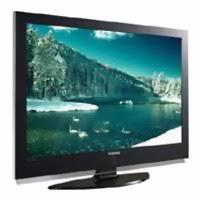
LN-S4096D - TV SAMSUNG - Free user manual and instructions
Find the device manual for free LN-S4096D SAMSUNG in PDF.



Download the instructions for your TV in PDF format for free! Find your manual LN-S4096D - SAMSUNG and take your electronic device back in hand. On this page are published all the documents necessary for the use of your device. LN-S4096D by SAMSUNG.
USER MANUAL LN-S4096D SAMSUNG
Customer Care Center ☎ Web Site CANADA 1-800-SAMSUNG (7267864) www.samsung.com/ca U.S.A 1-800-SAMSUNG (7267864) www.samsung.com LN-S4096D LN-S4696D Address Samsung Electronics Canada Inc., Customer Service 55 Standish Court Mississauga, Ontario L5R 4B2 Canada Samsung Electronique Canada Inc., Service á la Clientéle 55 Standish Court Mississauga, Ontario L5R 4B2 Canada Samsung Electronics America, Inc. 105 Challenger Road Ridgefield Park, NJ 07660-0511 TFT-LCD TELEVISION Owner’s Instructions BN68-01047F-00 Register your product at www.samsung.com/global/register Still 6/27/06 2:43 AM Page 1 Precautions When Displaying a Still Image A still image may cause permanent damage to the TV screen.
- Do not display a still image on the LCD panel for more than 2 hours as it can cause screen image retention. This image retention is also known as "screen burn". To avoid such image retention, reduce the degree of brightness and contrast of the screen when displaying a still image.
Watching the LCD TV in 4:3 format for a long period of time may leave traces of borders displayed on the left, right and center of the screen caused by the difference of light emission on the screen. Playing a DVD or a game console may cause a similar effect to the screen. Damages caused by the above effect are not covered by the Warranty. Displaying still images from Video games and PC for longer than a certain period of time may produce partial after-images. To prevent this effect, reduce the ‘brightness’ and ‘contrast’ when displaying still images. © 2006 Samsung Electronics Co., Ltd. All rights reserved. BN68-01047F-00Eng.qxd 7/14/06 5:16 AM Page 1 English Contents GENERAL INFORMATION PICTURE CONTROL Picture Control .............................................................................. Customizing the Picture Settings ................................................ Changing the Picture Size ............................................................ Using the Color Weakness Enhancement Feature ..................... Digital Noise Reduction ................................................................ DNIe (Digital Natural Image engine) ............................................ Setting the Film Mode................................................................... Viewing Picture-In-Picture ............................................................ Changing the Size of the Sub (PIP) Picture ................................. Changing the Location of the Sub (PIP) Picture .......................... Selecting a Signal Source (Air or Cable) for PIP ......................... Changing the Channel of the Sub (PIP) Picture .......................... Freezing the Picture ..................................................................... Setting the Blue Screen Mode...................................................... CONNECTIONS Connecting VHF and UHF Antennas ................................................. Connecting Cable TV......................................................................... Connecting a VCR ............................................................................. Connecting an S-VHS VCR ............................................................... Connecting a Camcorder ................................................................... Connecting a DVD Player/Set-Top Box ............................................. Connecting a DVD Player/Set-Top Box via DVI ................................ Connecting a DVD Player/Set-Top Box via HDMI ............................. Connecting a Digital Audio System.................................................... Connecting an Amplifier/DVD Home Theater .................................... Connecting CableCARD .................................................................... Connecting a PC................................................................................
Setting the Function Help ............................................................. Using the Energy Saving Feature ................................................ Menu Transparency Level ............................................................ Using Game Mode ............................................................................. Using the V-Chip........................................................................... How to Enable/Disable the Rating Controls ................................. How to Set up Restrictions Using “TV Parental Guidelines” ........ How to Set up Restrictions Using “MPAA Rating” ........................ Important Notes About Parental Locks......................................... How to Set up Restrictions Using Canadian English ................... How to Set up Restrictions Using Canadian French .................... Using the V-Chip for Digital channels........................................... Viewing Closed Captions (On-Screen Text Messages) Analog .. Viewing Closed Captions (On-Screen Text Messages) Digital .. Setting the Blue Eye ..................................................................... Using the CableCARD.................................................................. Using the CableCARD Setup Function ........................................ Channel List Reorganization ........................................................
- BN68-01047F-00Eng.qxd 7/14/06 5:16 AM Page 2 Contents WISELINK PC DISPLAY Using Your TV as a Computer (PC) Display p. 110
- Setting Up Your PC Software (Windows Only) p. 111
- Display Modes p. 111
- Adjusting the Picture Quality p. 112
- Changing the Picture Position p. 113
- Adjusting the Picture Quality and Position Automatically p. 114
- Changing the Picture Size (PC Mode) p. 115
- Viewing the Current Resolution p. 116
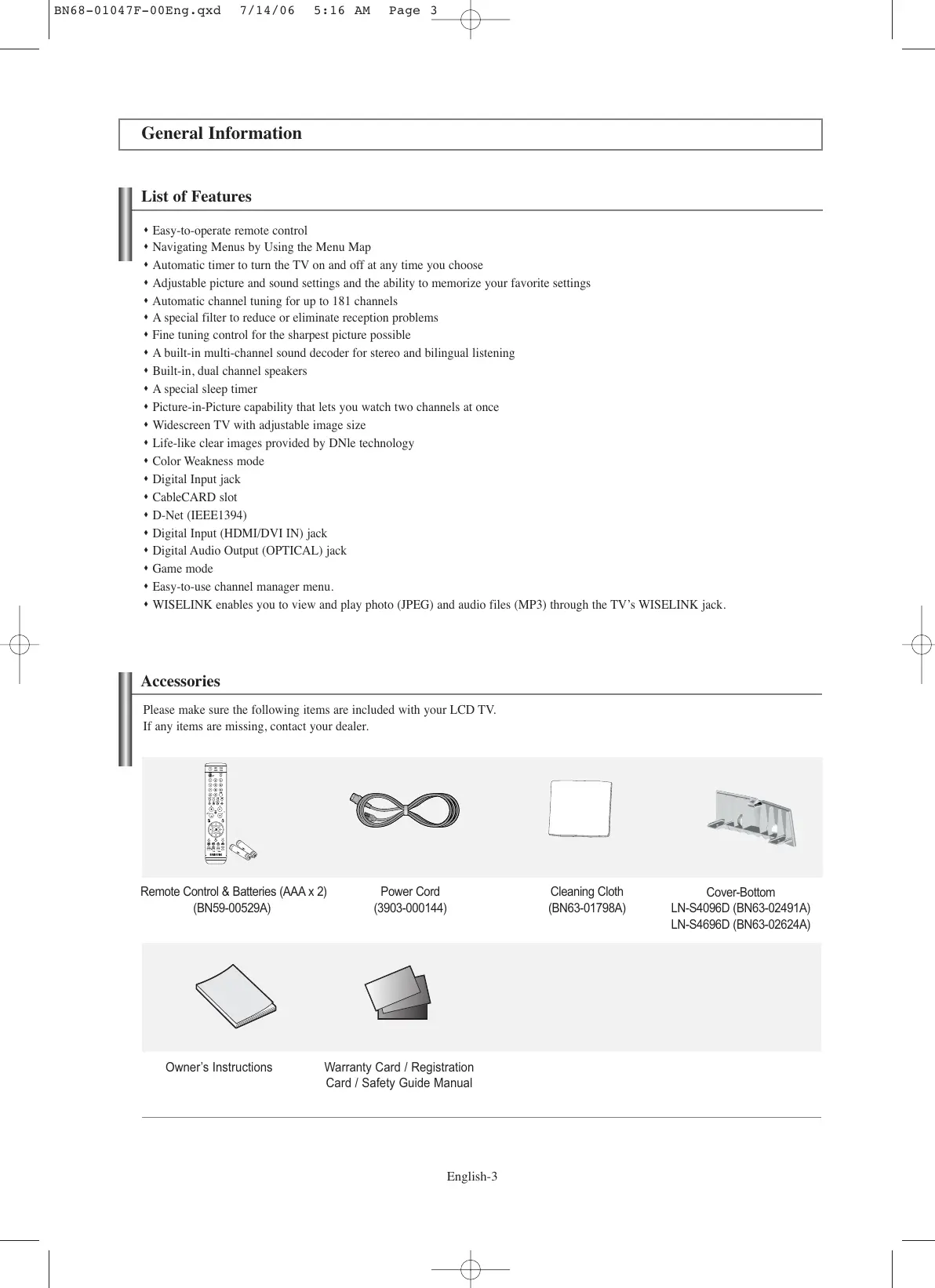
- Initializing the Picture Settings List of Features Easy-to-operate remote control Navigating Menus by Using the Menu Map Automatic timer to turn the TV on and off at any time you choose Adjustable picture and sound settings and the ability to memorize your favorite settings Automatic channel tuning for up to 181 channels A special filter to reduce or eliminate reception problems Fine tuning control for the sharpest picture possible A built-in multi-channel sound decoder for stereo and bilingual listening Built-in, dual channel speakers A special sleep timer Picture-in-Picture capability that lets you watch two channels at once Widescreen TV with adjustable image size Life-like clear images provided by DNle technology Color Weakness mode Digital Input jack CableCARD slot D-Net (IEEE1394) Digital Input (HDMI/DVI IN) jack Digital Audio Output (OPTICAL) jack Game mode Easy-to-use channel manager menu. WISELINK enables you to view and play photo (JPEG) and audio files (MP3) through the TV’s WISELINK jack. Accessories Please make sure the following items are included with your LCD TV. If any items are missing, contact your dealer. Remote Control & Batteries (AAA x 2) (BN59-00529A) Owner’s Instructions Power Cord (3903-000144) Warranty Card / Registration Card / Safety Guide Manual English-3 Cleaning Cloth (BN63-01798A) Cover-Bottom LN-S4096D (BN63-02491A) LN-S4696D (BN63-02624A) BN68-01047F-00Eng.qxd 7/14/06 5:16 AM Page 4 Viewing the Control Panel Buttons on the Lower-Right Part of the Panel The buttons on the lower-right panel control your TV’s basic features, including the on-screen menu. To use the more advanced features, you must use the remote control. SOURCE Toggles between all the available input sources (TV, AV1, AV2, S-Video, Component1, Component2, PC, HDMI1, HDMI2). In the on-screen menu, use this button as you would use the ENTER button on the remote control. MENU Press to see an on-screen menu of your TV’s features. Press to increase or decrease the volume. In the on-screen menu, use the buttons as you would use the and buttons on the remote control. English-4 Press to change channels. In the on-screen menu, use the buttons as you would use the and buttons on the remote control. SPEAKERS (POWER) Press to turn the TV on and off. POWER INDICATOR Blinks and turns off when the power is on and lights up in stand-by mode. p. 117
REMOTE CONTROL SENSOR
Aim the remote control towards this spot on the TV. BN68-01047F-00Eng.qxd 7/14/06 5:16 AM Page 5 Viewing the Connection Panel Rear Panel Jacks Use the rear panel jacks to connect A/V components that will be connected continuously, such as VCR or DVD players. For more information on connecting equipment, see pages 8-14. ANT 1 IN (AIR)/ANT 2 IN (CABLE) Connect to an antenna or cable TV system. HDMI/DVI IN 1,2 / DVI IN (R-AUDIO-L) Connect to the HDMI jack of a device with an HDMI output. SERVICE Connectors for service only. Use the HDMI/DVI terminal for DVI connection to an external device with a DVI output. You should use a DVI to HDMI cable or DVI-HDMI adapter (DVI to HDMI) for video connection, and the DVI-IN ‘R-AUDIO-L’ terminal for audio. AV OUT Connect to the audio input jacks on your Amplifier/ Home theater. - HDMI/DVI IN terminal does not support PC. - No sound connection is needed for an HDMI to HDMI connection. Sound connection is only needed for HDMI to DVI. POWER INPUT Connect the supplied power cord. DIGITAL AUDIO OUT (OPTICAL) Connect to a Digital Audio component.
D-NET (IEEE1394) S400MPEG
Connect to external IEEE1394 digital products such as digital VCRs and camcorders. Two jacks are provided for this purpose, which allow for a high degree of flexibility for connecting your D-Net controlled system. (Refer to page 91~105) AV IN 1 Video and audio inputs for external devices, such as a camcorder or VCR. S-VIDEO Connect an S-Video signal from a camcorder or VCR. English-5 PC IN Connect to the video and audio output jacks on your PC. KENSINGTON LOCK The Kensington lock (optional) is a device used to physically fix the system when used in a public place. If you want to use a locking device, contact the dealer where you purchased the TV. CableCARDTM Insert a CableCARD into the slot. (Refer to page 14) BN68-01047F-00Eng.qxd 7/14/06 5:16 AM Page 6 Side Panel Jacks Use the left side panel jacks to connect a component that is used only occasionally, such as a camcorder or video game. (See page 11) WISELINK Connect an USB mass storage device to view photo files(JPEG) and play audio files (MP3). VIDEO, (R-AUDIO-L) Video and audio inputs for external devices, such as a camcorder or VCR. Headphone Connect a set of external headphones for private listening. English-6 BN68-01047F-00Eng.qxd 7/14/06 5:16 AM Page 7 Remote Control You can use the remote control up to a distance of about 23 feet from the TV. When using the remote, always point it directly at the TV. You can also use your remote control to operate your VCR, Cable box, DVD player, or Set-Top Box. POWER Turns the TV on and off. NUMERIC BUTTONS Press to change the channel. Press to select additional channels (digital and analog) being broadcast by the same station. For example, to select channel “54-3”, press “54”, then press “–” and “3”. CH MGR Used to display Channel Lists on the screen. ANTENNA Press to select “AIR” or “CABLE”. VCR/DVD Functions - Rewind - Stop - Play/Pause - Fast/Forward VOL / VOL Press to increase or decrease the volume. (MUTE) Press to temporarily cut off the sound. MENU Displays the main on-screen menu. S.MODE Sound mode selection. PIP Picture-in Picture ON/OFF. P.MODE Picture effect selection. SRS Selects SRS TruSurround XT mode. MTS Press to choose stereo, mono or Separate Audio Program (SAP broadcast). CAPTION Controls the caption decoder. This is a special remote control for the visually impaired, and has Braille points on the Power, Channel, Volume, Stop and Play/Pause buttons. When pressing this button, a number of buttons on the remote control (e.g. TV, DVD, STB, CABLE, VCR, MUTE, VOL and CH buttons) light up for a few seconds and then turn off to save power. This function is convenient for using the remote at night or when dark. SOURCE Press to display all of the available video sources. PRE-CH Tunes to the previous channel. FAV.CH Press to switch to your favorite channels. WISELINK This function enables you to view and play photo (JPEG) and audio files (MP3) from an external device. (Refer to page 79) / CH Press to change channels. EXIT Press to exit the menu. / DOWN / LEFT RIGHT / ENTER Use to select on-screen menu items and change menu values. INFO Press to display information on the TV screen. D-Net Runs the D-Net view function. (Refer to pages 91~105) STILL Press to stop the action during a particular scene. Press again to resume normal video. P.SIZE Picture size selection. E.SAVING Adjusts screen brightness to save energy. SLEEP Press to select a preset time interval for automatic shut off.
Displays the available channels in sequence. (These buttons change channels in the PIP window only.) SET Sets the remote to control your TV, VCR, Cable, DVD, or Set-Top Box ADD/DEL Use to store and delete channels to/from memory.
TV, DVD, STB, CABLE, VCR
Press to operate your TV, DVD, STB, CABLE (box), or VCR RESET When your remote does not work, change the batteries and press the RESET button for 2-3 seconds before use. English-7 BN68-01047F-00Eng.qxd 7/14/06 5:16 AM Page 8 Installing Batteries in the Remote Control
1. Lift the cover at the back of the remote control upward as shown in the figure.
2. Install two AAA size batteries.
Make sure to match the “+” and “–” ends of the batteries with the diagram inside the compartment.
3. Replace the cover.
Remove the batteries and store them in a cool, dry place if you won’t be using the remote control for a long time. The remote control can be used up to about 23 feet from the TV. (Assuming typical TV usage, the batteries last for about one year.) If the remote control doesn’t work, check the following:
1. Is the TV power on?
2. Are the plus and minus ends of the batteries reversed?
3. Are the batteries drained?
4. Is there a power outage, or is the power cord unplugged?
5. Is there a special fluorescent light or neon sign nearby?
Connections Connecting VHF and UHF Antennas If your antenna has a set of leads that look like this, see “Antennas with 300 Ω Flat Twin Leads” below. If your antenna has one lead that looks like this, see “Antennas with 75 Ω Round Leads”. If you have two antennas, see “Separate VHF and UHF Antennas”. Antennas with 300 Ω Flat Twin Leads If you are using an off-air antenna (such as a roof antenna or “rabbit ears”) that has 300 Ω twin flat leads, follow the directions below.
1. Place the wires from the twin leads under the screws on a 300-75 Ω adapter
(not supplied). Use a screwdriver to tighten the screws.
2. Plug the adaptor into the ANT 2 IN (CABLE) terminal on the back of the TV.
ANT 2 IN (CABLE) Antennas with 75 Ω Round Leads ANT 1 IN (AIR)
1. Plug the antenna lead into the ANT 1 IN (AIR) terminal on the back of the TV.
Separate VHF and UHF Antennas If you have two separate antennas for your TV (one VHF and one UHF), you must combine the two antenna signals before connecting the antennas to the TV. This procedure requires an optional combiner-adaptor (available at most electronics shops).
1. Connect both antenna leads to the combiner.
2. Plug the combiner into the ANT 1 IN (AIR) terminal on the bottom of the rear panel.
ANT 1 IN (AIR) UHF VHF English-8 BN68-01047F-00Eng.qxd 7/14/06 5:16 AM Page 9 Connecting Cable TV To connect to a cable TV system, follow the instructions below. Cable without a Cable Box
1. Plug the incoming cable into the ANT 2 IN (CABLE) terminal on the back of the TV.
ANT 2 IN (CABLE) Because this TV is cable-ready, you do not need a cable box to view unscrambled cable channels. Connecting to a Cable Box that Descrambles All Channels
1. Find the cable that is connected to the ANT OUT terminal on your cable box.
ANT IN This terminal might be labeled “ANT OUT”, “VHF OUT” or simply, “OUT”. ANT OUT
2. Connect the other end of this cable to the ANT 2 IN (CABLE) terminal on the back of the TV.
ANT 2 IN (CABLE) Connecting to a Cable Box that Descrambles Some Channels If your cable box descrambles only some channels (such as premium channels), follow the instructions below. You will need a two-way splitter, an RF (A/B) switch, and four lengths of RF cable. (These items are available at most electronics stores.)
1. Find and disconnect the cable that is
connected to the ANT IN terminal on your cable box. ANT IN This terminal might be labeled “ANT IN”, “VHF IN” or simply, “IN”.
2. Connect this cable to a two-way splitter.
Incoming cable Splitter
3. Connect an RF cable between an OUTPUT
terminal on the splitter and the IN terminal on the cable box. Incoming cable Splitter Cable Box Incoming cable
4. Connect an RF cable between the
ANT OUT terminal on the cable box and the B–IN terminal on the RF(A/B) Switch. Splitter RF (A/B) Switch Cable Box Incoming cable
5. Connect another cable between the other
OUT terminal on the splitter and the A–IN terminal on the RF (A/B) Switch. Splitter RF (A/B) Switch Cable Box ANT 2 IN (CABLE) Incoming cable TV Rear Splitter Cable Box
6. Connect the last RF cable between the
OUT terminal on the RF (A/B) switch and the ANT 2 IN (CABLE) terminal on the rear of the TV. RF (A/B) Switch After you have made this connection, set the A/B Switch to the “A” position for normal viewing. Set the A/B switch to the “B” position to view scrambled channels. (When you set the A/B Switch to “B”, you will need to tune your TV to the cable box’s output channel, which is usually channel 3 or 4.) English-9 BN68-01047F-00Eng.qxd 7/14/06 5:16 AM Page 10 Connecting a VCR These instructions assume that you have already connected your TV to an antenna or a cable TV system (according to the instructions on pages 8-9). Skip step 1 if you have not yet connected to an antenna or a cable system. ANT 1 IN (AIR) ANT 2 IN (CABLE)
1. Unplug the cable or
antenna from the back of the TV.
2. Connect the cable or
antenna to the ANT IN terminal on the back of the VCR. TV Rear Panel VCR Rear Panel
3. Connect an RF Cable
between the ANT OUT terminal on the VCR and the ANT 1 IN (AIR) or ANT 2 IN (CABLE) terminal on the TV.
4. Connect a Video Cable
between the VIDEO OUT jack on the VCR and the AV IN 1 (or AV IN 2) [VIDEO] jack on the TV. 5 Audio Cable (Not supplied) 4 Video Cable (Not supplied) 3 RF Cable (Not supplied) Follow the instructions in “Viewing a VCR or Camcorder Tape” to view your VCR tape. Each VCR has a different back panel configuration. When connecting a VCR, match the color of the connection terminal to the cable. We recommend the use of cables with a Ferrite Core.
5. Connect Audio Cables
between the AUDIO OUT jacks on the VCR and the AV IN 1 (or AV IN 2) [R-AUDIO-L] jacks on the TV. If you have a “mono” (non-stereo) VCR, use a Y-connector (not supplied) to hook up to the right and left audio input jacks of the TV. If your VCR is stereo, you must connect two cables. Connecting an S-VHS VCR Your Samsung TV can be connected to an S-Video signal from an S-VHS VCR. (This connection delivers a better picture as compared to a standard VHS VCR.) TV Rear Panel VCR Rear Panel
1. To begin, follow steps 1–3
in the previous section to connect the antenna or cable to your VCR and your TV.
2. Connect an S-Video Cable
between the S-VIDEO OUT jack on the VCR and the AV IN1 [S-VIDEO] jack on the TV. 3 Audio Cable (Not supplied)
3. Connect Audio Cables
between the AUDIO OUT jacks on the VCR and the AV IN1 [R-AUDIO-L] jacks on the TV. 2 S-Video Cable (Not supplied) 1 RF Cable (Not supplied) An S-Video cable is usually included with an S-VHS VCR. (If not, check your local electronics store.) Each S-VHS VCR has a different back panel configuration. When connecting an S-VHS VCR, match the color of the connection terminal to the cable. We recommend the use of cables with a Ferrite Core. English-10 BN68-01047F-00Eng.qxd 7/14/06 5:16 AM Page 11 Connecting a Camcorder The side panel jacks on your TV make it easy to connect a camcorder to your TV. They allow you to view the camcorder tapes without using a VCR. TV Side Panel Camcorder
1. Connect a Video Cable
between the AV IN 2 [VIDEO] jack on the TV and the VIDEO OUT jack on the camcorder.
2. Connect Audio Cables
between the AV IN 2 [R-AUDIO-L] jacks on the TV and the AUDIO OUT jacks on the camcorder. 1 Video Cable (Not supplied) 2 Audio Cable (Not supplied) Each Camcorder has a different back panel configuration. When connecting a Camcorder, match the color of the connection terminal to the cable. We recommend the use of cables with a Ferrite Core. Connecting a DVD Player/Set-Top Box The rear panel jacks on your TV make it easy to connect a DVD player to your TV. TV Rear Panel DVD Player/Set-Top Box
1. Connect a Component
Cable between the COMPONENT IN 1 or 2 [Y, PB, PR] jacks on the TV and the COMPONENT [Y, PB, PR] jacks on the DVD player.
2. Connect Audio Cables
between the COMPONENT IN 1 or 2 [R-AUDIO-L] jacks on the TV and the AUDIO OUT jacks on the DVD player. 2 Audio Cable (Not supplied) 1 Component Cable (Not supplied) Component video separates the video into Y (Luminance (brightness)), Pb (Blue) and Pr (Red) for enhanced video quality. Be sure to match the component video and audio connections. For example, if connecting the video cable to COMPONENT IN 1, connect the audio cable to COMPONENT IN 1 also. Each DVD player/STB has a different back panel configuration. When connecting a DVD player/STB, match the color of the connection terminal to the cable. We recommend the use of cables with a Ferrite Core. English-11 BN68-01047F-00Eng.qxd 7/14/06 5:16 AM Page 12 Connecting a DVD Player/Set-Top Box via DVI This connection can only be made if there is a DVI Output connector on the external device. DVD Player/Set-Top Box TV Rear Panel
2. Connect Audio Cables
between the DVI IN [R-AUDIO-L] jack on the TV and the AUDIO OUT jacks on the DVD player/ Set-Top Box. 2 Audio Cable (Not supplied)
1. Connect a DVI to HDMI
Cable or DVI-HDMI Adapter between the HDMI/DVI IN 1 or HDMI/DVI IN 2 connector on the TV and the DVI connector on the DVD player/Set-Top Box. DVI to HDMI Cable (Not supplied) Each DVD player/STB has a different back panel configuration. When connecting a DVD player/STB, match the color of the connection terminal to the cable. We recommend the use of cables with a Ferrite Core. Connecting a DVD Player/Set-Top Box via HDMI This connection can only be made if there is an HDMI Output connector on the external device. DVD Player/Set-Top Box TV Rear Panel HDMI Cable (Not supplied) What is HDMI?
- HDMI, or high-definition multimedia interface, is a next-generation interface that enables the transmission of digital audio and video signals using a single cable without compression.
- “Multimedia interface” is a more accurate name for it especially because it allows multiple channels of digital audio (5.1 channels). The difference between HDMI and DVI is that the HDMI device is smaller in size, has the HDCP (High Bandwidth Digital Copy Protection) coding feature installed, and supports multi-channel digital audio. Each DVD player/STB has a different back panel configuration. We recommend the use of cables with a Ferrite Core. English-12
1. Connect an HDMI Cable
between the HDMI/DVI IN 1 or HDMI/DVI IN 2 connector on the TV and the HDMI connector on the DVD player/Set-Top Box. BN68-01047F-00Eng.qxd 7/14/06 5:16 AM Page 13 Connecting a Digital Audio System The rear panel jacks on your TV make it easy to connect a Digital Audio System to your TV. Digital Audio System TV Rear Panel
1. Connect an Optical Cable
between the “DIGITAL
AUDIO OUT (OPTICAL)”
jacks on the TV and the Digital Audio Input jacks on the Digital Audio System. When a Digital Audio System is connected to the
“DIGITAL AUDIO OUT
(OPTICAL)” terminal: Decrease the gain (volume) of the TV, and adjust the volume level with the system’s volume control. Optical Cable (Not supplied) 5.1CH audio is possible when the TV is connected to an external device supporting 5.1CH. We recommend the use of cables with a Ferrite Core. Connecting an Amplifier/DVD Home Theater TV Rear Panel Amplifier/DVD Home Theater
1. Connect Audio Cables
between the AV OUT [R-AUDIO-L] on the TV and AUDIO IN [R-AUDIO-L] on the Amplifier/DVD Home Theater. When an audio amplifier is connected to the “AV OUT [R-AUDIO-L]” terminals: Decrease the gain (volume) of the TV, and adjust the volume level with the Amplifier’s volume control. Audio Cable (Not supplied) Each external input source device has a different back panel configuration. When connecting an external device, match the color of the connection terminal to the cable. We recommend the use of cables with a Ferrite Core. English-13 BN68-01047F-00Eng.qxd 7/14/06 5:16 AM Page 14 Connecting CableCARD You must obtain a CableCARD from a local cable service provider.
1. Insert the CableCARD into the “CableCARD” slot and
the message “CableCARDTM Inserted” is displayed on the screen. If the channel information does not already exist, the message “Updating Channel List” is displayed during channel information configuration. TV Rear Panel
2. When channel information configuration is finished,
the message “Updating is Completed” is displayed. It indicates that the channel list is now updated. Please insert the card as shown. Incoming Cable or Antenna Connecting a PC
1. Connect a D-Sub Cable
between PC IN [PC] connector on the TV and the PC output connector on your computer. TV Rear Panel
2. Connect a PC Audio Cable
between PC IN [AUDIO] jack on the TV and the Audio Out jack of the sound card on your computer.
PC Audio Cable (Not supplied)
D-Sub Cable (Not supplied) Each PC has a different back panel configuration. The HDMI/DVI jacks do not support PC connection. We recommend the use of cables with a Ferrite Core. Audio Out (Optical, L/R Out) Internal Speakers
AV, S-Video Internal Mute Off Speaker Output Speaker Output Speaker Output Sound Output Sound Output Sound Output Internal Mute On Mute Mute Mute Sound Output Sound Output Sound Output Video No Signal Mute Mute Mute Mute Mute Mute When “Internal mute” is set to “On”, Sound menus except “Multi-Track Options” cannot be adjusted. English-14 BN68-01047F-00Eng.qxd 7/14/06 5:16 AM Page 15 Operation Turning the TV On and Off Press the POWER button on the remote control. You can also use the button on the front of the panel. Plug & Play Feature When the TV is initially powered on, two basic settings proceed automatically and subsequently:
Press the POWER button on the remote control. The message “Menu language, Channels and Time will be set.” is displayed. Press the ENTER button, then “Select the language of the OSD” menu is automatically displayed.
Press the or buttons to select “Shop” or “Home”, then the ENTER button. We recommend setting the TV to Home mode for the best picture in your home environment. Shop mode is only intended for use in retail environments. If the unit is accidentally set to Shop Mode, press and hold the MENU button on the side panel of the TV for five seconds to return to Dynamic (Home) mode.
Press the ENTER button to enter the language. Press the or button to select language, then the ENTER button. “Select the antennas to memorize” menu is automatically displayed.
Press the button to memorize the channels of the selected connection. Press the ENTER button to select “Start”. If the antenna is connected to ANT 1(AIR), select “Air” and if it is connected to ANT 2 (CABLE), select “Cable”. If both ANT 1 (AIR) and ANT 2 (CABLE) are connected, select “Air + Cable”. In Cable mode, you can select the correct signal source among STD, HRC, and IRC by pressing the button, then press the ENTER button. Contact your local cable company to identify the type of cable system that exists in your particular area. continued... English-15 BN68-01047F-00Eng.qxd 7/14/06 5:16 AM Page 16
The TV will begin memorizing all of the available channels. After all the available channels are stored, the Auto program menu reappears. Press the ENTER button when channel memorization is completed. To stop the search before it has finished, press the ENTER button with stop selected.
Press the ENTER button. Press the buttons to select “Auto” or “Manual”, then the ENTER button. Switches the Daylight Saving Time function on or off.
Press the ENTER button. Press the buttons to select “On” or “Off”, then the ENTER button. “Select the time zone where you are located.” menu is automatically displayed.
Press the buttons to highlight the time zone for your local area (and to move the highlight to the appropriate time zone on the map of the United States). Press the ENTER button. If you have received a digital signal, the time will be set automatically. If not, see page 28 to set the clock.
The message “Enjoy your watching.” is displayed. When you have finished, press the ENTER button. The basic Plug & Play setting is available only once when the TV is initially powered on. If the Plug and Play is stopped while it is in progress, you must set the functions manually by using the OSD menu. For the Language setting, see page 19. For the Time setting, see page 28. For the Auto Program setting, see page 20. English-16 BN68-01047F-00Eng.qxd 7/14/06 5:16 AM Page 17 Dynamic Menus and On-Screen Displays The on-screen menu system allows you to control the settings of your TV. Access the on-screen menu system by pressing the MENU button on the remote control. Once the on-screen menu appears, use the / / / /ENTER buttons on your remote control to select menu items and make adjustments. You can also view the on-screen menu system and make some adjustments using the TV’s front (or side) panel buttons. Viewing the Menus
Press the MENU button. The main menu will appear at the bottom of the screen. There are Eight menu groups: “Input”, “Picture”, “Sound”, “Channel”, “Setup”, “PIP”, “Application” and “Menu Map”.
Press the button, then press the ENTER button to select an item you want in the menu. Press the / / / /ENTER buttons to display, change, or use the selected items. Select “Return” by pressing the button, then press the ENTER button to return to the previous menu. Press the EXIT button to exit. Viewing the Display Press the INFO button on the remote control. The TV displays the current channel, the status of certain picture, sound settings and the current time. The information displayed varies according to the selected source. English-17
BN68-01047F-00Eng.qxd 7/14/06 5:16 AM Page 18 Navigating Menus by Using the Menu Map Using the Menu Map of the main menu enables you to select a function quickly.
Press the MENU button. The main menu will appear at the bottom of the screen.
Press the button to select “Menu Map”, then press the ENTER The menu map will appear.
Press the / / / buttons to select a menu, then press the ENTER The selected menu will appear.
/ENTER button. button. buttons to display, change, or use the selected items. Red button: Displays menus in alphabetical order. Yellow button: Moves to the next page. Green button: Moves to the previous page. ENTER button: Moves to the selected menu. Press the EXIT button to exit. English-18 BN68-01047F-00Eng.qxd 7/14/06 5:16 AM Page 19 Selecting a Menu Language When you start using your television for the first time, you must select the language which will be used for displaying menus and indications.
button to select “Setup”, to select “Language”, then press the ENTER button. Select “Return” by pressing the button, then press the ENTER button to return to the previous menu. Press the EXIT button to exit. English-19 BN68-01047F-00Eng.qxd 7/14/06 5:16 AM Page 20 Memorizing Channels Your TV can memorize and store all of the available channels for both “off-air” (antenna) and cable channels. After the available channels are memorized, use the CH and CH buttons to scan through the channels. This eliminates the need to change channels by entering the channel digits. There are three steps for memorizing channels: selecting a broadcast source, memorizing the channels (automatic) and adding and deleting channels (channel manager). Selecting the Video Signal Source Before your television can begin memorizing the available channels, you must specify the type of signal source that is connected to the TV (i.e., an antenna or cable system).
Press the button to select “Antenna”, then press the ENTER button. Press the button to select “Air” or “Cable”, then press the ENTER button.
button to select “Channel”, continued... English-20 BN68-01047F-00Eng.qxd 7/14/06 5:16 AM Page 21
Press the button to select the Antenna connection, then press the ENTER button.
Air : “Air” antenna signal Cable : “Cable” antenna signal Air+Cable : “Air” and “Cable” antenna signals When selecting Cable TV system: Press the ENTER button to start the auto program. By default, the cable TV system is set to “STD”. If you want to select another type of cable system, press the button to select “STD”, “HRC” or “IRC”.
STD, HRC and IRC identify various types of cable TV systems. Contact your local cable company to identify the type of cable system that exists in your particular area. At this point the signal source has been selected.
Press the ENTER button to start the auto program. The TV begins memorizing all available stations. Press the ENTER button at any time to interrupt the memorization process. Select “Return” by pressing the button, then press the ENTER button to return to the previous menu. Press the EXIT button to exit.
The TV must be connected to air/cable in order to receive digital TV signals. Even if a particular channel is deleted from the memory, you can always tune to that channel directly by using the number buttons on the remote control.
When connecting Digital Cable to a Set-Top Box, Channel Memorization is done on the STB. To view the STB on your TV, select the Input jack the STB is connected to with the SOURCE button on the remote control. (see page 32) All available DTV and analog channels are automatically stored in memory. English-21 BN68-01047F-00Eng.qxd 7/14/06 5:16 AM Page 22 Changing Channels Using the Channel Buttons Press the CH or CH button to change channels. When you press the CH or CH button, the TV changes channels in sequence. You will see all the channels that the TV has memorized. (The TV must have memorized at least three channels.) You will not see channels that were either erased or not memorized. Using the Number Buttons Use the number buttons to quickly switch to any channel. Press the number buttons to go directly to a channel. For example, to select channel 27, press “2,” then “7.” The TV will change channels when you press the second number. Using the “-” Button The “-” button is used to select stations that broadcast both a digital and analog signal. For example, for channel 7-1 (digital), press “7”, then “-”, then “1”. HD indicates the TV is receiving a Digital High Definition signal. SD indicates the TV is receiving a Analog standard definition signal. Using the Previous Channel Press the PRE-CH button. The TV changes to the last channel you were watching. English-22 BN68-01047F-00Eng.qxd 7/14/06 5:16 AM Page 23 Setting Up Your Remote Control After it has been set up properly, your remote control can operate in five different modes: TV, VCR, Cable, DVD, or Set-Top Box. Pressing the corresponding button on the remote control allows you to switch between these modes, and control whichever piece of equipment you choose. The remote control might not be compatible with all DVD Players, VCRs, Cable boxes, and Set-Top Boxes. Setting Up the Remote to Operate Your VCR
1. Turn off your VCR.
2. Press the VCR button on your TV’s remote control.
3. Press the SET button on your TV’s remote control.
4. Using the number buttons on your remote control, enter three digits of the VCR code listed on
page 25 of this manual for your brand of VCR. Make sure you enter three digits of the code, even if the first digit is a “0”. (If more than one code is listed, try the first one.)
5. Press the POWER
set up correctly. button on the remote control. Your VCR should turn on if your remote is If your VCR does not turn on after set-up, repeat steps 2, 3 and 4, but try one of the other codes listed for your brand of VCR. If no other codes are listed, try each VCR code, 000 through 080. Note on Using Remote Control Modes: VCR When your remote control is in “VCR” mode, the volume buttons still control your TV’s volume. Setting Up the Remote to Operate Your Cable Box
1. Turn off your cable box.
2. Press the CABLE button on your TV’s remote control.
3. Press the SET button on your TV’s remote control.
4. Using the number buttons on your remote control, enter three digits of the cable box code
listed on page 26 of this manual for your brand of cable box. Make sure you enter three digits of the code, even if the first digit is a “0”. (If more than one code is listed, try the first one.)
5. Press the POWER button on the remote control.
Your cable box should turn on if your remote is set up correctly. If your cable box does not turn on after set-up, repeat steps 2, 3 and 4, but try one of the other codes listed for your brand of cable box. If no other codes are listed, try each code, 000 through 046. Note on Using Remote Control Modes: Cable Box When your remote control is in “CABLE” mode, the volume buttons still control your TV’s volume. English-23 BN68-01047F-00Eng.qxd 7/14/06 5:16 AM Page 24 Setting Up the Remote to Operate Your DVD
1. Turn off your DVD.
2. Press the DVD button on your TV’s remote control.
3. Press the SET button on your TV’s remote control.
4. Using the number buttons on your remote control, enter three digits of the DVD code listed on
pages 26~27 of this manual for your brand of DVD. Make sure you enter three digits of the code, even if the first digit is a “0”. (If more than one code is listed, try the first one.)
5. Press the POWER button on the remote control.
Your DVD should turn on if your remote is set up correctly. If your DVD does not turn on after set-up, repeat steps 2, 3 and 4, but try one of the other codes listed for your brand of DVD. If no other codes are listed, try each code, 000 through 141. Note on Using Remote Control Modes: DVD When your remote control is in “DVD” mode, the volume buttons still control your TV’s volume. Setting Up the Remote to Operate Your Set Top Box
1. Turn off your STB.
2. Press the STB button on your TV’s remote control.
3. Press the SET button on your TV’s remote control.
4. Using the number buttons on your remote control, enter three digits of the STB code listed on
page 27 of this manual for your brand of STB. Make sure you enter three digits of the code, even if the first digit is a “0”. (If more than one code is listed, try the first one.)
5. Press the POWER button on the remote control.
Your STB should turn on if your remote is set up correctly. If your STB does not turn on after set-up, repeat steps 2, 3 and 4, but try one of the other codes listed for your brand of STB. If no other codes are listed, try each code, 000 through 074. Note on Using Remote Control Modes: STB When your remote control is in “STB” mode, the volume buttons still control your TV’s volume. English-24 BN68-01047F-00Eng.qxd 7/14/06 5:16 AM Page 25 Remote Control Codes VCR Brand Code Brand Code SAMSUNG
RADIO SHACK/REALISTIC
EMERSON English-25 BN68-01047F-00Eng.qxd 7/14/06 5:16 AM Page 26 Home Theater VCR COMBO
Ground wave STB HDD COMBO Standard
Ground wave STB HDD COMBO Premium 014 SET-TOP BOX Brand Code Brand Code ALPHASTAR
Setting the Clock Setting the clock is necessary in order to use the various timer features of the TV. Also, you can check the time while watching the TV. (Just press the INFO button.) Option 1: Setting the Clock Manually
Press the button to select “Clock Mode”, then press the ENTER button. Press the button to select “Manual”, then press the ENTER button.
Press the button to select “Clock Set”, then press the ENTER button.
Press the or button to move to “Month”, “Day”, “Year”, “Hour”, “Min”, or “am/pm”. Set the time you want by pressing the button, then press the ENTER button. The time set in the Clock Set will appear.
button to select “Setup”, then button to select “Clock”, then press the ENTER button. You can set the month, day, year, hour and minute directly by pressing the number buttons on the remote control. Select “Return” by pressing the button, then press the ENTER button to return to the previous menu. Press the EXIT button to exit. The current time will appear every time you press the INFO button. English-28 BN68-01047F-00Eng.qxd 7/14/06 5:16 AM Page 29 Option 2: Setting the Clock Automatically The Clock can be set automatically if you are receiving a digital signal.
Press the button to select “Clock”, then press the ENTER button.
Press the button to select “Clock Mode”, then press the ENTER button. Press the button to select “Auto”, then press the ENTER button.
Press the button to select “Time Zone”, then press the ENTER button. Press the button to highlight the time zone for your local area (and to move the highlight to the appropriate time zone on the map of the United States), then press the ENTER button.
button to select “Setup”, When you set up Auto Time, the set time may not be correct depending on the broadcasting station and signal. If there is a difference between the real time and set time, please set the time manually. Press the button to select “DST”(Daylight Saving Time), then press the ENTER button. Press the button to select “On” or “Off”, then press the ENTER button. Select “Return” by pressing the button, then press the ENTER button to return to the previous menu. Press the EXIT button to exit. English-29 BN68-01047F-00Eng.qxd 7/14/06 5:16 AM Page 30 Setting the On/Off Timer
button to select “Setup”, then button to select “Timer”, then press the ENTER button. Press the button to select “On Timer”, then press the ENTER button. Press the button to adjust “Hour/Min”, then press the button to move to the next step. Set other items using the same method as above. To activate On Timer with the setting entered, set Activation to “Off, Mon~Fri, Daily or Once” by pressing button. Press the ENTER button.
You can set the hour, minute, and channel directly by pressing the number buttons on the remote control. Press the button to select “Off Timer”, then press the ENTER button. Press the button to adjust “Hour/Min”, then press the button to move to the next step. Set other items using the same method as above. To activate Off Timer with the setting entered, set Activation to “Off, Mon~Sat, Mon~Fri, Daily or Once” by pressing button. Press the ENTER buton. When finished, select “Return” by pressing ENTER button to return to the previous menu. Press the EXIT button to exit.
button and You can set the hour, minute, and channel directly by pressing the number buttons on the remote control. Auto Power Off When you set the timer “On”, the television will eventually turn off, if no controls are operated for 3 hours after the TV was turned on by the timer. This function is only available in timer “On” mode and prevents overheating or leakage, which may occur if a TV is on for too long time. (when you are on vacation, for example.) English-30 BN68-01047F-00Eng.qxd 7/14/06 5:16 AM Page 31 Setting the Sleep Timer The sleep timer automatically shuts off the TV after a preset time (from 30 to 180 minutes).
Press the button to set sleep timer to “30min, 60min, 90min, 120min, 150min, 180min or Off”, then press the ENTER button. Select “Return” by pressing the button, then press the ENTER button to return to the previous menu. Press the EXIT button to exit.
button to select “Setup”, then Alternate method Press the SLEEP button on the remote control repeatedly until the appropriate interval appears (any of the preset values from “off” to “180 min”.) English-31 BN68-01047F-00Eng.qxd 7/14/06 5:16 AM Page 32 Viewing an External Signal Source Use the remote control to switch between viewing signals from connected equipment, such as a VCR, DVD, Set-Top Box or the TV source (broadcast or cable). Setting the Signal Source
Press the MENU button. Press the ENTER button to select “Input”.
Press the button to select “Source List”, then press the ENTER button. Press the button to select a signal source, then press the ENTER button.
When you connect equipment to the TV, you can choose between the following sets of jacks: “AV1”, “S-Video”, “Component1”, “Component2”, “PC”, “HDMI1”, or “HDMI2” on the TV’s rear panel, and "AV2" on the TV's side panel. Alternate method Press the SOURCE button on the remote control repeatedly to select an external signal source. Only connected devices can be selected. Before selecting an input source, make sure the corresponding external device is connected first. HDMI input can be selected only when the external device is turned on and connected to the TV. English-32 BN68-01047F-00Eng.qxd 7/14/06 5:16 AM Page 33 Assigning Names to External Input Mode This feature enables you to name the input source you have connected.
Press the button to select a signal source to edit, then press the ENTER button.
Press the button to select the external device : VCR, DVD, D-VHS, Cable STB, HD STB, Satellite STB, PVR STB, AV Receiver, DVD Receiver, Game, Camcorder, DVD Combo, DVD HDD Recorder, PC, Internet TV Recv., Interactive TV Recv., VOD (Video On Demand) STB, TV. button to select “Input”. Press the ENTER button. Set other signal sources (AV1, AV2, S-Video, Component1, Component2, PC, HDMI1, HDMI2) using the same method as listed above. Select “Return” by pressing the button, then press the ENTER button to return to the previous menu. Press the EXIT button to exit. English-33 BN68-01047F-00Eng.qxd 7/14/06 5:17 AM Page 34 Channel Control Selecting Your Favorite Channels You can store your favorite channels for each available input source (such as TV and CATV). Preset : To use the Channel Manager function, first run Auto Program (see page 20). To Store Your Favorite Channels:
Press the button to select “Channel Manager”, then press the ENTER button. Press the button to select “All”, then press the ENTER button.
button to select “Channel”, Press the / / / buttons to select a channel, then press the ENTER button and option window will appear. Press the button to select “Favorite”, the press the ENTER button and a mark, designating the channel as a Favorite Channel will appear. Press the ENTER button again to deselect the selected channel and the mark will disappear.
- Red button (List Mode) : If you press the Red button repeatedly, the All Channel List, the Added Channel List or the Favorite Channel List is selected sequentially. Select “Return” by pressing the button, then press the ENTER button to return to the previous menu. Press the EXIT button to exit. Only memorized channels can be set as Favorite channels. Alternate method Select Channel menu ➔ Channel Manager ➔ Favorite Press the FAV.CH button repeatedly to jump from one favorite channel to another. English-34 BN68-01047F-00Eng.qxd 7/14/06 5:17 AM Page 35 Viewing the Channel Lists You can display a list of all channels, added channels, or your favorite channels. Preset : To use the Channel Manager function, first run Auto Program (see page 20).
Press the button to select “Channel Manager”, then press the ENTER button. Press the button to select “All”, then press the ENTER button.
button to select “Channel”,
If you want to watch the channel, press the / / / buttons to select a channel, then press the ENTER button and the option window will appear.
Press the ENTER button to select “Watch”, then press the ENTER button again. The selected channel broadcasting window will appear. Alternate method Press the CH MGR button on the remote control to display a list of channels. English-35 BN68-01047F-00Eng.qxd 7/14/06 5:17 AM Page 36 Adding and Erasing Channels Preset : To use the Channel Manager function, first run Auto Program (See page 20).
Press the button to select “Channel Manager”, then press the ENTER button. Press the button to select “Added” then press the ENTER button.
button to select “Channel”, Press the / / / buttons to select a channel, then press the ENTER button and option window will appear. Press the button to select “Add”, then press the ENTER button; the mark will appear and the channel will be added. To deselect the selected channel, press the button to select “Delete”, then press the ENTER button. The mark will disappear.
Red button (List Mode) : If you press the Red button repeatedly, the All Channel List, the Added Channel List or the Favorite Channel List is selected sequentially. Green button (Add All) : Press to add all channels of the channel list. Yellow button (Delete All) : Press to delete all channels of the channel list. Select “Return” by pressing the button, then press the ENTER button to return to the previous menu. Press the EXIT button to exit. English-36 BN68-01047F-00Eng.qxd 7/14/06 5:17 AM Page 37 Labeling the Channels Use this feature to assign an easy-to-remember label to analog channels (i.e., “CBS”, “ESPN”, “PBS2”, CNN02”, etc.) A label consists of five fields, where each field is a letter, a number or a blank. When the INFO button is pressed, the channel label will appear.
Press the button to select “Channel Manager”, then press the ENTER button. Press the button to select “All”, then press the ENTER button.
button to select “Channel”,
Press the / / / button to select a channel, then press the ENTER button and option window will appear. Press the button to select “Name”, then press the ENTER button.
Press the button to select a letter, a number or a blank. (Results in this sequence: A...Z, 0...9, +, -, *, /, blank).
Press the button to switch to the next field, which will be selected. Select a second letter or digit by pressing button, as above. Repeat the process to select the last three digits. To erase the assigned new name, press and hold the button until a blank appears. When you have finished, press the MENU button. Select “Return” by pressing the button, then press the ENTER button to return to the previous menu. Press the EXIT button to exit. If you add or delete a TV channel, the labeled channels will also be added or deleted. English-37 BN68-01047F-00Eng.qxd 7/14/06 5:17 AM Page 38 Fine Tuning Analog Channels Analog Use fine tuning to manually adjust a particular channel for optimal reception.
Press the button to select “Fine Tune”, then press the ENTER button.
Press the button. Press the button to adjust the fine tuning. To store the fine tuning setting in the TV’s memory, press the ENTER button.
button to select “Channel”, then button to select “Reset”, Select “Return” by pressing the button, then press the ENTER button return to the previous menu. Press the EXIT button to exit. Only analog TV channels can be fine tuned.
- " will appear next to the name of fine-tuned channels. English-38 BN68-01047F-00Eng.qxd 7/14/06 5:17 AM Page 39 Checking the Digital-Signal Strength Digital Unlike analog channels, which can vary in reception quality from “snowy” to clear, digital (HDTV) channels have either perfect reception quality or you will not receive them at all. So, unlike analog channels, you cannot fine tune a digital channel. You can, however, adjust your antenna to improve the reception of available digital channels.
Press the button to select “Signal Strength”, then press the ENTER button.
button to select “Channel”, If the signal strength meter indicates that the signal is weak, physically adjust your antenna to increase the signal strength. Continue to adjust the antenna until you find the best position with the strongest signal. Select “Return” by pressing the ENTER menu. Press the EXIT button to exit. button, to return to the previous LNA (Low Noise Amplifier) If the TV is operating in a weak-signal area, sometimes the LNA function can improve the reception (a low-noise preamplifier boosts the incoming signal).
Press the button to select “On” or “Off”, then press the ENTER button.
button to select “Channel”, button to select “LNA”, then press the ENTER button. Select “Return” by pressing the button, then press the ENTER button to return to the previous menu. Press the EXIT button to exit. The LNA setting must be made separately for each channel. If the picture is noisy with the LNA set to On, select Off. English-39 BN68-01047F-00Eng.qxd 7/14/06 5:17 AM Page 40 Picture Control Picture Control You can select the type of picture which best corresponds to your viewing requirements. Changing the Picture Standard
Press the button to select “Mode”, then press the ENTER Press the button again to select “Mode”, then press the ENTER button.
Press the button to select the desired picture mode (Dynamic, Standard, Movie, Custom), then press the ENTER button.
button to select “Picture”, button. Select “Return” by pressing the button, then press the ENTER button to return to the previous menu. Press the EXIT button to exit. Alternate method Press the P.MODE button on the remote control repeatedly to select the desired picture mode.
Choose “Dynamic” for viewing the TV during the day or when there is a bright light in the room. Choose “Standard” for the standard factory settings. Choose “Movie” when viewing the movie. Choose “Custom” if you want to adjust the settings according to personal preference (see “Customizing the Picture Settings”, page 41). English-40 BN68-01047F-00Eng.qxd 7/14/06 5:17 AM Page 41 Customizing the Picture Settings You can use the on-screen menus to change the “Contrast”, “Brightness”, “Sharpness”, “Color”, “Tint”, and “Color Tone” according to personal preference. You can select “Standard” which automatically recalls your personalized picture settings.
Press the button to select “Mode”, then press the ENTER button. Press the button again to select “Mode”, then press the ENTER button.
Press the button to select the desired picture mode (Dynamic, Standard, Movie, Custom), then press the ENTER button.
Press the button to select a particular option (Contrast, Brightness, Sharpness, Color, or Tint), then press the ENTER button. Press the particular item.
button to select “Picture”, button to decrease or increase the value of a While adjusting a picture option, you can also select another option (Contrast, Brightness, Sharpness, Color, or Tint) by pressing the button. In PC mode, only the Contrast and Brightness can be selected. continued... English-41 BN68-01047F-00Eng.qxd 7/14/06 5:17 AM Page 42
Press the ENTER button to return to “Mode”. Press the button to select “Color Tone”, then press the ENTER button.
Resetting the Picture Settings to the Factory Defaults
To return the factory defaults, select “Reset” by pressing the button. Press the ENTER button. Press the button to select “OK” or “Cancel”, then press the ENTER button. Select “Return” by pressing the button, then press the ENTER button to return to the previous menu. Press the EXIT button to exit.
If you set “Reset” to “OK”, the previously adjusted settings will be reset to the factory defaults. The reset function must be set separately for each mode (Dynamic, Standard, Movie, or Custom). English-42 BN68-01047F-00Eng.qxd 7/14/06 5:17 AM Page 43 Changing the Picture Size You can select the picture size which best corresponds to your viewing requirements.
Press the MENU button. Press the button to select “Picture”, then press the ENTER button. Press the button to select “Size”, then press the ENTER button.
Press the buttons to select the screen format you want, then press the ENTER button. Select “Return” by pressing the button, then press the ENTER button to return to the previous menu. Press the EXIT button to exit.
16:9 : Sets the picture to 16:9 wide mode.
Zoom1 : Magnifies the size of the picture on screen.
Zoom2 : Magnifies the size of the picture more than “Zoom1”.
Wide Fit : Enlarges the aspect ratio of the picture to fit the entire screen.
4:3 : Sets the picture to 4:3 normal mode. Alternate method Press the P.SIZE button on the remote control repeatedly to select one of the picture size settings. You can select only the 16:9, 4:3 and Wide Fit screen sizes in the DTV Component (720p, 1080i) or HDMI (720p, 1080i) mode. When Double (
) mode has been set in PIP, the Picture Size cannot be set. When watching a DTV’s HD signal, you can use Wide Fit. Horizontal zoom (Wide Fit) sets the optical picture format by expanding it both horizontally and vertically. For example, you can reset the picture in 4:3 format to 16:9. Wide Fit does not support all external devices. To maintain scale in the Wide Fit mode, portions of the picture on the top and bottom will be cropped. English-43 4:3 Wide Fit BN68-01047F-00Eng.qxd 7/14/06 5:18 AM Page 44 Using the Color Weakness Enhancement Feature This feature adjusts the Red, Green or Blue color to compensate for the user’s particular color weakness.
Press the button to select “Color Weakness”, then press the ENTER button.
Press the button to select “Color Weakness”, then press the ENTER button. Press the button to select “On”, then press the ENTER button.
Press the button to select a color to be adjusted, then press the ENTER button. Press the
button to select “Setup”, button to adjust the value of a color selected. You can also select these options (Red, Green or Blue) by pressing the button. Select “Return” by pressing the button, then press the ENTER button to return to the previous menu. Press the EXIT button to exit. English-44 BN68-01047F-00Eng.qxd 7/14/06 5:18 AM Page 45 Digital Noise Reduction If the broadcast signal received by your TV is weak, you can activate the Digital Noise Reduction feature to help reduce any static and ghosting that may appear on the screen.
Press the button to select “Off” or “On”, then press the ENTER button.
button to select “Picture”, Select “Return” by pressing the button, then press the ENTER button to return to the previous menu. Press the EXIT button to exit. English-45 BN68-01047F-00Eng.qxd 7/14/06 5:18 AM Page 46 DNIe (Digital Natural Image engine) This TV includes the DNIe function so as to provide a high visual quality. If you set DNIe to on, you can view the screen with the DNIe feature activated. If you set the DNIe to Demo, you can view the applied DNIe and normal pictures on the screen, for demonstration purposes. Using this function, you can view the difference in the visual quality.
Press the button to select “Off”, “Demo”, or “On” then press the ENTER button.
button to select “Picture”, button to select “DNIe”, then press the ENTER button.
Demo : The screen before applying DNIe appears on the left and the screen after applying DNIe appears on the right. Select “Return” by pressing the button,then press the ENTER button to return to the previous menu. Press the EXIT button to exit. DNIeTM (Digital Natural Image engine) This feature brings you a more detailed image with 3D noise reduction and detail, contrast and white enhancement. This function doesn’t work when the Input Source is PC. The DNle function is not supported in the Movie mode. (It is inactivated.) English-46 BN68-01047F-00Eng.qxd 7/14/06 5:18 AM Page 47 Setting the Film Mode You can automatically sense and process film signals from all sources and adjust the picture for optimum quality.
Press the button to select “Film Mode”, then press the ENTER button.
Press the button to select “Off” or “On”, then press the ENTER button.
button to select “Picture”, Select “Return” by pressing the button, then press the ENTER button to return to the previous menu. Press the EXIT button to exit. The Film Mode can only be set when viewing an analog signal in AV modes (AV or S-Video) that support SD (Standard Definition) signals (480i). English-47 BN68-01047F-00Eng.qxd 7/14/06 5:18 AM Page 48 Viewing Picture-In-Picture One of the best features of your TV is the Picture-In-Picture (PIP) feature. The advanced PIP system allows you to watch two different pictures at once. Activating the PIP
button to select “PIP”, then press the ENTER button.
Press the button to select “On”, then press the ENTER The sub (PIP) picture appears in the corner of the screen. button.
button to select “PIP”, then Select “Return” by pressing the button, then press the ENTER button to return to the previous menu. Press the EXIT button to exit. Alternate method Press the PIP button on the remote control repeatedly to activate or deactivate the PIP. This feature doesn’t function when the “V-Chip” is active. If you turn the TV off while watching and turn it on again, then the mode will return to normal video. English-48 BN68-01047F-00Eng.qxd 7/14/06 5:18 AM Page 49 Changing the Size of the Sub (PIP) Picture
Press the button to select “Size”, then press the ENTER button. Press the button to select a size you want, then press the ENTER button.
button to select “PIP”, Select “Return” by pressing the button, then press the ENTER button to return to the previous menu. Press the EXIT button to exit. Double (
) mode is not available in PC mode. PIP Settings O : PIP operates X : PIP doesn’t operate Sub Picture Digital (ATSC, CATV) AV1 AV2 S-Video Component1 Component2 HDMI1 HDMI2
WISELINK/ D-Net Analog
Digital (ATSC, CATV)
AV/Component/ HDMI/PC
Changing the Location of the Sub (PIP) Picture
Press the button to select “Position”, then press the ENTER button. Press the button to select a position you want, then press the ENTER button.
button to select “PIP”, then Select “Return” by pressing the button, then press the ENTER button to return to the previous menu. Press the EXIT button to exit. de. English-49 BN68-01047F-00Eng.qxd 7/14/06 5:18 AM Page 50 Selecting a Signal Source (Air or Cable) for PIP If the PIP source is TV while PIP is On, you can select a different broadcasting source for the PIP picture from the main picture.
Press the button to select “Air/CATV”, then press the ENTER button.
button to select “PIP”, Air : “Air” antenna signal Cable : “Cable” antenna signal Press the button to select “Air” or “Cable”, then press the ENTER button. Select “Return” by pressing the button, then press the ENTER button to return to the previous menu. Press the EXIT button to exit. Changing the Channel of the Sub (PIP) Picture After you set the signal source (antenna or cable) of the sub picture, it is easy to change channels.
Press the button to select “Channel”, then press the ENTER button.
Press the button to select a channel you want, then press the ENTER button.
button to select “PIP”, Air : “Air” antenna signal Cable : “Cable” antenna signal Select “Return” by pressing the button, then press the ENTER button to return to the previous menu. Press the EXIT button to exit. Alternate method Press the CH or CH button under the cover of the remote control to change the sub picture channels while PIP is on. English-50 BN68-01047F-00Eng.qxd 7/14/06 5:18 AM Page 51 Freezing the Picture Press the STILL button to freeze a moving picture. (Normal sound will still be heard.) To cancel this function, press the STILL button again or press any button on the remote control. Setting the Blue Screen Mode If no signal is being received or the signal is very weak, a blue screen automatically replaces the noisy picture background. If you wish to continue viewing the poor picture, you must set the “Blue Screen” mode to “Off”.
Press the button to select “On” or “Off”, then press the ENTER button.
button to select “Setup”, Select “Return” by pressing the button, then press the ENTER button to return to the previous menu. Press the EXIT button to exit. English-51 BN68-01047F-00Eng.qxd 7/14/06 5:18 AM Page 52 Sound Control Sound Control You can control and customize the sound levels and settings of the TV with the remote control. Adjusting the Volume Press the VOL+ or VOL– button to increase or decrease the volume. Using the MUTE Button At any time, you can temporarily cut off the sound. Press the MUTE button on the remote control. The message “Mute” is displayed and the sound cuts off. To turn mute off, press the MUTE button again or press either the VOL+ or VOL– button. Using Automatic Sound Settings Your TV has automatic sound settings (“Standard”, “Music”, “Movie”, and “Speech”) that are preset at the factory. You can select “Custom”, which automatically recalls your personalized sound settings.
Press the button to select “Mode”, then press the ENTER button. Press the button again to select “Mode”, then press the ENTER button. Press the button to select a particular item (Standard, Music, Movie, Speech, Custom), then press the ENTER button.
button to select “Sound”, Select “Return” by pressing the button, then press the ENTER button to return to the previous menu. Press the EXIT button to exit.
Choose “Standard” for the standard factory settings. Choose “Music” when watching music videos or concerts. Choose “Movie” when watching movies. Choose “Speech” when watching a show that is mostly dialog (i.e., news). Choose “Custom” to recall your personalized settings (see “Customizing the Sound”, page 53). The VOL+, VOL– and MUTE buttons do not operate when the Internal Mute is set to on. English-52 BN68-01047F-00Eng.qxd 7/14/06 5:18 AM Page 53 Customizing the Sound The sound settings can be adjusted to suit your personal preference.
Press the button to select “Mode”, then press the ENTER button. Press the button again to select “Mode”, then press the ENTER button. Press the button to select a particular item (Standard, Music, Movie, Speech, Custom), then press the ENTER button.
Press the button. Press the button to select a particular item (Balance, 100Hz, 300Hz, 1kHz, 3kHz, 10kHz) to be changed, then press the ENTER button. Press the button to increase or decrease the selected frequency. Press the ENTER button.
button to select “Sound”, The equalizer function is set for each mode (Standard, Music, Movie, Speech, or Custom). To return the factory defaults, select “Reset” by pressing the button. Press the ENTER button. Press the button to select “OK” or “Cancel”, then press the ENTER button. Select “Return” by pressing the button, then press the ENTER button to return to the previous menu. Press the EXIT button to exit. Alternate method Press the S.MODE button on the remote control repeatedly to select one of the sound settings. L/R Sound Balance Adjustment To adjust the sound balance of the L/R speakers. Bandwidth Adjustment (100Hz, 300Hz, 1kHz, 3kHz, 10kHz) To adjust the level of different bandwidth frequencies. English-53 BN68-01047F-00Eng.qxd 7/14/06 5:18 AM Page 54 Setting the SRS TruSurround XT TruSurround XT is a patented SRS technology that solves the problem of playing 5.1 multichannel content over two speakers. Trusurround delivers a compelling, virtual surround sound experience through any two-speaker playback system, including internal television speakers. It is fully compatible with all multichannel formats.
Press the button to select “SRS TruSurround XT”, then press the ENTER button.
Press the button to select “Off” or “On”, then press the ENTER button.
button to select “Sound”, Select “Return” by pressing the button, then press the ENTER button to return to the previous menu. Press the EXIT button to exit. Alternate method Press the SRS button on the remote control repeatedly to select “Off” or “On”. English-54 BN68-01047F-00Eng.qxd 7/14/06 5:18 AM Page 55 Auto Volume Each broadcasting station has its own signal conditions, and it is inconvenient to adjust the volume every time the channel is changed. “Auto Volume” automatically adjusts the volume of the desired channel by lowering the sound output when the modulation signal is high or by raising the sound output when the modulation signal is low.
Press the button to select “Auto Volume”, then press the ENTER button.
Press the button to select “Off” or “On”, then press the ENTER button.
button to select “Sound”, Select “Return” by pressing the button, then press the ENTER button to return to the previous menu. Press the EXIT button to exit. English-55 BN68-01047F-00Eng.qxd 7/14/06 5:18 AM Page 56 Choosing a Multi-Channel Sound (MTS) track Digital The digital-TV transmission system is capable of simultaneous transmission of many audio tracks (for example, simultaneous translations of the program into foreign languages). The availability of these additional “multitracks” depends upon the program.
Press the button to select “Multi-Track Options”, then press the ENTER button.
Press the button to select “Preferred Language”, then press the ENTER button. Press the button to choose the language (English, Spanish or French) you want, then press the ENTER button.
button to select “Sound”, Select “Return” by pressing the button, then press the ENTER button to return to the previous menu. Press the EXIT button to exit. Alternate method Press the MTS button on the remote control. You can listen in a language other than the favorite language by pressing the MTS button. English-56 BN68-01047F-00Eng.qxd 7/14/06 5:18 AM Page 57 Choosing a Multi-Channel Sound (MTS) track Analog Depending on the particular program being broadcast, you can listen to Stereo, SAP or Mono.
Press the button to select “Multi-Track Options”, then press the ENTER button.
Press the button to select “Multi-Track Sound”, then press the ENTER button. Press the button to select a setting you want, then press the ENTER button.
button to select “Sound”, Select “Return” by pressing the button, then press the ENTER button to return to the previous menu. Press the EXIT button to exit. Choose “Stereo” for channels that are broadcasting in stereo. Choose “SAP” to listen to the Separate Audio Program, which is usually a foreign-language translation. Choose “Mono” for channels that are broadcasting in mono, or if you are having difficulty receivind a stereo signal. Alternate method Press the MTS button on the remote control repeatedly to select Stereo, SAP or Mono. English-57 BN68-01047F-00Eng.qxd 7/14/06 5:18 AM Page 58 Selecting the Internal Mute When using a device such as a Home Theater or Amplifier with external speakers, you can set Internal Mute to On to cut off sound from the TV's internal speakers.
Press the button to select “Internal Mute”, then press the ENTER button.
Press the button to select “On”, then press the ENTER button. Pressing the button will alternate between “On” and “Off”.
button to select “Sound”, Select “Return” by pressing the button, then press the ENTER button to return to the previous menu. Press the EXIT button to exit. The VOL +, VOL - and Mute buttons do not operate when the Internal MUTE is set to On. When Internal Mute is on, only the “Multi-Track Options” menu is available in the Sound menu. To watch TV with an external speaker system such as a home theater system, set Internal Mute to On. To watch TV with the internal speaker or to record video with a VCR through AV OUT of the TV, set Internal Mute to Off. English-58 BN68-01047F-00Eng.qxd 7/14/06 5:18 AM Page 59 Selecting the Sound Select Sound Select enables you to hear sound from either the Main or Sub(PIP) picture in PIP mode.
Press the button to select “Sound Select”, then press the ENTER button.
Press the button to select “Main”, then press the ENTER button. Pressing the button will alternate between “Main” and “Sub”.
button to select “Sound”, Select “Return” by pressing the button, then press the ENTER button to return to the previous menu. Press the EXIT button to exit. You can select this option when the “PIP” is set to “On”. (See page 48) English-59 BN68-01047F-00Eng.qxd 7/14/06 5:18 AM Page 60 Setting the On/Off Melody A melody sound can be set to come on when the TV is powered On or Off.
Press the button to select “Melody”, then press the ENTER button. Press the button to select “On” or “Off”, then press the ENTER button.
button to select “Sound”, Select “Return” by pressing the button, then press the ENTER button to return to the previous menu. Press the EXIT button to exit. English-60 BN68-01047F-00Eng.qxd 7/14/06 5:18 AM Page 61 Special Features Setting the Function Help Displays Help on the menu functions. The Help appears at the top of the screen.
Press the button to select “Function Help”, then press the ENTER button.
Press the button to select “Off” or “On”, then press the ENTER button.
button to select “Setup”, Select “Return” by pressing the button, then press the ENTER button to return to the previous menu. Press the EXIT button to exit. The Function Help default setting is On. English-61 BN68-01047F-00Eng.qxd 7/14/06 5:18 AM Page 62 Using the Energy Saving Feature This feature adjusts the brightness of the TV in order to reduce power consumption. When watching TV at night, set the “Energy Saving” mode option to “High” to reduce eye fatigue as well as power consumption.
Press the button to select “Energy Saving”, then press the ENTER button. Press the button to select level, then press the ENTER button.
button to select “Setup”, Select “Return” by pressing the button, then press the ENTER button to return to the previous menu. Press the EXIT button to exit. Alternate method To select the Energy Saving setting you have made, press the E.SAVING button on the remote control. Menu Transparency Level Adjusts the transparency of the menu screen.
button to select “Setup”, Select “Return” by pressing the button, then press the ENTER button to return to the previous menu. Press the EXIT button to exit. English-62 BN68-01047F-00Eng.qxd 7/14/06 5:18 AM Page 63 Using Game Mode When connecting to a game console such as PlayStationTM or XboxTM, you can enjoy a more realistic gaming experience by setting the Game Mode to on.
Press the button to select “Game Mode”, then press the ENTER button.
Press the button to select “Off” or “On”, then press the ENTER button.
button to select “Setup”, Select “Return” by pressing the button, then press the ENTER button to return to the previous menu. Press the EXIT button to exit. Restrictions on Game mode (Caution)
To disconnect the game console and connect another external device, set Game to Off in the setup menu. If you display the TV menu in Game mode, the screen shakes slightly. Game Mode is not available in TV mode. If Game Mode is On
Picture and Sound Modes are automatically changed to Custom. You cannot select other modes. English-63 BN68-01047F-00Eng.qxd 7/14/06 5:18 AM Page 64 Using the V-Chip Access to channels and programs is controlled by a password (i.e., a 4-digit secret code that is defined by the user). The on-screen menu will instruct you to assign a password (you can change it later, if necessary). How to Change Your Password
Press the button. Press the number buttons to enter your current 4-digit PIN. (The default PIN for a new TV set is “0000”.) The “V-Chip” menu is displayed.
Press the button to select “Change PIN”, then press the ENTER button.
Press the button. Press the number buttons to enter your new 4-digit PIN. Re-enter your new PIN to confirm. The message will automatically disappear, and return to the previous button is not pressed. menu after a few seconds, even if the ENTER Select “Return” by pressing the button, then press the ENTER button to return to the previous menu. Press the EXIT button to exit. The PIP doesn’t function when the V-Chip is active. If you forget the pin number, press the remote control buttons in the following sequence, which resets the pin to 0-0-0-0: POWER (Off), MUTE, 8, 2, 4, POWER (On). The V-Chip function only works in TV, AV mode and S-Video mode. English-64 BN68-01047F-00Eng.qxd 7/14/06 5:18 AM Page 65 How to Enable/Disable the Rating Controls
Press the button. Press the number buttons to enter your current 4-digit PIN. (The default PIN for a new TV set is “0000”.) The “V-Chip” menu is displayed.
The “V-Chip” screen will appear. Press the button to select “V-Chip Lock”. To enable the V-Chip feature, press the ENTER button so that the “V-Chip Lock” field is “On”. (Pressing the button will alternate between “On” and “Off”.) Press the ENTER button. Select “Return” by pressing the button, then press the ENTER button to return to the previous menu. Press the EXIT button to exit. English-65 BN68-01047F-00Eng.qxd 7/14/06 5:18 AM Page 66 How to Set up Restrictions Using “TV Parental Guidelines” The parental restrictions can be set up using either of two methods: The “TV Parental Guidelines” or “MPAA Rating”.
Press the button. Press the number buttons to enter your current 4-digit PIN. (The default PIN for a new TV set is “0000”.) The “V-Chip” menu is displayed.
Press the button to select “TV Parental Guidelines”, then press the ENTER button.
You can independently lock the TV ratings. The locked TV (FCC) ratings are indicated by the symbol “ ”. Press the / / / buttons and the ENTER button to activate the appropriate restrictions for TV (FCC) rating system. To unlock items that are locked, press the ENTER button again. Allow All : Press to unlock all TV ratings. Block All : Press to lock all TV ratings. TV-Y TV-Y7 TV-G TV-PG TV-14 TV-MA
Young children Children 7 and over General audience Parent Guidance Viewers 14 and over Mature Audience Select “Return” by pressing the button, then press the ENTER button to return to the previous menu. Press the EXIT button to exit. These categories consist of two separate groups: “TV-Y” and “TV-Y7” (young children through age 7), and “TV-G” through “TV-MA” (everybody else). The restrictions for these two groups work independently: If a household includes very young children as well as young adults, the TV parental guidelines must be set up separately for each age group. (See page 69.) English-66 BN68-01047F-00Eng.qxd 7/14/06 5:18 AM Page 67 How to Set up Restrictions Using “MPAA Rating” The Movie rating system uses the “MPAA” (Motion Picture Association of America) system, and its main application is for movies. When the rating control is on, the TV will automatically block any programs that are coded with objectionable ratings (either “MPAA Rating” or “TV Parental Guidelines”).
Press the button. Press the number buttons to enter your current 4-digit PIN. (The default PIN for a new TV set is “0000”.) The “V-Chip” menu is displayed.
Press the button to select “MPAA Rating”, then press the ENTER button.
button to select a appropriate restriction. Press the ENTER button to activate the restriction selected. The “ ” symbol is indicated. To unlock items that are locked, press the ENTER button again. Select “Return” by pressing the button, then press the ENTER button to return to the previous menu. Press the EXIT button to exit. Allow All : Press to unlock all TV ratings. Block All : Press to lock all TV ratings. English-67 BN68-01047F-00Eng.qxd 7/14/06 5:18 AM Page 68 Important Notes About Parental Locks Explanation of the MPAA and TV (FCC) Rating Systems: TV-G General audience. It contains little or no violence, no strong language, and little or no sexual dialog or situations. TV (FCC) Age-Based Ratings TV-MA Mature audiences only. This program may contain mature themes, profane language, graphic violence and explicit sexual content. TV-Y7 Directed to older children. Themes and elements in this program may include mild physical or comedic violence, or may frighten children under the age of seven. TV-14 Parents strongly cautioned. This program may contain sophisticated themes, sexual content, strong language and more intense violence. TV-Y All children. The themes and elements in this program are specifically designed for a very young audience, including children from ages two – six. TV-PG Parental guidance suggested. The program may contain infrequent coarse language, limited violence, some suggestive sexual dialog and situations. TV (FCC) Content Category
Violence. Sexual content. Offensive language. Dialog sexual innuendo. Fantasy or cartoon violence. MPAA Rating System (Movies)
General audience. No restriction.
Children under 13 should be accompanied by an adult. PG-13 Parental guidance suggested. Children under 13 should be accompanied by an adult.
Restricted. Viewers should be 17 or older. NC-17 Not classified. Viewers should be 17 or older.
TV (FCC) ratings : The particular rating that you have selected will be locked (and indicated as a red “L” on a blue background). Also, all of the age-based ratings will be locked within the particular group (i.e., “group 1” or “group 2”). Suppose that the TV-G rating and all of its contents (V, S, L, and D) are locked. In that case, more restrictive ratings (TV-PG, TV-14, and TV-MA) and all of their contents (V, S, L, and D) are automatically locked as well.
MPAA ratings : The particular rating that you have selected will be locked. In addition, more restrictive ratings will be locked as well.
Neither TV (FCC) ratings nor MPAA ratings apply to news programs. English-68 BN68-01047F-00Eng.qxd 7/14/06 5:18 AM Page 69 How to Set up Restrictions Using Canadian English
Press the button. Press the number buttons to enter your current 4-digit PIN. (The default PIN for a new TV set is “0000”.) The “V-Chip” menu is displayed.
Press the button to select “Canadian English”, then press the ENTER button.
button to select a appropriate restriction. Press the ENTER button to activate the restriction selected. The “ ” symbol is indicated. To unlock items that are locked, press the ENTER button again. Select “Return” by pressing the button, then press the ENTER button to return to the previous menu. Press the EXIT button to exit.
Exempt programming includes...news, sports, documentaries and other information programming, talk shows, music videos, and variety programming.
Programming intended for children under age 8. C8+ Programming generally considered acceptable for children 8 years and over to watch on their own.
General programming, suitable for all audiences.
Parental Guidance. 14+ Programming contains themes or content which may not be suitable for viewers under the age of 14. 18+ Adult programming. Allow All : Press to unlock all TV ratings. Block All : Press to lock all TV ratings. English-69 BN68-01047F-00Eng.qxd 7/14/06 5:18 AM Page 70 How to Set up Restrictions Using Canadian French
Press the button. Press the number buttons to enter your current 4-digit PIN. (The default PIN for a new TV set is “0000”.) The “V-Chip” menu is displayed.
Press the button to select “Canadian French”, then press the ENTER button.
button to select a appropriate restriction. Press the ENTER button to activate the restriction selected. The “ ” symbol is indicated. To unlock items that are locked, press the ENTER button again. Select “Return” by pressing the button, then press the ENTER button to return to the previous menu. Press the EXIT button to exit. Allow All : Press to unlock all TV ratings.
Exempt programming includes...news, sports, documentaries and other information programming, talk shows, music videos, and variety programming.
General. Block All : Press to lock all TV ratings.
ans+ Not recommended for young children.
ans+ Programming may not be suitable for children under the age of 13.
ans+ Programming is not suitable for children under the age of 16.
ans+ Programming restricted to adults. English-70 BN68-01047F-00Eng.qxd 7/14/06 5:18 AM Page 71 Using the V-Chip for Digital channels Parental restriction information can be used while watching DTV channels.
Press the button. Press the number buttons to enter your current 4-digit PIN. (The default PIN for a new TV set is “0000”.) The “V-Chip” menu is displayed.
Press the button to select “Downloadable U.S. Rating”, then press the ENTER button. If information is not downloaded from the broadcasting station, the Downloadable U.S. Rating menu is deactivated. Parental restriction information is automatically downloaded while watching DTV channels. It may take several seconds. The Downloadable U.S. Rating menu is available for use after information is downloaded from the broadcasting station. However, depending on the information from the broadcasting station, it may not be available for use. Rating title The number of current rating title The number of all rating title
You can independently lock the TV ratings. The locked TV ratings are indicated by the symbol “ ”. To unlock a locked channel, press the ENTER button again. Press the / / / buttons and the ENTER button to activate the appropriate restrictions for TV rating system. Select “Return” by pressing the button, then press the ENTER button to return to the previous menu. Press the EXIT button to exit. Allow all: Press to unlock all TV ratings. / Block all: Press to lock all TV ratings. Parental restriction levels differ depending on the broadcasting station. The default menu name and Downloadable U.S. Rating changes depending on the downloaded information. Even if you set the On-screen display to your desired language, the "Downloadable U.S. Rating" menu will appear in English only. The rating will automatically block certain categories that are more restrictive. The rating titles (For example : Humor Level..etc) and TV ratings (For example : DH, MH, H..etc) may differ depending on the broadcasting station. English-71 BN68-01047F-00Eng.qxd 7/14/06 5:18 AM Page 72 Viewing Closed Captions (On-Screen Text Messages) Analog The Analog Caption function operates in either analog TV channel mode or external source mode. (Depending on the broadcasting signal, the Analog Caption function may operate on digital channels.)
Press the button to select “Caption”, then press the ENTER button.
Press the button to select “Caption”, then press the ENTER button. Press the
button to select “Setup”, button to select “On”, then press the ENTER button. Press the button to select “Caption Mode”, then press the ENTER button. Press the button to select submenu (Default, CC1~CC4 or Text1~Text4) you want, then press the ENTER button. Select “Return” by pressing the button, then press the ENTER button to return to the previous menu. Press the EXIT button to exit. The default is “Default”. CC1 : The Primary Synchronous Caption Service. These are captions in the primary language that must be in sync with the sound, preferably matched to a specific frame. CC2 : The Special NonSynchronous Use Captions. This channel carries data that is intended to augment information carried in the program. CC3 : Secondary Synchronous Caption Service. Alternate program-related caption data, typically second language captions. CC4 : Special Non-Synchronous Use Captions. Similar to CC2. Text1 : First Text Service. This may be various non-program related data. Text2 : Second Text Service. Additional data, usually not program related. Text3/Text4 : Third and Fourth Text Services. These data channels are used only if Text1 and Text2 data bandwidth is not sufficient. The Caption feature only works in TV, AV and S-Video mode. The availability of captions depends on the program being broadcast. English-72 BN68-01047F-00Eng.qxd 7/14/06 5:18 AM Page 73 Viewing Closed Captions (On-Screen Text Messages) Digital The Digital Captions function operates on digital channels.
Press the button to select “Caption”, then press the ENTER button.
button to select “Setup”, button to select “Caption”, then press the ENTER button to select “On”, then press the ENTER button. button.
Press the button to select “Size”, then press the ENTER button. Press the button to select the desired item in the Size menu, then press the ENTER button. Set other listed options below using the same method as above. Select “Return” by pressing the button, then press the ENTER button to return to the previous menu. Press the EXIT button to exit. The availability of captions depends on the program being broadcast. “Default” means to return to the original caption options set by the broadcaster. Size This option consists of “Default”, “Small”, “Standard”, and “Large”. The default is “Standard”. Font Style This option consists of “Default”, “Style0 ~ Style 7”. You can change the font you want. The default is “Style 0”. Foreground Color This option consists of “Default”, “White”, “Black”, “Red”, “Green”, “Blue”, “Yellow”, “Magenta”, and “Cyan”. You can change the color of the letter. The default is “White”. Background Color This option consists of “Default”, “White”, “Black”, “Red”, “Green”, “Blue”, “Yellow”, “Magenta”, and “Cyan”. You can change the background color of the caption. The default is “Black”. Foreground Opacity This option consists of “Default”, “Transparent”, “Translucent”, “Solid”, and “Flashing”. You can change the opacity of the letter. Background Opacity This option consists of “Default”, “Transparent”, “Translucent”, “Solid”, and “Flashing”. You can change the background opacity of the caption. Return to Default This option sets each of “Size”, “Font Style”, “Foreground Color”, “Background Color”, “Foreground Opacity”, and “Background Opacity” Color to its default. Alternate method Press the CAPTION button on the remote control repeatedly to select “On” or “Off”. English-74 BN68-01047F-00Eng.qxd 7/14/06 5:18 AM Page 75 Setting the Blue Eye You can set the Blue Power LED on or off. When the Blue Eye is set to off, the Blue LED will go off 5 seconds after the TV is turned off. This will save power and reduce eye fatigue.
Press the button to select “On” or “Off”, then press the ENTER button.
button to select “Setup”, button to select “Blue eye”, then press the ENTER Select “Return” by pressing the button, then press the ENTER button to return to the previous menu. Press the EXIT button to exit. English-75 BN68-01047F-00Eng.qxd 7/14/06 5:18 AM Page 76 Using the CableCARD This menu works with a CableCARD provided by a local cable service provider. Prior to accessing this menu, a CableCARD should be connected to the rear panel of the TV. For detailed connection instructions, refer to the “Connecting a CableCARD” section on page 14 of this manual. Displaying CableCARD related information To access information on Status, Pairing, Network Setup of the CableCARD provided by the service provider in CableCARD menu.
Press the button to select “CableCARDTM”, then press the ENTER button.
button to select “Setup”, Select “Return” by pressing the button, then press the ENTER button to return to the previous menu. the EXIT button to exit. Using the CableCARD Setup Function Sets up relevant CableCARD options. CableCARD Reset Resets CableCARD when the channels provided by CableCARD are not available.
Press the button to select “CableCARD Setup”, then press the ENTER button.
Press the button to select “CableCARDTM Reset”, then button. press the ENTER English-76
button to select “Setup”, BN68-01047F-00Eng.qxd 7/14/06 5:18 AM Page 77 Channel List Reorganization Deletes and reorganizes the channel list provided by CableCARD. This feature should be used if you change or upgrade your CableCARD service.
Press the button to select “CableCARD Setup”, then press the ENTER button.
Press the button to select “Channel List Reorganization”, then press the ENTER button. English-77
button to select “Setup”, BN68-01047F-00Eng.qxd 7/14/06 5:18 AM Page 78 WISELINK Using the WISELINK Function This function enables you to view and listen to photo (JPEG) and audio files (MP3)saved on a USB Mass Storage Class (MSC) device. TV Side Panel Press the POWER button on the remote control or front panel. Connect a USB device containing JPEG and/or MP3 files to the WISELINK jack (USB jack) on the side of the TV. Example If you enter the WISELINK mode with no USB device connected. “There is no device connected” message will appear. In this case, insert the USB device, exit the screen by pressing the WISE LINK button on the remote control and enter the WISELINK screen again. Photo and audio files must be named in English, French, or Spanish. If not, the files can not be played. Change the file names to English, French, or Spanish if necessary. Folder or file names can not exceed 128 characters. If exceeded, they won't function. The file system only supports FAT16/32. Certain types of USB devices may not be compatible with this TV. Wiselink only supports the USB Mass Storage Class device (MSC). MSC is a Mass Storage Class Bulk-Only Transport device. Examples of MSC are Thumb drives and Flash Card Readers. Before connecting your device to the TV, please back up your files to prevent them from damage or loss of data. SAMSUNG is not responsible for any data file damage or data loss. Recommended image resolution for Wiselink is 600 mega pixels. WISELINK enables you to view JPEG images stored in a digital camera which supports PTP (Picture Transfer Protocol). When viewing JPEG images from digital camera though PTP (Picture Transfer Protocol), it takes more time to load the images than viewing from normal USB devices. When connecting a PTP (Picture Transfer Protocol) digital camera, music menu is not enabled. Viewable image resolution by PTP (Picture Transfer Protocol) is limited to 600 mega pixels or less. Using the Remote Control Button in WISELINK Menu Button Operations Move the cursor and select an item Select the currently selected item. Play or pause the Slide Show or MP3 file. Return to the previous menu Run various functions from the Photo and Music menus. Stop the current slide show or MP3 file. Page Up or Down (file list item) Stop the current function and return to the previous high-level menu. English-78 BN68-01047F-00Eng.qxd 7/14/06 5:18 AM Page 79 Using the WISELINK Menu
Press the button to select “WISELINK”, then press the ENTER button.
Press the button to select the corresponding MSC Memory Device, then press the ENTER button.
Press the button to move to an icon, then press the ENTER button. To exit WISELINK mode, press the WISELINK button on the remote control. Alternate method Press the WISELINK button on the remote control to display a WISELINK menu. English-79 BN68-01047F-00Eng.qxd 7/14/06 5:18 AM Page 80 Using the PHOTO (JPEG) List This menu shows JPEG files and folders saved on an MSC memory device. 709x531 2006-1-30 1/14 : Folder icon : Photo icon : Move to the previous folder stage icon
Complete Steps 1 to 3 of “Using the WISELINK Menu”. (Refer to page 79)
Press the button to move to “Photo”, then press the ENTER button. The saved file information is displayed as a folder or file.
buttons to select a file, then press the
Pressing the ENTER button over a photo icon shows the currently selected photo in full screen.
Pressing the ENTER button over a folder icon shows the JPEG files included in the folder. To exit WISELINK mode, press the WISELINK button on the remote control. Moving to a photo may take a few seconds to load the file. At this point, the icon will appear at the top left of the screen. This menu only shows files whose file extension is jpg. Files of other formats such as bmp or tiff will not be displayed. The files are displayed on a page. 15 thumbnail photos are displayed per page. The thumbnails are numbered from left to right and from top to bottom, from 1 to 15. Certain types of USB Digital camera and audio devices may not be compatible with this TV. Folders are displayed first and they are followed by all JPEG files in the current folder. The folders and JPEG files are sorted in alphabetical order. If the photo is displayed in full screen, you can zoom in and out or rotate the photo on the screen. It takes time to show JPEG files as Thumbnail images. English-80 BN68-01047F-00Eng.qxd 7/14/06 5:18 AM Page 81 Selecting a Photo and Slide Show 709x531 2006-1-30 1/14
Complete Steps 1 to 3 of “Using the WISELINK Menu”. (Refer to page 79)
Press the button to move to “Photo”, then press the ENTER button. The saved file information is displayed as a folder or file.
Press the INFO button to display “View” or “Slide Show”.
Press the button to select “Slide Show”, then press the ENTER button. View Slide Show Exit 709x531 2006-1-30 1/14 Slideshow displays all files in the selected folder at a predetermined interval. During the slide show, files are displayed in order from the currently shown file. View Slide Show Exit MP3 files can be automatically played during the Slide Show if the Default Background Music is set to On. To enable this function, MP3 files and other photo files must be located in the same folder on the MSC Memory Device.
Press the INFO button during “Slide Show” to set the option (Slide Show Speed, Background Music On/Off, Background Music Setting, List). Slide Show Speed Background Music On/Off Background Music Setting List Select an each option menu and then press the ENTER make a change. English-81 button to BN68-01047F-00Eng.qxd 7/14/06 5:18 AM Page 82 Using the Menu during a Slide Show Fast Music On Slide Show Speed: Select to control the slide show speed. You can select Slow, Normal, or Fast. Background Music On/Off: Select to choose whether you want to play an MP3 file during a slide show. You can select Music On or Music Off. Background Music Setting: The saved file information is displayed as folder or MP3 file.
- Select the Background Music Settings and press the ENTER button. Select a folder for the background music by using the buttons and press the ENTER button. The selected folder will be highlighted
- Press the MENU button again to return to the SlideShow screen. The selected background music is played. If you turn Off the Background Music, even if the Background Music Settings have been set up, the background music will not be played. List: The saved file information is displayed as folder or JPEG file. To exit WISELINK mode, press the WISELINK button on the remote control. English-82 BN68-01047F-00Eng.qxd 7/14/06 5:18 AM Page 83 Slideshow function information icon (Displayed at the top left of the screen). Icon Play Current OSD Function (Photo) SlideShow Photo SlideShow is in progress. Photo Pause When the SlideShow and music is paused by the PLAY/PAUSE button on the remote control during a SlideShow. To resume the SlideShow, press the PLAY/PAUSE button on the remote control again. Move to Next Photo When pressing the (right) direction button on the remote control to move to the next photo. Move to Previous Photo When pressing the (left) direction button on the remote control to move to the previous photo. When selecting a photo file, the photo file information is displayed on the left side of the TV screen, such as the resolution, the date modified and the order of the file in the current directory (e.g. 10th out of 15). Such as the resolution Date modified Order of the file in the current directory Photo 709 x 531 2006-1-30 1/14 English-83 BN68-01047F-00Eng.qxd 7/14/06 5:18 AM Page 84 Rotating
Complete Steps 1 to 3 of “Using the WISELINK Menu”. (Refer to page 79)
Press the button to move to “Photo”, then press the ENTER button. The saved file information is displayed as a folder or file.
Press the , , and buttons to select a file, then press the ENTER button. Pressing the button over a photo thumbnail displays the photo in full screen.
Press the INFO button to display the option(Slide Show, Rotate, Zoom). Press the button to select “Rotate”, then press the ENTER button. Slide Show Rotate Zoom Exit
- The INFO button, the Rotate option and Enter must be pressed each time you want to rotate the picture. For example, from 90 to 180 degrees. To rotate a photo, press the INFO button to open the options window, select the “Rotate” option and press the ENTER button. Whenever you do this, the photo on the screen is rotated. (90°, 180°, 270°, 0°) To exit WISELINK mode, press the WISELINK button on the remote control. The rotated file is not saved. Zoom/Slide Show option is disabled when the Rotate option is selected. (Displayed at the top left of the screen). Function Rotating (90°) To rotate a photo by 90 degrees Rotating (180°) To rotate a photo by 180 degrees Rotating (270°) To rotate a photo by 270 degrees Rotating (0°) To rotate a photo by original English-84 BN68-01047F-00Eng.qxd 7/14/06 5:18 AM Page 85 Zooming-in 709x531 2006-1-30 1/14 Slide Show Rotate Zoom Exit
Complete Steps 1 to 3 of “Using the WISELINK Menu”. (Refer to page 79)
Press the button to move to “Photo”, then press the ENTER button. The saved file information is displayed as a folder or file.
Press the , , and buttons to select a file, then press the ENTER button. Pressing the button over a photo thumbnail displays the photo in full screen.
Press the INFO button to display the option (Slide Show, Rotate, Zoom). Press the button to select “Zoom”, then press the ENTER button. The enlarged photo image appears on the screen. To enlarge a displayed photo, press the INFO button to open the Options window, select the “Zoom” option and press the ENTER button. Whenever you do this, the following zoom options are applied in sequence.
- The INFO button, the Rotate option and Enter must be pressed each time you want to Zoom the picture. For example, from x 2 to x 4.
- Zoom(x 2): Zoom-in to the photo x2.
- Zoom(x 4): Zoom-in to the photo x4.
- Zoom(x 1): Restore the photo to its original size. To move to pan up/down/left/right, press the and buttons.
To exit WISELINK mode, press the WISELINK button on the remote control. continued... English-85 BN68-01047F-00Eng.qxd 7/14/06 5:18 AM Page 86 Zoom function information icon (Displayed at the top left of the screen). Icon Current OSD Function Zoom (x 2) Zoom-in to a photo x2. Zoom (x 4) Zoom-in to a photo x4. Zoom (x 1) Restore a photo to its original size. Pan Down Pan down to view the lower part of a zoomed-in photo. Pan Up Pan up to view the upper part of a zoomed-in photo. Pan Right Pan right to view the right side of a zoomed-in photo. Pan Left Pan left to view the left side of a zoomed-in photo. Pan Down (END) Pan to the bottom of a zoomed-in photo. Pan Up (END) Pan to the top of a zoomed-in photo. Pan to the right-most part of a zoomed-in photo. Pan Left (END) Pan to the left-most part of a zoomed-in photo. Rotate/Slide show option is disabled when the Zoom option is selected. English-86 BN68-01047F-00Eng.qxd 7/14/06 5:18 AM Page 87 Using the MP3 List This menu shows MP3 files from among the files saved on an MSC memory device. Nat King Cole-Fly me to the moon 00:04:00 Upper Folder Folder 1 Play All Files Play Exit 001 Swan Song feat.TBNY 00:04:01 002 Beatles-Yesterday 00:04:28 003 Fall in Love 00:04:12 004 Tom Waits-Time 00:05:39 005 Chuk Mangione-Feel So good 00:04:30 006 Nat King Cole-Fly me to the moon 00:04:30 007 Ryuichi Sakamoto-Rain 00:03:54 : Folder icon : Musical note icon : Move to the Previous Folder icon
Complete Steps 1 to 3 of “Using the WISELINK Menu”. (Refer to page 79)
Press the button to move to “Music”, then press the ENTER button. The saved file information is displayed as a folder or file.
Press the button to select a file, then press the ENTER button. To select all files or a file, press the INFO button to display the Music menus. Press the ENTER button to select “Play All Files” or “Play”.
Pressing the ENTER plays the music file. button over a musical note icon immediately
Pressing the ENTER button over a folder icon shows the music files included in the folder. To select a file on the next page, press the REW button to move to the next page. or FF continued... English-87 BN68-01047F-00Eng.qxd
7/14/06 5:18 AM Page 88 Press the PLAY/PAUSE button while playing an MP3 file to pause the file. Press the STOP button to exit Play mode. To exit WISELINK mode, press the WISELINK button on the remote control. This menu only shows files with the mp3 file extension. Files with other file extensions are not displayed, even if they are saved on the same memory card. The selected file is displayed on the top with its playing time. To adjust the music volume, press the VOL+ or VOL- button on the remote control. To mute the sound, press the MUTE button on the remote control.
/REW Key does not function during the play. Music function information icon (Displayed at the top left of the screen). Icon Current OSD Function (Music) All When all music files are being played. (Music) One When a music file is being played. (Music) Play/Pause When pressing the PLAY/PAUSE button on the remote control while music is playing. The music stops and the ‘Play’ text appears at the top of the screen. (Music) Stop When pressing the STOP button on the remote control when music is stopped. The music resumes and the ‘Stop’ text appears at the top of the screen. English-88 BN68-01047F-00Eng.qxd 7/14/06 5:18 AM Page 89 Using the Setup Menu Setup displays the user settings of the WISELINK menu. Slide Show Speed : Fast Slide Show Repeat : Off Background Music On/Off : On Music Repeat : On Screen Saver : 5 min Slide Show Speed : Fast Slow Slide Show Repeat : OffNormal Background Music On/Off : OnFast Music Repeat : On Screen Saver : 5 min
Complete Steps 1 to 3 of “Using the WISELINK Menu”. (Refer to page 79)
Press the button to move to “Setup”, then press the ENTER button.
Press the button to select an item you want, then press the ENTER button.
Slide Show Speed Slide Show Repeat Background Music On/Off : OnFast Music Repeat : On Screen Saver : 5 min Slide Show Speed Slide Show Repeat Background Music On/Off : OnOn Music Repeat : On Screen Saver : 5 min Slide Show Speed Slide Show Repeat : Fast : Off Background Music On/Off : OnOff Music Repeat : OnOn Screen Saver : 5 min Slide Show Speed Slide Show Repeat : Fast : Off Background Music On/Off : On Music Repeat Slide Show Speed: Select to control the slide show speed. You can select Slow, Normal or Fast. Slide Show Repeat:
- On: Repeats the slide show from the beginning when all the files in the folder have been displayed.
- Off: Exit a slide show. To return to the Photo menu when all the files in the folder have been displayed. Background Music On/Off: Select to determine whether to play an MP3 file during a slide show. You can select Music On or Music Off. Music Repeat: Select to determine whether to repeat playing MP3 files in the current folder have been played. You can select On or Off. On: (Music) All, (Music) One Off: Slide Show Speed Slide Show Repeat : Fast : Off Background Music On/Off : On Music Repeat : On Screen Saver : 5 min Off (Music) All, (Music) One Screen Saver: Select to set the waiting time before the screen saver is run when no button is pressed. You can select from Off (Do Not Use), 5 min (minute) or 10 min (minute). 5 min 10 min To exit WISELINK mode, press the WISELINK button on the remote control. English-90 BN68-01047F-00Eng.qxd 7/14/06 5:18 AM Page 91 Using D-Net What’s D-Net? D-Net refers to a home network consisting of devices supporting D-Net (IEEE1394) connection (such as digital VCRs and Set-Top Boxes). D-Net (IEEE1394) interface is capable of supporting various high-end digital A/V applications, such as A/V device control and signal routing, Digital Video (DV) editing, home networking. How to connect compatible IEEE1394 Devices Connecting compatible IEEE1394 devices is simple using this TV. A secure digital interface is provided to other digital home entertainment units, such as a DTV, a Set-Top Box, an AV-HDD, a digital VCR, a MPEG Camcorder. TV Rear Panel 1 IEEE 1394 Cable
Connect the IEEE1394 Cable from the jack of the component with IEEE1394 capability, such as a Set-Top Box or a Digital VCR to the D-Net (IEEE1394) S400MPEG jack on the TV.
Press the D-Net button on the Remote Control.
Select the D-Net (IEEE1394) Compatible device. To access D-Net (IEEE1394) in the menu, see page 96. The IEEE1394 interface is equipped with a copy protection standard called Digital Transmission Content Protection (DTCP). The name of 1394 Jack on the external device may be different according to the manufacturer (i.e., DTV LINK or i.LINK). The supported video format is MPEG-2 Digital video. Other digital video formats (e.g. DV format...) are not supported. For audio, Dolby Digital and MPEG Digital Audio are supported, other digital audio formats (e.g. MP3, DTS) are not supported. Because IEEE1394 is an evolving technology, it is possible that some or all of the features of a device you connect to the TV through the IEEE1394 port may not operate. There may be a single IEEE1394 jack depending on the specifications of the external device. English-91 BN68-01047F-00Eng.qxd 7/14/06 5:18 AM Page 92 When Connecting D-Net (IEEE1394) Compatible devices The last device in the chain should not be looped back to the TV as the TV may not be able to work with the other devices. To connect two or more D-Net (IEEE1394) Compatible devices, follow the diagram below. A maximum 10 D-Net (IEEE1394) Compatible devices can be connected. IEEE1394 cable IEEE1394 cable IEEE1394 cable IEEE1394 cable IEEE1394 cable IEEE1394 cable IEEE1394 cable IEEE1394 cable IEEE1394 cable IEEE1394 cable Do not connect D-Net (IEEE1394) Compatible devices in a way that creates a loop. IEEE1394 cable IEEE1394 cable IEEE1394 cable IEEE1394 cables longer than 14.76 feet (177.16 inches) should not be used between devices. English-92 IEEE1394 cable BN68-01047F-00Eng.qxd 7/14/06 5:18 AM Page 93 Connection Options There are two different connection options for connecting D -Net (IEEE1394) compatible devices. Select the most suitable option according to your network of audio/video products. The Direct Device-To-Device Option D-Net (IEEE1394) permits the chaining of devices, unlike analog audio and video connections where each device needs to be individually connected to the TV. This allows you to connect your D-VHS to your 1394 Set-Top Box only, then connect the Set-Top Box to the TV. More IEEE1394 devices can be added to the chain as needed. Each video device can be viewed on the TV’s D-Net and information can be sent from any IEEE1394 device to other compatible devices. DTV STB Digital VCR The Hub Connection Option D-Net (IEEE1394) also permits connecting devices using the TV as a hub. Each device is capable of sending information, which may include audio and video, to any other device on the network. Other 1394 Device 1394 Monitor DTV STB Digital VCR English-93 Digital VCR BN68-01047F-00Eng.qxd 7/14/06 5:18 AM Page 94 4-Pin and 6-Pin Connectors Two different types of connectors are used for IEEE1394 terminals and cables, a 4-pin and a 6-pin. The 4-pin connector sends digital audio, digital video and digital control signals to and from devices. The TV has two available 4-pin connection jacks, of which two are at the back. The 6-pin connector also sends digital audio, video and control signals, but in addition, sends low voltage electrical power. There are no 6 pin connectors on this TV. It is not possible to directly connect a 6-pin connector to a 4-pin jack, and vice versa. In order to connect a 6-pin device to a 4-pin device, an adaptor or adaptor cable is required, easily purchased from an electronics or computer store. Connecting a 6-pin device (such as a camcorder) via an adapter to the TV, (if it is designed to receive electrical power from another 6-pin device) will require that the camcorder be directly connected to the AC supply, or that the camcorder’s battery power be used. English-94 BN68-01047F-00Eng.qxd 7/14/06 5:18 AM Page 95 Selecting a D-Net device Prior to viewing an IEEE1394 device, it first needs to be selected in the D-Net Device List.
Connect the relevant D-Net (IEEE1394) Compatible device in the list. (See “How to connect compatible IEEE1394 Devices” on page 91)
Press the D-Net button on the remote control.
The TV and all other devices connected on the D-Net (IEEE1394) chain appear in the D-Net device list.
If “UNKNOWN” is listed in the device list, the device is not supported by the TV, and cannot be controlled with the TV remote control or the D-Net control panel on the screen. The device list is in the order of DTV, STB, AV-HDD, D-VHS, Camcorder and UNKNOWN. If there are multiple devices of the same type, the devices will be listed in ascending order of the manufacturer name with Samsung first as the exception. If there are multiple devices of the same type and they are manufactured by the same company, they will be listed in the order of their serial number.
Select a connected D-Net device by pressing the button.
It is possible to connect a D-Net device to another device and to the TV while the TV is ON. The D-Net device list automatically adds the newly-connected device to the list. See “How to connect compatible IEEE1394 Devices”, page 91 for connecting D-Net (IEEE1394) Compatible devices. To select a device, press the ENTER Then display the D-Net device control panel and operate the selected device.
button. At this time, the screen changes to the picture from the selected device. English-95 BN68-01047F-00Eng.qxd 7/14/06 5:18 AM Page 96 The Direct Device-To-Device Option
Press the button to select “D-Net”, then press the ENTER button.
The TV and all other devices, connected on the D-Net (IEEE1394) chain, appear in the D-Net device list.
This is also available using the D-Net button on the remote control. Press the
English-96 button to select a D-Net (IEEE1394) connected device. BN68-01047F-00Eng.qxd 7/14/06 5:18 AM Page 97 The D-Net control panel Select an IEEE1394 device from the D-Net device list. The TV will then display the D-Net control panel. This panel allows you to use the TV remote control to control the selected IEEE1394 device.
Press the D-Net button on the remote control.
Press the button to select a D-Net (IEEE1394) connected device. Press the ENTER button.
The D-Net control panel appears on the bottom of the screen.
Use the button on the remote control to move through the options (see next page) available in the D-Net control panel.
To view the IEEE1394 device in FULL SCREEN, press the EXIT button or D-Net button on the remote control. to select an option. For information about how to use the icons, refer to the following page. What is D-Net Mode? D-Net Mode refers to selecting a device from the D-Net device list except for DTV itself (it also refers to selecting another DTV connected with an IEEE 1394 cable.) In this mode, the DTV displays video from the connected device. Although the D-Net OSD has disappeared, and video is playing from another device and not from the DTV, the DTV is in D-Net Mode. English-97 BN68-01047F-00Eng.qxd 7/14/06 5:18 AM Control Panel ( Button Page 98
Name To do this Return Move to the D-Net device list. Target Shows a list of recording devices. File List Display the AV-HDD file list. Play Play the digital stream from the selected digital device. Stop Stop the digital stream from the selected digital device. Rewind Fast rewind a digital stream from the selected digital device. Forward Fast forward a digital stream from the selected digital device. Device menu Display the EIA-775 OSD received from the EIA-775 standard support among 1394 devices connected. Display only in the control panel of the devices which support EIA-775 menu, Power Turn the Power of the selected device ON/OFF. Go to recording position When in time shift mode on AV-HDD, this moves to the recording position. Recording Run the camcorder’s Record function. Record video by capturing pictures displayed through the camcorder viewfinder and saving them to the built-in storage of the camcorder. Pause Pause Play. Recording stop Stop a recording. This only appears when it is in AV-HDD Time-Shift Mode. Press the button on the remote control to select a control panel button and press the ENTER the remote control. button on Depending on the device being controlled, not all options on the D-Net control panel may be available. Not all functions are supported for all IEEE1394 devices. It is possible to use direct buttons on the remote control (rewind, stop, play/pause, fast forward) to control external devices.
What is EIA-775? : EIA-775 is an OSD standard that enables the control of external 1394 devices using functions such as Play, Stop, etc. What is CEA-931? : This is a standard for controlling external IEEE1394 devices with the TV remote control and not the remote control of the external device. For example, to play D-VHS, you press the Play button of the TV instead of the Play button of the D-VHS, the Play command is transmitted to the DVHA through the IEEE1394 connection. What is Time-Shift Mode? : This refers to a function that plays the file currently being recorded on the selected AV-HDD. At this time, the recording time appears at the top right of the screen and the playing time is displayed at the bottom left of the screen. For example: If you are currently 45 minutes into a one hour recording, you can backtrack and view the first 45 minutes without affecting the recording. In the Time-Shift Control Panel, the Move to Recording Position and Recording stop buttons are added to the basic AV-HDD Control Panel. English-98 BN68-01047F-00Eng.qxd 7/14/06 5:19 AM Page 99 Control Panel Images for Each Device The Control Panel is different depending on the device. For example, for an AV-HDD, the Control Panel buttons for Play and Recording are different. DTV Control Panel Image Cable STB Control Panel Image AV-HDD Control Panel Image When the Power is off. AV-HDD Control Panel Image When the Power changes. AV-HDD Control Panel Image When Playing. AV-HDD Control Panel Image When Recording. Camcorder Control Panel Image When in CAMERA Mode. Camcorder Control Panel Image When recording in CAMERA Mode. Camcorder Control Panel Image When in VCR Mode. Camcorder Control Panel Image When playing in VCR Mode. English-99 BN68-01047F-00Eng.qxd 7/14/06 5:19 AM Page 100 Operating Tips
1) When the screen is switched to the TV program.
- When you select the first button, the DTV button, in the Device List, it switches to the TV program. - Although you have selected another device from the Device List, if detecting a video signal from the device fails, the “Connection failed” message appears and the screen automatically switches to the TV program. - When the 1394 connection to the selected device is disconnected, the screen automatically switches to the TV program. If you reconnect the device, the reconnected device is automatically selected.
2) When connected to a AV-HDD
- When a AV-HDD disc is rotating, there may be a time delay. - Some AV-HDDs may provide two playbacks or recordings simultaneously. In this case, there may be two Play icons in the File List and 2 AV-HDD buttons in the Target List. - If you copy a file from the File List, the selected AV-HDD file is played on the TV screen and recorded using the device selected from the Target List. If the file reaches its end, the recording device will stop automatically. - Some AV-HDDs may display the wrong file information after recording, depending on the situation. - If AV-HDD is recording, the file is automatically played which is currently being recorded, when it is selected from the Device List. (PVR function - Refer to What is Time-Shift Mode? on page 98) - For the “Go to recording position” button operation, the recording and playing time are displayed and the difference between them must be longer than 30 seconds.
3) When connected to D-VHS
- Some devices support an automatic connect function (I-mode). These devices may cause a malfunction when multiple devices are connected. - Some D-VHS devices may not record properly when multiple devices are connected and the mode is I-mode. - When selecting a D-VHS being used for a recording from the device list, you can only switch to D-VHS screen mode after the recording is stopped.
4) When connected to a camcorder
- Depending on if the camcorder is in Tape or Camera Mode, the control panel changes. If the camcorder turns off the power (power saving mode), the camcorder may disappear from the Device List.
5) AV-HDD, D-VHS and camcorders automatically stop when you select another device.
6) Some devices may be displayed in the Device List as ‘UNKNOWN’.
This may happen when the device does not contain the proper information or it cannot be read.
7) Some devices may not be recognized and may be disconnected from the 1394 connection when they are turned off.
8) Through D-Net, you can connect another IEEE1394 compatible TV. If the TV is connected, the TV is listed in the
D-Net Devices. At this point, the screen that appears when the TV is selected is determined by the specifications of the connected TV. That is, the screen of the connected TV or another connected IEEE1394 device may be displayed.
What is Digital TS ? : DTV packages digital data (video, audio and data) into 188 byte units using the MPEG-2 algorithm and transmits the data unit. It is called Digital Transport Stream or Digital TS. When a SAMSUNG DTV which supports D-Net is connected to each other, it only transmits Radio Frequency (RF) of the selected DTV.
9) When connecting more than one STB, some STBs may not be displayed in the Device List due to STB specifications
or defects when multiple devices are connected. Even if the device is displayed in the Device List, the connection may fail. STB problems may also stop the video stream while recording, or the recording may fail. In this case, you have to discover which device is defective by removing them one by one. English-100 BN68-01047F-00Eng.qxd 7/14/06 5:19 AM Page 101
10) When multiple devices are connected, some devices may appear and then disappear periodically in the Device List.
This is because some devices malfunction when multiple devices are connected. If this occurs, you have to discover and remove the defective device from the connection by removing the devices one by one.
11) When multiple devices are connected, the response time may be relatively long when selecting a device.
This may happen when there is a device(s) that malfunctions and degrades the 1394 connection speed. At this time, some of the functions of AV-HDD or D-VHS may not work, and the stream connection may fail. If this occurs, you have to discover and remove the defective device from the connection by removing the devices one by one.
12) When AV-HDD or D-VHS is being played, and you press the Pause button, some products may show the
“ Weak or no signals” message on the TV screen instead of a still picture as there is no video stream from the product.
13) If the number of connected IEEE 1394 devices exceeds 10, it may cause abnormal operation.
- Yes and Play may not operate smoothly, if you play after recording. - Yes and the Play, Record and Copy functions do not work properly. - Disconnect the malfunctioning device and then try again.
14) Copy Protection
-You can record a Copy-free, or Copy-one-generation screen. - Although you cannot record a No-more-copies, or Copy-never screen, you can view it through another device. - If you change the channel to a ‘Copy-never’ channel while recording a ‘Copy-free’ channel, the recording is automatically stopped in some devices. Even if the program was recorded, you will not be able to view the recorded ‘Copy-never’ channel. At this time, therefore, the user has to manually stop the recording. Unable to copy anymore. Copy-one-generation Able to copy once. Copy-never Unable to copy.
15) When multiple devices are connected, and a device malfunctions while playing D-VHS or AV-HDD, the user
may experience interrupted screen play.
16) When playing and recording a file simultaneously using AV-HDD and the file is copy protected,
the file may not play depending on whether the AV-HDD device supports simultaneous copy protection. English-101 BN68-01047F-00Eng.qxd 7/14/06 5:19 AM Page 102 Recording Tips
Recording using the Target List while also watching the screen being recorded. - Check that the AV-HDD and D-VHS devices are connected. - Select a source device to be recorded and press the Target button in the menu. (Target button : The Target button is used for making a recording. When pressing this button, a menu appears where you can select a device that will be used to make a recording of the current screen of the current device. At this point, the menu shows only D-VHS and AV-HDD which are recordable from among D-Net devices.) - Select a device to be recorded from the Target List.
Recording a file in the File List of AV-HDD using another device. - Select an AV-HDD file to be recorded from the File List and press Target. - A source device appears on the left, and the recording device list appears on the right. In this case, the selected file is automatically played and displayed on the TV screen and the target device automatically starts recording. Controlling a device with another device's remote control or through manual operation, may cause a malfunction when controlling a device through the TV. When copying a file, the recording will stop automatically when the file reaches its end. Although you can make a recording to connected devices regardless of copy protection, you may not be able to watch the copy-protected recording as the playback picture may be distorted. When recording an HD program on cable TV or from satellite, programs on some channels may not be recorded if the program exceeds the limit of the allowable range of recording devices such as D-VHS. If a recording is in process and another command is issued while the ”Recording...” D-Net Notice is displayed on the screen, the recording may fail.
Press the button to move to a recording device and press the ENTER or button to start recording. - When selecting a stopped device, a recording is started. When selecting a recording or playing device, you will be prompted to stop that device.
Press the button or move to the "Previous Menu" at the top and press the ENTER recording device list and to return to the Control Panel. English-102
button to hide the BN68-01047F-00Eng.qxd 7/14/06 5:19 AM Page 103 Tips on stopping recording
In general, you can instantly evaluate the current recording device through the Target List. If you select a device that you wish to stop, a message appears asking if you really want to stop recording.
For D-VHS. If you select a recording D-VHS from the Device List, a message appears asking if you really want to stop recording. When the “OK” button is selected, the recording is stopped and the D-VHS screen appears. When the “Cancel” button is selected, the recording continues and the D-Net device list appears.
For AV-HDD, if the file currently being recorded is selected, you can stop the recording using the Recording stop button. After the recording is stopped, the Control panel for Normal Mode appears. English-103 BN68-01047F-00Eng.qxd 7/14/06 5:19 AM Page 104 File List
Press the D-Net button on the remote control.
From the device list, move to AV-HDD by pressing the button and then press the ENTER or button.
When selecting Play, and the file is played, the file list disappears and the Control Panel appears. When selecting Copy, the file list disappears and the recording device list appears allowing you to record. When selecting Delete, a deletion confirmation message appears. When selecting OK, the selected file is deleted. However, you cannot delete a file currently being played or recorded. or button to move to the File List button and then press the ENTER or button. The Control Panel disappears and the file list appears which allows you to identify a current recording or playing device. However, when playing a file that is currently being recorded in Time-Shift Mode, only the Record icon appears.
button to move to a file and then press the ENTER or button. The sub-menu appears allowing you to play, copy or delete as shown in the figure. Press the button to move to a menu and then press the ENTER or button. English-104 BN68-01047F-00Eng.qxd 7/14/06 5:19 AM Page 105
To move to the list on the next page, move the cursor to the file at the bottom and press the button; to move to the previous page, move the cursor to the Previous Menu and press the button. When pressing the button while the first file on the first page is selected, the cursor moves to the last file on the last page. When pressing the button while the last file on the last page is selected, the cursor moves to the first file on the first page. To move to the previous page, press the CH button. To move to the next page, press the CH button.
To return to the file list from the sub-menu, press the button or press the ENTER or button in the "Previous Menu". To return to the Control Panel from the file list, press the button or press the or button in the "Previous Menu". ENTER
However, if no sub-menu appears when selecting a file that is currently being played from the list, delete the file list and move to the Control Panel. (At this time, a file that is currently being played cannot be deleted. To record, use the recording device list button of the Control Panel.) When selecting a file that is currently being recorded from the list, only the Play sub-menu is activated. (You cannot copy or delete a file being recorded.) English-105 BN68-01047F-00Eng.qxd 7/14/06 5:19 AM Page 106 Troubleshooting (D-Net) Problem Possible Solution The device is displayed as being “UNKNOWN”. Only DTVs, STBs, AV-HDDs, D-VHSs and MPEG camcorder IEEE 1394 devices are controllable. Other devices will display “UNKNOWN” in the device list. Some supported devices may display as “UNKNOWN” due to an initialization error. ➔ If a device is supported but is displayed as “UNKNOWN”, reconnect the 1394 cable. If this does not work, this is because the information about the device is unreadable due to an internal error. A connected device is not displayed in the device list. A device, which has experienced an error during initialization, may malfunction and affect the operation of other connected devices. Other devices may not be displayed in the list. ➔ Disconnect and reconnect the1394 cable. ➔ Remove a device which does not guarantee compatibility when multiple devices are connected. ➔ The repeater and hub are not displayed in the device list. “Check the connection with IEEE 1394 cable.” message appears. This message appears when there is a problem with the connected device or the 1394 cable. Initialization might fail when multiple devices are connected due to limitations of some connected devices. ➔ Check that the 1394 cable is making a loop and reconnect the 1394 cable. Check that cables are correctly connected to all connected devices. This message may appear due to an operating error of the 1394 port of a particular device. “Connection is failed. Exceeds the limit of 1394 network connection.” message appears. IEEE 1394 supports a limited number of screen connections. This message appears when the limit has been exceeded. ➔ Stop unnecessary operations such as playing, recording, etc. and try it again. Turn the auto screen connection function (I-mode) of D-VHS devices OFF, and retry. If a camcorder is connected and it is not currently being used, turn it off or disconnect it from the 1394 network. English-106 BN68-01047F-00Eng.qxd 7/14/06 5:19 AM Page 107 Problem Possible Solution “Connection is failed. 1394 network speed is not compatible.” message appears. This message appears when the connection speed of the connected device and the device selected from the Target List are different when copying data. ➔ Connect a low speed device between the two devices. (See figure) S400 GROUP DEVICE D-Net DTV S400 IEEE1394 cable S200 GROUP DEVICE IEEE1394 cable S200 DEVICE S100 GROUP DEVICE IEEE1394 cable S200 DEVICE IEEE1394 cable IEEE1394 cable S400 DEVICE IEEE1394 cable IEEE1394 cable D-Net DTV S400 S400 DEVICE D-Net DTV S400
- A 1394 device has a maximum connection speed which will be marked near the IEEE 1394 connector with an “S” number (i.e., S100,S200,S400). The higher the number, the faster the maximum connection speed. This TV has a maximum connection speed of S400. “This device is occupied by another device.” message appears. This message appears when you try to record a device, which is currently being recorded manually or by another device, through the TV. ➔ Stop the recording device and retry. “Authentication is failed” message appears. Check that the connected device supports DTCP. “Recording is prohibited.” message appears. This message appears when trying to copy protected content. This message appears when trying to copy No-more-copies or Copy-never content. Although DV Camcorder is in the device list, no picture is displayed on the screen when the DV camcorder is selected. Although a camcorder which supports the DV format appears in the device list, you cannot watch video from the camcorder even if you select the camcorder as an input source, because the TV supports the MPEG format only. English-107 BN68-01047F-00Eng.qxd 7/14/06 5:19 AM Page 108 Problem Possible Solution No picture on the screen after selecting a device Check if the current mode for DTV and STB is set to analog by mistake. For AV-HDD, check if the played content has reached the end. (Select the item from the content list again.) For D-VHS, check if a D-VHS tape is being used. If the camcorder supports the DV format, no picture will be displayed on the screen. “Initializing D-Net” message appears. This message appears when the D-Net function is being initialized. Retry after a short wait to use the D-Net function. “Exceeds the limit of device numbers.” message appears. This message appears when the number of currently connected D-Net devices exceeds 10. Retry after disconnecting unnecessary devices. “Recordable device is not connected” message appears. This message appears when the recordable device is not on the network when you try to make a recording using a D-Net device. Retry after connecting a recordable device (D-VHS, AV-HDD). “Not available while recording” message appears The message appears informing you that you cannot change the channels or change the input source using the remote control because a recording is in progress through D-Net. Retry after stopping the current recording through D-Net. “The connected device is unavailable to perform this function for temporary problems.” message appears. This message appears when the selected function is not supported by the relevant device or the relevant device cannot execute the selected function. Most STBs, DTVs and camcorders do not support the power on/off command. This message may appear when you issue the power command for these devices. This message also appears when the command is supported but the relevant device cannot follow the command. Retry after checking the current mode of the relevant device. D-Net cannot record video from analog channels from connected external equipment. This message appears when the user presses the RECORD button in analog mode. “Not available format is selected.” message appears. This message appears when the selected device does not support the MPEG format. D-Net only supports recording for digital. At present, D-Net supports MPEG TS only. “D-Net cannot record the picture of analog channels or peripheral equipments for the input source, except TV.” message appears. This message appears when trying to record analog video or video from a device connected to the External IN port. D-Net transmits Digital TS only. “The Disc is Empty.” message appears. This message appears when trying to record the contents of AV-HDD using another device when there is no content saved on the AV-HDD. Before make a recording from an AV-HDD to another device, first check if there is any saved content on the AV-HDD. English-108 BN68-01047F-00Eng.qxd 7/14/06 5:19 AM Page 109 Problem Possible Solution This device is unavailable for D-Net. This message appears if you have connected a 1394 device or equipment other than a supported device (D-VHS, DTV, STB, AV-HDD, Camcorder), or if the connected device does not support the AVC defined in the 1394 specifications, even if the device is a supported device, when you have selected the device to use it. Connection failed. Check if the 1394 cable is connected. This message appears if there is a connection problem when trying to use a D-Net device. Initializing… This message appears if the AV-HDD is booting when trying to use the AV-HDD. Please wait. A recordable device is on standby. This message appears if the recording device is turned off when trying to record using the D-Net device. Please wait a moment until it is turned on. Connection failed. The device is not responding. This message appears if there is a connection problem when trying to use a D-Net device. This message appears when the response of the component device malfunctions or is incorrect. This message appears if the AV-HDD has no space to record. The D-NET ERROR message appears on the screen. Although you have connected external devices according to the procedures described in the manual to use the D-Net function, the D-NET ERROR message may appear on the screen. In this case, check to see if the jacks are damaged. English-109 BN68-01047F-00Eng.qxd 7/14/06 5:19 AM Page 110 PC Display Using Your TV as a Computer (PC) Display How to Connect Your PC to the TV This figure shows the Standard Connector-jack panel. The actual configuration on your TV may be different, depending on the model. Connecting a PC (15p D-SUB) to the TV TV Rear Panel
Connect a 15Pin (D-Sub) Cable between the PC Output jack on the PC and the RGB input jack PC IN [PC] on the TV.
Connect a Audio Cable between the Audio jack on the PC and the Audio input jack PC IN [AUDIO] on the TV. 1 15Pin (D-Sub) Cable
You cannot connect this TV to a PC via HDMI/DVI. Audio Cable
English-110 BN68-01047F-00Eng.qxd 7/14/06 5:19 AM Page 111 Setting Up Your PC Software (Windows Only) Setting Up Your PC Software (Based on Windows XP) The Windows display-settings for a typical computer are shown below. The actual screens on your PC will probably be different, depending upon your particular version of Windows and your particular video card. However, even if your actual screens look different, the same basic set-up information will apply in almost all cases. (If not, contact your computer manufacturer or Samsung Dealer.)
1. First, click on “Control Panel” on the Windows start menu.
2. When the control panel window appears, click on “Appearance and Themes”
and a display dialog-box will appear.
3. When the control panel window appears, click on “Display” and a display
dialog-box will appear.
4. Navigate to the “Settings” tab on the display dialog-box.
The correct size setting (resolution) Optimum: 1920 x 1080 pixels If a vertical-frequency option exists on your display settings dialog box, the correct value is “60” or “60 Hz”. Otherwise, just click “OK” and exit the dialog box. Display Modes If the signal from the system equals the standard signal mode, the screen is adjusted automatically. If the signal from the system doesn’t equal the standard signal mode, adjust the mode by referring to your videocard user guide; otherwise there may be no video. For the display modes listed below, the screen image has been optimized during manufacture. Mode Resolution Vertical Frequency (Hz) Pixel Clock Frequency (MHz) Sync Polarity (H/V) IBM 640 x 350 720 x 400
VESA 640 x 480 640 x 480 640 x 480 800 x 600 800 x 600 800 x 600 800 x 600 1024 x 768 1024 x 768 1024 x 768 1280 x 1024 1280 x 1024 1920 x 1080 -/-/-/+ /+ or - / + /+
English-111 BN68-01047F-00Eng.qxd 7/14/06 5:19 AM Page 112 Adjusting the Picture Quality The purpose of picture quality adjustment is to remove or reduce picture noise. If the noise is not removed by fine tuning alone, then do the frequency adjustments to the utmost and fine tune again. After the noise has been reduced, re-adjust the picture so that it is aligned on the center of the screen.
Press the SOURCE button to select “PC”.
Press the button to select “Image Lock”, then press the ENTER button.
Press the button to select “Coarse” or “Fine”, then press the ENTER button.
button to select “Setup”, button to select “PC”, then press the ENTER button to remove the picture noise. Select “Return” by pressing the button, then press the ENTER button to return to the previous menu. Press the EXIT button to exit. This feature may change the width of the image. If necessary, adjust the position to center. English-112 BN68-01047F-00Eng.qxd 7/14/06 5:19 AM Page 113 Changing the Picture Position After connecting the TV to your PC, adjust the position of the picture if it is not well-aligned.
Press the SOURCE button to select “PC”.
button to select “PC”, then press the ENTER
button to select “Position”, then press the ENTER
button to select “Setup”, Adjust the position of picture by pressing the buttons. Press the ENTER button.
Select “Return” by pressing the button, then press the ENTER button to return to the previous menu. Press the EXIT button to exit. English-113 BN68-01047F-00Eng.qxd 7/14/06 5:19 AM Page 114 Adjusting the Picture Quality and Position Automatically This feature allows the TV to self-adjust to the incoming video signal. The values of fine, coarse and position are adjusted automatically.
Press the SOURCE button to select “PC”.
Press the button to select “PC”, then press the ENTER button.
Press the button to select “Auto Adjustment”, then press the ENTER button. The picture quality and position are automatically adjusted, and the picture returns to original view a few seconds later.
button to select “Setup”, Select “Return” by pressing the button, then press the ENTER button to return to the previous menu. Press the EXIT button to exit. English-114 BN68-01047F-00Eng.qxd 7/14/06 5:19 AM Page 115 Changing the Picture Size (PC Mode) You can select the picture size which best corresponds to your viewing requirements.
Press the SOURCE button to select “PC”.
Press the button to select “Picture”, then press the ENTER button. Press the button to select “Size”, then press the ENTER button.
Press the button to select the screen format you want, then press the ENTER button.
16:9 : Scales the picture to 92% of the TV screen, regardless of the aspect ratio of the input source. 4 : 3 : Displays the picture as it is without changing the aspect ratio of input source. Select “Return” by pressing the button, then press the ENTER button to return to the previous menu. Press the EXIT button to exit. Alternate method Press the P.SIZE button on the remote control repeatedly to select one of the picture size settings. English-115 BN68-01047F-00Eng.qxd 7/14/06 5:19 AM Page 116 Viewing the Current Resolution You can get the resolution information of your PC.
Press the SOURCE button to select “PC”.
button to select “Setup”, button to select “PC”, then press the ENTER The resolution information is displayed on the screen. Select “Return” by pressing the button, then press the ENTER button to return to the previous menu. Press the EXIT button to exit. To change the resolution, see page 111. English-116 button. BN68-01047F-00Eng.qxd 7/14/06 5:19 AM Page 117 Initializing the Picture Settings You can replace all picture settings with the factory default values.
Press the SOURCE button to select “PC”.
Press the button to select “Image Reset”, then press the ENTER button. The picture settings are replaced with the factory default values.
button to select “Setup”, button to select “PC”, then press the ENTER Select “Return” by pressing the button, then press the ENTER button to return to the previous menu. Press the EXIT button to exit. English-117 button. BN68-01047F-00Eng.qxd 7/14/06 5:19 AM Page 118 Appendix Identifying Problems If the TV seems to have a problem, first try this list of possible problems and solutions. If none of these troubleshooting tips apply, call your nearest Samsung service center. Problem Possible Solution Poor picture quality. Try another channel. Adjust the antenna. Check all wire connections. Poor sound quality. Try another channel. Adjust the antenna. No picture or sound. Try another channel. Press the SOURCE button. Make sure the TV is plugged in. Check the antenna connections. No sound or sound is too low at maximum volume. First, check the volume of units connected to your TV (digital broadcasting receiver, DVD, cable broadcasting receiver, VCR, etc.). Then, adjust the TV volume accordingly. Picture rolls vertically. Check all wire connections. The TV operates erratically. Unplug the TV for 30 seconds, then try operating it again. The TV won’t turn on. Make sure the wall outlet is working. Remote control malfunctions Replace the remote control batteries. Clean the upper edge of the remote control (transmission window). Check the battery terminals. “Check signal cable” message. Ensure that the signal cable is firmly connected to the PC source. “Not Supported Mode” message. Check the maximum resolution and the frequency of the Video Adapter. Compare these values with the data in the Display Modes. Digital broadcasting screen problem. Please check the digital signal strength and input antenna. The image is too light or too dark. Adjust the Brightness and Contrast. Adjust the Fine tuning. Horizontal bars appear to flicker, jitter or shimmer on the image. Adjust the Coarse tuning and then adjust the Fine tuning. Vertical bars appear to flicker, jitter or shimmer on the image. Adjust the Coarse tuning and then adjust the Fine tuning. Screen is black and power indicator light blinks steadily. On your computer check: Power, Signal Cable. The TV is using its power management system. Move the computer's mouse or press any key on the keyboard. Image is not stable and may appear If the setting is not correct, use your computer utility program to change the display settings. to vibrate when you have a Your TV supports multiscan display functions within the following frequency domain: computer connected to the PC input. Horizontal frequency (kHz) 30~60 Vertical frequency (Hz) 60~75 PC Maximum refresh rate (at 60 Hz) 1920 x 1080 Image is not centered on the screen. Adjust the horizontal and vertical position. The screen position must be adjusted on the output source (i.e. STB) with a digital signal. If a still image is displayed for an extended period of time, residual images or blurring may appear. When you need to leave the monitor unused for an extended period of time, adjust the settings so that the monitor automatically goes into energy saving mode or activates the screen saver to display moving images. The TFT LCD panel uses a panel consisting of sub pixels 6,220,800 which require sophisticated technology to produce. However, there may be few bright or dark pixels on the screen. These pixels will have no impact on the performance of the product. English-118 BN68-01047F-00Eng.qxd 7/14/06 5:19 AM Page 119 Installing the Stand <3> <2>
1. Place the TV face down on a soft cloth or cushion on a table.
2. Put the stand into the hole at the bottom of the TV.
3. Insert screw into the hole indicated and tighten.
Disconnecting the Stand <2> <3> <4>
1. Place the TV face down on a soft cloth or cushion on a table.
2. Remove four screws from the back of the TV.
3. Separate the stand from the TV.
4. Cover the bottom hole with a cap.
Stand Swivel Function The TV can be swiveled to the left or right. You can adjust the angle up to 20° to the left or right. Place the TV more than 11.8 inches (300 mm) away from the wall. There should be enough space between the wall and the TV. Place the TV on a flat and stable space to easily swivel the TV. -20˚ ~ 20˚ English-119 BN68-01047F-00Eng.qxd 7/14/06 5:19 AM Page 120 Installing the Wall Mount Kit (LN-S4096D) This installation is to be used when attaching the wall mount to a wall. When attaching to other building materials, please contact your nearest dealer. This LCD TV accepts a 200 mm x 200 mm VESA-compliant mounting interface pad. Components (Sold separately) M6 X L14 Wall-Bracket Set-Bracket M4 X L20 Screw: 8 EA Wood Screw: 7 EA Anchor: 7 EA Screw: 3 EA How to assemble the Wall Mount Bracket
Mark the location on the wall where the hole will be drilled. Make over 35 mm-depth-hole on the marked location using drill. Fix anchors on each hole on the wall. Connect wall-bracket to the wall with wood screws after fitting anchors into the wall-bracket If the bracket is not firmly fixed to the wall, the LCD TV may fall.
Turn the power off and unplug the power cord from the outlet. Place the TV face down on a soft cloth or cushion on a table. Attach the set-bracket
onto the rear side of the TV set and secure the screws Insert three Hangers of the set-bracket Fix set-bracket and wall-bracket into the grooves of the wall-bracket with screws
Before installing the TV on the wall, first connect the cables. English-120
Installation Guide BN68-01047F-00Eng.qxd 7/14/06 5:19 AM Page 121 Installing the Wall Mount Kit (LN-S4696D) Refer to the correct installation guide according to your wall bracket. This LCD TV accepts a 600 mm x 400 mm VESA-compliant mounting interface pad. Installation Notes
1. Contact a technician for installing the wall bracket.
2. Samsung Electronics is not responsible for any damage to the product or injury to yourself or others if you elect to perform the wall installation.
3. This product is for installing on cement walls. The product may not stay in place when installed on plaster or wood.
Parts (Wall attachment panel is sold separately. Check with your dealer.) Only use the components and accessories shipped with the panel. Left: 1 Wall-Bracket Right: 1 Wall-Bracket How to assemble the Wall Mount Bracket
Insert and tighten the Captive Screw in the direction of the arrow. When done, mount the wall bracket on the wall. Before drilling into the wall, check if the length between the two locking holes at the back of the product is correct. If the length is too short or long, loosen all or some of the 4 screws on the wall bracket to adjust the length. Captive Screw Length between the two locking holes Wall Bracket Hinge (Left) There are two hinges (left and right). Use the correct one. Hinge (Right) Check the installation diagram and mark the drill points on the wall. Use the 5.0 mm bit to drill holes deeper than 35 mm. Fix each anchor in the corresponding hole. Match each of the brackets and hinge holes to the corresponding anchor holes and insert and tighten the 11 screws
continued... English-121 BN68-01047F-00Eng.qxd 7/14/06 5:19 AM Page 122 Fixing the TV panel to the wall attachment panel bracket The shape of the product may vary depending on the model. (The assemblies of the plastic hanger and the screw are the same)
Insert the screw Remove the 4 screws on the back of the product. into the plastic hanger. (See the figure below)
- Mount the product on the wall bracket and make sure it is properly fixed to the left and right plastic hangers.
- Be careful when installing the product on the bracket as fingers can be caught in the holes.
- Make sure the wall bracket is securely fixed to the wall, or the product may not stay in place after installation. Tighten the 4 screws in step 2 (plastic hanger + screw rear holes of the product. ) to the Remove safety pin ( ) and insert the 4 product holders into the corresponding bracket holes ( ). Then place the product ( ) so that it is firmly fixed to the bracket. Make sure to reinsert and tighten the safety pin ( ) to securely hold the product to the bracket. LCD TV Wall Bracket Wall How to Adjust Mounting Angle Adjust the bracket angle to -2° before installing it on the wall.
1. Fix the product to the wall bracket.
2. Hold the product at the top in the center and pull it forward (direction
of the arrow) to adjust the angle. (See the figure to the right)
3. You can adjust the bracket angle between -2° and 15°.
English-122 Make sure to use the top center, and not the left or the right side of the product to adjust the angle. BN68-01047F-00Eng.qxd 7/14/06 5:19 AM Page 123 Using the Anti-Theft Kensington Lock The Kensington lock is a device used to physically fix the system when using it in a public place. The locking device has to be purchased separately. The appearance and locking method may differ from the illustration depending on the manufacturer. Please refer to the manual provided with the Kensington lock for proper use. Cable Figure 2 Figure 1 <Optional> 1. Insert the locking device into the Kensington slot on the LCD TV (Figure 1), and turn it in the locking direction (Figure 2).
2. Connect the Kensington lock cable.
3. Fix the Kensington lock to a desk or a heavy stationary object.
Specifications Model Name Screen Size (Diagonal) Power Supply Power Consumption PC Resolution Sound Output LN-S4096D 40 inches 46 inches AC 110-120 V, 60 Hz AC 110-120 V, 60 Hz 250 W 310 W 1920 x 1080@ 60 Hz 1920 x 1080@ 60 Hz 10 W + 10 W Dimensions (WxDxH) Body With stand Weight With stand Without stand Environmental Considerations Operating Temperature Operating Humidity Storage Temperature Storage Humidity LN-S4696D
24.5 kg (54.0 Ibs)
19.5 kg (42.9 Ibs)
35.5 kg (78.3 Ibs)
30.0 kg (66.1 Ibs)
This device is a Class B digital apparatus. -20˚ ~ 20˚ Design and specifications are subject to change without prior notice. English-123 BN68-01047F-00Eng.qxd 7/14/06 5:19 AM Page 124 Dimensions (LN-S4096D) TOP VIEW JACK PANEL DETAIL 3.25" H x 9.92" W @ 12.98 " UP FROM BOTTOM REAR VIEW NOTE: All drawings are not necessarily to scale. Some dimensions are subject to change without prior notice. Refer to the dimensions prior to performing installation of your TV. Not responsible for typographical or printed errors. © 2006 Samsung Electronics America, Inc. English-124 BN68-01047F-00Eng.qxd 7/14/06 5:19 AM Page 125 Dimensions (LN-S4696D) TOP VIEW JACK PANEL DETAIL 3.25" H x 9.92" W @ 12.98 " UP FROM BOTTOM REAR VIEW NOTE: All drawings are not necessarily to scale. Some dimensions are subject to change without prior notice. Refer to the dimensions prior to performing installation of your TV. Not responsible for typographical or printed errors. © 2006 Samsung Electronics America, Inc. English-125 BN68-01047F-00Eng.qxd 7/14/06 5:19 AM Page 126 This page is intentionally left blank. BN68-01047F-00Fre.qxd 7/14/06 7:17 AM Page 1 Câble Audio (non fourni) 2 Câble Audio (non fourni) 1 Câble composante (non fourni) Câble Audio (non fourni) Câble Audio (non fourni) Câble Audio PC (non fourni)
Câble D-Sub (non fourni) Home Theater VCR COMBO
Ground wave STB HDD COMBO Standard
Ground wave STB HDD COMBO Premium 014 RÉCEPTEUR Marque Code Marque Code ALPHASTAR
WISELINK/ D-Net Analogique
Restrictions en mode Jeu (attention)
Activation/désactivation des classifications
TV-Y TV-Y7 TV-G TV-PG TV-14 TV-MA
Classification MPAA (films)
Nat King Cole-Fly me to the moon 00:04:00 001 Swan Song feat.TBNY 00:04:01 002 Beatles-Yesterday 00:04:28 003 Fall in Love 00:04:12 004 Tom Waits-Time 00:05:39 005 Chuk Mangione-Feel So good 00:04:30 006 Nat King Cole-Fly me to the moon 00:04:30 007 Ryuichi Sakamoto-Rain 00:03:54 1 Câble á 15 broches (D-Sub)
640 X 480 640 x 480 640 x 480 800 x 600 800 x 600 800 x 600 800 x 600 1024 x 768 1024 x 768 1024 x 768 1280 x 1024 1280 x 1024 1920 x 1080 Installation du support <3> <2> Socle orientable (Gauche/Droite) LN-S4096D LN-S4696D Oui Oui Dimensions (LN-S4096D)
VUE DE DESSUS
Dimensions (LN-S4696D)
VUE DE DESSUS
3. Connect Audio Cables
between the AUDIO OUT jacks on the VCR and the AV IN1 [R-AUDIO-L] jacks on the TV. BN68-01047F-00Spa.qxd 7/14/06 8:30 AM Page 11 Home Theater VCR COMBO
Ground wave STB HDD COMBO Standard
Ground wave STB HDD COMBO Premium 014 WISELINK/ D-Net Analógica
Digital (ATSC, Cable)
AV/Componente/ HDMI/PC
TV-Y TV-Y7 TV-G TV-PG TV-14 TV-MA
Nat King Cole-Fly me to the moon 00:04:00 Carpeta superior Folder 1 Rep. todos arch Reprod Salir 001 Swan Song feat.TBNY 00:04:01 002 Beatles-Yesterday 00:04:28 003 Fall in Love 00:04:12 004 Tom Waits-Time 00:05:39 005 Chuk Mangione-Feel So good 00:04:30 006 Nat King Cole-Fly me to the moon 00:04:30 007 Ryuichi Sakamoto-Rain 00:03:54 Repetir Slide Show : Apagado Repetir Slide Show : OffNormal Panel de control (
Button Name To do this Regresar Copy-one-generation Cable IEEE1394 D-Net DTV S400 640 X 480 640 x 480 640 x 480 800 x 600 800 x 600 800 x 600 800 x 600 1024 x 768 1024 x 768 1024 x 768 1280 x 1024 1280 x 1024 1920 x 1080
24.5 kg (54.0 Ibs)
19.5 kg (42.9 Ibs)
35.5 kg (78.3 Ibs)
30.0 kg (66.1 Ibs)
DETALLE DEL PANEL DE CONEXIONES 3.25" H x 9.92" W @ 12.98 " PROFUNDIDAD DETALLE DEL PANEL DE CONEXIONES 3.25" H x 9.92" W @ 12.98 " PROFUNDIDAD