 ManualGo.com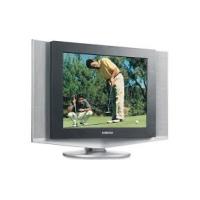
LN-R1550P - TV SAMSUNG - Free user manual and instructions
Find the device manual for free LN-R1550P SAMSUNG in PDF.



Download the instructions for your TV in PDF format for free! Find your manual LN-R1550P - SAMSUNG and take your electronic device back in hand. On this page are published all the documents necessary for the use of your device. LN-R1550P by SAMSUNG.
USER MANUAL LN-R1550P SAMSUNG
Customer Care Center ☎ Web Site CANADA 1-800-SAMSUNG (7267864) www.samsung.com/ca U.S.A 1-800-SAMSUNG (7267864) www.samsung.com LN-R1550P LN-R2050P TFT-LCD TELEVISION Address Samsung Electronics Canada Inc., Customer Service 55 Standish Court Mississauga, Ontario L5R 4B2 Canada Samsung Electronique Canada Inc., Service á la Clientéle 55 Standish Court Mississauga, Ontario L5R 4B2 Canada Samsung Electronics America, Inc. 105 Challenger Road Ridgefield Park, NJ 07660-0511 Owner’s Instructions This device is a Class B digital apparatus. BN68-00940A-02 Register your product at www.samsung.com/global/register BUKMI-Still.qxd 9/6/05 10:57 AM Page 1 Precautions When Displaying a Still Image A still image may cause permanent damage to the TV screen.
- Do not display a still image on the LCD panel for more than 2 hours as it can cause screen image retention. This image retention is also known as "screen burn". To avoid such image retention, reduce the degree of brightness and contrast of the screen when displaying a still image.
Watching the LCD TV in 4:3 format for a long period of time may leave traces of borders displayed on the left, right and center of the screen caused by the difference of light emission on the screen. Playing a DVD or a game console may cause a similar effect to the screen. Damages caused by the above effect are not covered by the Warranty. Displaying still images from Video games and PC for longer than a certain period of time may produce partial after-images. To prevent this effect, reduce the ‘brightness’ and ‘contrast’ when displaying still images. Contents GENERAL INFORMATION PC DISPLAY List of Features .................................................................................. List of Parts ........................................................................................ How to Adjust the Stand .................................................................... How to Adjust the Angle of the TV ..................................................... Installing the Wall Mount Kit ......................................................... Installing VESA compliant mounting devices ............................... Viewing the Control Panel.................................................................. Viewing the Connection Panel ........................................................... Viewing the Remote Control .............................................................. Installing Batteries in the Remote Control .........................................
Setting Up Your PC Software (Based on Windows XP)............... 15 Setting the PC .............................................................................. 16 TROUBLESHOOTING Identifying Problems ..................................................................... 17 APPENDIX One-Touch Button English-1 General Information List of Features Your TV is designed with the latest technology. This TV is a high-performance unit that includes the following special features:
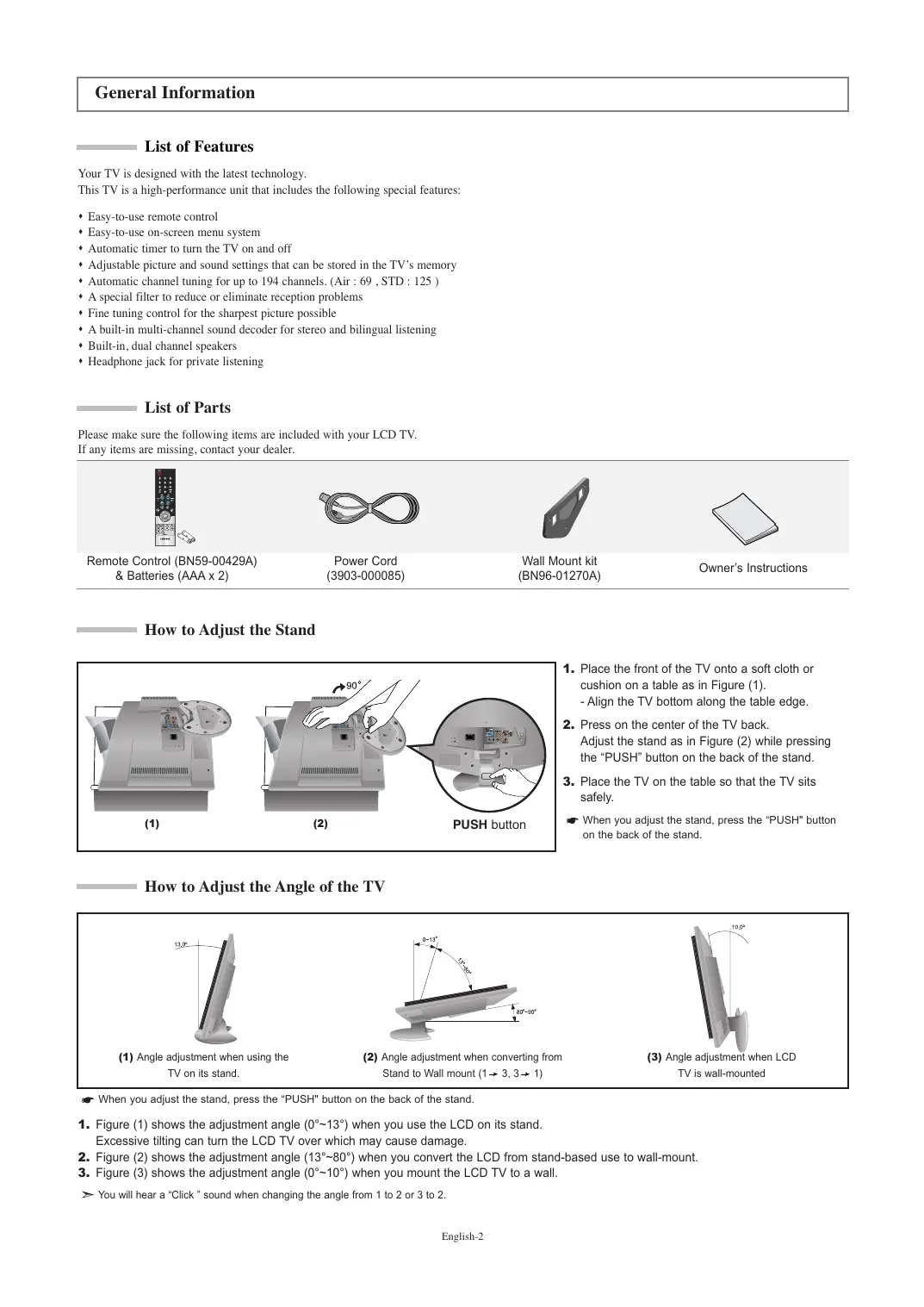
Easy-to-use remote control Easy-to-use on-screen menu system Automatic timer to turn the TV on and off Adjustable picture and sound settings that can be stored in the TV’s memory Automatic channel tuning for up to 194 channels. (Air : 69 , STD : 125 ) A special filter to reduce or eliminate reception problems Fine tuning control for the sharpest picture possible A built-in multi-channel sound decoder for stereo and bilingual listening Built-in, dual channel speakers Headphone jack for private listening List of Parts Please make sure the following items are included with your LCD TV. If any items are missing, contact your dealer. Remote Control (BN59-00429A) & Batteries (AAA x 2) Power Cord (3903-000085) Wall Mount kit (BN96-01270A) Owner’s Instructions How to Adjust the Stand
1. Place the front of the TV onto a soft cloth or
cushion on a table as in Figure (1). - Align the TV bottom along the table edge.
2. Press on the center of the TV back.
Adjust the stand as in Figure (2) while pressing the “PUSH” button on the back of the stand.
3. Place the TV on the table so that the TV sits
safely. (1) (2) PUSH button When you adjust the stand, press the “PUSH" button on the back of the stand. How to Adjust the Angle of the TV (1) Angle adjustment when using the TV on its stand. (2) Angle adjustment when converting from Stand to Wall mount (1 3, 3 1) (3) Angle adjustment when LCD TV is wall-mounted When you adjust the stand, press the “PUSH" button on the back of the stand.
1. Figure (1) shows the adjustment angle (0°~13°) when you use the LCD on its stand.
Excessive tilting can turn the LCD TV over which may cause damage.
2. Figure (2) shows the adjustment angle (13°~80°) when you convert the LCD from stand-based use to wall-mount.
3. Figure (3) shows the adjustment angle (0°~10°) when you mount the LCD TV to a wall.
You will hear a “Click ” sound when changing the angle from 1 to 2 or 3 to 2. English-2 Installing the Wall Mount Kit Wall mount items (sold separately) allow you to mount the TV on the wall. For the detailed information on installing the Wall Mount, see the instruction in the Wall Mount items. Contact a technician for installing the wall bracket. Samsung Electronics is not responsible for any damage to the product or injury to yourself or others if you elect to install the TV on your own. Installing VESA compliant mounting devices
1. Place the TV faced down on a soft cloth or cushion
on a table. Mounting pad (Sold separately)
2. Adjust the stand, pressing the "PUSH" button on the back
of the stand. PUSH button
3. Align the mounting interface pad (not supplied) with the
holes in the stand bottom and secure it with the four screws that come with the arm-type base, wall mount hanger or other bases (not supplied). (2) When you adjust the stand, press the “PUSH" button on the back of the stand. (3) Viewing the Control Panel The buttons on the lower-right panel control your TV’s basic features, including the on-screen menu. To use the more advanced features, you must use the remote control. The product color and shape may vary depending on the model. SOURCE Toggles between all the available input sources (TV, AV, S-Video, Component, PC). In the on-screen menu, use this button as you use the ENTER button on the remote control. POWER Press to turn the TV on and off. SPEAKERS (HEADPHONE JACK) Connect a set of external headphones to this jack for private listening. MENU Press to see an on-screen menu of your TV’s features. Press to decrease or increase the volume. In the on-screen menu, use the buttons as you use the and buttons on the remote control. Press to change channels. In the on-screen menu, use the and buttons on the remote control. buttons as you use the English-3
REMOTE CONTROL SENSOR
Aim the remote control towards this spot on the TV. POWER INDICATOR Lights up when you turn the power off. (The Power indicator is red in stand-by mode, blinks red when you turn the power on, and turns off after the power comes on fully. The indicator is green when you set the Timer on or off.) Viewing the Connection Panel Use the rear panel jacks to connect an A/V component such as a VCR or a DVD player. Red White Yellow Red White LN-R2050P Red Blue Green LN-R1550P
VCR Rear DVD Player Rear Whenever you connect an external device to your TV, make sure that power on the unit is turned off. When connecting an external device, match the color of the connection terminal to the cable. English-4 Viewing the Connection Panel
PC IN / PC AUDIO IN
Connect to the video and audio output jack on your PC. COMPONENT IN (480i/480p) Connect component video/audio. AV IN Video and audio inputs for external devices, such as a camcorder or VCR. S-VIDEO IN Connect an S-Video signal from a camcorder or VCR. ANT IN Connect to an antenna or to a cable TV system. KENSINGTON LOCK The Kensington lock (optional) is a device used to physically fix the system when used in a public place. If you want to use a locking device, contact the dealer where you purchased the TV. POWER INPUT Connect the supplied power cord. Viewing the Remote Control Turns the TV on and off. Press to select channels directly on the TV. Press to select channels over 100. For example, to select channel 121, press “+100”, then press “2” and “1”. Press to increase or decrease the volume. Press to temporarily cut off the sound. Press to select a time for the TV to turn off automatically. Displays the main on-screen menu. Use to select on-screen menu items and change menu values. Press to automatically store selected TV/Cable channels. Adjust the TV picture by selecting one of the preset factory settings. (or selects your personal, customized picture settings) Returns to the previous channel. Press CH
buttons to change channels. Input source selection Use to see information on the current broadcast. Press to exit the on-screen menu. Use to store and delete channels to/from memory. Press to set caption on/off. Press to choose stereo, mono or Separate Audio Program (SAP broadcast). Adjust the TV sound by selecting one of the preset factory settings. (or selects your personal, customized sound settings) The performance of the remote control may be affected by bright light. English-5 Installing Batteries in the Remote Control
Slide the cover out completely.
Install two AAA size batteries.
Replace the cover. Make sure to match the “+” and “–” ends of the batteries with the diagram inside the compartment. Remove the batteries and store them in a cool, dry place if you won’t be using the remote control for a long time. The remote control can be used up to about 23 feet from the TV. (Assuming typical TV usage, the batteries last for about one year.) If the remote control doesn’t work, check the following:
1. Is the TV power on?
2. Are the plus and minus ends of the batteries reversed?
3. Are the batteries drained?
4. Is there a power outage, or is the power cord unplugged?
5. Is there a special fluorescent light or neon sign nearby?
Operation Turning the TV On and Off Press the POWER button on the remote control. You can also use the POWER button on the lower - right side of the panel of the TV. Changing Channels Using the Channel Buttons:
Press the CH or CH button to change channels. When you press the CH or CH button, the TV changes channels in sequence. You will see all the channels that the TV has memorized. (The TV must have memorized at least three channels). You will not see channels that were either erased or not memorized. Using the Number Buttons:
Press the number buttons to go directly to a channel. To select channel 108, press “
When you use the number buttons, you can directly select channels that were either erased or not memorized. To change the channel faster, press the channel buttons, then ENTER (For channel “4” press “4”, then “ENTER
Using the PRE-CH Button to select the Previous Channel:
Press the PRE-CH button. The TV will switch to the last channel viewed. To quickly switch between two channels that are far apart, tune to one channel, then use the number button to select the second channel. Then use the PRE-CH button to quickly alternate between them. Adjusting the Volume
Press the VOL or VOL button to increase or decrease the volume. Using MUTE button: At any time, you can temporarily cut off the sound using the MUTE button.
Press MUTE and the sound cuts off.
To turn mute off, press the MUTE button again, or simply press the VOL English-6 or VOL button. Viewing the Display Press the INFO button on the remote control to view current channel and the status of certain audio-video settings. The on-screen displays disappear after about ten seconds. Press the button once more or wait approximately 10 seconds and it disappears automatically. Plug and Play Feature When the TV is initially powered on, several basic settings proceed automatically and subsequently. The following settings are available.
Press the POWER button on the remote control. The message “Start Plug & Play” is displayed with “OK” selected.
Select the appropriate language by pressing the or button. Press the ENTER button to confirm your choice.
The message “Check antenna input.” is displayed with “OK” selected. Press the ENTER button.
Press the or button to select “Air”, “STD”, “HRC”, or “IRC”, then press the ENTER
Please check that the antenna cable is connected correctly. button. button to select “Start”. The channel search will start and end automatically. After all the available channels are stored, the “Clock Set” menu appears. Press the ENTER button at any time to interrupt the memorization process.
Press the ENTER button. Press the or button to move to the “Hour”, “Minute” or “am/pm”. Set the “Hour”, “Minute” or “am/pm” by pressing the or button.
Press the ENTER button to confirm your setting. The message “Enjoy your watching.” is displayed. Language: Select your language. Air/Cable: Select your local cable company TV system. Auto Program: Selects between terrestrial antenna connection or your local cable company TV system. The TV automatically cycles through all of the available channels and stores them in memory. This takes about one to two minutes. Clock Set: Sets the current time for the TV clock. You can also set the hour and minute by pressing the number buttons on the remote control. If you want to reset this feature...
Press the or button to select “Plug & Play”, then press the ENTER
This will change or reset the settings. button. button. Selecting the Video Signal-source Before your television can begin memorizing the available channels, you must specify the type of signal source that is connected to the TV (i.e. an antenna or a cable system).
Press the MENU button to display the menu. Press the or button to select “Channel”, then press the ENTER
Press the or button to select the Video signal source, then press the ENTER
button. button to select “Air/Cable”. button. Press the EXIT button to exit. STD, HRC and IRC identify various types of cable TV systems. Contact your local cable company to identify the type of cable system that exists in your particular area. At this point, the signal source has been selected. Proceed to “Storing Channels Automatically”. English-7 Storing Channels Automatically The TV automatically cycles through all of the available channels and stores them in memory. This takes about one to two minutes.
To select the signal source, follow the “Selecting the Video Signal-source” instructions number 1 to 3 on Page 7.
Press the or button to select “Auto Program”. Press the ENTER
Press the ENTER button. The TV will begin memorizing all of the available channels. Press the ENTER button at any time to interrupt the memorization process and return to the “Channel” menu.
After all the available channels are stored, the “Channel” menu reappears.
Press the EXIT button to exit. button. Press the AUTO PROG. button on the remote control. Storing Channels Manually You can store up to 100 channels, including those received via cable networks.
Use the number buttons to directly select the channel that will be added or deleted.
Press the MENU button to display the menu. Press the or button to select “Channel”, then press the ENTER
Press the or button to select “Add/Delete”. Press the ENTER button.
Repeatedly pressing the ENTER
Press the EXIT button to exit. or CH button. button will alternate between add channel and delete channel. button to switch to the appropriate channel, then repeat above. You can view any channel (including an erased channel) by using the number buttons on the remote control. Use the number buttons to directly select the channel that will be added or erased. Press the ADD/DEL button on the remote control. Fine Tuning Channels Use fine tuning to manually adjust a particular channel for optimal reception.
Use the number buttons to directly select the channel that you want to fine tune.
Press the MENU button to display the menu. Press the or button to select “Channel”, then press the ENTER
Press the or button to select “Fine Tune”, then press the ENTER
Press the or button to adjust the fine tuning.
To store the fine tuning setting in the TV’s memory, press the ENTER
Press the EXIT button to exit. button. button. button. If you do not store the fine-tuned channel in memory, adjustments are not saved. Fine tuned channels that have been saved are marked with an asterisk “ * ” on the right-hand side of the channel number in the channel banner. To reset the fine-tuning, select “Reset” by pressing the or button and then press the ENTER English-8 button. Picture Control Using Automatic Picture Settings Your TV has four automatic picture settings (“Dynamic”, “Standard”, “Movie”, and “Custom”) that are preset at the factory.
Press the or button to select the desired picture effect. Press the ENTER button.
Press the EXIT button to exit. button. button to select “Mode”. Dynamic: Selects the picture for high-definition in a bright room. Standard: Selects the picture for optimum display in a normal environment. Movie: Selects the picture for comfortable display in a dark room. Custom: Select to view your favorite display settings. The Picture mode must be adjusted separately for each input source. You can also press the P.MODE button on the remote control to select one of the picture settings. Customizing the Picture Your set has several settings which allow you to control picture quality. Contrast Brightness Sharpness Color Ti n t G 50
Press the or button to select “Custom”, then press the ENTER
Press the or button to decrease or increase the value of a particular item. Press the ENTER button.
Press the EXIT button to exit. button. button. Contrast: Adjusts the lightness and darkness between objects and the background. Brightness: Adjusts the brightness of the whole screen. Sharpness: Adjusts the outline of objects to either sharpen them or make them more dull. Color: Adjusts the colors, making them lighter or darker. Tint: Adjusts the color of objects, making them more red or green for a more natural look. If you make any changes to these settings, the Picture Mode is automatically switched to “Custom”. Adjusting the Color Tone You can Change the color of the entire screen according to your preference.
Press the or button to select “Color Tone”, then press the ENTER
Press the or button to select the desired color tone setting. Press the ENTER button.
Press the EXIT button to exit. Cool2: Makes the color temperature bluer than “Cool1” menu. Cool1: Makes whites bluish. Normal: Keeps whites white. Warm1: Makes whites reddish. Warm2: Makes the color temperature redder than “Warm1” menu. English-9 button. button. Sound Control Using Automatic Sound Settings You can select the type of the special sound effect to be used when watching a given broadcast.
Press the or button to select the “Standard” or “Speech” sound setting. Press the ENTER button. button to select “Mode”.
Press the EXIT button to exit. Standard: Selects the normal sound mode. Speech: Emphasizes voices over other sounds. You can also press the S.MODE button on the remote control to select the “Standard” or “Speech” sound setting. Choosing a Multi-Channel Sound (MTS) Soundtrack Depending on the particular program being broadcast, you can listen to stereo, mono or a Separate Audio Program. (SAP audio is usually a foreign-language translation. Sometimes SAP has unrelated information like news or weather).
Press the or button to select “MTS”, then press the ENTER
Press the or button to select the required option, then press the ENTER
Press the EXIT button to exit. Mono: Select for channels that are broadcast in mono, or if you are having difficulty receiving a stereo signal. Stereo: Select for channels that are broadcast in stereo. SAP: Select to listen to the Separate Audio Program, which is usually a foreign-language translation. You can also press the MTS button on the remote control to change the MTS settings. Using the Auto Volume Each broadcasting station has its own signal conditions, and it is inconvenient to adjust the volume every time the channel is changed. “Auto Volume” automatically adjusts the volume of the desired channel by lowering the sound output when the modulation signal is high or by raising the sound output when the modulation signal is low.
Press the or button to select “Auto Volume”, then press the ENTER
Press the or button to select “On” or “Off”. Press the ENTER button.
Press the EXIT button to exit. English-10 button. Time Setting Setting the Clock You can set the TV’s clock so that the current time is displayed when you press the INFO button. You must also set the time if you wish to use the automatic On/Off timers.
button to select "Time".
button to select "Clock Set".
Press the or button to adjust “Hour”, then press the button to move to the next step. Set other items using the same method as above. When finished, press the ENTER button to return.
button. Press the EXIT button to exit. If you disconnect the power cord, you have to set the clock again. You can also set the hour and minute by pressing the number buttons on the remote control. Setting the Sleep Timer Set the timer for the TV to turn off at the preset time automatically.
Press the or button repeatedly until the desired time appears. (Off, 30, 60, 90, 120, 150, 180) Press the ENTER button.
Press the EXIT button to exit. button. button to select "Time". button. The TV automatically turn off when the timer reaches 0. You can also press the SLEEP button on the remote control to set the sleep time. Setting the On/Off Timer You can set the On/Off timers so that the set will: Switch on automatically and tune to the channel of your choice at the time you select. Switch off automatically at the time you select.
Press the or button to select “On Timer”, then press the ENTER button to select "Time".
Press the or button to adjust “Hour”, then press the button to move to the next step. Set other items using the same method as above. When finished, press the ENTER button to return.
Press the or button to select “Off Timer”, then press the ENTER
Press the or button to adjust “Hour”, then press the button to move to the next step. Set other items using the same method as above. When finished, press the ENTER button to return.
Press the EXIT button to exit. button. button. The clock must be set (see above) before you can set the On/Off timer. You can also set the hour and minute by pressing the number buttons on the remote control. The "Activation" setting must be set to "On" in order for the timers to work. Auto Power Off: When you set the timer on, your television will be turned off if you do not operate any controls for 3 hours after the TV has been turned on with the “Timer On” function. English-11 Function Description Using the V-Chip Setting Up Your Personal ID Number (PIN): The V-Chip feature automatically locks out programming that is deemed inappropriate for children. The user must first enter a Pin (personal ID number) before any of the V-Chip restrictions can be set up or changed.
Press the or button to select “V-Chip”, then press the ENTER
The “Enter PIN” screen will appear. Enter your 4-digit PIN.
After entering a valid PIN number, the “V-Chip” screen will appear. Press the or button to select “Change PIN”. Press the ENTER button.
The Change PIN screen will appear. Choose any 4-digits for your PIN and enter them. As soon as the 4 digits are entered, the “Confirm new PIN” screen appears. Re-enter the same 4 digits. When the confirm screen disappears, your PIN has been memorized.
Press the EXIT button to exit. button. button. The default PIN number for a new TV set is “0-0-0-0”. How to Enable/Disable the V-Chip:
Press the or button to select “V-Chip”, then press the ENTER
The “Enter PIN” screen will appear. Enter your 4-digit PIN. button. button.
The “V-Chip” screen will appear, and “V-Chip Lock” will be selected. Press the ENTER
Press the or button to select “On” or “Off”. Press the ENTER
Press the EXIT button to exit. button. button. How to Set up Restrictions Using the ‘TV guidelines’: First, set up a personal identification number (PIN), and enable the V-Chip. (See previous section.) Parental restrictions can be set up using either of two methods: The TV guidelines or the MPAA rating.
Press the or button to select “V-Chip”, then press the ENTER
The “Enter PIN” screen will appear. Enter your 4-digit PIN.
Press the or button to select “TV Parental Guidelines”, then press the ENTER
The “TV Parental Guidelines” screen will appear. Press the or button to select one of the six age-based categories:
- TV-Y: Young children
- TV-Y7: Children 7 and over
- TV-MA: button. button. button. General audience Parental guidance Viewers 14 and over Mature audience At this point, one of the TV-Ratings is selected. Press the ENTER button: Depending on your existing setup, the color of the letter “U” or “B” will be highlighted. (U= Unblocked, B= Blocked) When the color of the “U” or “B” is highlighted, press the ENTER button to block or unblock the category. A TV-Rating will be highlighted. To exit this screen, press MENU again. To select a different TV-Rating, press the or button and then repeat the process. The TV-Y7, TV-PG, TV-14, and TV-MA have additional options. See the next step to change any of the following sub-ratings: FV: Fantasy Violence / D; Sexual suggestive Dialog L: Adult Language / S: Sexual situation / V: Violence The V-Chip will automatically block certain categories that are “more restrictive.” For example, if you block “TV-Y” category, then TV-Y7 will automatically be blocked. Similarly, if you block the TVG category, then all the categories in the “young adult” group will be blocked (TV-G, TV-PG, TV-14, and TV-MA). The sub-ratings (D, L, S, V) work together similarly. English-12
How to set the FV, D, L, S, and V sub-ratings. First, highlight one of these TV-Ratings: TV-Y7, TV-PG, TV-14, or TV-MA (See Step 4, on previous page). Next, while the TV-Rating is selected, repeatedly button. This will cycle through the available sub-ratings (FV,L, S, D, or V). press the ENTER A highlighted letter (“U” or “B”) will be displayed for each sub-rating. While the “U” or “B” is highlighted, button to change the sub-rating. press the ENTER Press MENU once to save the TV guidelines. A TV-Rating will be selected, and no letters “U” or “B” will be changed to yellow. To exit this screen, press the MENU button again. To select a different TV-Rating, press the or button and then repeat the process. The V-chip will automatically block certain categories that are “More restrictive”. For example, if you block the “L” sub-rating in TV-PG, then the “L” sub-ratings in TV-14 and TV-MA will automatically be blocked.
Press the EXIT button to clear all the screens. (Or proceed to the next section, and set up additional restrictions based on the MPAA codes). How to Set up Restrictions Using the MPAA Ratings: G, PG, PG-13, R, NC-17, X, NR The MPAA rating system uses the Motion Picture Association of America (MPAA) system, and its main application is for movies. When the V-Chip lock is on, the TV will automatically block any programs that are coded with objectionable ratings (either MPAA or TV-Ratings).
Press the or button to select “V-Chip”, then press the ENTER
The “Enter PIN” screen will appear. Enter your 4-digit PIN.
Press the or button to select “MPAA Rating”, then press the ENTER
Repeatedly press the or button to select a particular MPAA category. (When a category is selected, its color changes to yellow.) Pressing the or button will cycle through the MPAA categories:
button. button. button. General audience (no restrictions). Parental guidance suggested. Parents strongly cautioned. Restricted. Children under 17 should be accompanied by an adult. No children under age 17. Adults only. Not rated. Press the or button to select a category. Press the ENTER button to select “U” or “B”. Press the EXIT button to save the settings and to clear all screens. The V-Chip will automatically block any category that is “more restrictive”. For example, if you block the “PG-13” category, then “R”, “NC-17”, and “X” will automatically be blocked also. How to Reset the TV after the V-Chip Blocks a Channel (‘Emergency Escape’) If the TV is tuned to a restricted channel, the V-Chip will block it. The screen will go blank and the following message will appear: “Excessive rating”. To resume normal viewing, tune to a different channel using the number buttons. Under certain conditions (depending on the rating of the local TV programs) the V-Chip might lock out all the channels. In this case, use the Menu button for an “emergency escape”: Select the V-Chip on the Menu. Enter your PIN number, and press the ENTER button to temporarily disable the V-Chip Lock. How to Set up Restrictions Using the Canadian English
Press the or button to select “V-Chip”, then press the ENTER
The “Enter PIN” screen will appear. Enter your 4-digit PIN.
Press the or button to select “Canadian English”, then press the ENTER
Press the or button to select a appropriate restriction. Press the ENTER button to activate the restriction selected. The “B” is indicated.
Press the EXIT button to exit.
- 18+: button. button. button. Exempt programming includes...news, sports, documentaries and other information programming, talk shows, music videos, and variety programming. Programming intended for children under age 8. Programming generally considered acceptable for children 8 years and over to watch on their own. General programming, suitable for all audiences. Parental Guidance. Programming contains themes or content which may not be suitable for viewers under the age of 14. Adult programming. English-13 How to Set up Restrictions Using the Canadian French
Press the or button to select “V-Chip”, then press the ENTER
The “Enter PIN” screen will appear. Enter your 4-digit PIN.
Press the or button to select “Canadian French”, then press the ENTER
Press the or button to select a appropriate restriction. Press the ENTER button to activate the restriction selected. The “B” is indicated.
Press the EXIT button to exit. button. button.
- E: Exempt programming includes...news, sports, documentaries and other information programming, talk shows, music videos, and variety programming.
- 8 ans+: 8+ General-Not recommended for young children.
- 13 ans+: Programming may not be suitable for children under the age of 13.
- 16 ans+: Programming is not suitable for children under the age of 16.
- 18 ans+: Programming restricted to adults. Viewing Closed Captions Your TV decodes and displays the closed captions that are broadcast with certain TV shows. These captions are usually subtitles for the hearing impaired or foreign-language translations. All VCRs record the closed caption signal from television programs, so home-recorded video tapes also provide closed captions. Most pre-recorded commercial video tapes provide closed captions as well. Check for the closed caption symbol in your television schedule and on the tape’s packaging:
Press the or button to select “Caption”, then press the ENTER
Press the or button to set caption “Off” or “On”, then press the ENTER
Depending on the particular broadcast, it might be necessary to make changes to “Channel” and “Field”.
Press the EXIT button to exit. button. button. Caption: Off / On Mode: Caption / Text Channel: 1 / 2 Field: 1 / 2 The Caption feature does not work with DVD or Set-top box signals. Different channels and fields display different information: Field 2 carries additional information that supplements the information in Field 1. (For example, Channel 1 may have subtitles in English, while Channel 2 has subtitles in Spanish). Press the CAPTION button on the remote control. Selecting a Menu Language
Press the or button to select “Language”. Press the ENTER button.
Press the or button to select the appropriate language. Press the ENTER button.
Press the EXIT button to exit. English-14 button. Setting the Blue Screen Mode If no signal is being received or the signal is very weak, a blue screen automatically replaces the noisy picture background. If you wish to continue viewing the poor picture, you must set the “Blue Screen” mode to “Off”.
Press the MENU button to display the on-screen menu. Press the or button to select “Setup”, then press the ENTER
Press the or button to select “Blue Screen”, then press the ENTER
Press the or button to select “On” or “Off”. Press the ENTER
Press the EXIT button to exit. button. button. button. Selecting the Source You can select among external sources connected to your TV's input jacks.
Press the MENU button to display the on-screen menu. Press the ENTER button to select “Input”.
Press the or button to select the Input source, then press ENTER button to select the “Source List”. button. You can only select a source if it is connected to your TV. You can also press the SOURCE button on the remote to choose the Input source. Editing the Input Source Name You can name the input device connected to the input jacks to make your input source selection easier.
Press the or button to select “Edit Name” then press the ENTER
Press the or button to select the desired input device, then press the ENTER
Press the or button repeatedly until the appropriate source name appears. After the source is selected, press the ENTER button. button. button. The following options are available: - - - - - VCR - DVD - Cable STB - HD STB - Satellite STB - AV Receiver - DVD Receiver - Game Camcorder - DVD Combo - DHR - PC DHR: DVD HDD Recorder
Press the EXIT button to exit. PC Display Setting Up Your PC Software (Based on Windows XP) The Windows display-settings for a typical computer are shown below. The actual screens on your PC may be different depending upon your particular version of Windows and your particular video card. Even if your actual screens look different, the same, basic set-up information will apply in almost all cases. (If not, contact your computer manufacturer or Samsung Dealer.)
First, click on “Control Panel” on the Windows start menu.
When the control panel window appears, click on “Appearance and Themes” and a display dialog-box will appear.
When the control panel window appears, click on “Display” and a display dialog-box will appear.
Navigate to the “Settings” tab on the display dialog-box. The correct size setting (resolution): Optimum- LN-R1550P: 1024 x 768 / LN-R2050P: 800 x 600 If a vertical-frequency option exists on your display settings dialog box, the correct value is “60” or “60 Hz”. Otherwise, just click “OK” and exit the dialog box. English-15 Setting the PC Image Lock: The purpose of picture quality adjustment is to remove or reduce picture noise. If the noise is not removed by Fine-tuning alone, then adjust the frequency as best as possible (coarse) and Fine-tune again. After the noise has been reduced, re-adjust the picture so that it is aligned on the center of screen.
Preset: Press the SOURCE button to select PC mode.
Press the or button to select “PC”, then press the ENTER
Press the or button to select “Coarse” or “Fine”, then press the ENTER
Press the or button to adjust the screen quality, vertical stripes may appear or the picture may be blurry. Press the ENTER button.
Press the EXIT button to exit. button. button to select “Image Lock”. button. Position: Adjust the PC’s screen positioning if it does not fit the TV screen.
Preset: Press the SOURCE button to select PC mode.
Press the or button to select “PC”, then press the ENTER
Press the or button to select “Position”, then press the ENTER
Press the or button to adjust the V-Position. Press the or button to adjust the H-Position. Press the ENTER button.
Press the EXIT button to exit. Image Reset: You can replace all image settings with the factory default values.
Preset: Press the SOURCE button to select PC mode.
Press the or button to select “PC”, then press the ENTER
Press the or button to select “Image Reset”, then press the ENTER
Press the EXIT button to exit. Auto Adjustment: Auto adjustment allows you to set the TV to self-adjust to the incoming PC video signal. The fine, coarse and position values are adjusted automatically.
Preset: Press the SOURCE button to select PC mode.
Press the or button to select “PC”, then press the ENTER
Press the or button to select “Auto Adjustment”, then press the ENTER
Press the EXIT button to exit. English-16 Troubleshooting Identifying Problems If the TV seems to have a problem, first try this list of possible problems and solutions. If none of these troubleshooting tips apply, call your nearest Samsung service center. Problem Possible Solution Poor picture Try another channel. Adjust the antenna. Check all wire connections. Poor sound quality. Try another channel. Adjust the antenna. No picture or sound. Try another channel. Press the SOURCE button. Make sure the TV is plugged in. Check the antenna connections. No sound or sound is too low at maximum volume. First, check the volume of units connected to your TV (Digital broadcasting receiver, DTV, DVD, cable broadcasting receiver, VCR, etc.). Then, adjust the TV volume accordingly. Picture rolls vertically. Check all wire connections. The TV operates erratically. Unplug the TV for 30 seconds, then try operating it again. Remote control malfunctions Replace the remote control batteries. Clean the upper edge of the remote control (transmission window). Check the battery terminals. “Check signal cable. PC” message. Ensure that the signal cable is firmly connected to the PC sources. “Not Optimum Mode Recommended Mode 1024x768 60Hz” message. Check the maximum resolution and the frequency of the Video Adaptor. Compare these values with the data in the Display Modes. The image is too light or too dark. Adjust the Brightness and Contrast. Horizontal bars appear to flicker, jitter or shimmer on the image. Adjust the Coarse tuning and then adjust the Fine tuning. The TFT LCD panel uses a panel consisting of sub pixels (LN-R1550P - 2,359,296/LN-R2050P- 1,440,000) which require sophisticated technology to produce. However, there may be few bright or dark pixels on the screen. These pixels will have no impact on the performance of the product. English-17 Appendix Specifications Model Name LN-R1550P LN-R2050P PC Resolution Optimum 1024 x 768 @ 60 Hz 800 x 600 @ 60 Hz Power Supply Panel Size Display Size Frequency Horizontal Vertical Power Consumption Normal Power Saving Dimension (WxDxH) Body With stand Weight With stand Environmental Considerations Operating Temperature Operating Humidity Storage Temperature Storage Humidity Display Modes Both screen position and size will vary depending on the type of PC monitor and its resolution. The resolutions in the table are recommended. (All resolutions between the supported limits are supported) Mode Resolution Vertical Frequency (Hz) Pixel Clock Frequency (MHz) Sync Polarity (H/V) VGA LN-R1550P LN-R2050P 720X400 640X480 640X480
SVGA LN-R1550P LN-R2050P 800X600 800X600
XGA LN-R1550P 1024X768 1024X768
The interlace mode is not supported. The set might operate abnormally if a non-standard video format is selected. English-18 Support kit mural (BN96-01270A) Instructions d’utilisation VGA LN-R1550P LN-R2050P 720X400 640X480 640X480 31,469 31,469 37,500 70,087 59,940 75,000 28,322 25,175 31,500
SVGA LN-R1550P LN-R2050P 800X600 800X600 46,875 37,879 75,000 60,317 49,500 40,000
XGA LN-R1550P 1024X768 1024X768 48,363 60,023 60,004 75,029 65,000 78,750
VGA LN-R1550P LN-R2050P 720X400 640X480 640X480 31,469 31,469 37,500 70,087 59,940 75,000 28,322 25,175 31,500
SVGA LN-R1550P LN-R2050P 800X600 800X600 46,875 37,879 75,000 60,317 49,500 40,000
XGA LN-R1550P 1024X768 1024X768 48,363 60,023 60,004 75,029 65,000 78,750