 ManualGo.com
HL67A750A1F - TV SAMSUNG - Free user manual and instructions
Find the device manual for free HL67A750A1F SAMSUNG in PDF.


Download the instructions for your TV in PDF format for free! Find your manual HL67A750A1F - SAMSUNG and take your electronic device back in hand. On this page are published all the documents necessary for the use of your device. HL67A750A1F by SAMSUNG.
USER MANUAL HL67A750A1F SAMSUNG
Contact SAMSUNG WORLD-WIDE If you have any questions or comments relating to Samsung products, please contact the SAMSUNG customer care center. Comment contacter Samsung dans le monde Si vous avez des suggestions ou des questions concernant les produits Samsung, veuillez contacter le Service Consommateurs Samsung. Country Customer Care Center Web Site CANADA 1-800-SAMSUNG (7267864) www.samsung.com/ca U.S.A 1-800-SAMSUNG (7267864) www.samsung.com Address Samsung Electronics Canada Inc., Customer Service 55 Standish Court Mississauga, Ontario L5R 4B2 Canada Samsung Electronique Canada Inc., Service à la Clientèle 55 Standish Court Mississauga, Ontario L5R 4B2 Canada Samsung Electronics America, Inc. 105 Challenger Road Ridgefield Park, NJ 07660-0511 DLP TV user manual imagine the possibilities Thank you for purchasing this Samsung product. To receive more complete service, please register your product at www.samsung.com/global/register Model Serial No. BP68-00658B-01 0658B_ENG-Cover-01.indd 1 2008-04-22 오후 5:34:19 A Guide to Digital TV ● What is Digital Television? Digital television (DTV) is a new way of transmitting high quality video and audio to your TV set. Using DTV, broadcasters can transmit high definition TV (HDTV) images, Dolby digital surround audio, and new services such as multicasting (transmitting more than one program on the same TV channel) and datacasting. Several of these services can be combined into a single digital broadcast. Digital Television Services ● Digital Picture Quality DTV programs are transmitted in two different formats. The first is Standard Definition Television (SDTV) and the second is High Definition Television (HDTV).
SDTV program formats include 480-line interlaced (480i) and 480-line progressive (480p) video. 480i programs are essentially
HDTV a digital version of our current analog TV programs, while the 480p format offers improved image detail over 480i. Some 480p programs are broadcast in widescreen and are comparable to progressive-scan DVD movies in image quality. program formats include 1080-line interlaced (1080i) and 720-line progressive (720p). Both HDTV formats are always broadcast in widescreen, and offer much higher picture quality than SDTV. U.S.A Only The product unit accompanying this user manual is licensed under certain intellectual property rights of certain third parties. In particular, this product is licensed under the following US patents: 5,991,715, 5,740,317, 4,972,484, 5,214,678, 5,323,396, 5,539,829, 5,606,618, 5,530,655, 5,777,992, 6,289,308, 5,610,985, 5,481,643, 5,544,247, 5,960,037, 6,023,490, 5,878,080, and under US Published Patent Application No. 2001-44713-A1. This license is limited to private non-commercial use by end-user consumers for licensed contents. No rights are granted for commercial use. The license does not cover any product unit other than this product unit and the license does not extend to any unlicensed product unit or process conforming to ISO/IEC 11172-3 or ISO/IEC 13818-3 used or sold in combination with this product unit. The license only covers the use of this product unit to encode and/or decode audio files conforming to the ISO/IEC 111723 or ISO/IEC 13818-3. No rights are granted under this license for product features or functions that do not conform to the ISO/IEC 11172-3 or ISO/IEC 13818-3. Other countries The product unit accompanying this user manual is licensed under certain intellectual property rights of certain third parties. This license is limited to private non-commercial use by end-user consumers for licensed contents. No rights are granted for commercial use. The license does not cover any product unit other than this product unit and the license does not extend to any unlicensed product unit or process conforming to ISO/IEC 11172-3 or ISO/IEC 13818-3 used or sold in combination with this product unit. The license only covers the use of this product unit to encode and/or decode audio files conforming to the ISO/IEC 11172-3 or ISO/IEC 13818-3. No rights are granted under this license for product features or functions that do not conform to the ISO/IEC 11172-3 or ISO/IEC 13818-3. SAMSUNG ELECTRONICS NORTH AMERICAN LIMITED WARRANTY STATEMENT Subject to the requirements, conditions, exclusions and limitations of the original Limited Warranty supplied with Samsung Electronics (SAMSUNG) products, and the requirements, conditions, exclusions and limitations contained herein, SAMSUNG will additionally provide Warranty Repair Service in the United States on SAMSUNG products purchased in Canada, and in Canada on SAMSUNG products purchased in the United States, for the warranty period originally specified, and to the Original Purchaser only. The above described warranty repairs must be performed by a SAMSUNG Authorized Service Center. Along with this Statement, the Original Limited Warranty Statement and a dated Bill of Sale as Proof of Purchase must be presented to the Service Center. Transportation to and from the Service Center is the responsibility of the purchaser. Conditions covered are limited only to manufacturing defects in material or workmanship, and only those encountered in normal use of the product. Excluded, but not limited to, are any originally specified provisions for, in-home or on-site services, minimum or maximum repair times, exchanges or replacements, accessories, options, upgrades, or consumables. For the location of a SAMSUNG Authorized Service Center, please call toll-free: In the United States : 1-800-SAMSUNG (1-800-726-7864) In Canada : 1-800-SAMSUNG ➢ See the warranty card for more information on warranty terms. © 2008 Samsung Electronics Co., Ltd. All rights reserved. English - BP68-00658A_Eng.indb 2 2008-04-22 오후 7:37:27 Q&A
1. Is the antenna I use for existing TV reception good enough for DTV?
Over-the-air (OTA) digital TV broadcasting uses the same channels as analog TV and works well with many existing TV antennas. However, DTV broadcast channel assignments are different than analog channels. You should find out whether your local DTV broadcasts are on VHF (channels 2-13) or UHF (channels 14-69) to see if you need a different antenna. If your DTV channels are on UHF and you already get good UHF reception, your present antenna may work fine. The same holds true for VHF DTV reception. Note that in some markets, both VHF and UHF channels are used for DTV broadcasts. You can find out the latest DTV channel assignments for your area by browsing selected Internet web sites such as www.titantv. com, www.10000watts.com, and www.fcc.gov.
2. How difficult is it to receive DTV signals indoors?
This depends on whether your local DTV stations are running full power or not and how close your location is to the transmission tower. DTV receivers do not require as much signal as analog TV receivers to produce high-quality images and sound. Once the DTV signal level exceeds a certain threshold at the receiver, the digital video and audio data is decoded at the same quality it was originally encoded for broadcast. This is a big advantage for DTV over analog TV - there is no noise, ghosting, static, or scratchy audio.
3. How can I connect an antenna in my townhouse, co-operative apartment, condominium,
or apartment? The Federal Communications Commission’s OTARD Rule (part of the Telecommunications Act of 1996) allows residents of condominiums, townhouse, or members of neighborhood associations to put up outside antennas for reception of broadcast TV signals as long as those antennas are not located in common areas and are no more than 12’ in height. Residents of rental units (apartments, etc.) are not covered by the OTARD rules and will have to use indoor antennas to receive DTV broadcasts. It is possible that the landlord of an apartment complex can provide broadcast DTV signals via a master TV antenna system to each apartment.
4. Can I connect my DTV set-top receiver to my cable TV service?
Cable TV systems use a different method for transmitting digital TV programs that is currently incompatible with broadcast DTV settop receivers. So you will still need to use an outdoor or indoor antenna to receive OTA broadcast DTV programs. The good news is that you won’t have to pay a monthly or per-program charge to watch OTA DTV and HDTV programs. They’re free, unlike subscription satellite TV or premium cable TV. All you need is an antenna and a DTV set-top receiver to enjoy clear, sharp widescreen images and high-quality audio. English - BP68-00658A_Eng.indb 3 2008-04-22 오후 7:37:28 Contents English General Information
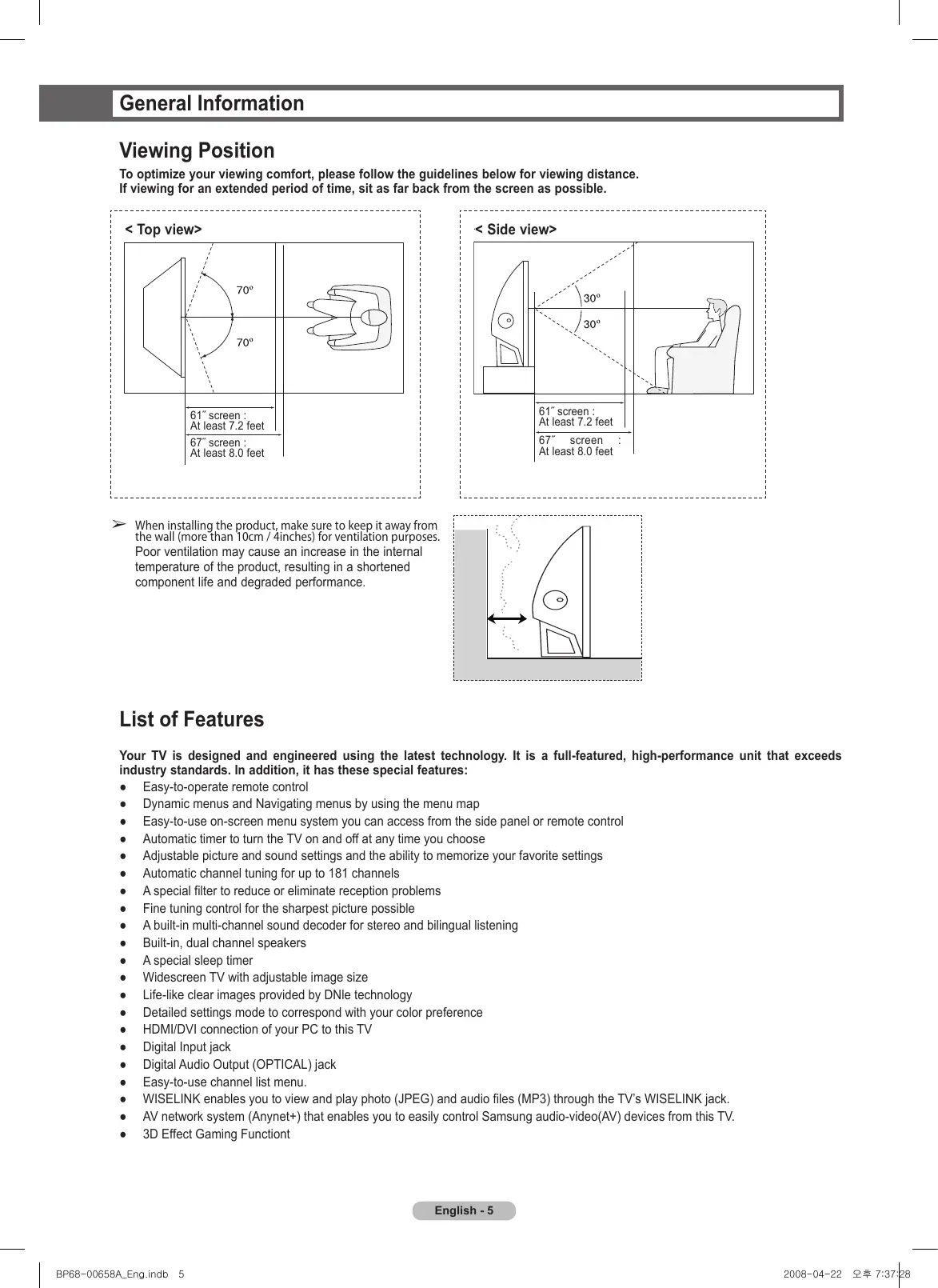
Important Note One-Touch Button English - BP68-00658A_Eng.indb 4 2008-04-22 오후 7:37:28 General Information Viewing Position To optimize your viewing comfort, please follow the guidelines below for viewing distance. If viewing for an extended period of time, sit as far back from the screen as possible. < Top view> < Side view> 61˝ screen : At least 7.2 feet 61˝ screen : At least 7.2 feet 67˝ screen : At least 8.0 feet
67˝ screen : At least 8.0 feet When installing the product, make sure to keep it away from the wall (more than 10cm / 4inches) for ventilation purposes. Poor ventilation may cause an increase in the internal temperature of the product, resulting in a shortened component life and degraded performance. List of Features Your TV is designed and engineered using the latest technology. It is a full-featured, high-performance unit that exceeds industry standards. In addition, it has these special features: ● Easy-to-operate remote control ● Dynamic menus and Navigating menus by using the menu map ● Easy-to-use on-screen menu system you can access from the side panel or remote control ● Automatic timer to turn the TV on and off at any time you choose ● Adjustable picture and sound settings and the ability to memorize your favorite settings ● Automatic channel tuning for up to 181 channels ● A special filter to reduce or eliminate reception problems ● Fine tuning control for the sharpest picture possible ● A built-in multi-channel sound decoder for stereo and bilingual listening ● Built-in, dual channel speakers ● A special sleep timer ● Widescreen TV with adjustable image size ● Life-like clear images provided by DNle technology ● Detailed settings mode to correspond with your color preference ● HDMI/DVI connection of your PC to this TV ● Digital Input jack ● Digital Audio Output (OPTICAL) jack ● Easy-to-use channel list menu. ● WISELINK enables you to view and play photo (JPEG) and audio files (MP3) through the TV’s WISELINK jack. ● AV network system (Anynet+) that enables you to easily control Samsung audio-video(AV) devices from this TV. ● 3D Effect Gaming Functiont English - BP68-00658A_Eng.indb 5 2008-04-22 오후 7:37:28 Checking Parts Owner’s Instructions Remote Control (BN59-00673A)/ AAA Batteries Warranty Card/ Safety Guide Manual/ Quick Guide Manual (Not available in all locations) Power Cord (3903-000144) Cloth-Clean Sold Separately S-Video Cable Video Cable Antenna Cable Component Cables Audio Cables D-Sub Cable PC Audio Cable HDMI/DVI Cable HDMI Cable Optical Cable
mini-plug/ 2RCA Cable Viewing the Control Panel Buttons on the Lower-Right Part of the Panel The buttons on the lower-right panel control your TV’s basic features, including the on-screen menu. To use the more advanced features, you must use the remote control. ➢ The product color and shape may vary depending on the model. Continued... English - BP68-00658A_Eng.indb 6 2008-04-22 오후 7:37:31 1 SOURCE Toggles between all the available input sources (TV, AV1, AV2, S-Video, Component1, Component2, PC, HDMI1, HDMI2, HDMI3/DVI or USB). 2 MENU Press to see an on-screen menu of your TV’s features. 3 + VOL – Press to increase or decrease the volume. In the on-screen menu, use the + VOL – buttons as you would use the ◄ and ► buttons on the remote control.
(ENTER) Press to confirm a selection. 6 Indicator Lights Blinks and turns off when the power is on and lights up in stand-by mode. 7 POWER Press to turn the TV on and off. Remote Control Sensor Aim the remote control towards this spot on the TV.
Press to change channels. In the on-screen menu, use the buttons as you would use the ▲ and ▼ buttons on the remote control. ● When using the on-screen menu the volume adjustment and channel selection buttons have the same function as the ▲/▼/◄/► buttons on the remote control. ● If the remote control no longer works or you have lost it, you can use controls on the panel of the TV. Indicator Light Key
: Off) TIMER LED Indication Standby state. The picture will automatically appear in about 15 seconds. Auto Timer ON/OFF has been set and the set will automatically be turned on in about 15 seconds. A cooling fan inside the set is not operating normally. LED may be defective. Please contact a certified technician.
● It takes about 30 seconds for the TV to warm up, so normal brightness may not appear immediately. ● The TV has a fan to keep the inside LED from overheating. You’ll occasionally hear it working. English - BP68-00658A_Eng.indb 7 2008-04-22 오후 7:37:32 Viewing the Connection Panel Side Panel Jacks Use the side panel jacks to connect A/V components that will be connected continuously, such as VCR or DVD players. For more information on connecting equipment, see pages 10~16. ➢ The product color and shape may vary depending on the model. 1 ANT IN 8 S-VIDEO 75Ω Coaxial connector for Air/Cable Network. Video input for external devices with an S-Video output, such as a Camcorder or VCR. 2 WISELINK Connect an USB mass storage device to view photo files (JPEG) and play audio files (MP3).
3 HDMI IN 1, HDMI IN 2
9 VIDEO/AUDIO-L/R (AV IN 1, 2) Video input for external devices, such as a Camcorder or VCR.
Connect to the HDMI jack of a device with HDMI output. Audio outputs for external devices.
Connect to the HDMI jack of a device with HDMI output. This input can also be used as a DVI connection with separate analog audio inputs. An optional HDMI/DVI cable will be necessary to make this connection. When using an optional HDMI/DVI adapter, the DVI analog audio inputs on your TV allow you to receive left and right audio from your DVI device. ! COMPONENT IN 1, 2 Video (Y/PB/PR) and audio (L-AUDIO-R) component inputs. @ POWER IN Connect the supplied power cord.
Connect to 3D IR Emitter. 5 DVI IN (AUDIO-L/R)
6 DIGITAL AUDIO OUT (OPTICAL) % PC IN Connect to the DVI audio output jack of an external device. Connect to a Digital Audio component. Connect to the audio output jack on your PC. Connect to the video output jack on your PC. 7 RS232C Connector for service only English - BP68-00658A_Eng.indb 8 2008-04-22 오후 7:37:32 Remote Control You can use the remote control up to a distance of about 23 feet from the TV. 1 POWER
Turns the TV on and off. 2 TV Selects the TV mode directly. 3 NUMERIC BUTTONS Press to change the channel.
Press to select additional channels (digital and analog) being broadcast by the same station. For example, to select channel “54-3”, press “54”, then press “ ” and “3”. W.LINK MUTE
CH LIST Press to temporarily cut off the sound.
W.LINK CH LIST VOL Press to increase or decrease the CH LIST volume. W.LINK 7 SOURCE Press to display and select the available video sources. 8 CH LIST Used to display Channel Lists on the screen. 9 TOOLS Use to quickly select frequently used functions. 0 U
RIGHT► / ENTER Use to select on-screen menu items and change menu values. ! INFO
Press to display information on the TV screen. @ COLOR BUTTONS Use these button in the CH LIST and W.LINK. # CC Controls the caption decoder. $ E.MODE Press to select the preset display and sound modes for sports, cinema and games. ON/OFF Press to backlight the buttons on the remote. This function is convenient for using at night or when the room is dark. (Using the remote control with the light button set to On will reduce the battery usage time.) & PRE-CH Tunes to the previous channel.
Press to change channels. CH LIST ( MENU Displays the main on-screen menu. ) W.LINK (WISELINK) This function enables you to view and play photo and music files from an external USB device. (Refer to pages 72 (Photo) and 81 (Music)) a RETURN Returns to the previous menu. b EXIT Press to exit the menu. c MTS Press to choose stereo, mono or Separate Audio Program (SAP broadcast). d DMA (Digital Media Adapter) Use this when connecting a Samsung DMA device through an HDMI interface and switching to DMA mode. For more information on the operating procedures, refer to the user manual of the DMA. button is available when ➢ This “Anynet(HDMI-CEC)” is “On”. (see page 88) e P.SIZE Picture size selection. f FAV.CH Press to switch to your favorite channels. % Use these buttons in the DMA, W.LINK and Anynet+ modes. ( : This remote can be used to control recording on Samsung recorders with the Anynet+ feature)
The performance of the remote control may be affected by bright light. English - BP68-00658A_Eng.indb 9 2008-04-22 오후 7:37:34 Installing Batteries in the Remote Control
Lift the cover at the back of the remote control upward as shown in the figure. Install two AAA size batteries. ➢ ● Make sure to match the “+” and “–” ends of the batteries with the diagram inside the compartment. ● Do not mix battery types, i.e. alkaline and manganese. Close the cover as shown in the figure. ➢ Remove the batteries and store them in a cool and dry place if you won’t be using the remote control for a long time. The remote control can be used up to about 23 feet from the TV. (Assuming typical TV usage, the batteries last for about one year.))
Using the remote control with the On/Off( ) light button set to On will reduce the battery usage time. If the remote control doesn’t work! Check the following
1. Is the TV power on?
2. Are the plus and minus ends of the batteries reversed?
3. Are the batteries drained?
4. Is there a power cut, or is the power cord unplugged?
5. Is there a special fluorescent light or a neon sign nearby?
Connections Connecting VHF and UHF Antennas If your antenna has a set of leads that look like this, see “Antennas with 300 Ω Flat Twin Leads” below. If your antenna has one lead that looks like this, see “Antennas with 75 Ω Round Leads”. If you have two antennas, see “Separate VHF and UHF Antennas”. Antennas with 300 Ω Flat Twin Leads If you are using an off-air antenna (such as a roof antenna or “rabbit ears”) that has 300 Ω twin flat leads, follow the directions below. 1 Place the wires from the twin leads under the screws on a 300-75 Ω adapter (not supplied). Use a screwdriver to tighten the screws.
Plug the adaptor into the ANT IN terminal on the side of the TV. Antennas with 75 Ω Round Leads
Plug the antenna lead into the ANT IN terminal on the side of the TV. Separate VHF and UHF Antennas If you have two separate antennas for your TV (one VHF and one UHF), you must combine the two antenna signals before connecting the antennas to the TV. This procedure requires an optional combiner-adaptor (available at most electronics shops).
Connect both antenna leads to the combiner.
Plug the combiner into the ANT IN terminal on the bottom of the side panel. English - 10 BP68-00658A_Eng.indb 10 2008-04-22 오후 7:37:35 Connecting Cable TV To connect to a cable TV system, follow the instructions below. Cable without a Cable Box
Plug the incoming cable into the ANT IN terminal on the side of the TV. ➢ Because this TV is cable-ready, you do not need a cable box to view unscrambled cable channels. Connecting to a Cable Box that Descrambles All Channels
Find the cable that is connected to the ANT OUT terminal on your cable box. ➢ This terminal might be labeled “ANT OUT”, “VHF OUT” or simply, “OUT”. Connect the other end of this cable to the ANT IN terminal on the side of the TV. ANT IN ANT OUT Connecting to a Cable Box that Descrambles Some Channels If your cable box descrambles only some channels (such as premium channels), follow the instructions below. You will need a two-way splitter, an RF (A/B) switch, and four lengths of Antenna cable. (These items are available at most electronics stores.)
Find and disconnect the cable that is connected to the ANT IN terminal on your cable box. ➢ This terminal might be labeled “ANT IN”, “VHF IN” or simply, “IN”. ANT IN Connect this cable to a two-way splitter. Incoming cable
Connect an Antenna cable between an OUTPUT terminal on the splitter and the IN terminal on the cable box. Incoming cable Splitter Splitter Cable Box
Connect an Antenna cable between the ANT OUT terminal on the cable box and the B–IN terminal on the RF(A/B) switch. Incoming cable Splitter RF (A/B) Switch Cable Box
Connect another cable between the other OUT terminal on the splitter and the A–IN terminal on the RF (A/B) switch. Incoming cable
Splitter Cable Box Connect the last Antenna cable between the OUT terminal on the RF (A/B) switch and the ANT IN terminal on the side of the TV. RF (A/B) Switch TV Side Incoming cable Splitter Cable Box RF (A/B) Switch After you have made this connection, set the A/B switch to the “A” position for normal viewing. Set the A/B switch to the “B” position to view scrambled channels. (When you set the A/B switch to “B”, you will need to tune your TV to the cable box’s output channel, which is usually channel 3 or 4.) English - 11 BP68-00658A_Eng.indb 11 2008-04-22 오후 7:37:37 Connecting a DVD Player or Cable Box / Satellite receiver (Set-Top Box) via HDMI This connection can only be made if there is an HDMI Output jack on the external device. This connection will provide the highest quality picture.
Connect an HDMI Cable between the HDMI IN (1, 2 or
3) on the TV and the HDMI
jack on the DVD Player or Cable Box / Satellite receiver (Set-Top Box). TV Side Panel DVD Player or Cable Box / Satellite receiver (Set-Top Box)
1 HDMI Cable (Not supplied) What is HDMI?
- HDMI, or high-definition multimedia interface, is an interface that enables the transmission of digital audio and video signals using a single cable.
- The difference between HDMI and DVI is that the HDMI device is smaller in size and has the HDCP (High Bandwidth Digital Copy Protection) coding feature installed. ➢ Each DVD Player or Cable Box / Satellite receiver (Set-Top Box) has a different back panel configuration. ➢ The TV may not output sound and pictures may be displayed with abnormal color when DVD Player or Cable Box / Satellite receivers supporting HDMI versions older than 1.3 are connected. When connecting an older HDMI cable and there is no sound, connect the HDMI cable to the HDMI3/DVI IN jack and the audio cables to the HDMI3/DVI IN [R-AUDIO-L] jacks on the back of the TV. If this happens, contact the company that provided the DVD Player or Cable Box / Satellite receiver to confirm the HDMI version, then request an upgrade. ➢ HDMI cables that do not support HDMI version 1.3 may cause annoying flicker or no screen display. Connecting a DVD Player or Cable Box / Satellite receiver (Set-Top Box) via DVI This connection can only be made if there is a DVI Output jack on the external device.
Connect a HDMI/DVI Cable or DVI-HDMI Adapter between the HDMI3/DVI IN jack on the TV and the DVI jack on the DVD Player or Cable Box/Satellite receiver (Set-Top Box). TV Side Panel DVD Player or Cable Box / Satellite receiver (Set-Top Box) Connect Audio Cables between the HDMI3/DVI IN [R-AUDIO-L] jack on the TV and the DVD Player or Cable Box / Satellite receiver (SetTop Box). Audio Cable (Not supplied) 1 HDMI/DVI Cable (Not supplied)
Each DVD Player or Cable Box / Satellite receiver (Set-Top Box) has a different back panel configuration. When connecting a DVD Player or Cable Box / Satellite receiver (Set-Top Box), match the color of the connection terminal to the cable. When using an HDMI / DVI cable connection, you must use the HDMI3/DVI IN jack. English - 1 BP68-00658A_Eng.indb 12 2008-04-22 오후 7:37:43 Connecting a DVD Player or Cable Box / Satellite receiver (Set-Top Box) via Componet cables The side panel jacks on your TV make it easy to connect a DVD Player/Cable Box/Satellite receiver (Set-Top Box) to your TV.
Connect Component Cables between the COMPONENT IN (1 or 2) [Y, PB, PR] jacks on the TV and the
COMPONENT [Y, PB, PR]
jacks on the DVD Player or Cable Box / Satellite receiver(Set-Top Box). TV Side Panel DVD Player or Cable Box / Satellite receiver (Set-Top Box) Connect Audio Cables between the COMPONENT IN (1 or 2) [R-AUDIO-L] jacks on the TV and the AUDIO OUT jacks on the DVD Player or Cable Box / Satellite receiver (Set-Top Box). Audio Cable (Not supplied) 1 Component Cable (Not supplied)
Component video separates the video into Y (Luminance (brightness)), PB (Blue) and PR (Red) for enhanced video quality. Be sure to match the component video and audio connections. For example, if connecting the Component video cable to COMPONENT IN 1, connect the audio cable to COMPONENT IN 1 also. Each DVD Player or Cable Box or Satellite receiver (Set-Top Box) has a different back panel configuration. When connecting a DVD Player or Cable Box or Satellite receiver (Set-Top Box), match the color of the connection terminal to the cable. Connecting a Camcorder The side panel jacks on your TV make it easy to connect a camcorder to your TV. They allow you to view the camcorder tapes without using a VCR
Connect a Video Cable (or S-Video Cable) between the AV IN (1 or 2) [VIDEO] (or S-VIDEO) jack on the TV and the VIDEO OUT jack on the Camcorder. TV Side Panel 1 S-Video Cable (Not supplied)
1 Video Cable (Not supplied) Audio Cable (Not supplied) Connect Audio Cables between the AV IN (1 or 2) [L-AUDIO-R] jacks on the TV and the AUDIO OUT jacks on the Camcorder. Camcorder
Each Camcorder has a different back panel configuration. When connecting a Camcorder, match the color of the connection terminal to the cable. English - 1 BP68-00658A_Eng.indb 13 2008-04-22 오후 7:37:49 Connecting a VCR Video Connection These instructions assume that you have already connected your TV to an antenna or a cable TV system (according to the instructions on pages 10~11). Skip step 1 if you have not yet connected to an antenna or a cable system.
Unplug the cable or antenna from the back of the TV.
Connect the cable or antenna to the ANT IN terminal on the back of the VCR.
Connect an Antenna Cable between the ANT OUT terminal on the VCR and the ANT IN terminal on the TV.
Connect a Video Cable between the VIDEO OUT jack on the VCR and the AV IN (1 or 2) [VIDEO] jack on the TV.
TV Side Panel VCR Rear Panel Connect Audio Cables between the AUDIO OUT jacks on the VCR and the AV IN (1 or 2) [VIDEO] jacks on the TV.
Antenna cable(Not supplied) Video Cable(Not supplied) Audio Cable(Not supplied)
If you have a “mono” (non-stereo) VCR, use a Y-connector (not supplied) to hook up to the right and left audio input jacks of the TV. If your VCR is stereo, you must connect two cables. Each VCR has a different back panel configuration. When connecting a VCR, match the color of the connection terminal to the cable. S-Video Connection Your Samsung TV can be connected to an S-Video jack on a VCR. (This connection delivers a better picture as compared to a standard VCR.) 1 To begin, follow steps 1–3 in the previous section to connect the antenna or cable to your VCR and your TV.
Connect an S-Video Cable between the S-VIDEO OUT jack on the VCR and the AV IN 1 [S-VIDEO] jack on the TV.
Connect Audio Cables between the AUDIO OUT jacks on the VCR and the AV IN 1 or 2 [R-AUDIO-L] jacks on the TV. VCR Rear Panel TV Side Panel 1 Antenna cable(Not supplied) S-Video Cable(Not supplied) Audio Cable (Not supplied) An S-Video may be included with your VCR. (If not, check your local electronics store.) ➢ Each VCR has a different back panel configuration. ➢ When connecting a VCR, match the color of the connection terminal to the cable. English - 1 BP68-00658A_Eng.indb 14 2008-04-22 오후 7:37:56 Connecting a Digital Audio System The side panel jacks on your TV make it easy to connect a Digital Audio System to your TV.
Connect an Optical Cable between the DIGITAL AUDIO OUT (OPTICAL) jack on the TV and the Digital Audio Input (OPTICAL) jacks on the Digital Audio System. TV Side Panel Digital Audio System When a Digital Audio System is connected to the “DIGITAL
AUDIO OUT (OPTICAL)”
jack: Decrease the volume of the TV, and adjust the volume level with the system’s volume control. Optical Cable (Not supplied) What is OPTICAL?
- An optical cable converts an electric signal into an optical light signal, and transmits it through glass fibers. S/PDIF is a transmission system of digital audio in the form of a light wave that uses a glass conductor. ➢ Each Digital Audio System has a different back panel configuration. ➢ When the receiver (home theater) is set to On, you can hear sound output from the TV’s Optical jack. When the TV is displaying a DTV(air) signal, the TV will send out 5.1 channel sound to the Home theater receiver. When the source is a digital component such as a DVD and is connected to the TV via HDMI, only 2 channel sound will be heard from the Home Theater receiver. If you want to hear 5.1 channel audio, connect the DIGITAL AUDIO OUT (OPTICAL) jack on the DVD player or Cable/Satellite Box directly to an Amplifier or Home Theater, not the TV. Connecting an Amplifier / DVD Home Theater
Connect Audio Cables between the AUDIO OUT [R-AUDIO-L] jacks on the TV and AUDIO IN [L-AUDIO-R] jacks on the Amplifier/DVD Home Theater. TV Side Panel Amplifier / DVD Home Theater When an audio amplifier is connected to the “AUDIO OUT [R-AUDIO-L]” jacks terminals: Decrease the volume of the TV, and adjust the volume level with the Amplifier’s volume control. Audio Cable (Not supplied)
Each Amplifier / DVD Home Theater has a different back panel configuration. When connecting an Amplifier / DVD Home Theater, match the color of the connection terminal to the cable. English - 1 BP68-00658A_Eng.indb 15 2008-04-22 오후 7:38:02 Connecting a PC Using the D-Sub Cable 1 Connect a D-Sub Cable between PC IN [PC] jack on the TV and the PC output jack on your computer. Connect a PC Audio Cable between the PC IN [AUDIO] jack on the TV and the Audio Out jack of the sound card on your computer. Using the D-Sub Cable TV Side Panel
PC Audio Cable (Not supplied) 1 D-Sub Cable (Not supplied) Using the HDMI/DVI Cable 1 Connect a HDMI/DVI cable between the HDMI3/DVI IN jack on the TV and the PC output jack on your computer. Connect a 3.5 mm Stereo mini-plug/2RCA Cable cable between the DVI IN [RAUDIO-L] jack on the TV and the Audio Out jack of the sound card on your computer. Using the HDMI/DVI Cable TV Side Panel
. mm Stereo mini-plug/RCA Cable (Not supplied) 1 HDMI/DVI Cable (Not supplied)
Each PC has a different back panel configuration. When connecting a PC, match the color of the connection terminal to the cable. When using an HDMI/DVI cable connection, you must use the HDMI3/DVI IN terminal. Operation Turning the TV On and Off POWER Press the POWER button on the remote control. You can also use the POWER button on the TV.
ON/OFF English - 1 BP68-00658A_Eng.indb 16 PRE-CH 2008-04-22 오후 7:38:09 Plug & Play Feature The first time you turn on your new TV, choose your basic settings for language, input source and channels, and time of day using the plug and play feature. The TV will store these settings in memory. Storing the channels in memory will allow you to scan the stored channels rather than have to enter their digits each time you want to change channels. When the TV is initially powered on, basic settings proceed automatically: Plug & Play 1 Press the POWER button on the remote control. The message Menu Language, Store Demo, Channels and Time will be set. is automatically displayed. Menu Language, Store Demo, Channels and Time will be set. Enter
Press the ENTER button to enter the language. Press the ▲ or ▼ button to select language, then press the ENTER button. The message Select 'Home Use' when installing this TV in your home. is automatically displayed. Plug & Play Select Language of the OSD. Menu Language : English
Enter 3 Press the ◄ or ► button to select Store Demo or Home Use, then press the ENTER button. ➢ The default selection is Home Use. ➢ We recommend setting the TV to Home Use mode for the best picture in Plug & Play Select Language of the OSD. English Français Move your home environment. ➢ Store Demo mode is only intended for use in retail environments. ➢ If the unit is accidentally set to Store Demo mode and you want to return Español : English Menu Language Enter Plug & Play Select 'Home Use' when installing this TV in your home. to Home Use (Standard): Press the Volume button on the TV. When the volume OSD is displayed, press and hold the MENU button on the TV for 5 seconds. Store Demo Home Use Move Enter Plug & Play 4 Press the ▲ or ▼ button to memorize the channels of the selected connection, then press the ENTER button.
Air: Air antenna signal. Cable: Cable antenna signal. Auto: Air and Cable antenna signals. Select the Antenna source to memorize Air Start Cable Start Auto Start Move In Cable mode, you can select the correct analog signal source among STD, HRC, and IRC by pressing the ◄ or ► button, then press the ENTER button. If you have Digital cable, select the signal source for both Analog and Digital. Contact your local cable company to identify the type of cable system that exists in your particular area. Enter Skip Plug & Play Selects the cable system. Analog STD HRC IRC Digital STD HRC IRC Start Move Move Enter Enter Skip Skip Continued... English - 17 BP68-00658A_Eng.indb 17 2008-04-22 오후 7:38:11
The TV will begin memorizing all of the available channels. After all the available channels are stored, the Auto program menu reappears. Press the ENTER button when channel memorization is complete. The Clock Mode menu is displayed.
Plug & Play Auto Program in Progress. DTV Air : -Air : -DTV Cable : -- Cable : -- To stop the search before it has finished, press the ENTER button with stop selected. Air
Stop Enter Skip Enter Skip Plug & Play Auto Program is incomplete. 7 channels are memorized. Air : 7 Cable : 0
6 Press the ENTER button. Press the ▲ or ▼ button to select Manual for setting the current time manually, then press the ENTER button. The message Set current date and time. is displayed. ➢ If you select Auto, Set to daylight saving time. is displayed, then go to step 9. 7 Press the ◄ or ► button to move to Month, Day, Year, Hour, Minute, or am/pm. Set the date and time you want by pressing the ▲ or ▼ button, then press the ENTER button. ➢ You can set the month, day, year, hour, and minute directly by pressing the number buttons on the remote control. Plug & Play Set the Clock Mode. Clock Mode Manual Move Skip Plug & Play Month
The message Enjoy your watching. is displayed. When you have finished, press the ENTER button. ➢ Even if the ENTER button is not pressed, the message will automatically disappear after several seconds. Setting the Clock Automatically 9 Press the ENTER button. Press the ▲ or ▼ button to select Off or On, then the ENTER button. The message Select the time zone in which you live. is displayed. Enter Set current date and time Move
: Auto Auto Adjust Enter Skip Plug & Play Enjoy your watching.
Plug & Play Set to daylight saving time. DST : Off Off Move 10 Press the ▲ or ▼ button to highlight the time zone for your local area (and to move the highlight to the appropriate time zone on the map of the United States). Press the ENTER button. If clock is not automatically set, see pages 52~53 to set the clock. Enter Skip Plug & Play Select the time zone in which you live. Newfoundland Atlantic Eastern Central Mountain Pacific
Move 11 The message Enjoy your watching. is displayed. When you have finished, press the ENTER button. Enter Skip Plug & Play ➢ Even if the ENTER button is not pressed, the message will automatically disappear after several seconds. Enjoy your watching.
Continued... English - 18 BP68-00658A_Eng.indb 18 2008-04-22 오후 7:38:11 If you want to reset this feature...
2 Press the ENTER button to select Plug & Play. For further details on setting up options, refer to the pages 17~18. ➢ The Plug & Play feature is only available in the TV . Setup Press the MENU button to display the menu. Press the ▲ or ▼ button to select Setup, then press the ENTER button. Plug & Play
Language : English Time V-Chip Caption External Settings Entertainment : Off PIP POWER Plug & Play TV Store Demo, Channels ON/OFFand Time will Menu Language, be set. Return Enter Changing Channels Using the Channel Buttons 1 Press the CH or CH W.LINK When you press the CH or CH button, the TV changes channels CH LIST W.LINK in sequence. You will see all the channels that the TV has memorized. CH LIST LIST W.LINK have memorized at least three channels). You will not (The TV must see channelsCH LISTthat were either erased or not memorized. See page 21 to memorize channels.
PRE-CH button to change channels. MUTE W.LINK Using the Number Buttons
Press the number buttons to go directly to a channel. For example, to select channel 27, press 2, then 7. The TV will change channels when you press the second number. ➢ For quick channel change, press the number buttons, then press the ENTER button. ➢ You can press number buttons on Remote control for direct channel access, press the same Number button again to switch between digital and analog TV channels broadcast by the same station. Using the “-” Button The “ ” button is used to select stations that broadcast a digital signal.
, then 1. HD indicates the TV is receiving a Digital High Definition signal. SD indicates the TV is receiving a Standard Definition signal. Press the PRE-CH button. The TV will switch to the last channel viewed.
SOURCE To quickly switch between two channels that are far apart, tune to one channel, then use the number button to select the second channel. Then use the PRE-CH button to quickly alternate between them. English - 19 BP68-00658A_Eng.indb 19 CH LIST MENU TOOLS INFO RED E.MODE INFO W.LINK RETURN EXIT PRE-CH GRN MUTEYEL BLU MTS DMA P.SIZE FAV.CH EXIT SOURCE
Adjusting the Volume POWER
TOOLS RED MENU The display identifies the current channel and the status of certain audio-video settings. E.MODE DTV Air 13-1 Press the INFO button once more or wait approximately 10 seconds and it disappears automatically. Picture 2 Press the ▲ or ▼ button to select one of the icons. Then press the ENTER button to access the icon’s sub-menu. DMA P.SIZE FAV.CH PRE-CH INFOWed, Jan 2 12:28am Dolby Digital EXIT SOURCE M. Spillane’s Mike Hammer RED Bonocrunch GRN YEL MTS MENU P.SIZE INFO POWER RED GRN Viewing the Menus With the power on, press the MENU button. The main menu appears on the screen. The menu’s left side has icons: Picture, Sound, Channel, Setup, Input, Application. MTS MUTE TV #1
Press the INFO button on the remote control. The TV will display the channel, the type of sound, and the status of certain picture and sound settings. ON/OFF SOURCE
ON/OFF You can use the TOOLS button to select your frequently used functions quickly and easily. The TOOLS menu changes depending on which external input mode you are viewing.
Press the ▲/▼ button to select a menu, then press the ENTER button. 3 Press the ▲/▼/◄/►/ENTER buttons to display, change, or use the selected items. For a more detailed description of each function, refer to the corresponding page. Add to Favorite Switch to Cable Standard Custom Off PRE-CH MUTE SOURCE Move
- 3D Effect, see page 32
- Device List, see page 88
- Picture Mode, see page 24
- Sound Mode, see page 36
- Sleep Timer, see page 55
- Add to Favorite, see page 43
- Delete from Favorite, see page 43
- Switch to Cable, see page 21 CH LIST Enter MENU W.LINK TOOLS RETURN INFO Memorizing the Channels RED Exit EXIT GRN YEL BLU
MTS DMA Your TV can memorize and store all of the available channels for both air and cable channels. After the available channels are memorized, use the CH or CH button to scan through the channels. This eliminates the need E.MODE P.SIZE FAV.CH W.LINK to change channels by entering the channel digits. There are three steps for memorizing channels: selecting a LIST W.LINK broadcast source, memorizing the channels (automatic) and adding and deleting channels (Channel Lists). CH LIST
Channel Selecting the Video Signal-source Before your television can begin memorizing the available channels, you must specify the type of signal source that is connected to the TV (i.e. an Air or a Cable system). Press the MENU button to display the menu. Press the ▲ or ▼ button to select Channel, then press the ENTER button. Antenna : Air
Channel List Clear Scrambled Channel 2 Press the ▲ or ▼ button to select Auto Program, then press the ENTER button. 3 Press the ▲ or ▼ button to select an antenna connection, then press the ENTER button. ➢ Air: Air antenna signal. Cable: Cable antenna signal. Auto: Air and Cable antenna signals. Fine Tune Signal Strength Auto Program Select the antennas to memorize. Air Start Cable Start Auto Start Move 4 When selecting the Cable TV system: Press the ENTER button to start the auto program. ress the ◄ or ► to select the correct analog signal cable system source among STD, HRC, and IRC, then press the ENTER button. If you have Digital cable TV, select the cable system signal source for both Analog and Digital. ➢ STD, HRC, and IRC identify various types of cable TV systems. Contact your local cable company to identify the type of cable system that exists in your particular area. At this point the signal source has been selected. Enter Return Auto Program Select the cable system. Analog STD HRC IRC Digital STD HRC IRC Start Move Enter Return Auto Program Auto Program in Progress. DTV Air : -Air : 3 DTV Cable : -- Cable : -- 5 The TV begins memorizing all available stations. ➢ After all the available channels are stored, it starts to remove scrambled channels (see page 47). The Auto program menu then reappears. If you want to stop Auto Programming, press the ENTER button. The Stop Auto Program? message will be displayed. Select Yes by pressing the ◄ or ► button, then press the ENTER button.
Stop Enter Return Auto Program Auto Program is incomplete. 3 channels are memorized. Air : 3 Cable : 0 Enter Return English - 22 BP68-00658A_Eng.indb 22 2008-04-22 오후 7:38:14 To Select the Source Use to select TV or other external input sources such as DVD players or Cable Box/Satellite receivers (Set-Top Box) connected to the TV. Use to select the input source of your choice.
Input Press the MENU button to display the menu. Press the ▲ or ▼ button to select Input, then press the ENTER button. Source List Edit Name 2 Press the ENTER button to select Source List. Press the ▲ or ▼ button to select the signal source, then press the ENTER button. ➢ Available signal sources: TV, AV1, AV2, S-Video, Component1, Component2, PC, HDMI1, HDMI2, HDMI3/DVI, USB. ➢ You can choose only those external devices that are connected to the TV. In the Source List, connected inputs will be highlighted and sorted to the top. Inputs that are not connected will be sorted to the bottom. ➢ Using the Color buttons on the remote with the Source list. POWER
- Red (Refresh): Refreshes the connecting external devices.
Refresh TOOLS Option PRE-CH You can also press the SOURCE button on the remote control to view an external signal source. MUTE SOURCE To Edit the Input Source Name CH LIST MENU W.LINK TOOLS You can name the device connected to the input jacks to make your input source selection easier.
Enter Return Edit Name AV1 Press the EXIT button to exit. ➢ When a PC with a resolution of 1920 x 1080@60Hz is connected to the HDMI3/DVI port, you should set the HDMI3/DVI mode to PC in the Edit Name of the Input mode. BLU : ------: ---VCR : ---DVD : ---Cable STB : ---Satellite STB PVR STB
Picture You can select the type of picture which best corresponds to your viewing requirements. Press the MENU button to display the menu. Press the ENTER button to select Picture. Picture 2 Press the ENTER button to select Mode. Press the ▲ or ▼ button to select Dynamic, Standard, or Movie. Press the ENTER button.
- Dynamic: Select the picture for high-definition in a bright room.
- Standard: Select the picture for the optimum display in the normal environment.
- Movie: Select the picture for viewing movies in a dark room. Mode : Standard Contrast Brightness Sharpness Color Tint (G/R) Detailed Settings Picture Options : 95 : 45 : 50 : 50 : G50/R50
Press the TOOLS button on the remote control. 2 Press the ▲ or ▼ button to select Picture Mode. Standard Custom Off Add to Favorite Switch to Cable 3 Press the ◄ or ► button to select the required option. Move Enter Exit Customizing the Picture Settings Your television has several setting options that allow you to control the picture quality.
Detailed Settings 3 Press the ◄ or ► button to decrease or increase the value of a particular item. Press the ENTER button. Press the EXIT button to exit. ➢ • When you make changes to Contrast, Brightness, Sharpness, Color, or Tint (G/R) the OSD will be adjusted accordingly.
- When in PC mode, Tint, Sharpness and Color are not available.
- Each adjusted setting will be stored separately according to its input mode. Picture Options Contrast
Move Adjust Enter Return
- Contrast: Adjusts the contrast level of the picture.
- Brightness: Adjusts the brightness level of the picture.
- Sharpness: Adjusts the edge definition of the picture.
- Color: Adjusts color saturation of the picture.
- Tint(G/R): Adjusts the color tint of the picture by compensating the red and green color. English - 24 BP68-00658A_Eng.indb 24 2008-04-22 오후 7:38:15 Adjusting the Detailed Settings Samsung’s new TVs allow you to make even more precise picture settings than previous models. See below to adjust detailed picture settings. Activating Detailed Settings
In PC mode, you can only make changes to Dynamic Contrast, Gamma and White Balance from among the Detailed Settings items. Activating Black adjust Detailed Settings You can select the black level on the screen to adjust the screen depth.
Press the ▲ or ▼ button to select Off, Low, Medium or High. Press the ENTER button.
- Off: Turns off the black adjustment function.
- Low: Sets the black color depth to low.
- Medium: Sets the black color depth to medium.
Edge Enhancement Move Activating Dynamic Contrast You can adjust the screen contrast so that the optimal contrast is provided.
- Off: Turns off the dynamic contrast adjustment function.
- Low: Sets the dynamic contrast to low.
- Medium: Sets the dynamic contrast to medium.
- High: Sets the dynamic contrast to high. Move 8 Press the ▲ or ▼ button to select LED Control, then press the ENTER button. 9 Press the ◄ or ► button to decrease or increase the value. Press the ENTER button. Enter Return Auto Max High Medium Low Min Activating LED Control You can select the Brightness of the LED by surrounding brightness. Off Low Medium : Low High LED Control Move Enter Return
- Auto : Sets the LED Brightness to the Auto Mode.
- Max : Sets the LED Brightness to the Max Mode.
- High : Sets the LED Brightness to the High Mode.
- Medium : Sets the LED Brightness to the Medium Mode.
- Low : Sets the LED Brightness to the Low Mode.
- Min : Sets the LED Brightness to the Min(Minimum) Mode. Continued... English - 25 BP68-00658A_Eng.indb 25 2008-04-22 오후 7:38:16 Activating Gamma You can adjust the Primary Color (Red, Green, Blue) Intensity. (-3 ~ +3) Gamma
Return Detailed Settings You can adjust the color temperature for more natural picture colors.
Enter Return Off : On Enter Return English - 26 BP68-00658A_Eng.indb 26 2008-04-22 오후 7:38:16 Activating xvYCC Setting the xvYCC mode to On increases detail and color space when watching movies from an external device (ie. DVD player) connected to the HDMI or Component IN jacks. 19 Press the ▲ or ▼ button to select xvYCC, then press the ENTER button. Detailed Settings Dynamic Contrast : Low LED Control : Auto Gamma
xvYCC xvYCC is available when the picture mode is set to Movie, and the external input is set to HDMI or Component mode. Enter Move Return Configuring Picture Options Activating Picture Options
Picture Reset Press the ▲ or ▼ button to select a particular item. Press the ENTER button. ➢ When you are satisfied with your setting, press the ENTER button. ➢ In PC mode, you can only make changes to the Color Tone, Position, Size and Color Gamut from among the items in Picture Options. Adjusting the Color Tone
Press the ▲ or ▼ button to select Color Tone, then press the ENTER button. 3 Press the ▲ or ▼ button to select Cool2, Cool1, Normal, Warm1 or Warm2. Press the ENTER button. ➢ Warm1 or Warm2 is only activated when the picture mode is Movie. ➢ Settings can be adjusted and stored for each external device you have connected to an input of the TV. Position
Normal HDMI Black Level Warm1 : 2min Warm2 : 2min Film Mode : Off DNle Move Enter Return Continued... English - 27 BP68-00658A_Eng.indb 27 2008-04-22 오후 7:38:17 Changing the Screen Size Occasionally, you may want to change the size of the image on your screen. Your TV comes with six screen size options, each designed to work best with specific types of video input. Your cable box or satellite receiver may have its own set of screen sizes as well. In general, though, you should view the TV in 16:9 mode as much as possible. 1 Follow the Activating Picture Options instructions numbers 1 and 2. (Refer to page 27)
- 16:9 : Sets the picture to 16:9 wide mode.
- Zoom1 : Magnifies the size of the picture on the screen.
- Zoom2 : Expands the Zoom1 format picture.
- Wide Fit : Enlarges the aspect ratio of the picture to fit the entire screen.
- 4:3 : Sets the picture to 4:3 normal mode.
- JustScan : Use this function to see the full image without any cutoff when DTV(1080i), HDMI (720p/1080i/1080p) or Component (1080i/1080p) signals are input. Zoom2 Wide Fit 4:3 POWER Just Scan
Move ➢ When Double ( , ) mode has been set in PIP, the Picture Size cannot be set. ➢ Temporary image retention may occur when viewing a static image on the set for more than two hours. ➢ After selecting Zoom1, Zoom2 or Wide Fit: PRE-CH Press the ◄ or ► button to select Position, then press the ENTER button. Press the ▲ or ▼ button to move the picture up and down. MUTE Reset: Press the ◄ or ► button to select Reset, then press the ENTER button. You can initialize the setting. SOURCE ➢ HD (High Definition) 16:9 - 1080i/1080p (1920x1080), 720p (1280x720) ➢ Settings can be adjusted and stored for each external device you have connected to an input of the TV. CH LIST MENU W.LINK Input Source Picture Size ATV, Video, S-Video, DTV(480i, 480p), Component(480i, 480p), HDMI(480p) 16:9, Zoom1, Zoom2, 4:3 DTV(1080i), Component(1080i,1080p), HDMI(720p, 1080i, 1080p) 16:9, 4:3, Wide Fit, Just Scan DTV(720p),Component(720p) 16:9, 4:3, INFO Wide Fit PC, HDMI3/DVI(PC timing) Wide TV, Wide PC, 4:3 TOOLS RED Alternately, you can press the P.SIZE button on the remote control repeatedly to change the picture size. RETURN GRN YEL EXIT BLU
MTS DMA E.MODE P.SIZE FAV.CH Continued... English - 28 BP68-00658A_Eng.indb 28 2008-04-22 오후 7:38:17 16:9 Sets the picture to 16:9 wide mode. Zoom1 The screen size when Wide screen is vertically enlarged. Zoom2 The screen size when the Zoom1 screen is vertically enlarged. Wide Fit Enlarges the aspect ratio of the picture to fit the entire screen. 4:3 Sets the picture to 4:3 normal mode. Just Scan Use this function to see the full image without any cutoff when HDMI (720p/1080i/1080p) or DTV(1080i),Component(1080i/ 1080p) signals are input. Picture Options Adjusting the Screen Position You can adjust the horizontal and vertical position of the screen.
Follow the Activating Picture Options instructions numbers 1 and 2. (Refer to page 27) 2 Press the ▲ or ▼ button to select Posion, then press the ENTER button. Color Tone : Cool1 Size : 16:9
Position Digital NR : Auto DNle : Off HDMI Black Level : Normal Film Mode : Off Move Enter Return Enter Return Position Digital Noise Reduction If the broadcast signal received by your TV is weak, you can activate the Digital Noise Reduction feature to help reduce any static and ghosting that may appear on the screen.
Press the ▲ or ▼ button to select Off, Low, Medium, High or Auto. Press the ENTER button.
- Off: Turns the screen noise reduction function off.
- Low: Reduces screen noise at a low level.
- Medium: Reduces screen noise at a medium level.
- High: Reduces screen noise at a high level.
- Auto: Automatically recognizes and reduces screen noise. Enter Return Picture Options Color Tone : Normal Size Position : 16:9 Off : High Low Digital NR DNle HDMI Black Level Film Mode Press the EXIT button to exit.
Move Medium : Off Hight : Normal Auto : Off Enter Return Continued... English - 29 BP68-00658A_Eng.indb 29 2008-04-22 오후 7:38:19 DNIe (Digital Natural Image engine) This TV includes the DNIe function to provide high visual quality. If you set DNIe to on, you can view the screen with the DNIe feature activated.
- Normal: The screen gets brighter.
- Off: Switches off the DNIe mode.
Follow the Activating Picture Options instructions numbers 1 and 2. (Refer to page 27) Press the ▲ or ▼ button to select Film Mode, then press the ENTER button. Picture Options Size Position : 16:9 Digital NR : Auto DNle : Off HDMI Black Level : Low Film Mode Blue Only Mode : Off : Off Enter Move 3 Press the ▲ or ▼ button to select Off or Auto, then press the ENTER button. Press the EXIT button to exit. : 16:9 Position Digital NR : Auto DNle : Off HDMI Black Level Off : Normal Film Mode Blue Only Mode : Off Auto : Off Enter Move Setting the Blue Only Mode You can emphasize the Blue color by switching off the Red and Green colors. This function is for AV device measurement experts. This function displays the blue signal only by removing the red and green signals from the video signal so as to provide a Blue Filter effect that is used to adjust the Color and Tint of video equipment such as DVD players, Home Theaters, etc. Using this function, you can adjust the Color and Tint to preferred values appropriate to the signal level of each video device using the Red/Green/Blue/ Cyan/Magenta/Yellow Color Bar Patterns, without using an additional Blue Filter.
This function doesn't work when the Input Source is PC.
Move Enter Return Continued... English - 31 BP68-00658A_Eng.indb 31 2008-04-22 오후 7:38:20 Setting the Color Gamut You can choose your favorite color gamut. Color gamut means a color matrix made up with the basic colors of Red, Green and Blue.
HDMI/DVI Cable (Not supplied) ※ The appearance of the 3D glasses (including Emitter) may differ depending on the model of your glasses.
Connect a HDMI/DVI cable between the HDMI3/DVI jack on the TV and the PC output jack on your computer. Connect a 3.5mm Stereo/2RCA cable between the DVI IN (HDMI3/DVI) [RAUDIO-L] jack on the TV and the Audio Out jack of the sound card on your computer. Connect the Emitter to the 3D SYNC OUT port on the rear panel of the TV. Turn the TV on and set the source of the TV to HDMI3/DVI. For more information on the 3D glasses (including the Emitter), refer to the user manual of your 3D glasses. Adjust the PC resolution: 3D Effect Mode is only available in HDMI3/DVI input signal(640x480@60Hz, 800x600@60Hz,1024x768@60Hz,1280x 720@60Hz,1280 x1024@60Hz, 1360x768@60Hz or 1920x1080p@60Hz). The 3D IR Emitter communicates with the 3D glasses. Therefore, the 3D IR Emitter should be located near the 3D glasses. It is activated when the HDMI or DVI input signal is RGB, and DVI Sound is supported. When the power is turned on or off, the mode changes to the default (Off) and the Format is saved. The 3D Effect is turned on or off regardless of the Picture Mode. When 3D Effect is on, only the Contrast, Brightness, 3D Effect,Position, and Reset picture menus are activated. To use the 3D Effect function, a graphics card supporting 3D or 3D software is required. Continued... English - 32 BP68-00658A_Eng.indb 32 2008-04-22 오후 7:38:22
To use the 3D Effect function, a graphics card supporting 3D or 3D software is required. 3D glasses (including the Emitter) not manufactured by Samsung, RealD, or ilixco may not be supported. The 3D glasses and the Emitter must be manufacturer by the same company. If you play a game or watch TV while wearing the 3D glasses for long periods of time, you may experience eyestrain or a headache. Changing the Mode Picture Options Provides the function to turn on the 3D Effect. You can choose between Mode1 and Mode2. To achieve the 3D effect, the 3D glasses shutter back and forth from the left to right and vice versa (left/right sync).. 1 Connect the TV, PC and 3D IR Emitter as shown in the figure. 2 Press the SOURCE button to select HDMI3/DVI. Digital NR : Auto DNle : Off HDMI Black Level : Normal Film Mode : Off Blue Only Mode : Off Color Gamut : Normal 3D Effect 3 Press the MENU button to display the menu. Press the ▲ or ▼ button to select Picture, then press the ENTER button. 4 Press the ▲ or ▼ button to select Picture Options then press the ENTER button. Press the ▲ or ▼ button to select 3D Effect then press the ENTER button. 5 Presss the ▲ or ▼ button to select Off, Mode1, or Mode2, then press the ENTER button. Press the EXIT button to exit.
If the 3D effect is not working properly, it means the Mode and 3D glasses may not be syncing properly. To put them in sync, switch to the other mode. TOOLS 3D Effect Device Listt Picture Mode Sound Mode
Off 2 Press the ▲ or ▼ button to select 3D Effect. 3 Press the ENTER button to start the 3D Effect. Move Enter Exit Resetting the Picture Settings to the Factory Defaults Detailed Settings
English - 33 BP68-00658A_Eng.indb 33 2008-04-22 오후 7:38:22 Viewing Picture-in-Picture You can use the PIP feature to simultaneously watch the TV tuner (analog broadcasts only) and one external video source. (See page 40 to select the PIP picture sound.) This product has one built-in tuner, which does not allow PIP to function in the same mode. Please see ‘PIP Settings’ below for details.
While V-Chip (See page 57) is in operation, the PIP function cannot be used. Activating Picture-in-Picture
Press the MENU button to display the menu. Press the ▲ or ▼ button to select Setup, then press the ENTER button. Press the ▲ or ▼ button to select PIP, then press the ENTER button. Press the ENTER button again. Press the ▲ or ▼ button to select On, then press the ENTER button. ➢ If you turn the TV off while watching in PIP mode and turn it on again, the PIP window will disappear. ➢ You can view Analog TV broadcasts on the PIP screen (sub-picture) when the main picture is from an external device connected to HDMI IN 1, HDMI IN 2, HDMI3/DVI, Component1, 2 or PC. ➢ When 3D Effect is set to on, PIP mode is changed to off. ➢ PIP Settings Main picture Sub picture Component 1, 2
HDMI IN 1, HDMI IN 2, HDMI3/DVI
Analog TV broadcasts only Setup
Air/cable : Cable Channel : Cable 3 Size Enter Move Changing the Size of the PIP Window Return PIP 3 Press the ▲ or ▼ button to select Size, then press the ENTER button. Press the ▲ or ▼ button to select the desired size of the PIP window, then press the ENTER button. ➢ You may notice that the picture in the PIP window becomes slightly unnatural when you use the main picture to view a game or karaoke. PIP : On Size
In Double Window ( be selected. ) and Double Wide ( ) modes, Position cannot PIP PIP
You can select only analog TV broadcasts on the PIP screen (sub-picture). PIP PIP
Press the TOOLS button on the remote control. Picture Mode
Press the EXIT or TOOLS button to exit. PIP Enter Move Return PIP PIP
Return English - 35 BP68-00658A_Eng.indb 35 2008-04-22 오후 7:38:23 Sound Control You can select the sound mode to best suit the programming you're watching.
- Standard : selects the normal sound mode.
- Music : emphasizes music over voices.
- Movie : provides the best sound for movies.
- Speech : emphasizes voice over other sounds.
- Custom : recalls your customized sound settings.(see Customizing the Sound).
Press the ▲ or ▼ button to select a particular frequency to adjust. Press the ◄ or ► button to increase or decrease the level of the particular frequency. : Standard Standard Balance
- Mode: Selects the sound mode among the predefined settings.
- Balance L/R: Adjusts the balance between the right and left speaker.
- Bandwidth Adjustment (100Hz, 300Hz, 1kHz, 3kHz, 10kHz): To adjust the level of different bandwidth frequencies. Continued... Enter Return Equalizer : Custom Balance
The equalizer resets to the factory defaults. Press the EXIT button to exit.
Reset ► Move Enter Return Custom mode returns to default settings. Setting the TruSurround XT TruSurround XT is a patented SRS technology that solves the problem of playing 5.1 multichannel content over two speaker. TruSurround delivers a compelling, virtual surround sound experience through any two-speaker playback system, including internal television speakers. It is fully compatible with all multi channel formats.
Preferred Language : English Multi-Track Sound : Stereo Auto Volume : Off TV Speaker : On Sound Select : Main Sound Reset TruSurround XT, SRS and Symbol are trademarks of SRS Labs, Inc. TruSurround XT technology is incorporated under license from SRS Labs, Inc. Mode : Custom Equalizer Sound 3 Press the ▲ or ▼ button to select Off or On, then press the ENTER button. Press the EXIT button to exit. SRS TruSurround XT : Off Off Preferred Language
ON/OFF The digital-TV transmission system is capable of simultaneous transmission of many audio tracks (for example, simultaneous translations of the program into foreign languages). Preferred language SRS TruSurround XT Press the MENU button to display the menu. Press the ▲ or ▼ button to select Sound, then press the ENTER button. Sound
Press the ▲ or ▼ button to choose the language (English, Spanish, or French) you want, then press the ENTER button. Press the EXIT button to exit. ➢ You can only select the language from among the actual languages being broadcast. ➢ Preferred Language is available only in Digital TV mode. : On : Main SOURCE
Multi-Track Sound is available only in Analog TV mode. Depending on the particular program being broadcast, you can listen to Mono, Stereo or SAP. Press the MTS buttons on the remote control to select Mono, Stereo, or SAP. TV Speaker : On Sound Select : Main PRE-CH MUTE SOURCE Sound
ono : Choose for channels that are broadcasting in mono or if you are having difficulty receiving a stereo signal.
- Stereo : Choose for channels that are broadcasting in stereo. AP : Choose to listen to the Separate Audio Program, which is usually a foreignlanguage translation.
MTS DMA E.MODE P.SIZE FAV.CH English - 38 BP68-00658A_Eng.indb 38 2008-04-22 오후 7:38:26 Automatic Volume Control Reduces the difference in volume level among broadcasters.
: Off Sound Select : Main Sound Reset Setting the TV Speakers On/Off Sound output from the TV speakers is muted.
- The VOL , VOL and MUTE buttons do not operate when the TV W.LINK Speaker is set to Off. Multi-Track Sound : Stereo Auto Volume : Off TV Speakers : Off Off Sound Select
AV, S-Video Component, PC, HDMI TV Speaker Off Mute Mute Mute Sound Output Sound Output Sound Output TV Speaker On Speaker Output Speaker Output Speaker Output Sound Output Sound Output Sound Output Mute Mute Mute Mute Video No Signal Mute Mute English - 39 BP68-00658A_Eng.indb 39 2008-04-22 오후 7:38:26 Listening to the Sound of the Sub (PIP) Picture When the PIP feature is activated, you can listen to the sound of the sub (PIP) picture.
Sound Reset 2 Press the ▲ or ▼ button to select Sound Select, then press the ENTER button. 3 Press the ▲ or ▼ button to select Main or Sub, then press the ENTER button.
- Main: Used to listen to the sound of the main picture.
- Sub: Used to listen to the sound of the sub picture.
Sound Press the EXIT button to exit. Auto Volume : Off TV Speaker : On Sound Select : Main Main Sound Reset Sub You can select this option when PIP is set to On. (See page 34) Resetting the Sound Settings to the Factory Defaults You can restore the Sound settings to the factory defaults.
Sound Press the MENU button. Press the ▲ or ▼ button to select Sound, then press the ENTER button. Press the ▲ or ▼ button to select Sound Reset, then press the ENTER button. TV Speaker : On Sound Select : Main Sound Reset 2 Press the ◄ or ► button to select Reset All, Reset Sound Mode, or Cancel, then press the ENTER button.
- Reset Sound Mode: Currently set values return to default settings.
Sound Reset Select the sound reset options. Reset All Reset Sound Mode Move Cancel Enter Return Audio settings changed to default. English - 40 BP68-00658A_Eng.indb 40 2008-04-22 오후 7:38:27 Channel Control Managing Channels Using this menu, you can Add/Delete or set Favorite channels and use the program guide for digital broadcasts. Viewing All Channels Show all currently available channels. To use the Channel List function, first run Auto Program (see page 22).
Fine Tune Signal Strength POWER Press the ◄ button to select Added Channels. 6-1
Press the ▲ or ▼ button to select All Channels, then press the ENTER button. Shows all currently available channels. Press the ▲ or ▼ button to select a channel to view, then press the ENTER button. Air Press the CH LIST button on the remote control to bring up the channel lists. TV ♥ Air D-2 7-1 Air
- TOOLS (Option): Displays the Add (or Delete), Add to Favorite(or Delete from Favorite), Timer Viewing, and Channel Name Edit menus. ➢ A gray-colored channel indicates the channel has been deleted. The Add menu only appears for deleted channels. ➢ A channel marked with ♥ mark means the channel has been set as a Favorite. INFO RED EXIT GRN YEL BLU
MTS DMA E.MODE P.SIZE FAV.CH The Delete from Favorite menu only appears for channels with the ♥ mark. Continued... English - 41 BP68-00658A_Eng.indb 41 2008-04-22 오후 7:38:27 Erasing and Adding Channels You can delete or add a channel to display the channels you want.
Channel List Signal Strength Air
Air ■ Zoom POWERAir 7-1 ou can also add a channel to the Added Channels menu in the same manner. channel must be deleted before it can be added back to the Added Channels list. ➢ To Add (Restore) a channel back to the Added Channel List, follow steps 1-3 above, press the ▲ or ▼ button to select a channel to add, the press the Tools button. Press the ENTER button to select Add.
Fine Tune All Channels 5 Press the ENTER button to select Delete. All deleted channels will be shown on Added Channels menu. 6 Press the EXIT button to exit. Clear Scrambled Channel Added Channels 3 Press the ▲ or ▼ button to select All Channels. Shows all currently available channels. Press the ENTER button. Auto Program Channel
MTS DMA E.MODE P.SIZE FAV.CH English - 42 BP68-00658A_Eng.indb 42 2008-04-22 오후 7:38:28 Setting Your Favorite Channels You can set channels you watch frequently as favorites. Press the MENU button. Press the ▲ or ▼ button to select Channel, then press the ENTER button. Press the ▲ or ▼ button to select Channel List, then press the ENTER button. Press the ◄ button to select Added Channels.
Press the ▲ or ▼ button to select All Channels, then press the ENTER button. Shows all currently available channels. Channel List Signal Strength 6-1
CH LIST 10-1 TOOLS ■ Zoom SOURCE CH LIST INFO Press the CH LIST button on the remote control to bring up the channel lists. TOOLS RED To select the favorite channels you have set up, press the FAV.CH button on the remote control. RETURN MUTE ■ Antenna TOOLS Option MENU GRN W.LINK EXIT YEL RETURN BLU
Press the TOOLS button on the remote control. 2 Press the ▲ or ▼ button to select Add to Favorite or Delete from Favorite, then press the ENTER button.
EXIT TOOLS Device RED List GRN YEL Easy Setting Picture Mode Sound Mode Sleep Timer E.MODE Add to Favorite Switch to Cable Option W.LINK ♥ MBCDTV All favorite channels will be shown on Favorite menu. TOOLS PRE-CH ♥ EBS DTV 11-1 Air Option Delete ON/OFF Delete from Favorite Timer Viewing ChannelPRE-CH Name Edit Auto Program 9-1 ou can also Add or Delete a channel from Favorites in the Added Channels menu in the same manner. TOOLS ♥ SBS Air 7-1 Favorite
Air 6 To cancel your favorite channel selection, press the TOOLS button when a favorite channel is selected. Press the ▲ or ▼ button to select Delete from Favorite, then press the ENTER button. The channel is deleted from Favorites and the “♥” mark disappears. Press the EXIT button to exit. POWER 7-1 4 Press the ▲ or ▼ button to select a channel as a favorite channel, then press the TOOLS button. 5 Press the ▲ or ▼ button to select Add to Favorite, then press the ENTER button. The “♥” symbol will be displayed and the channel will be set as a favorite.
Fine Tune Added Channels
Clear Scrambled Channel Channel
Off P.SIZE FAV.CH The current channel is added to or deleted from Favorites. Move Enter Exit Channel Add/Delete Continued...
Delete CH Change Enter Return English - 43 BP68-00658A_Eng.indb 43 2008-04-22 오후 7:38:29 Reserving a Program (Time Viewing) If you reserve a program you want to watch, the channel is automatically switched to the reserved channel in the Channel List; even when you are watching another channel. To reserve a program, set the current time first. (See pages 51~52). Reserved chanels can only be set if they are in the Channel List (See page 44).
Fine Tune Signal Strength 2 Press the ▲ or ▼ button to select a channel, then press the TOOLS button. Added Channels 3 Press the ▲ or ▼ button to select Timer Viewing, then press the ENTER button. The Reserve a Program (Timer Viewing) screen appears. 4 Press the ▲/▼/◄/► buttons to reserve a program and then press the ENTER button. Reserving a program has been completed. 6-1
■ Antenna Delete Delete from Favorite Timer Viewing Channel Name Edit Auto Program ON/OFF ■ Zoom ■ Select TOOLS Option ► Next Program Timer Viewing
ou can also reserve a program in the All Channels or Favorite menus using the same procedures.
For information on how to confirm a viewing reservation, refer to page 45. Only memorized channels can be reserved channels.
ou can set the channel, month, day, year, hour and minute directly by pressing the number buttons on the remote control. Antenna DTV Air Channel 7-1 Repeat Once Date 01-01-2008 Start Time 10:09 am Move Adjust Enter PRE-CH MUTE SOURCE CH LIST Press the CH LIST button on the remote control to bring up the channel lists. MENU W.LINK TOOLS Added Channels Digital Program Guide and Viewing Reservation When a digital channel is selected, and you press the ► button, the Program Guide for the channel appears. You can reserve a program according to the procedures described above. Return 6-1
Air ♥ KBS D-1 Air ♥ EBS DTV ♥ MBC DTV Air Air INFO RED : A program currently being broadcast. : A reserved program. Air RETURN
BLU DMA TOOLS Option FAV.CH ► Next Program Continued... English - 44 BP68-00658A_Eng.indb 44 2008-04-22 오후 7:38:30 Confirming a Viewing Reservation You can view, modify or delete a reservation.
Fine Tune 2 Press the ◄ button to select Added Channels. Signal Strength 3 Press the ▲ or ▼ button to select Programmed, then press the ENTER button. You can view the program reservations. Modifying a viewing reservation
- Numeric buttons: You can enter numbers.
- Change Info: Select to change a viewing reservation.
- Cancel Schedules: Select to cancel a viewing reservation.
- Information: Select to view a viewing reservation. 3:15 am 6-1 Air
MTS DMA E.MODE P.SIZE FAV.CH English - 45 BP68-00658A_Eng.indb 45 2008-04-22 오후 7:38:31 Labeling Channels - Analog Channels can labeled so that their call letters appear whenever the channel is selected.
- Numeric buttons: You can enter numbers.
- Red button: You can switch between English letters and Characters.
- Green button: You can delete an already entered letter or character.
- Yellow button: You can enter a blank space.
Press the EXIT button to exit. ➢ The names of digital broadcasting channels are automatically assigned and cannot be labelled. Number
Character Delete Blank
Done Move Enter Return Storing Channels in Memory (Auto Program) Channels can labeled so that their call letters appear whenever the channel is selected. Press the MENU button. Press the ▲ or ▼ button to select Channel, then press the ENTER button. Press the ▲ or ▼ button to select Channel List, then press the ENTER button. 2 Press the ▲ or ▼ button to select the channel to be assigned a new name, then press the TOOLS button. Added Channels
6-1 7-1 9-1 10-1 Air ■ Antenna Air ♥ Air Air ♥ Air Air ♥ Air Air ♥ Air ■ Zoom Delete Add to Favorite Timer Viewing Channel Name Edit Auto Program ■ Select TOOLS Option 3 Press the ▲ or ▼ button to select Auto Program, then press the ENTER button. ➢ For further details on setting up options, refer to the page 22. Press the EXIT button to exit. English - 46 BP68-00658A_Eng.indb 46 2008-04-22 오후 7:38:32 Clearing Scrambled Channels - Digital The Clear Scrambled Channel function is used to filter out scrambled channels after Auto Program is completed. This process may take up to 20-30 minutes.
Auto Program Channel Press the MENU button. Press the ▲ or ▼ button to select Channel, then press the ENTER button. Press the ▲ or ▼ button to select Clear Scrambled Channel, then press the ENTER button. It searches scrambled channels, which are to be removed from the list. Clear Scrambled Channel Fine Tune Signal Strength To stop searching scrambled channels; Press the ENTER button to select Stop. Press the ◄ button to select Yes, then press the ENTER button. 2 When the scrambled channel searching is completed, press the ENTER button. Press the EXIT button to exit.
Channel List Clear Scrambled Channel Removing scrambled channel. ➢ This function is only available in Cable mode. DTV Cable 122
Stop Enter Return Fine Tuning Analog Channels Use fine tuning to manually adjust a particular channel for optimal reception.
Signal Strength 2 Press the ▲ or ▼ button to select Fine Tune, then press the ENTER button. 3 Press the ◄ or ► button to adjust the fine tuning. To store the fine tuning setting in the TV’s memory, press the ENTER button. ➢ If you do not store the fine-tuned channel in memory, adjustments are not saved. Fine Tune Cable 6 Reset Move Adjust Save Return Fine Tune Cable 6 4 To reset the fine tuning setting, press the ▼ button to select Reset, then press the ENTER button. Press the EXIT button to exit. ➢ Only analog TV channels can be fine tuned. ➢ “ * ” will appear next to the number of fine-tuned channels.
Reset Move Adjust Save Return Fine Tune Cable 6* Fine Tuned Reset Move Adjust Save Return Fine Tune Cable 6* Fine Tuned Reset Move Enter Return English - 47 BP68-00658A_Eng.indb 47 2008-04-22 오후 7:38:33 Checking the Digital-Signal Strength Unlike analog channels, which can vary in reception quality from “snowy” to clear, digital (HDTV) channels have either perfect reception quality or you will not receive them at all. So, unlike analog channels, you cannot fine tune a digital channel. You can, however, adjust your antenna to improve the reception of available digital channels.
2 Press the ▲ or ▼ button to select Signal Strength, then press the ENTER button. If the signal strength meter indicates that the signal is weak, physically adjust your antenna to increase the signal strength. Continue to adjust the antenna until you find the best position with the strongest signal. Press the EXIT button to exit. Channel List Channel Press the MENU button to display the menu. Press the ▲ or ▼ button to select Channel, then press the ENTER button. Fine Tune Signal Strength
Enter Return English - 48 BP68-00658A_Eng.indb 48 2008-04-22 오후 7:38:33 PC Display Using Your TV as a Computer (PC) Display Setting Up Your PC Software (Based on Windows XP) The Windows display-settings for a typical computer are shown below. The actual screens on your PC will probably be different, depending upon your particular version of Windows and your particular video card. However, even if your actual screens look different, the same basic set-up information will apply in almost all cases. (If not, contact your computer manufacturer or Samsung Dealer.)
When the control panel window appears, click on Appearance and Themes and a display dialog-box will appear.
When the control panel window appears, click on Display and a display dialogbox will appear.
Navigate to the Settings tab on the display dialog-box. The correct size setting (resolution) Optimum: 1920 X 1080 pixels If a vertical-frequency option exists on your display settings dialog box, the correct value is 60 or 60 Hz. Otherwise, just click OK and exit the dialog box. Display Modes If the signal from the system equals the standard signal mode, the screen is adjusted automatically. If the signal from the system doesn’t equal the standard signal mode, adjust the mode by referring to your videocard user guide; otherwise there may be no video. For the display modes listed below, the screen image has been optimized during manufacturing. D-Sub Input Mode Resolution Horizontal Frequency (kHz) Vertical Frequency (Hz) Pixel Clock Frequency (MHz) Sync Polarity (H/V) IBM 640 x 350 720 x 400
English - 49 BP68-00658A_Eng.indb 49 2008-04-22 오후 7:38:34 Setting up the TV with your PC How to Auto Adjust Use the Auto Adjust function to have the TV set automatically adjust the video signals it receives from the PC. The function also automatically fine-tunes the settings and adjusts the frequency values and positions.
The message Auto Adjustment in progress. Please wait. appears on the Picture screen and the picture adjustments are automatically activated. Press the EXIT button to exit.
Screen Detailed Settings Picture Options Picture Reset Auto Adjustment in progress. Please Wait. Adjusting the Screen Quality Sharpness : 50 Auto Adjustment Picture The purpose of the picture quality adjustment is to remove or reduce picture noise. If the noise is not removed by fine tuning alone, then make the vertical frequency adjustments and fine tune again. After the noise has been reduced, re-adjust the picture so that it is aligned in the center of the screen. Screen
Detailed Settings Picture Options
Adjust the PC's screen positioning if it does not fit the TV Screen.
Press the P.SIZE button on the remote control to change the picture size. Wide PC: The picture position ( pressing the ▲/▼/◄/► button.
) and size ( Return Position Press the EXIT button to exit.
Enter GRN Adjust E.MODE YEL MTS BLU Enter P.SIZE DMA Return FAV.CH ) adjustment are available by Wide PC
Initializing the Screen Position You can replace all image settings with the factory default values.
Position Image Reset Move Enter Return Image Reset is completed.
Press the ▲ or ▼ button to select Image Reset, then press the ENTER button. The message Image Reset is completed. appears on the screen. Press the EXIT button to exit. TOOLS Device List Easy Setting
Standard Custom Off button. Move Enter Exit English - 51 BP68-00658A_Eng.indb 51 2008-04-22 오후 7:38:35 Time Setting Setting the Time Setting the clock is necessary in order to use the various timer features of the TV. Also, you can check the time while watching the TV. (Just press the INFO button.) Option 1: Setting the Clock Manually
Return Clock Clock Mode : Manual Clock Set Time Zone DST : Off Move 5 Press the ◄ or ► button to move to Month, Day, Year, Hour, Minute, or am/pm. Set the date and time you want by pressing the ▲ or ▼ button, then press the ENTER button. Press the EXIT button to exit. The current time will appear every time you press the INFO button. You can set the Month, Day, Year, Hour, Minute, and am/pm directly by pressing the number buttons on the remote control.
Move Adjust Enter Return Continued... English - 52 BP68-00658A_Eng.indb 52 2008-04-22 오후 7:38:36 Option 2: Setting the Clock Automatically The Clock can be set automatically if you are receiving a digital signal.
Return Time Zone Newfoundland Atlantic Eastern Central Mountain Pacific
Move 6 Press the ▲ or ▼ button to select DST (Daylight Saving Time), then press the ENTER button. Press the ▲ or ▼ button to select On or Off, then press the ENTER button. Press the EXIT button to exit. ➢ Depending on the broadcast station and signal, the auto time may not be set correctly. If this occurs, set the time manually. ➢ Antenna or Cable must be connected in order to set the time automatically. Enter Return Clock Clock Mode : Auto Clock Set Time Zone DST
Move Off Enter Return Continued... English - 53 BP68-00658A_Eng.indb 53 2008-04-22 오후 7:38:36 Setting the On/Off Timer Use this feature to set the TV to turn on or off at a desired time. You must set the clock first.
- On Time: Set the Hour, Minute, am/pm, and Activate/Inactivate. (To activate timer with the setting you've chosen, set to Activate.)
- Off Time: Set the Hour, Minute, am/pm, and Activate/Inactivate. (To activate timer with the setting you've chosen, set to Activate.)
- Volume: Set the required volume level.
- Contents: When the On Time is active, you can turn on a specific channel or play back contents such as photo or audio files. – TV/USB: Select TV or USB. (Make sure that an USB device is connected to your TV.) – Antenna: Select Air or Cable. – Channel: Select the desired channel. – Music: Select the folder containing MP3 files on the USB device. – Photo: Select the folder containing JPEG files on the USB device.
- Repeat: Select Once, Everyday, Mon~Fri, Mon~Sat, Sat~Sun, or Manual. Volume Contents
Sun Mon Tue Wed The Fri Sat Once Move Adjust Enter Return
- ➢ When Manual is selected, Press the ► button to select the desired day of the week. Press the ENTER button over the desired day and the mark will appear. ➢ You can set the hour, and minute directly by pressing the number buttons on
the remote control. Auto Power Off When you set the timer On, the television will eventually turn off, if no controls are operated for 3 hours after the TV was turned on by timer. This function is only available in timer On mode and prevents overheating, which may occur if a TV is on for too long time. Continued... English - 54 BP68-00658A_Eng.indb 54 2008-04-22 오후 7:38:37 Setting the Sleep Timer Plug & Play
Press the TOOLS button on the remote control.
Español Français Caption External Settings Entertainment : Off PIP SW Upgrade English - 56 BP68-00658A_Eng.indb 56 2008-04-22 오후 7:38:38 Using the V-Chip U.S.A Only This product is covered by the following U.S. patents : US4,930,158 US4,930,160 The V-Chip feature automatically locks out programs that are deemed inappropriate for children. The user must enter a PIN (personal ID number) before any of the V-Chip restrictions are set up or changed.
0~9 Enter PIN 3 The V-Chip screen will appear. Press the ▲ or ▼ button to select Change PIN, then press the ENTER button. The Change PIN screen will appear. Choose any 4 digits for your PIN and enter them. Re-enter the same 4 digits. When the message PIN is changed successfully. is displayed, your PIN has been memorized. Press the EXIT button to exit.
Return : On TV Parental Guidelines MPAA Rating Canadian English Canadian French If you forget the PIN, press the remote-control buttons in the following sequence, which resets the pin to 0-0-0-0 : Power Off. → MUTE → 8 → 2 → 4 → Power On. Downloadable U.S.Rating Change PIN Move
0~9 Enter PIN 3 The V-Chip screen will appear. To enable the V-Chip feature, press the ENTER button so that the V-Chip Lock field is On. (Pressing the ▲ or ▼ button will alternate between On and Off.) Press the ENTER button. Return V-Chip V-Chip Lock : Off Off TV Parental Guidelines On MPAA Rating Canadian English Press the EXIT button to exit. Canadian French Downloadable U.S.Rating Change PIN Move Enter Return How to Set up Restrictions Using “TV Parental Guidelines” First, set up a personal identification number (PIN), and enable the V-Chip. (See previous section.) Parental restrictions can be set up using either of two methods: The TV guidelines or the MPAA rating.
MPAA Rating Canadian English Canadian French Downloadable U.S.Rating Change PIN Move Enter Return Continued... English - 58 BP68-00658A_Eng.indb 58 2008-04-22 오후 7:38:39 4 The TV Parental Guidelines screen will appear. Press the ▲ or ▼ button to select one of the six aged based categories: TV Parental Guidelines Allow All Block All
- TV-Y: All children. The themes and elements in this program are specifically designed for a very young audience, including children from ages two to six.
- TV-Y7: Directed to older children. The themes and elements in this program may include mild physical or comedic violence, or may frighten children under the age of seven.
- TV-G: General audience. It contains little or no violence, no strong language, and little or no sexual dialog or situations.
- TV-PG: Parental guidance suggested. This program may contain infrequent coarse language, limited violence, some suggestive sexual dialog and situations.
- TV-14: Parents strongly cautioned. This program may contain sophisticated themes, sexual content, strong language and more intense violence.
- TV-MA: Mature audiences only. This program may contain mature themes, profane language, graphic violence and explicit sexual content. Move Enter Return 5 At this point, one of the TV-Ratings is selected. Press the ENTER button. Depending on your existing setup, the “ ” symbol will be selected. (Blank = Unblocked, = Blocked) While “ ” is selected, press the ENTER button to block or unblock the category. To select a different TV-Rating, press the ▲ or ▼ button and then repeat the process. ➢ Allow All: Press to unlock all TV ratings. Block All: Press to lock all TV ratings. ➢ The TV-Y, TV-Y7, TV-G, TV-PG, TV-14 and TV-MA have additional options. See the next step to change any of the following sub-ratings:
- ALL: Lock all TV ratings.
- FV: Fantasy violence.
- D: Sexually suggestive dialog.
- S: Sexual situation.
- V: Violence. The V-Chip will automatically block certain categories that are “more restrictive”. For example, if you block TV-Y category, then TV-Y7 will automatically be blocked. Similarly, if you block the TV-G category, then all the categories in the “young adult” group will be blocked (TV-G, TV-PG, TV-14, and TV-MA). The subratings (D, L, S, V) work together similarly. (See next section.) 6 How to set the FV, D, L, S and V sub-ratings. First, select one of these TVRatings: TV-Y, TV-Y7, TV-G, TV-PG, TV-14, or TV-MA (See Step 4), and press the ENTER button. The “ ” symbol will be displayed for each sub-rating. While “ ” is selected, press the ► button to go to a sub rating. Press the ENTER to block the sub rating. To select a different TV-Rating, press the ▲ or ▼ button and then repeat the process. 7 Press the EXIT button to clear all the screens. (Or proceed to the next section, and set up additional restrictions based on the MPAA codes.) ➢ These categories consist of two separate groups: TV-Y and TV-Y7 (young children through age 7), and TV-G through TV-MA (everybody else). The restrictions for these two groups work independently: If a household includes very young children as well as young adults, the TV guidelines must be set up separately for each age group. Continued... English - 59 BP68-00658A_Eng.indb 59 2008-04-22 오후 7:38:40 How to Set up Restrictions Using “MPAA Ratings” (G, PG, PG-13, R, NC-17, X, NR ) The MPAA rating system uses the Motion Picture Association of America (MPAA) system, and its main application is for movies. When the V-Chip lock is on, the TV will automatically block any programs that are coded with objectionable ratings (either MPAA or TV-Ratings).
0~9 Enter PIN 3 The V-Chip screen will appear. Press the ▲ or ▼ button to select MPAA Rating, then press the ENTER button.
Canadian English Canadian French Downloadable U.S.Rating Change PIN 4 Press the ▲ or ▼ button to select an appropriate restriction. Press the ENTER button to activate the restriction selected. The “ ” symbol is indicated. While “ ” is selected, press the ENTER button to block or unblock the category. Move Enter Return MPAA Rating Allow All Block All Press the EXIT button to exit.
- G: General audience (no restriction).
- PG: Parental guidance suggested.
- PG-13: Parents strongly cautioned.
- R: Restricted. Children under 17 should be accompanied by an adult.
- NC-17: No children under age 17.
Allow All: Press to unlock all TV ratings. Block All: Press to lock all TV ratings.
The V-Chip will automatically block any category that is more restrictive. For example, if you block the PG-13 category, then R, NC-17 and X will automatically be blocked also.
While a particular category is selected, press the ENTER button to activate it. The “ ” symbol will be displayed. Press the ENTER button to block or unblock the category. Move Enter Return Continued... English - 60 BP68-00658A_Eng.indb 60 2008-04-22 오후 7:38:41 How to Set up Restrictions Using “Canadian English”
0~9 Enter PIN 3 The V-Chip screen will appear. Press the ▲ or ▼ button to select Canadian English, then press the ENTER button.
Return V-Chip V-Chip Lock : On TV Parental Guidelines MPAA Rating Canadian English
Canadian French Downloadable U.S.Rating Change PIN Move 4 Press the ▲ or ▼ button to select an appropriate restriction. Press the ENTER button to activate the restriction selected. The “ indicated. ” symbol is Enter Return Canadian English Allow All Block All Press the EXIT button to exit. ➢ Allow All: Press to unlock all TV ratings. Block All: Press to lock all TV ratings.
- C: Programming intended for children under age 8.
- C8+: Programming generally considered acceptable for children 8 years and over to watch on their own.
- G: General programming, suitable for all audiences.
- PG: Parental guidance.
- 14+: Programming contains themes or content which may not be suitable for viewers under the age of 14.
- 18+: Adult programming.
Move Enter Return The V-Chip will automatically block any category that is “more restrictive”. For example, if you block G category, then PG, 14+ and 18+ will automatically be blocked also. Continued... English - 61 BP68-00658A_Eng.indb 61 2008-04-22 오후 7:38:41 How to Set up Restrictions Using “Canadian French”
The V-Chip screen will appear. Press the ▲ or ▼ button to select Canadian French, then press the ENTER button.
Return V-Chip V-Chip Lock : On TV Parental Guidelines MPAA Rating Canadian English Canadian French
Downloadable U.S.Rating Change PIN Move
Press the ▲ or ▼ button to select an appropriate restriction. Press the ENTER button to activate the restriction selected. The “ indicated. ” symbol is Enter Return Canadian French Allow All Block All Press the EXIT button to exit. ➢ Allow All: Press to unlock all TV ratings. Block All: Press to lock all TV ratings.
- 8 ans+: Not recommended for young children.
- 13 ans+: Programming may not be suitable for children under the age of 13.
- 16 ans+: Programming is not suitable for children under the age of 16.
- 18 ans+: Programming restricted to adults.
Move Enter Return The V-Chip will automatically block any category that is “more restrictive”. For example, if you block 8 ans+ category, then 13 ans+, 16 ans+ and 18 ans+ will automatically be blocked also. Continued... English - 62 BP68-00658A_Eng.indb 62 2008-04-22 오후 7:38:41 Using the V-Chip for Digital channels Parental restriction information can be used while watching DTV channels.
The V-Chip screen will appear. Press the ▲ or ▼ button to select Downloadable U.S. Rating, then press the ENTER button. ➢ If information is not downloaded from the broadcasting station, the Downloadable U.S. Rating menu is deactivated. ➢ Parental restriction information is automatically downloaded while watching DTV channels. It may take several seconds. ➢ The Downloadable U.S. Rating menu is available for use after information is downloaded from the broadcasting station. However, depending on the information from the broadcasting station, it may not be available for use. Return V-Chip V-Chip Lock : On TV Parental Guidelines MPAA Rating Canadian English Canadian French Downloadable U.S.Rating
Change PIN Move Enter Return Rating title 4 Press the ▲ or ▼ button to select an appropriate restriction. Press the ENTER button to activate the restriction selected. The “ ” symbol is indicated. Downloadable U.S. Rating Humor Level Press the EXIT button to exit. ➢ Allow All: Press to unlock all TV ratings. Block All: Press to lock all TV ratings. ➢ Parental restriction levels differ depending on the broadcasting station. ➢ The default menu name and downloadable US rating changes depending on the downloaded information. ➢ Even if you set the on-screen display to your desired language, the Downloadable U.S. Rating menu will appear in English only. ➢ The rating will automatically block certain categories that are more restrictive. ➢ The rating titles (for example: Humor Level..etc) and TV ratings (for example: DH,MH,H..etc) may differ depending on the broadcasting station.
Block All Move The number of current rating information Enter Return The number of all rating information Continued... English - 63 BP68-00658A_Eng.indb 63 2008-04-22 오후 7:38:42 How to Reset the TV after the V-Chip Blocks a Channel (“Emergency Escape”) If the TV is tuned to a restricted channel, the V-Chip will block it. The screen will go blank and the following message will appear: W.LINK CH LIST
Press the ENTER button to select OK. To resume normal viewing, tune to a different channel using CH
button. Under certain conditions (depending on the rating of the local TV W.LINK programs) the V-Chip might lock out all the channels. In this case, use the CH LIST V-Chip function for an “emergency escape”: Enter your PIN, then press the ENTER button, and press the ▲ or ▼ button to temporarily disable the V-Chip Lock. ➢ If you forget the PIN, press the remote-control buttons in the following sequence, which resets the pin to 0-0-0-0 : Power Off. → MUTE → 8 → 2 → 4 → Power On. Received Rating : TV-G/MPAA X/Canadian English : C8+ This channel is blocked by V-Chip. Prees ENTER to unblock.
Change Enter Channel Is Locked by
Use the NUMBER buttons to enter your pin number to unlock all channels. Press EXIT to clear PIN. Press MENU for main menu. English - 64 BP68-00658A_Eng.indb 64 2008-04-22 오후 7:38:42 Viewing Closed Captions (On-Screen Text Messages) - Digital The Digital Captions function operates on digital channels.
External Settings 2 Press the ▲ or ▼ button to select Caption, then press the ENTER button. Entertainment : Off PIP SW Upgrade 3 Press the ENTER button to select Caption. Press the ▲ or ▼ button to select On, then press the ENTER button. 4 Press the ▲ or ▼ button to select Caption Mode, then press the ENTER button. Press the ▲ or ▼ button to select submenu (Default, Service1~Service6, CC1~CC4 or Text1~Text4) you want, then press the ENTER button. 5 Press the ▲ or ▼ button to select Digital Caption Options, then press the ENTER button. ➢ Caption Options are available only when Default, Service1~Service6 can be selected in Caption Mode. ➢ Service1~6 in digital caption mode may not be available depending on the broadcast. 6 Press the ▲ or ▼ button to select Size, then press the ENTER button. Press the ▲ or ▼ button to select the desired caption option, then press the ENTER button. Press the ▲ or ▼ button to select the desired sub-menu options (see options below), then press the ENTER button. Press the EXIT button to exit. ➢ The availability of captions depends on the program being broadcast. ➢ Default means to follow the standard set by the broadcaster. ➢ Foreground and Background cannot be set to have the same color. ➢ Foreground Opacity and Background Opacity cannot be both set to Transparent.
- Size: This option consists of Default, Small, Standard, and Large. The default is Default.
- Font Style: This option consists of Default, Style0 ~ Style7. You can change the font you want. The default is Default.
- Foreground Color: This option consists of Default, White, Black, Red, Green, Blue, Yellow, Magenta, and Cyan. You can change the color of the letter. The default is Default.
- Background Color: This option consists of Default, White, Black, Red, Green, Blue, Yellow, Magenta, and Cyan. You can change the background color of the caption. The default is Default.
- Foreground Opacity: This option consists of Default, Transparent, Translucent, Solid, and Flashing. You can change the opacity of the letter.
- Background Opacity: This option consists of Default, Transparent, Translucent, Solid, and Flashing. You can change the background opacity of the caption.
- Return to Default: This option sets each of Size, Font Style, Foreground Color, Background Color, Foreground Opacity, and Background Opacity to its default. Caption Caption Caption Mode Digital Caption Options : On Off : Default
MTS DMA E.MODE P.SIZE FAV.CH English - 65 BP68-00658A_Eng.indb 65 2008-04-22 오후 7:38:43 Viewing Closed Captions (On-Screen Text Messages) - Analog The Analog Caption function operates in either analog TV channel mode or when a signal is supplied from an external device to TV. (Depending on the broadcasting signal, the Analog Caption function may operate on digital channels.)
- The default is Default.
- CC1: The Primary Synchronous Caption Service. These are captions in the primary language that must be in sync with the sound, preferably matched to a specific frame.
- CC2: The Special Non-Synchronous Use Captions.This channel carries data that is intended to augment information carried in the program.
- CC3: S econdary Synchronous Caption Service. Alternate program-related caption data, typically second language captions.
- CC4: Special Non-Synchronous Use Captions. Similar to CC2.
- Text1: First Text Service. This may be various non-program related data. Return Caption MUTE Caption Caption Mode : On Default SOURCE : Default CC1 CC2 Digital Caption Options CH LIST Move Enter MENU W.LINK TOOLS Return RETURN
- Text2: Second Text Service. Additional data, usually not program related.
- Text3/Text4: Third and Fourth Text Services. These data channels should be used only if Text1 and Text2 are not sufficient.
- T he Caption feature doesn’t work in COMPONENT, PC, HDMI(DVI) modes.
- The availability of captions depends on the program being broadcast. You can also press the CC button on the remote control to select Captions On or Off. INFO RED EXIT GRN YEL BLU
External Settings PIP SW Upgrade External Settings Melody : On Off Light Effect : Default Low Medium Off: Turns off the melody function. Low: Sets the melody volume to low. Medium: Sets the melody volume to medium. High: Sets the melody volume to high. High Press the EXIT button to exit.
: Off Move Enter Return The Melody does not play - When no sound is output from the TV because the MUTE button has been pressed, - When no sound is output from the TV because the VOL button has been reduced to minimum with the VOL button.W.LINK W.LINK CH LIST - When the TV is turned off by Timer function. CH LIST Manufactured under license from Dolby Laboratories. Dolby and the double-D symbol are trademarks of Dolby Laboratories. Setting the Light Effect You can turn the blue LED on the front of your TV on/off.
: Off SW Upgrade External Settings Melody : On Off : Default In Standby In Watching TV Always Light Effect Press the EXIT button to exit.
- Off: The LED is always off.
- In Standby: The LED lights while in Standby mode and it turns off when your TV is turned on.
- In Watching TV: The LED lights when watching TV and it turns off when your TV is turned off.
- Always: The LED is always lit.
Set the Light Effect to Off to reduce power consumption. Move Enter Return English - 67 BP68-00658A_Eng.indb 67 2008-04-22 오후 7:38:45 Setting the Entertainment mode The Entertainment mode enables you to select the optimal display and sound for sports, cinema and games.
External Settings TVEntertainment ON/OFF : Off If you set any of the three Entertainment modes to On, the settings will be locked and can not be adjusted. If you want to make Picture and Sound mode adjustments, the Entertainment mode must be turned off. The Entertainment settings are saved for each input source. Caption External Settings PRE-CH
Sports Cinema Game W.LINK RETURN INFO You can press the E.MODE button on the remote control repeatedly to change the Entertainment setting.
PIP SW Upgrade PIP SW Upgrade SOURCE Press the EXIT button to exit.
- Off: Switches the Entertainment function off.
- Sports: Provides the optimal picture and sound quality for sports.
- Cinema: Provides the optimal picture and sound quality for movie watching. You can experience a richer picture and enhanced sound.
- Game: Provides the optimal picture and sound quality for games. This mode accelerates the playing speed when using an external game console connected to the TV. POWER Setup Press the MENU button to display the menu. Press the ▲ or ▼ button to select Setup, then press the ENTER button. EXIT GRN YEL BLU
MTS DMA E.MODE P.SIZE FAV.CH English - 68 BP68-00658A_Eng.indb 68 2008-04-22 오후 7:38:45 Upgrading the Software Samsung may offer upgrades for your TV’s firmware in the future. Please contact the Samsung call center at 1-00-SAMSUNG to receive information about downloading upgrades and using a USB drive. Upgrades will be possible by connecting a USB drive to the USB port located on the side of your TV.
Insert a USB drive containing the firmware upgrade into the USB Upgrade Port on the side of the TV.
TV Side Panel Software can not be upgraded through the LAN connection. USB Drive
Software Upgrade Scanning for USB..... It may take up to 30 seconds.
If the firmware on the USB is properly recognized, the message Upgrade version xxxx to version xxxx? The system would be reset after upgrade. is displayed. Press the ◄ or ► button to select OK, then press the ENTER button. The upgrade starts. Please be careful not to disconnect the power or remove the USB drive while upgrades are being applied. The TV will shut off and turn on automatically after completing the firmware upgrade.
Software Upgrade Upgrade version XXXX to version XXXX ? The system would be reset after upgrade.
Cancel When software is upgraded, video and audio settings you have made will return to their default (factory) settings. We recommend you write down your settings so that you can easily reset them after the upgrade. English - BP68-00658A_Eng.indb 69 2008-04-22 오후 7:38:47 WISELINK This function enables you to view and listen to photo (JPEG) and audio files (MP3) saved on a USB Mass Storage Class (MSC) device. 1 Press the POWER button on the remote control or front panel.
TV Side Panel The TV is powered on.
Connect a USB device containing JPEG and/or MP3 files to the WISELINK jack (USB jack) on the side of the TV.
If you enter the WISELINK mode with no USB device connected the message “No external storage device found. Check the connection status.” will appear. In this case, insert the USB device, exit the screen by pressing the W.LINK button on the remote control and enter the WISELINK screen again.
PTP(Picture Transfer Protocol) is supported, but MTP(Media Transfer Protocol) is not supported. The file system only supports FAT16/32 (The NTFS file system is not supported). Certain types of USB Digital camera and audio devices may not be compatible with this TV. Wiselink only supports USB Mass Storage Class devices (MSC). MSC is a Mass Storage Class Bulk-Only Transport device. Examples of MSC are Thumb drives and Flash Card Readers (Both USB HDD and HUB are not supported.)
Please connect directly to the USB port of your TV. If you are using a separate cable connection, there may be a USB Compatibility problem.
Before connecting your device to the TV, please back up your files to prevent them from damage or loss of data. SAMSUNG is not responsible for any data file damage or data loss.
Do not disconnect the USB device while it is loading. MSC supports MP3 and JPEG files, and the PTP device supports JPEG files only. If you try to play a corrupted or unsupported file, the "File Format Not Supported" message will be displayed.
Only sequential jpeg format is supported.
The maximum supported JPEG resolution is 15360X8640 pixels. For unsupported or corrupted files, the “Not Supported File Format” message is displayed. The higher the resolution of the image, the longer it takes to display on the screen. USB Drive Photo and audio files must be named in English, French or Spanish. If not, the files can not be played. Change the file names to English, French or Spanish if necessary. Using the Remote Control Button in WISELINK Menu Button Operations W.LINK CH LIST Move the cursor and select an item. Select the currently selected item. During a Slide Show or Music Play: - Pressing the ENTER button during play pauses the play. - Pressing the ENTER button during pause resumes the play. W.LINK CH LIST Play or pause the Slide Show or Music file. W.LINK CH LIST Stop the current slide show or Music file. CH LIST W.LINK Jump to previous group / Jump to next group. CH LIST Show file information. CH LIST W.LINK W.LINK W.LINK
This function differs depending on the USB Memory Device connected to TV.
MTS DMA E.MODE P.SIZE FAV.CH English - 1 BP68-00658A_Eng.indb 71 2008-04-22 오후 7:38:52 Using the Photo List This menu shows Photo files and folders saved on an USB memory device. Photo List
This menu only shows files whose file extension is jpg. Files of other formats such as bmp or tiff will not be displayed. Photo files are displayed. Press the ENTER button over a photo icon to show the currently selected photo in full screen. Press the (Play) button to start the Slide Show. Music Device Photo W.LINK When moving to a photo, loading may take a few seconds. At this point, the loading icon will appear at the screen. CH LIST Certain types of USB Digital camera and audio devices may not be compatible with this TV. Folders are displayed first and they are followed by all photo files in the current folder. The folders and JPEG files are sorted in alphabetical order. If the photo is displayed in full screen, you can zoom in and out or rotate the photo on the screen. It make take a little time to load photo file Thumbnail images. Setup Exit image_1.jpg Month Date Color Composition Folder Favorite : Jan : Jan.01.2008 : Gray : P-other
Preference Monthly Jan Nov
Timeline USB Device Favorites Setting Select Jump TOOLS Option Photos without EXIF information may not be displayed as thumbnail images in the PHOTO LIST depending on the picture quality and resolution. Screen Display
Photo USB Photo Currently selected photo Shows the currently selected photo. 2 Photo Information Window Shows information about the currently selectedphoto. You can change the Color, Compositon, and Favorite. 3 Current Sort Standard Press the ▲ or ▼ button to change the standard for sorting photos. (Monthly, Timeline, Color, Composition, Folder, Preference) The item that is selected as the sorting standing highlighted in the Photo Information Window.
View Groups Shows the sorting groups. The sorting group including the currently selected photo is highlighted.
Current Device Shows the currently selected device name. Press the Red button to select a device.
Item Selection Information Shows the number of photos that are selected by pressing the Yellow button. Jump TOOLS Option
- Red(Device) button: Selects a connected device.
- Green(Favorites Setting) button: Changes the favorites setting for the selected photo. Press this button repeatedly until the desired value appears. (Refer to page 73)
- Yellow(Select) button: Selects photos from the photo list. Selected photos are marked with a symbol on the left.
- TOOLS(Option) button: Displays the Slide Show, Play Current Group, Delete, Change Group info (in Color or Composition group), Information or Safe Remove menus. Jump: Jumps to the previous sorting group / Jumps to the next sorting group. W.LINK W.LINK CH LIST CH LIST Sorting Photo List You can sort photos in the Photo List by a particular standard. 1 Press the W.LINK button on the remote control to display the WISELINK menu. WISELINK PHOTO 2 Press the ◄ or ► button to select Photo, then press the ENTER button. ➢ Photo files are displayed.
Press the ▲ or ▼ button to select a sorting standard. (Monthly, Timeline, Color, Composition, Folder, Preference)
- Monthly: Sorts photos by month. ➢ It sorts and shows photos in the file by month. It sorts only by month (from January to December) regardless of year.
- Timeline: Sorts photos by time. ➢ It sorts and shows photos by date. It sorts by year and month from the earliest photo.
- Color: Sorts photos by color. (You can change the photo color information.)
- Composition: Sorts photos by composition. (You can change the compositional information of photos)
- Folder: Sorts photos by folder. ➢ If there are many folders in USB, the photos files are shown in order in each folder. The photo file in the Root folder is shown first and the others are shown in alphabetical order by name.
- Preference: Sorts photos by preference. (Favorite) (You can change the photo preferences.)
Photo USB Device Photo
Preference Monthly Timeline Jan Nov
USB Device Favorites Setting Select Jump TOOLS Option 4 Press ENTER button to start the Slide Show in the order selected by the user. ➢ Wiselink identifies the color and composition of images and groups them accordingly by analyzing images on the USB device. ➢ The “Composition” and “Color” information extracted from a photo file may different from what you selected. ➢ The photos are sorted according to the newly selected sorting standard. ➢ Photo information is automatically set. You can change the Color, Composition, and Favorite. ➢ Photos for which information cannot be displayed are set as Unclassified. ➢ PTP does not support folder sort mode. Continued... English - 73 BP68-00658A_Eng.indb 73 2008-04-22 오후 7:38:57 Sorting photos by month
Photo Select Monthly as the sorting standard in the Photo List. 2 Press the ◄ or ► buttons to select from the sublist of files grouped by Month. 3 Press the Tools button. image_1.jpg Month Date Color Composition Folder Favorite : Jan : Jan.01.2008 Slide Show : Gray Play Current Group : P-other : ★ ★ ★ Delete Information Preference Monthly Jan
Press the ▲ or ▼ button to highlight Play Current Groups. 5 Press ENTER button to play the the selected group of photo files from the sublist. Photo Nov
Preference Monthly Jan USB Device Favorites Setting Select Sorting photos by time
Photo Select Timeline as the sorting standard in the Photo List. 2 Press the ◄ or ► buttons to select from the sublist of files grouped by Timeline. 3 Press the Tools button. Jump 5 Press ENTER button to play the the selected group of photo files from the sublist. Option : Jan : Jan.01.2008 Slide Show : Gray Play Current Group : P-other : ★ ★ ★ Delete Information Monthly Timeline Jan Photo Nov
Monthly Timeline Jan USB Device Favorites Setting Select Sorting photos by folder
Photo Select Folder as the sorting standard in the Photo List. 2 Press the ◄ or ► buttons to select from the sublist of files grouped by Folder. 3 Press the Tools button. Jump 5 Press ENTER button to play the the selected group of photo files from the sublist. Option : Jan : Jan.01.2008 Slide Show : Gray Play Current Group : P-other : ★ ★ ★ Delete Information Composition Folder Jan Photo Nov
USB Device Favorites Setting Select Jump TOOLS Option English - 74 BP68-00658A_Eng.indb 74 2008-04-22 오후 7:39:05 Changing the color information 1 Select Color as the sorting standard in the Photo List and press the ◄ or ► button to select a photo. ➢ Changing the information of multiple files Press the ◄ or ► button to select the desired photo in the Photo list. Then press the yellow button. Repeat the above operation to select multiple photos. The mark appears to the left of the selected photo.
USB Device Favorites Setting Select 4 Press the ◄ or ► button to select the desired option, then press the ENTER button. ➢ Color information change completed. ➢ T he group information of the current file is updated and the file is moved to the new group. ➢ C olor option: Red, Yellow, Green, Blue, Magenta, Black, Gray, Unclassified. Photo Jump TOOLS Option Jump TOOLS Option image_1.jpg Month Date Color Composition Folder Favorite : Jan : Jan.01.2008 : Gray : P-other
Timeline 5 Press the Enter button to start the Slide Show. ➢ All images are displayed by the Color group. Color Composition
USB Device Favorites Setting Select Changing the composition information 1 Select Composition as the sorting standard in the Photo List and press the ◄ or ► button to select a photo. ➢ Changing the information of multiple files Press the ◄ or ► button to select the desired photo in the Photo list. Then press the yellow button. Repeat the above operation to select multiple photos. The mark appears to the left of the selected photo. Photo image_1.jpg Month Date Color Composition Folder Favorite Press the TOOLS button.
USB Device Favorites Setting Select Photo 4 Press the ◄ or ► button to select the desired option, then press the ENTER button. ➢ T he group information of the current file is updated and the file is moved to the new group. ➢ C omposition option: (horizontal), (vertical), (object), (perspective), (pattern), Unclassified. 5 Press the Enter button to start the Slide Show. ➢ A ll images are displayed by the Composition group in the SlideShow. Unclassified
Unclassified Color Composition Folder
Press the ◄ or ► button to select the desired photo in the Photo list. ➢ Changing the information of multiple files
Press the ◄ or ► button to select the desired photo in the Photo list. Then press the yellow button. Repeat the above operation to select multiple photos. The mark appears to the left of the selected photo. 2 Press the Green button repeatedly until the desired setting appears. To exit WISELINK mode, press the W.LINK button on the remote control. ➢ Favorites settings change completed. ➢ U sers can select the number of stars (up to 3) according to their preference. ➢ Favorite option: ★ ★ ★ , ★ ★ ★ , ★ ★ ★ , ★ ★ ★ . 3 Press the Enter button to start the Slide Show. Continued... English - 75 BP68-00658A_Eng.indb 75 2008-04-22 오후 7:39:15 Deleting the Photo files
Press the ◄ or ► button to select the desired photo in the Photo list.
Press the ▲ or ▼ button to select Delete, then press the ENTER button. ➢ The Selected File(s) :IMG_0 ... 1 File(s) Delete this file? message appear.s ➢ When a read-only file is deleted, the This is read only file. Delete this file? message appear.
Timeline USB Device Favorites Setting Select Jump TOOLS Option Delete Selected File(s): IMG_0... 1 File(s) Delete this file? 5 To exit WISELINK mode, press the W.LINK button on the remote control. ➢ You cannot remove the PTP-connected digital camera picture files. ➢ While removing files, don’t remove the USB memory device. ➢ You cannot recover a deleted photo file.
Cancel Deleting Multiple Photos
Press the ◄ or ► button to select the desired photo in the Photo list. Then press the yellow button. ➢ Repeat the above operation to select multiple photos. ➢ The mark appears to the left of the selected photo.
Press the TOOLS button. Photo 3 Press the ▲ or ▼ button to select Delete selected File, then press the ENTER button. 4 Press the ◄ or ► button to select Selected File(s) :IMG_0 ... 2 File(s) Delete selected File, then press the ENTER button. ➢ The selected photos are deleted. ➢ If you select Cancel, the deletion is cancelled. 5 To exit WISELINK mode, press the W.LINK button on the remote control. ➢ You cannot remove the read-only files from the selected ones. ➢ You cannot recover a deleted photo file. image_1.jpg Month Date Color Composition Folder Favorite POWER Preference 1File(s) Selected : Jan : Jan.01.2008 Slide Show : Gray : P-other Delete selected File : ★ ★ ★ Deselect All Safe Remove
ON/OFF Monthly Jan Nov
Timeline USB Device Favorites Setting Select Jump TOOLS Option Delete Selected File(s): IMG_0... 2 File(s) Delete this file?
Cancel PRE-CH Viewing the Photo Information The photo file information including the order of the file in the current directory, the name, the size, the resolution, the date modified and the path is displayed. 1 Press the ◄ or ► button to select the desired photo in the Photo list. 2 Press the TOOLS button. 3 Press the ▲ or ▼ button to select Information, then press the ENTER button. Photo MUTE Info Name Size Resolution Date Path : image_1.JPG : 2.8MB SOURCE : 3008x2000 : Jan.1.2008 : /Photo/ CH LIST TOOLS MENU
Press the W.LINK button on the remote control to display the WISELINK menu. image_1.jpg 440x440 104.1KB 2008/1/1 2 P ress the ◄ or ► button to move to Photo, then press the ENTER button. ➢ Photo files are displayed. 3 Press the ◄ or ► button to select the desired photo in the Photo list. 4 Press the ENTER button over a photo icon. ➢ The currently selected photo is displayed in full screen. USB Slide Show POWER Previous Next TOOLS Option
Photo Viewing a Slide Show Return ON/OFF image_1.jpg Month Date Color Composition Folder Favorite 1 Press the W.LINK button on the remote control to display the WISELINK menu. : Jan : Jan.01.2008 Silde Show : Gray Play Current Group : P-other : ★ ★ ★ Delete Information 2 Press the ◄ or ► button to move to Photo, then press the ENTER button. ➢ Photo files are displayed. 3 Press the ◄ or ► button to select the desired photo in the Photo list. ➢ To perform a SlideShow with only the selected files, Press the ◄ or ► button to select the desired photo in the Photo list. Then press the yellow button. Repeat the above operation to select multiple photos. The mark appears to the left of the selected photo. ➢ If you select one file, the Slide Show will not be performed. 4 Press the TOOLS button. Preference Monthly Jan USB Nov
- Slide Show: All files in the photo list will be used for the Slide Show. (If you have selected a file, only the selected file will be used for the Slide Show.)
- Play Current Group: Only the photos in the sorting group including the selected file will be used for the Slide Show. ➢ During the slide show, files are displayed in order from the currently shown file. INFO ➢ The Slide Show progresses in the order sorted in the Photo list. ➢ Music files can be automatically played during the Slide Show if the RED Background Music is set to On. While a photo list is displayed, press the control to start slide show. EXIT GRN YEL BLU
MTS DMA E.MODE P.SIZE FAV.CH (Play) button on the remote W.LINK CH LIST Slide show function information icon (Displayed at the top left of the screen). Icon Current OSD (Photo) SlideShow W.LINK CH LIST Photo Pause Function Photo SlideShow is in progress. You are able to pause a Slide Show by pressing the (pause)/ ENTER button on the remote control during a Slide Show. To resume the Slide Show, press the (pause)/ ENTER button on the remote W.LINK control again. CH LIST W.LINK W.LINK CH LIST CH LIST Continued... English - 77 BP68-00658A_Eng.indb 77 2008-04-22 오후 7:39:29 Using the option menu during a slide show (or Viewing a Photo)
Enter Exit 90˚ Whenever you press the ◄ button, it rotates by 270˚, 180˚, 90˚, and 0˚. Whenever you press the ► button, it rotates by 90˚, 180˚, 270˚, and 0˚. Rotate If you have select Zoom, the Rotate function is deactivate The rotated file is not saved. The Rotating function information icon (is displayed at the top right of the screen) Icon Current OSD Function
Rotating (0°) This rotates a photo to its original position 90˚ Rotating (90°) This rotates a photo by 90 degrees 180˚ Rotating (180°) This rotates a photo by 180 degrees 270˚ Rotating (270°) This rotates a photo by 270 degrees Continued... English - BP68-00658A_Eng.indb 78 2008-04-22 오후 7:39:32 Zoom You can zoom into images in full screen mode. Press the ▲ or ▼ button to select Zoom, then press the ENTER button. Press the ◄ or ► button repeatedly to increase or decrease the Zoom effect. (x1 → x2 → x4) To move the enlarged photo image, press the ENTER button, then press the ▲/▼/◄/► buttons.
Note that when the enlarged picture is smaller than the original screen size, the location change function doesn’t work.
The enlarged file is not saved.
If you have select Rotate, the Zoom function is deactivate Zoom function information icon is displayed at the top right of the screen. Icon Current OSD Function
Zoom (x 2) Zoom-into a photo at 2x.
Zoom (x 1) Restore a photo to its original size. Pan Down Pan down to view the lower part of a zoomed-in photo. Move Pan Up Pan up to view the upper part of a zoomedin photo. Pan Right Pan right to view the right side of a zoomed-in photo. Pan Left Pan left to view the left side of a zoomed-in photo. Slide Show Speed You can select the slide show speed. Press the ▲ or ▼ button to select Slide Show Speed. Press the ◄ or ► button to select the desired option. (Fast → Slow → Normal) ➢ You can select the SlideShow speed only during a slide show. Enter Return TOOLS Stop Slide Show Rotate Zoom Slide Show Speed : Normal Background Music : Off Background Music Setting Picture Mode : Standard Sound Mode : Custom Information Move Background Music If you set Background Music to On, the background music will be played when viewing photos one by one or in a Slide Show. Press the ▲ or ▼ button to select Background Music. Press the ◄ or ► button to select On or Off. ➢ If you set Background Music to On, a screen appears immediately where you can set the Background Music.
- On: When the background music is available, if you select On, the music is played back. To use this feature, there must be music and photo files stored on the USB device.
- Off: Background music is not played. Enter Exit TOOLS Stop Slide Show Rotate Zoom Slide Show Speed : Normal Background Music : Off Background Music Setting Picture Mode : Standard Sound Mode : Custom Information Move Enter Exit Continued... English - BP68-00658A_Eng.indb 79 2008-04-22 오후 7:39:37 Background Music Setting You can set the background music. Press the ▲ or ▼ button to select Background Music Setting, then press the ENTER button.
If you turn off the Background Music, even if the Background Music Settings have been set up, the background music will not be played.
Loading music files is needed to change BGM mode. Play music files in music category to load.
Background Music setting menu is displayed. Press the ◄ or ► button to select the desired BGM(Background music) mode. (Shuffle, Selected file, Mood)
- Shuffle: Plays music files in arandom order.
- Selected file: Plays a selected music file.
Enter Move Selecting the background music file Press the ◄ or ► button to set BGM Mode to Selected file. Press the ▲ or ▼ button to select Selected Music File, then press the ENTER button. Press the ▲ or ▼ button to select a music file, then press the yellow button. The mark appears to the left of the selected music. Repeat the above operation to select multiple music files. Press the ENTER button. Selecting the background music file in mood Press the ◄ or ► button to set BGM Mode to Mood. Press the ▲ or ▼ button to select BGM Mood. Then press ◄ or ► button to select the desired BGM mood (Calm, Rhythmical, Sad, Exciting). Press the ENTER button. Wiselink identifies the mood of the music files and groups them accordingly be analyzing the music files on the USB device BGM mode option: Energetic, Rhythmical, Sad, Exciting, Calm. Enter Return Background Music setting BGM Mode ◄ Selected file ► BGM Mood
Select Music File Information The photo file information including the order of the file in the current directory, the name, the size, the resolution, the date modified and the path is displayed. (Refer to page 75) Move Enter Return Safe Remove You can remove the device safely from the TV. Press the ▲ or ▼ button to select Safe Remove, then press the ENTER button. The “Safely removing USB device”. message appears and then the “USB device can now be safely removed from TV.” appears. Remove the USB device from the TV. Continued... English - 0 BP68-00658A_Eng.indb 80 2008-04-22 오후 7:39:41 Using the Music List This menu shows MP3 files from among the files saved on a USB memory device.
Currently selected music Shows the currently selected music. Music 2 Current Sort Standard Press the ▲ or ▼ button to change the standard for sorting music files. (Title, Artist, Mood, Genre, Folder, Preference) 3 View Groups Shows the sorting groups. The sorting group including the currently selected music file is highlighted.
Current Device Shows the currently selected device name. Press the Red button to select a device. 1File(s) Selected 5 If Everyone Cared
Item Selection Information Shows the number of music files that are selected by pressing the Yellow button.
- Red(Device) button: Selects a connected device.
- Green(Favorites Setting) button: Changes the favorites setting for the selected music. Press this button repeatedly until the desired value appears. (Refer to page 79)
- Yellow(Select) button: Selects music files from the music list. Selected music files are marked with a symbol on the left. Jump: Jumps to the previous sorting group / Jumps to the next sorting group.
- TOOLS(Option) button: Displays the Play Current Group, Delete, Change Group info (in Mood group), Information or Safe Remove menus. W.LINK W.LINK CH LIST CH LIST Continued... English - 81 BP68-00658A_Eng.indb 81 2008-04-22 오후 7:39:46 Sorting Music List You can sort music files in the Music List by a particular standard. 1 Press the W.LINK button on the remote control to display the WISELINK menu. 2 Press the ◄ or ► button to select to Music, then press the ENTER button. ➢ Music files are displayed. 3 Press the ▲ or ▼ button to select a sorting standard. (Title, Artist, Mood, Genre, Folder, Preference)
- Title: Sorts music files by the title. ➢ It sorts the Music titles in alphabetical order, and shows the music file.
- Artist: Sorts music files by the artist. ➢ It sorts the music file by artist in alphabetical order.
- Mood: Sorts music files by the mood. (You can change the music mood information.)
- Genre: Sorts music files by the genre.
- Folder: Sorts music files by the folder. ➢ If there are many folders in USB, the files are shown in order in each folder. The music file in the Root folder is shown first and the others are shown in alphabetical order by name.
- Preference: Sorts music files by preference. (Favorite) (You can change the music files preferences.)
Option 4 P ress ENTER button to start playing music in the order selected by the user. ➢ Music files are sorted according to the newly selected sorting standard. ➢ Music information is set automatically and you can change the Favorite information. ➢ Music files for which information cannot be displayed are set to “Unclassified”. ➢ If there is no title information for a music file, the filename is displayed. ➢ If no information is available for the Genre, Artist, Album, or Year, the corresponding item is displayed as blank. Music Sorting music files by the title
Play Current Group If Everyone Cared Select Title as the sorting standard in the Music List. 2 Press the ◄ or ► buttons to select from the sublist of files grouped in alphabetical order.
Preference Title 4 Press the ▲ or ▼ buttons to highlight Play Current Group.
Artist 5 Press ENTER button to play the selected group of music files from the sublist.
Option Sorting music files by artist
Music Select Artist as the sorting standard in the Music List. Gold 2 Press the ◄ or ► button to select from the sublist of files grouped by artist.
Artist 5 Press ENTER button to play the selected group of music files from the sublist. Genre Mood
Music Select Genre as the sorting standard in the Music List. Gold 2 Press the ◄ or ► button to select from the sublist of files grouped by genre.
4 Press the ▲ or ▼ buttons to highlight Play Current Group 5 Press ENTER button to play the selected group of music files from the sublist. Sorting music files by folder
Mood Folder 5 Press ENTER button to play the selected group of music files from the sublist. Changing the Mood information
Delete Artist 2 Press the ◄ or ► button to select from the sublist of files grouped by folder.
Option 5 Press ENTER button to start playing music. It is appeared the message Changed successfully. ➢ Mood information change completed. ➢ The group information of the current file is updated and the file is moved to the new group. ood option: Unclassified, Energetic, Rhythmical, Sad, Exciting, Calm. ➢ All music files are played by the Mood group. ➢ Wiselink identifies the mood of the music files and groups them accordingly by analyzing the music files on the USB device. ➢ The “Mood” information extracted from a music file may differ from what you selected. Music Changing the information of multiple files Gold 1 Press the ◄ or ► button to select the desired music in the Music list. Then press the yellow button. Repeat the above operation to select multiple music. The mark appears to the left of the selected music. 2 Press the Green button repeatedly until the desired setting appears. Favorites settings change completed.
Exciting Exciting Calm
Unclassified Genre Mood Folder Rhythmical
Option avorite option: ★ ★ ★ , ★ ★ ★ , ★ ★ ★ , ★ ★ ★ Users can select the number of stars (up to 3) according to their preference. Press the ENTER button to start playing music. Continued... English - 83 BP68-00658A_Eng.indb 83 2008-04-22 오후 7:39:56 Deleting the Music files 1 Press the ◄ or ► button to select the desired music file in the music list.
Press the TOOLS button. Press the ▲ or ▼ button to select Delete, then press the ENTER button. ➢ The (for example) Selected File(s) :music_0 ... 1 File(s) Delete this file? message appear. ➢ When read-only files is deleted, the This is read only file. Delete this file? message appear.
Press the ◄ or ►button to select OK, then press the ENTER button. ➢ The music is deleted. ➢ If you select Cancel, the deletion is cancelled. 5 To exit WISELINK mode, press the W.LINK button on the remote control. ➢ While removing files, don’t remove the USB memory device. ➢ You cannot recover deleted a deleted music files. Music If Everyone Cared All The Right Reas.. Blues Once Ost Soundtrack Energetic
Option Delete Selected File(s): IMG_0... 1 File(s) Delete the selected files?
Cancel Press the TOOLS button. 3 Press the ▲ or ▼ button to select Delete selected File, then press the ENTER button. ➢ The (for example) Selected File(s) :music_0 ... 2File(s) Delete the selected files? message appear. 4 Press the ◄ or ► button to select OK, then press the ENTER button. ➢ The selected music files are deleted. ➢ If you select Cancel, the deletion is cancelled. 5 To exit WISELINK mode, press the W.LINK button on the remote control. ➢ You cannot remove the read-only files from the selected ones. ➢ You cannot restore the deleted music files. Viewing the Information The music file information including the order of the file in the current directory, the name, the size, the date modified and the path is displayed. 1 Press the ◄ or ► button to select the desired music in the music list.
Play Current Group Nickelback Deleting Multiple Music files 1 Press the ◄ or ► button to select the desired music in the music list. Then press the yellow button. ➢ Repeat the above operation to select multiple music files. ➢ The mark appears to the left of the selected music files.
Option Delete Selected File(s): IMG_0... 1 File(s) Delete the selected files?
MTS DMA E.MODE P.SIZE FAV.CH 2008-04-22 오후 7:40:01 Playing a Music File Playing a music file 1 Press the W.LINK button on the remote control to display the WISELINK menu. Music If Everyone Cared 2 Press the ◄ or ► button to select Music, then press the ENTER button. 3 Pressing the ENTER button to select a music file to be played, then press the ENTER button. ➢ This menu only shows files with the MP3 file extension. Files with other file extensions are not displayed, even if they are saved on the same USB device. ➢ Music files and existing folders are displayed. ➢ Press the ENTER button over a music icon to play the music. ➢ Press the (play) button over a music icon to play the music. (REW) or (FF) buttons do not function during play. W.LINK (pause) / ENTER button while playing a MP3 file to ➢ Press the CH LIST pause the file. Press the (stop) button to exit Play mode. displayed the top with its playing time. ➢ The selected fileW.LINKisW.LINK W.LINK volume, press the VOL or VOL button on W.LINK ➢ To adjust the music
CH LIST the remote control. To mute the sound, pressW.LINKthe MUTE button on the CH LIST CH LIST remote control. W.LINK may be displayed as ‘00:00:00’ if its ➢ The playing duration of a mp3 file CH LIST playing time information is not found at the start of the file. If You Want Me Lies Nickelback Marketa lrgl... All The Right Reas.. Blues Once Ost Soundtrack Energetic
Energetic 5 Press the ▲ or ▼ button to select Play Current Group, then press the ENTER button. ➢ The music files in the sorting group including the selected file are played. If You Want Me
Press the ◄ or ► button to select the desired music file, then press the yellow button. Repeat the above operation to select multiple music files. ➢ The mark appears to the left of the selected music files.
Option 00:05:41 If Everyone Cared ➢ Only the selectedW.LINKfile is played. ➢ Press the Stop ( ) button while playing to stop the current item and CH LIST to return to the music list. W.LINK
CH LIST To exit WISELINK mode, press the W.LINK button on the remote control. USB Pause Previous Next TOOLS Option Return Music function information icon (Displayed at the top left of the screen). Icon Current OSD Function (Music) Repeat When all music files in the folder(or the selected file) are repeated. Music Repeat Mode is On. (Music) One When all music files in the folder(or the selected file) are played once. Music Repeat Mode is Off. (Music) Play/Pause When pressing the (play)/ CH LIST (pause) button on the remote control while music is playing. W.LINK W.LINK CH LIST W.LINK W.LINK CH LIST CH LIST Repeating Music Play
While a Music file is playing, Press the TOOLS button.
- On: Plays back all music fi les in the folder(or the selected file) repeatedly.
- Off: Doesn’t play back repeatedly.
Safe Remove You can remove the device safely from the TV. (Refer to page 80) To exit WISELINK mode, press the W.LINK button on the remote control. English - 87 BP68-00658A_Eng.indb 87 2008-04-22 오후 7:40:15 About Anynet+ What is Anynet+? Anynet+ is a function that enables you to control all connected Samsung devices that support Anynet+ with your Samsung TV’s remote. Connecting Anynet+ Devices The Anynet+ system can be used only with Samsung devices that have the Anynet+ feature. To be sure your Samsung device has this feature, check if there is an Anynet+ logo on it. To connect to a TV Anynet+ Device 1 Anynet+ Device Anynet+ Device HDMI 1. Cable HDMI 1. Cable Connect the [HDMI IN 1], [HDMI IN 2] or [HDMI3/DVI IN] jack on the TV and the HDMI OUT jack of the corresponding Anynet+ device using an HDMI cable. HDMI 1. Cable To connect to a Home Theater
[HDMI IN 2] or [HDMI3/DVI IN] jack on the TV and the HDMI OUT jack of the corresponding Anynet+ device using an HDMI cable. . Connect the HDMI IN jack of the home theater and the HDMI OUT jack of the corresponding Anynet+ device using an HDMI cable. HDMI 1. Cable Connect the Optical cable between the Digital Audio Out (Optical) jack on your TV and the Digital Audio Input on the Home Theater. Connect only one Home Theater. When following the connection above, the Optical jack only outputs 2 channel audio. You will only hear sound from the Home Theater’s Front Left and Right speakers and the subwoofer. If you want to hear 5.1 channel audio, connect the DIGITAL AUDIO OUT (OPTICAL) jack on the DVD player or Cable/Satellite Box (ie Anynet Device 1 or 2) directly to the Amplifier or Home Theater, not the TV. Please see the home theater’s user manual for more information. Some HDMI cables may not support Anynet+ functions. Anynet+ works when the AV device supporting Anynet+ is in the Standby or On status. Anynet+ supports up to 12 AV devices in total. Note that you can connect up to 3 devices of the same type. English - BP68-00658A_Eng.indb 88 2008-04-22 오후 7:40:19 Setting Up Anynet+ The following settings help set the Anynet+ functions. To use the Anynet+ Function, Anynet+ (HDMI-CEC) must be set to On
: Yes Move Enter Return The active source on the TV remote must be set to TV to use the Anynet+ function. If you set Auto Turn Off to Yes, sconnected external devices are also turned off when the TV is turned off. If an external device is still recording, it may or may not turn off. Scanning and Switching between Anynet+ Devices
Press the TOOLS button. Anynet+ devices connected to the TV are listed. If you cannot find a device you want, press the red button to scan for devices.
2 Press the ▲ or ▼ button to select a particular device and press the ENTER button. It is switched to the selected device. ➢ Only when you set Anynet+ (HDMI-CEC) to On in the Application menu, the Device List menu appears. 3 If you cannot find a device you want, press the ▲ or ▼ button to select Searching Connections, then press the ENTER button. TOOLS View TV Device List Recording : DVD DVD Menu DVD Menu Picture Size Picture Mode Sound Mode
Move 16:9 Standard Custom Enter Exit The message Configuring Anynet+ connection... is displayed. When searching devices complete, the connected devices are listed in the Anynet+ menu.
Switching to the selected devices may take up to 2 minutes. You cannot cancel the operation during the switching operation. The time required to scan for devices is determined by the number of connected devices. When the device scan is complete, the number of devices found are not displayed. Although the TV automatically scans devices when it is turned on using the POWER button, devices connected when the TV is already on are not displayed in the device list. In this case, select the Searching Connections menu to search devices. If you have selected an external device by pressing the SOURCE button, you cannot use the Anynet+ function. Make sure to switch to an external Anynet+ device by using the TOOLS button. Continued... English - 89 BP68-00658A_Eng.indb 89 2008-04-22 오후 7:40:24 Anynet+ Menu The Anynet+ menu changes depending on the type and status of the Anynet+ devices connected to the TV. Anynet+ Menu Description View TV Switches from Anynet+ to TV broadcast mode. Device List Displays the Anynet+ device list. Recording: (Device_Name) Starts a recording. (This menu works only for a device supporting recording.) (Device_Name) Menu Shows the menu of the connected device. Example: When a DVD Recorder is connected, the DVD Recorder’s title menu appears. (Device_Name) Operation Shows the play control menu of the connected device. Example: When a DVD Recorder is connected, the play control menu of the DVD Recorder appears. Timer Recording Allows reserving a recording. (This menu works only for a device supporting recording reservations.) Stop Recording Stops recording. Receiver Sound is output through the receiver (home theater). Setup You can set the Anynet+ (HDMI-CEC), auto turn off, and searching connections for using Anynet+. TV Remote Control Buttons Available in Anynet+ Mode Device Type Operating Status Available Buttons W.LINK Numeric buttons
Color buttons EXIT button CH LIST After switching to the device, when the menu of the corresponding device is displayed on the screen. Anynet+ Device W.LINK CH LIST After switching to the device, while playing a file Device with built-in Tuner After switching to the device, when you are watching a TV program W.LINK Audio Device When a Receiver is activated W.LINK CH LIST
CH LIST CH LIST The Anynet+ function only works when the active source on the TV remote control is set to TV. The REC button works only while in the recordable state. You cannot control Anynet+ devices using the buttons on the side of the TV. You can control Anynet+ devices only using the TV remote control. The TV remote control may not work under certain conditions. In this case, reselect the Anynet+ device. The Anynet+ functions do not operate with other manufacturers’ products. The operations may differ depending on the device. Recording W.LINK W.LINK CH LIST CH LIST You can make a recording of a TV program using a Samsung recorder.
Press the TOOLS button. Press the ▲ or ▼ button to select Recording Immediately and press the ENTER button. Recording begins. When there is more than one recording device When multiple recording devices are connected, the recording devices are listed. Press the ▲ or ▼ button to select a recording device and press the ENTER button. Recording begins. When the recording device is not displayed Select Device List and press the red button to search devices.
16:9 Standard Press the EXIT button to exit. Custom You can record the source streams by selecting Record after pressing the TOOLS button. Enter Move Exit Pressing the REC button will record whatever you are currently watching. If you are watching video from another device, the video from the device is recorded. Before recording, check whether the antenna jack is properly connected to the recording device. To properly connect an antenna to a recording device, refer to the recording device's users manual. English - 90 BP68-00658A_Eng.indb 90 2008-04-22 오후 7:40:28 Listening through a Receiver (Home theater) You can listen to sound through a receiver instead of the TV speaker.
Press the TOOLS button. Press the ▲ or ▼ button to select Receiver, then press the ENTER button. 2 Press the ◄ or ► button to select to On, then press the ENTER button. Now you can listen to sound through the receiver. 3 Press the EXIT button to exit.
Move 16:9 Standard Custom Enter Exit When the receiver (home theater) is set to On, you can hear sound output from the TV’s Optical jack. When the TV is displaying a DTV(air) signal, the TV will send out 5.1 channel sound to the Home theater receiver. When the source is a digital component such as a DVD and is connected to the TV via HDMI, only 2 channel sound will be heard from the Home Theater receiver. If your receiver supports audio only, it may not appear in the device list. The receiver will work when you have properly connected the Optical IN jack of the receiver to the Optical Out jack of the TV. When using the WISELINK feature, sound may not output properly through the receiver. When listening through the receiver, there are restrictions for using the PIP and audio-related(MTS, Preferred language) menus. If there is a power interruption to the TV when the “Receiver” is set to “On” (by disconnecting the power cord or a power failure), the TV Speaker may be set to “Off” when you turn the TV on again. (see page 39) Troubleshooting for Anynet+ Symptom Anynet+ does not work. I want to start Anynet+. I want to exit Anynet+. The message Connecting to Anynet+ device... appears on the screen. The Anynet+ device does not play. The connected device is not displayed. Solution ■ Check if the device is an Anynet+ device. The Anynet+ system supports Anynet+ devices only. ■ Connect only one receiver (home theater). ■ Check if the Anynet+ device power cord is properly connected. ■ Check the Anynet+ device’s Video/Audio/HDMI 1.3 cable connections. ■ Check whether Anynet+ (HDMI-CEC) is set to On in the Anynet+ setup menu. ■ Check whether the TV remote control is in TV mode. ■ Check whether it is Anynet+ exclusive remote control. ■ Anynet+ doesn’t work in certain situations. (Searching channels, Operating WISELINK) ■ When connecting or removing the HDMI 1.3 cable, please make sure to search devices again or your TV off and on again. ■ Check if the Anynet+ Function of Anynet+ device is set on. ■ Check if the Anynet+ device is properly connected to the TV and check if the Anynet+ (HDMI-CEC) is set to On in the Anynet+ Setup menu. ■ Press the TV button on the TV remote control to switch to TV. Then press the TOOLS button to show the Anynet+ menu and select a menu you want. ■ Select View TV in the Anynet+ menu. ■ Press the SOURCE button on the TV remote control and select a device other than Anynet+ devices. ■ Press CH, CH LIST, PRE-CH, and FAV.CH to change the TV mode. (Note that the channel button operates only when an Anynet+ device with a built-in tuner is not connected.) ■ You cannot use the remote control when you are configuring Anynet+ or switching to a view mode. ■ Use the remote control when the Anynet+ setting or switching to view mode is complete. You cannot use the play function when Plug & Play is in progress. ■ Check whether or not the device supports Anynet+ functions. ■ Check whether or not the HDMI 1.3 cable is properly connected. ■ Check whether Anynet+ (HDMI-CEC) is set to On in the Anynet+ setup menu. ■ Search Anynet+ devices again. ■ You can connect an Anynet+ device using the HDMI 1.3 cable only. Some HDMI cables may not support Anynet+ functions. Check whether the antenna jack on the recording device is properly connected. The TV program cannot be recorded. The TV sound is not output through Connect the optical cable between TV and the receiver. the receiver. English - 91 BP68-00658A_Eng.indb 91 2008-04-22 오후 7:40:29 Appendix Troubleshooting If the TV seems to have a problem, first try this list of possible problems and solutions. If none of these troubleshooting tips apply, call your nearest Samsung service center. Problem Poor picture quality. Poor sound quality. No picture or sound. No sound or sound is too low at maximum volume. Picture rolls vertically. The TV operates erratically. The TV won’t turn on. Remote control malfunctions Digital broadcasting screen problem. Possible Solution Try another channel. Adjust the antenna. Check all wire connections. Try another channel. Adjust the antenna. Try another channel. Press the SOURCE button. Make sure the TV is plugged in. Check the antenna connections. Make sure the MUTE button is off. First, check the volume of units connected to your TV (digital broadcasting receiver, DVD, cable broadcasting receiver, VCR, etc.). Then, adjust the TV volume accordingly. Check all connections. Unplug the TV for 30 seconds, then try operating it again. Make sure the wall outlet is working. Replace the remote control batteries. Clean the upper edge of the remote control (transmission window). Check the battery terminals. Press the TV button to put your remote control in the TV mode. Make sure the remote has batteries. Check that the “+” and “-” ends of the batteries are inserted correctly. Please check the digital signal strength and input antenna. The image is too light or too dark. Adjust the Brightness and Contrast. Adjust the Fine tuning. The image is too large or too small. Adjust the Size settings. The visual qualities of digital channels The visual qualities of digital channels may vary depending on the original production method vary. (analog or digital). - If the original production method is digital: High visual quality. - If the original production method is analog: The digital program displayed on the screen is originally an analog program which has been converted to digital. The visual quality is of an SD(Standard Definition) grade. Screen is black and power indicator On your computer; check the Power and Signal Cable. light blinks steadily. The TV is using its power management system. Move the computer’s mouse or press any key on the keyboard. On your equipment check (STB, DVD, etc) ; Power and Signal Cable. The TV is using its power management system. Press the Source button on the panel or remote control. Turn the TV off and on. Although the TV caption shows HD, The HD(High Definition) caption that appears when switching channels or when pressing the the visual quality is not satisfactory. Information button on the remote control means the selected channel is a digital channel. If the broadcasting station converts an analog signal into digital and transmits the signal, the visual quality may not be perfect. A distorted picture appears in the If Just Scan is selected in some external devices, a distorted picture may appear in the corner corner of the screen. of the screen. This symptom is caused by external devices, not the TV. The “Resets all settings to the default This appears when you press and hold the EXIT button for a while. The product settings are values” message appears. reset to the factory defaults. English - 92 BP68-00658A_Eng.indb 92 2008-04-22 오후 7:40:29 Cleaning and Maintaining Your TV Please follow these guidelines to get the maximum performance from your TV. Placement
Do not put the TV near extremely hot, cold, humid or dusty places. Do not place the TV near appliances with electric motors that create magnetic fields, such as vacuum cleaners. Keep the ventilation openings clear; do not place the TV on a soft surface, such as cloth or paper. Place the TV in a vertical position only. Liquids
Do not handle liquids near or on the TV. Liquids that spill into it can cause serious damage. Cabinet
Never open the cabinet or touch the parts inside. Wipe your TV with a clean, dry cloth. Never use water, cleaning fluids, wax, or chemicals. Do not put heavy objects on top of the cabinet. This DLP TV projects the image onto a large screen by applying an optical system. If you place the TV set face down, it might cause a problem because dirt, or some other contaminant may become attached to the inside of the TV set. Temperature
If your TV is suddenly moved from a cold to a warm place, unplug the power cord, and allow at least two hours for moisture that may have formed inside the unit to dry completely. Using Your TV in Another Country If you plan to take your TV with you to a foreign country, please be aware of the different television systems that are in use around the world. A TV designed for one system may not work properly with another system due to differences in the TV channel frequencies. English - 93 BP68-00658A_Eng.indb 93 2008-04-22 오후 7:40:29 Technical Specifications The descriptions and characteristics in these owner’s instructions are given for information purposes only and are subject to modification without notice. Model Name Screen Size (Diagonal) PC Resolution HL61A750A1F HL67A750A1F 61 inch 67 inch 1920 x 1080 @ 60 Hz 1920 x 1080 @ 60 Hz Sound (Output) Dimension (W x H x D) Weight Environmental Considerations Operating Temperature Operating Humidity Storage Temperature Storage Humidity
50 °F to 104 °F (10 °C to 40 °C) 10% to 80%, non-condensing -4 °F to 113 °F (-20 °C to 45 °C) 5% to 95%, non-condensing 50 °F to 104 °F (10 °C to 40 °C) 10% to 80%, non-condensing -4 °F to 113 °F (-20 °C to 45 °C) 5% to 95%, non-condensing This device is a Class B digital apparatus. Design and specifications are subject to change without prior notice. For the power supply and Power Consumption, refer to the label attached to the product. English - 94 BP68-00658B_Eng-94.indd 94 2008-04-22 오후 7:43:11 This product uses parts of the software from the Independent JPEG Group. This product uses parts of the software owned by the Freetype Project (www.freetype.org). This product uses some software programs which are distributed under the GPL/LGPL license. Accordingly, the following GPL and LGPL software source codes that have been used in this product can be provided after asking to vdswmanager@samsung.com. GPL software: Linux Kernel, Busybox, Binutils LGPL software: Glibc, libusb, libgphoto2 The GNU General Public License (GPL) Version 2, June 1991 Copyright (C) 1989, 1991 Free Software Foundation, Inc. 59 Temple Place, Suite 330, Boston, MA 02111-1307 USA Everyone is permitted to copy and distribute verbatim copies of this license document, but changing it is not allowed. Preamble The licenses for most software are designed to take away your freedom to share and change it. By contrast, the GNU General Public License is intended to guarantee your freedom to share and change free software-to make sure the software is free for all its users. This General Public License applies to most of the Free Software Foundation’s software and to any other program whose authors commit to using it. (Some other Free Software Foundation software is covered by the GNU Library General Public License instead.) You can apply it to your programs, too. When we speak of free software, we are referring to freedom, not price. Our General Public Licenses are designed to make sure that you have the freedom to distribute copies of free software (and charge for this service if you wish), that you receive source code or can get it if you want it, that you can change the software or use pieces of it in new free programs; and the at you know you can do these things. To protect your rights, we need to make restrictions that forbid anyone to deny you these rights or to ask you to surrender the rights. These restrictions translate to certain responsibilities for you if you distribute copies of the software, or if you modify it. For example, if you distribute copies of such a program, whether gratis or for a fee, you must give the recipients all the rights that you have. You must make sure that they, too, receive or can get the source code. And you must show them these terms so they know their rights. We protect your rights with two steps: (1) copyright the software, and (2) offer you this license which gives you legal permission to copy, distribute and/or modify the software. Also, for each author’s protection and ours, we want to make certain that everyone understands that there is no warranty for this free software. If the software is modified by someone else and passed on, we want its recipients to know that what they have is not the original, so that any problems introduced by others will not reflect on the original authors’ reputations. Finally, any free program is threatened constantly by software patents. We wish to avoid the danger that redistributors of a free program will individually obtain patent licenses, in effect making the program proprietary. To prevent this, we have made it clear that any patent must be licensed for everyone’s free use or not licensed at all. The precise terms and conditions for copying, distribution and modification follow. TERMS AND CONDITIONS FOR COPYING, DISTRIBUTION AND MODIFICATION 0. This License applies to any program or other work which contains a notice placed by the copyright holder saying it may be distributed under the terms of this General Public License. The “Program”, below, refers to any such program or work, and a “work based on the Program” means either the Program or any derivative work under copyright law: that is to say, a work containing the Program or a portion of it, either verbatim or with modifications and/or translated into another language. (Hereinafter, translation is included without limitation in the term “modification”.) Each licensee is addressed as “you”. Activities other than copying, distribution and modification are not covered by this License; they are outside its scope. The act of running the Program is not restricted, and the output from the Program is covered only if its contents constitute a work based on the Program (independent of having been made by running the Program). Whether that is true depends on what the Program does. 1. You may copy and distribute verbatim copies of the Program’s source code as you receive it, in any medium, provided that you conspicuously and appropriately publish on each copy an appropriate copyright notice and disclaimer of warranty; keep intact all the notices that refer to this License and to the absence of any warranty; and give any other recipients of the Program a copy of this License along with the Program. You may charge a fee for the physical act of transferring a copy, and you may at your option offer warranty protection in exchange for a fee. 2. You may modify your copy or copies of the Program or any portion of it, thus forming a work based on the Program, and copy and distribute such modifications or work under the terms of Section 1 above, provided that you also meet all of these conditions: a) You must cause the modified files to carry prominent notices stating that you changed the files and the date of any change. b) You must cause any work that you distribute or publish, that in whole or in part contains or is derived from the Program or any part thereof, to be licensed as a whole at no charge to all third parties under the terms of this License. c) If the modified program normally reads commands interactively when run, you must cause it, when started running for such interactive use in the most ordinary way, to print or display an announcement including an appropriate copyright notice and a notice that there is no warranty (or else, saying that you provide a warranty) and that users may redistribute the program under these conditions, and telling the user how to view a copy of this License. (Exception: if the Program itself is interactive but does not normally print such an announcement, your work based on the Program is not required to print an announcement.) Continued... English - 95 BP68-00658A_Eng.indb 95 2008-04-22 오후 7:40:30 These requirements apply to the modified work as a whole. If identifiable sections of that work are not derived from the Program, and can be reasonably considered independent and separate works in themselves, then this License, and its terms, do not apply to those sections when you distribute them as separate works. But when you distribute the same sections as part of a whole which is a work based on the Program, the distribution of the whole must be on the terms of this License, whose permissions for other licensees extend to the entire whole, and thus to each and every part regardless of who wrote it. Thus, it is not the intent of this section to claim rights or contest your rights to work written entirely by you; rather, the intent is to exercise the right to control the distribution of derivative or collective works based on the Program. In addition, mere aggregation of another work not based on the Program with the Program (or with a work based on the Program) on a volume of a storage or distribution medium does not bring the other work under the scope of this License. 3. You may copy and distribute the Program (or a work based on it, under Section 2) in object code or executable form under the terms of Sections 1 and 2 above provided that you also do one of the following: a) Accompany it with the complete corresponding machine-readable source code, which must be distributed under the terms of Sections 1 and 2 above on a medium customarily used for software interchange; or, b) Accompany it with a written offer, valid for at least three years, to give any third party, for a charge no more than your cost of physically performing source distribution, a complete machine-readable copy of the corresponding source code, to be distributed under the terms of Sections 1 and 2 above on a medium customarily used for software interchange; or, c) Accompany it with the information you received as to the offer to distribute corresponding source code. (This alternative is allowed only for noncommercial distribution and only if you received the program in object code or executable form with such an offer, in accord with Subsection b above.) The source code for a work means the preferred form of the work for making modifications to it. For an executable work, complete source code means all the source code for all modules it contains, plus any associated interface definition files, plus the scripts used to control compilation and installation of the executable. However, as a special exception, the source code distributed need not include anything that is normally distributed (in either source or binary form) with the major components (compiler, kernel, and so on) of the operating system on which the executable runs, unless that component itself accompanies the executable. If distribution of executable or object code is made by offering access to copy from a designated place, then offering equivalent access to copy the source code from the same place counts as distribution of the source code, even though third parties are not compelled to copy the source along with the object code. 4. You may not copy, modify, sublicense, or distribute the Program except as expressly provided under this License. Any attempt otherwise to copy, modify, sublicense or distribute the Program is void, and will automatically terminate your rights under this License. However, parties who have received copies, or rights, from you under this License will not have their licenses terminated so long as such parties remain in full compliance. 5. You are not required to accept this License, since you have not signed it. However, nothing else grants you permission to modify or distribute the Program or its derivative works. These actions are prohibited by law if you do not accept this License. Therefore, by modifying or distributing the Program (or any work based on the Program), you indicate your acceptance of this License to do so, and all its terms and conditions for copying, distributing or modifying the Program or works based on it. 6. Each time you redistribute the Program (or any work based on the Program), the recipient automatically receives a license from the original licensor to copy, distribute or modify the Program subject to these terms and conditions. You may not impose any further restrictions on the recipients’ exercise of the rights granted herein. You are not responsible for enforcing compliance by third parties to this License. 7. If, as a consequence of a court judgment or allegation of patent infringement or for any other reason (not limited to patent issues), conditions are imposed on you (whether by court order, agreement or otherwise) that contradict the conditions of this License, they do not excuse you from the conditions of this License. If you cannot distribute so as to satisfy simultaneously your obligations under this License and any other pertinent obligations, then as a consequence you may not distribute the Program at all. For example, if a patent license would not permit royalty-free redistribution of the Program by all those who receive copies directly or indirectly through you, then the only way you could satisfy both it and this License would be to refrain entirely from distribution of the Program. If any portion of this section is held invalid or unenforceable under any particular circumstance, the balance of the section is intended to apply and the section as a whole is intended to apply in other circumstances. It is not the purpose of this section to induce you to infringe any patents or other property right claims or to contest validity of any such claims; this section has the sole purpose of protecting the integrity of the free software distribution system, which is implemented by public license practices. Many people have made generous contributions to the wide range of software distributed through that system in reliance on consistent application of that system; it is up to the author/donor to decide if he or she is willing to distribute software through any other system and a licensee cannot impose that choice. This section is intended to make thoroughly clear what is believed to be a consequence of the rest of this License. 8. If the distribution and/or use of the Program is restricted in certain countries either by patents or by copyrighted interfaces, the original copyright holder who places the Program under this License may add an explicit geographical distribution limitation excluding those countries, so that distribution is permitted only in or among countries not thus excluded. In such case, this License incorporates the limitation as if written in the body of this License. 9. The Free Software Foundation may publish revised and/or new versions of the General Public License from time to time. Such new versions will be similar in spirit to the present version, but may differ in detail to address new problems or concerns. Each version is given a distinguishing version number. If the Program specifies a version number of this License which applies to it and “any later version”, you have the option of following the terms and conditions either of that version or of any later version published by the Free Software Foundation. If the Program does not specify a version number of this License, you may choose any version ever published by the Free Software Foundation. Continued... English - 96 BP68-00658A_Eng.indb 96 2008-04-22 오후 7:40:30 10. If you wish to incorporate parts of the Program into other free programs whose distribution conditions are different, write to the author to ask for permission. For software which is copyrighted by the Free Software Foundation, write to the Free Software Foundation; we sometimes make exceptions for this. Our decision will be guided by the two goals of preserving the free status of all derivatives of our free software and of promoting the sharing and reuse of software generally. NO WARRANTY
11. BECAUSE THE PROGRAM IS LICENSED FREE OF CHARGE, THERE IS NO WARRANTY FOR THE PROGRAM, TO THE EXTENT PERMITTED
BY APPLICABLE LAW. EXCEPT WHEN OTHERWISE STATED IN WRITING THE COPYRIGHT HOLDERS AND/OR OTHER PARTIES PROVIDE THE PROGRAM “AS IS” WITHOUT WARRANTY OF ANY KIND, EITHER EXPRESSED OR IMPLIED, INCLUDING, BUT NOT LIMITED TO, THE IMPLIED WARRANTIES OF MERCHANTABILITY AND FITNESS FOR A PARTICULAR PURPOSE. THE ENTIRE RISK AS TO THE QUALITY AND PERFORMANCE OF THE PROGRAM IS WITH YOU. SHOULD THE PROGRAM PROVE DEFECTIVE, YOU ASSUME THE COST OF ALL NECESSARY SERVICING, REPAIR OR CORRECTION.
12. IN NO EVENT UNLESS REQUIRED BY APPLICABLE LAW OR AGREED TO IN WRITING WILL ANY COPYRIGHT HOLDER, OR ANY OTHER
PARTY WHO MAY MODIFY AND/OR REDISTRIBUTE THE PROGRAM AS PERMITTED ABOVE, BE LIABLE TO YOU FOR DAMAGES, INCLUDING ANY GENERAL, SPECIAL, INCIDENTAL OR CONSEQUENTIAL DAMAGES ARISING OUT OF THE USE OR INABILITY TO USE THE PROGRAM (INCLUDING BUT NOT LIMITED TO LOSS OF DATA OR DATA BEING RENDERED INACCURATE OR LOSSES SUSTAINED BY YOU OR THIRD PARTIES OR A FAILURE OF THE PROGRAM TO OPERATE WITH ANY OTHER PROGRAMS), EVEN IF SUCH HOLDER OR OTHER PARTY HAS BEEN ADVISED OF THE POSSIBILITY OF SUCH DAMAGES.
END OF TERMS AND CONDITIONS
How to Apply These Terms to Your New Programs If you develop a new program, and you want it to be of the greatest possible use to the public, the best way to achieve this is to make it free software which everyone can redistribute and change under these terms. To do so, attach the following notices to the program. It is safest to attach them to the start of each source file to most effectively convey the exclusion of warranty; and each file should have at least the “copyright” line and a pointer to where the full notice is found. One line to give the program’s name and a brief idea of what it does. Copyright (C) <year> <name of author> This program is free software; you can redistribute it and/or modify it under the terms of the GNU General Public License as published by the Free Software Foundation; either version 2 of the License, or (at your option) any later version. This program is distributed in the hope that it will be useful, but WITHOUT ANY WARRANTY; without even the implied warranty of MERCHANTABILITY or FITNESS FOR A PARTICULAR PURPOSE. See the GNU General Public License for more details. You should have received a copy of the GNU General Public License along with this program; if not, write to the Free Software Foundation, Inc., 59 Temple Place, Suite 330, Boston, MA 02111-1307 USA Also add information on how to contact you by electronic and paper mail. If the program is interactive, make it output a short notice like this when it starts in an interactive mode: Gnomovision version 69, Copyright (C) year name of author Gnomovision comes with ABSOLUTELY NO WARRANTY; for details type `show w’. This is free software, and you are welcome to redistribute it under certain conditions; type `show c’ for details. The hypothetical commands `show w’ and `show c’ should show the appropriate parts of the General Public License. Of course, the commands you use may be called something other than `show w’ and `show c’; they could even be mouse-clicks or menu items--whatever suits your program. You should also get your employer (if you work as a programmer) or your school, if any, to sign a “copyright disclaimer” for the program, if necessary. Here is a sample; alter the names: Yoyodyne, Inc., hereby disclaims all copyright interest in the program `Gnomovision’ (which makes passes at compilers) written by James Hacker. signature of Ty Coon, 1 April 1989 Ty Coon, President of Vice This General Public License does not permit incorporating your program into proprietary programs. If your program is a subroutine library, you may consider it more useful to permit linking proprietary applications with the library. If this is what you want to do, use the GNU Library General Public License instead of this License. Continued... English - 97 BP68-00658A_Eng.indb 97 2008-04-22 오후 7:40:30 GNU Lesser General Public License (LGPL) Version 2.1, February 1999 Copyright (C) 1991, 1999 Free Software Foundation, Inc. 59 Temple Place, Suite 330, Boston, MA 02111-1307 USA Everyone is permitted to copy and distribute verbatim copies of this license document, but changing it is not allowed. [This is the first released version of the Lesser GPL. It also counts as the successor of the GNU Library Public License, version 2, hence the version number 2.1.] Preamble The licenses for most software are designed to take away your freedom to share and change it. By contrast, the GNU General Public Licenses are intended to guarantee your freedom to share and change free software--to make sure the software is free for all its users. This license, the Lesser General Public License, applies to some specially designated software packages--typically libraries--of the Free Software Foundation and other authors who decide to use it. You can use it too, but we suggest you first think carefully about whether this license or the ordinary General Public License is the better strategy to use in any particular case, based on the explanations below. When we speak of free software, we are referring to freedom of use, not price. Our General Public Licenses are designed to make sure that you have the freedom to distribute copies of free software (and charge for this service if you wish); that you receive source code or can get it if you want it; that you can change the software and use pieces of it in new free programs; and that you are informed that you can do these things. To protect your rights, we need to make restrictions that forbid distributors to deny you these rights or to ask you to surrender these rights. These restrictions translate to certain responsibilities for you if you distribute copies of the library or if you modify it. For example, if you distribute copies of the library, whether gratis or for a fee, you must give the recipients all the rights that we gave you. You must make sure that they, too, receive or can get the source code. If you link other code with the library, you must provide complete object files to the recipients, so that they can relink them with the library after making changes to the library and recompiling it. And you must show them these terms so they know their rights. We protect your rights with a two-step method: (1) we copyright the library, and (2) we offer you this license, which gives you legal permission to copy, distribute and/or modify the library. To protect each distributor, we want to make it very clear that there is no warranty for the free library. Also, if the library is modified by someone else and passed on, the recipients should know that what they have is not the original version, so that the original author’s reputation will not be affected by problems that might be introduced by others. Finally, software patents pose a constant threat to the existence of any free program. We wish to make sure that a company cannot effectively restrict the users of a free program by obtaining a restrictive license from a patent holder. Therefore, we insist that any patent license obtained for a version of the library must be consistent with the full freedom of use specified in this license. Most GNU software, including some libraries, is covered by the ordinary GNU General Public License. This license, the GNU Lesser General Public License, applies to certain designated libraries, and is quite different from the ordinary General Public License. We use this license for certain libraries in order to permit linking those libraries into non-free programs. When a program is linked with a library, whether statically or using a shared library, the combination of the two is legally speaking a combined work, a derivative of the original library. The ordinary General Public License therefore permits such linking only if the entire combination fits its criteria of freedom. The Lesser General Public License permits more lax criteria for linking other code with the library. We call this license the “Lesser” General Public License because it does Less to protect the user’s freedom than the ordinary General Public License. It also provides other free software developers Less of an advantage over competing non-free programs. These disadvantages are the reason we use the ordinary General Public License for many libraries. However, the Lesser license provides advantages in certain special circumstances. For example, on rare occasions, there may be a special need to encourage the widest possible use of a certain library, so that it becomes a de-facto standard. To achieve this, non-free programs must be allowed to use the library. A more frequent case is that a free library does the same job as widely used non-free libraries. In this case, there is little to gain by limiting the free library to free software only, so we use the Lesser General Public License. In other cases, permission to use a particular library in non-free programs enables a greater number of people to use a large body of free software. For example, permission to use the GNU C Library in non-free programs enables many more people to use the whole GNU operating system, as well as its variant, the GNU/Linux operating system. Although the Lesser General Public License is Less protective of the users’ freedom, it does ensure that the user of a program that is linked with the Library has the freedom and the wherewithal to run that program using a modified version of the Library. The precise terms and conditions for copying, distribution and modification follow. Pay close attention to the difference between a “work based on the library” and a “work that uses the library”. The former contains code derived from the library, whereas the latter must be combined with the library in order to run. TERMS AND CONDITIONS FOR COPYING, DISTRIBUTION AND MODIFICATION 0. This License Agreement applies to any software library or other program which contains a notice placed by the copyright holder or other authorized party saying it may be distributed under the terms of this Lesser General Public License (also called “this License”). Each licensee is addressed as “you”. A “library” means a collection of software functions and/or data prepared so as to be conveniently linked with application programs (which use some of those functions and data) to form executables. The “Library”, below, refers to any such software library or work which has been distributed under these terms. A “work based on the Library” means either the Library or any derivative work under copyright law: that is to say, a work containing the Library or a portion of it, either verbatim or with modifications and/ or translated straightforwardly into another language. (Hereinafter, translation is included without limitation in the term “modification”.) Continued... English - 98 BP68-00658A_Eng.indb 98 2008-04-22 오후 7:40:30 “Source code” for a work means the preferred form of the work for making modifications to it. For a library, complete source code means all the source code for all modules it contains, plus any associated interface definition files, plus the scripts used to control compilation and installation of the library. Activities other than copying, distribution and modification are not covered by this License; they are outside its scope. The act of running a program using the Library is not restricted, and output from such a program is covered only if its contents constitute a work based on the Library (independent of the use of the Library in a tool for writing it). Whether that is true depends on what the Library does and what the program that uses the Library does. 1. You may copy and distribute verbatim copies of the Library’s complete source code as you receive it, in any medium, provided that you conspicuously and appropriately publish on each copy an appropriate copyright notice and disclaimer of warranty; keep intact all the notices that refer to this License and to the absence of any warranty; and distribute a copy of this License along with the Library. You may charge a fee for the physical act of transferring a copy, and you may at your option offer warranty protection in exchange for a fee. 2. You may modify your copy or copies of the Library or any portion of it, thus forming a work based on the Library, and copy and distribute such modifications or work under the terms of Section 1 above, provided that you also meet all of these conditions: a) The modified work must itself be a software library. b) You must cause the files modified to carry prominent notices stating that you changed the files and the date of any change. c) You must cause the whole of the work to be licensed at no charge to all third parties under the terms of this License. d) If a facility in the modified Library refers to a function or a table of data to be supplied by an application program that uses the facility, other than as an argument passed when the facility is invoked, then you must make a good faith effort to ensure that, in the event an application does not supply such function or table, the facility still operates, and performs whatever part of its purpose remains meaningful. (For example, a function in a library to compute square roots has a purpose that is entirely well-defined independent of the application. Therefore, Subsection 2d requires that any application-supplied function or table used by this function must be optional: if the application does not supply it, the square root function must still compute square roots.) These requirements apply to the modified work as a whole. If identifiable sections of that work are not derived from the Library, and can be reasonably considered independent and separate works in themselves, then this License, and its terms, do not apply to those sections when you distribute them as separate works. But when you distribute the same sections as part of a whole which is a work based on the Library, the distribution of the whole must be on the terms of this License, whose permissions for other licensees extend to the entire whole, and thus to each and every part regardless of who wrote it. Thus, it is not the intent of this section to claim rights or contest your rights to work written entirely by you; rather, the intent is to exercise the right to control the distribution of derivative or collective works based on the Library. In addition, mere aggregation of another work not based on the Library with the Library (or with a work based on the Library) on a volume of a storage or distribution medium does not bring the other work under the scope of this License. 3. You may opt to apply the terms of the ordinary GNU General Public License instead of this License to a given copy of the Library. To do this, you must alter all the notices that refer to this License, so that they refer to the ordinary GNU General Public License, version 2, instead of to this License. (If a newer version than version 2 of the ordinary GNU General Public License has appeared, then you can specify that version instead if you wish.) Do not make any other change in these notices. Once this change is made in a given copy, it is irreversible for that copy, so the ordinary GNU General Public License applies to all subsequent copies and derivative works made from that copy. This option is useful when you wish to copy part of the code of the Library into a program that is not a library. 4. You may copy and distribute the Library (or a portion or derivative of it, under Section 2) in object code or executable form under the terms of Sections 1 and 2 above provided that you accompany it with the complete corresponding machine-readable source code, which must be distributed under the terms of Sections 1 and 2 above on a medium customarily used for software interchange. If distribution of object code is made by offering access to copy from a designated place, then offering equivalent access to copy the source code from the same place satisfies the requirement to distribute the source code, even though third parties are not compelled to copy the source along with the object code. 5. A program that contains no derivative of any portion of the Library, but is designed to work with the Library by being compiled or linked with it, is called a “work that uses the Library”. Such a work, in isolation, is not a derivative work of the Library, and therefore falls outside the scope of this License. However, linking a “work that uses the Library” with the Library creates an executable that is a derivative of the Library (because it contains portions of the Library), rather than a “work that uses the library”. The executable is therefore covered by this License. Section 6 states terms for distribution of such executables. When a “work that uses the Library” uses material from a header file that is part of the Library, the object code for the work may be a derivative work of the Library even though the source code is not. Whether this is true is especially significant if the work can be linked without the Library, or if the work is itself a library. The threshold for this to be true is not precisely defined by law. If such an object file uses only numerical parameters, data structure layouts and accessors, and small macros and small inline functions (ten lines or less in length), then the use of the object file is unrestricted, regardless of whether it is legally a derivative work. (Executables containing this object code plus portions of the Library will still fall under Section 6.) Continued... English - 99 BP68-00658A_Eng.indb 99 2008-04-22 오후 7:40:31 Otherwise, if the work is a derivative of the Library, you may distribute the object code for the work under the terms of Section 6. Any executables containing that work also fall under Section 6, whether or not they are linked directly with the Library itself. 6. As an exception to the Sections above, you may also combine or link a “work that uses the Library” with the Library to produce a work containing portions of the Library, and distribute that work under terms of your choice, provided that the terms permit modification of the work for the customer’s own use and reverse engineering for debugging such modifications. You must give prominent notice with each copy of the work that the Library is used in it and that the Library and its use are covered by this License. You must supply a copy of this License. If the work during execution displays copyright notices, you must include the copyright notice for the Library among them, as well as a reference directing the user to the copy of this License. Also, you must do one of these things: a) Accompany the work with the complete corresponding machine-readable source code for the Library including whatever changes were used in the work (which must be distributed under Sections 1 and 2 above); and, if the work is an executable linked with the Library, with the complete machinereadable “work that uses the Library”, as object code and/or source code, so that the user can modify the Library and then relink to produce a modified executable containing the modified Library. (It is understood that the user who changes the contents of definitions files in the Library will not necessarily be able to recompile the application to use the modified definitions.) b) Use a suitable shared library mechanism for linking with the Library. A suitable mechanism is one that (1) uses at run time a copy of the library already present on the user’s computer system, rather than copying library functions into the executable, and (2) will operate properly with a modified version of the library, if the user installs one, as long as the modified version is interface-compatible with the version that the work was made with. c) Accompany the work with a written offer, valid for at least three years, to give the same user the materials specified in Subsection 6a, above, for a charge no more than the cost of performing this distribution. d) If distribution of the work is made by offering access to copy from a designated place, offer equivalent access to copy the above specified materials from the same place. e) Verify that the user has already received a copy of these materials or that you have already sent this user a copy. For an executable, the required form of the “work that uses the Library” must include any data and utility programs needed for reproducing the executable from it. However, as a special exception, the materials to be distributed need not include anything that is normally distributed (in either source or binary form) with the major components (compiler, kernel, and so on) of the operating system on which the executable runs, unless that component itself accompanies the executable. It may happen that this requirement contradicts the license restrictions of other proprietary libraries that do not normally accompany the operating system. Such a contradiction means you cannot use both them and the Library together in an executable that you distribute. 7. You may place library facilities that are a work based on the Library side-by-side in a single library together with other library facilities not covered by this License, and distribute such a combined library, provided that the separate distribution of the work based on the Library and of the other library facilities is otherwise permitted, and provided that you do these two things: a) Accompany the combined library with a copy of the same work based on the Library, uncombined with any other library facilities. This must be distributed under the terms of the Sections above. b) Give prominent notice with the combined library of the fact that part of it is a work based on the Library, and explaining where to find the accompanying uncombined form of the same work. 8. You may not copy, modify, sublicense, link with, or distribute the Library except as expressly provided under this License. Any attempt otherwise to copy, modify, sublicense, link with, or distribute the Library is void, and will automatically terminate your rights under this License. However, parties who have received copies, or rights, from you under this License will not have their licenses terminated so long as such parties remain in full compliance. 9. You are not required to accept this License, since you have not signed it. However, nothing else grants you permission to modify or distribute the Library or its derivative works. These actions are prohibited by law if you do not accept this License. Therefore, by modifying or distributing the Library (or any work based on the Library), you indicate your acceptance of this License to do so, and all its terms and conditions for copying, distributing or modifying the Library or works based on it. 10. Each time you redistribute the Library (or any work based on the Library), the recipient automatically receives a license from the original licensor to copy, distribute, link with or modify the Library subject to these terms and conditions. You may not impose any further restrictions on the recipients’ exercise of the rights granted herein. You are not responsible for enforcing compliance by third parties with this License. 11. If, as a consequence of a court judgment or allegation of patent infringement or for any other reason (not limited to patent issues), conditions are imposed on you (whether by court order, agreement or otherwise) that contradict the conditions of this License, they do not excuse you from the conditions of this License. If you cannot distribute so as to satisfy simultaneously your obligations under this License and any other pertinent obligations, then as a consequence you may not distribute the Library at all. For example, if a patent license would not permit royalty-free redistribution of the Library by all those who receive copies directly or indirectly through you, then the only way you could satisfy both it and this License would be to refrain entirely from distribution of the Library. If any portion of this section is held invalid or unenforceable under any particular circumstance, the balance of the section is intended to apply, and the section as a whole is intended to apply in other circumstances. It is not the purpose of this section to induce you to infringe any patents or other property right claims or to contest validity of any such claims; this section has the sole purpose of protecting the integrity of the free software distribution system which is implemented by public license practices. Many people have made generous contributions to the wide range of software distributed through that system in reliance on consistent application of that system; it is up to the author/donor to decide if he or she is willing to distribute software through any other system and a licensee cannot impose that choice. Continued... English - 100 BP68-00658A_Eng.indb 100 2008-04-22 오후 7:40:31 This section is intended to make thoroughly clear what is believed to be a consequence of the rest of this License. 12. If the distribution and/or use of the Library is restricted in certain countries either by patents or by copyrighted interfaces, the original copyright holder who places the Library under this License may add an explicit geographical distribution limitation excluding those countries, so that distribution is permitted only in or among countries not thus excluded. In such case, this License incorporates the limitation as if written in the body of this License. 13. The Free Software Foundation may publish revised and/or new versions of the Lesser General Public License from time to time. Such new versions will be similar in spirit to the present version, but may differ in detail to address new problems or concerns. Each version is given a distinguishing version number. If the Library specifies a version number of this License which applies to it and “any later version”, you have the option of following the terms and conditions either of that version or of any later version published by the Free Software Foundation. If the Library does not specify a license version number, you may choose any version ever published by the Free Software Foundation. 14. If you wish to incorporate parts of the Library into other free programs whose distribution conditions are incompatible with these, write to the author to ask for permission. For software which is copyrighted by the Free Software Foundation, write to the Free Software Foundation; we sometimes make exceptions for this. Our decision will be guided by the two goals of preserving the free status of all derivatives of our free software and of promoting the sharing and reuse of software generally. NO WARRANTY
15. BECAUSE THE LIBRARY IS LICENSED FREE OF CHARGE, THERE IS NO WARRANTY FOR THE LIBRARY, TO THE EXTENT PERMITTED BY
APPLICABLE LAW. EXCEPT WHEN OTHERWISE STATED IN WRITING THE COPYRIGHT HOLDERS AND/OR OTHER PARTIES PROVIDE THE LIBRARY “AS IS” WITHOUT WARRANTY OF ANY KIND, EITHER EXPRESSED OR IMPLIED, INCLUDING, BUT NOT LIMITED TO, THE IMPLIED WARRANTIES OF MERCHANTABILITY AND FITNESS FOR A PARTICULAR PURPOSE. THE ENTIRE RISK AS TO THE QUALITY AND PERFORMANCE OF THE LIBRARY IS WITH YOU. SHOULD THE LIBRARY PROVE DEFECTIVE, YOU ASSUME THE COST OF ALL NECESSARY SERVICING, REPAIR OR CORRECTION.
16. IN NO EVENT UNLESS REQUIRED BY APPLICABLE LAW OR AGREED TO IN WRITING WILL ANY COPYRIGHT HOLDER, OR ANY OTHER
PARTY WHO MAY MODIFY AND/OR REDISTRIBUTE THE LIBRARY AS PERMITTED ABOVE, BE LIABLE TO YOU FOR DAMAGES, INCLUDING ANY GENERAL, SPECIAL, INCIDENTAL OR CONSEQUENTIAL DAMAGES ARISING OUT OF THE USE OR INABILITY TO USE THE LIBRARY (INCLUDING BUT NOT LIMITED TO LOSS OF DATA OR DATA BEING RENDERED INACCURATE OR LOSSES SUSTAINED BY YOU OR THIRD PARTIES OR A FAILURE OF THE LIBRARY TO OPERATE WITH ANY OTHER SOFTWARE), EVEN IF SUCH HOLDER OR OTHER PARTY HAS BEEN ADVISED OF THE POSSIBILITY OF SUCH DAMAGES.
END OF TERMS AND CONDITIONS
Press the ENTER button to enter the language. Press the ▲ or ▼ button to select language, then press the ENTER button. The message Select 'Home Use' when installing this TV in your home. is automatically displayed. Retour
- Film : Provides the best sound for movies.
- G : Général (grand public).
Preference Monthly Jan Nov
Favorites Setting Select
Supprimer Selected File(s) : If You Want Me 2 File(s) Delete the selected files?