 ManualGo.com
 MINI 2 FLY MORE COMBO RTF - MINI 2 RTF - Drone DJI - Free user manual and instructions
Find the device manual for free MINI 2 FLY MORE COMBO RTF - MINI 2 RTF DJI in PDF.


Download the instructions for your Drone in PDF format for free! Find your manual MINI 2 FLY MORE COMBO RTF - MINI 2 RTF - DJI and take your electronic device back in hand. On this page are published all the documents necessary for the use of your device. MINI 2 FLY MORE COMBO RTF - MINI 2 RTF by DJI.
USER MANUAL MINI 2 FLY MORE COMBO RTF - MINI 2 RTF DJI
Introduction DJI iOSD mini is specially designed for DJI flight control system during the FPV flight or other aero-modeling activities. It displays real time video and OSD information, to bring users more involved flight experience. Specified autopilot systems for the iOSD mini: Autopilot System
Required Accessories
Specifications Voltage
6V Working Current (Typical Value)
180mA@6V Temperature
33.2mm x 28.2mm x 10.55mm
Video Input/ Output Mode
PAL/NTSC (automatically recognize)
Assembly & Connection 1.
Prepare the iOSD mini、DJI autopilot system、video input source(e.g. camera)、wireless video transmitter module(including transmitter and receiver), monitor, and then assemble all these to aircraft.
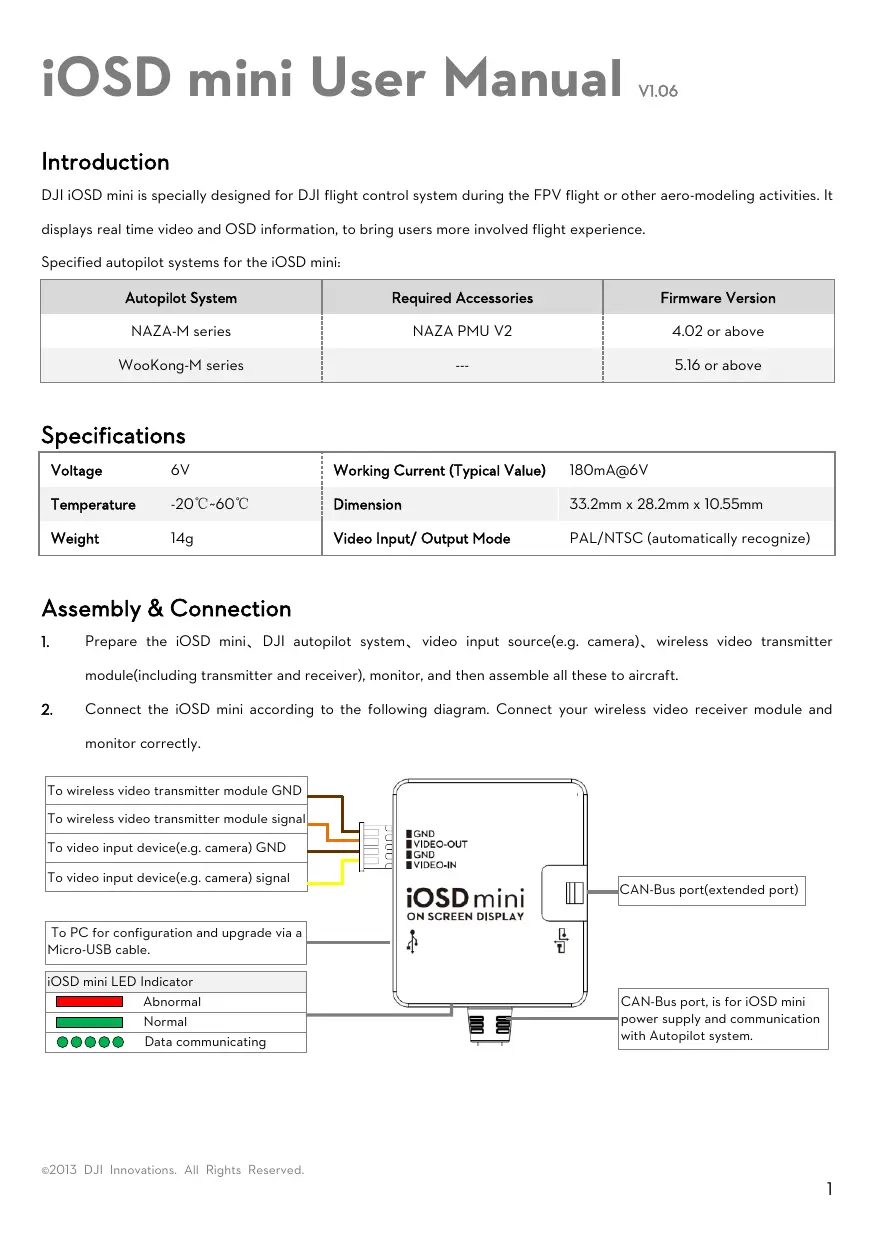
Connect the iOSD mini according to the following diagram. Connect your wireless video receiver module and monitor correctly.
To wireless video transmitter module GND To wireless video transmitter module signal To video input device(e.g. camera) GND To video input device(e.g. camera) signal
CAN-Bus port(extended port)
To PC for configuration and upgrade via a Micro-USB cable. iOSD mini LED Indicator Abnormal Normal Data communicating
CAN-Bus port, is for iOSD mini power supply and communication with Autopilot system.
©2013 DJI Innovations. All Rights Reserved.
Description Real time battery voltage of the aircraft power, unit in V. (For PHANTOM 2 there will be current battery level percentage
shown in addition.) Blink: first level low-voltage alert, the alert threshold is same to the protection voltage value set in the assistant software.
Distance between aircraft and home point
Show when the home point is successfully recorded
Vertical height between the aircraft and the take-off point
APT: Ground station mode
Positive value means the aircraft nose is pitching up; Negative value means the aircraft nose is pitching down. Positive value means the aircraft is rolling to right. Negative value means the aircraft is rolling to left. Horizontal speed of aircraft. Number of GPS satellites acquired. Display the relative angle between the
aircraft nose and home point. The 10
Aircraft nose direction
aircraft nose is pointing to the home 45°
of monitor screen, which can help users to pull the aircraft back.
:Upward speed in vertical direction :Downward speed in vertical direction Use for aircraft attitude observation.
©2013 DJI Innovations. All Rights Reserved.
will appear when compass has errors, please
calibrate your compass. Azimuth angle is a horizontal angle measured
North base line to the line goes N
through the home point and
aircraft position. Users can locate the aircraft by calculating the aircraft position using Az, D , H.
Blinks when the aircraft enters a no-fly zone*. blink
Disappears when the aircraft exits no-fly zone*.
Notes: * For more information about the no-fly zones, visit www.dji.com and download the Phantom 2 User Manual.
Install Driver and Assistant Software 1.
Please download the driver installer and assistant software from the iOSD mini page of DJI website (www.dji.com).
Connect the iOSD mini and the PC via a Micro-USB cable, and power on the iOSD mini system.
Run the driver installer, and follow the tips to finish installation.
Run the assistant software installer, and follow the tips to finish installation.
©2013 DJI Innovations. All Rights Reserved.
Assistant Software Usage Language iOSD Setting Software & Firmware Upgrade etc
Warning Setting Data Communication Indicator PC Connection Indicator iOSD is successfully connected to Assistant software.
Trouble Shooting NO. 1
What Only OSD information, video signal loss.
Why Video input error.
How to Ensure the connection between iOSD mini and video input port is OK.
Only video signal, OSD Connection between iOSD mini and Ensure the connection between iOSD and DJI information loss. Both video signal and OSD information loss.
autopilot system error. Signal transmission error.
autopilot system is OK. Ensure the communication between the video transmitter and receiver is working correctly.
Both video signal and The video signal cable to monitor is Ensure the connection of video signal cable is OSD information loss.
unconnected or short circuit.
Disclaimer Thank you for purchasing product(s) from DJI Innovations. Please read the instructions carefully before installing the hardware and software for this product, this will ensure trouble free operation of your product. DJI Innovations accepts no liability for damage(s) or injured incurred directly or indirectly from the use of this product. DJI is a registered trademark of DJI Innovations. Names of products, brands, etc., appearing in this manual are trademarks or registered trademarks of their respective owner companies. This product and manual are copyrighted by ©2013 DJI Innovations. All Rights Reserved.
DJI Innovations with all rights reserved. No part of this product or manual shall be reproduced in any form without the prior written consent or authorization of DJI Innovations. No patent liability is assumed with respect to the use of the product or information contained herein.
©2013 DJI Innovations. All Rights Reserved.