
ARCHER T9UH - Wi-Fi Adapter TP-LINK - Free user manual and instructions
Find the device manual for free ARCHER T9UH TP-LINK in PDF.


| Product Type | USB Wi-Fi Adapter |
| Model | ARCHER T9UH |
| Brand | TP-Link |
| Wi-Fi Standards | IEEE 802.11a/b/g/n/ac |
| Frequency Bands | 2.4 GHz and 5 GHz |
| Maximum Data Rate | Up to 600 Mbit/s (2.4 GHz) + 1300 Mbit/s (5 GHz) |
| Interface | USB 3.0 |
| Antenna | 3 external detachable antennas |
| Dimensions | 101.2 x 66.9 x 22.5 mm |
| Weight | Approximately 110 g |
| Operating Temperature | 0°C to 40°C |
| Operating Humidity | 10% to 90% non-condensing |
| Power Supply | USB 3.0 port (5 V, 1 A) |
| Supported Operating Systems | Windows, macOS, Linux |
| Wireless Security | WEP, WPA/WPA2, WPA-PSK/WPA2-PSK |
| Maintenance and Cleaning | Disconnect before cleaning, use a soft dry cloth |
| Spare Parts and Repairability | Parts not available separately, device not user-repairable |
| Warranty | 2 years (manufacturer standard) |
Frequently Asked Questions - ARCHER T9UH TP-LINK
User questions about ARCHER T9UH TP-LINK
0 question about this device. Answer the ones you know or ask your own.
Ask a new question about this device
Download the instructions for your Wi-Fi Adapter in PDF format for free! Find your manual ARCHER T9UH - TP-LINK and take your electronic device back in hand. On this page are published all the documents necessary for the use of your device. ARCHER T9UH by TP-LINK.
USER MANUAL ARCHER T9UH TP-LINK
AC1900 High Gain Wireless Dual Band USB Adapter Archer T9UH
Contents
About This Guide 1
Chapter 1. Get to Know About Your Adapter 2
1.1. Product Overview 3 1.2. LED Status 3
Chapter 2. Connect to a Computer 4
Chapter 3. Windows. 6
3.1. Install Driver and WPS Tool.. 7 3.2. Join a Wireless Network. 9 3.3.Uninstall Driver and WPS Tool 10
Chapter 4. Mac OS X. 11
4.1. Install Driver and Utility. 12 4.2. Join a Wireless Network 14
4.2.1. TP-Link Utility 14 4.2.2.WPS (Wi-Fi Protected Setup) 15
4.3. Management 19 4.4. Uninstall Driver and Utility 20
Chapter 5. Linux 22
Appendix: Troubleshooting 24
About This Guide
This guide is a complement to the Quick Installation Guide. The Quick Installation Guide instructs you on quick installation, and this guide provides the product overview and detailed instructions for each step.
When using this guide, please note that features of the adapter may vary slightly depending on the model and software version you have. All screenshots, images, parameters, and descriptions documented in this guide are used for demonstration only.
Conventions
In this guide, the following conventions are used:
| Convention | Description |
| Teal Italic | Hyperlinks are in teal italic. You can click to redirect to a website or a specific section. |
| Teal | Contents to be emphasized and texts on the web page are in teal, including the menus, items, buttons, etc. |
| ■ Note: | Ignoring this type of note might result in a malfunction or damage to the device. |
| ► Tips: | Indicates important information that helps you make better use of your device. |
More Info
- The latest software and utility can be found at the Download Center at http://www.tp-link.com/support.
- The Quick Installation Guide (QIG) can be found where you find this guide or inside the package of the product.
- Specifications can be found on the product page at http://www.tp-link.com.
- Our Technical Support contact information can be found at the Contact Technical Support page at http://www.tp-link.com/support.
Chapter 1
Get to Know About Your Adapter
This chapter introduces what the adapter can do and shows its appearance. This chapter contains the following sections:
Product Overview - LED Status
1.1. Product Overview
TP-Link Wireless USB Adapter connects your computer to a Wi-Fi network for smooth HD video, voice streaming, and online gaming.
- Compatible with 802.11 ac/a/b/g/n products
- Beamforming technology delivers a more targeted and highly efficient wireless connection. High gain antennas ensure superior range and stability.
- Equipped with a USB 3.0 cradle for flexible deployment.
- With the WPS button, the adapter provides a secured connection at the push of a button. Supports ad-hoc and infrastructure mode. Supports 64/128 bit WEP, WPA-PSK/WPA2-PSK. Supports Windows, Mac, and Linux.
1.2. LED Status
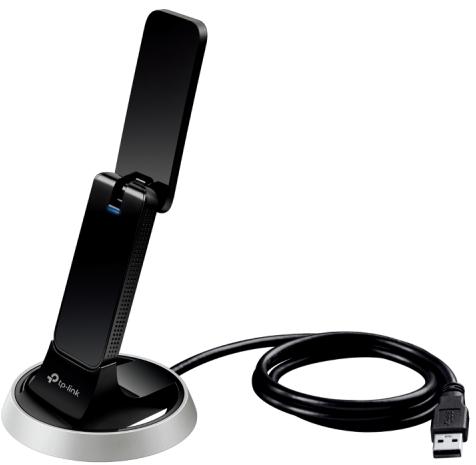
You can check the adapter's working status by following the LED Explanation table.
| Status | Indication |
| Off | The driver has not been installed. |
| Flashing Slowly | The driver has been installed but no data is being transmitted or received. The WPS connection is in process. |
| Solid On | Data is being transmitted or received. |
Tips:
If the LED is off, try these troubleshooting tips:
- Check if the adapter is recognized and enabled or not. Refer to Troubleshooting-T2 for detailed instructions.
- Remove and reconnect the adapter.
- Reinstall the software, if necessary.
Chapter 2
Connect to a Computer
This chapter introduces how to connect the adapter to your computer.
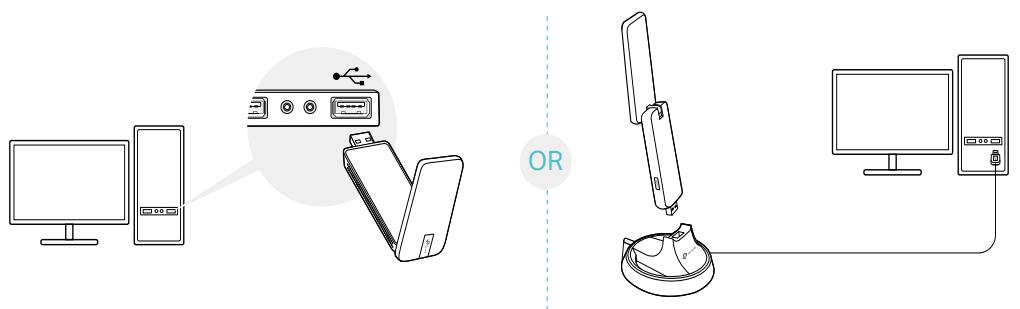
Before you start using your adapter, insert the adapter into a USB port on your computer directly or connect the adapter to your computer using the USB cradle provided.
Note:
If interference appears on your computer's monitor, try moving the adapter further from your computer.
After connecting your adapter to the computer, please follow the instructions in the appropriate chapter for your operating system: Windows, Mac OS X, Linux.
Chapter 3
Windows
This chapter introduces how to install your adapter's driver and WPS Tool, use your adapter to join a wireless network, and uninstall your adapter in a Windows system. The adapter is equipped with a Setup Wizard, which can guide you through the installation process.
This chapter includes the following sections:
Install Driver and WPS Tool - Join a Wireless Network - Uninstall Driver and WPS Tool
3.1. Install Driver and WPS Tool
- Insert the resource CD into your CD drive and run the Autorun.exe from the pop-up Autoplay window.
Note:
- You can also download the driver from the product's Support page at www.tp-link.com.
- In some operating systems, the CD screen will pop up automatically. Otherwise, run the CD manually.
- Select Archer T9UH and follow the instructions to complete the installation.
Note:
If you can't install the driver successfully, disable the antivirus software and firewall, then try again.
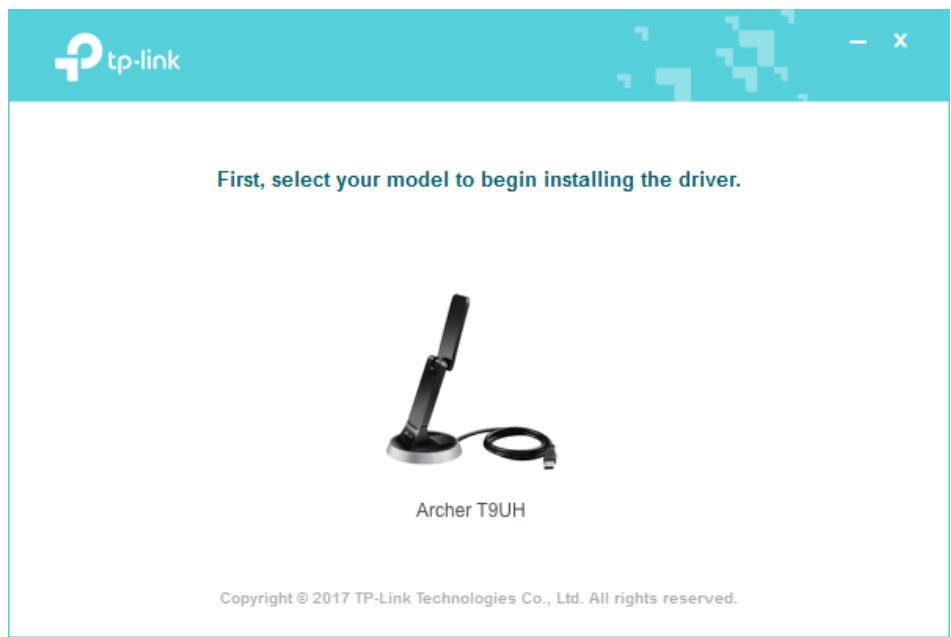
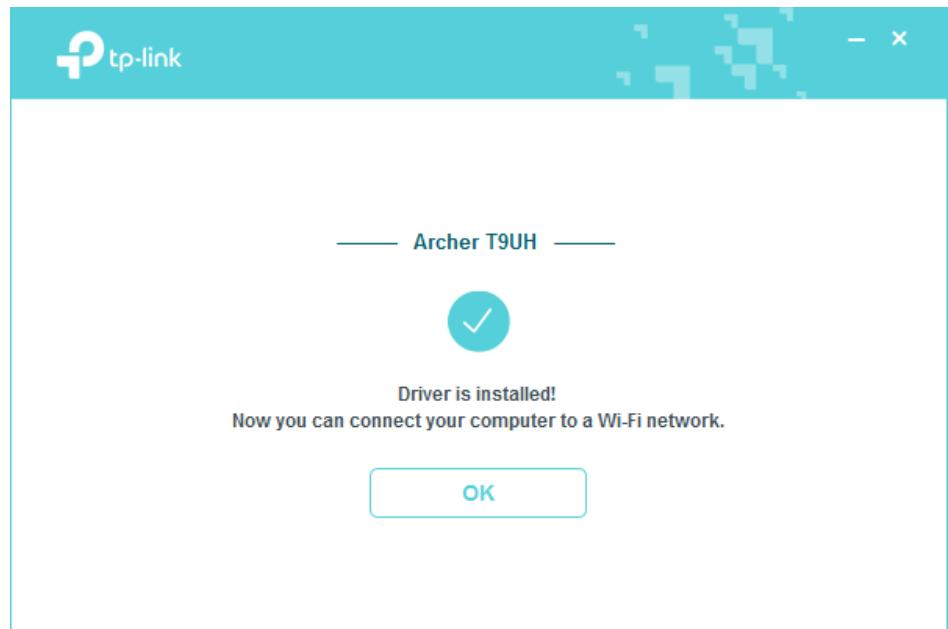
- When the following screen appears, the driver has been installed successfully.
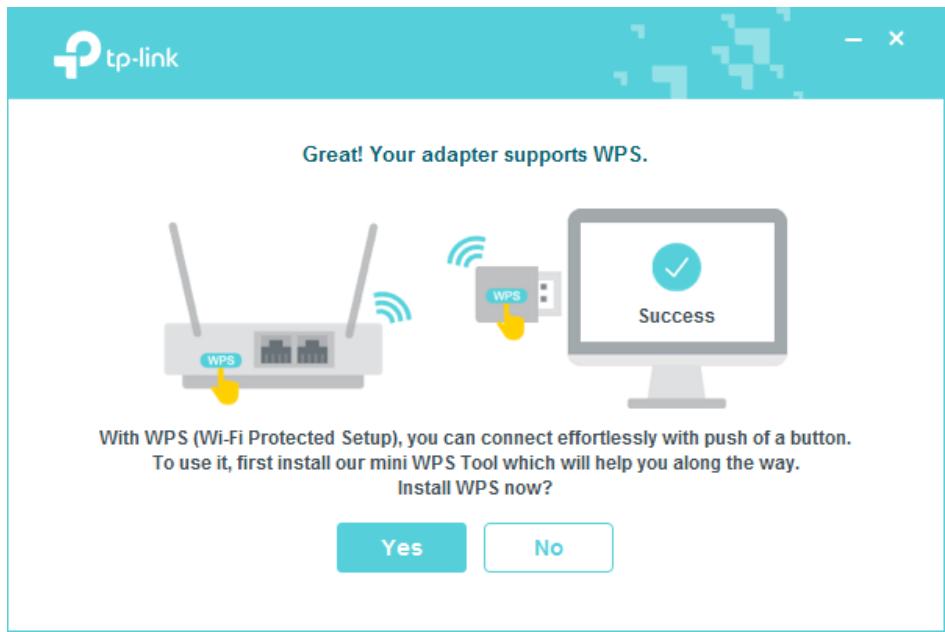
- If you want to connect effortlessly with the push of a WPS button, click Yes and follow the instructions to install the mini WPS Tool.
Note:
For Windows XP, WPS Tool is not supported. Please use Windows built-in wireless utility to join the wireless network.
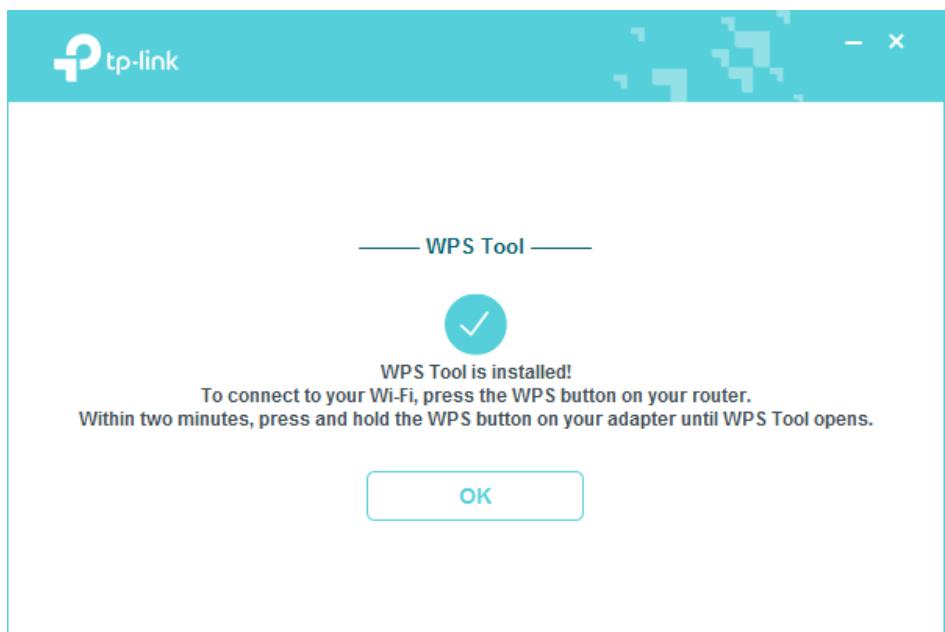
- When the following screen appears, the WPS Tool has been installed successfully. You can enjoy connecting to your Wi-Fi with the push of the WPS button.
3.2. Join a Wireless Network
Option 1: Via Windows Built-in Wireless Utility
You can join a wireless network via Windows built-in wireless utility. Follow the instructions below to use your computer system's built-in wireless utility:
- Click the network icon on the taskbar. Select the Wi-Fi network you want to join, and click Connect. Enter the network password when prompted.
- When the network icon changes to indicate a successful connection, you are connected.
Option 2: Via WPS Tool
If you have installed WPS Tool, follow the instructions below to connect effortlessly with the WPS button.
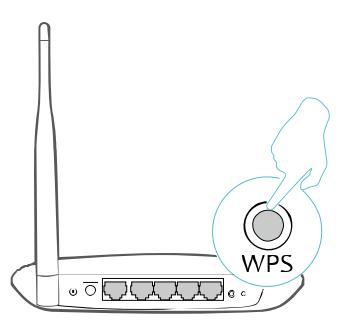
- Press the WPS button on your router.
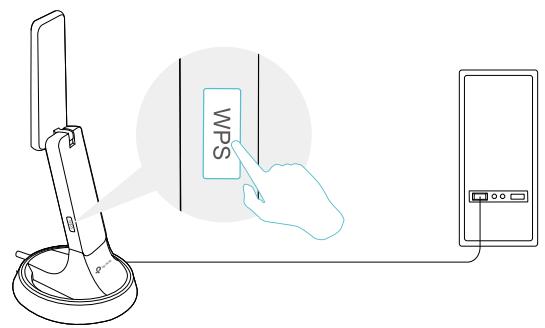
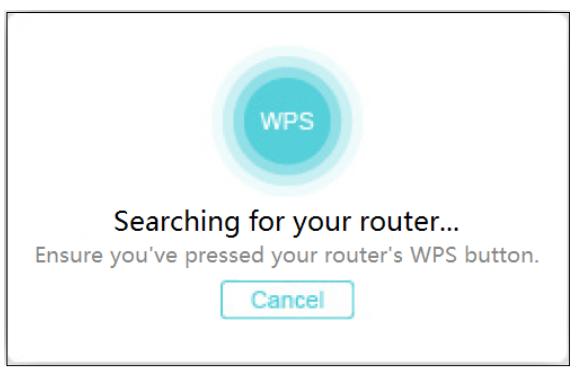
- Within 2 minutes, press and hold the WPS button on the adapter until WPS Tool opens in the lower right corner of your computer.
- When the "Success!" message appears, your computer is connected to Wi-Fi.

Success!
3.3. Uninstall Driver and WPS Tool
The software uninstallation steps vary a bit from different systems. Please follow the appropriate instructions for your Windows operating system: Windows 8/8.1/10, Windows XP/7.
- Windows 8/8.1/10
Go to Start menu to find the TP-Link application. Click Uninstall TP-Link Archer T9UH Driver, then follow the on-screen instructions to complete the uninstallation.
- Windows XP/7
Go to Start > All Programs > TP-Link > Uninstall TP-Link Archer T9UH Driver. Follow the on-screen instructions to complete the uninstallation.
Chapter 4
Mac OS X
This chapter introduces how to install your adapter's driver and utility, use your adapter to join a wireless network, manage your adapter and uninstall your adapter in Mac OS X.
This chapter includes the following sections:
Install Driver and Utility - Join a Wireless Network Management - Uninstall Driver and Utility
4.1. Install Driver and Utility
We take the steps in Mac OS X 10.10 as an example - the steps may vary slightly for other versions of Mac OS.
- Download the driver and utility from this product's Support page from TP-Link's official website www.tp-link.com.
Note:
The CD is included in the package. If your computer has a CD drive, you can also run the included CD to install the driver and utility.
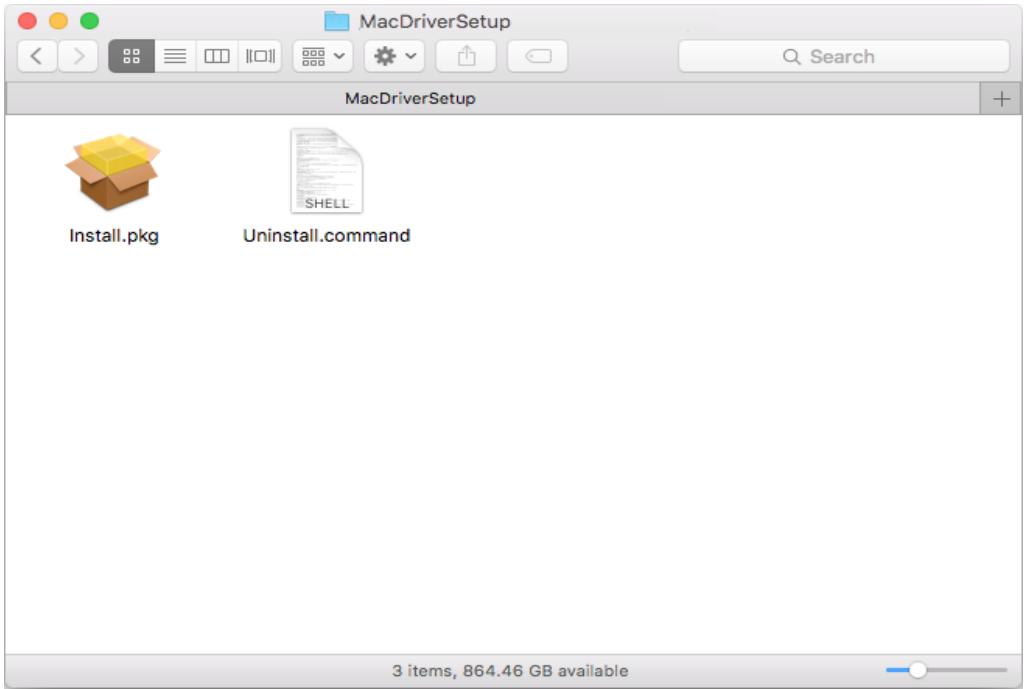
- Double click to unzip the downloaded folder and run the Install pkg.
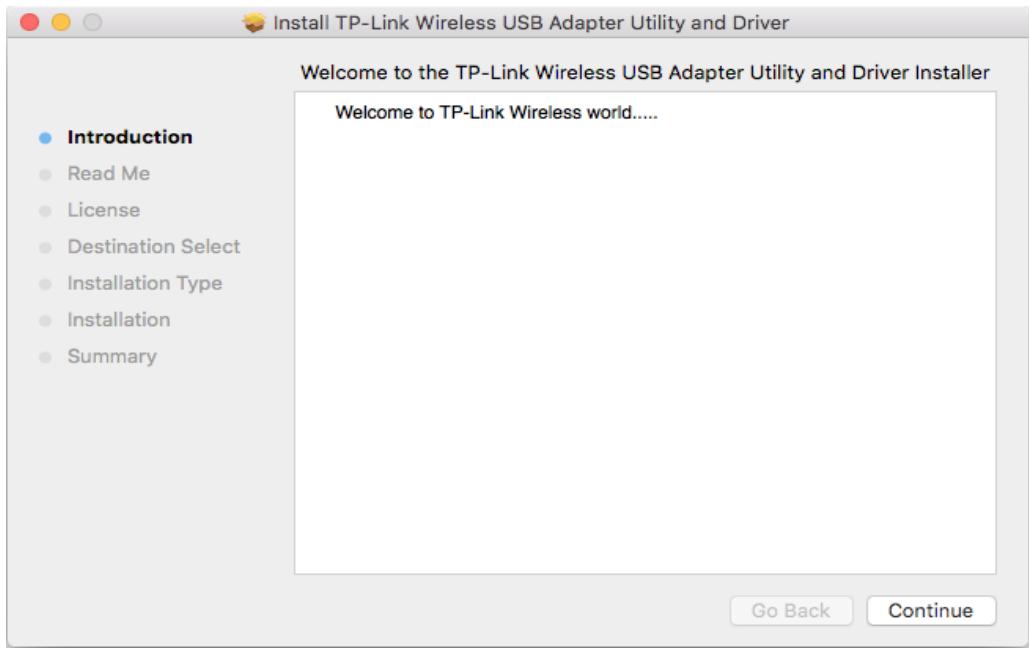
- The Install TP-Link Wireless USB Adapter Utility and Driver Wizard window will appear. Click Continue and follow the instructions to complete the installation.
- When the following screen appears, the driver and utility have been installed successfully. Click Restart to finish the installation.
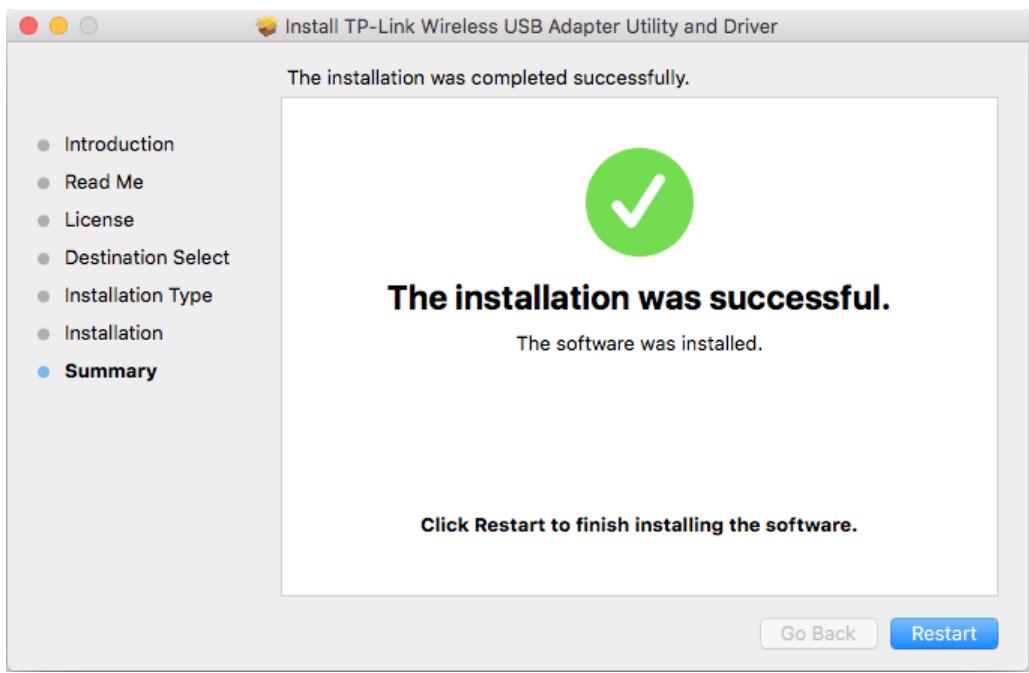
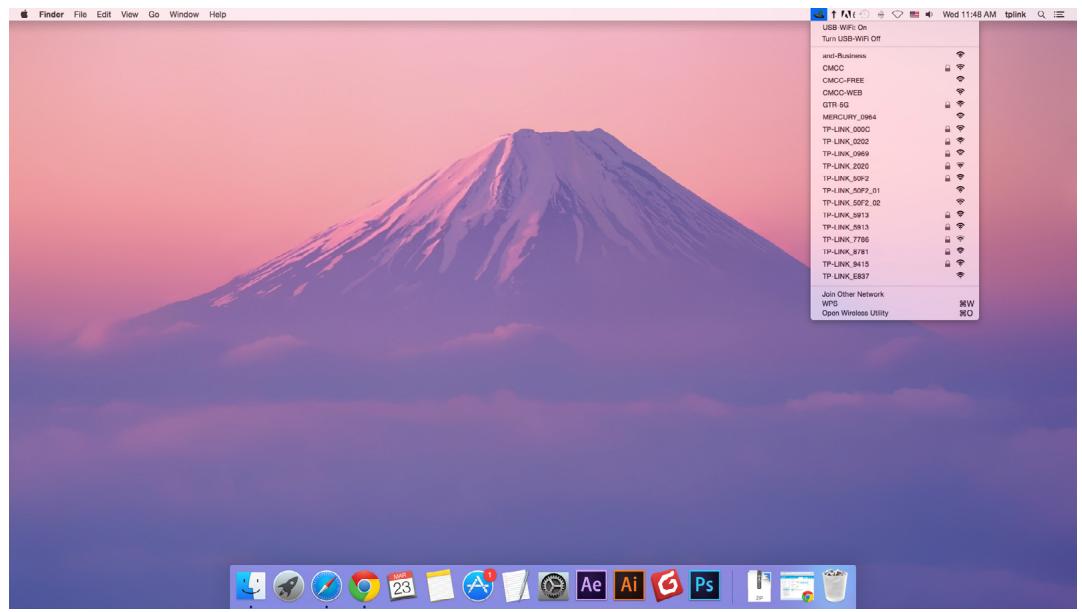
- After restarting the computer, the TP-Link Utility icon will appear on the menu bar in the upper-right corner of the screen. To use the utility to join a Wi-Fi network with your adapter, refer to Join a Wireless Network.
Note:
If the TP-Link Utility icon does not appear on the menu bar, make sure the USB wireless network adapter is connected properly and its LED is on.
4.2. Join a Wireless Network
There are two options of using the adapter to join a Wi-Fi network.
Option 1: TP-Link Utility
TP-Link Utility lets you easily connect the adapter to a Wi-Fi network and manage the adapter.
Option 2: WPS (Wi-Fi Protected Setup)
WPS (Wi-Fi Protected Setup) is a network security standard for easily adding computers and other devices to a home network. Use this method if your wireless router or access point supports WPS.
4.2.1. TP-Link Utility
Option 1
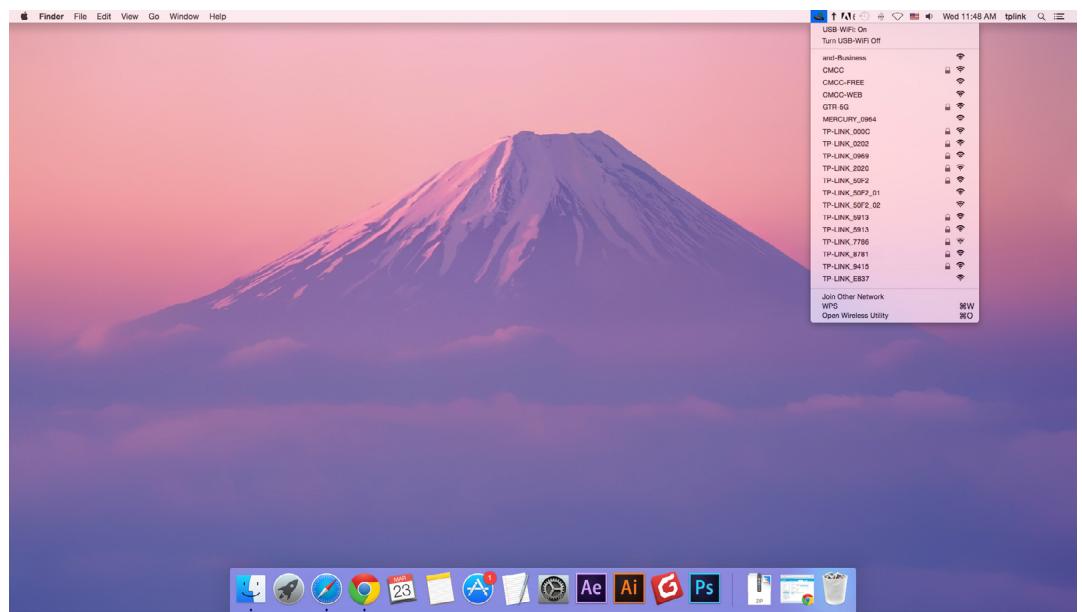
Click the TP-Link Utility icon on the menu bar, and choose a Wi-Fi network from the list. Enter the password when prompted.
When you are connected to the internet, the network icon will change to
Option 2
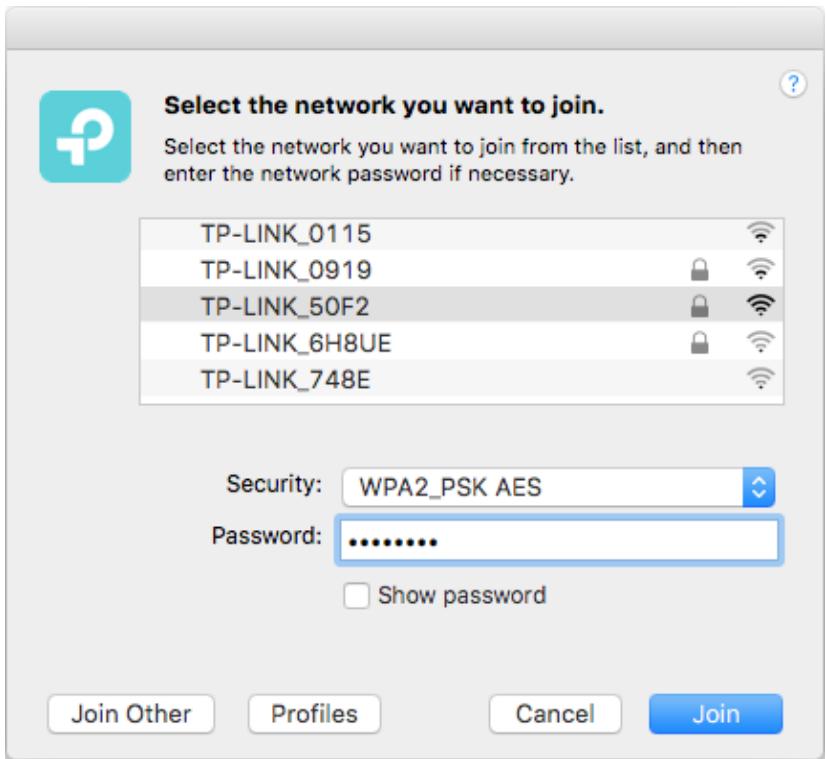
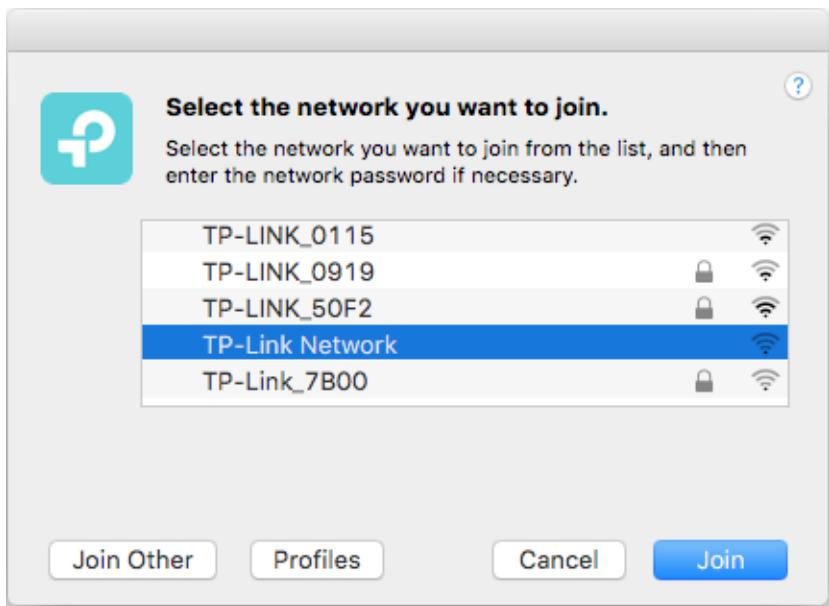
- Click the TP-Link Utility icon on the menu bar, and then click Open Wireless Utility at the bottom of the network list.
- Select the network you want to join from the list and enter the password when prompted. Click Join.
Note:
If your Wi-Fi network is not displayed in the list, you can try to join it by WPS or by clicking Join Other on the above screen, and then follow the on-screen instructions to join the network.
4.2.2. WPS (Wi-Fi Protected Setup)
WPS can be activated via PBC (Push Button Configuration) and PIN code. Please refer to PBC or PIN below.
PBC
Option 1
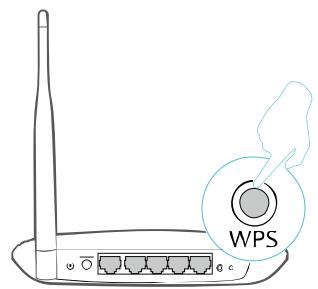
- Press the WPS/QSS button on your router or AP. Within 2 minutes, press and hold the WPS button on the adapter until the following WPS screen appears.
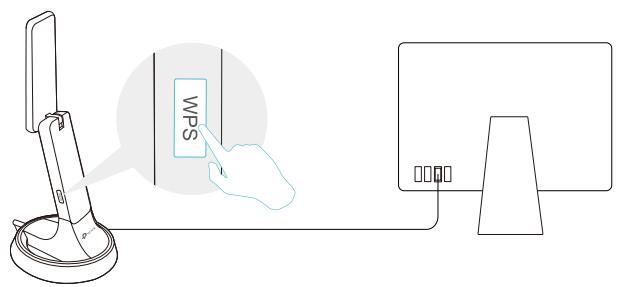
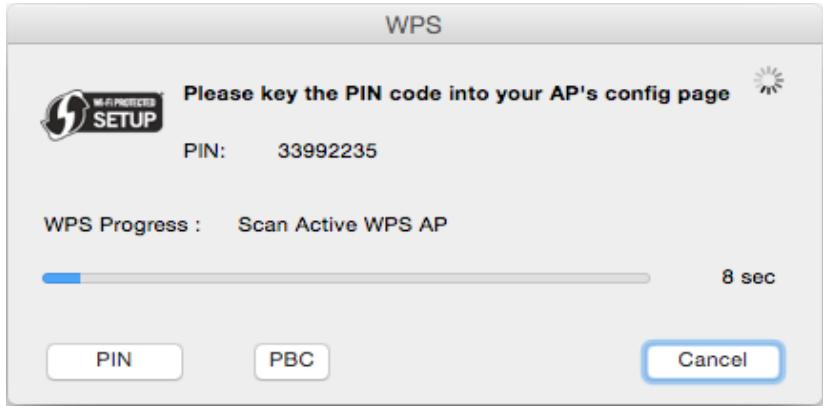
- The following screen indicates a successful connection by WPS. Click OK.
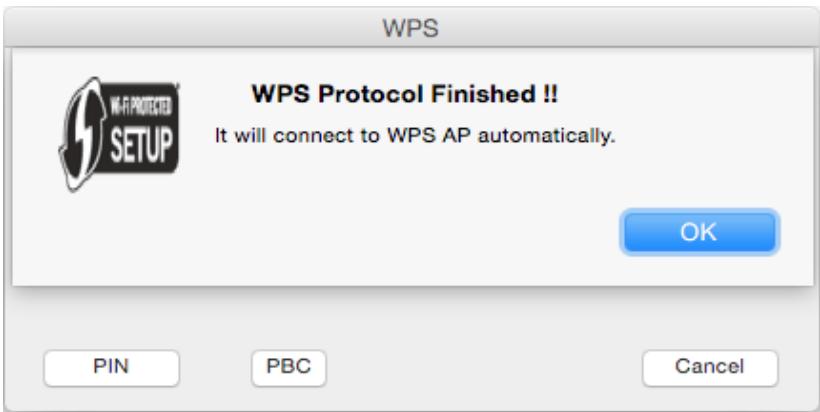
Option 2
- Press the WPS/QSS button on your router or AP.
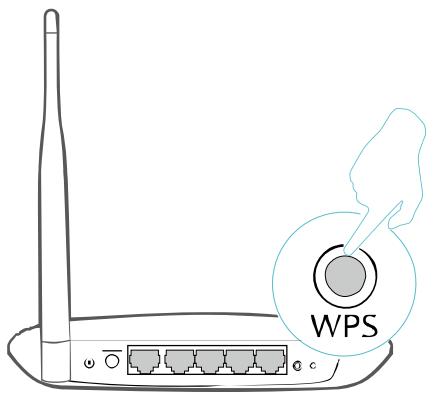
- Within 2 minutes, click the TP-Link Utility icon on the menu bar, and then click WPS at the bottom of the network list.
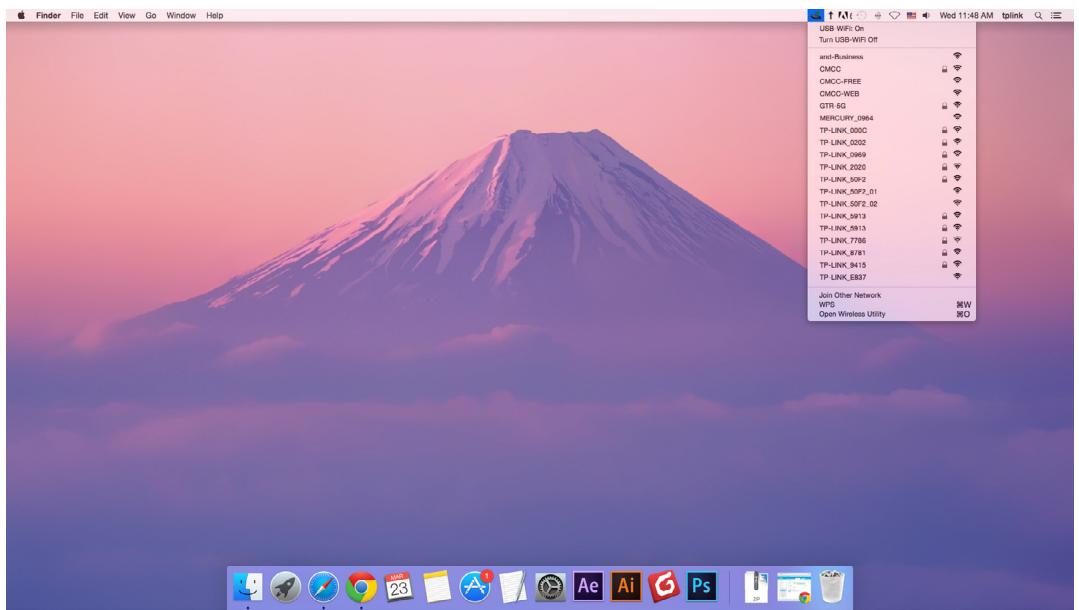
3. Click PBC.
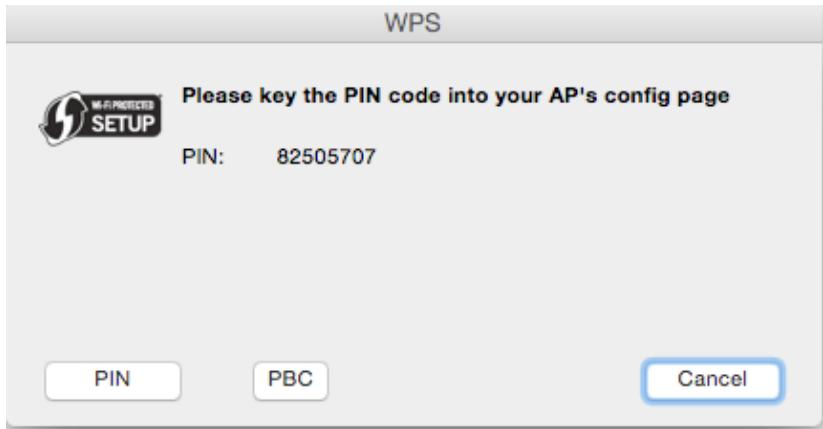
- The following screen indicates a successful connection by WPS. Click OK.
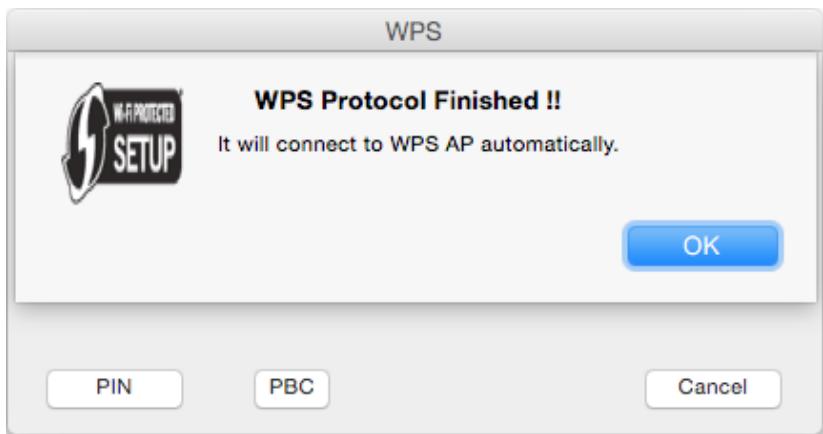
PIN
- Click the TP-Link Utility icon on the menu bar, and then click WPS at the bottom of the network list.
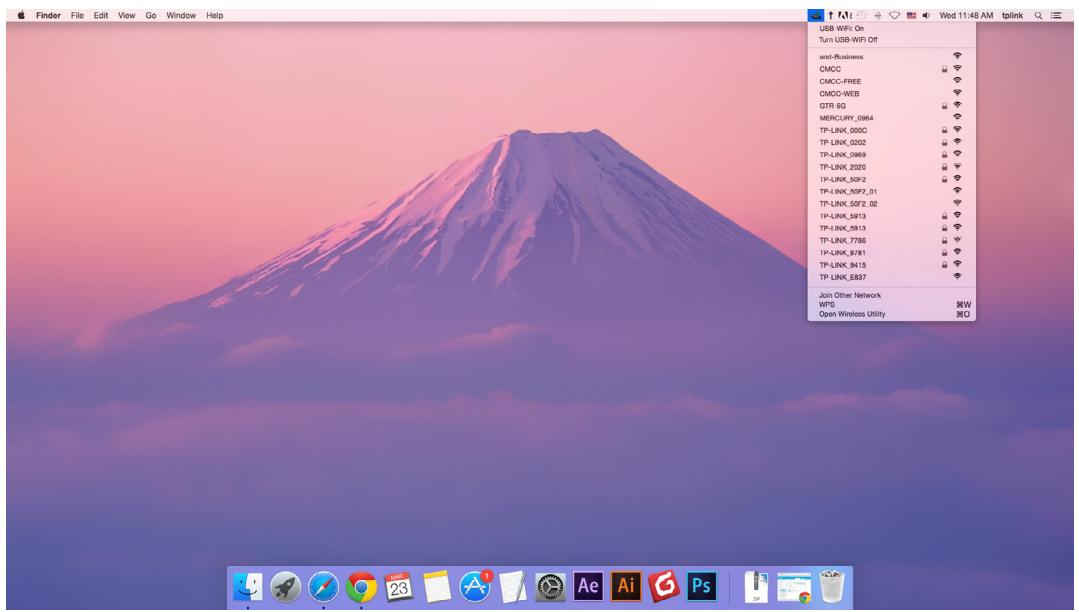
2. Click PIN.
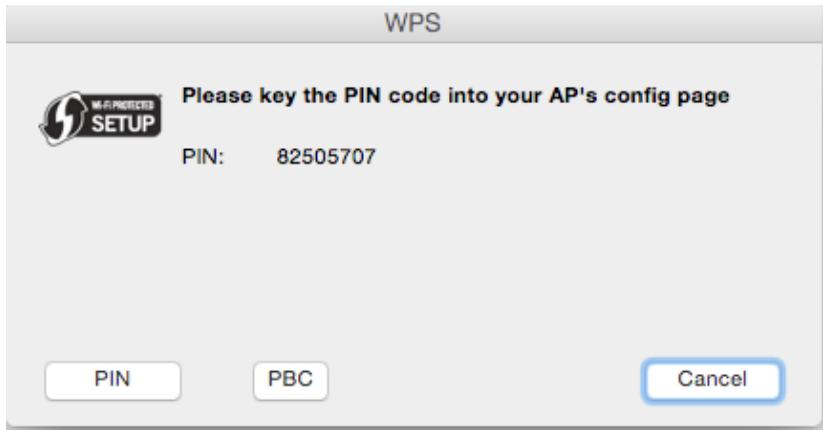
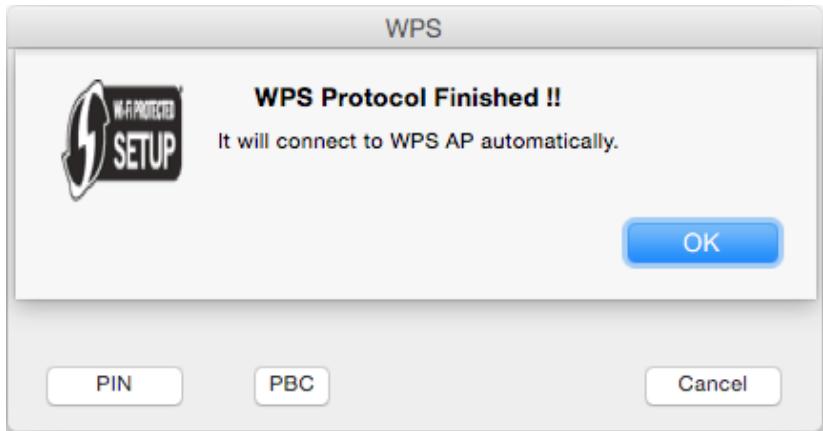
- Within 2 minutes, log in to the web management page of your router or AP. Go to its WPS page, enter the PIN of the adapter in the corresponding field and click Connect.
- The following screen indicates a successful connection by WPS. Click OK.
4.3. Management
TP-Link Utility provides you with an easy way to manage various connection settings of your Wi-Fi network.
- Click the TP-Link Utility icon on the menu bar, and then click Open Wireless Utility at the bottom of the network list.
- TP-Link Utility will pop up. Click the Profiles button to open the Profiles screen.
- The Profiles screen lets you manage different Wi-Fi connection settings as profiles so that you can connect to your network easily.
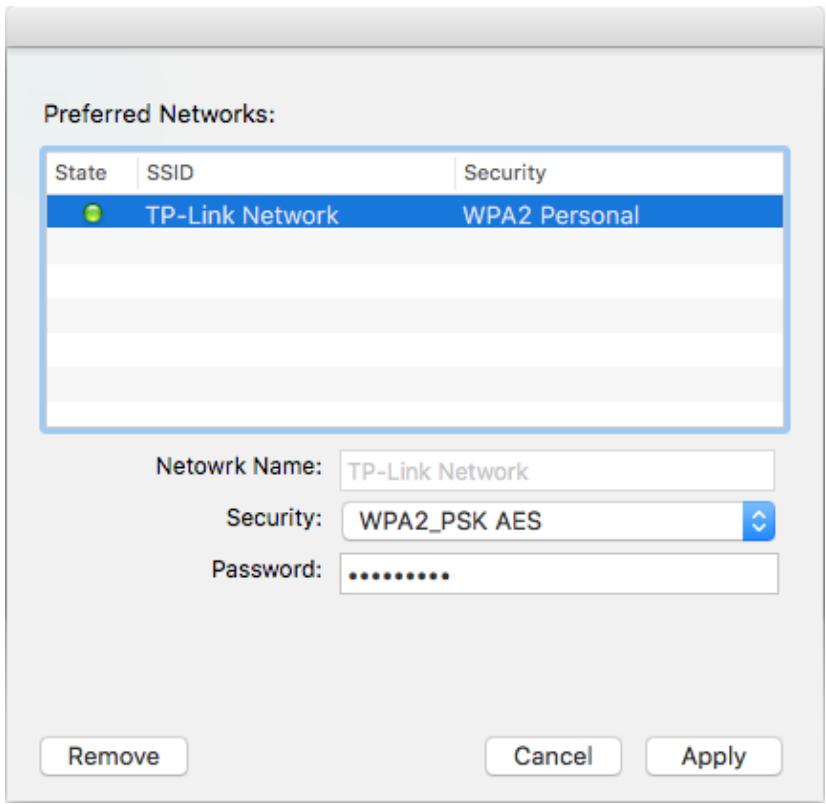
Preferred Networks displays the networks that you once connected to. The networks' status and information are displayed on the table.
- To join a Wi-Fi network
If you want to join a Wi-Fi network that is listed on the profile screen, select the profile and click Apply in the bottom right corner.
- To manage an existing profile
If you want to change the wireless settings of an existing profile, select it and then you can edit its Security and Password. If you want to delete a profile, select it and click Remove.
4.4. Uninstall Driver and Utility
- Double click Uninstall command in the downloaded folder.
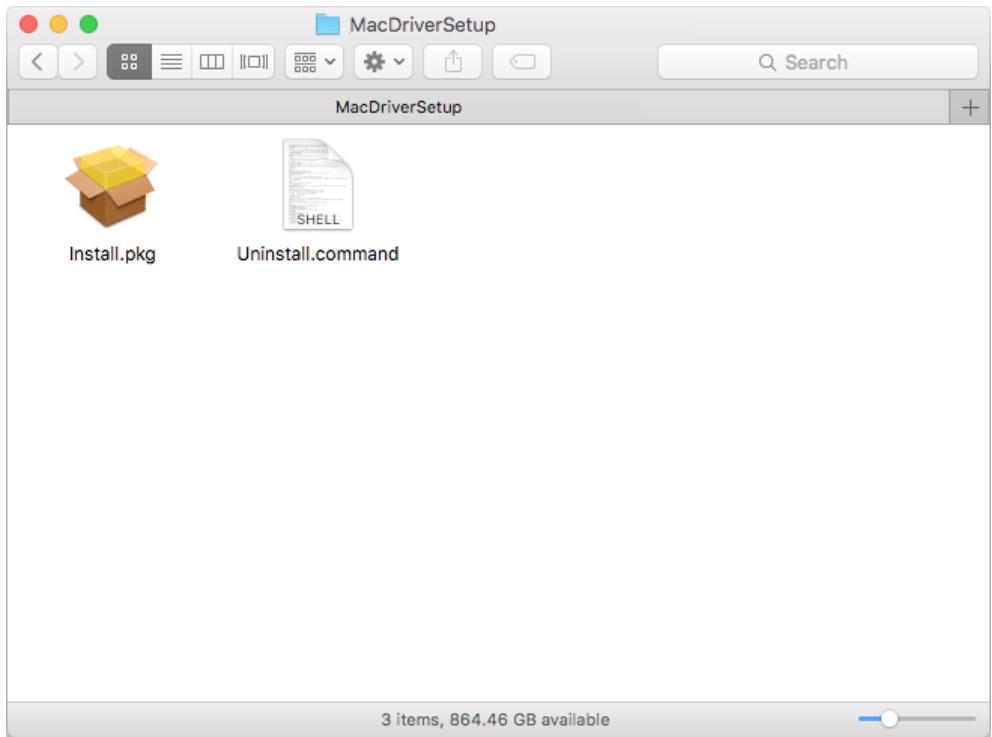
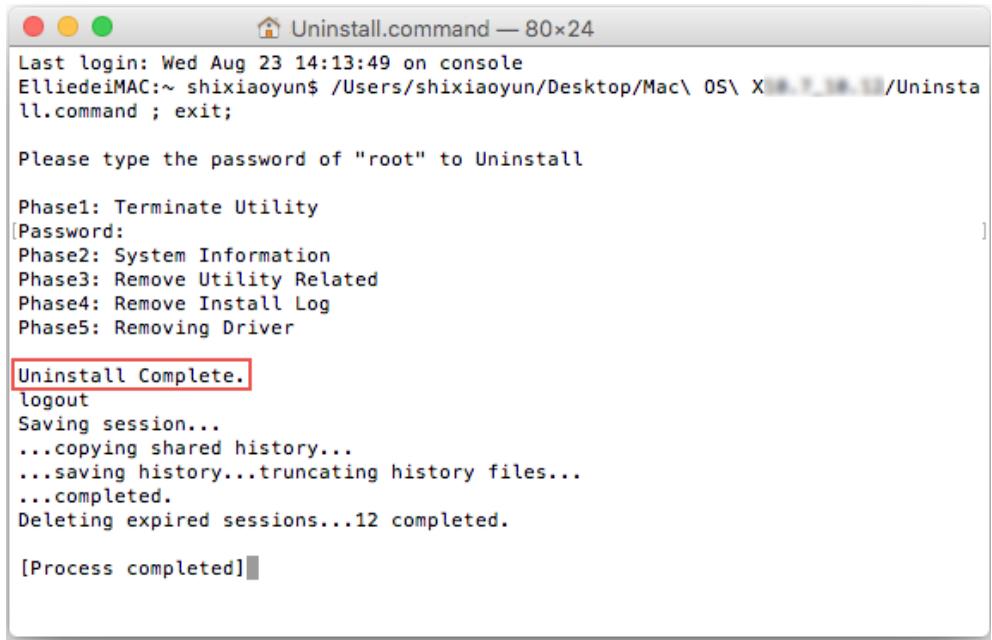
- Enter the password of you computer and when the "Uninstall Complete" message appears, the uninstallation is complete.
Chapter 5
Linux
This chapter introduces how to install your adapter's driver in a Linux system.
Visit the TP-Link website at http://www.tp-link.com, and go to the Archer T9UH product page. Then find the compatible version of the driver in the support page. Download and install the driver on your computer.
Appendix: Troubleshooting
T1. What should I do if the adapter is not detected?
- Make sure the adapter is securely connected to the computer.
- Make sure you meet the minimum system requirements for the adapter and that the latest Windows and system updates are installed on your computer.
- Make sure you use the latest driver for your specific adapter. The latest drivers can be found at the product's Support page at http://www.tp-link.com.
- If you are using the USB cradle that connects the USB adapter, try to connect the adapter directly to the computer. Try a different USB port on the computer.
- Try restarting the computer or try using the adapter on a different computer.
T2. How to check if I have installed the driver for my adapter successfully or not?
- On your computer, please right-click the Computer icon and go to Manage;
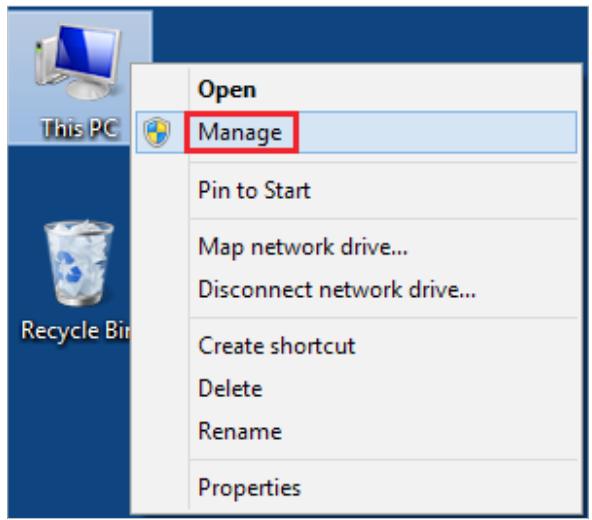
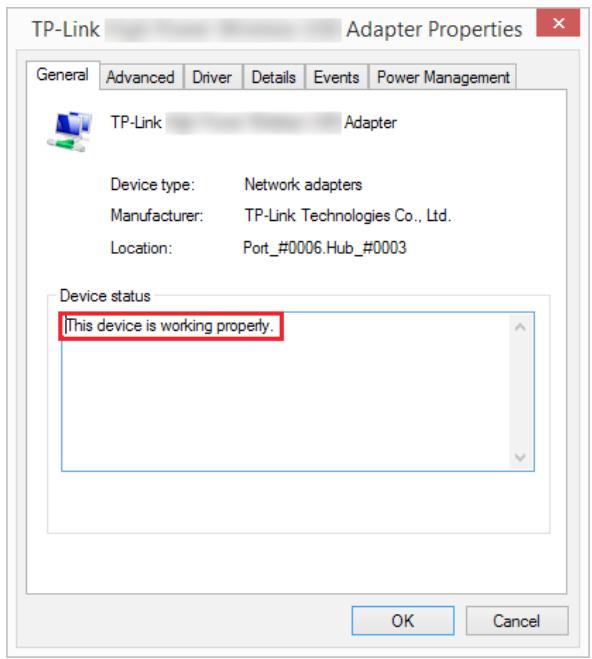
- Open the Device Manager and go to Network adapters, and then find the corresponding TP-Link adapter, right-click it and then go to Properties;
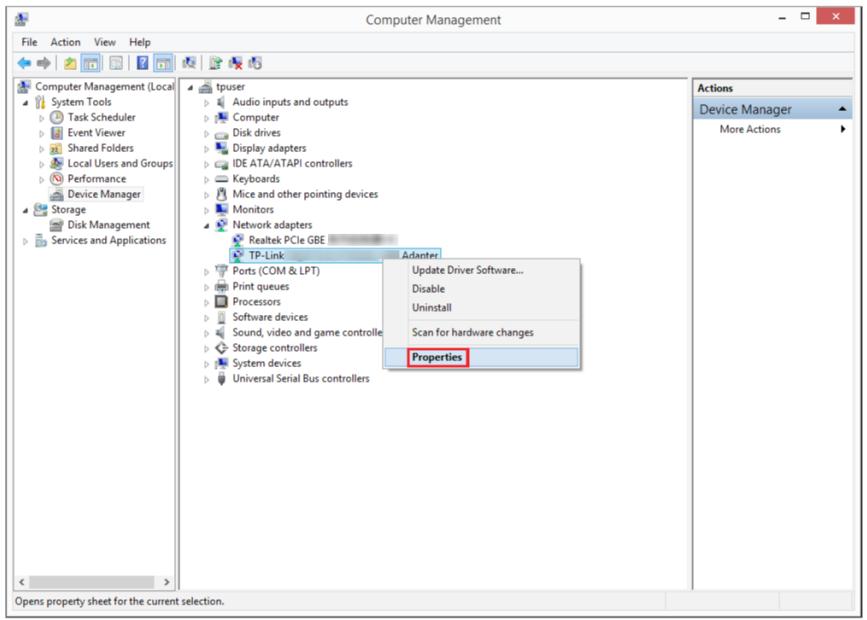
- If you can see "This device is working properly." in the red box, you have already installed the driver successfully.
T3. What should I do if I can't connect to the Wi-Fi after installing the driver?
Refer to T2 to check if you have installed the driver for your adapter successfully. - Make sure the adapter is securely connected to the computer. - Disable the antivirus software and firewall, then try again. - Try a different USB port on the computer. - Restart your computer and try again.
- Re-install the driver and try again.
T4. How to find the hardware version of the adapter?
- The hardware version is printed on the product label on the package or the adapter. There is a character string "Ver:X.Y" (for example, Ver:2.0) in the Serial Number field, and the number X is the hardware version of the adapter.
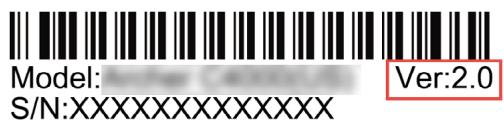
- Visit http://www.tp-link.com/faq-46.html and follow the second method to find the hardware version of the adapter.
COPYRIGHT & TRADEMARKS
Specifications are subject to change without notice. TP-Link is a registered trademark of TP-Link Technologies Co., Ltd. Other brands and product names are trademarks or registered trademarks of their respective holders.
No part of the specifications may be reproduced in any form or by any means or used to make any derivative such as translation, transformation, or adaptation without permission from TP-Link Technologies Co., Ltd. Copyright © 2018 TP-Link Technologies Co., Ltd. All rights reserved.
FCC STATEMENT

This equipment has been tested and found to comply with the limits for a Class B digital device, pursuant to part 15 of the FCC Rules. These limits are designed to provide reasonable protection against harmful interference in a residential installation. This equipment generates, uses and can radiate radio frequency energy and, if not installed and used in accordance with the instructions, may cause harmful interference to radio communications. However, there is no guarantee that interference will not occur in a particular installation. If this equipment does cause harmful interference to radio or television reception, which can be determined by turning the equipment off and on, the user is encouraged to try to correct the interference by one or more of the following measures:
- Reorient or relocate the receiving antenna.
- Increase the separation between the equipment and receiver.
- Connect the equipment into an outlet on a circuit different from that to which the receiver is connected.
- Consult the dealer or an experienced radio/TV technician for help.
This device complies with part 15 of the FCC Rules. Operation is subject to the following two conditions:
1) This device may not cause harmful interference. 2) This device must accept any interference received, including interference that may cause undesired operation.
Any changes or modifications not expressly approved by the party responsible for compliance could void the user's authority to operate the equipment.
Note: The manufacturer is not responsible for any radio or TV interference caused by unauthorized modifications to this equipment. Such modifications could void the user's authority to operate the equipment.
FCC RF Radiation Exposure Statement:
This equipment complies with FCC radiation exposure limits set forth for an uncontrolled environment. End users must follow the specific operating instructions for satisfying RF exposure compliance. This transmitter must not be co-located or operating in conjunction with any other antenna or transmitter. This equipment has been SAR-evaluated for use in hand. SAR measurements are based on a 5mm spacing from the body and that compliance is achieved at that distance.
CE Mark Warning

This is a class B product. In a domestic environment, this product may cause radio interference, in which case the user may be required to take adequate measures.
OPERATING FREQUENCY (the maximum transmitted power)
2412MHz—2472MHz (20dBm)
EU declaration of conformity
TP-Link hereby declares that the device is in compliance with the essential requirements and other relevant provisions of directives 2014/53/EU and 2011/65/EU.
The original EU declaration of conformity may be found at http://www.tp-link.com/en/ce.
RF Exposure Information
This device meets the EU requirements (2014/53/EU Article 3.1a) on the limitation of exposure of the general public to electromagnetic fields by way of health protection.
This device has been tested and meets the ICNIRP exposure guidelines and the European Standard EN 62209-2. SAR is measured with this device at a separation of 0.5 cm to the body, while transmitting at the highest certified output power level in all frequency bands of this device. Carry this device at least 0.5 cm away from your body to ensure exposure levels remain at or below the as-tested levels.
Canadian Compliance Statement
This device complies with Industry Canada license-exempt RSSs. Operation is subject to the following two conditions:
1) This device may not cause interference, and 2) This device must accept any interference, including interference that may cause undesired operation of the device.
Radiation Exposure Statement:
This EUT is compliant with SAR for general population/uncontrolled exposure limits in RSS-102 and has been tested in accordance with the measurement methods and procedures specified in IEEE 1528 and IEC 62209. This equipment should be installed and operated with a minimum distance of 1.0 cm between the radiator and your body. This
device and its antenna(s) must not be co-located or operating in conjunction with any other antenna or transmitter.
Industry Canada Statement
CAN ICES-3(B)/NMB-3(B)
Korea Warning Statements
NCC Notice
Caution!
According to the Low-power Radio-wave Radiated Machinery Management Regulations
- Keep the device away from water, fire, humidity or hot environments.
- Do not attempt to disassemble, repair, or modify the device.
- Do not use a damaged charger or USB cable to charge the device.
- Do not use any other chargers than those recommended.
- Do not use the device where wireless devices are not allowed.
- This USB Adapter can be powered only by computers that comply with Limited Power Source (LPS).
Please read and follow the above safety information when operating the device. We cannot guarantee that no accidents or damage will occur due to improper use of the device. Please use this product with care and operate at your own risk.
Explanation of the symbols on the product label
| Symbol | Explanation |
| RECYCLINGThis product bears the selective sorting symbol for Waste electrical and electronic equipment (WEEE). This means that this product must be handled pursuant to European directive 2012/19/EU in order to be recycled or dismantled to minimize its impact on the environment.User has the choice to give his product to a competent recycling organization or to the retailer when he buys a new electrical or electronic equipment. |
- CONTENTS
- ABOUT THIS GUIDE
- CHAPTER 1. GET TO KNOW ABOUT YOUR ADAPTER
- CHAPTER 2. CONNECT TO A COMPUTER
- CHAPTER 3. WINDOWS
- CHAPTER 4. MAC OS X
- CHAPTER 5. LINUX
- APPENDIX: TROUBLESHOOTING
- CONVENTIONS
- MORE INFO
- CHAPTER
- GET TO KNOW ABOUT YOUR ADAPTER
- PRODUCT OVERVIEW
- LED STATUS
- TIPS
- CONNECT TO A COMPUTER
- NOTE
- WINDOWS
- INSTALL DRIVER AND WPS TOOL
- JOIN A WIRELESS NETWORK
- OPTION 1: VIA WINDOWS BUILT-IN WIRELESS UTILITY
- OPTION 2: VIA WPS TOOL
- UNINSTALL DRIVER AND WPS TOOL
- MAC OS X
- INSTALL DRIVER AND UTILITY
- TP-LINK UTILITY
- OPTION
- WPS (WI-FI PROTECTED SETUP)
- PBC
- CLICK PBC
- PIN
- CLICK PIN
- MANAGEMENT
- UNINSTALL DRIVER AND UTILITY
- LINUX
- T1. WHAT SHOULD I DO IF THE ADAPTER IS NOT DETECTED
- T2. HOW TO CHECK IF I HAVE INSTALLED THE DRIVER FOR MY ADAPTER SUCCESSFULLY OR NOT
- T3. WHAT SHOULD I DO IF I CAN'T CONNECT TO THE WI-FI AFTER INSTALLING THE DRIVER
- T4. HOW TO FIND THE HARDWARE VERSION OF THE ADAPTER
- COPYRIGHT & TRADEMARKS
- FCC STATEMENT
- FCC RF RADIATION EXPOSURE STATEMENT
- CE MARK WARNING
- OPERATING FREQUENCY (THE MAXIMUM TRANSMITTED POWER)
- EU DECLARATION OF CONFORMITY
- RF EXPOSURE INFORMATION
- CANADIAN COMPLIANCE STATEMENT
- RADIATION EXPOSURE STATEMENT
- INDUSTRY CANADA STATEMENT
- KOREA WARNING STATEMENTS
- NCC NOTICE
- EXPLANATION OF THE SYMBOLS ON THE PRODUCT LABEL
Brand : TP-LINK
Model : ARCHER T9UH
Category : Wi-Fi Adapter