 ManualGo.com
 OFFICEJET 6100 - Printer HP - Free user manual and instructions
Find the device manual for free OFFICEJET 6100 HP in PDF.


Download the instructions for your Printer in PDF format for free! Find your manual OFFICEJET 6100 - HP and take your electronic device back in hand. On this page are published all the documents necessary for the use of your device. OFFICEJET 6100 by HP.
USER MANUAL OFFICEJET 6100 HP
© Copyright Hewlett Packard Company 2002
All rights are reserved. No part of the document may be photocopied, reproduced, or translated to another language without the prior written consent of Hewlett Packard Company.
Adobe and the Acrobat logo are eiher registered au trademarks or trademarks «PDF of Adobe Systems V4 QE Incorporaled in {he 4 United States and/or other countries.
Portions Copyright © 19892002 Palomar Sollware Inc. The HP Offcelet 6100 Series includes printer driver technology licensed from Palomar Sofhware, Inc wvww.palomar.com
Copyright © 19992001 Apple Compuer, Inc.
Apple, the Apple logo, Mac, Mac logo, Macintosh, and Mac OS are trademarks of Apple Compuler, Inc., registered in the U.S. and other countries.
Publication number. @1636.90205 Second edition: December 2002
Printed in U.S.A., Mexico, Germany, Singapore, or China
Windows®, Windows NT®, Windows ME®, Windows XP®, and Windows 2000® are U.S.registered trademarks of Microsoft Corporation
Intel® and Pentium® are registered trademarks of Intel Corporation.
The information contained in this document is subject to change without notice and should not be construed as
a commitment by the Hewlet Packard Company.
Hewlett-Packard assumes no responsibility for any errors that may appear in this document, nor does it make expressed or implied warranty of any kind with regard to this material, including, but not limited to, the implied warranties of merchantability and fitness for a particular purpose.
The Hewlett-Packard Company shall not be liable for incidental or consequential damages in connection with, or arising out of the furnishing, performance, or use of this document and the program material which it describes.
Note: Regulatory information can be found in the “Technical information" section of the Support and Specifications Booklet.
His not lawful in many places to make copies ofthe following items. When in doubt, check with a legal representative first. + Governmental paper or documents: + Passports + Immigration papers + Selective service papers Identification badges, cards, or insignios + Governmental stamps: + Postage stamps + Food stamps + Checks or drafis drawn on Governmental agencies + Paper currency, travelers checks, or money orders + Ceriicates of deposit + Copyrighted works
Warning! To prevent fire or shock hazard, do not expose this product to rain or any type of moisture.
Always follow basic safety precautions when using this product to reduce risk of injury from fire or electric shock
WARNING: potential shock hazard
1 Read and understand all instructions in the setup poster.
2. Use only a grounded electrical outlet when connecting the unit to a power source. If you do not know whether the oullet is grounded, check wilh a qualified electrician.
3 Obsenve all wamings and instructions marked on the product.
4 Unplug this product from wall oullts before cleaning
5 Do not install or use this product near waler or when you are wet.
6 Install he product securely on a stable surface.
7 Install the product in a protected location where no one can step on or Hip over the line cord, and véhere the line cord will not be damag,
8 Ifthe product does not operate normally, see he online Troubleshooting help.
9 No operatorserviceable parts inside. Refer servicing to qualified service personnel
10 Use in a wellventilated area
get help 1 quick start 3 use your hp officejet with a computer 5 hp officejet menu functions 7 load originals and load paper 9
load originals load paper .... load envelopes load postcards or hagaki cards 13 load photo paper tips for loading other types of pape: Lee set the paper type set the paper size.
use the copy features make copies perform special copy jobs. ....
stop copying copy setup menu options.
use the scan features. scan an original stop scanning . . learn more
print reports control resolution and contrast .… Lee redial a number automatically. use Error Correction Mode (ECM) set automatic reduction
change the Answer Ring Pattern (distinctive ringing) set up speed dialing. set the paper size. . .
set the date and time . ee. see set the fax header enter text reprint the faxes in memory... Lee fax feature menu options.
7 maintain your hp officejet. . clean the glass . clean the adf glass clean the lid backing . clean the exterior. . . work with print cartridges . restore factory defaults . set the power save time . set scroll speed set the front-panel view angle .
8 additional setup information. possible installation problems . . set the language and country/region. connect your hp officejet to your computer deuueccese remove and reinstall your hp officejet software
9 technical information system requirements . . paper specifications print specifications . print margin specifications . copy specifications . . fax specifications. . scan specifications. physical specifications . power specifications . environmental specifications . additional specifications. environmental product stewardship program regulatory information declaration of conformity
10 get hp officejet 6100 support get support and other information from the internet hp customer support prepare your unit for shipment . .. hp distribution center.
11 warranty information warranty service . ... warranty upgrades . . returning your hp officejet 6100 series for service . hewlett-packard limited global warranty statement
Eü hp officejet 6100 series
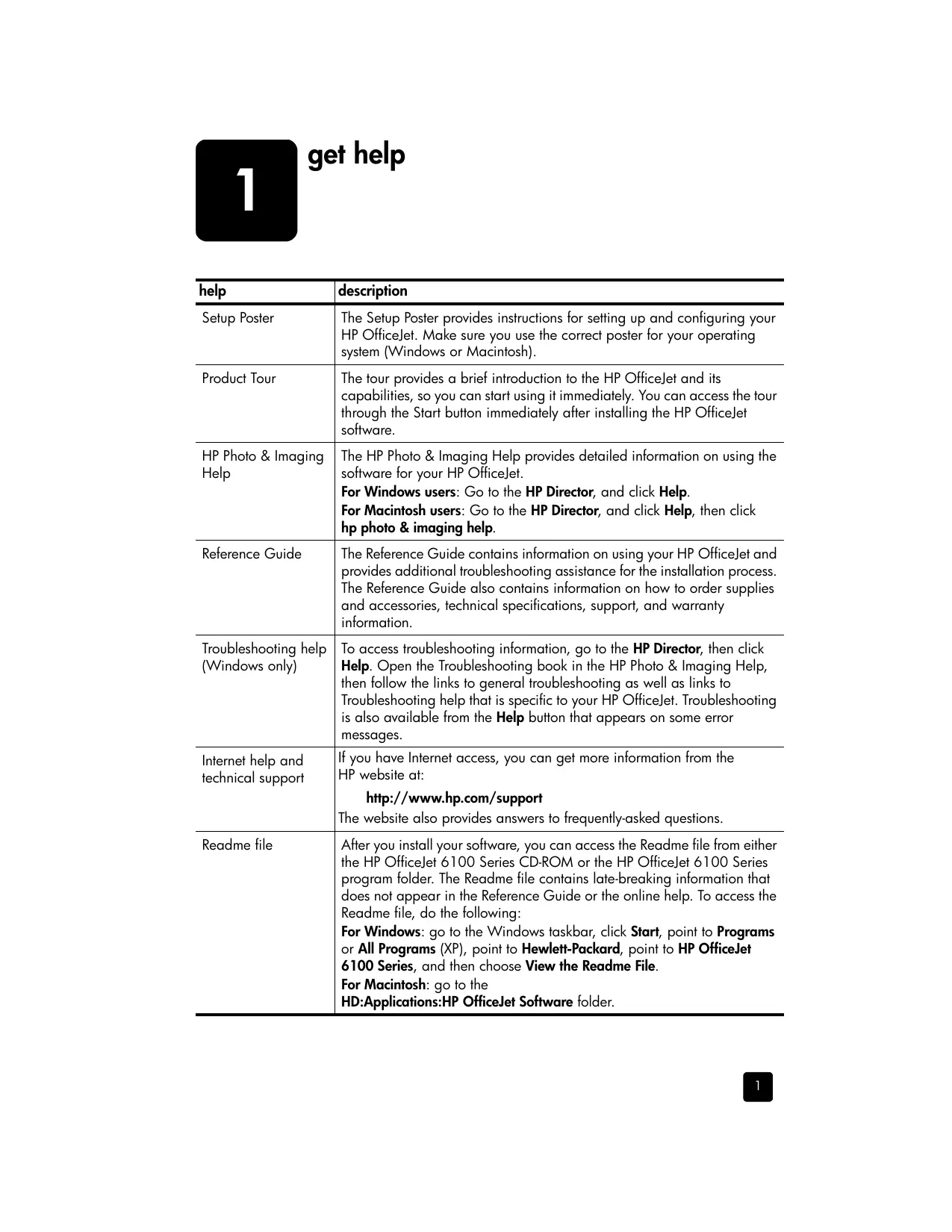
The Setup Poster provides instructions for setting up and configuring your HP Officejet. Make sure you use the correct poster for your operating system (Windows or Macintosh).
The tour provides a brief introduction to the HP Officejet and its capabilities, so you can start using it immediately. You can access the tour through the Start button immediately after installing the HP Officejet software.
HP Photo & Imaging Help
The HP Photo & Imaging Help provides detailed information on using the software for your HP Officelet.
For Windows users: Go to the HP Director, and click Help.
For Macintosh users: Go to the HP Director, and click Help, then click hp photo & imaging help.
The Reference Guide contains information on using your HP OfficeJet and provides additional troubleshooting assistance for the installation process. The Reference Guide also contains information on how to order supplies and accessories, technical specifications, support, and warranty information.
Troubleshooting help {Windows only)
To access troubleshooting information, go to the HP Director, then click Help. Open the Troubleshooting book in the HP Photo & Imaging Help, then follow the links to general troubleshooting as well as links to Troubleshooting help that is specific to your HP Officejet. Troubleshooting is also available from the Help button that appears on some error messages.
Internet help and technical support
If you have Internet access, you can get more information from the HP website at:
http://www.hp.com/support The website also provides answers to frequently-asked questions.
After you install your software, you can access the Readme file from either the HP OfficeJet 6100 Series CD-ROM or the HP OfficeJet 6100 Series program folder. The Readme file contains late-breaking information that does not appear in the Reference Guide or the online help. To access the Readme file, do the following:
For Windows: go to the Windows taskbar, click Start, point to Programs or All Programs (XP), point to Hewlett-Packard, point to HP Officelet 6100 Series, and then choose View the Readme File.
For Macintosh: go to the
HD:Applications:HP Officelet Software folder.
To get help while working in a dialog box, click Help.
hp officejet 6100 series
You can perform many functions using either the front panel or the HP Officejet software.
Even if you do not connect your HP OfficeJet to a computer, you can use the front panel to copy, print photos, or fax documents. You can change a wide variety of settings using the front-panel buttons and menu system.
front panel features
Review the illustrations below and identify the location of the buttons on the front
Left side of the front panel
Phone Hook: the green LED in the shape of a phone indicates that the fax line is in use when lit.
2 One-Touch Speed-Dial Buttons: use to access the first 6 speed-dial entries.
3 Auto Answer: when the green light is on, fax transmissions will automatically be accepted.
4 Speed Dial: use to access speed-dial numbers that have been set up from the front panel or with the HP Director software.
5 Redial/Pause: redials the most recenily dialed number when in the ready state. Inserts a pause (hyphen) when in the dialing state.
6 Keypad: use to dial fax numbers, and enter numbers such as the quantity of copies or percentages when reducing or enlarging. You can also enter text using the keypad for fax header, use speed dial entries, and specify menu items.
7 Fax Resolution: use to set the fax resolution to Fine, Standard, 300 dpi, or Photo. lt will remain at the most recent setting until changed.
Start Fax - Black: starts a black and white fax.
10 Menu: use to access the menu system. Menu options include; Copy Setup, Fax Functions, Print Report, Speed Dial Setup, Basic Fax Setup, Advanced Fax Setup, and Maintenance.
11 Arrows: use to scroll through menu settings, through options within settings, or to move forward or backward to erase a text entry.
12 Enter: use to select or save the displayed setting.
13 Quality: use to select the quality of the copy from Best, Normal, or Fast.
14 Paper Type: (for Copy only) use to select the paper type. The paper tray supports plain paper and specialty papers.
15 Reduce/Enlarge: use to reduce or enlarge an original to a specified image size on paper loaded in the tray. The original may be fed from the automatic document feeder (ADF) or placed on the glass.
16 Special Features: use to access options that let you reduce or enlarge to a specified copy image size on paper loaded in the tray. The options are Normal, Fit to Page, Image Size, Poster, 2 on 1, and MarginShift.
17 Scan To: use to access a list of software programs that an image can be scanned to. You must configure the Scan To list using the HP OfficeJet software on the PC prior to using this feature.
18 On: turns the HP Officejet on and off.
19 Lighter/Darker: use to adiust the lighiness and darkness of the copies you make and the faxes you send.
20 Needs Attention: the amber LED in the shape of an exclamation point indicates that the device needs attention.
21 Cancel: use to stop a job, exit a menu, or exit button settings.
22 Start Copy - Black: use to start a black and white copy.
23 Number of Copies: use to change the number of copies for this copy job. This button can be used in conjunction with the arrow keys or the keypad to make additional copies.
24 Start Copy - Color: use to start a color copy.
hp officejet 6100 series
25 Start Scan: use to start the scan of an original from the glass to the
designated Scan To destination. If no change was made to the Scan To destination, the image will be scanned to the HP Gallery (Windows or Macintosh] if the HP OfficeJet software is installed.
use your hp officejet with a computer
I you installed the HP OfficeJet software on your computer according to the Setup Poster, you can access all the features of the HP Officelet using the
HP Director. review the hp photo & imaging director The HP Director is available through the desktop shorteut.
1 Do one ofihe following:
— Double-click the hp director icon on the desktop.
— _Inthe Windows taskbar, click Start, point to Programs or All Programs {XP), point to Hewlett-Packard, point to hp officejet 6100 series, then choose hp photo & imaging director.
2 _Inthe Select Device box, click to see a list of installed HP devices. 3 Select hp officejet 6100.
The Director displays only the buttons that are appropriate for the selected
the hp photo & imaging director
1 Select Device: Use this feature to select the product you want to use from the list of installed HP products.
2 Settings: Use this feature to view or change various settings for your HP device, such as print, scan and copy.
3 Scan Picture: Scans an image and displays it in the HP Gallery.
4 Scan Document: Scans text and displays it in the selected destination text editing software program.
5 Make Copies: Displays the Copy dialog box where you can select the copy quality, the number of copies, the color, the size, and can start a copy.
6 View & Print: Displays the HP Gallery, where you can view and edit images, use HP Creative Printing, make and print a photo album, e-mail an image, and upload an image to the Web.
7 Help: Provides access to HP Photo & Imaging Help, which provides software help and troubleshooting information.
8 Click this arrow to access tool tips, which explain each of the Director options.
for macintosh users » Do one for the following: — For OS 9, double-click the HP Director icon on the desktop. — For OS X, double-click the HP Director icon on the dock. The following figure shows some of the features available through the HP Director for Macintosh. Consult the legend for a brief explanation of a specific feature. 3 6 CSI HP Photo and Imaging Director Select Device: officejet 6100 series Dei Settings +. d Æ. Le ee + & Scan Picture Scan document Make Copies | Maintain Printer À View and Print 2 | 5 7 The Director for Macintosh, in OS9 and OS X feature purpose
1 Scan Picture: Scans an image and displays it in the HP Imaging Center.
2 Scan Document: Scans text and displays it in the selected destination text editing software program.
3 Use this pull-down list to select the product you want to use from the list of installed HP products.
4 Make Copies: Copies in black and white or color.
5 Maintain Printer: Opens the printer utility.
6 Settings: Accesses the device settings.
hp officejet 6100 series
feature purpose 7 View and Print: Displays the HP Imaging Center, where you can view and print images.
hp officejet menu functions
Access Menu functions by pressing the corresponding numbers for each menu option. For example: to set the language and country/region, press Menu, then
4:Print Speed Dial List
hp officejet 6100 series
load originals and load paper
You can copy from originals loaded on the glass or in the automatic document feeder. You can also print and copy onto a variety of paper types, weighis, sizes, and transparency films. lt is important, however, that you choose the right paper and make sure that it is loaded correcily and not damaged.
Your HP Officejet provides two ways to load originals. + load originals on the glass + load originals in the automatic document feeder
You can copy, fax, or scan any original by placing it on the glass. Note: Many of the Special Features options, such as Image Size or Poster, Will not work correcily if the glass and lid backing are not clean. For more information, see clean the glass and clean the lid backing on page 41.
1 _Liftthe lid and place the original face down on the glass in the front-right
corner with the sides of the originals touching the right and bottom edges.
It is important to use the front-right corner when using the copy, fax, or
Tip: If you are copying from a transparency (that is, your original
is printed on transparency film), place a blank piece of paper on
top of the transparency.
Top edge of original
2 Close the lid by pushing down on the lever below the front panel.
load originals in the automatic document feeder
Your HP Officelet has an automatic document feeder (ADF), which you can use to load up to 35 originals of the following paper types:
16 Ib (60 gsm) to 24 Ib (90 gsm) long-grain paper only + Specialty Paper
to scan, copy, or fax from the ADF
1 Place all originals in the ADF print side up.
2 Adjust the paperwidih guide to fit the size of your original.
A message appears on the display indicating that the originals are loaded.
Following is the basic procedure for loading blank paper. There are specific considerations for loading certain types of paper, transparency film, and envelopes. After you review this procedure, see tips for loading other types of paper on page 14 and load envelopes on page 12.
For best resulis, adjust the paper settings each time you change paper types or paper sizes. For more information, see set the paper type on page 15.
hp officejet 6100 series
load originals and load paper
to load the paper tray
Remove (pull out) the output tray and slide the paper-width and paper length guides to their outermost positions.
Tap the stack on a flat surface to align the edges of the paper, and then
check the paper for the following:
= Make sure it is free of rips, dust, wrinkles, and curled or bent edges.
— Make sure all the paper in the stack is the same size and type, unless you are working with photo paper.
Insert paper into the input tray print-side down until it stops. If you are using letterhead, insert the top of the page first.
Check that the stack of paper contains several sheets but is no higher than the top of the paper-length guide.
Slide the paper-width and paperlength guides in until they stop at the edges of the paper. Make sure that the paper stack lies flat in the input tray and fits under the tab of the paper-length guide.
5 Putthe output tray back into position.
6 To prevent printed paper from falling off the tray, fully extend the output- tray extender.
Your HP OfficeJet provides two methods for working with envelopes. Do not use shiny or embossed envelopes, or envelopes that have clasps or windows.
+ lfyou are printing one envelope, slide the envelope into the envelope slot, which is located on the right side toward the back of the output tray. Insert the envelope with the flap up and on the left, as shown in the illustration. Slide the envelope on the top until it stops.
+ you are printing multiple envelopes, remove all paper from the main tray, and then slide a stack of envelopes into the tray, with the envelope flaps up and to the left (print-side down), until they stop.
hp officejet 6100 series
load originals and load paper
Adijust the paper-widih guide against the envelopes (be careful not to bend the envelopes). Make sure the envelopes fit within the tray (do not overload it).
Consult the help files in your word processing software for details on how to format text for printing on envelopes.
load postcards or hagaki cards
Following is the procedure for loading postcards or hagaki cards.
1 Remove all paper from the paper tray, and then slide a stack of cards into the tray until they stop. Make sure the print side faces down.
2 Adjust the paper-widih guide against the cards, and then slide the paper-length guide in until it stops. Make sure the cards fit within the tray (do not overload it).
Following is the procedure for loading 4-by-6 inch photo paper.
1 Remove all paper from the paper tray, and then slide a stack of cards into the tray until they stop. Make sure the print side faces down. Ithe photo paper you are using has perforated tabs, load the photo paper so that the tabs are closest to you.
2 Adjust the paper-widih guide against the cards, and then slide the paperlength guide in until it stops. Make sure the cards fit within the tray (do not overload it).
tips for loading other types of paper
The following table provides guidelines for loading certain types of paper and transparency film. For best results, adjust the paper settings each time you change paper types and paper sizes. For more information, see set the paper
+_HP Premium Inkjet Paper: Locate the gray arrow on the nonprinting side of the paper, and then insert paper with the arrow side facing up.
+_HP Premium or Premium Plus Photo Paper: Load the glossy (print) side down. Always load at least five sheets of regular paper in the paper tray first, and then place the photo paper on top of the regular paper.
+_HP Premium or Premium Plus Inkjet Transparency Film: Insert the film so that the white transparency strip (with arrows and the HP logo) is on top and is going into the tray first.
HP Inkjet T-Shirt Transfer lron-On: Flatten the transfer sheet completely before using it; do not load curled sheets. (To prevent curling, keep transfer sheets sealed in the original package until you are ready to use them.) Manually feed one sheet at a time, with the unprinted side facing down (the blue stripe faces up).
+ HP Greeting Cards, HP Linen Greeting Cards, or HP Felt-Textured Greeting Cards: Insert a small stack of HP greeting-card paper, with the print-side down into the paper tray until it stops.
Labels {works only with printing)
+ Always use lettersize or Ad-size label sheets designed for use with HP inkjet products (like Avery Inkjet Labels), and make sure that the labels are not over two years old.
+ Fan the stack of labels to make sure none of the pages are sticking together.
+ Place a stack of label sheets on top of standard paper in the paper tray, print-side down. Do not insert labels one sheet at a time.
Postcards or Hagaki cards (only works with printing)
Insert a stack of postcards or hagaki cards with the print-side down into the paper tray until it stops. Line the postcards up on the right side of the paper ray, slide the paper-widih guide up against the left side of the cards, and then slide the paper-length guide in until it stops.
4-by-6 inch photo paper (works only with printing)
Insert the photo paper with the print-side down into the paper tray until it stops. Place the long edge of the photo paper against the right side of the paper tray, slide the paper-widih guide up against the long edge of the photo paper, and slide the paper-length guide in until it stops. IFthe photo paper you are using has perforated tabs, load the photo paper so that the tabs are closest to you.
hp officejet 6100 series
load originals and load paper
Continuous (banner) | Continuous banner paper is also known as computer or zfold paper.
paper +_ Before loading banner paper, remove all other paper from the paper (works only with tray, then remove the output tray. printing)
Remove the output ray.
Insert the unattached edge ofihe paper into the paper tray.
+_ If you use non-HP banner paper, use 20-lb. paper and fan the paper belore loading it.
Verify that the stack of banner paper contains at least five pages in the stack.
Careully tear off the perforated edge strips from both sides of the paper stack, if any, and unfold and refold the paper to make sure the pages do not stick together.
*_ Put the paper in the paper tray so that the unattached edge is at the top of the stack. Insert the first edge into the paper tray until it stops, as shown in the illustration above.
If you want to use a different type of paper, such as photo paper, transparency film, banner paper, or envelopes, simply load that paper in the main tray. You should then change the paper type settings to ensure the best print quality.
You can change copy settings from the front panel or from the HP Director. When you change settings using the front panel, the copy settings are reset two minutes after the unit completes the copy.
1 Press Paper Type. 2 Press @ until the appropriate paper type appears. 3 Press Enter to choose the displayed paper type.
For more information, see recommended paper-size settings for printing in the HP Photo & Imaging Help
For Copying: 1 Press Menu.
2 Press 1, then press 2. This selects Copy Setup, then selects Paper Size.
3 Press @ until the desired size appears, then press Enter to select it.
chapter 3 For Faxing: 1 Press Menu.
2 Press 5, then press 4. This selects the Basic Fax Setup menu, then selects Paper Size.
3 Press @ until the desired size appears, then press Enter to select it.
hp officejet 6100 series
use the copy features
The copy features let you do the following:
+ Produce high-quality color and blackandwhite copies using a variety of paper types and sizes, including iron-on transfers.
+ Reduce or enlarge the size of the copies you make from 25% to 400% of the copy's original size. (Percentages may vary between models.)
+ Make the copy lighter or darker, adjust the color intensity, select the number of copies, and specify the quality of the copies you make.
+ Use special copying features to create a poster, make many sizes of photos, make high-quality copies of photos using special photo paper, or to create transparencies.
Note: When copying a photo, you must select options for the correct paper type and photo enhancement. You may also want to use the photo print cartridge for superior print quality. With the color and photo print cartridges installed, you have a sixink system. See work with print cartridges on page 42 for more information.
You can make copies using the front panel of your HP Officelet or by using the HP OfficeJet software on your computer. Many copy features are available using either method. However, you may find that the software offers easier access lo special copy features.
AÏl copy settings that you select on the front panel are reset two minutes after the HP Officejet completes the copy, unless you save the settings as the default settings. For more information, see change settings for all copy tasks on
1 Load your original on the glass or in the automatic document feeder (ADF).
2 Press Start Copy, Black or Start Copy, Color.
increase copy speed or quality
The HP Officejet provides three options that affect copy speed and quality.
Best produces the highest quality for all paper and eliminates the banding (striping) effect that sometimes occurs in solid areas. Best copies more slowly than the other quality settings.
Normal delivers high-quality output and is the recommended setting for most of your copying. Normal copies faster than Best.
Fast copies faster than the Normal setting. The text is of comparable quality to the Normal setting, but the graphics may be of lower quality. Using Fast also cuts down on the frequency of replacing your print cartridges, because it uses less ink.
Load your original on the glass or in the ADF. Press Quality until the green light in front of the desired quality is lit. Press Start Copy, Black or Start Copy, Color.
set the number of copies
You can set the number of copies using the front panel.
Press Number of Copies to enter the number of copies mode. There are three ways to set the desired number of copies:
— Press Number of Copies again (or repeatedl}) to increment the displayed number.
— Press @ to increment, or @ to decrement, the displayed number.
— Use the keypad to enter the desired number of copies.
Press Start Copy, Black or Start Copy, Color.
reduce or enlarge a copy
You can reduce or enlarge a copy of an original using either the Reduce/ Enlarge button or the Special Features buttons. This section explains the Reduce/ Enlarge features only.
For more information about Special Features options, see perform special copy jobs on page 20 for information about using Fit to Page, Image Size, Poster, 2 on 1, or Margin Shift.
Press Reduce/Enlarge to choose one of the following:
— Custom 100%— lets you enter the percentage to reduce or enlarge your copy.
— Full Page 91% — lets you reduce an original to 91% of its original size, which prevents cropping that may occur if you make a full-size (100%) copy.
— _Legal/Letter 72% — reduces an original to 72% of its original size, which lets you copy a legal-sized original to letter-sized paper.
If you are using the Custom option, press @ or @ to reduce or enlarge
You can also enter a number using the keypad.
Press Start Copy, Black or Start Copy, Color.
hp officejet 6100 series
use the copy features
make copies lighter or darker Use Lighter/Darker to adjust the lighiness and darkness of the copies you make.
Press @ to lighten the copy or @ to darken it. The circle moves to the left or right, depending on the button you press.
Press Start Copy, Black or Start Copy, Color.
change color intensity
You can adjust color intensity to make colors on your copy more vivid or more
2 Press 1 and then press 3. This selects Copy Setup, and then selects Color Intensity.
3 Press @ to make the image more pale or ® to make the image more vivid. The range of color intensity values appears as a circle on a scale on the front-panel display.
4 Press Start Copy, Black or Start Copy, Color.
enhance text sharpness and photo colors
Use Text enhancements to sharpen edges of black text. Use Photo for photographs or pictures to enhance light colors that may otherwise appear white.
Text enhancement is the default option. You can turn off Text enhancement by selecting Photo or None if the following occur:
Stray dots of color surround some text on your copies.
Large, black typefaces look splotchy (not smooth).
Thin, colored objects or lines contain black sections.
Horizontal grainy or white bands appear in light- to medium-gray areas. Press Menu, press 1, then press 1 again.
This selects Copy Setup, and then selects Enhancements.
Press @ until the desired enhancement (Text, Photo, Mixed, or None) appears.
Press Start Copy, Black or Start Copy, Color.
settings for all copy tasks
Save the copy settings you use most often by setting them as the default. This includes changes to Copy Setup options in the menu system, as well as other front panel Copy area settings.
Make any desired changes to the Copy Setup options. Make any desired changes to the button settings in the Copy Area. Press Menu.
Press 1, then press 4.
This selects Copy Setup, and then selecis Set Copy Defaults. Your seings are saved.
perform special copy jobs
In addition to supporting standard copying, your HP OfficeJet can also do the following:
fit a copy to the page
print several copies on one page print two originals on one page shift image to increase the margin make a poster
prepare a color T-shirt transfer
Load the photo on the glass.
If you are using photo paper, you must load it in the main paper tray.
Press Paper Type, then press @ until the desired photo paper option appears, then press Enter to select it.
The default paper type is Automatic, which means the HP Officejet will automatically detect and determine the paper type. You can choose the specific paper type by pressing @ until the desired paper type appears. For more information, see recommended paper-type settings for copying in the HP Photo & Imaging Help.
Tip: To enlarge a photo automatically to a full page, press Special Features until Fit to Page appears, then press Enter. For more information, see below.
Press Menu, press 1, then press 1 again. This selects Copy Setup, and then Enhancements. Press Enter to select it. Press @ until Photo appears, then press Enter to select it.
Press Start Copy, Black or Start Copy, Color.
fit a copy to the page
Use Fit to Page when you want to automatically enlarge or reduce your original to fit the paper size you have loaded. You can enlarge a small photo to fit a full size page, as shown below. Using Fit to Page may also prevent unwanted cropping of text or images around the margins.
Tip: Make sure that the glass is clean and the original has been placed in the bottom-right corner of the glass. You cannot use the automatic document feeder (ADF) for this feature.
hp officejet 6100 series
use the copy features
Original Fit to Page
Load the original on the glass.
Load the appropriate paper.
Press Special Features until Fit to Page appears. Press Enter.
Press Start Copy, Black or Start Copy, Color.
print several copies on one page
You can place multiple copies of an original on one page by selecting a photo size and then selecting the number of copies you want.
There are several common photo sizes available from the Image Size option, which you access from the Special Features button.
Load the original on the glass.
Load the appropriate paper in the main tray.
Press Special Features until Image Size appears.
Press @ until the desired photo size appears, then press Enter.
When How Many? appears, press @ to select the number of images that will it on a page.
You will have a choice of 1 on a page, or the maximum number that will fit. Some larger sizes do not prompt you for a number of images.
Press Enter to select the number of photos you want to appear on a page. Press Start Copy, Black or Start Copy, Color.
Tip: IFthe number of copies of the photo on a single page does
not come out as expected, try turning the original on the glass 90 degrees and start the copy again.
You can print two different letter: or Ad-sized originals on one page using the 2 on 1 feature. The copied images will appear side by side on the page in a landscape format. You can use the automatic document feeder (ADF) to load the originals or place them direcily on the glass.
1 Place the first original on the glass. If you are using the ADF, load both originals there.
2 Press Special Features until 2 on 1 59% appears, then press Enter. 3 Press Start Copy, Black or Start Copy, Color. 4 If you placed your first original on the glass you will be prompted to Place 2nd original on glass, then press Enter. shift image to increase the margin
The MarginShift feature lets you shift the image to the left or right to increase the margin for binding. You can also adjust the reduction/enlargement percentage in this mode by entering a number on the numeric keypad.
Original MarginShift
1 Load the original on the glass or in the ADF.
2 Press Special Features until MarginShift 100% appears.
3 Press @ or ® to shift the margin to the left or to the right. Each step is a inch (6.35 mm) shift.
4 If you wish to change the reduction/enlargement percentage as well, enter a number using the keypad, then press Enter.
Tip: If you do not wish to change the reduction/enlargement percentage, press Enter after you have selected the amount of MarginShift you want.
5 Press Start Copy, Black or Start Copy, Color.
hp officejet 6100 series
use the copy features
When you use the Poster feature you divide your original into sections, then enlarge the sections so you can assemble them into a poster.
Tip: You can print a poster from a file on your computer. For more information, see print a poster in the HP Photo & Imaging Help. 1 Load the original on the glass.
Tip: You cannot use the automatic document feeder (ADF) when making a poster.
2 Load the appropriate paper in the main tray.
3 Press Special Features until Poster appears. The option Poster 2 pages Wide appears by default.
Press @ to select how wide you want the poster to be. 5 Press Enter to confirm your selection. Press Start Copy, Black or Start Copy, Color.
Tip: After you select the poster widih, the HP OfficeJet adjusts the length automatically to maintain the proportions of the original. If the original cannot be enlarged to the selected poster size, an error message appears that tells you the number of pages wide that are possible. Select a smaller poster size and make the copy again.
prepare a color T-shirt transfer
You can copy an image or text onto a T-shirt transfer, then iron it onto a T-shirt.
Tip: We recommend that you practice applying a T-shirt transfer on an old garment first.
1 Load the original on the glass or in the ADF. Load the T-shirt transfer paper in the main tray.
Press Paper Type, then press @ until Iron-On appears and then press Enter to select it.
Selecting this option automatically copies a mirrorimage of your original so that it appears properly on the T-shirt.
4 Press Start Copy, Black or Start Copy, Color.
> To stop copying, press Cancel on the front panel.
copy setup menu options
The following options are available in the Copy Setup menu.
Factory Settings Press @ and ® to move to the setting you want. Press Enter to select the displayed setting.
hp officejet 6100 series
use the scan features
Scanning is the process of converting text and pictures into an electronic format for your computer. You can scan just about anything:
. sp objects (be careful not to scratch the glass) to put into catalogs and lyers
Because the scanned image or text is in an electronic format, you can bring it into your word processor or graphics program and modify it to suit your needs. You can do the following:
+ Scan text from an article into your word processor and quote it in a report, saving you a lot of retyping.
+ Scan in a logo and use it in your publishing software, allowing you to print business cards and brochures for yourself.
+ Scan in photos and e-mail them to coworkers and friends, create a photographic inventory of your office or home, or create an electronic scrapbook.
Tip: To use the scan features, your HP Officejet and computer must be connected and turned on. The HP OfficeJet software must also be installed and running on your computer prior to scanning. To verify that the HP Officejet software is running on Windows, look for a status icon in the system tray. On a Macintosh, the
HP Officejet software is always running.
For more information about scanning your documents or pictures from the HP Officejet software, see scan pictures and documents in the HP Photo & Imaging Help for more information.
scan an original You can start a scan from your computer or from your HP OfficeJet.
to scan an original from your Windows computer
1 Load your original either on the glass or in the automatic document feeder (ADF). For more information, see load originals on page 9.
2 Press Start Scan. A scan of the original appears in the HP Preview window.
3 Inthe HP Preview, you can edit the scanned image. When you have finished, click Accept.
For more information about making changes to an image during the preview, see adjust an image during the preview in scan pictures and documents in the HP Photo & Imaging Help for more information.
The HP Officejet does a final scan of the original and sendks the image to the HP Photo & Imaging Gallery.
See manage images in how to use the software for more information about using the HP Photo & Imaging Gallery.
to scan an original from your Macintosh computer 1 Load your original. For more information, see load originals on page 9.
The HP Officejet scans the original and sends the image to the HP Photo & Imaging Gallery. See the HP Photo & Imaging Gallery online help for more information.
scan to a different software program
If you prefer to scan your document to a software program other than the
HP Gallery, you can choose a different program from the Scan To list that appears in the front-panel display. The HP Officejet scans the document, launches the selected software program, and displays the scanned image in that program.
1 Load your original either on the glass or in the automatic document feeder (ADF). For more information, see load originals on page 9.
2 Press Scan to then press @ to scroll through the Scan To list until the desired scan-to software program appears.
3 Press Start Scan to begin the scan.
The HP Officejet scans your original and displays it in the selected software program.
You can stop a scan by pressing the Cancel button located on the front panel.
For Windows, see scan pictures and documents in how to use the software in the HP Photo & Imaging Help to learn more about:
+ scanning pictures or documents
+ scanning documents using optical character recognition (OCR) to create editable text
+ scanning from other programs + adjusting scanned images + changing scan settings
hp officejet 6100 series
use the scan features
For Macintosh, see the Scan chapter in the HP OfficeJet 6100 section of the HP Photo & Imaging Help for more information about:
scanning pictures or documents
scanning from other programs
adjusting scanned images + changing scan settings
hp officejet 6100 series
use the fax features
Using your HP Officelet, you can: + Send and receive paper faxes.
+ Send and receive color faxes (when sending a color fax, the receiving fax machine must support color faxes).
Your HP Officelet lets you send a paper fax (legal, letter, or A4) using the front panel.
See the HP Photo & Imaging Help for more information about sending faxes.
Note: By default, your HP OfficeJet prints a report only if there is a problem with sending or receiving a fax. A confirmation message indicating that an item was successfully sent appears briefly on the front-panel display after each transaction. If you need printed confirmation that your faxes are successfully sent, see print reports on page 33 for information about report options.
See the illustration that follows to reacquaint yourself with the buttons in the Fax area of the front panel.
Scroll through speed-dial entries. Turn Auto Answer on/off. sas
Redials the most recently dialed number.
Access one-touch speed- dial buttons.
O Q GC use keypad to dial fax
le] (numbers, enter text, specify menu items, etc.
Change the fax resolution.
send a fax from your hp officejet Follow these steps to send a fax from your HP Officelet.
1 Load your original. For more information, see load originals on page 9.
Note: You must use the automatic document feeder (ADF) for multi-page faxes.
2 Enter the fax number using the keypad. 3 Press Start Fax, Black or Start Fax, Color.
4 Ifthere is no original in the document feeder, you will be asked Send from Glass? Press 1 for Yes or 2 for No. If you press 1 for Yes, the document is scanned from the glass. If you press 2 for No, the front-panel display message asks you to Load original, then press Enter. After you load the document, the HP Officejet begins to send the fax.
use speed dial entries to send a fax
When sending faxes to frequently used numbers, consider setting up and using speed dial entries. À speed-dial entry lets you send a fax by pressing just a few buttons. Speed-dial entries do not appear unless you have set them up first. For more information on speed dialing, see set up speed dialing on page 36.
1 Load your original. 2 Press the Speed Dial button. Tip: Alternately, if the speed-dial entry you want to use is in the first 6 entries, you can use one of the one-touch speed-dial buttons. You can then press Start Fax, Black or Start Fax, Color immediately. 3 Do one of the following to locate the desired number: — Press @ until the desired speed-dial entry appears. — Enter the number for the speed dial entry using the keypad.
4 When the speed-dial number that you want appears, press Start Fax, Black or Start Fax, Color.
You can send and receive color faxes to and from other color fax machines. If you attempt to send a color fax to a recipient who has a black-and-white fax machine, your HP Officelet sends the fax in black and white.
To ensure the best quality when sending faxes in color, we recommend that you use a color original rather than a color copy if possible.
In addition, you cannot send a color fax to a group using the speed-dial features.
1 Load your original. For more information, see load originals on page 9.
2 Enter the fax number using the keypad, speed dial button, or one-touch speed-dial buttons.
3 Press Start Fax, Color.
broadcast a fax to multiple recipients
If you send a fax from your HP Officejet, broadcasting lets you send a black: and-white fax to one group, which can contain up to 20 individual speed dial entries. To use broadcasting, the fax must fit into your HP OfficeJet's memory.
1 Load your original. 2 Press Speed Dial until the desired group speed-dial entry appears. 3 Press Start Fax, Black.
hp officejet 6100 series
use the fax features
You can schedule a black-and-white fax to be sent later during the same day (for example, when telephone lines are not as busy). If you use the front panel, you can select a single recipient or group.
Note: Time and Date must be set prior to using this feature. When the specified time is reached, your fax is automatically sent as soon as a connection can be made. 1 Load your original on the glass or in the ADF. For more information, see load originals on page 9. 2 Press Menu. 3 Press 2, then press 2 again. This will select Fax Functions and Send Fax Later Black Only. Enter the Send Time using the numeric keypad. 5 Press 1 for AM or 2 for PM.
6 When Enter fax number appears, enter the fax number of the recipient or select the group using the Speed Dial button. Press Enter.
7 When Store Fax Now? appears, press 1 for Yes, or 2 for No. If you selected 1, the document is scanned to memory and is sent at the selected time. If you select 2, a message may appear reminding you to Load the original before the send time (if your documents are loaded in the ADF, you will not see this message).
cancel a scheduled fax
You can cancel a fax stored in memory or one that is currently in progress. 1 Press Menu.
2 Press 2, then press 2 again. This selects Fax Functions and Send Fax Later Black Only. The control panel displays Scheduled Fax in Memory and the scheduled time and fax #.
3 When Cancel? 1 = Yes 2= No appears, press 1 to cancel the scheduled fax. When you select Yes, Cancelled Scheduled Fax appears on the front-panel display.
send a computer file as a fax (where available)
The HP Officejet does not allow faxing direcily from other software programs such as word processing or spreadsheet programs. You must have a computer fax modem and fax software installed on your computer to send an electronic file as a fax. Your computer operating system may include fax software that you can use with your computer fax modem.
You can use a single phone line for both the computer fax and the HP Officeet fax. This allows you to use both faxes without changing connections. Connect your computer fax to the HP Officejet as shown below.
1 Connect the phone cord from the wall jack to the HP Officelet jack 1.
2 Connect a phone cord from the computer fax modem to the HP OfficeJet jack 2. (Remove the plastic insert from the jack first.)
3 Runthe fax setup wizard from the HP OfficeJet software to set up your HP Officejet with your computer fax modem.
Depending on how you set up your HP OfficeJet, you can receive faxes automatically or manually.
Your HP Officejet is automatically set to receive and print received faxes (unless you have tumed the auto-answer feature off]. If you receive a legalsize fax and your HP Officelet is not currently loaded with legal-size paper, the unit automatically reduces the fax so that it fits on the paper that is loaded, unless you have disabled the automaticreduction feature.
For more information, see set automatic reduction in the HP Photo & Imaging Help. receive a fax automatically
When you turn on your HP Officelet, the Auto Answer feature will either be on or off, depending on whether it was on or off when your HP OfficeJet was previously shut down.
> To turn on, press the Auto Answer button until the green light is lit.
receive a fax manually Before manually receiving a fax to your HP OfficeJet, we recommend that you remove any originals from the glass. 1 Press the Auto Answer button until the green light is off. This disables the automatic answering feature. 2 When your HP Officejet rings, pick up the handset of a telephone that is on the same telephone line as your HP OfficeJet (a handset can be
plugged into the back of the HP OfficeJet using one of the RJ-11 accessory poris).
hp officejet 6100 series
use the fax features
3 IF you hear fax tones, do one of ihe following: — Press Start Fax, Black. — _ lfyou are receiving from an extension phone (on the same telephone line as your HP OfficeJet, but not connected direcily to it), press 1 2 3 on your phone. Wait for the fax tones, then hang up the telephone.
You can set up your HP Officejet to print error reporis and confirmation reports for each fax you send and receive. You can also manually print reports as you need them.
generate automated reports 1 Press Menu.
2 Press 3, then press 6. This selects the Print Report menu, then selecis the Automatic Reports Setup option.
3 Press @ to scroll through the following report types.
— Every Error, which prints whenever there is any kind of fax error (default).
— Send Error, which prints whenever there is a transmission error.
— Receive Error, which prints whenever there is a receiving error.
— Every Fax, which confirms every time a fax is sent or received.
— Send Only, which prints every time a fax is sent.
— Of, which does not print automatic fax reports.
4 After the option that you want appears, press Enter.
generate manual reports
1 Press Menu, then press 3. This selects the Print Report menu.
2 Press @ to scroll through the following report types.
— 1:Last Transaction, which indicates the status of the last fax sent.
— _2:Fax Log, which lists approximately the last 40 faxes sent and received.
— 3:Speed Dial List, which lists your individual and group numbers.
— _4:Menu Settings, which lists in outline form the entire menu system and indicates the current settings.
— 5:Self-Test Report, which prints a self-test report. For more information, see print a self-test report on page 42.
— 6:Automatic Reports Setup, which is the automatic reports setting described in generate automated reports on page 33.
3 Select the report you want, then press Enter.
control resolution and contrast
You can change the resolution and contrast of documents that you are sending. Your changes remain in effect until you change them again; after two minutes of inactivity, settings revert to the default values.
Note: The copy settings do not affect faxing, and the fax resolution settings do not affect copying.
change resolution Resolution affects the transmission speed and quality of faxed documents. 1 Press the Resolution button in the Fax area.
2 Press @® to scroll through the available options until the one you want appears. Your HP Officejet only faxes at the highest resolution supported by the receiving fax. If you choose Photo, be aware that the faxing process takes longer to complete. When faxing photographs, we recommend that you choose Photo.
3 Press Enter to select the desired option.
Change this setting if you want to send a black and white fax to be darker or lighter than the original.
1 Press the Lighter/Darker button in the Menu area. The range of values appears as a circle on a scale on the display.
2 Press @ to lighten the fax or @ to darken it. The circle moves to the left or right, depending on the button you press.
3 Press Enter to use the selected setting.
redial a number automatically
You can set your HP Officelet to redial a busy or an unanswered number automatically. The default setting for Busy Redial is Redial. The default setting for No Answer Redial is No Redial. The number of redial attempts is 5 times for Busy Redial and once for No Answer Redial.
When the desired setting appears, press Enter to select it.
hp officejet 6100 series
use the fax features
7 Press @ to display Redial or No Redial options. 8 When the desired setting appears, press Enter to select it.
use Error Correction Mode (ECM)
ECM eliminates data lost due to poor phone lines by detecting errors that occur during transmission and automatically requesting retransmission of the erroneous portion. Phone charges are unalfected, or may even be reduced, on good phone lines. On poor phone lines, ECM increases sending time and phone charges, but sends the data much more reliably. Turn ECM off (the default setting is on) only if it increases phone charges substantially and you are willing to accept poorer quality in exchange for reduced charges.
2 Press 6, then press 7. This selects Advanced Fax Setup, then selects Error Correction Mode.
3 Press @ to switch between Off and On.
Press Enter to use the selected setting.
set automatic reduction
This setting determines what your HP OfficeJet does if it receives a fax too large for the default paper size. With this setting on (the defaul), the image is reduced so that it attempits to fit on one page. With this feature off, the information that will not fit on the first page is printed on a second page.
2 Press 6, then press 5. This selects Advanced Fax Setup, then selects Automatic Reduction.
3 Press @ to switch between Off and On.
Press Enter to use the selected setting.
adjust the volume Your HP Officejet provides three levels for adjusting the ring and beep volume. The default setting is Soft. 1 Press Menu.
2 Press 7, then press 5. This selects Maintenance, then selecis the Ring and Beep Volume option.
3 Press @ to select one of the options: Soft, Loud, or Off.
change the Answer Ring Pattern (distinctive ringing)
Distinctive ring, which allows you to have several phone numbers on the same line, is usually offered by phone companies for an additional fee, and may not be available in all regions. Each number has a specific ring pattern. lf you do not have this service, leave your HP Officelet set to use the default, AII Rings.
If you connect your HP OfficeJet to a line with distinctive ringing, have your telephone company assign one ring pattern to voice calls and another to fax calls (double or triple rings are best for a fax number.
1 Verify that your HP Officejet is set to answer automatically. 2 Press Menu. 3 Press 6, then press 2. This selects Advanced Fax Setup, then selecis Answer Ring Pattern.
4 Press to scroll through these options: AIl Rings, Single Rings, Double Rings, Triple Rings, and Double & Triple.
5 After the ring pattern that the phone company established for this number appears, press Enter.
Tip: We recommend that you use Double Rings or Triple Rings.
set up speed dialing
Through your HP Officejet or your computer, you can assign entries to fax numbers you use often. This lets you dial those numbers quickly using the front panel's Speed Dial button or one-touch speed-dial buttons. You can create up to 100 individual and group speed-dial entries (varies by HP Officejet model).
For more information, see set up speed dialing in use the fax features in the HP Photo & Imaging help.
create speed-dial settings You can enter fax numbers that you will reuse frequenily. 1 Press Menu.
2 Press 4, and then press 1. This selects the Speed Dial Setup menu, then selecis the Individual Speed Dial option. The first unassigned speed-dial entry appears on the display.
3 Press Enter to select the displayed speed-dial entry.
4 Enter the fax number to assign to that number, then press Enter.
Tip: To enter a tWo-second pause within a number sequence, press Symbols repeatedly until a dash appears.
5 Enter the person's or company's name, then press Enter. For more information, see enter text on page 38.
6 When Enter Another? appears, press 1 for Yes, if you want to set up another number, or press 2 for No to exit.
hp officejet 6100 series
use the fax features
delete speed dial settings
You can delete speed-dial settings.
2 Press 4, and then press 3.
This selects the Speed Dial Setup menu, then selects the Delete Speed Dial option. The first assigned speed-dial entry appears on the display.
3 Choose one of the following:
— _lfthe displayed number is the one you want to delete, press Enter to delete it.
— To select a different number, press @ or @ until the appropriate speed-dial number appears, then press Enter to select it.
From the front panel, you can choose the paper size to use for faxing. The choices are Letter, A4, or Legal size paper.
2 Press 5, then press 4. This selects the Basic Fax Setup menu, then selecis Paper Size.
3 Press @ until the desired size appears, then press Enter to select it.
set the date and time
You can set the date and time from the front panel. When a fax is transmitted, the current date and time are printed along with the fax header. The date and time format is based upon the language and country/region setting.
Normally the computer software sets the date and time automatically. 1 Press Menu.
2 Press 5, then press 1. This selects the Basic Fax Setup menu, then selects the Date and Time option.
3 Enter the month, day, and year {last two digits only) by pressing the appropriate number on the keypad.
The underline cursor presented initially beneath the first digit advances automatically to each digit after, each time you press a button. The time prompt automatically appears after you enter the last digit of the date.
4 Enter the hours and minutes.
The AM/PM prompt automatically appears after the last digit of the time is entered.
5 Press 1 for AM or 2 for PM.
The new time and date settings appear on the front panel, but only if you are reseting the date and time.
If you are setting the date and time for the first time (no date/time is currently set), then the new date appears followed by OK? 1=Yes 2=No. Yes sets the date/time. No allows you to reset the date/time.
The fax header is usually set up during installation using the Fax Setup Wizard. If you need to change it, you can use the Fax Setup Wizard from the
HP Director, or you can follow these steps to enter your name and fax number from the front panel.
Note: In Hungary, the subscriber identification code (fax header) can be set or changed only by authorized personnel. For more information, contact your authorized HP dealer.
1 Press Menu. 2 Press 5, then press 2. This selects the Basic Fax Setup menu, then selects the Fax Header option.
3 When Your Name appears, enter your name using the keypad as described in the next section, enter text on page 38.
4 Press Enter. 5 When you are prompted, use the keypad to enter your fax number.
6 After you finish entering your fax number, press Enter.
The following list provides tips for entering text using the front-panel keypad.
+ Press the keypad numbers that correspond to the letters of a name.
ABC These letters correspond to this number, and so on.
+ Press a button multiple times to see a letter first in lowercase and then in uppercase. The first letter of a word is set to uppercase automatically.
JKL To get this character: ji Ok 1 JO K L 5 @) Press 5 this many times: 1 2 3 4 5 6 7
+ After the correct letter appears, press @, then press the number that corresponds to the next letter in the name. Again, press multiple times until the correct letter appears.
+ The cursor automatically advances to the right 1.5 seconds after the last button is pressed.
+ To insert a space, press Space (#).
+ To enter a symbol, such as @, press Symbols (*] repeatedly to scroll through the list of available symbols, which are: *,-, &,., / (),', =, #, @, _, and.
+ Ifyou make a mistake, press @ to clear it, then make the correct entry. + After you are done entering text, press Enter to store your entries.
hp officejet 6100 series
use the fax features
reprint the faxes in memory
Your HP Officejet can store a limited number of fax pages in its memory, with the number of pages depending on the model you purchased. When your
HP OfficeJet runs out of memory to store faxes, it will not receive any more fax calls until the stored faxes are printed.
Reprint Faxes in Memory enables you to reprint a fax stored in memory. For example, if your print cartridge runs out of ink or paper becomes jammed when printing a fax. This option prints all faxes in memory; press Cancel to stop printing faxes you do not need.
2 Press 2, then press 3.
This selects the Fax Functions menu, then selecis the Reprint Faxes in Memory option. The faxes are printed from memory.
This section provides instructions for keeping your HP Officejet in top working condition. Perform these maintenance procedures as necessary.
Dirty glass, from fingerprints, smudges, hair, and so on, slows down performance and affecis the accuracy of special features such as Fit to Page and Copy.
1 Turn offthe unit, unplug the power cord, and raise the lid.
2 Clean the glass with a soft cloth or sponge slighily moistened with a nonabrasive glass cleaner.
Caution! Do not use abrasives, acetone, benzene, or carbon tetrachloride on the glass; these can damage it. Do not place liquids directly on the glass. They may seep under it and damage the unit.
3 Drythe glass with a chamois or cellulose sponge to prevent spotting. clean the adf glass The small glass strip to the left of the main glass surface is for processing jobs
fed from the ADF. Streaks can occur if the glass strip is dirty. Follow the same procedures for cleaning the glass strip as you would for cleaning the other glass.
clean the lid backing
Minor debris can accumulate on the white document-backing located underneath the units lid.
1 Turn offthe unit, unplug the power cord, and raise the lid.
2 Clean the white document-backing with a soft cloth or sponge slightly moistened with a mild soap and warm water.
3 Wash the backing genily to loosen debris; do not serub the backing. 4 Drythe backing with a chamois or soft cloth.
Caution! Do not use paper-based wipes as these may scratch the backing.
5 Ifthis does not clean the backing well enough, repeat the previous steps using isopropyl (rubbing) alcohol, and wipe the backing thoroughly with a damp cloth to remove any residual alcohol.
Use a soft, damp, lint-free cloth to wipe dust, smudges, and stains off the case. The interior of the unit does not require cleaning. Keep fluids away from the interior of the unit as well as the front panel.
Note: To avoid damage to painted parts of the unit, do not use alcohol or alcohol-based cleaning products on the front panel or the lid of the unit.
work with print cartridges
To ensure the best print quality from your HP Officelet, you will need to perform some simple maintenance procedures, and when prompted by a front-panel message and off-color results, replace the print cartridges.
print a self-test report
If you are experiencing problems with printing, before cleaning or replacing the print cartridges, you should print a self-test report. This report provides uselul information about your print cartridges, including status information.
2 Press 3, then press 5. This selects Print Report, and then selects Self-Test Report. A selftest report is printed for your HP Officejet.
handle print cartridges
Before you replace or clean a print cartridge, you should know the part names and how to handle the print cartridge.
Plastic t under tape lastic tape
Do not touch the copper contacts or the ink nozzles
use the print cartridge protector
When you purchase a photo print cartridge, you also receive a print cartridge protector. The print cartridge protector is designed to keep your print cartridge secure when it is not being used. Whenever you remove a print cartridge from the printer, store it in the print cartridge protector.
Note: You may want to use an HP photo print cartridge (#58) for superior print quality when printing photos. With the color and photo print cartridges installed, you have a sixink system.
Note: See order print cartridges on page 83. Also see the HP Photo & Imaging online help for more information on printing quality photos.
+ To insert a print cartridge into the print cartridge protector, slide the print cartridge into the print cartridge protector at a slight angle and snap it securely into place.
+ To remove the print cartridge from the print cartridge protector, press down and back on the top of the print cartridge protector to release the print cartridge, then slide the print cartridge out of the print cartridge protector.
replace the print cartridges
Front-panel display messages appear to let you know that you should replace your print cartridges.
You may also need to replace a black print cartridge with a photo print cartridge for printing high-quality photos.
See order print cartridges on the inside back cover for information on ordering replacement print cartridges.
1 Tum on the unit, then open the print-carriage access door by lifting the handle until the door locks into place.
The print carriage moves to the center of the unit.
2 After the carriage stops moving, lift the latch to release the print cartridge, then pull it toward you out of its slot.
3 If you are removing the black print cartridge in order to install the photo print cartridge (#58), store it in the print cartridge protector.
4 Remove the new print cartridge from its packaging and, being careful to touch only the black plastic, genily remove the plastic tape (using the pink pull tab) to uncover the ink nozzles.
Caution! Do not touch the copper contacts or ink nozzles.
hp officejet 6100 series
maintain your hp officejet
Be sure not to re-tape print cartridges as damage to the print head may occur.
5 Push the new print cartridge into the appropriate slot.
The tri-color print cartridge goes on the left and the black or photo print cartridge goes on the right.
6 Pullthe end of the latch toward you, press down until it stops, and then release. Make sure the latch caiches below the bottom tabs.
7 Close the print-carriage access door by pulling down (and releasing) the supporting latch below the front panel.
The HP Officejet prompis you to align cartridges every time you install or replace a print cartridge. Aligning the cartridges ensures high-quality output.
1 Press Enter on the front panel. A page of patterns is printed. The cartridges are aligned automatically.
This selects Maintenance, and then selects Align Print Cartridges. A page of patterns is printed. The cartridges are aligned correcily.
clean the print cartridges
Use this feature when the Self-Test Report shows streaking or white lines through any of the colored bars. Do not clean print cartridges unnecessarily. The cleaning function uses ink and shortens the life of the print cartridge.
2 Press 7, then press 1.
This selects the Maintenance menu, and then selects the Clean Print Cartridges option.
If copy or print quality still sem poor after you clean the print cartridges, replace the print cartridge that is affected.
restore factory defaults
You can restore the original factory settings to what they were when you purchased your HP Officejet. Choosing to restore your factory defaults restores all settings, except date information.
You can perform this process from the front panel only. 1 Press Menu.
2 Press 7, then press 3. This selects Maintenance, and then selecis Restore Factory Defaults. The factory default settings are restored.
set the power save time
The bulb in your HP Officejet remains on for a specified period so that the unit is immediately ready to respond to your request. When the HP OfficeJet has not been used within that specified period, it turns the bulb off to preserve power and displays Power Save On in the front-panel display. (You can exit this mode by pressing any button on the front panel.)
Your unit is automatically set to enter power-save mode after 12 hours. Follow these steps if you want the HP Officejet to enter this mode earlier.
2 Press 7, then press 6. This selects Maintenance, and then selects Power Save Mode Time.
3 Press ® until the desired time appears, then press Enter.
The Scroll Speed option lets you control the rate that text messages appear in the front-panel display. You can choose Normal, Fast, or Slow. 1 Press Menu.
hp officejet 6100 series
This selects Maintenance, and then selects Set Scroll Speed. 3 Press @ until the desired speed appears, then press Enter.
set the front-panel view angle
If you have difficulty seeing the text in the front-panel display, you may need to change the view angle. The View Angle option lets you control the viewing angle of the text in the front-panel display. You can change the angle so that it displays text best when you view it from a standing position or from a seated position. 1 Press Menu. 2 Press 7, then press 8.
This selects Maintenance, and then selects View Angle.
3 Press Enter, press @ or @ until the text in the front-panel display appears as desired, then press Enter.
hp officejet 6100 series
additional setup information
This section covers how to handle messages that may or may not appear during installation, how to set up the connection between your computer and your
HP Officejet, and how to add and remove the HP Officejet software. The standard installation instructions are provided in your Setup Poster, which you should keep for later use.
For comprehensive information, see the fully-searchable HP Photo & Imaging Help, which is accessible only if the software has been installed. To access the guide for Windows, go to the Director, click Help, and then choose User’s Guide.
To access the guide for Macintosh, go to the Director, click Tools, and then choose View Onscreen Guide.
possible installation problems
If you follow the instructions in the Setup Poster correcily, you should not have any problems with the installation of your HP Officejet. If you do not follow the instructions, you may see any of the following problems:
If Microsoft’s New Hardware Found message does not appear
If you installed the HP OfficeJet software first as requested on the Setup Poster, and you are a Windows 98/2000/ME/XP user, a series of Microsoft New Hardware Found messages should have appeared on your screen during software installation.
IFthe Microsoft messages did not appear, try the following:
+ Verify that you are using a high-speed (12 Mbps) USB cable and that it does not exceed three meters in length (9.8 feet).
+ Verify that the computer is USB-ready. For more information about determining whether your computer is USB-ready, see your computer's documentation or check with the computer's manufacture.
+ Verify that the cable is plugged fully into your HP Officejet and directly connected to the USB port on your computer. After the cable is connected properly, turn your HP OfficeJet off and then on again.
+ Tum your HP OfficeJet off and then on again, then restart your computer.
+ lfthe previous steps do not solve the problem, remove and reinstall the software. For more information, see To avoid errors, install the HP Officelet software before you connect the HP Officelet to your computer. If one of the above messages appeared and you clicked Next or OK, do the following: on page 50.
If the Fax Setup Wizard does not appear
Follow the instructions explained above.
chapter 8 If the New Hardware Message appears (Windows 98, 2000, XP, or ME)
If you set up your HP OfficeJet and connect it directly to your computer before you install the software, you may encounter one of the following messages:
This Wizard saaches for au divers for:
Han Packard ffoeet D Gares
A device dfver à a sofiere program that makes à hardare device Wotk.
ne. Welcome to the Found New Hardware Wizard
To continue. clek Hat
To avoid errors, install the HP OfficeJet software before you connect the HP Officejet to your computer. If one of the above messages appeared and you clicked Next or OK, do the following:
1 Press Esc on your keyboard to exit.
2 Turn off your HP OfficeJet.
3 Disconnect the HP OfficeJet from your computer (detach the USB cable). 4
Follow the software installation steps outlined in the Setup Poster that came with your HP OfficeJet.
If the previous version installed message appears
If you receive a message that you have a previously installed version, you will not be able to finish installing the HP OfficeJet software.
You will have to uninstall the previously installed version in order to install the HP Officejet software. See remove and reinstall your hp officejet software on page 53.
If your computer is unable to communicate with your HP OfficeJet
If communication cannot be established between your computer and
HP Officejet (for example, the HP OfficeJet status icon has the yellow error triangle), try the same tasks ouilined under If Microsoft's New Hardware Found message does not appear on page 49.
Note: You may also want to refer to the readme file for more information on possible installation problems. On Windows, you can access the readme file from the Start button on the taskbar; select Programs, Hewlett- Packard, hp officejet 6100 series, View the Readme File. On Macintosh, you can access the readme file by double-clicking on the icon located in the top-level folder of the HP Officejet software CD-ROM.
hp officejet 6100 series
additional setup information
set the language and country/region
Usually, the language and country/region are set when you install the HP Officelet. If you set the country/region or language incorrecily during installation, use the following procedure.
Press 7, then press 4.
This selects Maintenance, and then selects Set Language & Country/ Region.
You are prompted with a list of languages. You can also scroll through the languages using @ or @.
Using the keypad, enter the two-digit number for the desired language.
When prompted, press 1 for Yes or 2 for No to confirm the language.
You are prompted with all the couniries/regions for the selected language. You can also scroll through the counitries/regions using @
Using the keypad, enter the two-digit number for the desired country/ region. When prompted, press 1 for Yes or 2 for No to confirm the country/ region. You can confirm the language and country/region by printing a Self-Test Report, as follows: a. Press Menu. b. Press 3, then press 5.
This selects Print Report, and then selects Self-Test Report.
connect your hp officejet to your computer
Your HP OfficeJet supports HOT Swapping, meaning you can connect to the HP Officejet while the power is on at your computer and on the HP Officeet.
connect your usb port
Connecting your computer to your HP Officejet with USB is straightforward. Simply plug one end of the USB cable into the back of your computer and the other in the back of the HP Officejet.
what works what does not work
Plugging into the USB port on your | Plugging into the USB port located computer on the keyboard
Plugging into a powered hub that is | Plugging into a non-powered USB connected to the USB port on your | hub computer
Note: AppleTalk is not supported.
connecting to the USB port on your computer
connect your hp officejet to more than one computer
If your PC is on a network, and another PC on the network has an HP OfficeJet connected to it, you can use that unit as your printer. You can only access print features in this configuration. Only the PC directly connected to the HP OfficeJet Will have full functionality. See the HP website for more information on network printing. www.hp.com/support You can also connect your HP OfficeJet to an HP JetDirect 175X Print Server that is connected direcily to a network, but only print functionality will be available for all PCs. Copying and faxing from the front panel are still available, but all scanning functionality is disabled. To use your HP Officejet in this configuration, you must install the software that comes with the HP JetDirect 175x. Note: If you have already installed the HP Officejet software, uninstall that software, then install the HP JetDirect 175x software.
install printer driver
You will be prompted to install a printer driver during the installation.
+ Insert the HP Officejet CD when instructed, and locate the correct printer driver file. For Windows 2000 and XP the printer driver file, located in the root directory, is hpoprn08.inf. For Windows 98, SE, and ME the printer driver file is hpoupdrx.inf. You will need to navigate to the \enu\drivers\win9x_me directory, where enu is the English language directory and win9x_me is for Windows ME.
If you have Internet access, you can get more information on using an HP JetDirect 175x from the HP website at:
Note: You can have up to 5 client computers on the network portion of the 175x and USB combination.
hp officejet 6100 series
additional setup information remove and reinstall your hp officejet software
Do not simply delete the HP Officejet program files from your hard drive. Be sure to remove them properly using the uninstall utility provided in the HP Officejet program group.
to uninstall from a Windows computer
1 Onthe Windows taskbar, click Start, choose Programs or All Programs (XP), choose Hewlett-Packard, choose hp officejet 6100 series, then choose HP Uninstaller.
2 Follow the directions on the screen.
3 If you are asked whether you would like to remove shared files, click No. Other programs that use these files may not work properly if the files are
4 After the program finishes removing the software, disconnect your HP Officejet, and restart your computer.
5 To reinstall the software, insert the HP Officelet 6100 Series CD-ROM into your computer's CD-ROM drive, and follow the instructions that appear.
to uninstall from a Macintosh computer 1 Double-click on Applications:HP All-in-One Software folder. 2 Double-click on Uninstaller.
3 Follow the directions that appear on the screen.
The following specifications are subject to change without notice.
Disk space needed for installation
300 MB Additional disk space needed for scanned images
50 MB Monitor SVGA 800 x 600 with 16-
bit color Media CD-ROM drive 0 Available USB port Internet access Recommended Sound card Recommended Other LE. 5.0 or higher
higher Macintosh Requirements ltem Minimum Recommended Processor
G3 Processor or higher
Macintosh Requirements
Item Minimum Recommended RAM Macintosh OS 9 64 MB 128 MB Macintosh OS X 128 MB 256 MB Disk space needed for installation 200 MB Adlditional disk space needed for 50 MB scanned images Monitor SVGA 800 x 600 Media CD-ROM drive © Available USB port Internet access Recommended Sound card Recommended paper specifications paper-tray capacities Type Paper Weight Input Tray! Output Tray? Plain paper 16 to 24 lb. 100 50 black, 20 color (60 to 90 gsm) Legal paper 20 to 24 lb. 100 50 black, 20 color (75 to 90 gsm) Cards 110 lb. index max 40 10 (200 gsm) Envelopes 20 to 24 lb. 15 10 (75 to 90 gsm) Banners 16-24 lb. (60-90 gsm) | 20 20 or less Transparency film N/A 25 25 or less Labels N/A 20 20 4x6 Photo 145 lb. 30 30 (236 gsm)
2 Output tray capacity is affected by the type of paper and the amount of ink you are using. HP recommends emptying the tray frequenily.
Envelopes US. #10: 4.12 x 9.5 in. (104.8 x 241.3 mm)
3 x 5 in. (76.2 x 127 mm) 4x6 in. (101.6 x 152 mm)
3x 5 in. up to 8.5 x 14 in. (76.2 x 127 up to 216 x 356 mm)
Automatic Document Feeder (ADF)
16 to 24 Ib. long-grain paper - 35 sheets maximum
1200 x 1200 dpi black with resolution enhancement technology (REt)
+ 1200 x 1200 dpi color with HP PholoRE III + Method Dropron-demand thermal inkjet + Language: HP PCL Level 3, PCL3 GUI or PCL 10
Print speeds vary according to the complexity of the document.
Top Bottom Left Right (leading edge) |(trailing edge)!
US. letter O7in.(1.8 |.46in.(11.7 |.25in.(6.4 |.25 in. (6.4 mm) mm) mm) mm)
U.S. executive O7in.(1.8 |.46in.(11.7 |.25in.(6.4 |.25 in. (6.4 mm) mm) mm) mm)
Top Bottom Left Right leading edge) |(trailing edge)!
ISO and JIS A6 .07 in. (1.8 .46 in. (11.7 |.13 in. (3.2 .13 in. (3.2 mm) mm) mm) mm)
hagaki (100 x 148 mm) O7in.(1.8 |.46in.(11.7 |.13in.(3.2 |.13 in. (3.2 mm) mm) mm) mm)
Borderless photo (4 x 6) 0 46in.(11.7 |0 0
Borderless A6 card 0 46 in. (11.7 |0 0
(105 x 148.5 mm) mm)
Borderless hagaki (100 x 0 46 in. (11.7 |0 0
1 This margin is not LaserJet-compatible, however, the total writing area is compatible. The writing area is offset from center by .21 inches (5.4 mm), which causes asymmetric
Digital image processing
Up to 99 copies from original (varies by model) Digital zoom from 25 to 400% (varies by model)
Fit lo page, Poster, Many on page
Up to 19 cpm black, 14 cpm color (varies by model)
Copy speeds vary according to the complexity of the document
mode Speed print resolution |scan resolution (ppm) _ (dpi) (dpi)!
Walkup color fax Up to 100 speed dials (varies by model)
Up to 100-page memory (varies by model) (based on ITU-T Test Image #1 at standard resolution. More complicated pages or higher resolution will take longer and use more memory.)
Automatic multiple page fax
Automatic redial (up to five times)
Confirmation and activity reports
CCITT/ITU Group 3 fax with Error Correction Mode 36.6 Kbps transmission
6 seconds/page speed at 33.6 Kbps (based on ITULT Test Image #1 at standard resolution. More complicated pages or higher resolution will take longer and use more memory.)
Ring detect with automatic fax/answering machine switching
300 dpi (dpi) Photo (dpi) |Fine (dpi) Standard
+ Create photo projects
+ Image editor included
+ OCR software automatically converts to editable text
+ Scan speeds vary according to the complexity of the document
Resolution 1200 x 2400 dpi optical, up to 19200 dpi enhanced
8-bit grayscale (256 levels of gray)
Interface TWAÏN-compliant
Scanning Area | US Letter, A4
physical specifications
+ Heïght: 11.8 in. (30 cm) + Widih: 19.5 in. (49.6 cm) + Depth: 15.5 in. (39.4 cm) + Weight: 24 Ib. (10.9 kg)
ifications Power consumption: 60W maximum Source (Input) Voltage: 100 to 240 VAC, grounded
Input Frequency: 50 to 60 Hz Current: 1.0 À maximum
environmental specifications
Recommended Operating Temperature Range: 15° to 32° C (59° lo 90° F) Allowable Operating Temperature Range: 5° to 40° C (41° io 104° F) Humidity: 15% to 85% RH non-condensing
Nor-operating (Storage) Temperature Range: -40° to 60° C (:40° to 140° F
additional specifications
+ Memory: 8.0-MB ROM, 16.0-MB RAM If you have Internet access, you can get acoustic information from the HP website at:
environmental product stewardship program
protecting the environment
Hewlett-Packard is committed to providing quality products in an environmentally sound manner. This product has been designed with several attributes to minimize impacts on our environment.
For more information, visit HP's Commitment to the Environment website at:
This product generates no appreciable ozone gas (O:).
Energy usage drops significantly while in Power Save mode, which saves natural resources, and saves money without affecting the high performance of this product. This product qualifies for ENERGY STAR®, which is a voluntary program established to encourage the development of energy-efficient office products.
ENERGY STAR is a U.S. registered service mark of the U.S. EPA. As an ENERGY STAR partner, HP has determined that this product meets ENERGY STAR guidelines for energy efficiency.
For more information on ENERGY STAR guidelines, visit the following web site: hitp://www.energystar.gov
paper use This product is suited for the use of recycled paper according to DIN 19309.
plastics Plastic parts over 25 grams are marked according to international standards that enhance the ability to identify plastics for recycling purposes at the end of the product's life. material safety data sheets Material safety data sheets (MSDS) can be obtained from the HP website at: http://www.hp.com/go/msds
hp officejet 6100 series
technical information
If you are in the United States or Canada and do not have access to the Internet, call the U.S. HP FIRST fax-on-demand service at (800) 231-9300. Use Index number 7 for a listing of the material safety data sheets.
International customers without Internet access should call (404) 329-2009 for further information.
HP offers an increasing number of product return and recycling programs in many countries, as well as parinering with some of the largest electronic recycling centers throughout the world. HP also conserves resources by refurbishing and reselling some of its most popular products.
regulatory information
This section describes product requirements and contains statements from various regulatory agencies.
notice to users of the U.S. telephone network: FCC requirements
This equipment complies with FCC rules, Part 68. On this equipment is a label that contains, among other information, the FCC Registration Number and Ringer Equivalent Number (REN) for this equipment. If requested, provide this information to your telephone company.
An FCC compliant telephone cord and modular plug is provided with this equipment. This equipment is designed to be connected to the telephone network or premises wiring using a compatible modular jack which is Part 68 compliant. This equipment connecis to the telephone network through the following standard network interface jack: USOC RI-11C.
The REN is useful to determine the quantity of devices you may connect to your telephone line and still have all of those devices ring when your number is called. Too many devices on one line may result in failure to ring in response to an incoming call. In most, but not all, areas the sum of the RENS of all devices should not exceed five (5). To be certain of the number of devices you may connect to your line, as determined by the REN, you should call your local telephone company to determine the maximum REN for your calling area.
If this equipment causes harm to the telephone network, your telephone company may discontinue your service temporarily. If possible, they will notify you in advance. If advance notice is not practical, you will be notified as soon as possible. You will also be advised of your right to file a complaint with the FCC. Your telephone company may make changes in its facilities, equipment, operations, or procedures that could affect the proper operation of your equipment. If they do, you will be given advance notice so you will have the opportunity to maintain uninterrupted service.
If you experience trouble with this equipment, please contact the manufacturer, or look elsewhere in this manual, for warranty or repair information. Your telephone company may ask you to disconnect this equipment from the network until the problem has been corrected or until you are sure that the equipment is not malfunctioning.
This equipment may not be used on coin service provided by the telephone company. Connection to party lines is subject to state tariffs. Contact your state's public utility commission, public service commission, or corporation commission for more information.
This equipment includes automatic dialing capability. When programming and/or making test calls to emergency numbers:
+ Remain on the line and explain to the dispaicher the reason for the call.
+ Perform such activities in the off-peak hours, such as early morning or late evening.
Notice: The FCC hearing aid compatibility rules for telephones are not applicable to this equipment.
The Telephone Consumer Protection Act of 1991 makes it unlawul for any person to use a computer or other electronic device, including fax machines, to send any message unless such message clearly contains in a margin at the top or bottom of each transmitted page or on the first page of transmission, the date and time it is sent and an identification of the business, other entity, or other individual sending the message and the telephone number of the sending machine or such business, other entity, or individual. (The telephone number provided may not be a 900 number or any other number for which charges exceed local or long-distance transmission charges.) In order to program this information into your fax machine, you should complete the steps described in the software.
The United States Federal Communications Commission (in 47 CFR 15.105) has specified that the following notice be brought to the attention of users of this product.
Declaration of Conformity: This equipment has been tested and found to comply with the limits for a Class B digital device, pursuant to part 15 of the FCC Rules. Operation is subject to the following two conditions: (1) this device may not cause harmiul interference, and (2) this device must accept any interference received, including interference that may cause undesired operation. Class B limits are designed to provide reasonable protection against harmful interference in a residential installation. This equipment generates, uses, and can radiate radio frequency energy, and, if not installed and used in accordance with the instructions, may cause harmful interference to radio communications. However, there is not guarantee that interference will not occur in a particular installation. If this equipment does cause harmful interference to radio or television reception, which can be determined by turning the equipment off and on, the user is encouraged to try to correct the interference by one or more of the following measures:
+ Reorient the receiving antenna. + Increase the separation between the equipment and the receiver.
+ Connect the equipment into an outlet on a circuit different from that to which the receiver is connected.
+ Consult the dealer or an experienced radio/TV technician for help.
Product Regulations Manager, Hewlett-Packard Company, San Diego, (858) 655-4100.
hp officejet 6100 series
technical information
The user may find the following booklet prepared by the Federal Communications Commission helpful: How to identify and Resolve Radio-TV Interference Problems. This booklet is available from the U.S. Government Printing Office, Washington DC, 20402. Stock No. 004-000-00345-4.
Caution! Pursuant to Part 15.21 of the FCC Rules, any changes or modifications to this equipment not expressly approved by the Hewlett-Packard Company, may cause harmful interference and void the FCC authorization to operate this equipment.
doc statement / déclaration de conformité (Canada)
Le présent appareil numérique n'émet pas de bruit radioélectrique dépassant les limites applicables aux appareils numériques de la classe B prescrites dans le Règlement sur le brouillage radioélectrique édicté par le ministère des Communications du Canada.
This digital apparatus does not exceed the Class B limits for radio noise emissions from digital apparatus set out in the Radio Interference Regulations of the Canadian Department of Communications.
notice to users of the Canadian telephone network
The Industry Canada label identifies certified equipment. This certification means that the equipment meets certain telecommunications network protective, operational and safety requirements as prescribed in the appropriate Terminal Equipment Technical Requirements document(s). The Department does not guarantee the equipment will operate to the user's satisfaction.
Before installing this equipment, users should ensure that it is permissible to be connected to the facilities of the local telecommunications company. The equipment must also be installed using an acceptable method of connection. The customer should be aware that compliance with the above conditions may not prevent degradation of service in some situations.
Repairs to cerlified equipment should be coordinated by a representative designated by the supplie. Any repairs or alterations made by the user to this equipment, or equipment malfunctions, may give the telecommunications company cause to request the user to disconnect the equipment.
Users should ensure for their own protection that the electrical ground connections of the power utility, telephone lines and internal metallic water pipe system, if present, are connected together. This precaution may be particularly important in rural areas.
Caution! Users should not attempt to make such connections themselves, but should contact the appropriate electric inspection authority, or electrician, as appropriate.
Note: The Ringer Equivalence Number (REN) assigned to each terminal device provides an indication of the maximum number of terminals allowed to be connected to a telephone interface. The termination on an interface may consist of any combination of devices subject only to the requirement that the sum of the Ringer Equivalence Numbers of all the devices does not exceed 5.
The REN for this product is 0.3B, based on FCC Part 68 test resulis.
notice to all users of the European Economic Area (EEA)
CE This product is designed to interwork with the analogue telephone networks in the following countries:
German UK Netherlands France Spain Haly Belgium Luxembourg Sweden Austria Denmark Ireland Norway Finland Switzerland Greece Portugal
Network compatibility depends on customer selected settings, which must be reset to use the equipment on a telephone network in a country/region other than where the product was purchased. Contact the vendor or Hewlett-Packard Company if addition product support is necessary.
This equipment has been certified by the manufacturer in accordance with Directive 1999/5/EC (annex Il) for Pan-European single-terminal connection to the public switched telephone network (PSTN). However, due to differences between the individual PSTNs provided in different countries, the approval does not, of itself, give an unconditional assurance of successful operation on every PSTN neiwork termination point.
In the event of problems, you should contact your equipment supplier in the first instance.
notice to users of the Irish telephone network
This equipment is designed for DIME tone dialing and loop disconnect dialing. In the unlikely event of problems with loop disconnect dialing, it is recommended to use this equipment only with the DTMF tone dial setting.
notice to users of the German telephone network
The HP 6100 Series products are designed to connect only to the analogue publicswitched telephone network (PSTN). Please connect the TAE N telephone connector plug, provided with the hp officejet 6100 series, into the wall socket (TAE 6) code N. The hp officejet 6100 series products can be used as a single device and/or in combination (in serial connection) with other approved terminal equipment.
declaration of conformity According to ISO/IEC Guide 22 and EN 45014
Manufacturer's Name and Address: Hewlett-Packard Company, 16399 West Bernardo Drive, San Diego, CA 92127-1899, USA
declares that the product
Product Name: hp officejet 6100 series (Q1636A)
Model Number(s): _ officejet 6105 (1637A), officejet 6110 (A1638A), officejet 61 1Oxi (Q1639A), officejet 61 10v (Q1640A)
Product Options: All conforms to the following Product Specifications:
Safety: EN60950:1992 +A1, A2, A3, A4 & AIT IEC60950:1991 +A, A2, A3 & A4 UL1950/CSA 22.2 No. 950, 3rd Edn: 1995 NOM-019-SCFI-1993 IEC 60825-1:1993 +A1/EN 60825-1:1994 +A11 Class 1 (Laser/LED) EMC CISPR22:1993 +A1 & A2 / EN55022:1994, +A1 & A2 -Class B CISPR24:1997/EN55024:1998 IEC 61000-3-2:1995 / EN61000-3-2:1995 IEC 61000-3-3:1994 / EN61000-3-3:1995 AS/NZS 3548: 1992 CNS13438 FCC Part 15-Class B / ICES-003, Issue 2 / VCCI2 GB 9254-1998 Telecom: TBR21: 1998, EG 201 121:1998
Supplementary Information
The Product herewith complies with the requirements of the Low Voltage Directive 73/23/EEC, the EMC Directive 89/336/EEC and the R&TTE Directive 1999/5/EC (ANNEX II) carries the CE marking accordingly.
European Contact for regulatory topics only: Your local Hewlett-Packard Sales and Service Office or
Hewlett-Packard GmbH.
get hpofficejet 6100 support
This section explains the support services information provided by Hewlett- Packard.
If you are unable to find the answer you need in the printed or onscreen documentation supplied with your product, you can contact one of the
HP support services listed in the following pages. Some support services are available only in the U.S. and Canada, while others are available in many countries worldwide. If a support service number is not listed for your country/ region, contact your nearest authorized HP dealer for help.
get support and other information from the internet
If you have Internet access, you can get help from the following HP website: www.hp.com/support
The Web site offers technical support, drivers, supplies, and ordering information.
Software programs from other companies may be included with your
HP Officelet. If you experience problems with any of those programs, you will receive the best technical assistance by calling the experts at that company.
If you need to contact HP Customer Support, do the following before you call.
1 Make sure that: a. Your unit is plugged in and turned on. b. The specified print cartridges are installed correcily. c.. The recommended paper is properly loaded in the input tray.
2 Reset your unit: a. Turn off the unit using the On button located on the unit's front panel. b._ Unplug the power cord from the back of the unit. c. Plug the power cord back into the unit. d. Turn on the unit using the On button.
3 For more information, check the HP website at: www.hp.com/support
4 If you are still experiencing problems and need to speak with an
HP Customer Support Representative:
—_ Have your serial number and service ID readÿ. To display your serial number, on the front panel, press Enter and Start Copy, Black at the same time, until the Info menu appears in the front-panel display. To display the service ID press Enter and Start Copy, Color at the same time.
—_ Print a Self-Test Report. See print a self-test report on page 42 for information on printing this report.
— Make a color copy.
— Be prepared to describe your problem in detail.
5 Call HP Customer Support. Be near your unit when you call.
call in the U.S. during warranty
Call (208) 323-2551 Monday through Friday from 6:00 A.M. to 10:00 P.M. Mountain Standard Time (MST) and Saturdays from 9:00 A.M. to 4:00 P.M. MST. This service is free during the warranty period; however, your standard long-distance phone charges still apply. À fee may apply outside the warranty period.
call elsewhere in the world
The numbers listed below are current as of the printing date of this guide. For a list of current international HP Support Service numbers, visit this address and choose your own country/region or language:
For Korea, you can also visit this address: www.hp.co.kr/
For Japan, you can visit this address: www.hp.com/jp
You can call the HP support center in the following countries or regions. If your country/region is not listed, contact your local dealer or nearest HP Sales and Support Office to find out how to obtain services.
Support service is free during the warranty period; however, your standard
long-distance phone charges will apply. In some cases, a flat fee per single
incident will also apply.
For phone support in Europe, please check for the details and conditions of
phone support in your country/region by consulting the following Web site: http://www.hp.com/cposupport/loc/regional.html
Alternatively, you can ask your dealer or call HP at the phone number indicated
As part of our constant efforts to improve our phone support service, we advise
you to check our website on a regular basis for new information regarding
service features and delivery.
hp officejet 6100 series
South Africa (inside RSA)
Germany (0.12 Euro/min.)
South Africa, (outside RSA)
country/region hp technical support country/region hp technical support
1 This Call Center supports French speaking customers from he following countries: Morocco, Tunisia, and
2 This Call Center supporis German, French and lialian speaking customers in Switzerland.
call in Australia post-warranty
K your product is not under warranty, you can call 03 8877 8000. À per- incident, out-of-warranty support fee of $27.50 (inc GST) will be charged to your credit card. You can also call 1902 910 910 ($27.50 charged to your phone account) from 9:00 A.M. to 5:00 P.M. Monday through Friday. (Charges and support hours are subject to change without notice.)
prepare your unit for shipment
If after contacting HP Customer Support or returning to the point of purchase, you are requested to send your unit in for service, please follow the power off and rebox steps below to avoid further damage to the HP product.
Disregard steps 1 through 6, if your unit will not turn on and the print carriage is in the home position. You will not be able to remove the print cartridges. Proceed to step 7.
Open the inkcartridge access door.
Remove the print cartridges from their holders, and lower the latches. See replace the print cartridges on page 43 for information on removing the print cartridges.
Caution! Remove both print cartridges and lower both latches. Failure to do so may damage your unit.
Place the print cartridges in an airtight bag so they will not dry out, and put them aside (do not send them with the unit, unless instructed to by the HP customer support call agent).
Turn off the unit. Close the inkcartridge access door.
Remove the front panel cover as follows: a. Place hands on each side of the front panel cover. b. Using thumbs, pry the cover off from the bottom.
hp officejet 6100 series
get hp officejet 6100 support
8 Retain the front panel cover. Do not return the front panel cover with the unit.
9 If available, pack the unit for shipment using the original packing materials or the packaging materials that come with your exchange unit.
If you do not have the original packaging materials, please us other adequate packaging materials. Shipping damage caused by improper packaging and/or improper transportation is not covered under the warranty.
10 Place the return shipping label on the outside of the box.
11 Include the following items in the box: — À brief description of symptoms for service personnel (samples of print quality problems are helplul). — À copy ofthe sales slip or other proof of purchase to establish the warranty coverage period. = Your name, address, and a phone number where you can be reached during the day.
hp distribution center
To order HP OfficeJet software, a copy of the printed Reference Guide, a setup poster, or other customerreplaceable parts, do one of the following:
+ __Inthe U.S. or Canada, call (208) 323 2551. + Visit this website:
https://warp2.external.hp.com/Driver/dr_country_select.asp
warranty information
hp officejet 6100 series
Duration of Limited Warranty (hardware and labor): 1 Year Duration of Limited Warranty (CD media): 90 Days Duration of Limited Warranty (print cartridges): 90 Days
To obtain HP express repair service, the customer must contact an HP service office or an HP Customer Support Center for basic troubleshooting first. See hp customer support on page 69 for steps to take betore calling Customer Support.
If a customer unit needs a minor part replacement and these parts can normally be replaced by the customer, the customer-replaceable components may be serviced through expedited part shipment. In this event, HP will prepay shipping charges, duty and taxes; provide telephone assistance on replacement of the component; and pay shipping charges, duty, and taxes for any part that HP asks to be returned.
The HP Customer Support Center may direct customers to designated authorized service providers who are certified by HP to service the HP product.
Upgrade your standard factory warranty to a total of three years with the
HP SUPPORTPACK. Service coverage begins on product purchase date and the pack must be purchased within the first 180 days of product purchase. This program offers phone support from 6:00 A.M. to 10:00 P.M. Mountain Standard Time (MST) Monday through Friday and 9:00 A.M. to 4:00 P.M. (MST) on Saturdays. If during your technical support call it is determined that you need a replacement product, then HP will ship you this product next business day free of charge. Available in U.S. only.
For more information, please call 1-888-999.4747 or visit the following HP website:
http://www.hp.com/go/hpsupportpack
Outside the U.S., please call your local HP Customer Support office. See call elsewhere in the world on page 70 for a list of international Customer Support numbers.
returning your hp officejet 6100 series for service
Before returning your HP OfficeJet for service, you must call HP Customer Support. See hp customer support on page 69 for steps to take before calling Customer Support.
hewlett-packard limited global warranty statement
extent of limited warranty
Hewlett-Packard (“HP”) warrants to the end-user customer (“Customer”) that each HP officejet 6100 Series product (“Produc{”), including related software, accessories, media, and supplies, shall be free from defects in material and workmanship for the duration, which begins on the date of purchase by the Customer.
For each hardware Product, the duration of HP's limited warranty is one year for parts and one year for labor. For all other Products, the duration of HP's limited warranty for both parts and labor is ninety days.
For each software Product, HP's limited warranty applies only to a failure to execute programming instructions. HP does not warrant that the operation of any Product shall be uninterrupted or error free.
HP's limited warranty covers only those defects which arise as a result of normal use of a Product, and does not cover any other problems, including those which arise as a result of (a) improper maintenance or modification, (b) software, accessories, media, or supplies not provided or supported by HP, or (c) operation outside the Product's specifications.
For any hardware Product, the use of a non-HP print cartridge or a refilled print cartridge does not affect either the warranty to the Customer or any HP support contract with the Customer. However, if Product failure or damage is attributable to the use of a non-HP or refilled print cartridge, HP shall charge its standard labor and materials charges to service the Product for the failure or damage.
I HP receives, during the applicable warranty period, notice of a defect in any Product, HP shall either repair or replace the defective Product, at HP's option. Where labor charges are not covered by HP's limited warranty, repairs shall be at HP's standard charges for labor.
I HP is unable to repair or replace, as applicable, a defective Product which is covered by HP's warranty, HP shall, within a reasonable time after being notified of the defect, refund the purchase price for the Product.
HP shall have no obligation to repair, replace, or refund until the Customer returns the defective Product to HP.
Any replacement product may be either new or like-new, provided that it has functionality at least equal to that of the Product being replaced.
HP products, including each Product, may contain remanufactured parts, components, or materials equivalent to new in performance.
HP's limited warranty for each Product is valid in any country/region or locality where HP has a support presence for the Product and where HP has marketed the Product. The level of warranty service may vary according to local
hp officejet 6100 series
warranty information
standards. HP shall have no obligation to alter the form, fit, or function of the Product in order to make it operate in a country/region or locality for which the Product was never intended to operate.
limitations of warranty
TO THE EXTENT ALLOWED BY LOCAL LAW, NEITHER HP NOR ITS THIRD PARTY SUPPLIERS MAKE ANY OTHER WARRANTY OR CONDITION OF ANY KIND, WHETHER EXPRESS OR IMPLIED, WITH RESPECT TO THE COVERED HP PRODUCTS, AND SPECIFICALLY DISCLAIM THE IMPLIED WARRANTIES OR CONDITIONS OF MERCHANTABILITY, SATISFACTORY QUALITY, AND FITNESS FOR A PARTICULAR PURPOSE.
limitations of liability
To the extent allowed by local law, the remedies provided in this Limited Warranty Statement are the Customer’s sole and exclusive remedies.
TO THE EXTENT ALLOWED BY LOCAL LAW, EXCEPT FOR THE OBLIGATIONS SPECIFICALLY SET FORTH IN THIS LIMITED WARRANTY STATEMENT, IN NO EVENT SHALL HP OR ITS THIRD PARTY SUPPLIERS BE LIABLE FOR DIRECT, INDIRECT, SPECIAL, INCIDENTAL, OR CONSEQUENTIAL DAMAGES, WHETHER BASED ON CONTRACT, TORT, OR ANY OTHER LEGAL THEORY AND WHETHER ADVISED OF THE POSSIBILITY OF SUCH DAMAGES.
This Limited Warranty Statement gives the Customer specific legal rights. The Customer may also have other rights which vary from state to state in the United Siates, from province to province in Canada, and from country to country elsewhere in the world.
To the extent this Limited Warranty Statement is inconsistent with local law, this Statement shall be deemed modified to be consistent with such local law. Under such local law, certain disclaimers and limitations of this Statement may not apply to the Customer. For example, some states in the United States, as well as some governments outside the United States (including provinces in Canada), may:
Preclude the disclaimers and limitations in this Statement from limiting the statutory rights of a consumer (e.g. the United Kingdom);
Otherwise restrict the ability of a manufacturer to enforce such disclaimers or limitations; or
Grant the Customer additional warranty rights, specify the duration of implied warranties which the manufacturer cannot disclaim, or not allow limitations on the duration of implied warranties.
FOR CONSUMER TRANSACTIONS IN AUSTRALIA AND NEW ZEALAND, THE TERMS IN THIS LIMITED WARRANTY STATEMENT, EXCEPT TO THE EXTENT LAWFULLY PERMITTED, DO NOT EXCLUDE, RESTRICT, OR MODIFY, AND ARE IN ADDITION TO, THE MANDATORY STATUTORY RIGHTS APPLICABLE TO THE SALE OF THE COVERED HP PRODUCTS TO SUCH CUSTOMERS.
4-by-6 inch photo paper, load, 13, 14
align cartridges, 45 answer ring pattern, 36 auto-answer button, 3, 32 automatic document feeder
load originals in, 10
B banner paper tips on loading, 15 basic fax setup, 40 best copy quality, 18 broadcast a fax, 30 busy redial, 34 buttons auto-answer, 32 cancel, 4 front panel, 3 keypad, 3, 38 lighter/darker, 4, 19 menu, 4 number of copies, 4, 18 paper type, 23 quality, 4, 18 reduce/enlarge, 4, 18 resolution, 3 scan to, 4, 26 special features, 4, 22 speed dial, 3, 30, 36 start scan, 5, 25
c cancel button, 4 copy, 24 scan, 26 scheduled fax, 31 carridges
intensity of copy, 19 continuous paper
fips on loading, 15 contrast
front-panel display, 47 contrast, enhance photo
control fax resolution, 34 copy
set number of copies, 18
T-shirt transfer, 23 country setup, 51 customer support, 69
declaration of conformity, 68
distinctive ringing, 36
E enhancements, 19 enlarge a copy, 4, 18, 20 enter text from keypad, 38 envelopes, load, 12 Error Correction Mode, 35 error reporis, fax, 33 exclamation light (needs attention), 4
factory defaults change for copying, 19 restore, 46
fast copy quality, 18
fax adjust volume, 35 auto redial, 34 auto-answer, 3 broadcast, 30 busy redial, 34 buttons, 3 cancel scheduled fax, 31 change answer ring
pattern, 36 change contrast, 34 change resolution, 34 confirmation reports, 33 control appearance, 34 create individual speeddial setings, 36
darken, 34 delay send, 31 distinctive ringing, 36 enter text, 38 Error Correction Mode, 35 error reports, 33 header, 38 lighten, 34 print reports, 33 receive, 32
receive manually, 32 redial numbers automatically, 3, 34 reports, 29, 33 reprint fax in memory, 39 resolution, 3 schedule send, 31 send, 29 send fax to multiple recipients, 30 send in color, 30 send using speed dial settings, 30 set automatic reduction, 35 set paper size, 37 set the header, 38 speed dialing, 36 transaction reports, 33 fax functions menu, 40 fit to page, 20 front panel enter text, 38 features, 3 scan from, 25 front-panel display, 3 scroll speed, 46 set language, 51 set view angle, 47
G glass cleaning, 41 greeling cards, load, 14
load, 14 header, fax, 38 help, 1 hp customer support, 69 hp director, 5 hp distribution center, 74 hp officejet
software, 5 hp papers, tips on loading, 14 hp photo & imaging
individual speed-dial settings, create, 36
ink cartridge, see print cartridges
inkjet paper, load, 14
intensity of color copy, 19
introduction to the Director, 5 iron-on, 23
K keypad, 3 enter text, 38
L labels load, 14 lamp power save mode, 46 language setup, 51 legalsize paper copy from, 18 lid backing, clean, 41 light power save mode, 46 lighten or darken a fax, 34 lighten or darken copies, 4, 19 load change the paper type, 15 envelopes, 12 hagaki cards, 14 original in the ADF, 10 original on the glass, 9 paper, 10 photo paper, 13, 14 postcards, 13, 14 print cartridges, 43 set the paper size, 15 tips, 14
M maintenance align cartridges, 45 clean print cartridges, 46 clean the exterior, 42 clean the glass, 41 clean the lid backing, 41 power save mode time, 46 replace print cartridges, 43 restore factory defaults, 46 selftest report, 42 margins, increase, 22 menus, 40 advanced fax setup, 40 copy setup, 24 fax functions, 40 speed dial setup, 40 status and maintenance, 40 mulfiple recipients send fax to, 30
N no answer redial, 34
normal copy quality, 18
number of copies, 4 set, 18
numbers, redialing, 34
o order print cartridges, 83 originals how to place in the ADF, 10 how to place on glass, 9 multiple copies, 21 print fwo on one page, 22 output tray, 15 extender, 12
P paper change default size for copy, 15 change the type, 15 load, 10 recommended, 10 set the size, 15 tips on loading, 14-15 paper size, change for copy, 15 paper tray, load, 10 phone hook light, 3 phone numbers, support services, 69 photo mode enhancement, 20 photo paper, load, 13, 14 photos copy, 20 enhance copy, 19 postcards, load, 13, 14 power save mode setup, 46 power save mode time, 46 print continuous (banner) paper, Hips on loading, 15 envelopes, 12 fax reports, 33 faxes in memory, 39 selftest report, 42 print cartridge protector, 43 print cartridges clean, 46 protector, 43 replace, 43 store, 43
@ quality, 18 quick start review the director, 5
hp officejet 6100 series
use with a computer, 5
R receive, fax, 32 redialing, numbers, 34 reduce a copy, 4, 18, 20 regulatory information, 63 reinstall software, 50 remove software, 50 reports automatic fax, 33 fax, 29 manual fax, 33 selftest, 42 resolution - change for fax, 34 restore factory settings, 46 returning your hp officejet 6100 series for service, 76 ring and beep volume, set, 35
s sove a scanned image, 25 scan buttons, 3 different destination, 26 from front panel, 25 stop, 26 schedule cancel scheduled fax, 31 fax, 31 scroll speed setup, 46 selftest report, 42 send delay fax, 31 fax, 29 fax to multiple recipients, 30 set date and time, 37 fax header, 38 language and country, 51
number of copies, 18 power save mode, 46 scroll speed, 46 speed dialing, 36 view angle, 47
settings best copy quality, 18 copy a photo, 20 copy color intensity, 19 copy defaults, 19 copy quality, 18 copy speed, 18 country and language, 51 darken a copy, 19 date and time, 37 enlarge a copy, 18 fast copy quality, 18 fax header, 38 lighten a copy, 19 normal copy quality, 18 paper size, 37 power save mode, 46 reduce a copy, 18 ring and beep volume, 35 save copy, 19 scroll speed, 46 text enhancement, 19
setup additional information, 49
software introduction, 5 remove and reinstall, 50
sound volume, adjust, 35
special features, 4, 22 limitations, 9
speed dialing buttons, 3
to send fax, 30 stop
scan, 26 support services, 69
telephone line + multiple numbers, 36 telephone numbers, 69 text enhance, 19 enter from keypad, 38 time setup, 37 transparency film recommend choices, 10 fips on loading, 14 troubleshooting remove and reinstall software, 50 Tshirt transfer, 23 load, 14 tutorial front panel features, 3
U USB cable installation, 51
v view angle, set, 47 volume, adjust for fax, 35
warranty, 69 service, 75 statement, 76 upgrades, 75
82 hp officejet 6100 series
Use the following information for ordering supplies for your HP Officejet 6100 Series.
To order media such as HP Premium Inkjet Paper, HP Premium Inkjet
Transparency Film, HP lron-On T-shirt Transfer paper, or HP Greeting Cards, see one of the following:
For orders in the U.S. and Canada, go to www.hpshopping.com. + For orders in all other countries, go to www.hpshopping.com. Select other countries, then click Yes to leave hpshopping.com.
From this website, you can access hpshopping.com for your specific language or region.
order print cartridges
The following table lists the print cartridges that you can use with the
HP OfficeJet 6100 Series. The HP photo color print cartridge (#58) is intended to be used in place of an HP black print cartridge to increase the normal 4-color printing to a 6-color printing capability.
print cartridges hp reorder number HP black print cartridge
If you have Internet access, you can get more information from the HP website at:
Visit the hp officejet information center
It has everything you need to get the most value from your HP Officejet. + Technical Support
+ Supplies and Ordering Information
+ Ways to Enhance Your Product
© 2002 Hewlett-Packard Company Printed in the U.S.A., Mexico, Germany, Singapore, or China.