ManualGo.com
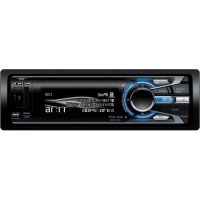
 DSX-A40 - Car stereo SONY - Free user manual and instructions
Find the device manual for free DSX-A40 SONY in PDF.


Download the instructions for your Car stereo in PDF format for free! Find your manual DSX-A40 - SONY and take your electronic device back in hand. On this page are published all the documents necessary for the use of your device. DSX-A40 by SONY.
USER MANUAL DSX-A40 SONY
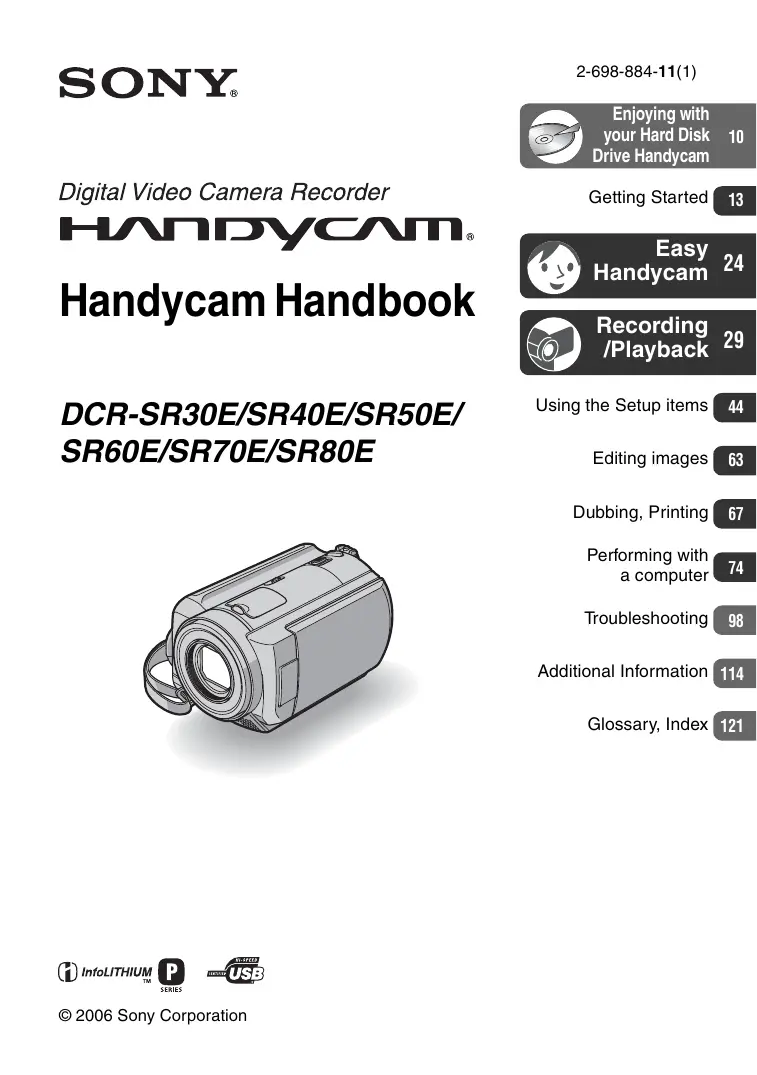
A Enjoying with Sy your Hard Disk 10
Dubbing, Printing @71 Performing with
à computer A Troubleshooting EE Additional Information CTI]
Glossary, Index CI OT P usa
© 2006 Sony Corporation
Before operating the unit, please read this Handbook thoroughly, and retain it for future reference.
WARNING To reduce fire or shock hazard, do not expose the unit to rain or moisture.
CAUTION Replace the battery with the specified type only. Otherwise, fire or injury may result.
FOR CUSTOMERS IN THE UNITED KINGDOM NOTICE ON THE SUPPLIED AC ADAPTOR A moulded plug complying with BS1363 is fited to this equipment for your safety and convenience.
Should the fuse in the plug supplied need to be replaced, a fuse of the same rating as the supplied one and approved by ASTA or BSI toBS1362 (i.e., marked with @> or $ mark) must be used. If the plug supplied with this equipment has a detachable fuse cover, be sure Lo attach the fuse cover after you change the fuse. Never use the plug without the fuse cover.
If you should lose the fuse cover, please contact your nearest Sony service station.
FOR CUSTOMERS IN EUROPE ATTENTION The electromagnetic fields at the specific frequencies may influence the picture and sound of this camcorder
This product has been tested and found compliant with the limits set out in the EMC Directive for using connection cables shorter than 3 meters. (9.8 feet)
Disposal of Old Electrical & Electronic Equipment (Applicable in the European Union and other European eg countries with separate collection systems) This symbol on the product or on its packaging indicates that this product shall not be treated as household waste. Instead it shall be handed over to the applicable collection point for the recycling ofelectrical and electronic equipment. By ensuring this product is disposed of correctly, you will help prevent potential negative consequences for the environment and human health, which could otherwise be caused by inappropriate waste handling of this product. The recycling of materials will help to conserve natural resources. For more detailed information about recycling of this product, please contact your local Civic Office, your household waste disposal service or the shop where you purchased the product Applicable Accessories: Remote Commander (DCR-SRS0E/SR60E/SR70E/ SR8OE)
Istatic electricity orelectromagnetism causes data transfer to discontinue midway (fail), restart the application or disconnect and connect the USB. cable again
Your camcorder is supplied with two kinds of operations guides. For operating and handling the camcorder,
refer to “Operating Guide” and “Handycam Handbook” (PDF/this Handbook).
On using the camcorder + Do not hold the camcorder by the following parts.
+ The camcorder is not dust proofed, drip proofed or waterproofed. See “Maintenance and precautions” (p.118).
+ To prevent the hard disk from being broken or recorded images from being lost, do not do the followings when either of the respective lamps of the POWER switch p.18) or the ACCESS lamp (p.25, 27, 29) is on:
— Removing the battery pack or AC Adaptor from the camcorder
— Applying mechanical shock or vibration 10 the camcorder
+ Before connecting your camcorder to another device with a USB cable etc., be sure 10 insert the connector plug in the proper direction. If you insertthe connector plug forcibly in the wrong direction, the terminal may be damaged, or this may cause a malfunction of your camcorder.
+ Disconnect the AC Adaptor from the Handycam Station holding both the camcorder and the DC plug.
+ Be sure to slide the POWER switch up to OFF (CHG), when you set the camcorder onto the Handycam Station or remove the camcorder from it.
Notes on the Setup items, LCD screen and lens
+ A setup item that is grayed out is not available under the current recording or playback conditions.
+ The LCD screen is manufacture using extremely high-precision technology, so over 99.99% of the pixels are operational for effective use. However, there may be some tiny black points and/or bright points (white, red, blue, or green in color) that appear constantly on the LCD screen. These points are normal.
White, red, blue or green point
+ Exposing the LCD screen or the lens to direct sunlight for long periods of time may cause malfunctions. Be careful when placing the camera near a window or outdoors.
+ Do notaimatthe sun. Doing so might cause your camcorder to malfunction. Take images of the sun only in low light conditions, such as at dusk.
+ Before starting to record, test the recording function to make sure the image and sound are recorded without any problems.
+ Compensation for the contents of recordings cannot be provided, even if recording or playback is not possible due 10 a malfunction of the camcorder.
+ TV color systems differ depending on the countries/regions. To view your recordings on a TV, you need a PAL system-based TV.
+ Television programs, films, video tapes, and other materials may be copyrighted. Unauthorized recording of such materials may be contrary to the copyright laws. You cannot dub copyright protected software on your camcorder.
Compatibility of images
+ You cannot play back both movies and still images other than the images recorded with your camcorder. You also cannot play back images recorded with other DCR-SR30E/ SR40E/SRSOE/SR6OE/SR7OE/SR80E.
+ The images of the LCD screen used on this Handbook are captured using a digital still camera, and thus may appear different from what you see.
Theillustrations used on this Handbook are
based on the model DCR-SRS0E.
+ The on-screen displays in each local language are used for illustrating the operating procedures. Change the screen language before using your camcorder if necessary (p.60).
ations ofthis camcorder are subject 10 change
About the Carl Zeiss lens
Yourcamcorderis equipped with a Carl Zeiss lens, which was developed jointly by Carl Zeiss, in Germany, and Sony Corporation, and produces superior images.
It adopts the MTF* measurement system for video cameras and offers a quality typical of à Carl Zeiss lens.
* MTF stands for Modulation Transfer Function. The number value indicates the amountoflight from a subject coming into the lens.
Notes on using the Hard Disk Drive Handycam
Save all your recorded image data
+ In the case of your image data being damaged, save all your recorded images. Itis recommended that you save the image data on a DVD using your computer (p.80, 93). Also, you can save it using VCR/DVD device (p.67)
+ Itis recommended that you save your image data periodically after recording
Do not apply shock or vibration to your camcorder
+ The hard disk of the camcorder may not be recognized, or recording or playback may not be possible.
+ Especially, during recording/playback, do not apply shock. After recording, do not apply vibration or shock 10 the camcorder, while the ACCESS lamp is lit
+ While using the shoulder belt (not supplied), do not crash the camera against a subject
+ To protect the internal hard disk from the shock by dropping, the camcorder has the drop sensor function (p.56). When a drop oceurs, or under a non-gravity condition, the block noise to protect the camcorder may also be recorded. Ifthe drop sensor catches a drop repeatedly, recording/play back may be stopped.
Notes on Battery Pack/AC Adaptor
+ While the ACCESS lamp is lit, be sure to avoid the followings. They may cause malfunctions. — Removing the battery pack — Removing the AC Adaptor (while charging
using the AC Adaptor)
+ Be sure to remove the battery pack or the AC Adaptor after turning off the POWER switch.
Note on operational temperatures
+ When the temperature of the camcorder becomes extremelÿ high or extremely low, you may not record or playback the camcorder to provide protection to the camcorder. In case of this, a message appears on the LCD screen (p.11 1).
Note on connecting the camcorder to a computer
+ Do not format the hard disk of the camcorder using the computer. It may not operate correctly.
Note on using the camcorder in
+ Do not turn on the camcorder in a low-pressure area, where its altitude is more than 3,000 meters (9.800 feet). This may damage the hard disk drive of your camcorder.
Note on disposal/transfer
+ If you perform [HDD FORMAT] (p.55) or formatting the camcorder, you may not delete data from the hard disk completely. When you transfer the camcorder, it is recommended that you perform [EMPTY HDD] (p.56) to make it difficult to recover your data. In addition to the above, when you dispose of the camcorder, it is recommended that you destroy the actual body of the camcorder, This may prevent data recovery on the hard disk of the camcorder.
If you cannot record/play back images, perform [HDD FORMAT]
+ If yourepeatrecording/deleting images fora long time, fragmentation occurs. Images cannot be saved/recorded. In such case, save the images to perform [HDD FORMAT] (p.55). Fragmentation @ Glossary (p.121)
Read this first … Notes on using the Hard Disk Drive Handycam
Ce) Enjoying with your Hard Disk Drive Handycam
What you can do with your Hard Disk Drive Handycam Using your Hard Disk Drive Handycam ….
Step 3: Tuming the power on and holding your camcorder .18 Step 4: Adjusting the LCD screen .20 Step sing the touch panel... .21
Step 6: Setting the date and time.
Step 7: Selecting the aspect ratio (16:9 or 4: (DCR-SR50E/SR60E/SR70E/SR80E) …
of the recording image .… 23
Easy Handycam - using your camcorder with automatic settings
Using Easy Handycam operation. Recording with ease … Playback with ease …
Recording. Playback Searching for desired images by date (Date Index) Functions used for recording/playback, etc. Recording To use zoom To record in dark places (NightShot plus) To adjust the exposure for backlit subjects (BACK LIGHT) To adjust the focus for an off center subject
To fix the exposure for the selected subject
To add special effects
To record in mirror mode
To attach the shoulder belt
Playback To play back a series of still images (Slide show) To use Playback zoom Recording/playback
To check the remaining battery
To check available free hard disk space
To turn off the operation confirmation beep
To initialize the settings (Reset)
Other part names and functions Checking/Deleting the last scene (Review/Review deleting) Indicators displayed during recording/playback . Remote Commander (DCR-SR50E/SR60E/SR70E/SR80E) Playing the image on a TV Saving images. Deleting images.
Using the Setup items
Using the Setup items 44 Setup items . 46 CAMERA SET... 48
Settings to adjust your camcorder to the recording conditions (EXPOSURE/WHITE BAL/STEADYSHOT, etc.)
E STILL SET. 53 Settings for still images (BURST/QUALITY/IMAGE SIZE, etc.) E& PICT.APPLI... 54
Special effects on images or additional functions on recording/playback (PICT.EFFECT/D.EFFECT, etc.) € HDD SET. Settings for the hard disk (HDD FORMAT/HDD INFO, etc.)
#%e STANDARD SET Settings while recording or other basic settings (REC MODE/LCD SET/USB SPEED, etc.)
TIME/LANGU... (CLOCK SET/AREA SET/LANGUAGE, etc.) Customizing Personal Menu
Creating the Playlist. …. 63 Playing the Playlist .65 Setting image protection (Protection .65
Dubbing to VCR/DVD devices … 67 Recording images from a TV or VCR/DVD device
(DCR-SR60E/SRB0E).. 69 Printing recorded still images (PictBridge compliant printer) .71
Jacks to connect external devices .73
Performing with a computer
What you can do with the camcorder by connecting to
your computer … 74 System requirements .75 Installing software . 77 Creating a DVD with One Touch: .80 Copying images to a computer . .84
Viewing copied images on a computer Editing images … Creating a DVD with selected images Saving images in the Playlist to a DVI Deleting image data from a computer.
Troubleshooting . .98 Warning indicators and messages 10
Additional Information
Using your camcorder abroad 14 Files on the camcorder hard disk/folder structure About the “InfoLITHIUM" battery pack Maintenance and precautions…
D, Enjoying with your Hard Disk Drive Handycam What you can do with your Hard Disk Drive Handycam
You can record images 10 the hard disk of the camcorder. Hard Disk Drive Handycam offers more options than the tape or the DVD camcorder for your convenience and entertainment.
cording and viewing” : clear, easy and convenien
Recording onto the hard disk for long hours (p.25, 29)
You can record more than seven hours” when the
image is set to high quality ([HQ]J) onto the hard
disk. AI the recorded images are saved on the free
hard disk space. You are not at a risk to write images
onto your favorite images by mistake.
Also, you do not need to rewind or fast-forward your
movie, and you can start recording whenever you
* You can record more than 14 hours when you use DCR- SR70E/SR80E. If you change the image quality of a movie, you can record images for longer hours.
You can find a scene quickly by using the VISUAL INDEX screen (p.27, 30).
The VISUAL INDEX screen allows you to check recorded images at a glance. AIl you have to do is to touch the scene you want 10 view.
Also, you can search for a desired scene by date using Date Index.
Viewing on a TV or saving to VCR/DVD devices (p.39, 67) You can connect your Handycam directly 10 a TV.
to play back recorded images. AIso, you can save them to VCR/DVD devices.
Connecting Hard Disk Drive Handycam to a computer
The supplied software “ImageMixer for HDD Camcorder” is required.
One Touch DVD Burn (p.80)
You can save a recorded image on a DVD with a simple touch. Images that have not been saved to a DVD with One Touch DVD Burn can automatically be saved.
+ The quality of a recorded image remains even when it is saved on a DVD.
Editimages and create a DVD with selected images (p.91, 93)
You can copy images 10 your computer. You can also edit
images and create a DVD with selected images.
+ The quality of a recorded image remains even when it is copied from a computer, or when it is edited or saved on a DVD.
Es £ £ 2 Ê 5 = a Se El z É 3
Using your Hard Disk Drive Handycam
Images are recorded on the internal hard disk. When the hard disk becomes full, you cannot record new images. It is recommended that you save the image data periodically, then delete unnecessary images from the hard disk of your camcorder.
+ If you delete the images, you can record new images on the free hard disk space again.
JS Recording (p.25, 29)
Viewing on your Hard Disk Drive Handycam + Viewing on the LCD screen (p.27, 30) + Viewing on a TV (p.39)
Save recorded images on a DVD etc.
Deletethe image data that has been saved on your camcorder. If you delete the images, you can record new images on the free hard disk space again.
+ Select the desired image and delete it (p.42).
+ Delete all the images ([HDD FORMAT], p.55).
Step 1: Checking supplied items
Make sure that you have following items supplied with your camcorder.
The number in the parentheses indicates the number of that item supplied.
AC Adaptor (1) (p.14)
Mains lead (1) (p.14)
Handycam Station (1) (p.14)
AN connecting cable (1) (p.39, 67, 69)
Se USB cable (1) (p.71, 73, 81) =
Wireless Remote Commander (1) (p.38) (DCR-SR50E/SR60E/SR70E/SR80E)
A button-type lithium battery is already installed.
Rechargeable battery pack NP-FP50 (1) (p.16)
Lens Cap (1) (p.18) (DCR-SR30E/SR40E)
EE To attach the lens cap Thread the grip bell through the lens cap ring.
CD-ROM (1) (p.74) — “ImageMixer for HDD Camcorder” (Software)
— “Handycam Handbook” (PDF/Ahis Handbook)
For the models with the CE mark printed on their bottom surfaces only.
Step 2: Charging the battery pack
You can charge the battery after attaching the “InfoLITHIUM” battery pack (P series) 2 Slide the POWER switch in the (p.117) to your camcorder. direction of the arrow to set it to
+ You cannot use an NP-FP30 battery pack with : your camcorder. (See the reverse side of the OFF (CHG) (The default setting).
battery pack forthe model number.) Installing the battery pack with excess force may lead 10 camcorder malfunction such as deterioration in battery pack performance or difficulty in removing the battery pack
POWER switch CHG lamp
3 Connect the AC Adaptor to the DC IN jack on the Handycam Station. Be sure thatthe A mark on the DC plug is facing up.
Battery DC IN DC IN jack pack jack Mains lead PS. « To the wall socket AC Adaptor N,
4 connect the mains lead to the AC Adaptor and the wall socket.
5 set the camcorder onto the Handycam Station securely.
Be sure to set the camcorder to the end.
The CHG (charge) lamp lights up and
charging starts. The CHG (charge) lamp
turns off when the battery pack is fully
+ When setting the camcorder onto the Handycam Station, close the DC IN jack cover.
To charge the battery pack using only the AC Adaptor
Slide the POWER switch up to OFF (CHG),
then connect the AC Adaptor directly to the DC IN jack on the camcorder.
CHG lamp POWER switch
DC plug Open the jack cover Battery pack Mains lead | 1" AC Adaptor
To remove the battery pack
Slide the POWER switch to OFF (CHG). Slide the BATT (battery) release lever and remove the battery pack
BATT (battery) release lever
+ When you remove the battery pack, make sure that none of the respective lamps of the POWER switch (p.18) is on.
pauels Guyag E To remove your camcorder from the Recording time
Handycam Station Approximate time (min.) available when you Turn off the power, then remove the use a fully charged battery pack. camcorder from the Handycam Station holding both. DCR-SR30E/SR40E Continuous Typical Battery pack recording recording time time* NP-FP50 (supplied) 125 65 190 100 265 145 315 170 475 260
DCR-SR50E/SR60E/SR70E/SR80E When storing the battery pack Continuous … Typical Battery pack recording recording Use up the battery pack completely if you do ts time” not intend to use it for a long time (p.117). a NP-FP50 100 55 To use an outside power source (supplied) 110 60 Make the same connections as you do when NP-FP60 5 ë charging the battery pack. The battery pack will not lose its charge in this case. : 215 115 NP-FP70 235 125 Charging time (full charge) 2 1 Approximate time (min.) required when you NP-FP71 280 150 fully charge a completely exhausted battery 70 — pack. NP-FP90 415 25 Battery pack Charging time a * Typical recording time shows the time when you NP-FP50 (supplied) 125 repeat recording start/Stop, turning the power on/ NP-FP60 135 off and zooming, ———————_— + Times shown vary according to the following NP-FP70 155
conditions (when [REC MODE] is set to [HQ}). NP-FP71 170 — Top: When the LCD backlight turns on. NB 2 — Bottom: When the LCD backlight turns off.
Approximate time (min.) available when you use a fully charged battery pack.
DCR-SR30E/SR40E Battery pack Playback time NP-FP50 (supplied) 140 NP-FP60 210 NP-FP70 295 NP-FP71 350 NP-FP90 525
DCR-SR50E/SR60E/SR70E/SR80E Battery pack Playback time* NP-FP50 (supplied) 120 NP-FP60 185 NP-FP70 255 NP-FP71 300 NP-FP90 455
+ When the LCD backlight turns on.
+ Before changing the battery pack, slide the POWER switch to OFF (CHG)
+ The CHG (charge) lamp flashes during charging,
or BATTERY INFO (p.34) will not be correctly
displayed under the following conditions.
— The battery pack is not attached correct.
— The battery pack is damaged.
— The battery pack is fully discharged (For BATTERY INFO only.)
The power will not be supplied from the battery
as long as the AC Adaptor is connected tothe DC IN jack of your camcorder or the Handycam
Station, even when the mains lead is removed
from the wall socket.
+ We recommend that you use an NP-FP70, NP- FP71 or NP-FP90 battery pack when a video light (optional) is attached
On the charging/recording/playback time
+ Times measured with the camcorder at 25°C (T°F). (10-30°C (50-86°F) is recommended.)
+ Available recording and playback time will be shorter when you use your camcorder in low temperatures.
+ The available recording and playback time will be shorter depending on the conditions under which you use your camcorder.
+ Connect the AC Adaptor to an easily accessible wall socket close by. If any trouble occurs while using the adaptor, immediately shut off the power by removing the plug from the wall socket
+ Do not use the AC Adaptor placed in a narrow space, such as between a wall and furniture.
+ Do not short-circuit the DC plug of the AC Adaptor or battery terminal with any metalic objects. This may cause a malfunction.
+ Even if your camcorder is turned off, AC power (mains) is still supplied to it while connected to the wall socket via the AC Adaptor.
Step 3: Turning the power on and holding your
To record, slide the POWER switch to turn on the respective lamp
When using it for the first time, the [CLOCK SET] screen appears (p.22).
* DCR-SR50E/SR60E/SR70E/SR80E
À Remove the lens cap by pressing both tabs on the sides of the cap. Pull the lens cap string down until stopped by the grip belt (DCR- SR30E/SR40E).
POWER switch in the direction of the arrow while pressing the green button in the center.
When yourecord, switch the power mode by sliding the POWER switch in the direction of the arrow until the respective lamp lights up.
4 M : To record movies
@ (Still): To record still images
Te] (PLAY/ÆDIT);: To play back images on our camcorder, or to edit/delete them
+ When you setthe POWER switch to EH (Movie) or 3 (Still. the lens cover opens up (DCR- SRS0E/SR60E/SR70E/SRBOE).
+ After you have set the date and time ([CLOCK SET], p.22), the next time you turn on the power of your camcorder, the current date and time will bedisplayedonthe LCD screen for a few seconds.
3 Hold your camcorder correctiy.
To turn off the power
Slide the POWER switch to OFF (CHG). Put the lens cap back after turning off the power (DCR-SR30E/SR40E).
+ Atthe time of purchase, the power will be set to tumoff automatically if you leave your camcorder without any operation for approximately five minutes, to save battery power ([A.SHUT O p.60)
Step 4: Adjusting the LCD screen
+ Be careful not to press the buttons on the LCD frame accidentally, when you open or adjust the LCD screen.
+ If you open the LCD screen 90 degrees to the camcorder, rotate it 180 degrees to the lens side, then you can close it with the LCD screen side facing out. This is convenient during playback operations
To turn off the LCD backlight to make the battery last longer (DCR-SR50E/ SR60E/SR70E/SR80E)
Press and hold DISP/BATT INFO for a few seconds until 2Egé- appears.
This setting is practical when you use your camcorder in bright conditions or when you want 10 save battery power. The recorded image will not be affected by this setting. To cancel, press and hold DISP/BATT INFO until Ldée disappears.
+ See[LCDSET]- [LCD BRIGHT] (p.58)to adjust the brightness of the LCD screen.
Step 5: Using the touch panel
You can play back recorded images (p.27, 30), or change the settings (p.44) using the touch panel.
Touch the buttons displayed on the screen.
Supporttherear ofthe LCD panel with
your finger. Then, touch the buttons displayed on the screen.
Touch the button on the LCD screen.
+ Perform the same actions as described above when you press the buttons on the LCD frame.
+ Be careful not to press the buttons on the LCD frame accidentally while using the touch panel.
+ Ifthe buttons on the touch panel do not work correctly, adjust the LCD screen (CALIBRATION) (p.119).
To hide the screen indicators
Press DISP/BATT INFO to hide or show the screen indicators (counter, etc).
Changing the language setting
You can change the on-screen displays 10 show messages in a specified language. Selectthe screen language in [LANGUAGE] on the 28 TIME/LANGU. (p.60)
Step 6: Setting the date and time
Set the date and time when using this
camcorder for the first time. If you do not set
the date and time, the [CLOCK SET] screen appears every time you turn on your camcorder or slide the POWER switch.
+ If you do not use your camcorder for about 3 months, the built-in rechargeable battery gets discharged and the date and time settings may be cleared from the memory. In that case, charge the rechargeable battery andthen setthe date andtime again (p.119)
Skip to step 4 when you set the clock for the first time.
4 Select the desired geographical area with [21/C], then touch
5 set ISUMMERTIME] to [ON] with [AC if necessary, then touch
6 set [y] (year) with L2/C51, then touch
+ You can set any year up to the year 2079.
3 select{CLOCK SETIwith [2J/C51, then touch
+ Refer to page 115 for information concerning “World time difference”.
+ The recording date and time are not displayed during recording, but are automatically recorded onto the hard disk and displayed during playback (DATA CODE], p.58).
Step 7: Selecting the aspect ratio (16:9 or 4:3) of je QE AInE image (DCR-SR50E/SR60E/SR70E/
By recording in the 16:9 (wide) mode, you + You cannot change the aspect ratio in the can enjoy wide-angle, high-resolution following cases: images. — while recording movies
— when [D. EFFECT] is set to [OLD + If you intend to view images on a wide TV, MOVIE] (p.54)
recording in the 16:9 (wide) mode is su
recommended + Différences in the angle of view between 16:9{wide) and 4:3 vary depending on the z00m position.
pauels Guyag E To play back images after connecting
your camcorder to a TV Set [TV TYPE] to [16:9] or [4:3] according to your TV (16:9/4:3) (p.39).
+ When viewing 16:9 (wide) images with [TV WIDE SELECT TYPE] set to [4:31], images may appear rough depending on subjects.
Movies Still images À Siide the POWER switch in the direction of the arrow to light up
the I (Movie) lamp. À Siidethe POWER switchtolightup the € (Still) lamp.
The image size ratio changes to 4:3
2 Press WIDE SELECT repeatedly to select the desired setting.
2 + Still image size is set 10 [D 0.7M] (Du) Press WIDE SELECT repeatedly to when 16:9 (wide) is selected. [L.OM] (Eau) is select the desired screen aspect set in maximum mode when 4:3 is selected. ratio. + The number of recordable still images is 9,999.
Easy Handycam - using your camcorder with automatic settings Using Easy Handycam operation
Easy Handycam operation is a function for making nearly all settings automatic with just one press of the EASY button. Since only basic functions become available and screen font size increases for easy viewing, even first time users can enjoy easy operation.
The settings of your camcorder during Easy Handycam operation
Touch [SETUP] to display the available setup items. For details on setup, See page 45.
+ Nearly all setup items are automatically fixed. S not displayed during Easy Handycam operation
+ To perform settings such as focusing manually and adding special effects, cancel Easy Handycam operation.
Invalid buttons during Easy Handycam operation
You cannot use following buttons or functions since they are automatically set. If you set an invalid operation, [Invalid during Easy Handycam operation] may appears.
+ Press and hold DISP/BATT INFO (p.20)
+ Zoom lever/buttons (during playback)
Now try recording page 25
Complete the preparations described in steps 1 to 7 (p.13 to 23) before operation.
Slide the POWER switch in the direction of the arrow while pressing the green button only when the POWER switch is in the OFF (CHG) position.
Hi em — To record movies DE— To record sil images De ç- ACCESS amp The ACCESS lamp either lights or ACCESS flashes when image data is written to the hard disk drive of the camcorder.
À Siide the POWER switch [A in the direction of the arrow to light up the IH (Movie) lamp.
2 Press EASY. [Easy Handycam operation ON.] appears, then
appears on the LCD screen.
EASY Ge Sr C) à Easy Handycam L) ess ()} operation s ON. E TA
3 Press START/STOP [E] (or
A ar © Ba EU f] F = : @
Ê Fans) 5 ISTBY] REC)
EE To stop recording, press START/STOP again. + (REC MODE] is set to [HQ] (default settings) (p.57). + The maximum continuous recordable time is approximately 13 hours.
To record the next movies Perform step 3.
À Siidethe POWER switch[Alinthe direction ofthe arrowtolightupthe © (Still) lamp.
[Easy Handycam operation ON.] appears, then
9 appears on the LCD screen.
3 Press PHOTO (D) lightiy to adjust the focus ©, then press it fully ©.
A shutter sound is heard. When III disappears, the image has been recorded. + [QUALITY] is set to [FINE] (default settings) (p.53).
To record the next still images Perform step 3.
To cancel Easy Handycam Press EASY again. disappears on the LCD screen.
Slide the POWER switch in the direction of the arrow while pressing the green button only
ACCESS lamp ‘The ACCESS lamp either lights or flashes when image data is read from the hard disk drive of the camcorder.
À siide the POWER switch in the direction the [1 (PLAY/EDIT) lamp.
of the arrow repeatedly to light up
The VISUAL INDEX screen appears on the LCD screen.
[Easy Handycam operation ON.] appears, then Recording
EM appears on the LCD screen.
The last recorded/played back movie is marked with 11 Alko, when youtouchIB1, you
can play back the movie from the point you have stopped
Touch H-H (Movie) tab, then touch the thumbnail ofthe movie to be played back.
ééomin D 100112 1234 | Toggles Play or Bezinnina of the scene/ [© use as you touch previous scene = 1 Next scene s. N #4001-0001 FT Recordine top (eo Lo the 2 ae/time VISUAL INDEX screen LEE) Raven Forward
When playback from the selected movie reaches the last movie, the screen returns to the VISUAL INDEX screen.
+ Touch ETS /B1e] during pause to play back movie slowly + Touch [SETUP] —+ [VOLUME], then adjust it with [— ]/|
Touch @ (Still) tab, then touch the thumbnail of the still image to be played back.
Slide show button (33)
1208.00 Go to the VISUAL INDEX ME 1 Mu | date/time screen
+ It may take some time to display the VISUAL INDEX screen
+ When you touch [EDIT] on the VISUAL INDEX screen, you can delete images. See “Deleting images” on page 42
To cancel Easy Handycam Press EASY again. disappears on the LCD screen.
Lens cover" Opens in accordance
direction of the arrow repeatedly to mp Pressthe green button . k only when the light up the respective lamp. POUR POWER swilchis in e., the OFF (CHG) ei position.
À ES ACCESS © IE LOS
Movies Still Images Press START/STOP [A] (or Press PHOTO lightly to adjust the focus ©, then press it fully ©. ISTBY] # [REC] To stop recording, press START/STOP Flashing + Lights up again.
A shutter sound is heard. When HI disappears, the image has been recorded.
+ Ifthe ACCESS lamp is on or flashing after recording is finished, it means data is still being written onto the hard disk. Do not apply shock or vibration to your camcorder, and do not remove the battery pack or AC Adaptor.
+ You cannot record movies and still images at the same time.
+ The maximum continuous recordable time is approximately 13 hours.
+ When a movie data file exceeds 2 GB, the next file is created automatically.
+ For image quality of movies, see [REC MODE] (p.57), of still images, see [Bi] IMAGE SIZE] (p.53)
h repeatedly to light up the [r] (PLAY/EDIT) lamp.
The VISUAL INDEX screen appears on the LCD screen.
Recording [Es date —|
PE EE The last recorded/played back movie is marked with 1-1. AÏso, when you touch
| — 1-1, you can play back the movie from the point you
IE (Movie) tab @g (Still) tab
have stopped previously.
(Playlist) tab (p.65)
+ Moving the zoom lever changes the VISUAL INDEX screen indication from 6 to 12 and more images
can be displayed at the same time
+ Touch [24 DISPLAY] in 888 STANDARD SET to set the number of thumbnails that appear in the
VISUAL INDEX screen (p.59).
+ If you press and hold EN /Æ2 . you can scroll the thumbnail index quickly.
scene touch scene = œh #K001-1000
Touch @ (Still) tab andthe stillimage to be played back.
Slide show button (p.33)
T À Stop(gotothe VISUAL | Reverse/Forward INDEX screen)
When playback from the selected movie reaches the last movie, the screen returns to the VISUAL INDEX screen.
Go to the VISUAL Previous/Next INDEX screen
+ Touch [1S)/(B1e] during pause 10 play back movie slowly
+ One touch of ES/[T) makes the reverse/ fast forward approximately five times faster, two touches make it approximatelÿ 10 times faster, three touches make it approximately 30 times faster, four touches make it approximately 60 times faster.
+ The ACCESS lamp either lights or flashes when image data is read from the hard disk drive of the camcorder.
To adjust the volume —+ [VOLUME], then adjust it
+ If you cannot find [VOLUME] in ISETUP) (p.44).
You can search for desired images by date efficiently.
4 Touch Previous/Next Date button to select the date ofthe desired image.
À siide the POWER switch repeatedly to light up the O1 (PLAY/EDIT) lamp.
The VISUAL INDEX screen appears on the LCD screen.
2 To search for movies, touch IH (Movie) tab. To search for still images, touch € (Still) tab.
The recording dates of images are displayed on the screen.
CL previous/Next Date button
hile the selected date
ofthe desired imageis highlighted.
The images for selected date are displayed on the VISUAL INDEX screen.
Functions used for recording/playback, etc.
To use zoom Move the power zoom lever [1] slightly for a slower zoom. Move it further for a faster z00m.
Wider range of (0) view: (Wide) Pr Close view:
+ Be careful not 10 remove your finger suddenly from the power zoom lever [1]. If you do so, the sound of the lever moving may be recorded
+ You cannot change the zoom speed with the zoom buttons [6] on the LCD frame.
+ The minimum distance required between your camcorder and the subject to get a Sharp focus is about 1 em (about 1/2 inch) for wide angle and about 80 cm (about 2 5/8 feet) for telephoto.
+ Youcanset [DIGITAL ZOOM] (p.51) ifyou want 10 zoom to a level greater than the following:
DCR-SR30E/SR40E DCR-SRS0E/SR6OE/ SR70E/SR8OE
To record in dark places
{NightShot plus). 2]
Set the NIGHTSHOT PLUS switch [2] to
ON. ( @ and [“NIGHTSHOT PLUS”]
+ Torecord an image brighter, use Super NightShot plus function (p.51). To record an image brighter in dim light, use Color Slow Shutter function (p.51).
+ TheNightShot plus and Super NightShot plus use infrared light. Therefore, do not cover the infrared port [3] with your fingers or other objects.
+ Remove the conversion lens (optional).
+ Adjustthe focus manually ((FOCUS], p.50) when itis hard to focus automatically.
+ Do not use these functions in bright places. This may cause a malfunction.
To adjust the exposure for backlit subjects (BACK LIGHT) … To adjust the exposure for backlit subjects, press BACK LIGHT [4] to display E. To cancel the back light function, press BACK LIGHT again.
To adjust the focus for an off center subject. See [SPOT FOCUS] on page 50.
To fix the exposure for the selected subject… … [5] See [SPOT METER] on page 48.
To add special effects See EF PICT.APPLI. on page 54.
To record in mirror mode
Open the LCD screen 12 90 degrees to the camcorder (®), then rotate it 180 degrees to the lens side (@).
+ Amirror-image ofthe subject appearson the LCD screen, but the image will be normal when recorded.
To use a tripod … KE]
Attach the tripod (optional: the length of the screw must be less than 5.5 mm) to the tripod receptacle [3 using a tripod screw.
To attach the shoulder belt .… fr
Attach the shoulder belt (optional) with your camcorder to the hook for the shoulder belt.
To play back a series of
still images (Slide show)... [5]
Touch Sr on the still image playbacl
The slide show begins from the selected
Touch Æ 10 stop the slide show. To restart,
+ You can touch playback. Th playback).
+ You cannot operate playback zoom during slide show.
toset continuous slide show fault setting is [ON] (continuous
To use Playback zoom. .16]
You can magnify images from about 1.1 10 5 times the original size.
Magnificationcan be adjusted withthe power 00m lever [1] or the zoom buttons
© Play back the image you want to magnify.
© Magnify the image with T (Telephoto). A frame appears on the LCD screen.
© Touch the portion you want to display in the center of the LCD screen.
© Adjust the magnification with W (Wide angle)/T (Telephoto).
To cancel, touch [END].
+ You cannot change the zoom speed with the zoom buttons [6] on the LCD frame.
To check the remaining battery Setthe POWER switch to OFF (CHG), then press DISP/BATT INFO [f4. If you press this button once, BATTERY INFO appears onthe screen for about seven seconds. Press the button while BATTERY INFO appears onthe screen to extend the indication 10 the 20- second maximum.
C2 Recording capacity (approx.)
L_ Remaining battery approx.)
To check available free hard disk space. See [HDD INFO] (on page 55).
+ During recording, the remaining recordable time/ number of still images are displayed.
To turn off the operation confirmation beep … .
See [BEEP] on page 60.
To initialize the settings (Reset) . Press RESET [FA] to initialize all the settings, including settings for date and time. (Setup items customized on Personal Menu are not initialized.)
Other part names and functions
Built-in stereo microphone When an extemal microphone (optional) is connected. takes precedence over the internal microphone (DCR-SRSOE/SR60E/SR70E/ SRSOE) Remote sensor (DCR-SRSOE/SR6OE/ SR70E/SR80E) Point the Remote Commander (p.38) towards the remote sensor 10 operate your camcorder. [9] Recording lamp (DCR-SRSOE/SRGOE/ SR70E/SR80E) The recording lamp lights up red during recording (p.59). The lamp flashes when the remaining capacity for he battery or the hard disk of the camcorder is running low
F3 Speaker Sound comes out from the speaker while playing back. + For how to adjust the volume, see page 30.
Checking/Deleting the last scene
(Review/Review deleting)
You can check the last recorded movie/still image. Also, you can delete the checked images.
Checking the last scene (Review)
À Slide the POWER switch to light up
the H (Movie) or & (Still) lamp, then touch
The playback of the latest scene starts.
Movie [am = — ETS ns) me 1101 -o00t ” en i Touch to display below function buttons. LS]: Return to the beginning of the viewing movie. FE: Adjust the volume. Still image
To return to recording Touch
+ Camera data (recording date, conditions, etc.) is not displayed.
+ When reviewing still images recorded continuously (p.53), you can forward/backward the images with [ea] /[w>1] (DCR-SRSOE/ SRGOE/SR70E/SR80E).
Deleting the last scene (Review deleting)
Ifthe checked scene is unnecessary, you can delete it on the spot.
À Touch [5] during the review.
+ You cannot recover a scene once you delete it.
+ You can delete the last recorded image in a succession with Review deleting.
+ You can only delete the last recorded image in order with Review. To delete the desired image, see page 42.
+ When the recorded images are deleted in order
with Review deleting, you cannot continue to
delete them if a protected image appears on the screen.
When you delete still images that were recorded
continuously (p.53). all the images are deleted at
the same time (DCR-SRSOE/SRGOE/SR70E/
Indicators displayed during recording/playback
Ois a reference page.
The indicators during recording will not be recorded.
Remaining battery (approx.) (34) [2] Recording mode (HG / SP / LP) (57)
BJRecording status ([STBY] (standby) / [REC] (recording)
[4] Counter (hour: minute: second)
[B]Remaining recordable time of movies [6] Review button (35) Personal Menu button (44)
15 Hu] [M Playback mode
[2 Number of played back movies/Total number of recorded movies
[3] Previous/Next button (28, 30) Recording folders/files (116) H5 Video operation buttons (28, 30)
Recording still images
Image size (53) (DCR-SR50E/SRG0E/SR70E/SR80E)
[9] Quality (IFINE] / [STD (53) [0 Number of recordable still images
Viewing still images
[6 Numberofplayedbackstillimages/Total number of recorded still images
[A Recording folders/files (116)
[8 Previous/Next button (28, 30) {9 Slide show button (33)
Bd VISUAL INDEX button (28, 30)
() is a reference page. Indicators on the LCD screen Meaning NightShot plus (32) Super NightShot plus (51) Color Slow Shutter (51)
When you can change the setup items, or during recording or playback, following indicators are displayed.
Upper left Upper center Upper right
© # 5+5- SteadyShot off (52)
n MICREF LEVEL low (57) —— MANS «sy
Upper center DATA CODE while recording
The recording date and time are recorded automatically. They are not displayed while recording. However, you can check them as
Indicator Meaning cp Repeat of
Upper right IDATA CODE] during playback (p.58) Indicator Meaning
TE BAG PE PASEX Fader (54)
LCD backlight off (20)
Remote Commander (DCR-SR50E/SR60E/SR70E/
Remove the insulation sheet before using the Remote Commander.
[] DATA CODE (p.58) Displays the date and time or camera setting data of the recorded images (p.58) when you press this while playing back.
[2] PHOTO (p.26, 29) The on-screen image when you press this button will be recorded as a still image.
SCAN/SLOW (p.28, 30) HA »>1 (Previous/Next) (p.28, 30) [B] PLAY (p.28, 30)
HO] Power zoom (p.32, 33)
F1] PAUSE (p.28, 30)
VISUAL INDEX (p.27, 30) Displays a VISUAL INDEX screen when you press this while playing back.
F3 <«/»>7/A/W/ENTER When you press any button, the orange frame appears on the LCD screen. Select a desired button or an item with 4/ > / A / Y, then press ENTER to enter.
+ Pointthe Remote Commandertowards the remote sensor to operate your camcorder (p.34).
+ When no commands have been sent from the Remote Commander in a certain period, the orange frame disappears. When you press any of </H JA TV or ENTER again, the frame appears at the position where it was displayed last.
+ To change the battery, see page 120.
Playing the image on a TV Connect your camcorder to the input jack of TV or VCR using A/V connecting cable [1] or AV connecting cable with S VIDEO [2]. Connect your camcorder to the wall socket using the supplied AC Adaptor for this operation (p.14). Refer also to the instruction manuals supplied
with the devices to be connected.
+ To view the recorded images on a computer, see page 74.
AN connecting cable (supplied)
The Handycam Station and your camcorder are both equipped with A/V jacks (p.73). Connect he A/V connecting cable either to the Handycam Station or to your camcorder, according to your setup.
C2] AN connecting cable with S VIDEO (optional) When connecting 10 another device via the S VIDEO jack, by using an A/V connecting cable with an S VIDEO cable (optional), higher quality images can be produced than with an AIV connecting cable. Connect the white and red plug (left/right audio) and the S VIDEO plug (S VIDEO channel) ofthe A/V connecting cable with an $ VIDEO cable (optional). The yellow plug connection is not necessary. S VIDEO connection only will not output audio
+ You can display the counter on the TV screen by setting [DISP OUTPUT] to [V-OUT/PANEL] (p.60).
+ Do not connect A/V connecting cables to both your camcorder and the Handycam Station at the Same time. The image might get disturbed.
When your TV is connected to a VCR Connect your camcorder to the LINE IN input on the VCR. Set the input selector on the VCRto LINE (VIDEO 1, VIDEO 2,etc.), if the VCR has an input selector.
To set the aspect ratio according to the connected TV (16:9/4:3) (DCR-SR50E/ SR60E/SR70E/SR80E)
Change the setting according to the screen aspect ratio of the TV you will view images on.
@ Slide the POWER switch to light up the ©] (PLAY/ÆDIT) lamp.
© Touch —+ [SETUP] — 88 STANDARD SET —+ [TV TYPE] — L16:9] or [4:31 —+
+ When you set [TV TYPE] to [4:3], the image
quality may deteriorate. Also, when the recorded image’s aspect ratio switches between 16:9 {wide) and 4:3, the image may jitter.
xoeqheld/ÉuIp1084 | |
+ Onsome 4:3 TV, the still images recorded in 4:3 aspectratio may not be displayed full screen. This is not a malfunction.
+ When you play back an image recorded in 16:9 (wide) aspect ratio on a 4:3 TV not compatible with the 16:9 (wide) signal, set [TV TYPE] to
When your TV is monaural (When your TV has only one audio input jack) Connect the yellow plug of the A/V connecting cable to the video input jack and connect the white (left channel) or the red Gight channel) plug to the audio input jack of your TV or VCR.
If your TV/VCR has a 21-pin adaptor (EUROCONNECTOR)
Use the 21-pin adaptor supplied with your camcorder (For models with the CE mark printed on their bottom surfaces only). This adaptor is designed for output use only.
Recorded images are stored on the internal hard disk of the camcorder. Due to some limitations
on the internal hard disk, make sure that you save the image data to the external media. You can save the images recorded on the camcorder as described below.
Saving images on DVD using your computer
By using the software in the supplied CD-ROM, the quality of a recorded image is maintained
even when the image is saved on à DVD.
Create DVD with One Touch
You can save images recorded on the camcorder directly to a DVD with ease.
Create DVD with the desired images
You can save images copied to your computerona DVD. Youcanalso edit the images.
Saving images by connecting the camcordi
Dub to VCR/DVD devices
You can save the images recorded on the camcorder by connecting the camcorder to VCR/DVD devices.
See “Creating a DVD With One Touch” on page 80.
See “Editingimages” on page 91, and “Creating a DVD with selected images” on page 93.
er to other VCR/DVD devices
You can save images recorded on the camcorder by connecting to other VCR/DVD devices.
See “Dubbing to VCR/DVD devices” on page 67.
You can provide free hard disk space by deleting image data on the camcorder.
+ You can check the free hard disk space of the camcorder on [HDD INFO] (p.55)
+ Protected images cannot be deleted. To delete the images, cancel the protection (p.66)
+ Important data should be saved (p.41):
+ Do not delete the image data on the hard disk of the camcorder from your computer.
leting desired images
À Siidethe POWER switchto light up the [] (PLAY/EDIT) lamp.
The VISUAL INDEX screen appears on the LCD screen.
2 Select the FA (Movie) tab or the à (Still tab that includes the image you want to delete, then touch [EDIT].
+ When you touch [EDIT] during Easy Handycam operation, only [DELETE], IDELETE ALL] and [DELETE DATE] appear (p.27)
4 Select the image to be deleted.
The selected image is marked with
+ Press and hold the movie on the LCD screen to check the movie (Preview). Touch return to the previous screen. The Preview screen buttons have the same functions as the ones on the Review screen (p.35)
+ You can select multiple images at the same time.
5 touch 54 —+ [YES].
+ You cannot recover an image once you delete it
+ If you delete an original movie that is listed in a Playlist (p.63), it is also deleted from the Playlist
To delete all movies or still images at once
© Todelete a movie, touch ÉE (Movie) tab, to delete still images, touch € (Still) tab on the VISUAL INDEX screen.
@ Touch [EDIT] —+ [DELETE ALL] —+ LYES] — [YES].
+ Protected images cannot be deleted (p.65). + To recover all the recordable space of hard disk, perform [HDD FORMAT] (p.55).
Deleting images by date
You can delete movies or still images by date at once.
while the selected date
ofthe desired imageis highlighted. Go back to the VISUAL INDEX screen.
À Siidethe POWER switchtolightup the [7] (PLAV/EDIT) lamp.
The VISUAL INDEX screen appears on the LCD screen.
ss, touch EH (Movie) tab. To delete still images, touch y (Still) tab.
The recording dates of images are displayed on the screen.
Return to the VISUAL INDEX screen
U Previous/Next Date button
Æ touch Previous/Next Date button to select the date of the desired image.
6 rouch[EDITI,thentouch [DELETE DATE] — [YES].
ET Delete movies or still images recorded on the selected date at once.
+ You cannot delete movies and still images recorded on the same date at the same time.
+ You cannot delete protected images (p.65).
+ When the multiple number of the same date is displayed in step 3, only the image data in the selected date folder can be deleted.
À Siide the POWER s the respective lamp.
ch in the direction of the arrow repeatedly to light up
4———— Slide the POWER switch while pressing the green button in Q the center only when the POWER switch is in the OFF (CHG) position.
EH: Settings for movies
@: Settings for still images [1 : Settings for PLAY/EDIT
2 Touch the LCD screen to select the setup item. Unavailable items will be grayed out. M To use the short-cuts of Personal Menu
On Personal Menu, short-cuts for frequently used setup items are added. + You can customize Personal Menu as you like (p.61)
© Touch the desired setup item. If the desired setup item is not displ
© Select the desired setting, then touch
ed on the screen, touch
until it is displayed.
M To change the setup items You can customize setup items that are not added to Personal Menu.
© Select the desired setup item. Touch (21/1 to select the item, then touch [E. (The proce in step ©.)
@ Select the desired item. + You can also touch the item directly to select it
@ Customize the item. After finishing the settings, touch If you decide not to change the setting, touch
in step © is the same as that
(close) to hide the setup screen. to return to the previous screen
M To change the setup items during Easy Handycam operation does not appear during Easy Handycam operation (p.24).
© Touch [SETUP]. Available setup items appear © Select the desired item. © Customize the item. Touch (AI after finishing the setting. If you decide not to change the settin to return to the previous screen. + Cancel the Easy Handycam operation (p.26) to change the setup items for the standard operation.
swe}l dmes aui Guisn E
Setup items ire sep items (@) vary depending on the operating mode. The following settings are made automatically during Easy
Handycam operation (p.24).
Position of lamp: Easy Handycam # CAMERA SET (p.48)
PROGRAM AE e e AUTO SPOT METER e e AUTO EXPOSURE e e AUTO WHITE BAL. e Q AUTO AUTO SHUTTER e ON SPOT FOCUS Q Q AUTO FOCUS Q Q AUTO FLASH SET e #VOFF SUPER NSPLUS Q OFF NS LIGHT e Q OFF COLOR SLOW S Q OFF IHSELF-TIMER e OFF BSELF-TIMER e OFF DIGITAL ZOOM e OFF WIDE SELECT * e 43 STEADYSHOT e ON STILL SET (p.53) IMEURST ? e OFF QUALITY e FINE IMAGE SIZE ? Q e E& PICT.APPLI. (p.54) FADER e OFF D.EFFECT Q OFF PICTEFFECT Q OFF REC CTRL * Q USB SELECT * e e e DEMO MODE Q ON CFHDD SET (p.55) HDD FORMAT e e Q e HDD INFO e e e DROP SENSOR Q Q e ON EMPTY HDD e e e
Position of lamp: & STANDARD SET (p57)
“1 The setting values before Easy Handycam operation are maintained. “2 DCR-SRSOE/SR60E/SR70E/SR80E
5 [USB SELECT] appears automatically when your camcorder is connected to a computer or other device with the Handycam Station and the USB cable.
D CAMERA SET Settingsto adjustyour camcordertothe recording conditions (EXPOSURE/WHITE BAL./ STEADYSHOT, etc.)
The default settings are marked with D The indicators in parentheses appear when the items are selected.
See page 44 for details on selecting setup items.
PROGRAM AE You can record images effectively in various situations with the PROGRAM AE function.
> AUTO Select to automatically record images effectively without the [PROGRAM AE] function
Select to prevent people’s faces from appearing excessively white when subjects are lit by strong light
PORTRAIT (Soft portrait) (
Select to bring out the subject such as people or flowers while creating a soft background.
SPORTS* (Sports lesson) (<& )
Selectto minimize shake when shooting fast moving subjects
Select to prevent people*s faces from appearing dark in strong light or reflected light, such as at a beach in midsummer or on a ski slope.
Select to maintain the atmosphere of situations such as sunsets, general night views or fireworks.
Select to shoot distant subjects clearly. This setting also prevents your camcorder from focusing on glass or metal mesh in windows that comes in between the camcorder and the subject + ltems with one asterisk (*) can be adjusted so as notto focuson subjects only a short distance away. Items with two asterisks (**) can be adjusted to focus on subjects farther away. + The setting returns to [AUTO] after you remove the power source for more than five minutes.
SPOT METER (Flexible spot meter)
You can adjust and fix the exposure 10 the subject, so that it is recorded in suitable brightness even when there is strong contrast between the subject and the background, such as subjects in the spotlight on stage.
0) © Touch the point where you want to fix and adjust the exposure on the screen. —— appears. © Touch [END]. To return the setting to automatic exposure, touch [AUTO] [END]. + If you set [SPOT METERI]. [EXPOSURE] is automatically set 10 [MANUAL] + The setting returns 10 [AUTO] afier you remove the power source for more than five minutes.
You can fix the brightness of an image manually. When recording indoors on a clear day, for example, you can avoid backlight shadows on people next to the window by fixing the exposure to that of the wall side of the room.
© Touch [MANUAL]. + appears. © Adjust the exposure by touching
To return the setting Lo automatic exposure, touch [AUTO] —+ [OK].
+ The setting returns to [AUTO] after you remove the power source for more than five minutes.
WHITE BAL. (White balance)
You can adjust the color balance 10 the brightness of the recording environment.
> AUTO The white balance is adjusted automatically.
The white balance is adjusted to be appropriate for the following recording
— Sunrise or sunset — Under daylight fluorescent lamps
INDOOR (-£; The white balance is adjusted to be
appropriate for the following recording conditions:
— At party scenes or studios where the lighting conditions change quickly
— Underthe video lamps of those at a studio, or under sodium lamps or incandescent- like color lamps
ONE PUSH (nm) The white balance will be adjusted according to the ambient light. © Touch [ONE PUSH] © Frame a white object such as a piece of paper, to fill the screen under the same lighting conditions as you will shoot the subject © Touch [nm4]. R®4 flashes quickly. When the white balance has been adjusted and stored in the memory, the indicator stops flashing. + Keep framing white object while Ra is flashing quickly. + RM flashes slowly if white balance could not be set. + KM keëps flashing even after you have touched [6 set [WHITE BAL.] to TAUTOI
+ When you have changed the battery pack while [AUTO] is selected, or you bring your camcorder outdoors from inside the house while using fixed exposure, select [AUTO] and aim your camcorder at a nearby white object for about 10 seconds for better color balance adjustment.
+ Redo the [ONE PUSH] procedure if vou change the [PROGRAM AE] settings, or bring your camcorderoutdoors from inside the house, or vice versa during the [ONE PUSH] is set to on.
+ Set [WHITE BAL.] to [AUTO] or (ONE PUSH] under white or cool white fluorescent lamps
+ The setting returns to [AUTO] after you remove the power source for more than five minutes.
swe}l dmes aui Guisn E
AUTO SHUTTER Automatically activates the electronic shutter 10 adjust the shutter speed when recording in bright conditions if you set it to ION] (the default setting).
SPOT FOCUS You can select and adjust the focal point 10 aim it at a subject not located in the center of the screen.
Er 20] © Touch the subject on the screen
> appears. © Touch [END]. To adjust the focus automatically, touch TAUTO]-+[END| in step ©.
+ If you set [SPOT FOCUS], [FOCUS] is automatically set to [MANUAL]
+ The setting returns to [AUTO] after you remove the power source for more than five minutes.
You can adjustthe focus manually. Select this when you want 10 focus on a certain subject intentionally.
> appears. © Touch [& =] (focusing on close subjects)/ (ocusing on distant subjects) to pen the focus. appears when the focus cannot be adjusted any closer, and 1 appears when the focus cannot be adjusted farther away.
To adjust the focus automatically, touch [AUTO] BE in step ©.
+ Itis easier to focus on the subject by moving the power zoom lever towards T (telephoto) to adjust the focus, then towards W (wide angle) to adjust the zoom for recording. When you want to record a subject at close range, move the power zoom lever to W (wide angle), then adjust the focus.
+ The minimum distance required between your camcorder and the subject to get a sharp focus is about 1 em (about 1/2 inch) for wide angle and about 80 cm (about 2 5/8 feet) for telephoto.
+ The setting returns to [AUTO] after you remove the power source for more than five minutes.
FLASH SET (DCR-SR50E/SR60E/ SR70E/SR80E)
You can set this function when you use an external flash (optional) that is compatible with your camcorder. Attach the external flash to the Active Interface Shoe (p.73).
M FLASH MODE ON Always flashes when recording still images.
Always pre-flashes to reduce redeye phenomenon, then flashes when recording still images.
AUTO Always flashes automatically.
AUTO © Always pre-flashes automatically to reduce redeye phenomenon, then flashes
automatically when recording s
+ Ifthe flash is not capable of preventing the redeye phenomenon, you can select only [ON] or TAUTO]
+ The setting returns to [ON] after you remove the power source for more than five minutes.
M FLASH LEVEL HIGH(4+) Makes the flash level higher.
> NORMAL (4 ) LOW (4-)
Makes the flash level lower.
+ The setting returns to [NORMAL] after you remove the power source for more than five minutes.
SUPER NSPLUS (Super NightShot plus)
You can record images at a maximum of 16 timesthe sensitivity of NightShot plus in dark places.
Set [SUPER NSPLUS] to [ON] while the NIGHTSHOT PLUS switch is set 10 ON. S@ and “SUPER NSPLUS”] flash on the screen.
To cancel the setting, set [SUPER NSPLUS] to [OFF].
+ Do not use NightShot plus and [SUPER NSPLUS] in bright places. This may cause a malfunction.
+ Do not cover the infrared port with your fingers or other objects (p.32).
+ Remove the conversion lens (optional).
+ Adjust the focus manually (FOCUS), p.50), when it is hard to focus automatically.
+ The shutter speed of your camcorder changes depending on the brightness. The motion of the image may slow down at this time.
NS LIGHT (NightShot Light)
You can record clearer images with the light which emits infrared light while using NightShot plus. The default setting is [ON].
+ Do not cover the infrared port with your fingers or other objects (p.32).
+ Remove the conversion lens (optional).
+ The maximum shooting distance using [NS LIGHT] is about 3 m (10 feet)
COLOR SLOW S (Color Slow Shutter)
You can record an image brighter in color even in dark places.
Set [COLOR SLOW S] to [ON]. FE] and ICOLOR SLOW SHUTTER] flash on the screen.
To cancel [COLOR SLOW S], touch [OFF].
+ Adjust the focus manually (FOCUS, p.50), when it is hard to focus automatically.
+ The shutter speed of your camcorder changes depending on the brightness. The motion of the image may slow down at this time.
EX SELF-TIMER The self-timer starts recording a movie after
Press START/STOP when
LÉY SELF-TIMER] is set to [ON] (@ ).
To cancel the count down, touch [RESET].
To cancel the self-timer, select [OFF].
+ You can also use the self-timer with START/ STOP on the Remote Commander (DCR-SRSOE/ SR60E/SR70E/SR80E) (p.38).
BMSELF-TIMER The self-timer starts recording a still image
after about 10 second:
Press PHOTO when [1] SELF-TIMER] is
To cancel the count down, touch [RESET].
To cancel the self-timer, select [OFF].
+ You can also use the self-timer with PHOTO on the Remote Commander (DCR-SRS0E/SR60E/ SR70E/SR80E) (p.38).
DIGITAL Z00M You can select the maximum zoom level in case you want 10 zoom greater than optical 200m magnification listed as below. Note hat the image quality decreases when you are using the digital zoom.
swe}l dmes aui Guisn E
Û The right side of the bar shows the digital 200ming factor. The zooming zone appears when you select the zooming level
DCR-SR30E/SR40E DOFF Up to 20 x zoom is performed optically. 40 x Upto 20 x zoom is performed optically, and after that up to 40 x zoom is performed digitally. 800 x
Upto 20 x zoom is performed optically, and after that, up to 800 X zoom is performed digitally.
DCR-SR50E/SR60E/SR70E/SRB0E DOFF Up to 12 x zoom is performed optically.
Upto 12 x zoom is performed optically, and after that up to 24 x zoom is performed digitally.
Upto 12 x zoom is performed optically, and after that, up to 800 x zoom is performed digitally.
WIDE SELECT (DCR-SR30E/SR40E) You can record an image in the screen aspect ratio matching a TV screen. »43
When recording an image matching on a Standard (4:3) TV screen
16:9 WIDE When recording an image matching on a wide (16:9) TV screen:
Image recorded in [16:9 WIDE]:
When playing back an image on the LCD screen
When playing back an image on a wide (16:9) TV screen *
When playing back an image on a standard (4:3) TV sereen *?
*11f you set your TV to the full-screen mode, you can view the image matching the wide (16:9) TV screen.
*21f you play back an image on a standard (4:3) TV screen, the image is vertically displayed. When the TV is set to the wide mode, the image is displayed just Like the image displayed on the LCD screen.
+ You cannot switch the screen aspect ratio in the following cases. — while recording movies — when [D.EFFECT] is set to [OLD MOVIE] (p.54)
STEADYSHOT You can record images using ISTEADYSHOT] (the default setting is [ONI). Set [STEADYSHOT] to [OFF] ( W ) when using a tripod or the conversion lens (optional).
EISTILL SET Settings for still images (BURST/QUALITY/IMAGE SIZE, etc.)
The default settings are marked with >. The indicators in parentheses appear when the items are selected.
See page 44 for details on selecting setup items.
You can record several still images one after another by pressing PHOTO.
DOFF Selectihis when not recording continuously.
NORMAL (Ci) Records still images continuously at approximately 0.5 seconds interval numbers of the maximum recordable images are as follows:
1.0M (du) : 8 images
VGA (0.3M) ([uga ) : 21 images © 0.7M (oh) : 8 images
Records 3 images consecutively with different exposures at approximately 0.5 second intervals. You can compare the three images and select an image recorded at the best exposure
+ The flash will not function during continuous recording.
+ The maximum numberofimages will be recorded in the self-timer mode or when you are operating with the Remote Commander (DCR-SRSOE/ SRGDE/SR70E/SR80E).
+ You may not be able to record continuous images up to the maximum number depending on the image size and the remaining hard disk space of the camcorder.
+ [EXP BRKTG] does not function, ifthe hard disk space is only available for less than three still images.
+ Ittakes longer to record continuous images to the hard disk compared to normal recording. Record the next still image after the scroll bar indicator
) and the ACCESS lamp turns of.
Records still images at the fine image quality level.
STANDARD (STD) Records still images at the standard image quality level
The size of still images (Approx. kB)
(NE 500 380 150 Em 20 1 60 IMAGE SIZE (DCR-SR50E/ SR60E/SR70E/SR80E)
Records still images clearly.
Allows for the maximum number of images to be recorded.
+ When the aspect ratio is changed to 16:9 (wide), the image size is changed to [2] 0.7M] (Lu) (p.23).
+ The number of pixels for each image size is as follows LOM : 1152x864 VGA (0.3M) : 640x480 EI 07M : 1152x648
+ The maximum number of recordable still images is 9,990.
+ The image size of DCR-SR3OE/SRAOE is set to [VGA (0.3M)] (ga
swe}l dmes aui Guisn E
Special effects on images or additional functions on recording/playback
(PICT.EFFECT/D.EFFECT, etc.)
The default settings are marked with D The indicators in parentheses appear when the items are selected.
See page 44 for details on selecting setup items.
FADER You can add the following effects to currently recording images.
© During standby (fade in) or recording (fade out), select the desiredeffect, then touch C1. When you select [OVERLAP] or [WIPE], the image Îs stored as a still image. (While storing the image, the screen turns 10 blue.)
© Press START/STOP. The fader indicator stops flashing and disappears when the fade is complete.
To cancel the current setting before your
operation, touch [OFF] in step ©. Once you press START/STOP, the setting is cancelled.
Fading out Fading in
WHITE FADER BLACK FADER OVERLAP (fade in only)
LAIT A WIPE (fade in only)
D.EFFECT (Digital effect)
You can add digital effects to your recordings. [B+ appears.
@ Touch the desired effect.
effect with C=/ The image displayed when you touch is saved as a still image.
To cancel [D.EFFECT], touch [OFF] in step
LUMI. KEY (luminance key) Replaces a brighter area in a previously recorded still image (e.g. a person) with a
movie. Adds an sepia colored effect to movies.
OLD MOVIE + The aspectratio cannot be changed to 16:9 (wide) when [OLD MOVIE] is selected.
PICT.EFFECT (Picture effect)
Youcan add special effects to a picture during recording. [P+ appears.
DOFF Does not use [PICT.EFFECT] setting.
SEPIA Picture appears in sepia.
B&W Picture appears in black and white.
Picture appears like a pale pastel drawing.
MOSAIC Picture appears mosaic-patterned.
REC CTRL (DCR-SR60E/SR80E)
USB SELECT You can copy images 10 a computer when connecting your camcorder to your computer with the USB cable and the Handycam Station or print still images when connecting to the PictBridge compliant printer (p.71).
DVD BURN The item has the same function as the DVD BURN button on the Handycam Station body. See page 81.
5® HoD When connecting the camcorder to a computer via USB, you can access to the hard disk drive of the camcorder from the computer.
PictBridge PRINT See page 71
+ Fordetails on a computer connection, see page 74.
DEMO MODE The default setting is [ON] so that you can view the demonstration in about 10 minutes, after you have set the POWER switch to É4 (Movie).
+ The demonstration will be s
sspended in ituations such as those described below.
— when you touch the screen during the demonstration (The demonstration starts again in about 10 minutes.)
— when the POWER switch is set to @Ê (Still)
— when you set the NIGHTSHOT PLUS switch &0 ON (p.32)
€ HDD SET Settings for the hard disk (HDD FORMAT/HDD INFO, etc.)
See page 44 for det setup items.
HDD FORMAT You can delete all the images on the hard disk
of the camcorder to recover recordable free
space to allow you to write in.
+ Toavoidtheloss ofimportant images, they should be saved (p.41) before performing [HDD FORMAT!
@ To perform [HDD FORMAT], touch [YES] — [YES] © When [Completed.] is displayed, touch
+ Protected images are also deleted
+ While [HDD FORMAT] is activated, do not remove the AC Adaptor or the battery pack
+ While [HDD FORMAT] is activated, do not apply vibration or shock.
The hard disk information of the camcorder can be displayed to allow you to check approximate used and free spaces.
+ The calculation for hard disk space is 1MB = 1.048,576 bytes. The fractions less than MB are discarded when the hard disk space is displayed. Only the figures that are less than 30,000 MB (DCR-SR30E/SR4OE/SRS0E/SR6OE) or 60,000 MB (DCR-SR0E/SR80E) for available and unavailable hard disk spaces appear.
+ Since there is the management file area, the used! space is not displayed as OMB when you perform IHDD FORMAT] or (EMPTY HDD]
swe}l dmes aui Guisn E
DROP SENSOR The [DROP SENSOR] is set to [ON] as the default setting. When the drop sensor senses a drop of the camcorder (3 appears), you may not record/play back the images 10 protect the internal hard disk.
+ Setthe drop sensorto [ON] (default setting) when you use the camcorder. Otherwise when you drop the camcorder, you may damage the hard disk of the camcorder.
+ In a non-gravity situation, the drop sensor activates. When yourecord images during activity such as roller-coasting or skydiving, you can set IDROP SENSOR] to [OFF] (Éf ) not to activate the drop sensor.
+ IDROP SENSOR] is automatically set 10 [ON] after you remove the power source for more than five minutes.
EMPTY HDD IEMPTY HDD] allows you to write non important data onto the hard disk of the camcorder. In this way, it may become more difficult to recover any original data. When you dispose or transfer the camcorder 10 others, it is recommended that you perform IEMPTY HDD].
Connect your camcorder to the wall socket
using the supplied AC Adaptor for this
+ If you perform [EMPTY HDD), all the images are deleted. To avoid the loss of important images, they should be saved (p.41) before performing TEMPTY HDD]
© Be sure the AC Adaptor is connected. While pressing DISP/BATT INFO), slide the POWER switch to turn on. + You can perform this operation, whichever position of the ÉH (Movie) / @g (Still) / D (PLAY/ÆEDIT) is lit. @ Touch FHEU — GX HDD SET — LEMPTY HDD)] —+ [YES] — [YES]. © When [Completed.] is displayed, touch
+ Ifyou do notfollow the instructions above toturn on the switch, [EMPTY HDD] cannot be displayed on the set up items.
+ The actual performing time for [EMPTY HDD] is as follows; DCR-SR30E/SR40E/SRSOE/SRG0E approx. 30 minutes DCR-SR70E/SR8OE approx. 60 minutes
+ Remove all cables exceptthe AC Adaptor. Do not
remove the AC Adaptor during the operation.
While performing [EMPTY HDD), do not apply
any vibrations or shocks.
+ When you have cancelled [EMPTY HDDJ during the operation, perform [HDD FORMAT] or IEMPTY HDD] when you use the camcorder for the next time.
+ Protected images (p.65) are also deleted.
#%a STANDARD SET Settings while recording or other basic
settings (REC MODE/LCD SET/USB SPEED, etc.)
The default settings are marked with >. The indicators in parentheses appear when the item is selected.
See page 44 for details on selecting setup items.
REC MODE (Recording mode)
You can select an image quality of the movie from three levels.
>HQ(HG) Records in high quality mode. SP(SP) Records in standard quality mode. LP(IP) Increases the recording time (Long Play).
Recordable time: DCR-SR30E/
DCR-SR70E/ SRAOE/SRSOE/ Que SR80E H approx. approx Q 7 hours 20 min.… 14 hours 40 min Si approx. approx P 40 hours 50 min. 21 hours 40 min. LP approx. approx 20 hours 50 min. 41 hours 50 min
+ The recordable time varies depending on the subject.
+ Theremainingrecordable time is displayed on the screen.
+ The maximum number of recordable movies is 9,999.
+ Ifyourecordinthe LP mode, the quality of scenes may be degraded, or scenes with quick movements may appear with a block noise when you play back the images.
+ When measuring media capacity, 1GB equals 1 billion bytes, a portion of which is used for data management
MULTI-SOUND You can select whether 10 play back audio recordedusing [REC CTRL](p.69) with dual sound or stereo sound.
> STEREO Plays back with main and sub sound (or stereo sound) 1 Plays back with main sound or the left channel sound. 2
Plays back with sub sound or the right channel sound. + The setting returns to [STEREO] after you remove the power source for more than five minutes.
You can select the microphone level for recording sound.
Select [LOW] when you want to record exciting and powerful sound in a concert hall, etc.
> NORMAL Records various surround sounds, converting them into the same level.
LOW (is) Records surround sound faithfully. This setting is not suitable for recording conversations. + The setting réturns 0 [NORMAL] afier you remove the power source for more than five minutes.
swe}l dmes aui Guisn E
LCD SET The recorded image will not be affectedeven when you change the setting.
M LCD BRIGHT You can adjust the brightness of the LCD screen. © Adjust the brightness with [/C7) © Touch [GK]. M LCD BL LEVEL You can adjust the brightness of the LCD screen’ backlight. > NORMAL Standard brightness: BRIGHT Brightens the LCD screen.
+ When you use the AC Adaptor as the power source, [BRIGHT] is automatically selected for the setting
+ When you select [BRIGHT], battery life is slightly reduced during recording.
M LCD COLOR You can adjust the color on the LCD screen with 4
M WIDE DISPLAY (DCR-SR30E/SR40E) You can select how a 16:9 (wide) aspect ratio image appears on the LCD screen.
> LETTER BOX Normal setting (standard type of screen)
SQUEZE (Squeeze) Expands the image vertically if black bands at the top and bottom in 169 (wide) aspect ratio are undesirable.
USB SPEED You can select data transfer speed used to transfer data Lo your computer.
> AUTO Sends data by switching automatically between the Hi-Speed USB (USB 2.0) and the speed corresponding to USBI.1 (full speed transfer).
FULL SPEED Sends data corresponding to USB1.1 (full speed transfer).
DATA CODE You can check the information recorded automatically (data code) during playback. DOFF Data code is not displayed. DATE/TIME Displays the date and time of recorded images CAMERA DATA Displaysthe camera setting dataofrecorded images
[5] White balance [6lGa Shutter speed [BJAperture value [9]JExposure value
+ 4 appears for an image recorded using a flash (optional).
+ The data code is displayed on the TV screen, if you connect your camcorder 10 a TV.
+ The indicator toggles through the following sequences as you press DATA CODE on the Remote Commander: DATE/TIME —+ CAMERA DATA —+ OFF (no indication) (DCR- SRS0E/SRG0E/SR70E/SRBOE).
+ Depending on the hard disk condition of the camcorder, bars [--:--:--] appear.
+ The setting retums to [OFF] after you remove the power source for more than five minutes.
ESDISPL You can select the number of thumbnails that appear on the VISUAL INDEX screen. Thumbnail @ Glossary (p.121)
»>Z00M LINK Change the number of thumbnails (6 or 12) with the zoom lever on your camcorder.*
6IMAGES Displays thumbnails of 6 images.
12IMAGES Displays thumbnails of 12 images.
*_ You can operate with the zoom buttons on the LCD frame or on the Remote Commander (DCR-SRSOE/SRGOE/SR70E/SR80E).
> AUTO Displays the remaining hard disk free space
for about eight seconds as described below
— When yourcamcorderrecognizes the free hard disk space, with the POWER switch is set to ÉCH (Movie)
— When you press DISP/BATT INFO to switch the screen display from off to on, with the POWER switch is set to FH (Movie)
— When you start recording from the line input (DCR-SRSOE/SRG0E/SR70E/ SR8OE)
ON Always displays the remaining hard disk free space indicator.
+ When the available free space on the hard disk of the camcorder becomes less than five minutes for movie recording, the remaining free space will be displayed all the time.
swe}l dmes aui Guisn E REMOTE GELGENR control) (DCR-SR50E/SR60E/SR70E/
The default setting is [ON] so that you can use the supplied Remote Commander (p.38).
+ Se 10 [OFF] to prevent your camcorder from résponding 10 a command sent by other device"s remote control
+ The setting returns to [ON] after you remove the power source for more than five minutes.
REC LAMP (Recording lamp) (DCR-SR50E/SR60E/SR70E/
The camera recording lamp will not light up during recording when you set this to [OFF]. (The default setting is [ON].)
>ON A melody sounds when you start/stop recording, or operate the touch panel.
OFF Cancels the melody.
> LCD PANEL Shows displays such as the counter on the LCD screen.
V-OUT/PANEL Shows the display also on the TV screen.
SETUP ROTATE > NORMAL Scrolls the setup items downwards by touching [2] OPPOSITE Scrolls the setup items upwards by touching
ESA A.SHUT OFF (Auto shut off)
»5min The camcorder is automatically turned off, when you do not operate your camcorder for more than approximately 5 minutes. NEVER The camcorder is not automatically turned off.
+ When you connect your camcorder to a wall
socket, [A.SHUT OFF] is automatically set 10: INEVER]
CALIBRATION See page 119.
See page 44 for details on selecting setup items.
CLOCK SET See page 22.
AREA SET You can adjust a time difference without stopping the clock.
Set your local area with A/Y when using your camcorder overseas.
Refer to “World time difference” on
SUMMERTIME You can change this setting without stopping the clock. Set to [ON] to move the time forward one
You can select the language to be used on the LCD screen.
+ Your camcorder offers [ENG[SIMP]] simplified English) for when you cannot find your native tongue among the options.
Customizing Personal Menu
You can add desired setup items to Personal Menu, and customize Personal Menu settings. This is convenient if you add
used setup items 10 Personal
You can add up to 28 setup items for HE (Movie).@ (Still)or [=] (PLAY/EDIT) Delete a less important setup item, if you want 10 add more.
2 Touch [2/15 to select a setup category, then touch
3 Touch [2J/[: to select a setup item, then touch [OK] —+ [YES] —+
The setup item is added to the end of list.
Deleting a setup item
À Touch —+ [P-MENU SET UP] —+ [DELETE].
Ifthe desired setup item is not displayed,
+ You cannot delete [SETUP] and [P-MENU SET UP]
ed setup item is not displayed,
2 Touch the setup item you want to move.
3 Touch [27/7] to move the setup item to the desired place.
To sort more items, repeat step 2 to 4.
5 Touch [END] + + You cannot move [P-MENU SET UP].
Initializing the Personal Menu settings (Reset)
Touch —+ [P-MENU SET UP] —+ IRESET] —+ [YES] —+ [YES] —+
Creating the Playlist
A Playlist is a list displaying your favorite movies selected from the original movies. Playlist @ Glossary (p.121)
+ Donotremove the battery pack orthe AC Adaptor from you camcorder while editing the Playlist. It may damage the hard disk of the camcorder.
+ You can add up to 99 scenes in the Playlist.
+ You cannot add still images on the Playlist
+ If you delete the original image data from the camcorder, they are automatically deleted from the Playlist
1 Slide the POWER switch to light up
the [] (PLAV/EDIT) lamp. The VISUAL INDEX screen appears.
+ Touch display [ F ADD] when LT ADD] is not displayed.
Æ Selectthe scene to be added to the
The selected scene is marked with #.
+ If you press and hold the thumbnail of 1 image, you can check the image. Touch to return to the previous screen.
+ You can select several images at once.
5 Touch [GK — [YES].
To add all the images selected by date on the Playlist Touch [Æ) ADD DATE] in step 3.
Erasing unnecessary scenes from the Playlist
1 Slide the POWER switch to light up
the [1 (PLAY/EDIT) lamp. The VISUAL INDEX screen appears.
2 Touch E (Playlist)tab —+ [EDIT] +
The selected scene is marked with ÿ
+ If you press and hold the thumbnail of the image, you can check the image. Toucl to return to the previous screen.
+ You can select several
To erase allthe scenes atthe same time Touch [ERASE ALL] in step 2 —+ [YES].
+ The original images are not changed even if you rase the images from the Playlist
Changing the order within the Playlist
À stidethePOWERswitchtolight up the [F1 (PLAY/EDIT) lamp.
The VISUAL INDEX screen appears on the LCD screen.
3 Select the scene to be moved.
The selected scene is marked with ÿ
+ If you press and hold the thumbnail of the image, you can check the to return to the previous screen.
+ You can select several images at once
5 select the designated position with Le].
Move destination bar
+ When you have selected several images, the scenes are moved following the order appeared in the Playlist
Playing the Playlist
You can play the Playlist
1 Slide the POWER switch to light up
the [7] (PLAV/EDIT) lamp.
The VISUAL INDEX screen appears on the LCD screen.
2 Touch FE (Playlist) tab.
A list of the scenes added in the Playlist appears.
3 Touch the image from which you want to playback.
The screen returns to the VISUAL INDEX screen when the Playlist is played back from the selected scene to the end.
+ You can save images in your Playlist on a DVD using a computer. For details, see page 95.
Setting image protection (Protection)
You can protect selected images not to be deleted (p.42). By setting protection, you can prevent your images from being deleted by mistake
Protecting the desired image You can set protection to an individual image. À Siidethe POWER switchtolightup the [#7] (PLAY/EDIT) lamp. The VISUAL INDEX screen appears on
2 Touch [EDIT] —+ [PROTECT].
3 Touch the desired image you want to protect.
The selected image is marked with On
+ You can select several images at once.
+ If you press and hold the thumbnail of the image, you can check the image. Touch to return to the previous screen.
Protection on the image is set
+ The protected image is marked with =» on the VISUAL INDEX screen
To cancel protection from the desired image
Touch the image marked with ©=n in step 3. ©-n mark disappears.
Protecting images by date
You can set protection for selected images by recording date.
1 Slide the POWER switch to light up
the [] (PLAY/EDIT) lamp.
The VISUAL INDEX screen appears on the LCD screen.
3 Select the desired date to protect with Previous/Next Date button, then touch
Return to the VISUAL INDEX screen,
4 Touch [EDIT] —+ [PROTCT DATE] — [ON].
Set protection for all the images in the selected folder by date.
+ Protected images are marked with = on VISUAL INDEX screen
To cancel protection from the desired image by date
Touch [EDIT] —+ [PROTCT DATE] —+ LOFF] in step 4. on does not appear on the images that are cancelled for protection.
Dubbing to VCR/DVD devices
You can save images on our camcorder to VERS or DVD recorde:
Connect your camcorder to the wall socket using the supplied AC Adaptor for this operation (p.14). Refer also to the instruction manuals supplied with the devices to be connected. + To save image data on your computer or to save DVD using a computer, see page 80, 84.
+ You cannot use the i.LINK cable.
+ Since you dub your data to other device through analogue data, the image quality may decline.
AN connecting cable (supplied)
The Handycam Station and your camcorder are both equipped with A/V jacks (p.73). Connect he A/V connecting cable either to the Handycam Station or to your camcorder, according to your setup.
C2] AN connecting cable with S VIDEO (optional) When connecting 10 another device via the S VIDEO jack, by using an A/V connecting cable with an S VIDEO cable (optional), higher quality images can be produced than with an AV connecting cable. Connect the white and red plug (left/right audio) and the S VIDEO plug (S VIDEO channel) ofthe A/V connecting cable with an $ VIDEO cable (optional). The yellow plug connection is not necessary. S VIDEO connection only will not output audio
VCRS or DVD recorders
To hide the screen indicators (such as a counter, etc.) on the screen of the monitor device connected, set [DISP OUTPUT] to [LCD PANEL] (the default setting, p.60)
To record the date/time and camera data, display them on the screen (p.58).
When you are connecting your camcorder to a monaural device, connect the yellow plug of the AV connecting cable to the video input jack, and the red (right channel) or the white (left channel) plugtothe audio input jack onthe VCR orthe TV.
Set[TVTYPEJaccordingtothe playback device (p.39).
2 insertthe recording mediafor your VCR or DVD recorder.
If your recording device has an input selector, set it 10 the input mode.
3 Connect your camcorder to the VCR/DVD device with the AV connecting cable (supplied) the AN connecting cable with S VIDEO (optional) [2].
+ Connect your camcorder to the input jacks of a VCR or DVD device.
4 Start the playback on your camcorder, and record it on the recording device.
Referto the instruction manuals supplied with our recording devices for details.
5 when dubbing is finished, stop your camcorder and the recording device.
+ After dubbing your images, it is recommended that you delete unnecessary images from the hard disk of the camcorder (p.42).
Recording images from a TV or VCR/DVD device
You can record images or TV programs from a VCR, TV or DVD device onto the hard disk of
Connect your camcorder to the wall socket using the supplied AC Adaptor for this operation (p.14). Refer also to the instruction manuals supplied with the devices to be connected. + On your camcorder, you cannot view images copied from a computer.
AN connecting cable (supplied)
The Handycam Station and your camcorder are both equipped with A/V jacks (p.73). Connect the A/V connecting cable either to the Handycam Station or to your camcorder, according to your setup.
C2] AN connecting cable with S VIDEO (optional) When connecting 10 another device via the S VIDEO jack, by using an A/V connecting cable with an S VIDEO cable (optional), higher quality images can be produced than with an AV connecting cable. Connect the white and red plug (left/right audio) and the S VIDEO plug (S VIDEO channel) ofthe A/V connecting cable with an $ VIDEO cable (optional). The yellow plug connection is not necessary. S VIDEO connection only will not output audio
__S S VIDEO VIDEO AUDIO M ) VCRs, DVD devices or TVs
+ You cannot record images from a TV with no output jacks.
+ You cannot record TV programs which allow you to record once, or have copy control technology.
+ When you are connecting your camcorder to a monaural device, connect the yellow plug of the AIV connecting cable to the video output jack, and the red (right channel) or the white (left channel) plug tothe audio output jack on the VCR orthe TV.
+ Your camcorder can only record from a PAL source. For example, French video or TV programs (SECAM) cannot be recorded correctly. See page 114 for details on TV color systems.
+ If you use a 21-pin adaptor to input PAL source, you need a dual direct n adaptor (optional).
À connect your camcordertothe TV or VCR/DVD device with the AV connecting cable (supplied) the AN connecting cable with S VIDEO (optional) [2].
+ Connect your camcorder to the output jacks of a TV or VCR/DVD device.
2 1 you are recording from a VCR/ DVD device, insert the video tape or the DVD into the playback device.
3 Slidethe POWER switch to light up the [5] (PLAY/EDIT) lamp.
4 touch FER —+ [REC CTRL].
If you connected your camcorder to the device which has the $ VIDEO jack, touch [SET] —+ [VIDEO INPUT] —+ {S VIDEO] —+ + Touch [SET] to change the recording mode or adjust the volume. + Touch [SET] — [É REMAIN] —+ [ON] to display the remaining hard disk free space ndicator all the time.
5 Start playing the cassette or the DVD on the play back device, or select a TV program.
The image played on the connected
device appears on the LCD screen of your camcorder.
6 Touch [REC] at the point you want
7 Touch CE] atthe point you want to stop recording.
+ There may be a time difference between the point where you press [REC] and the actual point that the recording starts/Stops.
+ You cannot record an image as a still image even if you press PHOTO during recording,
Printing recorded still images (PictBridge compliant printer)
You can print out still images using à PictBridge compliant printer without 4 connect the Ÿ (USB) jack of the connecting the camcorder 10 a computer. Handycam Station to the printer PictBridge using the supplied USB cable.
+ Toprintstillimages afterhaving copiedthem onto a computer, see page 90.
Connect your camcorder to the printer
À Turn on the printer.
2 Connect the Handycam Station to the wall Socket using the supplied AC Adaptor.
[USB SELECT] screen appears on the 3 set the camcorder onto the LCD screen Handycam Station securely, then
u . o slide the POWER switch to turn on. 5 Touch [PictBridge PRINT]. Ë + When you set the camcorder onto the É Handycam Station, connect securely onto the When connection is complete, È interface connector of the Handycam Station (PietBridge connecting) appears @.73) on the screen.
+ You can perform this operation, when whichever position ofthe FH (Movie)/ 3 (Still) / ŒPLAY/ÆDIT) is lit
+ You can also display [US! touching — ISETUP] —+ E& PICTAPPLI —+ [USB SELECT.
+ We cannot guarantee the operation of models that are not PictBridge compatible.
À selectthe image to be printed with COTE 71
2 Touch [SET] + [COPIES].
3 Select the number of copies to be printed with [=]
You can set a maximum of 20 copies of one image to be printed.
4 Touch [GK —+ [END].
To print the date on the image, touch [SET] —+ (DATE/TIME] — [DATE] or IDAY&TIME] —+ COX].
5 touch [EXEC] + [YES].
When printing is finished, [Printing] disappears and the image selection screen appears again. You can continue 10 print other images.
6 when printing is finished, touch [END] —+ [END].
+ Referalsotothe instruction manual forthe printer to be used. + Do not attempt the following operations when is on the screen, The operations may not be performed properly — Operating the POWER switch — Removing your camcorder from the Handycam Station — Removing the USB cable (supplied) from the printer — Removing the USB cable (supplied) from the Handycam Station + If the printer stops working, remove the USB cable (supplied), turn the printer off and on again and restart the operation from the beginning + Depending on the type of printer you have, all four edges of an image may not be printed. Especially, the left and right ends of a 16:9 (wide) image may not be printed due to its aspect ratio.
+ Some printer models may not support the date printing function. Refer to your printer”s instruction manual for details.
+ Still images that have a file size of 2 MB or more or are larger than 2304 x 1728 pixels cannot be printed.
+ PictBridge is an industry standard established by the Camera & Imaging Products Association (CIPA). You can print still images without using a computer by connecting a printer directly 10 a digital video camera or digital still camera, regardless of model or manufacturer.
To remove the USB cable
© Touch [END]. © Remove the USB cable from the Handycam Station and the printer.
Jacks to connect external devices
.….Open the shoe cover. .…Open the jack cover.
[1] Shoe cover (DCR-SR50E/SR60E/SR70E/SR80E)
[2] Active Interface Shoe gén (DCR-SR50E/SR60E/SR70E/SR80E)
The Active Interface Shoe supplies power to optional accessories such as a video light, a flash, or a microphone. The accessory can be turned on or off as you operate the POWER switch on your camcorder. Refer also to the instruction manual supplied with your accessory for details.
+ The Active Interface Shoe has a safety device for fixing the installed accessory securely. To connect an accessory, press down and push it to the end, and then tighten the screw. To remove an accessory, loosen the screw, and then press down and pull out the accessory.
+ When you are recording with the external flash (optional), turn off the power of the external flash to prevent charging noise being recorded.
+ When an external microphone (optional) is connected, it takes precedence over the internal microphone (p.34).
[BJ DC IN jack (p.14) [4] A/V (audio/video) jack (p.39, 67, 69)
[BIREMOTE jack (DCR-SRS0E/SR6OE/ SR70E/SR80E) + Connect other optional accessories.
Performing with a computer
What you can do with the camcorder by connecting to your computer
If you install “ImageMixer for HDD Camcorder” in the supplied CD-ROM on your computer (p.77), you can operate various functions by connecting the camcorder with your computer.
BE DVD creation with One Touch (p.80)
By pressing the DVD BURN button on the Handycam Station, you can save images recorded on the camcorder to a DVD automatically. You can use easy DVD creation
M Copying and viewing images on the computer (p.84, 89)
You can view images recorded on the camcorder by copying them to your computer. You can print still images on a computer.
M Creating a DVD with edited images (p.91, 93)
You can edit copied movies on a computer. Also, you can create DVD by selecting the copied images on a computer. The quality of a recorded image is maintained even when the image is saved on a DVD.
Main functions of the supplied software
+ Other functions are also available other than described below. For details, see the helpin the supplied software.
DVD Create a DVD with
View copied Create aDVD with
images on a selected images Copy images computer
+ You can also view the images on the hard disk of the camcorder on the computer.
When using the supplied software, you need the following system requirements below. OS : Windows 2000 Professional (Service Pack 3 or later) /Windows XP Home Edition/Windows XP Professional + Standardinstallationis required. Operationis not assured if the above OS has been upgraded.
CPU : Intel Pentium III 800 MHz or faster (Pentium 4 1.7 GHz or faster
recommended), or the equivalent CPU Application : DirectX 9.0c or later (This product is based on DirectX technology. Itis necessary to have DirectX installed.)
Sound system : 16 bit stereo sound card and stereo speakers
Memory : For Windows 2000 Professional 128 MB or more (256 MB or more recommended)
For Windows XP Home Edition / Professional Edition: 256 MB or more (512 MB or more recommended)
Hard Disk : Available memory required for installation: 300 MB or more
Available free hard disk space for operations required: 14 GB or more (for dual layer DVD system, 28 GB or more required)
+ When copying images to a computer, more available disk space required for saving image data than shown above.
Display : 4MB VRAM video card, Minimum 1024 x 768 dots, High color (bit color, 65 000 colors). This product will not operate correctly at less than 800 x 600 dots, and 256 colors or less.
USB port : As standard equipment (USB
+ The camcorder is compatible with Hi-Speed USB (USB2.0). You can transfer data at a faster rate using a computer compatible with Hi-Speed USB (USB2.0). When you connect a USB interface not compatible with Hi- Speed USB (USB2.0), the data transfer ratio will be that of USB1.1 (USB full speed).
Disc Drive :A DVD writable drive
+ Operations are not guaranteed on any computers fulfilling the above system requirements.
For inquires about the software
Pixela User Support Center
Pixela Home Page ImageMixer for HDD Camcorder: htip://www.pixela.co.jp/oem/sony/e/
— North America (Los Angeles) Telephone: (Toll-Free) +1-800-458-4029 +1-213-341-0163
— Europe (U.K.) Telephone: (Toll-Free) UK, Germany, France and Spain: +800-1532-4865 Other countries: +44-1489-564-764
— Asia (Philippines) Telephone: +63-2-438-0090
senduwuos e gym Buuiouag E The supplied software “ImageMixer for HDD Camcorder” is not compatible with a Macintosh. The functions offered by “ImageMixer for HDD Camcorder”, such as One Touch DVD Burn, cannot be used on the Macintosh.
To use the camcorder connecting with a Macintosh, apply the compliant software introduced on the following website.
+ The system requirements for Macintosh are also shown on the website.
Pixela home page: hupy/Avww.pixela.co.jp/oem/sony/e/ Compliant Software:
— Capty MPEG Edit EX (Video editing software) — Capty DVD/VCD 2 (DVD authoring software)
Copying image files from the
camcorder to a Macintosh
© Turn on your Macint
© Connect the Handycam Station to the wall socket using the supplied AC Adaptor.
© Set the camcorder onto the Handycam Station, then slide the POWER switchto turn on
© Connect the 4 (USB) jack of the Handycam Station to your Macintosh using the supplied USB cable. [USB SELECT] appears on the LCD screen of the camcorder.
© Touch [8® HDD] on the [USB SELECT] screen. Now you can access to the hard disk drive of the camcorder from your Macintosh If a screen asking whether to format the hard disk drive appears, select [NO].
© Operate your Macintosh to copy image files from the camcorder.
You canedit the copied images and burn them
on a DVD using the compliant software.
+ For the folder structure of your camcorder, see page 116,
+ When you copy image files 10 a Macintosh, do not delete the files onthe camcorder directly from
Use a special caution for preventing damages and malfunctions of the camcorder
+ When connecting your camcorder with the USB cable or other cable, make sure you insert the connector in the correct direction. Do not insert the connector forcibly as it may damage the cable or your camcorder.
Do not delete files on the camcorder through the computer, it may cause a malfunction.
+ The screenshots are from Windows XP. The scenes may vary depending on the operating system of the computer.
+ On screenshots in this Handbook, the application for English version is used. When you install the application, you can select other language (p.77).
Music works, sound recording or other third party musical contents you may acquire from CDS, the Internet or other sources (the “Music Contents”) are the copyrighted work of the respective owners thereof and are protected by copyright laws and other applicable laws of each country/region. Except to the extent expressly permitted by applicable laws, you are not permitted to use (including, without limitation, copying, modifying, reproducing, uploading, transmitting or placing 10 the external network accessible 10 the public, transferring, distributing, lending, licensing, selling and publishing) any of the Music Contents without obtaining authorization or approval of the respective owners thereof. License of ImageMixer for HDD Camcorder by Sony Corporation would not be construed as conferring to you by implication, estoppel or otherwise, any license or right to use the Music Contents.
You need to install the software to your Windows computer, The installation is only required once.
À confirmthatyourcamcorderis not connected to the computer.
2 Turn on the computer.
+ Log on as Administrators for installation.
+ Close all the applications running on the computer before installing the software
3 Place the CD-ROM (supplied) on the disc drive of your computer.
The select screen for installation appears.
Handycam Appleation Software
4 ciick IImageMixer for HDD Camcorder].
The installation screen appears.
Ifthe screen does not appear, follow the steps
© Click [start], then click [My Computer] {For Windows 2000, double-click [My Computer] on the desktop.)
© Double-click [CAMCORDERSOFT (E:)] (CD-ROM)*
* Drive names (Such as (E:)) vary depending on the computer.
© Double-click [install.exe].
6 select the language for the application to be installed, then click [Next].
senduwuos e gym Buuiouag E
8 Read [License Agreement], check Il accept the terms of the license agreement] when you agree, then click [Next].
9 select a folder to save the software, then click [Next].
À ciick [install] on the [Ready to Install the Program] screen.
The installation for “ImageMixer for HDD Camcorder” starts.
À2itthe [Instaling Microsoft (R) DirectX (R)] screen is displayed, follow the steps below to install DirectX 9.0c. If not, skip to step 13.
© Read [License Agreement], then click [Next]
1 Bmake sure [ves, 1 want to restart my computer now] is checked, then click [
The computer turns off once, then starts up again automatically (Restart).
When you complete the installation, the short- eut icons for El [ImageMixer for HDD Camcorder] and [ImageMixer destination folder] appear on the desktop of your computer.
CE ImageMbter for HOD
14remove the CD-ROM from the disc drive of your computer.
senduwuos e gym Buuiouag E
Creating a DVD with One Touch
You can save images with ease by pressing the DVD BURN button on the Handycam Station (One Touch DVD Bu function) without any complex operations of your computer.
+ Images that have not been saved to a DVD with One Touch DVD Burn can automatically be saved
+ The history of each saved image is recorded according to the user account. If you use a different user account, the image that has already been saved to a DVD is recorded on the DVD again
+ You can play back the created DVD on a DVD player or other devices.
+ Still images are recorded first on a DVD. When you save images on several DVDs, the still images are recorded on the first DVD.
+ Stillimageson aDVD created by One Touch DVD Burn function cannot be played back on a DVD player. Play them back on a computer.
+ Movies are organized by date under the same title in a created DVD. Depending on the device used, the ending of each title pauses for a few seconds.
What kinds of DVD can you use
The kinds of DVD that you can use for the supplied software are as follows.
Available DVDs differ, depending on the computer you use. For details on the DVDs compatible with your computer, refer 1 the supplied operational manual. Some DVD types may not be able to be played back, depending on the device you have. Refer to the specifications of your playback equipment for additional compatibility information.
DVD compatible with the supplied software
DVDtypes Characteri + Unrewritable + Fairly inexpensive. Mainly
DVD-R used for saving data + Compatible with most DVD players DVD+R + Unrewritable
+ Using the dual layer DVD4R system containing more
DVD+R DL recordable capacity
+ Unrewritable DVD-RW [+ Rewritable and reusable DVD+RW [+ Rewritable and reusable
+ Only the 12em DVD can be used. The 8em DVD cannot be used.
+ Whencreating a DVD with One Touch DVD Burn function, there is no operational difference among DVD types except that DVD-RW/DVD4RW are both reusable.
+ When you create a DVD by editing images copied to your computer, some of the operations may differ depending on the DVD type.
+ When saving data on a DVD+RW, the data is recorded in VIDEO format, You cannot add more data on the DVD+RW.
+ Use a DVD produced by a reliable manufacturer. You may not save images correctly when using a low quality DVD.
Saving images on a DVD with One Touch (One Touch DVD Burn)
Among the image data recorded on the hard disk of the camcorder, save the images that have not been stored on a DVD using this operation.
+ In this operation, the image data recorded on the camcorder can be saved on DVD only once. To save images on the DVD for the next time, copy. the images to the computer (p.84) to create DVD.
+ If you cannot copy all your image data on a DVD, the image data is automatically saved on more than one DVD. The required number of DVDS is displayed in step 7 on the screen.
+ When you play back a created DVD, the ending ofeach movie pauses for a few seconds. However, when you make the Seamless playback setting with ImageMixer Menu, the endingof each movie does not pause. Before connecting the camcorder toacomputer via USB, refer to “Setting Seamless playback"(p.83)
À Contfirm that the Handycam
Station is not connected to a computer.
2 Turn on the computer.
+ Close all applications running on the computer.
3 Place the recordable DVD to be saved on the disc drive of your computer.
+ ILis recommended that you use a new recordable DVD.
+ If any software starts on the computer automatically, close it
4 connect the Handycam Station to the wall Socket using the supplied AC Adaptor.
5 set the camcorder onto the Handycam Station, then slide the POWER switch to turn on.
+ When you set the camcorder onto the Handycam Station, connect securely onto the interface connector of the Handycam Station @73).
+ You can perform this operation, when whichever position ofthe H-H (Movie)/ Ég (Still) / Gr] (PLAY/EDIT) à lit
6 Pressthe DVD BURNbuttononthe Handycam Station.
[Check the connected device.] appears on the LCD screen of the camcorder.
7 Connect the } (USB) jack of the Handycam Station to a computer using the supplied USB cable.
DVD creation starts up.
+ During DVDcreation, do not apply vibration. The DVD creation may be terminated
+ When you insert a burned DVD-RW/ DVD+RW in the disc drive in step 3, a message appears, asking if you want to delete images saved on a DVD.
+ Make sure no other USB devices are connected to your computer.
+ If your computer has a USB keyboard and a USB mouse as standard equipment, leave them connected and connect the Handycam Stationtoan available USB jack withthe USB cable.
Current status of all DVD creation
Current status per DVD Number of DVD created
[D] Number of DVD required
[E] Remaining time (approx.)
When you complete creating DVD, it is
exited automatically.
+ When you cannot store all the recordable data on a DVD, follow the on-screen instructions, then insert a new DVD onto the disc drive.
+ The maximum number of recordable movie files is limited. When the movie files exceed this limit, the rest will be saved on anew DVD.
+ It may take more time to create DVD when the movie file is small.
8 once the completion dialog for DVD creation appears, click [Close].
+ To create another DVD, click [Create another dise set].
+ After creating a DVD, check that the DVD can be played back properly on a DVD player or other devices. When you cannot play back the DVD properly, copy the images to the computer by following the steps on page 84. Then save the images on DVD by referring to “Creating a DVD with selected images” (p.93).
+ If you check that the DVD can be played back properly, It is recommended that you delete the image data from the camcorder using the functions on the camcorder by following the steps on page 42. In this way, you can increase the free hard disk space of your camcorder.
+ To copy a created DVD, use the DVD creation software installed on your computer. You cannot copy created DVDs with the supplied software.
+ You cannot record image data on the hard disk of your computer in this operation
+ You cannot delete image data on the hard disk of the camcorder in this operation.
+ You cannot edit images on the created DVD with
a computer. When you want 10 edit the images
with the computer, copy the images onto the
If DVD creation ends unexpectedly, the last
correctly saved file is completed. When you create
a DVD with One Touch DVD Burn function next
time, the image data not saved on the DVD is the
first one to be saved.
+ Movies are organized by date under the same title in a created DVD. However, under the following conditions, this title will be divided even when the movies are recorded on the same date.
— When a movie is recorded, the aspect ratio of the movie is switched from 16:9 (wide) to 4:3 and vice versa before recording another movie.
— While setting the aspect ratio of a movie to 4:3, the recording mode has been switched from ILP] to [HQ] or [SP] and vice versa.
— When the movies recorded on the same date exceed 99.
+ The images that have been copied on your computer using Easy PC Back-up are also saved on a DVD with One Touch DVD Burn function
Setting Seamless playback
When you play back a created DVD, the ending of each movie pauses for a few seconds. When you make a setting for Seamless playback, the ending of each movie does not pause. Once you make this setting, you do not have 10 make the same setting next time.
© Double click FL [ImageMixer for HDD Camcorder] on the desktop. ImageMixer Menu will be displayed.
© Check the check box for [Seamless playback]. then click [OK]
+ When you make this setting, it will take more time for creating a DVD.
+ Even when you make this setting, the ending of each title pauses for a few seconds.
Removing the USB cable
À ciick ([Unplug or eject hardware]) icon on the task tray, then click when “Safely Remove USB Mass Storage Device” appears.
[Safe to Remove Hardware] appears.
2 Remove the USB cable from the Handycam Station and the computer.
+ Do not remove the USB cable while the ACCESS lamp is lit.
+ Make sure to remove the USB cable before turning off your camcorder.
3 Touch [END] on the LCD screen of the camcorder.
senduwuos e gym Buuiouag E
Copying images to a computer
You can view and edit images copied from the camcorder 10 your computer. Also, you can create a DVD with the copied materials. You can choose either way 10 Copy images as follows.
Copying images that have not been saved (Easy PC Back-up) (p.84):
Images that have not been copied to a computer can automatically be copied to your computer.
Copying selected images (p.86): You can select the desired images and copy them to your computer.
Destination of saved images
Images are saved in a new created folder under [ImageMixer3] folder in [My Pictures].
( vesktop & (2) My Documents EÀ My Music CE] My Pictures = [2 imageMixer3 C2 06-03 0101
© 06-03 01-03 1 06 0302 01
D 06.03 03 01 © 06_03_03 02 © 06_03 05 01 © 06.03 05 02 & 1 My Computer Æ © My Network Places 2) Recycle Bin
Folders for saving images
+ Movies and still images are saved on the same folder.
+ On the file names of image data, see page 116.
+ You can change the destination folders to copy your images (p.85, 88).
+ On the file/folder order in the hard disk of the camcorder, see page 116.
Folder names created by Easy PC Back- up
Each time you copy images, a new folder is created. Each folder name becomes “YY_MM_DD (copy date) + Number of copies (sub-numbers)”.
+ Example: If you copied images on March 1, 2006:
— First Copy “06 03-01-01” — Second Copy *06_03-01_02" — Third Copy *06_03_01_03°
Folder names created by copying selected images
Each day you copy images, a new folder is created. Each folder name becomes “YY_MM_DD (Copy date) +00”. When you copy images a few times on the same day, new files are added on the folder created on that day.
+ Example: If you copied images on March 1, 2006: —06_03_01_00”
+ fa file name in a folder created on the same day, and if a new file happens to have the same name, sub-numbers are added on the new file.
Copying images that have not been saved (Easy PC Back-up)
Images that have not been copied to a computer can automatically be copied to your computer.
À contirm that the Handycam Station is not connected to a computer.
2 Turn on the computer.
+ Close all applications running on the computer.
3 Connect the Handycam Station to the wall socket using the suppl AC Adaptor.
Æ set the camcorder onto the Handycam Station, then slide the POWER switch to turn on.
+ When you set the camcorder onto the Handycam Station, connect securely onto the interface connector of the Handycam Station (p.73).
+ You can perform this operation, when whichever position ofthe É-H (Movie) / y (Still) / Œ] (PLAY/EDIT) à lit
5 connect the ! (USB) jack of the
Handycam Station to a computer using the supplied USB cable.
[USB SELECT] appears on the LCD screen of the camcorder.
+ Ifthe screen otherthan the ImageMixer Menu appears, close the screen.
7 ciick [Easy PC Back-up] on the screen of the computer.
The setting screen appears.
8 appiy the settings for copying images, then click [Start importing].
+ For connecting with the USB cable, see page 81
+ Make sure no other USB devices are connected to your computer.
+ If your computer has a USB keyboard and a USB mouse as standard equipment, leave them connected and connect the Handycam Stationtoan available USB jack withthe USB cable
6 Touch [BE HDD] on the LCD screen of the camcorder.
ImageMixer Menu appears on the screen of the computer.
Select if you want to copy movies and still images individually. In the default setting, both the movies and still images are set 10 be copied.
[BlDestination folder Displays the destination folders. To change the destination, click [Browse], then select the desired folder. Each time you copy images to the folder displayed on the screen, a news folder containing the copied images is created under the folder (p.84)
Images that have not been copied to a computer are automatically copied to your computer.
+ Whilecopyingimages, donotapply vibration on the camcorder. The copying may be terminated.
9 once the completion dialog for copy appears, click [OK].
The copied images are displayed.
+ See page 83 to remove the USB cable from the Handycam Station and your computer.
+ The images that have been saved on a DVD using One Touch DVD Burn function are also copied to the computer with Easy PC Back-up
+ The history of each saved image is recorded according to the user account. If you use a different user account, the image that has already been imported is copied to the computer again.
+ Data copy is cancelled when the free hard disk space of the computer becomes less than 500 MB In this case, increase free hard disk space by deleting some of the unnecessary files, then perform Easy PC Back-up again.
+ If the operation ends unexpectedly, including an indication of insufficient free hard disk space, the last correctly copied file is saved. When you restart the operation, the next image data will be copied
Copying selected images
You can copy selected images to your computer.
À contirm that the Handycam Station is not connected to a computer.
2 Turn on the computer.
+ Close all applications running on the computer.
3 Connect the Handycam Station to the wall socket usingthe supplied AC Adaptor.
4 set the camcorder onto the Handycam Station, then slide the POWER switch to turn on.
+ You can perform this operation, when
whichever position ofthe #4 (Movie) / y (Still) / [>] (PLAY/EDIT) à lit.
5 connect the ! (USB) jack of the Handycam Station to a computer using the supplied USB cable.
[USB SELECT] appears on the LCD screen of the camcorder.
+ For connecting with the USB cable, see page si
+ Make sure no other USB devices are connected to your computer.
+ If your computer has a USB keyboard and a USB mouse as standard equipment, leave them connected and connect the Handycam Stationtoan available USB jack withthe USB cable
6 Touch [BE HDD] on the LCD
screen of the camcorder.
ImageMixer Menu appears on the screen
+ Ifthe screen other than the ImageMixer Menu appears, close the screen.
+ During the operation, do not apply vibration on the camcorder. The operation may be terminated.
7 Ciick [Viewing and Editing] on the
screen of the computer.
8 ciick [Handycam] tab.
+ You can view images on the hard disk of the camcorder.
9 ro copy movies, click [Movies], or to copy still images, click [Still Images].
+ Ifthe message about Hi-Speed USB appears, click [OK]. Then select [Preview directly from the Hard Disk Drive Handycam] on the displayed Option screen and click [OK].
1Ociick the images you want to copy. The selected images on which you have
clicked are marked with 4. Mark all the desired images with Ÿ.
+ You can also click the checkbox on the preview screen.
+ You can select both the movies and still images at the same time.
+ To change the destination, click [Options], then select the desired folder.
À cicx Big import to computer].
The selected images are copied to the hard disk of your computer.
+ See page 83 to remove the USB cable from the Handycam Station and your computer.
Viewing copied images on a computer
You can view images copied to your computer. 4 click the folder containing the —————— desired image.
À Double-click FL ImageMixer for HDD Camcorder] on the desktop.
ImageMixer Menu appears. =
+ You can also start up ImageMixer Menu by clicking [start] —+ [AI Programs] — IPIXELA] — [ImageMixer for HDD Camcorder] —+ [ImageMixer for HDD Camcorder]
+ When you right-click the thumbnail, you can view the information of the movie or still image.
k the desired image.
The preview screen appears.
3 click the [Computer] tab.
You can play, stop, and pause using the
buttons at the top of the screen.
+ Depending on the computer you use, the played back image or sound may stop temporarily
You can print and expand images using
the buttons at the top of the screen.
+ For data compatible with Exif, click © (Exif) to display the recording conditions such as shutter speed, exposure, aperture, etc.
Click @ (Print) in step 5.
You can delete unnecessary scenes from a movie copied 10 your computer.
À Turn on the computer.
5 Clickthe folderincludingthe movie
2 Double-click F1 [ImageMixer for HDD Camcorder] on the desktop.
ImageMixer Menu appears.
+ You can also start up ImageMixer Menu by clicking [start] —+ [AI Programs] —+ IPIXELA] — [ImageMixer for HDD Camcorder] —+ [ImageMixer for HDD Camcorder]
3 click [Viewing and Ed
The preview screen appears.
ImageMixer MPEG Cutter starts up.
8 check [Cut the specified range].
À Obrag and drop the first frame of the scene you want to delete to [Start].
À oisplay the last frame of the scene to delete on the center
+ When you want to delete more of the frames, repeat the steps from step 9 to step 12
The new file except for deleted scenes are
created on the computer.
+ The image data selected as editing materials is saved on the computer.
Â14wnen [Save as] appears on the screen, specify the destination and file name, then click [Save].
+ Fordetails,refertothehelpin ImageMixer MPEG Cutter.
Creating a DVD with selected images
You can create a DVD with an index menu by putting images on our computer as materials. You can also use edited images (p.91) on the computer as DVD materials.
+ When the created DVD'is played back, the ending of each movie pauses for a few seconds, depending on the device used.
+ For available DVD types, see page 80.
À Turn on the computer.
+ Close all applications running on the computer.
2 Place the recordable DVD on the disc drive of your computer. + ILis recommended that you use a new recordable DVD.
+ Close the software, if it has started on the computer automatically
3 Double click F1 [ImageMixer for
HDD Camcorder] on the desktop.
ImageMixer Menu appears.
+ You can also start up ImageMixer Menu by clicking [start] —+ [AI Programs] —+ IPIXELA] — [ImageMixer for HDD Camcorder] —+ [ImageMixer for HDD Camcorder]
+ By clicking [Options], you can change the settings for the DVD Drive, Writing speed, or Temporary folder.
5 ciickthe[Computer]tab,then click
the folder including the image you want to save on a DVD.
6 ciickthe desired image to save on a DVD.
The selected material is marked with Ÿ Mark all the desired materials with #.
[Project Settings] screen appears. + You do not need to change the setting unless necessary.
ImageMixer3 DVD Authoring starts up.
9 cick[& Write] tab —> [Write] on
the ImageMixer3 DVD Authoring screen.
[Write settings] screen appears.
DVD creation starts up.
+ When you insert a burned DVD-RW/ DVD4RW in the disc drive in step 2, a message appears, asking if you want to delete images saved on a DVD.
+ The maximum number of recordable movie files is 98.
+ DVD menus can be edited. For details, see the help in the supplied software.
À once the completion dialog for DVD creation appears, click [No].
+ To create another DVD, click [Yes].
+ After creating a DVD, check that the DVD can be played back properly on a DVD player or other devices.
+ If you check that the DVD can be played back, it is recommended that you delete the image data fromthe camcorderby followingthe steps on page 42. Inthis way, you can increase the free hard disk space of your camcorder.
+ To copy a created DVD, use the DVD creation software installed on your computer. You cannot copy created DVDs with the supplied software.
+ You cannot edit images on a created DVD with a
When you save still images on a DVD, the still
images convert a Photomovie to a DVD
automatically. In this way, you can view still
images on a DVD player.
Photomovie & Glossary (p.121)
Saving images in the Playlist to a DVD You can save images in a Playlist on the camcorder to a DVD. + For creating a Playlist, refer to page 63.
À Contfirm that the Handycam
Station is not connected to a computer.
2 turn on the computer.
+ Close all applications running on the computer
3 Place the recordable DVD on the
+ Itis recommended that you use a new recordable DVD.
+ If any software starts on the computer automatically, close it.
4 connect the Handycam Station to
the wall socket using the supplied AC Adaptor.
5 set the camcorder onto the Handycam Station, then slide the POWER switch to turn on.
+ You can perform this operation, when
whichever position ofthe É-H (Movie)/ @g (Still) / 7] (PLAY/EDIT) à lit
6 connect the } (USB) jack of the
Handycam Station to a computer using the supplied USB cable.
[USB SELECT] appears on the LCD screen of the camcorder. with the USB cable, see
+ For connect page 81
7 Touch [ÿf@ HDD] on the LCD
screen of the camcorder.
ImageMixer Menu appears on the screen of the computer.
8 ciickPlaylist DVD creation]onthe
screen of the computer.
[Project Settings] screen appears. + You do not need to change the setting unless necessary
+ During the operation, do not apply vibration on the camcorder. The operation may be terminated
ImageMixer3 DVD Authoring starts up, and it allows you to select images in the Playlist created on the camcorder.
+ Byusing ImageMixer3 DVD Authoring, you can create the index menu or select images to be saved on a DVD. For details, see the help in the software.
1Ociick[S Write tab — [Write] on the ImageMixer3 DVD Authoring screen.
[Write settings] screen appears.
DVD creation starts up.
+ When you insert a burned DVD-RW/ DVD4RW in the disc drive in step 3, a message appears, asking if you want to delete images saved on a DVD.
12 once the completion dialog for DVD creation appears, click [No].
+ To create another DVD, click [Yes]
+ See page 83 to remove the USB cable from the Handycam Station and your computer.
Deleting image data from a computer
Due 10 limitation of the hard disk space of the computer, it is recommended that you delete the image data on the hard disk once you save it 10 a DVD or other media.
+ Before you delete images from your computer, check that the images saved on the DVD or other media can be played back properly.
+ You cannot edit images on the created DVD with
the supplied software. If you want t0 edit images
after you save them on the DVD) it is recommended that you do not delete the images from the computer.
‘The steps below show the procedures if you do
not change the destination folders for your image
data. When you have changed a destination folder, delete the images from the last destination folder.
+ Do not delete the image data on the hard disk of the camcorder with your computer.
À when using Windows XP, click [start] —+ [My Pictures].
The contents of [My Pictures] are
+ For Windows 2000, double-click [My Document] —+ [My Pictures] on the desktop of your computer.
2 Double-click [ImageMixer3] folder.
3 Double-click the folder containing
the unnecessary image data.
+ On the folder names, see page 84.
4 orag and drop the unnecessary files to [Trash]. + When you delete the folder containing
unnecessary files, drag and drop the folder in step 3.
senduwuos e gym Buuiouag E
If you run into any problems using your camcorder, refer 10 the following table 10 troubleshoot them. If your problem persists, remove the power source and contact your Sony dealer.
Note before sending your camcorder for repair
+ Your camcorder may be required to initialize or change the current hard disk of the camcorder, depending on the problem. In the event of this, the data stored on the hard disk will be deleted. Be sure to save (backup) the data on the hard disk (p.41) on the other media before sending your camcorder to repair. We cannot guarantee any loss of your hard disk data.
+ Du repair, we may check a minimum amount of data stored on the hard disk in order to improve the condition. However, your Sony dealer will neither copy nor save your data.
Overall operations/Easy Handycam
The camcorder does not operate even when the power is set to on.
+ Remove the AC Adaptor from the wall socket or remove the battery pack, then reconnect it after about one minute. If the functions still do not work, press the RESET button (p.34) using a sharp-pointed object. (If you press the RESET button, all settings are reset, except the Personal Menu items.)
+ The temperature of your camcorder is extremely high. Turn off your camcorder and leave it for a while in a cool place
+ The temperature of your camcorder is extremely low. With POWER switch turned on, leave the camcorder for a while. If you still cannot operate the camcorder, turn it off, taking it to a warm place. Leave the camcorder there for a while, then turn on the camcorder.
Buttons do not work.
+ During Easy Handycam operation, available buttons are limited. C: operation (p.26).
You cannot turn Easy Handycam operation on or off.
+ You cannot turn Easy Handycam operation on or off while recording or communicating with another device via USB cable.
Settings change during Easy Handycam operation. + Some of the settings of your camcorder are restored to the default s Handycam operation (p.24). The settings return to the ones before
when you cancel Easy Handycam operation (p.26).
tting when you set Easy y Handycam operation
IDEMO MODE] does not start.
+ You cannot view the demonstration when the NIGHTSHOT PLUS switch is set to ON. Set the NIGHTSHOT PLUS switch to OFF (p.32). + Set the POWER switch to ÉH (Movie)
A vibration is felt in your hand or a faint sound is heard during operation.
+ This is not a malfunction.
Your camcorder gets warm.
+ This is because the power has been turned on for a long time. This is not a malfunction. Turn off your camcorder and leave it for a while in a cool place.
Batteries/Power sources
The power does not turn on. + Thebattery packis not attached tothe camcorder. Attach a charged battery pack tothe camcorder (p.14). + The battery pack is discharged or running low. Charge the battery pack (p.14). + The plug of the AC Adaptor has been removed from the wall socket. Connect it to the wall socket (p.14). Set the camcorder onto the Handycam Station securely (p.15).
The power abruptly turns off. + When approximately five minutes have elapsed while you do not operate your camcorder, the camcorder is automatically tuned off (A.SHUT OFF). Change the setting of [A.SHUT OFF] (p.60), or turn on the power again, or use the AC Adaptor. + The battery pack is discharged or running low. Charge the battery pack (p.14).
The CHG (charge) lamp does not light while the battery pack is being charged. + Slide the POWER switch to OFF (CHG) (p.14) + Attach the battery pack to the camcorder correctly (p.14). + Connect the mains lead to the wall socket properly. + The battery charge is completed (p.14) + Set the camcorder onto the Handycam Station securely (p.15)
The CHG (charge) lamp flashes while the battery pack is being charged. + Attach the battery pack to the camcorder correctly (p.14). If the problem persists, remove the AC Adaptor from the wall socket and contact your Sony dealer. The battery pack may be damaged.
The powerturns off frequently although the remaining battery indicator indicates that the battery pack has enough power to operate.
+ À problem has occurred in the remaining battery time indicator, or the battery pack has not been charged enough. Fully charge the battery again to correct the indication (p.14)
The remaining battery time indicator does not indicate the correct time. not a malfunction.
+ The temperature of the environment is too high or too low.
+ The battery pack has not been charged enough. Fully charge the battery again. If the problem persists, replace the battery pack with a new one (p.14)
+ The indicated orclose the LCD screen,
me may not be correct depending on the environment of use. When you open takes about one minute to display the correct remaining battery time
The battery pack is quickly discharged. + The temperature of the environment is too high or low. This is not a malfunction. + The battery pack has not been charged enough. Fully charge the battery again. If the problem persists, replace the battery pack with a new one (p.14)
A problem occurs when the camcorder is connected to the AC Adaptor.
+ Turn off the power, and remove the AC Adaptor from the wall socket. Then, connect it
Gunoousajqnoil E LCD screen
An unknown image appears on the screen. + The camcorder is in [DEMO MODE] (p.55). Touch the LCD screen.
An unknown indicator appears on the screen.
+ They may be waming indicators or messages (p.110)
The image remains on the LCD screen.
f you remove the AC Adaptor from the wall socket or remove the battery pack rst, This is not a malfunction.
+ This occur without turning off the power
You cannot turn the LCD backlight off.
+ During Easy Handycam operation (p.24), you cannot turn the LCD backlight onfoff pres and holding DISP/BATT INFO. Cancel Easy Handycam operation (p.26).
The buttons do not appear on the touch panel.
+ Touch the LCD screen lightly. + Press DISP/BATT INFO on your camcorder (or DISPLAY on the Remote Commander (DCR- SRS0E/SRG0E/SR70E/SR80E)) (p.21, 38).
The buttons on the touch panel do not work correctly or do not work at all.
+ Adjust the screen ([CALIBRATION]) (p.119). + If you change the aspect ratio of the image, the aspect ratio of the buttons on the touch panel and indicators will be switched to the selected one (p.23).
Refer also to “Adjusting the image during recording” (p.102).
Pressing START/STOP or PHOTO does not record movies/still images.
+ Slide the POWER switch to light up the FH (Movie) or the QD (Still) lamp.
+ Your camcorder is recording the image you have just shot on the hard disk of the camcorder You cannot press PHOTO while [CAPTURE] or [IH appears on the LCD screen (p.26, 29).
+ The hard disk ofthe camcorder is full. Delete unnecessary images. Or perform [HDD FORMAT] (p.55).
+ The temperature of your camcorder is extremely high. Turn off your camcorder and leave it for a while in a cool place
+ The temperature of your camcorder is extremely low. With POWER switch turned on, leave the camcorder for a while. If you still cannot operate the camcorder, turn it off, taking it to a warm place. Leave the camcorder there for a while, then turn on the camcorder.
+ The foldernumber shows 999, and the file number shows 9,999. Delete images (p.42) or perform IHDD FORMAT] (p.55).
+ While activating [DROP SENSOR] (p.56), you may not record movies/still images.
The ACCESS lamp lights up even when you stop recording.
+ Your camcorder is recording the image you have just shot on the hard disk of the camcorder. Do not remove the AC Adaptor or the battery pack while the lamp is turned on
The recording angle differs depending on the POWER switch setting position.
+ The recording angle for the still image is wider than the one for the movie.
The shutter sound is not heard when you record a still image. + Set [BEEP] to [ON] (p.60)
The external flash (optional) does not work (DCR-SR50E/SR60E/SR70E/SR80E).
+ You cannot record with the flash with:
— During recording movies — ISUPER NSPLUS] — [COLOR SLOW S] — (D.EFFECT] — (TE BURST] + The flash does not light up in the following cases even when you set [AUTO] or [REDEYE REDUC] in [FLASH SET] — NightShot plus — ISPOTLIGHT], [SUNSET&MOON] or [LANDSCAPE] in [PROGRAM AE] — [EXPOSURE] — ISPOT METER] + The power of the external flash (optional) is not turned on, or the flash is not attached correctly.
The actual recording time for movie is less than the expected approximate recording time. + When you record an object that moves fast, the time available for recording may shorten (p.16, sn)
The recording stops.
+ The temperature of your camcorder is extremely high. Turn off your camcorder and leave it for a while in a cool place.
+ The temperature of your camcorder is extremely low. Turn off the camcorder and take it to a warm place. Leave the camcorder there for a while, then turn on the camcorder. The maximum continuous recordable time is approximately 13 hours
+ If you keep applying vibration on the camcorder, recording may stop.
+ Fragmentation has occurred. Perform [HDD FORMAT] (p.55).
There is a time difference between the point where you press START/STOP and the point that the recorded movie starts/stops.
+ On your camcorder, there may be a slight time difference between the point where you press START/STOP and the actual point that recording movie starts/stops. This is not a malfunction
Adjusting the image during recording
Refer also to “Setup items” (p.104).
The auto focus does not function.
+ Set [FOCUS] to [AUTO] (p.50). + The recording conditions are not suitable for auto focus. Adjust the focus manually (p.50).
ISTEADYSHOT] does not function.
Set [STEADYSHOT] to [ON] (p.52)
+ ISTEADYSHOT] may not work for an exces to [ON]
ive camera shake even if [STEADYSHOT] is set
The back + The back light function is cancelled when you set [EXPOSURE] to [MANUAL] (p.49) or select ISPOT METER] instead (p.48). + The back light function does not work during Easy Handycam operation. Cancel Easy Handycam operation (p.26).
ht function does not function.
A vertical band appears when recording candielight or electric light in the dark.
+ This occurs when the contrast between the subject and the background is too high. This is not a malfunction.
A vertical band appears when recording a bright subject.
+ This phenomenon is called the smear effect. This is not a malfunction
Tiny spots in white, red, blue, or green appear on the screen.
+ The spots appear when you are recording in [SUPER NSPLUS] or [COLOR SLOW S]. This is not a malfunction.
The color of the image is not correctly displayed. Set the NIGHTSHOT PLUS switch to OFF (p.32).
The image appears too bright on the screen, and the subject does not appear on the screen.
Set the NIGHTSHOT PLUS switch to OFF (p.32).
The image appears too dark on the screen, and the subject does not appear on the screen.
+ The LCD screen backlight DISP/BATT INFO (p.20)
switched off. Turn on the LCD backlight by pressing and holding
Flickering or changes in color occurs.
+ This occurs when recording images under a fluorescent lamp, sodium lamp, or mercury lamp with [PORTRAIT] or [SPORTS]. Cancel [PROGRAM AE] in this case (p.48)
Black bands appear when you record a TV screen or computer screen. + Set [STEADYSHOT] to [OFF] (p.52).
Remote Commander (DCR-SR50E/SR60E/SR70E/SR80E)
The supplied Remote Commander does not function.
+ Set [REMOTE CTRL] to [ON] (p.59).
+ Insert a battery into the battery holder with the +/- polarities correctly matching the +/- marks (p.120).
+ Remove any obstructions between the Remote Commander and the remote sensor.
+ Point the remote sensor away from strong light sources such as direct sunlight or overhead lighting. Otherwise, the Remote Commander may not function properly.
+ Remove the conversion lens (optional) as the remote sensor may be obstructed by it.
Another DVD device malfunctions when you use the supplied Remote Commander.
+ Select a commander mode other than DVD 2 for your DVD device, or cover the sensor of your DVD device with blacl
indicated on an image in the VISUAL INDEX screen.
+ Loading of the data may have failed. It may be indicated correctly when you turn off the power and then turn it on again.
+ You removed the AC Adaptor or the battery pack before the ACCESS lamp is turned off after recording, This may damage your image data and displayed.
“EZ' is indicated on an image in the VISUAL INDEX screen. + The image data is damaged. Delete the image marked with B (p.42).
No sound or only a low sound is heard when playing back. + Set [MULTI-SOUND] to [STEREO] (p.57). + Turn up the volume (p.30). + Sound is not output when the LCD screen is closed. Open the LCD screen.
+ When you record sound with [MICREF LEVEL] (p.57) setto [LOW], the recorded sound may be difficult to hear.
Images cannot be deleted.
+ Protected images cannot be deleted. Cancel the image protection (p.66).
The data file name is noi ated correctly.
+ Only the file name is displayed if the directory structure does not conform to the camcorder andard
+ The file is damaged.
+ The file format is not supported on your camcorder (p.116).
The data file name flashes. + The file is damaged. + The file format is not supported on your camcorder (p.116).
Setup items are grayed out.
+ You cannot select grayed out items in the current situation.
+ You can operate limited operations during Easy Handycam operation. Cancel Easy Handycam operation (p.26).
You cannot use [PROGRAM AE]. + You cannot use [PROGRAM AE] together with: — NightShot plus — SUPER NSPLUS] — [COLOR SLOW S] — (OLD MOVIE] + [SPORTS] will not work when the POWER switch is set to (D (Still).
You cannot use [SPOT METER]. + You cannot use [SPOT METER] together with — NightShot plus — ISUPER NSPLUS] — [COLOR SLOW S] + If you set [PROGRAM AE], [SPOT METER] is automatically set to [AUTO]
You cannot use [EXPOSURE]. + You cannot use [EXPOSURE] together with: — NightShot plus — ISUPER NSPLUS] — [COLOR SLOW S] + If you set [PROGRAM AE], [EXPOSURE is automatically set to [AUTO].
You cannot use [WHITE BAL.]. + You cannot use [WHITE BAL.] together with:
You cannot use [SPOT FOCUS]. + You cannot use [SPOT FOCUS] together with [PROGRAM AE]
You cannot use [SUPER NSPLUS]. The NIGHTSHOT PLUS switch is not set to ON + You cannot use [SUPER NSPLUS] together with: — (FADER] — (D.EFFECT]
[COLOR SLOW S] does not operate correctly. + [COLOR SLOW S] may not operate correctly in total darkness. Use NightShot plus or [SUPER NSPLUS]. + You cannot use [COLOR SLOW S] together with: — (FADER] — (D.EFFECT] — [PROGRAM AE] — [EXPOSURE] — ISPOT METER]
You cannot use [ff SELF-TIMER]. + You cannot use [F-HSELF-TIMER] together with [FADER]
You cannot use [FADER]. + You cannot use [FADER] together with: — ISUPER NSPLUS] — [COLOR SLOW S] — (D.EFFECT]
You cannot use [D.EFFECT].
+ You cannot use [D.EFFECT] together with: — ISUPER NSPLUS — [COLOR SLOW S] — (FADER]
+ You cannot use [OLD MOVIE] together with: — [PROGRAM AE] — (PICTEFFECT]
You cannot use [PICT.EFFECT]. + You cannot use [PICT.EFFECT] together with [OLD MOVIE]
You cannot adjust [LCD BL LEVEL]. + You cannot adjust [LCD BL LEVEL] when power is supplied from the AC Adaptor.
Editing for movies and still images
Scenes cannot be added in the Playlist.
+ The added scenes exceed 99. Delete unnecessary scenes (p.42, 63)
A scene cannot be deleted.
+ Protected images cannot be deleted. Cancel the image protection (p.66).
Dubbing/Connecting to other devices
Images from connected devices are not displayed on the LCD screen (DCR- SR50E/SR60E/SR70E/SR80E).
+ Touch —+ [REC CTRL] (p.70).
The aspect ratio of the playback is not correct when connecting your camcorder to the TV.
+ Set [TV TYPE] depending on your TV (DCR-SRS0E/SRG0E/SR70E/SR80E) (p.39)
Images from connected devices cannot be zoomed (DCR-SR50E/SR60E/SR70E/ SR80E).
+ You cannot zoom scenes input from the other device on your camcorder.
No sound is heard during playback.
+ The audio will not be output when you connect a device via the S VIDEO plug only. Connect the white and red plugs of the A/V connecting cable, too (p.39, 67).
You cannot dub correctly using the A/V connecting cable.
+ The A/V connecting cable is not connected properly. Make sure that the A/V connecting cable is connected to the proper jack, ie. to the output jack of a device you are dubbing a image from, or to the input jack of another device for dubbing a image from your camcorder (p.67, 69).
Connecting a computer
The computer does not recognize your camcorder.
+ Install the supplied software “ImageMixer for HDD Camcorder” (p.77)
+ Set the camcorder onto the Handycam Station securely (p.15).
+ Remove the USB cable from the Handycam Station and the computer, then connect it again firmly.
+ Remove USB device other than the keyboard, the mouse, and the Handy computer.
+ Remove the USB cable from the Handycam Station and the computer, then restart the computer to connect them again correctly.
+ Check that [DVD BURN] or [8® HDD] appears on the LCD screen of the camcorder. If not, remove the USB cable from the Handycam Station and the computer, and turn the camcorder off. Then turn on, and repeat the operation:
An error message appears when you place the supplied CD-ROM on your computer.
Set the computer display as follows: — 1024 x 768 dots or more, High Color (16 bits, 65 000 colors) or more.
You cannot use the supplied software on a Macintosh computer.
+ The supplied software “ImageMixer for HDD Camcorder” is not compatible with Macintosh.
[Cannot start Easy Handycam.] or [Cannot cancel Easy Handycam.] appears on the screen of your camcorder. + You cannot start or cancel the Easy Handycam operation during USB connection. Remove the USB cable from the Handycam Station first (p.83), then touch [END] on the LCD screen of the camcorder.
You cannot view images recorded on your camcorder through your computer. + Remove the USB cable from the Handycam Station and the computer, then connect it again firmly. + Remove the USB device other than the keyboard, mouse, and Handycam Station from the computer. + Touch [f® HDD], when [USB SELECT] appears on the LCD screen of the camcorder.
You cannot copy image data from your camcorder to a computer. Set [USB SPEED] to [FULL SPEED] in setup item (p.58).
The image or sound on your camcorder cannot be played back correctiy.
+ When you connect your camcorder to a computer not compatible with Hi-Speed USB (USB 2.0), it may not be able to be played back correctly, However, it does not affect the images or sounds copied to your computer.
+ When you set [USB SPEED] to [FULL SPEED] (p.58), it may not be able to be played back correctly. However, it does not affect the images or sounds copied to your computer.
+ Depending on the computer you use, the played back image or sound may stop temporarily, but this does not affect the images or sound copied to your computer.
“ImageMixer for HDD Camcorder” does not function correctly.
+ Close “ImageMixer for HDD Camcorder”, then restart the computer.
An error message appears while operating “ImageMixer for HDD Camcorder”.
+ Close “ImageMixer for HDD Camcorder” first, then slide the POWER switch on your camcorder to turn on another lamp.
The actual display and message look different on your computer.
+ The actual display and message may look different
The extension of a file is not displayed on your computer.
+ To display the extension, follow the steps below. @ Click [Tool] in the window folder —+ [Folder opton...] —+ [View] tab @ Remove the check mark from the [Hide file extensions for known file types] under Advanced Setings. © Click [OK]
If you press the DVD BURN button on the Handycam Station, the software on the computer does not run.
Set the camcorder onto the Handycam Station securely (p.15).
+ After EL appears in the task tray on the screen of your computer, press DVD BURN again
While performing Easy PC Back-up, [Not enough space on destinat is displayed on the computer screen.
+ Delete unnecessary files from your computer to provide free hard disk space (p.97)
You cannot change the lit status of the power lamps on the camcorder.
+ When using the USB connection, you cannot change the lit status of the power lamps on the camcorder. Cancel the USB connection
The beep sounds for five seconds. + The temperature of your camcorder is extremely high. Turn off your camcorder and leave it for a while in a cool place. + Some problems have occurred in your camcorder. Turn off and on, then operate your camcorder again
Warning indicators and messages
Self-diagnosis display/Warning indicators
Ifindicators appear on the LCD screen, check the following.
You can solve some of the symptoms by yourself. If your problem persists even after you have tried a couple of times, contact your Sony dealer or local authorized Sony service facility.
C:(or E:) OC:DD (Self-diagnosis display) C:04:00
+ The battery pack is not an “InfoLITHIUM" battery pack. Use an “infoLITHIUM" battery pack (p.117)
+ Connect the DC plug of the AC Adaptor to the DC IN jack of the Handycam
ation or your camcorder securely
+ Remove the power source. Reconnect it and operate your camcorder again.
E: DO /E:62:010 / E: D /
+ A malfunction that you cannot service has occurred. Contact your Sony dealer or local authorized Sony service facility. Inform them of the 5-digit code, which starts from “E”.
100-0001 (Warning indi pertaining to files)
Slow flashing + The file is damaged. + The file is unreadable.
€ (Warning on the hard disk of the camcorder)* Fast flashing
+ Anerrormay have occurred with the hard disk drive in your camcorder.
(Warning on the hard disk of the camcorder)* Fast flashing
The hard disk of the camcorder is fully recorded.
+ Anerrormay have occurred with the hard disk drive in your camcorder.
£ (Battery level warning)
+ The battery pack is nearly used up.
+ Depending on the operating environment or battery conditions, €
ately 20 minutes rem:
+ The temperature of your camcorder is getting higher. Turn off your camcorder and leave it for a while in a cool place
+ The temperature of your camcorder is extremely high. Turn off your camcorder and leave it for a while in a cool place
[1 (Low temperature warning)
+ The temperature of your camcorder is extremely low. Make the camcorder warm
Slow flashing + Still ch:
Fast flashing lhere is something wrong with the flash
à (Warning indicator pertaining to camera-shake warning)“
+ The amount of lights is not sufficient, so camera-shake easily occurs. Use the flash
+ The camcorder is unsteady, so camera- Shake easily occurs. Hold the camcorder steady with both hands and record the image. However, note that the camera- Shake warning indicator does not disappear.
*_ You hear a melody when the warning indicators appear on the screen (p.60)
Description of warning messages
If messages appear on the screen, follow the instructions
Use the “InfoLITHIUM” battery pack.
& Movie folder full. Cannot record movies.
+ Delete unnecessary images (p.42) or perform [HDD FORMAT].
& Still pic folder full. Cannot record
+ Delete unnecessary images (p.42) or perform [HDD FORMAT]
& Movie recording disabled.
cannot be recorded due to some ions of the hard disk of the camcorder. However, you may be able to record still images.
& Still recording disabled.
+ Still images cannot be recorded due to some limitations of the hard disk of the camcorder. However, you may be able to record movies.
Battery level is low. (p.14, 117)
Old Battery. Use a new one. (p.117)
€B Drive error. Turn on power again.
+ A problem occurred with the hard disk Turn off and then on again.
II] Overheated. Cannot access HDD.
& HDD full. Cannot record.
+ Delete unnecessary images (p.42)
& Movie scene number is full. Cannot record.
+ Delete unnecessary images (p.42)
II] Low temperature. Cannot access
HDI No applicable files available.
+ Image files have been deleted.
Format error. Please format.
+ The hard disk of the camcorder is set differently from the default format. Performing [HDD FORMAT] (p.55) may enable you to use your camcorder.
+ An error occurred during reading or writing the hard disk of the camcorder. occur when you keep applying
shock on the camcorder.
+ An error occurred during reading or writing the hard disk of the camcorder. This may occur when you keep applying shock on the camcorder.
Management file damaged. Create new file?
+ The image management file is damaged. When you touch [YES], a new image management file is created. When a new management file is created, the old recorded images on the hard disk of the camcorder cannot be played back. (Image files are not damaged.)
In this case, copy the image files to computer by following the steps on page 84
cannot record because the drop sensor senses a drop of the camcorder repeatedly. If you may be at risk of dropping the camcorder constantly, set the drop sensor to [OFF], and you may be able to record the image again.
Recovering data A Avoid any vibration.
+ Your camcorder tries to recover data automatically if the data writing was not performed properly
Cannot recover data.
+ Writing data onto the hard disk of the mcorder has failed. Attempts were made to recover the data, but they were unsuccessful
M PictBridge compliant printer
Cannot print. Check the printer.
+ Turn off the printer and on again, then remove the USB cable (supplied) and reconnect it
Charging.… Cannot record still images. + You are trying to record a still image while the external flash is charging.
Flash cannot charge. Not available.
+ A malfunction has occurred with the external flash and disable charging
Lens cover notfully open. Turn power off then on. (p.18)
Lens cover is not closed. Turn the power off once. (p.18)
M Easy Handycam Cannot start Easy Handycam. (p.24) Cannot cancel Easy Handycam. (p.24)
Cannot start Easy Handycam with USB connected. (p.24)
Check the connected de:
+ Turn off the printer and on again, then remove the USB cable (supplied) and reconnect it
Connect the camcorder to a PictBridge compatible printer.
+ Turn off the printer and on again, then remove the USB cable (supplied) and reconnect it
Error. Cancel the task.
+ Check the printer.
Cannot cancel Easy Handycam with USB connected. (p.24)
Invalid during Easy Handycam operation (p.24)
< Please connect AC Adaptor
+ You are trying to format the camcorder hard disk, while the battery capacity is low. Use the AC Adaptor as the power source to prevent the battery from wearing out in the middle of this operation.
Playback prohibited. + You can only play back the images recorded by the camcorder.
+ You cannot create the playlistexceeding 99 scenes.
Data protected. + The data is protected (p.65).
+ The copyright protected imag be dubbed on the camcorder.
Already added to É 4 mode’s P-MENU.
+ During USB connection, you cannot perform One Touch DVD Burn.
Additional Information
Using your camcorder abroad
You can use your camcorder in any countries/ regions using the AC Adaptor supplied with your camcorder within the AC 100 V to 240 V, 50/60 Hz range.
Your camcorder is a PAL system-based camcorder. If you want to view the playback picture on a TV, it must be a PAL system based TV with an AUDIO/VIDEO input
jack. System , Austria, Belgium, a, Czech Republic, Denmark, Finland, Germany, Holland, Hong Kong, Hungary, PAL Italy, Kuwait, Malaysia, New
Zealand, Norway, Poland, Portugal, Singapore, Slovak Republic, Spain, Sweden, Switzerland, Thailand, United Kingdom, et
PAL-N Argentina, Paraguay, Uruguay Bahama Islands, Bolivia, Canada, Central America, Chile, Colombia, Ecuador, Guyana,
NTSC Jamaica, Japan, Korea, Mexico, Peru, Surinam, Taiwan, the Philippines, the U.S.A., Venezuela, etc
Bulgaria, France, Guyana, lran, SECAM _Irag, Monaco, Russia, Ukraine, etc.
Setting to the local time You can easily set the clock to the local time by setting a time difference when using your
camcorder abroad. Set [AREA SET] and [SUMMERTIME] in the °@ TIME/LANGU. (p.22).
World time difference
H1 jabsl +41+5{+6/+71+8/+0/410k1/+12L 12/11 10 =l
1 GMT Lisbon, London 17 [+#1:00 [Solomon ls.
Files on the camcorder hard disk/folder structure
The file/folder structure is shown below. You do not usually need to acknowledge the file/folder Structure, when recording/playing back images on the camcorder. To enjoy stillimages or movies by connecting to a computer, see page 74, then use the supplied application.
MODELCFG.IND OTOVDBRN.IND LAVE_INFO] ———"— AVINOOO!.INP L— AVINOOO.INT L— AVINOOO1.BNP L AvIACCST IMP_ROOT] ———— [100PNVO] M2U00001 MPG F- M2U00002. MPG 2 + M2U00003. MPG IDCIM] ——— [100MSDCF] DSC00001.JPG | DSC00002.JPG 3
+ DSC00003.JPG Image management files
When you delete the files, you cannot record/playback the images correctly. The files are defaulted as hidden files and not usually displayed.
BJ Movie files (MPEG2 files) The extension of the files is “MPG”. The maximum size is 2GB. When the capacity of a file exceeds 2GB, the file becomes divided. The file numbers go up automatically. When the file numbers exceeds 9,999, another folder is created 10 store new movie files. The folder name goes up: [100PNVOI] — LOIPNVOI]
[8] Still image files (JPEG files) The extension of the files is “JPG”. The file numbers go up automatically. When the capacity of a file number exceeds 9,999, another folder is created to store new image files. The folder name goes higher as shown here: [100MSDCF] —+ [101MSDCF]
+ When you set [USB SELECT] to [F® HDD]
camcorder from the computer through USB connection.
+ Do not modify the files or folders on the camcorder through the computer without using the supplied computer application. The image files may be destroyed or may not be played back.
+ Operation is not guaranteed, if you perform the above operation without using the supplied computer application
+ When you delete image iles, see the steps on page 42. Do not delete the image files onthe camcorder directly from the computer.
+ Do not format the hard disk of the camcorder using the computer. It may not operate correctly.
+ When the file extensions are not displayed on the screen of the computer, see page 108.
+ Do not copy the files on the hard disk of the
camcorder from the computer. Operation is not
When the folder number shows 999 and file
number exceeds 9,999, recording may not be
possible. In this case, perform [HDD FORMAT]
For DCR-SR30E/SR50E/SR70E only: + You cannot copy data on the hard disk of the camcorder from the computer.
About the “InfoLiTHIUM” battery pack
This unit is compatible with an “InfoLITHIUM® battery pack (P series). Your camcorder operates only with an “InfoLITHIUM” battery pack. “InfoLITHIUM? P series battery packs have the DrurauQ mark.
What is an “InfoLITHIUM” battery pack?
An “InfoLITHIUM® battery pack is a lithium-ion battery pack that has functions for communicating information related 10 operating conditions between your camcorder and an optional AC Adaptor/ charger (optional)
The“InfoLITHIUM” battery pack calculates the power consumption according to the operating conditions of your camcorder, and displays the remaining battery time in minutes.
Charging the battery pack
+ Be sure to charge the battery pack before you start using your camcorder.
+ Itis recommended that you charge the battery pack in an ambient temperature of between 10°C 10 30°C (50°F to 86°F) until CHG (Charge) lamp turns off. If you charge the battery pack outside of this temperature range, you may not be able to charge the battery pack efficiently.
Effective use of the battery pack
+ Battery pack performance decreases when the surrounding temperature is 10°C (50°F)orbelow, andthe length oftime you can usethe battery pack becomes shorter. In that case, do one of the following to use the battery pack for a longer time. — Putthe battery pack in a pocket to warm it up, and insert itin your camcorder right before you Start taking Shots.
— Use a large capacity battery pack: NP-FP71/ NP-FP90 (optional).
+ Frequent use of the LCD screen or a frequent playback, fast forward or reverse operation wears outthe battery pack faster. Itis recommended that you use a large capacity battery pack: NP-FP71/ NP-FP90 (optional).
+ Besuretoslidethe POWER switchto OFF (CHG) when not shooting or playing back on your camcorder. The battery pack is also consumed when your camcorder is in the standby mode or playback is paused.
+ Have spare battery packs ready for two or three times the expected recording time, and make trial recordings before making the actual recording.
+ Do not expose the battery pack to water. The battery pack is not water-resistant.
Remaining battery time indicator
+ If the power goes off even though the remaining battery time indicator indicates that the battery pack has enough power to operate, charge the battery pack fully again so that the indication on the remaining battery time indicator is correct. Note, however, that the correct battery indication sometimes will not be restored if the battery is used in high temperatures for a long time or left in a fully charged state, or the battery pack is used frequently. Regard the remaining battery time indication as the approximate shooting time.
+ The A mark indicating that there is little remaining battery time sometimes flashes depending on the operating conditions or ambient temperature and environment even if the remaining battery time is approximately 20 minutes.
How to store the battery pack
+ Ifthe battery packs not used for a long time, fully charge the battery pack and discharge it on your camcorder once à year to maintain the proper function. To store the battery pack, remove it from your camcorder and put it in a dry, cool place.
+ To use the battery pack up on your camcorder, leave your camcorder in the recording standby with the [A.SHUT OFF] to [NEVER] in 83 STANDARD SET in the SETUP screen until the power goes off (p.60).
+ The battery life is limited. Battery capacity drops little by little as you use it more and more, and as time passes. When the available battery time is shortened considerably, a probable cause is that the battery pack has reached the end of its life. Please buy a new battery pack.
+ The battery life varies according to how it is stored, the operating conditions, andenvironment in which each battery pack is used.
UONEUHOU] JEUOHIPPY E
Maintenance and precautions
+ Donotuse or store the camcorder and accessories in the following locations.
— Anywhere extremely hot or cold or humid places. Never leave them exposed to temperatures above 60°C (140°F), such as under direct sunlight, near heaters or in a car parked in the sun. They may malfunction or become deformed
— Near strong magnetic fields or mechanical vibration. The camcorder may malfunction.
— Near strong radio waves or radiation, The camcorder may not record properly.
— Near AMreceivers and video equipment. Noise may oceur.
— On a sandy beach or anywhere dusty. Ifsand or dust gets in our camcorder, it may malfunction. Sometimes this malfunction cannot be repaired.
— Near windows or outdoors, where the LCD screen or the lens may be exposed to direct sunlight. This damages the inside of the LCD screen.
+ Operate your camcorder on DC 7.2 V (battery pack) or DC 8.4 V (AC Adaptor).
+ For DC or AC operation, use the accessories recommended in this instruction manual
+ Do not let your camcorder get wet, for example,
from rain or sea water. If your camcorder gets Wet,
itmay malfunction. Sometimes this malfunction cannot be repaired.
Ifany solid object or liquid gets inside the casing,
unplug your camcorder and have it checked by a
Sony dealer before operating it any further.
+ Avoidroughhandling, disassembling,modifying, physical shock, or impact such as hammering, dropping or stepping on the product. Be particularly careful of the lens.
+ Keep the POWER switch setting to OFF (CHG) when you are not using your camcorder.
+ Do not wrap your camcorder with a towel, for example, and'operate it. Doing so might cause heat 10 build up inside.
+ When removingthe mains lead, pull it by the plug and not the cord
+ Do not damage the mains lead such as by placing. anything heavy on it.
+ Keep metal contacts clean.
+ Keep the Remote Commander and button-type battery out of children’s reach. If the battery is accidentally swallowed, consult with a doctor immediately (DCR-SRSOE/SR60E/SR70E/ SRSOE)
+ If the battery electrolytic liquid has leaked,
— consult with your local authorized Sony service facility.
— wash off any liquid that may have contacted your skin
— ifany liquid gets in youreyes, wash with plenty of water and consult with a doctor.
Æ Whennotusing yourcamcorderforalong time + Occasionally turn it on and let it run such as by playing back images or recording for about three minutes.
+ Useupthe battery pack completely before storing it
Moisture condensation
If your camcorder is brought directly from a cold place to a warm place, moisture may condense inside your camcorder. This may cause malfunction to your camcorder.
M Note on moisture condensation
Moisture may condense when you bring your
camcorder from a cold place into a warm
place (or vice versa) or when you use your
camcorder in a humid place as follows:
+ You bring your camcorder from 1ki slope into a place warmed up by a heating device.
+ Youbring yourcamcorder from an air conditioned car or room into a hot place outside.
+ You use your camcorder after a squall or ashower.
+ You use your camcorder in a hot and humid place.
Æ How to prevent moisture condensation When you bring your camcorder from a cold place into a warm place, put your camcorder in a plastic bag and seal it tightly. Remove the bag when the air temperature inside the plastic bag has reached the surrounding temperature (after about one hour).
M lf moisture condensation has occurred Leave the camcorder tuned off for about an hour until moisture condensation disappears.
+ Do not exert excessive pressure on the LCD screen. Blurs appear and it may cause a malfunction of your camcorder.
+ If your camcorder is used in a cold place, a residual image may appear on the LCD screen. This is not a malfunction:
+ While you are using your camcorder, the back of the LCD screen may heat up. This is not a malfunction.
M To clean the LCD screen
If fingerprints or dust make the LCD screen dirty. use the cleaning cloth (optional) 10 clean the LCD screen.
When you use the LCD Cleaning Kit (optional), do not apply the cleaning liquid directly to the LCD screen. Use cleaning paper moistened with the liquid.
M On adjustment of the LCD screen (CALIBRATION) The buttons on the touch panel may not work correctly. If this happens, follow the procedure below. It is recommended you connect your camcorder or the Handycam Station to the wall socket with the supplied AC Adaptor during the operation.
© Slide the POWER switch to light up the [>] (PLAY/EDIT) lamp.
@ Remove cables other than that of the AC Adaptor from your camcorder or the Handycam Station
© Touch — ISETUP] — > STANDARD SET —+ [CALIBRATION]
@® Touch the “x” dis] a thin object such a Stick Duo”
The position of the “x” changes. Touch [CANCEL] to cancel
layed on the screen with a corner of “Memory
If you did not press the right spot, try the calibration again.
+ Do not use a sharp-pointed tool to calibrate the LCD screen. Doing so may damage the surface of the screen
+ You cannot calibrate the LCD screen if you have rotated it or if you have set it withthe LCD screen side facing out
On handling the casing
+ Ifthe casing is soiled, clean the camcorder body withasoftcloth lightly moistened with water, and then wipe the casing with a dry soft cloth.
+ Avoid the following to prevent damage to the finish.
— Using chemicals such as thinner, benzine, alcohol, chemical cloths, repellent and insecticide and sunscreen.
— Handling with above substances on your hands.
— Leaving the casing in contact with rubber or vinyl objects for a long period of time.
Care and storage of the camera lens
+ Wipe the surface of the lens clean with a soft cloth in the following instances:
— when there are fingerprints on the lens surface.
— in hot or humid locations
— when the lens is exposed to salty air such as at the seaside.
+ Store the lens in a well-ventilated location subject 10 little dirt or dust.
+ To prevent mold, periodically clean the lens as described above. It is recommended that you operate your camcorder about once a month to keep it in optimum state for a long time.
To charge the pre-installed rechargeable battery
Your camcorder has a pre-installed rechargeable battery 10 retain the date, time, and other settings even when the POWER switchis setto OFF (CHG). The pre-installed rechargeable battery is always charged while you are using your camcorder but it will get discharged gradually if you do not use your camcorder. The rechargeable battery will be fully discharged in about 3 months if you do not use your camcorder at all. However, even if the pre-installed rechargeable battery is not charged, the camcorder operation will not be affected as long as you are not recording the date.
Connect your camcorder to a wall socket using the AC Adaptor supplied with your camcorder, and leave your camcorder with the POWER switch turned off for more than 24 hours.
To change the battery of the Remote Commander (DCR-SR50E/SR60E/ SR70E/SR80E)
© While pressing on the tab, inset your
fingernail into the slit to pull out the battery case.
© Place a new battery with the + side facing up.
© Insert the battery case back into the Remote Commander until it clicks.
WARNING Battery may explode if mistreated. Do not recharge, disassemble or dispose of in fire.
+ A button-type lithium battery (CR2025) is used in the Remote Commander. Do not use batteries other than the CR2025.
+ When the lithium battery becomes weak, the operating distance of the Remote Commander may shorten, or the Remote Commander may not function properly. In this case, replace the battery with a Sony CR2025 lithium battery. Use of another battery may present a risk of fire or explosion.
+ “Handycam” and ARE YENM are registered trademarks of Sony Corporation.
+ “InfoLITHIUM" is a trademark of Sony Corporation.
+ “Memory Stick Duo” is a trademark of Sony Corporation.
+ “ImageMixer for HDD Camcorder” is a trademark of Pixela Corporation.
+ Dolby and the double-D symbol are trademarks of Dolby Laboratories.
+ Dolby Digital Stereo Creator is a trademark of
DVD-R, DVD-RW, and DVD+RW logo are
Microsoft, Windows, and Windows Media are either registered trademarks or trademarks of Microsoft Corporation in the United States and/ or other countries.
Macintosh is atrademark of Apple Computer, Inc. in the U.S. and other countries.
+ Pentium is a trademark or registered trademark of Intel Corporation.
All other product names mentioned herein may be the trademarks or registered trademarks of their respective companies. Furthermore, TM and “®" are not mentioned in each case in this Handbook.
Notes on the License
ANY USE OF THIS PRODUCT OTHER THAN CONSUMER PERSONAL USE IN ANY MANNER THAT COMPLIES WITH THE MPEG-2 STANDARD FOR ENCODING VIDEO INFORMATION FOR PACKAGED MEDIA IS EXPRESSLY PROHIBITED WITHOUT A LICENSE UNDER APPLICABLE PATENTS IN THE MPEG-2 PATENT PORTFOLIO, WHICH LICENSE IS AVAILABLE FROM MPEG LA, LLC. 250 STEELE STREET, SUITE 300, DENVER, COLORADO 80206.
M Extension The last three letters of a file name after“. The extension of a movie file recorded on the camcorder is “.MPG:" while that of a still image is “JPG”. If you cannot see an extension on your file name, see page 108.
M Formatting The process of deleting all recorded image data from the hard disk of the camcorder and restoring its original storage capacity. You can initialize the hard disk of the camcorder using [HDD FORMAT] (p.55).
M Fragmentation The condition of a hard disk in which files are divided into pieces scattered around the hard disk. You may not save your images correct. You can solve the condition by. performing [HDD FORMAT] (p.55).
m JPEG JPEG stands for Joint Photographic Experts Group, a still image data compression (data capacity reduction) standard. Hard Disk
Drive Handycam records JPEG format.
for Moving Picture Experts Group. the group of standards for the coding (image compression) of video (movie) and audio. There are MPEGI (standard definition) and MPEG2 (high definition) formats. Hard Disk Drive Handycam records movies in MPEGZ format.
M Photomovie A series of still images (JPEG format) recorded with a camcorder is convered and resaved as à movie (MPEG format) to be played back on another DVD device or computer. Create a Photomovie to view still images on a DVD device that does not support JPEG playback. Still images converted 10 a Photomovie are played back continuousy like a slide show. Resolution is slightly reduced.
B PictBridge PictBridge is a standard created for direct printing from digital cameras to printers. By connectinga PictBridge-compatible printer, you can print out still images without using a computer (p.71).
M Playlist A list of your favorite selected original movies.
It enables simple editing of original recorded data such as changing playback order.
The setting for preventing you from deleting. image data.
B Recording mode By setting the recording mode before recording, you can select the image quality. There are 3 modes: HQ (high quality), SP (standard play) and LP (long play). The higher the recording quality, the shorter the recording time.
Bm Thumbnail Reduced-size images which enable you to view many images at the same time. The VISUAL INDEX screen uses a thumbnail display system.
E USB 2.0 USB 2.0 is a standard for connecting with various devices. When your computer i compatible with USB 2.0, you can transfer data in high-speed between computers.
E VER VBR stands for Variable Bit Rate, the recording format for automatically controlling the bit rate (the volume of recording data in a given time segment) according to the scene being recorded. For fast-moving video, a lot of disc space is used to produce a clear image so the recording time is short.
M VISUAL INDEX This function displays images of movies and still images you have recorded so that you can select those scenes you want to play back.
Button-type lithium battery
B&W 54 C CALIBRATION 119 CAMERA DATA 59 CAMERA SET. 48 CD-ROM 13,74, 77 Charging the battery 14 Charging time 16 CHG (charge) lamp 14 CLOCK SET 2 COLOR SLOWS (Color Slow Shutter) 51, 105 Computer. 74, 84, 89, 97 System requirements.… 75 Connect Computer. si Printer. 71 TV 39 VCR/DVD device …67, 69 Copy 84, 86 Copyright 3 Counter 36 CPU 75 D DATA CODE 22,37,58 Date Index 31 DATE/TIME 58 DCIN jack 14,15,73 DC plug 14,15 Delete. 12, 35, 42, 97 DEMO MODE 55 Destination Folder …… 84, 88 DIGITAL ZOOM si DirectX 75 Disc drive …75, 77, 81, 03,95 DISP OUTPUT. 60
DISP/BATT INFO 20, 21, 34
ImageMixer3 DVD Authoring.
“InfoLITHIUM? battery pack 17
Initialize (Reset) Inquire
Install Insulation sheet
LCD COLOR LCD PANEL. LCD screen. LCD SET. Lens cover LETTER BOX LOW.
LUMI. KEY (luminance key).
Macintosh Main sound.
Mains lead Maintenance
REC MODE (Recording mode)
Number of recordable still
Pixela User Support Center
Playback 27,30 Playback time 17 Playback zoom 3 Playlist 63,95, 121 ADD Gi ERASE Ce) MOVE 64 Play 6 tab 27 PORTRAIT (Soft portrait). 48 Power supply. 114 POWER switch 14,15
Pre-installed rechargeable Searching for desired images SUMMERTIME. 22, 60 31
Wireless Remote Commander See Remote Commander
Z Zoom 32 Zoom lever 32 ZOOM LINK. 59
Additional information on {his product and answers to frequently asked questions can be found at our Customer Support Website.