ManualGo.com
BDP-S490 - Blu-ray player SONY - Free user manual and instructions
Find the device manual for free BDP-S490 SONY in PDF.

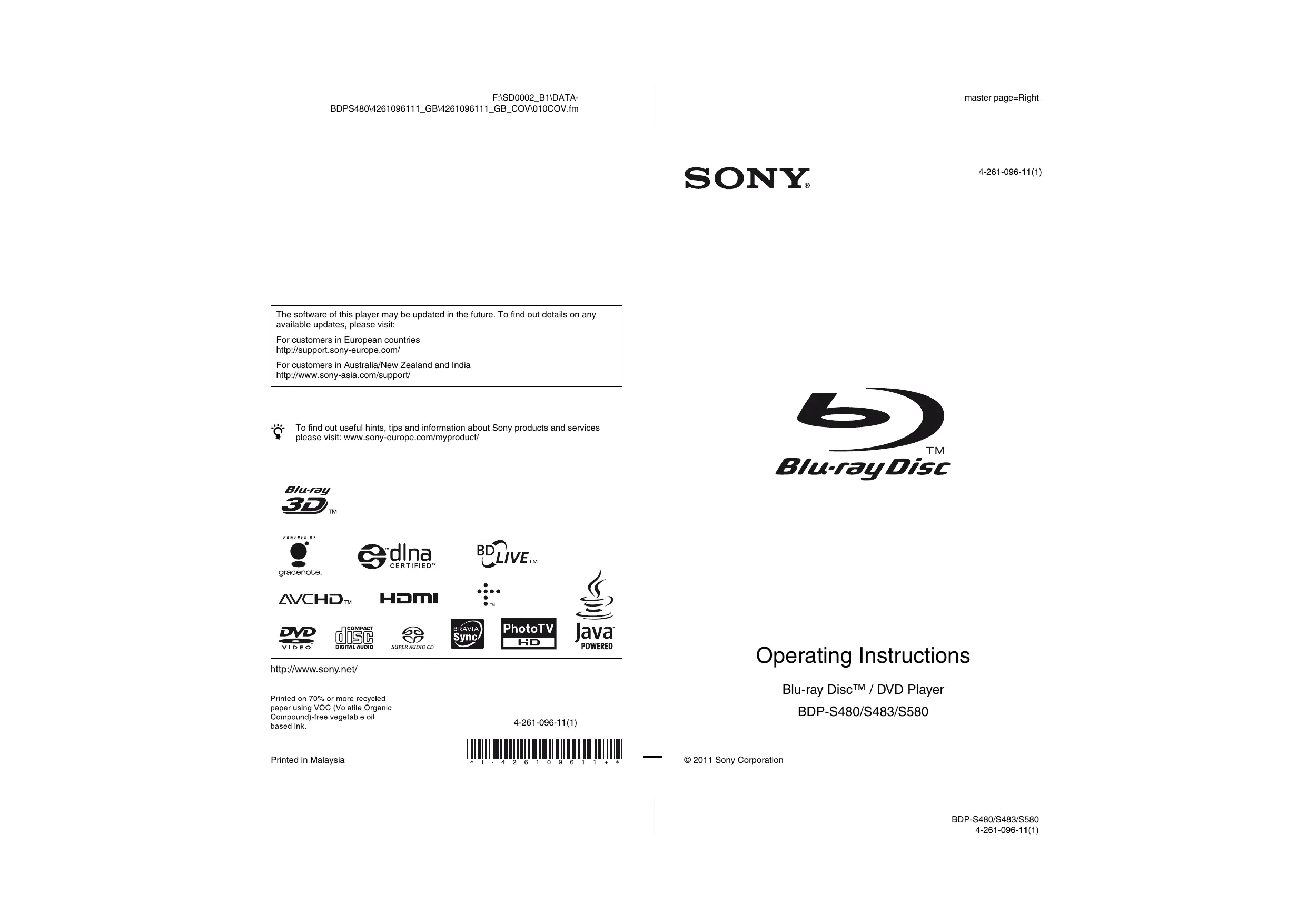

Download the instructions for your Blu-ray player in PDF format for free! Find your manual BDP-S490 - SONY and take your electronic device back in hand. On this page are published all the documents necessary for the use of your device. BDP-S490 by SONY.
USER MANUAL BDP-S490 SONY
The software of this player may be updated in the future. To find out details on any available updates, please visit: For customers in European countries http:/support.sony-europe.com/ For customers in Australia/New Zealand and India http:/www.sony-asia.com/support/ To find out useful int, fps and infomation about Sony products and services please visit: www.sony-europe.com/myproduct/
- 1-4 2 6 1 0 9 6 1 1 + + Printed in Malaysia © 2011 Sony Corporation
WAR.fm WARNING To reduce the risk of fire or electric shock, do not expose this apparatus 10 rain or moisture. To avoid electrical shock, do not open the cabinet. Refer servicing 10 qualified personnel only. The mains lead must be changed only at a qualified service shop. Batteries or batteries installed apparatus shall not be exposed to excessive heat such as sunshine, fire or the like CAUTION The use of optical instruments with this product will increase eye hazard. As the laser beam used in this Blu- ray Disc/DVD player is harmful to eyes, do not attempt to disassemble the cabinet Refer servicing to qualified personnel only. AR PRESS AATANFRINEN BERRLRSE, This label is located on the laser protective housing, inside the enclosure. For customers in European countries CLASS 1 LASER PRODUCT. LASER KLASSE 1 LUOKAN 1 LASERLAITE KLASS 1 LASERAPPARAT 1 RRDET ER This appliance is classified as a CLASS 1 LASER product, The CLASS 1 LASER PRODUCT MARKING is located on the rear exterior. Notice for customers in the United Kingdom and Republic of Ireland A molded plug complying with BS1363 is fitted to this equipment for your safety and convenience Should the fuse in the plug supplied need to be replaced, a fuse of the same rating as the supplied one and approved by ASTA or BST to BS1362, (Le., marked with @ or @ mark) must be used I the plug supplied with this equipment has a detachable fuse cover, be sure to attach the fuse cover after you change the fuse. Never use the plug without the fuse cover. If you should lose the fuse cover, please contact your nearest Sony service station. master page=left specdef20090918 Disposal of Old Electrical & Electronic Equipment (Applicable in the European Union and other European countries with separate collection systems) This symbol on the product or on its packaging indicates that this product shall not be treated as household waste. Instead it shall be handed over to the applicable collection point for the recycling of electrical and electronic equipment. By ensuring this product is disposed of correctly, you will help prevent potential negative consequences for the environment and human health, which could otherwise be caused by inappropriate waste handling of this product. The recycling of materials will help to conserve natural resources. For more detailed information about recycling of this product, please contact your local Civic Office, your household waste disposal service or the shop where you purchased the product. For customers in Australia/New Zealand and India The above symbol is applicable in the European Union and other European countries with separate collection systems. Europe Only
Disposal of waste batteries (applicable in the European Union and other European countries with separate collection systems) This symbol on the battery or on the packaging indicates that the battery provided with this product shall not be treated as household waste. On certain batteries this symbol might be used in combination with a chemical symbol. The chemical symbols for mercury (Hg) or lead (Pb) are added if the battery contains more than 0.0005% mercury or 0.04% lead. By ensuring these batteries are disposed of correctly, you will help prevent potentially negative consequences for the environment and human health which could otherwise be caused by inappropriate waste handling of the battery. The recycling of the materials will help to conserve natural resources. In case of products that for safety, performance or data integrity reasons require a permanent connection with an incorporated battery, this battery should be replaced by qualified service staff only.
WAR.im To ensure that the battery will be treated properly, hand over the product at end-of-ife to the applicable collection point for the recycling of electrical and electronic equipment. For all other batteries, please view the section on how to remove the battery from the product safely. Hand the battery over to the applicable collection point for the recycling of waste batteries For more detailed information about recycling of this product or battery, please contact your local Civic Office, your household waste disposal service or the shop where you purchased the product For customers in European countries The manufacturer of this product is Sony Corporation, 1-7-1 Konan Minato-ku Tokyo, 108-0075 Japan. The Authorized Representative for EMC and product safety is Sony Deutschland GmbH, Hedelfinger Strasse 61, 70327 Stuttgart, Germany. For any service or guarantee matters please refer to the addresses given in separate service or guarantee documents. Precautions + To prevent fire or shock hazard, do not place objects filled with liquids, such as vases, on the apparatus. + Install this unit so that the mains lead can be unplugged from the wall socket immediately in the event of trouble. For customers in European countries and Australia/New Zealand This unit operates on 220-240V AC, 50/60Hz. Check that the units operating voltage is identical with your local power supply. master page=right specdef20090918 Precautions This equipment has been tested and found to comply with the limits set out in the EMC Directive using a connection cable shorter than 3 metres. On placement + Place the player in a location with adequate ventilation to prevent heat build-up in the player. + Do not place the player on a soft surface such as a rug that might block the ventilation holes. Do not install this player in a confined space, such as a bookshelf or similar unit. + Do not place the player in a location near heat sources, or in a place subject to direct sunlight, excessive dust, or mechanical shock. Do not place the player outdoors, in vehicles, on Ships, or on other vessels. If the player is brought directly from a cold to a warm location, or is placed in a very damp room, moisture may condense on the lenses inside the player. Should this oceur, the player may not operate properly. In this case, remove the disc and leave the player turned on for about half an hour until the moisture evaporates. + Do not install the player in an inclined position. It is designed to be operated in a horizontal pos only. + Do not place metal objects in front of the front panel. It may limit reception of radio wav Do not place the player in a place where medical equipment is in use. It may cause a malfunction of medical instruments. + If you use a pacemaker or other medical device, consult your physician or the manufacturer of your medical device before using the wireless LAN function. + This player should be installed and operated with à minimum distance of at least 20 cm or more between the player and a person’ body {excluding extremities: hands, wrists, feet and ankles). + Do not place heavy or unstable objects on the player Do not place any objects other than dises on the disc tray. Doing so may cause damage to the player or the object. + Take out any discs when you move the player. If you don't, the disc may be damaged. + Disconnect the AC power cord (mains lead) and all other cables from the player when you move the player. —contnued 3
WAR.fm On power sources + The player is not disconnected from the AC power source (mains) as long as it is connected to the wall outlet, even if the player itself has been turned off. Disconnect the player from the wall outlet if you are not going to use the player for a long time, To disconnect the AC power cord (mains lead), grasp the plug itself, never pull the cord. Observe following points to prevent the AC power cord (mains lead) being damaged. Do not use the AC power cord (mains lead) if it is damaged, as doing so may result in an electric shock or fire. — Do not pinch the AC power cord (mains lead) between the player and wall, shelf, etc. — Do not put anything heavy on the AC power cord (mains lead) or pull on the AC power cord {mains lead) itself. On adjusting volume Do not turn up the volume while listening to a section with very low level inputs or no audio signals. If you do, your ears and the speakers may be damaged when a peak level section is played. On cleaning Clean the cabinet, panel, and controls with a soft cloth. Do not use any type of abrasive pad, scouring powder or solvent such as alcohol or benzine. On cleaning discs, disc/lens cleaners Do not use cleaning dises or disc/lens cleaners including wet or spray types). These may cause the apparatus 10 malfunction. On replacement of parts In the events that this player is repaired, repaired parts may be collected for reuse or recycling purposes. On connecting to the HDMI OUT jack Observe the following as improper handling may damage the HDMI OUT jack and the connector. + Carefully align the HDMI OUT jack on the rear of the player and the HDMI connector by. checking their shapes. Make sure the connector is not upside down or tlted.
master page=left specdef20090918 Be sure to disconnect the HDMI cable when moving the player. Hold the HDMI connector straight when connecting or disconnecting the HDMI cable. Do not twist or force the HDMI connector into the HDMI OUT jack. On watching 3D video images Some people may experience discomfort (such as eye strain, fatigue, or nausea) while watching 3D video images. Sony recommends that all viewers take regular breaks while watching 3D video images. The length and frequency of necessary breaks will vary from person to person. You must decide what works best. If you experience any discomfont, you should stop watching the 3D video images until the discomfort ends: consult a doctor if you believe necessary. You should also review (i) the instruction manual and/or the caution message of any other device used with, or Blu-ray Disc contents played with this product and (ii) our website* for the latest information. The vision of young children (especially those under six years old) is still under development. Consult your doctor (such as a pediatrician or eye doctor) before allowing young children to watch 3D video images. Adults should supervise young children to ensure they follow the recommendations listed above. + For customers in European countries http:/www.son; irope.com/myproduct/ For customers in Australia/New Zealand and India http/www.sony-asia.com/support/ — continued to page 6
COVTOC.fm IMPORTANT NOTICE Caution: This player is capable of holding a still video image or on-screen display image on your television screen indefinitely. If you leave îhe still video image or on-screen display image displayed on your TV for an extended period of time you risk permanent damage to your television screen. Plasma display panel televisions and projection televisions are susceptible to this. If you have any questions or problems concerning your player, please consult your nearest Sony dealer. Copy Protection Please be advised of the advanced content protection systems used in both Blu-ray Disc and DVD media. These systems, called AACS (Advanced Access Content System) and CSS (Content Scramble System), may contain some restrictions on playback, analogue output, and other similar features. The operation of this product and the restrictions placed may vary depending on the date of purchase, as the govering board of the AACS may adopt or change its restriction rules after the time of purchase. Copyrights and Trademarks + “AVCHD” and the “AVCHD” logo are trademarks of Panasonic Corporation and Sony Corporation. + Java, the coffee cup logo, and all Java based marks are trademarks or registered trademarks of Sun Microsystems, Inc. in the U.S. or other Computer Entertainment Inc. + This product incorporates High-Definition Multimedia Interface (HDMI) technology. HDMI, the HDMI logo and High-Definition Multimedia Interface are trademarks or registered trademarks of HDMI Licensing LLC in the United States and other countries. a trademark.
," “DVD+RW,” “DVD-RW,”
DVD+R," “DVD-R,” “DVD VIDEO," and ‘CD” logos are trademarks. + “BD-LIVE," “BD-LIVE" logo, and “BONUSVIEW"” are trademarks of Blu-ray Disc ation. y 3D° and “Blu-ray 3D° logo are trademarks of Blu-ray Disc Association. “xv.Colour” and “x.v.Colour” logo are trademarks of Sony Corporation “BRAVIA” is a trademark of Sony Corporation. “PhotoTV HD” and the “PhotoTV HD” logo are trademarks of Sony Corporation + MPEG Layer-3 audio coding technology and patents licensed from Fraunhofer IIS and Thomson. master page=left specdef20090918 Windows Media is either a registered trademark or trademark of Microsoft Corporation in the United States and/or other countries. This product is protected by certain intellectual Microsoft Corporation. Use or distribution of such technology outside of this product is prohibited without à license from Microsoft or an authorized Microsoft subsidiary. Music and video recognition technology and related data are provided by Gracenote?. Gracenote is the industry standard in music recognition technology and related content delivery. For more information, please visit www.gracenote.com. CD, DVD, Blu-ray Disc, and music and video- related data from Gracenote, Inc., copyright © 2000-present Gracenote. Gracenote Software, copyright © 2000-present Gracenote. One or more patents owned by Gracenote apply to this product and service. See the Gracenote website for a nonexhaustive list of applicable Gracenote patents. Gracenote, CDDB, MusicID, MediaVOCS, the Gracenote logo and logotype, and the “Powered by Gracenote” logo are either registered trademarks or trademarks of Gracenote in the United States and/or other countries. >< gracenote. The Wi-Fi CERTIFIED'M Logo is a certi mark of the Wi-Fi Alliance. The Wi-Fi Protected Setup" Mark the Wi-Fi Alliance. ‘Wi-Fi CERTIFIEDIY" and “Wi-Fi Protected Setup%®” are trademarks of the Wi-Fi Alliance. DLNA®, the DLNA Logo and DLNA CERTIFIED'M are trademarks, service marks, or certification marks of the Digital Living Network Alliance. All other trademarks are trademarks of their respective owners. Other system and product names are generally trademarks or registered trademarks of the manufacturers. 1 and ® marks are not indicated in this document mark of
PAR.fÎm specdef20090918 Guide to Parts and Controls Front panel il (a E Œ 8 ë m6 Ë D button has a tactile dot. Use the tactile dot as a reference when operating the player. Disc tray [6] = (stop) Power indicator - (play) Lights up in white when the player is 4 (open/close) turned on. [8] 14) (on/standby) Turns on the player, or sets to standby Remote sensor [4] Front panel display mode. »-, IE: Lights up during playback or pause. To lock the disc tray (Child Lock) G: Lights up when enabling the repeat You can lock the disc tray to prevent it being setting. opened by mistake. HD: Lights up when outputting 720p/ When the player is turned on, hold down B 1080i/1080p video signals. on the player for more than 10 seconds. The [5] <- (USB) jack Connect a USB device to thi: disc tray is locked or unlocked. Rear panel LINE OUT (R-AUDIO-L) jacks [5] + (USB) jack LINE OUT (VIDEO) jack [6] Ventilation holes HDMI OUT jack DIGITAL OUT (COAXIAL) jack [4] LAN (100) terminal COMPONENT VIDEO OUT (Y, Ps, P8) jacks —continued 7
PAR.fm Remote The available functions of the remote differ depending on the disc or the situation. eo" 0 1/0 20 00,T D 210) < ao l+ m0) AUDIO SUBIME dk IT Imiss| Number 5, AUDIO, 22 +, and B= buttons have a tactile dot. Use the tactile dot as a reference when operating the player. + Grey-coloured buttons glow in the dark (BDP- S483 only) master page=left specdef20090918 [1] & (open/close) Opens or closes the disc tray. -TV- © (TV input select) Switches between TV and other input sources -TV- 1 (TV on/standby) Turns on the TV, or sets to standby mode. LC) (on/standby) Turns on the player, or sets to standby mode. Number buttons (0 - 9) Enters the title/chapter numbers, etc. A (volume) +/- Adjusts the TV volume. AUDIO (page 23) Selects the language track when multi- lingual tracks are recorded on BD- ROMs/DVD VIDEOs. Selects the sound track on CDs. SUBTITLE (page 23) Selects the subtitle language when multi- lingual subtitles are recorded on BD- ROMs/DVD VIDEOS. x (muting) Turns off the sound temporarily. Colour buttons (red/green/ yellow/blue) Shortcut keys for interactive functions. [4] TOP MENU Opens or closes the BD’s or DVD’s Top Menu.
PAR.im Centre button (ENTER) Enters the selected item. [5] Kt@/»»1 (previous/next) Skips to the previous/next chapter, track, or file. Il (pause) Pauses or re-starts playback <O»»r (fast reverse/fast forward) s/fast forwards the disc d during playback. Each ss the button during playback of videos, the search speed changes. + Plays in slow motion, when pressed for more than one second in pause mode. + Plays one frame at a time, when pressed briefly in pause mode. Playback in slow motion or one frame is not available for a Blu-ray 3D Disc. > (play) Starts or re-starts playback. © (favourites) (page 17) Displays the Internet content added to the Favourites List. You can save up to 18 of your favourite Internet content programmes. HE (stop) Stops playback and remembers the stop point (resume point). The resume point for a title/track is the last point you played or the last photo for a photo folder. DISPLAY (page 15) Displays playback and web browsing information on the screen. master page=right specdef20090918 Home menu display The home menu appears when you press HOME. Select a category using %=/=b. ENTER. Select an item using #/Ÿ, and press Item Category : Adjusts the player settings. Displays photos.
F:\SD0002_B1\DATA- master page=left BDPS4804261096111_GB\426109611 1-GHGB 040 specdef20090918 Hookups and Settings Step 1: Connecting the Player Do not connect the mains lead until you have made all the connections. For supplied accessories, see “Supplied accessories” (page 29). Connecting to your TV Select one of the following connection methods according to the input jacks on your TV. Match the colour of the plug to that of the jack when connecting. Q HDMI cable‘! High quality =) LD | — HD 5] AudioWideo cable"! mn 7 I
Component video cable‘? not supplied) Audio/video cable‘! Standard quality *1 See “Supplied accessories” (page 29) 2 Protected content on BD-ROMS is output at 480i/576i resolution from the COMPONENT VIDEO OUT jack (page 6).
Do not connect the player through a VCR. Video signals fed through VCRS may be affected by copyright protection systems and the picture will be distorted on the telev
F:\SD0002_B1\DATA- master page=right BDPS4804261096111_GBM4261096111_GB\GB_ 040 specdef20090918 BAS.im Connecting to your AV amplifier (receiver) Select one of the following connection methods according to the input jacks on your AV amplifier (receiver). When you select @ or ©, make the appropriate settings in the [Audio Settings] setup (page 22). HDMI cable‘! HDMI cable {not supplied) HDHTGU Coaxial digital cable (not supplied) Dean — Set [Dolby Digital‘? (page 23) and [DTS"*] (page 23) im, et | mon Audioivideo cable"! (O} *1 See “Supplied accessories” (page 29). *$ Manufactured under license under U.S. Patent *? Manufactured under license from Dolby #'s: 5451.942; 5,956,674; 5,974,380; Laboratories. 5,978,762; 6,226,616; 6,487,535; 7,212,872; Dolby, Pro Logic, and the double-D symbol are 7.333,929; 7,392,195; 7.272,567 & other U.S. trademarks of Dolby Laboratories. and worldwide patents issued & pending. DTS and the Symbol are registered trademarks, & DTS-HD, DTS-HD Master Audio, and the DTS logos are trademarks of DTS, Inc. Product includes software. © DTS, Inc. All Rights Reserved.
BAS.im Step 2: Easy Setup When turned on for the first time Wait for a short while before the player turns on and starts [Easy Setup] 1 Insert two R6 (size AA) batteries by matching the © and © ends on the batteries to the markings inside the battery compartment. + to mains 3 Press 1/() to turn on the player. 4 Turn on the TV, then switch the input selector on your TV so that the signal from the player appears on your TV screen. 5 Perform [Easy Setup]. Follow the on-screen instructions to make the basic settings using %»/ — and ENTER on the remote. master page=left specdef20090918 Connecting to the Network Wired Setup Use a LAN cable to connect to the LAN (100) terminal on the player. LAN cable {not supplied)
Broadband Intemet router ADSL modem/ Cable modem Using a shielded interface cable (LAN cable), Straight or crossing, is recommended, To set the network settings Select [Network Settings], [Internet Settings], then [Wired Setup] (page 25), and follow the on-screen instructions to complete the setup. USB Wireless Setup Turn off the player, then connect the USB Wireless LAN Adapter (UWA-BR100 only available as of October 2010) to the USB jack on the front or rear of the player.
The USB Wireless LAN Adapter may not be available in some regions/countries. USB Wireless LAN Adapter LAN cable QG S) (not supplied) Wireless LAN ADSL modem/ _ Internet router Cable modem
BAS.im To set the network settings Select [Network Settings]. [Internet Settings], then [USB Wireless Setup] (page 25), and follow the on-screen instructions to complete the setup. Wireless Setup (BDP-S580 only) Use the wireless LAN that is built into the player.
N° LAN cable (not supplied) Wireless LAN ADSL modem/ Internet router Cable modem To set the network settings Select [Network Settings]. [Internet Settings], then [Wireless Setup(built-in)] (page 25), and follow the on-screen instructions to complete the setup. master page=right specdef20090918
master page=left specdef20090918 B_O050PLY.fÎm Playback Playing a Disc For playable discs, see “Playable discs” (page 30). 1 Switch the input selector on your TV so that the signal from the player appears on your TV screen. 2 Press &, and place a disc on the disc tray. Playing side facing down 3 Press £ to close the disc tray. Playback starts. If playback does not start automatically, select @ in the EH [Video], JJ [Music], or Éd [Photo] category, and press ENTER. Enjoying BONUSVIEW/BD-LIVE Some BD-ROMS with the “BD-LIVE” logo* have bonus content and other data that can be downloaded for enjoyment. + BD} BDLIVE.. 1 Connect a USB memory to the USB jack on the rear of the player (page 7). As your local storage, use a 1 GB or larger USB memory. 2 Prepare for BD-LIVE (BD-LIVE only). + Connect the player to a network (page 12). + Set [BD Internet Connection] to [Allow] (page 23) 3 Insert a BD-ROM with BONUSVIEW/ BD-LIVE. The operation method differs depending on the disc. Refer to the instruction manual supplied with the disc. To delete data in the USB memory, select [Erase BD Data] in the EH [Video], and press ENTER. AI data stored in the buda folder will be erased Enjoying Blu-ray 3D You can enjoy a Blu-ray 3D Disc with the “Blu-ray 3D° logo* ‘32. 1 Prepare for Blu-ray 3D Disc playback. + Connect the player to your 3D- compatible devices using a High Speed HDMI cable. + Set [3D Output Setting] and [TV Screen Size Setting for 3D] in the [Screen Settings] setup (page 21). 2 Insert a Blu-ray 3D Disc. The operation method differs depending on the disc. Refer to the instruction manual supplied with the disc. Refer also to the instruction manuals supplied with your TV and the connected devi
master page=right specdef20090918 B_050PLY.fÎm Displaying the play information You can check the playback information, etc. by pressing DISPLAY. The displayed information differs depending on the disc type and player status. Example: when playing a BD-ROM Ho g Playing from a USB Device You can play video/music/photo files on the connected USB device. For playable USB devices, see “Playable types of files” (page 30). À connect the USB device to the USB jack on the player. Refer to the instruction manual supplied with the USB device before connecting. The currently selected audio setting [4] Available functions (P% angle, D audio, [:] subtitle) [5] Playback information Displays the Play mode, Playing status bar, Disc type, Video codec, Bitrate, Repeat type, Elapsed time, and Total playing time. [6] Chapter number The currently selected angle [: L = =| Output resolution/Video frequency Æ Title number or name USB device 2 Select #-# [video], J3 [Music], or @& [Photo] on the home menu using
master page=left specdef20090918 B_O050PLY.fÎm Playing via a Network Streaming BRAVIA Internet Video Serves as a gateway delivering the selected Internet content and a variety of on-demand entertainment straight to your player. Some Internet content requires registra before it can be played. 1 Prepare for BRAVIA Internet Video. Connect the player to a network (page 12). 2 Select É [Video], J3 [Music], or & [Photo] on the home menu using
3 Select an Internet content provider icon using #/4, and press ENTER. ‘When an Internet content list has not been acquired, an unacquired icon or a new icon is displayed. To use the control panel The control panel appears when the video file Starts playing. The displayed items may differ depending on Internet content providers. To display again, press DISPLAY. Control display Press €=/f/#/=b or ENTER for playback operations. [2] Playing status bar Status bar, Cursor indicating the current position, Playing time, Duration of the video file [8] Network condition ulll indicates the signal strength for wireless connection. #8 indicates a wired connection. [4] Network transmission speed [5] The next video file name [6] The currently selected video file name Playing files on a Home Network (DLNA) A DLNA-compatible product can play video/ music/photo files stored on another DLNA- compatible product via a network. The following is a list of different kinds of DLNA-compatible products. This unit can be used as Player and Renderer. + Server: À product that sends data. + Player: A product that receives and plays data. + Renderer: À product that receives and plays data. It can be operated only from other products. + Controller: À product that controls a renderer. 1 Prepare for using DLNA. + Connect the player to a network (page 12) + Prepare the other necessary DLNA- compatible products. Refer to the instruction manual supplied with the product. To play a file from a DLNA server via this unit (DLNA player) Le] This PC ---- [pe > unit Server Player Select the DLNA server icon from H-H [Video], JJ [Music], or 18 [Photo], then choose the file you want to play.
master page=right specdef20090918 B_050PLY.fÎm To play a file from a DLNA server via another product (Renderer) When you play files from a DLNA Server on this unit, you can use a DLNA Controller- compatible product (a phone, etc.), to control playback. This > uni F7 Renderer Phone, etc. Controller Control this unit using a DLNA controller. Refer to the instruction manual supplied with the DLNA controller. Playing the same music in different rooms (PARTY STREAMING) You can play music in other rooms simultaneously by connecting Sony products which are compatible with DLNA and the PARTY STREAMING function. The following is a list of different kinds of PARTY STREAMING-compatible products. This unit can be used as a PARTY host and PARTY guest. + PARTY hos sends music + PARTY guest: À product that receives and plays music À product that stores and 1 Prepare for PARTY STREAMING. + Connect the player to a network (page 12). + Connect the products which are compatible with the PARTY STREAMING function to a network. To use the player as PARTY host Select a track in JJ [Music], then select [Start Party] from the options menu to start a PARTY. To close the PARTY, press HOME. To use the player as PARTY guest Select 73 [Party] in J] [Music], then select the PARTY host product icon.
The sale and product lineup of products that are compatible with the PARTY STREAMING function differ depending on the area. Available Options Various settings and playback operations are available by pressing OPTIONS. The available items differ depending on the situation. Common options Items Details IRepeat Sets the repeat mode. Setting] [8D Menu] [3D Depth Adjustment]: Adjusts the depth of 3D image. [Favorites | Displays the Favourites List. List] [Play/Stop] Starts or stops the playback. [Play from Plays the item from the Start] beginning. [Add to Adds Internet content to the Favourites] Favourites List. Removes Internet content from the Favourites List. [Remove from Favourites] ed Ï —continued 17
B_O050PLY.fÎm master page=left specdef20090918 EX [Video] only J1 Music] only ltems Details Items Details [SD Output | Sets whetherornottooutput [Add Registers music files in the Setting] 3D video automatically. Slideshow USB memory as slideshow EGM background music (BGM). [AV SYNC] | Adjusts the gap between EMI ackground musie (BGMD. picture and sound, by [Start Party] | Starts a PARTY with the delaying the sound output in selected source. relation to the picture output This item may not appear (0 to 120 milliseconds). depending on the source. [Video + [Picture Quality Mode] [Leave Party] | Leaves from a PARTY Settings] Selects the picture settings which the player is for different lighting participating in. The environments. PARTY STREAMING + [FNRIJ: Reduces the function continues among random noise appearing in other participating products. the picture. - — + [BNRJ: Reduces the [Giose/Pariylh) Clos a PARTY which the mosaic-like block noise in player is participatine in. the picture The PARTY STREAMING + MAR]: Reduces minor function ends fo al other noise around the picture participating products. outlines (mosquito noise). |[Music Displays information on the eue Search] audio CD (CD-DA) based [Fa] Pauses the playback. on Gracenote technology. [Top Menu] | Displays the BD'sorDVD's Searches for related Top Menu. information using keywords - = from Gracenote when (RP Displays the BD-ROM'S selecting [Album], [Track], lenu] Pop-up Menu or DVD's or [Artist], Displaÿs a list of menu. titles when selecting [Title Search] … Searches for a title on BD- [Playback History] or ROMs/DVD VIDEOS and [Search History] Starts playback from the beginning. à [Photo] only [Chapter Searches for a chapier and = Search] Starts playback from the items Details beginning. [Slideshow | Changes the slideshow [Angle] Switches to other viewin Speed] speed. angles when multi-angl ISlideshow | Sets the effect for are recorded on BD-ROMs/ Effect] Slideshows. DVD VIDEOs. = ISlideshow | + [Off]: Turns off the [IP Content | Adjuststhepicturequalityof BGM] function. Noise Internet content + [My Music from USB] Reduction] Sets the music files ï Days stered in [Add [Video Displays information on the register Search] BD-ROM/DVD-ROM Slideshow BGM]. based on Gracenote + [Play from Music CDJ: technology. Searches for Sets the tracks in CD-DASs. related information using [Slideshow] | Plays a slideshow Keywords from Gracenote when selecting [Video] or [Cast]. Displays a list of titles when selecting {Playback History] or [Search History]. [Rotate Left] Rotates the photo counterclockwise by 90 degrees. [Rotate Right] Rotates the photo clockwise by 90 degrees.
master page=right specdef20090918 B_O60INT.fm Browsing Websites You can connect to the Internet and enjoy websites. 1 Prepare for Internet Browser. Connect the player to a network (page 12). 2 Select & [Network] on the home Menu USINg =/=>. 3 Select is [Internet Browser] using #/ Ÿ, and press ENTER. Some websites use functions which this browser does not support. Some websites may not be displayed correctly, or may not function. To enter a URL Select [URL entry] from the options menu. Enter the URL using the software keyboard, then select [Enter]. To set the default start page While displaying the page you want to set, select [Set as start page] from the options menu. To quit Internet Browser Press HOME. Internet Browser display You can check the website information by pressing DISPLAY. The display information differs depending on the website and page status.
Fsony] à ail ERTE teuequy Ï [1] Page title [2] Cursor Move by pressing €=/f/#/=}. Place the cursor on the link you want to view, then press ENTER. The linked website is displayed. [8] Page address [4] SSL icon Displays when the website is protected and connected safely. [5] Signal strength indicator Appears when the player is connected to a wireless network. [6] Progress bar/Loading icon Appears when the page is being read, or during file download/transfer. Text input field Press ENTER then choose [Input] from the options menu to open the software keyboard. Scroll bar Press =, mb to move the page display left, up, down or right. —continued 19
master page=left specdef20090918 Details B_O60INT.fm Available options Items [Open in new Various settings and operations are available window] Opens a link in a new window. by pressing OPTIONS. View server certificates sent from pages that support ing OPTIONS Dispk The available items differ depending on the nfiele] situation ems Details [Browser Displays the Internet Setup] Browser setting + [Zoom]: Increases or decreases the size of the displayed contents. + [JavaScript Setup] Enables or disables JavaScript. + [Cookie Setup]: Sets whether or not to accept cookies. + [SSL Alarm Display] Enables or disables SSL. Input] Displays the software Keyboard to enter characters while browsing a website. [Break] Moves the cursor to the next line in the text input field. [Delete] Erases one character on the left side of the cursor during text input. [Window List] previously displayed website by selecting the window. [Bookmark Displays the bookmark list. List] [Character Sets the character code. encoding] [Previous Moves 10 the previous/next page/Next page. page] [Cancel Stops loading a page. loading] IReload] Reloads the same page [URL entry] Allows you to enter a URL when the software keyboard is displayed. [Add to Adds the currently displayed Bookmark] | website to the bookmark list. [Setas start Sets the currently displayed page] website as the default start page.
master page=right specdef20090918 B_070ADJ.fÎm Settings and Adjustments Using the Settings Displays Select & [Setup] on the home menu when you need to change the settings of the player. The default settings are underlined. 1 Select & [Setup] on the home menu USINg =/=>. 2 Select the setup category icon using 4/4, and press ENTER. Icon Explanation [Network Update] (page 21) Updates the software of the player.
[Screen Settings] (page 21) Makes the video settings according to the type of connecting jacks TAudio Settings] (page 22) Makes the audio settings according 10 the type of connecting jacks IBD/DVD Viewing Settings] (page 23) Makes detailed settings for BD/ DVD playback. [Parental Control Settings] (page 23) Makes detailed settings for the Parental Control function. Explanation [Easy Setup] (page 25) Re-runs the Easy Setup to make te basic settings. [Resetting] (page 25) Resets the player 10 the factory settings. ©) [Network Update] Select [OK] to update the player’s software via the network. + We recommend the network update every 2 months or so. + For information about update functions, following website: For customers in European countries http}/support.sony-europe.com/ the For customers in Australia/New Zealand and India hüp:/hwww.sony-asia.com/support/ siuausn{py pue sôuryas Ï 4 [Screen Settings] M [3D Output Setting] [Auto]: Normally select this. [Off]: Select this to display all content in 2D. M ITV Screen Size Setting for 3D] Sets the screen size of your 3D-compatible TV. [Music Settings] (page 24) Makes detailed settings for Super Audio CD playback. [System Settings] (page 24) Makes the player-related settin [Network Settings] (page 25) Makes detailed settings for the Internet and network. MTV Type] 9]: Select this when connecting to a creen TV or a TV with a wide mode function. [4:31]: Select this when connecting to a 4:3 screen TV without a wide mode function. M [Screen Format] [Original]; Select this when connecting to a TV with a wide mode function. Displays a 4:3 screen picture in 16:9 aspect ratio even on a wide-screen TV. [Fixed Aspect Ratio]: Changes the picture size to fit the screen size with the original picture aspect ratio. —continued 21
master page=left BDPS4804261096111_GB\4261096111_GB\G specdef20090918 B_070ADJ.îm M IDVD Aspect Ratio] M [YCbCr/RGE (HDMI)] [Letter Box]: Displays a wide picture with n the top and bottom. [Pan & Scan]: Displays a full-height picture on the entire screen, with trimmed sides. M [Cinema Conversion Mode] [Auto]: Normally select this. The player automatically detects whether the material is video-based or film-based, and switches to the appropriate conversion method. [Video]: The conversion method suited for video-based material will always be selected regardless of the material. I [Output Video Format] [HDMI]; Normally select [Auto]. Select [Original Resolution] to output the resolution recorded on the disc. When the resolution is lower than the SD resolution, it is scaled up to the SD resolution: [Component Video]: Select the resolution that suits your TV. [Video]: Automatically sets the lowest resolution. + When connecting the HDMI OUT jack and other video output jacks at the same time, select [Component Video]. + If no picture appears when setting [HDMI] or [Component Video] resolution, try another resolution setting. + When connecting via the COMPONENT VIDEO OUT jack and [Component Video] is selected, BD-ROM playback of protected content is only supported at 480i/576i output resolution (page 6). M IBD/DVD-ROM 1080/24p Output] [Auto]: Outputs 1920 x 1080p/24 Hz video signals only when connecting a 1080/24p- compatible TV using the HDMI OUT jack. [Off]: Select this when your TV is not compatible with 1080/24p video signals. [Auto]: Automatically detects the connected TV type, and switches to the matching colour setting. LYCbCr (4:2:2)]: Outputs YCCr 4:2:2 video signals. LYCbCr (4:4:4)]: Outputs YCbCr 4:44 video signals. [RGB]: Outputs RGB video signals. M [HDMI Deep Colour Output] [Auto]: Normally select this. [T6bit], [12bit], [10bit]: Outputs 16bit/12bit/ 10bit video signals when the connected TV is compatible with Deep Colour. [Off]: Select this when the picture is unstable or colours appear unnatural. {Pause Mode] [Auto]: Normally select this. Dynamic moving pictures appear without blurring. [Frame]: Displays static pictures at high resolution. #) [Audio Settings] M [Audio (HDMI)] [Auto]: Normally select this. Outputs audio signals according to the status of the connected HDMI device. [PCM}: Outputs PCM signals from the HDMI OUT jack. HIDSD Output Mode] [On]: Outputs DSD signals from the HDMI OUT jack when playing a Super Audio CD. When [On] is selected, no signal is output from other jacks. [Off]; Outputs PCM signals from the HDMI OUT jack when playing a Super Audio CD. M [BD Audio MIX Setting] [On]: Outputs the audio obtained by mixing the interactive and secondary audio to the primary audio. [Off]: Outputs the primary audio only. Select this to output HD audio signals to an AV amplifier (receiver).
master page=right specdef20090918 B_070ADJ.fÎm M IDolby Digital] [Downmix PCM]: Converts to output Linear PCM signals. Select this when connecting an audio device without a built-in Dolby Digital decoder. [Dolby Digital]: Select this when connecting an audio device with a built-in Dolby Digital decoder. MIDTS] [Downmix PCM]: Converts to output Linear PCM signals. Select this when connecting to an audio device without a built-in DTS decoder. IDTS}; Select this when connecting to an audio device with a built-in DTS decoder. M IDTS Neo:6] [Cinema]: Outputs simulated multichannel sound from 2 channel sources via the HDMI OUT jack according to the capability of the connected device using DTS Neo:6 Cinema mode. [Music]: Outputs simulated multichannel sound from 2 channel sources via the HDMI OUT jack according to the capability of the connected device using DTS Neo:6 Music mode. [Off]: Outputs sound with its original number of channels via the HDMI OUT jack. MH IAudio DRC] [Auto]: Performs playback at the dynamic range specified by the disc (BD-ROM only). Other discs are played back at the [On] level. [On]: Performs playback at a standard compression level. [Off]: No compression works. À more dynamic sound is produced. EDownmix] [Surround]: Outputs audio signals with surround effects. Select this when connecting an audio device that supports Dolby Surround (Pro Logic) or DTS Neo:6. [Stereo]: Outputs audio signals without surround effects. Select this when connecting an audio device that does not support Dolby Surround (Pro Logic) or DTS Neo:6. © [BD/DVD Viewing Settings] M IBD/DVD Menu] Selects the default menu language for BD- ROMS or DVD VIDEOS When you select [Select Language Code], the display for entering the language code appears. Enter the code for your language by referring to “Language code list” (page 32). M [Audio] Selects the default track language for BD- ROMS or DVD VIDEOS When you select [Original], the language given priority in the disc is selected. When you select [Select Language Code], the display for entering the language code appears. Enter the code for your language by referring to “Language code list” (page 32). [Subtitle] Selects the default subtitle language for BD- ROMS or DVD VIDEOS When you select [Select Language Code], the display for entering the language code appears. Enter the code for your language by referring to “Language code list” (page 32). M [BD Hybrid Disc Playback Layer] {BD}: Plays BD layer. [DVD/CD|: Plays DVD or CD layer. M [BD Internet Connection] [Allow]: Normally select this. low]: Prohibits Internet x, [Parental Control Settings] M Password] Sets or changes the password for the Parental Control function. À password allows you to set a restriction on BD-ROM or DVD VIDEO, and Internet video playback. If necessary, you can differentiate the restriction levels for BD-ROMSs, DVD VIDEOS, and Internet videos. siuausn{py pue sôuryas Ï —continued 23
master page=left specdef20090918 B_070ADJ.fÎm M IParental Control Area Code] Playback of some BD-ROMs, DVD VIDEOS, or Internet videos can be limited according to the geographic area. Scenes may be blocked or replaced with different scenes. Follow the on-screen instructions and enter your four-digit password. M IBD Parental Control] Playback of some BD-ROMS can be limited according to the age of the users. Scenes may be blocked or replaced with different scenes. Follow the on-screen instructions and enter your four-digit password M IDVD Parental Control] Playback of some DVD VIDEOS can be limited according to the age of the users. Scenes may be blocked or replaced with different scenes. Follow the on-screen instructions and enter your four-digit password. M Internet Video Parental Control] Playback of some Internet videos can be limited according to the age of the users. Scenes may be blocked or replaced with different scenes. Follow the on-screen instructions and enter your four-digit password. M linternet Video Unrated] [Allow]: Allows the playback of unrated Internet videos. [Block]: Blocks the playback of unrated Internet videos. &3 [Music Settings] %= [System Settings] HIOSD] Selects your language for the player on- screen displays M IDimmer] Bright}: Bright lighting. [Dark]: Low lighting. [Off]: Turns off the lighting during playback. Low lighting other than during playback. M [Control for HDMI] [On]: The following BRAVIA Sync features are available: -One-Touch Play -System Power-Off Language Follow [Off]: Turns off the function. For details, refer to the instruction manual supplied with the TV or components. M [HDMI: Linked to TV-off] [On]: Automatically turns off the player and HDM-compatible components when the connected TV enters standby mode (BRAVIA Sync). [Off]: Turns off the function. M [Quick Start Mode] [On]: Shortens the startup time when tuming on the player. [Off]: Reduces standby power consumption. M [Auto Standby] [On]: Turns on the [Auto Standby] function. Automatically returns to standby mode if any button on the player or remote is not pressed for more than 30 minutes. [Off]: Turns off the function. M [Super Audio CD Playback Layer] [Super Audio CD}: Plays the Super Audio CD layer. [CD]: Plays the CD layer. M [Super Audio CD Playback Channels] [DSD 2ch];: Plays the 2ch area. [DSD Multi]: Plays the multi-channel area. M [Auto Display] [On]: Automatically displays information on the screen when changing the viewing titles, picture modes, audio signals, etc. [Off]: Displays information only when you press DISPLAY. M [Screen Saver] [On]: Turns on the screen saver function. The screen saver image appears when you do not use the player for more than 10 minutes while an on-screen display is displayed. [Off]: Turns off the function.
master page=right specdef20090918 B_070ADJ.fÎm M [Software Update Notification] [On]: Sets the player to inform you of newer software version information (page 21). [Off]: Turns off the function. M IGracenote Settings] [Auto]: Automatically downloads information when disc playback stop: Connect to the network for downloading. [Manual]: Downloads the disc information when [Video Search] or [Music Search] is selected. M [System Information] Displays the players software version information and the MAC address. 4 [Network Settings] M Internet Settings] Connect the player to the network beforehand. For details, see “Connecting to the Network” (page 12) [View Network Status]: Displays the current network status. [Wired Setup]: Select this when you connect to a broadband router using a LAN cable. [Wireless Setup(built-in)] (BDP-S580 only): Select this when you use the wireless LAN that is built into the player for wireless network connection. [USB Wireless Setup]: Select this when you use a USB Wireless LAN Adapter for wireless network connection. For further details, visit the following website and check the FAQ contents: For customers in European countries http://support.sony-europe.com/ I INetwork Connection Diagnostics] You can run the network diagnostic to check if the network connection has been made properly. MH [Connection Server Settings] Sets whether or not to display the connected server. M [Renderer Set-up] [Automatic Access Permission]: Sets whether or not to allow automatic access from newly detected DLNA renderer- compatible product. [Renderer Name]: Displays the player s name as it is listed on other DLNA products on the network. M [Renderer Access Control] Displays a list of DLNA controller- compatible products and sets whether or not each product is accessible via this player. M [Party Auto Start] [On]: Starts a PARTY or joins an existing PARTY at the request of a networked product compatible with the PARTY STREAMING function. [Off]: Turns off the function. MH [Media Remote Device Registration] Registers your “Media Remote” device. M [Registered Media Remote Devices] Displays a list of the registered your “Media Remote” devices. = [Easy Setup]
Re-runs the [Easy Setup] to make the basic settings. Follow the on-screen instructions. 24 [Resetting] M {Reset to Factory Default Settings] You can reset the player settings to the factory default by selecting the group of settings. AIL the settings within the group will be reset. M [initialize Personal Information] You can erase your personal information stored in the player.
ADD.fm Additional Information Troubleshooting If you experience any of the following difficulties while using the player, use this troubleshooting guide to help remedy the problem before requesting repairs. Should any problem persist, consult your nearest Sony dealer. Picture There is no picture or the picture is not output correctly. — Check that all the connecting cables are securely connected (page 10). — Switch the input selector on your TV to display the signal from the player. — Reset the video output resolution 10 the lowest resolution by pressing M on the player for more than 10 seconds. — For HDMI connections, try the following @Turn the player off and on again. Turn the connected equipment off and on again. @Disconnect and then reconnect the HDMI cable. — The HDMI OUT jack is connected to a DVI device that does not support copyright protection technology. — For HDMI connections, check the [Output Video Format] settings in the [Screen Settings] setup (page 22). — When the analogue signals are also output, set [BD/DVD-ROM 1080/24p Output] to [Off] in the [Screen Settings] setup (page 22). — For BD-ROMS, check the [BD/DVD-ROM 1080/24p Output] setting in the [Screen Settings] setup (page 22). The display language on the screen Switches automatically when connected to the HDMI OUT jack. When [Control for HDMI] is set to [On] (page 24), the display language on the screen automatically switches according 10 the language setting of the connected TV (if you change the setting on your TV, etc.). master page=left specdef20090918 Sound There is no sound or the sound is not output correctly. — Check that all the connecting cables are securely connected (page 10). — Switch the input selector on your AV amplifier (receiver) so that the audio signals of the player are output from your AV amplifier (receiver). — Ifthe audio signal does not come through the DIGITAL OUT (COAXIAL)/HDMI OUT jack, check the audio settings (page 22) — For HDMI connections, try the following: @Turn the player off and on again. @Turn the connected equipment off and on again. @Disconnect and then reconnect the HDMI cable. — For HDMI connections, if the player is connected to a TV through an AV amplifier (receiver), try connecting the HDMI cable directly to the TV. Refer also to the instruction manual supplied with the AV amplifier (receiver). — The HDMI OUT jack is connected to a DVI device (DVI jacks do not accept audio signals). + The device connected to the HDMI OUT jack does not support the audio format of the player. Check the audio settings (page 22) The HD Audio (Dolby Digital Plus, Dolby TrueHD, DTS-HD High Resolution Audio, and DTS-HD Master Audio) is not output by bitstream. — Set [BD Audio MIX Setting] to [Off] in the [Audio Settings] setup (page 22). — Check that the connected AV amplifier (receiver) is compatible with each HD Audio format The interactive audio is not output. — Set [BD Audio MIX Setting] to [On] in the [Audio Settings] setup (page 22).
BDPS4804261096111_GB4261096111_GB\GB_080
ADD.fm The disc does not play. + The disc is dirty or skewed. + The disc is upside down. Insert the disc with the playback side facing down. + The disc has a format that cannot be played back by this player (page 30) The player cannot play a recorded disc that is not correctly finalised. — The region code on the BD or DVD does not match the player. USB device The player does not detect a USB device connected to the player. — Make sure that the USB device is securely connected to the USB jack — Check if the USB device or a cable is damaged. — Check if the USB device is on. + Ifthe USB device is connected via a USB hub, connect the USB device directly to the player. BRAVIA Internet Video The picture/sound is poor/certain programmes display a loss of detail, especially during fast-motion or dark scenes. — Picture/sound quality may be poor depending on Internet content providers. — Picture/sound quality may be improved by changing the connection speed. We recommend a connection speed of at least
2.5 Mbps for standard definition video
(10 Mbps for high definition video). = Not all videos will contain sound. The picture is small. — Press À 10 zoom in. Network connection The player cannot connect to the network. — Check the network connection (page 12) and the network settings (page 25). master page=right specdef20090918 You cannot connect your PC to the Internet after [Wi-Fi Protected Setup (WPS)] is performed. + The wireless settings of the router may change automatically if you use the Wi-Fi Protected Setup function before adjusting the settings of the router. In this case, change the wireless settings of your PC accordingly. You cannot connect the player to the wireless LAN router. — Check if the wireless LAN router is on. — Depending on the surrounding environment, such as the wall material, radio wave receiving condition, or obstacles benveen the player and the wireless LAN router, the communication distance may be shortened. Move the player and the wireless LAN router closer to each other. — Devices that use a 2.4 GHZ frequency band, such as a microwave, Bluetooth, or digital cordiess device, may interrupt the communication, Move the player away from such devices, or turn off such devices. The desired wireless router is not detected even if [Scan] is performed. — Press RETURN to return to the previous reen, and try [Scan] again. If the desired wireless router is still not detected, press RETURN to select [Manual registration]. The message [A new software version is available.Please go to the “Setup” section of the menu and select “Network update” to perform the update.] appears on the screen when turning the player on. — See [Network Update] (page 21) to update the player to a newer software version. You cannot start the PARTY STREAMING function. — Check that [Party Auto Start] is set to [On] in [Network Settings] (page 25).
ADD.fm Control for HDMI (BRAVIA Sync) The [Control for HDMI] function does not work (BRAVIA Sync). — Check that [Control for HDMI] is set 10 [On] (page 24). If you change the HDMI connection, turn the player off and on agai — If power failure occurs, set [Control for HDMI] to [Off], then set [Control for HDMI] to [On] (page 24). — Check the following and refer to the instruction manual supplied with the component. — the connected component is compatible with the [Control for HDMI] function. — the connected component's setting for the [Control for HDMI] function is correct. — When you connect the player to a TV through an AV amplifier (receiver), — ifthe AV amplifier (receiver) is not compatible with the [Control for HDMI] function, you may be unable to control the TV from the player. if you change the HDMI connection, disconnect and reconnect the mains lead, or a power failure occurs, try the following: OSwitch the input selector of the AV amplifier (receiver) so that the picture from the player appears on the TV screen. @Set [Control for HDMI] to [Off], then set [Control for HDMI] to [On] (page 24). Refer to the instruction manual supplied with the AV amplifier (receiver). The System Power-Off function does not work (BRAVIA Sync). — Check that [Control for HDMI] and IHDME: Linked to TV-off] are set to [On] (page 24). Playback does not start from the beginning of content. — Press OPTIONS, and select [Play from start]. master page=left specdef20090918 Playback does not start from the resume point where you last stopped playing. + The resume point may be cleared from memory depending on the disc when — you open the disc tray. — you disconnect the USB device. — you play other content. — you turn off the player. The disc tray does not open and “LOCKED” or “TLK ON” appears on the front panel display. — When “LOCKED"” appears, the player is locked. To cancel the Child Lock, hold down = on the player until “UNLOCK” appears on the front panel display (page 7). — When “TLK ON” appears, contact your Sony dealer or local authorised Sony service facility. The disc tray does not open and you cannot remove the disc even after you press &. — Try the following: OTurn the player off, and disconnect the mains lead. @Reconnect the mains lead while pressing down & on the player. OKeep pressing down £ on the player until the tray opens. @Remove the disc. ©When “OPEN” appears on the front panel display, hold down 1/CD on the player for more than 10 seconds until the player turns off. “Eoox” or “FAN ERR” appears on the front panel display. — When “Exxxx” appears, contact your nearest Sony dealer or local authorised Sony service facility and give the error code. — When “FAN ERR appears, try the following: DCheck that the ventilation holes on the rear of the player are not blocked. @Place the player in a location with adequate ventilation to prevent heat build-up in the player. The player does not respond to any button. — Moisture has condensed inside the player (page 3). = Hold down 1/C) on the player for more than 10 seconds until the indicators on the front panel display turn off. If the player still does not respond to any button, disconnect then reconnect the mains lead.
Modulation: DSSS and OFDM General Power requirements: European and Australian/New Zealand models: 220-240V AC, 50/60Hz Indian model 110-240V AC, 50/60Hz See page 3 for further information. Power consumption:
BDP-S580: 22 W Dimensions (approx.): 430 mm x 199 mm x 36 mm (width/depth/height) incl. projecting parts Mass (approx.): 17kg Operating temperature: 5 °C 10 35°C Operating humidity: 25 % 10 80 % master page=right specdef20090918 Supplied accessories + AudioWideo cable (phono plug x3) (1) (Australian/New Zealand model only) + HDMI cable (1) (Indian model only) + Remote commander (remote) (1) + RG (size AA) batteries (2) Specifications and design are subject to change without notice Notes About the Discs + To keep the disc clean, handle the disc by its edge. Do not touch the surface. Dust, fingerprints, or scratches on the disc may cause it to malfunction. + Do not expose the disc to direct sunlight or heat sources such as hot air ducts, or leave it in a car parked in direct sunlight as the temperature may rise considerably inside the car. After playing, store the disc in its case. Clean the disc with a cleaning cloth. Wipe the disc from the centre out. + Do not use solvents such as benzine, thinner, commercially available disc/lens cleaners, or anti-static spray intended for vinyl LPS. + If you have printed the disc’s label, dry the label before playing. + Do not use the following discs. — A lens cleaning disc. — A disc that has a non-standard shape (e.g.. card, heart). — A dise with a label or sticker on it. — A disc that has cellophane tape or sticker adhesive on it. + Do not resurface the playing side of a disc to remove surface scratches. UONEULOJUI 1EUORIPPY Ï —continued 29
CDS CD-DA (Music CD) CD-ROM CD-R/CD-RW Super Audio CD *1 Since the Blu-ray Disc specifications are new and evolving, some discs may not be playable depending on the disc type and the version The audio output differs depending on the source, connected output jack, and selected audio settings. *? BD-RE: Ver2.1 BD-R: Ver.l.1, 1.2, 1.3 including organic pigment type BD-R (LTH type) The BD-Rs recorded on a PC cannot be played if postscripts are recordable. A CDor DVD dise will not play if it has not been correctly finalised. For more information, refer to the instruction manual supplied with the recording device. Dises that cannot be played + BDs with cartridge + BDXLSs + DVD-RAMs + HD DVDs + DVD Audio discs + PHOTO CDs + Data part of CD-Extras + Super VCDSs + Audio material side on DualDiscs Note on Discs This product is designed to playback discs that conform to the Compact Disc (CD) standard, DualDiscs and some of the music s encoded with copyright protection technologies do not conform to the Compact Disc (CD) standard, therefore, these discs may not be playable by this product. Note on playback operations of BDs/DVDs Some playback operations of BDs/DVDs may be intentionally set by software producers. Since this player plays BDs/ DVDs according to the disc contents the software producers designed, some playback features may not be available. master page=left specdef20090918 Note about double-layer BDs/DVDs The playback pictures and sound may be momentarily interrupted when the layers switch. Region code (BD-ROM/DVD VIDEO only) Your player has a region code printed on the rear of the unit and will only play BD-ROMs/ abelled with identical region Playable types of files Video File format Extensions MPEG-1 Video/PS' 1? « MPEG-2 Video/PS, Ts" MPEG-4 AVC" 1"? WMV9° 1? AVCHD"? Xvid “avi” Music File format Extensions MP3 (MPEG-1 Audio “mp3” Layer III) AAC Smda” WMA9 Standard’ 12 “wma” LPCM “wav” Photo File format Extensions JPEG “ps” “jpeg” “L The player does not play coded files such as DRM. “2 The player does not play this file format on a DLNA server *3 The player can only play standard definition video on a DLNA server.
ADD.fm “4 The player plays AVCHD format files that are recorded on a digital video camera, etc. The AVCHD format dise will not play if it has not been correctly finalised. *$ The player does not play coded files such Lossle:
+ Some files may not play depending on the file format, file encoding, recording condition, or DLNA server condition. + Some files edited on a PC may not play. + The player can recognise the following files or folders in BD: s, CDs and USB devices — up to folders in the Sth tree — up to 500 files in a single tree + The player can recognise the following files or folders stored in the DLNA server: — up to folders in the 20h tree — up 10 999 files in a single tree + Some USB devices may not work with this player + The player can recognise Mass Storage Class (MSC) devices (such as flash memory or an HDD), Still Image Capture Device (SICD) class devices and 101 keyboard (front USB jack only). + To avoid data corruption or damage to the USB. memory or devices, turn the player off when connecting or removing the USB memory or devices. + The player may not play high bit rate video files on DATA CDs smoothly. You are recommended to play such files using DATA DVDs. About wireless LAN security Since communication via the wireless LAN function is established by radio waves, the wireless signal may be susceptible to interception. To protect wireless communication, this player supports various security functions. Be sure to correctly configure the security settings in accordance with your network environment. + No Security Although you can casily make settings, anyone can intercept wireless communication or intrude into your wireless network, even without any sophisticated tools. Keep in mind that there is a risk of unauthorized access or interception of data. + WEP WEP applies security to communications to prevent outsiders from intercepting communications or intruding into your wireless network. WEP is a legacy security technology that enables older devices, which do not support TKIP/AES, to be connected. master page=right specdef20090918 + WPA-PSK (TKIP), WPA2-PSK (TKIP) TKIP is a security technology developed to correct for the deficiencies of WEP. TKIP assures a higher security level than WEP. + WPA-PSK (AES), WPA2-PSK (AES) AES is a security technology that uses an advanced security method that is distinct from WEP and TKIP. AES assures a higher security level than WEP or TKIP. Code numbers of controllable TVs While holding down -TV- 1/(D, enter the TV manufacturer” s code using the number buttons If more than one code number is listed, try entering them one at a time until you find the one that works with your TV. Manufacturer Code number Sony O1 (default) Hitachi 24 LG/Goldstar 76 Loewe 45 Panasonic 17,49 Philips: 06,08, 72 Samsung 71 Sharp 29 Toshiba 38 UONEULOJUI 1EUORIPPY Ï —contnued 31
Child Lock 7, 28 Colour buttons 8 Connecting AV amplifier (Receiver) 11 Network 12 TV 10 Control for HDMI 24, 28
MAC address 25 Music Settings 24
Region code 30 Remote 8 Resetting 25 Resetting the player 25 Resume 9, 28