Tempest (addendum 1.4) - Electronic musical instrument Sequential - Free user manual and instructions
Find the device manual for free Tempest (addendum 1.4) Sequential in PDF.


| Product Type | Electronic drum machine / performance instrument |
| Brand | Sequential |
| Model | Tempest (Addendum 1.4) |
| Category | Electronic musical instrument |
| Operating System | Tempest OS 1.4 |
| Number of Pads | 16 velocity-sensitive backlit pads |
| Factory Sounds | 928 sounds in 9 categories (Bass, Cymbals, Hi-hats, Kicks, Leads, Misc, Noise, Percussion, Snares) |
| Factory Beats | 64 beats |
| Factory Projects | 16 projects |
| Max Sequence Length | 128 sixteenth notes (8 bars in 4/4) |
| Quantization | Disableable for recording and live performance |
| Arpeggiator | Retrig, Up, Down, Up+Down, Assign, Random modes |
| Compressor | Envelope controls with side-chain trigger (Attack, Peak Hold, Decay, Amount) |
| LFOs | 2 LFOs with free-running mode |
| Musical Scales | 35 scales in 16 Tunings mode |
| Sequencer MIDI Output | Configurable channel and sound |
| External Clock | Play button starts/stops even when slaved |
| Mute Options | Mute Sequencer Only preference |
| Sound Slider Mode | Realtime control of Note FX |
| Memory Capacity | ~650 sound slots; separate project/beat memory |
| Connectivity | MIDI In/Out, USB (OS 1.2+) |
| Display | LCD with soft knobs and soft buttons |
| Updates | OS updates available from davesmithinstruments.com |
Frequently Asked Questions - Tempest (addendum 1.4) Sequential
User questions about Tempest (addendum 1.4) Sequential
0 question about this device. Answer the ones you know or ask your own.
Ask a new question about this device
Download the instructions for your Electronic musical instrument in PDF format for free! Find your manual Tempest (addendum 1.4) - Sequential and take your electronic device back in hand. On this page are published all the documents necessary for the use of your device. Tempest (addendum 1.4) by Sequential.
USER MANUAL Tempest (addendum 1.4) Sequential
Tempest Manual Addendum
OS Version 1.4
Tempest OS version 1.4 adds a number of new features not covered in the main Operation Manual. These features are described in the following Addendum in the order shown below.
New Features in Tempest OS 1.4
- New Sound Set (Projects, Sounds, Beats)
• Samples Now Organized into Categories
• Sequence Length Increased to 8 Bars - Quantize Can be Disabled
- Sequencer MIDI Note Output
• Envelope Controls Added to Compressor - Free-running LFOs
- New Modal Scales Added to 16 Tunings Mode
- Selective Copying of Sound Elements
- Arpeggiator Added to Roll
- Play Button Activates Tempest Playback Even when Slaved
- New “Mute Sequencer Only” System Preference
- New “Realtime Sound Slider” System Preference
Checking Your Operating System Version
Tempest has a total of 4 different operating systems, the Main, Voice, SAM, and Panel OS. If you're not currently running version 1.4, you will need to update your OS in order to use the new features and new sound set that accompany this release.
To check your OS version:
-
Press the SYSTEM button to enter the Tempest's system menu.
-
Turn soft knob 4 (CATEGORY) to the right until the “SYSTEM ACTIONS” category appears.

System parameters appear by category in OS 1.2 and later. If you're running an earlier stems parameters appear in a single list.
-
Turn soft knob 1 (SELECT LINE) to the right to scroll to the bottom of the list. The bottom item should be “SHOW SYSTEM INFORMATION.”
-
Press the leftmost soft button (NEXT). The screen displays the versions of the currently loaded OS components.
-
If your OS is out of date, you can download the latest version at:
http://www.davesmithinstruments.com/updating-tempest-os/
To update your Tempest OS, you'll need a computer and a USB or MIDI cable and interface. For complete instructions on how to perform a system update, visit:
http://www.davesmithinstruments.com/updating-tempest-os/

USB support is a feature of Tempest OS 1.2 and later. If you're running an earlier OS, update your operating system using the Tempest's MIDI In/Out ports and a standard table and MIDI interface.
Project and Beat Compatibility with Older OS Versions
Tempest's internal file format has changed with OS version 1.4. This affects project and beat compatibility with older versions of the OS.
Please be aware of the following before you update your Tempest to OS 1.4:
- Projects and Beats made on a previous OS versions will load and play correctly on OS 1.4.
- If Projects and Beats made on a pre-1.4 OS are modified and saved, or exported from a Tempest with OS 1.4, they will not be compatible with a Tempest with a pre-1.4 OS.
- If Projects and Beats made on a pre-1.4 OS are NOT modified and saved, or exported from Tempest with OS 1.4, they will still be compatible with a Tempest with a pre-1.4 OS (if you downgrade your Tempest OS to an older version, for example).

If there is a chance that you might use your current, pre-OS 1.4 Projects and Beats on a
Tempest with an older OS, export and back them up before you upgrade to OS 1.4.
New Sound Set for Tempest Version 1.4
One of the most exciting new features of the version 1.4 release of Tempest is the new sound set that is included. There are a total of 928 new factory Sounds, 64 new Beats, and 16 new Projects.
By category, the new Sounds include:
- Bass: 50
- Cymbals: 6
- Hi-hats: 34
- Kicks: 58
- Leads: 59
- Misc: 65
- Noise: 21
- Percussion: 69
- Snares: 33
If you've purchased your Tempest new, with OS 1.4 installed, it is already pre-loaded with this material. If you want to have the older sound set as well, you can download it from the DSI website at:
http://www.davesmithinstruments.com/tempest-factory-sounds/
The download includes instructions for installing the new material into your Tempest.
Loading the New OS 1.4 Sound Set onto an Older Tempest
If you purchased your Tempest prior to the OS 1.4 release, you can download the new sound set from the DSI website at:
http://www.davesmithinstruments.com/tempest-factory-sounds/
The download includes instructions for installing the new material into your Tempest.

You must update your Tempest to OS 1.4 before installing the new sound set!
Checking Available Memory for Projects and Beats
Tempest will not inform you if it runs out of memory while importing new projects via MIDI/USB. Instead, it will continue to display a “Receiving SysEx…” message on its screen. For this reason, we recommend that you check how much memory is available in your Tempest before downloading new Projects or Beats.
To check available memory in your Tempest:
- Press the SAVE/LOAD button.
- The amount of unused Project/Beat memory is displayed at the bottom of the screen in the following format: FREE: X.X MB.
- Press the SAVE/LOAD button to exit.
Each project requires approximately 65kB – 130kB, depending on how many sounds it contains. In the new OS 1.4 sound set, most projects are nearly 130kB in size because they utilize all 32 sounds available per project. Using this as a guideline, you can calculate roughly how many Projects or Beats you can load successfully.
We recommend that you load new projects one at a time in case you run out of available memory. This way, if the Tempest finishes the import quickly, you'll know you were successful.
Conversely, if after loading a new project the screen continuously displays “Receiving SysEx...”, the memory is likely full and the download will be unsuccessful. In this case, press the lower left Soft Key (CANCEL) to exit the screen. You should then delete some projects or beats to free up memory, then try to import the file again.
Checking Available Memory for Sounds
Tempest holds approximately 650 Sounds in memory at any one time. The portion of Tempest's memory allocated to Sound storage is separate from that allocated to Projects and Beats. For this reason, filling up the Sounds memory will not reduce the number of Projects or Beats you can store.
The new OS 1.4 sound set contains 416 new Sounds in 10 categories. There are 10 SysEx files (one for each sound category) that can be imported into Tempest individually. Each category is labeled and has the number of Sounds that it contains at the end of its filename for easy identification and planning.
If there are not enough free memory slots for Sounds when they are loaded, Tempest will display an error code. For this reason, we recommend that you check how much memory is available in your Tempest before downloading new Sounds
To check available memory for Sounds in your Tempest:
- Press the SAVE/LOAD button.
- In the display, turn soft knob 1 (SELECT) to select item 10 (DELETE FILE).
- Press the top left soft button (NEXT).
- If its not already selected, turn soft knob 1 (TYPE) to select SOUNDS.
- The number of free sound slots is displayed at the bottom of the screen in the following format: FREE: (number of sounds).
- Press the SAVE/LOAD button to exit.
You now know how many individual sounds you can load successfully.
Selecting Sounds by Category
For convenience, the sounds in Tempest's internal sound set are now grouped into categories. This makes it possible to quickly navigate through these categories to select the general type you're looking for (kick, snare, etc.), then the specific sound within that category.
To navigate the list of sounds by category:
- In the PAD FUNCTION section, press the 16 SOUNDS button.
- In the SCREEN section, press the PADS button.
- Tap the pad to which you want to assign a sound.
- In the display, turn soft knob 4 (LOAD SOUND), then turn soft knob 3(SOUND FOLDER) to select a category. Turn soft knob 4 again (LOAD SOUND) to select a sound within that category.
- Repeat for additional pads as desired.
Sequence Length Increased to 8 Bars
Previously, Tempest allowed a maximum sequence length of 64 sixteenth notes (4 bars in 4/4 time). With version 1.4, Tempest now allows you to record up to 128 sixteenth notes (8 bars in 4/4 time).
To set a bar length for sequence recording:
- In the RECORD/EDIT section, simultaneously press the ERASE and COPY buttons to enter Edit mode.
- Turn soft knob 1 to the right to scroll to item 10, CHANGE TIME SIGNATURE OF BEAT.
- Press the leftmost soft button (NEXT).
- Turn soft knob 4 to the right to set the number of bars you want.
- Press the leftmost soft button (SET SIG NOW). The sequence length is now set.
- Press the leftmost soft button again (EXIT) to return to the REC/EDIT screen.
Disabling Quantization
Tempest now allows you to disable quantization for sequence recording or when switching beats during live performance.
To disable quantization for live performance:
- In the SCREENS section, press the PADS button.
- In the PAD FUNCTION section, press the 16 BEATS button.
- Turn soft knob 1 (BTQUANT) all the way to the right to select OFF.
To disable quantization for sequencer recording:
- In the SCREENS section, press the PADS button.
- In the PAD FUNCTION section, press the 16 TIME STEPS button.
- Turn soft knob 1 (QUANT) all the way to the right to select OFF.

Rolls remain quantized even if you disable quantization for recording or live performance.
The BTROLL parameter setting (16 Beats mode) determines the roll quantization value.
Sequencer MIDI Note Output
Tempest can now be configured to output MIDI note number messages from a single sound's sequencer track.
To enable MIDI Note output for a Tempest Sound:
- Press the SYSTEM button to enter the Tempest's System menu.
- Turn soft knob 4 (CATEGORY) to the right until the MIDI POLYPHONIC KEYBOARD PLAY category appears.
- Turn soft knob 1 (SELECT LINE) to select item 5, MIDI: SEQUENCER OUT CHANNEL
- Turn soft knob 3 (CHANNEL) to select a MIDI output channel.
- Turn soft knob 1 (SELECT LINE) to select item 6, MIDI: SEQUENCER SOUND.
- Turn soft knob 3 (SOUND) to select a sound from Bank A or B.
Compressor Envelope
The Compressor now has its own set of envelope controls that allow you to fine tune compression characteristics.
To display the Compressor parameters:
- Press the SHIFT button and turn the COMPRESS knob.
- Press the Page Down button to display the ENV TRIGGER parameter.
- Turn soft knob 4 to select the sound that will trigger the compressor envelope.
- Press the Page Up button to re-display the Compressor parameters and adjust them as desired.
Attack: 0...127—Sets the attack time of the Compressor.
Peak Hold: 0…127—Normally, the decay stage of the envelope begins immediately after the attack stage reaches its ultimate value. Peak briefly holds the envelope at its peak value, delaying the transition from attack to decay. This can add extra punch to a Sound’s attack.
Decay: 0...127—Sets the decay time of the Compressor.
Amount: -127...127—Sets the amount of modulation from the ENVELOPE TRIGGER (see below) to the Compressor. Use AMOUNT if you don’t want the Sound to use the velocity sensitivity of Tempest’s drum pads. The modulation amount can be positive or negative, allowing for inverted envelope control.
Envelope Trigger: Off, Sound A1...A16, Sound B1...B16—Selects a Sound from Sound Bank A or B to act as a trigger for the Compressor's envelope. This functions like a side-chain on a traditional compressor and allows a signal other than the main input to control the amount of compression.

Free-Running LFOs
Previously, the wave cycles of Tempest's two low frequency oscillators were always restarted by a note on, beat, or play command. With OS version 1.4, you can now set the LFOs to be free running so that once triggered, the wave cycle continues without being restarted.
To disable wavecycle restart for LFO 1 or LFO 2:
- In the SCREENS section, press the SOUNDS button.
- In the LFO 1&2 section, press the LFO2 button on or off to display the parameters for the LFO that you want to edit.
- Press the Page Right (right arrow) soft button to display the RESTART parameter for the LFO's wave cycle.
- Turn soft knob 4 (RESTART) and set the chosen LFO's wave cycle to OFF. (Conversely, choosing NOTE, BEAT, or PLAY causes the LFO's wave cycle to restart each time it receives the selected trigger.)

To use free-running LFO's you must assign a sound to a voice. To do this, press the NDS button, then press the SOUNDS button in the Screens section. Next, tap a pad to the sound you want to assign to a voice. Finally, press the Mod Paths button in the LFO, then press the Page Down button once. Turn soft knob 3 to assign the voice.
New Modal Scales Added to 16 Tunings Mode
A variety of modal scales have been added to the musical scales provided in 16 Tunings mode. There are now a total of 35 different musical scales from which to choose.
To change pad tunings:
- In the SCREENS section, press the PADS button.
- In the PAD FUNCTION section, press the 16 BEATS and 16 TIME STEPS buttons simultaneously. This enables 16 Tunings mode.
- Turn soft knob 4 (SCALE) to select a musical scale for the 16 pads. The display shows the individual note values for each pad.
Copy Allows Selective Copying of Elements
Tempest's Copy function now allows you to be selective about copying other elements associated with a Sound or a Beat.
For Sounds, you can choose to copy (or not copy):
- the sound's program parameters
• a sequence associated with the sound
• Note FX associated with the sound - mixer settings associated with the sound
For Beats, you can choose to copy (or not copy):
• a Kit associated with the Beat
• a sequence associated with the Beat
• parameters associated with the Beat
• Beat FX associated with the Beat
Copying a Sound
To selectively copy a Sound and/or its associated elements:
- In the PAD FUNCTION section, press the 16 SOUNDS button.
- In the SCREENS section, press the SOUNDS button.
- In the REC/EDIT section, press and hold the COPY button.
- Use the 4 soft knobs above the display to select the elements that you want to copy (SOUND, SEQUENCE, NOTEFX, MIXER).
- Setting an element to ON will include it in the copy operation.
-
Setting an element to OFF will exclude it.
-
Tap the pad you want to copy from.
-
Tap the pad you want to copy to.
-
When finished, release the COPY button.
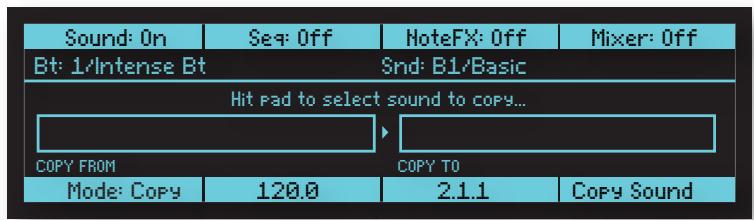

The copied sound is not permanently saved in memory until you save the Beat and commit the new sound position to memory. To save a Beat, press the SAVE/LOAD button, use soft knob 1 to scroll to item 2 (SAVE BEAT), then press the NEXT button and use soft knob 1 to select the Beat to save.
Copying a Beat
To selectively copy a Beat and/or its associated elements:
- In the PAD FUNCTION section, press the 16 BEATS button.
- In the SCREENS section, press the SOUNDS button.
- In the REC/EDIT section, press and hold the COPY button.
- Use the 4 soft knobs above the display to select the elements that you want to copy (KITS, SEQUENCE, PARAMS, BEATFX).
- Setting an element to ON will include it in the copy operation.
- Setting an element to OFF will exclude it.
- Tap the pad you want to copy from.
- Tap the pad you want to copy to.
- When finished, release the COPY button.
Arpeggiator Added to Roll
Tempest's Roll feature now includes an arpeggiator. If you press and hold one or more pads, the arpeggiator will play a repeating pattern based on the pads held. There are several arpeggiation modes (up, down, random, etc.) that control the order in which playback of the pads is repeated.
- In 16 TUNINGS mode, the arpeggiator will play a single sound but different pitches depending on the pads held (and the individual tunings of each pad).
- In 16 SOUNDS mode, the arpeggiator will play different sounds according to the sounds assigned to each pad held. (A good way to create random drumbeats!)
- In 16 LEVELS mode, the arpeggiator will play different velocities according to the levels set on each pad held.
To use the arpeggiator:
- In the PAD FUNCTION section, press the 16 TUNINGS button (or 16 SOUNDS or 16 LEVELS, depending on your purpose).
- In the SCREENS section, press the PADS button.
- In the PAD OPTIONS section, press the ROLL button.
- Use soft knob 3 (MODE:ASSIGN) to set the arpeggiator mode.
- Use soft knob 4 (OCTAVES) to set the arpeggiator's octave range (0,1,2) .

RETRIG is the default arpeggiator mode and is Tempest's original Roll behavior.
Arpeggiator Parameters
Mode: Assign: Sets the order in which notes play. See the table below.
| Retrig | Retriggers the sound on the pressed pad. (Tempest's original roll behavior) |
| Up | Plays from the lowest-numbered pad to the highest-numbered pad |
| Down | Plays from highest-numbered pad to the lowest-numbered pad |
| Up + Down | Plays from lowest to highest and back to lowest |
| Assign | Plays in the order the pads were pressed |
| Random | Plays in random order |
Octave Range: 0 Octave, 1 Octave, 2 Octaves—Set to 0, the sounds are repeated only within their original octave. Set to 1 Octave, the sounds arpeggiate in their original octave and one octave above. Set to 1 Octave, the sounds arpeggiate in their original octave plus one and two octaves above.

OCTAVE RANGE applies to arpeggiated synth sounds, not drum samples.
Play Button Activates Tempest Playback Even When Slaved
Previously, when slaved, Tempest would only start playback if a MIDI “start” message was received via the MIDI In port. With OS version 1.4, Tempest’s PLAY button will now start or stop playback even when Tempest is slaved to an external MIDI Clock source.
New “Mute Sequencer Only” System Preference
Previously, when adding live performance to sequenced playback, Tempest's Mute function would always mute a pad that was physically pressed (as well as any sequenced data for its associated sound). A new preference has been added to the UI PREFERENCES page that allows you to mute only sequenced data while still being able to trigger a sound when a pad is physically pressed.
To mute only sequence data during live performance:
- Press the SYSTEM button to enter the Tempest's system menu.
- Turn soft knob 4 (CATEGORY) to the right until the “UI PREFERENCES” category appears.
- With soft knob 1 (SELECT LINE) scroll to SOLO/MUTE BEHAVIOR.
- With soft knob 3 select SEQ ONLY.
New “Realtime Sound Slider” System Preference
Note FX data input from Tempest's Sound Sliders is recorded per step. This does not allow for automating effects such as smooth filter sweeps. However, a new preference has been added to the UI PREFERENCES page that allows the Sliders to affect Note FX for a sound in realtime during performance. While note FX data is still recorded in step format when sequencing, this new feature allows you to add non-stepped, fluid, realtime control during live performance.
To enable realtime control of Sound Sliders during sequence playback:
- Press the SYSTEM button to enter the Tempest's system menu.
- Turn soft knob 4 (CATEGORY) to the right until the “UI PREFERENCES” category appears.
- With soft knob 1 (SELECT LINE) scroll to SOUNDS SLIDER MODE.
- With soft knob 3 select REALTIME.
Dave Smith Instruments
1527 Stockton Street, 3rd Floor
San Francisco, CA 94133
USA
www.davesmithinstruments.com


- TEMPEST MANUAL ADDENDUM
- OS VERSION
- NEW FEATURES IN TEMPEST OS
- CHECKING YOUR OPERATING SYSTEM VERSION
- TO CHECK YOUR OS VERSION
- PROJECT AND BEAT COMPATIBILITY WITH OLDER OS VERSIONS
- NEW SOUND SET FOR TEMPEST VERSION
- BY CATEGORY, THE NEW SOUNDS INCLUDE
- LOADING THE NEW OS 1.4 SOUND SET ONTO AN OLDER TEMPEST
- CHECKING AVAILABLE MEMORY FOR PROJECTS AND BEATS
- TO CHECK AVAILABLE MEMORY IN YOUR TEMPEST
- CHECKING AVAILABLE MEMORY FOR SOUNDS
- TO CHECK AVAILABLE MEMORY FOR SOUNDS IN YOUR TEMPEST
- SELECTING SOUNDS BY CATEGORY
- TO NAVIGATE THE LIST OF SOUNDS BY CATEGORY
- SEQUENCE LENGTH INCREASED TO 8 BARS
- TO SET A BAR LENGTH FOR SEQUENCE RECORDING
- DISABLING QUANTIZATION
- TO DISABLE QUANTIZATION FOR LIVE PERFORMANCE
- TO DISABLE QUANTIZATION FOR SEQUENCER RECORDING
- SEQUENCER MIDI NOTE OUTPUT
- TO ENABLE MIDI NOTE OUTPUT FOR A TEMPEST SOUND
- COMPRESSOR ENVELOPE
- TO DISPLAY THE COMPRESSOR PARAMETERS
- FREE-RUNNING LFOS
- TO DISABLE WAVECYCLE RESTART FOR LFO 1 OR LFO
- NEW MODAL SCALES ADDED TO 16 TUNINGS MODE
- TO CHANGE PAD TUNINGS
- COPY ALLOWS SELECTIVE COPYING OF ELEMENTS
- FOR SOUNDS, YOU CAN CHOOSE TO COPY (OR NOT COPY)
- FOR BEATS, YOU CAN CHOOSE TO COPY (OR NOT COPY)
- COPYING A SOUND
- TO SELECTIVELY COPY A SOUND AND/OR ITS ASSOCIATED ELEMENTS
- COPYING A BEAT
- TO SELECTIVELY COPY A BEAT AND/OR ITS ASSOCIATED ELEMENTS
- ARPEGGIATOR ADDED TO ROLL
- TO USE THE ARPEGGIATOR
- ARPEGGIATOR PARAMETERS
- PLAY BUTTON ACTIVATES TEMPEST PLAYBACK EVEN WHEN SLAVED
- NEW “MUTE SEQUENCER ONLY” SYSTEM PREFERENCE
- TO MUTE ONLY SEQUENCE DATA DURING LIVE PERFORMANCE
- NEW “REALTIME SOUND SLIDER” SYSTEM PREFERENCE
- TO ENABLE REALTIME CONTROL OF SOUND SLIDERS DURING SEQUENCE PLAYBACK
Brand : Sequential
Model : Tempest (addendum 1.4)
Category : Electronic musical instrument