
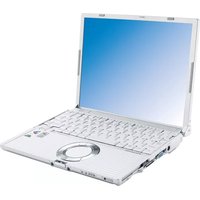
Toughbook CF-W5 - Laptop PANASONIC - Free user manual and instructions
Find the device manual for free Toughbook CF-W5 PANASONIC in PDF.


Pick your language and provide your email: we'll send you a specifically translated version.
| Product Type | Laptop |
| Brand | Panasonic |
| Model | Toughbook CF-W5 |
| Category | Notebook / Laptop |
| Display Diagonal | 12.1 inches |
| Display Resolution | 1024 x 768 pixels (XGA) |
| Processor | Intel Core Solo / Core 2 Duo (ULV) |
| Memory (RAM) | 512 MB to 1 GB (expandable to 2 GB) |
| Storage | 40 GB or 60 GB shock-mounted HDD |
| Weight | Approx. 1.2 kg (2.65 lbs) |
| Dimensions (W x D x H) | 272 x 210 x 38 mm (10.7 x 8.3 x 1.5 in) |
| Battery Life | Up to 7.5 hours |
| Battery Type | 6-cell lithium-ion |
| Operating System | Windows XP Professional |
| Connectivity | Wi-Fi 802.11a/b/g, Ethernet, Modem, optional Bluetooth |
| Ports | 2 x USB 2.0, VGA, Headphone, Microphone, PC Card slot |
| Keyboard | Spill-resistant, 91 keys |
| Case Material | Magnesium alloy |
| Ruggedness | MIL-STD-810F tested (drops, vibration, temperature) |
| Security | Kensington lock slot, BIOS password protection |
| Maintenance | Clean with a soft dry cloth; avoid solvents and abrasive cleaners |
| Repairability | Authorized Panasonic service centers; spare parts available |
| In The Box | Main unit, battery, AC adapter, manual |
| Language | English |
Frequently Asked Questions - Toughbook CF-W5 PANASONIC
Can I upgrade the RAM on the Panasonic Toughbook CF-W5?
Yes, the CF-W5 supports up to 2 GB of RAM. The memory slots are accessible under the bottom panel; remove the screws and carefully insert a compatible DDR2 module.
How long does the battery last on a full charge?
The standard 6-cell lithium-ion battery provides up to 7.5 hours of typical office use, depending on screen brightness and power settings.
Is the Toughbook CF-W5 waterproof?
It is not fully waterproof, but the keyboard is spill-resistant and the unit meets MIL-STD-810F for rain exposure. Do not submerge it.
How do I enter the BIOS setup?
Restart the laptop and press F2 repeatedly when the Panasonic logo appears to enter the BIOS configuration utility.
Which operating systems are compatible?
The CF-W5 originally comes with Windows XP Professional. It also supports Windows 2000 and some lightweight Linux distributions. Avoid heavier OSes due to the low-power processor.
Can I replace the hard drive myself?
Yes, the hard drive is user-replaceable. Remove the battery, unscrew the hard drive cover, slide out the existing drive, and install a standard 2.5-inch SATA HDD or SSD.
Is there a built-in webcam?
No, the standard CF-W5 does not include an integrated webcam. You can use external USB webcams.
What should I use to clean the display?
Use a soft lint-free cloth slightly dampened with water or a dedicated LCD cleaner. Never spray liquid directly on the screen.
Does this laptop have Bluetooth?
Some models come with Bluetooth built-in; others require a USB Bluetooth adapter. Check your device manager to confirm.
How can I reset the BIOS password if I forget it?
The BIOS password is protected by a master code. You will need to contact Panasonic technical support with your serial number to obtain the unlock procedure.
User questions about Toughbook CF-W5 PANASONIC
0 question about this device. Answer the ones you know or ask your own.
Ask a new question about this device
No questions yet. Be the first to ask one.
Download the instructions for your Laptop in PDF format for free! Find your manual Toughbook CF-W5 - PANASONIC and take your electronic device back in hand. On this page are published all the documents necessary for the use of your device. Toughbook CF-W5 by PANASONIC.
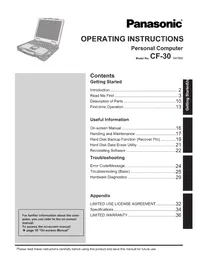
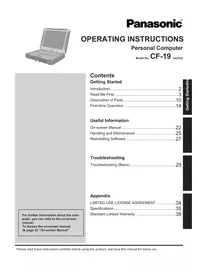
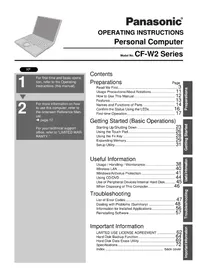
USER MANUAL Toughbook CF-W5 PANASONIC
Manual assistant
Powered by Anthropic
Waiting for your message
Product information
Brand : PANASONIC
Model : Toughbook CF-W5
Category : Laptop