
KX-MC6040 - Printer PANASONIC - Free user manual and instructions
Find the device manual for free KX-MC6040 PANASONIC in PDF.


Pick your language and provide your email: we'll send you a specifically translated version.
| Product Type | Multifunction color laser printer |
| Brand | Panasonic |
| Model | KX-MC6040 |
| Functions | Print, copy, scan, fax |
| Print Speed | Up to 14 pages per minute for both black and color |
| Maximum Print Resolution | 600 x 600 dpi |
| Scanner Type | Flatbed with 1200 x 600 dpi optical resolution |
| Fax Modem Speed | 33.6 kbps |
| Paper Input Capacity | 250-sheet main tray |
| Supported Media Sizes | Letter, legal, executive, A5, B5, cards, envelopes |
| Connectivity | USB 2.0 and 10/100 Base-TX Ethernet |
| Display | 5-line backlit LCD |
| Memory | 64 MB |
| Dimensions (W x D x H) | 430 x 455 x 380 mm |
| Weight | 17 kg |
| Power Supply | 120 V AC, 60 Hz |
| Power Consumption | Max 800 W, standby 10 W |
| Noise Level | Approx. 52 dB during operation |
| Duty Cycle | 15,000 pages per month |
| Maintenance | Clean the scanning glass and exterior regularly; use a soft dry cloth |
| Safety | Operate on a flat, stable surface with proper ventilation |
| Repairability | User-replaceable toner and imaging drum units |
Frequently Asked Questions - KX-MC6040 PANASONIC
How do I set up the Panasonic KX-MC6040 for the first time?
Start by unboxing the printer and removing all packaging material. Place it on a flat, stable surface. Connect the USB or Ethernet cable to your computer or network. Install the included toner cartridges by opening the front cover and sliding them in until they click. Load paper into the main tray. Plug in the power cord and turn on the printer. Follow the on-screen setup wizard to configure language, fax, and network settings.
How do I clear a paper jam?
Turn off the printer and unplug it. Open the front cover and the rear access door. Carefully pull out stuck paper by gripping it with both hands and pulling gently in the direction of the paper path. Remove any torn pieces. If paper is stuck near the fuser unit, wait for it to cool down before touching. Close all covers, plug the printer back in, and reload paper before resuming the print job.
How do I replace the toner cartridge?
Open the top cover or front panel. Lift the imaging drum assembly and pull out the empty cartridge. Remove the new toner cartridge from its packaging and shake it gently to distribute the toner. Insert it into the drum assembly until it snaps into position. Close the cover. The printer resets the toner counter automatically. Always use Panasonic-recommended cartridges.
How do I connect the printer to my computer?
For a direct connection, use a USB cable and plug it into the printer and computer. Install the driver from the included CD or download it from the Panasonic website. For network printing, connect the printer to your router with an Ethernet cable. Install the driver using the printer's IP address as shown on the display. Follow the on-screen instructions to complete setup.
How do I scan a document?
Place the document face down on the scanner glass or in the ADF if available. Press the Scan button on the control panel. Choose the destination: email, USB, or network folder. On a computer, use Panasonic Multi-Function Station software to start scanning and select the output format such as PDF or JPEG. Adjust the resolution and color settings as needed.
How do I send a fax?
Make sure the printer is connected to a working telephone line. Load the document face down on the scanner glass or in the ADF. Press FAX on the control panel. Dial the recipient's number with the numeric keypad or use a saved phone book entry. Press Start to send. Verify the line type (pulse/tone) is correctly set in the fax settings.
What should I do if the printer does not pick up paper?
This is often caused by improper paper loading or worn rollers. Remove the paper stack, fan the sheets to separate them, and reinsert them. Adjust the paper guides to fit snugly. Make sure the paper is not damp or curled; use fresh paper if necessary. Clean the pickup rollers with a lint-free cloth slightly moistened with water. If the problem continues, the rollers may need to be replaced.
How often should I clean the printer?
Clean the scanner glass and the white document mat weekly if the printer is heavily used. Wipe the exterior with a soft, dry cloth. Use a dry lint-free cloth to clean the paper rollers every three to six months. Always turn off and unplug the printer before cleaning, and let hot components cool.
Can I use generic toner cartridges?
Generic cartridges might work, but they can affect print quality and printer reliability. Panasonic recommends using genuine Panasonic toner cartridges to maintain consistent output and protect the warranty. If using a compatible brand, ensure it matches the KX-MC6040 model; the toner level indicator may not be accurate.
How can I reduce power consumption?
Enable Eco Mode or Power Save from the printer's settings menu. Set the sleep timer to a short delay, such as 10 minutes. Turn off the printer at the switch when not in use for extended periods. Use the duplex printing option to save paper and use toner-save mode for draft prints to reduce toner usage.
User questions about KX-MC6040 PANASONIC
0 question about this device. Answer the ones you know or ask your own.
Ask a new question about this device
No questions yet. Be the first to ask one.
Download the instructions for your Printer in PDF format for free! Find your manual KX-MC6040 - PANASONIC and take your electronic device back in hand. On this page are published all the documents necessary for the use of your device. KX-MC6040 by PANASONIC.
USER MANUAL KX-MC6040 PANASONIC
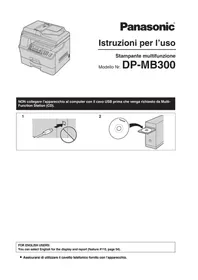
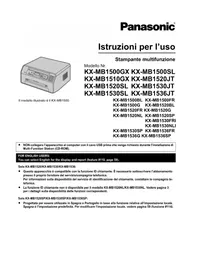
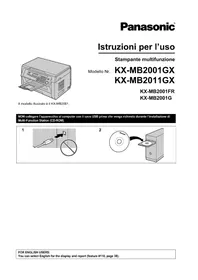
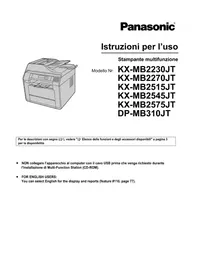
Manual assistant
Powered by Anthropic
Waiting for your message
Product information
Brand : PANASONIC
Model : KX-MC6040
Category : Printer