
IPERTU.IDE - Uncategorized Emko - Free user manual and instructions
Find the device manual for free IPERTU.IDE Emko in PDF.


Pick your language and provide your email: we'll send you a specifically translated version.
| Type | Digital temperature controller |
| Model | IPERTU.IDE |
| Brand | Emko |
| Panel dimensions | 48 x 48 mm |
| Mounting depth | 95 mm |
| Panel cutout | 45 x 45 mm |
| Weight | 0.12 kg |
| Power supply | 100-240 VAC, 50/60 Hz |
| Power consumption | < 5 VA |
| Display | LED, 4 digits |
| Sensor input | Thermocouple J/K or PT100 (selectable) |
| Control output | Relay (SPDT, 5A) and SSR drive (12 VDC) |
| Alarm output | Relay (SPDT, 2A) |
| PID functions | Auto-tuning, heating/cooling |
| Scaling and offset | Adjustable |
| Protection rating | IP65 front panel, IP20 rear |
| Operating temperature | 0...50 °C |
| Storage temperature | -20...70 °C |
| Maintenance | Clean front panel with soft, dry cloth; do not use solvents |
| Safety | High voltage insulation, mechanical cap for terminals |
| Spare parts | Replacement relays and control modules available |
| Repairability | Modular design allows easy repair by qualified personnel |
| Certifications | CE, RoHS |
Frequently Asked Questions - IPERTU.IDE Emko
How do I set the desired temperature?
Press the SET key to enter the setpoint adjust mode. Use the ▲ and ▼ keys to change the value. Wait a few seconds or press SET again to save the new setpoint. The controller will automatically apply PID control to maintain the temperature.
What is the difference between heating and cooling control?
In heating mode, the output increases when the temperature is below the setpoint. In cooling mode, the output increases when the temperature is above the setpoint. Select the correct mode in the control configuration parameter (typically 'rL/rH').
How do I perform auto-tuning?
Press and hold the SELF key for 3 seconds. The controller will run a tuning cycle that automatically determines optimal PID parameters. This process may take a few minutes. Ensure the process is stable before starting.
How do I calibrate the sensor input?
Use the sensor offset parameter (PVOF) to compensate for measurement errors. For a two-point calibration, use the 'SC1' and 'SC2' parameters in the calibration menu. Refer to the manual for step-by-step instructions.
What types of sensors can be connected?
The IPERTU.IDE supports thermocouples (J, K) and PT100 RTD sensors. Use the correct wiring as shown in the manual. Set the sensor type via the 'SN' parameter.
How do I reset the controller to factory defaults?
Go to the reset menu (accessed via a special key combination, e.g., pressing SEL and ▲ together). Choose the 'rES' option and confirm. This will restore default settings for all parameters.
How do I configure the alarm output?
Enter the alarm configuration parameter 'AL1' or 'AL2'. Set the alarm mode (absolute, relative, etc.), threshold, and hysteresis. The alarm relay can be assigned to either high or low alarms.
What is the maximum relay switching current?
The main control relay can handle up to 5 A at 250 VAC resistive load. The alarm relay is rated up to 2 A. Do not exceed these ratings to avoid damage.
How do I clean the controller properly?
Wipe the front panel with a soft, dry cloth. If necessary, use a mild detergent diluted in water. Never use solvents or abrasive cleaners. Ensure the power is off before cleaning.
Can I replace the relay myself?
The relay is a replaceable component designed for field replacement. Disconnect the power, remove the rear cover, and pull out the relay. Insert a new relay of the same specifications and reassemble. Always check the power rating.
User questions about IPERTU.IDE Emko
0 question about this device. Answer the ones you know or ask your own.
Ask a new question about this device
No questions yet. Be the first to ask one.
Download the instructions for your Uncategorized in PDF format for free! Find your manual IPERTU.IDE - Emko and take your electronic device back in hand. On this page are published all the documents necessary for the use of your device. IPERTU.IDE by Emko.
USER MANUAL IPERTU.IDE Emko


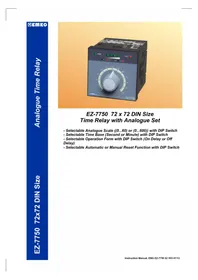
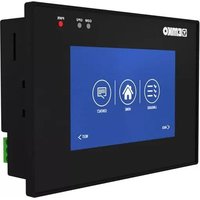
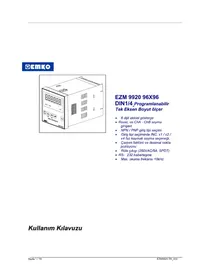
Manual assistant
Powered by Anthropic
Waiting for your message
Product information
Brand : Emko
Model : IPERTU.IDE
Category : Uncategorized