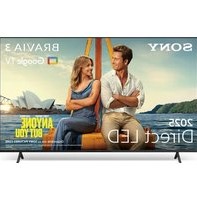
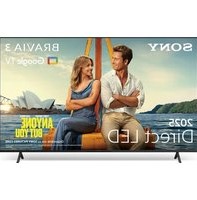
Bravia K-75S35 - Television SONY - Free user manual and instructions
Find the device manual for free Bravia K-75S35 SONY in PDF.


Pick your language and provide your email: we'll send you a specifically translated version.
| Product Type | Television |
| Brand | Sony |
| Model | Bravia K-75S35 |
| Screen Size | 75 inches (189 cm) |
| Display Resolution | 1920 x 1080 pixels (Full HD) |
| Display Technology | LED with Sony BRAVIA Engine |
| Smart TV | Yes, with built-in Wi-Fi and web browser |
| Refresh Rate | Motionflow 120 Hz |
| Audio Output | 20 W total power (10 W + 10 W) |
| Connectivity | 4 x HDMI, 2 x USB, 1 x Ethernet, 1 x RF, 1 x Composite |
| Wireless | Built-in Wi-Fi (802.11 b/g/n) |
| Dimensions (Without Stand) | 167.6 cm x 96.3 cm x 6.6 cm |
| Dimensions (With Stand) | 167.6 cm x 103.0 cm x 25.2 cm |
| Weight (Without Stand) | 39.8 kg |
| Weight (With Stand) | 41.2 kg |
| Power Consumption (Operation) | 220 W |
| Power Consumption (Standby) | <0.5 W |
| Maintenance and Cleaning | Use a soft dry cloth to clean the screen; avoid liquid or cleaning agents. |
| Safety Precautions | Ensure adequate ventilation, do not expose to rain or moisture, and do not cover vents. |
| Spare Parts and Repairability | Contact Sony authorized service centers for genuine spare parts. |
Frequently Asked Questions - Bravia K-75S35 SONY
How do I connect my cable or satellite box to the Sony Bravia K-75S35?
Use an HDMI cable to connect your box to one of the HDMI inputs on the TV. Press the Input button on the remote and select the corresponding HDMI port.
How can I set up the Wi-Fi on this TV?
Go to Settings > Network > Network Setup. Choose Wireless Setup, select your network, and enter the password. The TV will then connect to the internet.
How do I update the TV software?
Press Home on the remote, go to Settings > Support > Software Update. You can choose Network Update or USB Update. Make sure the TV is connected to the internet for the easiest update.
Can I wall-mount this TV?
Yes, the TV is VESA mount compatible. The VESA hole pattern is 400x300 mm. Use a qualified installer to ensure proper mounting and safety.
Why is the picture quality not good?
Go to Settings > Picture and choose a preset like Standard or Cinema. You can also enable Motionflow to reduce blur. Adjust the Backlight and Contrast to suit your room lighting.
How do I connect Bluetooth headphones?
The K-75S35 may not support Bluetooth audio directly. You can use a Bluetooth transmitter plugged into the headphone jack or use the TV's Audio Out to connect external speakers.
What should I do if the remote control isn't working?
Check the batteries and replace if needed. Ensure there are no obstacles between the remote and the TV. If still not working, try turning the TV off and on, or use the buttons on the TV itself as a temporary solution.
Can I watch streaming services like Netflix?
Yes, the Smart TV includes pre-installed apps like Netflix, YouTube, and Amazon Prime Video. Use the Home button to access them. If an app is missing, you can install it from the App Store.
How do I clean the TV screen safely?
Turn off the TV and unplug it. Use a soft, dry microfiber cloth to gently wipe the screen in a circular motion. Do not use water, alcohol, or chemical cleaners directly on the screen.
What are the power requirements for this TV?
The TV operates on AC 110-240V, 50/60Hz. The average power consumption is 220 W, and less than 0.5 W in standby. Always connect to a properly grounded outlet.
User questions about Bravia K-75S35 SONY
0 question about this device. Answer the ones you know or ask your own.
Ask a new question about this device
No questions yet. Be the first to ask one.
Download the instructions for your Television in PDF format for free! Find your manual Bravia K-75S35 - SONY and take your electronic device back in hand. On this page are published all the documents necessary for the use of your device. Bravia K-75S35 by SONY.
USER MANUAL Bravia K-75S35 SONY
Manual assistant
Powered by Anthropic
Waiting for your message
Product information
Brand : SONY
Model : Bravia K-75S35
Category : Television