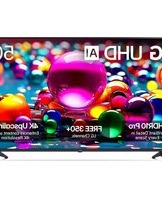
50UA7700AUA - Television LG - Free user manual and instructions

Find the device manual for free 50UA7700AUA LG in PDF.

LG 50UA7700AUA - Television
📄 28 pages English EN Download 💬 AI Question 11 questions ⚙️ Specs
Notice LG 50UA7700AUA - page 2
Pick your language and provide your email: we'll send you a specifically translated version.
Product Type LED 4K UHD Television
Brand LG
Model 50UA7700AUA
Screen Size 50 inches (126 cm)
Display Resolution 3840 x 2160 pixels (4K UHD)
Display Technology LED with Direct Backlight
Smart OS webOS with ThinQ AI
HDR Support HDR10, HLG
Refresh Rate 60 Hz (effective)
Audio Output 2 x 10W speakers (20W total)
Wireless Connectivity Wi-Fi 5 (802.11ac), Bluetooth 5.0
Ports 3 x HDMI, 2 x USB, 1 x Ethernet (LAN), 1 x RF In
Power Supply 100-240V AC, 50/60Hz
Power Consumption 85W (typical), <0.5W in standby
Dimensions (Without Stand) 112.8 x 65.3 x 8.8 cm (W x H x D)
Dimensions (With Stand) 112.8 x 69.5 x 24.2 cm (W x H x D)
Weight (Without Stand) 12.5 kg
Weight (With Stand) 12.9 kg
VESA Mounting Pattern 300 x 300 mm
Voice Control Built-in support for Alexa and Google Assistant
Box Contents TV, Remote Control, Stand, Power Cable, Quick Start Guide
Spare Parts Replacement remote and stand available from LG official parts
Care & Cleaning Wipe screen and body with soft dry cloth; do not use liquids directly
Safety Advice Professional installation recommended for wall-mounting

Frequently Asked Questions - 50UA7700AUA LG

How do I connect my LG 50UA7700AUA to Wi-Fi?
To connect your TV to Wi-Fi, press the Home button on your remote, go to Settings > Network > Wi-Fi Connection. Select your network, enter the password, and confirm. Once connected, you can access smart features and apps.
Can I mount my LG 50UA7700AUA on the wall? What VESA size is compatible?
Yes, your TV is wall-mount compatible. It supports VESA 300 x 300 mm mounting holes. Use a sturdy bracket rated for at least 20 kg and follow the instructions in the manual or hire a professional for safe installation.
How do I enable HDR content on my LG TV?
HDR is automatically enabled when playing HDR content from a compatible source (e.g., Netflix, Blu-ray). Ensure the input is set to HDMI ULTRA HD Deep Color by going to Settings > Picture > HDMI Settings and turning it on for the specific HDMI port.
Does the LG 50UA7700AUA support voice control?
Yes, the TV has built-in support for Alexa and Google Assistant. You can use the microphone on the remote control or a compatible smart speaker to control the TV with voice commands.
How do I update the software on my LG TV?
To update the TV software, press Home, go to Settings > General > About This TV > Check for Updates. If an update is available, select Install. Make sure the TV is connected to the internet and keep it powered on during the update.
Which HDMI port is best for connecting a gaming console?
For gaming, use HDMI 1 (or the port labeled HDMI ARC for audio). All HDMI ports support 4K, but to get full HDR gaming, enable Ultra HD Deep Color in the HDMI settings for that port. Also, enable Game Mode in Picture settings to reduce input lag.
What is the best way to clean the screen of my LG TV?
Turn off the TV and wait for it to cool down. Use a soft, dry microfiber cloth to gently wipe the screen in a circular motion. Avoid using paper towels, water, or cleaning chemicals. For stubborn spots, slightly dampen the cloth with distilled water and wipe again.
Can I connect a soundbar to my LG 50UA7700AUA?
Yes, you can connect a soundbar using HDMI ARC, an optical cable, or Bluetooth. For HDMI ARC, plug the soundbar into the HDMI ARC port on the TV and enable SIMPLINK (HDMI-CEC) in Settings > General > SIMPLINK.
How do I reset my LG TV to factory settings?
Go to Settings > General > Reset to Initial Settings. Enter your TV PIN (default is 0000), read the warning, and confirm. The TV will restore all settings to default and reboot.
What is the power consumption of the LG 50UA7700AUA in standby mode?
The standby power consumption is less than 0.5W. This helps reduce energy usage when the TV is not actively used. Use the power button or remote to put the TV in standby mode.

User questions about 50UA7700AUA LG

1 question about this device. Answer the ones you know or ask your own.

Ask a new question about this device

Your email remains private: it is only used to notify you if someone answers your question.

How to change video input with the Magic Remote?
Frequently Asked Questions - 10 d
Response Notice-Facile

To change video input with the LG Magic Remote on your 50UA7700AUA:

  • Press the INPUT button on the Magic Remote (usually located on the directional pad or menu). The list of available inputs will appear on the screen.
  • Use the directional pad (up/down) on the Magic Remote to navigate between the available inputs: HDMI 1, HDMI 2, HDMI 3, HDMI 4, TV, etc.
  • Press the OK/Enter button to confirm the selection and switch to the chosen input.
  • You can also use the circular cursor on the Magic Remote by pointing it at the displayed inputs and clicking directly on the one you want.

If the list of inputs does not appear, check that the Magic Remote is properly paired with your TV (a LED light should activate when you point the remote at the screen).

Respond (be the first)

Download the instructions for your Television in PDF format for free! Find your manual 50UA7700AUA - LG and take your electronic device back in hand. On this page are published all the documents necessary for the use of your device. 50UA7700AUA by LG.

USER MANUAL 50UA7700AUA LG

Manual assistant
Powered by Anthropic
Waiting for your message
Product information

Brand : LG

Model : 50UA7700AUA

Category : Television