G-Force MegaDisk - External hard drive Micronet - Free user manual and instructions
Find the device manual for free G-Force MegaDisk Micronet in PDF.


Pick your language and provide your email: we'll send you a specifically translated version.
| Product type | External hard drive |
| Brand | Micronet |
| Model | G-Force MegaDisk |
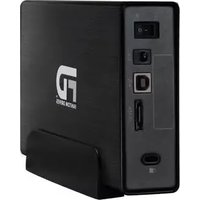
| Interface | USB 2.0 and FireWire 400/800 depending on version |
| Compatible operating systems | Windows and macOS |
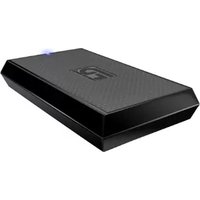
| Form factor | 3.5-inch external desktop drive |
| Storage capacity | Available in several capacities, typically 500 GB to 2 TB |
| Data transfer rate | Up to 480 Mbps with USB 2.0; up to 800 Mbps with FireWire 800 |
| Power supply | External AC power adapter |
| Dimensions (approx.) | 200 x 120 x 35 mm |
| Weight (approx.) | 1.1 kg |
| Enclosure material | Aluminum |
| Main functions | Data storage, backup, and file transfer |
| Cooling | Built-in fan with smart thermal control |
| LED indicators | Power and activity LEDs |
| Maintenance and cleaning | Wipe the enclosure with a soft, dry cloth; avoid moisture and solvents |
| Safety instructions | Do not drop, expose to liquid, or operate near heat sources |
| Spare parts and repairability | No user-serviceable parts; contact Micronet technical support for repairs |
| Package contents | External hard drive, USB/FireWire cable, power adapter, quick start guide |
| Warranty | 1-year manufacturer warranty |
Frequently Asked Questions - G-Force MegaDisk Micronet
How do I connect the G-Force MegaDisk to my computer?
Connect the supplied AC power adapter to the drive and to a wall outlet. Then plug the USB or FireWire cable into the drive and your computer. Turn on the drive with the power switch and wait for the operating system to detect it. The LED should light up when it is ready.
The drive is not recognized by Windows. What should I do?
First check all cable connections and try a different USB/FireWire port. Open Disk Management in Windows to see if the drive appears as an unallocated disk. If it does, assign a drive letter or format it. If it still does not appear, restart the computer and reconnect the drive after the system has fully loaded.
How do I safely disconnect the drive?
Use the operating system's Safely Remove Hardware feature before unplugging. On Windows, click the USB/FireWire icon in the tray and choose Eject. On macOS, drag the drive icon to the Trash. Wait until the system confirms it is safe to remove, then disconnect the cable and turn off the power.
Can I use the drive with macOS and Windows?
Yes, the drive works with both Windows and macOS. However, if you want to share files between both systems, format the drive with exFAT or FAT32. NTFS is read-only on macOS without third-party software.
How do I format the drive?
Formatting erases all data, so backup any important files first. On Windows, right-click the drive in File Explorer, choose Format, then select the file system. On macOS, open Disk Utility, select the drive, and click Erase. Choose the correct file system and confirm.
The LED blinks but the drive is not accessible. What does it mean?
A blinking activity LED usually means the drive is being accessed. Wait a few moments, or check if background software is using the drive. If it never stops, close all open files and try a power cycle by turning the drive off, waiting 10 seconds, and turning it back on.
How should I clean and maintain the drive?
Keep the drive in a clean, dry, and well-ventilated area. Use a soft, lint-free cloth to wipe the exterior. Do not use alcohol, ammonia, or abrasive cleaners. Ensure the ventilation slots are not blocked by dust or objects.
Can I replace the internal hard drive by myself?
The G-Force MegaDisk is not designed for user replacement. Opening the enclosure may void the warranty and damage the drive. Contact Micronet technical support or an authorized service center for repair or upgrade.
What should I do if the drive becomes very hot?
Turn off the drive immediately and let it cool down. Make sure it is placed on a hard, flat surface with sufficient airflow. Check that the ventilation slots are free of dust and that the cooling fan is working. Avoid using the drive in ambient temperatures above 35 degrees Celsius.
Does the drive support automatic backup?
Yes, the drive can be used with most backup software that supports scheduled backups. On Windows, you can use File History; on macOS, use Time Machine. Set the G-Force MegaDisk as the backup destination and configure the schedule in the software.
User questions about G-Force MegaDisk Micronet
0 question about this device. Answer the ones you know or ask your own.
Ask a new question about this device
No questions yet. Be the first to ask one.
Download the instructions for your External hard drive in PDF format for free! Find your manual G-Force MegaDisk - Micronet and take your electronic device back in hand. On this page are published all the documents necessary for the use of your device. G-Force MegaDisk by Micronet.
USER MANUAL G-Force MegaDisk Micronet



Manual assistant
Powered by Anthropic
Waiting for your message
Product information
Brand : Micronet
Model : G-Force MegaDisk
Category : External hard drive