Tripp Lite

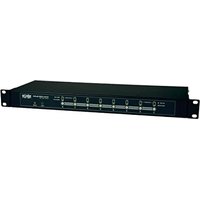
NetCommander B070-016-19-IP2 - KVM switch Tripp Lite - Free user manual and instructions

Find the device manual for free NetCommander B070-016-19-IP2 Tripp Lite in PDF.

📄 57 pages English EN Download 💬 AI Question 10 questions ⚙️ Specs
Notice Tripp Lite NetCommander B070-016-19-IP2 - page 3
Pick your language and provide your email: we'll send you a specifically translated version.
Product Type 16-Port IP KVM Switch
Number of Ports 16
Form Factor 1U Rackmount
Dimensions (W x D x H) 17.4 x 11.0 x 1.75 in (442 x 279 x 44 mm)
Weight 8.5 lbs (3.86 kg)
Power Input 100-240V AC, 50/60 Hz, 30W
Remote Access IP-based via web browser or software
Local Console VGA, USB, PS/2 support
Supported Operating Systems Windows, Mac, Linux, Sun Solaris
Video Resolution Up to 1920x1440 @ 60 Hz
Daisy-Chain Supports cascading up to 8 units
Security Password protection, SSL encryption
Cooling Fanless design for silent operation
Included Accessories Rackmount brackets, power cord, RJ-45 cable, software CD
Warranty 3-year limited warranty
Maintenance Clean with dry cloth; avoid dust and liquids
Spare Parts Power adapter, mounting brackets available from manufacturer
Repairability No user-serviceable parts; contact support

Frequently Asked Questions - NetCommander B070-016-19-IP2 Tripp Lite

How do I set up the NetCommander B070-016-19-IP2 for the first time?
Connect the included power cord, attach computers via USB/VGA or PS/2 cables, and connect to your network via the RJ-45 port. Use the default IP (192.168.0.100) to access the web interface and configure settings.
Can I access this KVM switch remotely?
Yes, the NetCommander B070-016-19-IP2 supports remote IP access via browser or dedicated software. Ensure the device is connected to a network and configured with a static IP.
What is the maximum video resolution supported?
The switch supports video resolutions up to 1920x1440 @ 60 Hz for both local and remote connections.
Does it support both USB and PS/2 connections?
Yes, each port supports both USB and PS/2 keyboard/mouse connections via included cable sets.
How can I reset the device to factory defaults?
Press and hold the reset button on the front panel for 10 seconds until the LEDs flash. Alternatively, use the web interface under System Settings.
Is the KVM switch compatible with all operating systems?
It supports Windows, Mac, Linux, and Sun Solaris without additional drivers. For macOS, enable keyboard/mouse sharing in System Preferences.
Can I daisy-chain multiple units?
Yes, you can cascade up to 8 units using the daisy-chain ports, controlling up to 128 computers from a single console.
How do I update the firmware?
Download the latest firmware from Tripp Lite's website. Access the web interface, go to Administration > Firmware Upgrade, and upload the file. Do not power off during update.
What security features are included?
The switch provides password protection, SSL encryption for web access, and user permission levels to prevent unauthorized access.
What should I do if the device is not powering on?
Check the power cord connection, ensure the outlet is working, and verify the voltage (100-240V AC). If issues persist, contact Tripp Lite support.

User questions about NetCommander B070-016-19-IP2 Tripp Lite

0 question about this device. Answer the ones you know or ask your own.

Ask a new question about this device

The email remains private: it is only used to notify you if someone responds to your question.

No questions yet. Be the first to ask one.

Download the instructions for your KVM switch in PDF format for free! Find your manual NetCommander B070-016-19-IP2 - Tripp Lite and take your electronic device back in hand. On this page are published all the documents necessary for the use of your device. NetCommander B070-016-19-IP2 by Tripp Lite.

USER MANUAL NetCommander B070-016-19-IP2 Tripp Lite
Manual assistant
Powered by Anthropic
Waiting for your message
Product information

Brand : Tripp Lite

Model : NetCommander B070-016-19-IP2

Category : KVM switch