
Gravity 6 - Smartphone Maxwest - Free user manual and instructions
Find the device manual for free Gravity 6 Maxwest in PDF.


| Product Type | Smartphone |
| Brand | Maxwest |
| Model | Gravity 6 |
| Display Size | 6.0 inches (diagonal) |
| Display Resolution | 720 x 1440 pixels (HD+) |
| Operating System | Android 10 (Go Edition) |
| Processor | Quad-core 1.3 GHz |
| RAM | 2 GB |
| Internal Storage | 32 GB |
| Expandable Storage | Up to 128 GB (microSD) |
| Rear Camera | 8 MP (with LED flash) |
| Front Camera | 5 MP |
| Battery Capacity | 3000 mAh (removable) |
| Dimensions | 165 x 76 x 8.5 mm |
| Weight | 180 g |
| SIM Card | Dual SIM (Micro-SIM, dual standby) |
| Connectivity | Wi-Fi 802.11 b/g/n, Bluetooth 4.2, GPS |
| Audio Jack | 3.5 mm headphone jack |
| Charging Port | Micro USB |
| Power Adapter | Input: AC 100-240V, Output: 5V/1A |
| Care and Cleaning | Wipe with a soft, dry cloth. Avoid harsh chemicals. |
| Safety Precautions | Keep away from water, heat sources, and magnetic fields. |
| Spare Parts Availability | Battery, screen, and charging port available from authorized service centers. |
| Repairability | User-replaceable battery; other repairs recommended by professionals. |
| General Information | Released in 2020. Suitable for basic daily use, calls, and light apps. |
Frequently Asked Questions - Gravity 6 Maxwest
User questions about Gravity 6 Maxwest
0 question about this device. Answer the ones you know or ask your own.
Ask a new question about this device
Download the instructions for your Smartphone in PDF format for free! Find your manual Gravity 6 - Maxwest and take your electronic device back in hand. On this page are published all the documents necessary for the use of your device. Gravity 6 by Maxwest.
USER MANUAL Gravity 6 Maxwest
Thanks for choosing the Maxwest GRAVITY 6, Dual SIM Android smart phone. This smart phone is running on Android OS, v4.2.2 (Jelly Bean). If you'd like your phone to live a long and fruiul life, please read this guide carefully and keep it for future reference. You never know when you might need it.
And don't worry if the pictures we use to demonstrate your phone's funcons look a lile dierent from what you see on its screen. It's the funcons that matter.
* The Manufacturer reserves the right for the changes in the manual without advanced noce.
Table of Contents
1 Safety 4
1.1 Safety Precauons 4
1.2 Using your phone safely....4
2 Understanding your Phone....8
2.1 Your Phone....8
2.2 Descripon Icons 9
2.3 Inserng & Removing the baery....10
2.4 Charging the baery 11
2.5 Power ON/OFF 11
2.6 Enter Main Menu....11
2.7 Enter Sub Menu....10
2.8 Use Nocaon Panel 10
2.9 Expand Main Interface....11
2.10 Add icons on the main interface 11
2.11 Move icons on the main interface....11
2.12 Delete icons on the main interface 11
2.13 Change wallpapers....11
2.14 Install APK through File Manager....11
3 Using your Phone....13
3.1 Main Menu & Its Funcons....13
3.2 Wi-Fi Direct
139
4 Inpung Text....22
5 Maintenance....23
6 Taking Care of your Device 24
1 Safety
1.1 Safety Precautions

Please read through the following briengs carefully, and act in accordance with these rules,
so as to prevent causing any danger or violang any law.
- Your mobile phone model has been designed to compile with applicable safety requirements for exposure to radio waves. The radio wave exposure guidelines employ a unit of measurement called Specific Absorpon Rate (SAR). The recommended SAR limit for mobile handset is 1.6 W/Kg averaged over a 6 minutes period and taken over a volume containing a mass 1g of human issue.
- The highest SAR value for this mobile phone model is 0.506 Wa/Kg averaged over a 6 minutes period and taken over a volume containing a mass 1g of human issue.
- Use cell phone when the signal strength is good. Keep your calls short or instead use headset or send a text message. This advice applies especially to children, adolescents and pregnant women.
- If you are using a Bluetooth headset device, please make sure it has a low power emier.
1.2 Using your phone safely

On The Road
Using a phone while driving is illegal in many countries. Please follow local laws and drive safely at all mes.

Near Sensitive Electronics
Don't use your phone near sensitive electronic equipment – particularly medical devices such as pacemakers – as it could cause them to malfuncon. It
can also interfere with the operaon of re detectors and other automac-control equipment.
For more informaon about how your phone aects pacemakers or other electronic equipment, please contact the manufacturer or your local distributor.
Your phone may cause interference when used near TVs, radios or automated oce equipment.

While Flying
Your phone can cause interference with aircra equipment. So it's essenal you follow airline regulaons. And if airline personnel ask you to switch o your phone, or disable its wireless funcons, please do as they say.

In Hospital
Your phone may interfere with the normal operaon of medical equipment. Follow all hospital regulaons and turn it o when you're asked to by posted warnings or medical sta.

At a Petrol Staon
Don't use your phone at petrol staons. In fact, it's always best to switch o whenever you're near fuels, chemicals or explosives.

Around Water
Keep your phone away from water (or any other liquid). It's not a waterproof model.

Making Repairs
Never take your phone apart. Please leave that to the professionals. Unauthorized repairs could break the terms of your warranty.

Broken Antenna
Don't use your phone if the antenna is damaged, as it could cause injury.

Around Children
Keep your mobile out of children's reach. It should never be used as a toy and it might not be good for their health.

Original Accessories
Only use the original accessories supplied with your phone or those approved by the manufacturer. Using unapproved accessories may act performance, make the warranty void, break naonal regulaons on the use of mobile phones, or even cause injury.

Near Explosives
Turn o your phone in or near areas where explosive materials are used. Always obey local laws and turn o your phone when requested.

Emergency Calls
To make an emergency call your phone must be turned on and in an area where there's network coverage. Dial the naonal emergency number and press 'send'. Explain exactly where you are and don't hang up unl help has arrived.

Working Temperature
The working temperature for the phone is between 0 Degree and 40 Degree Celsius. Please don't use the phone outside the range. Using the phone under too high or too low temperature might cause problems.

At very high volume, prolonged listening to a mobile phone can damage your hearing.
2Understanding your Phone
2.1 Your Phone

Keys/Touch Points
Power Key: To power on/o Maxwest GRAVITY 6, press and hold power key for a few seconds on top of your phone. When GRAVITY 6 is ON, press the power key once to acvate or deacvate the screen.
Home key ( ): Touch the key to return to the home screen. In idle screen, touch and hold the key to view recently accessed features.
Opons key ( ): In standby mode, touch the key to set wallpaper, manage apps, access to system sengs. Touch it to view menu opons.
Back key ( ): Touch to go back to the previous menu.
Search key ( ): In standby mode, tap to open search page. In many applicaons, it acvates a search box to search within the applicaon.
2.2 Description Icons
| Icons | Descripons | Icons | Descripons |
 | Shows the phone's network signal strength |  | Show the phone's baery capacity. |
 | Speaker has been acvated. |  | You have unread SMS. |
 | Call on hold |  | USB storage Turned on. |
 | The ringing type is set on Vibraon. |  | Flight Mode |
 | 3G network in use. | [IMAGE] | 2G network in use. |
 | You have missed calls. |  | A clock alarm is acve. |
 | In call |  | Bluetooth ON |
2.3 Inserting & Removing the Battery
Inserng the Baery
- Open the baery cover on the back of your phone.
- Align the baery's contact points with those of the phone and gently press the baery down into place.
- Replace the baery cover clicking it back into posion.
Inserng the Baery
Closing the Back Cover
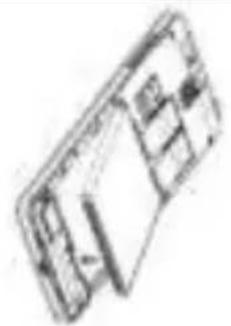
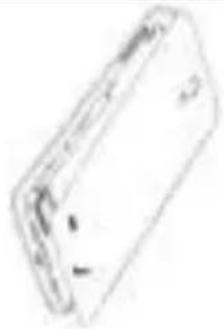
Removing the baery
-
Switch o your phone.
-
Open the baery cover.
-
Li the baery up and out of your phone.
Open the Back Cover
Removing the Baery

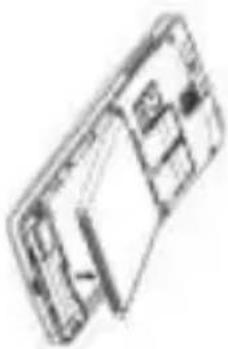
Note: The Schematics may differ from the actual product, it is just for the demonstration of function.
2.4 Charging the battery
The rechargeable Li-ion baery that comes with your phone is ready to be used, but is not charged. It is easy to do & can be done in 3 simple steps below:
-
Connect the charger to your phone, and plug it into a socket.
-
The baery indicator in the corner of the screen will scroll to show you it's charging.
-
When fully charged, the baery indicator will stop scrolling.
-
Disconnect the charger from your mobile, and
unplug.
2.5 Power ON/OFF
Press the power key to power-ON/OFF the phone.
When you turn your phone on, it'll automatically check the SIM and show the following informaon on screen:
- Input SIM1 PIN: If you've set a PIN for your SIM1.
- Input SIM2 PIN: If you've set a PIN for your SIM2.
Note:
The PIN is supplied with your SIM. Please replace it with your own PIN code as soon as possible. Enter the wrong PIN three mes, and your SIM will be locked. Then you'll need to contact your network service provider to ask for a PUK code to unlock it. It is applicable for both the SIMs if you are using 2 SIM Cards.
2.6 Enter Main Menu
In Idle mode, press the Menu key to enter the main menu on the desktop and click the Home key to return.
2.7 Enter Sub Menu
Once at the main menu, click the icon to select the submenu, press Back Key to return to the previous menu, and press the Home Screen to return to the home screen.
2.8 Use Notification Panel
As a new nocaaon appears in the nocaaon area, slide down in the area to view the contents of the nocaaon.
2.9 Expand Main Interface
The main interface may extend and exceed the screen width to provide more space for newly added shortcuts and tools.
Slide your nger horizontally on the main interface to extend to the le or right area of the main interface.
2.10 Add iconson the main interface
You can long press the icon on the main menu until it's enlarged and the mobile phone vibrates, and copies the icons in the main menu to the main interface.
2.11 Move icons on the main interface
- Long press the icon on the main interface until it's enlarged and the mobile phone vibrates.
- Drag the icon to the desired posion and then release it.
2.12 Delete icons on the main interface
-
Long press the icon on the main interface until it's enlarged and the mobile phone vibrates.
-
Drag the icon to "Remove" to delete it.
2.13 Change wallpapers
- Long press "Touch screen" to open the menu.
- Choose from "Gallery/"Live Wallpapers"/"Wallpapers", and Select the wallpaper and press "Set wallpaper" to complete.
2.14 Install APK through File Manager
APK is a supported le format for the Android mobile
operang system.
a) Please copy the downloaded APK le into the SD card, and then insert the SD card into the phone.
b) In Idle mode, click Main Menu to enter the main menu.
c) Click "File Manager" to enter the directory of SD card.
d) Click the APK le you wish to install, and follow the installaon wizard.
3Using your Phone
3.1 Main Menu & Its Functions
Select

to enter the main menu...
Allow you to view a list of features available in your phone-
1. Clock
Allow you to set the Alarm from Clock.
2. Browser
Browse the internet. Search engine-default set as Google.
3. Calculator
Allow you to make tedious calculaons quickly.
4. Calendar
View the calendar & add events.
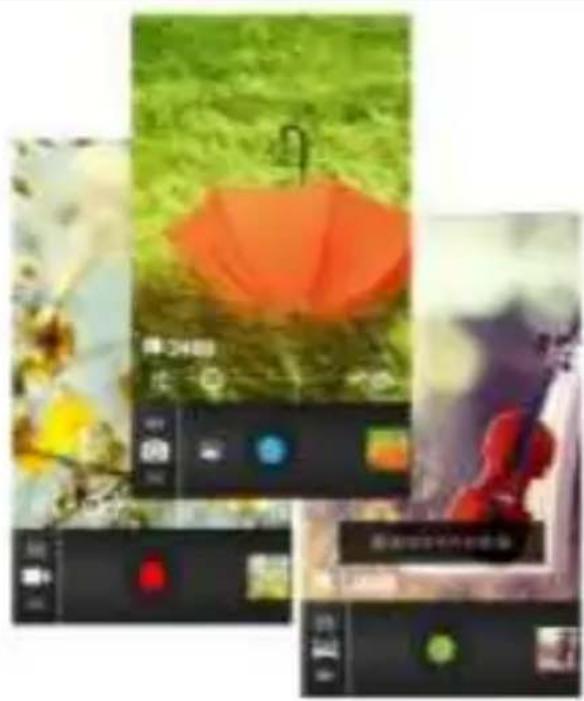
5. Camera
Allow you to click pictures anymore you want. Your Maxwest GRAVITY 6 has a 13 MP High Denion camera with LED Flash supporting many special features like Auto Focus & Face Detecon which ensures you always click good quality of pictures and stores them under the Gallery folder. In Camera, easily choose Camcorder to record Video Files.
6. Contact
To see your list of Contacts. Access phonebook through this funcon.
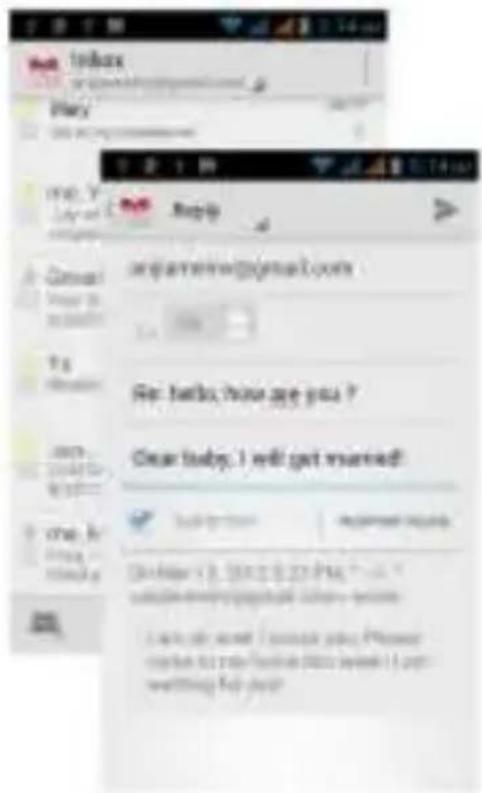
7. Email
Allows you set up your POP/IMAP email accounts.
8. Gallery
Allow you to save & view photos & videos.
9. Play Store
Log in to your Gmail account to view all the applicaons & download from thousands of applicaons available under the Google Market called Play Store.
Note:
To use this app please connect to an internet conncon.
10. Messaging
Allow you to view messages sent & received as a thread.
11. Music
View the list of songs available in your phone. View the arsts, albums, playlists & more.

12. Phone
Allow you to make quick outgoing calls.
13. File Manager
You could install the les in APK format & also view your les.
14. Sengs
Modify sengs under the following-
Wi-Fi
- Bluetooth
- Data Usage
- Mul SIM Sengs
- Sound & Display
- Storage & Baery
- Apps
- Accounts & Sync
- Locaon Services & Security
- Language & Input
- Backup & Reset
- Date & Time
- Accessibility
- System Updates
- About phone
15. SIM Toolkit
This service is provided by the operator. It provides many types of personalized message services.
16. Sound Recorder
Allows you to record sounds.
17. Videos
View from list of videos.

3.2 Wi-Fi Direct
Maxwest GRAVITY 6 supports Wi-Fi Direct which allows Android 4.2 or later devices with the appropriate hardware to connect directly to each other via Wi-Fi without an intermediate access point. Using the APIs, you can discover and connect to other devices when each device supports Wi-Fi Direct, then communicate over a speedy conncon across distances much longer than a Bluetooth conncon. This is useful for applicaons that share data among users, such as a mulplayer game or le sharing.
a. Enter "Sengs" interface & Click "More" in WIRELESS & NETWORKS. Then click "Wi-Fi direct" to access Wi-Fi direct feature. Then turn on the feature.

b. Aer turning on the feature click "Search" at the boom and it will display the available devices:

c. Click "Android_7e33" (in this case specifically) and it will give you upon to connect:

d. Click "Connect" to connect and it will pop up an interface to conrm like below:

e. Click "OK" and the devices will be connected
4Inputting Text
Intelligent keyboard
Maxwest GRAVITY 6 automacally corrects and suggests words as you type.

Cut, Copy and Paste
Touch and hold text content to bring up the magnifying glass, and then slide your nger to move the inseron points. Then choose to cut, copy, or paste. It is very easy to copy text from web pages, email, or text messages.
5Main ten ance
Use a dry so cloth to wipe general dirt.
Do not use a hard cloth, benzene or thinner to wipe the phone, otherwise, the surface of the phone will be scratched or could even result in the fading of color.
6Taking Care of your Device
Your device is a product of superior design and crasmanship and should be handled with care: The following suggestions will help you protect your phone:
- Always keep the small parts of the phone away from children.
- Keep the device dry. Precipitaon, humidity, and all types of liquids or moisture can contain minerals that will rust electronic circuits. If your device does get wet, remove the baery, and allow the device to dry completely before replacing it.
- Do not use or store the device in dusty, dirty areas. Its moving parts and electronic components can be damaged.
- Do not store the device in high or cold temperature. High temperatures can shorten the life of electronic devices and damage baeries.
- Do not aempt to open the device other than as instructed in this guide.
- Do not drop, knock, or shake the device. Rough handling can break internal circuit boards and ne mechanics.
- Do not use harsh chemicals, cleaning solvents, or strong detergents to clean the device. Only use a so, clean, dry cloth to clean the surface of the device.
- Do not paint the device. Paint can clog the moving parts and prevent proper operaon.
- Use indoor chargers.


- TABLE OF CONTENTS
- 1 SAFETY 4
- 2 UNDERSTANDING YOUR PHONE....8
- 3 USING YOUR PHONE....13
- 4 INPUNG TEXT....22
- 5 MAINTENANCE....23
- 6 TAKING CARE OF YOUR DEVICE 24
- 1 SAFETY
- 1.1 SAFETY PRECAUTIONS
- 1.2 USING YOUR PHONE SAFELY
- ON THE ROAD
- NEAR SENSITIVE ELECTRONICS
- WHILE FLYING
- IN HOSPITAL
- AT A PETROL STAON
- AROUND WATER
- MAKING REPAIRS
- BROKEN ANTENNA
- AROUND CHILDREN
- ORIGINAL ACCESSORIES
- NEAR EXPLOSIVES
- EMERGENCY CALLS
- WORKING TEMPERATURE
- 2UNDERSTANDING YOUR PHONE
- 2.1 YOUR PHONE
- KEYS/TOUCH POINTS
- 2.2 DESCRIPTION ICONS
- 2.3 INSERTING & REMOVING THE BATTERY
- INSERNG THE BAERY
- REMOVING THE BAERY
- 2.4 CHARGING THE BATTERY
- 2.5 POWER ON/OFF
- NOTE
- 2.6 ENTER MAIN MENU
- 2.7 ENTER SUB MENU
- 2.8 USE NOTIFICATION PANEL
- 2.9 EXPAND MAIN INTERFACE
- 2.10 ADD ICONSON THE MAIN INTERFACE
- 2.11 MOVE ICONS ON THE MAIN INTERFACE
- 2.12 DELETE ICONS ON THE MAIN INTERFACE
- 2.13 CHANGE WALLPAPERS
- 2.14 INSTALL APK THROUGH FILE MANAGER
- 3USING YOUR PHONE
- 3.1 MAIN MENU & ITS FUNCTIONS
- CLOCK
- BROWSER
- CALCULATOR
- CALENDAR
- CAMERA
- CONTACT
- GALLERY
- PLAY STORE
- MESSAGING
- MUSIC
- PHONE
- FILE MANAGER
- SENGS
- SIM TOOLKIT
- SOUND RECORDER
- VIDEOS
- 3.2 WI-FI DIRECT
- 4INPUTTING TEXT
- INTELLIGENT KEYBOARD
- CUT, COPY AND PASTE
- 5MAIN TEN ANCE
- 6TAKING CARE OF YOUR DEVICE
Brand : Maxwest
Model : Gravity 6
Category : Smartphone