TruTouch X8 - Screen Newline - Free user manual and instructions
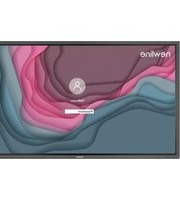
Find the device manual for free TruTouch X8 Newline in PDF.


Pick your language and provide your email: we'll send you a specifically translated version.
| Product Type | Interactive Flat Panel Display |
| Brand | Newline |
| Model | TruTouch X8 |
| Display Size | 86 inches (diagonal) |
| Resolution | 3840 x 2160 (4K UHD) |
| Touch Technology | Infrared (IR) touch, 20-point multi-touch |
| Brightness | 350 cd/m² |
| Contrast Ratio | 4000:1 |
| Viewing Angle | 178° horizontal / 178° vertical |
| Connectivity | HDMI (x3), VGA, USB 2.0 (x2), USB 3.0, USB-C, RJ45, Audio Out, RS232 |
| Built-in Speakers | 2 x 15W |
| Operating System | Android 9.0 (optional OPS slot for Windows) |
| Power Supply | 100-240V AC, 50/60Hz |
| Power Consumption | 350W (max) |
| Dimensions (W x H x D) | 1957 x 1169 x 88 mm |
| Weight | 62 kg |
| VESA Mount | 800 x 600 mm |
| Operating Temperature | 0°C to 40°C |
| Storage Temperature | -20°C to 60°C |
| Maintenance | Clean with a soft, dry cloth. Avoid abrasive cleaners or liquids. |
| Safety Precautions | Do not open the device; risk of electric shock. Keep away from water and heat sources. |
| Spare Parts & Repairability | Contact Newline authorized service centers for replacement parts and repairs. |
Frequently Asked Questions - TruTouch X8 Newline
How do I turn on the TruTouch X8?
Press the power button located on the bottom right corner of the screen or use the remote control.
How do I connect my laptop to the display?
Use an HDMI cable to connect your laptop's HDMI port to one of the HDMI inputs on the display. Select the corresponding HDMI source using the input button.
Can I use the touch function without installing drivers?
For basic touch functionality via USB, the display is plug-and-play on Windows and macOS. For advanced features, install the Newline Touch Driver from the support website.
How do I calibrate the touch screen?
Go to Settings > Device > Touch Calibration on the Android system. Follow the on-screen instructions to tap the crosshairs.
What is the recommended cleaning procedure?
Turn off the display and unplug it. Use a soft, lint-free cloth slightly damp with water or a mild screen cleaner. Do not spray liquid directly on the screen.
Why is the display not responding to touch?
Ensure the USB cable for touch is connected from the display to your computer. Restart the display and computer. If the issue persists, check for driver updates.
How do I update the firmware?
Download the latest firmware from the Newline support page. Save it to a USB drive, insert into the display, and go to Settings > Device > Firmware Update. Select the file and follow prompts.
Can I mount the display on a wall?
Yes, the display is VESA compatible (800x600 mm). Use a wall mount rated for at least 80 kg and follow the installation instructions.
What do the LED indicators mean?
Solid blue: power on. Flashing blue: standby. Red: no signal or error. Refer to the manual for detailed indicator codes.
How do I reset the display to factory settings?
Go to Settings > Device > Reset. Choose 'Factory Reset' and confirm. This will erase all personal settings and data.
User questions about TruTouch X8 Newline
0 question about this device. Answer the ones you know or ask your own.
Ask a new question about this device
No questions yet. Be the first to ask one.
Download the instructions for your Screen in PDF format for free! Find your manual TruTouch X8 - Newline and take your electronic device back in hand. On this page are published all the documents necessary for the use of your device. TruTouch X8 by Newline.
USER MANUAL TruTouch X8 Newline


Manual assistant
Powered by Anthropic
Waiting for your message
Product information
Brand : Newline
Model : TruTouch X8
Category : Screen