
VGF-CP1 - Computer accessory SONY - Free user manual and instructions
Find the device manual for free VGF-CP1 SONY in PDF.


| Product Type | Digital Photo Frame |
| Model | VGF-CP1 |
| Brand | Sony |
| Display Size | 7 inches |
| Display Resolution | 800 x 480 pixels |
| Aspect Ratio | 16:9 |
| Dimensions (W x H x D) | 207 x 137 x 28 mm |
| Weight | Approx. 540 g |
| Power Supply | AC adapter (100-240V, 50/60Hz) |
| Power Consumption | Approx. 7.5 W |
| Supported Memory Cards | Memory Stick, SD, SDHC, MMC |
| Internal Memory | 256 MB (approx. 200 photos) |
| Photo Formats | JPEG, BMP, TIFF, RAW |
| Slideshow Modes | Normal, Fade, Zoom, etc. |
| Clock/Calendar | Yes, with alarm |
| Remote Control | Included |
| Built-in Speakers | Yes (mono) |
| USB Port | USB 2.0 (for PC connection) |
| Care Instructions | Clean with soft dry cloth; avoid solvents |
| Safety Warnings | Do not expose to moisture or extreme temperatures |
| Spare Parts Availability | Remote control, AC adapter |
| Repairability | Limited; contact Sony service center |
Frequently Asked Questions - VGF-CP1 SONY
User questions about VGF-CP1 SONY
0 question about this device. Answer the ones you know or ask your own.
Ask a new question about this device
Download the instructions for your Computer accessory in PDF format for free! Find your manual VGF-CP1 - SONY and take your electronic device back in hand. On this page are published all the documents necessary for the use of your device. VGF-CP1 by SONY.
USER MANUAL VGF-CP1 SONY
Operating Instructions
WARNING
Owner's Record
The model number and serial number are located on the rear of this unit.
Record the serial number in the space provided below.
Refer to this number whenever you call your Sony dealer regarding this product.
Model No. VGF-CP1
Serial No.
WARNING
Be sure to read the software license agreement carefully in page 76/page 77 before using this product.
- This User Guide and the information contained herein shall not be reproduced in whole or in part and shall not be lent to any third parties.
- The terms of warranty for this product are defined in the separate warranty certificate provided with your home server.
- The license agreement for the supplied software is defined in the software license agreement for each software application.
- Sony Corporation provides no warranty with regard to the supplied software. In no event shall Sony Corporation be liable for any incidental, consequential, or special damages, where based on tort, contract, or otherwise, arising out of or in connection with the supplied software.
- Sony Corporation reserves the right to make any modification to this product and the supplied software. The specifications of this product and the supplied software are subject to change without prior notice.
- Sony Corporation and the software vendors reserve the right to terminate or suspend the network services to the supplied software. In no event shall Sony Corporation be liable for inconvenience wholly or partially resulted from the termination or suspension of the services.
- Some functions described in this User Guide and/or in the help files on the supplied software may not be implemented due to restrictions imposed by using such software on this product. Sony Corporation assumes no liability for inconvenience resulted from the restrictions.
The Picasa TM Web Album service is currently provided as a courtesy by Google TM and is subject to change or termination without notice.
Internet connection required.
For Customer in Europe
Sony hereby declares that this equipment is in compliance with the essential requirements and other relevant provisions of European Directive 1999/5/EC.
To obtain a copy of the declaration of conformity (DoC) with the R&TTE Directive, please access the following URL address.
http://www.compliance.sony.de/
This product also complies with EN 55022 Class B and EN 55024, for use in following areas: residential, commercial and light industrial.
This product can only be used in United Kingdom.
- Audio and picture distortion may occur if this equipment is positioned in close proximity to any equipment emitting electromagnetic radiation.
- This product has been tested and found to compliant with the limits set out in the EMC Directive for using connection cables not longer than 3 metres (9.8 feet).
- Dispose of the battery properly at its end-of-life.
- In some areas the disposal of non-hazardous batteries in household or business waste may be prohibited.
- Please use the public collection system.


Disposal of Old Electrical & Electronic Equipment (Applicable in the European Union and other European countries with separate collection systems)

Disposal of waste batteries (applicable in the European Union and other European countries with separate collection systems)
This symbol on the battery or on the packaging indicates that the battery provided with this product shall not be treated as household waste.
By ensuring these batteries are disposed of correctly, you will help prevent potentially negative consequences for the environment and human health which could otherwise be caused by inappropriate waste handling of the battery. The recycling of the materials will help to conserve natural resources.
In case of products that for safety, performance or data integrity reasons require a permanent connection with an incorporated battery, this battery should be replaced by qualified service staff only.
To ensure that the battery will be treated properly, hand over the product at end-of-life to the applicable collection point for the recycling of electrical and electronic equipment.
For all other batteries, please view the section on how to remove the battery from the product safely.
Hand the battery over to the applicable collection point for the recycling of waste batteries.
For more detailed information about recycling of this product or battery, please contact your local Civic Office, your household waste disposal service or the shop where you purchased the product.
For Customer in U.S.A.
This equipment has been tested and found to comply with the limits for a Class B digital device, pursuant to Part 15 of the FCC Rules. These limits are designed to provide reasonable protection against harmful interference in a residential installation. This equipment generates, uses, and can radiate radio frequency energy and, if not installed and used in accordance with the instructions, may cause harmful interference to radio communications. However, there is no guarantee that interference will not occur in a particular installation. If this equipment does cause harmful interference to radio or television reception, which can be determined by turning the equipment off and on, the user is encouraged to try to correct the interference by one or more of the following measures:
☐ Reorient or relocate the receiving antenna.
☐ Increase the separation between the equipment and receiver.
☐ Connect the equipment into an outlet on a circuit different from that to which the receiver is connected.
☐ Consult the dealer or an experienced radio/TV technician for help.
You are cautioned that any changes or modifications not expressly approved in this manual could void your authority to operate this equipment.
All cables used to connect peripherals must be shielded and grounded. Operation with cables connected to peripherals that are not shielded and grounded may result in interference to radio and television reception.
This device complies with Part 15 of the FCC Rules. Operation is subject to the following two conditions: (1) this device may not cause harmful interference, and (2) this device must accept any interference received, including interference that may cause undesired operation.
This equipment complies with FCC radiation exposure limits set forth for an uncontrolled environment. This equipment should be installed and operated with minimum distance 8 inches (20 cm) between the radiator and your body (excluding extremities: hands, wrists, feet and ankles).
This device and its antenna(s) must not be co-located or operating with any other antenna or transmitter except Grant condition.
Caution
- The socket-outlet shall be installed near the equipment and shall be easily accessible.
- Danger of explosion if battery is incorrectly replaced. Replace only with the same or equivalent type recommended by the manufacturer. Discard used batteries according to the manufacturer's instructions.
The battery used in this device may present a fire or chemical burn hazard if mistreated. Do not disassemble, heat above 140° F ( 60° C) or incinerate. Dispose of used battery promptly. Keep away from children. Do not short circuit.
For the State of California, USA only
Perchlorate Material - special handling may apply, See www.dtsc.ca.gov/hazardouswaste/perchlorate
Perchlorate Material: Lithium battery contains perchlorate.
Table of Contents
Getting Started 6
About This Unit 6
Locating Controls and Ports 8
Front 8
Back 9
Bottom 10
Remote Control 11
Before Use 12
Checking Accessories 12
Connecting 12
Inserting and Removing Memory Cards .....14
Basic Operation 16
Basic Use 16
Turning the Power On 16
About the Home Screen 17
Playing Back Photos Frame of Sample Images 18
Displaying Data on the Browse Screen .....18
Copying Data to the Internal Memory......20
Creating a Frame 23
Playing Back a Frame 26
Available Frames 27
Frame Created from Photo Browse Screen 27
Frame Created from Music Browse Screen 30
Frame Created from Information Browse Screen ....31
Examples 32
Example 1: Using [Picasa Web Albums by
Google] 32
Obtaining an Account for "Picasa Web Albums by Google" 32
Logging in to "Picasa Web Albums by Google" 33
Uploading Photos to "Picasa Web Albums by Google" from This Unit ....35
Displaying Photos from "Picasa Web Albums by Google"......37
Example 2: Displaying Photos Stored on
Your Computer 40
Setting up a Server 40
Displaying Photos on a Computer Set to Use with This Unit ....41
Example 3: Listening to Music or Web Radio
Program 43
Playing Back Music in Memory Stick Media 43
Playing Back Web Radio Station of SHOUTcast 44
Example 4: Registering RSS 47
Registering RSS 47
Displaying the Registered RSS....48
Creating RSS Frame 49
Connection/Settings 51
Connecting to a Wireless Network 51
Checking the Type of Access Points ....51
Setting with AOSS 51
Setting Manually ....54
Options Menu List 57
Settings Menu 60
Troubleshooting 63
Troubleshooting 63
Getting Help 71
About Sony's support options ....71
Precautions/Others 72
Specifications 72
Precautions 73
Trademarks....75
Important notices on the software .....76
Index 103
About This Unit
This unit is a Digital Photo Frame for displaying photos with Internet access.
In addition to displaying photos, you can also enjoy music and information by creating various frames (page 23).
Note
For home wireless network connection, you will need a subscription to an Internet service provider and a wireless LAN router.

You can display the following:
- Photos stored on memory cards such as Memory Sticks.
- Photos stored on your computer or home server through your wireless home network.
- Photos stored on a Web photo organizer or a home server supporting the Remote Home Access function. In order to use these functions, some network and server settings need to be configured.
- A slide show of your favorite photos, with photo effects and music.
- Photos stored on your home server supporting the Remote Home Access function - even if you are away from home.
Note
This unit cannot display movies shot by a digital camera or video camera.
You can play back music files*:
- Stored on memory cards such as Memory Sticks.
- Stored on your computer through your wireless home network.
- Various Web radio programs broadcasted by SHOUTcast (page 44).
* MP3 or WAV (LPCM) can be played in this unit.
Note
This unit cannot play back music files with copyright protection.
You can display the following information:
- News from Google News UK (U.K. model) or Google News (U.S.A model).
- The latest information from Web sites broadcasting RSS. You can register to receive RSS feeds in the Web browser (Opera) screen (page 47).

Other uses
If you give this unit to distant family or friends as a gift, you can send your photos to them through the Web service. First, configure the network and server settings with this unit, and save the Web photo organizer in frames, then you can view the latest photos uploaded to the Web service by switching frames with the remote control.
Illustrations and screen images in this manual may differ from the actual product.
Locating Controls and Ports
Front

1 WLAN (wireless LAN) indicator
Lights up when the wireless LAN turns on.
2 STANDBY indicator
Lights up in standby mode.
3 New Info indicator
Blinks when receiving new information. Also can be turned on as a light.
4 Remote control sensor
Receives a signal from the remote control.
Back

Press to select options and enter.
While the browse screen or a screen other than the Options screen is displayed, adjust the volume by pressing ↑↓.
2 BACK button
Press to quit setting and return to the previous screen.
3 OPTIONS button
Press to display the setting screen of the current feature.
4 HOME button
Press to return to the Home screen.
5 ⏻ (POWER) button
Press to turn on the power when in power off or standby mode.
Press to enter standby mode while power is turned on.
6 Light sensor
Detects ambient light around the unit.

If you set [ System settings] - [Auto power on/off] to [On] in the setting screen of this unit, the power will automatically turn on or enter the standby mode according to the surrounding ambient brightness (page 62).
Note
Keep sharp objects away from the sensor.
7 WLAN ON/OFF switch
Press to switch ON/OFF the wireless LAN.
8 ⬆ (USB) connector
Connects a digital still camera or USB memory device.
Note
A USB hub should not be connected.
Bottom

1 CF (CompactFlash) slot
Accesses CompactFlash data.
2 Media access indicator
Lights up in orange when accessing memory card data.
3 ≡ Memory Stick slot
Accesses Memory Stick, Memory Stick PRO, Memory Stick Duo or Memory Stick PRO Duo media data.
4 SD memory card slot
Accesses SD/SDHC memory card data.
5 ◇-⊕ 6V DC IN port
Connects to the AC adapter, which in turn connects to a power outlet.
6 Speakers
Outputs sound when playing back music. There is another speaker on the opposite side.
Remote Control

1 ⏻ (POWER) button
Press to turn on the power when in power off or standby mode.
Press to enter standby mode during power on.
2 ↑↓↔ buttons
Press to select options in the setting screen.
3 DISPLAY button
Press to display the guide.
4 BACK button
Press to quit setting and return to the previous screen.
5 HOME button
Press to return to the Home screen.
6 VOLUME +/- buttons
Press to adjust the volume.
7 MUSIC/ ▶■ button
Press to start / stop music playback.
8 (ENTER) button
Press to enter your selection.
9 OPTIONS button
Press to display the setting screen of the current feature.
10 FRAME +/- buttons
Press to switch frames.
Before Use
Checking Accessories
After unpacking, make sure the following accessories are supplied with your unit. If you find something missing or broken, contact a local dealer in your area.
Digital Photo Frame
Stand
□ AC adapter
☐ Installation CD (U.K. model only)
Power cord
☐ Operating Instructions (this book)
Remote control
VGF-CP1 Quick Reference Guide
Connecting
Attach the stand to the unit and connect the AC adapter.
1 Attach the threaded portion of the stand to the threaded hole at the bottom left corner of the back of the unit.

2 Connect the AC adapter plug to the unit.

A ferrite core is supplied with the U.K. model only.
3 Connect the power cord to the AC adapter, then connect the power cord plug to a wall outlet.

The power turns on and the start-up screen appears.
Setting up the remote control
1 Remove the insulation sheet from the remote control.
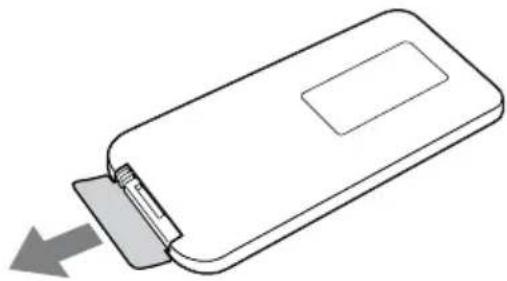
Replacing the battery
1 Open the battery tray.
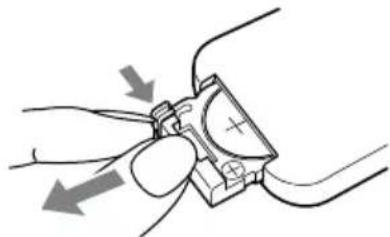
2 Replace with a new CR2025 lithium battery, + side up, then reinsert the battery tray.
Lithium battery

Inserting and Removing Memory Cards
You can play back photos or music stored on Memory Stick, Memory Stick PRO, Memory Stick Duo or Memory Stick PRO Duo media, or an SD/SDHC memory card, CompactFlash card or digital still camera with USB connection or USB memory device.
Inserting and removing memory cards
Insert memory cards as illustrated below.
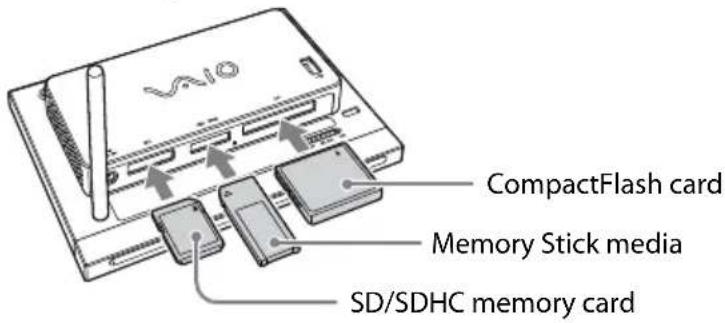
When removing Memory Stick, Memory Stick PRO, Memory Stick Duo or Memory Stick PRO Duo media, or an SD/SDHC memory card, make sure the media access indicator is not lit. Push fully in once and pull out. When removing a CompactFlash card, make sure the media access indicator is not lit.
Attaching and detaching a USB cable or USB memory device
Insert the connector of a USB cable connected to a digital still camera or USB memory device into the (USB) connector of this unit. Unplug the connector when not in use.

This unit is to USB mass-storage class compatible.
About compatible memory cards
You can use Memory Stick media, SD memory cards and CompactFlash cards with this unit. For details on memory card restrictions, see below.
- Memory Stick media
— You can use the following Memory Stick media with this unit.
Memory Stick / Memory Stick Duo / Memory Stick PRO / Memory Stick PRO Duo
— This unit has a slot for both standard / Duo-size types.
You can insert Memory Stick Duo or Memory Stick PRO Duo media directly into the Memory Sick slot without an adapter.
— Do not insert Memory Stick and Memory Stick Duo media at the same time. Improper insertion of media may damage both Memory Stick slot and media.
— This unit does not support the MagicGate feature; data with copyright protection cannot be accessed.
— This unit does not support 8-bit parallel data transfer (high speed data transfer).
— This unit has been tested and found compatible with Sony branded Memory Stick media of up to 8 GB capacity; available as of May 2008. However, not all Memory Stick media that meet these specifications are guaranteed to work.
- SD memory card
— This unit has been tested and found compatible only with SD memory cards of a capacity up to 2 GB, and SDHC memory cards of a capacity up to 8 GB, available as of May 2008. However, not all SD memory cards or SDHC memory cards that meet these specifications are guaranteed to work.
— The SD memory card slot on this unit does not support the copyright protection and high-speed data transfer features of SD memory cards and SDHC memory cards.
- CompactFlash card
You can use CompactFlash cards of Type I and Type II with capacity of up to 8 GB commercially available from May 2008. However, not all CompactFlash cards that meet specifications are guaranteed to work.
Basic Use
Turning the Power On
For the customers purchasing the U.K. model
After connecting the power cord for the first time, the screen detailing the required user registration appears. Please fill out the required contents and proceed to the following procedure.
1 Make sure the stand, power and remote control are ready for use by following the steps in "Connecting" (page 12).
This unit turns on after connecting the power cord.

Hint
Press ⏻ (POWER) to turn the power on when in standby mode.
To set to standby mode
- Standby Mode" reduces power consumption by deactivating the screen.
- If you set [System settings] - [Auto power on/off] to [On] in the setting screen of this unit, the power will automatically turn on or enter standby mode according to a surrounding ambient brightness (page 62).
1 Press ⏻ (POWER) on the remote control pointing at the remote control sensor of this unit.
The STANDBY indicator lights up in orange and turns to standby mode.

Hint
This unit can also be set to standby mode by pressing ⏻ (POWER) on the back of this unit.
To turn off the power
The steps below show how to turn off the power to remove the AC adapter, etc.
1 Press ⏻ (POWER) on the back of this unit.
The STANDBY indicator lights up in orange and standby mode is set.
2 Press and hold ⏻ (POWER) on the back of this unit.
The New Info indicator blinks and turns off when the power turns off.
Note
- You cannot turn off the power by the remote control.
- Press and hold ⏻ (POWER) only when in standby mode. If you turn the power off from a mode other than standby mode, stored data may be lost.
About the Home Screen
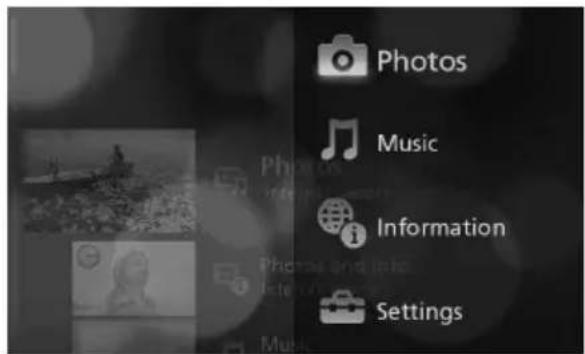
Turning on the power opens the Home screen. All functions can be selected from the Home screen.

Select a frame by pressing ↑↓ and press-ENTER).
Press →.
Select desired item by pressing and press ENTER).
1 Frame list
Displays registered frames. If Shared frames are created (page 29), NEW ears when new photos are uploaded.
2otos
Displays photo files stored in the memory or on the server. Playing a slide show, creating new frames, etc., can be performed from the Options menu (page 57).
3 Music
Plays back music stored in the memory or on the server, or radio programs from SHOUTcast. Additionally, creating a new frame, etc., can be performed from the Options menu (page 58).
4 Information
Starts the registered RSS or news provided from Google News U.K. (for U.K. model)/Google News (for U.S.A. model) can be displayed. Creating a new frame, etc., can be performed from the Options menu (page 58).
5 Settings
Configures various settings of this unit (page 60). 📋 appears when update information for software is available. The information can be checked by selecting [Important messages] of [System settings] in [Settings] (page 60).
Note
The web browser equipped with this unit is for mainly checking news or registered RSS information, etc. Some web sites or flash contents may not be properly displayed or played.
Hint
While displaying photos or playing music, you can press HOME to return to the Home screen.
The HOME button does not work while the selection screen (for [Yes], [No] or [Close]) is displayed. Complete selection/confirmation, and then press HOME.
Playing Back Photos Frame of Sample Images
Frames using sample images and music pre-stored on this unit are used to demonstrate what a frame is. For details on creating or playing back a frame, see page 23, 26.
Playing back a frame of sample images and music from the Home screen
1 Press HOME on the remote control.
The Home screen appears.
2 Select a frame by pressing ↑↓ on the remote control, and press-♦(ENTER).
The selected frame starts playing back.
Displaying Data on the Browse Screen
You can play back photos or music stored in the memory or the server, or display Internet RSS information on the browse screen. You can also create a new frame from the browse screen (page 23).
Hint
In addition to the photo browse screen explained in this section, the music browse screen to play back music files, or the information browse screen to display RSS information, are also available.
Displaying photos on Memory Stick media
As an example, the following steps show how to display photos on Memory Stick media shot by a digital still camera.
1 Turn the power on (page 16).
The Home screen appears.
Hint
If the Home screen does not appear, press HOME on the remote control.
2 Insert Memory Stick media into this unit (page 14).
Folders or photos on Memory Stick media appear after about 5 seconds.


Hint
If folders of photos do not appear, do the following:
① In the Home screen, press ➤ on the remote control. Select [+hotos] by pressing ↑↓, and press - ENTER).
② Select [Memory Stick] by pressing ↑↓, and press -ENTER.
3 Select a folder including a target photo by pressing on the remote control, and press - ENTER).

The photo list appears.

Hint
- The selected folder may contain subfolders. In this case, repeat step 3 until a target photo appears.
- If "Cannot show the server list." appears, the folder does not contain any files in a format that can be played by this unit. Press ENTER) to return to the previous screen.
- Photos in Web services, on other memory cards, or on computers on a home LAN can be displayed in the same way. In the case of a Web service, or a computer on a home LAN, you should configure the connection settings (page 32, 51).
4 Select a photo by pressing , and press - ENTER).

A photo is displayed.

Hint
If you insert a memory card while a screen other than the browse, Settings or Options screen is displayed, the photo (folder) list of the memory card appears.
Copying Data to the Internal Memory
You can copy photos or music stored in memory devices or in server to the internal memory of this unit.

Hint
- Approximately 85 MB of the internal memory can be spared for copying and registering photos. Up to approximately 120 photos can be registered. (The number of photos that can be registered varies according to their types.)
- Approximately 15 MB of the internal memory can be spared for copying and registering music.
- The internal memory stores some sample images and sample music. The capacity allocation will increase by deleting them. The deleted sample images and music can be restored by [Initialization] in [Settings] (page 60).
Note
- The registered photos and music in the internal memory cannot be moved or copied to the external memory.
- Multiple files or folders cannot be copied at the same time.
- WAV file format music cannot be copied to the internal memory.
Copying a photo to the internal memory
1 Display the photos or the folders including photos you are going to copy to the internal memory by following the steps in "Displaying Data on the Browse Screen" (page 18).
When you want to copy a photo, display the photo. When you want to copy a whole folder, display the folder. Note that only the photos directly under the folder will be copied and the photos in the sub folder will not be copied.

Hint
To copy music to the internal memory, follow the steps in "Playing Back Music in Memory Stick Media" (page 43) to play back music you want to copy to the internal memory. A whole folder including music cannot be copied.
2 Press OPTIONS on the remote control.
The options menu appears.
3 Select [Copy to internal memory] by pressing on the remote control, and press - ENTER).
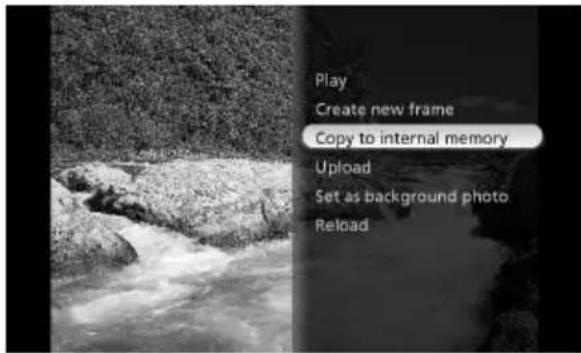
A confirmation screen appears.
4 Select [Yes] by pressing ↔ on the remote control, and press- (ENTER).

5 Press (ENTER) on the remote control.
Playing back a photo copied to the internal memory
1 Press HOME on the remote control.
The Home screen appears.
2 Press → on the remote control and select [●Photos] by pressing ↑↓, and press -◆- (ENTER).

3 Select [Internal memory] by pressing on the remote control, and press-♦-(ENTER).

4 Select a photo by pressing on the remote control, and press- (ENTER).
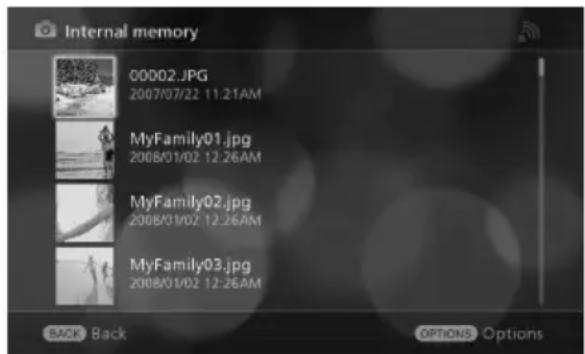
The selected photo is displayed.
Note
- Slide show playback cannot be performed with multiple photos optionally selected in the internal memory.
- If the aspect ratio of the copied photo differs from the one of the display of this unit, a blank space is displayed at top and bottom or left and right.
- When you operate to copy a whole folder to the internal memory, only data inside the folder is copied. The folder composition therefore will not be displayed in the internal memory.
Deleting a photo in the internal memory
Photos and music in the internal memory can be deleted in [Delete photos] or [Delete all in the folder] in the option menu (page 58).
Creating a Frame
A frame is a collection of your favorite photos or music that can be easily selected.
Once you have created several frames, you can easily change photos or music to match your mood by selecting one of the frames in the Home screen.

Hint
In addition to the Photos and Info frame explained in this section, you can also save Music frames to play back music files and Memories frames to display photos in order of shooting date and time. For details on other frames, see "Available Frames" (page 27).
Creating a Photos and Info frame
As an example, the following steps show how to create a "Photos and Info" frame to display photos in a folder.
1 Display photos in a folder to create a Photos and Info frame by following the steps in "Displaying Data on the Browse Screen" (page 18).
2 Press OPTIONS on the remote control.
The Options menu appears.
3 Select [Create new frame] by pressing on the remote control, and press- - (ENTER).
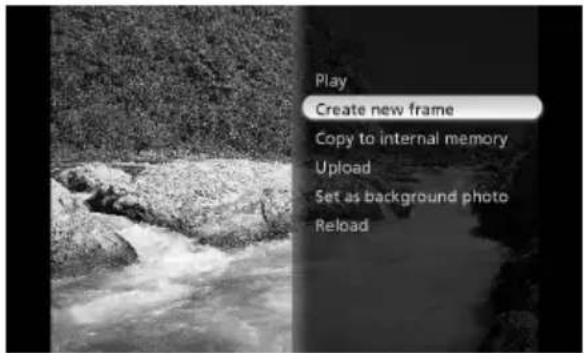
A confirmation screen for creating a frame appears.

Hint
All photos in the folder storing target photo are saved in the frame.
4 Select [Yes] by pressing ↔ on the remote control, and press - (ENTER).

The "Create new frame" screen appears.
5 Select [Photos and Info] by pressing ↔ on the remote control, and press -♦- (ENTER).

The "Create Photos and info frame" screen appears.
Hint
In addition to the Photos and Info frame, you can select a Photo frame (page 28), a Shared frame (page 29) or a Memories frame (page 29). However, the Shared frame can be selected only when displaying photos in the Web server on the Internet in step 1.
6 Press → on the remote control.

A setting screen to display information appears.
Hint
You can set the style, order and interval for displaying photos in the Photos and Info frame. To change the settings, select the desired setting by pressing on the remote control and press - ENTER), then select the desired option by pressing and press - ENTER).
7 Press → on the remote control.

A confirmation screen for the selected settings appears.
Hint
The selection to display news information provided from Google News U.K. (for U.K. model)/Google News (for U.S.A. model) or a registered RSS item in the Photos and Info frame can be set in this screen. Press on the remote control to select other settings (if desired) and press ENTER), then select the desired option by pressing and press ENTER).
Note
To display News, set up a wireless network before connecting the unit to the Internet. For details, see "Connecting to a Wireless Network" (page 51).
8 Select [Yes] by pressing ↔ on the remote control, and press- (ENTER).

The Photo and Info frame created with the selected settings appears.
Playing Back a Frame
You can play back saved frames from the Home screen, or change frames to another frame by pressing FRAME on the remote control.
Hint
You can change the thumbnail displayed in the HOME screen to a desired photo in the frame. During playback of a frame, press OPTIONS during playback of the photo to be used for the thumbnail to select [Capture frame screen], and press ENTER).
Playing back a frame from the Home screen
1 Press HOME on the remote control.
The Home screen appears.
2 Select the desired frame by pressing on the remote control, and press -♦- (ENTER).
The selected frame starts playing back.
Hint
- You can play back the frame by pressing FRAME while displaying a screen other than a frame.
- The operation guide for frames can be displayed by pressing DISPLAY repeatedly.
Changing a frame
You can change a frame to another frame during playback.
1 Press FRAME on the remote control.
Press FRAME + to change to the next frame up in the frame list in the Home screen. Press FRAME – to change to the next frame down in the frame list.
Hint
You can re-arrange the frame order or delete unnecessary frames in the Home screen (page 59).
Available Frames
You can choose from 8 frame types, and save up to 20 frames.

About the icons in this section

: Data in the internal memory can be used.

: Data on memory cards can be used.

: Data in the Web service can be used (Internet connection necessary).

: Data sent from the home server supported by the Remote Home Access function can be used (Internet connection necessary).

: Data sent from a server using software such as "VAIO Media" can be used (Home LAN connection necessary).

: Information such as news on the Internet can be displayed (Internet connection necessary).
Frame Created from Photo Browse Screen
From the photo browse screen, you can create 4 types of frames for decorating photos in various ways. To create a frame, select the desired photo file or folder from the photo browse screen, and select [Create new frame] in the Options menu (page 57).

Hint
- If a folder is selected from the list when creating a frame, all photos in the folder currently selected up to the 4th level folder will be displayed in the frame.
- If you have created a frame in the window displaying a photo, only photos in the folder where the photo is stored will be displayed in the frame (photos in the sub folder will not be displayed).
- If you select a photo from the server using "VAIO Media" software or in home access when creating a frame, only photos in the folder where the photo is stored will be displayed in the frame (photos in the sub folder will not be displayed).
Photos and Info frame 📄/ 📅/ 📃H 📋N
Displays a photo or photos in a specified folder one after another.
You can also display the current time or registered RSS information with the photos.

Hint
Each time you press DISPLAY, the display changes as follows:
"Photo with analog clock"→"Photo with digital clock"→"Photo only"→"Photo with guide"→"Photo with analog clock"...
For details on clock setting, see page 61.
Photos frame / /
Displays photos in a specified folder one after another with photo effects. You can also play back music together with your photos by selecting a music file in the internal memory.

Hint
You can set the transition speed for displaying photos in [Frame settings] (page 57).
Note
- If you change music to [Not specified] in the Options menu while displaying a Photos frame, changes will be applied the next time you play back frame.
- When playing a Photos frame, the first photo may be repeatedly displayed.
- When playing a Photos frame, the first photo in the Web service may take time to display.
- Photos in the Web service may not be displayed due to slow connection speeds or excessive Internet activity.
Shared frame

Displays photos uploaded to the Web photo organizer by members at the same time. Information from members, such as friends or family, can be shared by displaying respective photos at the same time.


Hint
- Up to 4 members can be registered for 1 Shared frame.
- You can set the style, order and interval for displaying photos in [Frame settings] (page 57).
- When new photos are uploaded to a Web server, NEW played on the Home screen and the New Info indicator lights up (page 8, 62). NEW played to members while displaying Shared frames. disaNEWS when changing photos by ↔ on the remote control.
- Each time you press DISPLAY, the display changes as follows: "Photo with face icon" → "Photo only" → "Photo with guide" → "Photo with face icon"...
Note
- It may take some time to display the first photo after starting the Shared frame.
- Depending on the number of photos in the folder, it may take some time to display the first photo.
- The more members (up to 4) sharing the folder at the same time, the longer it takes to display the first photo.
- Photos in the Web photo organizer may not be displayed due to slow connection speed or excessive Internet activity
Memories frame


Displays photos shot or updated within one month from today in the specified folder at random. Photos shot in "this time some years ago" may be displayed since this unit displays photos regardless of shooting year. You can recall the days the photos were shot.
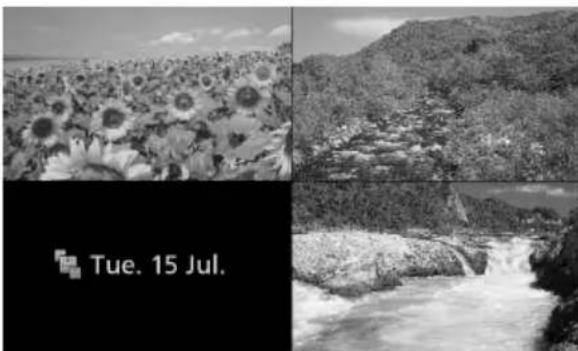

Hint
- You can set the screen separation, style and interval for displaying photos in [Frame settings] (page 57).
- It is recommended to store as many photos in a single folder as possible.
Frame Created from Music Browse Screen
In the music browse screen, you can easily create frames to continually play back selected music files or desired web radio stations of SHOUTcast.
To create a frame, select the desired music file of folder from the music browse screen, or the desired web radio station, and select [Create new frame] in the Options menu (page 57).
Music frame /
Continuously plays back your favorite music or desired web radio station of SHOUTcast.

Hint
- Only the sleeve images of ID3 tag on music can be displayed.
- To stop playing music, press ▶■ on the remote control.
Frame Created from Information Browse Screen
In the information browse screen, you can create frames to display information, such as news from an RSS site.
To create a frame, select the desired RSS from the information browse screen, and select [Create new frame] in the Options menu (page 57). Up to 3 types of frame are available depending on the RSS.

Hint
The release date of the latest information from a Web site sending RSS feeds is displayed under each frame title (RSS name).
News frame N
Displays RSS information provided from Google News U.K. (for U.K. model)/Google News (for U.S.A. model).


Hint
You can set the background design in [Frame settings] (page 57).
RSS frame N
Displays information from RSS feeds to which you are registered.


Hint
- For details on RSS registration, see "Registering RSS" (page 47).
- You can set the background design in [Frame settings] (page 57).
Example 1: Using [Picasa Web Albums by Google]
"Picasa Web Albums by Google" is a Web service on the Internet provided from Google. With this wireless device, you can display photos on the Internet or upload photos to the Internet using "Picasa Web Albums by Google".
This section shows how to use "Picasa Web Albums by Google."
Note
For Internet Web services, restrictions, such as the number of photos you can store, may be changed without notice. Check the Web site of the Web service for the latest information.
Obtaining an Account for "Picasa Web Albums by Google"
You need a computer in order to set up your account.
Apart from having a Google account, you must register for the Picasa Web Albums.
If you already have an account for Picasa Web Albums for Google, proceed to "Logging in to Picasa Web Albums by Google" (page 33).

Hint
For details on "Picasa Web Albums by Google," see Google help.
■ Without a Google account
1 Go to http://www.google.com.
2 Click [more]-[Photos].
The log-in screen for "Picasa Web Albums by Google" appears.
3 Click [Create a new Google Account].
The Create a new Google Account screen appears.
4 Create a Google account and register for "Picasa Web Albums by Google" by following the on-screen instructions.
After creating a Google account and completing user registration for "Picasa Web Albums by Google," proceed to "Logging in to Picasa Web Albums by Google" (page 33).
■ With a Google account
1 Go to http://www.google.com.
2 Click [more]-[Photos].
The log-in screen for "Picasa Web Albums by Google" appears.
3 Enter [Email] and [Password], and click [Sign in].
The user registration screen for "Picasa Web Albums by Google" appears.
4 Register for "Picasa Web Albums by Google" by following the on-screen instructions.
After completing the user registration for "Picasa Web Albums by Google," proceed to "Logging in to Picasa Web Albums by Google."
Logging in to "Picasa Web Albums by Google"
In order to log in, you need a wireless network connection. For details, see "Connecting to a Wireless Network" (page 51).
1 Press HOME on the remote control.
The Home screen appears.
2 Press → on the remote control, select [Settings] by pressing ↑↓ and press -♦- (ENTER).

The Settings screen appears.
3 Select [ Server settings] by pressing (ENTER).
on the remote control, and press -♦-

The Server settings screen appears.
4 Select [Google] by pressing on the remote control, and press - ENTER).

The account setting screen to connect to "Picasa Web Albums by Google" appears.
5 Enter the e-mail address and password for the Google account, and enter the user name for "Picasa Web service" if required.
Note
If the e-mail address at the account registration is Gmail, do not enter the user name for "Picasa Web Albums," but enter the e-mail address and password for the Google account.
6 Press BACK on the remote control.

The confirmation screen for testing the server connection appears.
7 Select [Yes] by pressing ↔ on the remote control, and press- (ENTER).

If the connection test is successful, the complete screen appears.
Hint
If the connection test fails, double-check the e-mail address and password for the Google account and the user name for "Picasa Web Service," and repeat from step 5. In addition, see "Troubleshooting" (page 63).
Uploading Photos to "Picasa Web Albums by Google" from This Unit
Photos stored on memory cards, such as Memory Stick media can be uploaded to "Picasa Web Albums by Google." This section shows how to upload photos on Memory Stick media inserted into this unit.
Hint
- When uploading photos stored on a computer, see the Picasse Web Albums by Google online help.
- Photos uploaded from this unit are registered as "Unlisted." To share the photo with others, you must change it to "Listed." Some operations are necessary in a computer in order to do this. For details, see the Picasse Web Albums by Google online help.
Uploading photos on Memory Stick media
1 Display the desired folder or photo to upload by following the steps in "Displaying Data on the Browse Screen" (page 18).
If you want to upload only a photo, display the photo you want to upload. To upload a whole folder, select the folder. If you have selected a folder, photos only in the selected folder are uploaded, and photos in the sub folders are not.
2 Press OPTIONS on the remote control.
The Options menu appears.
3 Select [Upload] by pressing on the remote control, and press - (ENTER).

The confirmation screen for uploading appears.
4 Select [Yes] by pressing ↔ on the remote control, and press - ENTER).

The album selection screen for uploading appears.
5 Select the desired album to upload photos by pressing on the remote control, and press - ENTER).
When uploading a folder, it is not necessary to select an album.

"Uploading... Please wait" appears, then the complete screen appears.
Hint
In the case of uploading a photo, if an album is not created in "Picasa Web Albums by Google", create a "Digital Photo Frame" album automatically, then upload. In the case of uploading a whole folder, create an album named the same with the folder automatically, then upload.
Displaying Photos from "Picasa Web Albums by Google"
You can display photos uploaded to "Picasa Web Albums by Google", or photos from members sharing albums.

Hint
For sharing albums on "Picasa Web Albums by Google," see help of "Picasa Web Albums by Google."
Note
- It may take some time to display uploaded photos.
- Displaying thumbnail images in the photo browse screen may take time.
- Photos on "Picasa Web Albums by Google" may not be displayed due to slow connection speed or excessive Internet activity.
1 Press HOME on the remote control.
The Home screen appears.
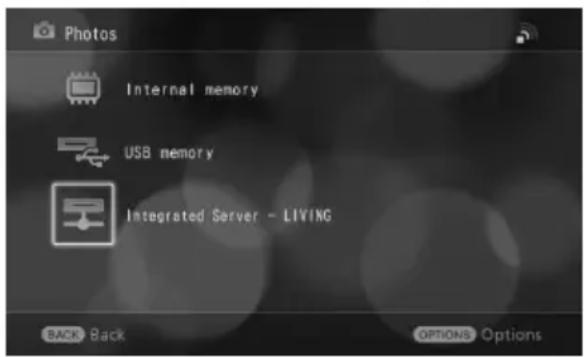
2 Press → on the remote control, select [☐ Photos] by pressing ↑↓, and press -♦- (ENTER).
The server list appears.
3 Select [ Picasa Web Albums by Google] by pressing ↑↓ on the remote control, and press-ENTER.

Your nickname on "Picasa Web Albums by Google" or the nicknames of members sharing albums appear.
4 Select your nickname by pressing on the remote control, and press -♦- (ENTER).

The album list appears.

Hint
To display photos of members sharing albums, select member nicknames.
5 Select the desired album containing target photos by pressing on the remote control, and press - (ENTER).

The photo list appears.
6 Select the desired photo by pressing on the remote control, and press-♦-(ENTER).

The selected photo is displayed.

Hint
You can create shared frames (page 29) by using photos on "Picasa Web Albums by Google."
Members sharing albums can be added to the Shared frames (page 58).
To add photos of others to the Shared frames, you need to register the photos to "Favorite" in "Picasa Web Albums by
Google." For details on registering, see the Picasa Web Albums by Google online help.
Example 2: Displaying Photos Stored on Your Computer
By using your computer with VAIO Media as your server, you can display photos on the computer on your wireless frame.

Hint
To use your computer as a server, you should connect your wireless frame to your wireless home network. For details, see "Connecting to Wireless Network" (page 51).
Setting up a Server
Set a computer to work as a server.
Note
- To connect a computer as a server to the same LAN as this unit, registration is required.
- Registering the computer as a server requires logging on as a user with administrator privileges, such as "Computer administrator." For details, see "VAIO Media help."

Hint
For further details on operations and the settings of "VAIO Media," see "VAIO Media help."
Starting VAIO Media Integrated Server
1 Click [Start] on the computer, then click [All Program]-[VAIO Media]-[Server Administration]-[VAIO Media Server Settings].
[VAIO Media Server Settings] starts up.
2 Click [VAIO Media Integrated Server], then click [Start] if [Start/Stop server] is in [Stop] status.
VAIO Media Integrated Server starts.
Accessing to the computer
1 Click [Start] on the computer, then click [All Program]-[VAIO Media]-[Server Administration]-[VAIO Media Server Settings].
[VAIO Media Server Settings] starts up.
2 Click [Access control settings.], then click [Allow other devices on your network to access this computer.].
The [IMPORTANT] window appears.
3 Confirm the contents in the window, and click [OK].
Displaying Photos on a Computer Set to Use with This Unit
1 Press HOME on the remote control.
The Home screen appears.
2 Press → on the remote control, select [●hotos] by pressing ↑↓, and press -◆- (ENTER).

The server list appears.
Note
Displaying the computer set for use with this unit on the list may take time. If a server list is not displayed, press OPTIONS on the remote control, select [Update information] by pressing , and press ENTER). The server list will be renewed.
3 Select the desired server containing target photos by pressing ↑↓ on the remote control, and press - ENTER).
Folders or photos on the server appear.

Hint
If the server does not appear, refer to "A server using software such as "VAIO media" is not displayed in the list" of "Troubleshooting" on page 63.
4 Select the folder including the target photo by pressing ↑↓ on the remote control, and press-ENTER.
The photo list appears.

Hint
- The selected folder may contain subfolders. In this case, repeat step 4 until the target photo appears.
- If [Cannot show the server list] appears, press - (ENTER) to return to the previous screen.
5 Select the photo by pressing on the remote control, and press- (ENTER).
The photo is displayed.
Example 3: Listening to Music or Web Radio Program
Music and Web radio program of SHOUTcast can be played back in this unit. You can utilize the unit not only as a photo display but also as a music player.
Playing Back Music in Memory Stick Media
The steps below are an example of how to play back a music file stored in Memory Stick media. MP3 or WAV (LPCM) can be played in this unit.
1 Insert a Memory Stick with a music file in the slot. (page 14)
The folders or photos stored on the Memory Stick media will be displayed after approximately 5 seconds.

If "Cannot show the server list" appears, press ENTER) and go to step 2.
2 Press HOME on the remote control.
The HOME screen appears.
3 Press → on the remote control, select [Music] by pressing ↑↓, and press -♦- (ENTER).

4 Select [ Memory Stick] by pressing ↑↓ on the remote control, and press -♦- (ENTER).

5 If the music file you want to play is inside a folder, select the folder by pressing ↑↓ on the remote control, and press - ENTER).
The music file list is displayed.
![SONY VGF-CP1 - Select [ Memory Stick] by pressing ↑↓ on the remote control, and press -♦- (ENTER). - 2](/content/2026/07/1494711/images/c0471d68b1998a628eb848605bd27b8b6b7227492ad4e69855b842b21711df8e.jpg)
Hint
- Another folder may be displayed. In this case, repeat step 5 until the contents including the music you want to play are displayed.
- If "Cannot show the server list" appears, the folder does not contain any files in a format that can be played by this unit. Press ENTER) to return to the previous display.
6 Select the music by pressing on the remote control, and press-ENTER).
The music is played back.

Hint
Only the jacket photo of ID3 tag can be displayed.
Playing Back Web Radio Station of SHOUTcast
To use SHOUTcast in this unit, it must be connected to a wireless network. For details, refer to "Connecting to a Wireless Network" (page 51).
1 Press HOME on the remote control.
The HOME screen appears.
2 Press → on the remote control, select [Music] by pressing ↑↓, and press -♦- (ENTER).

3 Select [SHOUTcast Radio] by pressing on the remote control, and press-♦-(ENTER).

The genre list of Web radio appears.
4 Select a genre by pressing on the remote control, and press-ENTER).
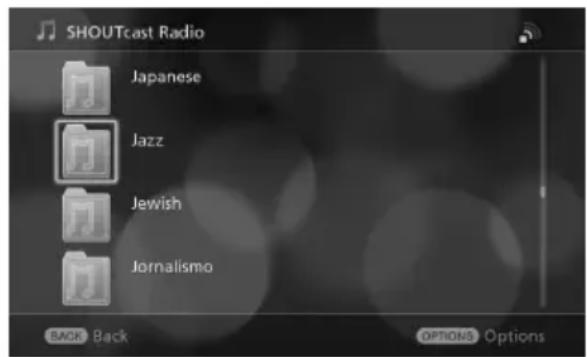
The Web radio stations list appears.
5 Select a Web radio station, and press (ENTER).

The Web radio station is played back.

Hint
By creating a music frame in a desired Web radio, it can be easily played back from HOME screen. To create the music frame, go to step 6.
Note
A tune in SHOUTcast cannot be copied to the internal memory.
6 Press OPTIONS on the remote control.
The Options menu appears.
7 Select [Create new frame] by pressing ↑↓ on the remote control, and press -♦- (ENTER).

A confirmation screen for creating a frame appears.
8 Select [Yes] by pressing ↔ on the remote control, and press ENTER).
9 Press (ENTER) on the remote control.
The created music frame is played back.
To play back the created frame from the Home screen, refer to "Playing Back a Frame" on page 26.
Example 4: Registering RSS
By registering to Internet RSS feeds, you can easily browse the RSS information.
Registering RSS
1 Press HOME on the remote control.
The Home screen appears.
2 Press → on the remote control, select [information] by pressing ↑↓, and press - ENTER).
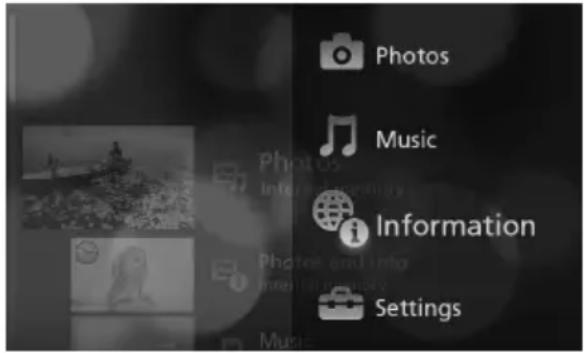
3 Select [Web browser] by pressing on the remote control, and press- - (ENTER).
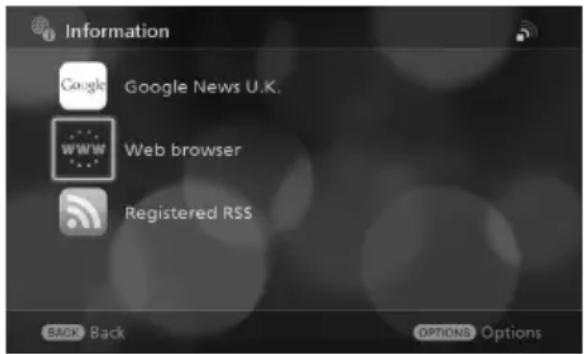
The Web browser (Opera) starts.
4 Display the URL of the RSS site to be registered on the Web browser.
"Hint
If you cannot find out the desired URL from the link, select [Input address] of the Options menu, press
-◆-(ENTER), and input the desired URL directly.
5 Press OPTIONS on the remote control to display the Options menu, select [Register RSS] by pressing and press - ENTER).
The registered RSS is displayed on a list on the [Registered RSS] screen of the information browser.
Displaying the Registered RSS
1 Press HOME on the remote control.
The Home screen appears.
2 Press → on the remote control, select [information] by pressing ↑↓, and press - ENTER).

3 Select [Registered RSS] by pressing ↑↓ on the remote control, and press-♦-(ENTER).

The list of registered RSS appears.
4 Select an RSS you want to browse by pressing ↔ on the remote control, and press - ENTER).
RSS information appears.
Creating RSS Frame
1 Follow the steps of "Displaying the Registered RSS" (page 48) to display the RSS to be a frame.
2 Press OPTIONS on the remote control.
The Options menu appears.
3 Select [Create new frame] by pressing on the remote control, and press → (ENTER).

A confirmation screen for creating a frame appears.
4 Select [Yes] by pressing ↔ on the remote control, and press-ENTER.
Background setting screen appears.
5 Press → on the remote control

A confirmation screen for saving the setting contents appears.

Hint
The background or RSS frame can be set here. To change the initial one, press ENTER) on the remote control, select a background by pressing , and press ENTER).
6 Select [Yes] by pressing ↔ on the remote control, and press ENTER.
The created RSS frame is played back.
To play back the created RSS frame from the Home screen, refer to "Playing Back a Frame" on page 26.
Connecting to a Wireless Network
By connecting this unit to a wireless network or the Internet, you can play back photos or music stored on a computer or in a Web photo organizer on the Internet.

Hint
- The reception icon is displayed when the information bar is at the top of the screen. The reception icon shows the strength of the network signal, many bars around the antenna show a stronger signal.


- To connect to a wireless network, the WLAN ON-OFF switch must be set to ON. The factory default setting is ON.
Note
In order to set up your home wireless network connection, you need a wireless LAN router and a subscription to an Internet service provider.
Checking the Type of Access Points
If the access point device (wireless LAN router) supports AOSS, see "Setting with AOSS." Otherwise, see "Setting Manually" (page 54).
About AOSS
AOSS™ (AirStation One-Touch Secure System) is a technology developed by Buffalo Technology. The wireless LAN can be connected with an one-touch operation, and security is set automatically.
Setting with AOSS
If you use an access point that supports AOSS, set by the following steps.
1 Press HOME on the remote control.
2 Press → on the remote control, select [Settings] by pressing ↑↓, and press -♦- (ENTER).
3 Select [ Network settings] by pressing ↑↓ on the remote control, and press -♦- (ENTER).
The Network settings screen appears.
4 Select [Select a connection] by pressing ↑↓ on the remote control, and press -♦- (ENTER).
5 Select [New connection] by pressing on the remote control, and press -♦- (ENTER).
![Network settings Select a connection: [New connection] BACK Cancel Confirm](/content/2026/07/1494711/images/35f8fb67de0fcc2dd626904ba4c407f7730f7b156da4dd495b7ea66803e8dae4.jpg)
6 Select [Use AOS] by pressing ↑↓ on the remote control, and press - (ENTER).

Reception of AOSS setting starts.
7 Press and hold the AOS S button on the device until the access point indicator blinks.
- Access point device
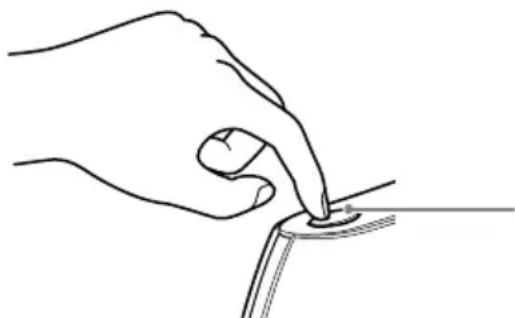
Press and hold the AOS S button until the access point indicator blinks.
Hint
For details on the AOSS button or indicator, see the operating instructions supplied with the access point device (wireless LAN router).
- Screen of this unit

"Communicating AOSS information with the access point..." appears.
Note
- An access point with a concealed setting may not be detected. In this case, select "Enter manually" in step 6, and follow the on-screen instructions.
- The AOSS setting will be canceled automatically if the access point cannot be found within 2 minutes of initiating reception. Cancellation of the process may take about 1 minute, depending on the network status. In this case, wait a moment.
8 Confirm that "Configuring the access point completed" is displayed.

9 Press (ENTER) on the remote control.
The setting screen for Proxy appears.
10 If a Proxy setting is unnecessary, press→ on the remote control to proceed to the next step.
The connection name is displayed.
Hint
If Proxy setting is necessary, press ENTER) on the remote control and select "Use" by pressing , and press ENTER). Then set the address and port number of the Proxy server.
For home use, Proxy setting is usually unnecessary. If Proxy setting is required, consult the administrator of the home network or your Internet service provider.
11 If the connection name is unnecessary to change, press → on the remote control to proceed to the next step.
The confirmation screen for settings appears.

Normally it is unnecessary to change the connection name.
12 Confirm the setting, and press → on the remote control to proceed to the next step.
13 Select [Yes] by pressing ↔ on the remote control, and press - (ENTER).
Connection to the access point is confirmed. When connected properly, "Network connection completed" is displayed.
Setting Manually
If the access point device does not support AOSS, or AOSS does not work properly, set manually by the following steps.
1 Confirm the access point information.
Confirm the following information. For details on the access point device (wireless LAN router), see the operating instructions supplied with the access point device, or consult the access point provider.
- SSID Identification for the access point.
- Security type Security type depends on the access point. With this unit, [None], [WEP], [WPA-PSK (TKIP)], [WPA-PSK (AES)] can be selected.
- Encryption key WEP key or WPA key is required depending on the selected security type.
2 Display the screen below by following steps 1 to 5 in "Setting with AOS S" (page 51).

3 Select [Search] by pressing on the remote control, and press - ENTER).

A list of available access points is displayed.
4 Select an access point by pressing on the remote control, and press → to proceed to the next step.

The confirmation screen for SSID appears.

If several access points are displayed, select SSID of the access point in use.
5 Press → on the remote control to proceed to the next step.
The selection screen for the security type appears.
6 Select the security type by pressing on the remote control, and press → to proceed to the next step.
Select the security type confirmed in step 1.
If selecting other than [None], the screen to enter the WEP key or WPA key appears.

When selecting [None], proceed to step 12.
7 Press (ENTER) on the remote control to display the software keyboard, enter the WEP key or WPA key, and press (ENTER).
Enter the password confirmed in step 1.
8 Press → on the remote control to proceed to the next step.
The selection screen for address settings appears.
9 Select [Easy] by pressing on the remote control, and press → to proceed to the next step.
The setting screen for the connection name appears.

Hint
Select [Custom] to manually set information, such as the IP address.
10 If it is unnecessary to change the connection name, press → on the remote control to proceed to the next step.
The confirmation screen for settings appears.

Hint
Normally it is unnecessary to change the connection name.
11 Confirm the setting, and press → on the remote control to proceed to the next step.
12 Select [Yes] by pressing ↔ on the remote control, and press - ENTER).
Connection to the access point is confirmed. When connected properly, "Network connection completed" is displayed.
Options Menu List
You can display the Options menu by pressing OPTIONS while a screen is displayed.
Home screen
| Status Options/Descriptions | |
| During frame selection | • [Move up][Move down][Move to top][Move to end]: Rearranges the frame order in the list by moving the selected frame. • [Delete frame]: Deletes the frame currently selected. |
| During music playback | • [Track being played]: Displays the music browse screen of the music being played. |
Frame screen
| Status Options/Descriptions | |
| While displaying frame | • [Frame settings] (except for Music frame): Configures the various settings for frames. • [Capture frame screen]: Stores the desired display playing back by the frame playback as a thumbnail, and displays it in the frame list of Home screen. • [Delete from shared frame]: Deletes members registered in the shared frame currently being played. • [Start Web browser] (Photos and Info frame only): Displays Google News U.K. (for U.K. model)/Google News (for U.S.A. model), or the registered RSS. |
Browse screen
| Status Options/Descriptions | |
| While photo browsing | ·[Update information]: Updates the list of external memory or servers.·[Connection test]: Performs the connection test for memory or servers.·[Play]: Plays all photos in the folder currently selected as a slide show (Background music cannot be selected).·[Create new frame]: Creates a new frame to display photos.·[Copy to internal memory]: Copies the selected folder or the currently playing photo to the internal memory. For details, refer to “Copying Data to the Internal Memory” (page 20).·[Upload]: Uploads folders or photos in the external memory to the Web service on the Internet. |
Status Options/Descriptions
| While photo browsing | [Set as background photo]: Sets the photo currently displayed to the background image of the Home screen or Settings screen.[Add to shared frames]: Adds members (folders) currently selected to the created Shared frame.[Delete photos]: Deletes a photo in the internal memory. (Multiple photos cannot be deleted at the same time.)[Delete all in the folder]: Deletes all photos in the internal memory.[Reload]: Reloads the displayed photo.When displaying photos on this unit, photo data will be stored in cache memory temporarily. If a photo is recognized as unknown data, it may be displayed as unknown data next time.- “Not Authorized” is displayed immediately after uploading photos to the Internet Web service.- Despite rotating a photo in the Internet Web service, the photo is displayed not rotated.- The correct photo is not displayed after assigning the identical file name to another photo.In these cases, perform [Reload]. |
| While music browsing | [Update information]: Updates the list of external memory or servers.[Connection test]: Performs a connection test for memory or servers.[Create new frame]: Creates a new frame to play a music file.[Copy to internal memory]: Copies the currently playing music file to the internal memory. For details, refer to “Copying Data to the Internal Memory” (page 20).[Delete track]: Deletes a music file in the internal memory. (Multiple music files cannot be deleted at the same time.) |
| While information browsing | [Connection test]: Performs a connection test for the wireless network.[Delete RSS]: Deletes a registered RSS from the list.[Create new frame]: Creates a new frame to display RSS information. |
Web browser (Opera) screen
Status Options/Descriptions
| While displaying Web browser (Opera) | • [Input address]: Displays the Web site by entering the address directly. • [Bookmarks]: Displays the target Web site from the bookmark list. You can add/delete up to 20 favorite sites in the bookmark list. • [Zoom]: Zooms in/out the Web site. • [Register RSS]: Registers a URL as RSS (up to 20) if the Web site currently displayed is RSS. The registered RSS is displayed in the list on the [Registered RSS] screen of the information browse screen. • [Delete cookies]: Deletes all cookies. • [Exit Web browser]: Closes the Opera browser. |
Settings Menu
You can make more detailed settings in the Settings screen.
You can display the Settings screen by pressing ➤ in the Home screen, selecting [Settings] by pressing
↑↓, and pressing - (ENTER).

Network settings
Item Options/Description
Select a connection Selects a registered wireless LAN connection from a list. Or creates a new wireless LAN connection (page 51). You can set up to 5 wireless LAN connections.
Edit connection settings Edits created wireless LAN connection settings, or selects a new wireless LAN connection (page 51). You can set up to 5 wireless LAN connections.
Delete a connection Deletes a created wireless LAN connection from the list.

Server settings
Item Options/Description
Google Sets up an account for connecting to Web services. Enter the account information of your computer (page 32).
Remote Home Access Sets up an account for the Remote Home Access server (up to 5 accounts).
Item Options/Description (underlined option is the default setting)
| Set Manually Sets up the date and time manually. |
| Set automatically Connects to the Internet time server and updates the date and time automatically when set to [On]. You can also change the Internet time server.The default setting is [Off].To use this feature, connect to a wireless LAN (page 51). When the date and time are set in [Set Manually], [Set Automatically] is set to [Off]. |
| Date format Sets up the date format.[YYYY/MM/DD], [MM/DD/YYYY], [DD/MM/YYYY] |
| Time format Sets up the time format.[12-hour], [24-hour] |
| Time zone Sets up the time zone. The default setting differs depending on the area setting. |
| Daylight saving time Sets the clock ahead one hour when set to [On]. The default setting is [Off]. |
| Set a clock ahead Sets the clock ahead up to 30 minutes in 1-minute increments. The setting is applied to the clock on frames and the timer. |

Screen display
Item Options/Description
| Photo display position Sets up the photo display position on the screen while playing a frame. The photo is displayed in the center of the screen in its original size when [Entire photo] is selected. The default setting is [Fit to screen]. | |
| Brightness adjustment Adjusts the screen brightness in 11 levels. The default setting is [10]. | |
| Demonstration | Starts the demonstration if no operation is performed for more than 1 minute while the Home screen is displayed (photos and music demonstration are played). The default setting is [Off]. |

Timer settings
Item Options/Description
| Set Start Timer | Starts playing a frame at a specified time. Up to 3 timer settings can be created. |
| Set Stop Timer | Sets this unit to go into standby mode at a specified time. |
Item Options/Description (underlined option is the default setting)
| Device name Registers a device name for this unit. | |
| Auto power on/off This unit goes to standby mode automatically when the surrounding area becomes dark. The power comes back on automatically when the surrounding area becomes bright. The default setting is [Off]. | |
| New info indicator | Sets up the lighting pattern of the New Info indicator (always off in standby mode). [Always on (with new arriv.), [Auto on/off (with new arriv.)], [Always on], [Always off]. |
| System information Displays [MAC address], [IP address] and [Software version]. | |
| Internal memory info | Displays the current usage of the internal memory. |
| Important messages Displays update information and some other important information. When updating is completed, the power of this unit turns off automatically. After confirming the power is turned off, disconnect the AC adapter, and leave for more than 30 seconds, then connect the AC adapter again. | |
About VGF-CP1 Displays copyright and trademark information.

Initialization
| Item Options/Description (underlined option is the default setting) |
| Initialize system Restores the system to the factory default. |
| Initialize settings Returns the settings to their factory defaults.All registered frames are deleted, and sample frames are restored to their defaults. |
| Initialize internal memory Resets internal memory to the factory default.All registered photos and music files are deleted, and sample photos and music files are restored to their defaults. |
| Initialize cache Resets the cache memory to the factory default by performing [Reload] for all photos.Data stored in the cache memory is deleted; however, photo files remain undeleted. |
Troubleshooting
If a problem occurs, check the following tables with the operating instructions and/or electronic manuals supplied with your computer. In addition, see "Getting Help" (page 71) for details, and visit our online support site.
Turning on the power
| Condition Cause/Remedy | |
| The power cannot be turned on. | → Make sure the AC power adapter is securely plugged into AC IN on the unit and the wall outlet (page 12, 13).→ Static electricity may cause a malfunction. In this case, disconnect the AC power adapter and leave for more than 30 seconds, then connect the AC power adapter again. |
Displaying data on the browse screen
| Condition Cause/Remedy | |
| [Cannot show the server list] is displayed. | → This unit may not be connected to a memory or server properly.Perform the connection test.1 Display the server list in [photos] or [ Music], and select a memory or server you want to test, and then press OPTIONS.2 Select [Connection test] in the Options menu, and press (ENTER).3 The connection test starts. Follow the on-screen instructions if the connection fails.→ Check the server settings on this unit when the Web service or Remote Home Access server is selected.→ A folder storing no photos/or music files cannot be opened. |
| [Cannot show photos] is displayed. | → Some photo files may not be displayed depending on the file format.→ Some photo files may not be displayed depending on the file size.→ Some photo files may not be displayed if the files have been edited on a computer. |
| [Cannot play tracks] is displayed. | → Some music files may not be played back depending on the file format. |
| [Cannot show the item] is displayed. | → This unit may not be connected to a network properly. Perform the connection test.1 Select [Information] in the Home screen, and press (ENTER).2 Press OPTIONS.3 Select [Connection test] in the Options menu, and press (ENTER).4 The connection test starts. Follow the on-screen instructions if connection fails. |
| Web service is not displayed in the list. | → The server may not be set. Check the Server settings. |
| A server using software such as “VAIO Media” is not displayed in the list. | → This unit or the server is not connected to a network. See the cause/ remedy of “[A connection error occurred] as displayed” in “Connecting to Wireless Network” (page 51).→ The server is not active. Check the following:- The server is turned on.- The server status ([Start/Stop server]) is set to [Start].- This unit is registered with the server. For registration, refer to the Help section of the server software in use, or the operating instructions supplied with the server.→ The server may not be recognized if this unit is turned on before turning on the server. Select [Update information] in the Options menu to update the list.→ If a computer is used as a server, check the following:- The computer may be unstable. Restart the computer.- This unit may not connect to a computer with an Internet connection fire wall (ICF) function on. For fire wall information, see the Help section for the security software in use.→ Register this unit to the server individually.1 Click [Start] in the computer used as the server, and click [All Program]-[VAIO Media]-[Server Administration]-[VAIO Media Server Settings] to start VAIO Media Integrated Server.2 Click [Access Control Settings] page, and click [Register].3 After starting the device registration wizard, put a check mark on [Manually register the device by entering the MAC address], and click [Next].4 Follow the instructions on the screen to register this unit. |
| External memory is not displayed in the list. | → External memory may not be inserted correctly. Make sure the external memory is inserted in the correct direction. |
| [Cannot use this device] is displayed. | → A USB device that is not Mass Storage Class cannot be used. |
| Photo data is not recognized. | → Unsupported photo files cannot be recognized.→ Photos uploaded to the Web service on the Internet take time to be displayed with this unit. Wait for a while, and display the browse screen.→ When a digital still camera is connected to this unit with a USB cable, the digital still camera may not be set to Mass Storage Class. For the Mass Storage Class setting, see the operating instructions supplied with the digital still camera. |
| Music data is not recognized. | → Unsupported music files cannot be recognized. |
| It takes time to display photos. Sound interrupts during playback. | → The frequency bandwidth of the wireless network may not be sufficient. Place the access point device near this unit without obstacles in-between. |
| Height-and-width of a photo is not displayed properly. | → This unit corresponds to the height-and-width information at shooting recorded in the exif data of the photo. Height-and-width may not be displayed properly in some photos shot by a digital still camera that does not record height-and-width to the exif data, or photos edited by the computer. |
Playing back a frame
Condition Cause/Remedy
| [Cannot show photos] is displayed.[Cannot play tracks] is displayed.[Cannot show the item] is displayed. | → This unit may not be connected to a memory or server properly.Perform the connection test.1 Display the server list in [photos] or [music], and select the memory or server you want to test, and then press OPTIONS.2 Select [Connection test] in the Options menu, and press (ENTER).3 The connection test starts. Follow the on-screen instructions if connection fails.→ When a server using software such as "VAIO Media" is specified to the frame, see the cause/remedy of "A server using a software, such as "VAIO Media" is not displayed in the list" in "Displaying data on the browse screen" (page 64).→ External memory specific to the frame may not be inserted correctly.Make sure the external memory is inserted in the correct direction.→ The name of the folder specific to the frame may have been changed, or the folder specific to the frame may have been deleted. Check the folder stored in the memory or server.→ The address of the Internet radio station may be changed in SHOUTcast. Play back the same Internet radio station in the music browse screen, and create a new frame.→ The address of RSS site may be changed in the registered RSS. Perform [RSS registration] again in Web browser, display the same RSS in the information browse screen, and create a new frame. |
| [Cannot show photos] is displayed for members in a Shared frame. | → A member may have deleted the account of a Web service on the Internet. |
| [Cannot show photos.] is displayed in the Memories frame. | → Photos shot or updated within one month from today can be displayed in the Memories frame. The last update date, usually the date the photo was shot, may be updated depending on the way the photo data is imported. If the photo data is edited, the date the photo was edited will become the last updated date. |
| Photos are not switched automatically in the Photos and Info, Shared and Memory frames. | → Photos may not be switched at the specified interval time immediately after playing back a frame. Wait for a while or press to switch to the next photo manually.→ Photos are not switched automatically when displayed in a Shared frame. Press to switch to the next photo manually. Disappears and photos are switched automatically. |
| Condition Cause/Remedy | |
| NEW is not displayed in a Shared frame. | → Photos uploaded to a Web service on the Internet take time to display on the unit. Wait for a while, then play back the frame. |
| The clock does not work properly in the Photos and Info frame. | → Date and time may be reset if the unit is disconnected from the AC adapter. Set the date and time by [Date and time settings] in [settings]. |
| News is not displayed in the Photos and Info frame. | → The unit may not be properly connected to the network. See the cause/remedy of "[Cannot show the item] is displayed." in "Playing back a frame" (page 66). |
| The same photo is displayed repeatedly in the Photos frame. | → As a system restriction, the same photo may be displayed repeatedly immediately after starting the frame. This is not a malfunction. |
| Start timer does not work properly. | → The start timer may be set to [Off.] Check the start timer setting.→ The frame specified by the start timer may have been deleted. In this case, the start timer setting is reset to the factory default.→ The start timer may not work if the Settings, Options or browse screen is displayed at the time the start timer is set. |
| Stop timer does not work properly. | → The stop timer may be set to [Off.] Check the stop timer setting.→ The stop timer may not work if the Settings, Options or browse screen is displayed at the time the stop timer is set. |
Connecting to a Wireless Network
| Condition Cause/Remedy | |
| [A connection error occurred] is displayed. | → This unit is not connected to the network. Check the following.- The WLAN ON/OFF switch is set to ON.- The network setting is correct.- All cables are connected securely.- The connected device(s), such as the access point device (wireless LAN router), is turned on.- The cable type (straight or cross) is correct.→ The MAC address is required for network connection depending on the access point setting. The MAC address can be checked in [System information] of [ System settings] in [ Settings].→ The frequency bandwidth of the wireless network may not be sufficient. Place the access point device or wireless adapter near this unit without obstacles in-between.→ A device, such as a microwave, around this unit may cause interference, and result in poor communication. |
Condition Cause/Remedy
| [Cannot find an access point] is displayed. | → This unit is not connected to the network. See the cause/remedy of "[A connection error occurred] is displayed." in "Connecting to Wireless Network" (page 67). |
| [The connection test failed. Unable to log on to a server] is displayed. | → The server setting may not be correct. Check the setting.→ This unit may not be connected to the network. See the cause/remedy of "[A connection error occurred] is displayed." in "Connecting to Wireless Network" (page 67).→ This unit may not be connected properly to the server. Perform the connection test.1 Display the server list in [photos] or [ Music], and select the Web service to test, and then press OPTIONS.2 Select [Connection test] in the Options menu, and press -♦- (ENTER).3 The connection test starts. Follow the on-screen instructions if connection fails. |
Options
| Condition Cause/Remedy | |
| [Upload] is not displayed in the Options menu. | → [Upload] is displayed only when browsing the external memory. Only photos stored in the external memory can be uploaded to the Web service on the Internet. |
| [Delete photos] is not displayed in the Options menu. | → [Delete photos] is displayed only when browsing the internal memory. Only photos stored in the internal memory can be deleted. |
| [Upload failed] is displayed.[Copy process failed] is displayed. | → This unit may not be properly connected to a memory or server. Perform the connection test.1 Display the server list in [6 photos] or [ Music], and select the memory or server to test, and then press OPTIONS.2 Select [Connection test] in the Options menu, and press ENTER.3 The connection test starts. Follow the on-screen instructions if the connection fails. |
| [The deletion failed] is displayed. | → This unit may not be connected to a memory properly. Perform the connection test.1 Display the server list in [●photos] or [■Music], and select the memory to test, and then press OPTIONS.2 Select [Connection test] in the Options menu, and press -◆- (ENTER).3 The connection test starts. Follow the on-screen instructions if the connection fails.→ If the Memory Stick media or SD/SDHC memory card is equipped with a write-protect switch, the switch may be set to the lock position. Set the switch to the unlock position. |
| [Cannot copy this track] is displayed. | → Some music files may not be stored depending on the file format. In this case, store the file In MP3 file format. |
Others
| Condition Cause/Remedy | |
| Does not accept operation.Does not work properly. | → This unit may not work properly due to static electricity. Disconnect the AC adapter, and leave for more than 30 seconds, then connect the AC adapter again. |
| The remote control does not work. | → The battery may be inserted in the wrong direction. Insert the battery in the correct direction (page 13). |
| Dark screen. Poor visibility. | → Adjust the brightness by [Brightness adjustment] of [Screen display] in [Settings] (page 61). |
| Does not accept MUSIC operation. | → Pressing MUSIC will not work while the Settings or browse screen is displayed. To play back music, press MUSIC after closing the Settings or browse screen.→ If MUSIC is pressed while paused, MUSIC is unavailable until music starts playing back. Press MUSIC after starting playback. |
| Music stops during playback. | → Music playback stops automatically when the Settings or browse screen is displayed. Pressing MUSIC does not work until playback starts. Press MUSIC after starting playback. |
| The Web site is not displayed properly. | → A Web site may not display properly depending on the site. |
| The volume cannot be adjusted. | → The volume can be adjusted only when playing back music. Adjust the volume during playback. |
Condition Cause/Remedy
[Failed to update the clock] is displayed.
Auto updating of the clock does not work properly.
→ The Internet time server may be unstable. Wait for a while to restart updating.
→ This unit may not be connected to the network. See the cause/remedy of "[A connection error occurred] is displayed." in "Connecting to Wireless Network" (page 67).
→ [Set automatically] of [Date and time settings] may be set to [Off]. Check the setting (page 61).
Getting Help
This section provides information on how to get help and support from Sony, and troubleshooting tips for your Digital Photo Frame.
About Sony's support options
Sony provides several support options for your Digital Photo Frame. If you have any questions regarding your Digital Photo Frame, refer to the following:
☐ This manual explains how to use your Digital Photo Frame.
For customers in the United States and Canada
☐ The Sony Customer Information Service Center offers information about your VAIO computer and other Sony products that work with your computer. To contact Sony Customer Information Service Center, call 1-888-4SONYPC (1-888-476-6972).
☐ Sony Online Support provides instant access to information on commonly encountered problems. Type a description of the problem and the Knowledge Database searches for corresponding solutions online.
You can visit Sony Online Support at:
http://esupport.sony.com/EN/VAIO/
For customers in Europe
☐ VAIO-Link. For addresses and telephone numbers, refer to http://www.vaio-link.com/ For further service support information, refer to the Warranty/Customer support information.
For customers in other countries and regions
☐ VAIO Website provides Frequently Asked Questions and solutions. http://www.vaio-online.sony.com/
Specifications
| Display | Size: 7 inchResolution: 800 x 480 dotsColor: Max. 16.77M |
| Speaker maximum output | L/R 1.6W |
| Memory cards | Memory Stick, Memory Stick PRO, Memory Stick Duo, Memory Stick PRO Duo, SD/SDHC memory card, CompactFlash card (CF) |
| Supported photo file | JPEG, JPEG Progressive *1 , BMP *1 , PNG *1 , PNG Progressive *1 , GIF *1 , GIF Progressive *1 |
| Supported music file | MP3, WAV (LPCM) ※ |
| External connection terminal | USB terminal (1) |
| Internal memory(available for user) | Approx. 100MB *3 |
| Wireless connection | IEEE 802.11b/g (WEP (64bit/128bit)/WPA-PSK (TKIP/AES)) Wireless LAN system supporting AOSS *4 |
| Target computer | Windows ® XP SP2, Windows Vista ® with SP1-based computer, VGF-HS1 series |
| Dimension | 177 (w) x 133.5 (h) x 33 (d) mm (without stand)177 (w) x 131 (h) x 103 (d) mm (when placing with stand) |
| Mass | 530g (with stand) |
| Power consumption | 5.5W to 12W3.1W (in standby mode) |
| Power (AC adapter) | Input: AC 100V-240V, 0.5A, 50/60HzOutput: DC 6V, 2.5A |
*1 Maximum file size is 3MB.
*2 WAV files cannot be copied to the internal memory.
* Approximately 85MB is available for photo files, and approximately 15MB for music files.
* AOSS™ is an easy connection and setting technology developed by Buffalo Technology.
Design and specifications are subject to change without notice.
Other system and product names used herein are registered trademarks or trademarks of their respective manufacturers, although the ™ and ® marks are not used in the text.
Precautions
On handling your unit
- Do not lift or carry the unit by holding the stand only. Inclination of the unit may cause a malfunction.
- Do not drop or subject the unit to excessive shock. Doing so may result in data loss, or cause a malfunction.
- Do not place the unit in locations subject to extreme changes in temperature such as in direct sunlight or near a heater. Doing so may cause a malfunction.
- Do not insert any metallic object, such as a paper clip, into the unit.
- Do not place the unit in a location subject to mechanical vibration, or in an unstable position.
- Do not use this unit in a location subject to excessive dust since this unit is manufactured using extremely high precision technology. Doing so may cause a malfunction.
- Do not use this unit in a high humidity location.
- Do not use the unit in a poorly ventilated location.
- Do not place the unit near objects that are magnetized, or that generate electromagnetic energy. Doing so may cause a malfunction.
On parts replacement
This unit includes parts with a finite life expectancy; deterioration of such parts will depend on usage environment and frequency. Replace worn parts if significant performance degradation occurs as a result. If you have any questions or problems concerning your unit, consult the local dealers in your area. See "Getting Help" (page 71) for details, and visit our online support site.
On the LCD screen
- The LCD screen is manufactured using extremely high-precision technology so over 99.99% of the pixels are operational for effective use. However, some tiny black and/or bright dots (white, red, blue or green) may appear on the LCD screen. These dots are a normal result of the manufacturing process, and do not affect operation or signify malfunction.
- Do not place or drop objects on the screen, or do not lean on the screen with your hands or elbows.
- Do not scratch the screen with a cutter or other sharp tool.
On moisture condensation
If the unit is brought directly from a cold to a warm location, moisture may condense inside or outside the unit. In this state, your unit may not operate correctly, and may cause a malfunction. If moisture condensation occurs, wipe off any moisture with a dry soft cloth. If the screen gets cold, turn off the unit and wait about an hour for any moisture to evaporate.
On handling Memory Stick media
Keep the following in mind to protect data on Memory Stick media.
- Do not touch a Memory Stick's connector with your finger or metallic objects.

- Do not attach a label to a Memory Stick other than the one supplied.
- Apply the label in the prescribed position on the Memory Stick.
- Use the storage case supplied with the Memory Stick media when carrying or storing.
- Do not bend, drop, or apply strong shock to a Memory Stick.
- Do not disassemble or modify a Memory Stick.
- Do not let a Memory Stick become wet.
-
Do not use or store a Memory Stick in a location subject to:
-
Extremely high temperatures, such as in a car parked in the sun
- Direct sunlight
– High humidity or highly corrosive atmosphere
On using Memory Stick Duo media
- Be careful not to apply excessive force when writing on the memo area of a Memory Stick Duo.
- Make sure the Memory Stick Duo is inserted facing in the correct direction. If you insert a Memory Stick Duo in the wrong direction, the Memory Stick slot and media may be damaged.
- Do not insert a Memory Stick and Memory Sick Duo at the same time. Doing so may damage the Memory Stick slot and media.
On the AC adapter
- For your safety, do not use the AC adapter other than the AC adapter supplied with your unit.
- Do not use an electronic transformer (travel converter), as this may cause a malfunction.
- For your safety, do not use an AC adapter with a damaged cable.
On using the software
The software supplied with your unit is provided under the royalty contract and the license agreement, and unauthorized copying of the software by lending or borrowing is strictly prohibited by law. Be sure to read the software license agreement carefully before using the software.
On cleaning your unit
- Before cleaning, turn off the unit, and then disconnect the power cord from the wall outlet.
- Wipe off any surface dirt or dust with a dry cloth.
- Be sure to wipe off the dirt or dust with a soft and dry cloth. If the surface is soiled, clean with a soft cloth lightly moistened with water, and then wipe the surface with a dry soft cloth.
- Do not use chemical cleaners containing benzene, acetone, alcohol or thinner as they may damage the surface.
- When using a chemical cloth, follow its instructions.
On cleaning the LCD screen
- Avoid touching the LCD screen as it has a special coating.
- When cleaning, use a dry soft cloth and lightly wipe off.
- If the surface is soiled, clean with a soft cloth lightly moistened with water, and then wipe the surface with a dry soft cloth.
- Do not use a chemical cloth or chemical cleaners containing benzene, acetone, alcohol or thinner as they may damage the surface treatment of the screen.
Trademarks
• VAIO is a trademark of Sony Corporation.
- "Memory Stick," "Memory Stick Duo," "MagicGate," "MagicGate Memory Stick," "Memory Stick PRO," "Memory Stick PRO Duo," and Memory Stick logo are trademarks or registered trademarks of Sony Corporation.
- Microsoft, MS-DOS, Windows, and Windows Vista are either registered trademarks or trademarks of Microsoft Corporation in the United States and/or other countries.
- SD Logo is a trademark.
• SDHC Logo is a trademark.
- This VGF-CP1 contains Adobe® Flash® Lite™ player software and under license from Adobe Systems Incorporated, Adobe Flash Lite Copyright © 2003-2007 Adobe Systems Incorporated. All rights reserved. Adobe, Flash and Flash Lite are trademarks of Adobe Systems Incorporated in the United States and other countries.
- AOSS™ (AirStation One-Touch Secure System) is the trademark of BUFFALO INC.
- Copyright © 2003-2008 Google Inc. All rights reserved.
Picasa, Picasa Web Albums and the Picasa logo are trademarks of Google Inc.
Picasa Web Albums is a free photo sharing service from Google.
- Contains iType™ rasterizer and TrueType font from Monotype Imaging Inc. Monotype® is a trademark of Monotype Imaging Inc. registered in the U.S. Patent and Trademark Office and may be registered in certain jurisdictions.
- Frutiger™ LT Std-Roman typeface is from the Linotype typeface library.
Frutiger™ is a trademark of Linotype Corp. registered in the U.S. Patent and Trademark Office and may be registered in certain other jurisdictions in the name of Linotype Corp. or its licensee Linotype GmbH.
- Opera is a trademark of Opera Software ASA.
- SHOUTcast is a registered trademark of AOL LLC.
All other names of systems, products and services are trademarks of their respective owners. In the manual, the ™ or marks are not specified.
Important notices on the software
Thank you for purchasing this Sony Digital Photo Frame.
Before using this product with software, be sure to read the following notices carefully.
The beginning to use of this product will be assumed that contents of notices are confirmed and agreed by the customer.
End User Software License Agreement (For Customer in Europe)
This End User Software License Agreement (the "EULA") is a legal agreement among you and Sony Corporation (hereinafter referred to as "SONY"), a corporation organized under Japanese Law, the manufacturer of your SONY digital photo frame (the "SONY HARDWARE") and each of Sony's third party licensors of any of the SONY SOFTWARE (defined below). Please read this EULA carefully (1) in case of your first use of SONY HARDWARE, before using the Sony software and any third party software installed in the SONY HARDWARE, (2) in case of your installing the software bundled with the SONY HARDWARE, before installing such software or, (3) in case of your downloading update of such software installed in or bundled with the SONY HARDWARE, before downloading such updated software, (such software; the "SONY SOFTWARE"). By using the SONY SOFTWARE, or clicking on the "ACCEPT" button or similar button or links as may be designated by SONY, you agree to be bound by the terms of this EULA. You may use the SONY SOFTWARE only in connection with the use of the SONY HARDWARE. SONY SOFTWARE is licensed and not sold.
Notwithstanding the foregoing, software distributed together with separate End User Software License Agreement (the "Third Party EULA") shall be covered by the Third Party EULA.
If you do not agree to the terms of this EULA, you must not use it.
-
License. This SONY SOFTWARE and the related documentation are licensed to you by SONY. The SONY SOFTWARE is licensed as single product and may not be separated for your personal use. You may use the SONY SOFTWARE (1) on the SONY HARDWARE or (2) in conjunction with the SONY HARDWARE by (i) installing or downloading the SONY SOFTWARE onto your personal computer and (ii) subsequently uploading the SONY SOFTWARE onto the SONY HARDWARE by accessing the designated SONY SOFTWARE set-up page.
-
Restrictions. The SONY SOFTWARE contains copyrighted material and other proprietary material. In order to protect them, and except as permitted by applicable law, you may not decompile, reverse engineer or disassemble the SONY SOFTWARE in whole or in part. Except for the transfer of the SONY SOFTWARE together with the SONY HARDWARE and prior agreement of the recipient to be bound by the terms and conditions of this EULA, you may not sell or rent the SONY SOFTWARE and its copy to any third party.
-
Limited Warranty. For the case set forth in (2) of the first paragraph, SONY warrants the media on which the SONY SOFTWARE is recorded to be free from physical defects for a period of ninety (90) days from the date of purchase as evidenced by a copy of the receipt. During the applicable warranty period, SONY will replace free of charge such media that proved to be defective. SONY will have no responsibility to replace media damaged by accident, abuse, or misapplication.
The above limited warranty replaces all other representations, conditions and warranties, whether express or implied, by statute or otherwise and SONY AND ITS THIRD PARTY LICENSORS EXPRESSLY DISCLAIM ALL OTHER WARRANTIES AND ALL CONDITIONS INCLUDING, BUT NOT LIMITED TO, THE IMPLIED WARRANTIES AND/OR CONDITIONS OF SATISFACTORY QUALITY AND FITNESS FOR A PARTICULAR PURPOSE. The terms of this limited warranty do not affect or prejudice your statutory rights as an ultimate consumer, neither do they limit or exclude any liability for death or personal injury caused by the negligence of SONY.
- Automatic Update Feature. From time to time, SONY may automatically update or otherwise modify the SONY SOFTWARE, for example for purposes of enhancement of security functions, error correction and improvement of updating functions at such time as you interact with SONY's or SONY's designee's server(s). Any such updates/modifications shall be deemed to constitute part of the SONY SOFTWARE for purposes of this EULA. By acceptance of this EULA, you consent to such update/modification.
- Limitation of Liability. NEITHER SONY NOR ITS THIRD PARTY LICENSORS SHALL BE LIABLE FOR ANY INDIRECT, SPECIAL, INCIDENTAL, PUNITIVE OR CONSEQUENTIAL DAMAGES FOR BREACH OF ANY EXPRESS OR IMPLIED WARRANTY, BREACH OF CONTRACT, NEGLIGENCE, STRICT LIABILITY OR ANY OTHER LEGAL THEORY RELATED TO THE SONY SOFTWARE OR THE SONY HARDWARE. SUCH DAMAGES INCLUDE, BUT ARE NOT LIMITED TO, LOSS OF PROFITS, LOSS OF REVENUE, LOSS OF DATA, LOSS OF USE OF THE PRODUCT OR ANY ASSOCIATED EQUIPMENT, DOWN TIME AND PURCHASER'S TIME, EVEN IF SONY OR ITS THIRD PARTY LICENSORS HAVE BEEN ADVISED OF THE POSSIBILITY OF SUCH DAMAGES. IN ANY CASE, SONY'S AND ITS THIRD PARTY LICENSORS' ENTIRE LIABILITY UNDER ANY PROVISION OF THIS AGREEMENT SHALL BE LIMITED TO THE AMOUNT ACTUALLY PAID BY YOU ALLOCABLE TO THE SOFTWARE. SOME JURISDICATIONS DO NOT ALLOW THE EXCLUSION OR LIMITATION OF CERTAIN TYPES OF DAMAGES, SO THE ABOVE EXCLUSION OR LIMITATION MAY NOT APPLY TO YOU.
- Termination. This EULA is effective until terminated. You may terminate this EULA at any time by destroying the SONY SOFTWARE, related documentation, and all copies thereof. This EULA will terminate immediately without notice from SONY, if you fail to comply with any provision of this EULA. Upon termination you must destroy the SONY SOFTWARE, related documentation, and all copies thereof.
- Governing Law. This EULA shall be governed by and construed in accordance with the laws of Japan.
Should you have any questions concerning this EULA or this limited warranty, please refer to the Customer Service Guide on how to contact VAIO-Link.
END USER LICENSE AGREEMENT FOR SONY SOFTWARE (For Customer in U.S.A.)
YOU SHOULD CAREFULLY READ THE FOLLOWING AGREEMENT BEFORE USING THE SOFTWARE INCLUDED WITH THIS PRODUCT. USING THIS SOFTWARE INDICATES YOUR ACCEPTANCE OF THE AGREEMENT.
IMPORTANT-READ CAREFULLY:
This End-User License Agreement ("License") is a legal agreement between you and Sony Electronics Inc. ("SONY"), the manufacturer of your Sony device ("DEVICE"). All Sony software and third party software
included with your DEVICE, shall be referred to herein as the SOFTWARE. This License covers only the SOFTWARE. The SOFTWARE includes DEVICE software, any associated media, any printed materials, and any "on-line" or electronic documentation, as well as Sony-supplied or authorized updates/upgrades thereto. By installing, copying, downloading or otherwise using the SOFTWARE, you agree to be bound by the terms of this License. If you do not agree to the terms of this License, SONY is unwilling to license the SOFTWARE to you. In such event, you may not use or copy the SOFTWARE, and you should promptly contact SONY for instructions on return of the entire DEVICE and included SOFTWARE for a refund of the purchase price of the DEVICE.
SOFTWARE LICENSE
The SOFTWARE is protected by copyright laws and international copyright treaties, as well as other intellectual property laws and treaties. The SOFTWARE is licensed, not sold.
GRANT OF LICENSE
This License grants you right to use the SOFTWARE on the DEVICE solely for its intended purpose. This SOFTWARE and the related documentation are licensed to you by SONY. The SOFTWARE is licensed as single product and may not be separated for your personal use. You may install and use the SOFTWARE (1) on the DEVICE or (2) in conjunction with the DEVICE by (i) downloading the SOFTWARE onto your personal computer and (ii) subsequently uploading the SOFTWARE onto the DEVICE by accessing the designated SOFTWARE set-up page.
DESCRIPTION OF OTHER RIGHTS AND LIMITATIONS
Limitation on Reverse Engineering, Decompilation and Disassembly. You may not modify, reverse engineer, decompile, or disassemble the SOFTWARE in whole or in part.
Use Restriction. The SOFTWARE is considered a single integrated product that may only be used with the DEVICE except as specifically described in documentation provided with the SOFTWARE.
Data Files. The SOFTWARE may create data files automatically for use with the SOFTWARE. Any such data files will be deemed as part of the SOFTWARE.
Rental. You may not rent or lease the SOFTWARE.
Software Transfer. You may permanently transfer all of your rights under this License only as part of a sale or transfer of the DEVICE, provided you retain no copies, transfer all of the SOFTWARE (including all copies, component parts, the media and printed materials, all versions and any upgrades of the SOFTWARE and this License), and the recipient agrees to the terms of this License.
Termination. Without prejudice to any other rights, SONY may terminate this License if you fail to comply with the terms and conditions of this License. In such event, you must destroy all copies of the SOFTWARE and all of its component parts.
Dependent Software. The software, network services or other products other than the SOFTWARE upon
which the SOFTWARE's performance depends on might be interrupted or discontinued at the discretion of the suppliers (software suppliers, service providers, or Sony). Sony and its suppliers do not warrant that those software, network services or other products will continue to be available, or will operate without interruption or modification.
COPYRIGHT
All title and copyrights in and to the SOFTWARE (including but not limited to any images, photographs, animation, video, audio, music, text and "applets," incorporated into the SOFTWARE), and any copies of the SOFTWARE, are owned by SONY or its suppliers. All rights not specifically granted under this License are reserved by SONY.
USE OF SOFTWARE WITH COPYRIGHTED MATERIALS
The SOFTWARE is capable of being used by you to store, process and use content created by you and third parties. Such content may be protected by copyright, other intellectual property laws, and/or agreements. You agree to use the SOFTWARE only in compliance with all such laws and agreements that apply to such content. You agree that SONY may take appropriate measures to protect copyright of content stored, processed or used by the SOFTWARE. Such measures include, but are not limited to, counting the frequency of your backup and restoration through certain SOFTWARE features, refusal to accept your request to enable restoration of data through certain SOFTWARE features and termination of this License in the event of your improper use of the SOFTWARE.
HIGH RISK ACTIVITIES
The SOFTWARE is not fault-tolerant and is not designed, manufactured or intended for use or resale as on-line control equipment in hazardous environments requiring fail-safe performance, such as in the operation of nuclear facilities, aircraft navigation or communication systems, air traffic control, direct life support machines, or weapons systems, in which the failure of the SOFTWARE could lead directly to death, personal injury, or severe physical or environmental damage ("High Risk Activities"). SONY and its suppliers specifically disclaim any express or implied warranty of fitness for High Risk Activities.
PROHIBITION ON EXPORT. EXCEPT FOR EXPORT TO CANADA FOR USE IN CANADA BY CITIZENS OF THE UNITED STATES OR CANADA, THE SOFTWARE AND ANY UNDERLYING TECHNOLOGY MAY NOT BE EXPORTED OUTSIDE THE UNITED STATES OR TO ANY FOREIGN ENTITY OR "FOREIGN PERSON" AS DEFINED BY U.S. GOVERNMENT REGULATIONS, INCLUDING WITHOUT LIMITATION, ANYONE WHO IS NOT A CITIZEN, NATIONAL OR LAWFUL PERMANENT RESIDENT OF THE UNITED STATES. BY USING THE SOFTWARE, YOU ARE AGREEING TO THE FOREGOING AND YOU ARE WARRANTIES THAT YOU ARE NOT A "FOREIGN PERSON" OR UNDER THE CONTROL OF A FOREIGN PERSON.
U.S. GOVERNMENT RESTRICTED RIGHTS
The SOFTWARE is provided with RESTRICTED RIGHTS. Use, duplication, or disclosure by the United States Government is subject to restrictions as set forth in subparagraph (c)(1) and (2) of the Commercial Computer Software-Restricted Rights at 48 CFR 52.227-19, as applicable. Manufacturer is Sony Electronics Inc., 16530 Via Esprillo, San Diego, CA 92127.
LIMITED WARRANTY ON MEDIA
In situations where a back-up copy of the SOFTWARE is furnished on media, SONY warrants that for a period of ninety (90) days from the date of its delivery to you the media on which the back-up copy of the SOFTWARE is furnished to you will be free from defects in materials and workmanship under normal use. This limited warranty extends only to you as the original licensee. SONY's entire liability and your exclusive remedy will be replacement of the media not meeting SONY's limited warranty and which is returned to SONY with proof of purchase in the form of a bill of sale (which is evidence that the media is within the warranty period). SONY will have no responsibility to replace a disk damaged by accident, abuse or misapplication. ANY IMPLIED WARRANTIES ON THE MEDIA, INCLUDING THE IMPLIED WARRANTIES OF MERCHANTABILITY AND FITNESS FOR A PARTICULAR PURPOSE, ARE LIMITED IN DURATION TO NINETY (90) DAYS FROM THE DATE OF DELIVERY. SOME STATES DO NOT ALLOW LIMITATIONS ON HOW LONG AN IMPLIED WARRANTY LASTS, SO THESE LIMITATIONS MAY NOT APPLY TO YOU. THIS WARRANTY GIVES YOU SPECIFIC LEGAL RIGHTS, AND YOU MAY ALSO HAVE OTHER RIGHTS WHICH VARY FROM STATE TO STATE.
EXCLUSION OF WARRANTY ON SOFTWARE
You expressly acknowledge and agree that use of the SOFTWARE is at your sole risk. The SOFTWARE is provided "AS IS" and without warranty of any kind and SONY and SONY's licensors (In this Section, SONY and SONY's licensors shall be collectively referred to as "SONY") EXPRESSLY DISCLAIM ALL WARRANTIES, EXPRESS OR IMPLIED, INCLUDING, BUT NOT LIMITED TO, THE IMPLIED WARRANTIES OF NON-INFRINGEMENT, MERCHANTABILITY AND FITNESS FOR A PARTICULAR PURPOSE. SONY DOES NOT WARRANT THAT THE FUNCTIONS CONTAINED IN THE SOFTWARE WILL MEET YOUR REQUIREMENTS, OR THAT THE OPERATION OF THE SOFTWARE WILL BE ERROR FREE. FURTHERMORE, SONY DOES NOT WARRANT OR MAKE ANY REPRESENTATIONS REGARDING THE USE OR THE RESULTS OF THE USE OF THE SOFTWARE IN TERMS OF ITS CORRECTNESS, ACCURACY, RELIABILITY, OR OTHERWISE. NO ORAL OR WRITTEN INFORMATION OR ADVICE GIVEN BY SONY OR A SONY AUTHORIZED REPRESENTATIVE SHALL CREATE A WARRANTY OR IN ANY WAY INCREASE THE SCOPE OF THIS WARRANTY. SHOULD THE SOFTWARE PROVE DEFECTIVE. YOU (AND NOT SONY OR A SONY AUTHORIZED REPRESENTATIVE) ASSUME THE ENTIRE COST OF ALL NECESSARY SERVICING, REPAIR OR CORRECTION. SOME JURISDICTIONS DO NOT ALLOW THE EXCLUSION OF IMPLIED WARRANTIES, SO THE ABOVE EXCLUSION MAY NOT APPLY TO YOU.
Without limiting the foregoing, you specifically acknowledge that the SOFTWARE is not designed or intended for use on a DEVICE other than the DEVICE. You expressly understand that any other DEVICE hardware, software or data could be damaged by the installing or using the SOFTWARE on such other DEVICE and that SONY is not responsible for any such damage. You expressly acknowledge and agree that all use of the SOFTWARE is at your sole risk and you are solely responsible for installation of the SOFTWARE and use of the SOFTWARE on your DEVICE.
LIMITATION OF LIABILITY
IN THIS SECTION, SONY AND SONY'S LICENSOR'S SHALL BE COLLECTIVELY REFERRED TO AS "SONY." SONY SHALL NOT BE LIABLE FOR ANY INDIRECT, SPECIAL, INCIDENTAL, PUNITIVE OR CONSEQUENTIAL DAMAGES FOR BREACH OF ANY EXPRESS OR IMPLIED WARRANTY, BREACH OF CONTRACT, NEGLIGENCE, STRICT LIABILITY OR ANY OTHER LEGAL THEORY RELATED TO THE SOFTWARE OR THIS DEVICE. SUCH DAMAGES INCLUDE, BUT ARE NOT LIMITED TO, LOSS OF PROFITS, LOSS OF REVENUE, LOSS OF DATA, LOSS OF USE OF THE PRODUCT OR ANY ASSOCIATED EQUIPMENT, DOWN TIME AND PURCHASER'S TIME, EVEN IF SONY HAS BEEN ADVISED OF THE POSSIBILITY OF SUCH DAMAGES. IN ANY CASE, SONY'S ENTIRE LIABILITY UNDER ANY PROVISION OF THIS LICENSE SHALL BE LIMITED TO THE AMOUNT ACTUALLY PAID BY YOU ALLOCABLE TO THE SOFTWARE. SOME STATES DO NOT ALLOW THE EXCLUSION OR LIMITATION OF CERTAIN TYPES OF DAMAGES, SO THE ABOVE EXCLUSION OR LIMITATION MAY NOT APPLY TO YOU.
SOFTWARE DATA COLLECTION AND MONITORING
The SOFTWARE contains features which may allow SONY and/or third parties to collect data from, control and/or monitor the DEVICE and other devices running or interacting with the SOFTWARE. You hereby consent to such activities. SONY's current privacy policy is located at http://products.sel.sony.com/SEL/legal/privacy.pdf. Please contact applicable third parties for privacy policies related to their software and services.
AUTOMATIC UPDATE FEATURE
From time to time, SONY or third parties may automatically update or otherwise modify the SOFTWARE, for example, but not limited to, for purposes of enhancement of security functions, error correction and improvement of functions. Such updates or modifications may delete or change the nature of features or other aspects of the SOFTWARE, including functions you may rely upon. You hereby agree that such activities may occur at SONY's sole discretion and that SONY may condition continued use of the SOFTWARE upon your complete installation or acceptance of such update or modifications.
GOVERNING LAW AND JURISDICTION, JURY TRIAL WAIVER
This License shall be governed by the laws of the State of California, United States of America, without regards to conflict of laws provisions. Any dispute arising out of this License shall be subject to the exclusive venue of the state and federal courts of San Diego County, California, and the parties hereby consent to the venue and jurisdiction of such courts. THE PARTIES HERETO WAIVE TRIAL BY JURY WITH RESPECT TO ANY MATTERS ARISING UNDER OR RELATING TO THIS LICENSE.
SEVERABILITY
If any part of this License is held invalid or unenforceable, the other parts will remain valid.
THIRD PARTY BENEFICIARY
For all purposes of this License, each of Sony's third party licensors of any of the SOFTWARE shall be expressly deemed an intended third party beneficiary of this License and shall have the right to enforce the terms and conditions of this License.
Should you have any questions concerning this license or this limited warranty, you may contact SONY by writing to SONY at Sony Technical Response Center, 12451 Gateway Boulevard, Fort Myers, Florida 33913.
GNU GPL/LGPL applied software
This product contains software that is subject to the following GNU General Public License ("GPL") or GNU Lesser General Public License ("LGPL"). These establish that customers have the right to acquire, modify, and redistribute the source code of said software in accordance with the terms of the GPL or the LGPL.
Package List
nandboot
linux-kernel
wireless_tools
busybox
ysdev
zlib
ncurses
e2fsprogs
device-mapper
dosfstools
mtd
glibc
directFB
mtrace
perl
gdb
madplay
samba
uuennode
The source code for the above-listed software is available on the Web.
To download, please access the following URL:
http://www.sony.net/Products/Linux
Please note that Sony cannot answer or respond to any inquiries regarding the content of this source code.
GNU GENERAL PUBLIC LICENSE
Version 2, June 1991
Copyright (C) 1989, 1991 Free Software Foundation, Inc. 59 Temple Place - Suite 330, Boston, MA 02111-1307, USA
Everyone is permitted to copy and distribute verbatim copies of this license document, but changing it is not allowed.
Preamble
The Licenses for most software are designed to take away your freedom to share and change it. By contrast, the GNU General Public License is intended to guarantee your freedom to share and change free software—to make sure the software is free for all its users. This General Public License applies to most of the Free Software Foundation's software and to any other program whose authors commit to using it. (Some other Free Software Foundation software is covered by the GNU Lesser General Public License instead.) You can apply it to your programs, too.
When we speak of free software, we are referring to freedom, not price. Our General Public Licenses are designed to make sure that you have the freedom to distribute copies of free software (and charge for this service if you wish), that you receive source code or can get it if you want it, that you can change the software or use pieces of it in new free programs; and that you know you can do these things.
To protect your rights, we need to make restrictions that forbid anyone to deny you these rights or to ask you to surrender the rights. These restrictions translate to certain responsibilities for you if you distribute copies of the software, or if you modify it.
For example, if you distribute copies of such a program, whether gratis or for a fee, you must give the recipients all the rights that you have. You must make sure that they, too, receive or can get the source code. And you must show them these terms so they know their rights.
We protect your rights with two steps: (1) copyright the software, and (2) offer you this license which gives you legal permission to copy, distribute and/or modify the software.
Also, for each author's protection and ours, we want to make certain that everyone understands that there is no warranty for this free software. If the software is modified by someone else and passed on, we want its recipients to know that what they have is not the original, so that any problems introduced by others will not reflect on the original authors' reputations.
Finally, any free program is threatened constantly by software patents. We wish to avoid the danger that redistributors of a free program will individually obtain patent licenses, in effect making the program proprietary. To prevent this, we have made it clear that any patent must be licensed for everyone's free use or not licensed at all.
The precise terms and conditions for copying, distribution and modification follow.
TERMS AND CONDITIONS FOR COPYING, DISTRIBUTION AND MODIFICATION
- This License applies to any program or other work which contains a notice placed by the copyright holder saying it may be distributed under the terms of this General Public License. The "Program", below, refers to any such program or work, and a "work based on the Program" means either the Program or any derivative work under copyright law: that is to say, a work containing the Program or a portion of it, either verbatim or with modifications and/or translated into another language. (Hereinafter, translation is included without limitation in the term "modification".) Each licensee is addressed as "you".
Activities other than copying, distribution and modification are not covered by this License; they are outside its scope. The act of running the Program is not restricted, and the output from the Program is covered only if its contents constitute a work based on the Program (independent of having been made by running the Program). Whether that is true depends on what the Program does.
- You may copy and distribute verbatim copies of the Program's source code as you receive it, in any medium, provided that you conspicuously and appropriately publish on each copy an appropriate copyright notice and disclaimer of warranty; keep intact all the notices that refer to this License and to the absence of any warranty; and give any other recipients of the Program a copy of this License along with the Program.
You may charge a fee for the physical act of transferring a copy, and you may at your option offer warranty protection in exchange for a fee.
- You may modify your copy or copies of the Program or any portion of it, thus forming a work based on the Program, and copy and distribute such modifications or work under the terms of Section 1 above, provided that you also meet all of these conditions:
a) You must cause the modified files to carry prominent notices stating that you changed the files and the date of any change.
b) You must cause any work that you distribute or publish, that in whole or in part contains or is derived from the Program or any part thereof, to be licensed as a whole at no charge to all third parties under the terms of this License.
c) If the modified program normally reads commands interactively when run, you must cause it, when started running for such interactive use in the most ordinary way, to print or display an announcement including an appropriate copyright notice and a notice that there is no warranty (or else, saying that you provide a warranty) and that users may redistribute the program under these conditions, and telling the user how to view a copy of this License. (Exception: if the Program itself is interactive but does not normally print such an announcement, your work based on the Program is not required to print an announcement.)
These requirements apply to the modified work as a whole. If identifiable sections of that work are not derived from the Program, and can be reasonably considered independent and separate works in themselves, then this License, and its terms, do not apply to those sections when you distribute them as separate works. But when you distribute the same sections as part of a whole which is a work based on the Program, the distribution of the whole must be on the terms of this License, whose permissions for other licensees extend to the entire whole, and thus to each and every part regardless of who wrote it.
Thus, it is not the intent of this section to claim rights or contest your rights to work written entirely by you; rather, the intent is to exercise the right to control the distribution of derivative or collective works based on the Program.
In addition, mere aggregation of another work not based on the Program with the Program (or with a work based on the Program) on a volume of a storage or distribution medium does not bring the other work under the scope of this License.
- You may copy and distribute the Program (or a work based on it, under Section 2) in object code or executable form under the terms of Sections 1 and 2 above provided that you also do one of the following:
a) Accompany it with the complete corresponding machine-readable source code, which must be distributed under the terms of Sections 1 and 2 above on a medium customarily used for software interchange; or,
b) Accompany it with a written offer, valid for at least three years, to give any third party, for a charge no more than your cost of physically performing source distribution, a complete machine-readable copy of the corresponding source code, to be distributed under the terms of Sections 1 and 2 above on a medium customarily used for software interchange; or,
c) Accompany it with the information you received as to the offer to distribute corresponding source code. (This alternative is allowed only for noncommercial distribution and only if you received the program in object code or executable form with such an offer, in accord with Subsection b above.)
The source code for a work means the preferred form of the work for making modifications to it. For an executable work, complete source code means all the source code for all modules it contains, plus any associated interface definition files, plus the scripts used to control compilation and installation of the executable. However, as a special exception, the source code distributed need not include anything that is normally distributed (in either source or binary form) with the major components (compiler, kernel, and so on) of the operating system on which the executable runs, unless that component itself accompanies the executable.
If distribution of executable or object code is made by offering access to copy from a designated place, then offering equivalent access to copy the source code from the same place counts as distribution of the source code, even though
third parties are not compelled to copy the source along with the object code.
- You may not copy, modify, sublicense, or distribute the Program except as expressly provided under this License. Any attempt otherwise to copy, modify, sublicense or distribute the Program is void, and will automatically terminate your rights under this License. However, parties who have received copies, or rights, from you under this License will not have their licenses terminated so long as such parties remain in full compliance.
- You are not required to accept this License, since you have not signed it. However, nothing else grants you permission to modify or distribute the Program or its derivative works. These actions are prohibited by law if you do not accept this License. Therefore, by modifying or distributing the Program (or any work based on the Program), you indicate your acceptance of this License to do so, and all its terms and conditions for copying, distributing or modifying the Program or works based on it.
- Each time you redistribute the Program (or any work based on the Program), the recipient automatically receives a license from the original licensor to copy, distribute or modify the Program subject to these terms and conditions. You may not impose any further restrictions on the recipients' exercise of the rights granted herein. You are not responsible for enforcing compliance by third parties to this License.
- If, as a consequence of a court judgment or allegation of patent infringement or for any other reason (not limited to patent issues), conditions are imposed on you (whether by court order, agreement or otherwise) that contradict the conditions of this License, they do not excuse you from the conditions of this License. If you cannot distribute so as to satisfy simultaneously your obligations under this License and any other pertinent obligations, then as a consequence you may not distribute the Program at all. For example, if a patent license would not permit royalty-free redistribution of the Program by all those who receive copies directly or indirectly through you, then the only way you could satisfy both it and this License would be to refrain entirely from distribution of the Program.
If any portion of this section is held invalid or unenforceable under any particular circumstance, the balance of the section is intended to apply and the section as a whole is intended to apply in other circumstances.
It is not the purpose of this section to induce you to infringe any patents or other property right claims or to contest validity of any such claims; this section has the sole purpose of protecting the integrity of the free software distribution system, which is implemented by public license practices. Many people have made generous contributions to the wide range of software distributed through that system in reliance on consistent application of that system; it is up to the author/donor to decide if he or she is willing to distribute software through any other system and a licensee cannot impose that choice.
This section is intended to make thoroughly clear what is believed to be a consequence of the rest of this License.
-
If the distribution and/or use of the Program is restricted in certain countries either by patents or by copyrighted interfaces, the original copyright holder who places the Program under this License may add an explicit geographical distribution limitation excluding those countries, so that distribution is permitted only in or among countries not thus excluded. In such case, this License incorporates the limitation as if written in the body of this License.
-
The Free Software Foundation may publish revised and/or new versions of the General Public License from time to time. Such new versions will be similar in spirit to the present version, but may differ in detail to address new problems or concerns.
Each version is given a distinguishing version number. If the Program specifies a version number of this License which applies to it and "any later version", you have the option of following the terms and conditions either of that version or of any later version published by the Free Software Foundation. If the Program does not specify a version number of this License, you may choose any version ever published by the Free Software Foundation.
- If you wish to incorporate parts of the Program into other free programs whose distribution conditions are different, write to the author to ask for permission. For software which is copyrighted by the Free Software Foundation, write to the Free Software Foundation; we sometimes make exceptions for this. Our decision will be guided by the two goals of preserving the free status of all derivatives of our free software and of promoting the sharing and reuse of software generally.
NO WARRANTY
- BECAUSE THE PROGRAM IS LICENSED FREE OF CHARGE, THERE IS NO WARRANTY FOR THE PROGRAM, TO THE EXTENT PERMITTED BY APPLICABLE LAW. EXCEPT WHEN OTHERWISE STATED IN WRITING THE COPYRIGHT HOLDERS AND/OR OTHER PARTIES PROVIDE THE PROGRAM "AS IS" WITHOUT WARRANTY OF ANY KIND, EITHER EXPRESSED OR IMPLIED, INCLUDING, BUT NOT LIMITED TO, THE IMPLIED WARRANTIES OF MERCHANTABILITY AND FITNESS FOR A PARTICULAR PURPOSE. THE ENTIRE RISK AS TO THE QUALITY AND PERFORMANCE OF THE PROGRAM IS WITH YOU. SHOULD THE PROGRAM PROVE DEFECTIVE, YOU ASSUME THE COST OF ALL NECESSARY SERVICING, REPAIR OR CORRECTION.
- IN NO EVENT UNLESS REQUIRED BY APPLICABLE LAW OR AGREED TO IN WRITING WILL ANY COPYRIGHT HOLDER, OR ANY OTHER PARTY WHO MAY MODIFY AND/OR REDISTRIBUTE THE PROGRAM AS PERMITTED ABOVE, BE LIABLE TO YOU FOR DAMAGES, INCLUDING ANY GENERAL, SPECIAL, INCIDENTAL OR CONSEQUENTIAL DAMAGES ARISING OUT OF THE USE OR INABILITY TO USE THE PROGRAM (INCLUDING BUT NOT LIMITED TO LOSS OF DATA OR DATA BEING RENDERED INACCURATE OR LOSSES SUSTAINED BY YOU OR THIRD PARTIES OR A FAILURE OF THE PROGRAM TO OPERATE WITH ANY OTHER PROGRAMS), EVEN IF SUCH HOLDER OR OTHER PARTY HAS BEEN ADVISED OF THE POSSIBILITY OF SUCH DAMAGES.
END OF TERMS AND CONDITIONS
How to Apply These Terms to Your New Programs
If you develop a new program, and you want it to be of the greatest possible use to the public, the best way to achieve this is to make it free software which everyone can redistribute and change under these terms.
To do so, attach the following notices to the program. It is safest to attach them to the start of each source file to most effectively convey the exclusion of warranty; and each file should have at least the "copyright" line and a pointer to where the full notice is found.
Copyright (C)
This program is free software; you can redistribute it and/or modify it under the terms of the GNU General Public License as published by the Free Software Foundation; either version 2 of the License, or (at your option) any later version.
This program is distributed in the hope that it will be useful, but WITHOUT ANY WARRANTY; without even the implied warranty of MERCHANTABILITY or FITNESS FOR A PARTICULAR PURPOSE. See the GNU General Public License for more details.
You should have received a copy of the GNU General Public License along with this program; if not, write to the Free Software Foundation, Inc., 59 Temple Place - Suite 330, Boston, MA 02111-1307, USA.
Also add information on how to contact you by electronic and paper mail.
If the program is interactive, make it output a short notice like this when it starts in an interactive mode:
Gnomovision version 69, Copyright (C) year name of author
Gnomovision comes with ABSOLUTELY NO WARRANTY; for details
type `show w`. This is free software, and you are welcome to redistribute it under certain conditions; type `show c` for details.
The hypothetical commands `show w' and `show c' should show the appropriate parts of the General Public License. Of course, the commands you use may be called something other than `show w' and `show c'; they could even be mouse-clicks or menu items--whatever suits your program.
You should also get your employer (if you work as a programmer) or your school, if any, to sign a "copyright disclaimer" for the program, if necessary. Here is a sample; alter the names:
Yoyodyne, Inc., hereby disclaims all copyright interest in the program `Gnomovision' (which makes passes at compilers) written by James Hacker.
Ty Coon, President of Vice
This General Public License does not permit incorporating your program into proprietary programs. If your program is a subroutine library, you may consider it more useful to permit linking proprietary applications with the library. If this is what you want to do, use the GNU Lesser General Public License instead of this License.
GNU LESSER GENERAL PUBLIC LICENSE
Version 2.1, February 1999
Copyright (C) 1991, 1999 Free Software Foundation, Inc.
59 Temple Place, Suite 330, Boston, MA 02111-1307 USA Everyone is permitted to copy and distribute verbatim copies of this license document, but changing it is not allowed.
[This is the first released version of the Lesser GPL. It also counts as the successor of the GNU Library Public License, version 2, hence the version number 2.1.]
Preamble
The licenses for most software are designed to take away your freedom to share and change it. By contrast, the GNU General Public Licenses are intended to guarantee your freedom to share and change free software--to make sure the software is free for all its users.
This license, the Lesser General Public License, applies to some specially designated software packages--typically libraries--of the Free Software Foundation and other authors who decide to use it. You can use it too, but we suggest you first think carefully about whether this license or the ordinary General Public License is the better strategy to use in any particular case, based on the explanations below.
When we speak of free software, we are referring to freedom of use, not price. Our General Public Licenses are designed to make sure that you have the freedom to distribute copies of free software (and charge for this service if you wish); that you receive source code or can get it if you want it; that you can change the software and use pieces of it in new free programs; and that you are informed that you can do these things.
To protect your rights, we need to make restrictions that forbid distributors to deny you these rights or to ask you to surrender these rights. These restrictions translate to certain responsibilities for you if you distribute copies of the library or if you modify it.
For example, if you distribute copies of the library, whether gratis or for a fee, you must give the recipients all the rights that we gave you. You must make sure that they, too, receive or can get the source code. If you link other code with the library, you must provide complete object files to the recipients, so that they can relink them with the library after making changes to the library and recompiling it. And you must show them these terms so they know their rights.
We protect your rights with a two-step method: (1) we copyright the library, and (2) we offer you this license, which gives you legal permission to copy, distribute and/or modify the library.
To protect each distributor, we want to make it very clear that there is no warranty for the free library. Also, if the library is modified by someone else and passed on, the recipients should know that what they have is not the original version, so that the original author's reputation will not be affected by problems that might be introduced by others.
Finally, software patents pose a constant threat to the existence of any free program. We wish to make sure that a company
cannot effectively restrict the users of a free program by obtaining a restrictive license from a patent holder. Therefore, we insist that any patent license obtained for a version of the library must be consistent with the full freedom of use specified in this license.
Most GNU software, including some libraries, is covered by the ordinary GNU General Public License. This license, the GNU Lesser General Public License, applies to certain designated libraries, and is quite different from the ordinary General Public License. We use this license for certain libraries in order to permit linking those libraries into non-free programs.
When a program is linked with a library, whether statically or using a shared library, the combination of the two is legally speaking a combined work, a derivative of the original library. The ordinary General Public License therefore permits such linking only if the entire combination fits its criteria of freedom. The Lesser General Public License permits more lax criteria for linking other code with the library.
We call this license the "Lesser" General Public License because it does Less to protect the user's freedom than the ordinary General Public License. It also provides other free software developers Less of an advantage over competing non-free programs. These disadvantages are the reason we use the ordinary General Public License for many libraries. However, the Lesser license provides advantages in certain special circumstances.
For example, on rare occasions, there may be a special need to encourage the widest possible use of a certain library, so that it becomes a de-facto standard. To achieve this, non-free programs must be allowed to use the library. A more frequent case is that a free library does the same job as widely used non-free libraries. In this case, there is little to gain by limiting the free library to free software only, so we use the Lesser General Public License.
In other cases, permission to use a particular library in non-free programs enables a greater number of people to use a large body of free software. For example, permission to use the GNU C Library in non-free programs enables many more people to use the whole GNU operating system, as well as its variant, the GNU/Linux operating system.
Although the Lesser General Public License is Less protective of the users' freedom, it does ensure that the user of a program that is linked with the Library has the freedom and the wherewithal to run that program using a modified version of the Library.
The precise terms and conditions for copying, distribution and modification follow. Pay close attention to the difference between a "work based on the library" and a "work that uses the library". The former contains code derived from the library, whereas the latter must be combined with the library in order to run.
TERMS AND CONDITIONS FOR COPYING, DISTRIBUTION AND MODIFICATION
- This License Agreement applies to any software library or other program which contains a notice placed by the copyright holder or other authorized party saying it may be distributed under the terms of this Lesser General Public License (also called "this License"). Each licensee is addressed as "you".
A "library" means a collection of software functions and/or data prepared so as to be conveniently linked with application programs (which use some of those functions and data) to form executables.
The "Library", below, refers to any such software library or work which has been distributed under these terms. A "work based on the Library" means either the Library or any derivative work under copyright law: that is to say, a work containing the Library or a portion of it, either verbatim or with modifications and/or translated straightforwardly into another language. (Hereinafter, translation is included without limitation in the term "modification".)
"Source code" for a work means the preferred form of the work for making modifications to it. For a library, complete source code means all the source code for all modules it contains, plus any associated interface definition files, plus the scripts used to control compilation and installation of the library.
Activities other than copying, distribution and modification are not covered by this License; they are outside its scope. The act of running a program using the Library is not restricted, and output from such a program is covered only if its contents constitute a work based on the Library (independent of the use of the Library in a tool for writing it). Whether that is true depends on what the Library does and what the program that uses the Library does.
- You may copy and distribute verbatim copies of the Library's complete source code as you receive it, in any medium, provided that you conspicuously and appropriately publish on each copy an appropriate copyright notice and disclaimer of warranty; keep intact all the notices that refer to this License and to the absence of any warranty; and distribute a copy of this License along with the Library.
You may charge a fee for the physical act of transferring a copy, and you may at your option offer warranty protection in exchange for a fee.
- You may modify your copy or copies of the Library or any portion of it, thus forming a work based on the Library, and copy and distribute such modifications or work under the terms of Section 1 above, provided that you also meet all of these conditions:
a) The modified work must itself be a software library.
b) You must cause the files modified to carry prominent notices stating that you changed the files and the date of any change.
c) You must cause the whole of the work to be licensed at no charge to all third parties under the terms of this License.
d) If a facility in the modified Library refers to a function or a table of data to be supplied by an application program that uses the facility, other than as an argument passed when the facility is invoked, then you must make a good faith effort to ensure that, in the event an application does not supply such function or table, the facility still operates, and performs whatever part of its purpose remains meaningful.
(For example, a function in a library to compute square roots has a purpose that is entirely well-defined independent of the application. Therefore, Subsection 2d requires that any application-supplied function or table used by this function must be optional: if the application does not supply it, the square root function must still compute square roots.)
These requirements apply to the modified work as a whole. If identifiable sections of that work are not derived from the Library, and can be reasonably considered independent and separate works in themselves, then this License, and its terms, do not apply to those sections when you distribute them as separate works. But when you distribute the same sections as part of a whole which is a work based on the Library, the distribution of the whole must be on the terms of this License, whose permissions for other licensees extend to the entire whole, and thus to each and every part regardless of who wrote it.
Thus, it is not the intent of this section to claim rights or contest your rights to work written entirely by you; rather, the intent is to exercise the right to control the distribution of derivative or collective works based on the Library.
In addition, mere aggregation of another work not based on the Library with the Library (or with a work based on the Library) on a volume of a storage or distribution medium does not bring the other work under the scope of this License.
- You may opt to apply the terms of the ordinary GNU General Public License instead of this License to a given copy of the Library. To do this, you must alter all the notices that refer to this License, so that they refer to the ordinary GNU General Public License, version 2, instead of to this License. (If a newer version than version 2 of the ordinary GNU General Public License has appeared, then you can specify that version instead if you wish.) Do not make any other change in these notices.
Once this change is made in a given copy, it is irreversible for that copy, so the ordinary GNU General Public License applies to all subsequent copies and derivative works made from that copy.
This option is useful when you wish to copy part of the code of the Library into a program that is not a library.
- You may copy and distribute the Library (or a portion or derivative of it, under Section 2) in object code or executable form under the terms of Sections 1 and 2 above provided that you accompany it with the complete corresponding machine-readable source code, which must be distributed under the terms of Sections 1 and 2 above on a medium customarily used for software interchange.
If distribution of object code is made by offering access to copy from a designated place, then offering equivalent access to
copy the source code from the same place satisfies the requirement to distribute the source code, even though third parties are not compelled to copy the source along with the object code.
- A program that contains no derivative of any portion of the Library, but is designed to work with the Library by being compiled or linked with it, is called a "work that uses the Library". Such a work, in isolation, is not a derivative work of the Library, and therefore falls outside the scope of this License.
However, linking a "work that uses the Library" with the Library creates an executable that is a derivative of the Library (because it contains portions of the Library), rather than a "work that uses the library". The executable is therefore covered by this License. Section 6 states terms for distribution of such executables.
When a "work that uses the Library" uses material from a header file that is part of the Library, the object code for the work may be a derivative work of the Library even though the source code is not. Whether this is true is especially significant if the work can be linked without the Library, or if the work is itself a library. The threshold for this to be true is not precisely defined by law.
If such an object file uses only numerical parameters, data structure layouts and assessors, and small macros and small inline functions (ten lines or less in length), then the use of the object file is unrestricted, regardless of whether it is legally a derivative work. (Executables containing this object code plus portions of the Library will still fall under Section 6.)
Otherwise, if the work is a derivative of the Library, you may distribute the object code for the work under the terms of Section 6. Any executables containing that work also fall under Section 6, whether or not they are linked directly with the Library itself.
- As an exception to the Sections above, you may also combine or link a "work that uses the Library" with the Library to produce a work containing portions of the Library, and distribute that work under terms of your choice, provided that the terms permit modification of the work for the customer's own use and reverse engineering for debugging such modifications.
You must give prominent notice with each copy of the work that the Library is used in it and that the Library and its use are covered by this License. You must supply a copy of this License. If the work during execution displays copyright notices, you must include the copyright notice for the Library among them, as well as a reference directing the user to the copy of this License. Also, you must do one of these things:
a) Accompany the work with the complete corresponding machine-readable source code for the Library including whatever changes were used in the work (which must be distributed under Sections 1 and 2 above); and, if the work is an executable linked with the Library, with the complete machine-readable "work that uses the Library", as object code and/or source code, so that the user can modify the Library and then relink to produce a modified executable containing the modified Library. (It is understood that the user who changes the contents of definitions files in the Library will not necessarily be able to recompile the application to use the modified definitions.)
b) Use a suitable shared library mechanism for linking with the Library. A suitable mechanism is one that (1) uses at run time a copy of the library already present on the user's computer system, rather than copying library functions into the executable, and (2) will operate properly with a modified version of the library, if the user installs one, as long as the modified version is interface-compatible with the version that the work was made with.
c) Accompany the work with a written offer, valid for at least three years, to give the same user the materials specified in Subsection 6a, above, for a charge no more than the cost of performing this distribution.
d) If distribution of the work is made by offering access to copy from a designated place, offer equivalent access to copy the above specified materials from the same place.
e) Verify that the user has already received a copy of these materials or that you have already sent this user a copy.
For an executable, the required form of the "work that uses the Library" must include any data and utility programs needed for reproducing the executable from it. However, as a special exception, the materials to be distributed need not include anything that is normally distributed (in either source or binary form) with the major components (compiler, kernel, and so on) of the operating system on which the executable runs, unless that component itself accompanies the executable.
It may happen that this requirement contradicts the license restrictions of other proprietary libraries that do not normally accompany the operating system. Such a contradiction means you cannot use both them and the Library together in an
executable that you distribute.
- You may place library facilities that are a work based on the Library side-by-side in a single library together with other library facilities not covered by this License, and distribute such a combined library, provided that the separate distribution of the work based on the Library and of the other library facilities is otherwise permitted, and provided that you do these two things:
a) Accompany the combined library with a copy of the same work based on the Library, uncombined with any other library facilities. This must be distributed under the terms of the Sections above.
b) Give prominent notice with the combined library of the fact that part of it is a work based on the Library, and explaining where to find the accompanying uncombined form of the same work.
-
You may not copy, modify, sublicense, link with, or distribute the Library except as expressly provided under this License. Any attempt otherwise to copy, modify, sublicense, link with, or distribute the Library is void, and will automatically terminate your rights under this License. However, parties who have received copies, or rights, from you under this License will not have their licenses terminated so long as such parties remain in full compliance.
-
You are not required to accept this License, since you have not signed it. However, nothing else grants you permission to modify or distribute the Library or its derivative works. These actions are prohibited by law if you do not accept this License. Therefore, by modifying or distributing the Library (or any work based on the Library), you indicate your acceptance of this License to do so, and all its terms and conditions for copying, distributing or modifying the Library or works based on it.
-
Each time you redistribute the Library (or any work based on the Library), the recipient automatically receives a license from the original licensor to copy, distribute, link with or modify the Library subject to these terms and conditions. You may not impose any further restrictions on the recipients' exercise of the rights granted herein. You are not responsible for enforcing compliance by third parties with this License.
-
If, as a consequence of a court judgment or allegation of patent infringement or for any other reason (not limited to patent issues), conditions are imposed on you (whether by court order, agreement or otherwise) that contradict the conditions of this License, they do not excuse you from the conditions of this License. If you cannot distribute so as to satisfy simultaneously your obligations under this License and any other pertinent obligations, then as a consequence you may not distribute the Library at all. For example, if a patent license would not permit royalty-free redistribution of the Library by all those who receive copies directly or indirectly through you, then the only way you could satisfy both it and this License would be to refrain entirely from distribution of the Library.
If any portion of this section is held invalid or unenforceable under any particular circumstance, the balance of the section is intended to apply, and the section as a whole is intended to apply in other circumstances.
It is not the purpose of this section to induce you to infringe any patents or other property right claims or to contest validity of any such claims; this section has the sole purpose of protecting the integrity of the free software distribution system which is implemented by public license practices. Many people have made generous contributions to the wide range of software distributed through that system in reliance on consistent application of that system; it is up to the author/donor to decide if he or she is willing to distribute software through any other system and a licensee cannot impose that choice.
This section is intended to make thoroughly clear what is believed to be a consequence of the rest of this License.
-
If the distribution and/or use of the Library is restricted in certain countries either by patents or by copyrighted interfaces, the original copyright holder who places the Library under this License may add an explicit geographical distribution limitation excluding those countries, so that distribution is permitted only in or among countries not thus excluded. In such case, this License incorporates the limitation as if written in the body of this License.
-
The Free Software Foundation may publish revised and/or new versions of the Lesser General Public License from time to time. Such new versions will be similar in spirit to the present version, but may differ in detail to address new problems or concerns.
Each version is given a distinguishing version number. If the Library specifies a version number of this License which
applies to it and "any later version", you have the option of following the terms and conditions either of that version or of any later version published by the Free Software Foundation. If the Library does not specify a license version number, you may choose any version ever published by the Free Software Foundation.
- If you wish to incorporate parts of the Library into other free programs whose distribution conditions are incompatible with these, write to the author to ask for permission. For software which is copyrighted by the Free Software Foundation, write to the Free Software Foundation; we sometimes make exceptions for this. Our decision will be guided by the two goals of preserving the free status of all derivatives of our free software and of promoting the sharing and reuse of software generally.
NO WARRANTY
- BECAUSE THE LIBRARY IS LICENSED FREE OF CHARGE, THERE IS NO WARRANTY FOR THE LIBRARY, TO THE EXTENT PERMITTED BY APPLICABLE LAW. EXCEPT WHEN OTHERWISE STATED IN WRITING THE COPYRIGHT HOLDERS AND/OR OTHER PARTIES PROVIDE THE LIBRARY "AS IS" WITHOUT WARRANTY OF ANY KIND, EITHER EXPRESSED OR IMPLIED, INCLUDING, BUT NOT LIMITED TO, THE IMPLIED WARRANTIES OF MERCHANTABILITY AND FITNESS FOR A PARTICULAR PURPOSE. THE ENTIRE RISK AS TO THE QUALITY AND PERFORMANCE OF THE LIBRARY IS WITH YOU. SHOULD THE LIBRARY PROVE DEFECTIVE, YOU ASSUME THE COST OF ALL NECESSARY SERVICING, REPAIR OR CORRECTION.
- IN NO EVENT UNLESS REQUIRED BY APPLICABLE LAW OR AGREED TO IN WRITING WILL ANY COPYRIGHT HOLDER, OR ANY OTHER PARTY WHO MAY MODIFY AND/OR REDISTRIBUTE THE LIBRARY AS PERMITTED ABOVE, BE LIABLE TO YOU FOR DAMAGES, INCLUDING ANY GENERAL, SPECIAL, INCIDENTAL OR CONSEQUENTIAL DAMAGES ARISING OUT OF THE USE OR INABILITY TO USE THE LIBRARY (INCLUDING BUT NOT LIMITED TO LOSS OF DATA OR DATA BEING RENDERED INACCURATE OR LOSSES SUSTAINED BY YOU OR THIRD PARTIES OR A FAILURE OF THE LIBRARY TO OPERATE WITH ANY OTHER SOFTWARE), EVEN IF SUCH HOLDER OR OTHER PARTY HAS BEEN ADVISED OF THE POSSIBILITY OF SUCH DAMAGES.
END OF TERMS AND CONDITIONS
How to Apply These Terms to Your New Libraries
If you develop a new library, and you want it to be of the greatest possible use to the public, we recommend making it free software that everyone can redistribute and change. You can do so by permitting redistribution under these terms (or, alternatively, under the terms of the ordinary General Public License).
To apply these terms, attach the following notices to the library. It is safest to attach them to the start of each source file to most effectively convey the exclusion of warranty; and each file should have at least the "copyright" line and a pointer to where the full notice is found.
Copyright (C)
This library is free software; you can redistribute it and/or modify it under the terms of the GNU Lesser General Public License as published by the Free Software Foundation; either version 2.1 of the License, or (at your option) any later version.
This library is distributed in the hope that it will be useful, but WITHOUT ANY WARRANTY; without even the implied warranty of MERCHANTABILITY or FITNESS FOR A PARTICULAR PURPOSE. See the GNU Lesser General Public License for more details.
You should have received a copy of the GNU Lesser General Public License along with this library; if not, write to the Free Software Foundation, Inc., 59 Temple Place, Suite 330, Boston, MA 02111-1307 USA
Also add information on how to contact you by electronic and paper mail.
You should also get your employer (if you work as a programmer) or your school, if any, to sign a "copyright disclaimer" for the library, if necessary. Here is a sample; alter the names:
Yoyodyne, Inc., hereby disclaims all copyright interest in the library `Frob'(a library for tweaking knobs) written by James Random Hacker.
signature of Ty Coon, 1 April 1990
Ty Coon, President of Vice
That's all there is to it!
NetBSD software
Copyright (c) 1994-2004 The NetBSD Foundation, Inc. All rights reserved.
Redistribution and use in source and binary forms, with or without modification, are permitted provided that the following conditions are met:
- Redistributions of source code must retain the above copyright notice, this list of conditions and the following disclaimer.
- Redistributions in binary form must reproduce the above copyright notice, this list of conditions and the following disclaimer in the documentation and/or other materials provided with the distribution.
- All advertising materials mentioning features or use of this software must display the following acknowledgement: This product includes software developed by the NetBSD Foundation, Inc. and its contributors.
- Neither the name of The NetBSD Foundation nor the names of its contributors may be used to endorse or promote products derived from this software without specific prior written permission.
THIS SOFTWARE IS PROVIDED BY THE REGENTS AND CONTRIBUTORS ``AS IS'' AND ANY EXPRESS OR IMPLIED WARRANTIES, INCLUDING, BUT NOT LIMITED TO, THE IMPLIED WARRANTIES OF MERCHANTABILITY AND FITNESS FOR A PARTICULAR PURPOSE ARE DISCLAIMED. IN NO EVENT SHALL THE REGENTS OR CONTRIBUTORS BE LIABLE FOR ANY DIRECT, INDIRECT, INCIDENTAL, SPECIAL, EXEMPLARY, OR CONSEQUENTIAL DAMAGES (INCLUDING, BUT NOT LIMITED TO, PROCUREMENT OF SUBSTITUTE GOODS OR SERVICES; LOSS OF USE, DATA, OR PROFITS; OR BUSINESS INTERRUPTION) HOWEVER CAUSED AND ON ANY THEORY OF LIABILITY, WHETHER IN CONTRACT, STRICT LIABILITY, OR TORT (INCLUDING NEGLIGENCE OR OTHERWISE) ARISING IN ANY WAY OUT OF THE USE OF THIS SOFTWARE, EVEN IF ADVISED OF THE POSSIBILITY OF SUCH DAMAGE.
The following notices are required to satisfy the license terms of the software that we have mentioned in this document:
This product includes software developed by Adam Glass.
This product includes software developed by Bill Paul.
This product includes software developed by Charles M. Hannum.
This product includes software developed by Christian E. Hopps.
This product includes software developed by Christopher G. Demetriou.
This product includes software developed by Christopher G. Demetriou for the NetBSD Project.
This product includes software developed by Christos Zoulas.
This product includes software developed by Gardner Buchanan.
This product includes software developed by Gordon W. Ross
This product includes software developed by Manuel Bouyer.
This product includes software developed by Rolf Grossmann.
This product includes software developed by TooLs GmbH.
This product includes software developed by the NetBSD Foundation, Inc. and its contributors.
This product includes software developed by the University of California, Berkeley and its contributors.
This product includes software developed by the University of California, Lawrence Berkeley Laboratory and its contributors.
This product includes software developed by the University of California, Lawrence Berkeley Laboratory.
This product includes software developed for the NetBSD Project by Wasabi Systems, Inc.
This product includes software developed for the NetBSD Project by Matthias Drochner.
This product includes software developed under OpenBSD by Per Fogelstrom Opsycon AB for RTMX Inc, North Carolina, USA.
OpenSSL software
This product is equipped with the software "Open SSL" including the library called "Original SSLeay" that our company uses based on licensing agreement with a copyright holder. Based on the demand of the copyright holder of this software, our company has the duty to notify the customer of the following contents. Please read the following notices.
OpenSSL License
Copyright (c) 1998-2007 The OpenSSL Project. All rights reserved.
Redistribution and use in source and binary forms, with or without modification, are permitted provided that the following conditions are met:
- Redistributions of source code must retain the above copyright notice, this list of conditions and the following disclaimer.
- Redistributions in binary form must reproduce the above copyright notice, this list of conditions and the following disclaimer in the documentation and/or other materials provided with the distribution.
- All advertising materials mentioning features or use of this software must display the following acknowledgment: "This product includes software developed by the OpenSSL Project for use in the OpenSSL Toolkit. (http://www.openssl.org/)
- The names "OpenSSL Toolkit" and "OpenSSL Project" must not be used to endorse or promote products derived from this software without prior written permission. For written permission, please contact openssl-core@openssl.org.
- Products derived from this software may not be called "OpenSSL" nor may "OpenSSL" appear in their names without prior written permission of the OpenSSL Project.
- Redistributions of any form whatsoever must retain the following acknowledgment: "This product includes software developed by the OpenSSL Project for use in the OpenSSL Toolkit (http://www.openssl.org/)
THIS SOFTWARE IS PROVIDED BY THE OpenSSL PROJECT ``AS IS'' AND ANY EXPRESSED OR IMPLIED WARRANTIES, INCLUDING, BUT NOT LIMITED TO, THE IMPLIED WARRANTIES OF MERCHANTABILITY AND FITNESS FOR A PARTICULAR PURPOSE ARE DISCLAIMED. IN NO EVENT SHALL THE OpenSSL PROJECT OR ITS CONTRIBUTORS BE LIABLE FOR ANY DIRECT, INDIRECT, INCIDENTAL, SPECIAL, EXEMPLARY, OR CONSEQUENTIAL DAMAGES (INCLUDING, BUT NOT LIMITED TO, PROCUREMENT OF SUBSTITUTE GOODS OR SERVICES; LOSS OF USE, DATA, OR PROFITS; OR BUSINESS INTERRUPTION) HOWEVER CAUSED AND ON ANY THEORY OF LIABILITY, WHETHER IN CONTRACT, STRICT LIABILITY, OR TORT (INCLUDING NEGLIGENCE OR OTHERWISE) ARISING IN ANY WAY OUT OF THE USE OF THIS SOFTWARE, EVEN IF ADVISED OF THE POSSIBILITY OF SUCH DAMAGE.
This product includes cryptographic software written by Eric Young (eay@cryptsoft.com). This product includes software written by Tim Hudson (tjh@cryptsoft.com).
Original SSLeay License
Copyright (C) 1995-1998 Eric Young (eay@cryptsoft.com) All rights reserved.
This package is an SSL implementation written by Eric Young (eay@cryptsoft.com). The implementation was written so as to conform with Netscapes SSL.
This library is free for commercial and non-commercial use as long as the following conditions are aheared to. The following conditions apply to all code found in this distribution, be it the RC4, RSA, Ihash, DES, etc., code; not just the SSL code. The SSL documentation included with this distribution is covered by the same copyright terms except that the holder is Tim Hudson (tjh@cryptsoft.com).
Copyright remains Eric Young's, and as such any Copyright notices in the code are not to be removed.
If this package is used in a product, Eric Young should be given attribution as the author of the parts of the library used.
This can be in the form of a textual message at program startup or in documentation (online or textual) provided with the package.
Redistribution and use in source and binary forms, with or without modification, are permitted provided that the following conditions are met:
- Redistributions of source code must retain the copyright notice, this list of conditions and the following disclaimer.
- Redistributions in binary form must reproduce the above copyright notice, this list of conditions and the following disclaimer in the documentation and/or other materials provided with the distribution.
- All advertising materials mentioning features or use of this software must display the following acknowledgement:
"This product includes cryptographic software written by Eric Young (eay@cryptsoft.com)"
The word 'cryptographic' can be left out if the rouines from the library being used are not cryptographic related :-). - If you include any Windows specific code (or a derivative thereof) from the apps directory (application code) you must include an acknowledgement:
"This product includes software written by Tim Hudson (tjh@cryptsoft.com)"
THIS SOFTWARE IS PROVIDED BY ERIC YOUNG ``AS IS'' AND ANY EXPRESS OR IMPLIED WARRANTIES, INCLUDING, BUT NOT LIMITED TO, THE IMPLIED WARRANTIES OF MERCHANTABILITY AND FITNESS FOR A PARTICULAR PURPOSE ARE DISCLAIMED. IN NO EVENT SHALL THE AUTHOR OR CONTRIBUTORS BE LIABLE FOR ANY DIRECT, INDIRECT, INCIDENTAL, SPECIAL, EXEMPLARY, OR CONSEQUENTIAL DAMAGES (INCLUDING, BUT NOT LIMITED TO, PROCUREMENT OF SUBSTITUTE GOODS OR SERVICES; LOSS OF USE, DATA, OR PROFITS; OR BUSINESS INTERRUPTION) HOWEVER CAUSED AND ON ANY THEORY OF LIABILITY, WHETHER IN CONTRACT, STRICT LIABILITY, OR TORT (INCLUDING NEGLIGENCE OR OTHERWISE) ARISING IN ANY WAY OUT OF THE USE OF THIS SOFTWARE, EVEN IF ADVISED OF THE POSSIBILITY OF SUCH DAMAGE.
The licence and distribution terms for any publicly available version or derivative of this code cannot be changed. i.e. this code cannot simply be copied and put under another distribution licence [including the GNU Public Licence.]
AES
Copyright (c) 2003, Dr Brian Gladman, Worcester, UK. All rights reserved.
LICENSE TERMS
The free distribution and use of this software in both source and binary form is allowed (with or without changes) provided that:
- distributions of this source code include the above copyright notice, this list of conditions and the following disclaimer;
- distributions in binary form include the above copyright notice, this list of conditions and the following disclaimer in the documentation and/or other associated materials;
- the copyright holder's name is not used to endorse products built using this software without specific written permission.
ALTERNATIVELY, provided that this notice is retained in full, this product may be distributed under the terms of the GNU General Public License (GPL), in which case the provisions of the GPL apply INSTEAD OF those given above.
DISCLAIMER
This software is provided 'as is' with no explicit or implied warranties in respect of its properties, including, but not limited to, correctness and/or fitness for purpose.
MD5
md5.c
RSA Data Security, Inc. MD5 Message Digest Algorithm
Created: 2/17/90 RLR
Revised: 1/91 SRD,AJ,BSK,JT Reference C Version
Copyright (C) 1990, RSA Data Security, Inc. All rights reserved.
License to copy and use this software is granted provided that it is identified as the "RSA Data Security, Inc. MD5 Message Digest Algorithm" in all material mentioning or referencing this software or this function.
License is also granted to make and use derivative works provided that such works are identified as "derived from the RSA Data Security, Inc. MD5 Message Digest Algorithm" in all material mentioning or referencing the derived work.
RSA Data Security, Inc. makes no representations concerning either the merchantability of this software or the suitability of this software for any particular purpose. It is provided "as is" without express or implied warranty of any kind.
These notices must be retained in any copies of any part of this documentation and/or software.
JPEG
The research result of Independent JPEG GROUP is used to a part of this product.
In plain English:
- We don't promise that this software works. (But if you find any bugs, please let us know!)
- You can use this software for whatever you want. You don't have to pay us.
- You may not pretend that you wrote this software. If you use it in a program, you must acknowledge somewhere in your documentation that you've used the IJG code.
In legalese:
The authors make NO WARRANTY or representation, either express or implied, with respect to this software, its quality, accuracy, merchantability, or fitness for a particular purpose. This software is provided "AS IS", and you, its user assume the entire risk as to its quality and accuracy.
This software is copyright (c) 1991-1998, Thomas G. Lane.
All Rights Reserved except as specified below.
Permission is hereby granted to use, copy, modify, and distribute this software (or portions thereof) for any purpose, without fee, subject to these conditions:
(1) If any part of the source code for this software is distributed, then this README file must be included, with this copyright and no-warranty notice unaltered; and any additions, deletions, or changes to the original files must be clearly indicated in accompanying documentation.
(2) If only executable code is distributed, then the accompanying documentation must state that "this software is based in part on the work of the Independent JPEG Group".
(3) Permission for use of this software is granted only if the user accepts full responsibility for any undesirable consequences; the authors accept NO LIABILITY for damages of any kind.
These conditions apply to any software derived from or based on the IJG code, not just to the unmodified library. If you use our work, you ought to acknowledge us.
Permission is NOT granted for the use of any IJG author's name or company name in advertising or publicity relating to this software or products derived from it. This software may be referred to only as "the Independent JPEG Group's software".
We specifically permit and encourage the use of this software as the basis of commercial products, provided that all warranty or liability claims are assumed by the product vendor.
fdlibm software
Copyright (C) 1993 by Sun Microsystems, Inc. All rights reserved.
Developed at SunSoft, a Sun Microsystems, Inc. business.
Permission to use, copy, modify, and distribute this software is freely granted, provided that this notice is preserved.
MOZILLA PUBLIC LICENSE Version 1.1
1. Definitions.
1.0.1. "Commercial Use" means distribution or otherwise making the Covered Code available to a third party.
1.1. "Contributor" means each entity that creates or contributes to the creation of Modifications.
1.2. "Contributor Version" means the combination of the Original Code, prior Modifications used by a Contributor, and the Modifications made by that particular Contributor.
1.3. "Covered Code" means the Original Code or Modifications or the combination of the Original Code and Modifications, in each case including portions thereof.
1.4. "Electronic Distribution Mechanism" means a mechanism generally accepted in the software development community for the electronic transfer of data.
1.5. "Executable" means Covered Code in any form other than Source Code.
1.6. "Initial Developer" means the individual or entity identified as the Initial Developer in the Source Code notice required by Exhibit A.
1.7. "Larger Work" means a work which combines Covered Code or portions thereof with code not governed by the terms of this License.
1.8. "License" means this document.
1.8.1. "Licensable" means having the right to grant, to the maximum extent possible, whether at the time of the initial grant or subsequently acquired, any and all of the rights conveyed herein.
1.9. "Modifications" means any addition to or deletion from the substance or structure of either the Original Code or any previous Modifications. When Covered Code is released as a series of files, a Modification is:
A. Any addition to or deletion from the contents of a file containing Original Code or previous Modifications. B. Any new file that contains any part of the Original Code or previous Modifications.
1.10. "Original Code" means Source Code of computer software code which is described in the Source Code notice required by Exhibit A as Original Code, and which, at the time of its release under this License is not already Covered Code governed by this License.
1.10.1. "Patent Claims" means any patent claim(s), now owned or hereafter acquired, including without limitation, method, process, and apparatus claims, in any patent Licensable by grantor.
1.11. "Source Code" means the preferred form of the Covered Code for making modifications to it, including all modules it contains, plus any associated interface definition files, scripts used to control compilation and installation of an Executable, or source code differential comparisons against either the Original Code or another well known, available Covered Code of the Contributor's choice. The Source Code can be in a
compressed or archival form, provided the appropriate decompression or de-archiving software is widely available for no charge.
1.12. "You" (or "Your") means an individual or a legal entity exercising rights under, and complying with all of the terms of, this License or a future version of this License issued under Section 6.1. For legal entities, "You" includes any entity which controls, is controlled by, or is under common control with You. For purposes of this definition, "control" means (a) the power, direct or indirect, to cause the direction or management of such entity, whether by contract or otherwise, or (b) ownership of more than fifty percent (50%) of the outstanding shares or beneficial ownership of such entity.
- Source Code License.
2.1. The Initial Developer Grant.
The Initial Developer hereby grants You a world-wide, royalty-free, non-exclusive license, subject to third party intellectual property claims:
(a) under intellectual property rights (other than patent or trademark) Licensable by Initial Developer to use, reproduce, modify, display, perform, sublicense and distribute the Original Code (or portions thereof) with or without Modifications, and/or as part of a Larger Work; and
(b) under Patents Claims infringed by the making, using or selling of Original Code, to make, have made, use, practice, sell, and offer for sale, and/or otherwise dispose of the Original Code (or portions thereof).
(c) the licenses granted in this Section 2.1(a) and (b) are effective on the date Initial Developer first distributes Original Code under the terms of this License.
(d) Notwithstanding Section 2.1(b) above, no patent license is granted: 1) for code that You delete from the Original Code; 2) separate from the Original Code; or 3) for infringements caused by: i) the modification of the Original Code or ii) the combination of the Original Code with other software or devices.
2.2. Contributor Grant.
Subject to third party intellectual property claims, each Contributor hereby grants You a world-wide, royalty-free, non-exclusive license
(a) under intellectual property rights (other than patent or trademark) Licensable by Contributor, to use, reproduce, modify, display, perform, sublicense and distribute the Modifications created by such Contributor (or portions thereof) either on an unmodified basis, with other Modifications, as Covered Code and/or as part of a Larger Work; and
(b) under Patent Claims infringed by the making, using, or selling of Modifications made by that Contributor either alone and/or in combination with its Contributor Version (or portions of such combination), to make, use, sell, offer for sale, have made, and/or otherwise dispose of: 1) Modifications made by that Contributor (or portions thereof); and 2) the combination of Modifications made by that Contributor with its Contributor Version (or portions of such combination).
(c) the licenses granted in Sections 2.2(a) and 2.2(b) are effective on the date Contributor first makes Commercial Use of the Covered Code.
(d) Notwithstanding Section 2.2(b) above, no patent license is granted: 1) for any code that Contributor has deleted from the Contributor Version; 2) separate from the Contributor Version; 3) for infringements caused by: i) third party modifications of Contributor Version or ii) the combination of Modifications made by that Contributor with other software (except as part of the Contributor Version) or other devices; or 4) under Patent Claims infringed by Covered Code in the absence of Modifications made by that Contributor.
- Distribution Obligations.
3.1. Application of License.
The Modifications which You create or to which You contribute are governed by the terms of this License, including without limitation Section 2.2. The Source Code version of Covered Code may be distributed only under the terms of this License or a future version of this License released under Section 6.1, and You must include a copy of this License with every copy of the Source Code You distribute. You may not offer or impose any terms on any Source Code version that alters or restricts the applicable version of this License or the recipients' rights hereunder. However, You may include an additional document offering the additional rights described in Section 3.5.
3.2. Availability of Source Code.
Any Modification which You create or to which You contribute must be made available in Source Code form under the terms of this License either on the same media as an Executable version or via an accepted Electronic Distribution Mechanism to anyone to whom you made an Executable version available; and if made available via Electronic Distribution Mechanism, must remain available for at least twelve (12) months after the date it initially became available, or at least six (6) months after a subsequent version of that particular
Modification has been made available to such recipients. You are responsible for ensuring that the Source Code version remains available even if the Electronic Distribution Mechanism is maintained by a third party.
3.3. Description of Modifications.
You must cause all Covered Code to which You contribute to contain a file documenting the changes You made to create that Covered Code and the date of any change. You must include a prominent statement that the Modification is derived, directly or indirectly, from Original Code provided by the Initial Developer and including the name of the Initial Developer in (a) the Source Code, and (b) in any notice in an Executable version or related documentation in which You describe the origin or ownership of the Covered Code.
3.4. Intellectual Property Matters
(a) Third Party Claims.
If Contributor has knowledge that a license under a third party's intellectual property rights is required to exercise the rights granted by such Contributor under Sections 2.1 or 2.2, Contributor must include a text file with the Source Code distribution titled "LEGAL" which describes the claim and the party making the claim in sufficient detail that a recipient will know whom to contact. If Contributor obtains such knowledge after the Modification is made available as described in Section 3.2, Contributor shall promptly modify the LEGAL file in all copies Contributor makes available thereafter and shall take other steps (such as notifying appropriate mailing lists or newsgroups) reasonably calculated to inform those who received the Covered Code that new knowledge has been obtained.
(b) Contributor APIs.
If Contributor's Modifications include an application programming interface and Contributor has knowledge of patent licenses which are reasonably necessary to implement that API, Contributor must also include this information in the LEGAL file.
(c) Representations.
Contributor represents that, except as disclosed pursuant to Section 3.4(a) above, Contributor believes that Contributor's Modifications are Contributor's original creation(s) and/or Contributor has sufficient rights to grant the rights conveyed by this License.
3.5. Required Notices.
You must duplicate the notice in Exhibit A in each file of the Source Code. If it is not possible to put such notice in a particular Source Code file due to its structure, then You must include such notice in a location (such as a relevant directory) where a user would be likely to look for such a notice. If You created one or more Modification(s) You may add your name as a Contributor to the notice described in Exhibit A. You must also duplicate this License in any documentation for the Source Code where You describe recipients' rights or ownership rights relating to Covered Code. You may choose to offer, and to charge a fee for, warranty, support, indemnity or liability obligations to one or more recipients of Covered Code. However, You may do so only on Your own behalf, and not on behalf of the Initial Developer or any Contributor. You must make it absolutely clear than any such warranty, support, indemnity or liability obligation is offered by You alone, and You hereby agree to indemnify the Initial Developer and every Contributor for any liability incurred by the Initial Developer or such Contributor as a result of warranty, support, indemnity or liability terms You offer.
3.6. Distribution of Executable Versions.
You may distribute Covered Code in Executable form only if the requirements of Section 3.1-3.5 have been met for that Covered Code, and if You include a notice stating that the Source Code version of the Covered Code is available under the terms of this License, including a description of how and where You have fulfilled the obligations of Section 3.2. The notice must be conspicuously included in any notice in an Executable version, related documentation or collateral in which You describe recipients' rights relating to the Covered Code. You may distribute the Executable version of Covered Code or ownership rights under a license of Your choice, which may contain terms different from this License, provided that You are in compliance with the terms of this License and that the license for the Executable version does not attempt to limit or alter the recipient's rights in the Source Code version from the rights set forth in this License. If You distribute the Executable version under a different license You must make it absolutely clear that any terms which differ from this License are offered by You alone, not by the Initial Developer or any Contributor. You hereby agree to indemnify the Initial Developer and every Contributor for any liability incurred by the Initial Developer or such Contributor as a result of any such terms You offer.
3.7. Larger Works.
You may create a Larger Work by combining Covered Code with other code not governed by the terms of this License and distribute the Larger Work as a single product. In such a case, You must make sure the requirements of this License are fulfilled for the Covered Code.
- Inability to Comply Due to Statute or Regulation.
If it is impossible for You to comply with any of the terms of this License with respect to some or all of the Covered Code due to statute, judicial order, or regulation then You must: (a) comply with the terms of this License to the maximum extent possible; and (b) describe the limitations and the code they affect. Such description must be included in the LEGAL file described in Section 3.4 and must be included with all distributions of the Source Code. Except to the extent prohibited by statute or regulation, such description must be sufficiently detailed for a recipient of ordinary skill to be able to understand it.
- Application of this License.
This License applies to code to which the Initial Developer has attached the notice in Exhibit A and to related Covered Code.
- Versions of the License.
6.1. New Versions.
Netscape Communications Corporation ("Netscape") may publish revised and/or new versions of the License from time to time. Each version will be given a distinguishing version number.
6.2. Effect of New Versions.
Once Covered Code has been published under a particular version of the License, You may always continue to use it under the terms of that version. You may also choose to use such Covered Code under the terms of any subsequent version of the License published by Netscape. No one other than Netscape has the right to modify the terms applicable to Covered Code created under this License.
6.3. Derivative Works.
If You create or use a modified version of this License (which you may only do in order to apply it to code which is not already Covered Code governed by this License), You must (a) rename Your license so that the phrases "Mozilla", "MOZILLAPL", "MOZPL", "Netscape", "MPL", "NPL" or any confusingly similar phrase do not appear in your license (except to note that your license differs from this License) and (b) otherwise make it clear that Your version of the license contains terms which differ from the Mozilla Public License and Netscape Public License. (Filling in the name of the Initial Developer, Original Code or Contributor in the notice described in Exhibit A shall not of themselves be deemed to be modifications of this License.)
- DISCLAIMER OF WARRANTY.
COVERED CODE IS PROVIDED UNDER THIS LICENSE ON AN "AS IS" BASIS, WITHOUT WARRANTY OF ANY KIND, EITHER EXPRESSED OR IMPLIED, INCLUDING, WITHOUT LIMITATION, WARRANTIES THAT THE COVERED CODE IS FREE OF DEFECTS, MERCHANTABILITY, FIT FOR A PARTICULAR PURPOSE OR NON-INFRINGEMENT. THE ENTIRE RISK AS TO THE QUALITY AND PERFORMANCE OF THE COVERED CODE IS WITH YOU. SHOULD ANY COVERED CODE PROVE DEFECTIVE IN ANY RESPECT, YOU (NOT THE INITIAL DEVELOPER OR ANY OTHER CONTRIBUTOR) ASSUME THE COST OF ANY NECESSARY SERVICING, REPAIR OR CORRECTION. THIS DISCLAIMER OF WARRANTY CONSTITUTES AN ESSENTIAL PART OF THIS LICENSE. NO USE OF ANY COVERED CODE IS AUTHORIZED HEREUNDER EXCEPT UNDER THIS DISCLAIMER.
- TERMINATION.
8.1. This License and the rights granted hereunder will terminate automatically if You fail to comply with terms herein and fail to cure such breach within 30 days of becoming aware of the breach. All sublicenses to the Covered Code which are properly granted shall survive any termination of this License. Provisions which, by their nature, must remain in effect beyond the termination of this License shall survive.
8.2. If You initiate litigation by asserting a patent infringement claim (excluding declaratory judgment actions) against Initial Developer or a Contributor (the Initial Developer or Contributor against whom You file such action is referred to as "Participant") alleging that:
(a) such Participant's Contributor Version directly or indirectly infringes any patent, then any and all rights granted by such Participant to You under Sections 2.1 and/or 2.2 of this License shall, upon 60 days notice from Participant terminate prospectively, unless if within 60 days after receipt of notice You either: (i) agree in writing to pay Participant a mutually agreeable reasonable royalty for Your past and future use of Modifications made by such Participant, or (ii) withdraw Your litigation claim with respect to the Contributor Version against such Participant. If within 60 days of notice, a reasonable royalty and payment arrangement are not mutually agreed upon in writing by the parties or the litigation claim is not withdrawn, the rights granted by Participant to You under Sections 2.1 and/or 2.2 automatically terminate at the expiration of the 60 day notice period specified above.
(b) any software, hardware, or device, other than such Participant's Contributor Version, directly or indirectly infringes any patent, then any rights granted to You by such Participant under Sections 2.1(b) and 2.2(b) are revoked effective as of the date You first made, used, sold, distributed, or had made, Modifications made by that Participant.
8.3. If You assert a patent infringement claim against Participant alleging that such Participant's Contributor Version directly or indirectly infringes any patent where such claim is resolved (such as by license or settlement) prior to the initiation of patent infringement litigation, then the reasonable value of the licenses granted by such Participant under Sections 2.1 or 2.2 shall be taken into account in determining the amount or value of any payment or license.
8.4. In the event of termination under Sections 8.1 or 8.2 above, all end user license agreements (excluding distributors and resellers) which have been validly granted by You or any distributor hereunder prior to termination shall survive termination.
9. LIMITATION OF LIABILITY.
UNDER NO CIRCUMSTANCES AND UNDER NO LEGAL THEORY, WHETHER TORT (INCLUDING NEGLIGENCE), CONTRACT, OR OTHERWISE, SHALL YOU, THE INITIAL DEVELOPER, ANY OTHER CONTRIBUTOR, OR ANY DISTRIBUTOR OF COVERED CODE, OR ANY SUPPLIER OF ANY OF SUCH PARTIES, BE LIABLE TO ANY PERSON FOR ANY INDIRECT, SPECIAL, INCIDENTAL, OR CONSEQUENTIAL DAMAGES OF ANY CHARACTER INCLUDING, WITHOUT LIMITATION, DAMAGES FOR LOSS OF GOODWILL, WORK STOPPAGE, COMPUTER FAILURE OR MALFUNCTION, OR ANY AND ALL OTHER COMMERCIAL DAMAGES OR LOSSES, EVEN IF SUCH PARTY SHALL HAVE BEEN INFORMED OF THE POSSIBILITY OF SUCH DAMAGES. THIS LIMITATION OF LIABILITY SHALL NOT APPLY TO LIABILITY FOR DEATH OR PERSONAL INJURY RESULTING FROM SUCH PARTY'S NEGLIGENCE TO THE EXTENT APPLICABLE LAW PROHIBITS SUCH LIMITATION. SOME JURISDICTIONS DO NOT ALLOW THE EXCLUSION OR LIMITATION OF INCIDENTAL OR CONSEQUENTIAL DAMAGES, SO THIS EXCLUSION AND LIMITATION MAY NOT APPLY TO YOU.
10. U.S. GOVERNMENT END USERS.
The Covered Code is a "commercial item," as that term is defined in 48 C.F.R. 2.101 (Oct. 1995), consisting of "commercial computer software" and "commercial computer software documentation," as such terms are used in 48 C.F.R. 12.212 (Sept. 1995). Consistent with 48 C.F.R. 12.212 and 48 C.F.R. 227.7202-1 through 227.7202-4 (June 1995), all U.S. Government End Users acquire Covered Code with only those rights set forth herein.
11. MISCELLANEOUS.
This License represents the complete agreement concerning subject matter hereof. If any provision of this License is held to be unenforceable, such provision shall be reformed only to the extent necessary to make it enforceable. This License shall be governed by California law provisions (except to the extent applicable law, if any, provides otherwise), excluding its conflict-of-law provisions. With respect to disputes in which at least one party is a citizen of, or an entity chartered or registered to do business in the United States of America, any litigation relating to this License shall be subject to the jurisdiction of the Federal Courts of the Northern District of California, with venue lying in Santa Clara County, California, with the losing party responsible for costs, including without limitation, court costs and reasonable attorneys' fees and expenses. The application of the United Nations Convention on Contracts for the International Sale of Goods is expressly excluded. Any law or regulation which provides that the language of a contract shall be construed against the drafter shall not apply to this License.
12. RESPONSIBILITY FOR CLAIMS.
As between Initial Developer and the Contributors, each party is responsible for claims and damages arising, directly or indirectly, out of its utilization of rights under this License and You agree to work with Initial Developer and Contributors to distribute such responsibility on an equitable basis. Nothing herein is intended or shall be deemed to constitute any admission of liability.
13. MULTIPLE-LICENSED CODE.
Initial Developer may designate portions of the Covered Code as "Multiple-Licensed". "Multiple-Licensed" means that the Initial Developer permits you to utilize portions of the Covered Code under Your choice of the NPL or the alternative licenses, if any, specified by the Initial Developer in the file described in Exhibit A.
EXHIBIT A -Mozilla Public License.
The contents of this file are subject to the Mozilla Public License Version 1.1 (the "License"); you may not use this file except in compliance with the License. You may obtain a copy of the License at http://www.mozilla.org/MPL/
Software distributed under the License is distributed on an "AS IS" basis, WITHOUT WARRANTY OF ANY KIND, either express or implied. See the License for the specific language governing rights and limitations under the License.
The Original Code is Mozilla Communicator client code, released March 31, 1998.
The Initial Developer of the Original Code is Netscape Communications Corporation.
Portions created by the Initial Developer are Copyright (C) 1998-1999 the Initial Developer. All Rights Reserved.
Contributor(s):
Alternatively, the contents of this file may be used under the terms of either of the GNU General Public License Version 2 or later (the "GPL"), or the GNU Lesser General Public License Version 2.1 or later (the "LGPL"), in which case the provisions of the GPL or the LGPL are applicable instead of those above. If you wish to allow use of your version of this file only under the terms of either the GPL or the LGPL, and not to allow others to use your version of this file under the terms of the MPL, indicate your decision by deleting the provisions above and replace them with the notice and other provisions required by the GPL or the LGPL. If you do not delete the provisions above, a recipient may use your version of this file under the terms of any one of the MPL, the GPL or the LGPL.
The MIT License
Copyright (c) 1998-2004,2005 Free Software Foundation, Inc.
Permission is hereby granted, free of charge, to any person obtaining a copy of this software and associated documentation files (the "Software"), to deal in the Software without restriction, including without limitation the rights to use, copy, modify, merge, publish, distribute, sublicense, and/or sell copies of the Software, and to permit persons to whom the Software is furnished to do so, subject to the following conditions:
The above copyright notice and this permission notice shall be included in all copies or substantial portions of the Software.
THE SOFTWARE IS PROVIDED "AS IS", WITHOUT WARRANTY OF ANY KIND, EXPRESS OR IMPLIED, INCLUDING BUT NOT LIMITED TO THE WARRANTIES OF MERCHANTABILITY, FITNESS FOR A PARTICULAR PURPOSE AND NONINFRINGEMENT. IN NO EVENT SHALL THE AUTHORS OR COPYRIGHT HOLDERS BE LIABLE FOR ANY CLAIM, DAMAGES OR OTHER LIABILITY, WHETHER IN AN ACTION OF CONTRACT, TORT OR OTHERWISE, ARISING FROM, OUT OF OR IN CONNECTION WITH THE SOFTWARE OR THE USE OR OTHER DEALINGS IN THE SOFTWARE.
Index
A
Access point....51, 54
Add to shared frames 58
AOSS 51
AOSS button 52
Auto power on/off 62
B
Bookmarks 59
Brightness adjustment 61
Browse Screen 18
C
Capture frame screen 57
CompactFlash 14, 15
Compatible memory cards .... 15
Connecting to a wireless network .... 51
Copy to internal memory 57, 58
Create new frame 23, 57, 58
D
Date and time settings 61
Delete all in the folder 58
Delete cookies 59
Delete from shared frame 57
Delete photos 58
Delete RSS 58
Delete track 58
Demonstration 61
Device name 62
Digital still camera 14
Displaying photos 18, 37, 41
E
Encryption key 54
F
Frame 17,23,26
Frame settings 57
G
Google 32,60
Google account 32, 33
H
Home screen 17,26
|
Information browse screen 17,31
Initialization 62
Input address 59
Internal memory 20,72
Internal memory info 62
IP address 62
M
Memories frame 29
Memory Stick media.... 14, 15
Music browse screen 30
Music frame.... 30
N
Network settings 60
New info indicator 8,62
News frame 31
0
Options menu 57
P
Photo browse screen 27
Photo display position 61
Photos and Info frame 23,28
Photos frame 28
Picasa Web Albums by Google .....32, 33, 35, 37
Play 57
R
Register RSS 59
Remote Home Access 60
Replacing the battery 13
RSS frame 31
s
Sample images 18
Screen display 61
SD/SDHC memory card 14
SD memory card 15
Security type 54
Server settings 60
Set as background photo 58
Settings 17
Settings menu 60
Shared frame 29
SHOUTcast 17,30,44
SSID 54
Standby mode 16, 61, 62
Start Timer 61
Start Web browser 57
Stop Timer 61
System settings 62
T
Timer settings 61
Turning the Power On 16
U
Upload 36,57
USB cable 14
USB memory 14
V
VAIO Media 40
VAIO Media Integrated Server 40
VAIO Media Server Settings.... 40
W
Wireless LAN router 51,54
Z
Zoom 59


Printed on 70% or more recycled paper using VOC (Volatile Organic Compound) -free vegetable oil based ink.
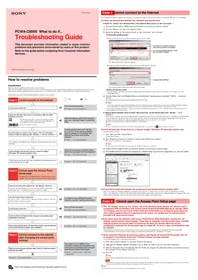
- WARNING
- OWNER'S RECORD
- FOR CUSTOMER IN EUROPE
- FOR CUSTOMER IN U.S.A
- CAUTION
- FOR THE STATE OF CALIFORNIA, USA ONLY
- TABLE OF CONTENTS
- GETTING STARTED
- BASIC OPERATION
- EXAMPLES
- CONNECTION/SETTINGS
- TROUBLESHOOTING
- PRECAUTIONS/OTHERS
- ABOUT THIS UNIT
- NOTE
- YOU CAN DISPLAY THE FOLLOWING
- YOU CAN PLAY BACK MUSIC FILES
- YOU CAN DISPLAY THE FOLLOWING INFORMATION
- OTHER USES
- LOCATING CONTROLS AND PORTS
- FRONT
- BACK
- BOTTOM
- REMOTE CONTROL
- BEFORE USE
- CHECKING ACCESSORIES
- CONNECTING
- SETTING UP THE REMOTE CONTROL
- REPLACING THE BATTERY
- INSERTING AND REMOVING MEMORY CARDS
- ATTACHING AND DETACHING A USB CABLE OR USB MEMORY DEVICE
- ABOUT COMPATIBLE MEMORY CARDS
- MEMORY STICK MEDIA
- SD MEMORY CARD
- COMPACTFLASH CARD
- BASIC USE
- TURNING THE POWER ON
- FOR THE CUSTOMERS PURCHASING THE U.K. MODEL
- TO SET TO STANDBY MODE
- TO TURN OFF THE POWER
- ABOUT THE HOME SCREEN
- FRAME LIST
- OTOS
- MUSIC
- INFORMATION
- SETTINGS
- HINT
- PLAYING BACK PHOTOS FRAME OF SAMPLE IMAGES
- PLAYING BACK A FRAME OF SAMPLE IMAGES AND MUSIC FROM THE HOME SCREEN
- DISPLAYING DATA ON THE BROWSE SCREEN
- DISPLAYING PHOTOS ON MEMORY STICK MEDIA
- INSERT MEMORY STICK MEDIA INTO THIS UNIT (PAGE 14)
- SELECT A FOLDER INCLUDING A TARGET PHOTO BY PRESSING ON THE REMOTE CONTROL, AND PRESS - ENTER)
- SELECT A PHOTO BY PRESSING , AND PRESS - ENTER)
- COPYING DATA TO THE INTERNAL MEMORY
- COPYING A PHOTO TO THE INTERNAL MEMORY
- DISPLAY THE PHOTOS OR THE FOLDERS INCLUDING PHOTOS YOU ARE GOING TO COPY TO THE INTERNAL MEMORY BY FOLLOWING THE STEPS IN "DISPLAYING DATA ON THE BROWSE SCREEN" (PAGE 18)
- PRESS OPTIONS ON THE REMOTE CONTROL
- SELECT [COPY TO INTERNAL MEMORY] BY PRESSING ON THE REMOTE CONTROL, AND PRESS - ENTER)
- SELECT [YES] BY PRESSING ↔ ON THE REMOTE CONTROL, AND PRESS- (ENTER)
- PRESS (ENTER) ON THE REMOTE CONTROL
- PLAYING BACK A PHOTO COPIED TO THE INTERNAL MEMORY
- PRESS HOME ON THE REMOTE CONTROL
- DELETING A PHOTO IN THE INTERNAL MEMORY
- CREATING A FRAME
- CREATING A PHOTOS AND INFO FRAME
- PRESS → ON THE REMOTE CONTROL
- PLAYING BACK A FRAME
- PLAYING BACK A FRAME FROM THE HOME SCREEN
- SELECT THE DESIRED FRAME BY PRESSING ON THE REMOTE CONTROL, AND PRESS -♦- (ENTER)
- CHANGING A FRAME
- PRESS FRAME ON THE REMOTE CONTROL
- AVAILABLE FRAMES
- ABOUT THE ICONS IN THIS SECTION
- FRAME CREATED FROM PHOTO BROWSE SCREEN
- PHOTOS AND INFO FRAME 📄/ 📅/ 📃H 📋N
- PHOTOS FRAME
- SHARED FRAME
- MEMORIES FRAME
- FRAME CREATED FROM MUSIC BROWSE SCREEN
- MUSIC FRAME
- FRAME CREATED FROM INFORMATION BROWSE SCREEN
- NEWS FRAME N
- RSS FRAME N
- EXAMPLE 1: USING [PICASA WEB ALBUMS BY GOOGLE]
- OBTAINING AN ACCOUNT FOR "PICASA WEB ALBUMS BY GOOGLE
- WITHOUT A GOOGLE ACCOUNT
- WITH A GOOGLE ACCOUNT
- LOGGING IN TO "PICASA WEB ALBUMS BY GOOGLE
- PRESS BACK ON THE REMOTE CONTROL
- UPLOADING PHOTOS TO "PICASA WEB ALBUMS BY GOOGLE" FROM THIS UNIT
- UPLOADING PHOTOS ON MEMORY STICK MEDIA
- SELECT THE DESIRED ALBUM TO UPLOAD PHOTOS BY PRESSING ON THE REMOTE CONTROL, AND PRESS - ENTER)
- DISPLAYING PHOTOS FROM "PICASA WEB ALBUMS BY GOOGLE
- EXAMPLE 2: DISPLAYING PHOTOS STORED ON YOUR COMPUTER
- SETTING UP A SERVER
- STARTING VAIO MEDIA INTEGRATED SERVER
- ACCESSING TO THE COMPUTER
- DISPLAYING PHOTOS ON A COMPUTER SET TO USE WITH THIS UNIT
- PRESS → ON THE REMOTE CONTROL, SELECT [●HOTOS] BY PRESSING ↑↓, AND PRESS -◆- (ENTER)
- SELECT THE DESIRED SERVER CONTAINING TARGET PHOTOS BY PRESSING ↑↓ ON THE REMOTE CONTROL, AND PRESS - ENTER)
- EXAMPLE 3: LISTENING TO MUSIC OR WEB RADIO PROGRAM
- PLAYING BACK MUSIC IN MEMORY STICK MEDIA
- INSERT A MEMORY STICK WITH A MUSIC FILE IN THE SLOT. (PAGE 14)
- PRESS → ON THE REMOTE CONTROL, SELECT [MUSIC] BY PRESSING ↑↓, AND PRESS -♦- (ENTER)
- SELECT [ MEMORY STICK] BY PRESSING ↑↓ ON THE REMOTE CONTROL, AND PRESS -♦- (ENTER)
- PLAYING BACK WEB RADIO STATION OF SHOUTCAST
- EXAMPLE 4: REGISTERING RSS
- REGISTERING RSS
- DISPLAYING THE REGISTERED RSS
- CREATING RSS FRAME
- SELECT [YES] BY PRESSING ↔ ON THE REMOTE CONTROL, AND PRESS ENTER
- CONNECTING TO A WIRELESS NETWORK
- CHECKING THE TYPE OF ACCESS POINTS
- ABOUT AOSS
- SETTING WITH AOSS
- CONFIRM THAT "CONFIGURING THE ACCESS POINT COMPLETED" IS DISPLAYED
- IF A PROXY SETTING IS UNNECESSARY, PRESS→ ON THE REMOTE CONTROL TO PROCEED TO THE NEXT STEP
- SETTING MANUALLY
- OPTIONS MENU LIST
- WEB BROWSER (OPERA) SCREEN
- SETTINGS MENU
- NETWORK SETTINGS
- ITEM OPTIONS/DESCRIPTION
- SERVER SETTINGS
- SCREEN DISPLAY
- TIMER SETTINGS
- CONDITION CAUSE/REMEDY
- GETTING HELP
- ABOUT SONY'S SUPPORT OPTIONS
- FOR CUSTOMERS IN THE UNITED STATES AND CANADA
- FOR CUSTOMERS IN EUROPE
- FOR CUSTOMERS IN OTHER COUNTRIES AND REGIONS
- PRECAUTIONS
- ON HANDLING YOUR UNIT
- ON PARTS REPLACEMENT
- ON THE LCD SCREEN
- ON MOISTURE CONDENSATION
- ON HANDLING MEMORY STICK MEDIA
- ON USING MEMORY STICK DUO MEDIA
- ON THE AC ADAPTER
- ON USING THE SOFTWARE
- ON CLEANING YOUR UNIT
- ON CLEANING THE LCD SCREEN
- TRADEMARKS
- IMPORTANT NOTICES ON THE SOFTWARE
- END USER SOFTWARE LICENSE AGREEMENT (FOR CUSTOMER IN EUROPE)
- END USER LICENSE AGREEMENT FOR SONY SOFTWARE (FOR CUSTOMER IN U.S.A.)
- SOFTWARE LICENSE
- GRANT OF LICENSE
- DESCRIPTION OF OTHER RIGHTS AND LIMITATIONS
- COPYRIGHT
- USE OF SOFTWARE WITH COPYRIGHTED MATERIALS
- HIGH RISK ACTIVITIES
- U.S. GOVERNMENT RESTRICTED RIGHTS
- LIMITED WARRANTY ON MEDIA
- EXCLUSION OF WARRANTY ON SOFTWARE
- LIMITATION OF LIABILITY
- SOFTWARE DATA COLLECTION AND MONITORING
- AUTOMATIC UPDATE FEATURE
- GOVERNING LAW AND JURISDICTION, JURY TRIAL WAIVER
- SEVERABILITY
- THIRD PARTY BENEFICIARY
- GNU GPL/LGPL APPLIED SOFTWARE
- PACKAGE LIST
- GNU GENERAL PUBLIC LICENSE
- PREAMBLE
- TERMS AND CONDITIONS FOR COPYING, DISTRIBUTION AND MODIFICATION
- NO WARRANTY
- END OF TERMS AND CONDITIONS
- HOW TO APPLY THESE TERMS TO YOUR NEW PROGRAMS
- GNU LESSER GENERAL PUBLIC LICENSE
- HOW TO APPLY THESE TERMS TO YOUR NEW LIBRARIES
- NETBSD SOFTWARE
- OPENSSL SOFTWARE
- ORIGINAL SSLEAY LICENSE
- AES
- DISCLAIMER
- MD
- JPEG
- IN PLAIN ENGLISH
- IN LEGALESE
- FDLIBM SOFTWARE
- MOZILLA PUBLIC LICENSE VERSION
- DEFINITIONS
- DESCRIPTION OF MODIFICATIONS
- INTELLECTUAL PROPERTY MATTERS
- THIRD PARTY CLAIMS
- CONTRIBUTOR APIS
- REPRESENTATIONS
- REQUIRED NOTICES
- DISTRIBUTION OF EXECUTABLE VERSIONS
- LARGER WORKS
- U.S. GOVERNMENT END USERS
- MISCELLANEOUS
- RESPONSIBILITY FOR CLAIMS
- MULTIPLE-LICENSED CODE
- EXHIBIT A -MOZILLA PUBLIC LICENSE
- CONTRIBUTOR(S)
- THE MIT LICENSE
- INDEX
- A
- B
- C
- D
- E
- F
- G
- H
- M
- N
- P
- R
- S
- T
- U
- V
- W
- Z
Brand : SONY
Model : VGF-CP1
Category : Computer accessory