XS724TM - Switch NETGEAR - Free user manual and instructions
Find the device manual for free XS724TM NETGEAR in PDF.


Pick your language and provide your email: we'll send you a specifically translated version.
| Type of product | Network Switch |
| Brand | Netgear |
| Model | XS724TM |
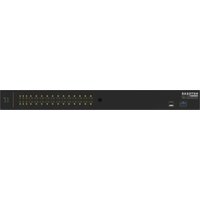
| Ports | 24 x 10GBASE-T (RJ45) + 4 x 10G SFP+ |
| Management | Smart Managed (L2+) |
| Switching capacity | 480 Gbps |
| Power supply | AC 100-240V, 50-60Hz |
| Max power consumption | 120 W |
| Dimensions (W x D x H) | 440 x 350 x 44 mm (1U) |
| Weight | 6.3 kg |
| Cooling | 2 x built-in fans |
| Operating temperature | 0°C to 40°C |
| Humidity | 10% to 90% non-condensing |
| Key features | VLAN, QoS, IGMP snooping, Link Aggregation, ACL, SNMP |
| Security | IEEE 802.1x, port security, ACL |
| Maintenance | Clean with dry cloth; do not use liquids or abrasive cleaners |
| Spare parts and repairability | No user-serviceable parts; contact Netgear support for repairs |
| General information | Limited lifetime warranty; rack-mount kit included |
Frequently Asked Questions - XS724TM NETGEAR
How to reset the Netgear XS724TM to factory defaults?
Press and hold the Factory Reset button on the front panel for about 5 seconds using a paperclip until the LEDs blink. Release and the switch will reboot with default settings.
How to access the web management interface?
Connect your computer to one of the switch ports. Set your computer's IP to 192.168.0.x (subnet 255.255.255.0), then enter 192.168.0.239 in your browser. Default login is admin with password password.
What is the default IP address?
The default IP address is 192.168.0.239.
How to update firmware?
Download the latest firmware from Netgear's support site. Log into the web interface, go to Maintenance > Firmware Upgrade, select the file, and click Apply. Do not power off during the update.
Is the XS724TM rack-mountable?
Yes, the switch is 1U high and comes with rack-mount brackets and screws for standard 19-inch racks.
What cables are required for 10G connections?
For the RJ45 ports, use Cat6a or Cat7 Ethernet cables for full 10G performance. For SFP+ ports, use compatible 10G SFP+ modules or Direct Attach Copper cables.
Does the XS724TM support PoE?
No, the XS724TM does not support Power over Ethernet. Each device connected must have its own power source.
How to configure VLANs?
Log into the web interface, go to Switching > VLAN. You can create 802.1Q VLANs, assign ports, and set the PVID for each port. Advanced options include VLAN tagging and Voice VLAN.
What do the LED indicators mean?
Each port has two LEDs: Link/Activity (green solid for link, blinking for activity) and Speed (green for 10G, amber for 1G, off for 100M). The Power LED shows green when on. See manual for full details.
What is the warranty period?
Netgear offers a Limited Lifetime Warranty for this switch, covering hardware defects. Registration may be required. Contact Netgear support for claims.
User questions about XS724TM NETGEAR
0 question about this device. Answer the ones you know or ask your own.
Ask a new question about this device
No questions yet. Be the first to ask one.
Download the instructions for your Switch in PDF format for free! Find your manual XS724TM - NETGEAR and take your electronic device back in hand. On this page are published all the documents necessary for the use of your device. XS724TM by NETGEAR.
USER MANUAL XS724TM NETGEAR


Manual assistant
Powered by Anthropic
Waiting for your message
Product information
Brand : NETGEAR
Model : XS724TM
Category : Switch