ROG Strix XG279CNS - Monitor ASUS - Free user manual and instructions
Find the device manual for free ROG Strix XG279CNS ASUS in PDF.


Pick your language and provide your email: we'll send you a specifically translated version.
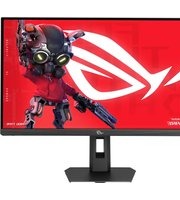
| Product Type | Gaming Monitor |
| Brand | ASUS |
| Model | ROG Strix XG279CNS |
| Screen Size | 27 inches |
| Resolution | WQHD (2560 x 1440) |
| Refresh Rate | 170 Hz (overclockable) |
| Response Time | 1 ms (GTG) |
| Panel Type | IPS |
| Aspect Ratio | 16:9 |
| Brightness (Typical) | 400 cd/m² |
| Contrast Ratio | 1000:1 |
| Viewing Angles | 178° / 178° |
| Color Support | 16.7 million colors (8-bit) |
| Connectivity | DisplayPort 1.2, HDMI 2.0, USB 3.0 Hub, Audio Out |
| Dimensions (with Stand) | 614 x 360 x 211 mm |
| Weight (with Stand) | Approx. 6.5 kg |
| Power Consumption | Typical <30W |
| VESA Mounting | 100 x 100 mm |
| Special Features | G-Sync Compatible, HDR10, Aura Sync, GamePlus, GameVisual, Low Blue Light, Flicker Free |
| Cleaning | Use a soft dry cloth; avoid liquid cleaners |
| Safety | Do not block vents; unplug before cleaning |
| Spare Parts / Reparability | Contact ASUS support; no user-serviceable parts |
| Warranty | 3 years (varies by region) |
Frequently Asked Questions - ROG Strix XG279CNS ASUS
How do I adjust the monitor's height and tilt?
The monitor stand allows height adjustment, tilt, swivel, and pivot. Use the release button to unlock and adjust to your preferred position.
How do I enable G-Sync on this monitor?
Connect via DisplayPort, then enable G-Sync in NVIDIA Control Panel under 'Set up G-Sync'. Ensure the monitor's firmware is up to date.
What is the maximum refresh rate and how do I set it?
The maximum refresh rate is 170 Hz. Set it via Windows Display Settings > Advanced Display Settings, or in the monitor's OSD menu under 'GameVisual'.
How do I reduce blue light for eye comfort?
Press the OSD button, navigate to 'GameVisual' and select 'Low Blue Light' mode. You can also adjust brightness and color temperature.
The screen flickers or goes black briefly. What should I do?
Check cable connections, ensure the monitor is set to the correct input, and disable 'Adaptive Sync' if flickering occurs. Also update graphics drivers.
How do I perform a factory reset?
Go to OSD Menu > 'Setup' > 'Reset' and confirm. This restores all settings to default.
Can I mount this monitor on a wall?
Yes, it supports VESA 100x100 mm mount. Use the included screws to attach a bracket. Ensure the wall can support the monitor's weight.
What is the HDR performance and how do I enable it?
The monitor supports HDR10. Enable HDR in Windows Settings under 'Display > Windows HD Color Settings', and in the OSD set 'HDR' to 'On'.
How do I clean the screen properly?
Turn off the monitor and unplug it. Use a soft, dry microfiber cloth to gently wipe the screen. Do not use alcohol or abrasive cleaners.
Why is the OSD menu not responding?
Try unplugging the monitor for 30 seconds, then reconnect. If the issue persists, perform a factory reset or contact ASUS support.
User questions about ROG Strix XG279CNS ASUS
0 question about this device. Answer the ones you know or ask your own.
Ask a new question about this device
No questions yet. Be the first to ask one.
Download the instructions for your Monitor in PDF format for free! Find your manual ROG Strix XG279CNS - ASUS and take your electronic device back in hand. On this page are published all the documents necessary for the use of your device. ROG Strix XG279CNS by ASUS.
USER MANUAL ROG Strix XG279CNS ASUS
Manual assistant
Powered by Anthropic
Waiting for your message
Product information
Brand : ASUS
Model : ROG Strix XG279CNS
Category : Monitor