Kamvas Pro 16 2.5K - Graphic tablet Huion - Free user manual and instructions
Find the device manual for free Kamvas Pro 16 2.5K Huion in PDF.


Pick your language and provide your email: we'll send you a specifically translated version.
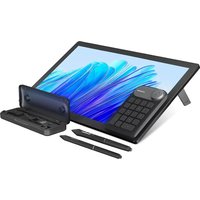
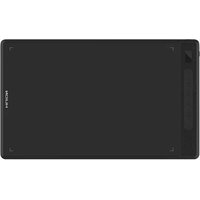
| Product Type | Graphics Pen Display |
| Model | Kamvas Pro 16 2.5K |
| Brand | Huion |
| Display Size | 15.6 inch (16:9) |
| Resolution | 2560 x 1600 (2.5K) |
| Pen Technology | Electromagnetic Resonance (EMR) |
| Pen Pressure Levels | 8192 |
| Pen Tilt Support | ±60° |
| Lamination | Full Lamination (No Parallax) |
| Screen Protection | Anti-glare Matte Film |
| Connectivity | USB-C (Display, Power, Data) |
| Power Source | USB-C or External Power Adapter |
| Dimensions (W x H x D) | 422.4 x 262.3 x 14.5 mm |
| Weight | Approx. 1.5 kg |
| Compatible Systems | Windows, macOS, Android (some devices) |
| Stand Included | Adjustable Dual Flex Arm Stand |
| Pen Battery | No battery required (Passive Pen) |
| Care Instructions | Clean with soft, dry cloth; avoid solvents |
| Safety Features | Overheat protection, RoHS compliant |
| Spare Parts | Replacement pens, USB cables, stands available |
Frequently Asked Questions - Kamvas Pro 16 2.5K Huion
How do I connect the Kamvas Pro 16 2.5K to my computer?
Use the provided USB-C cable to connect the tablet to your computer. Ensure both video and data signals are supported. For full functionality, you may need to install the Huion driver from the official website.
Does the pen require batteries or charging?
No, the pen is passive and does not require batteries. It uses electromagnetic resonance (EMR) technology, powered by the tablet itself.
What is the screen resolution of the Kamvas Pro 16 2.5K?
The display has a resolution of 2560 x 1600 pixels (2.5K), offering sharp and detailed visuals.
Can I use the tablet with Android devices?
Yes, the Kamvas Pro 16 2.5K supports connection to Android devices with USB-C that support display output. However, functionality may vary, and you may need a separate power adapter.
How do I install the driver for the tablet?
Download the latest driver from the Huion official website for your operating system. Run the installer and follow the on-screen instructions. Restart your computer after installation.
Is there a shortcut remote included?
The Kamvas Pro 16 2.5K does not include a separate shortcut remote, but it features customizable express keys on the tablet itself. You can assign shortcuts via the driver software.
How do I clean the screen safely?
Turn off the device and unplug it. Use a soft, lint-free cloth slightly dampened with water (or a screen cleaner) to gently wipe the screen. Avoid abrasive materials or solvents.
What should I do if the pen cursor is offset?
First, ensure you have installed the correct driver. Then, in the Huion driver software, run the pen calibration tool. If the issue persists, check that the screen aspect ratio settings match the tablet's resolution.
Are replacement pens available?
Yes, Huion sells replacement pens and nibs. The Kamvas Pro 16 2.5K uses the Huion PW517 pen (or compatible models). You can order them from the Huion store or authorized retailers.
What is the warranty period for this tablet?
Huion typically offers a 1-year limited warranty for the Kamvas Pro series. Check your regional policy for specific terms. Extended warranty options may be available.
User questions about Kamvas Pro 16 2.5K Huion
0 question about this device. Answer the ones you know or ask your own.
Ask a new question about this device
No questions yet. Be the first to ask one.
Download the instructions for your Graphic tablet in PDF format for free! Find your manual Kamvas Pro 16 2.5K - Huion and take your electronic device back in hand. On this page are published all the documents necessary for the use of your device. Kamvas Pro 16 2.5K by Huion.
USER MANUAL Kamvas Pro 16 2.5K Huion
Manual assistant
Powered by Anthropic
Waiting for your message
Product information
Brand : Huion
Model : Kamvas Pro 16 2.5K
Category : Graphic tablet