SC-U25 - Desktop computer VIEWSONIC - Free user manual and instructions
Find the device manual for free SC-U25 VIEWSONIC in PDF.


| Product Type | Desktop Computer (All-in-One) |
| Brand | Viewsonic |
| Model | SC-U25 |
| Screen Size | 21.5 inches |
| Processor | Intel Celeron J4005 (up to 2.7 GHz) |
| Memory (RAM) | 4 GB DDR4 |
| Storage | 64 GB eMMC |
| Operating System | Windows 10 Pro (64-bit) |
| Connectivity | Wi-Fi 802.11ac, Bluetooth 4.2, Gigabit Ethernet |
| Ports | 2x USB 3.0, 2x USB 2.0, HDMI Out, VGA, Combo Audio Jack, RJ45 |
| Card Reader | SD/MMC |
| Webcam | Built-in 2 MP camera with microphone |
| Speakers | Integrated stereo speakers |
| Power Supply | External AC adapter 36W |
| Dimensions (W x H x D) | 19.4 x 12.9 x 1.5 inches (493 x 328 x 38 mm) |
| Weight | 11.0 lbs (5.0 kg) |
| Mounting | VESA compatible (100x100 mm) |
| Usage | Ideal for office, education, and light computing tasks |
| Warranty | 1 year limited warranty |
Frequently Asked Questions - SC-U25 VIEWSONIC
User questions about SC-U25 VIEWSONIC
0 question about this device. Answer the ones you know or ask your own.
Ask a new question about this device
Download the instructions for your Desktop computer in PDF format for free! Find your manual SC-U25 - VIEWSONIC and take your electronic device back in hand. On this page are published all the documents necessary for the use of your device. SC-U25 by VIEWSONIC.
USER MANUAL SC-U25 VIEWSONIC
Thank you for choosing ViewSonic
With over 25 years as a world leading provider of visual solutions, ViewSonic is dedicated to exceeding the world's expectations for technological evolution, innovation, and simplicity. At ViewSonic, we believe that our products have the potential to make a positive impact in the world, and we are confident that the ViewSonic product you have chosen will serve you well.
Once again, thank you for choosing ViewSonic !
ViewSonic®

Compliance Information
FCC Compliance Statement
This device complies with part 15 of FCC Rules. Operation is subject to the following two conditions: (1) this device may not cause harmful interference, and (2) this device must accept any interference received, including interference that may cause undesired operation.
This equipment has been tested and found to comply with the limits for a Class B digital device, pursuant to part 15 of the FCC Rules. These limits are designed to provide reasonable protection against harmful interference in a residential installation. This equipment generates, uses, and can radiate radio frequency energy, and if not installed and used in accordance with the instructions, may cause harmful interference to radio communications. However, there is no guarantee that interference will not occur in a particular installation. If this equipment does cause harmful interference to radio or television reception, which can be determined by turning the equipment off and on, the user is encouraged to try to correct the interference by one or more of the following measures:
- Reorient or relocate the receiving antenna.
- Increase the separation between the equipment and receiver.
- Connect the equipment into an outlet on a circuit different from that to which the receiver is connected.
- Consult the dealer or an experienced radio/TV technician for help.
Warning: You are cautioned that changes or modifications not expressly approved by the party responsible for compliance could void your authority to operate the equipment.
Industry Canada Statement
CAN ICES-3 (B)/NMB-3(B)
CE Conformity for European Countries

The device complies with the EMC Directive 2004/108/EC and Low Voltage Directive 2006/95/EC.
Following information is only for EU-member states:
The mark is in compliance with the Waste Electrical and Electronic Equipment Directive 2012/19/EU (WEEE).
The mark indicates the requirement NOT to dispose the equipment including any spent or discarded batteries or accumulators as unsorted municipal waste, but use the return and collection systems available.
If the batteries, accumulators and button cells included with this equipment, display the chemical symbol Hg, Cd, or Pb, then it means that the battery has a heavy metal content of more than 0.0005% Mercury or more than, 0.002% Cadmium, or more than 0.004% Lead.


Declaration of RoHS2 Compliance
This product has been designed and manufactured in compliance with Directive 2011/65/EU of the European Parliament and the Council on restriction of the use of certain hazardous substances in electrical and electronic equipment (RoHS2 Directive) and is deemed to comply with the maximum concentration values issued by the European Technical Adaptation Committee (TAC) as shown below:
| Substance | Proposed Maximum Concentration | Actual Concentration |
| Lead (Pb) 0.1% < 0.1% | ||
| Mercury (Hg) 0.1% < 0.1% | ||
| Cadmium (Cd) 0.01% < 0.01% | ||
| Hexavalent Chromium ( Cr6+ ) 0.1% < 0.1% | ||
| Polybrominated biphenyls (PBB) 0.1% < 0.1% | ||
| Polybrominated diphenyl ethers (PBDE) | 0.1% < 0.1% |
Certain components of products as stated above are exempted under the Annex III of the RoHS2 Directives as noted below:
Examples of exempted components are:
- Mercury in cold cathode fluorescent lamps and external electrode fluorescent lamps (CCFL and EEFL) for special purposes not exceeding (per lamp):
(1) Short length ( ≤ 500 mm): maximum 3.5 mg per lamp.
(2) Medium length (>500 mm and ≤ 1,500 mm): maximum 5 mg per lamp.
(3) Long length (>1,500 mm): maximum 13 mg per lamp.
-
Lead in glass of cathode ray tubes.
-
Lead in glass of fluorescent tubes not exceeding 0.2% by weight.
-
Lead as an alloying element in aluminium containing up to 0.4% lead by weight.
-
Copper alloy containing up to 4% lead by weight.
-
Lead in high melting temperature type solders (i.e. lead-based alloys containing 85% by weight or more lead).
-
Electrical and electronic components containing lead in a glass or ceramic other than dielectric ceramic in capacitors, e.g. piezoelectronic devices, or in a glass or ceramic matrix compound.
Important Safety Instructions
-
Read these instructions completely before using the equipment.
-
Keep these instructions in a safe place.
-
Heed all warnings.
-
Follow all instructions.
-
Do not use this equipment near water. Warning: To reduce the risk of fire or electric shock, do not expose this apparatus to rain or moisture.
-
Do not block any ventilation openings. Install the equipment in accordance with the manufacturer's instructions.
-
Do not install near any heat sources such as radiators, heat registers, stoves, or other devices (including amplifiers) that produce heat.
-
Do not attempt to circumvent the safety provisions of the polarized or grounding-type plug. A polarized plug has two blades with one wider than the other. A grounding type plug has two blades and a third grounding prong. The wide blade and the third prong are provided for your safety. If the plug does not fit into your outlet, consult an electrician for replacement of the outlet.
-
Protect the power cord from being tread upon or pinched, particularly at the plug, and the point where if emerges from the equipment. Be sure that the power outlet is located near the equipment so that it is easily accessible.
-
Only use attachments/accessories specified by the manufacturer.
-
Use only with the cart, stand, tripod, bracket, or table specified by the manufacturer, or sold with the equipment. When a cart is used, use caution when moving the cart/equipment combination to avoid injury from tipping over.
-
Unplug this equipment when it will be unused for long periods of time.
-
Refer all servicing to qualified service personnel. Service is required when the unit has been damaged in any way, such as: if the power-supply cord or plug is damaged, if liquid is spilled onto or objects fall into the unit, if the unit is exposed to rain or moisture, or if the unit does not operate normally or has been dropped.
-
Do not remove equipment covers and access any of the components inside the equipment. Any access inside the equipment without an authorized or certified technician may cause serious injuries and damage. For any problem, contact your dealer for assistance.
-
Don't use a keyboard and mouse that in total require more than 200 mA of rated current during operation.
-
Use only power supplies listed in the user instructions.
-
The user manual must then have a listing of manufacturer and model of the relevant power supplies.

- To reduce the risk of electric shock, do not perform any servicing other than that contained in the operating instructions unless you are qualified to do so.
- CAUTION – These servicing instructions are for use by qualified service personnel only.
- For use only with UL Listed Wall Mount Bracket with minimum weight/load: 0.75kg.
- Mounting kit distance (75 x 75 mm, 100 x 100 mm) and screw type, dimension.
Copyright Information
Copyright © ViewSonic® Corporation, 2014. All rights reserved.
ViewSonic, the three birds logo, and MultiClient are either registered trademarks or trademarks of ViewSonic Corporation.
Microsoft ® , Windows ® , and MultiPoint are trademarks of the Microsoft group of companies.
Other product names mentioned herein are used for identification purposes only and may be trademarks and/or registered trademarks of their respective companies.
Disclaimer: ViewSonic Corporation shall not be liable for technical or editorial errors or omissions contained herein; nor for incidental or consequential damages resulting from furnishing this material, or the performance or use of this product.
In the interest of continuing product improvement, ViewSonic Corporation reserves the right to change product specifications without notice. Information in this document may change without notice.
No part of this document may be copied, reproduced, or transmitted by any means, for any purpose without prior written permission from ViewSonic Corporation.
Product Registration
To fulfill possible future product needs, and to receive additional product information as it becomes available, please visit your region section on ViewSonic's website to register your product online.
For Your Records
Product Name: SC-U25
ViewSonic Zero Client
Model Number: VS14688
Document Number: SC-U25_UG_ENG Rev. 1A 08-27-14
Serial Number:
Purchase Date:
Product disposal at end of product life
ViewSonic respects the environment and is committed to working and living green. Thank you for being part of Smarter, Greener Computing. Please visit ViewSonic website to learn more.
USA & Canada: http://www.viewsonic.com/company/green/recycle-program/
Europe: http://www.viewsoniceurope.com/uk/support/recycling-information/
Taiwan: http://recycle.epa.gov.tw/recycle/index2.aspx
Table of Contents
Compliance Information i
Copyright Information v
- Package Contents 1
- Exterior Views 1
- Panel Components 2
- Positioning Your SC-U25 3
- What you need? 4
5.1 Host PC 4
5.2 SC-U25 Zero Clients 4
5.3 Networking 4
5.4 Software/OS 4
5.5 Setting UP 5
5.6 Host PC Installation 6
5.7 First Boot Configurations 6
5.8 Setting SC-U25 Zero Clients 6
Specifications 7
Troubleshooting 8
Technical information 8
Other Information 9
Customer Support 9
Limited Warranty 10
1. Package Contents
Please check your package contents. Ensure that all of the items are present in your package(s). If any items are missing or damaged, please contact your dealer immediately.
ViewSonic SC-U25 AC adaptor VESA mount plate


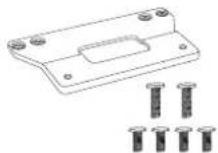
Compliance Information brochure
Optical Disk Quick Start Guide



2. Exterior Views
ViewSonic SC-U25
Left front view

Right rear view
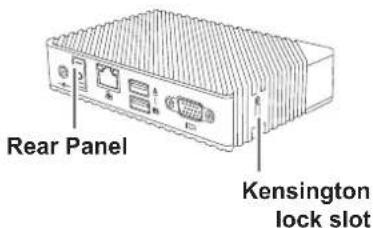
3. Panel Components
ViewSonic SC-U25

Front Panel Components
No. Component Sign Name Description
| 1 |  | Power LED Indicates the status of power. | ||
| 2 Microphone port | [2660] | Connects to a microphone or a digital musical instrument such as a MIDI keyboard. | ||
| 3 |  | [8CXX] | Headphone port | Connects to a set of headphones or a speaker system. |
| 4 |  | [BWW2] | USB port Connects to a USB device. | |
The meanings of LED signals are described in section "1.6 LED Indicators" on page 3.
ViewSonic SC-U25

Rear Panel Components
No. Panel Component Sign Component Name Description
| 5 |  | [0024] | USB port Connects to a mouse. | 1 |
| 6 USB port Control | [HEZW] | [WDB3] | 1 | |
| 8 VGA port Control | [X647] | [WHCK] | ||
| 9 |  | [SD68] | DC IN Connects to an AC adaptor. | |
| 10 | [KXCX] | Power switch | Press to turn on/off the Zero Client. | |
| 11 | [WZE4] | [SHXD] | LAN port | Connects to a host server through a Gigabit switch. |
Don't use a keyboard and mouse that in total require more than 200 mA of rated current during operation.
4. Positioning Your SC-U25
You can simply position a Zero Client on a desk or a desired place. Or, you can mount a Zero Client on the back of a monitor using a VESA mount kit.
Mounting your clients
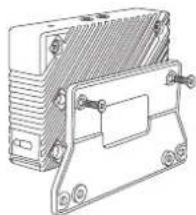
To mount your Zero Client (ViewSonic SC-U25), please follow the steps below:
- With the rear panel of the Zero Client facing downward, secure the VESA mount bracket to the Zero Client with two (2) screws supplied.
-
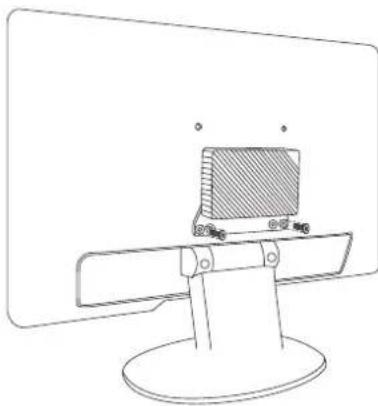
Align the bracket holes with the VESA holes on the back of the monitor. Ensure that the rear panel of the Zero Client is facing downward.
-
Secure the VESA mount bracket to the monitor with two (2) screws supplied.
5. What you need?
5.1 Host PC
- 1 Host PC (with monitor, keyboard and mouse)
• We recommend buying one of our certified host PC
(http://support.userful.com/wiki/index.php/Certified_Hardware/Host_PCs).
- If you are unable to get certified model consider following supported specifications before buying one:
| CPU Intel Nehelam series – Intel ® CoreTM ix xxx (i.e. Intel CoreTM i7 920)Intel Sandy bridge – Intel CoreTM ix 2xxx (i.e. Intel CoreTM i7 2770)Intel Ivy bridge – Intel CoreTM ix 3xxx (i.e. Intel CoreTM i7 3770)Intel Haswell – Intel CoreTM ix 4xxx (i.e. Intel CoreTM i7, 4770) |
| Graphic Card Intel HD 2000, 2500, 3000, 4000, and 4200Nvidia cards up to 220 GT (cards with the 304.xx driver are supports) |
| Network Card Intel branded network card using the Intel e1000e driver |
AMD CPUs are supported as long as onboard graphics chip is disabled in BIOS and another video card such as (supported) Nvidia is used.
ATI graphics cards may be supported but are not recommended.
5.2 SC-U25 Zero Clients
• One SC-U25 for each seat
• A power adaptor for each SC-U25
• A monitor, keyboard and mice for each SC-U25
5.3 Networking
- Ethernet cables to connect SC-U25 to switch
- 1 Gigabit switch
- 1 Router to act as DHCP server and to connect with external LAN/WAN
5.4 Software/OS
• Installation DVD of Useful Multiplatform
5.5 Setting UP
To setup you need to prepare host PC and connect SC-U25 with host PC using a gigabit switch.
Example1
![graph LR A["Local Area Network"] --> B["Gigabit Switch"] B --> C["ViewSonic SC-U25"]](/content/2026/07/1489080/images/81830ed8d0834846dbc8af4ccec7bb10527e17f10df5a59dfdc0a4abec222ae4.jpg)
Example2
![graph TD A["Gigabit Switch"] --> B["ViewSonic SC-U25"] B --> C["Monitor"] B --> D["Keyboard"] B --> E["Mouse"] B --> F["Power outlet"] B --> G["Headphones"] B --> H["Speaker system"] B --> I["Microphone"]](/content/2026/07/1489080/images/1376744781dcaf75062f05293624d1d0bfca1b3ad8b66fe197ac4e91f4d2119a.jpg)
5.6 Host PC Installation
It is recommended to prepare (install) the host PC before setting up Ethernet stations. You need a monitor, keyboard and mouse to prepare your host PC.
Follow these steps to install Userful Multiplatform from DVD:
- Configure the host PC to boot from the optical disk drive (you can change the boot order from the system BIOS settings)
- Insert DVD into the host PC's optical disk drive
- Follow on screen instructions to install the operating system
- Restart the host PC when the installation is complete
5.7 First Boot Configurations
First boot wizard will run once after you have installed and restarted your host PC. It will guide you to:
- Accepting the license agreement
- Setting a root password
- Assigning a host name to your host PC Don't use "localhost" as the host name Host name should be alpha-numeric characters and hyphens only (e.g. test-host is valid where as test.host is invalid)
- Creating a user During first boot configurations you must create a user, you can create several users in this step by clicking "Advance"
- Setting system date and time
5.8 Setting SC-U25 Zero Clients
- To setup SC-U25 make sure you have prepared the host PC
- Place SC-U25 near power outlet and connect adapter to power up the SC-U25
- Place monitor with each SC-U25 and connect it with VGA cable
- Place keyboard and mouse near SC-U25 and connect using USB ports
- Turn the SC-U25 and host PC on
- Go to Control Center to manage your system You can access control center from host PC or from any station's browser by typing "localhost" in address bar You need to have root password to access Control Center
- To setup you need to prepare host PC and connect SC-U25 with host PC using a gigabit switch.
Specifications
ViewSonic SC-U25 Zero Client
| Processor | SMSC UFX600 |
| Resolution | 1920x1080 |
| I/O interfaces | Front panel: USB 2.0 x 2, Microphone in, HeadphoneRear panel: USB 2.0 x2, RJ45, DC IN, POWER SWITCH, VGA OUTPUT PORT |
| Security | 1 x Kensington lock slot |
| Communication | 10/100/1000Mb Ethernet |
| Power | 5V DC, 2A, 10W |
| VESA Mount Plate | 114 mm (W) x 60 mm (H) 6 mm (D) / 4.49" (W) x 2.36" (H) x 0.24" (D) |
| Dimensions | 120 mm (W) x 26mm (H) x 80mm (D) / 4.72" (W) x 1.0" (H) x 3.15" (D) |
| Environment | Operating Temperature: 0°~40°C / 32°~104°FHumidity: 10% ~ 90%, Non-CondensationStorage Temperature: -30°~+60°C / -4°~+140°FHumidity: 5% ~ 95%, Non-Condensation |
Troubleshooting
Troubleshooting
If you are having troubles in setting up this demo, please make sure:
- You have a certified host PC model or one with supported specifications
- You have good Ethernet cables (Cat-5e)
• Network SC-U25 are not directly connected to the host PC - The connection between the host PC and the main switch is gigabit capacity
- To check "System Diagnostics" under Control Center and verify if host PC meets the minimum requirements
Technical information
Product Documentation: http://support.userful.com/multiplatform
FAQ's: http://support.userful.com/multiplatform/faqs
Control Center: http://support.userful.com/controlcenter/
Host PC: http://support.userful.com/host-PC
Other Information
Customer Support
For technical support or product service, see the table below or contact your reseller.
NOTE: You will need the product serial number.
| Country/Region | Website | T= TelephoneC = CHAT ONLINE | |
| Australia/New Zealand | www.viewsonic.com.au | AUS= 1800 880 818NZ= 0800 008 822 | service@au.viewsonic.com |
| Canada www.viewsonic.com | T (Toll-Free)= 1-866-463-4775T (Toll)= 1-424-233-2533 | service.ca@viewsonic.com | |
| Europe www.viewsoniceurope.com www.viewsoniceurope.com/uk/support/call-desk/ | |||
| Hong Kong www.hk.viewsonic.com T= 852 3102 2900 service@hk.viewsonic.com | |||
| India www.in.viewsonic.com T= 1800 419 0959 service@in.viewsonic.com | |||
| Korea ap.viewsonic.com/kr/ T= 080 333 2131 service@kr.viewsonic.com | |||
| Latin America (Argentina) | www.viewsonic.com/la/ | C=http://www.viewsonic.com/la/ soporte/servicio-tecnico | soporte@viewsonic.com |
| Latin America (Chile) | www.viewsonic.com/la/ | C=http://www.viewsonic.com/la/ soporte/servicio-tecnico | soporte@viewsonic.com |
| Latin America (Columbia) | www.viewsonic.com/la/ | C=http://www.viewsonic.com/la/ soporte/servicio-tecnico | soporte@viewsonic.com |
| Latin America (Mexico) | www.viewsonic.com/la/ | C=http://www.viewsonic.com/la/ soporte/servicio-tecnico | soporte@viewsonic.com |
| Nexus Hightech Solutions, Cincinnati #40 Desp. 1 Col. De los Deportes Mexico D.F.Tel: 55) 6547-6454 55)6547-6484Other places please refer to http://www.viewsonic.com/la/soporte/servicio-tecnico#mexico | |||
| Latin America (Peru) | www.viewsonic.com/la/ | C=http://www.viewsonic.com/la/ soporte/servicio-tecnico | soporte@viewsonic.com |
| Macau www.hk.viewsonic.com T= 853 2870 0303 service@hk.viewsonic.com | |||
| Middle East | ap.viewsonic.com/me/ | Contact your reseller | service@ap.viewsonic.com |
| Puerto Rico & Virgin Islands | www.viewsonic.com | T= 1-800-688-6688 (English)C = http://www.viewsonic.com/ la/soporte/servicio-tecnico | service.us@viewsonic.comsoporte@viewsonic.com |
| Singapore/Malaysia/Thailand | www.ap.viewsonic.com | T= 65 6461 6044 service@sg.viewsonic.com | |
| South Africa | ap.viewsonic.com/za/ | Contact your reseller | service@ap.viewsonic.com |
| United States | www.viewsonic.com | T (Toll-Free)= 1-800-688-6688T (Toll)= 1-424-233-2530 | service.us@viewsonic.com |
Limited Warranty ViewSonic® Zero Client
What the warranty covers:
ViewSonic warrants its products to be free from defects in material and workmanship during the warranty period. If a product proves to be defective in material or workmanship during the warranty period, ViewSonic will, at its sole option, repair or replace the product with a similar product. Replacement Product or parts may include remanufactured or refurbished parts or components. The replacement unit will be covered by the balance of the time remaining on the customer's original limited warranty. ViewSonic provides no warranty for the third-party software included with the product or installed by the customer.
How long the warranty is effective:
ViewSonic Zero Client products are warranted for (3) years from the first consumer purchase for parts and labor.
User is responsible for the back up of any data before returning the unit for service. ViewSonic is not responsible for any data lost.
Who the warranty protects:
This warranty is valid only for the first consumer purchaser.
What the warranty does not cover:
- Any product on which the serial number has been defaced, modified or removed.
- Damage, deterioration or malfunction resulting from:
a. Accident, misuse, neglect, fire, water, lightning, or other acts of nature, unauthorized product modification, or failure to follow instructions supplied with the product.
b. Any damage of the product due to shipment.
c. Removal or installation of the product.
d. Causes external to the product, such as electrical power fluctuations or failure.
e. Use of supplies or parts not meeting ViewSonic's specifications.
f. Normal wear and tear.
g. Any other cause which does not relate to a product defect.
- Any product exhibiting a condition commonly known as "image burn-in" which results when a static image is displayed on the product for an extended period of time.
- Removal, installation, one way transportation, insurance, and set-up service charges.
How to get service:
- For information about receiving service under warranty, contact ViewSonic Customer Support (Please refer to Customer Support page). You will need to provide your product's serial number.
- To obtain warranty service, you will be required to provide (a) the original dated sales slip, (b) your name, (c) your address, (d) a description of the problem, and (e) the serial number of the product.
- Take or ship the product freight prepaid in the original container to an authorized ViewSonic service center or ViewSonic.
- For additional information or the name of the nearest ViewSonic service center, contact ViewSonic.
Limitation of implied warranties:
There are no warranties, express or implied, which extend beyond the description contained herein including the implied warranty of merchantability and fitness for a particular purpose.
4.3: ViewSonic Zero Client Warranty Page 1 of 2 MC_LW01 Rev. 1a 09-02-11
Exclusion of damages:
ViewSonic's liability is limited to the cost of repair or replacement of the product. ViewSonic shall not be liable for:
- Damage to other property caused by any defects in the product, damages based upon inconvenience, loss of use of the product, loss of time, loss of profits, loss of business opportunity, loss of goodwill, interference with business relationships, or other commercial loss, even if advised of the possibility of such damages.
- Any other damages, whether incidental, consequential or otherwise.
- Any claim against the customer by any other party.
- Repair or attempted repair by anyone not authorized by ViewSonic.
Effect of state law:
This warranty gives you specific legal rights, and you may also have other rights which vary from state to state. Some states do not allow limitations on implied warranties and/or do not allow the exclusion of incidental or consequential damages, so the above limitations and exclusions may not apply to you.
Sales outside the U.S.A. and Canada:
For warranty information and service on ViewSonic products sold outside of the U.S.A. and Canada, contact ViewSonic or your local ViewSonic dealer.
The warranty period for this product in mainland China (Hong Kong, Macao and Taiwan Excluded) is subject to the terms and conditions of the Maintenance Guarantee Card.
For users in Europe and Russia, full details of warranty provided can be found in www.viewsoniceurope.com under Support/Warranty Information.

ViewSonic®


- THANK YOU FOR CHOOSING VIEWSONIC
- COMPLIANCE INFORMATION
- FCC COMPLIANCE STATEMENT
- INDUSTRY CANADA STATEMENT
- CE CONFORMITY FOR EUROPEAN COUNTRIES
- FOLLOWING INFORMATION IS ONLY FOR EU-MEMBER STATES
- DECLARATION OF ROHS2 COMPLIANCE
- IMPORTANT SAFETY INSTRUCTIONS
- COPYRIGHT INFORMATION
- PRODUCT REGISTRATION
- FOR YOUR RECORDS
- PRODUCT DISPOSAL AT END OF PRODUCT LIFE
- TABLE OF CONTENTS
- TROUBLESHOOTING 8
- TECHNICAL INFORMATION 8
- OTHER INFORMATION 9
- PACKAGE CONTENTS
- EXTERIOR VIEWS
- VIEWSONIC SC-U25
- PANEL COMPONENTS
- POSITIONING YOUR SC-U25
- MOUNTING YOUR CLIENTS
- WHAT YOU NEED
- 5.1 HOST PC
- 5.2 SC-U25 ZERO CLIENTS
- 5.3 NETWORKING
- 5.4 SOFTWARE/OS
- 5.5 SETTING UP
- 5.6 HOST PC INSTALLATION
- 5.7 FIRST BOOT CONFIGURATIONS
- 5.8 SETTING SC-U25 ZERO CLIENTS
- SPECIFICATIONS
- TROUBLESHOOTING
- TECHNICAL INFORMATION
- OTHER INFORMATION
- CUSTOMER SUPPORT
- LIMITED WARRANTY VIEWSONIC® ZERO CLIENT
- WHAT THE WARRANTY COVERS
- HOW LONG THE WARRANTY IS EFFECTIVE
- WHO THE WARRANTY PROTECTS
- WHAT THE WARRANTY DOES NOT COVER
- HOW TO GET SERVICE
- LIMITATION OF IMPLIED WARRANTIES
- EXCLUSION OF DAMAGES
- EFFECT OF STATE LAW
- SALES OUTSIDE THE U.S.A. AND CANADA
Brand : VIEWSONIC
Model : SC-U25
Category : Desktop computer